

Page 1
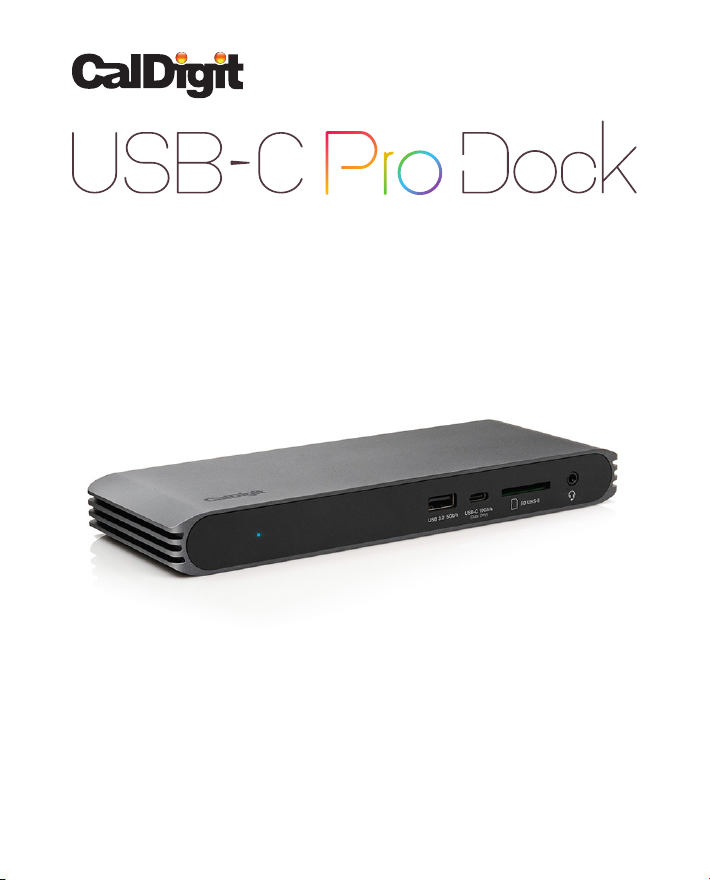
ThunderboltTM 3 & USB-C® Dock with Dual 4K Connectivity
USER GUIDE
For more information visit www.CalDigit.com
Page 2

Table of Contents
1. General Information
2. Laptop Compatibility
3. Using the USB-C Pro Dock
4. Interface Summary
5. iPad Pro
6. Specifications
7. Accessories
8. Technical Support &
Warranty Information
3
6
7
12
16
17
18
19
2
Page 3

1. General Information
Introduction
Eliminate the confusion surrounding the Type-C connector with a dock that
adapts to the interface it is connected to.
Thunderbolt™ 3 and USB-C share the same connector, and until now
Thunderbolt™ 3 devices have only worked on Thunderbolt™ 3 host laptops,
creating confusion for many users.
The USB-C Pro Dock breaks this mould by utilizing the latest ThunderboltTM
technology to adapt itself to your laptop. It is essentially a full ThunderboltTM 3
(40Gb/s) device that has the latest ThunderboltTM advancements in order to be
compatible with non-Thunderbolt 3TM laptops that feature USB-C.
Now everyone can benefit from a feature rich dock without compromising on
connectivity and compatibility.
3
Page 4

General Use Warnings
Please read the USB-C Pro Dock manual thoroughly and familiarize yourself with
•
the product before use.
Avoid using the USB-C Pro Dock in extremely hot and cold environments. A safe
•
temperature range is between 40°F – 95°F (4.4°C - 35°C).
Avoid using the USB-C Pro Dock in humid environments. Moisture and
•
condensation can accumulate in the device and cause damage to the electrical
components.
Only use the power adapter that has been supplied with the USB-C Pro Dock.
•
An excessive or inadequate power supply can result in unstable performance or
device failure.
Safety Warnings
Keep the USB-C Pro Dock away from liquids and moisture. Exposure to liquids can
•
result in damaging the unit, electric shock, and result in a fire hazard.
If your USB-C Pro Dock gets wet while it is still off, do not turn it on. In the case of
•
any issue with the device, do not attempt to repair or open the device yourself.
Doing so can result in personal injury, damage the device, and will void the
warranty. If you have any issues, please contact CalDigit Technical Support.
4
Page 5
System Requirements
System Requirements
USB-C computer
ThunderboltTM 3 computer
macOS 10.14.5 Mojave or later
Windows 10 or later
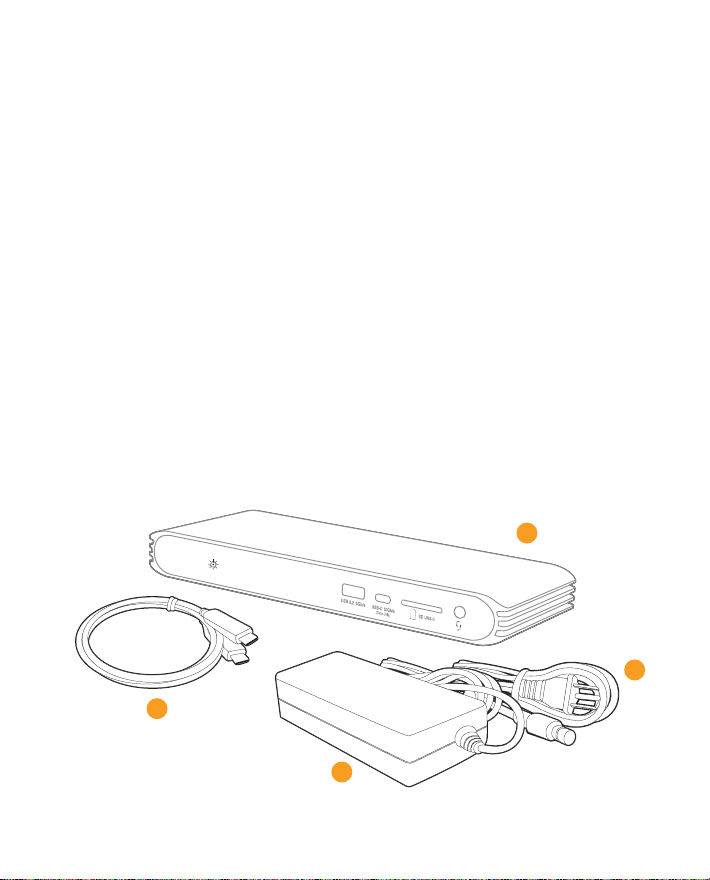
In the Box
• 1 x USB-C Pro Dock
A
• 1 x Power Supply
B
• 1 x Power Cord
C
(plug style may vary based on regional regulations and requirements.)
• 1 x Thunderbolt™ 3 Cable (0.7m)
D
A
C
D
B
5
Page 6

2. Laptop Compatibility
The USB-C Pro is intended for use with ThunderboltTM 3 (40Gb/s) and USB-C laptops.
In addition it can be used with USB-A (5Gb/s) laptops with reduced functionality.
Dual Displays
Single Display
USB Connectivity
SD Card Reader
Giagbit Ethernet
Audio
Laptop Charging
ThunderboltTM 3
(40Gb/s) Laptop
✓ ✓
✓ ✓
✓ ✓ ✓
✓ ✓ ✓
✓ ✓ ✓
✓ ✓ ✓
✓ ✓
USB-C Laptop USB-A (5Gb/s) Laptop
6
Page 7

3. Using the USB-C Pro Dock
Powering the
USB-C Pro Dock
The USB-C Pro Dock requires power from the AC adapter to operate.
1.
Connect the AC adapter connector to the DC jack on the back of the USB-C
Pro Dock and the other side to an AC outlet.
To power off the USB-C Pro Dock, disconnect the power cable from the AC
2.
outlet.
NOTE
Always use the supplied Thunderbolt™ 3 cable, a certified 40Gb/s Thunderbolt™ 3
cable or a USB-C cable that is 10Gb/s. If you’re using a Mac do not use the Mac’s USB-C
charging cable as this does not provide 10Gb/s performance.
7
Page 8

Connecting the USB-C Pro Dock to
your computer
Once the USB-C Pro Dock has been powered on, connect the device using
the supplied Thunderbolt™ 3 cable from the Thunderbolt™ 3 port labeled
“Computer” on the USB-C Pro Dock to a Thunderbolt™ 3 or USB-C port on
your computer. This single connection will now provide 85W charging for
your laptop in addition to expanding your connectivity options.
NOTE
If you are connecting the USB-C Pro Dock to a USB-A computer you will need a USB-C to
USB-A Cable sold separately.
8
Page 9

LED Indicator
The USB-C Pro Dock is equipped with an LED indicator, which will display a
BLUE light if the unit is powered on and connected to your computer.
NOTE
If you only connect the Power Adapter to the USB-C Dock without connecting the
Thunderbolt™ 3 cable to your laptop at the same time, the blue LED light will not turn
on. The LED will turn on once both the Power Adapter and Thunderbolt™ 3 cable are
connected at the same time.
CalDigit Docking Station
Utility
The CalDigit Docking Station Utility makes it incredibly easy to disconnect
all your USB storage devices from the USB-C Pro Dock without the need to
manually disconnect them one by one.
NOTE
The CalDigit Docking Station Utility Installer file needs to be downloaded and installed
on your Mac from the CalDigit website. Please go to downloads.caldigit.com/ to
download the Installer package.
9
Page 10

Disconnecting all
USB storage devices
Open the CalDigit Docking Station Utility on the top menu bar.
1.
Click the eject button on the USB-C Pro Dock image.
2.
Disconnecting individual
USB storage devices
Open the CalDigit Docking Station Utility on the top menu bar.
1.
Click on the specific USB device you would like to eject. Only that device
2.
will be ejected.
10
Page 11

Windows
ThunderboltTM
Authentication
The USB-C Pro Dock works right out of box with most of Windows
ThunderboltTM 3 computers, however, some of Window machines require you
to authorize the ThunderboltTM connection to the USB-C Pro Dock through
Intel’s ThunderboltTM 3 software when first connecting to it.
You may see a pop-up message from Windows when connecting to USB-C
Pro Dock or you can bring up Thunderbolt
select “Always Connect” from the list and click OK.
TM
software from system tray, then
11
Page 12

4. Interface Summary
Thunderbolt™ 3
The USB-C Pro Dock features a full speed 40Gb/s Thunderbolt™ 3 port.
This port is used to connect the USB-C Pro Dock to the computer.
It is compatible with Thunderbolt™ 3 and USB-C laptops.
DisplayPort
The dual DisplayPort 1.2 connectors offer a convenient way of adding dual
displays up to 4K 60Hz to your laptop. DisplayPort can be easily converted
to HDMI, mini DisplayPort, VGA, and DVI with the use of adapter cables or
adapters.
NOTE
The DisplayPort connectors on the USB-C Pro Dock are only compatible with “Active”
DisplayPort adapters. If you attempt to use a “Passive” adapter, your display will not
function correctly. If you are not sure which type you have, please check with your
adapter manufacturer to ensure that it is an “Active” adapter. Any display connected to
the DisplayPort will be regarded as a secondary display by default. This can be changed
on a Mac in the “Display” section under “System Preferences”.
12
Page 13

Supported Monitor Configurations
Dual Monitors
Dual 4K 60Hz
Dual 4K 30Hz
Single 4K 60Hz
Single 4K 30Hz
Dual HD
ThunderboltTM 3 Windows * &
MacBook Pro, MacBook Air
✓ ✓
✓
✓
✓
✓ ✓
✓ ✓
USB-C Windows & MacBook**
NOTE
* Some Windows ThunderboltTM 3 laptops only support one DisplayPort stream from
ThunderboltTM 3 port, as the result, such laptops can output up to a single 4K 60Hz
or dual 4K 30Hz monitors. Please verify the ThunderboltTM 3 port capability with your
Windows laptop provider.
** MacBook 12-inch models introduced in 2015, 2016 and 2017 have only one single
USB-C port. These USB-C MacBooks can only support dual monitors in mirrored mode.
Mirrored or Extended
The USB-C Pro Dock supports both mirrored and extended desktops when
using two displays, as long as your computer supports both options.
NOTE
The Apple MacBook (USB-C) does not support dual extended displays, only mirrored,
when used with a dock.
13
Page 14

USB-C (USB 3.2 Gen.2)
The front-facing USB-C port features 10Gb/s performance.
This port is ideal for fast storage devices.
USB-A (USB 3.2 Gen.1)
The front and rear USB-A ports support up to 5Gb/s performance and can be
used to connect various USB devices to your dock.
SD Card Reader
Supporting SD 4.0 UHS-II performance, the front SD Card Reader can be used
to quickly transfer files from your camera’s SD Cards.
Audio In/Out
The analog Audio In and Out port can be used to connect headphones and
microphones.
14
Page 15

Ethernet
The Ethernet port features Gigabit Ethernet speeds and is ideal for connecting
to your home or office’s wired Internet connection.
Laptop Charging
The USB-C Pro Dock supports up to 85W Laptop Charging for ThunderboltTM 3
(40Gb/s) and USB-C laptops.
NOTE
Some PC manufacturers have chosen to limit charging functionality from 3rd party
docking stations. Check with your PC manufacturer to see if they support charging from
3rd party docks.
Charging is not supported over USB-A (5Gb/s).
PC USERS: Make sure that your laptop’s BIOS and Thunderbolt™ drivers are up to date. If
you are experiencing any connectivity issues this can often be solved by updating your
PC.
15
Page 16

5. iPad Pro
As the USB-C Pro Dock is USB-C compatible, it will also work with the iPad Pro,
which features a USB-C port.
Connect a 4K monitor, external drives, Ethernet, speakers, mouse
(AssistiveTouch), keyboard, SD card reader, and even fast charge the iPad Pro,
all with one cable.
iPad Pro (USB-C)
4K Monitor
USB Drives
SD Card
Keyboard Support
Mouse Support
Gigabit Ethernet
Audio
Fast Charge
NOTE
External drives, devices, keyboard, mouse and SD card support are available in iPadOS.
The iPad Pro does not support external dual monitors.
✓
✓
✓
✓
✓
✓
✓
✓
16
Page 17

6. CalDigit USB-C Pro Dock
Specifications
Interface:
• 1 x Thunderbolt™ 3
(Compatible with USB-C Host)
• 2 x DisplayPort 1.2
• 3 x USB 3.2 Gen. 1 Type-A (5Gbps)
• 1 x USB 3.2 Gen. 2 Type-C (10Gbps)
• 1 x SD Card Reader (SD 4.0 UHS-II)
• 1 x Gigabit Ethernet
• 1 x 3.5mm Analog Audio In & Out
Power:
AC Input : 100V-240V ~50Hz/60Hz
DC Output: 19V/7.89A, 150W
System Requirements:
Thunderbolt™ 3 computer
USB-C computer
macOS 10.14.5 or later
Windows 10 or later
Environment:
Ambient Temperature:
32°F ~ 140°F (0°C ~ 60°C)
Size and Weight:
Height: 0.98in (25.0mm)
Width: 8.43in (214.0mm)
Depth: 3.15in (80.0mm)
Weight: 0.93lbs (0.42kg)
In The Box:
1 x USB-C Pro Dock
1 x Power Adapter
1 x Power Cord
1 x Thunderbolt™ 3 Cable
Warranty:
2 Year Limited Warranty
17
Page 18

7. CalDigit USB-C Pro Dock
Accessories
Thunderbolt™ 3 Cables
Thunderbolt™ 3 Cable 0.7m (40Gb/s)
•
Active ThunderboltTM 3 Cable 2m (40Gb/s. Only compatible with ThunderboltTM 3
•
computers NOT USB-C computers.)
USB-C Cable
CalDigit USB-C Cable 1m (10Gb/s)•
Power Supply
CalDigit USBC Pro Dock 150W AC Adapter PSU •
DisplayPort to HDMI Adapter
CalDigit “Active” DisplayPort to HDMI Adapter•
Please contact CalDigit or an authorized CalDigit reseller for availability and
pricing.
18
Page 19

8. Technical Support and
Warranty Information
Technical Support
If you run into any issues while using your USB-C Pro Dock, please contact
CalDigit Technical Support.
• Email (US): support@caldigit.com
• Email (UK/EU): eusupport@caldigit.com
• Phone (US): (714) 572-6668
• Phone (UK/EU): +44 (0) 1993 700 972
• Website: https://www.caldigit.com/support
When contacting CalDigit Technical Support, make sure to be at your computer
and have the following information available:
1. Your USB-C Pro Dock serial number
2. Operating system and version
3. Computer make and model
Warranty Information
• The USB-C Pro Dock is covered by a 2-year limited warranty.
Please visit www.caldigit.com for more information on all CalDigit products
Specifications and package contents are subject to change without notice.
USB Type-C®, USB-C® and USB4™ are trademarks of the Universal Serial Bus Implementers Forum (USB-IF).
Thunderbolt™ is a trademark of Intel Corporation. All product names are trademarks, registered trademarks,
or service marks of their respective owners.
19
 Loading...