

Page 1
Email: [email protected]
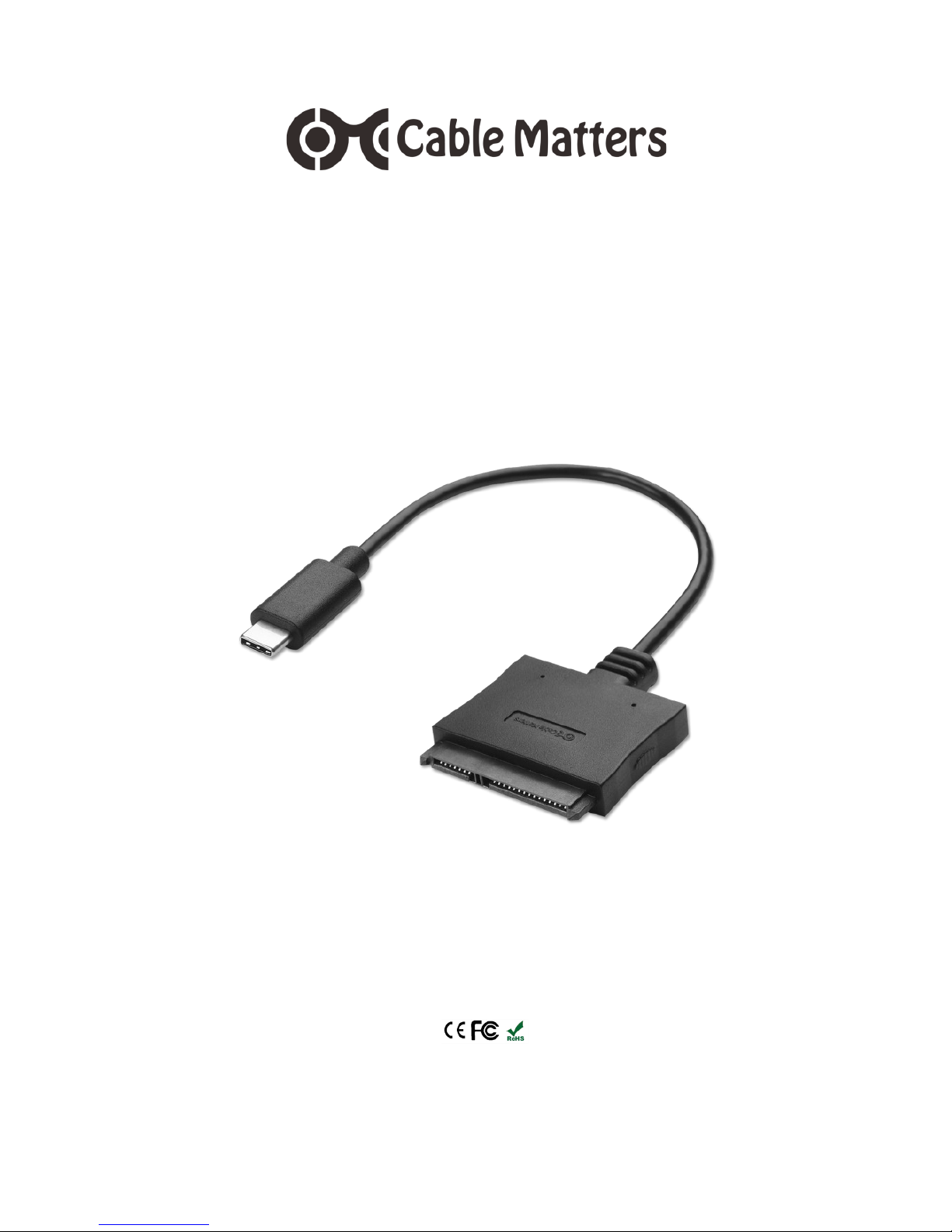
Type-C™ to SATA III
2.5” SDD/HDD Adapter
Model 202042
User Manual
(Available in a PDF file)
Page 2

Table of Contents
1. INTRODUCTION………………………………………….…...1
1.1 Introduction
1.2 Copyright and Trademarks
1.3 FCC Compliance Statement
2. PRODUCT OVERVIEW
2.1 Package Contents
2.2 Product Description………………………………………………...2
2.3 Product Features
2.4 System Requirements
3. CONNECTION INSTRUCTIONS…………………………………...3
3.1 Connecting the Cable Adapter
3.2 Disconnecting the Cable Adapter…………………...………...….4
3.3 Formatting an SSD in Windows OS
3.4 Formatting an SSD in MAC OS…………………………………...5
3.5 Troubleshooting Notes
4. TECHNICAL SPECIFICATIONS………………..…….…………....6
5. WARRANTY AND SUPPORT
5.1 Customer Support and Contact Information
5.2 Warranty Information
5.3 Limitations of Liability
TYPE-C to SATA SSD/HHD Adapter
Page 3

1
www.cablematters.com
TYPE-C to SATA SSD/HHD Adapter
1. Introduction
1.1 Introduction
Thank you for your purchase from Cable Matters® Inc., the ‘Reliable Connectivity’ company. This
User Manual provides an overview of the features and installation of your new
USB 3.1 GEN 1 Type-C™ to SATA 2.5” SSD/HDD Adapter
Please read these instructions carefully before connecting, operating or configuring this product.
Please keep this manual for future reference.
Contact [email protected] for questions or product support.
1.2 Copyright and Trademarks
Specifications are subject to change without notice. Cable Matters is a registered trademark or
trademark of Cable Matters Inc. All rights reserved. All other trademarks are the property of their
respective owners.
1.3 FCC Compliance Statement
This equipment has been tested and found to comply with the limits for a Class B digital device,
pursuant to Part 15 of the FCC Rules.
2. PRODUCT OVERVIEW
2.1 Package Contents
Please check that the following items are contained in the package:
1 x Type-C to SATA Cable Adapter
1 x User Manual
Page 4

2
www.cablematters.com
TYPE-C to SATA SSD/HHD Adapter
2.2 Product Description
The Cable Matters® Type-C to 2.5” SATA SSD/HDD Adapter is a
convenient way to connect a SATA I/III/III 2.5 inch SSD/HDD to a
computer with a USB-C port. Increase your file storage or transfer
data from another computer with this cable.
2.3 Product Features
Connect a SATA 2.5” SSD/HDD to a computer with a USB-C port
Portable adapter is easy to store or carry in a laptop sleeve
No tools, enclosures, or external drivers required
Back-up files, transfer data, or upgrade a laptop hard drive
No external power needed for most applications
2.4 System Requirements
Computer USB Type-C port for the adapter cable
Supported OS Windows, Mac, Chrome
SSD/HDD 2.5 inch SATA I/II/III up to 2TB
(3.5 inch drives are not supported)
Page 5
3
www.cablematters.com
TYPE-C to SATA SSD/HHD Adapter
3. CONNECTION AND OPERATION
3.1 Connecting the Cable Adapter
Note: Review the documentation of your SSD/HDD for proper handling of
the drive and formatting instructions
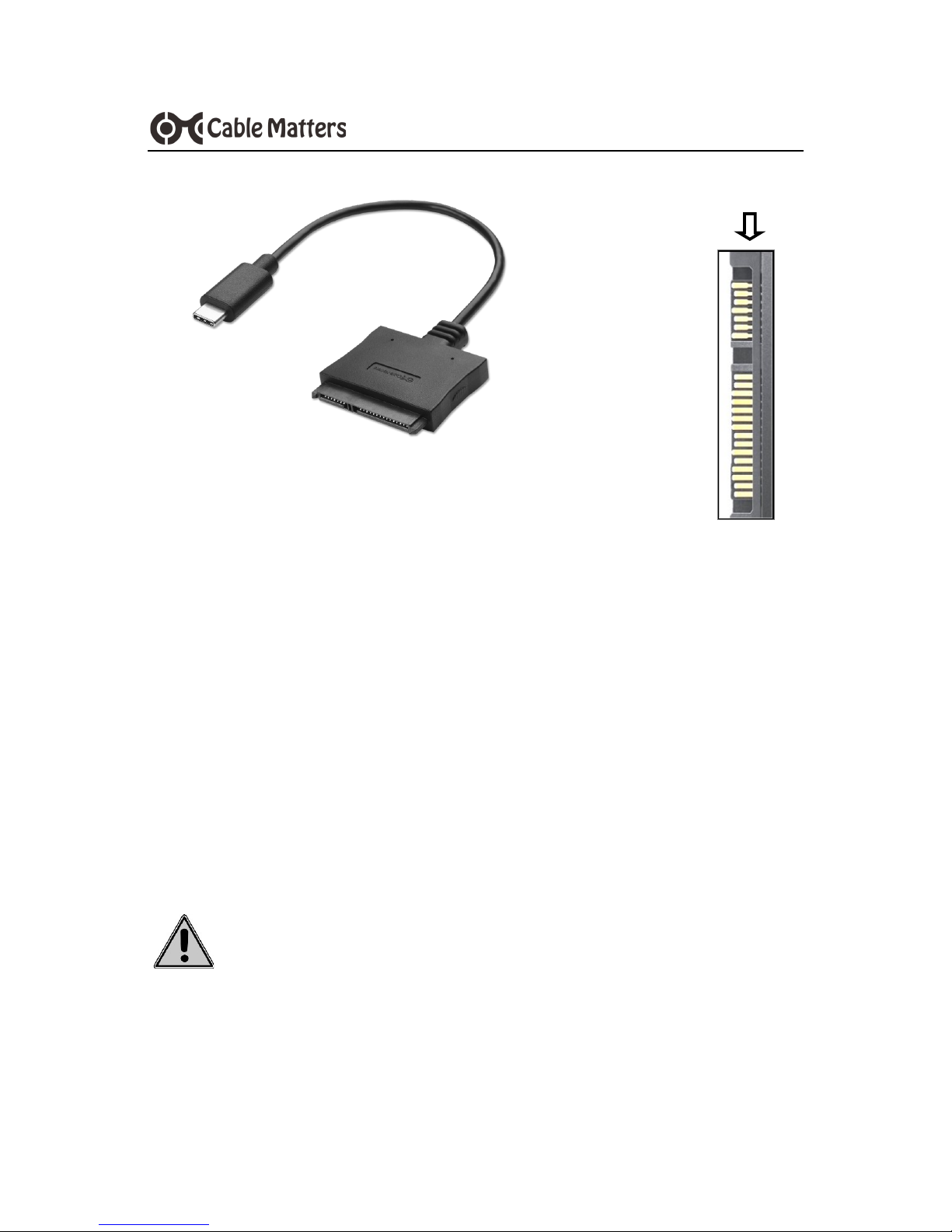
1. Connect the SSD to the SATA connector of the adapter with the Cable
Matters logo side facing up
2. Connect the USB connector to a USB-C port on the computer
3. Software drivers for the adapter will automatically load
4. Transfer files after the SSD has been formatted
5. Always safely eject the SSD drive before disconnecting the adapter
NOTE: A new SSD must be formatted before use. See below.
Moving the SSD while it is transferring files can cause damage
Contact [email protected] with a description of your
computer, SSD, and your questions
SATA 7 + 15 Pin
Connector
Page 6
4
www.cablematters.com
TYPE-C to SATA SSD/HHD Adapter
3.2 Disconnecting the Cable Adapter
1. Note: Always use the Safe To Remove hardware or Eject function
before unplugging the SSD from the computer to prevent drive damage
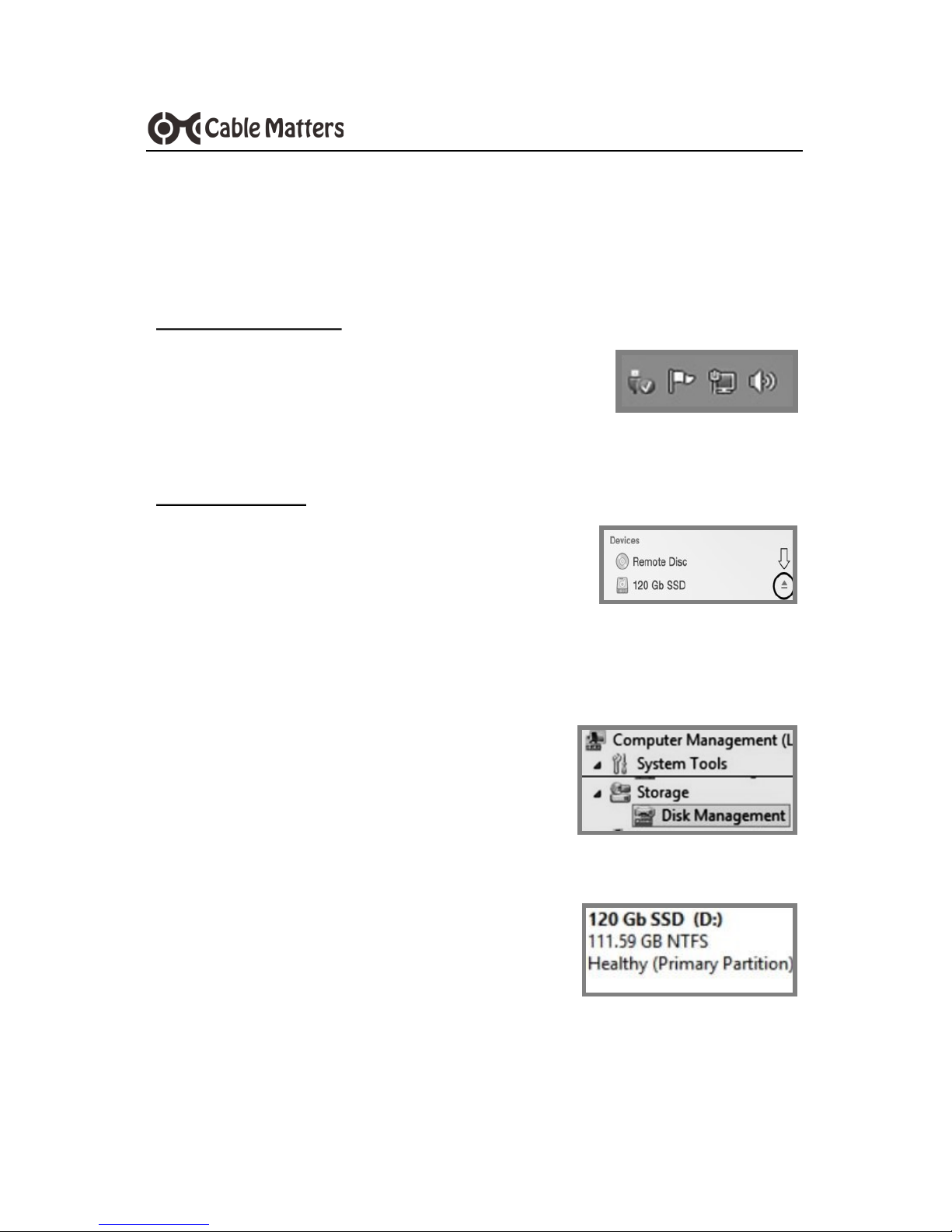
Windows OS removal
1. Right-click on the ‘Safely Remove Hardware and
Eject Media’ icon in the taskbar/notification area
2. Select the device with the SSD name
3. Wait for the notification to appear before disconnecting the cable
MAC OS removal
1. Locate the SSD name from the Finder Menu
and click on the Eject button
2. Wait 5 seconds before disconnecting the cable
3.3 Formatting an SSD/HDD in Windows OS
1. Locate the SSD from the Control Panel >
Administrative Tools > Computer Management > Disk Management
2. Right-click on the SSD to open the ‘New
Simple Volume Wizard’ to initialize and format the drive
3. The SSD should be listed as ‘Healthy’ in the
Disk Management window
4. Right-click on the drive to make additional
format changes
5. Use the Safe To Remove hardware function when finished
Page 7
5
www.cablematters.com
TYPE-C to SATA SSD/HHD Adapter
3.4 Formatting an SSD/HDD in Mac OS
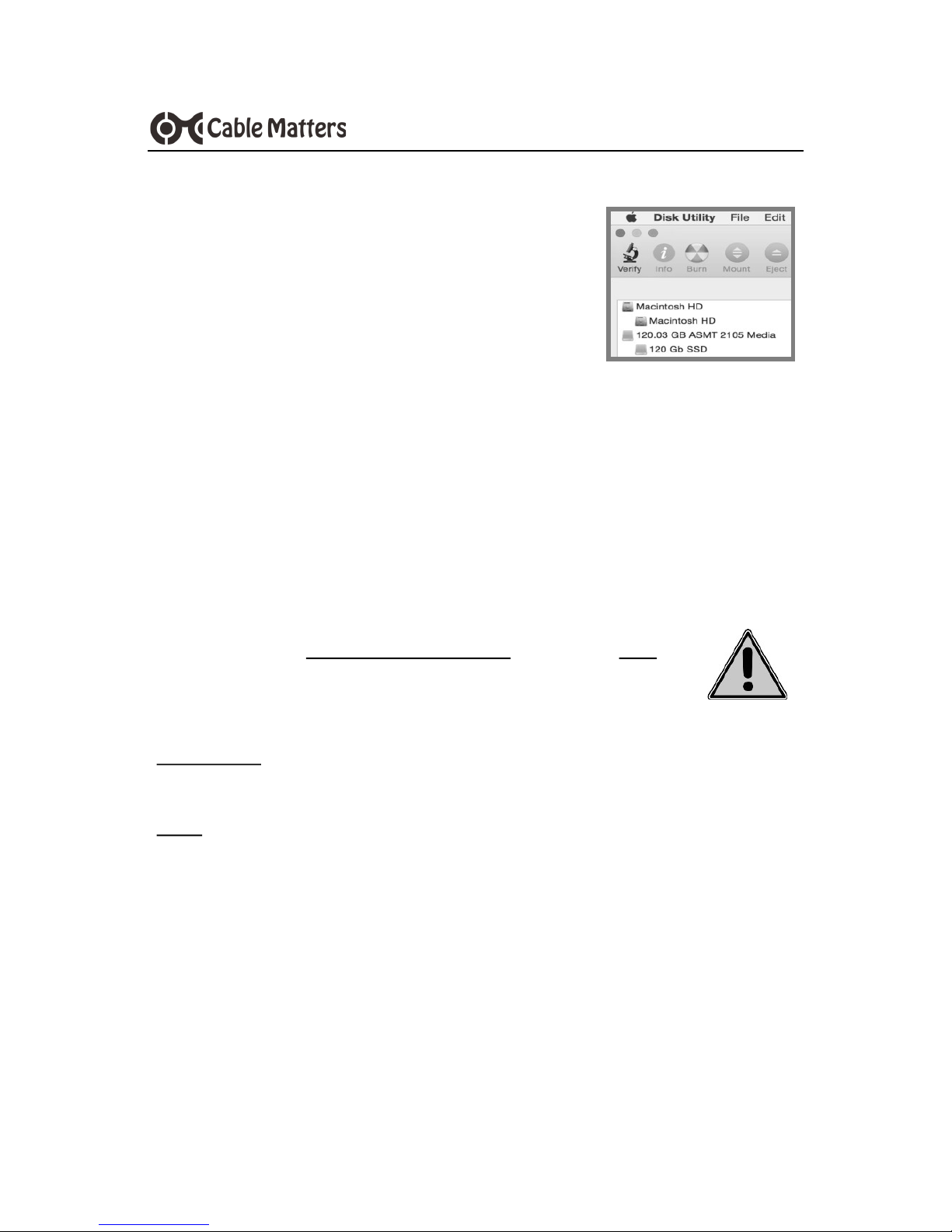
1. Open Disk Utility from the Finder > Go > Utilities
2. Click on the ‘Erase’ tab to format a new drive
3. Click on the Eject button when finished
3.5 Troubleshooting Notes
Review the documentation of your 2.5” SSD/HDD for proper handling of the drive,
formatting, cloning and other usage instructions
Verify that all cable and SSD connections are snug and secure
Check the Storage controllers and USB controllers under the Device Manager in
Windows. Right-click on any devices with errors and update the driver software
Always use the Safe To Remove Hardware (Windows) or Eject
(Mac) function before disconnecting the cable
Check that your computer recognizes the adapter:
WINDOWS: Control Panel > Storage controllers > Universal Serial
USB Attached SCSI (UAS) Mass Storage Device
MAC: Apple Menu > About this Mac > System Report > Hardware >
USB > USB 3.0 SuperSpeed Bus > ASM105x
Contact [email protected] with a description of
your computer, SSD, and your questions
Page 8

6
www.cablematters.com
TYPE-C to SATA SSD/HHD Adapter
4. TECHNICAL SPECIFICATIONS Model 202042
Adapter Connections 1 x USB 3.1 GEN 1 Type C male
1 x SATA (7+15 pin) receptacle
Adapter Length 10 Inches
Cable Tail Length 7 Inches
Hard Disk Drive Support: SATA I, II, III 2.5” SSD/HDD
Max Data Transfer Rate USB 3.1 GEN 1 5 Gbps
Chipset ASM105x
OS support Windows, Mac, Chrome
Warranty Limited One-Year
5. Warranty and Support
5.1 Customer Support and Contact Information
Cable Matters offers lifetime technical support as an integral part of our
commitment to provide industry leading solutions.
Email us with any questions at [email protected].
5.2 Warranty Information
This product is backed by a limited one-year warranty. The warranty covers
parts and labor costs only. Cable Matters does not warrant its products
from defects or damages arising from misuse, abuse, or normal wear.
5.3 Limitation of Liability
In no event shall Cable Matters Inc. (including their officers, directors,
employees or agents) be liable for any damages (whether direct or indirect,
special, punitive, incidental, consequential, or otherwise), loss of profits,
loss of business, or any pecuniary loss, arising out of, or related to the use
of this product exceeding the actual price paid for the product (as allowed
by state law).
 Loading...