

Page 1
Never disconnect any
USB device while data is
being transferred!
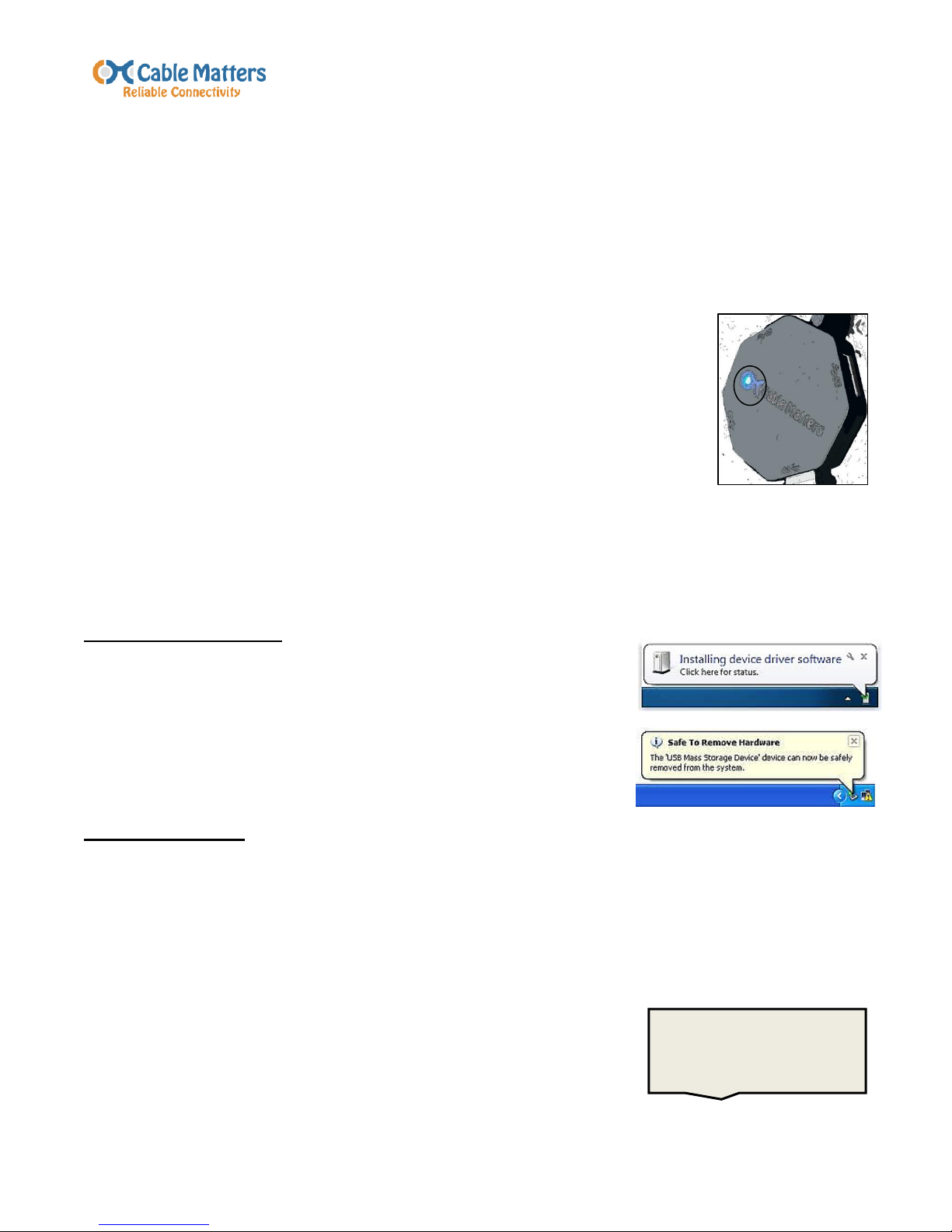
LED
Ultra-Mini 4-Port SuperSpeed USB 3.0 Hub
Quick Start Guide – Model 202045
Thank you for your purchase from Cable Matters Inc., the ‘Reliable Connectivity” company.
If you have any questions or comments, please send an email to:
This ultra-lightweight and portable hub transforms an existing USB port on
a computer or tablet into a hub that supports 4 USB peripherals
simultaneously. Plug & Play function requires no external power supply or
software drivers. The following Quick Start Guide is a resource for usage
and troubleshooting tips.
USAGE TIPS:
Your computer should instantly recognize the hub when it is connected to a USB port. The
blue LED should be lit indicating that is can receive power and communications.
Windows User Note:
Connect the USB hub and wait momentarily until the driver
software is automatically installed. The hub is now ready for use.
Always use the ‘Safely Remove Hardware and Eject Media’
when unplugging USB peripheral devices from the hub.
Important Notes:
This hub is not a stand-alone charger for charging devices like a tablet.
The power to all connected devices is limited by the host computer USB port. Devices such
as external hard drives may exceed that limit.
The SuperSpeed USB 3.0 data transfer speed is limited by the power rating of the host
computer USB port and any directly connected cables or extension cables.
Some 2.4 GHz wireless devices such as a keyboard or mouse may cause interference with
the hub. They should be connected to a different USB port.
The hub is backwards compatible with USB 1.1/2.0 devices.
Some USB 3.0 devices may require a direct connection (not
through the hub).
Page 2
QUICK START GUIDE
Model 202045
Always ‘Safely Eject’
mounted drives
before removing
TROUBLESHOOTING TIPS:
My computer does not recognize the hub?
Try a different USB port and check that the blue LED lights when connected.
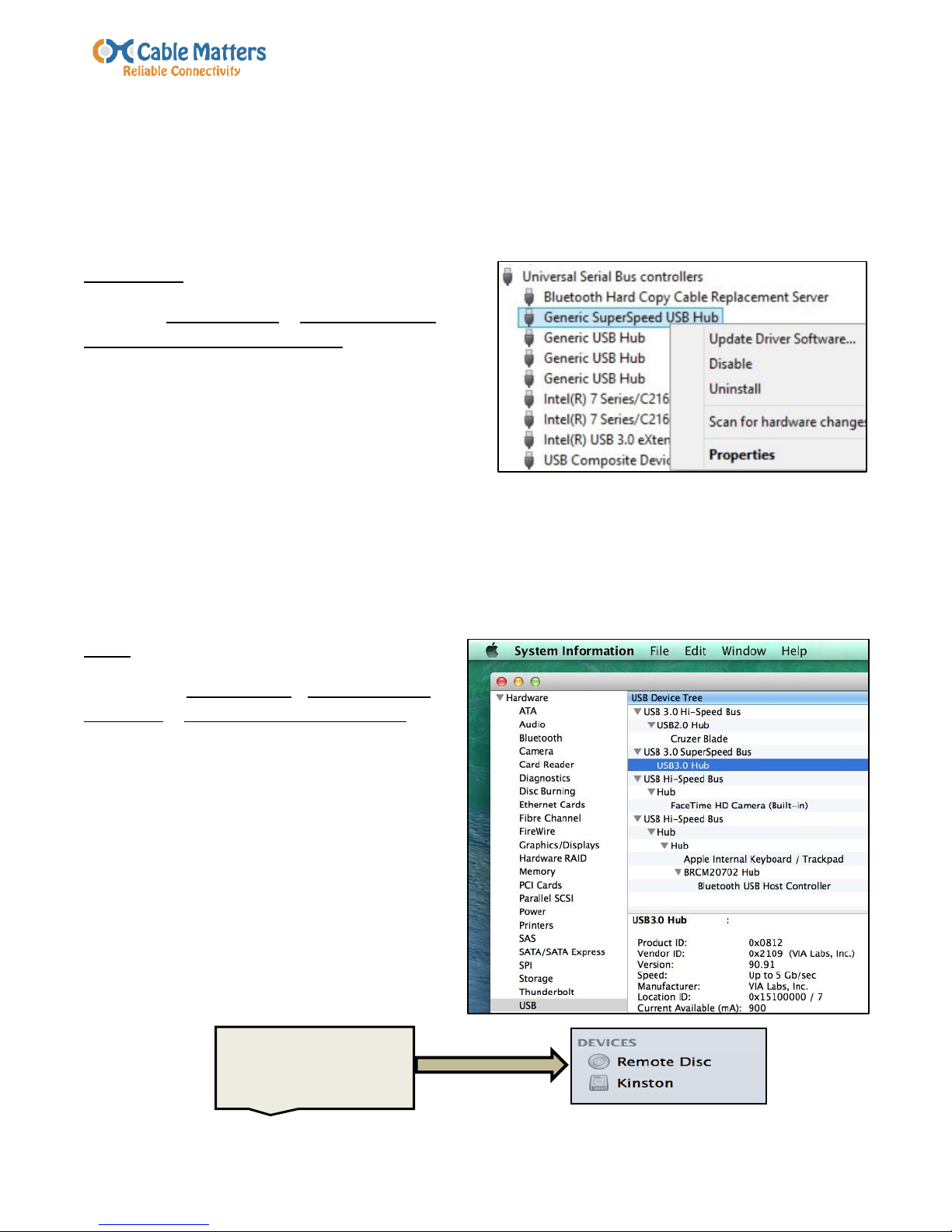
WINDOWS:
Open the Control Panel > Device Manager >
Universal Serial Bus controllers
Look for ‘Generic SuperSpeed USB Hub’
Note: ‘Generic USB Hub’ displays when
connected to a USB 2.0 port (It should be the
top Hub in the list)
Verify that the USB port is working with other devices
Right-click on ‘Properties’ to see if the hub is working properly. If not, try the next step.
Right-click on ‘Update Driver Software’. If new software is downloaded, reboot your
computer and try to re-install the hub.
Check the web site of the computer manufacturer for any updated drivers.
MAC:
Click on the Apple Menu > About this Mac >
More Info > System Information/Report
In the Hardware section of the System
Information, click USB and look for ‘USB 3.0
SuperSpeed Hub’
Note: ‘USB2.0 Hub’ displays when
connected to a USB 2.0 port
Check for any available updated USB
drivers for your compute.
Disconnect the hub, reboot the computer
and then reconnect the hub
2
Page 3

QUICK START GUIDE
Model 202045
Quick Start Guide PDF is
available for download at:
www.cablematters.com
My USB peripheral is not recognized?
Try a different USB port to verify that the device is working
Try a different USB cable when possible
Plug in each peripheral individually to verify that your computer port has sufficient power to
support all connected devices
If the peripheral has a power adapter try connecting it to power
Check the Properties of the hub in the Windows Control Panel
Pause for 10 seconds when plugging and unplugging to allow time for the computer to
recognize the device
Sync files with only one device at a time
The host computer may ‘sleep’ too quickly and disconnect the hub. Check the sleep
settings of the computer.
TECHNICAL SPECIFICATIONS:
Upstream Port: 1 x USB 3.0 Type A – Male
Downstream Ports: 4 x USB 3.0 Type A – Female
Hub Dimensions: 2 x 2 x 0.4 inches
Hub Weight: .95 ounces
Cable Length: 5 inches
OS Support: Windows, MAC, Linux
Max Power/USB 3.0 900mA
Max Power USB 2.0 500mA
LED: Blue LED power indicator
Compliance: FCC, C E
3
Page 4

QUICK START GUIDE
Model 202045
Customer Support and Contact Information
Cable Matters offers lifetime technical support as an integral part of our commitment to provide
industry leading solutions.
Email us with any questions at [email protected].
Warranty Information
This product is backed by a limited one-year warranty. In addition, Cable Matters warrants its
products against defects in materials and workmanship for the periods noted, following the
initial date of purchase. During this period, the products may be returned for repair, or replaced
with equivalent products at our discretion. The warranty covers parts and labor costs only.
Cable Matters does not warrant its products from defects or damages arising from misuse,
abuse, alteration, or normal wear and tear.
Limitation of Liability
In no event shall Cable Matters Inc. (including their officers, directors, employees or agents) be
liable for any damages (whether direct or indirect, special, punitive, incidental, consequential,
or otherwise), loss of profits, loss of business, or any pecuniary loss, arising out of, or related
to the use of this product exceeding the actual price paid for the product. Some states do not
allow the exclusion or limitation of incidental or consequential damages. If such laws apply, the
limitations or exclusions contained in this statement may not apply to you.
Cable Matters is a registered trademark or trademark of Cable Matters Inc.
All rights reserved.
This equipment has been tested and found to comply with the limits for a Class B digital device,
pursuant to Part 15 of the FCC Rules.
4
 Loading...