

Page 1
CE labs can support many areas of your audio and video
distribution needs.
We manufacture:
• Digital Signage software and Media Players
• HD Matrix Switchers
• RF amplifiers
• HDMI and Component HD distribution amplifiers
• CAT 5 Signal Extenders
• VGA Extenders and Splitters
• and cables of all types.
See our full product line at
www.celabs.net
WARRANTY
Cable Electronics, Inc. warrants this product to be free from defects in
material and workmanship, under normal use and service, for a period of
one year from the purchase by the original purchaser. If this product is
defective or malfunctions, Cable Electronics will replace or repair this unit
(at their option) within a reasonable time. No expressed or implied warranty
is made for any defects caused by immersion or exposure to liquids, abuse,
neglect, improper operation of unit, excess wear and tear and defects
resulting from unauthorized disassembly and or modification.
INSTRUCTION MANUAL
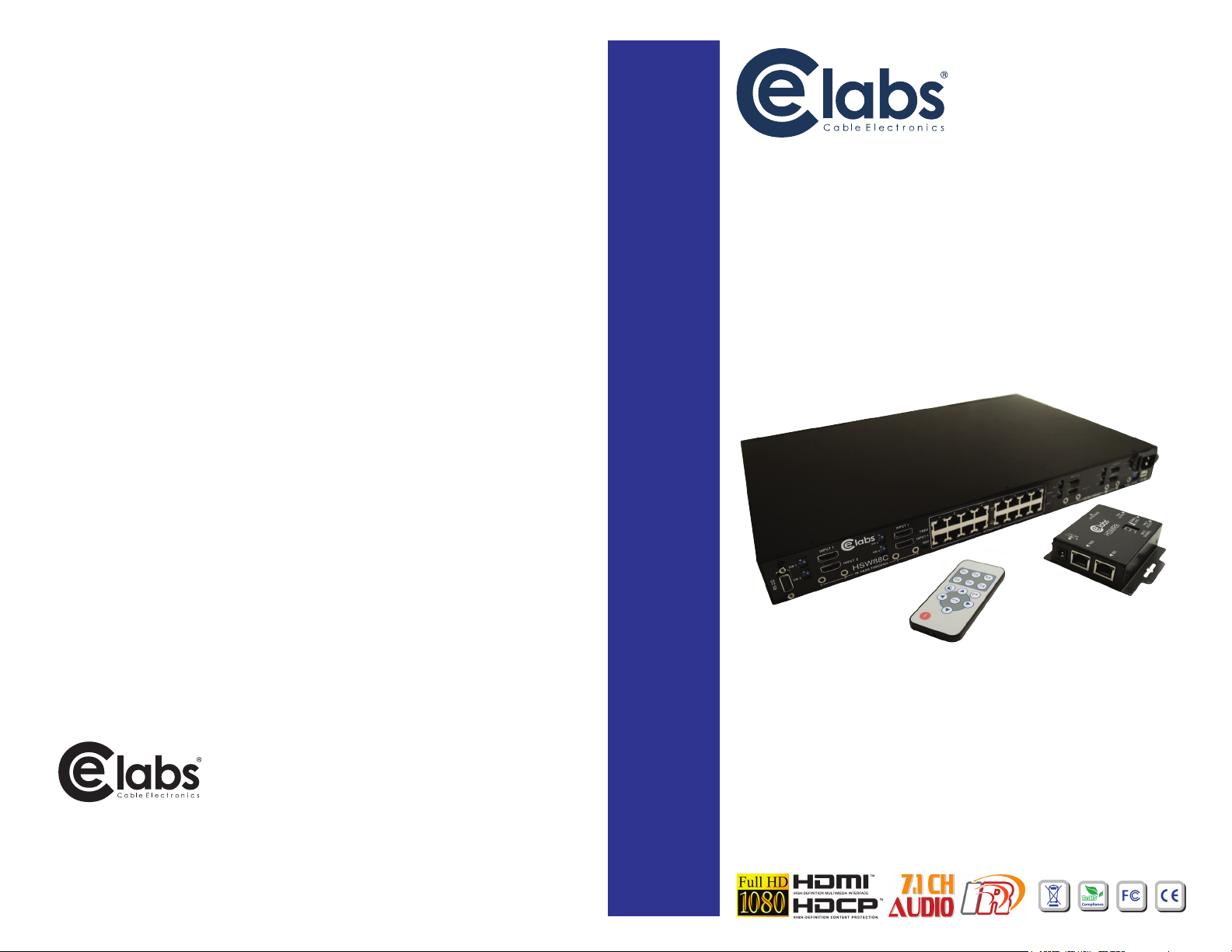
HSW88C
8x8 HDMI over CAT5 Matrix
with IR Pass-through
3209 Wood Drive
Garland, TX 75041
Phone: (469) 429-9200
Toll free: (800) 767-6189
Fax: (469) 429-9205
www.celabs.net
Document: HSW88C_manual.pdf
Page 2
SAFETEY NOTICE
NOTICE
The HSW88C v1.3 8x8 HDMI over CAT5 Matrix with IR
Pass-through has been tested for conformance to safety
regulations and requirements, and has been certified for
international use. However, like all electronic equipment,
the HSW88C should be used with care. Please read and
follow the safety instructions to protect yourself from possible
injury and to minimize the risk of damage to the unit.
• Follow all instructions and warnings marked on this unit.
• Do not attempt to service this unit yourself, except where
explained in this manual.
• Provide proper ventilation and air circulation and do not
use near water.
• Keep objects that might damage the device and assure
that the placement of this unit is on a stable surface.
• Use only the power adapter and power cords and
connection cables designed for this unit.
• Do not use liquid or aerosol cleaners to clean this unit.
Always unplug the power to the device before cleaning.
1. If the DVI or HDMI device requires the EDID information, please use
EDID Reader/Writer to retrieve and provide DVI/HDMI EDID information.
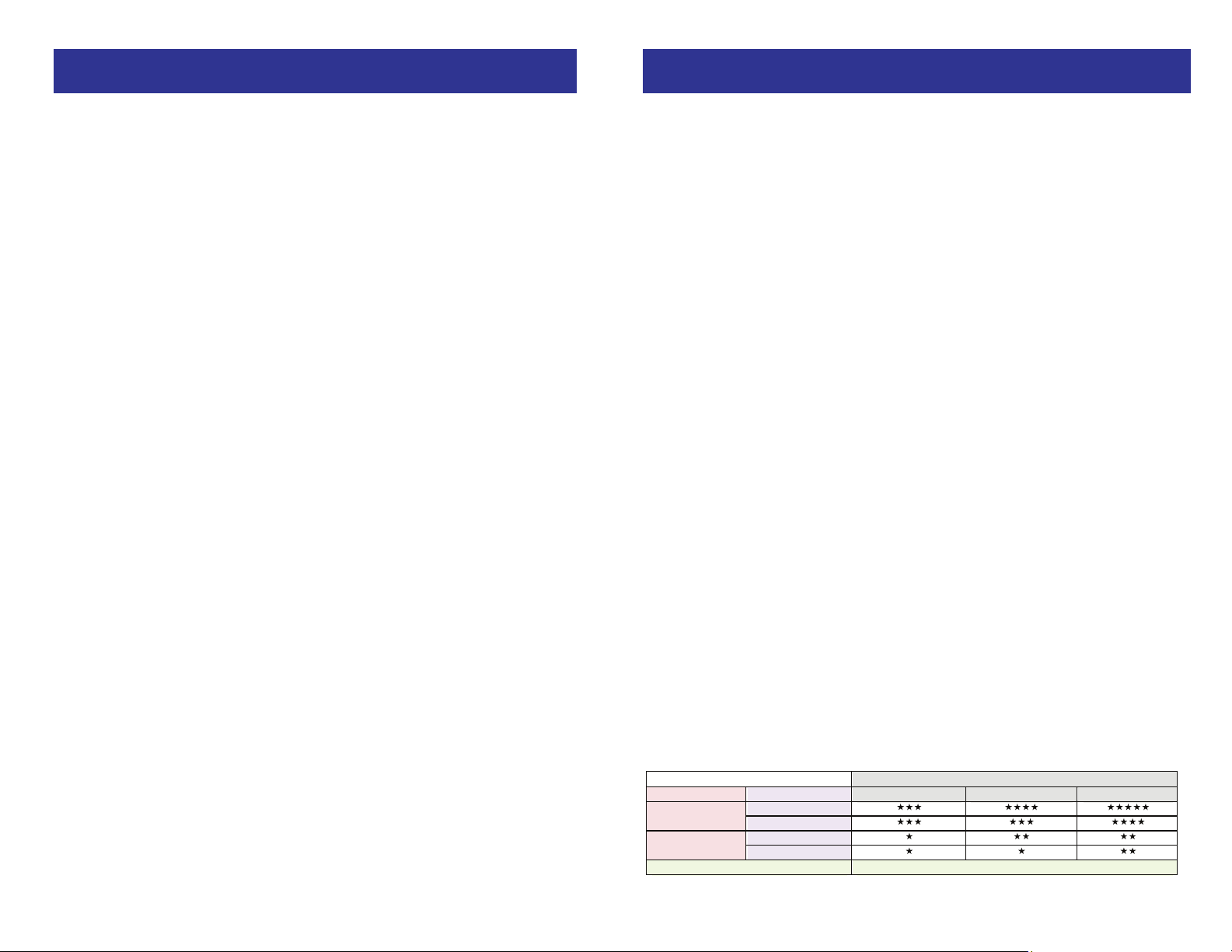
2. All HDMI over CAT5 transmission distances are measured using Belden
1583A CAT5e 125MHz LAN cable and ASTRODESIGN Video Signal
Generator VG-859C.
3. The transmission length is largely affected by the type of LAN cables,
the type of HDMI sources, and the type of HDMI display. The testing
result shows solid LAN cables (usually in bulk cable 300m/1000ft form)
can transmit a lot longer signals than stranded LAN cables (usually in
patch cord form). Shielded STP cables are better suit than unshielded
UTP cables. A solid UTP CAT5e cable shows longer transmission length
than stranded STP CAT6 cable. For long extension users, solid LAN
cables are your only choice.
4. EIA/TIA-568-B termination (T568B) for LAN cables is recommended for
better performance.
5. To reduce the interference among the unshielded twisted pairs of wires
in LAN cable, you can use shielded LAN cables to reduce EMI problems,
which is worsen in long transmission.
6. Because the quality of the LAN cables has major effects in transmission
distance, always use high quality cables. For resolution greater than 1080i
or 1280x1024, a CAT6 solid wire cable is recommended.
7. If your HDMI display has multiple HDMI inputs, it is found that the first
HDMI input [HDMI input #1] generally can produce better transmission
performance among all HDMI inputs.
8. The HSMR has been tested extensively and found that it doesn’t
require external power supply. If in rare situation you find it cannot work
with the HSW88C, please use a +5V power adapter to plug in the
power jack and try again. If not, please contact your technical
support for further service.
9. Additional IR remote controls and IR blaster cables can be purchased
as optional accessories to control the HDMI sources located separately.
At: CE labs, 3209 Wood Dr., Garland, TX 75041, www.celabs.net
Phone: (469) 429-9200 | Toll free: (800) 767-6289 | Fax: (469) 429-9205
Performance Guide for HDMI over LAN Cable Transmission
Performance rating Type of LAN cable
Wiring Shielding CAT5 CAT5e CAT6
Solid
Stranded
Unshielded (UTP)
Shielded (STP)
Unshielded (UTP)
Shielded (STP)
Termination Please use EIA/TIA-568-B termination (T568B) at any time
Page 3
7. Output Port:
Pull down menu and select which source to be sent to this
output port.
One by one setting
On main menu screen.
First select input source. Then select the output
ports which you want to send the video and audio
from this source. When you select the input source,
the source will change to gray. When you select
the output port one by one, the selected output port
will change to gray.
The linking line will change to yellow.
Group setting
First select output ports one by one. Then select the input source.
The selected output ports change the setting at the same time.
Terminal Settings:
Baud rate: 9600
Data length: 8bit
Parity check: No
Stop bit: 1
Command Set:
INTRODUCTION
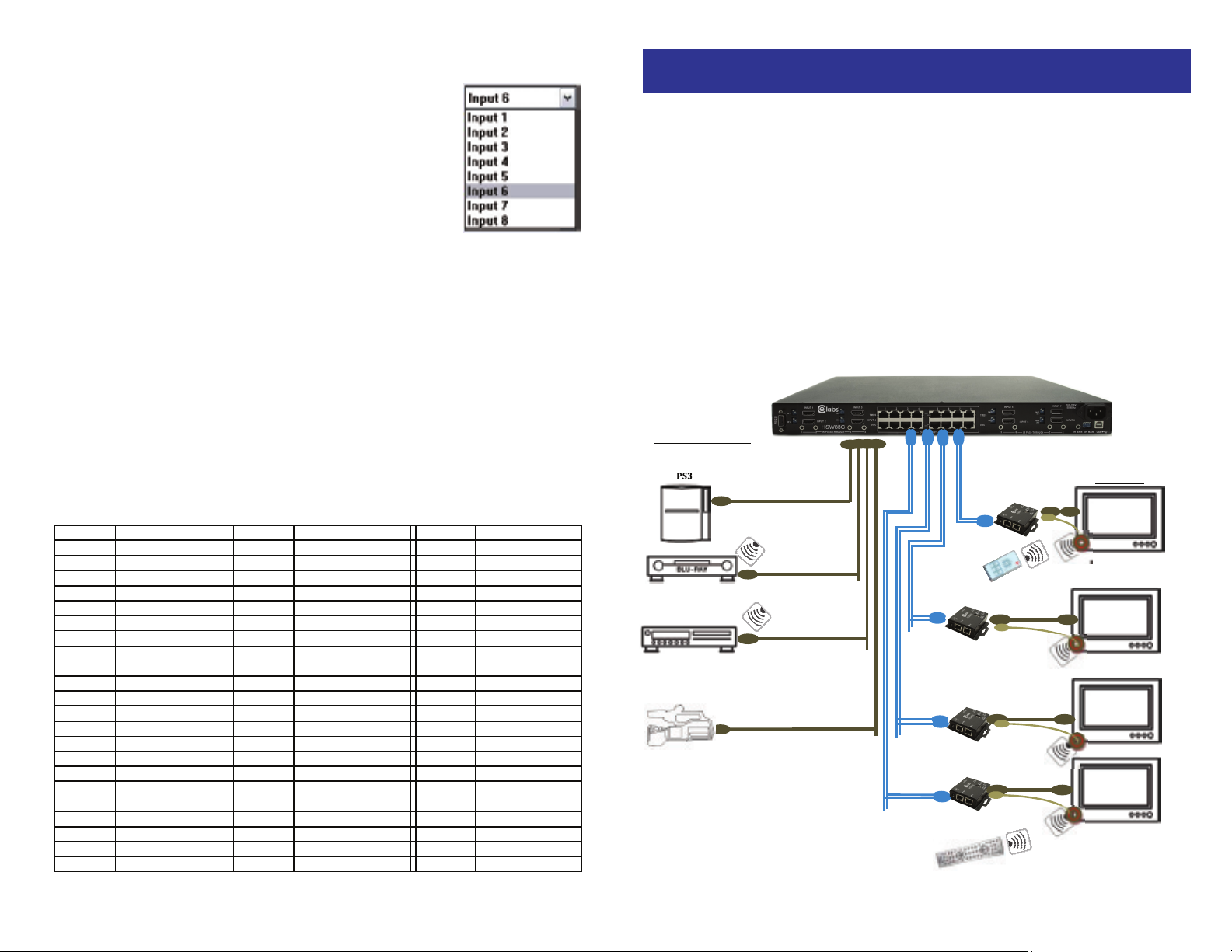
The HSW88C 8x8 HDMI over CAT5 Matrix Switch with IR Pass-through
provides the most flexible and cost effective solution in the market to
route high definition video sources plus multi-channel (up to 7.1-channel)
digital audio from any of the eight HDMI source devices to the remote
displays at the same time. Through low cost Cat-5/5e/6 LAN cables, not
only high quality video and audio can be transmitted to the display sites,
but also users can switch among eight HDMI sources using the push
button on the receiver or remote control. With single power design at
the source site, each remote module is easily installed without power
supply. Furthermore, the built-in IR extension allows users to control the
HDMI source devices such as the Blu-ray Disc player or satellite receiver
at display site!
8x HDMI Source
2x CAT5e
8x HDTV
HDMI cable
HSMR
COMMAND ACTION
ST System Status*
VR Firmware Version
A1 Output A select Input1 C7 Output C select Input7
A2 Output A select Input2 C8 Output C select Input8
A3
Output A select Input3
A4 Output A select Input4 D2 Output D select Input2
A5
Output A select Input5
A6 Output A select Input6 D4 Output D select Input4
A7 Output A select Input7 D5 Output D select Input5
A8 Output A select Input8 D6 Output D select Input6
B1 Output B select Input1
B2 Output B select Input2
B3 Output B select Input3
B4 Output B select Input4
B5 Output B select Input5
B6 Output B select Input6
B7 Output B select Input7
B8 Output B select Input8
C1 Output C select Input1
C2 Output C select Input2
C3 Output C select Input3
C4 Output C select Input4
COMMAND
C5 Output C select Input5
C6 Output C select Input6
D1 Output D select Input1
D3 Output D select Input3
D7 Output D select Input7
D8 Output D select Input8
E1 Output E select Input1
E2 Output E select Input2
E3 Output E select Input3
E4 Output E select Input4
E5 Output E select Input5
E6 Output E select Input6
E7 Output E select Input7
E8 Output E select Input8
F1 Output F select Input1
F2 Output F select Input2
ACTION
COMMAND ACTION
F3 Output F select Input3
F4 Output F select Input4
F5 Output F select Input5
F6 Output F select Input6
F7 Output F select Input7
F8 Output F select Input8
G1
G2
G3
G4
G5
G6
G7
G8
H1
H2
H3
H4
H5
H6
H7
H8
Output G select
Output G select
Output G select
Output G select
Output G select
Output G select
Output G select
Output G select
Output H select
Output H select
Output H select
Output H select
Output H select
Output H select
Output H select
Output H select
Blu-ray Disc Player
TiVo
HDMI Camera
Source device’s
remote control
Matrix’s
remote
HSMR
HSMR
HSMR
IR receiver
IR receiver
IR receiver
IR receiver
Page 4

FEATURES
• State-of-the-art Silicon Image (Founder of HDMI) chipset embedded
for upmost compatibility and reliability
• HDMI 1.3c compliant
• HDCP compliant
• Allows any source to be displayed on multiple displays at the same time
• Allows any HDMI display to view any HDMI source at any time
• Supports 7.1 channel digital audio
• Supports default HDMI EDID and learns the EDID of displays
• The matrix switch master can switch every output channel to any
HDMI input by push button, IR remote control, USB port or RS-232 control
• Allows control of local HDMI sources such as DVD and TiVo® by IR
extender through control path at remote receiver
2. Setting button:
Press Get button to read back device ID.
Press Set button to write device ID.
3. Linkage button:
Press Linkage button to read back all status.
4. Open/Close button:
Press this button to close or open COM port.
5. Mapping button:
Select All Output:
Select “set all output”, then select the
source on main menu. You can quickly set
all outputs to the same source.
Unselect All Output:
Release output selection.
Select Input1~8-Output:
Select Input Source. Then select the
output port icon.
• Allows control of main matrix switch through control line at remote
receiver
• Extends video signal up to 35m (115 feet) over CAT5e at 1080p and
likely longer with better HDMI source device (such as PS3®), better
grade HDMI display (such as Sony X-series HDTV®), and better quality
solid CAT6 cable
• Easy installation with rack-mounting and wall-mounting designs for
master and receiver respectively
• Fast response time – 2~5 seconds for channel switch
The length depends on the characteristics and quality of the
cables. Higher resolutions and longer transmission distances
require low skew cables (<25ns/100m) for best performance.
Unshielded CAT6 with metal RJ-45 connectors is recommended
TiVo is a registered trademark of TiVo Inc.
PS3 is a registered trademark of Sony Computer Entertainment.
Sony X-series HDTV is a registered trademark of Sony Electronics Inc.
For example:
Select input source 1. Then select output
port one and two. The video and audio
will be send to ports one and two.
6. Fast Select button:
Press Fast select button. Quick setting.
Input one > Output Port one
Input two >Output Port two
…..
Press Fast select pull down menu.
Select Input Num-Output Num
Input source #1 > Output port #1
Input source #2 > Output port #2
…..
Select Input* - All Output
Send the same source to all outputs.
Page 5

Method C: Software Control Through RS-232 or USB
Source indicator
Output port
Status Indicator
Software Control Menu
Input &
1. Scan button:
Serial Port Scan:
Press Scan button, the computer will scan the all com port
and display them.
Select the RS232 serial port connected to the Matrix switch.
And set device ID 255 is for all device.
Only the same device id or 255 can get the command you send.
Press OK. Get the new status from the Matrix switch (the port
you select.)
SPECIFICATIONS & PACKAGE CONTENTS
Model Name HSW88C v1.3
Technical HSW88C HSMR
Role of usage
HDMI compliance HDMI 1.3c
Video bandwidth
Audio support Surround sound (up to 7.1ch) or stereo digital audio
HDMI over CAT5
transmission range
HDMI equalization N/A 8-level digital rotary control
ESD protection
PCB stack-up
Input
Output
HDMI Input selection
HDMI source control
IR remote control
RJ-45 connector WE/SS 8P8C with 2 LED indicators [TMDS & DDC channels]
USB connector
3.5mm connector
DIP switch [HSW88C]
3
[1] Human body model — ±15kV [air-gap discharge] & ±8kV
[contact discharge]
[2] Core chipset — ±8kV
Controllable via IR pass-through from IR receiver at RX to IR blaster
Electro-optical characteristics:
Earphone jack for IR blaster
[IR Main] IR control on all source
devices
[IR PASS-THROUGH1~8] IR control on
individual source device
[SW1~SW8] 2-pin for EDID & audio mode
[SW Main] 4-pin for operation & firmware update
8x8 true matrix
Transmitter [TX]
seY ecnailpmoc PCDH
[HSW88C v1.3] – Single-link 225MHz [6.75Gpbs]
Full HD (1080p) – 115ft (35m) [CAT5e] / 130ft (40m) [CAT6]
HD (720p/1080i) –165ft [CAT5e] / 180ft [CAT6]
4-layer board [impendence control — differential 100
50
]
8x HDMI
1x RS-232
1xUSB
8x RJ-45 [TMDS]
8x RJ-45 [DDC]
9x IR socket for IR blaster
Push button / IR remote control /
RS-232/USB
at TX
= 25° / Carrier frequency: 38kHz
Earphone jack for IR receiver
[IR RECEIVER] Receives IR commands
from remote control
Receiver [RX]
0Hz6p0801 / i0801 / p027 / p084 / i084 troppus oediV
]kaep-ot-kaep[ stloV 2.1 langis SDMT
]LTT ,kaep-ot-kaep[ stloV 5 langis CDD
; single
1x RJ-45 [TMDS]
1x RJ-45 [DDC]
1x IR socket for IR receiver
1x HDMI
Push button / IR remote
control
]elamef nip-91[ A epyT rotcennoc IMDH
]elamef bus-D nip-9[ 9-ED rotcennoc 232-SR
]epahs erauqs[ B-epyt dradnatS
Page 6

Mechanical HSW88C HSMR
Dimensions
(L x W x H)
Weight
Mounting 1U rack-mount with ears Wall-mount with screws
Power supply AC Power 100-240V Not necessarily required
Power consumption 60 Watts [max]
Operation
temperature
Storage temperature
Package Contents
Model
Package
Model 3250g [7.2 lbs] 180g [6.3oz]
Package 7.1 kg [15.6 lbs]
440 x 290 x 44mm [1’5” x 11.4” x
528 x 398 x 130mm [1’9” x 1’4” x
1x HSW88C (matrix switch)
1x IR blaster
2x 1U rack mounting-ear
1x IR remote controller
1x User Manual
1.7”]
5.1”]
0~40°C [32~104°F]
-20~60°C [-4~140°F]
2
2
esac lateM erusolcnE
85 x 90 x 25mm [3.3” x 3.5” x 1”]
90 x 85 x 25mm [3.5” x 3.3” x 1”]
1.5 Watt [max] (provided by
MA-5188)
]noitasnednoc on[ HR %09~02 ytidimuh evitaleR
8x HSMR (HDMI receiver)
8x IR receiver
16x Wall-mounting screws
1x UL AC power cord
DISPLAY SIDE
Method A: Push button for switching input channels
]”5’1 x ”01’1 x ”11[ mm024 x 055 x 082 notraC
1
Press the INPUT SELECT push button to switch the input source on the
respective output port connected to the matrix receiver in sequential
order. The selected input source will be displayed on the LED of INPUT
CHANNEL.
Method B1: IR remote control for switching input channels
Please press F1 to F6, Enter ( ) , and Exit ( ) button to enter IR control
mode and decide which input channel to be selected by pressing F1
to F6, Enter ( ) , and Exit ( ) button, and wait a few seconds for the
input channel LED display to show the number of selected input source
channel. Or you can use up ( ) and down ( ) button to enter IR control
mode and select the input channel in ascending and descending order
respectively.
Note:
1. The HSMR has been tested extensively and found that
it doesn’t require external power supply. If in rare situation
you find it cannot work with the HSW88C, please use any
+5V power adapter to plug in the power jack and see if it
can work. If not, please contact your technical support for
further service.
2. Additional IR remote control and IR blaster cable can be
purchased as optional accessories to control the HDMI
sources located separately.
3. USB or RS-232 control must be connected either one at a
time. Connecting both types of cables may cause
command confusion.
F1
F2 HDMI input source #2
F3 HDMI input source #3
F4 HDMI input source #4
F5 HDMI input source #5
F6 HDMI input source #6
Enter ( ) HDMI input source #7
Exit ( ) HDMI input source #8
Up ( ) Switch source in ascending order
Down ( )
HDMI input source #1
Switch source in descending
order
> If HSMR receives the IR command, the LED will flash.
If not, try it again.
Method B2:
Users can use the corresponding IR remote to control the HDMI
source
IR remote control for controlling the HDMI sources
Page 7

CHANNEL CONTROL
SOURCE SIDE
Method A: Push Button
1. Use the switch button on output port to select which port to be
changed.
(+) increase (–) decrease
2. Push the switch button on Input channel. The source will be
sequentially changed. After few seconds, the setting will be active.
PANEL DESCRIPTIONS
Method B: IR Remote Control
a. Please press F1 to F8 Enter IR control mode and decide which output
port to be controlled (see the table below), and wait a few seconds for
the output port seven segment display to show the number of selected
output port. Or you can use up ( ) and down ( ) button to enter IR
control mode and select the output port in ascending and descending
order respectively.
Note:
F1 HDMI output port #1
F2 HDMI output port #2
F3 HDMI output port #3
F4 HDMI output port #4
F5 HDMI output port #5
F6 HDMI output port #6
Enter ( ) HDMI output port #7
Exit ( ) HDMI output port #8
Up ( )
Down ( )
b. Use left ( ) or right ( ) button to select input source as indicated
by the seven segment display on the front panel for the input
channel. The setting will be active once the channel switch
command is set after a couple seconds.
Note:
Right ( ) button to switch input source in ascending order
(1, 2, 3, 4, 5, 6, 7, 8, 1, ...)
Left ( ) button to switch input source in descending order
(1, 8, 7, 6, 5, 4, 3, 2, 1, …)
Switch output port in ascending
order
Switch output port in descending
1 2 3 4
1. Power: Power control
2. Seven Segment LED Indicators: Control display
3. Front panel push buttons: Used to input source and display channel
number
4. IR: IR receiver
6 9 1 9 12 13 8 79 9 111
5. AC Power: 100-240V
6. RS-232: RS-232 control port
7. USB: USB control port
8. SW Main: DIP switches (see DIP Switch section in p.8)
9. SW 1–8: DIP switch (see DIP Switch section in p.8)
10. INPUT 1 –8: HDMI inputs
11. IR PASS-THROUGH 1–8: 3.5mm IR blaster socket for individual HDMI
source control
12. OUPUT PORT 1–8: RJ-45 outputs for each output channel
13. IR Main: 3.5mm IR blaster socket for HDMI source control on all 8
inputs [default socket for IR blaster]
Page 8

HARDWARE INSTALLATION
HSW88C as Master
1. Connect all sources to HDMI Inputs on the 8x8 HDMI over
CAT5 matrix master HSW88C
1 2 3 4
8
7
6
5
1.+5V DC: Spare power jack for over 60m transmission when
the RX may need external power to work*.
2. TMDS: Plug in the CAT5 connected to the respective
A/V SIGNAL port on the HSW88C
3. DDC: Plug in the CAT5 connected to the respective DDC
port on the HSW88C
4. INPUT CHANNEL: Display the current selected HDMI source
channel
5. INPUT SELECT: Push button for switching input source
channel in sequential order
6. Signal Level 0-7: Adjust the 8-level equalization control for
HDMI signals. 0 – 7 = strongest to weakest. It is
recommended to switch from 7 to 0 to find the optimal
visual experience.
7. HDMI Output: Connect to HDTV with a HDMI cable
8. IR RECEIVER: Plug in IR receiver
2. Connect each DDC output port on the HSW88C to respective
DDC port on the remote receiver HSMR
3. Connect each TMDS output port on the HSW88C to respective
TMDS input on the remote receiver HSMR
4. Connect IR blaster to the IR MAIN jack of HSW88C and direct
the IR blaster to the built-in IR receiver of the sources
5. Connect the +5V 6A DC power supply to the HSW88C
6. Power on all HDMI sources
7. Power on the HSW88C
HSMR as receiver
1. Connect each HDMI output to HDMI displays
2. Connect each DDC output port on the HSW88C to respective
DDC port on the remote receiver HSMR
3. Connect each TMDS output port on the HSW88C to
respective TMDS input on the remote receiver HSMR
4. Connect IR receiver and place the IR receiver at the
appropriate position that can receive the IR command
signals sent from the users
5. Dial the 8-level rotary control switch to adjust the HDMI signal
level until the picture and sound are clear
The HSMR has been tested extensively and found that
it doesn’t require external power supply. If in rare situation
you find it cannot work with the HSW88C, please use any
+5V power adapter to plug in the power jack and see if it
can work. If not, please contact your technical support for
further service.
Page 9

Definition of IR Earphone Jack
DIP SWITCH
1 = IR signal (38KHz)
2 = Grounding
The IR extension cables are standard market configuration.
You can buy From CE labs if necessary for replacement use.
Supported IR Data Format
Data Format Suitable Not
NEC
RC5
TOSHIBA MICOM
CODE
GRUNDIG CODE
SONY 12 BIT CODE
SONY 15 BIT CODE
SONY 20 BIT CODE
RCA CODE
RCM CODE
MATSUSHITA CODE
MITSUBISHI CODE
ZENITH CODE
JVC CODE
M50560-001P
MN6125H
MN6125L
MN6014_C5D7
MN6014-C6D6
MC14457P
LC7464(AHEA)
GEMINI_CM
1 = Power
2 = IR signal (38KHz)
3 - Grounding
Recommended
SW1-SW8 for EDID/Audio
DIP Switch Position
Pin#1 Pin#2
OFF [ ] OFF [ ]
OFF [ ] ON [ ]
ON [ ] OFF [ ] Bypass4 Bypass4
ON [ ] ON [ ] Bypass Stereo
Note:
1. If the HDTV shows video but without audio, please try to set
audio mode to stereo.
2. Factory default setting of [SW1]-[SW8] is pin#1-OFF[ ] &
pin#2- OFF[ ] for 1080p with stereo.
3. If you encounter any unsolved audio/video output problem
during system installation, please turn any [SW1]-[SW8] to
pin#1-OFF[ ] & pin#2-ON[ ] for safe mode to enforce the
most compatible 720p stereo output for system check.
However, the safe mode cannot be initiated if your HDMI
source is set to enforce 1080p output. In this case, please
reconfigure your HDMI source to all resolution output for
troubleshooting.
4. Bypass means the matrix will maintain playing the original
format of HDMI signals in video and perhaps audio. By
setting at this mode, the users may encounter compatibility
issue among different kinds of HDMI sources and displays. If
you cannot get the audio and/or video output normally at
the system installation, please change the DIP switch setting
to default mode or even safe mode to verify the
functionality of the device.
5. To learn the EDID of HDMI display for respective HDMI source
devices, please see the [EDID Learning] section in the next
page for more detail information.
Video Audio Description
Up to
1080p
Up to
720p /
1080i
Stereo1
Stereo
2
Default Mode
most HDTVs
Safe Mode
video and stereo audio for basic compatibility among
HDTVs
EDID Learning Mode
display while playing any received HDMI audio format
EDID Learning & Stereo Mode
the display while enforcing stereo output if any HDTV
cannot play surround sound normally
– Up to 1080p & stereo audio output for
3
– Enforce the system output at 720p/1080i
5
– for learning EDID from the
5
– for learning EDID from
Page 10

SW Main for firmware update
(for technical support only)
IR CONTROL PATH
DIP Switch Position Pin#1 Pin#2 Pin#3 Pin#4
Normal Operation Mode [via RS-232 port]6 OFF[ ] OFF[ ] OFF[ ] OFF[ ]
Normal Operation Mode [via USB port]7 OFF[ ] OFF[ ] OFF[ ] ON[ ]
Firmware Update
8
Mode
Block A [main] ON[ ] OFF[ ] OFF[ ] OFF[ ]
Block B [remote] ON[ ] OFF[ ] ON[ ] OFF[ ]
Block C [HDMI] ON[ ] ON[ ] OFF[ ] OFF[ ]
Note
6. Factory default for SW Main is pin#1-OFF[ ], pin#2-OFF[ ],
pin#3- OFF[ ], & pin#4-OFF[ ]. PLEASE MAINTAIN THIS
SETTING AT ANYTIME FOR REGULAR USE VIA RS-232
CONTROL!
7. Factory default for SW Main is pin#1-OFF[ ], pin#2-OFF[ ],
pin#3- OFF[ ], & pin#4- ON[ ]. PLEASE MAINTAIN THIS
SETTING AT ANYTIME FOR REGULAR USE VIA USB CONTROL!
8. Sequence for firmware update
WARNING! [Firmware update only can be done via RS-232
port and connection to PC set at COM1)
1. Power off the HSW88C. Execute the firmware
update program on your PC via COM1 port connection to
the RS-232 port of the HSW88C.
2. Set the pin#1 of [SW Main] at ON[ ] for firmware update
mode.
3. Set pin#2 and pin#3 at respective positions to assign which
Block to be updated.
4. Power on the HSW88C. The firmware update program
should begin this update sequence automatically. If not,
please check the RS-232 connection status between PC
and HSW88C.
5. After the OK message shows up to indicate the firmware
update sequence for designated Block is complete, please
turn off the HSW88C.
6. Repeat step 3 ~ step6 if you want to update the firmware
of the remaining Blocks.
7. Set the [SW Main] switch position to Normal Operation
Mode.
8. Power on the HSW88C
IR Sockets
HSW88C
IR Main: The default location for IR blaster to transmit all IR command signals received from any of the eight remote receivers to
all of teh HDMI sources.
IR Pass-Through 1-8: IR blaster connected here can only transmit IR
command signals from the remote receivers that are setting at
respective input channel from 1 to 8.
HSMR
IR Receiver: IR receiver connected here can receive all IR command signals from the IR remote controls of HSW88C and all other
HDMI source devices.
 Loading...