

Page 1
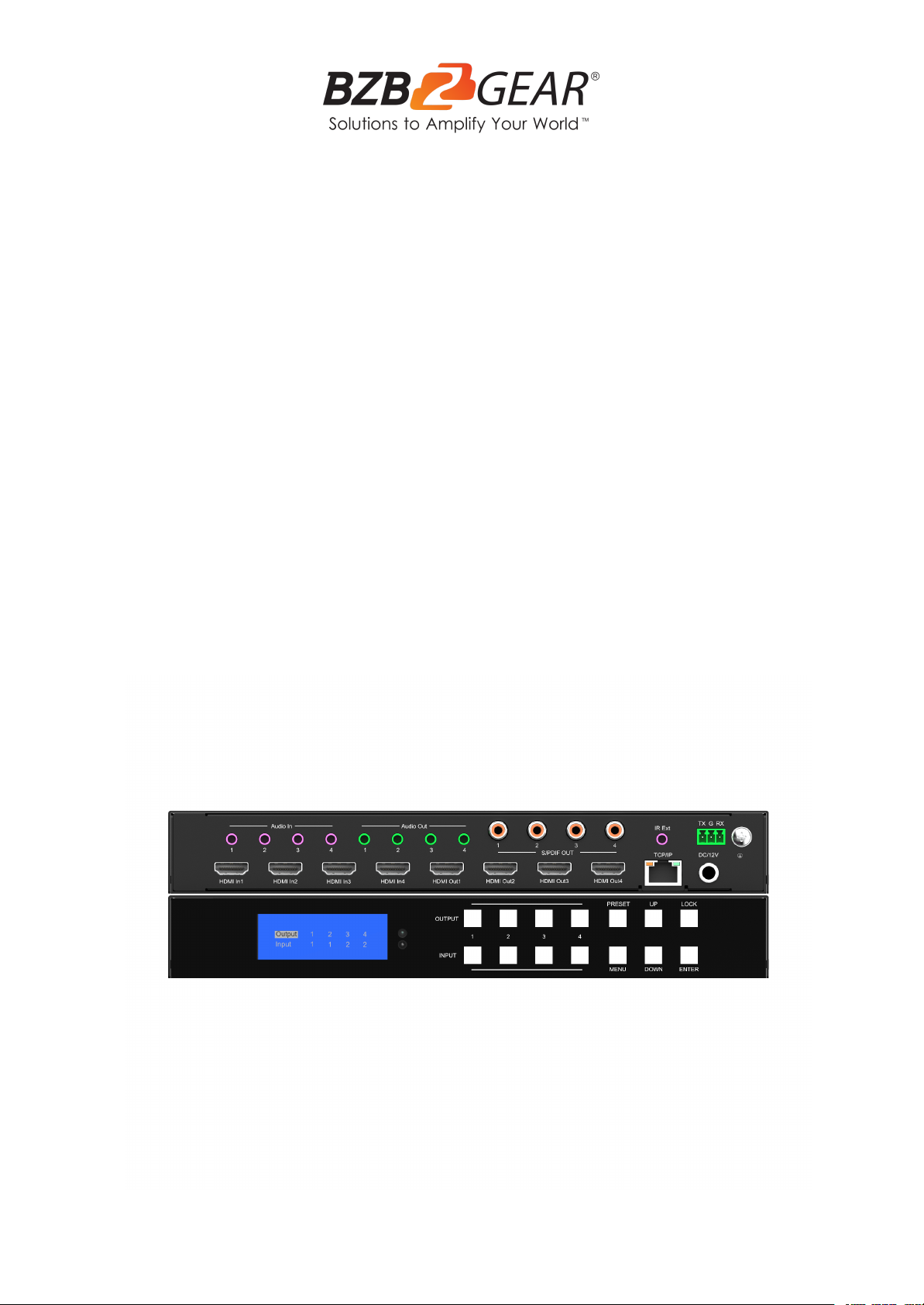
BG-4K-VP44
4K60Hz HDMI 4X4 Seamless Matrix
Video Wall / Multi-Viewer
User Manual
Page 2

BZBGEAR BG-4K-VP44 PRODUCT MANUAL
Address: 830 National Drive #140, Sacramento, CA 95834, USA · Tel: +1(888)499-9906 · Email: [email protected] 2
Page 3

BZBGEAR BG-4K-VP44 PRODUCT MANUAL
Statement 4
Address: 830 National Drive #140, Sacramento, CA 95834, USA · Tel: +1(888)499-9906 · Email: [email protected] 3
Safety Precaution 4
Introduction 5
Features 5
Packing List 6
Specifications 6
Operation Controls and Functions 7
Application Diagrams 8
Input / Output Channel Key Operation 9
Panel Control 10
Remote Control 39
Audio Extraction 39
RS232 Control 41
Scene Instructions 42
Web Control 51
Tech Support 53
Warranty 54
Mission Statement 55
Copyright 56
Page 4

BZBGEAR BG-4K-VP44 PRODUCT MANUAL
Statement
Address: 830 National Drive #140, Sacramento, CA 95834, USA · Tel: +1(888)499-9906 · Email: [email protected] 4
Please read these instructions carefully before connecting, operating, or configuring this
product. Please save this manual for future reference.
Safety Precaution
● To prevent damaging this product, avoid heavy pressure, strong vibration, or immersion
during transportation, storage, and installation.
● The housing of this product is made of organic materials. Do not expose to any liquid,
gas, or solids which may corrode the shell.
● Do not expose the product to rain or moisture.
● To prevent the risk of electric shock, do not open the case. Installation and maintenance
should only be carried out by qualified technicians.
● Do not use the product beyond the specified temperature, humidity, or power supply
specifications.
● This product does not contain parts that can be maintained or repaired by users.
Damage caused by dismantling the product without authorization from BZBGEAR is not
covered under the warranty policy.
● Installation and use of this product must strictly comply with local electrical safety
standards.
Page 5

BZBGEAR BG-4K-VP44 PRODUCT MANUAL
Introduction
Address: 830 National Drive #140, Sacramento, CA 95834, USA · Tel: +1(888)499-9906 · Email: [email protected] 5
The BG-4K-VP44 is a compact and versatile unit bursting with features that encompasses
several units in one! This multifaceted unit is capable of seamless matrixing switching,
producing video walls, and possesses the ability to act as a multi-viewer.
The BG-4K-VP44 has 4 HDMI 2.0 inputs and outputs as well as being HDCP 2.2 compliant.
This unit features 7 different modes for video walls and is able to support resolutions up to
4K@60 4:4:4. It also possesses the ability to display its 4 sources on 1 display in several
different layouts.
With the ability to embed audio to the HDMI outs through 3.5mm stereo mini cables the
BG-4K-VP44 further enhances the user experience. This unit also provides audio extraction
capabilities for each input via 3.5mm stereo mini as well as digital coaxial S/PDIF jacks. It
supports audio formats such as Dolby 5.1, DTS 5.1, and the audio from the sources can be
switched independently.
The unit can be controlled via the front panel buttons, IR remote control, RS232, and
TCP/IP. The BG-4K-VP44 also has EDID management to ensure your devices always get
the right signal. All of these features in one small package allow you to distribute audio and
video from 4 sources to 4 displays easily, reliably, and would be a great fit for mobile video
production, events, restaurants, advertising, and more!
Features
● 4 HDMI inputs which can be independently routed to the 4 HDMI outputs.
● Seamless switching which means no delay or picture loss during transitions.
● Resolution up to 4K@60HZ 4:4:4.
● Video Wall capabilities with up to 7 different modes on each display.
● Multiview 4 inputs on the same screen in multiple display modes.
● Supports HDMI audio formats including Dolby-5.1, DTS-5.1
● Analog audio embedding, extraction, and independent audio switching.
● HDCP 2.2 compliant with EDID management.
● Control via panel button, Remote Control, RS232 Control, TCP/IP Control
Page 6

BZBGEAR BG-4K-VP44 PRODUCT MANUAL
Packing List
● 1x BG-4K-VP44
● 1x DC 12V/3A power adapter
● 1x Remote control
● 1x Wide-Band IR Receiver cable
● 1x User Manual
● 1x 3 Pin Phoenix terminal plug
Operating Temperature Range
-5 to +40°C(23 to +104 °F)
Storage Temperature Range
-10 to +60°C(-14 to +140 °F)
Operating Humidity Range
5 to 90 % RH (no condensation)
Input Video Signal
0.5-1.0 volts p-p
Input DDC Signal
5 volts p-p (TTL)
Bandwidth
18 Gbit/s
Video Format Supported
4K@60Hz,YUV 4:4:4 8 bit
4k@30Hz/1080P/1080i/720P
Audio Formats Supported
HDMI digital audio DTS-5.1/Dolby-5.1
HDCP Compliant
HDCP 2.2 and HDCP 1.4
Input ports
4x HDMI
Output ports
4x HDMI
Matrix mode
4x4 seamless switching
Video wall mode
Multiple video wall modes
Multi-viewer mode
Multiple multi-viewer modes
Power Consumption
23 watts (Max.)
Dimensions
Matrix: L262 x W163 x H36 mm
Mass (Main Unit)
2710g
Address: 830 National Drive #140, Sacramento, CA 95834, USA · Tel: +1(888)499-9906 · Email: [email protected] 6
Specifications
Page 7
BZBGEAR BG-4K-VP44 PRODUCT MANUAL
Operation Controls and Functions
Address: 830 National Drive #140, Sacramento, CA 95834, USA · Tel: +1(888)499-9906 · Email: [email protected] 7
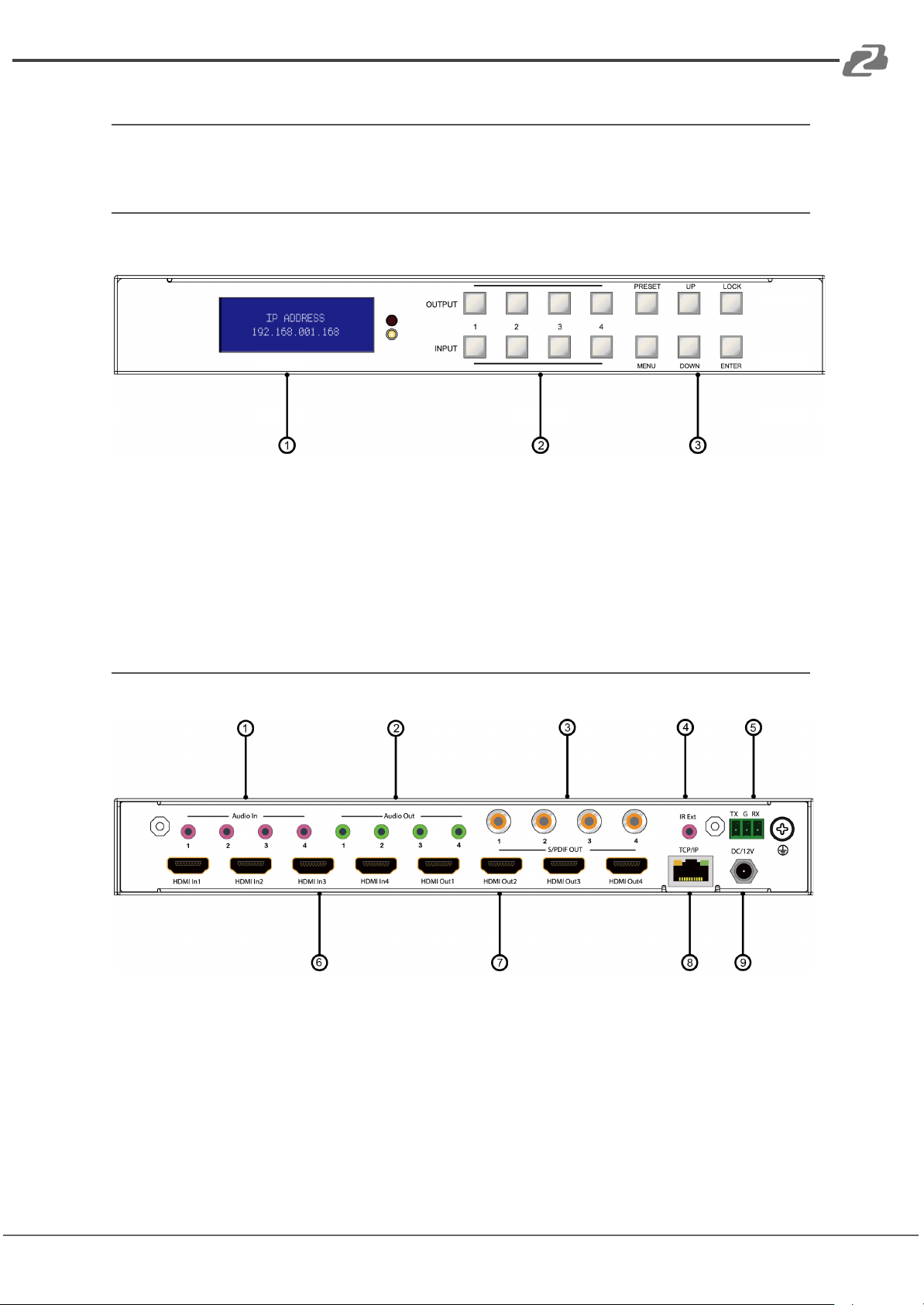
Front Panel
1. LCD display screen, IR receiving port, and indicator light
2. Output Buttons: HDMI OUT1~4 & Input button HDMI IN1~4
3. Navigation Buttons: PRESET; MENU; UP; DOWN; LOCK; ENTER
Rear Panel
1. Audio In: 3.5mm stereo mini
2. Audio Out: 3.5mm stereo mini
3. S/PDIF Out: Digital Coaxial RCA
4. IR Ext: 3.5mm stereo mini IR extension
5. RS232 port: 3-pin phoenix
6. HDMI IN x4: HDMI 2.0
7. HDMI OUT x4: HDMI 2.0
8. Ethernet port: RJ45
9. Power input: 12V/3A
Page 8
BZBGEAR BG-4K-VP44 PRODUCT MANUAL
Application Diagrams
Address: 830 National Drive #140, Sacramento, CA 95834, USA · Tel: +1(888)499-9906 · Email: [email protected] 8
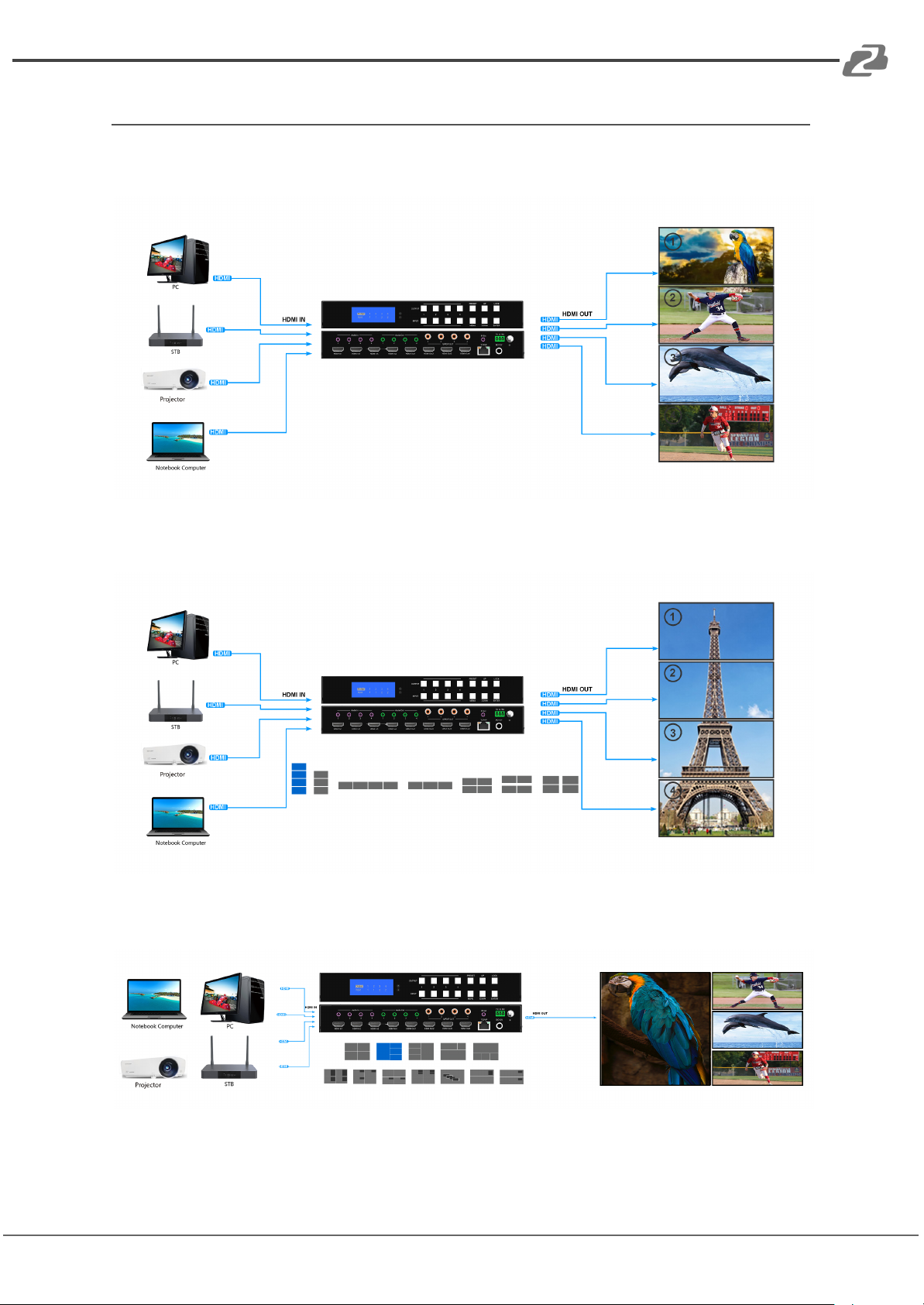
Seamless Matrix Mode
Video Wall Mode
Multi-Viewer Mode
Page 9
BZBGEAR BG-4K-VP44 PRODUCT MANUAL
Input / Output Channel Key Operation
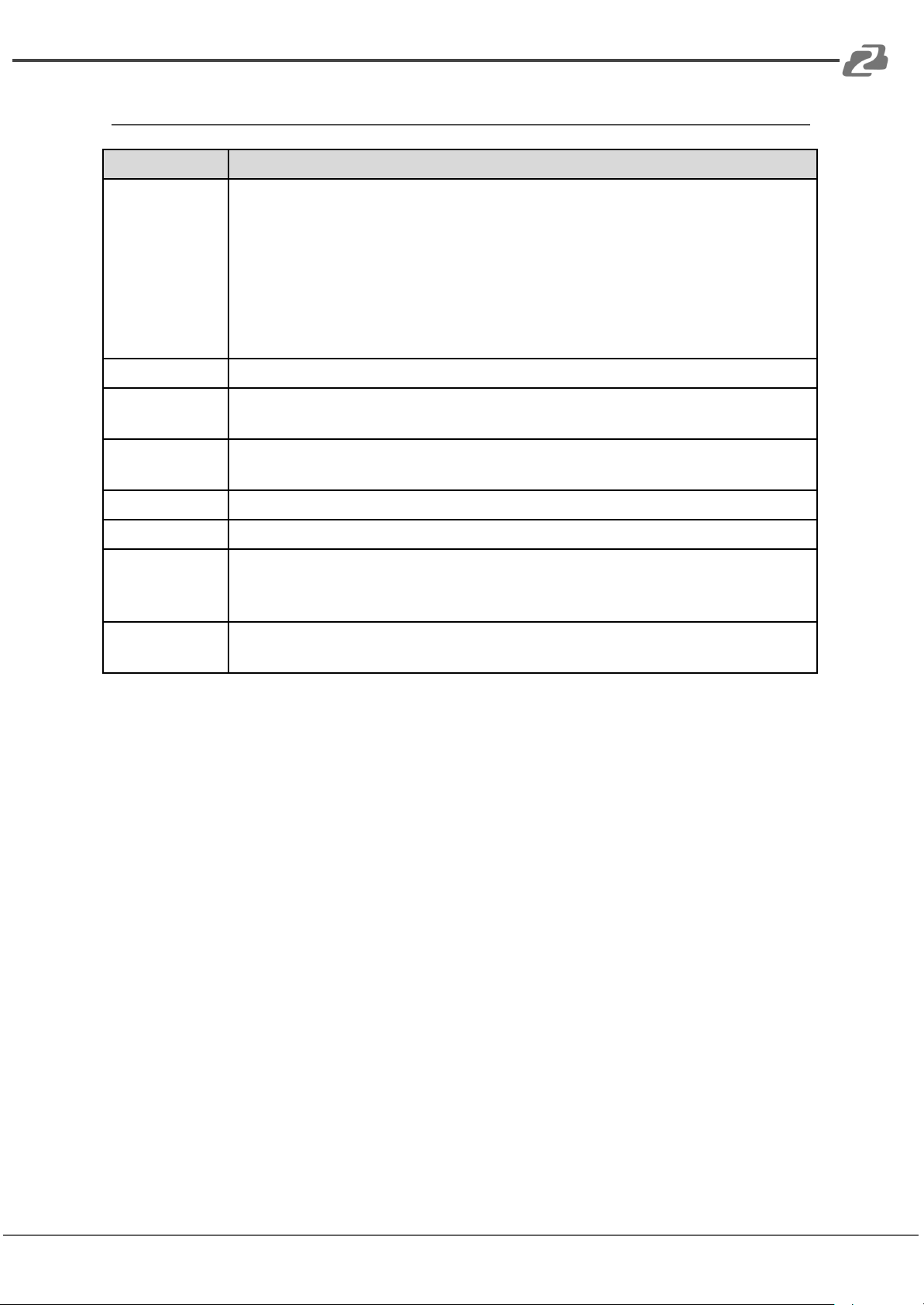
Channel
Button Methodology
OUT1-4
1. Press the OUTPUT# button for the display you wish to change and the #
will be highlighted on the display screen. Multiple outputs can be selected
and highlighted at once.
2. Long press any OUTPUT button to highlight/select all outputs at once.
3. Press the INPUT # button you would like to display and the
highlighted/selected output(s) will change to the selected input #.
4. Press the OUTPUT # button again to cancel the selection of a highlighted
output on the display screen.
IN1-4
Press and hold an INPUT # button to change all inputs to the selected input.
MENU
Press the MENU button to enter the on screen display (OSD) menu or back
to the previous option.
ENTER
Press the ENTER button to confirm a selected option or advance to the next
menu screen.
UP
Press the UP button to navigate the OSD Menu.
DOWN
Press the DOWN button to navigate the OSD Menu.
PRESET
1. Press the PRESET button to enter the preset call menu.
2. Use the UP and DOWN buttons to highlight one of the 26 preset modes
3. Press the ENTER key to enable the highlighted preset mode.
LOCK
Long press the LOCK button to lock the touch panel buttons. Long press
the LOCK button again to unlock.
Address: 830 National Drive #140, Sacramento, CA 95834, USA · Tel: +1(888)499-9906 · Email: [email protected] 9
Page 10
BZBGEAR BG-4K-VP44 PRODUCT MANUAL
Panel Control
Address: 830 National Drive #140, Sacramento, CA 95834, USA · Tel: +1(888)499-9906 · Email: [email protected] 10
Video
Video from any of the 4 inputs can be configured/transmitted to any of the 4 outputs to form
a matrix in various configurations from 1×4~4×4. The matrix is capable of sending a single
signal to one point or many.
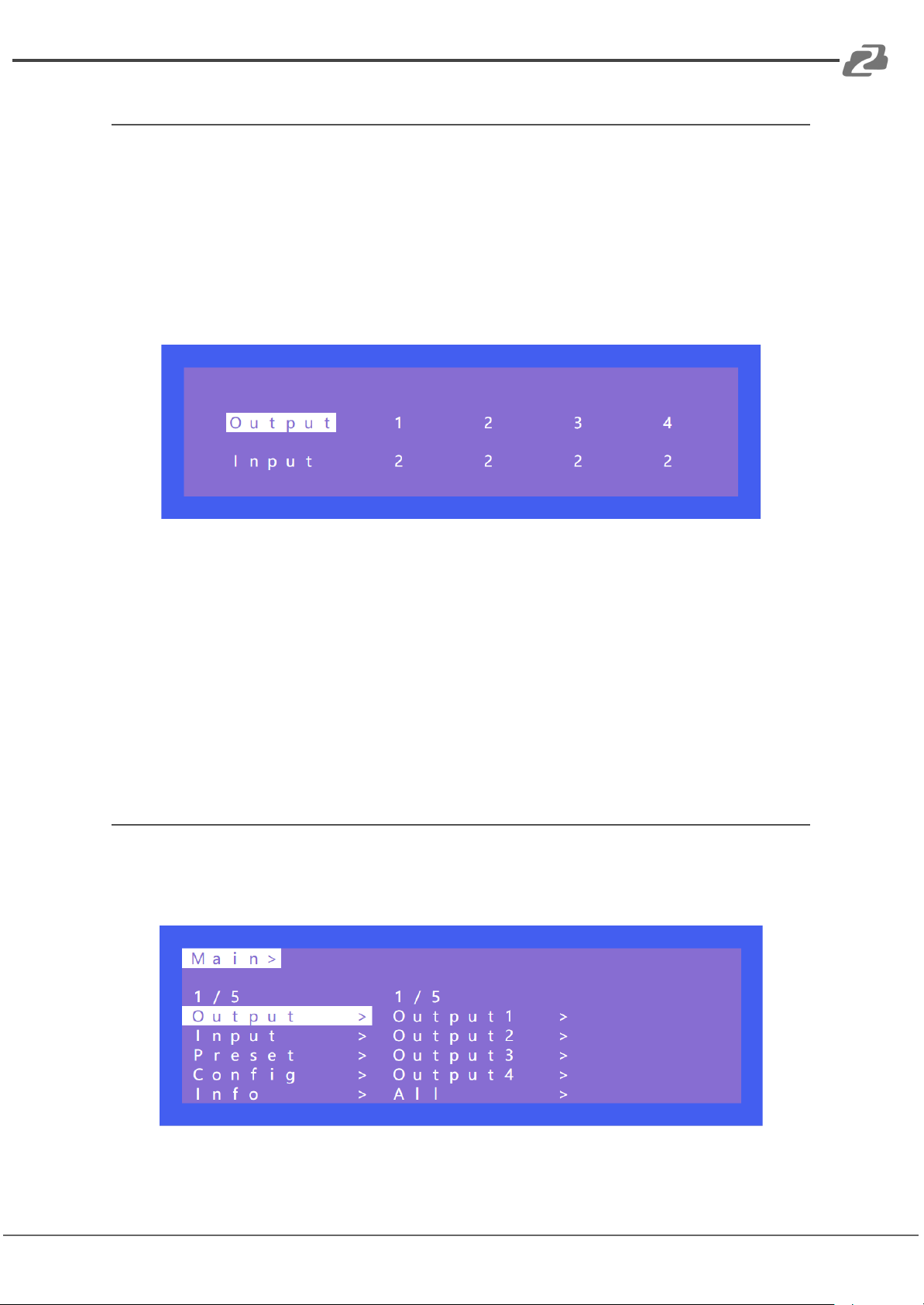
Operation format: Select the output channel then select the input channel.
For example:
1. Switch output 1 to the input 4 source.
Operation: press OUTPUT 1 and then press INPUT 4 to complete the switch.
2. Output 1, 2, and 3 switch to the input 2 source.
Operation: press OUTPUT 1, 2, and 3 to highlight the outputs on the OSD and then
press INPUT 2 to complete the switch.
3. Switch all outputs to the input 4 source.
Operation: Press and hold INPUT 4 and all inputs will switch to source 4.
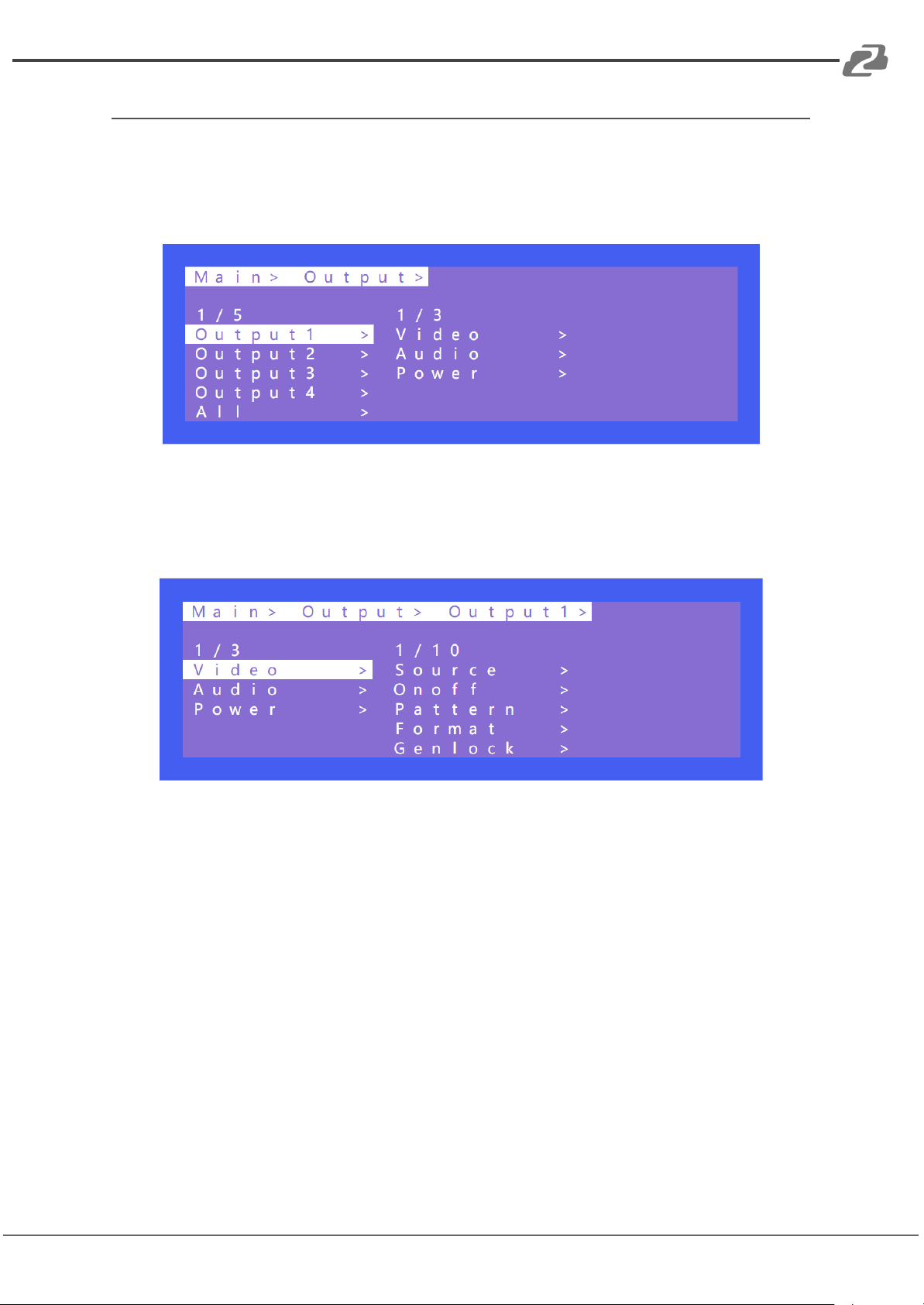
Main Menu
The main menu is divided into 5 modules: Output, Input, Preset, Config, and Info. Each
module has multiple sub-menus that can be modified depending on display needs.
Page 11
BZBGEAR BG-4K-VP44 PRODUCT MANUAL
Output
Address: 830 National Drive #140, Sacramento, CA 95834, USA · Tel: +1(888)499-9906 · Email: [email protected] 11
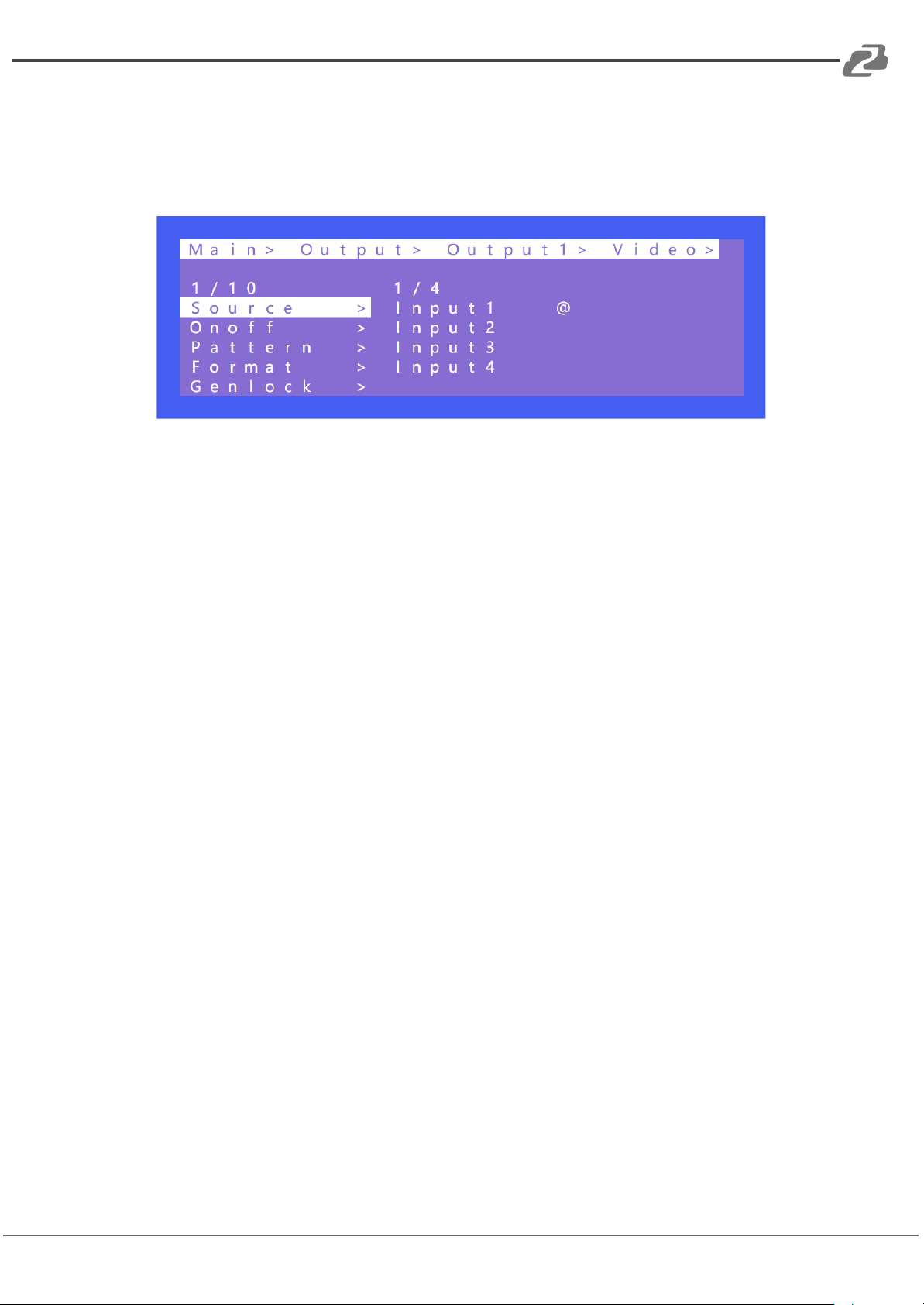
There are 5 sub-menus in the Output menu interface: output 1~4 and All which are used for
individual or all output settings. Each output channel contains 3 functions: video, audio, and
power.
Choose a desired output before setting each video or audio setting.
There are 11 options in Video: Source, Onoff, Pattern, Format, Genlock, Rotate, Mirror,
Coord, PIP, Wall, Image.
Page 12
BZBGEAR BG-4K-VP44 PRODUCT MANUAL
1. Source
Address: 830 National Drive #140, Sacramento, CA 95834, USA · Tel: +1(888)499-9906 · Email: [email protected] 12
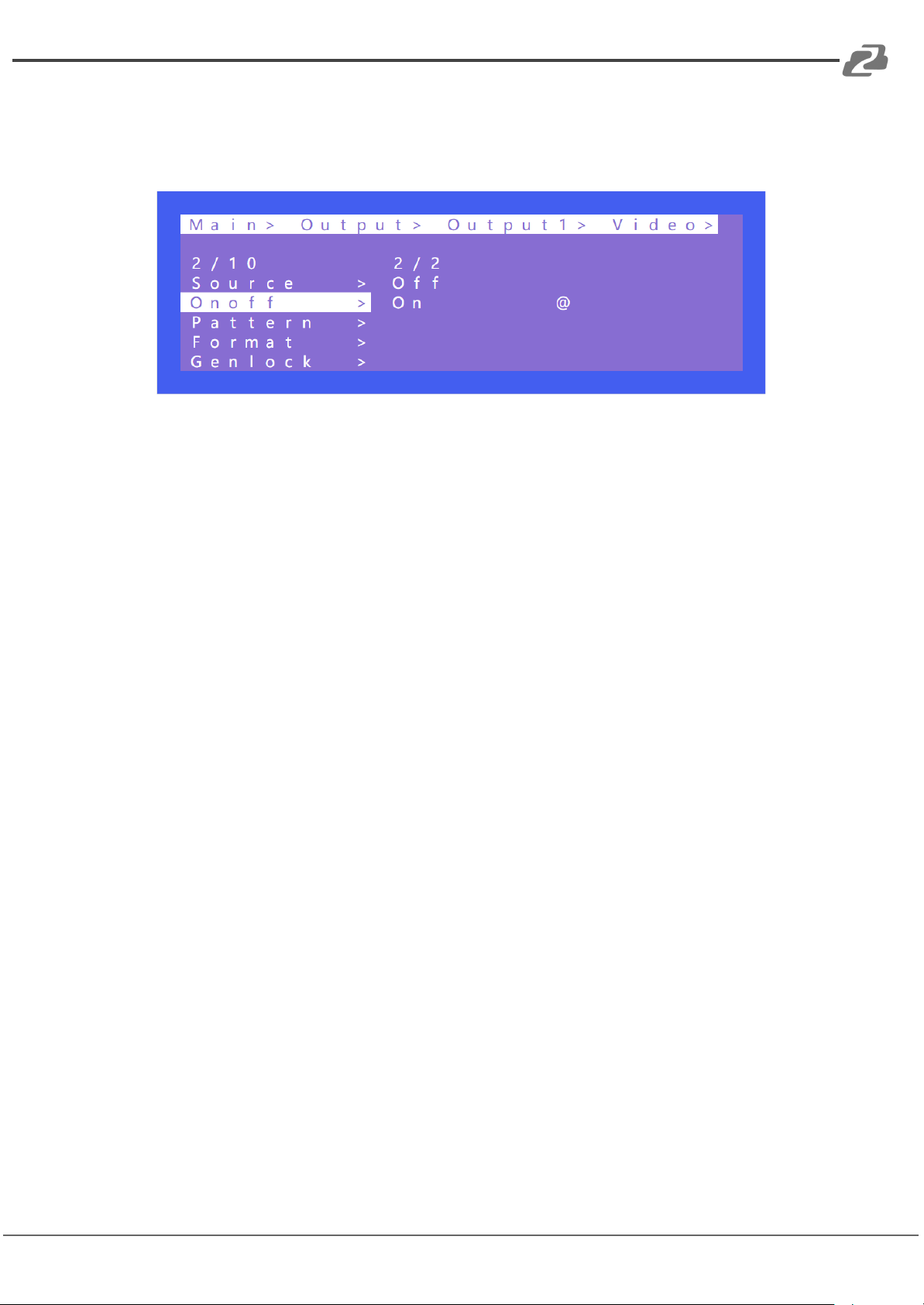
Any output can be switched to any one input, or all outputs can be switched to the same
input; The default 4x4 matrix is 4-way input and 4-way output (one to one).
Operation:
1. Select “Output” in the main menu and press “ENTER”
2. Press “UP” and “DOWN” to select “Output 1~4 or all”
3. Click “ENTER” to enter the next sub-menu.
4. Press “ UP” and “DOWN” to choose “Video”
5. Click “ENTER” to enter the next sub-menu
6. Press “UP” and “DOWN” to select “Source”
7. Click “ENTER” to enter the next sub-menu
8. Choose Input 1~4 to complete switching
Page 13
BZBGEAR BG-4K-VP44 PRODUCT MANUAL
2. Onoff
Address: 830 National Drive #140, Sacramento, CA 95834, USA · Tel: +1(888)499-9906 · Email: [email protected] 13
Turn on/off any output , or turn on/off all outputs. The video outputs are enabled by default.
Operation:
1. Select “Output” in the main menu and press “ENTER”
2. Press “UP” or “DOWN” to select “Output 1~4 or all”
3. Click “ENTER” to enter the next sub-menu
4. Press “UP” or “DOWN” to select “Video”
5. Press “UP” or “DOWN” to select “Onoff”
6. Click “ENTER” to enter the next sub-menu
7. Select “On” or “Off” and press “ENTER” to complete the operation. The blue screen
will be displayed after turning off the output.
Page 14
BZBGEAR BG-4K-VP44 PRODUCT MANUAL
3. Pattern
Address: 830 National Drive #140, Sacramento, CA 95834, USA · Tel: +1(888)499-9906 · Email: [email protected] 14
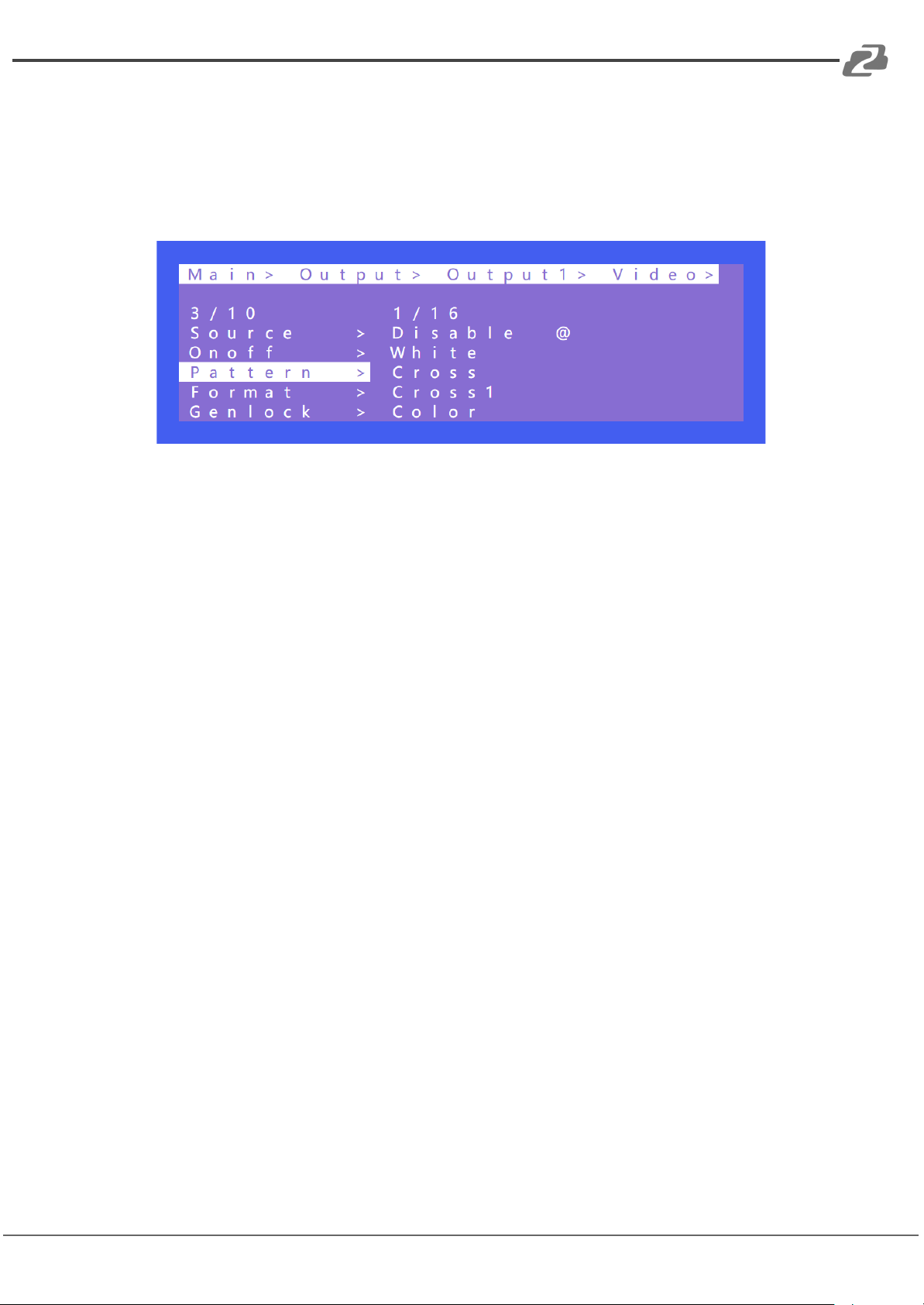
There are 15 built in images that can be used for display testing purposes by selecting the
Pattern option. For example: Using Cross or Cross1 images in 4x4 Video Wall mode can
test whether each display is aligned correctly.
Operation:
1. Select “Output” in the main menu and press “ENTER”
2. Press “UP” or “DOWN” to select “ Output 1~4, all”
3. Click “ENTER” to enter the next sub-menu
4. Press “UP” or “DOWN” to select “Video”
5. Press “UP” or “DOWN” to select “Pattern”
6. Click “ENTER” to enter the next sub-menu
7. Press “UP” or “DOWN” to select “Disable” or enable other patterns
Page 15
BZBGEAR BG-4K-VP44 PRODUCT MANUAL
4. Format
Address: 830 National Drive #140, Sacramento, CA 95834, USA · Tel: +1(888)499-9906 · Email: [email protected] 15
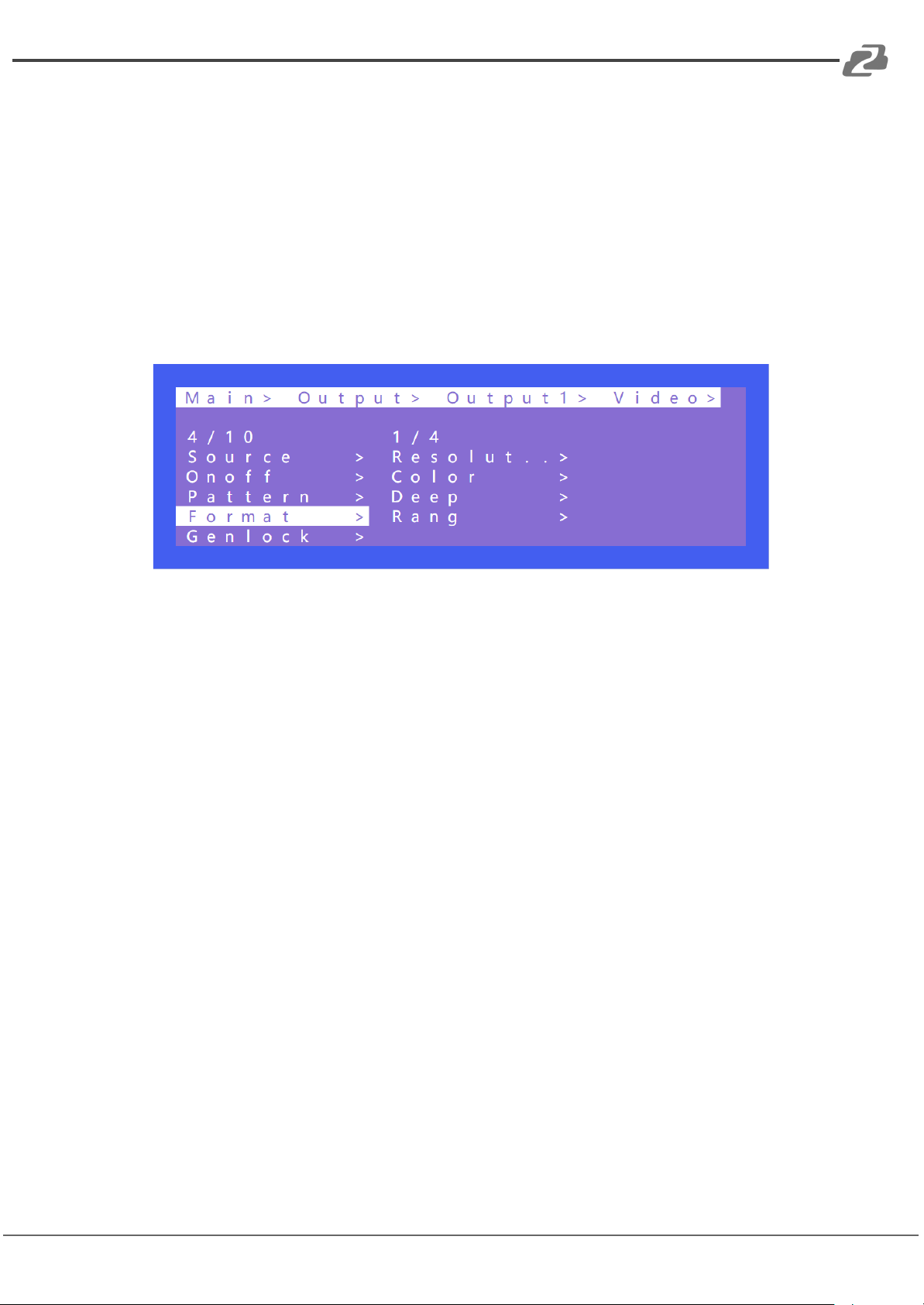
The Format function can set and force the output resolution format but it does not provide
an upscale image quality.
Example:
The input is 1080P@60Hz and the output is set to 4K60Hz. Although the TV is displayed in
4K@60Hz the image will still be in 1080P@60Hz.
NOTE: Selecting the input mode will enable the following input resolution but switching with
the matrix will not be seamless unless the resolution from the source is in the same format
and without HDR.
Operation:
1. Select “Output” in the main menu and press “ENTER”
2. Press “UP” or “DOWN” to select “ Output 1~4, all”
3. Click “ENTER” to enter the next sub-menu
4. Press “UP” or “DOWN” to select “Video”
5. Press “UP” or “DOWN” to select “Format”
6. Click “ENTER” to enter the next sub-menu
7. Press “UP” or “DOWN” to select the corresponding resolution and press “ENTER.”
There will be a check time for 15 seconds. The setting will return to the original
resolution if the display does not support the selected resolution.
8. Press “ENTER” again during the check time if the output works to complete the
switch.
Page 16
BZBGEAR BG-4K-VP44 PRODUCT MANUAL
5. Genlock
Address: 830 National Drive #140, Sacramento, CA 95834, USA · Tel: +1(888)499-9906 · Email: [email protected] 16
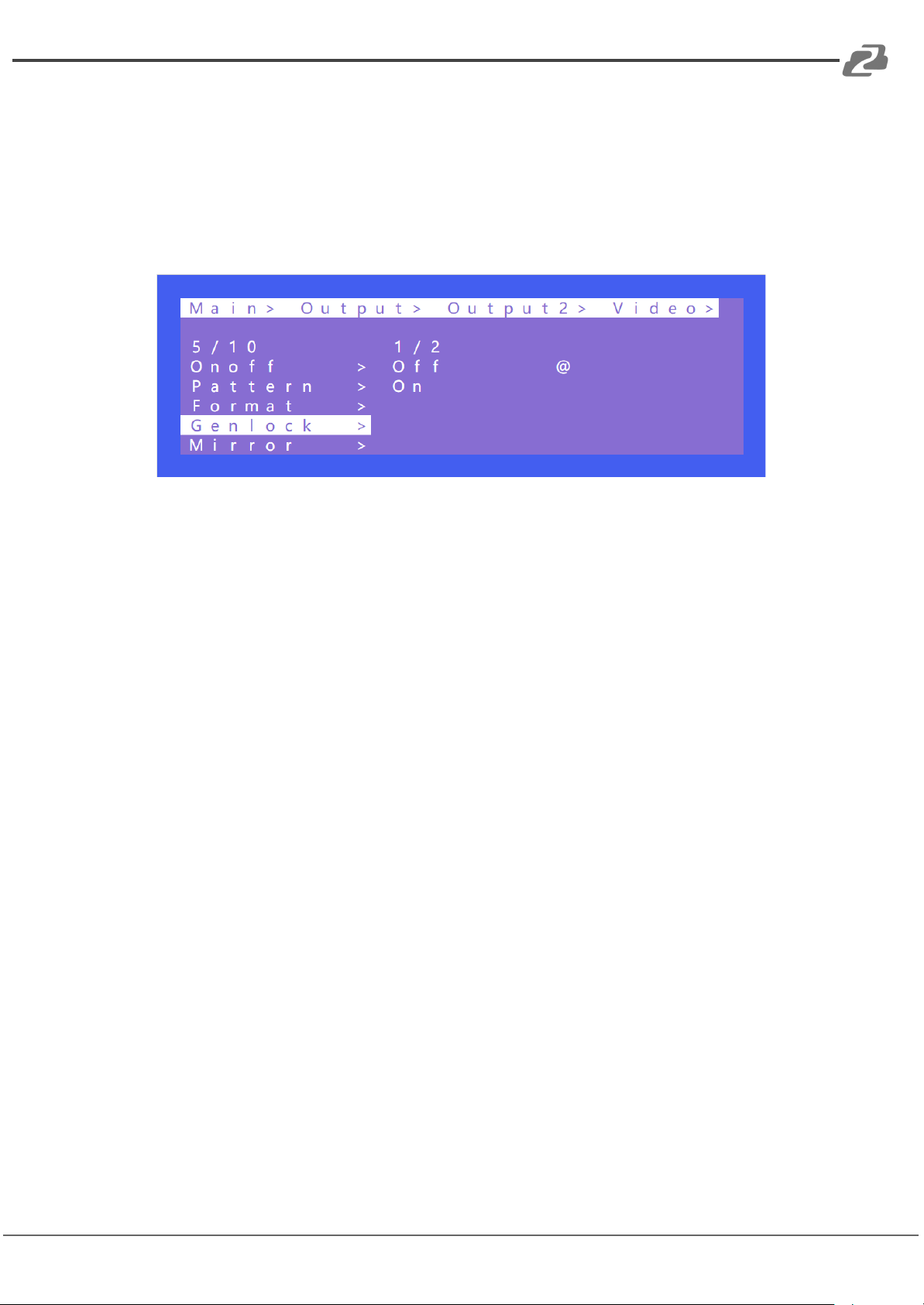
Genlock is a common technique where the video output of one source is used to synchronize
other picture sources together. Default is to Off. Output 1 cannot be selected as it is the
reference. Only Output 2, Output 3, and Output 4 can be enabled. Switching the output
resolution will affect other output images. (The image may be black for a while and the
resolution will not be able to be changed.)
Operation:
1. Select “Output” in the main menu and press “ENTER”
2. Press “UP” or “DOWN” to select “ Output 1~4, all”
3. Click “ENTER” to enter the next sub-menu
4. Press “UP” or “DOWN” to select “Video”
5. Press “UP” or “DOWN” to select “Genlock”
6. Click “ENTER” to enter the next sub-menu
7. Press “UP” or “DOWN” to select “ Off” or “On” to complete the operation.
Page 17
BZBGEAR BG-4K-VP44 PRODUCT MANUAL
6. Mirror
Address: 830 National Drive #140, Sacramento, CA 95834, USA · Tel: +1(888)499-9906 · Email: [email protected] 17
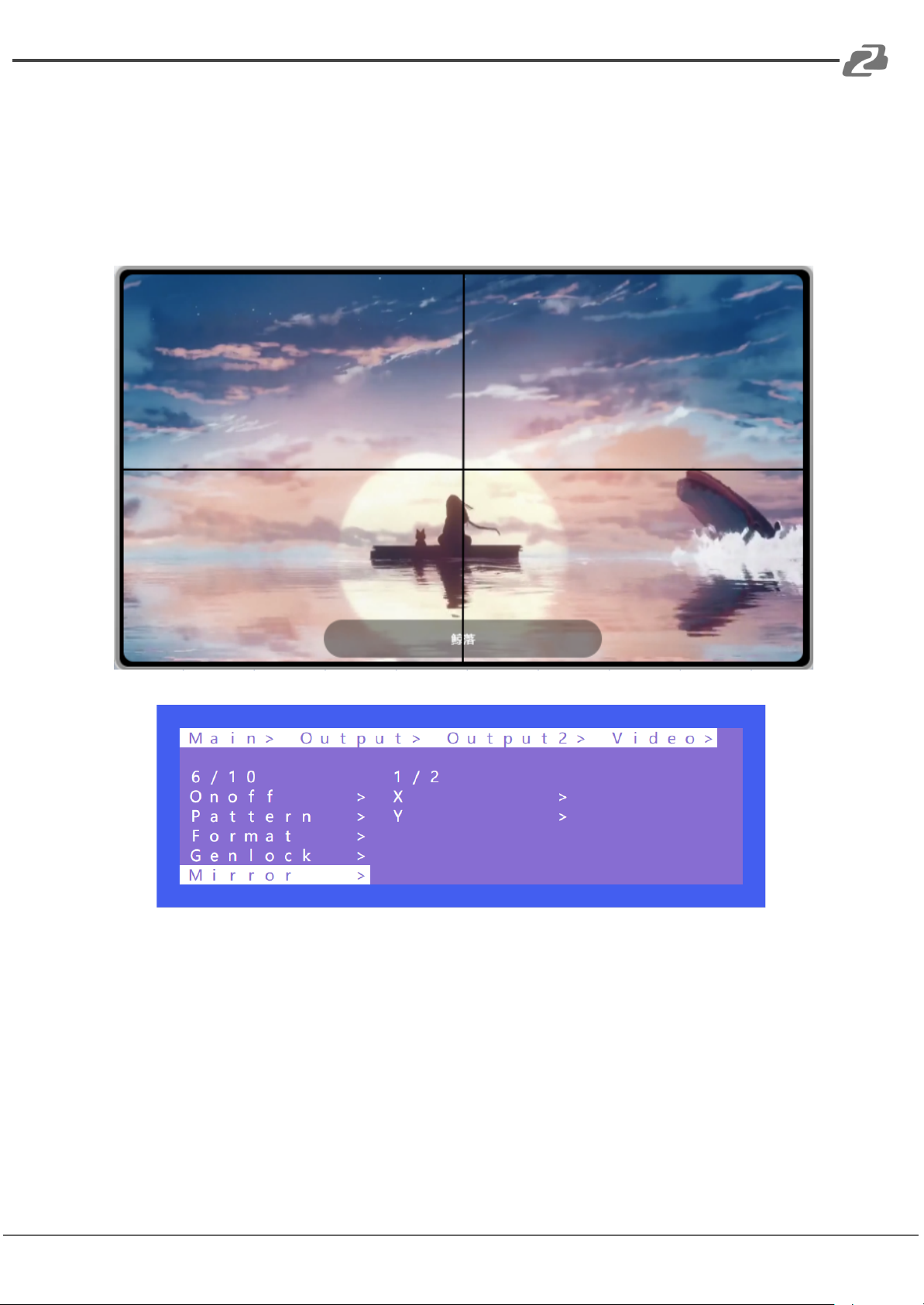
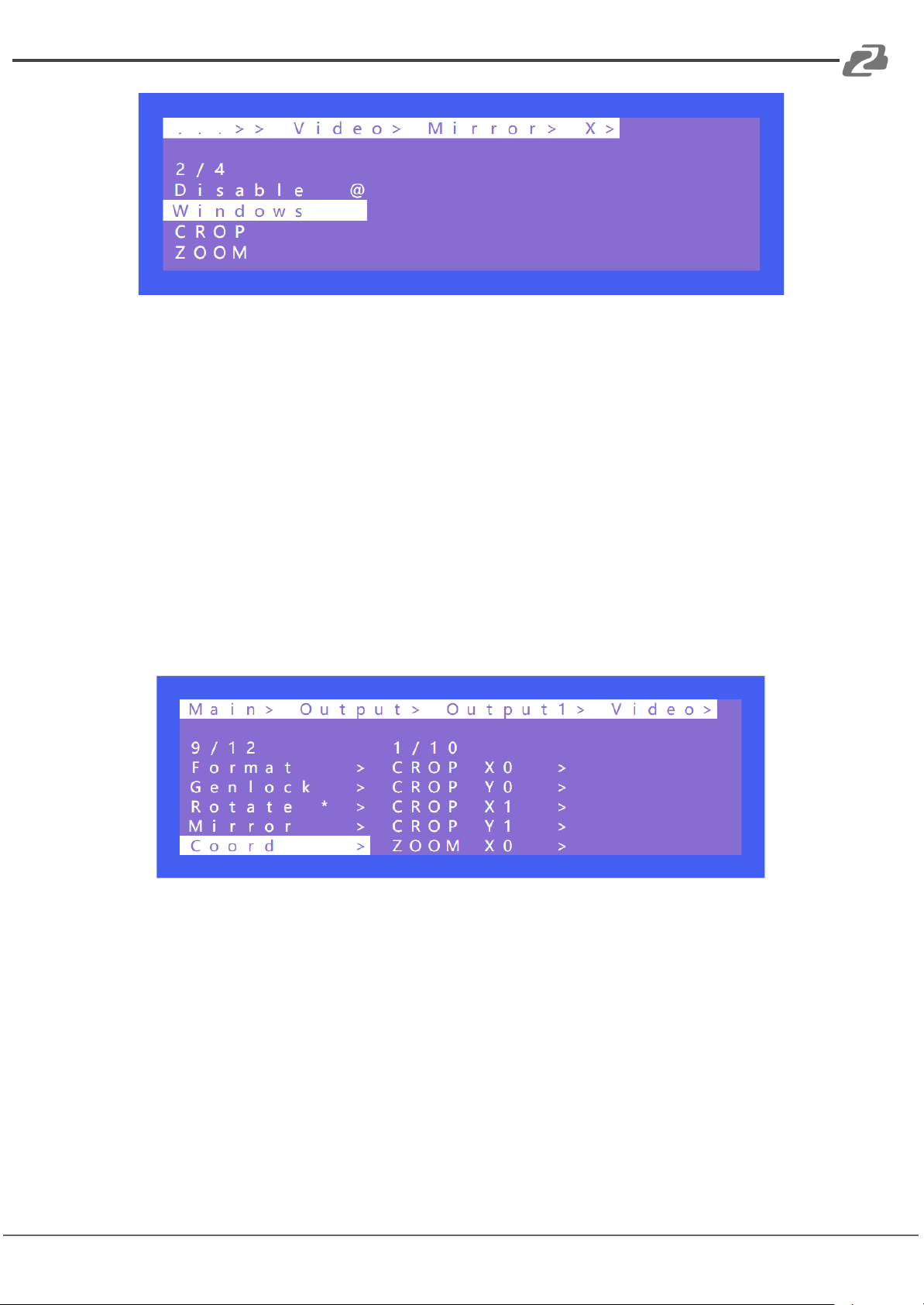
This function can implement a left, right, up, or down mirror. X indicates left and right mirror,
Y indicates up and down mirror. The default is off. There are 3 options including Crop,
Zoom and Windows in the sub-menu, corresponding to crop and Zoom images
respectively. Windows represents the current window image
Operation:
1. Select “Output” in the main menu and press “ENTER”
2. Press “UP” or “DOWN” to select “ Output 1~4, all”
3. Click “ENTER” to enter the next sub-menu
4. Press “UP” or “DOWN” to select “Video”
5. Press “UP” or “DOWN” to select “X” or “Y”
6. Click “ENTER” to enter the next sub-menu
7. Press “UP” or “DOWN” to confirm the operation.
Page 18
BZBGEAR BG-4K-VP44 PRODUCT MANUAL
7. Coord
Address: 830 National Drive #140, Sacramento, CA 95834, USA · Tel: +1(888)499-9906 · Email: [email protected] 18
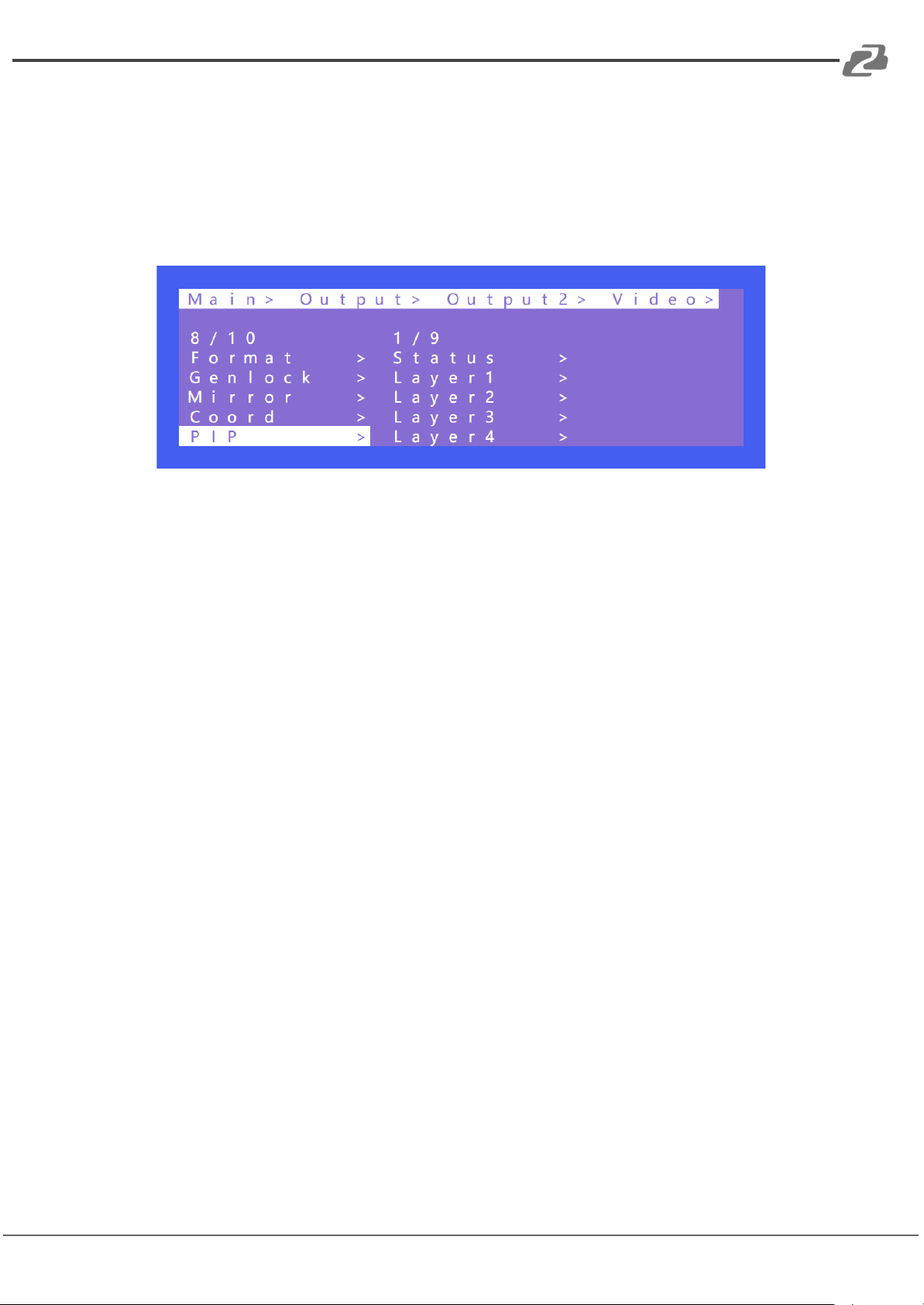
Coord is used to fine tune the parameters of an image in multi-view and video wall modes.
There are 3 types of parameters including Crop, Zoom, Gap. The parameters are broken
down into 10 settings and are adjustable CROP X0, CROP Y0, CROP X1, CROP Y1, ZOOM
X0, ZOOM Y0, ZOOM X1, CROP Y1, Gap X, Gap Y.
The function can be used for bezel adjustment of multi-viewer and video walls.
The default start point of Coord : CROP X0 = 0, CROP Y0 = 0.
The default end point of Crood: CROP X1 = 6000, CROP Y1 =6000.
The default start point of Zoom: Zoom X0 = 0, Zoom Y0 = 0
The default end point of Zoom: Zoom X1 = 6000, Zoom Y1 = 6000
The default start point of Gap X=0, Gap Y=0
Operation:
1. Select “Output” in the main menu and press “ENTER”
2. Press “UP” or “DOWN” to select “ Output 1~4, all”
3. Click “ENTER” to enter the next sub-menu
4. Press “UP” or “DOWN” to select “Video”
5. Press “UP” or “DOWN” to select “Coord”
6. Click “ENTER” to enter the next sub-menu
7. Press “UP” or “DOWN” to select the desired coordinate of Coord, Zoom and Gap.
8. The corresponding changes will affect the appearance of the connected display.
Page 19
BZBGEAR BG-4K-VP44 PRODUCT MANUAL
8. PIP
Address: 830 National Drive #140, Sacramento, CA 95834, USA · Tel: +1(888)499-9906 · Email: [email protected] 19
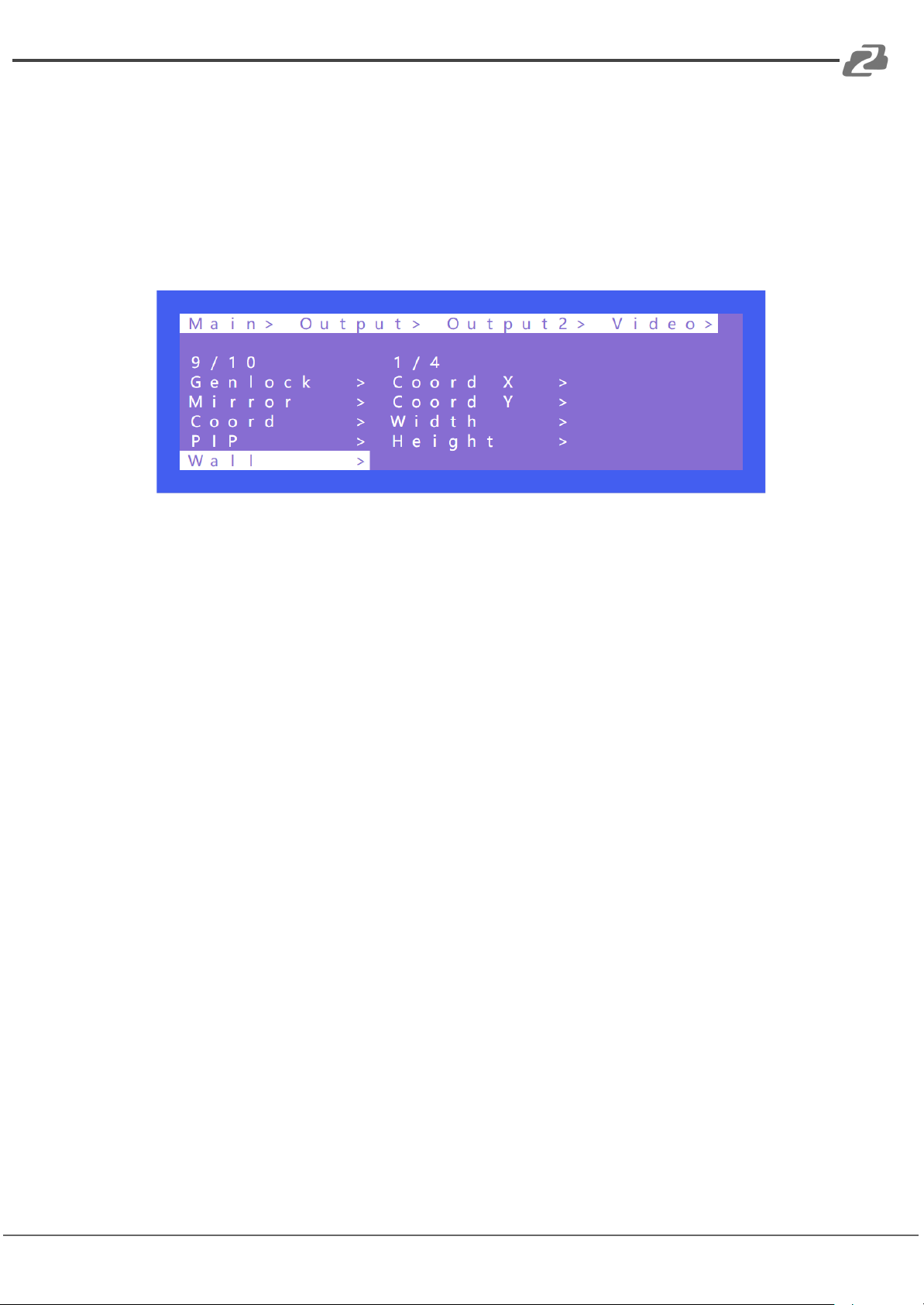
PIP is used to switch the sources for the 4 windows referred to as a layer in the various
multiview modes. By default, each of the 4 layers has access to the 4 sources. By changing
the output of the selected layer, the content will change to that source. Each layer can
choose an output. You can turn on/off this function in Status.
Operation:
1. Select “Output” in the main menu and press “ENTER”
2. Press “UP” or “DOWN” to select “ Output 1~4, all”
3. Click “ENTER” to enter the next sub-menu
4. Press “UP” or “DOWN” to select “Video”
5. Press “UP” or “DOWN” to select “PIP”
6. Click “ENTER” to enter the next sub-menu
7. Press “UP” or “DOWN” to select Status on-off. The layer takes effect after it is
enabled.
8. Layer 1~4 can choose the corresponding output 1~4
9. Note: A layer can select only one output and it cannot be selected repeatedly.
Page 20
BZBGEAR BG-4K-VP44 PRODUCT MANUAL
9. Wall
Address: 830 National Drive #140, Sacramento, CA 95834, USA · Tel: +1(888)499-9906 · Email: [email protected] 20
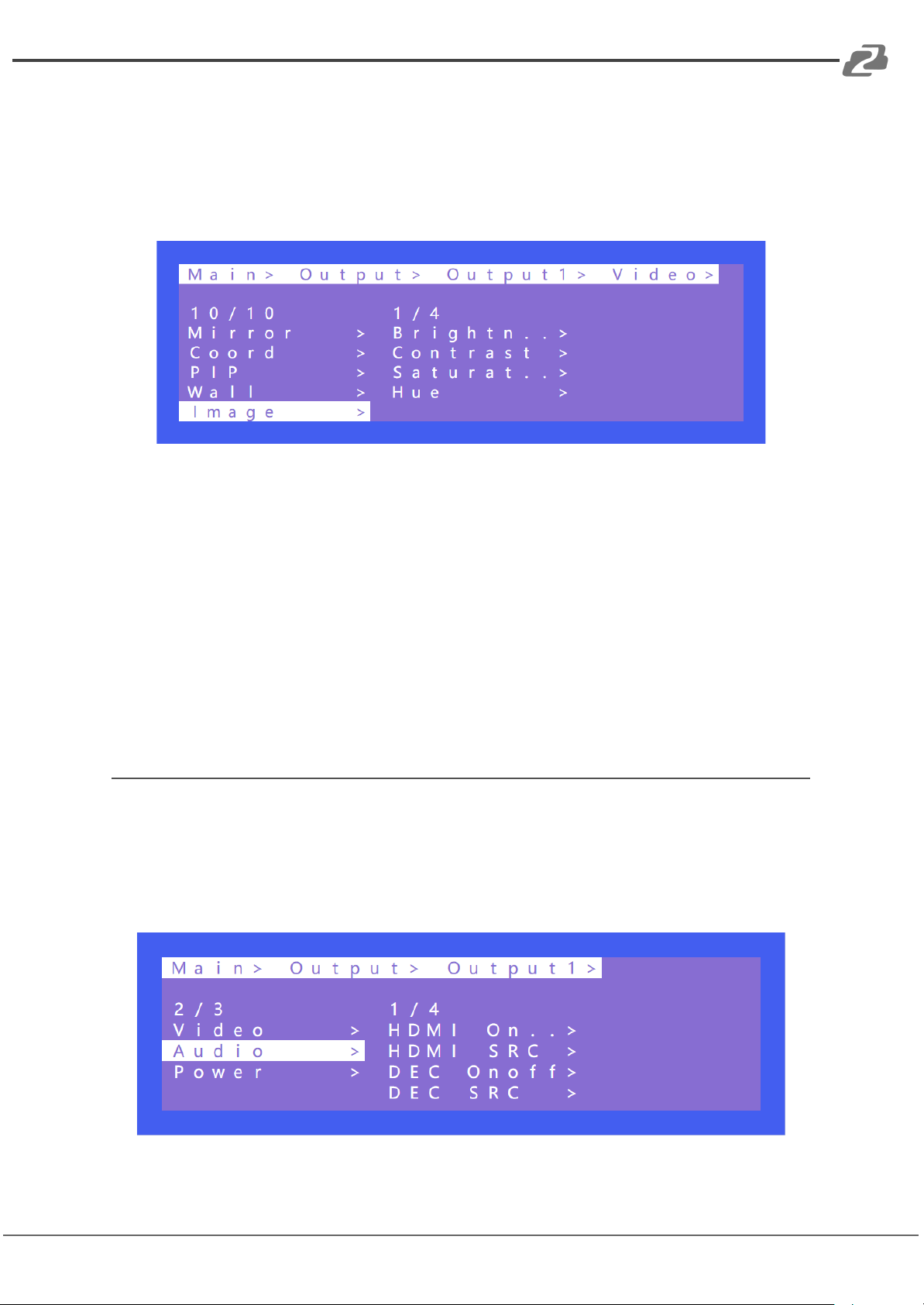
Wall is used to set the position of the TV in the video wall. By default, it is set to follow the
matrix presets. Set the parameter of Coord X & Coord Y + Width & Height after determining
the actual position of the TV according to the OSD on the TV. The position of the TV in the
Video Wall can also be changed by using Coord. Width and Height indicate the number of
video wall tiling (2x2, 2x1, etc).
Operation:
1. Select “Output” in the main menu and press “ENTER”
2. Press “UP” or “DOWN” to select “Output 1~4, all cannot be selected”
3. Click “ENTER” to enter the next sub-menu
4. Press “UP” or “DOWN” to select “Video”
5. Press “UP” or “DOWN” to select “Wall”
6. Click “ENTER” to enter the next sub-menu
7. Press “UP” or “DOWN” to select the coordinate of Coord X or Coord Y. The default
coordinate for 2x2 video wall:
Out1(X:0, Y:0)
Out2(X:1, Y:0)
Out3(X:0, Y:1)
Out4(X:1, Y:1)
8. Set the number of horizontal and vertical splices. Setting the number of horizontal
and vertical splices for the first output will automatically generate for the rest of the
video wall based on its coordinate. For example:
The default sequence of the video wall of output 1 and output 2 is reversed.
Set the coordinate of output 2 to X0Y0, horizontal 2 and vertical1.
Set the coordinate of output 1 to X1Y0, horizontal auto, vertical auto.
Set the coordinate of output 3 to X0Y1, horizontal auto, vertical auto.
Set the coordinate of output 4 to X1Y1, horizontal auto, vertical auto.
Page 21
BZBGEAR BG-4K-VP44 PRODUCT MANUAL
10. Image
Address: 830 National Drive #140, Sacramento, CA 95834, USA · Tel: +1(888)499-9906 · Email: [email protected] 21
Image is used to set the parameters of the output image. There are 4 parameters:
Brightness, Contrast, Saturation, and Hue. Each parameter ranges from 0 to 100 and they
are set to 50 by default.
Operation:
1. Select “Output” in the main menu and press “ENTER”
2. Press “UP” or “DOWN” to select “ Output 1~4”, do not select “all”
3. Click “ENTER” to enter the next sub-menu
4. Press “UP” or “DOWN” to select “Video”
5. Press “UP” or “DOWN” to select “Image”
6. Click “ENTER” to enter the next sub-menu
7. Press “UP” or “DOWN” to select “Brightness” or other selections + “ENTER” to
enter the next sub-menu.
8. Do the adjustment according to the visual effect of the output image.
Audio
There are 4 options in Output Audio: HDMI Onoff, HDMI SRC, DEC Onoff, DECSRC. The
unit can perform audio switching independently on each output. It can turn off HDMI audio
output and extract audio. It can also extract audio from another connected source and
output that instead.
Page 22
BZBGEAR BG-4K-VP44 PRODUCT MANUAL
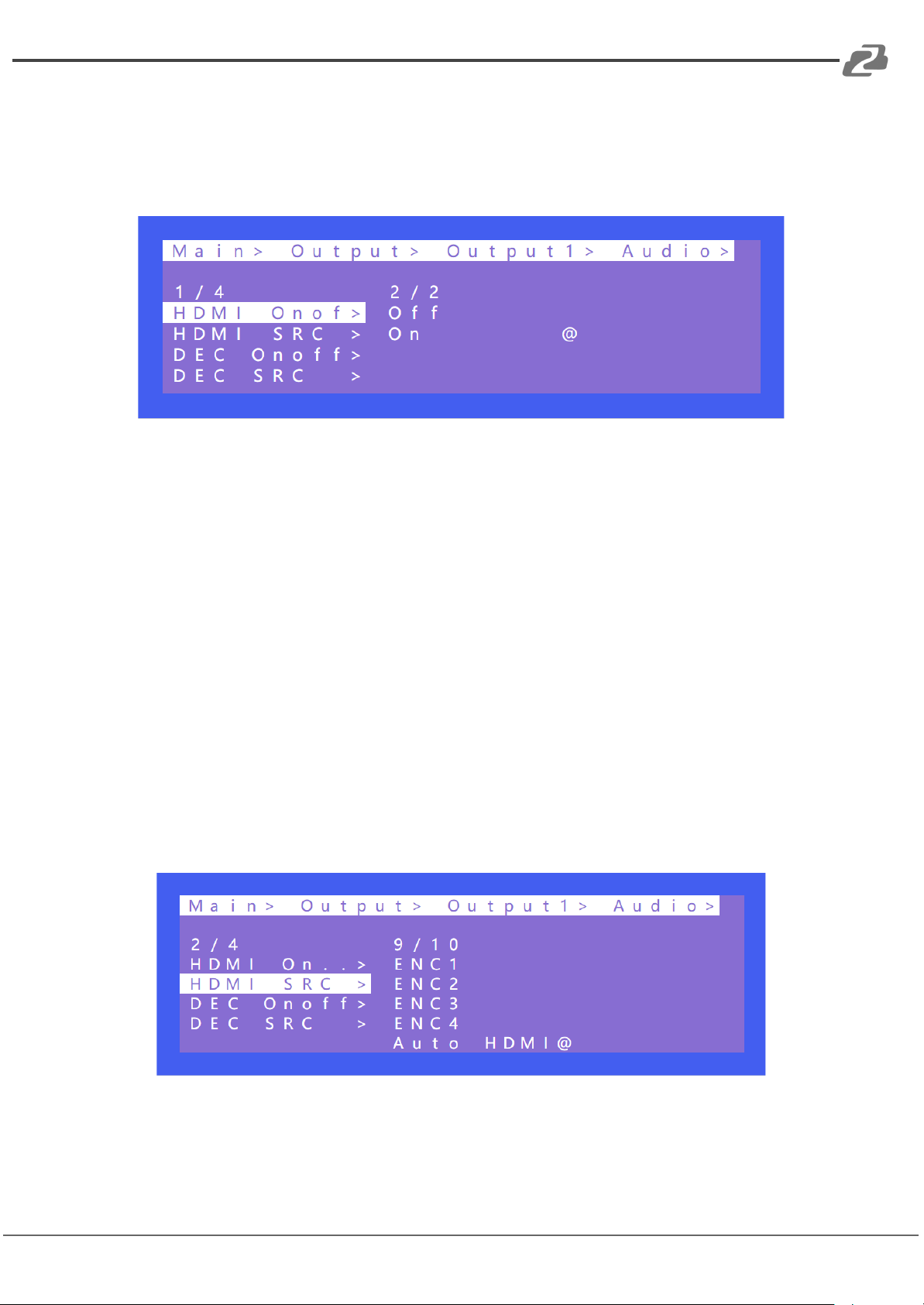
1. HDMI onoff
Address: 830 National Drive #140, Sacramento, CA 95834, USA · Tel: +1(888)499-9906 · Email: [email protected] 22
HDMI Onoff can turn the HDMI output audio on or off (default on). The TV will display
“Mute” on the bottom of the screen when the audio output is turned off.
Operations:
1. Select “Output” in the main menu and press “ENTER”
2. Press “UP” or “DOWN” to select “ Output 1~4, all”
3. Click “ENTER” to enter the next sub-menu
4. Press “UP” or “DOWN” to select “Video”
5. Press “UP” or “DOWN” to select “HDMI Onoff”
6. Click “ENTER” to enter the next sub-menu
7. Press “UP” or “DOWN” to select “ON” or “Off” to complete the operation.
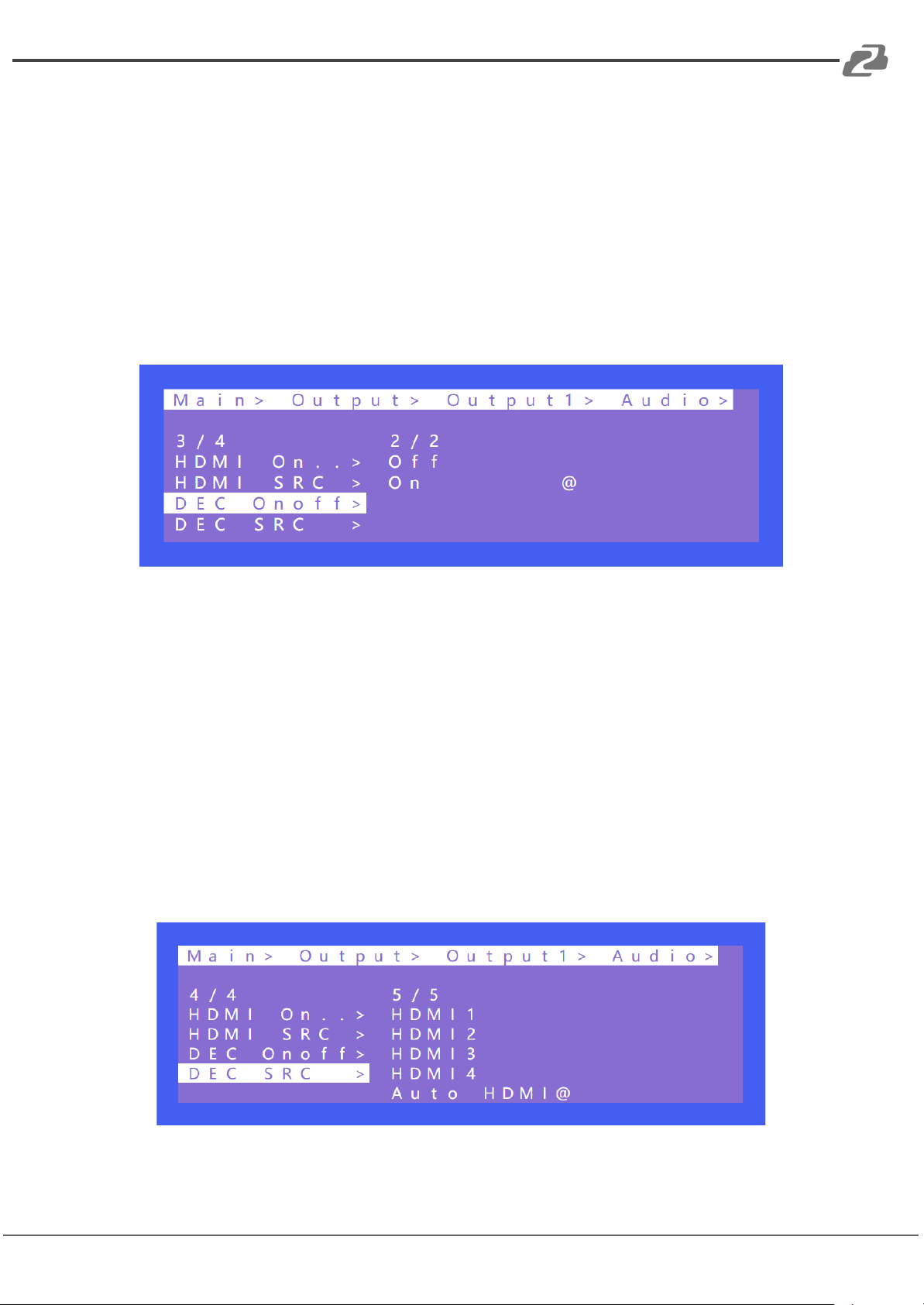
2. HDMI SRC
HDMI SRC enables switching to different input signal sources. It supports switching to
analog audio in 1~4 and HDMI input 1~4.
Auto HDMI follows the corresponding input. ENC indicates the corresponding audio in.
That is, audio will follow the matrix switching of inputs, it will not switch the audio source
when Auto HDMI is enabled.
Page 23
BZBGEAR BG-4K-VP44 PRODUCT MANUAL
Operations:
Address: 830 National Drive #140, Sacramento, CA 95834, USA · Tel: +1(888)499-9906 · Email: [email protected] 23
1. Select “Output” in the main menu and press “ENTER”
2. Press “UP” or “DOWN” to select “ Output 1~4, all”
3. Click “ENTER” to enter the next sub-menu
4. Press “UP” or “DOWN” to select “Audio” and enter the next sub-menu
5. Select HDMI1~4 or ENC 1~4 and press “ENTER” to complete the audio switching.
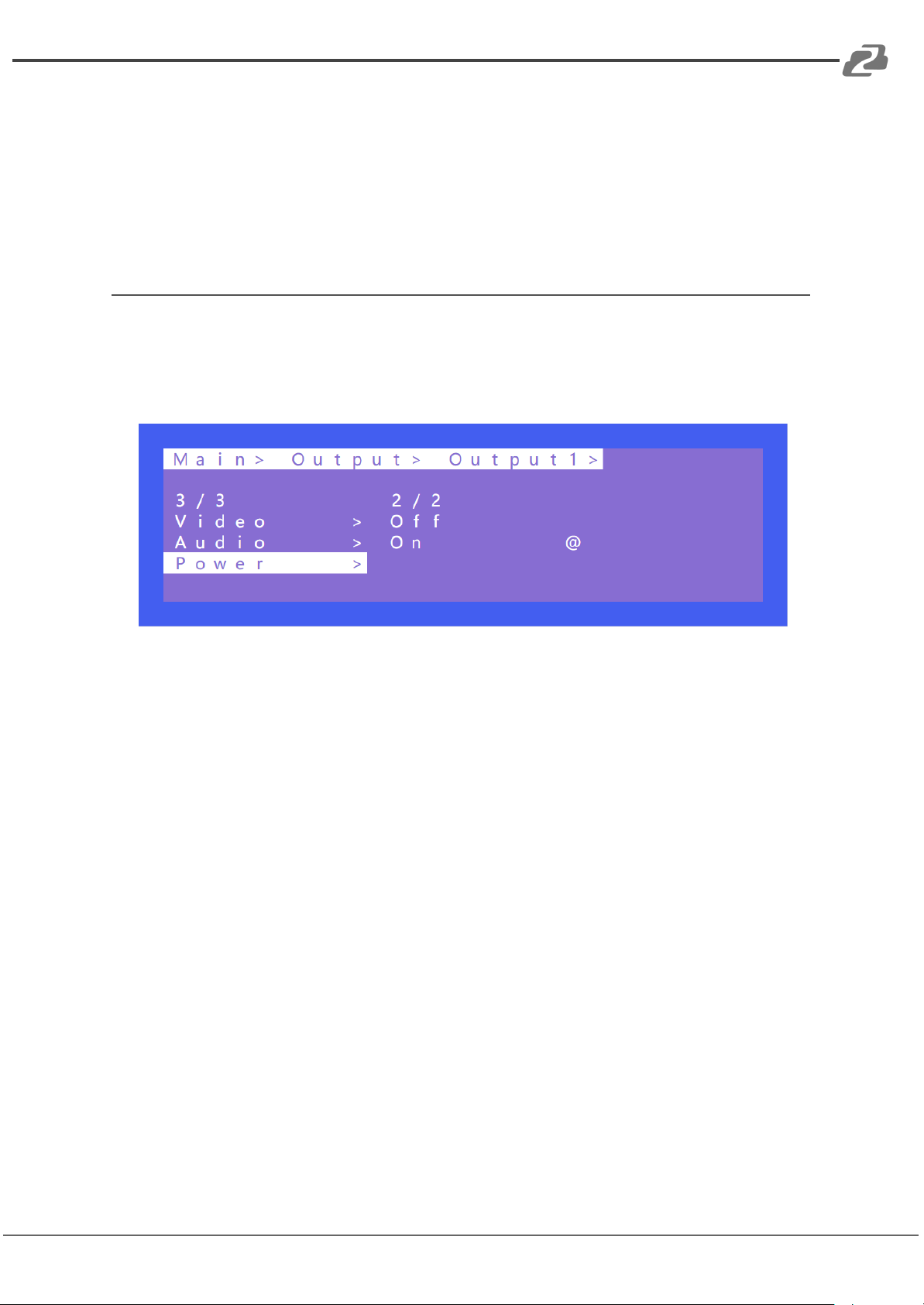
3. DEC onoff
DEC Onoff can also control the output of audio and switch it to on or off. It is on by default.
Operations:
1. Select “Output” in the main menu and press “ENTER”
2. Press “UP” or “DOWN” to select “ Output 1~4, all”
3. Click “ENTER” to enter the next sub-menu
4. Press “UP” or “DOWN” to select “Audio” and enter the next sub-menu
5. Select “HDMI Onoff” to turn on/off the audio out
4. DEC SRC
DEC SRC enables audio extraction from different input sources. It can switch to HDMI input
1~4 while Auto HDMI indicates that audio follows the corresponding input. The default is
auto HDMI.
Page 24
BZBGEAR BG-4K-VP44 PRODUCT MANUAL
Operation:
Address: 830 National Drive #140, Sacramento, CA 95834, USA · Tel: +1(888)499-9906 · Email: [email protected] 24
1. Select “Output” in the main menu and press “ENTER”
2. Press “UP” or “DOWN” to select “ Output 1~4, all”
3. Click “ENTER” to enter the next sub-menu
4. Press “UP” or “DOWN” to select “Audio” and enter the next sub-menu
5. Select “DEC SRC” to select the desired audio input
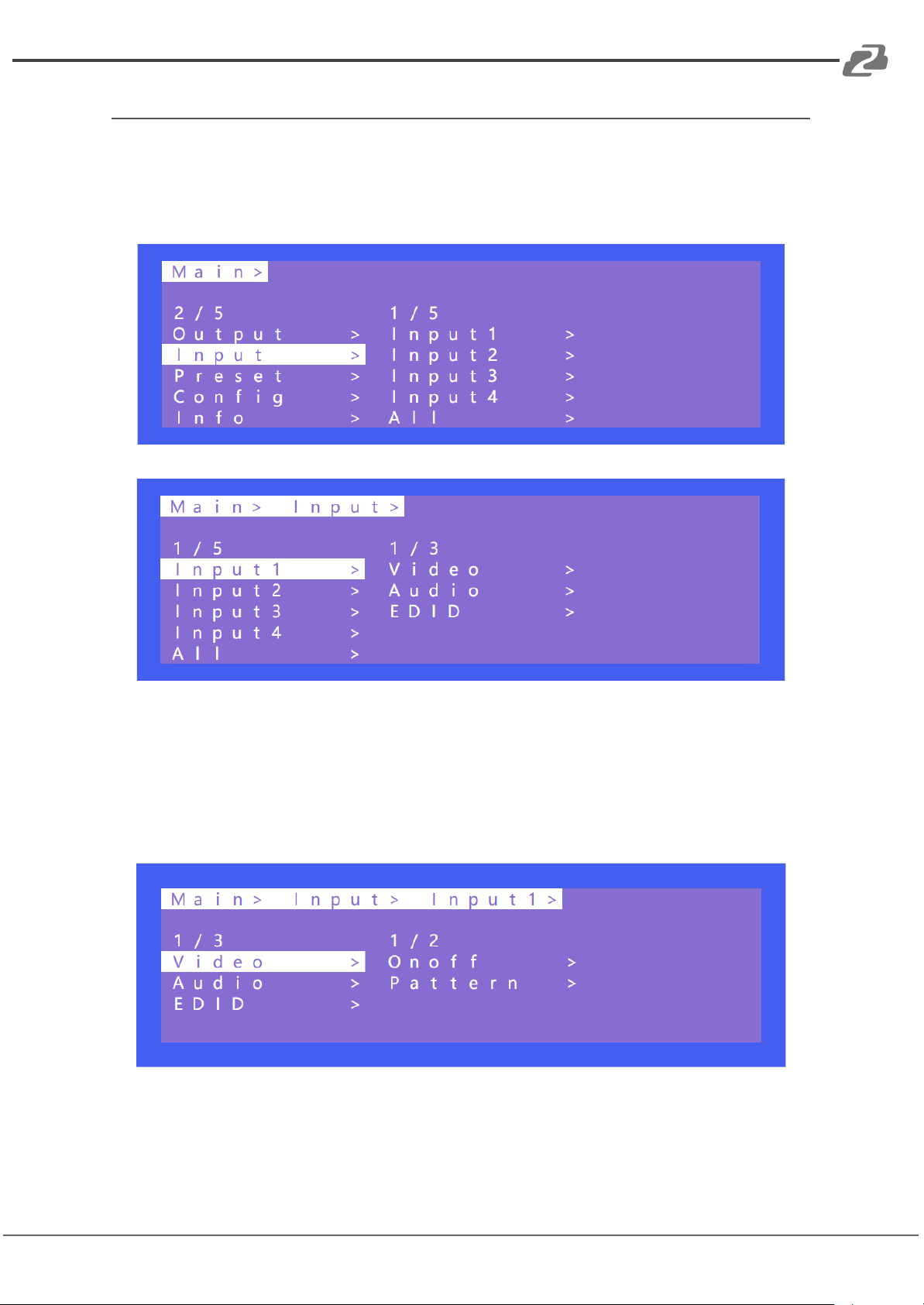
Power
Power is used to turn off the HDMI output of 5V. Setting power to off on an output will turn
the image completely off (Black). It is on by default and outputs with no source will display a
blue screen.
Operation:
1. Select “Output” in the main menu and press “ENTER”
2. Press “UP” or “DOWN” to select “ Output 1~4, all”
3. Click “ENTER” to enter the next sub-menu
4. Press “UP” or “DOWN” to select “Power” and enter the next sub-menu
5. Select “On” or “Off” to complete the operation.
Page 25
BZBGEAR BG-4K-VP44 PRODUCT MANUAL
Input
Address: 830 National Drive #140, Sacramento, CA 95834, USA · Tel: +1(888)499-9906 · Email: [email protected] 25
There are three options for the Input interface: Video, Audio, and EDID.
Video is used to switch the input channel, built-in pattern, and turn the input on/off. Audio is
used to set a delay. EDID supports built-in, copy, user, and temp.
1. Video
Video can turn the input channel on or off. All the outputs corresponding to the input will
have no image and audio when the input is set to “Off”. Pattern provides a built-in test
pattern, the selected built-in pattern will replace the input source image.
Page 26
BZBGEAR BG-4K-VP44 PRODUCT MANUAL
Operation:
Default1
4K60 444-LPCM: 2.0-192Khz
Default2
4K60 420-LPCM: 2.0-192Khz
Default3
4K30 444-LPCM: 2.0-192Khz
Default4
1080P120 444-LPCM: 2.0-192Khz
Address: 830 National Drive #140, Sacramento, CA 95834, USA · Tel: +1(888)499-9906 · Email: [email protected] 26
1. Select “Input” in the main menu and press “ENTER”
2. Press “UP” or “DOWN” to select “ Input 1~4, all”
3. Click “ENTER” to enter the next sub-menu
4. Press “UP” or “DOWN” to select “Video” and enter the next sub-menu
5. Select “On” or “Off” to turn on/off the input video
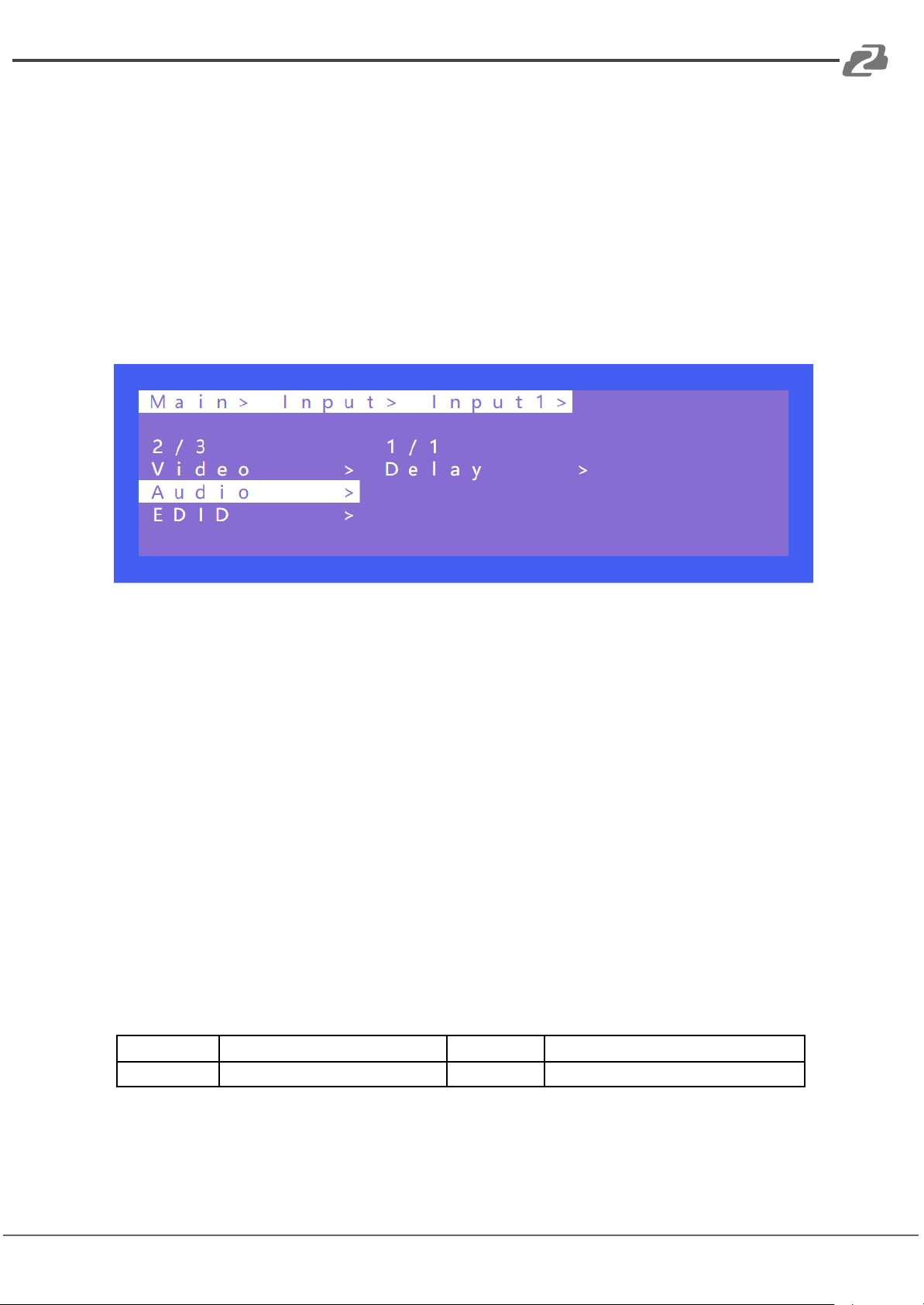
2. Audio
Audio delay setting range is 0~50. The default is set to auto.
Operation:
1. Select “Input” in the main menu and press “ENTER”
2. Press “UP” or “DOWN” to select “ Input 1~4, all”
3. Click “ENTER” to enter the next sub-menu
4. Press “UP” or “DOWN” to select “Audio” and enter the next sub-menu
5. Select “0~50” in “Delay”to complete the operation
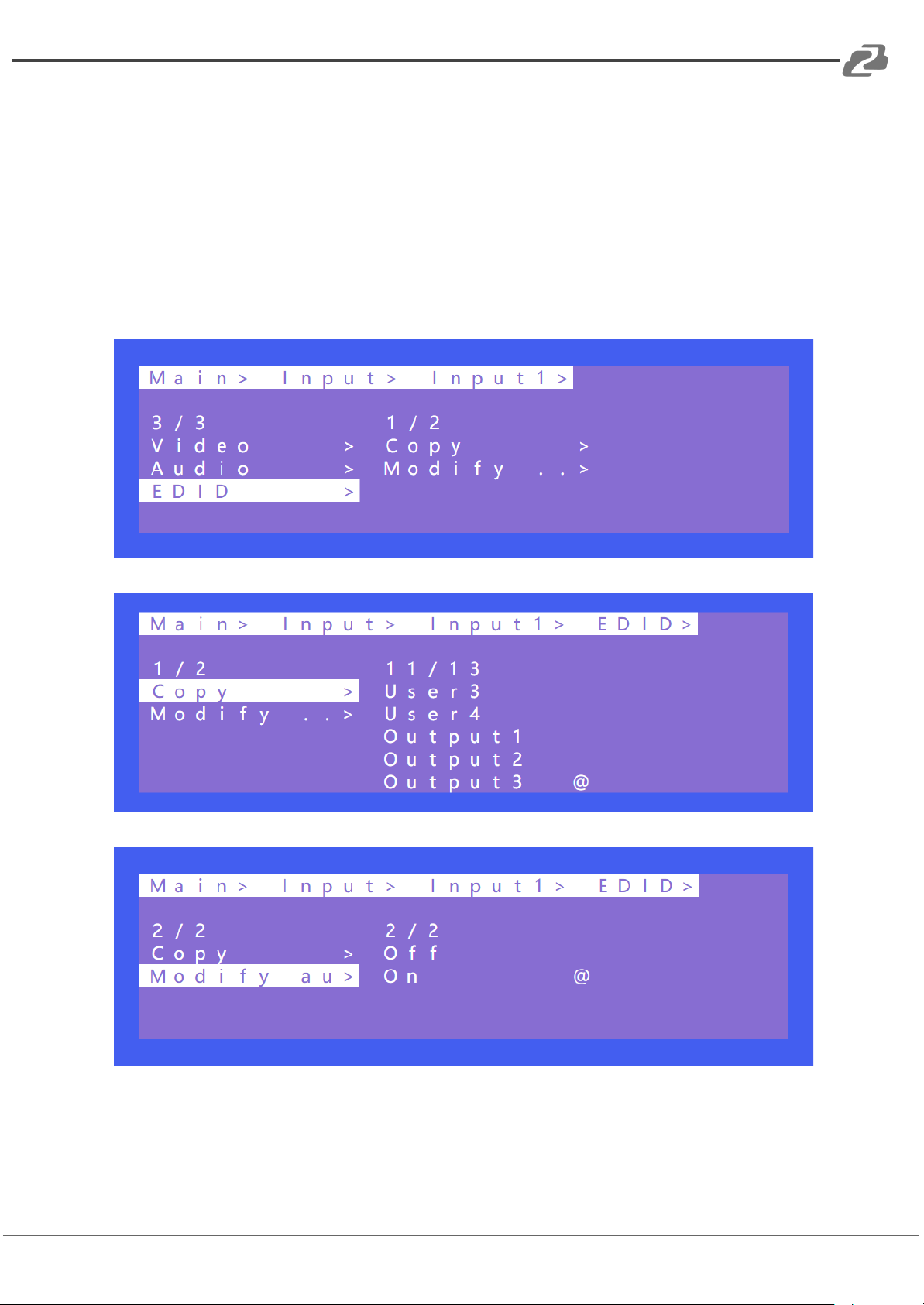
3. EDID
There are 4 options each input can have its built-in EDID set to: User EDID, Copy HDMI
EDID, and temp. The default is set to default1. When the EDID is copied, the EDID of the
last TV will be temporarily stored in the case of a power outage. Connecting a new TV will
update the EDID.
By default Modify is set to on. After copying the TV EDID, the audio parameter is
automatically changed to LPCM 2.0. If closed; The copied EDID does not modify the audio
parameters.
Page 27
BZBGEAR BG-4K-VP44 PRODUCT MANUAL
Switching Default1 on input 1 is shown in the following example:
Address: 830 National Drive #140, Sacramento, CA 95834, USA · Tel: +1(888)499-9906 · Email: [email protected] 27
Operations:
1. Select “EDID” in the main menu and press “ENTER”
2. Press “UP” or “DOWN” to select “ Input 1.”
3. Click “ENTER” to enter the next sub-menu
4. Press “Default1” to complete the operation
5. The selected EDID will show some of its information (resolution, audio format and
audio channel)
Page 28
BZBGEAR BG-4K-VP44 PRODUCT MANUAL
Preset
Address: 830 National Drive #140, Sacramento, CA 95834, USA · Tel: +1(888)499-9906 · Email: [email protected] 28
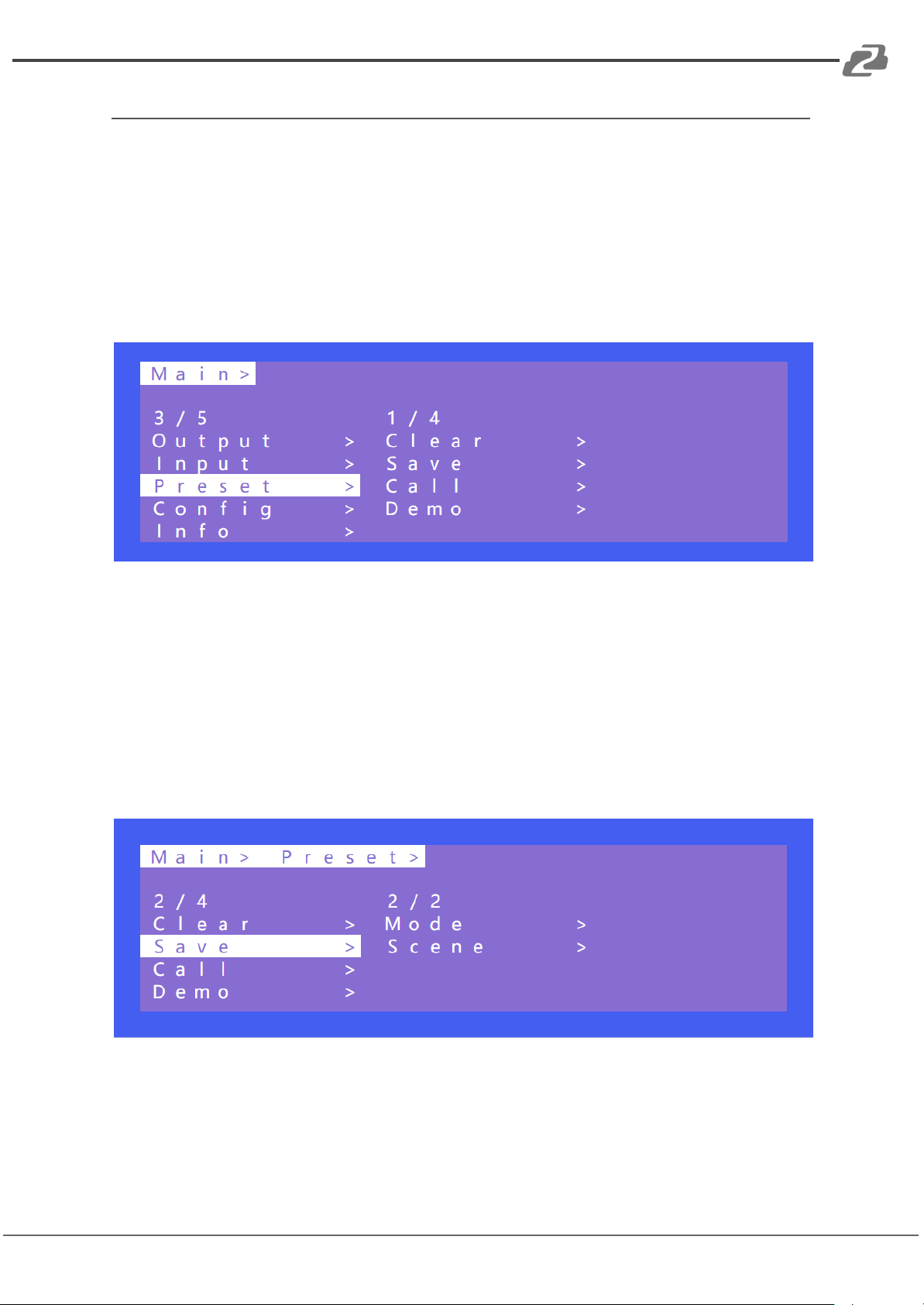
Preset can save the current video, audio, EDID, system settings and it supports up to 8
different scenes. Preset can be modified and called using WEB, commands and panel.
There are 4 options as follow:
Clear: Remove the selected preset.
Save: Stores the current preset (can be saved over).
Call: Activates the currently selected preset.
Demo: Plays the demo according to the scenes sequence.
Operations:
1. Select “Preset” in the main menu and short press “ENTER” to enter the preset
interface. Call to recall a preset, Save to save the current matrix scene as a preset,
Clear to delete a preset scene.
2. Save preset: select “Save” in Preset and select “Mode” or “Scene” to save in
“Scene” or “P2P”
3. Call preset: Select “Call” in Preset and select a saved preset to complete the
operation.The scene will change to the saved preset scene.
4. Clear preset: Select “Clear” a Preset to restore a scene to their default values.
Page 29
BZBGEAR BG-4K-VP44 PRODUCT MANUAL
Demo
Address: 830 National Drive #140, Sacramento, CA 95834, USA · Tel: +1(888)499-9906 · Email: [email protected] 29
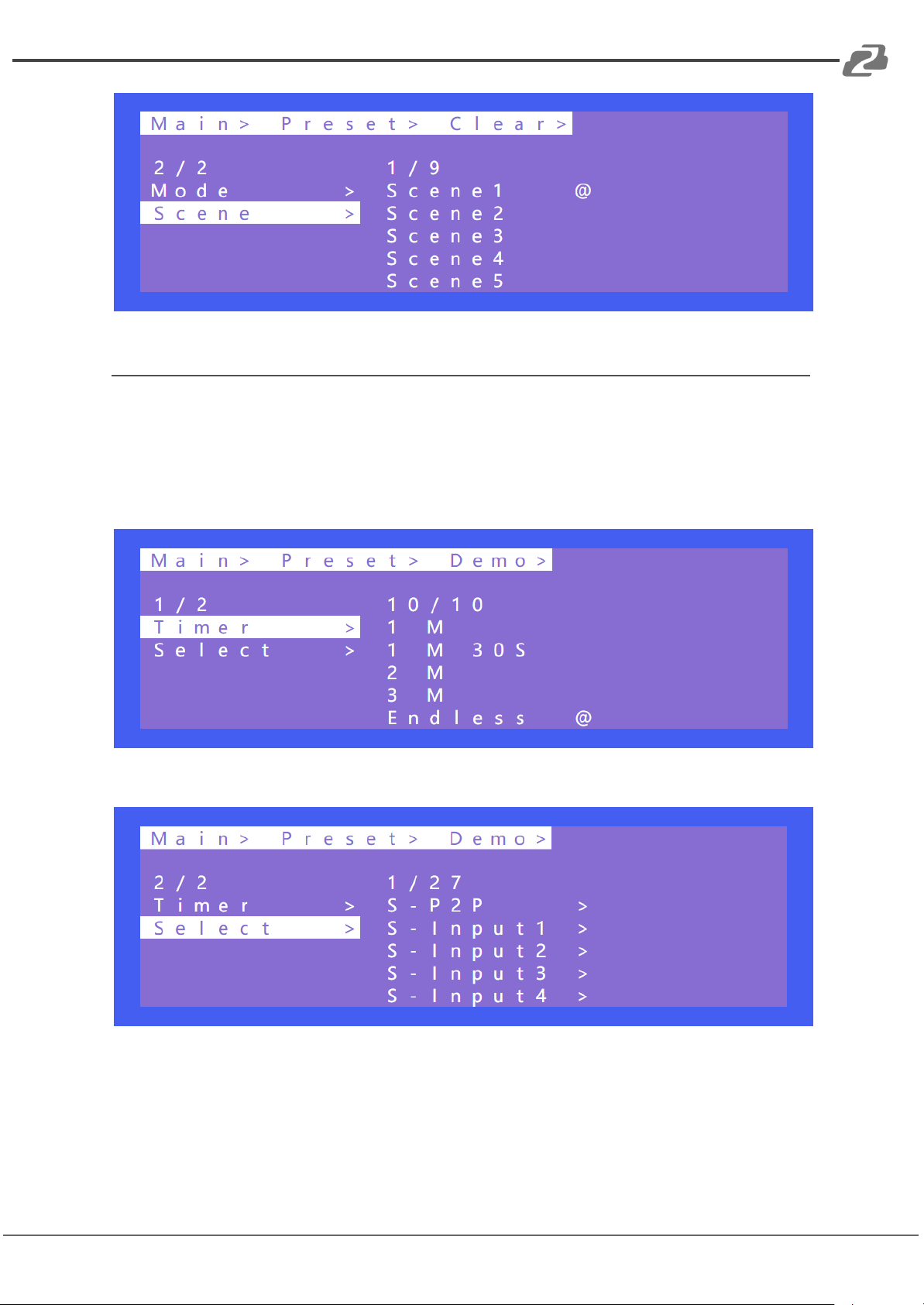
Timer will set the rotation time between scenes in the demo loop. By default it is set to
“Endless” while selectable times range from 3 seconds to 3 minutes.
Select allows you to control which preset matrix, multi-view, and video wall configurations
are shown in the demo loop. When set to Yes the preset will be shown in the demo loop
and when set to no it will be skipped.
Demo
Page 30
BZBGEAR BG-4K-VP44 PRODUCT MANUAL
Config
Address: 830 National Drive #140, Sacramento, CA 95834, USA · Tel: +1(888)499-9906 · Email: [email protected] 30
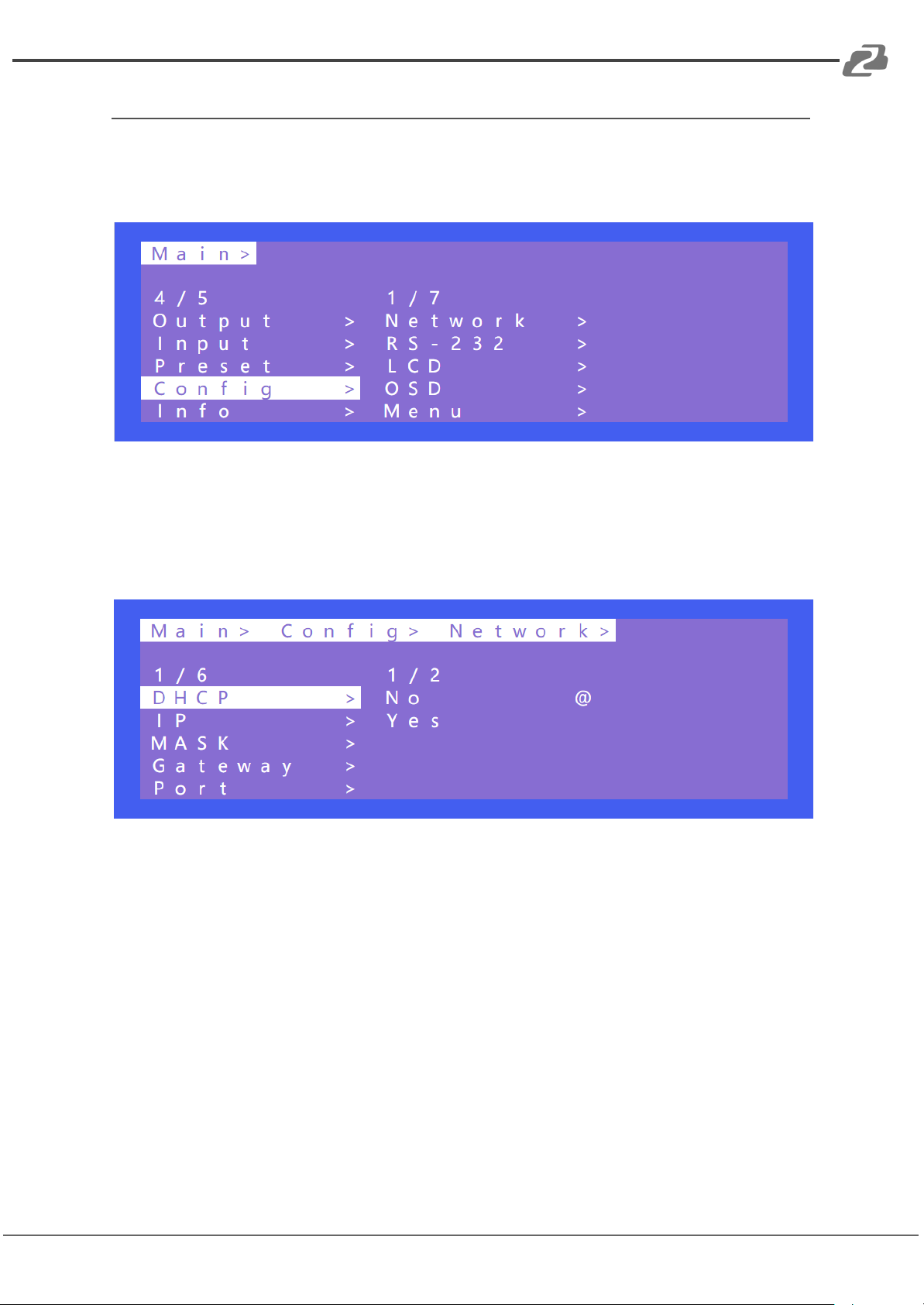
Config can set network, RS232, LCD, OSD, MENU, user EDID, and system settings.
Gray sections cannot be selected and are read-only.
1. Network
Network can set DHCP, IP, Mask, Gateway, and Port. The Mac address cannot be changed.
The default IP address is 192.168.1.200
DHCP operation:
1. Select “Config” in the main menu and press “ENTER”
2. Press “UP” or “DOWN” to select “ network ”
3. Click “ENTER” to enter the next sub-menu
4. Press “UP” or “DOWN” to select baud rate “DHCP”
5. Press “UP” or “DOWN” to select “No” or “Yes” to complete the operation.
Page 31
BZBGEAR BG-4K-VP44 PRODUCT MANUAL
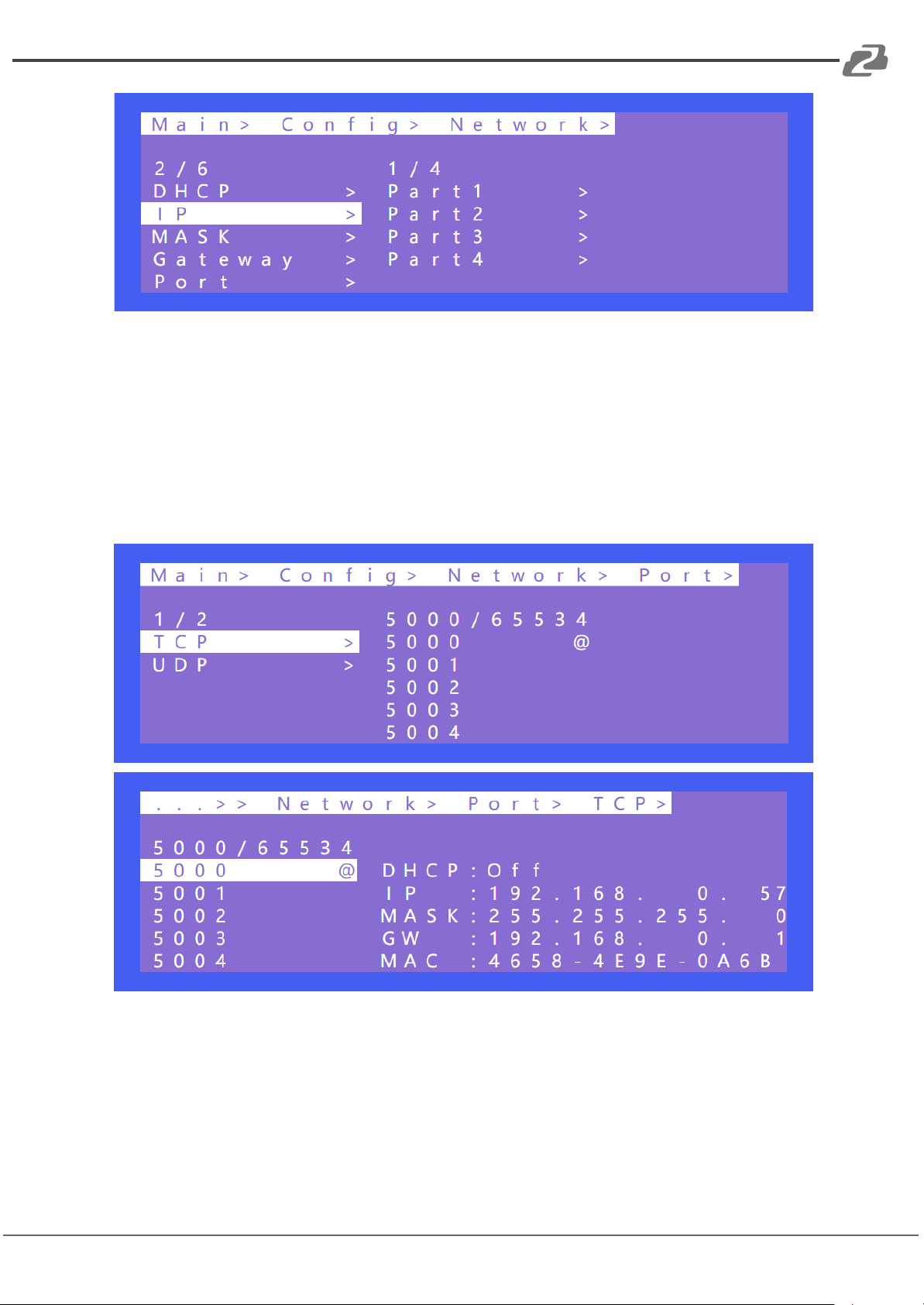
IP/MASK/gateway Operation:
Address: 830 National Drive #140, Sacramento, CA 95834, USA · Tel: +1(888)499-9906 · Email: [email protected] 31
1. Select “Config” in the main menu and press “ENTER”
2. Press “UP” or “DOWN” to select “ network ”
3. Click “ENTER” to enter the next sub-menu
4. Press “UP” or “DOWN” to select baud rate “IP/MASK/gateway”
5. Press “UP” or “DOWN” to select “0~255” to complete the operation.
TCP/UDP protocol, default port: TCP5000, UDP 5001
Operation of TCP/UDP port number change
1. Select “Config” in the main menu and press “ENTER”
2. Press “UP” or “DOWN” to select “ network ”
3. Click “ENTER” to enter the next sub-menu
4. Press “UP” or “DOWN” to select baud rate “Port” to enter the next sub-menu
5. Select “UDP” or “TCP”
6. Press “UP” or “DOWN” to select “1~65534” to complete the operation.
Page 32
BZBGEAR BG-4K-VP44 PRODUCT MANUAL
2. RS-232
Address: 830 National Drive #140, Sacramento, CA 95834, USA · Tel: +1(888)499-9906 · Email: [email protected] 32
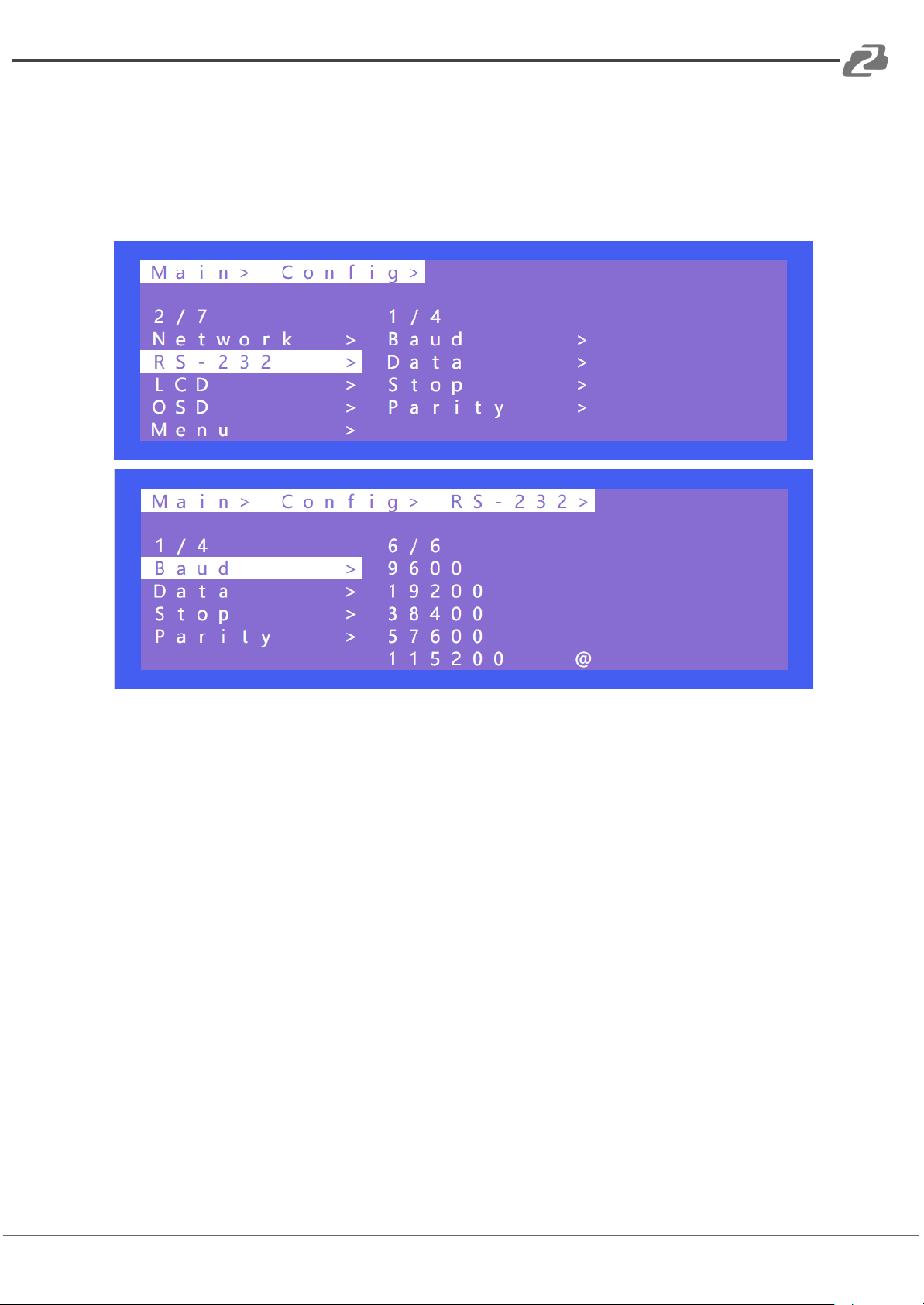
Data, Stop, and Parity parameters cannot be changed by default. Only baud rate can be
changed. The other parameters can be changed only when the read/write permission is
enabled which is not enabled by default.
Operation:
1. Select “Config” in the main menu and press “ENTER”
2. Press “UP” or “DOWN” to select “ RS232 ”
3. Click “ENTER” to enter the next sub-menu
4. Press “UP” or “DOWN” to select baud rate “Baud” to enter the next sub-menu
5. Select “4800~115200” and press”ENTER” to complete the operation
Page 33
BZBGEAR BG-4K-VP44 PRODUCT MANUAL
3. LCD
Address: 830 National Drive #140, Sacramento, CA 95834, USA · Tel: +1(888)499-9906 · Email: [email protected] 33
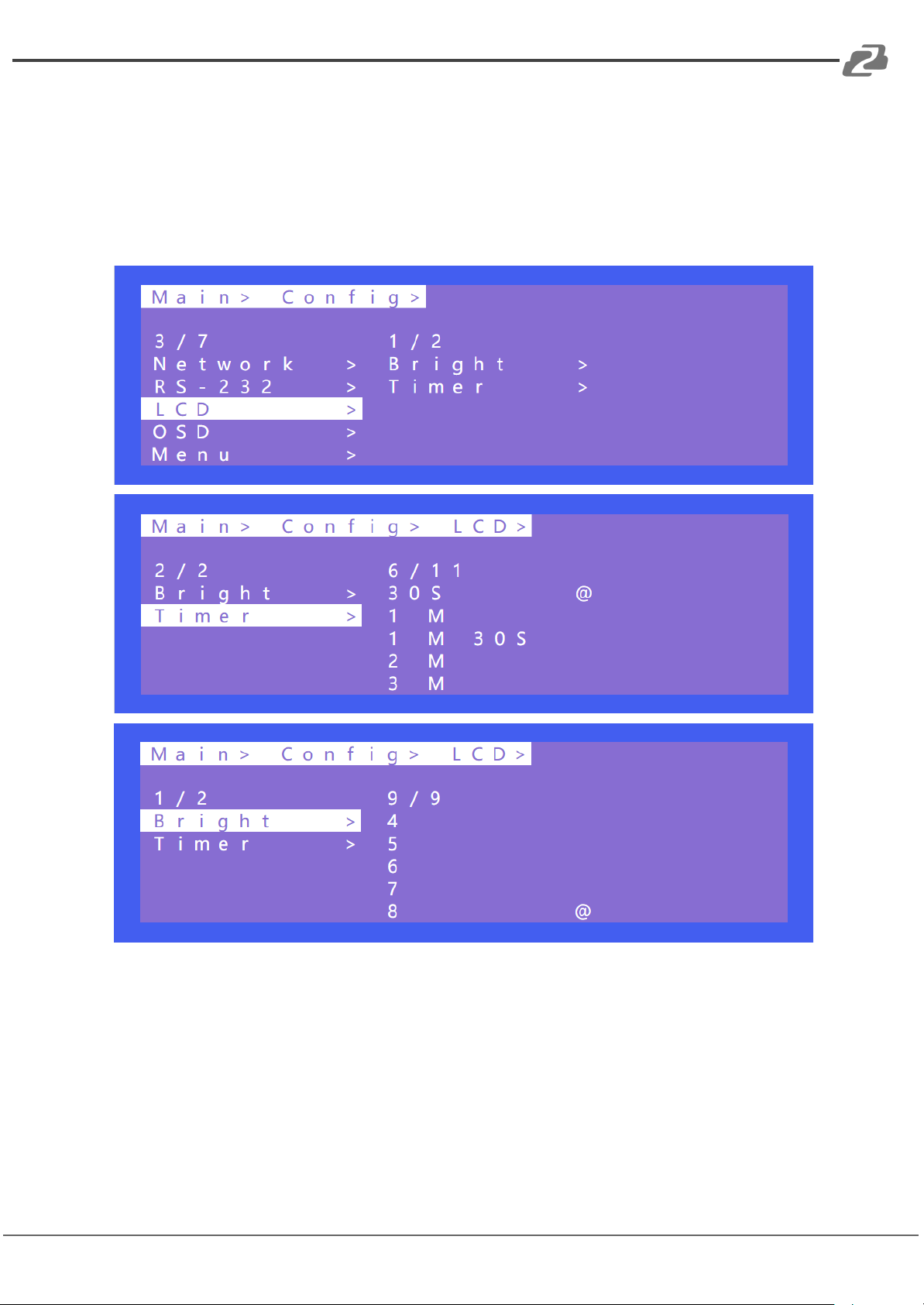
Bright can adjust the brightness of the LCD screen and Timer can set the backlight time.
The default backlight level is 8 and the time is 30 seconds.
Bright 0 to 8 indicates the backlight level, and 0 indicates off.
Timer can be set to 3 seconds ~ Endless.
Operation:
1. Select “Config” in the main menu and press “ENTER”
2. Press “UP” or “DOWN” to select “ Bright ”
3. Click “ENTER” to enter the next sub-menu
4. Press “UP” or “DOWN” to select “0~8”
5. Click “ENTER” to compete the backlight brightness
Page 34
BZBGEAR BG-4K-VP44 PRODUCT MANUAL
4. OSD Setting
Address: 830 National Drive #140, Sacramento, CA 95834, USA · Tel: +1(888)499-9906 · Email: [email protected] 34
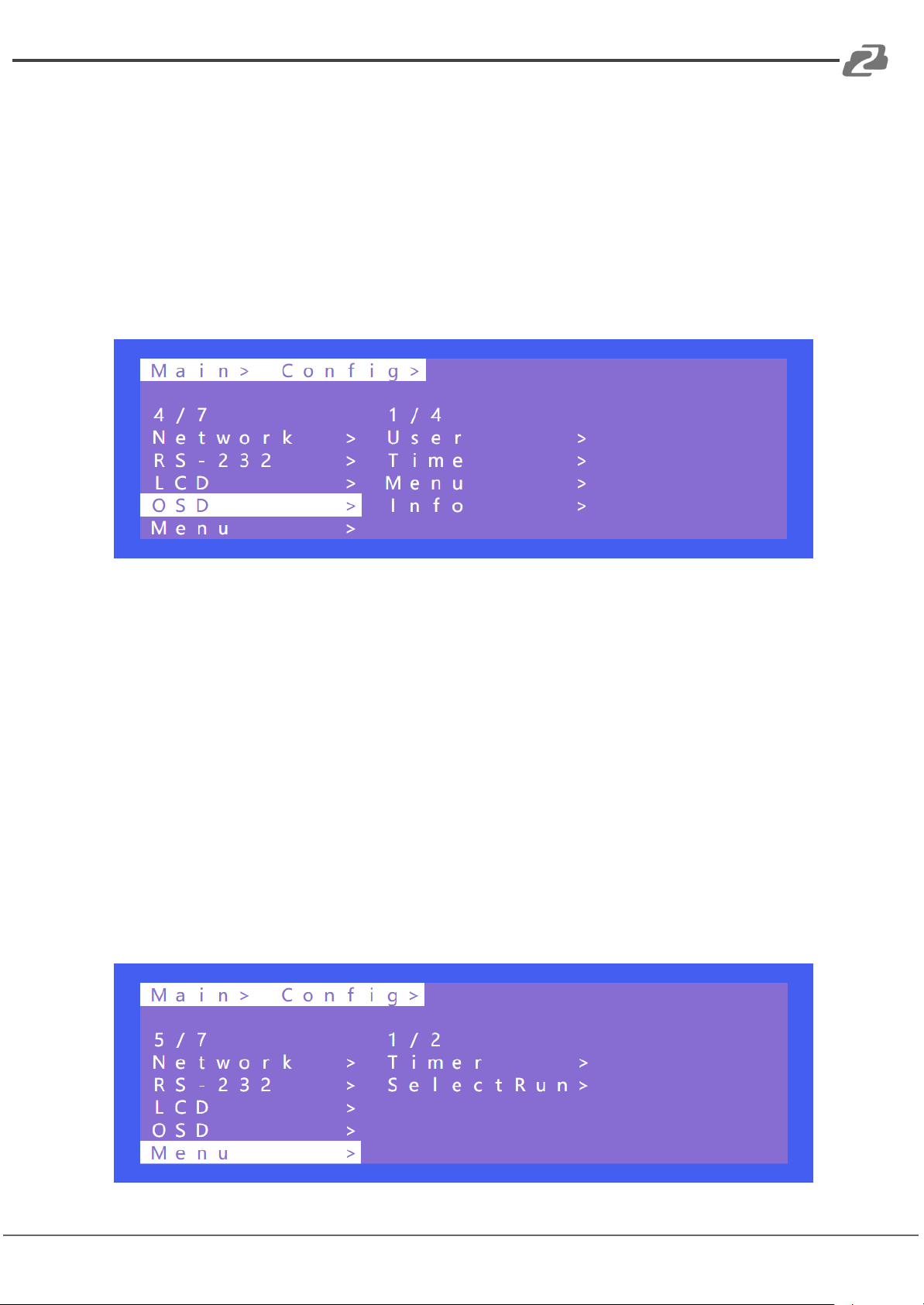
There are 4 options in OSD: User, Time, Menu, Info.
User indicates the output coordinate time of OSD.
Time indicates the running time after the device is power on.
Menu indicates that the LCD is mapped to the TV.
INFO indicates the displayed time of audio and video information.
When the parameter is set to 0 seconds, OSD display is turned off. By default, User and
time are endless, menu and INFO are 30 seconds
Operation:
1. Select “Config” in the main menu and press “ENTER”
2. Press “UP” or “DOWN” to select “ OSD ”
3. Click “ENTER” to enter the next sub-menu
4. Press “UP” or “DOWN” to select “User” and press “ENTER”
5. Press “UP” or “DOWN” to select “Time” and check the OSD display in the upper left
corner of the TV
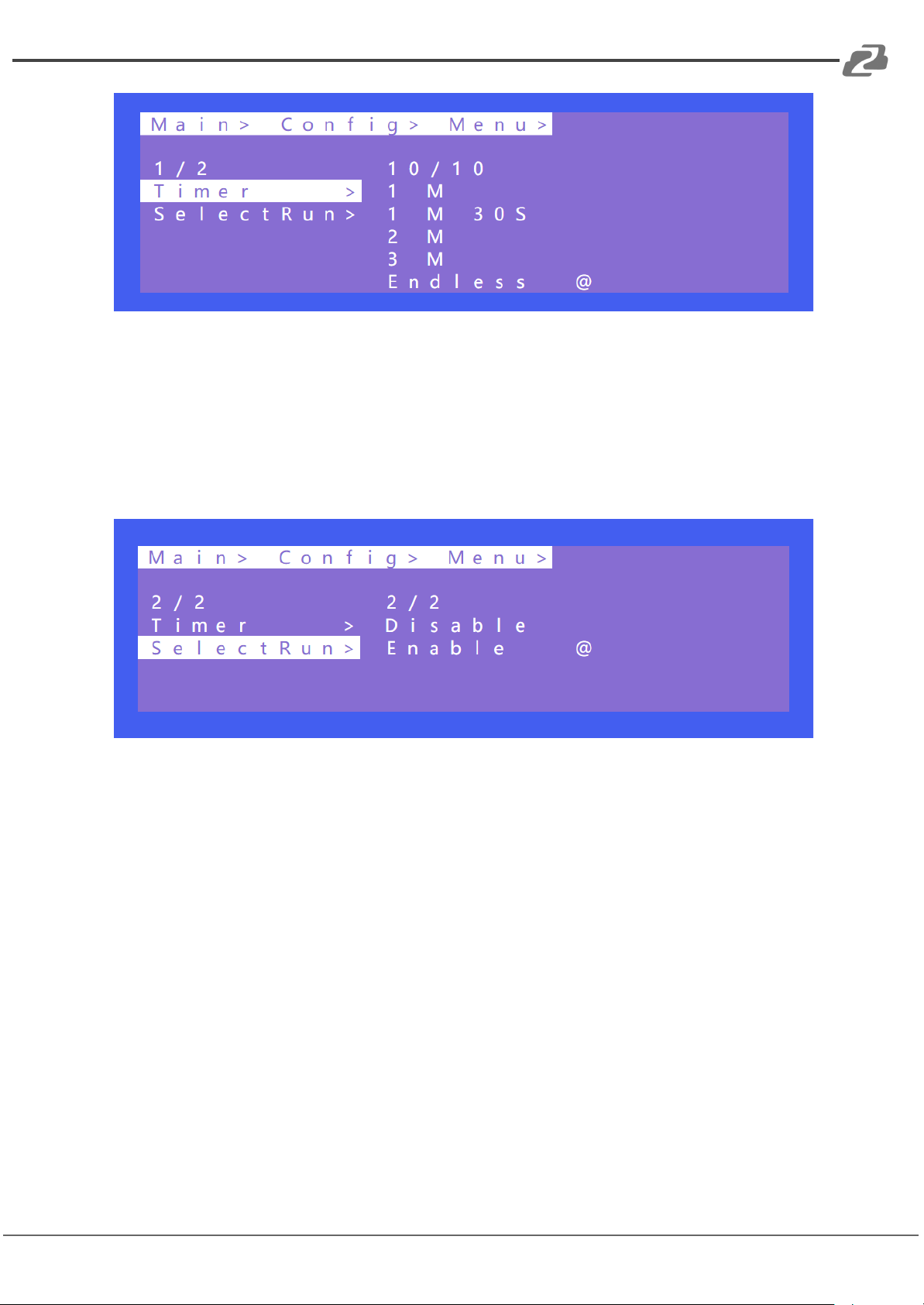
5. Menu
Timer indicates the time the menu remains active before it returns to the selected output.
Select Run indicates whether the confirm button of the last sub-menu is enabled.
If it is set to disable, you need to press “ENTER” to enable settings. If it is set to enable, you
do not need to press “ENTER” to confirm a change.
Page 35
BZBGEAR BG-4K-VP44 PRODUCT MANUAL
Operation:
Address: 830 National Drive #140, Sacramento, CA 95834, USA · Tel: +1(888)499-9906 · Email: [email protected] 35
1. Select “Config” in the main menu and press “ENTER”
2. Press “UP” or “DOWN” to select “ Menu ”
3. Click “ENTER” to enter the next sub-menu
4. Press “UP” or “DOWN” to select “Timer” and press “ENTER”
5. Press “UP” or “DOWN” to select the return time.
Operation:
1. Select “Config” in the main menu and press “ENTER”
2. Press “UP” or “DOWN” to select “ Menu ”
3. Click “ENTER” to enter the next sub-menu
4. Press “UP” or “DOWN” to select “Select Run” and press “ENTER”
5. Press “UP” or “DOWN” to select “Disable” or “Enable”
Page 36
BZBGEAR BG-4K-VP44 PRODUCT MANUAL
6. User EDID
Address: 830 National Drive #140, Sacramento, CA 95834, USA · Tel: +1(888)499-9906 · Email: [email protected] 36
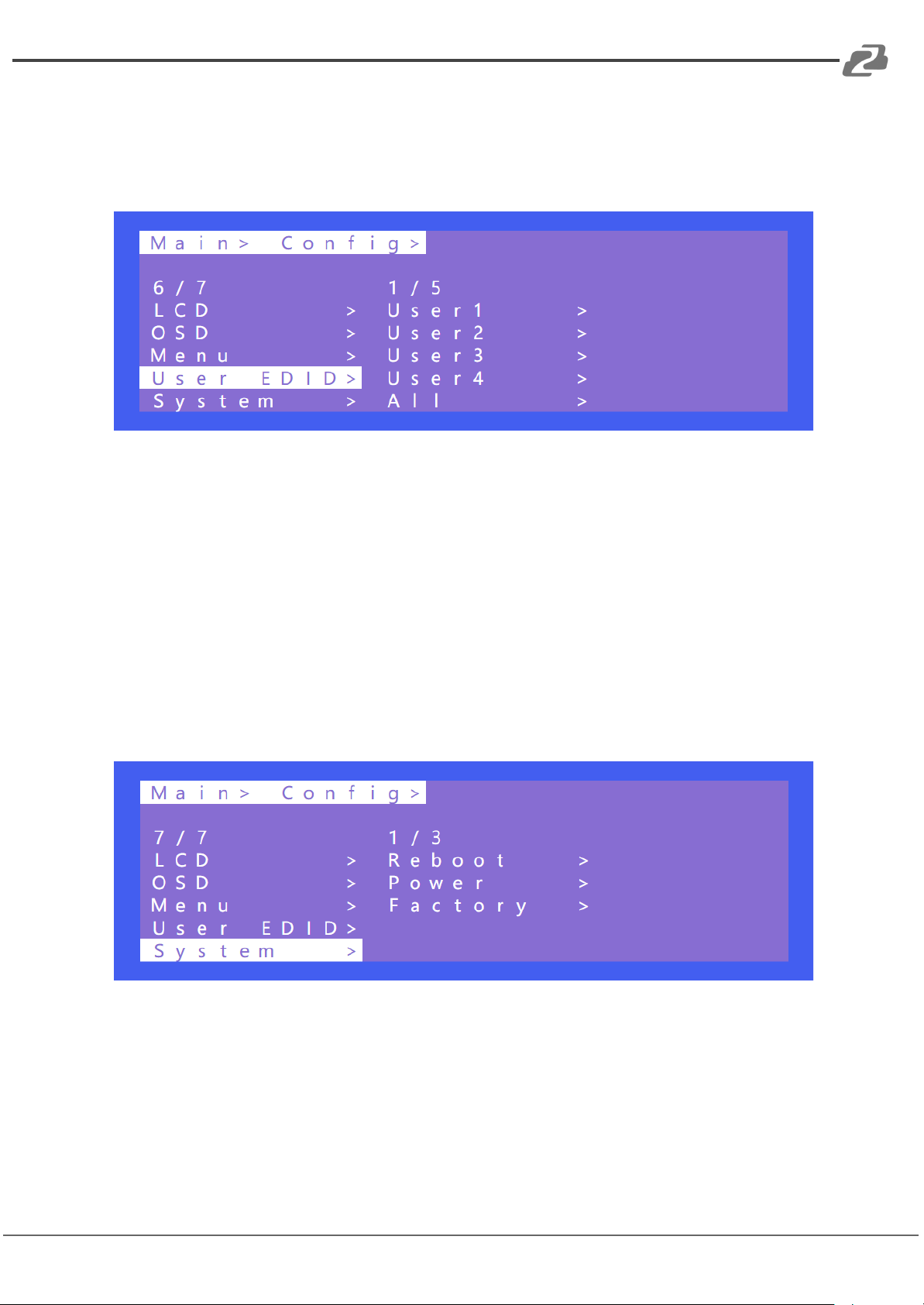
User EDID can store the EDID of the output display device of the connection matrix to
user1~4, which can be stored in default, output, and temp1, and then used in the EDID list.
Operation:
1. Select “Config” in the main menu and press “ENTER”
2. Press “UP” or “DOWN” to select “ User EDID ”
3. Click “ENTER” to enter the next sub-menu
4. Press “UP” or “DOWN” to select “User1” and press “ENTER”
5. Select “Output1” and press “ENTER” to complete the operation
7. System
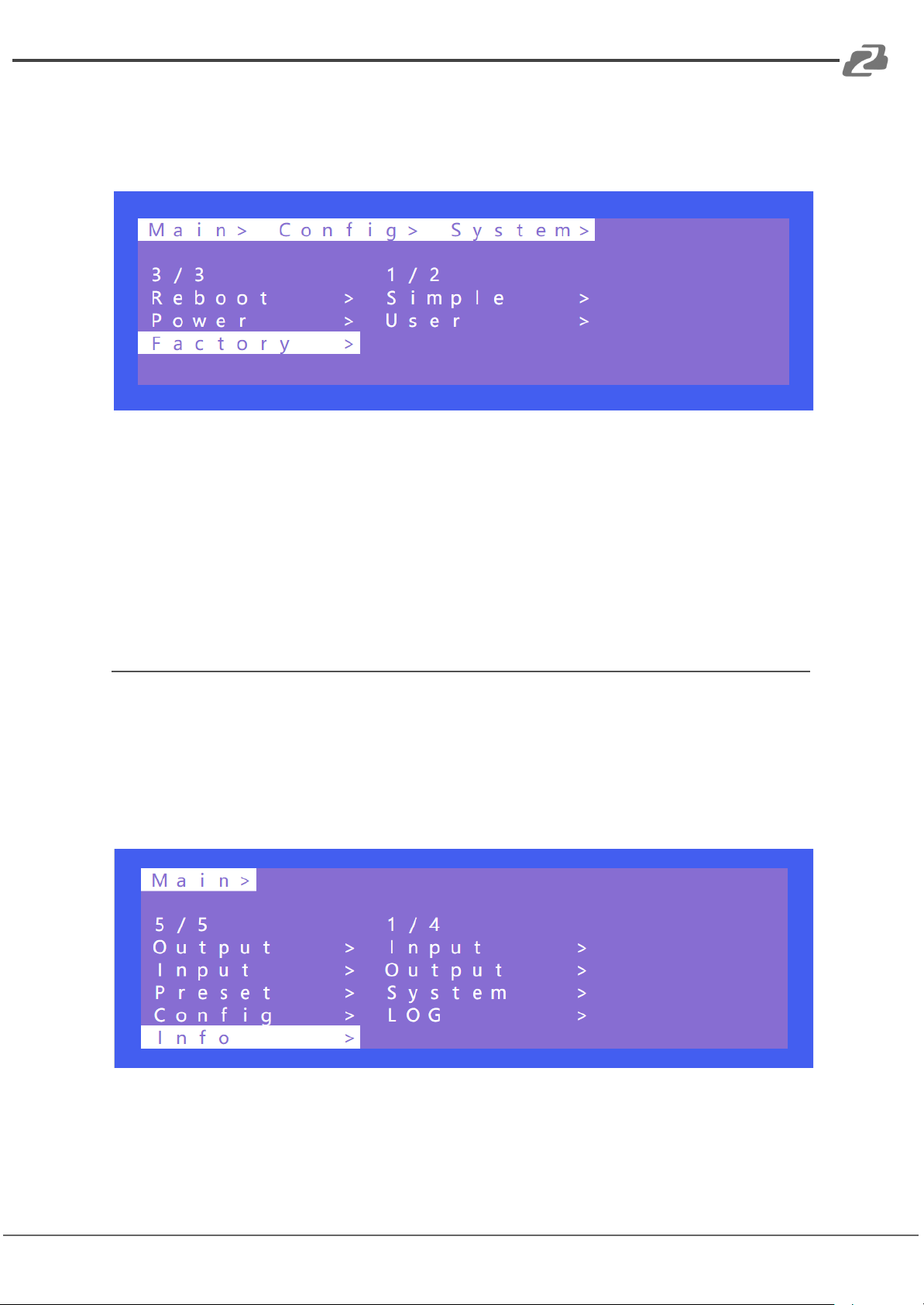
System Setting includes Reboot, Power, and Factory. Reboot indicates device restart,
power indicates device sleep, and factory indicates factory data reset.
Page 37
BZBGEAR BG-4K-VP44 PRODUCT MANUAL
Reboot
Address: 830 National Drive #140, Sacramento, CA 95834, USA · Tel: +1(888)499-9906 · Email: [email protected] 37
Operation:
1. Select “Config” in the main menu and press “ENTER”
2. Press “UP” or “DOWN” to select “ System ”
3. Click “ENTER” to enter the next sub-menu
4. Press “UP” or “DOWN” to select “Reboot” and press “ENTER”
5. Select “Yes” to complete the reboot.
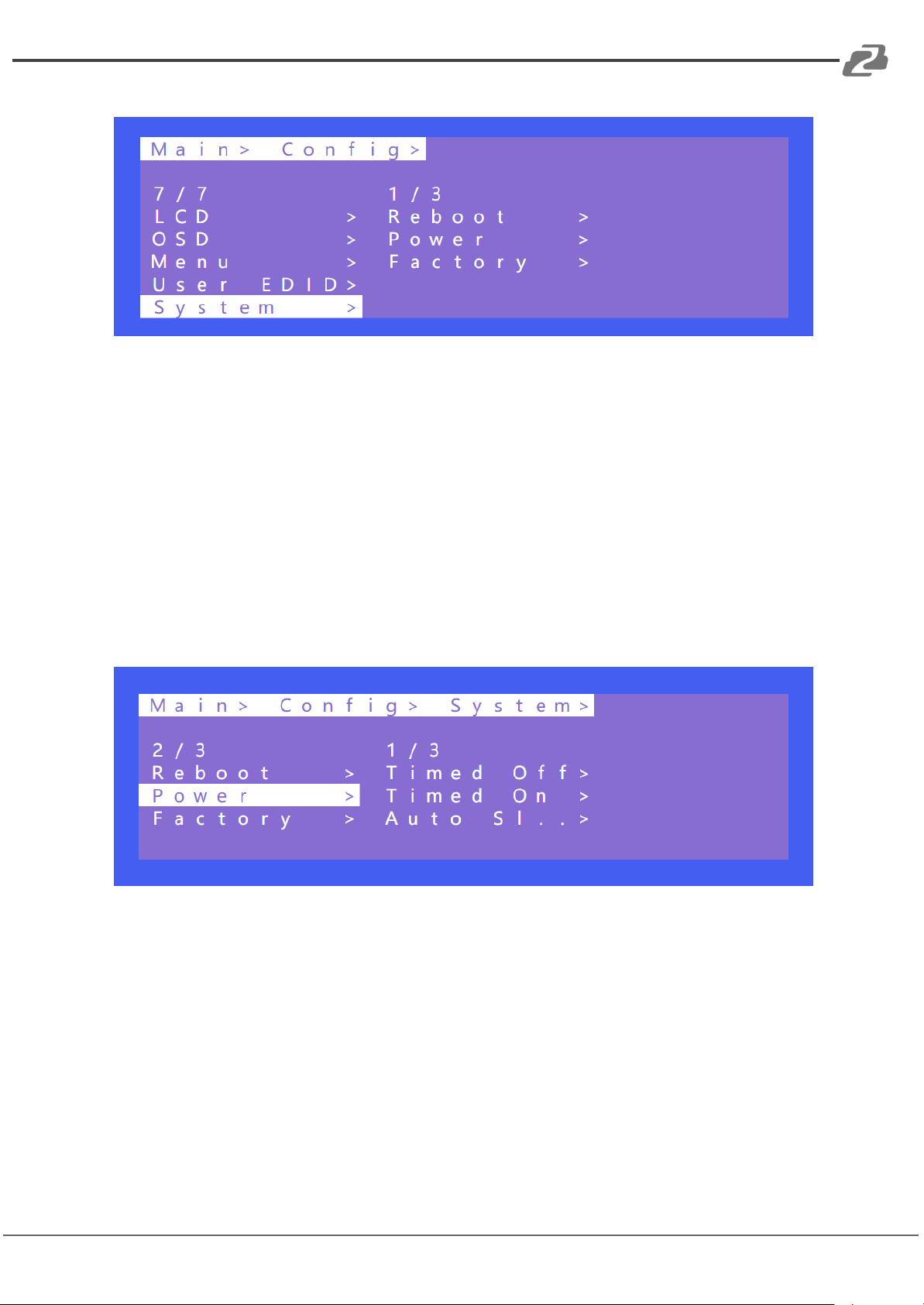
Timed Off
Timed Off indicates timed standby, Timed On indicates timed wake up, and Auto Sleep
indicates automatic sleep.
Operation:
1. Select “Config” in the main menu and press “ENTER”
2. Press “UP” or “DOWN” to select “ System ”
3. Click “ENTER” to enter the next sub-menu
4. Press “UP” or “DOWN” to select “Power” and press “ENTER”
5. Select “Timed off” and press “ENTER” to enter the next sub-menu
6. Press “UP” or “DOWN” to set the scheduled standby time
Page 38
BZBGEAR BG-4K-VP44 PRODUCT MANUAL
Factory
Address: 830 National Drive #140, Sacramento, CA 95834, USA · Tel: +1(888)499-9906 · Email: [email protected] 38
Simple: partially restores factory settings
User: restores all factory settings
Operation:
1. Select “Config” in the main menu and press “ENTER”
2. Press “UP” or “DOWN” to select “ System ”
3. Click “ENTER” to enter the next sub-menu
4. Press “UP” or “DOWN” to select “Factory” and press “ENTER”
5. Select “Simple” and press “ENTER” to enter the next sub-menu
6. Press “UP” or “DOWN” to select “Yes” to restore the factory setting.
Info
Query device information, including input, output, system, and log. The information can only
be queried and cannot be set or changed.
Input: resolution information of the signal sources input
Output: EDID information of the TV of outputs.
System: System information includes Web, version and company info.
Log: Matrix log
Operation:
1. Select “INFO” in the main menu and press “ENTER”
2. Press “UP” or “DOWN” to select “ System ”
3. Click “ENTER” to enter the next sub-menu to query the relevant device information.
Page 39
BZBGEAR BG-4K-VP44 PRODUCT MANUAL
Remote Control
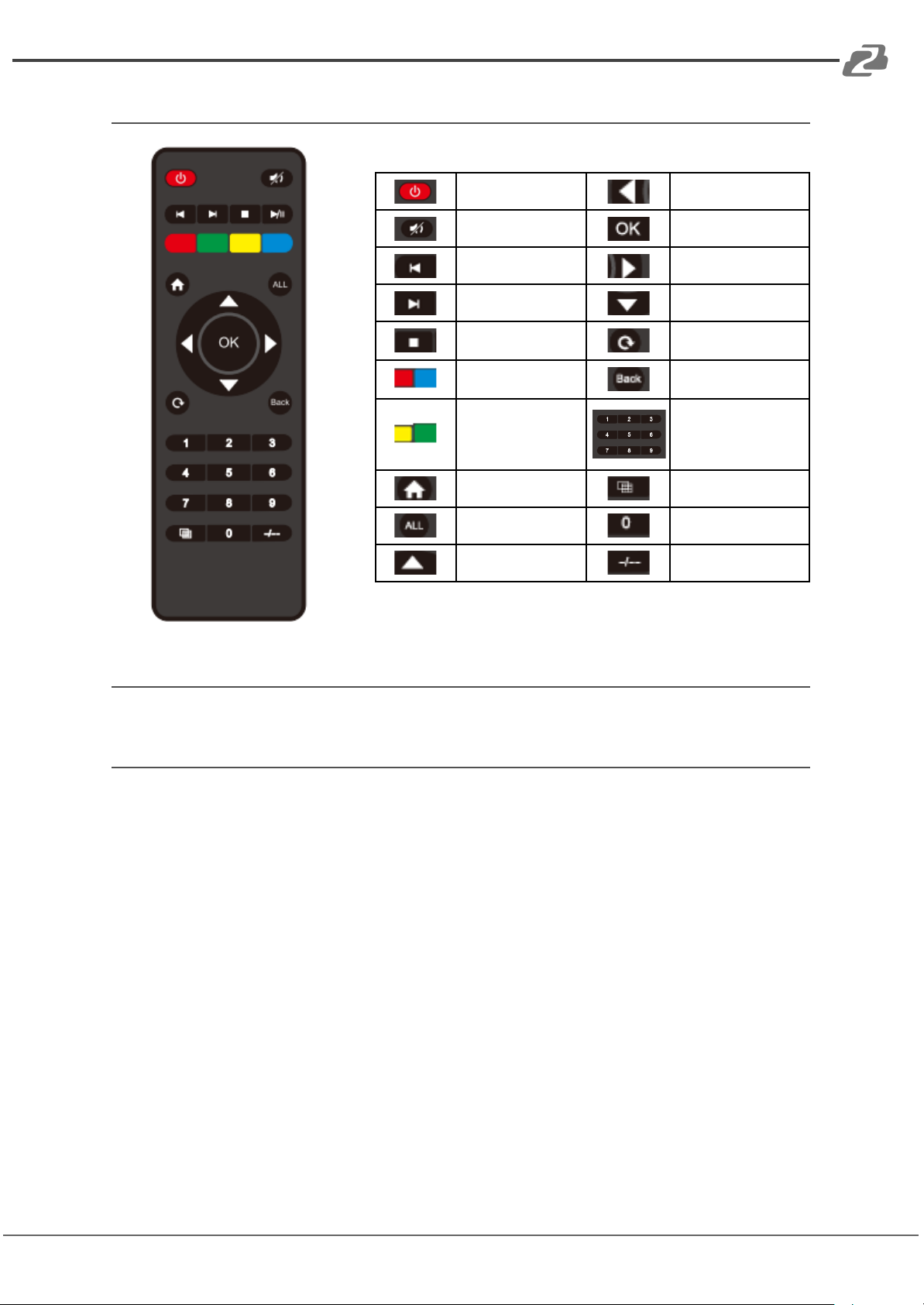
Standby or power on
Menu
Mute button
OK
Return to upper level
Enter
Move to next level
Down
Picture off
Open or Exit Menu
Page turn by 100 of
the last sub-menu
Return to Main Menu
Page turn by 10 of the
last sub-menu
When selecting Output,
means Out1--out4
When selecting Input,
means In1--In4
Menu
Preset
All output
(N/A)UpPoint to Point
Address: 830 National Drive #140, Sacramento, CA 95834, USA · Tel: +1(888)499-9906 · Email: [email protected] 39
Audio Extraction
HDMI audio
Default HDMI audio output supports uncompressed audio PCM, LPCM 2.0 digital audio
DTS/Dolby 5.1 channel. The maximum sampling rate supports 192KHZ while its supported
audio formats and channels are forced into LPCM 2.0.
Note: To support digital audio, enable modify to off. Otherwise Copy EDID will be forced to
2.0 audio.
HDMI Source:
1. ENC1~4 indicates that HDMI outputs select the embedding audio
2. HDMI1~4 indicates that HDMI outputs select other audio source
3. Auto HDMI indicates that the input signal source is switched with the matrix, but the
audio state is not switched
4. Auto ENC indicates the HDMI sound will be overwritten and replaced with the
corresponding embedded audio
Page 40
BZBGEAR BG-4K-VP44 PRODUCT MANUAL
Audio Extraction
Address: 830 National Drive #140, Sacramento, CA 95834, USA · Tel: +1(888)499-9906 · Email: [email protected] 40
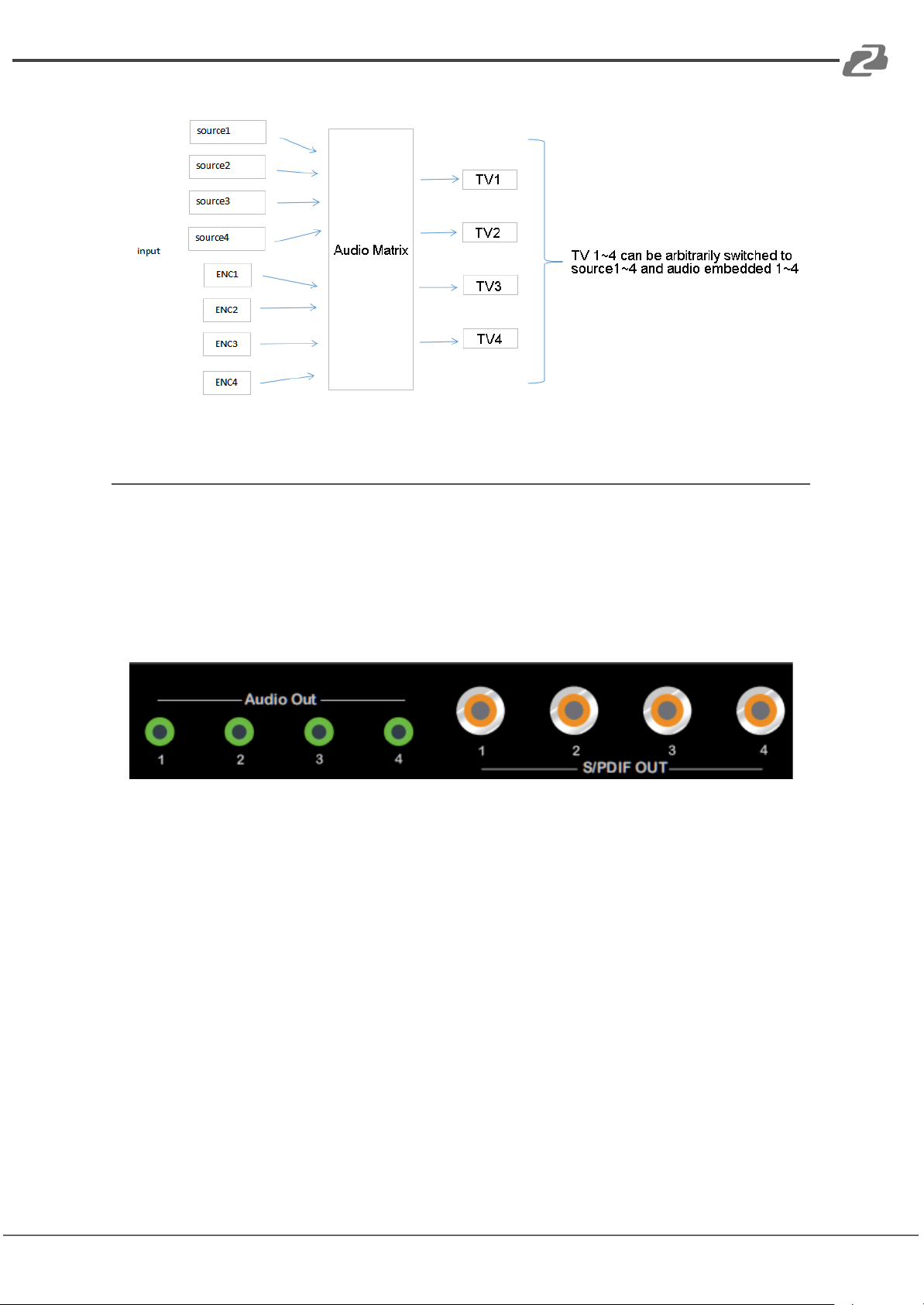
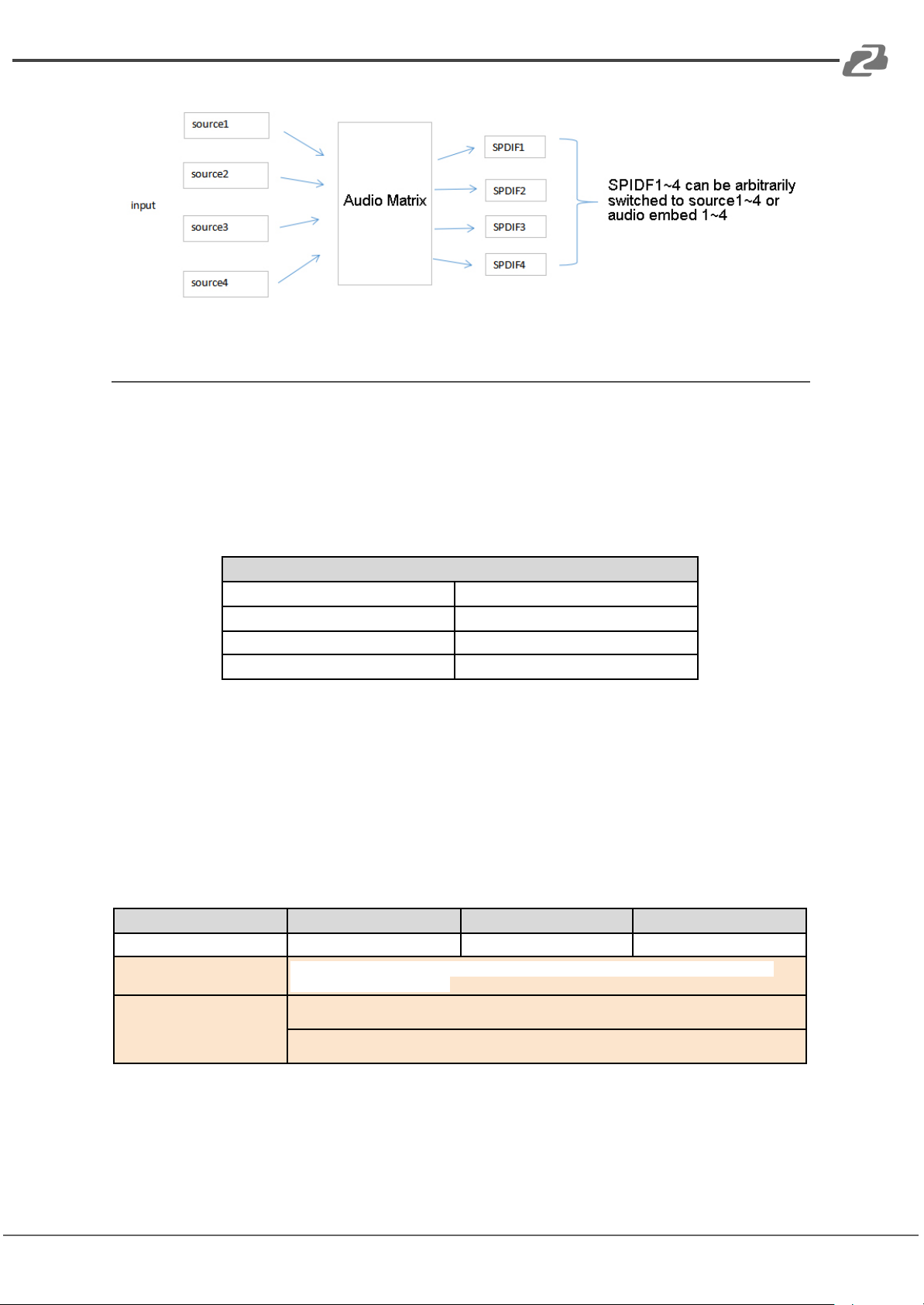
Audio extraction has analog audio extraction and coaxial digital audio extraction (as shown
in the figure below).
*1: Each channel can only have one audio source.
*2: The EDID sampling rate is forced to be 48Khz by default. Other audio sampling rates can
be supported only when the forced modification function is disabled.
Analog Audio
1. HDMI 1~4 indicates that HDMI output audio is selected from another input signal.
2. Auto HDMI indicates that the input signal is switched with the matrix, but the audio
is not switched
Coaxial audio
1. HDMI 1~4 indicates that HDMI output audio select audio from other input signal
sources
2. Auto HDMI indicates that the input signal source is switched with the matrix, but the
audio state is not switched
3. Coaxial audio sampling rate up to 96Khz.
Page 41
BZBGEAR BG-4K-VP44 PRODUCT MANUAL
RS232 Control
Serial Port Default Settings
Baud Rate
115200 bps (Default)
Parity Bits
None
Data Bits
8
Stop Bits
1
Type
Format
Value
Regulation
Command head
#cmd
without
Explain
Can be used to search command,after receiving command, the system will feedback all
open command format fields
Example1
#cmd
Search all open command
Address: 830 National Drive #140, Sacramento, CA 95834, USA · Tel: +1(888)499-9906 · Email: [email protected] 41
Open a RS232 program such as Docklight, Access Port, or CommUart Assistant (show
below for example purposes).
COM port setting
Choose the correct COM port that connects to the PC in the parameter configuration area.
Command List
1. All commands start with “#”
2. “_” the underline cannot omit.
3. Command head,Parameter and target need to add one “SPACE”.
The following table is only an example.Please refer to the list of instructions.
Page 42
BZBGEAR BG-4K-VP44 PRODUCT MANUAL
Scene Instructions
Address: 830 National Drive #140, Sacramento, CA 95834, USA · Tel: +1(888)499-9906 · Email: [email protected] 42
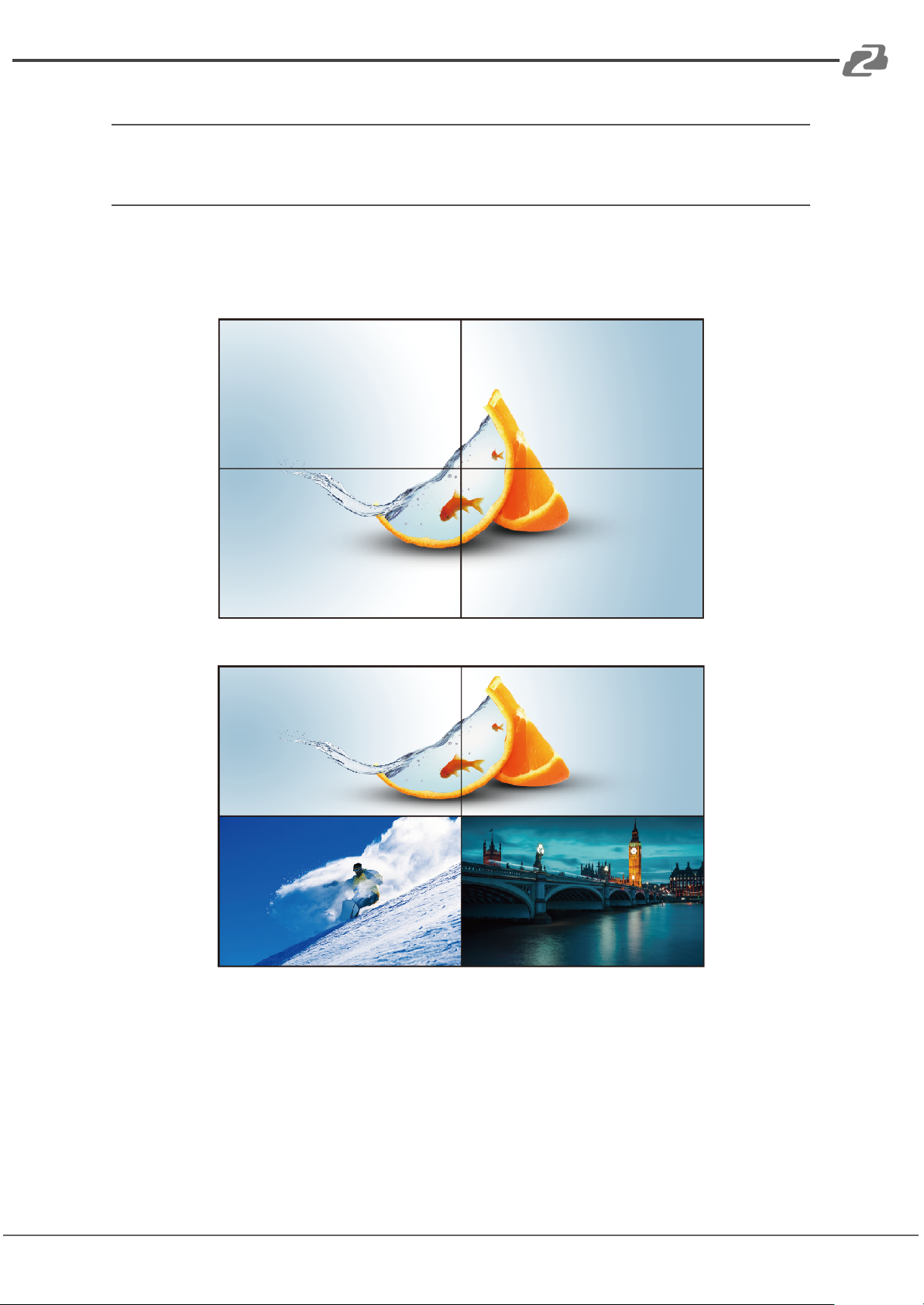
Video Wall Mode
Note: Some preset scenes require switching output ports. For Example: out2 and out3
need to be swapped when in mode W-2x1.
W-2x2:2 Vertical x 2 Horizontal
W-1x2:1 Vertical x 2 Horizontal
Page 43
BZBGEAR BG-4K-VP44 PRODUCT MANUAL
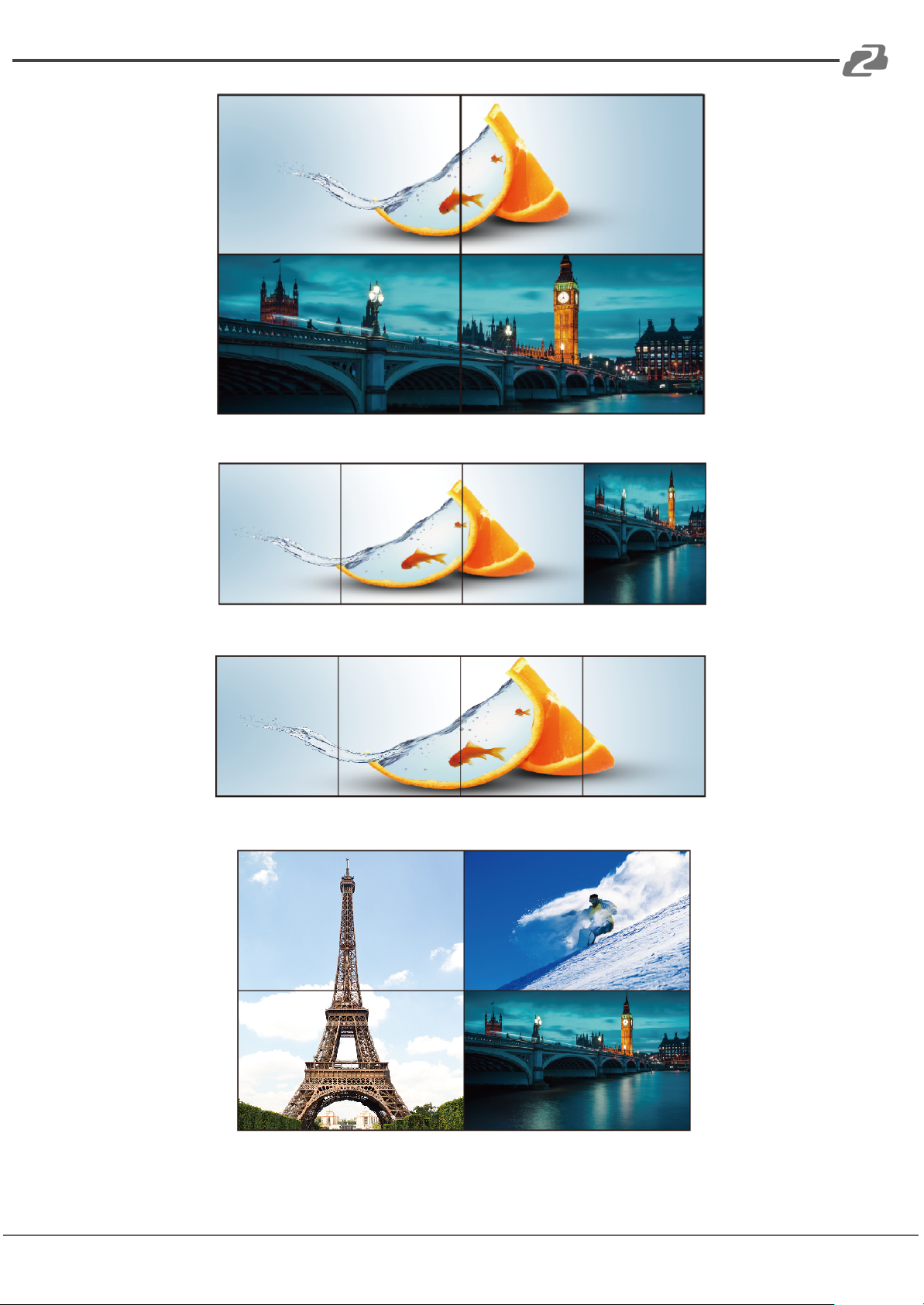
W-1x2 1x2:1 Vertical x 2 Horizontal
Address: 830 National Drive #140, Sacramento, CA 95834, USA · Tel: +1(888)499-9906 · Email: [email protected] 43
W-1x3: 1 Vertical x 3 Horizontal
W-1x4: 1 Vertical x 4 Horizontal
W-2x1:2 Vertical x 1 Horizontal
Page 44
BZBGEAR BG-4K-VP44 PRODUCT MANUAL
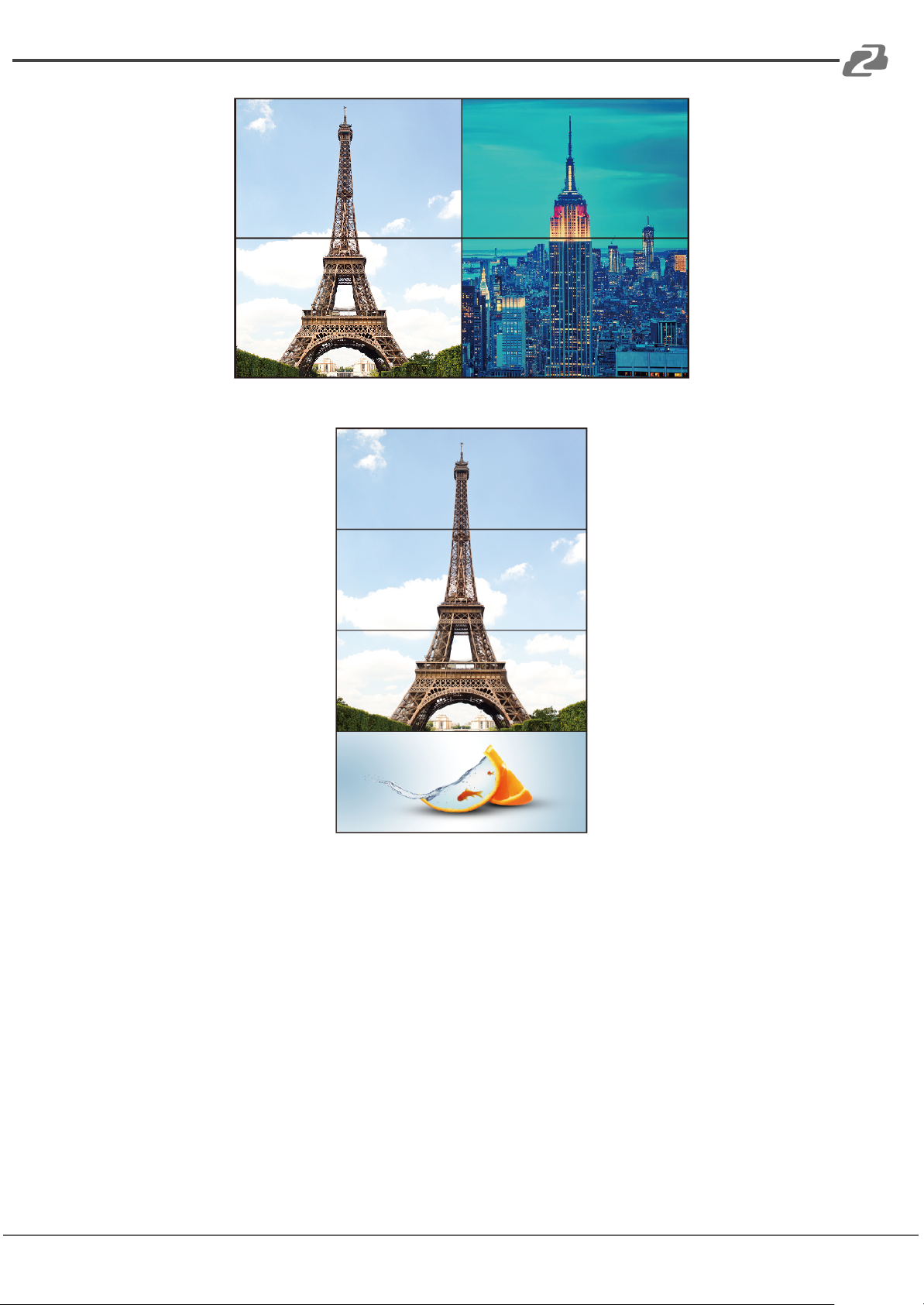
W-2x1 W-2x1: 2 Vertical x 1 Horizontal
Address: 830 National Drive #140, Sacramento, CA 95834, USA · Tel: +1(888)499-9906 · Email: [email protected] 44
W-3x1: 3 Vertical x 1 Horizontal
Page 45

BZBGEAR BG-4K-VP44 PRODUCT MANUAL
Multi-Viewer Mode
Address: 830 National Drive #140, Sacramento, CA 95834, USA · Tel: +1(888)499-9906 · Email: [email protected] 45
W-4x1:4 Vertical x 1 horizontal
M-2x2
M-3x1-R
Page 46
BZBGEAR BG-4K-VP44 PRODUCT MANUAL
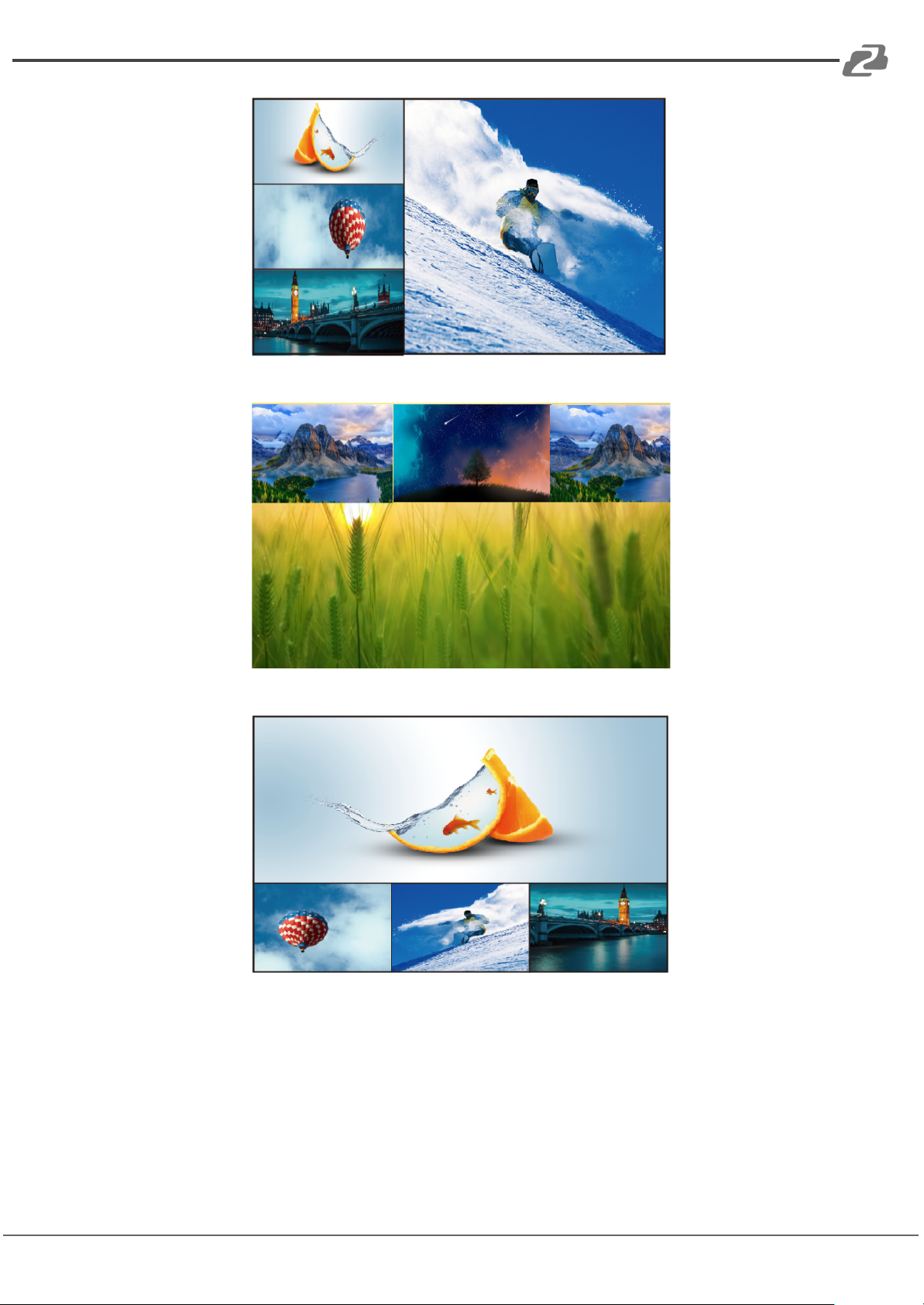
M-3x1-L
Address: 830 National Drive #140, Sacramento, CA 95834, USA · Tel: +1(888)499-9906 · Email: [email protected] 46
M-3x1-U
M-3x1-D
Page 47
BZBGEAR BG-4K-VP44 PRODUCT MANUAL
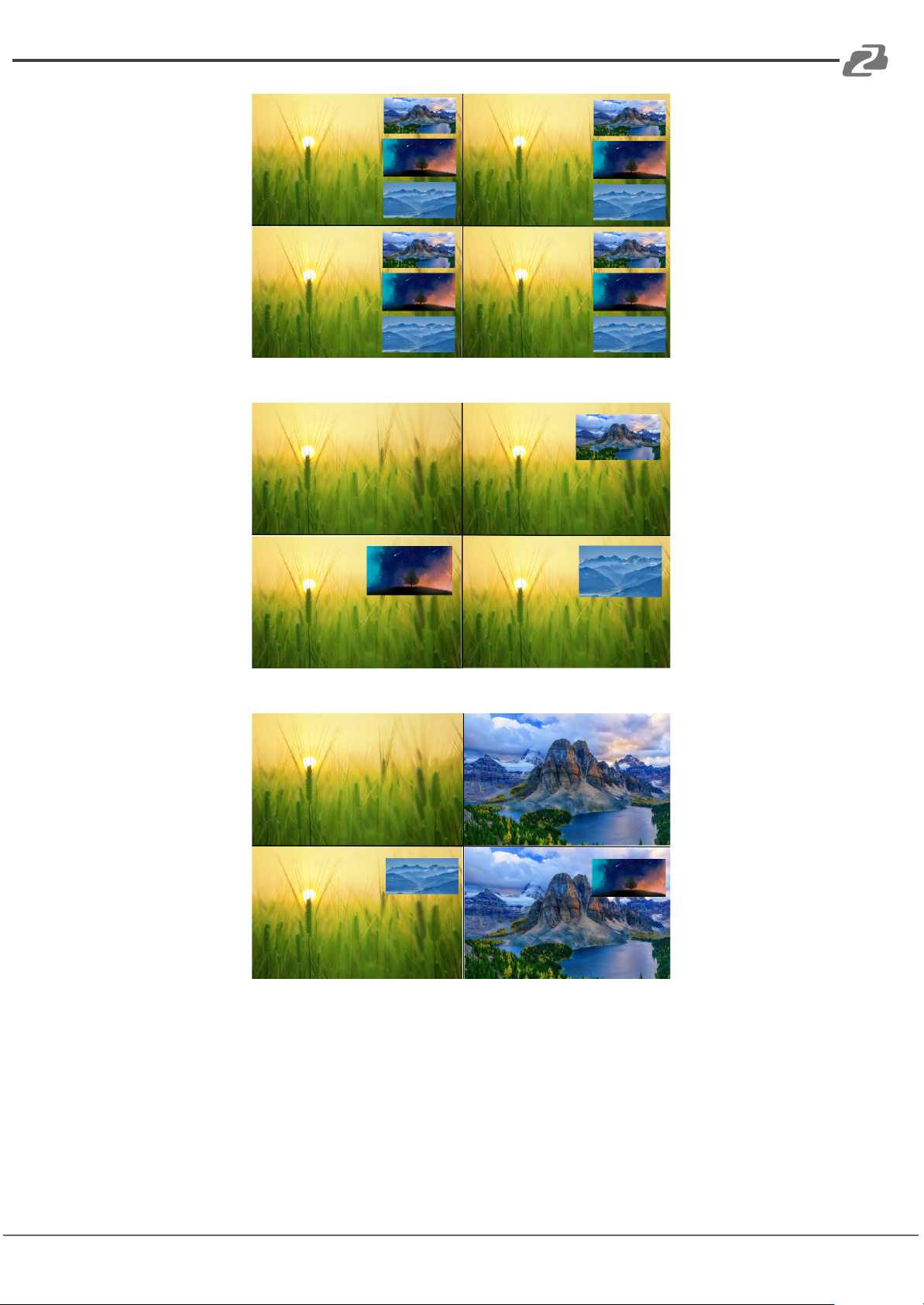
M-1+234 A
Address: 830 National Drive #140, Sacramento, CA 95834, USA · Tel: +1(888)499-9906 · Email: [email protected] 47
M-1+2 1+3 1+4 A
M-1+2 3+4 A
Page 48
BZBGEAR BG-4K-VP44 PRODUCT MANUAL
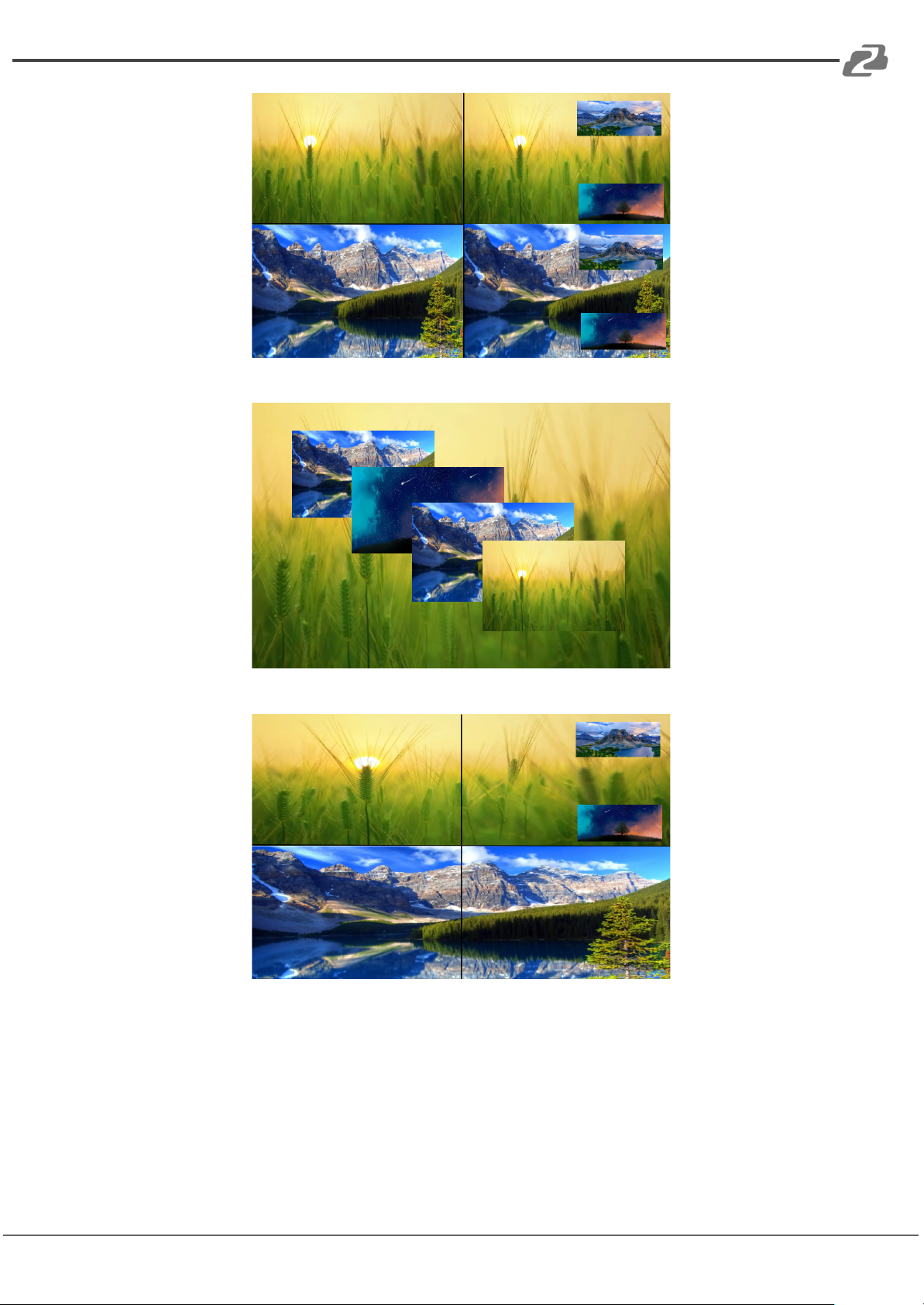
M-1+34 2+34 A
Address: 830 National Drive #140, Sacramento, CA 95834, USA · Tel: +1(888)499-9906 · Email: [email protected] 48
M-POP A
M-2x1+34 A
Page 49
BZBGEAR BG-4K-VP44 PRODUCT MANUAL
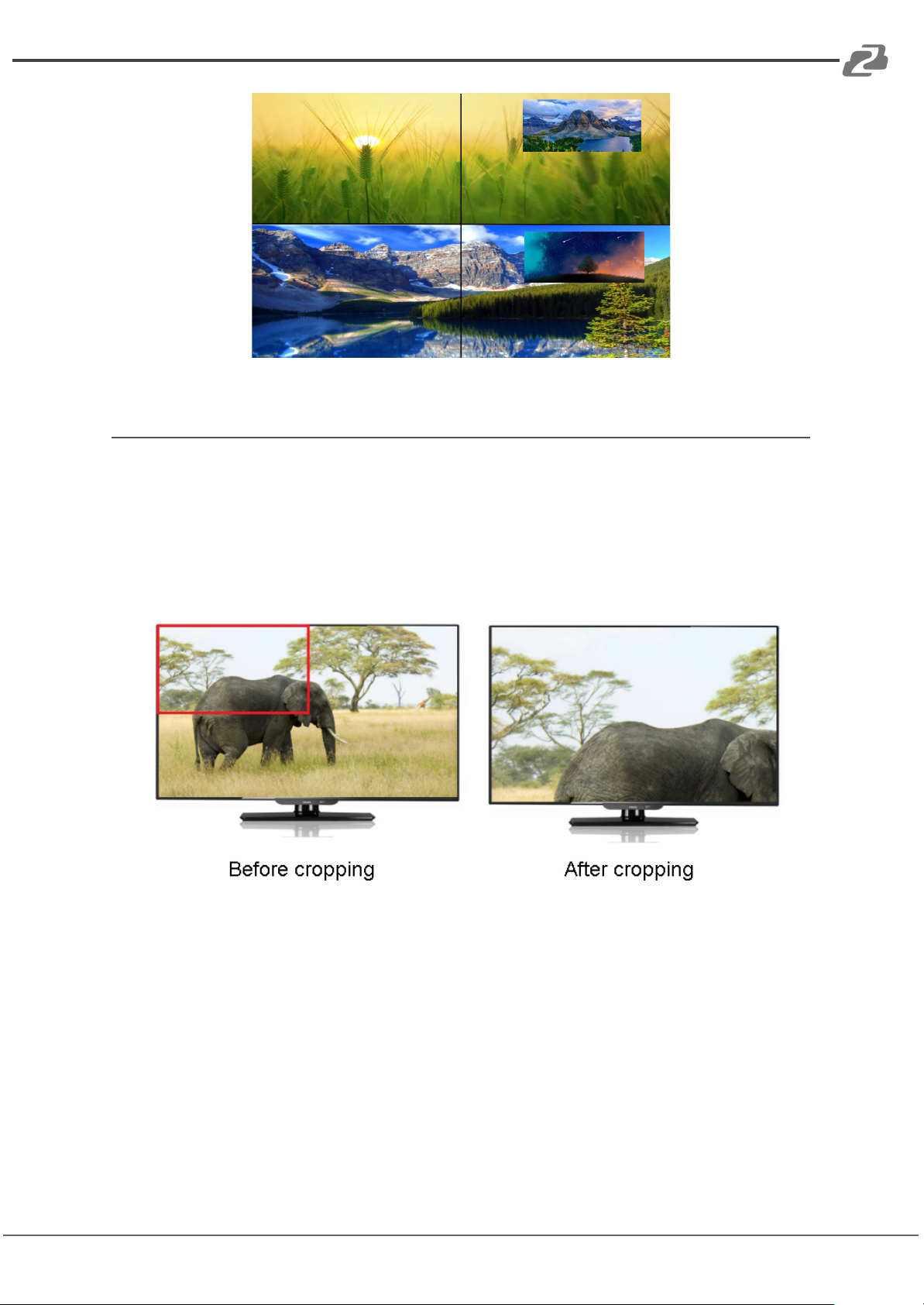
M-2x1+3 2x1+4 A
Address: 830 National Drive #140, Sacramento, CA 95834, USA · Tel: +1(888)499-9906 · Email: [email protected] 49
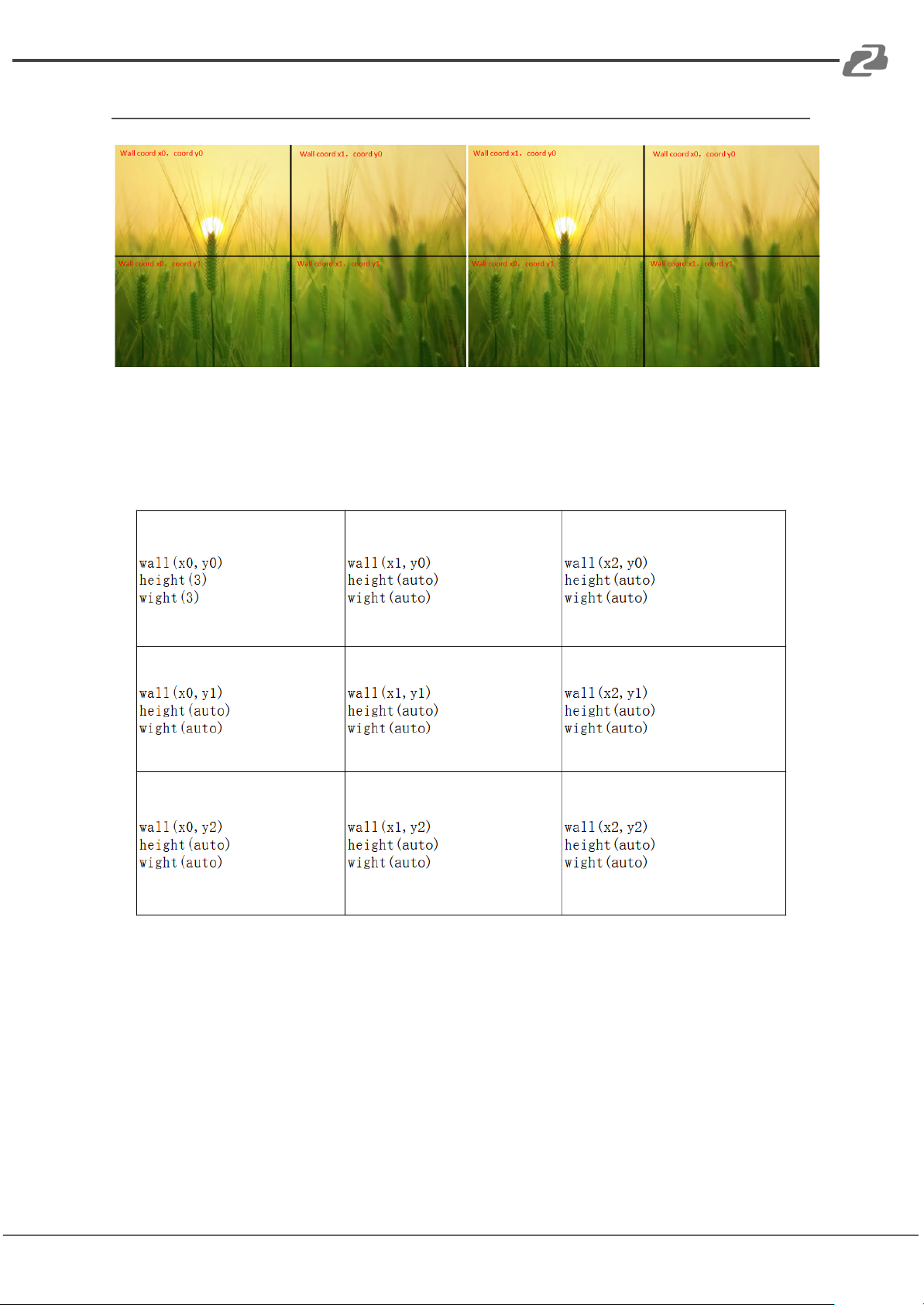
Image cropping and TV coordinate change
Input starting point:CROP X0(0),CROP Y (0),
Input ending point:CROP X1(3000),CROP Y0(3000)
Input scaling starting point:ZOOM X0(0),ZOOM Y0(0),
Input scaling ending point:ZOOM X1(6000),ZOOM Y0(6000)
Changing coordinates is only supported in the on screen display menu;
Default wall coordinates output 1 (0,0) output 2 (1,0) output 3 (0,1) output 4 (1,1);
Output 1 wall width=2 and height=2. Other outputs must be to auto.
If output 1 and output 2 are flipped your coordinates would be as follows:
Output 1 (1,0) output 2 (0,0) output 3 (0,1) output 4 (1,1);
Output 2 wall width=2 and height=2. Other outputs must be set to auto.
Page 50
BZBGEAR BG-4K-VP44 PRODUCT MANUAL
Cascading
Address: 830 National Drive #140, Sacramento, CA 95834, USA · Tel: +1(888)499-9906 · Email: [email protected] 50
Default coordinates are on the right, changed coordinates are on the left
Cascading wall: Multiple matrices need to be used, and then fill in the coordinates
according to the sequence of the wall. The height and width of the wall should be set for the
first output, and all other outputs and matrix outputs should be set to Auto, for example:
Page 51
BZBGEAR BG-4K-VP44 PRODUCT MANUAL
Web Control
Address: 830 National Drive #140, Sacramento, CA 95834, USA · Tel: +1(888)499-9906 · Email: [email protected] 51
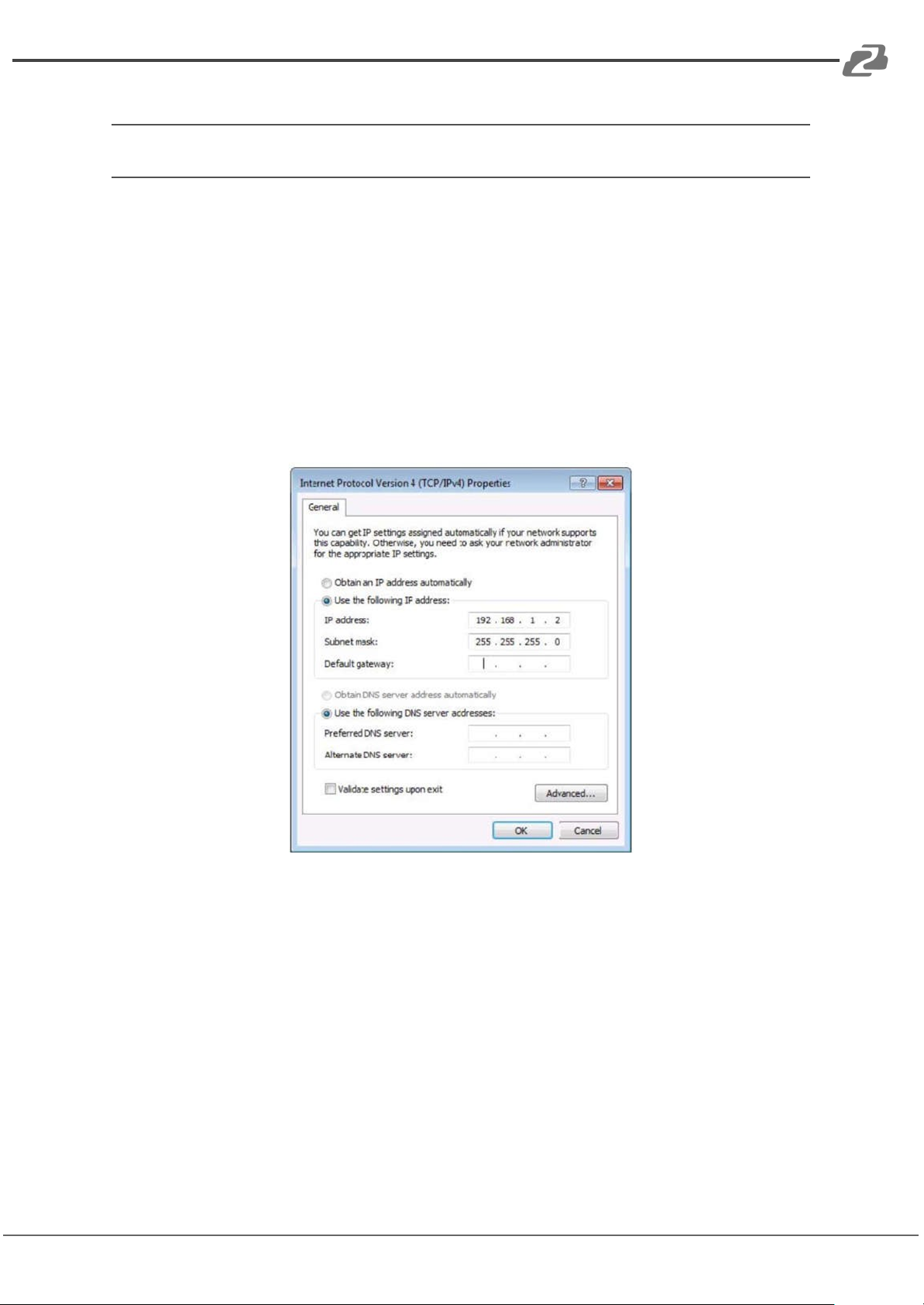
Change IP Address of PC
Before configuring the device through the website, it is necessary to configure the IP
address of the computer to ensure that the computer and the device are set in the same
network segment.
1. Open the network control center and set the computer's IP address:
2. Choose to u”Use the following IP address”, and set the IP address to 196.168.1.x
(where x ranges from 0 to 254, but cannot be with the device's default IP address
192.168.1.200)
3. Subnet mask set to 255.255.255.0
4. Gateway set to 192.168.1.1
5. Click “OK”
Page 52
BZBGEAR BG-4K-VP44 PRODUCT MANUAL
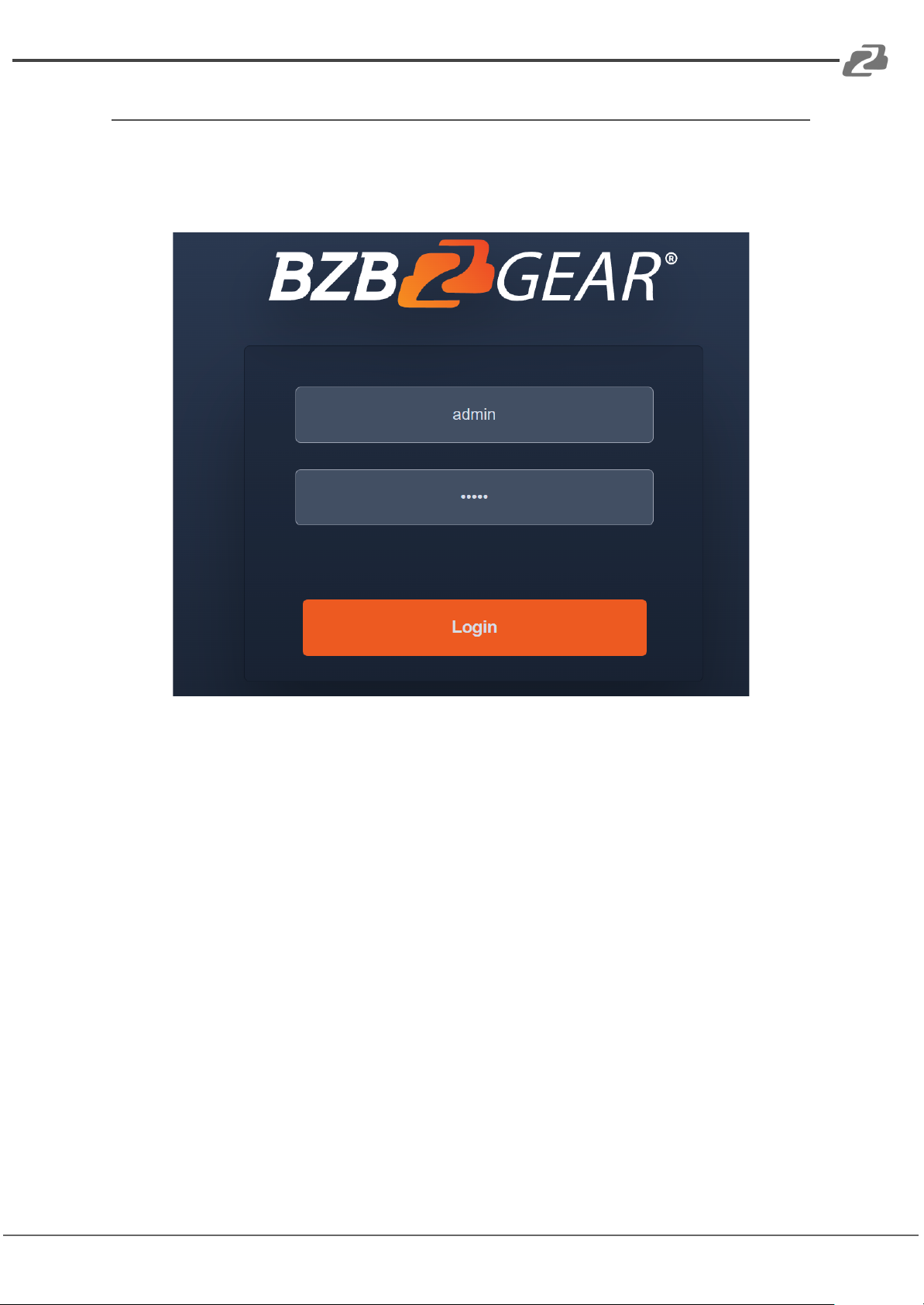
Log in by browser
Address: 830 National Drive #140, Sacramento, CA 95834, USA · Tel: +1(888)499-9906 · Email: [email protected] 52
Enter the Default IP address (192.168.1.200) to access the login screen in your preferred
web browser.
Type in the username and password (default user and default password: admin)
Page 53
BZBGEAR BG-4K-VP44 PRODUCT MANUAL
Web Interface Control
Address: 830 National Drive #140, Sacramento, CA 95834, USA · Tel: +1(888)499-9906 · Email: [email protected] 53
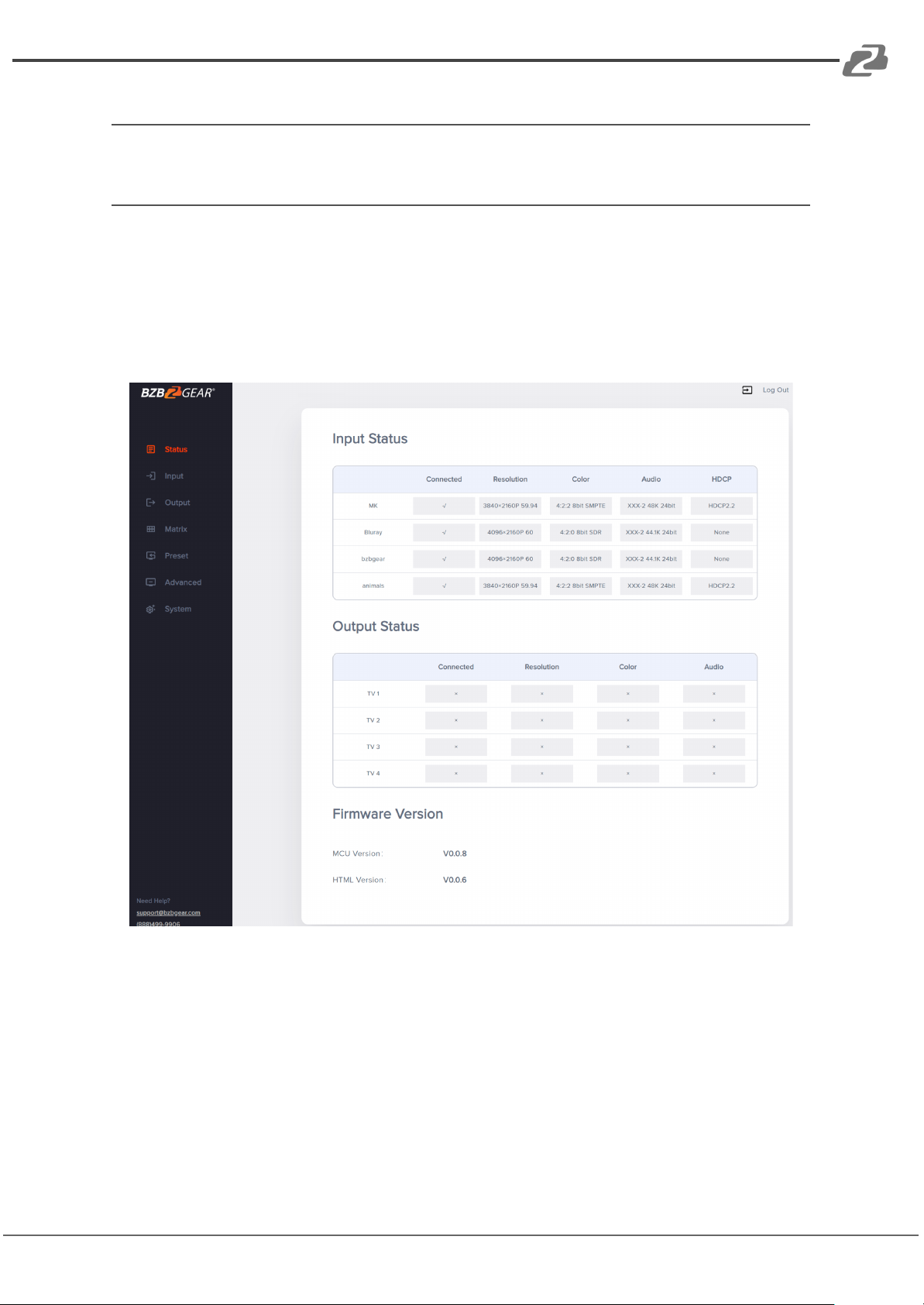
Status
1. In the Status interface, you can view the matrix information
2. Input Status displays the connection status, resolution, color space, audio, and
HDCP information from the input signal source
3. Output Status will display partial EDID information of the connected display such as
connection status, resolution, color space, and audio.
4. Firmware version displays the current MCU and HTML versions for the matrix.
Page 54
BZBGEAR BG-4K-VP44 PRODUCT MANUAL
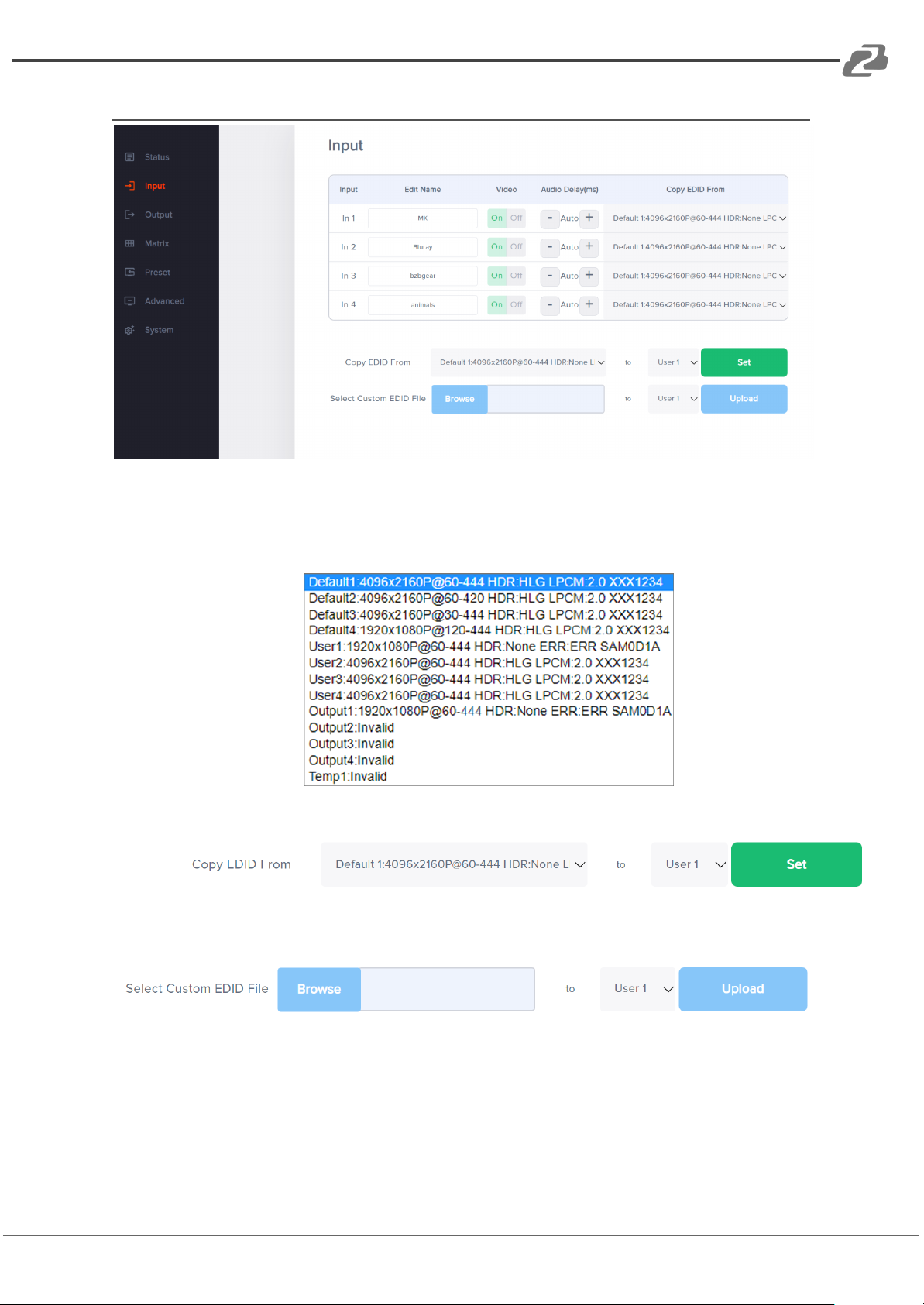
Input
Address: 830 National Drive #140, Sacramento, CA 95834, USA · Tel: +1(888)499-9906 · Email: [email protected] 54
1. Edit Name: The input name can be changed by clicking in the “In 1-4” fields.
2. Video: Click the buttons to enable or disable the video inputs.
3. Audio Delay(ms): The default is Auto, click “-” or “+” to adjust (range 0-50, Auto).
4. Copy EDID From: Default1-4, User-4, Output1-4, and Temp1 which can be switched
on any of the inputs
5. Copy EDID of sink to User1~4
6. USER EDID can be saved as a Bin document for User1~4. Click Browse to find the
route of the EDID, select User1~4 and click upload to save it.
Page 55
BZBGEAR BG-4K-VP44 PRODUCT MANUAL
Output Menu
Address: 830 National Drive #140, Sacramento, CA 95834, USA · Tel: +1(888)499-9906 · Email: [email protected] 55
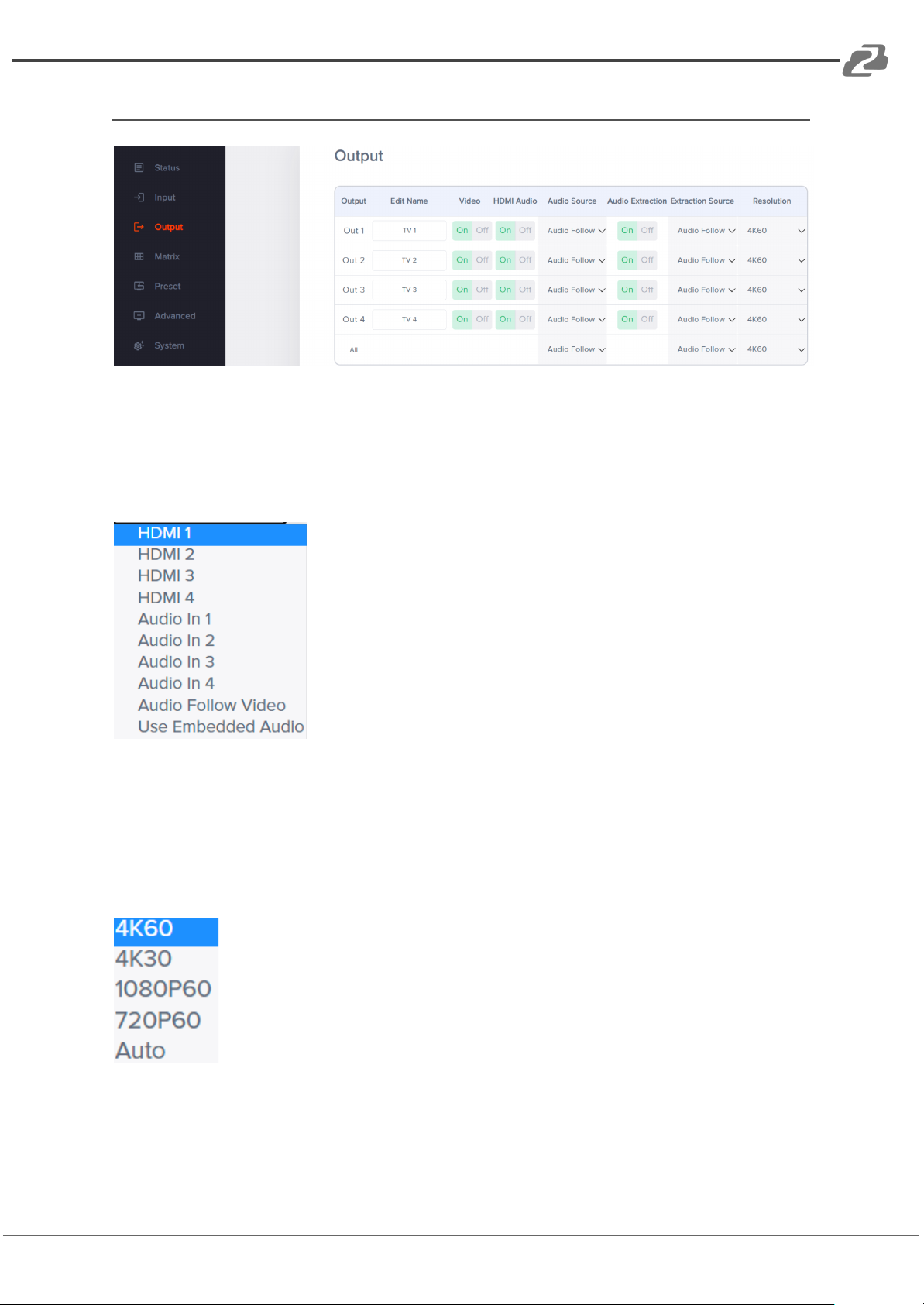
1. Edit Name: Output name can be changed, double click output1~4 to modify
2. Video: Click the green button to enable or disable the video outputs.
3. HDMI Audio: Click the button to enable or disable the audio outputs.
4. Audio Source: Switch HDMI output audio, click the drop-down box to select
HDMI1-4, Audio In 1-4, Audio Follow Video, or Use Embedded Audio and the
changes will take effect automatically.
5. Audio Extraction: Turn on/off Audio Extraction
6. Extraction Source: Audio extraction switching, click the drop-down list box to select
HDMI 1-4 and Audio Follow Video options. The changes will take effect
automatically.
7. Resolution: Output video format, the default is auto. Following the output TV EDID
specifications, users can manually select 4K60, 4K30, 1080P60, and 720P60.
Page 56
BZBGEAR BG-4K-VP44 PRODUCT MANUAL
Matrix
Address: 830 National Drive #140, Sacramento, CA 95834, USA · Tel: +1(888)499-9906 · Email: [email protected] 56
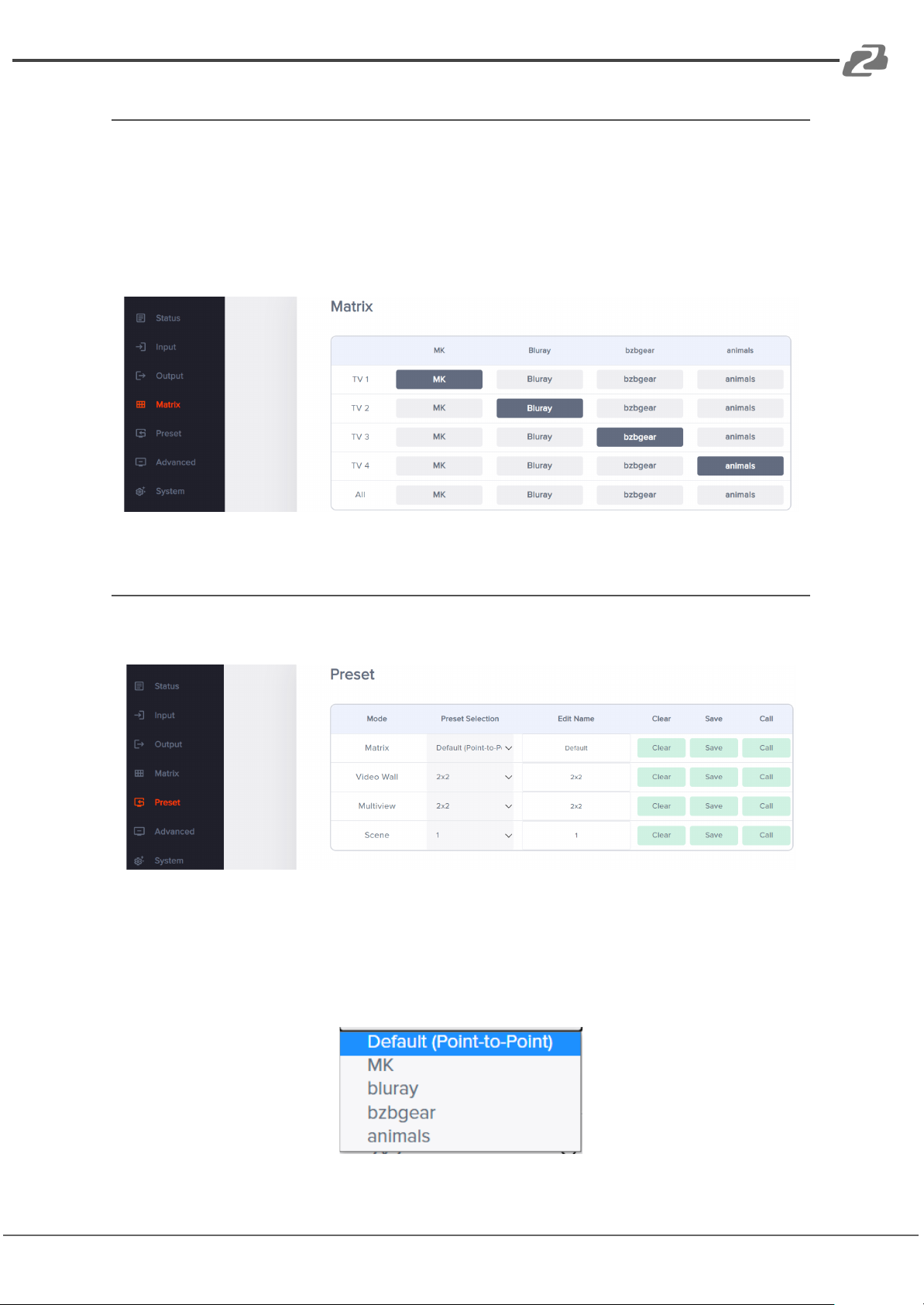
1. The names of the inputs and outputs that can be customized in the previous two
sections are displayed on the Matrix page with their new names. Change source and
display pairings by simply clicking one of the buttons.
2. Selecting the “All” output will change all outputs to the same selected input source.
3. When the button is blue, it indicates the input signal source is selected for the
corresponding output.
Preset Menu
Preset can be used to call, save, clear, and customize the preset name.
1. Matrix allows users to customize up to 5 presets. By default, selecting one of the
inputs will change all outputs to the selected input source by default. Point-to-Point
passes inputs to their corresponding outputs. Click the drop-down box to select a
preset and then click "Call” to recall a preset. Click "Save" to save the current
scene which can be customized using the “Matrix” page. Click "Clear" to clear the
scene and return it to the default value.
Page 57
BZBGEAR BG-4K-VP44 PRODUCT MANUAL
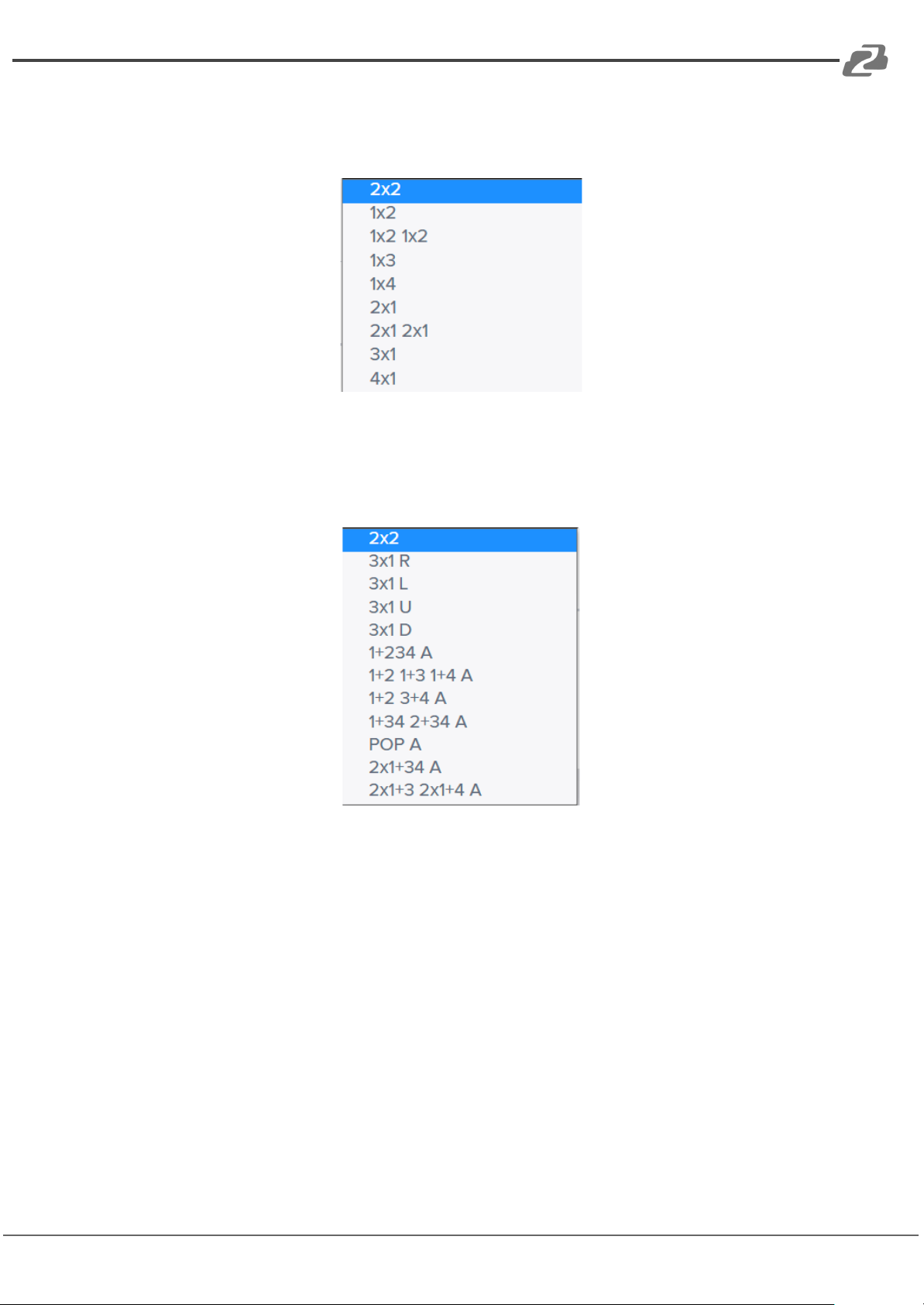
2. Video Wall allows users to pick a predefined video wall layout. Click the drop-down
Address: 830 National Drive #140, Sacramento, CA 95834, USA · Tel: +1(888)499-9906 · Email: [email protected] 57
box to select a layout and then click “Call” to activate the selected video wall. Click
“Save” to save the current scene, and click “Clear” to clear the scene to its default
value. Change the wall source by selecting the input from the “Matrix” page.
3. Multiview can display up to 4 sources on a single display. There are multiple
multiview layouts which are predefined. Sources for each scene can be customized
by clicking the drop-down box to select a layout and then choosing sources for
outputs on the “Matrix” page. Click "Call" to recall a saved scene, click "Save" to
save the current scene, and click "Clear" to clear the scene to its default value.
4. Scene can save and customize an additional 8 presets.
Page 58
BZBGEAR BG-4K-VP44 PRODUCT MANUAL
Advance
Address: 830 National Drive #140, Sacramento, CA 95834, USA · Tel: +1(888)499-9906 · Email: [email protected] 58
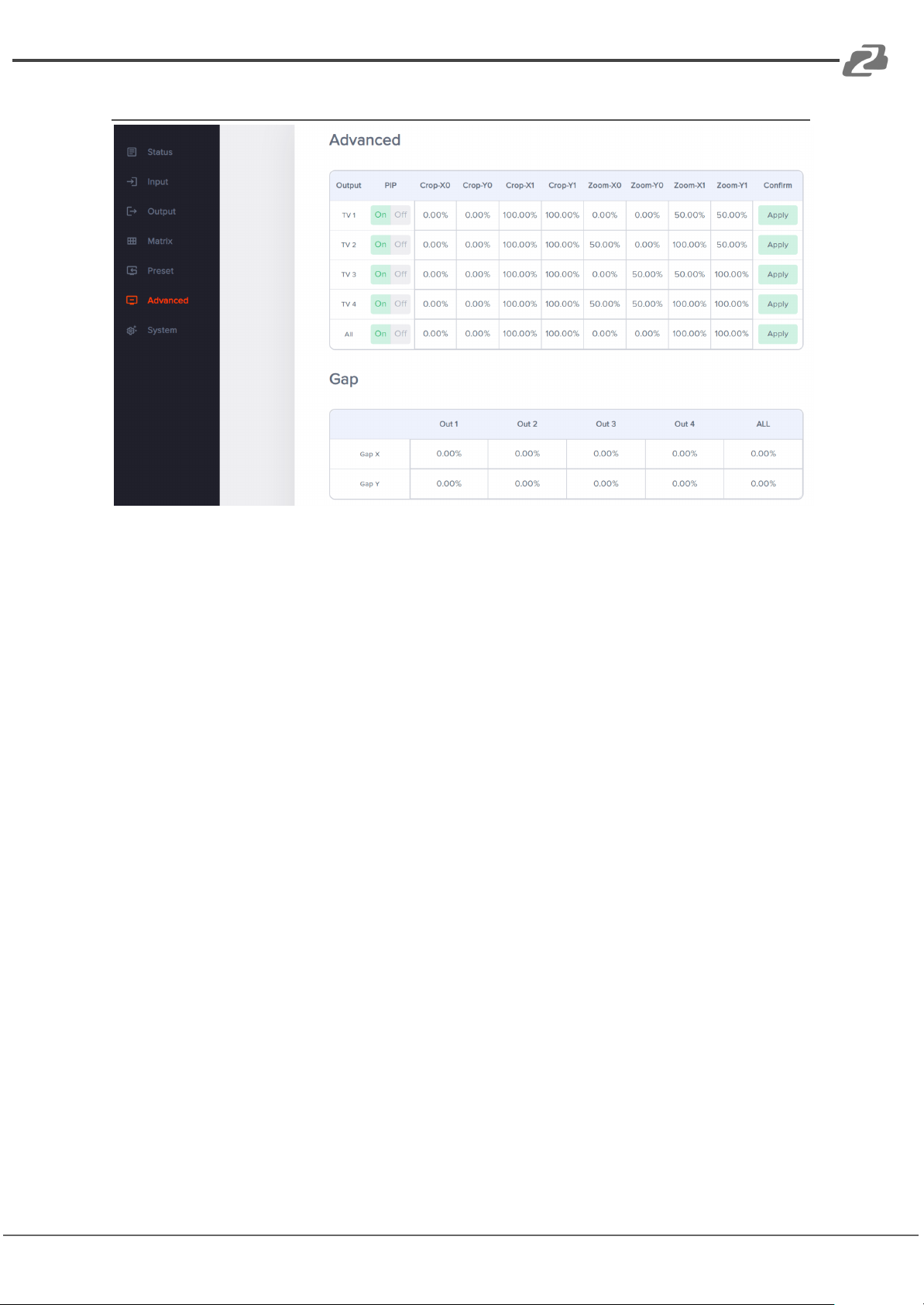
1. PIP On/Off can turn picture in picture on or off on the selected display.
2. Crop-X0 (Image cropping starting point of horizontal coordinates, range 0~6000)
Crop-Y0 (Image cropping starting point of vertical coordinates, range 0~6000)
Crop-X1 (Image cropping ending point of horizontal coordinates, range 0~6000)
Crop-Y1 (Image cropping ending point of vertical coordinates, range 0~6000)
Zoom-X0 (Image scaling starting point of horizontal coordinates, range 0~6000)
Zoom-Y0 (Image scaling starting point of vertical coordinates, range 0~6000)
Zoom-X1 (Image scaling ending point of horizontal coordinates, range 0~6000)
Zoom-Y1 (Image scaling ending point of vertical coordinates, range 0~6000)
3. Gap adjusts the bezel alignment for the selected display. X adjusts the image on the
horizontal axis and Y on the vertical.
**Press “Apply” after inputting the coordinates.
Page 59
BZBGEAR BG-4K-VP44 PRODUCT MANUAL
System
Address: 830 National Drive #140, Sacramento, CA 95834, USA · Tel: +1(888)499-9906 · Email: [email protected] 59
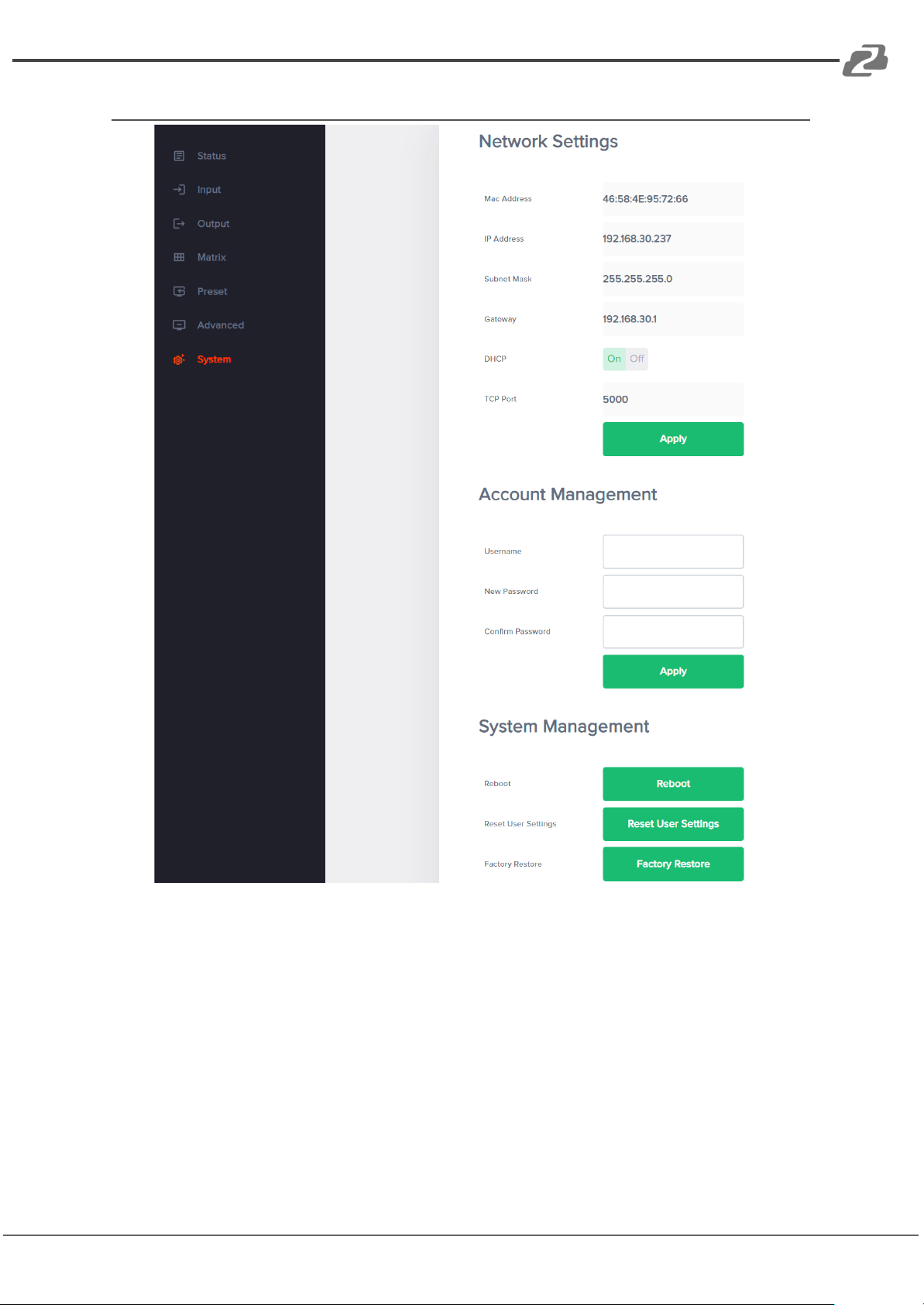
1. Network displays relevant information such as Mac Address, IP Address, Subnet
Mask, and Gateway. Fields will become editable and can be customized when the
DHCP option is set to “Off.”
2. Account Management allows users to change the login information of a user.
3. Reboot: Power cycle the device.
4. Reset User Settings: Partial factory reset settings such as presets and matrix layouts
but it will exclude network settings.
5. Factory Restore: Restore all settings to factory defaults.
Page 60

BZBGEAR BG-4K-VP44 PRODUCT MANUAL
Tech Support
Phone
1.888.499.9906
Email
Live Chat
bzbgear.com
Address: 830 National Drive #140, Sacramento, CA 95834, USA · Tel: +1(888)499-9906 · Email: [email protected] 60
Have technical questions? We may have answered them already!
Please visit BZBGEAR’s support page (bzbgear.com/support) for helpful information and
tips regarding our products. Here you will find our Knowledge Base
(bzbgear.com/knowledge-base) with detailed tutorials, quick start guides, and step-by-step
troubleshooting instructions. Or explore our YouTube channel, BZB TV
(youtube.com/c/BZBTVchannel), for help setting up, configuring, and other helpful how-to
videos about our gear.
Need more in-depth support? Connect with one of our technical specialists directly:
Warranty
BZBGEAR Pro AV products and cameras come with a three-year warranty. An extended
two-year warranty is available for our cameras upon registration for a total of five years.
For complete warranty information, please visit bzbgear.com/warranty.
For questions, please call 1.888.499.9906 or email [email protected].
Mission Statement
BZBGEAR is a breakthrough manufacturer of high-quality, innovative audiovisual equipment
ranging from AVoIP, professional broadcasting, conferencing, home theater, to live
streaming solutions. We pride ourselves on unparalleled customer support and services.
Our team offers system design consultation, and highly reviewed technical support for all
the products in our catalog. BZBGEAR delivers quality products designed with users in
mind.
Copyright
All the contents in this manual and its copyright are owned by BZBGEAR. No one is allowed
to imitate, copy, or translate this manual without BZBGEAR’s permission. This manual
contains no guarantee, standpoint expression or other implies in any form. Product
specification and information in this manual is for reference only and subject to change
without notice.
All rights reserved. No reproducing is allowed without acknowledgement.
 Loading...