

Page 1
BYONICS
Byonics TinyTrak4 Bluetooth Adapter (TT4BT) Manual
Manual version 0.1 / Adapter version v2
Overview
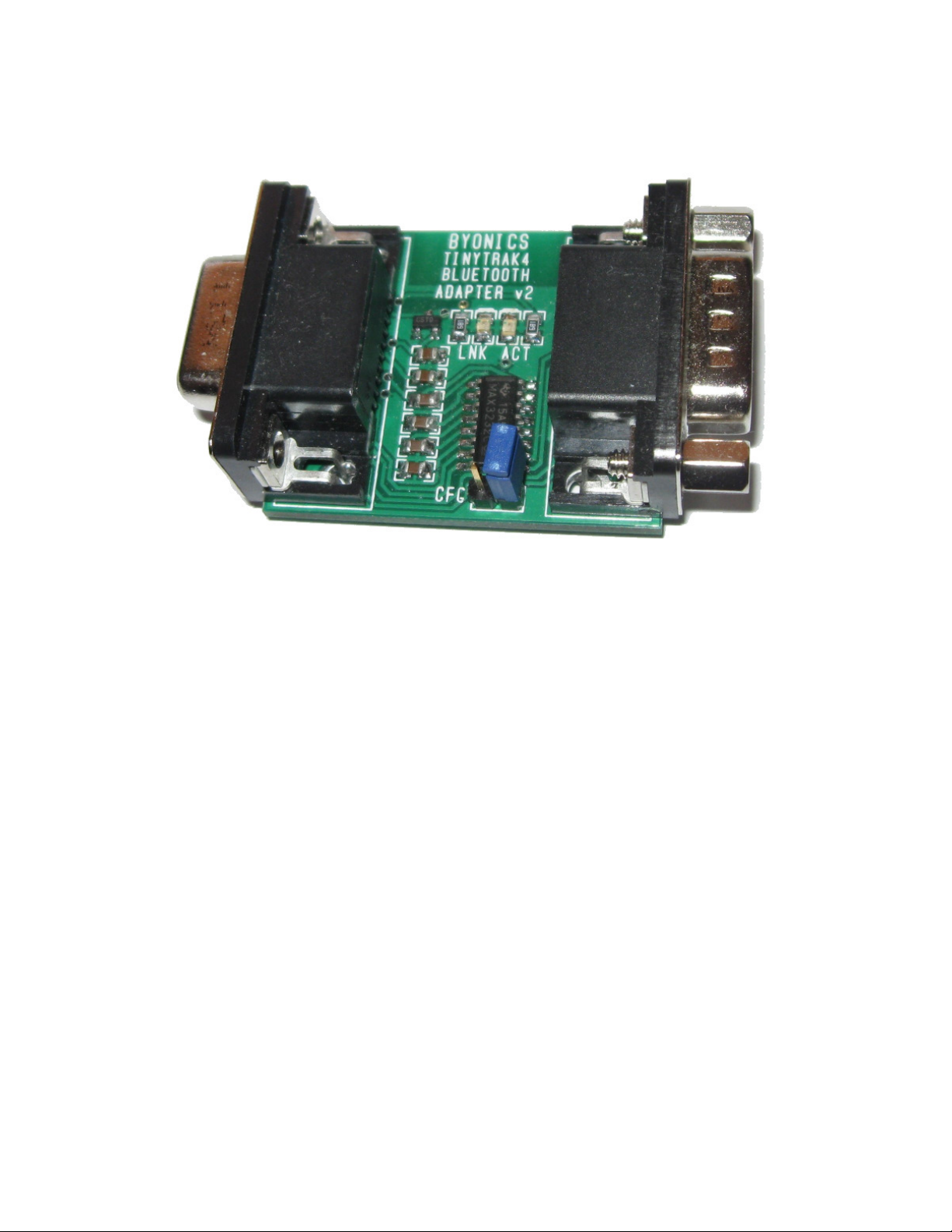
The Byonics TinyTrak4 Bluetooth adapter (TT4BT) is a plug and play interface to allow a TinyTrak4 to
be used with a wireless Bluetooth device, such as a computer or smartphone. It connects the primary
TinyTrak4 PORTA (pins 2 & 3) to the onboard Bluetooth module, and connects the secondary
TinyTrak4 PORTB (pins 7 & 8) to a second DB-9 connector, and moves the connection to pins 2 & 3,
similar to the TinyTrak4 Serial Splitter. This allows the use of a GPS on PORTB, with a computer
wirelessly connected on PORTA.
Setup
The TT4BT module is shipped built, tested, and ready to operate. The TT4 may require some setting
changes, as will the connecting Bluetooth computer.
The TinyTrak4 settings needed are:
AMODE TEXT or KISS – to set the protocol between the computer and the TT4 via Bluetooth.
ABAUD 19200 – the default and recommended baud rate to the TT4BT
SOFTRST TRUE – to allow the TT4 to be reset via serial, rather than via power cycling.
Also, the TinyTrak4 JP6 jumper must be set to 5V (shunt on the left 2 pins) to provide power to the
TT4BT. The TT4BT then connects directly to the TT4 J2 DB-9 connector. If there are jackscrews on
the sides of the TT4BT DB-9 connector, they may need to be removed. A GPS can optionally be
connected to the other side of the TT4BT (TT4 PORTB), and the 5V from the TT4 will be passed to
the GPS. If the TT4BT is connected to a powered TT4, the yellow ACTivity LED should be flashing.
The computer setup may be different for different operating systems. The follow are the steps
needed for Windows 7.
Page 2

1. If the computer doesn’t have a built-in Bluetooth adapter, a USB Bluetooth adapter may be
used. The USB adapter from Byonics didn’t require any additional drivers for use with
Windows 7.
2. Under Control Panel, or Devices and Printers, select Add Device.
3. Select TT4BT and click Next. It may be listed as Other initially.
4. Select Enter the device’s pairing code and then enter 1234 and click Next.
5. Once the TT4BT is successfully added, Click Close.
6. If you launch the Windows Device Manager you should see 1 or 2 new COM ports listed called
“Standard Serial over Bluetooth link” with the COM port number listed afterwards.
You can test the Bluetooth link by running a terminal program, and selecting one COM port above.
When the connection is made, the green LNK LED should turn on. Note that any baud rate can be
used in this virtual COM port interface, the link between the TT4 and the TT4BT will still be 19200. If
you have set SOFTRST TRUE, and AMODE TEXT, you can enter ESC ESC ESC Enter via a
terminal program connected to PORTA, and the TT4 should reset back to the bootloader, and then
the config menu prompt. Disconnect the COM port in the terminal, and the green LNK LED should
turn off.
LEDs
The TT4BT has 2 LEDs. The green LiNK LED will light when the TT4BT is connected to another
Bluetooth device. The yellow ACTivity LED will blink twice every 2 seconds while this connection is
active. When the TT4BT is not connected to another Bluetooth device, the green LED will be off, and
the yellow LED will blink continuously.
Configuring
The TT4BT is shipped from Byonics preconfigured to work with the TinyTrak4, but there are several
options that users may want the option of changing. In order to change the TT4BT configuration,
users send serial commands via pins 2 & 3 of the female DB-9, while 5V power is applied to pin 4 of
the DB-9. A convenient way to do this is with the Byonics GUA adapter, which is a special USB to
serial adapter that provides 5V on pin 4. The TT4BT can be connected directly to this adapter and
configured by running a terminal program. A future version of the TT4 Alpha firmware is expected to
include a PASSTHRU command, to pass serial between PORTA and PORTB, so the TT4 can power
the TT4BT. Then serial data through a F-F null modem cable connected to the GPS side of the
TT4BT and a computer serial port will be passed back to the configuration serial port via the TT4.
Once the hardware serial and power connection is made, the next step is to make the TT4BT enter
the config mode by closing the CFG jumper near the bottom right of the board with a jumper shunt. It
seems to work best to do this after power has been applied to the TT4BT. The TT4BT defaults to
19200 baud, but if the module is factory reset, it will return to 9600 baud. When in the config mode,
the TT4BT will respond to AT commands. To test this, send A T Enter, and the TT4BT should
respond with OK. If you get a continuous stream of OK’s, make sure your terminal program is
sending CR+LF. In TeraTerm Pro, this is set in the Terminal setup under New Line Transmit.
The TT4BT is based off the HC-05 serial Bluetooth module, so any HC-05 commands should work.
Search the internet should find them. Here are the basic commands for most users.
at+name=TT4BT sets the name of the device to TT4BT
at+name queries the currently set name
at+uart=19200,0,0 sets the serial baud rate to 19200
at+uart queries the serial baud rate
at+pswd=1234 sets the bluetooth connection password to 1234
at+pswd queries the Bluetooth connection password
 Loading...