

Page 1
BUSH_Spira_D2_55_cover(A55HeliumPlus).indd 1 26/11/2015 17:08:09
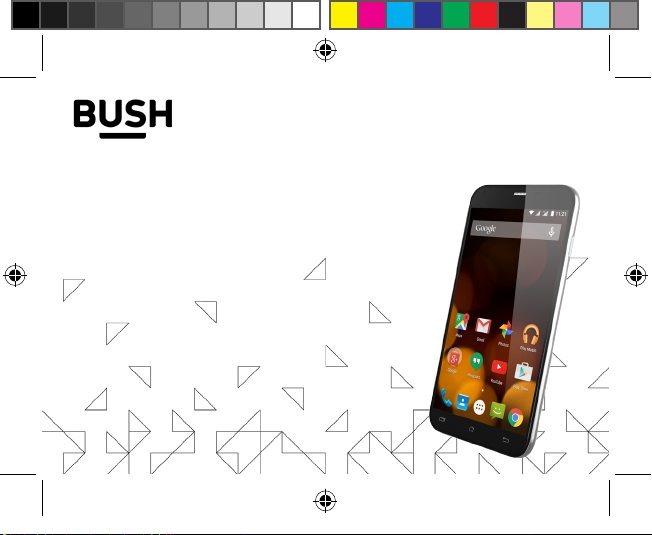
Instruction manual
Bush Spira D2 5.5” Smartphone
Page 2
Table of contents
Package contents..........................................................................................
Description of the phone.............................................................................
Getting started...............................................................................................
Mobile data & WiFi connection...................................................................
Google account & Contacts........................................................................
Hints & tips with AndroidTM..........................................................................
Improving security on your Bush Phone...................................................
Troubleshooting............................................................................................
For more information, please consult the FAQs on www.argos.co.uk/bush.
Make sure to read them before considering any product return. As we are
often updating and improving our products, your device’s software may have
a slightly dierent appearance or modified functionality than presented in this
Quick Start Guide.
BUSH_Spira_D2_55(A55HeliumPlus).indd 1 26/11/2015 12:35:41
2
3
6
10
12
14
16
20
1
Page 3
Package Contents
Check your product box for the following items:
- BUSH 5.5” LTE
- Battery
- Headset
- Crystal clear protective case
- USB cable
- Charger
- Quick start guide
- Warranty Legal & Safety notices
The items supplied with your device and available accessories may
vary depending on your region or service provider.
The supplied items are designed only for your device and may not be
compatible with other devices.
Unapproved accessories may cause your device to malfunction.
2
BUSH_Spira_D2_55(A55HeliumPlus).indd 2 26/11/2015 12:35:41
Page 4
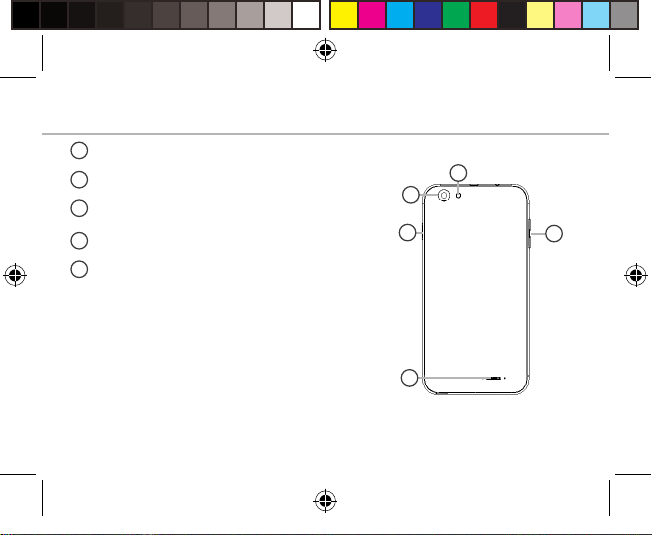
Description of the phone
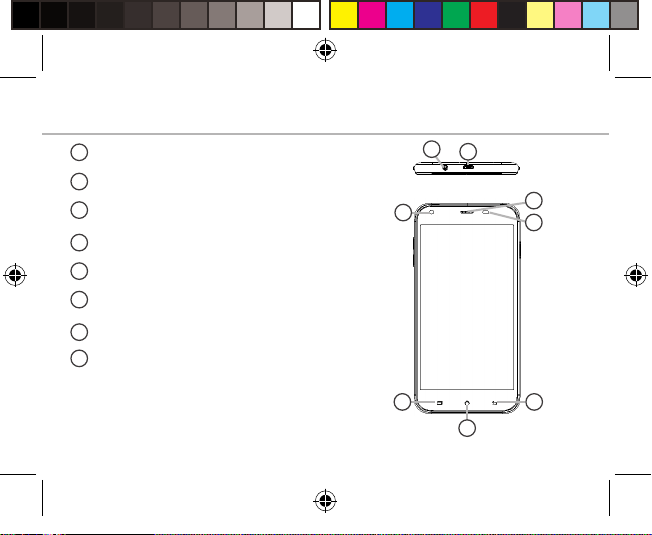
Headset jack
1
Micro-USB port
2
3
Front camera
Phone speaker
4
Light sensor
5
6
Recent apps
Home/Google NOW
7
8
Back
1
2
3
4
5
BUSH_Spira_D2_55(A55HeliumPlus).indd 3 26/11/2015 12:35:41
6
7
8
3
Page 5
Description of the phone
9
10
11
12
13
4
BUSH_Spira_D2_55(A55HeliumPlus).indd 4 26/11/2015 12:35:41
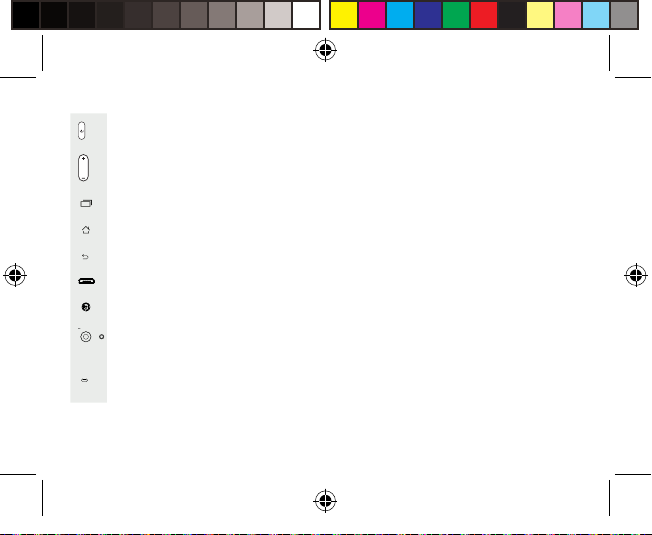
Camera
Flash light
ON/OFF button
Volume buttons
Loudspeaker
10
9
11
13
12
Page 6
BUSH_Spira_D2_55(A55HeliumPlus).indd 5 26/11/2015 12:35:42
ON/OFF: when the device is o, long press to turn on. When the device is on,
short press to turn o the screen, long press to display options.
Volume+/-: press +/- to adjust the volume. When you press the button,
notification options are displayed. You can select the most appropriate one.
Recent apps: press to display recent apps.
Home: short press to return to the homescreen, long press to access Google Now.
Back: press to go back to the previous screen.
Micro-USB port: plug the provided cable to charge the device or to connect it to
a computer.
Headphone jack: connect the provided earphones to make hand-free calls.
Camera & Flash: take pictures or make movies. To extend movies duration, insert
a micro-SD card. Activate the flash option in a dark environment and use it as a
torch through the quick settings.
Light sensor: it turns o the screen when the device is close to your ear during a
call
5
Page 7
Getting started
Assembling
After you have unpacked your mobile phone box:
1. Remove the device’s back cover using the notch.
2. Insert your SIM card in the corresponding slot.
3. Insert the device’s battery.
4. Replace the back cover.
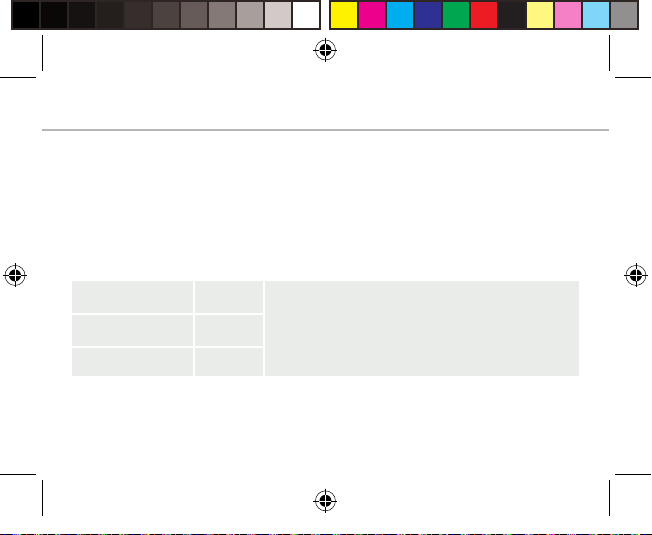
4G/3G/2G slot 1 When inserting your SIM card or micro-SD card, make
2G slot 2
Micro-SD card slot 3
6
BUSH_Spira_D2_55(A55HeliumPlus).indd 6 26/11/2015 12:35:42
sure to follow the illustration, otherwise you may
damage the slot or the card.
Page 8
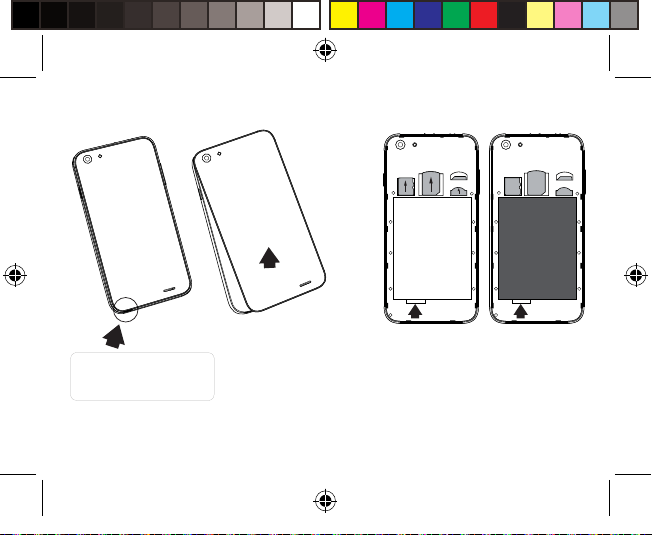
Lift the back cover
using the notch
BUSH_Spira_D2_55(A55HeliumPlus).indd 7 26/11/2015 12:35:42
3
2
1
7
Page 9
Getting started
Turning on
1. Plug the charging cable in the Micro-USB port and connect it to its
charger.
Before using your device for the first time, charge its battery
completely.
2. Press and hold the ON/OFF button to turn on the device.
The first time you start up your device, the installation wizard will
help you set up your device.
3. Follow the instructions.
If you have inserted a SIM card, you may need to enter a PIN code.
Beware of typing a wrong PIN code.
Tip:
Your device goes in standby mode when you do not use it for a specific period of time.
To wake up your device, press the ON/OFF button. To set the duration, go to Settings >
Display > Sleep.
8
BUSH_Spira_D2_55(A55HeliumPlus).indd 8 26/11/2015 12:35:43
Page 10
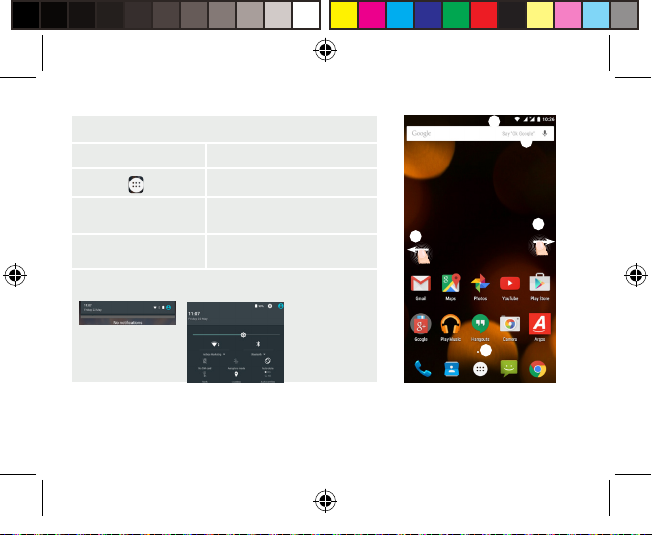
On your homescreen
1. Swipe left to access Google Now
2. Press
3. Hold your finger
on an app
4. Say “Ok Google” to launch the search page.
5. Drag down the status bar, then press
to display the quick settings.
BUSH_Spira_D2_55(A55HeliumPlus).indd 9 26/11/2015 12:35:43
to access all your apps
to move it right and create
a new homescreen.
5
4
1
3
2
9
Page 11
Mobile Data & WiFi connection
Mobile data connection
If your mobile phone subscription includes a mobile data option,
you should be connected to the Internet without any further setup.
The device will only have signal if you are in an area covered by your
provider’s 4G or 3G network.
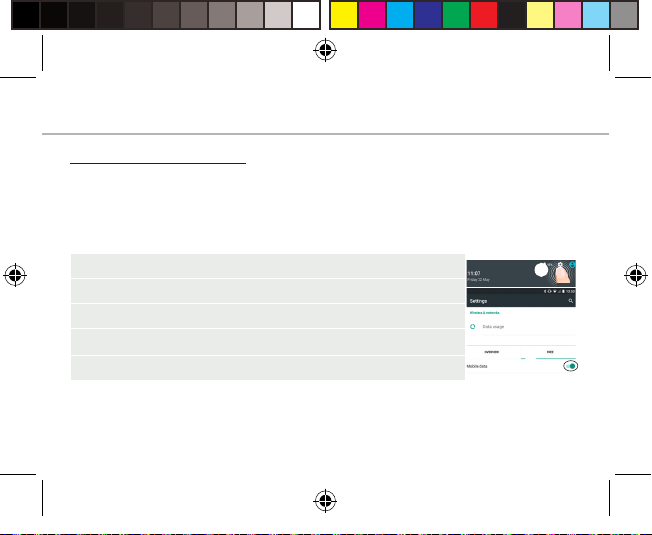
Activating/Deactivating the mobile data
1. Touch and pull down the status bar to display it.
2. Touch again the bar to reveal the quick settings.
3. Select the Settings icon.
4. In Wireless & networks, select Data usage, then the SIM card tab.
5. Slide the Mobile data switch to turn on/o.
10
BUSH_Spira_D2_55(A55HeliumPlus).indd 10 26/11/2015 12:35:43
3
4
5
Page 12
WiFi connection
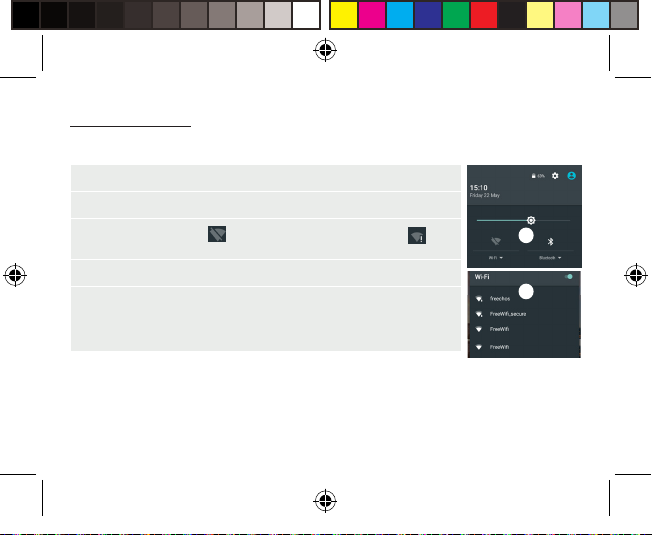
WARNING: Make sure that you are in a WiFi zone. You can access
the WiFi settings quickly from the status bar.
1. Touch and pull down the status bar to display it.
2. Touch again the bar to reveal the quick settings.
3. Select the WiFi icon to activate the WiFi connection .
3
4. Select “WiFi” below the WiFi icon.
5. Touch the name of network you want to connect to.
Private networks are shown with a lock icon and will require you to
enter your password.
BUSH_Spira_D2_55(A55HeliumPlus).indd 11 26/11/2015 12:35:43
5
11
Page 13
Google & Contacts
Adding a Google account
A Google account lets you take full advantage of any Google apps
and services that you may want to use.
1. Go to “Settings” > “Accounts” > “Add account”.
2. Select the account type “Google” to add.
3. Follow the onscreen instructions to enter information about the
account.
Once the account is created, you can access Play Store, Gmail,
Hangouts, Maps and many other apps.
Synchronizing info
Information must be sync to be saved. Your data is backed up on
Google servers.
1. Go to “Settings” > “Accounts” > “Google”.
2. Select your account.
The list of information that can be sync are displayed.
Automatic sync should be activated. To launch the sync, press the
Menu button , then Sync now. You can get them back in case of
loss of your device or SIM card. When your Google account is added
to a new device, all your saved information is transferred.
12
BUSH_Spira_D2_55(A55HeliumPlus).indd 12 26/11/2015 12:35:43
Page 14
Saving your contacts
When your contacts are saved, they are always available on the web
and can be synced to any Android phone that’s set up with your
Google account.
1. Install the SIM card with your contacts in your phone.
2. From a Home or All Apps screen, select the Contacts app .
3. Touch the Menu button > “Import/Export”.
4. In Import/export contacts, select “Import from SIM card”.
5. Select your Google account.
6. Check contacts to be imported and validate.
7. Once the contacts are imported in the Google account, go to
“Settings” > “Accounts” > “Google”.
8. Select you Google account.
9. Select the Menu button , then “Sync now”.
Your contacts are saved to via your Google account.
BUSH_Spira_D2_55(A55HeliumPlus).indd 13 26/11/2015 12:35:44
13
Page 15
Hints & tips for Android
Moving a home screen item:
Touch and hold your finger onto it, then slide it to the desired
location, and release your finger.
Removing a home screen item:
Touch and hold it, slide your finger towards the top of the screen
and drop it over the "Remove" icon.
Uninstalling an item:
From the "All apps" screens, touch and hold it, slide your finger
towards the top of the screen and drop it over "Uninstall" bin.
Creating application folders:
Drop one app icon over another on a home screen and the two
icons will be combined.
Widgets:
Hold your finger on a homescreen at an empty location. Touch
“Widgets”.
Changing your wallpaper:
Hold your finger on a home screen at an empty location. Touch
14
BUSH_Spira_D2_55(A55HeliumPlus).indd 14 26/11/2015 12:35:44
TM
Page 16
“Wallpapers”.
Locking the touchscreen:
Select the “Settings” app, then scroll down and touch “Security”.
Touch “Screen lock”. Touch the type of lock you would like to use.
After you set a lock, a lock screen is displayed whenever your screen
wakes up, requesting the pattern, pin or other specified key.
BUSH_Spira_D2_55(A55HeliumPlus).indd 15 26/11/2015 12:35:44
15
Page 17
Improving security on your Bush Phone
Online
In order to avoid online threats we recommend that you install
antivirus and security software on your device and keep these and
your browser and other software up to date to take advantage of
security fixes.
Physical theft
If you store valuable information on your phone including passwords
and logins for
personal accounts etc. you may want to enhance the security of
your phone in case it is stolen or lost.
Setting a PIN or password
You can set a pin code (4-8 digit numerical code) or you can
set a password which is 4 to 17 digits. We recommend you set
a password, the longer and more complex it is the harder it is to
break. For the best passwords use a mixture of upper and lower case
letters, numbers and special characters such as %, # and *.
• In ‘Settings’, select ‘Security’, then ‘screen lock’, then select PIN or
Password.
1616
BUSH_Spira_D2_55(A55HeliumPlus).indd 16 26/11/2015 12:35:44
Page 18
Encrypting your memory
In order to prevent more technically capable persons gaining access
to your data, in the event that your phone is lost or stolen, you
can encrypt your phone’s memory, so that even if the password is
breached the data will be unreadable.
Please note encryption will have a modest effect on performance
but for most tasks this will not be noticeable. For memory intensive
tasks such as playing back video files stored in the phone’s memory
it may cause some buffering.
In order to encrypt your phone you must first set a PIN or password
as shown above.
Before you encrypt, you must charge your phone to at least 80%
battery capacity, then with your phone still on charge go to;
• ‘Settings’, select ‘Security’, then ‘Encrypt phone’. The phone will
then ask you for your password. Type this, then press ‘Encrypt
phone’. The encryption can take up to 90 minutes. Do not interrupt
the process. Failure to follow this routine exactly may result in your
phone becoming unusable.
• Please note that your phone cannot be decrypted by the same
process. To decrypt you must return the phone to factory settings
BUSH_Spira_D2_55(A55HeliumPlus).indd 17 26/11/2015 12:35:44
1717
Page 19
Improving security on your Bush Phone
which will erase all of your files and downloaded apps (securely).
• To reset to factory defaults go to ‘Settings’, select ‘Backup and
Reset’ then ‘Factory data reset’.
Erasing your personal data
If you sell your phone on, or discard it you should erase the data in
memory, before you do so, using a file eraser program that actively
writes to every record in the memory. This securely erases your data
so that it cannot be recovered. Please note that simply returning
your phone to factory settings is not a reliable way of erasing your
personal data (unless you have first encrypted your data).
• To download a file eraser go to Google Play store, select a file
eraser program such as Remo File Eraser – download and install.
• Open the app and follow instructions to securely erase your data.
Further Advice
For further advice on how to stay safe there are government lead
initiatives such as Get Safe Online https://www.getsafeonline.org/
which give good advice about a how to avoid a range of security
threats.
1818
BUSH_Spira_D2_55(A55HeliumPlus).indd 18 26/11/2015 12:35:44
Page 20
Don’t let security issues spoil your enjoyment of your phone.
Bush Phones Helpline
For detailed advice on this or any other issue concerning your Bush
phone you can consult with the technical support helpline – 0207
744 0346
BUSH_Spira_D2_55(A55HeliumPlus).indd 19 26/11/2015 12:35:44
1919
Page 21
Troubleshooting
My phone is frozen or cannot switch on
1. Remove and replace the battery.
2. Charge your device.
My phone cannot connect to a network or “No service” is displayed
Try connecting in another location. Verify the network coverage
with your operator.
Unable to make outgoing calls
Make sure your phone is connected to a network, and the network is
not overloaded or unavailable.
Unable to receive incoming calls
Make sure your phone is switched on and connected to a network
(check for overloaded or unavailable network).
SIM card PIN locked
Contact your network operator to obtain the PUK code (Personal
Unblocking Key).
20
BUSH_Spira_D2_55(A55HeliumPlus).indd 20 26/11/2015 12:35:44
Page 22
To configure a new 4G network:
On your device, tap Settings.
1. Select Wireless & networks > More... > Mobile networks.
2. In Mobile network settings, select your operator in Network
operators.
3. In Mobile network settings, select Access point names.
4. Select to add new parameters and enter the exact connection
parameters provided by your 4G provider.
SAR
After the labortory measurement, this mobile phone SAR value is:
Head 0.467 W/Kg; Body 1.360 W/Kg
Argos declares that this device is in compliance with the essential
requirements and other relevant provisions of Directive 1999/5/EC.
A copy of the declaration of conformity can be obtained from: Argos
Ltd. 489-499 Avebury Boulevard, Milton Keynes, MK9 2NW, UK
BUSH_Spira_D2_55(A55HeliumPlus).indd 21 26/11/2015 12:35:44
2121
Page 23
BUSH_Spira_D2_55_cover(A55HeliumPlus).indd 2 26/11/2015 17:08:09
www.argos.co.uk/bush
PN : 113989V2Argos Limited © 2015 All rights reserved.
 Loading...