

Page 1
VISUAL PRESENTER
Model VP20M
VCOM MULTI MEDIA CORP.
Hamden, CT 06514
Page 2
VP20M Visual Presenter
Introduction
* A Bridge between Object Images and large-screen TV, or computer.
* A Right Hand for Educatioal Training and Business Conferences.
* Multiple practical functions and simple and easy-to-learn operation guarantee
each of your presentations will be successful.
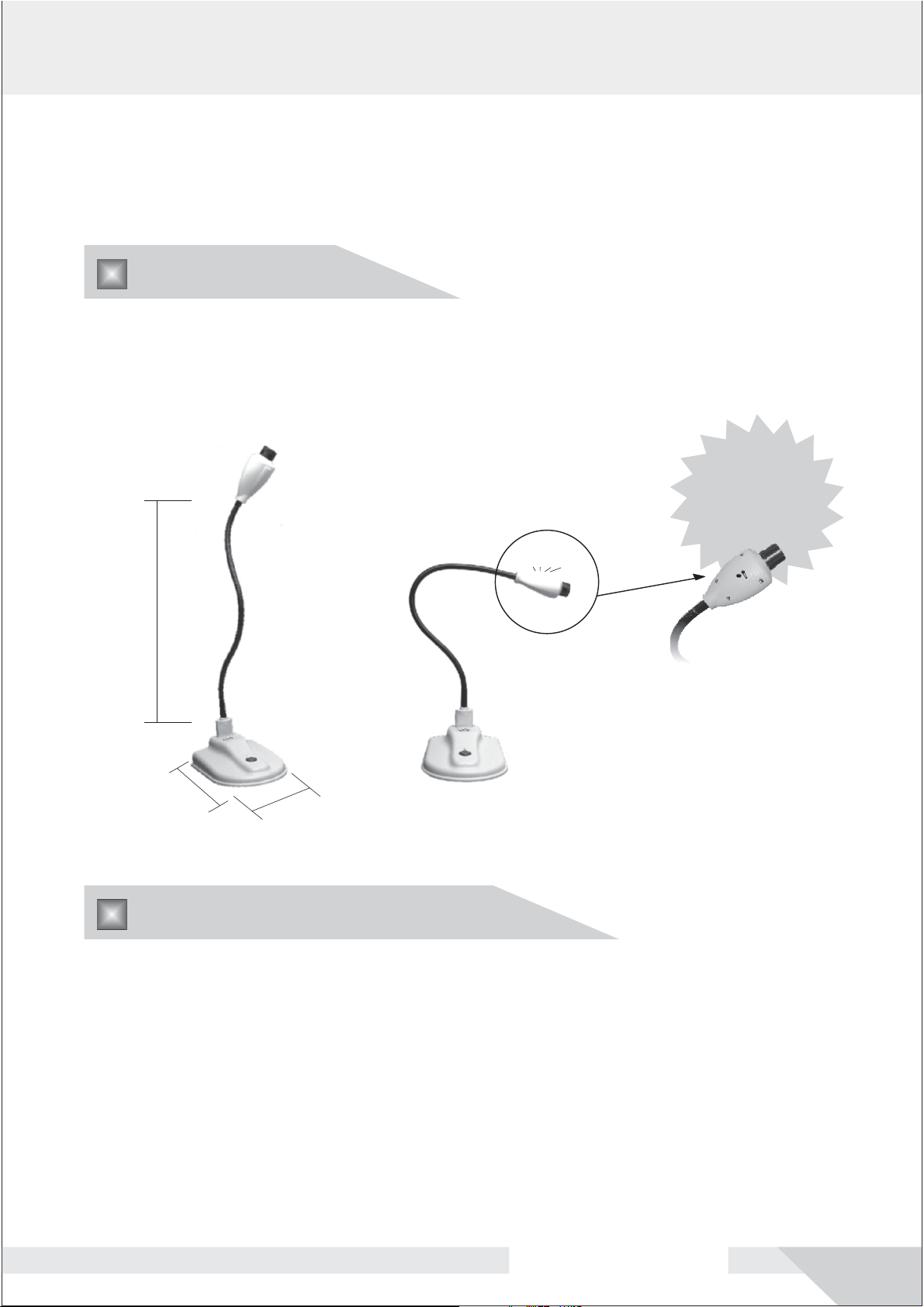
WITH
BUILT IN
MICROPHONE
Gooseneck
20 in.
9 in.
6 in.
Teaching Applications
*
Classroom Teaching
In ordinary classrooms, use TV set to display teaching pictures, scripts,
dimensional models of objects, etc.and video-record classroom activities.
*
Academic Report
Connected with projector in the theater classroom, clearly display the report
and aids for the discussion of the report, including captions, tables, pictures
and dimensional objects.
USER'S MANUAL
1
Page 3
*
Experiment Presenting
Present various kinds of experiments and display them on large-screen TV,
or computer.
*
Teaching Plan Editing
Through the compture video pick up static pictures and dynamic images
necessary for teaching as materials for the teaching.
*
Distance Education
Through the computer, transmit the on-site recorded images to the Internet or
LAN, for distance education.
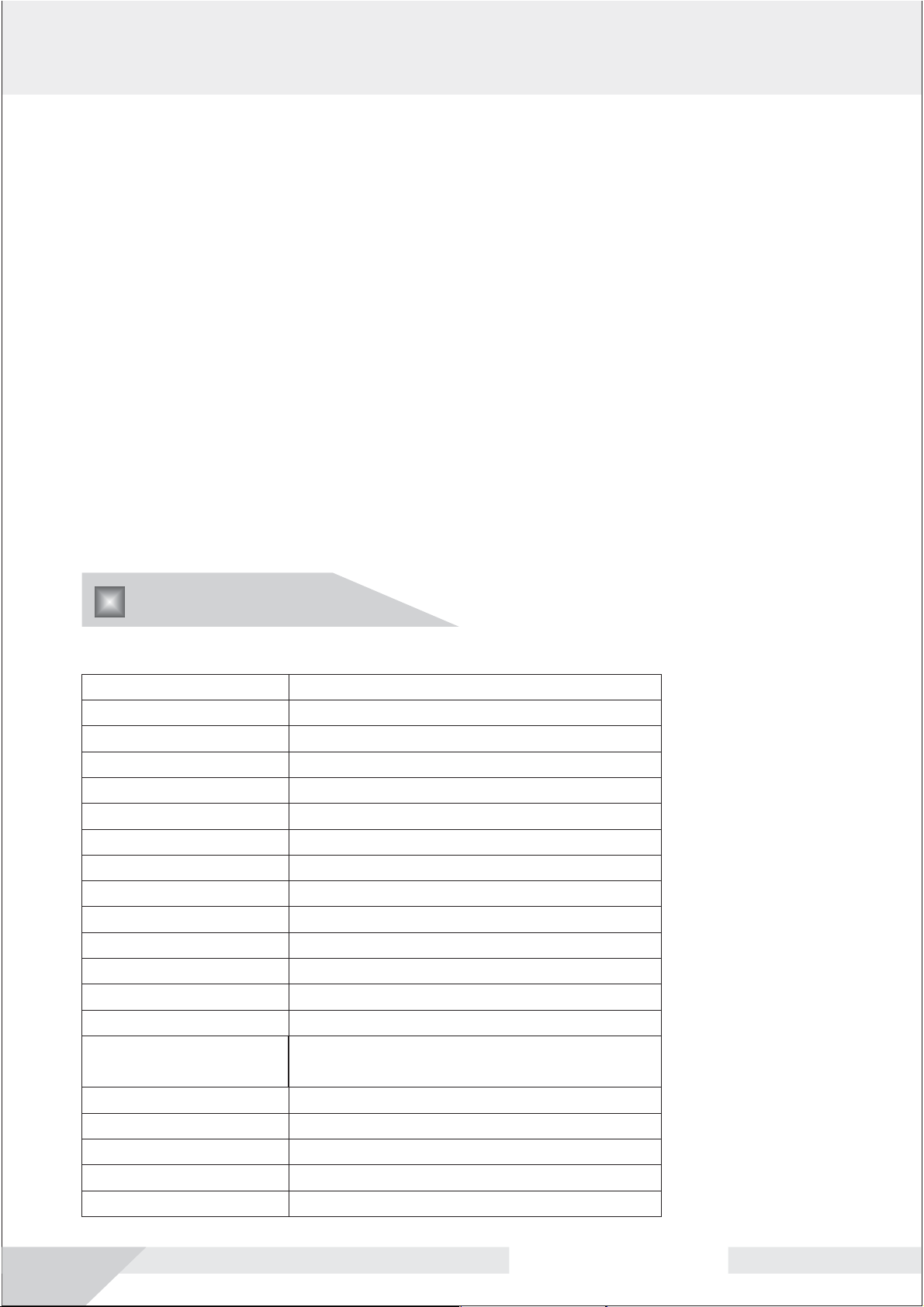
Specification
Model#:VP20M
Image Unit:
Resolution:
Pixels:
Signal-noise ratio:
Low Light Level:
White Balance:
Lens:
Focus Range:
Flexible neck:
Software Included:
Video output:
Video cable:
Output Signal:
Cable Connector:
Power ADAPTER:
Power Cable:
Weight:
Shipping Weight:
Head Rotation:
Head Unit:
Sony 1/4'' color CCD
Over 470 TV Lines
470,000+
>48dB
1.0 Lux
Automatic
8mm 1/3'' CS,manual focus
5cm~∞
20 inch length
USB 2.0 Driver, AVI software
NTSC
16.4 feet
USB 2.0
(1)Video,(1)Audio, (1)USB
INPUT 100-240VAC/50-60HZ
OUTPUT 12VDC,800mA
6 feet
4 lbs
6 lbs
180 degree horizontal
Built in rotating head with microphone
2
USER'S MANUAL
Page 4
Package Contents
Visual presenter
*1. -1 (x1)
U (x1)
* 2. ser's manual
3. Video / audio cable:16feet (x1)
*
* 4. Power adapter (x1)
* 5. USB cable (x1)
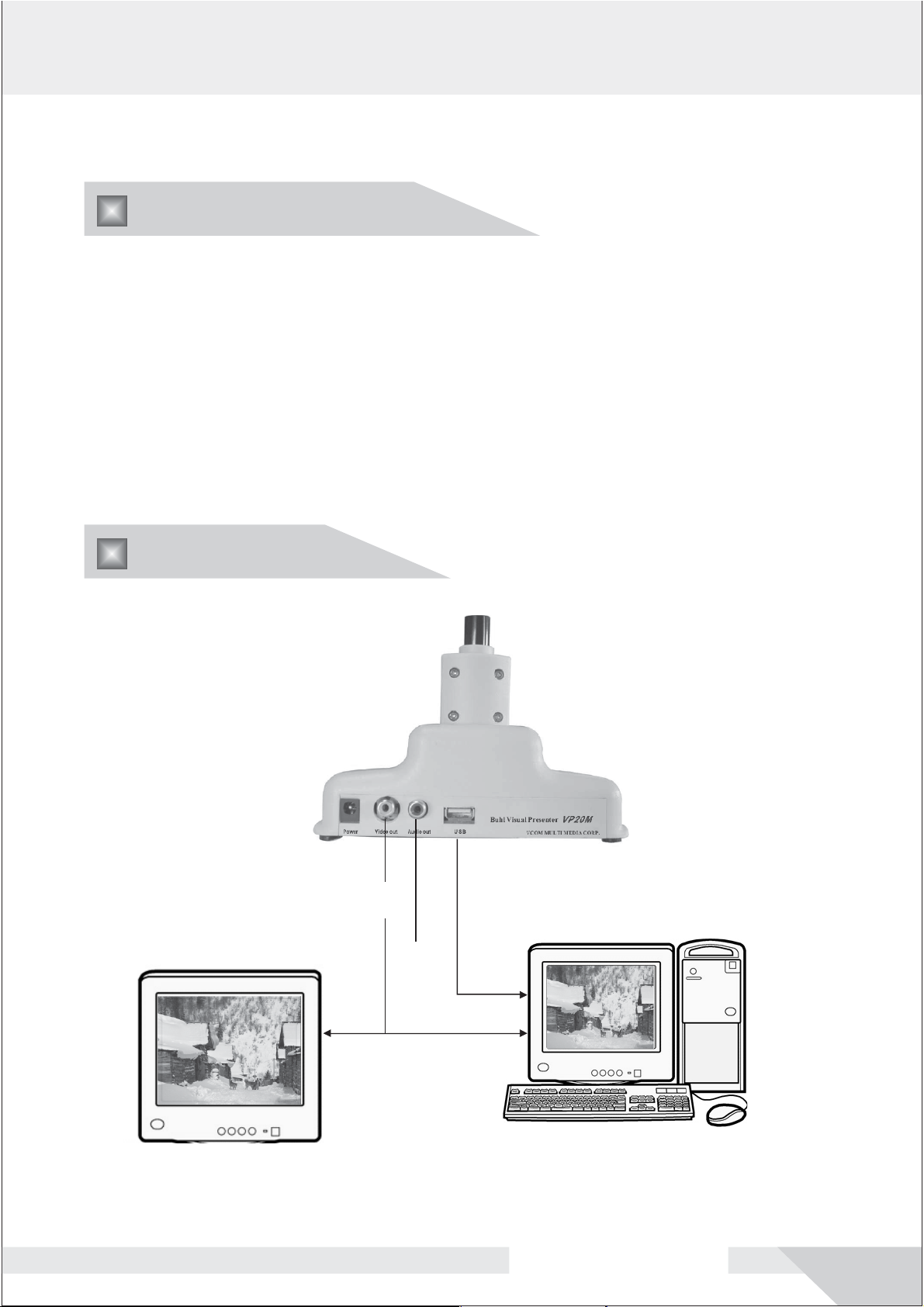
Installation
Video out
yellow
Audio out
red
USB
Video in
TV / projector / etc Computer
USER'S MANUAL
3
Page 5

Adjust Lens
After you connect the cable and open
the power supply, you can lay down the
things which you want to photograph,
if you find the image is not clear,
you can adjust lens until it is clear.
focus ring
VP20M Visual Presenter Installation
1. Connect VP20M Visual Presenter and computer with the USB cable
* .
2. Please insert the Installation disc into the computer
*.
3. " Welcome to the found new hardware wizard" then choose ”
* ---will appear
install from a list or specific location” and click ” next”
4. browse the file "VCap2800 USB2.0 DRV\", from the Disc, and click “next”
* .
5. "completing the found new hardware wizard"--- will finish” to
* show, click
close the wizard, the installation of the drive
is finished.
6. The visual presenter is ready for use.
*
.
4
USER'S MANUAL
Page 6

VP20M OPERATING INSTRUCTIONS
A.Computer USB Operation
and computer.
After following the installation procedure:
1.Click on the icon “AMCAP” then Vcap 2800 and a window will open.
2
.Open the “Device” menu and click on USB2821 Video.
3.Open the “Options” menu and click on Preview.
4.Before capturing a video file must be set up for it. Click File > Set Capture
File,a new window will open. Type a file name with .AVI, then click Open.
Another window will open to set File Size. Click OK. This will return you to
the first window.
5.Click “Capture” > Start Capture and record the video. When finished click
Stop Capture. The video will be saved to the previously set up in Step 2
6.STATIC CAPTURE. To make a single frame, still photo simply follow Steps
1-3,but after Start Capture wait 5 seconds minimum before Stop Capture
NOTE: Files are saved as Windows AVI files and if your default is Windows
Media Player that is the icon you will see.
Note: Be sure to attach the USB cable to VP20M
B. A/V Television/Monitor Operation
This function is for real time viewing only.
1.Attach the A/V cables to the camera and the monitor. Yellow is video, red is
audio.
2.Turn on and the picture will show immediately with no other
adjustments.
3.The microphone can be used to provide amplified audio of the presentation.
To avoid feedback from the monitor keep the speaker pointed away from the
microphone.
Dual Operation
1.Follow steps A1 & A2.
2.Then follow steps B1 & B2.
3.Step A3 “ Start Capture”.
4.Begin presentation.
VP20M
USER'S MANUAL
5
Page 7

VISUAL PRESENTER
Model VP20M
VCOM MULTI MEDIA CORP.
Hamden, CT 06514
..Manufactured in China under strict U S supervision
 Loading...