

Page 1
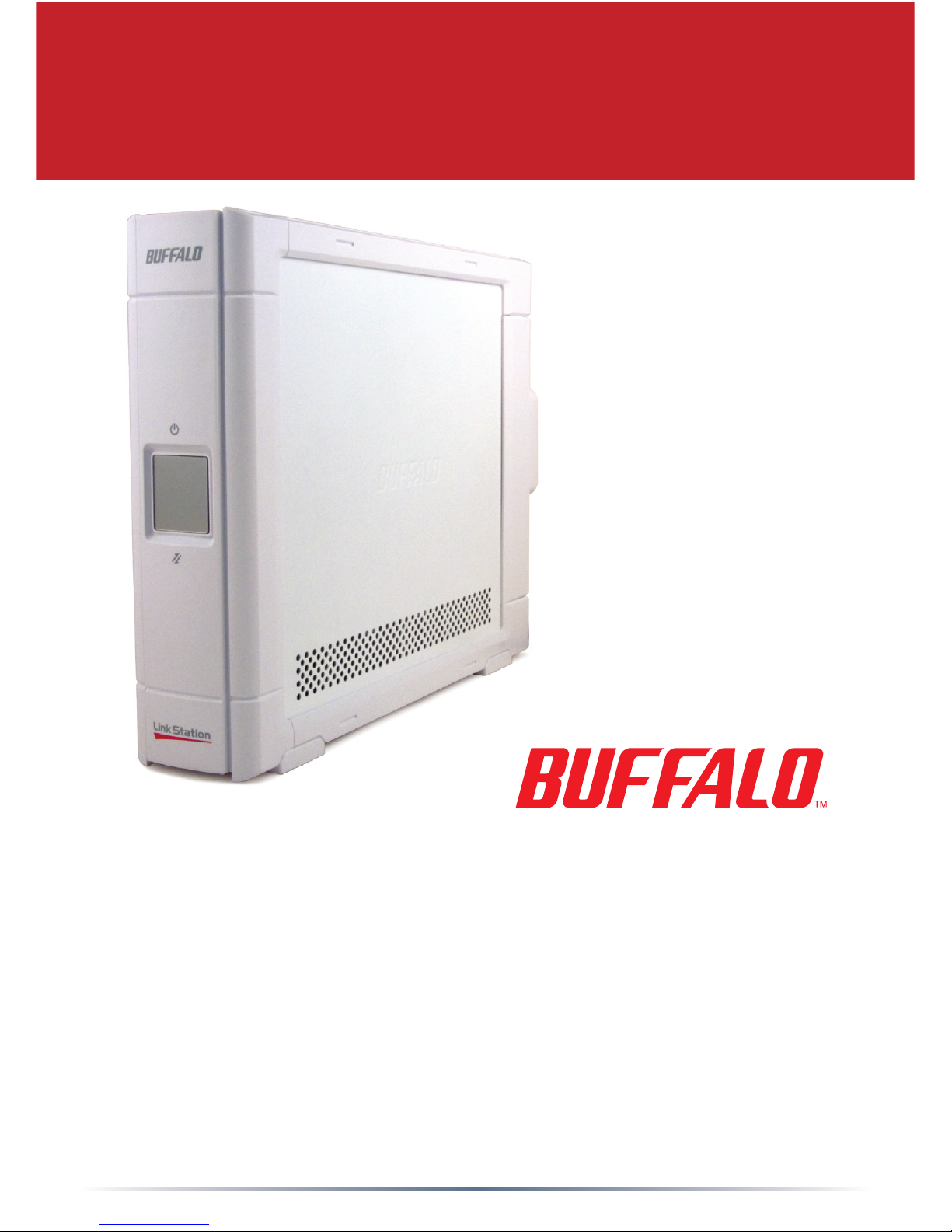
Package Contents:
• LinkStation
• Ethernet Cable
• Power Cable
• LinkNavigator Installation CD
• Quick Setup Guide (this manual)
• Warranty Card
www.buffalotech.com
v1.0
Quick Setup Guide
LS-LGL LinkStation
Page 2
2
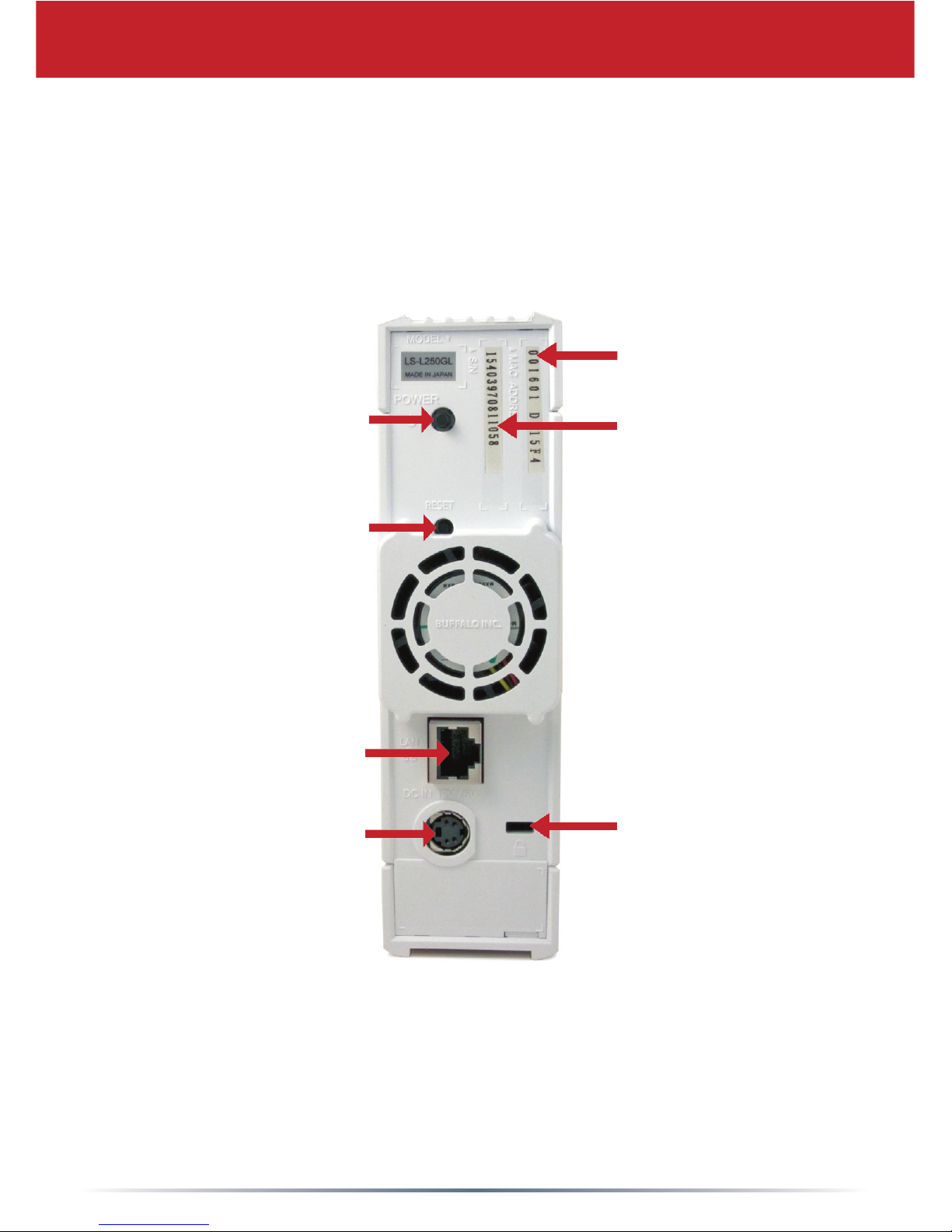
Ethernet Cable (to
Router)
Back Panel Layout
Power Cable
Power Switch
Reset Button (hold down
for 3 seconds to reset)
MAC Address
Serial Number
Mount for Cable
Lock
Page 3
3
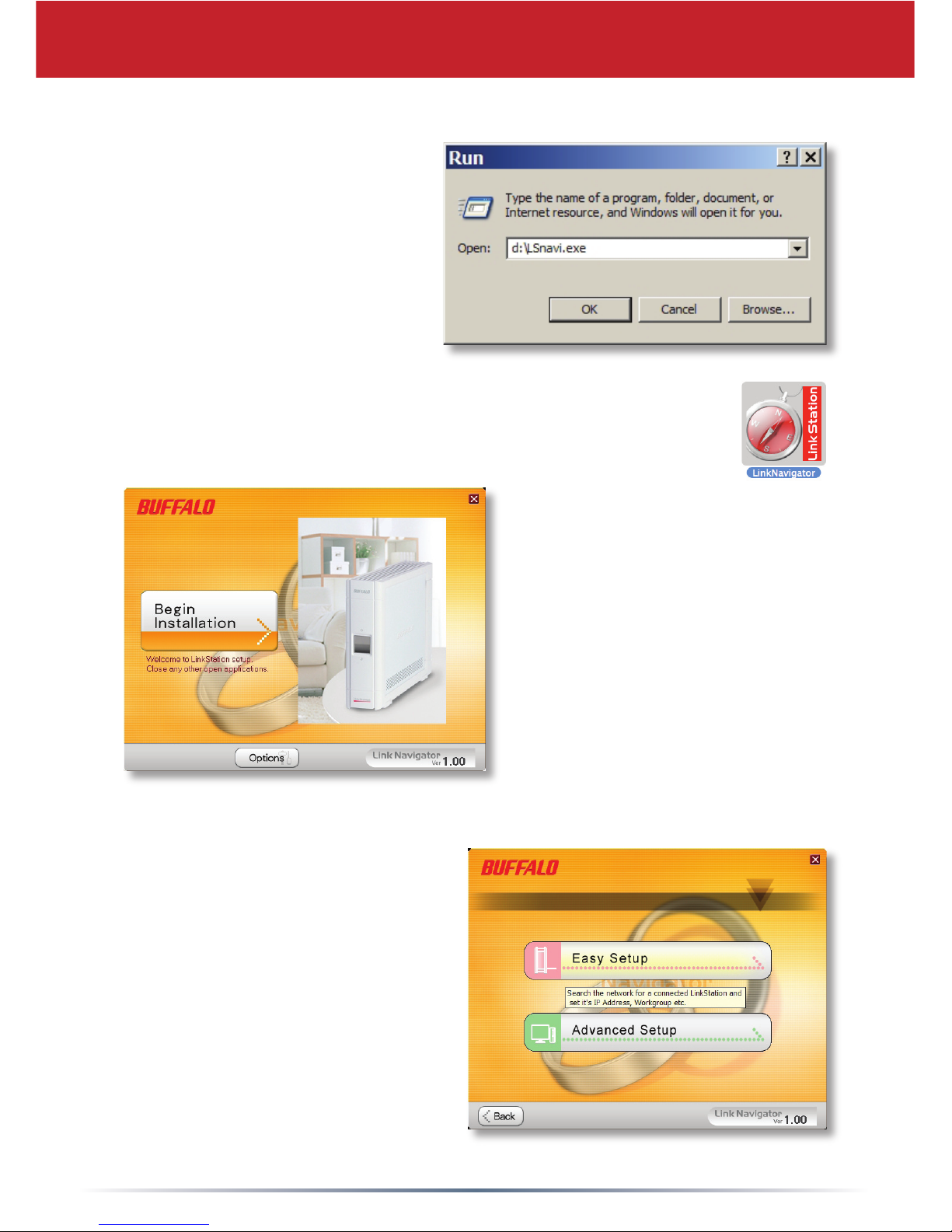
Insert the LinkNavigator CD
into your computer’s CDROM drive. If setup doesn’t
launch automatically, you
can launch it manually by
clicking Start, then Run....
When the Run dialog
opens, type d:\LSnavi.exe
(where “d” is the drive letter
of your CD-ROM). Press OK to continue. If you are
installing the software on a Mac, open the cd and click
LinkNavigator to begin installation.
If you’re installing on a Mac,
skip to the next page.
If you’re installing on a PC,
click on Easy Setup (the
pink, upper button).
Click Next to step through
the installation.
Initial Installation
Click on Begin
Installation.
Page 4
4
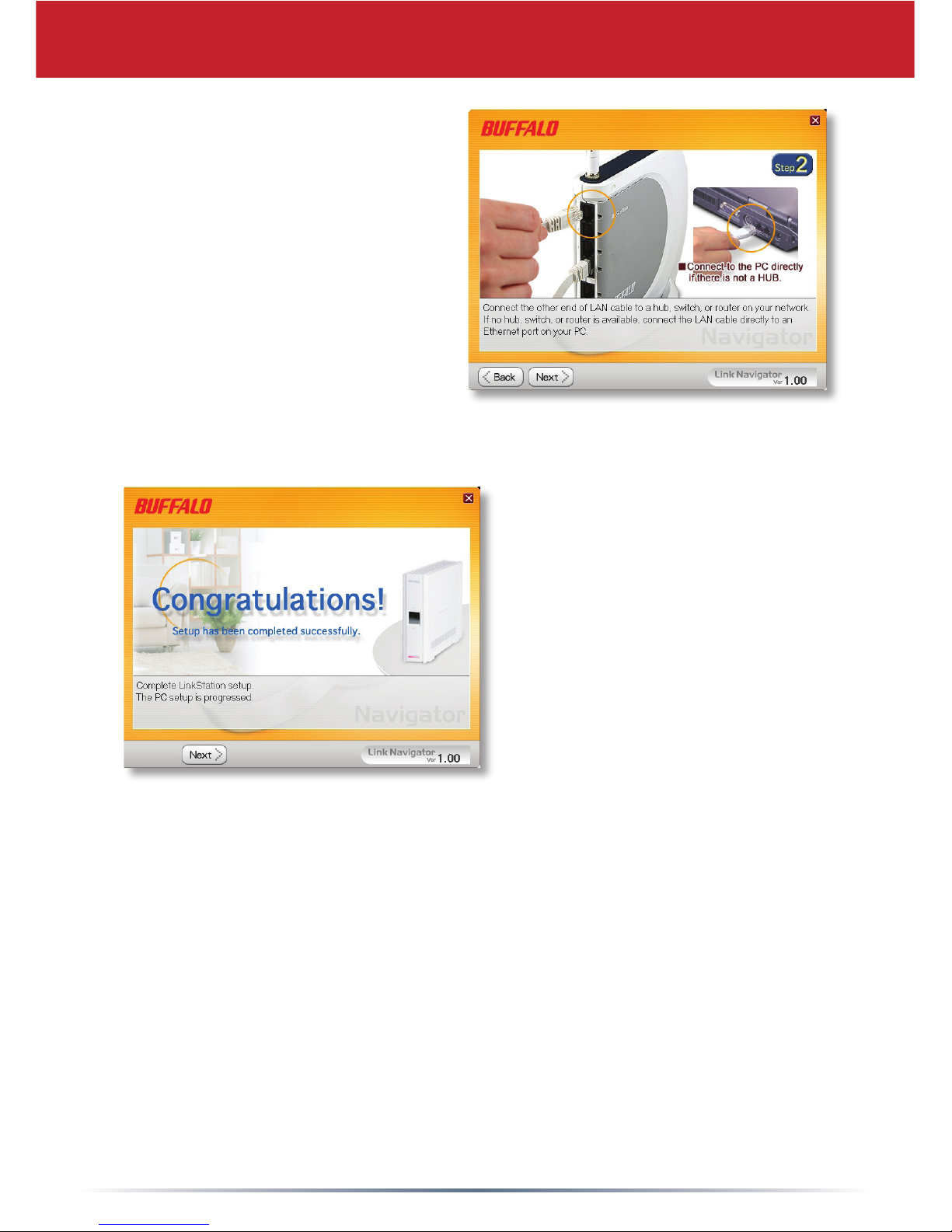
Continue pressing Next and
follow the steps shown.
When installation is
complete, you may close the
installation window.
Congratulations! Your LinkStation is ready to use. Turn to page
4 for more on using your LinkStation with a PC, or page 6 for
more on using your LinkStation with a Mac.
Please see the LinkStation User Manual on your LinkNavigator
CD for more help and conguration options.
Page 5
5
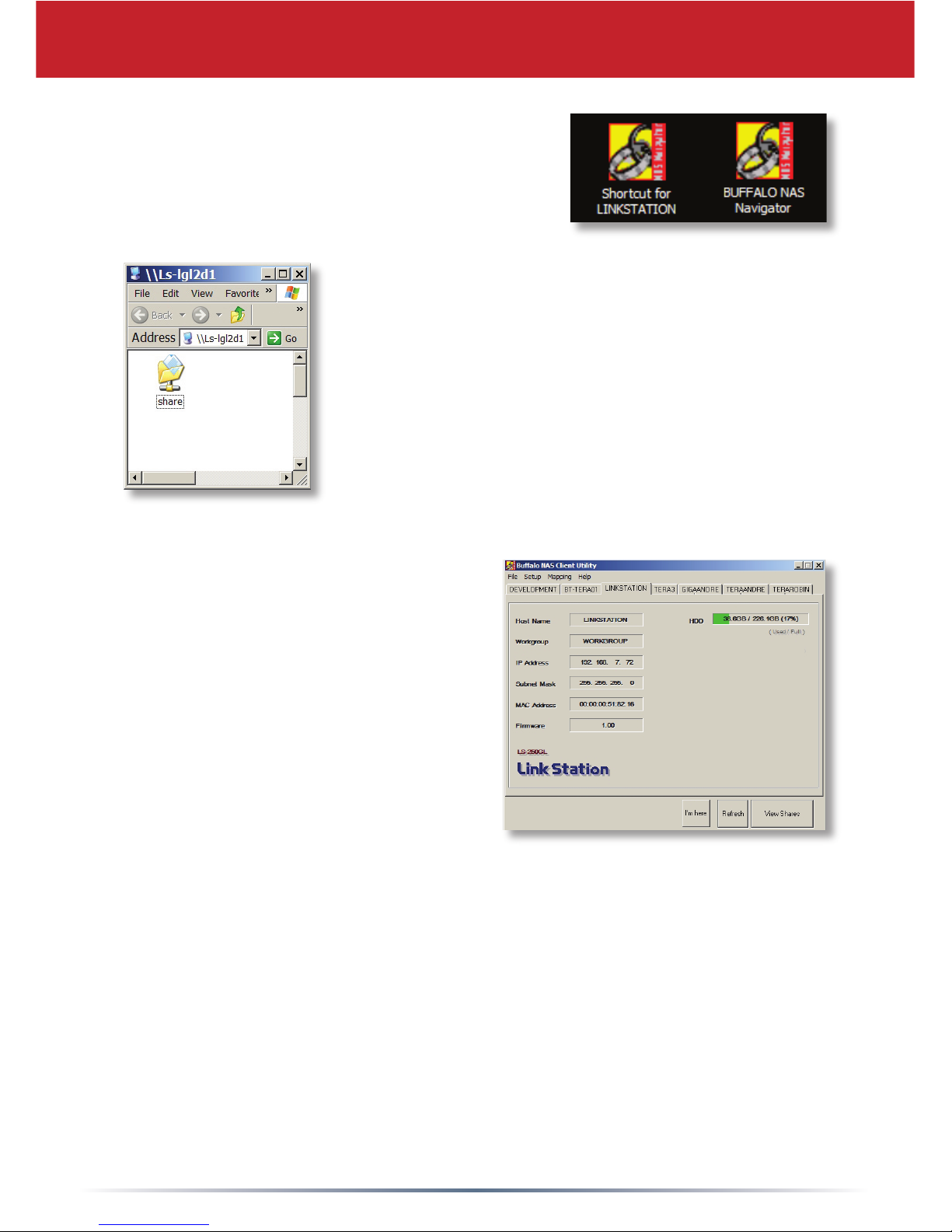
The LinkStation shortcut will take directly
to the folder on your LinkStation.
Share is the main folder that you can put
les and other folders into.
Using your LinkStation with a Windows PC
The Buffalo NAS Navigator
icon opens the LinkStation’s
client utility. This lets you easily
view system information for your
LinkStation(s) and change your
LinkStation’s settings. Until you
change it, the GUI’s username
is “admin” and the password is
“password”. Consult your user
manual for more information on
the Buffalo NAS Navigator.
If you’re using a Windows PC, two
new icons will be on your desktop:
Shortcut for LinkStation and
Buffalo NAS Navigator.
Page 6
6
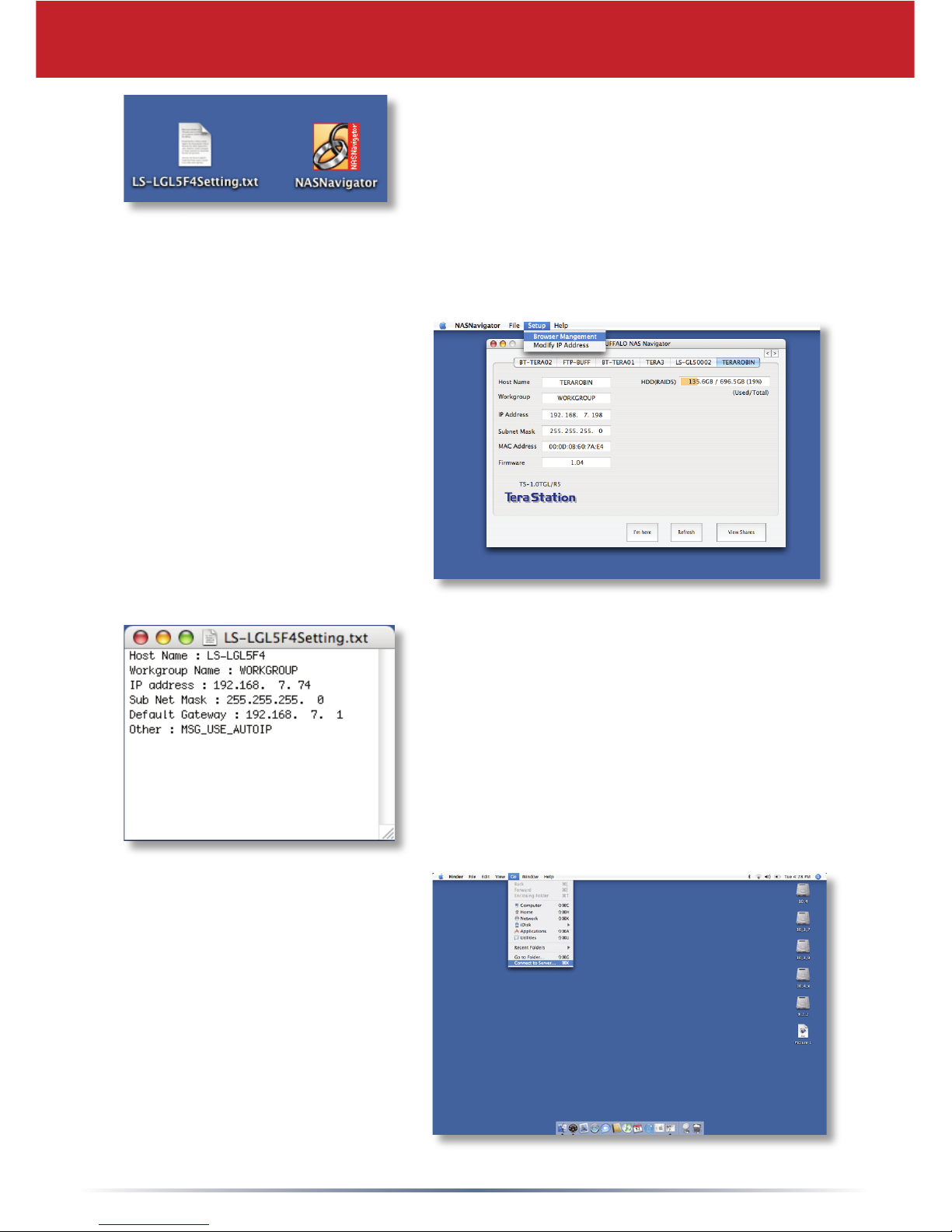
After installing the LinkNavigator
software, your Mac will have two new
icons on the desktop.
The LS-LGLSettings.txt le contains the IP address of your
LinkStation. NASNavigator is the LinkStation’s client utility.
Using your LinkStation with a Mac
Clicking NASNavigator
opens the LinkStation’s
client utility. This lets
you easily view system
information for your
LinkStation and change
its settings. Consult your
user manual for more
information on the Buffalo
NAS Navigator.
With the information in the LS-
LGLSettings.txt le, you can easily
connect to the LinkStation from any
of your computers on your local
network.
From the Finder, click Go,
and then choose Connect
to Server.
Page 7
7
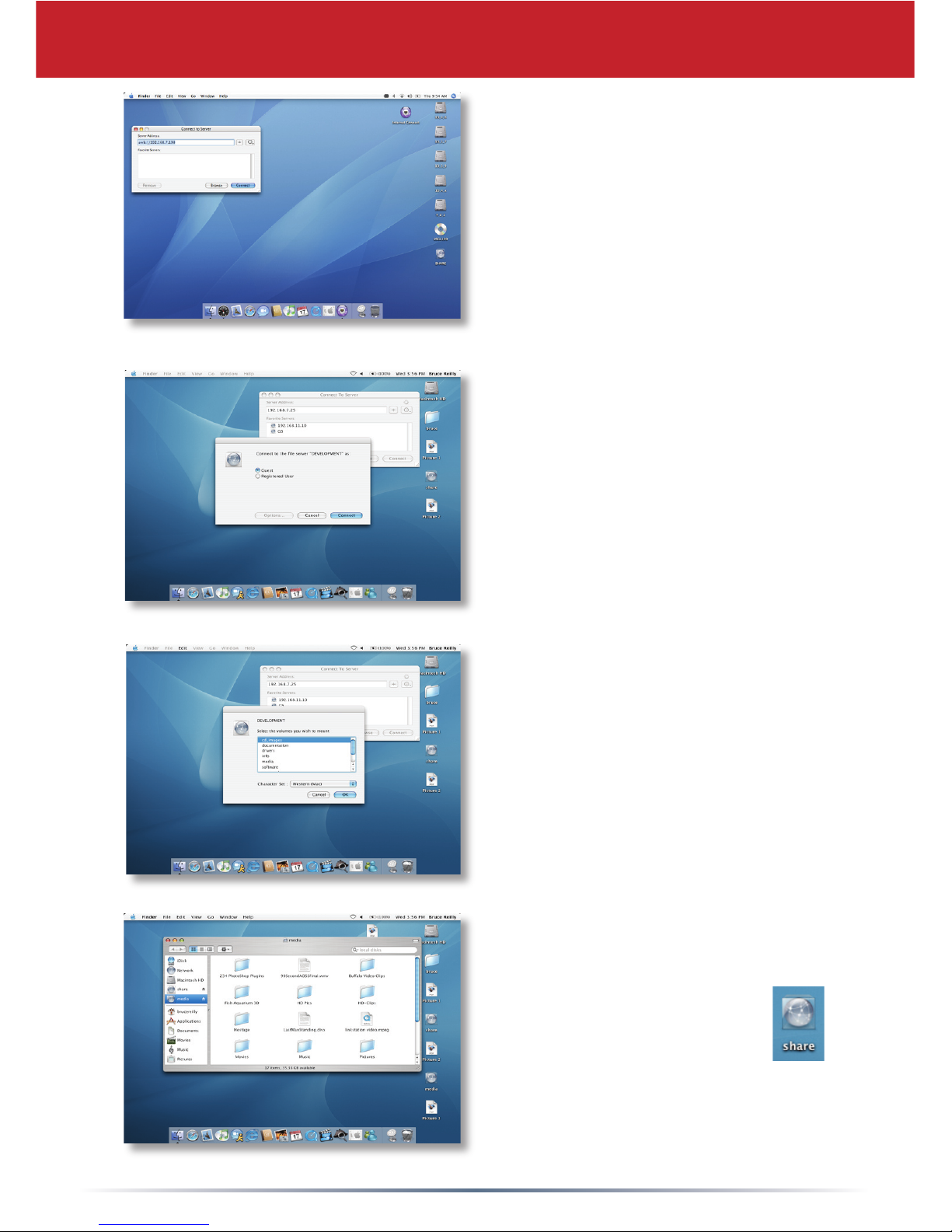
In the Server Address eld, enter
your LinkStation’s IP address
in the form smb://ipaddress
(where “ipaddress” is your
LinkStation’s IP address), and
click Connect.
You can get your LinkStation’s
IP address from the LS-
LGLSettings.txt le on your
desktop.
Select Guest and click on
Connect. Note: If you have
congured share permissions
on your LinkStation, select
Registered User and enter your
login credentials.
Select share from the list of
folders on the LinkStation.
The share will open. A link to it
will appear on your desktop.
Using your LinkStation with a Mac
Page 8
8
Technical Support
Buffalo Technology offers free technical support. See the back
page of this guide for contact information. Also visit our web
site at www.buffalotech.com.
FCC Warning
This device complies with part 15 of the FCC Rules. Operation
is subject to the following two conditions: (1) This device may
not cause harmful interference, and (2) this device must accept
any interference received, including interference that may cause
undesired operation.
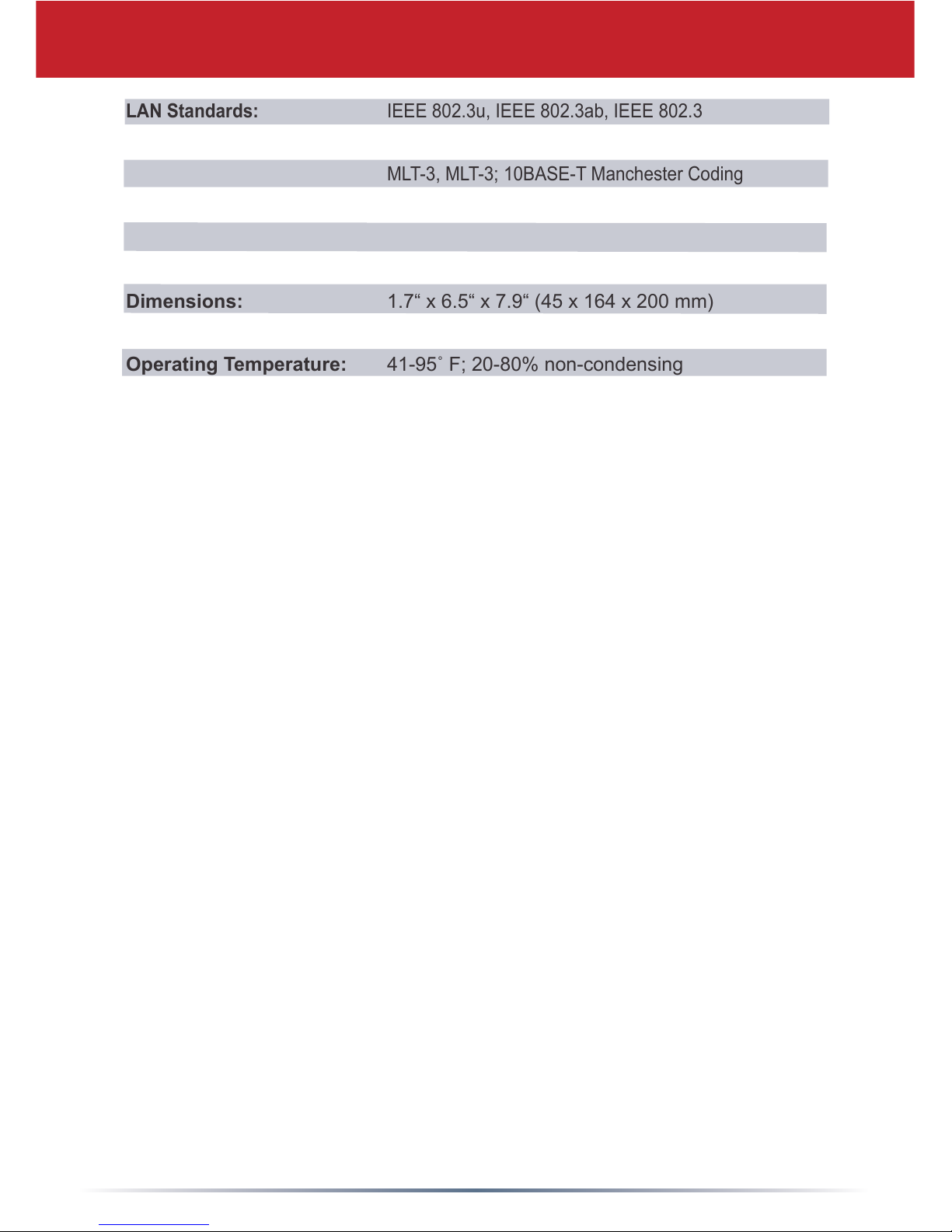
Technical Specications
LAN Standards: IEEE 802.3u, IEEE 802.3ab, IEEE 802.3
Transmission: 1000BASE-T: 8B1Q4, PAM5; 100BASE-TX: 4B5B
MLT-3, MLT-3; 10BASE-T Manchester Coding
Media Interface: RJ-45
Electric Current: 100-240V AC
Power Consumption: ~25W
Dimensions: 1.7“ x 6.5“ x 7.9“ (45 x 164 x 200 mm)
Weight: ~3.5 lbs
Operating Temperature: 41-95˚F;20-80%non-condensing
Client OS Support: Windows Vista, XP, 2000, OS X 10.2.8 or later, Linux
Page 9

USA/Canada Technical Support is available 24 hours a day, 7 days a week
Toll-Free:866-752-6210
email: [email protected]
Europe Technical Support isavailableinEnglish,German,French,Italianand
Spanish.Foropeninghoursandrelevanttelephonenumbers,pleasegoto
www.buffalo-technology.com/contact
©2005-2007, Buffalo Technology (USA), Inc.
http://www.buffalotech.com
 Loading...