

Page 1
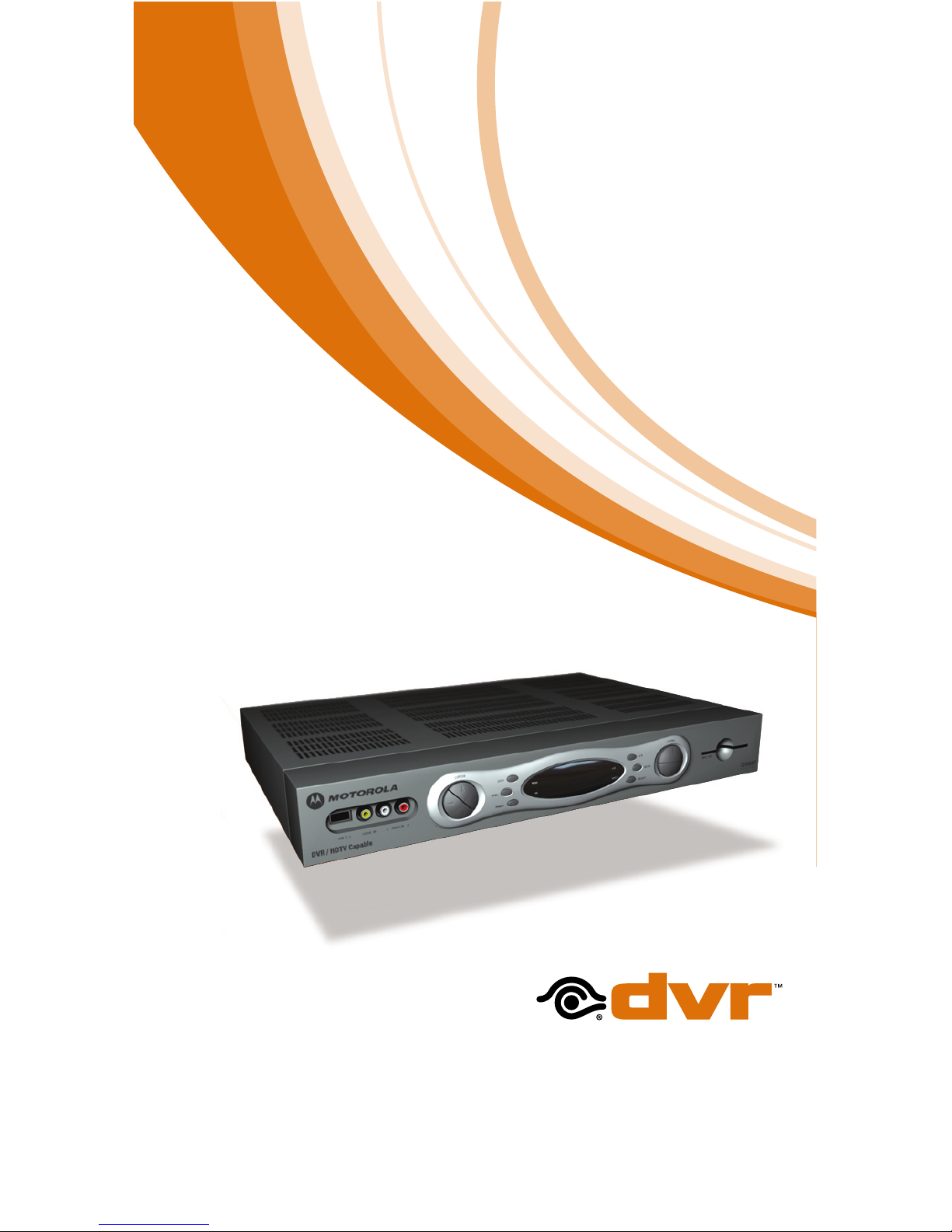
Buckeye DVR User Manual
Buckeye DVR
Digital Video Recorder
Page 2

Contents
Buckeye DVR
Digital Video Recorder
Buckeye DVR - Don’t miss a thing. 1
Control Live TV 1
Playback Controls
Using the Video Control Buttons 2
Playback Controls
Using the Remote Control Arrow Buttons 2
Pause, Rewind, Fast-Forward, Slow Motion,
Instant Replay, Get Back to LIVE TV 3
Swap Between Programs 4
Your Personal Video Library 4
Building Your Library - Recording Programs 4
Record Program Information 4
Manually Schedule Recording 5
Record a Series 5
Managing Scheduling Conflicts 6
View Your List of Scheduled Recordings 7
Modifying Recording Options 7
View Programs Stored In
Your Personal Video Library 7
Managing Your Personal Video Library 8
Copy Recordings to a VHS Tape 9
Page 3
Buckeye DVR
Imagine…coming home to your own
personal library of television programs,
movies, and sports that you can watch
whenever it’s convenient for you. It’s TV
for your schedule.
Pause live television! Rewind and replay
programs so you don’t miss a beat.
Record up to 90 hours* of your favorite
programs and view them as many times
as you want, whenever you want. You
can even record high-definition TV**.
All without rentals, tapes or returns.
Your Buckeye DVR converter has made recording and watching your favorite
programs easier than ever. Powered by i-Guide, now you can watch a program
while recording another or record two programs at once! You have your own
personal video library, stored on your digital set-top box, so you can watch
them at your convenience. You can even pause, fast-forward and rewind LIVE
TV to playback the scenes you’ve missed. In fact, your DVR is one of the first
available that can actually record and play high-definition programming!**
Control Live TV
Using Buckeye DVR with i-Guide, you can control LIVE TV. Anytime you tune
to a channel, the DVR begins making a temporary recording of whatever
you’re watching. So you can PAUSE if the phone rings, REWIND the scene
you missed and FAST-FORWARD to skip what you don’t want to watch. Your
DVR will record up to one hour of live TV+.
The live TV recording is not a permanent recording, unless you actually record
it to the DVR’s hard drive. For live TV recordings, the temporary recording
buffer will be erased if any of the following occur:
• Turn off your DVR.
• Watch the same channel for longer than the temporary recording (buffer)
period. Only the most recent hour of the program (15 minutes of HD) is
kept in the temporary recording.
• Switch to another program on the same tuner. When you change channels
without using the SWAP function, your DVR begins to store the new
program. It removes the previous program you were watching from the
storage. (See SWAP section for additional information.)
*Recording capacity varies.
**Recording and playback of high-definition programs requires DVR connection to high-definition television.
+Recording buffer (temporary hard drive) for each tuner will record as long as you stay tuned to the same channel.
Don’t miss a thing.
Buckeye DVR
Digital Video Recorder
1
Page 4
• You watch more than one hour. After one hour, the DVR removes the
earlier minutes of the recording, so that only the most recent hour is kept
in the temporary recording.
Playback Controls
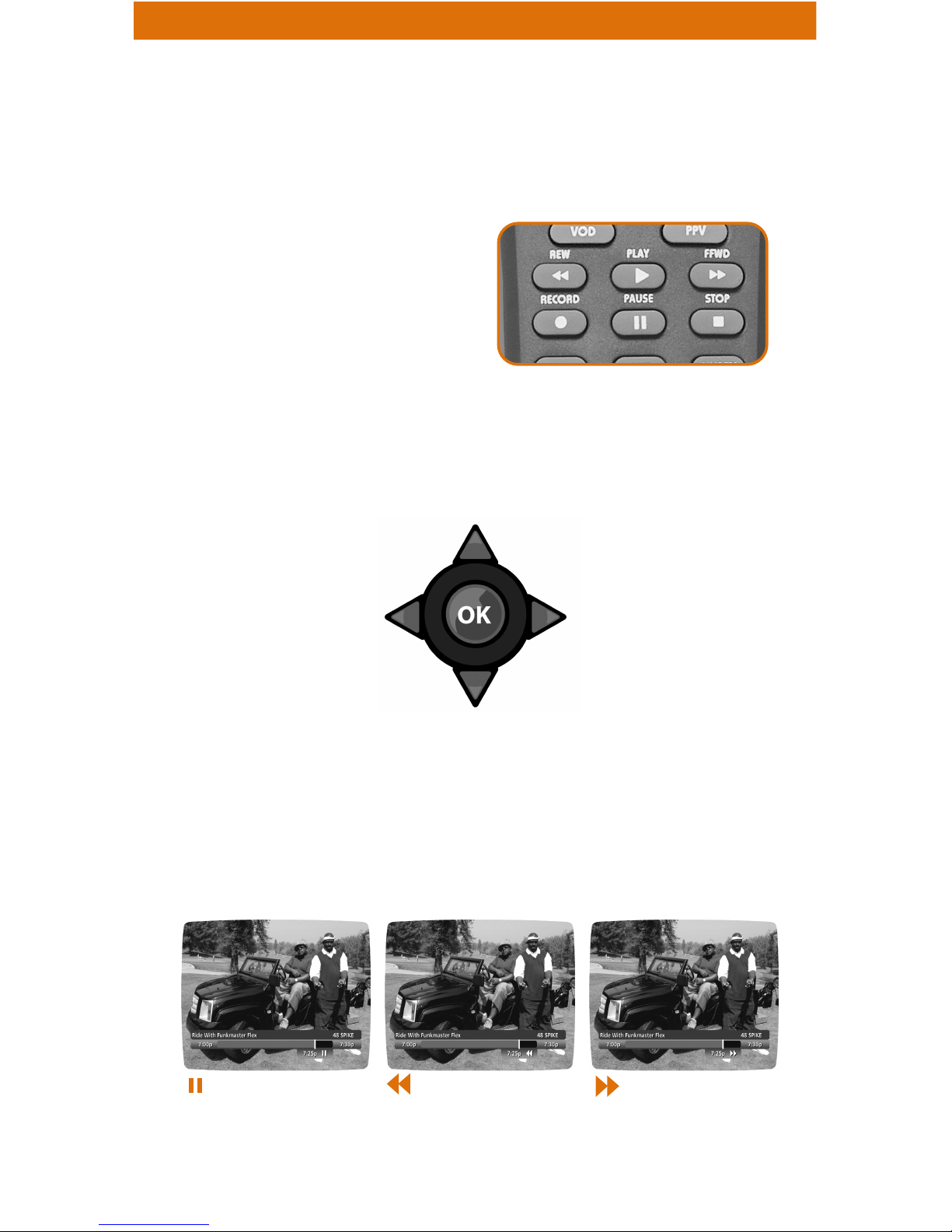
You can play back your video recordings using the buttons on your remote
using the Video Control Buttons.
Note: Some remotes will have an Instant Replay button.
Using the Remote Control Arrow Buttons
The 5634buttons on your remote control will control playback when you
are watching a recording in progress or while watching a recorded program.
Status Bar
The Status Bar appears whenever you pause, rewind or fast-forward a live
program. It also gives you information such as the title of the program you
are watching, the source of the program and duration of time. The yellow
position bar indicates where you are in the program. Green indicates the
length of the program you are watching. Red indicates that you are watching
a recording in process. White indicates the length of other programs available
in the buffer.
These buttons function like VCR controls.
Plus, you have new Buckeye DVR control
features, like Instant Replay and SWAP.
• Go to Live TV
• Fast-Forward
• Slow Forward from Pause
• Play
• Pause
• Rewind
• Slow Rewind from Pause
2
Page 5
* Pause capacity depends on video format; less than 15 minutes for High-Definition programming.
** You can only fast-forward up to the point of live TV.
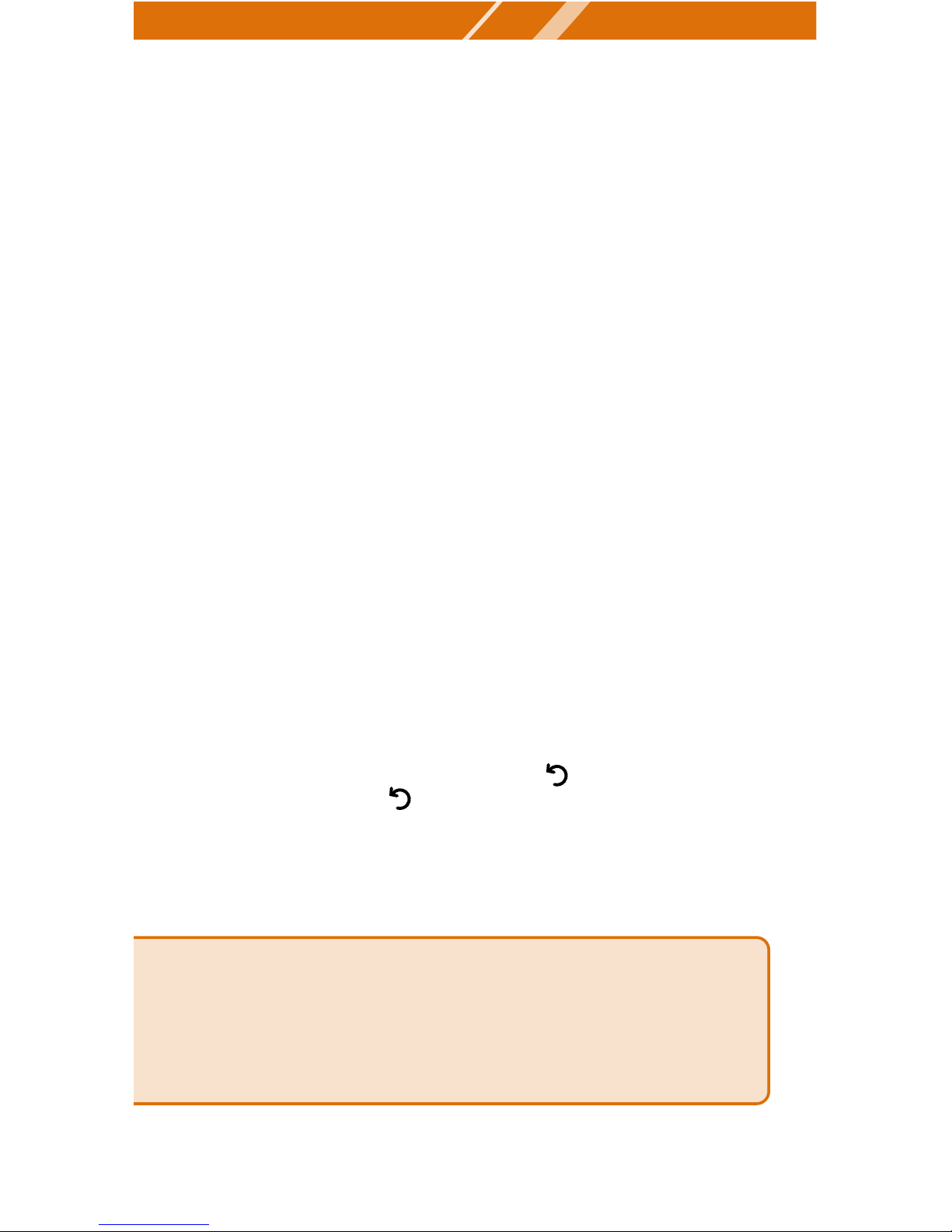
Pause
As you watch live TV and recorded programs press PAUSE and the video on
your TV screen instantly freezes. No more missing the climactic scene of a
movie or the winning play of the game! For programs you are watching live,
your DVR will remain in pause for up to 90 minutes*. Press PLAY to resume
normal play of the program.
Rewind
Want to review a portion of your live show? It’s a snap with Buckeye DVR.
Press REWIND. Press it again up to 4 times to increase the rewind speed.
rE1, rE2, rE3 and rE4 will appear on converter screen. rE1 is the slowest
setting and rE4 is the fastest. Press REW a fifth time or press play to resume
normal play.
Fast-Forward
For programs you are watching live, FAST-FORWARD can be activated if you
have paused or rewound the program (live TV can not be fast-forwarded).
Press FAST-FORWARD to move forward in the program.** Press it up to 4
times to increase the fast-forward speed. FF1, FF2, FF3 and FF4 will appear
on the converter screen. FF1 is the slowest setting and FF4 is the fastest.
Slow Motion
Your DVR is equipped with slow-forward and slow-rewind functions to give
you crisp and clear Slow Motion images. Ever wonder what the referees are
looking at when they review a controversial play? Use Slow Motion to get
an inside look. To activate slow-forward, press PAUSE and then FAST-
FORWARD. To use slow-rewind, press PAUSE and then REWIND. To return
to regular speed, press PLAY.
Instant Replay
With Instant Replay*, you can go back to see the last play of the game or
replay the last scene of your movie. Just press on your remote to replay
the last 15 seconds. Press repeatedly to continue skipping back in 15second increments.
Get Back to Live TV
Anytime you pause or rewind a live program, the show continues to be
broadcast in real time. To return to live programming, press the 6button*.
GUIDE TIP: Using Parental Locks With DVR - You can restrict viewing of recorded
programs, just like any other program. If you schedule a recording for a program
you have LOCKED, the program will be recorded, however, audio is muted and no
video will appear while the program is recording. A restricted notice appears
allowing you to enter your PIN to view the program during recording. Once the
program has been recorded, you can access it from your list of recorded programs.
Just enter your PIN to view it.
3
Page 6
Record One Show While Viewing Another
Because Buckeye DVR has two tuners, it can buffer two programs at the
same time – one on each tuner. The SWAP feature lets you toggle back and
forth between the two live shows while giving you full control of both. While
you are tuned to a program, press the SWAP button on your remote.
• You will change tuners. Now you can select an alternate program by
changing channels or using the i-Guide.
• Press SWAP again to toggle between the two programs.
Note: The SWAP button is the key to keeping the buffer for both programs. If you change channels
without using the SWAP key, you will lose the buffer. The SWAP button may not be available
on all remotes.
Your Personal Video Library
Using your Buckeye DVR with i-Guide, you can build your own personal
library of programs, movies, sports, TV shows …whatever you want. Follow
the steps below to build and manage your personal video library.
DI2
Building Your Library - Recording Programs
You can set and schedule recordings three ways with i-Guide: one touch
record, interactively by program and by manually scheduling your recording.
One Touch Record
Press RECORD on your remote any time
while watching TV or while navigating
through the guide. Recording begins
immediately at the point you pressed
RECORD for programs airing now. You can
automatically schedule recordings for
programs starting at a later time or date
by pressing RECORD while in the listings.
Recording will start at the program’s
scheduled start time.
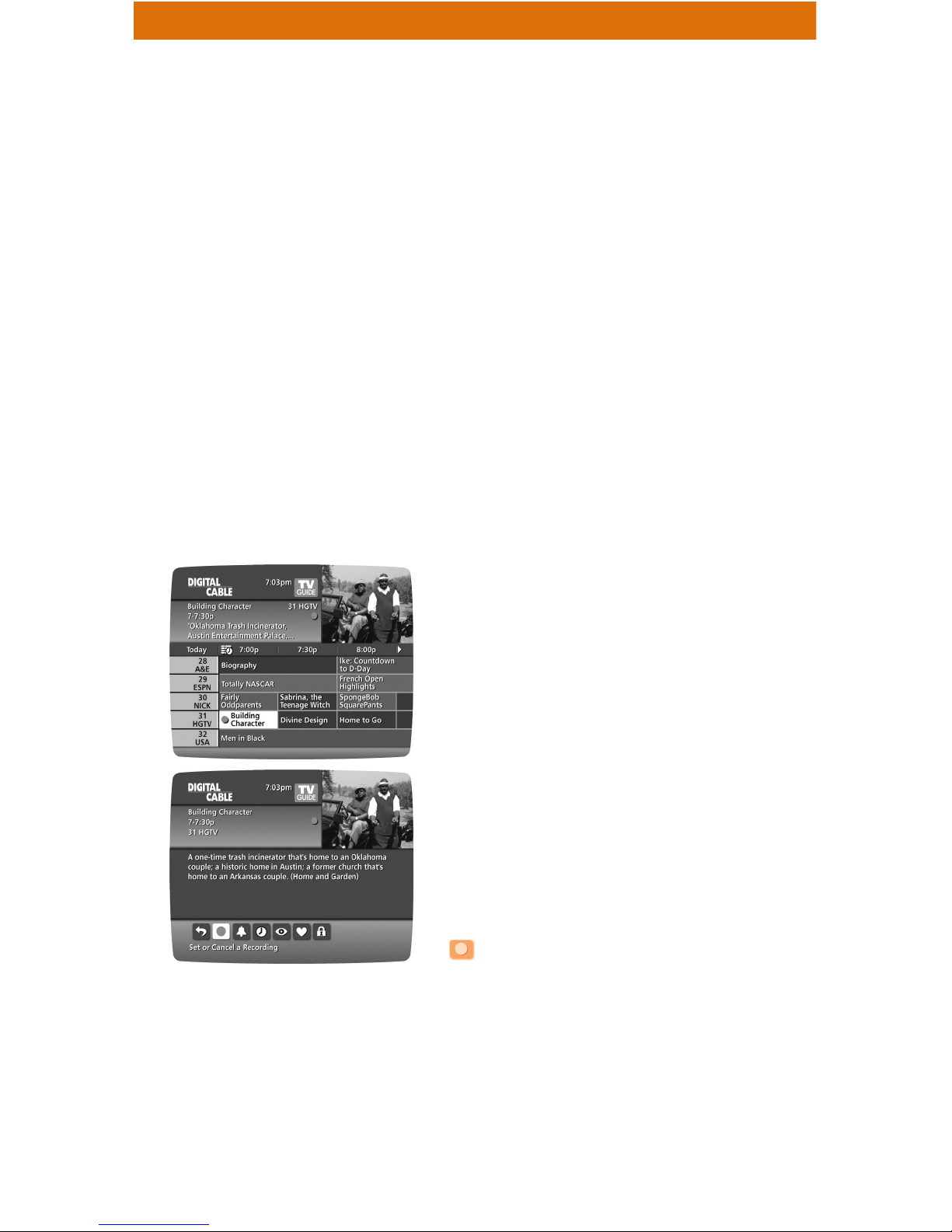
Record From Program Information
From the listings, highlight and select a
program scheduled for a later time. Press
the INFO button and you will see an
information screen. Highlight the Record
Icon and press OK to start a recording
for the time the program is scheduled to
start.
Record Two Programs at Once
The Buckeye DVR converter allows you to set recordings for two different
programs that air at the same time. While recording two programs, you can
watch and control either program up to the point of live TV by using the
4
Page 7

SWAP button on your remote. There are several ways to record two programs
at once. Here are two basic examples:
While Watching a Show:
• Press RECORD to record the program you are watching.
• Press SWAP to switch to the other tuner and find the second program
you want to record.
• Press RECORD when you locate the second program you want to
record.
From the Guide:
• Highlight a program you want to record from any listings screen.
• Press RECORD to set up the first recording
• Highlight the second program.
• Press RECORD to set up the second recording.
Manually Schedule a Recording
You can set a Manual Recording to automatically record a specific time and
channel.
Step 1: Select DVR from the Main Menu, then select Set a Recording.
Step 2: Select the start and end times and the day you wish to record and
confirm your settings.
Step 3: A channel list will then appear, allowing you to select the channel
to record. Select the channel you want.
Step 4: A “Create a New Recording” Screen will appear, select Create a
Recording to confirm your settings or select the Recordings Options
Icon for additional Recording Options.
Record a Series
Buckeye DVR lets you record multiple episodes of a program according to
your preferences. You can set the DVR to record only new (first run) episodes,
first run episodes and repeats or all episodes.
When you set a recording from a Series Program Information screen, you’ll
have an additional icon on the preceding Recordings Overlay. Choose Create
a Series Recording Icon to specify your series recording options.
• Select the episode type to record, such as first run only, first run and
repeats or all episodes.
• Specify how many recordings to save.
• Specify how long to save the recording – until you erase it or until space
is needed.
• To access advanced series setup features like add minutes to the start
and end times and specify which channels to record, select the Setup
Icon to review all options.
Your series recordings will appear in your My Recordings list with the show
title as its label. Multiple recordings of the same show will have the same
label and will be listed beginning with the most recent recordings first as
default. To change your view, use the (arrow left/right) buttons on your remote
to View by Date, View by Channel or View by Title.
5
Page 8
Managing Scheduling Conflicts
If you schedule more than two recordings for the same time, you will see a
Scheduling Conflict screen that allows you to choose between a previously
set recording and the new recording that is conflicting. Individual recordings
always take priority over series recordings when there are scheduling conflicts.
In case of a scheduling conflict between two series programs, additional icons
will appear at the bottom of the Scheduling Conflict screen to help you
determine which program to record.
-Return to the previous screen.
-Record highlighted series as shown above.
-Don’t record this series.
• To give your new recording the highest scheduling priority and to capture
the most number of episodes for your new recording, select High. The
screen will show you how many episodes of the new series will be recorded
and which episodes of the old series will not be recorded because of the
conflict.
• To move the new series back to the bottom of the scheduling priority list,
select Low and the screen will refresh and give you revised results.
• Select the Record Icon to confirm your new settings. You may also
modify the priority assigned to a series using the Series Priority List. (See
next section)
DIGITAL VIDEO RECORDING
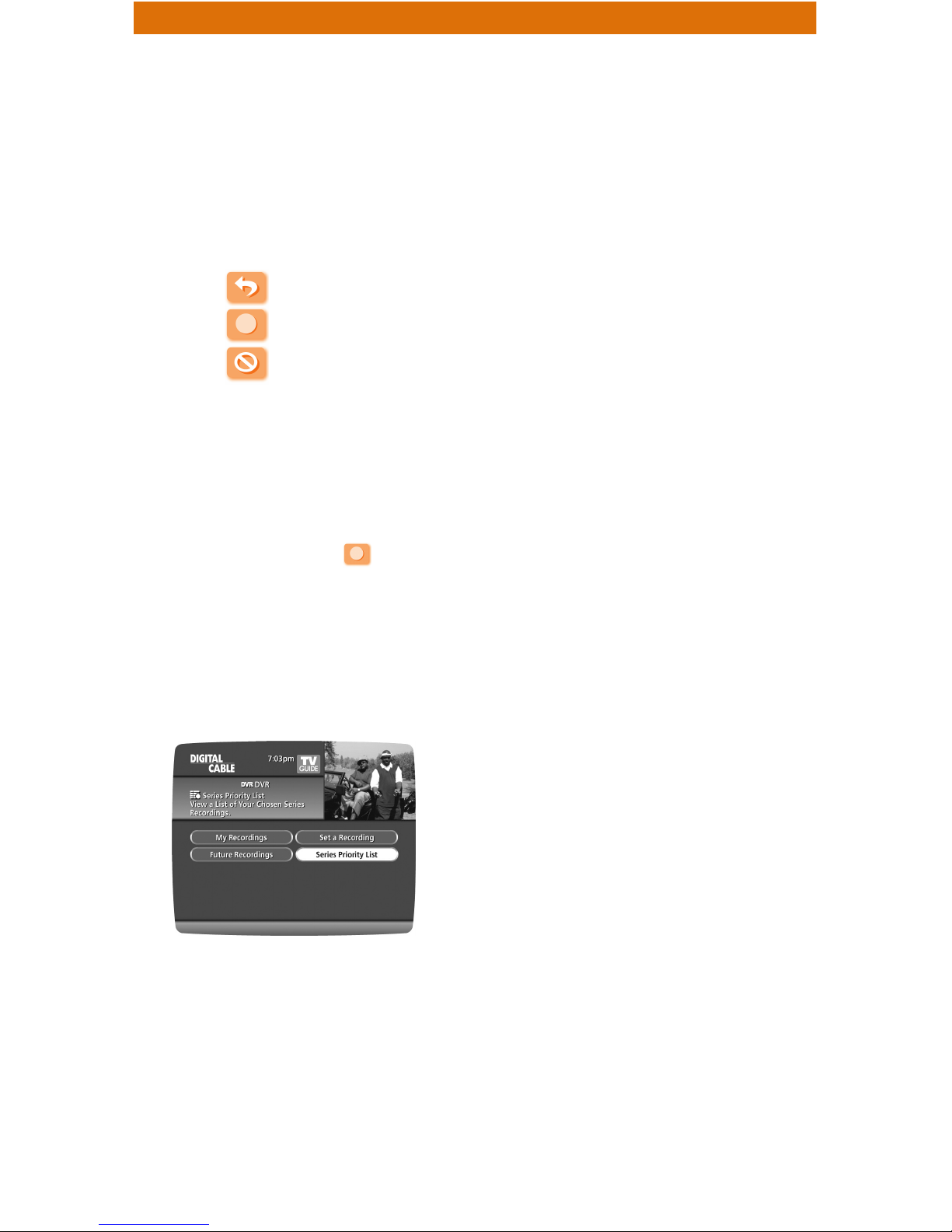
Modify the Series Priority List
To help you manage which series get recorded when there are scheduling
conflicts, your DVR automatically creates a Series Priority List. The first series
you set to record has the highest priority and is the program recorded in case
of a conflict. If there are no conflicts, each
additional series you set to record is added
to the bottom of the list. You can easily change
the recording priority of the programs so that
the programs of your choice are recorded in
case of a conflict.
• Select DVR from the Main Menu or
Quick Menu.
• Choose Series Priority.
• Highlight a program and use the Page
+/- buttons on your remote to modify
its priorities.
Note: If you want to record two series recordings instead of an individual recording that airs
at the same time, you must delete the individual recording from the Scheduled Recordings List
(See Cancel a Scheduled Recording section).
6
Page 9

View Your List of Scheduled Recordings
Step 1: From the Main Menu or Quick Menu, select DVR*
*Menu label may vary
Step 2: Select Future Recordings.
Step 3: See a list of all the programs you have scheduled to record, select
a title to cancel the scheduled recording or modify recording
options.
Modifying Recording Options
i-Guide gives you flexibility to manage your personal video library. You
can change your Recording Options at any time, as often as you like.
Change Options for Scheduled Recordings
Step 1: From the Main Menu select DVR.
Step 2: Select Future Recordings.
Step 3: Highlight a program title and press OK or INFO.
Step 4: Select from the program information screen.
Step 5: Select to change the Recording Options, or select to
delete this program from your list of Future Recordings.
Use the 5634buttons on your remote to change Recording Options:
• Change the frequency of the recording, such as every day or once a
week.
• Specify how many recordings to save.
• Set a Save Until parameter, either until you delete or automatically when
space is needed.
• Change the start and end times in order to catch every minute of a
program, even if it runs over.
From Listings
Select your Scheduled Recording in the listings indicated by the red
dot in the instant info.
Press OK or INFO and select the Icon.
From here, select Icon to cancel the recording, or select Icon to
modify the Recording Options.
View Programs Stored In Your Personal Video Library
Step 1: Press LIST on the remote or from the DVR Menu, select My
Recordings. Use the 56buttons on your remote to search through
and highlight titles from your list of recorded programs. Press OK
to select the program.
Step 2: From the Information Screen, select Icon to resume play from
where you left off or select Icon to restart from the beginning.
GUIDE TIP: DVR is not a long-term storage device. To maximize your storage
space, review the contents of your library regularly and discard the recordings
you no longer wish to save. See “Managing Your Personal Video Library” in this
manual.
7
Page 10
Guide Symbols to Know: Recorded Program
Information Screens
- Go back to the previous screen
- Delete the program from My Recordings
- Play the recording
- Change the Delete Priority Rule
- Start the recording from the beginning
- Place a Lock on the program to restrict viewing
Step 3: To control playback while watching a recorded program, use either
the video control buttons or the arrow buttons on your remote.
See the “Playback Control” section for more information.
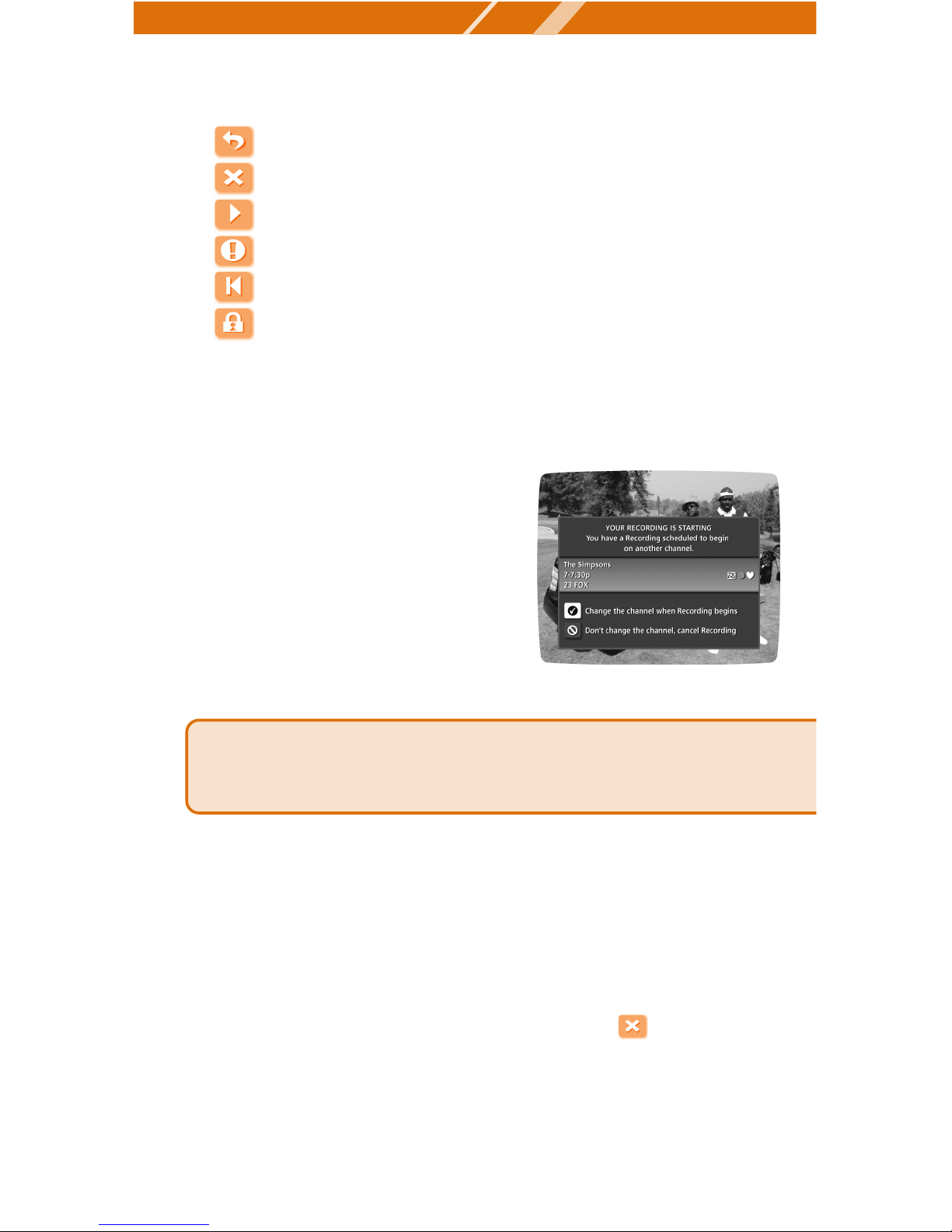
Recording Starting Notice
Before a scheduled recording begins, a
notice will appear on-screen giving you
the opportunity to confirm or cancel the
scheduled recording. If you don’t do
anything when the recording is scheduled
to start, the DVR will automatically tune
to the channel and begin recording. Live
TV programming that has been temporarily
recorded will be erased once the scheduled
recording starts. Guide
Managing Your Personal Video Library
A recorded program remains in your personal video library until you decide
to delete it, unless you have it set to delete when space is needed. Your DVR
will record and store up to 90 hours of programming and up to 20 hours of
high-definition programming*. To make the most efficient use of Buckeye
DVR storage space, follow these guidelines:
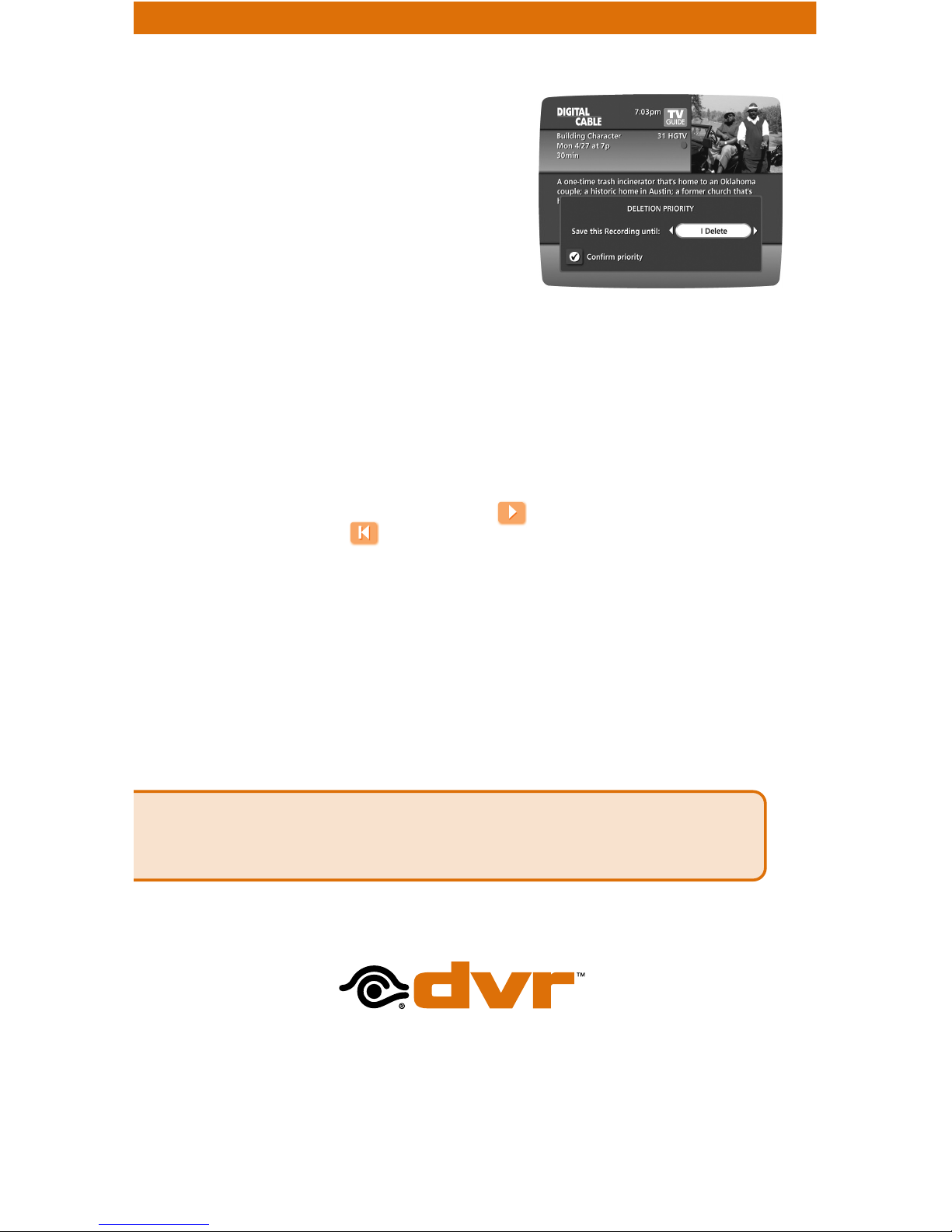
To Delete Recordings
From the program information screen, select the delete Icon to delete
the recording, or select the Icon to modify the Delete Priority. For example,
you can tell the guide to delete the recording when space is needed.
GUIDE TIP: Changing the channel during a recording will stop the recording. You
will see a notice confirming whether you want to stop the recording and change
channels or continue recording.
8
* Recording HD programming requires a DVR connection to a HD television.
Page 11
9
Copy Recordings to a VHS Tape
After you watch a recording, decide to
either erase it or keep it permanently by
transferring it to a VHS tape using your
VCR.
When you copy recordings to a VHS tape,
make sure that the recording is displayed
on the TV screen for the entire time the
recording is being copied. If you change
channels or display guide screens during
the copying process, your tape copy will contain these images and you will
not have a complete copy of the recording.
1. Connect the S Video or RCA OUT 1 connection on the back of the DVR
to the Cable IN of your VCR.
2. Put a tape in your VCR and tune your VCR to the proper input.
3. Access your list of Recorded Programs.
4. Use the 5634buttons on your remote to highlight a program from
your list of Recorded Programs. Press OK to select a program.
5. From the Information Screen, select to resume play from where you
left off or select to restart from the beginning.
6. Start recording on the VCR when playback begins.
7. As the recording plays, it is taped to your VCR.
Note: Refer to your VCR User Manual for specific instructions on using your VCR.
To help you manage your personal video library, i-Guide will advise you with
an on-screen notice when the available memory gets low or full. If recording
space becomes full during a recording, the recording will stop. To avoid
missing part of the program, make sure you have enough recording space to
record the entire program before you begin.
GUIDE TIP: If you have any questions regarding the use of Buckeye DVR call and
speak with a customer representative at 419-724-9800. We are available to take your
calls 24 hours a day, 7 days a week OR visit our website at buckeyecablesystem.com.
Buckeye DVR
Digital Video Recorder
Page 12

NW Ohio: 419-724-9800
SE Michigan: 1-800-866-3260
Erie County: 419-627-0800
 Loading...