

Page 1

VP-EYE
Quick Operation Guide
Version 4.0
i
Page 2

Table of Contents
USING VP-EYE A-1
Installation A-1
System requirements A-1
How to install software A-1
Getting started A-2
Application Panel settings A-2
Managing video data A-2
Monitoring a view (Video Monitor) A-4
Recording a Video E-Mail (Video E-Mail) A-5
Playing with your camera (Video Games) A-7
Gophers A-7
Black Jack A-8
Fishing A-8
Making a photo album (Photo EZ) A-9
Sending a greeting card (Photo Greeting Cards) A-10
Having fun with your photos (Photo Special Effects) A-11
Video Movie Studio A-12
Digital Movie Producer A-13
Appendix A-14
ii
Page 3

USING VP-EYE
Installation
This software package contains many applications for capturing and processing your
videos and photos.
System requirements
• Pentium compatible processor, 200MHz
• USB port and USB camera or Video capture board
and composite video camera
• Compatible for Windows98SE/ME/2000/XP
• 640×480 high color display
• 200MB available hard disk space
• 16× CD-ROM drive
• Windows compatible sound system with speaker
and microphone
• Microsoft MAPI compliant email server
• Microsoft NetMeeting version 3.0
Copyright @ 2002 Meta Media, Inc. All rights reserved.
How to install software
Simply put the provided software CD into your CD drive. The setup software will
automatically start, prompting you through the steps to install the video and photo
software. You may enter the selection for the destination folder, the Start menu,
Programs group and other setup options. The setup process will copy the
applications to the destination folder. Note if Windows auto-run feature has been
turned off on your computer, you will need to start the Setup.exe application on the
software CD.
English
A-1
Page 4

English
Getting started
All applications can be started from the Application Panel. The Application Panel
can be started by clicking on the VP-EYE icon or by using the Start menu. If you
are using the Start menu, select Programs followed by VP-EYE. Once the
Application Panel appears, there are ten applications to select from:
1. Video Monitor 6. Photo Greeting Cards
2. Video E-Mail 7. Photo Special Effects
3. Video Games 8. Photo EZ
4. Video Movie Studio 9. Browser
5. Digital Movie Producer 10. NetMeeting
*Your CD may not have some of the above programs due to the version of software
package
Application Panel settings
Click Settings button to access the Application Panel settings. Use the Settings
dialog to change the video driver, language, sound, start menu and auto-run options.
Managing video data
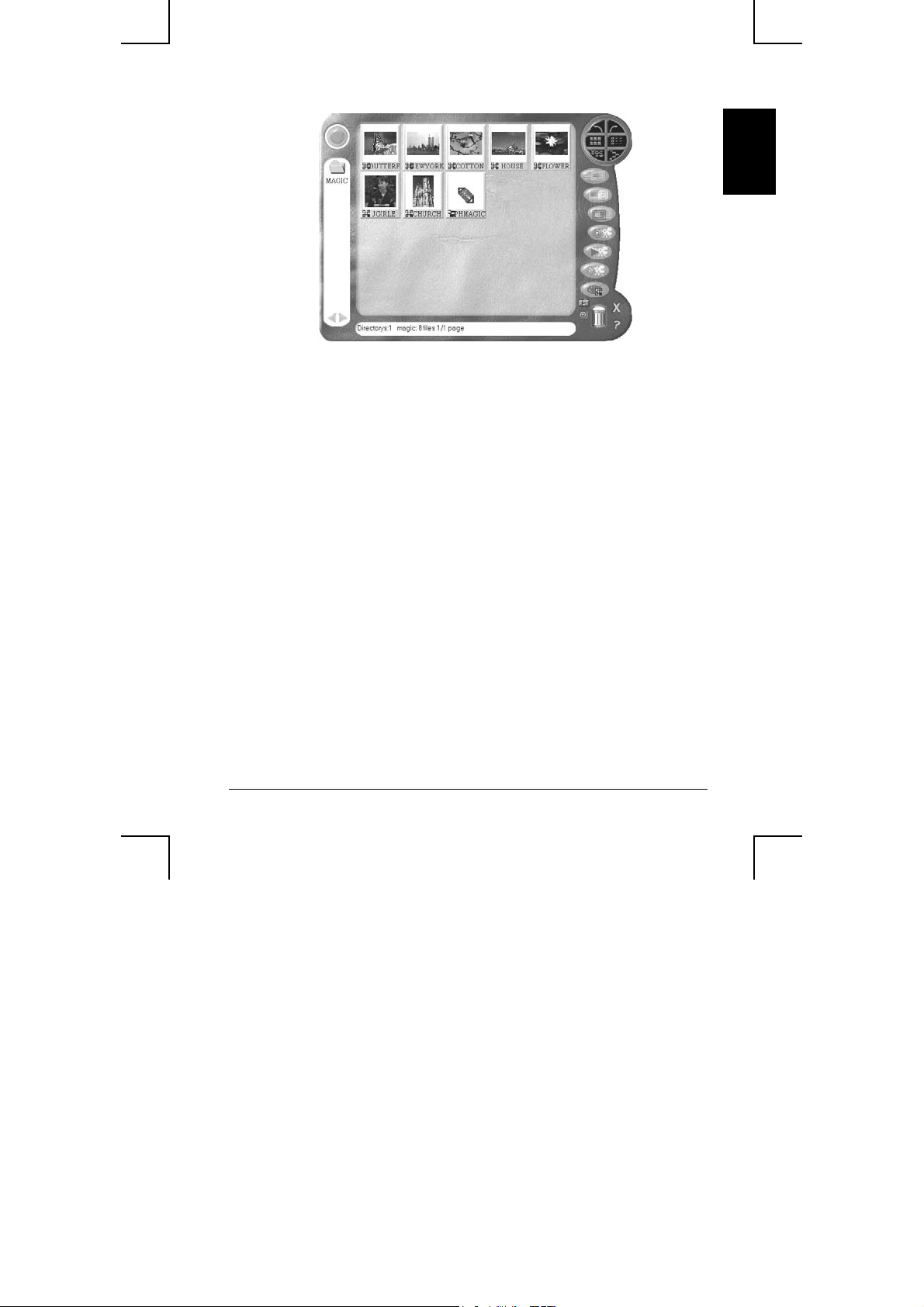
Click Browser button to start the Browser. Use the Browser to view, arrange,
remove, drag and drop, capture and sort video data within your video folders.
A-2
Page 5
English
A-3
Page 6

English
Monitoring a view (Video Monitor 2.0)
The Video Monitor can be used in many ways, such as video monitoring, recording
and playback.
• Close– close the Video Monitor
• Message indicator – show whether you have
new messages
• Security indicator – show whether security mode
is working
• Minimize– minimize the Video Monitor window
to an icon on the toolbar
• On top/Not on top– force Video Monitor always
on top of the desktop or not.
• Setting– change the video monitor settings
(General, Timer, Security, Message, Alarm)
• Playback– retrieve captured image data
• Help– explain how to use Video Player
• Message– start recording a video message
• Security– enter into security mode
A-4
Page 7

Recording a Video (Video E-Mail)
The Video E-Mail is your digital recorder. Set the video size and start recording.
Amazingly simple, you will wonder how you ever lived without it. You may record
and save the video to a file or better yet, email it to a friend.
English
• Size– set video size
• Play– play current captured video
• Pause– pause current video, press play to resume
• Stop– stop playing video or cutting process.
• Record– start recording captured video
• Save– save video in the file
• Email– send compressed video to email
• Setting– set options for video source, recording
time limit and compression
A-5
Page 8

English
Well, this is very important! First, we really like compressed files, right?
Compressed files take up less room and are easy to copy and email. The problem is
you have to decompress your video when you want to view it.
“No problem! I compressed it, thus I can decompress it!”
Yes, you are correct! The problem is, can your friends decompress your video.
Imagine you email your favorite video to a friend. You know he/she will really like
your video. Later, you find out your friend deleted the file because they thought it
was corrupted. So, what was the problem? Simple, your friend did not have the
right decompression software.
Therefore, you may attach the player program mmvem.exe while sending the e-mail.
This program decompresses the video and audio data, shows the video on your
screen. It is easy to download the player from our web site if someone can not open
the VEM file created by Video E-Mail program.
A-6
Page 9

Playing with your camera (Video Games)
Do you like video games? Gophers, Black Jack, and Fishing are three popular
games included in this software package. All three work with your camera.
Important: For best results playing any of these games, move the camera to a
position where you can easily move your hands in front of the camera. Before
the game logo appears, the camera will be calibrated. During the calibration,
it is important not to move the camera. After proper calibration, the camera
will be more capable of detecting your hand movements.
English
Gophers
Requires a camera to play. Object of the game is to hit the gophers. Beware of
snakes.
Black Jack
Requires a camera to play. Object of the game is to get 21 or less. Be careful, you
have to have more points than the dealer to win. Same rules as Las Vegas 21.
A-7
Page 10

English
Fishing
Requires a camera and a mouse to play. Object of the game is to find matching
photo cards. Use the camera to make your own photo cards, then send your game to
a friend.
A-8
Page 11

Making a photo album (Photo EZ)
Use Photo EZ to create one or more photo albums. Each photo can include
additional information like date, author, place and other comments. Looking for a
certain photo in all your albums? Search will look for all photos matching your
search criteria. In addition, you can apply basic and special effects to your photos.
English
A-9
Page 12

English
Sending a greeting card (Photo Greeting Cards)
Use Photo Greeting Cards to create electronic cards. Photo Greeting Cards has 20
categories containing over 100 different cards. Give it a try! Select a card, add
some text, add your voice then make some final changes. There you have it, … an
electronic card! Next, send it to your family or a friend.
Select a category then select a card.
• Photo– add a photo, maybe a snapshot of you
• Record– add background music or record your
voice
• Flip– flip your photo side to side
• Scale scroll bar – adjust the size of your photo
• Opacity scroll bar – adjust the background of
your photo
• Save– save your card to a file
• Print– print your card on paper
• Email– send your card to a friend
A-10
Page 13

Having fun with your photos (Photo Special Effects)
Use Photo Special Effects to add special effects to your photos. Photo Special
Effects has more than 50 different special effects. The effects are separated into
color manipulation, transformation and blurring categories. It is fun, easy and fast
to add special effects to your favorite photos. Give it a try!
• Open– open a photo image file.
• Undo– remove the last applied special effect
• Redo– reapply the last removed special effect
• Reset– reset the image to the original photo
• Save– save the result to a file
• Close – close Photo Special Effects
• Capture – capture a photo from the camera
• Special Effect– add special effects to the photo.
English
A-11
Page 14

English
Video Movie Studio
Video Movie Studio is a program to convert the input video and audio data into a
standard MPEG-1format. The advantage of using this kind of format is that other
program can decode and playback the video and audio data. You may also use this
format of file to make the VCD disc.
• Program layout–switch between two kinds of
layout.
• Program position–place the control window on
top or bottom of the screen
• Record–start recording the video and audio input
data.
• Play–playback the recorded MPEG–1 data.
• Stop–stop recording
• Save–save the recorded video into a file.
• Clear–clear the recorded data.
• Setting–select the options of this program.
• Compression–select the option of compression
scheme.
• Open–Open an MPEG-1file.
• Timer–select the start time and length of recording.
• Volume control–control the volume level of
microphone and speaker.
A-12
Page 15

Digital Movie Producer
It is a powerful and easy-to-use program for editing and converting video data. The
user interface is simple. It may convert the photos acquired by digital camera into a
video file. You may also add photo in the video stream or put two video streams into
one. It allows you to add music and record the sound into the video file. Anyone can
enjoy the fun of making video file by a few steps of this program!
• Open–open an existing video file.
• Save–save the result into a file.
• Play–play the result of video file.
• Select–select the input source of camera.
• Acquire–download the photos from the PC amera.
• Convert–convert the photo and audio data into
video stream.
• Record sound–record the sound from the
microphone or line-in device.
• Add sound–open a sound file and add it into the
video stream.
• Clear–clear the selected photos.
•
English
A-13
Page 16

English
Appendix
Need more information? Looking for our latest products? Check our web site. At
our web site, you can get the latest news and versions for our products. To log onto
our web site, you will need a serial number and password. Both your serial number
and password can be found in the Readme.txt file.
Web Site: http://www.mmedia.com.tw
Was the information you were looking for found on our web page? Want to talk to
us about this software? Send us email. Tell us what you like. What you do not like.
Interesting ways you use this software. What you like to see in future releases. We
would like hearing from you.
E-mail: [email protected]
When sending email, please clearly detail your problem. We will return your email
as soon as we can. We sincerely hope you enjoy this software. Thanks!
A-14
 Loading...