

Page 1

Dual Digital Storage Drive
COMBO 5216IB
User’s Manual
Page 2

CLASS 1 LASER PRODUCT
APPAREIL A LASER DE CLASSE 1
LASER KLASSE 1
LUOKAN 1 LASERLAITE
PRODUIT LASER
CATEGORIE 1
DANGER INVISIBLE LASER RADIATION WHEN OPEN AVOID DIRECT
EXPOSURE TO BEAM
VORSICHT INSICHTBARE LASERSTRAHLUNG WENN ABDECKUNG GEÖFFNET
NICHT DEM STRAHL AUSSETSEN
ATTENTION RADIATION DU FAISCEAU LASER INVISIBLE EN CAS D’OUVERTURE.
EVITER TOUTE EXPOSITION AUX RAYONS.
Copyright Statement
It is a criminal offence, under applicable copyright laws, to make unauthorised
copies of copyright-protected material, including computer programs, films,
broadcasts and sound recordings. This equipment should not be used for such
purposes.
Page 3

FCC Compliance Statement
This device complies with Part 15 of the FCC Rules. Operation is subject to the following
two conditions:
1. This device may not cause harmful interference, and
2. This device must accept any interference received, including interference that may
cause undesired operation.
FCC Warning Statement
This equipment has been tested and found to comply with the limits for a Class B digital
device, pursuant to Part 15 of the FCC Rules. These limits are designed to provide
reasonable protection against harmful interference in a residential installation. This
equipment generates, uses and can radiate radio frequency energy and, if not installed and
used in accordance with the instructions, may cause harmful interference to radio
communications. However, there is no guarantee that interference will not occur in a
particular installation. If this equipment does cause harmful interference to radio or
television reception, which can be determined by turning the equipment off and on, the user
is encouraged to correct the interference by one or more of the following measures:
• Reorient or relocate the receiving antenna
• Increase the separation between the equipment and the receiver
• Connect the equipment into an outlet on a circuit different from that to which the
receiver is connected
• Consult the dealer or an experienced radio/TV technician for help.
CAUTION
Any changes or modifications not expressly approved by the party responsible for
compliance could void the user’s authority to operate the equipment.
FOR EUROPE
“The drive is in conformity with the EMC directive and low-voltage directive.”
Page 4

Table of Contents
INTRODUCTION 1
SYSTEM REQUIREMENTS 2
PACKAGE CONTENTS 2
INSTALLATION 3
HOST INTERFACE CONNECTIONS 3
HARDWARE INSTALLATION 4
DRIVER INSTALLATION 6
SOFTWARE INSTALLATION 9
DVD REGION CODE 10
OPERATION & CONNECTION 12
FRONT PANEL 12
REAR VIEW 14
TECHNICAL DATA 16
Page 5

COMBO 5216IB
INTRODUCTION
Welcome to a multimedia world of CD-ReWritable technology, DVD-ROM
capabilities and, memory card compatibility!
This compact and high-performance COMBO 5216IB frees up precious bay
space and presents you as an IDE Combo (CD-RW+DVD ROM) Drive and
a USB-connected card reader. It reads CDs of all types at maximum 52X
speed, and DVD-ROMs at maximum 16X speed. For the writing ability, it
writes to CD-Rs at up to 52X speed, and to CD-RWs at up to 24X speed.
Other than that, the built-in 7 in 1 card reader which offers read-write ability
of 7 memory card types simplifies the process of exchanging data between
digital cameras, voice recorders, PDAs, MP3s… and your computer.
With this multi-functional solution and the bundled software package, you
can view, archive, or write files/photos/video/music directly from the drive
and enjoy the fascinating digital and DVD entertainment on your desktop.
Here are some important features of this Combo Drive:
♦ Easy installation with Combo drive of EIDE and card reader of
USB 2.0 interface (on board connection)
♦ 8X, 16X, 24X, 32X, 40X, 48X and 52X writing speed on CD-R
media
♦ 4X, 10X, 12X, 16X and 24X writing speed on CD-RW media
♦ Adopts “MTKSuperLink” to prevent Buffer Underrun
♦ Supports writing modes of TAO, DAO, SAO and packet writing
♦ Supports MultiRead function
♦ Smooth DVD playback of high resolution
♦ Convenient connection with A-Type USB Extension Port on the
front panel
1
Page 6

COMBO 5216IB
♦ Four-slot integration of the card reader works with CompactFlash,
MicroDrive, Memory Stick, Memory Stick Pro, MultiMediaCard,
Secure Digital, and SmartMedia
System Requirements
For IBM compatible PCs, the system requirements recommended are as
follows:
♦ Pentium II, Celeron 400MHz or above with at least 64MB of
memory
♦ Fast and sufficient hard disk space (minimum 200MB for
installation, 1GB or more is recommended.)
♦ IDE host interface supporting ATAPI MMC command & USB host
interface (if you don’t have USB on-board connection)
♦ Microsoft Windows 98SE/2000/ME/XP
Package Contents
The package contains the following items:
♦ Dual Digital Storage Drive, COMBO 5216IB
♦ Audio cable
♦ Application software discs x 2
♦ Quick Installation Guide
2
Page 7
COMBO 5216IB
INSTALLATION
Host Interface Connections
Most current motherboard models have two IDE ports (primary and
secondary), which can connect two IDE cables. Two IDE cables allow you
to connect up to four devices, but it is recommended that you separate IDE
ports for your hard disk and your Combo Drive. This will ensure that your
hard disk’s performance and speed won’t be affected by having the drive
on the same cable.
Jumper Setting
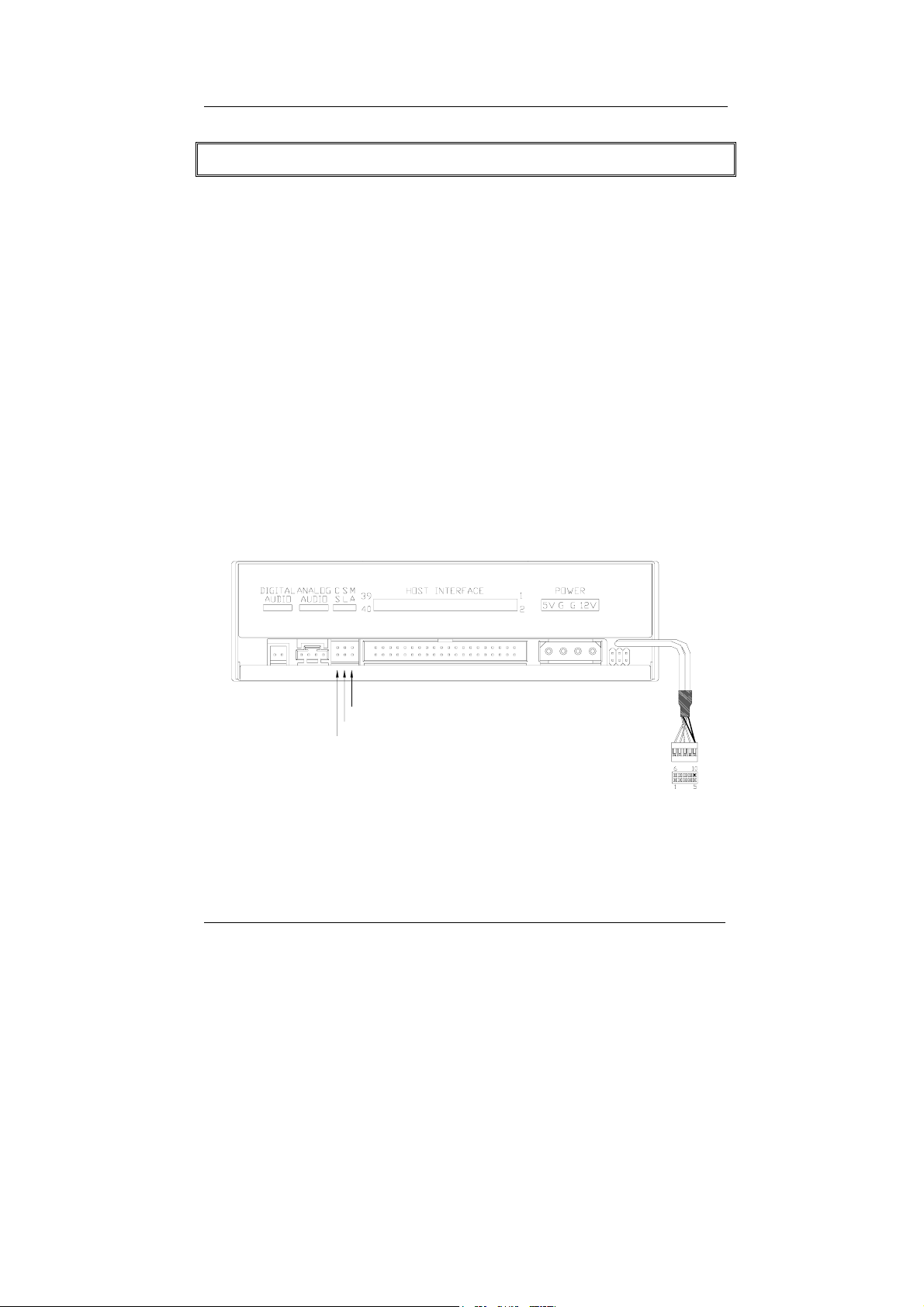
On the rear panel of this drive, you will find three pairs of jumpers: CS
(CSEL), SL (Slave) and MA (Master). Use the jumper cap to set the device
to CS, SL or MA mode corresponding to your PC configuration. If you
connect only one device on the IDE cable, you can set the jumper as
“MASTER” or “SLAVE”.
Master
Slave
Cable Select
If you connect two devices on the same cable, set different jumper for each
device (one as “MASTER”, and the other one as “SLAVE”). The same rule
applies to the connection of having your hard disk and another device on
the same cable.
3
Page 8
COMBO 5216IB
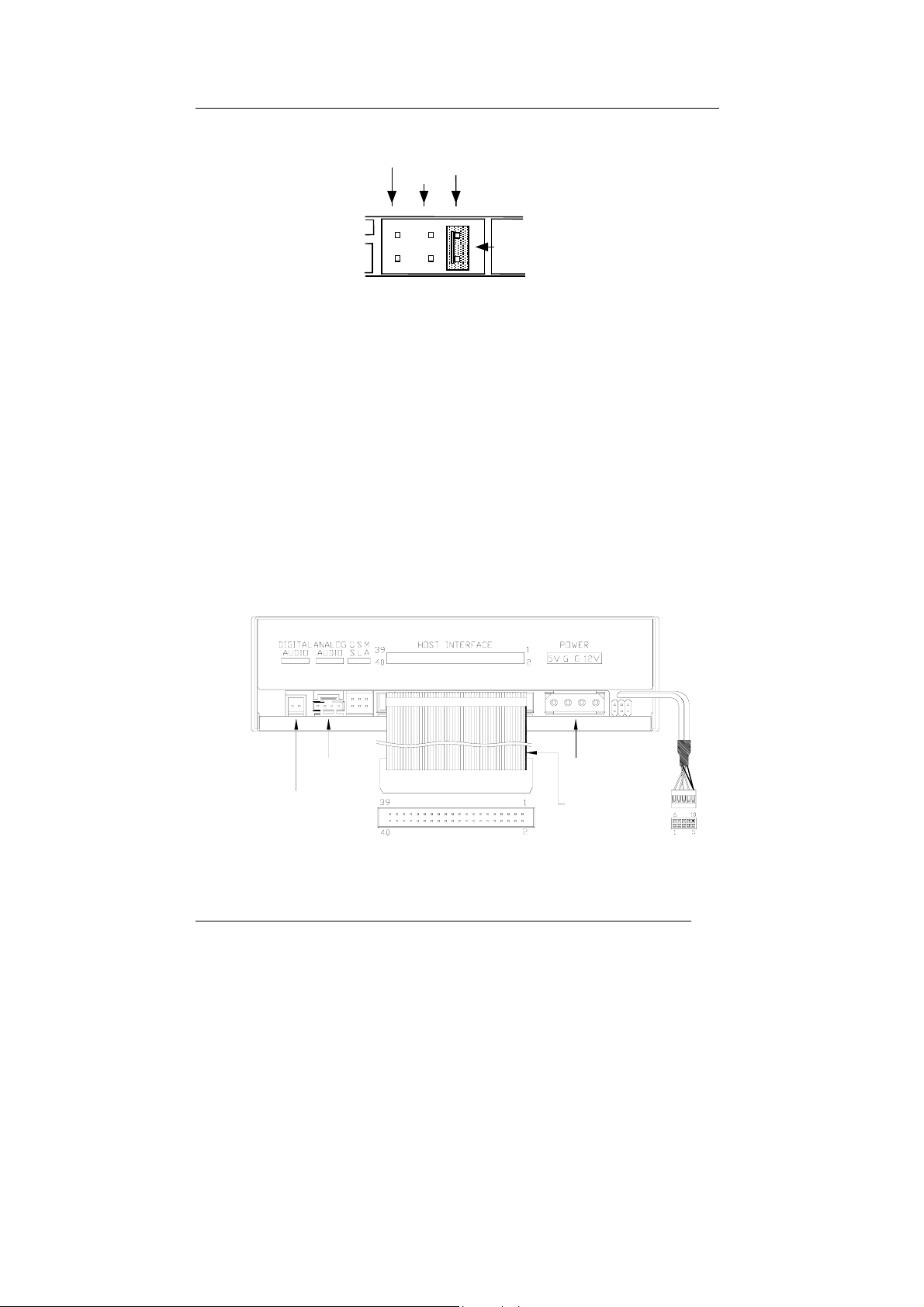
Cable Select
Slave
Master
Jumper
The system might not detect the drive if there is conflict or mistake with the
jumper setting.
Hardware Installation
1. Turn off the power to your computer system.
2. Disconnect the power cord and all cables from the back of your
computer, and then remove the cover of the computer.
3. Insert the drive into one of the vacant 5.25" drive bays and secure it
to your PC with all four mounting screws.
4. Connect one end of the 40-pin IDE cable to the IDE connector of this
drive and the other end to the IDE port on your motherboard. Also,
connect the power supply cable to the back of the drive.
Audio Out
Digital
Audio Output
Power In
red edge
Make sure to align and connect the red-edge of the IDE Cable to Pin 1 on
the drive.
4
Page 9
COMBO 5216IB
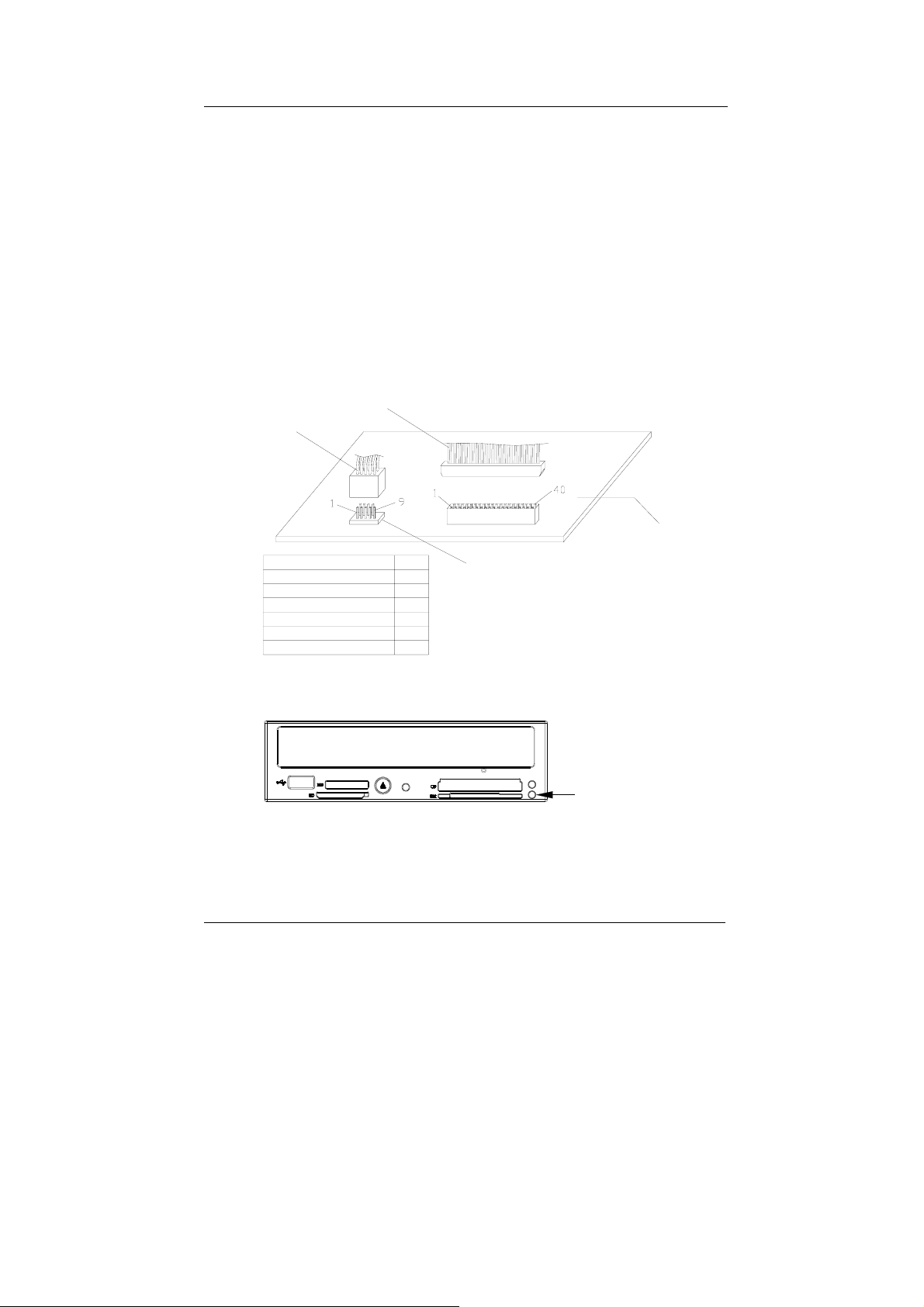
5. If you have a sound card that can be connected to the drive, you can
also connect the drive (as Audio-Out) and the sound card (as Audioin) with a 4-pin audio cable.
If your mainboad is integrated with built-in sound system, plug the 4-
pin audio cable into the CD-IN connector on the motherboard as
Audio-in.
6. Connect the USB cable at the back of the drive to the USB header
on the computer’s motherboard. The red wire of the cable needs to
be plugged into Pin 1 on the board.
This drive supports USB 2.0 and if you connect to USB 1.1 connector,
only transfer rate of USB 1.1 will be available.
IDE
USB
RED WIRE
RED WIRE
MOTHER
Signal
Red/Vcc
White/DGreen/D+
Black/Ground
Braided Shield Ground
Error-Proof Pin
Pin#
1 / 6
2 / 7
3 / 8
4 / 9
5
10
USB Header
BOARD
If the connection is correct, the lower right LED on the front panel will
light green.
7. Re-attach the cover of the computer, and reconnect the power cord
and all cables to the computer.
5
Page 10
COMBO 5216IB
Driver Installation
For the Combo Drive
For the Combo Drive itself, it’s an IDE device supporting Plug & Play and
Windows 98SE/ME/2000/XP can automatically detect the drive and load
the appropriate driver.
For the Card Reader
Windows 98SE/2000
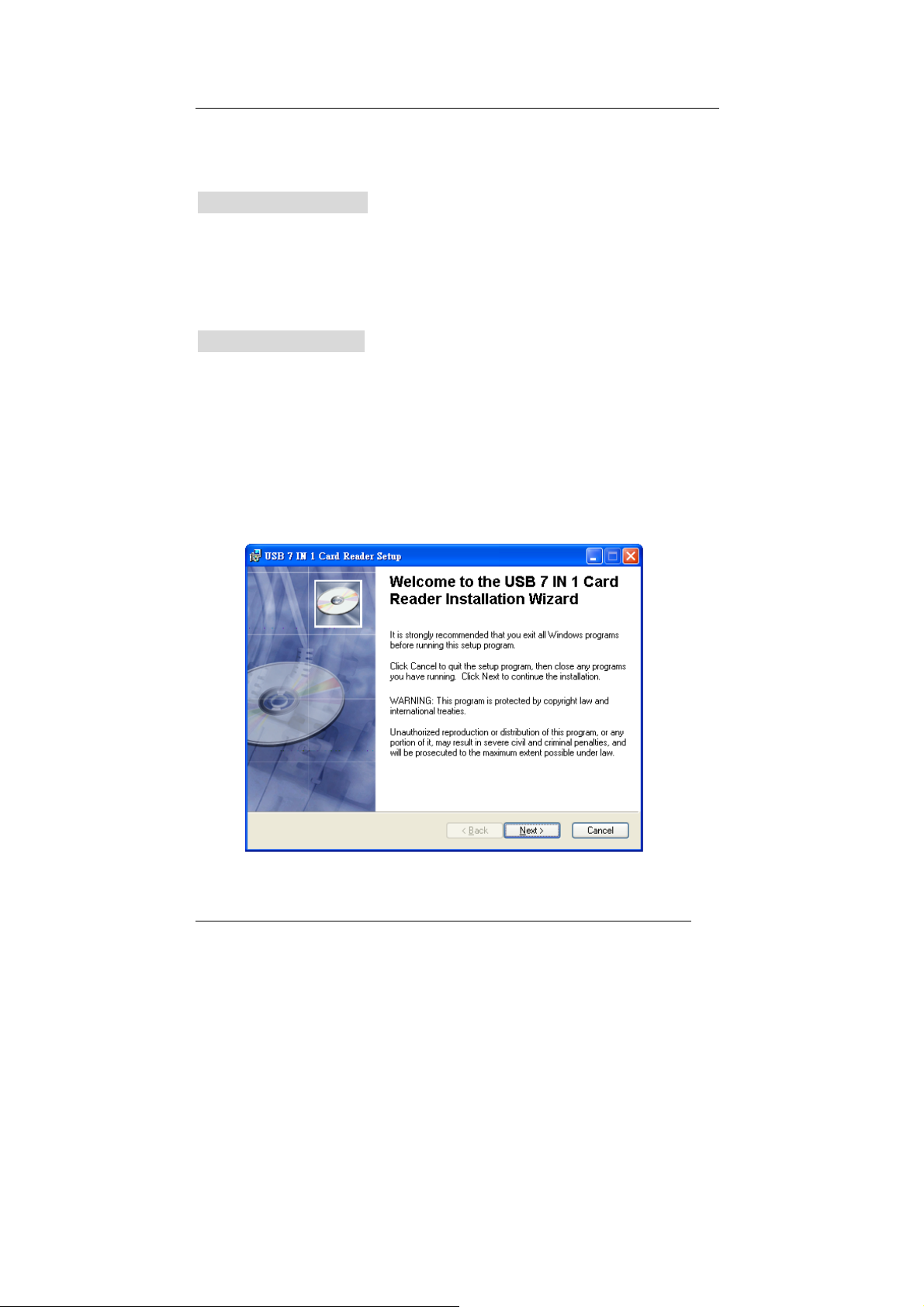
If you are using Window 98SE or 2000, please install the provided driver.
1. Insert the application disc.
2. Select:\Card Reader Driver
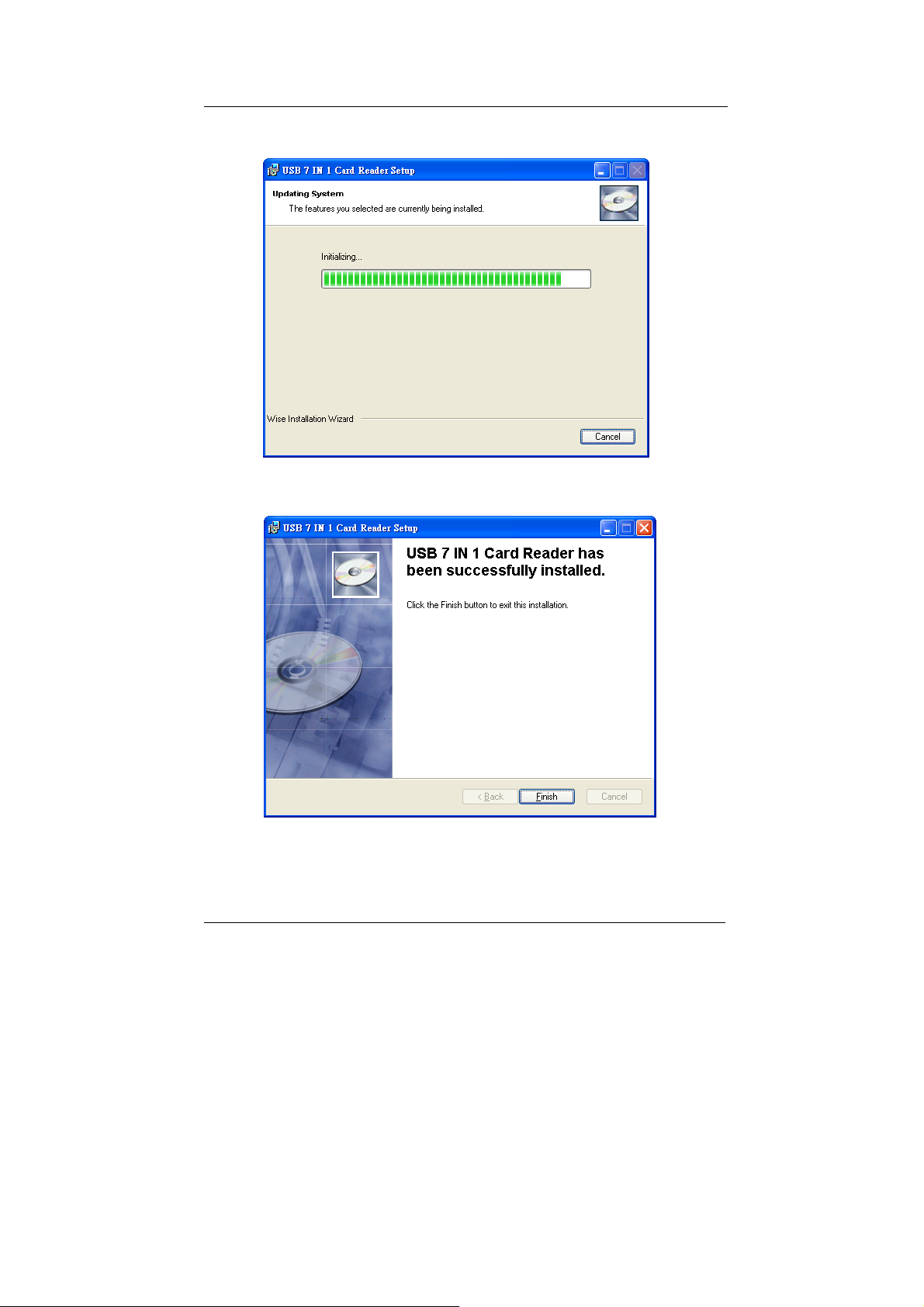
3. Click “USB Software Installer for 4icons.exe”, and follow the on-
screen instructions:
6
Page 11
COMBO 5216IB
7
Page 12
COMBO 5216IB
Windows ME/XP
Since Windows ME and XP already have USB Mass Storage support,
the card reader can be detected and work fine without installing driver.
However, we recommend that you install the provided driver to have
more explicit operation status of the card reader, as described below.
For Windows XP users, please upgrade to Service Pack 1.
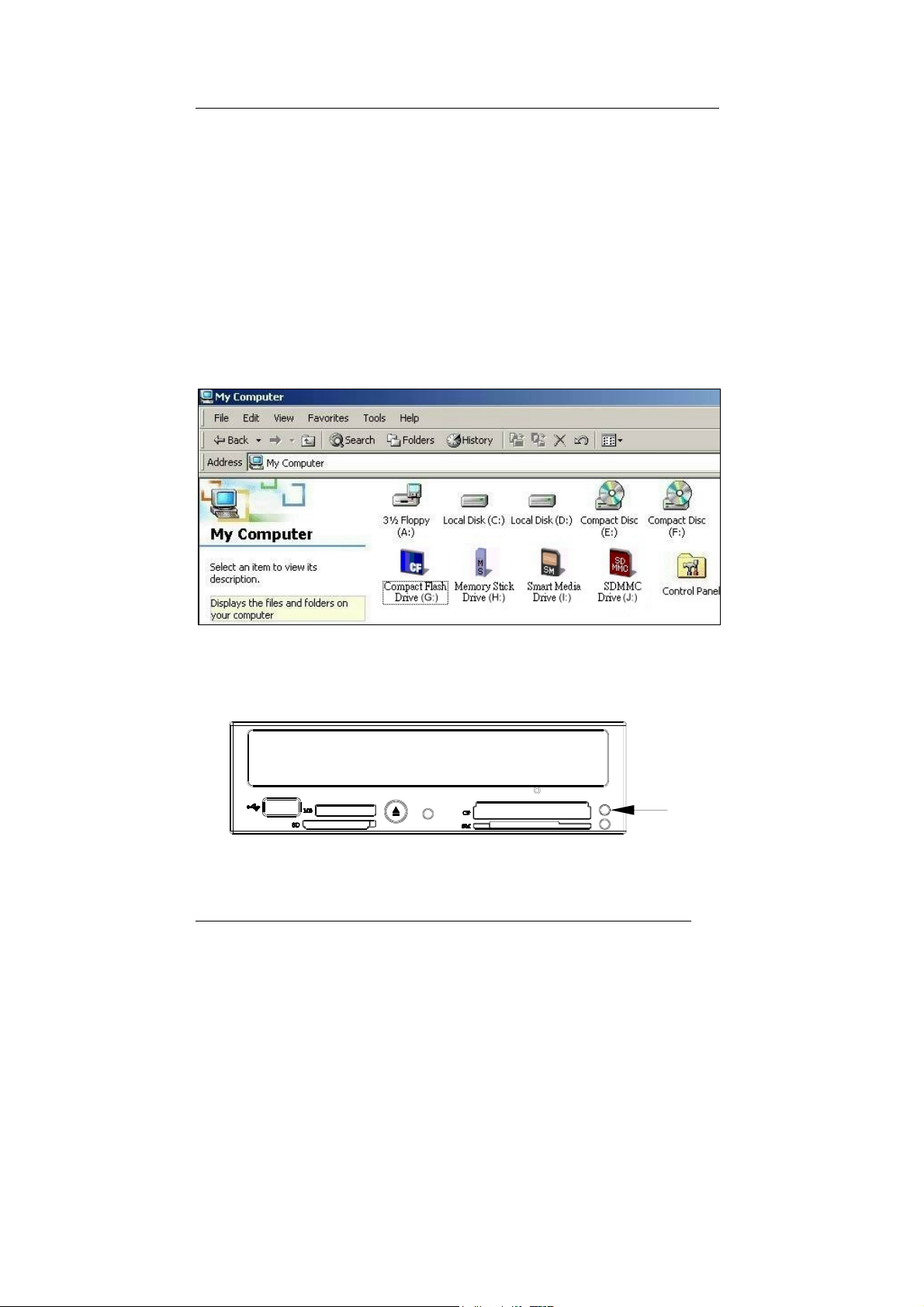
After the driver installation, 4 extra icons with different card type indicated
will show in Device Manager/My computer. And then you can use each slot
of the card reader for file archiving/recording.
While the card reader is reading data of memory cards, the upper right LED
on the front panel flashes red.
8
Page 13

Software Installation
COMBO 5216IB
Burning Software
The bundled recording software gives you the complete solution for making
audio/data CDs. With the user-friendly interface, it guides you through the
creation and backup of files/photos/video/music from your computer to a
recordable compact disc. Combining of the card reader capabilities, no
matter you are a novice or an experienced user; you can enrich your digital
life with this best recording tool.
DVD Playback Software
The DVD playback software comes with leading video and audio
technologies to deliver the highest sound and visual effect possible on the
PC. Meanwhile, it offers feature-rich navigation controls for an interactive
and tailored DVD movie viewing experience. You can enjoy the wide range
of educational and entertaining DVD titles with theater quality.
Windows Environment
1. Insert the application CD and the installation program will run
automatically. Then follow the on-screen procedures.
Or
2. Run:\setup.exe on the application CD.
9
Page 14

COMBO 5216IB
DVD Region Code
Region Playback Control Management
All DVD Video Playback systems have “Region Playback Control”
management (RPC) which is required by Hollywood movie industry and
defined by DVD Forum. This includes DVD-Video players and PC systems
with DVD-Video capability. You can only play DVD-Video discs with the
same region code as your DVD-Video Playback system.
As for DVD-ROM drives, one kind of the DVD-Video Playback system,
there are 2 types:
RPC Phase 1 (as RPC1): RPC1 drives do not have built-in hardware
support for region management. DVD-ROM drives of this kind don’t play a
part in controlling the playback region. It solely depends on the decoder.
RPC Phase 2 (as RPC2): RPC2 drives maintain the region change count
information in hardware, and in general, the region of such drives can be
changed up to 5 times by the end users under some software decoder (e.g.
PowerDVD).
And referring to the region codes, there are 6 regions worldwide, and
normally, there is a region code mark on the package of DVD titles. :
Region 1: Canada, US
Region 2: Japan, Europe, South Africa, and Middle East (including
Egypt)
Region 3: Southeast Asia and East Asia (including Hong Kong)
Region 4: Australia, New Zealand, Pacific Islands, Central America,
Mexico, South America, and the Caribbean
Region 5: Eastern Europe, Indian subcontinent, Africa, North Korea,
and Mongolia
Region 6: China
10
Page 15

COMBO 5216IB
About This Dual Digital Storage Drive
This drive is also a RPC2 DVD-ROM drive and according to DVD-Forum,
PC chip must be designed into DVD-ROM drives to record how many times
a user has changed the region code. The first region code will depend on
the DVD title you play and you are allowed to modify the region code 5
times (including the initial one). After the fifth alteration, the region code will
be locked and only those DVD titles of the same region code could be
played afterwards, so set the code carefully.
11
Page 16
COMBO 5216IB
OPERATION & CONNECTION
Front Panel
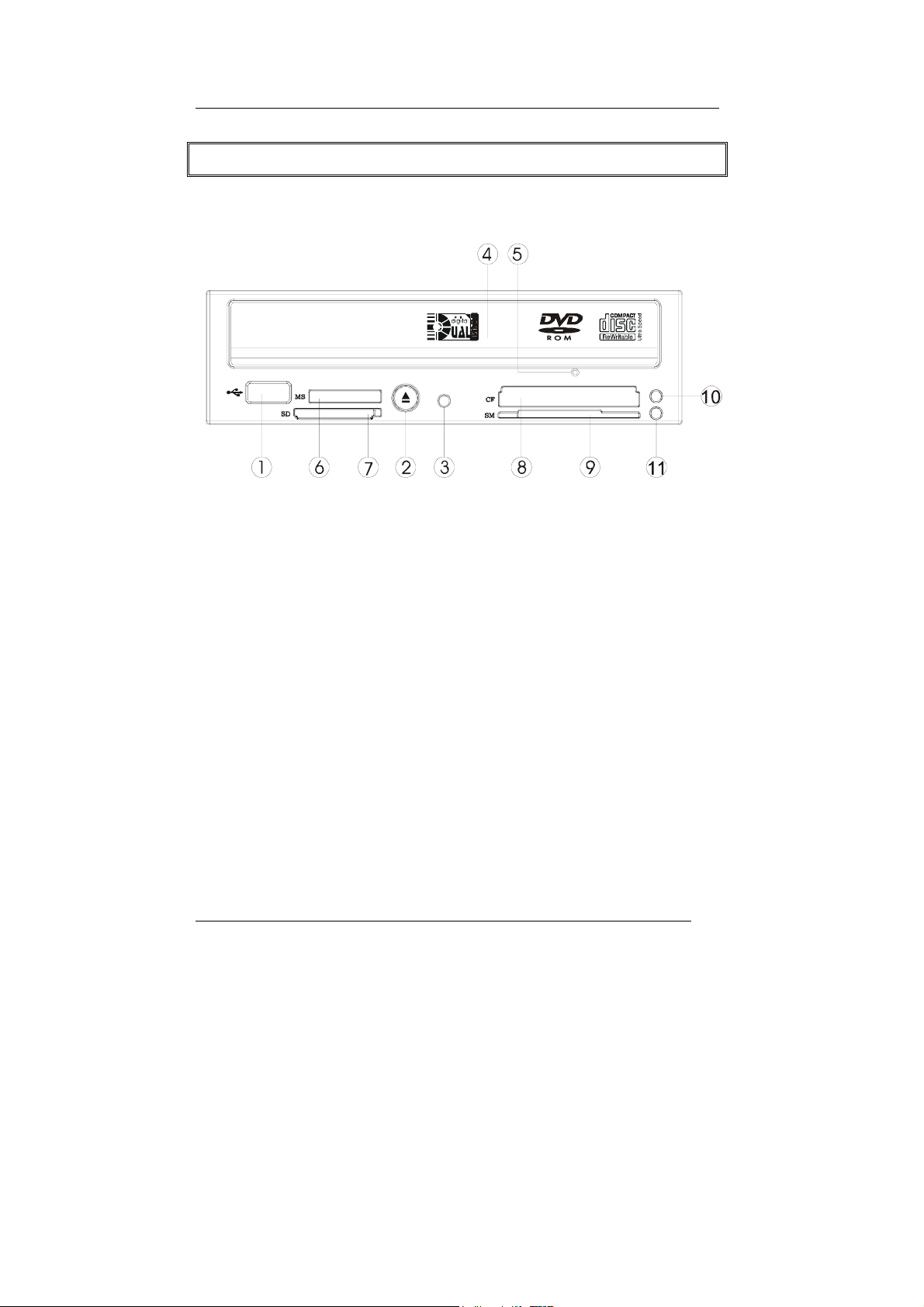
1. A-Type USB Extension Port
This USB port is Plug-and-Play Ready. Just plug your USB device
and the computer will detect automatically.
2. Close/Eject Button
This button opens and closes the disc tray. If the tray is closed,
pressing the button will eject it.
3. LED Indicator (the Combo Drive)
While the tray goes in/out, the LED lights green and it’s off when the
drive is ready.
The LED flashes “green” while verifying or reading a disc and flashes
“red” while writing data.
4. Disc Tray
Place the disc in the tray here, and then press the Close/Eject button
or lightly push the tray to close it.
12
Page 17

COMBO 5216IB
5. Emergency Eject Hole
When the Close/Eject button doesn’t work properly and the disc tray
can’t be opened, you can insert a paper clip or a small rod into this
hole for manual ejection. Please make sure to power off the system
before you do that.
6. Slot for Memory Stick (MS)/Memory Stick Pro (MS Pro)
7. Slot for Secure Digital (SD)/MultiMediaCard (MMC)
8. Slot for Compact Flash (CF) Type I, II/MicroDrive
9. Slot for Smart Media
10. LED Indicator (the Card Reader)
When the data of the memory card is being accessed, the LED
flashes red.
11. LED Indicator (the Card Reader)
Once the USB cable is correctly connected, this LED will light green,
which means the card slots are ready to use.
Note: The design of front panel is subject to change without notice.
13
Page 18
COMBO 5216IB
Rear View
23 4
5
6
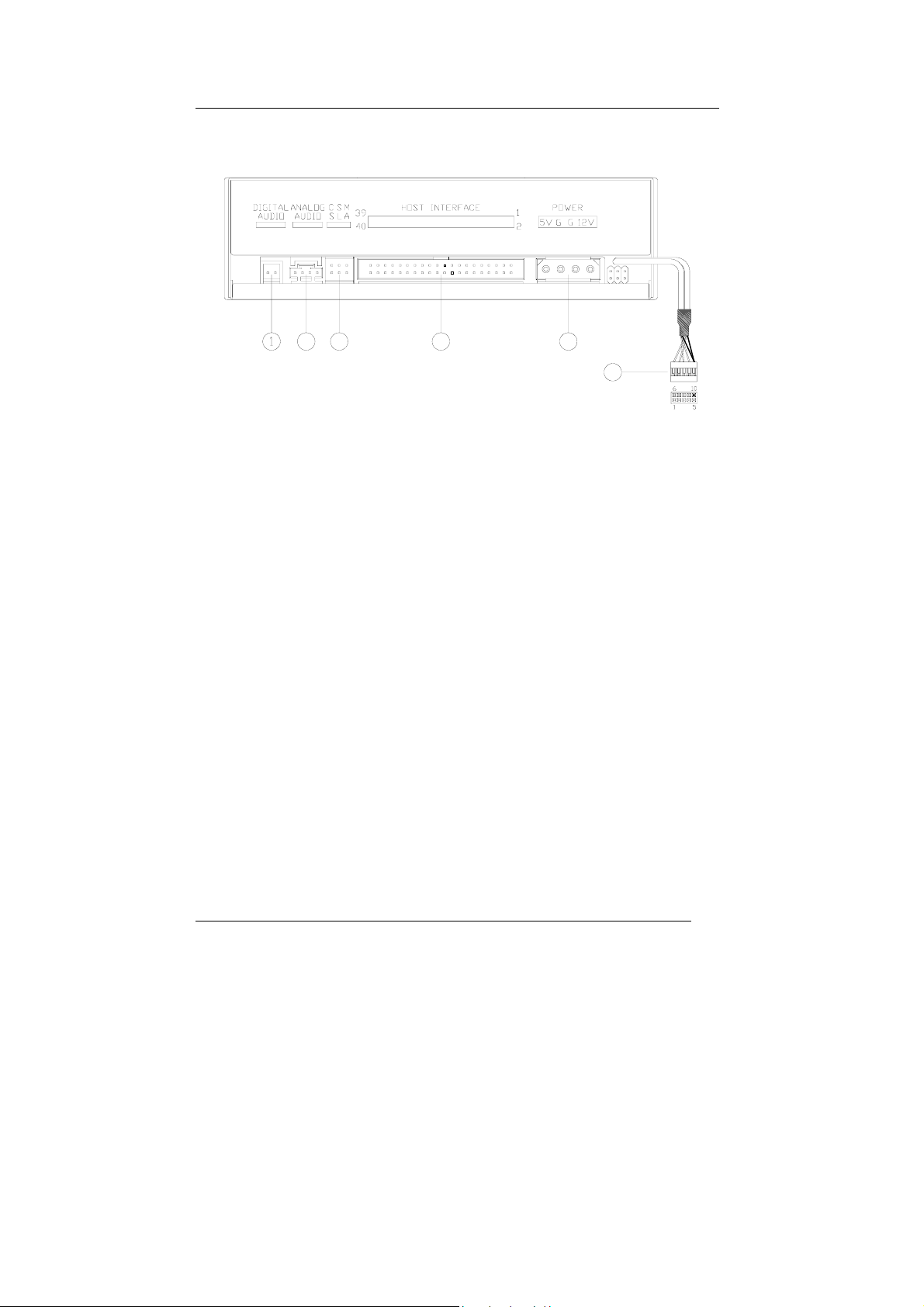
1. Digital Audio Output Connector
If your sound card has a digital audio IEC958 format connector, you
can connect it to this digital audio output connector with a 2-pin
audio cable.
2. Analog Audio Output Connector
This connector allows you to connect the drive to your sound card
with a 4-pin audio cable.
3. Device Configuration Jumper
Set the jumper to Master, Slave or Cable Select according to your
system configuration.
4. IDE Interface Connector
Plug one end of the 40-pin IDE cable here to join the 40-pin IDE
connector on the motherboard. The red-edge of the IDE cable must
be connected to Pin 1 of each connector.
5. Power Supply Connector
By plugging the computer’s power supply cable here, you can
connect the drive and your computer system.
14
Page 19

COMBO 5216IB
6. USB Cable
Connect the USB cable to the USB connector on the motherboard.
The red wire of the cable needs to be plugged into Pin 1 on the
board.
15
Page 20

COMBO 5216IB
TECHNICAL DATA
Interface Combo Drive: EIDE
Card Reader: USB 2.0
Form factor 5.25" Half Height
Writing speed CD-R: 8X/16X/24X/32X/40X/48X/52X
CD-RW: 4X/10X/12X/16X/24X
Writing modes TAO (Track at once), DAO (Disc
At Once), SAO (Session at once),
Multi-session, Packet Writing
Digital Media CompactFlash, MicroDrive, Memory
Stick, Memory Stick Pro, SmartMedia,
MultiMediaCard, and Secure Digital
Transfer rate
Combo Drive Read:
CD-ROM: 7800KB/sec (up to 52X)
CD-RW: 4800KB/sec (up to 32X)
DVD: 21632KB/sec (up to 16X)
Write:
CD-R: 7800KB/sec (up to 52X)
CD-RW: 3600KB/sec (up to 24X)
Card Reader 480Mb/s (USB 2.0)
Access time (⅓ stroke) CD/DVD: 110/120ms
16
Page 21
COMBO 5216IB
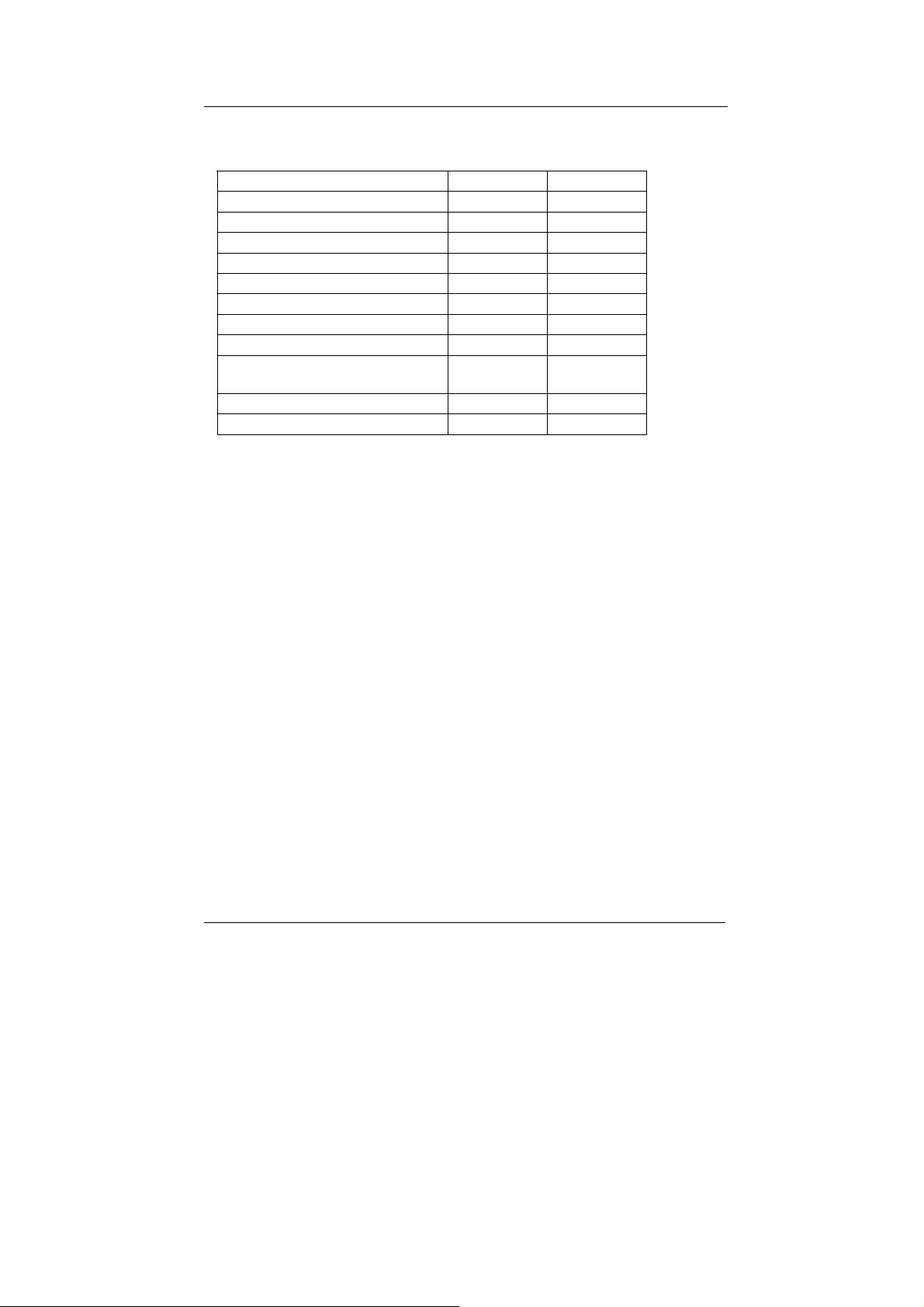
Disc Format Supported
CD-DA
CD-ROM
CD-ROM XA
CD-EXTRA
Video CD
Photo CD
CD-I
CD-TEXT
DVD-ROM (DVD-5, DVD-9,
Write Read
DVD-10, DVD-18)
DVD+R, DVD+RW
DVD-R, DVD-RW
Data buffer 2MB
Disc loading Tray (motorised), Dust Sealed
Audio output level Line out = 0.6 ± 10%Vrms
Power 5 VDC & 12VDC
Card Reader power directly from
computer power supply through USB
connection
Dimensions
Height 41.8 ± 0.2 mm
Width 148.6 ± 0.2 mm
Depth 193.3 ± 0.3mm
Weight 1 kg
17
Page 22

COMBO 5216IB
Environment
Temperature
Operating 5°C to 45°C
Non-operating -20°C to 45°C
Humidity
Operating 8% ~ 80%RH
Non-operating 5% ~ 95%RH
Disc
Disc Size 80mm and 120mm discs
Disc Data Capacity
DVD-ROM: Single layer – 4.7GB
Dual layer – 8.5GB (one side)
CD-ROM: 74min – 650MB – Mode 1
80min – 700MB – Mode 1
18
Page 23

Page 24

3100552200
Version 1.0
Jan. 2004
 Loading...