

Page 1
99111133 MMuullttiimmeeddiiaa KKeeyybbooaarrdd UUsseerr''ss GGuuiiddee
Congratulations on your purchasing this multimedia keyboard. You'll
discover your performance will be enhanced to a high level with this
keyboard for power management, multimedia and the Web.
System Requirement
! IBM AT, PS/2 PC and its compatibles
! Microsoft® Windows® 95, Windows® 98, Windows NT® 4.0, Windows®
2000, or Windows® ME operating system
! Microsoft Internet Explorer 5.0 or later version (for Internet buttons)
! CD-ROM drive (for CD and Video operation)
! Standard sound card (for CD and Video operation)
! The system supporting ACPI or APM II (for power management button)
! ATX mother board and ATX power supply (for power management button)
Functions of the Special Keys
Sleep Button:
To put your system to sleep (power-saving) mode.
The Sleep button is a power management key. Its function
was specified since Windows® 98. So the earlier version
of Windows, like Windows® 95 and Windows NT® 4.0,
Sleep
don’t recognize and can’t perform it.
If you want to have this button work under Windows® 95
and Windows® NT 4.0, as well as the Internet button
introduced as under mentioned, please install the enclosed
driver and then to enable this ACPI key.
1/4
Page 2
N
p
p
playing, p
Internet Buttons:
The following Internet buttons are used with Microsoft Internet Explorer
5.0. To have these buttons work under Windows® 95, Windows®, or
Windows® NT4.0, the KeyMaestro keyboard driver enclosed is needed to
install. Please refer to the file readme.htm in the disk for installation.
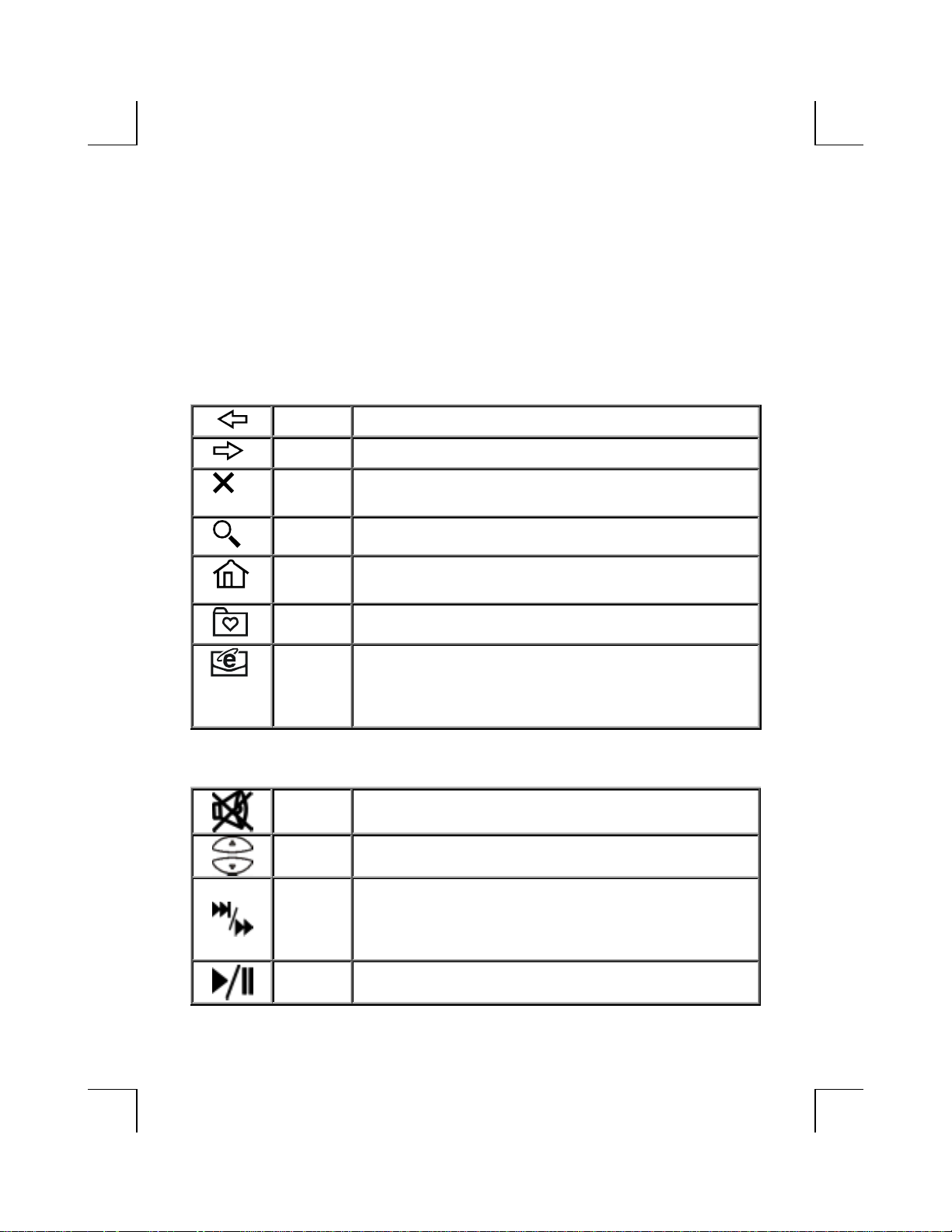
Back To return to the last page you viewed.
Forward To view the next page you viewed before.
Stop If a page you are trying to view is taking too long to open,
click this button.
Search To gain access to a number of search providers.
Web/HomeTo start your Microsoft Internet Explorer 5.0 and bring up
the home page you set.
Favorites To select a web page from your list of favourites.
Mail To open the default program you use for mail. If more than
Multimedia Buttons:
Mute To mute the sound output. Repress this button to resume.
Volume
Control
ext / Fast
Forward
Play/Pause
one email programs are installed, you may select Tools ->
Internet Options -> Programs -> Email to change the
default setting from Internet Explorer.
To control the volume of your audio output to the speakers.
To skip forward to the next file/track when pressing once
quickly. If you press and hold the button, the file/track will
lay forward fast. Once the button is released, the file/track
lays normally.
To start to play the audio/video file in the current track.
When the CD or Video is
ress this button to pause
2/4
Page 3
p
p
it, and press the button again to resume it from the current
osition.
Besides of audio CD and Video CD, this driver also can
lay DAT, MPG, AVI, WAV, MID, and MP3 media files.
If neither audio nor video disc is on the CD-ROM drive,
and the Play button is pressed, a dialog box will appear to
help you find and select media files to play. You may edit
the playing list in the dialog box.
The Play button and the other CD control buttons are also
available to use with 'WinDVD 2000' (version 2.1 or later)
media application. If you have the version of WinDVD
installed in your system, open it to enjoy DVD
entertainment immediately. To know more about
.
Previous /
Fast
Backward
WinDVD, please visit www.intervideo.com
To skip backward to the previous file/track when pressing
once quickly. If you press and hold the button, the file/track
will play backward fast. Once the button is released, the
file/track plays normally.
Stop To stop the playing.
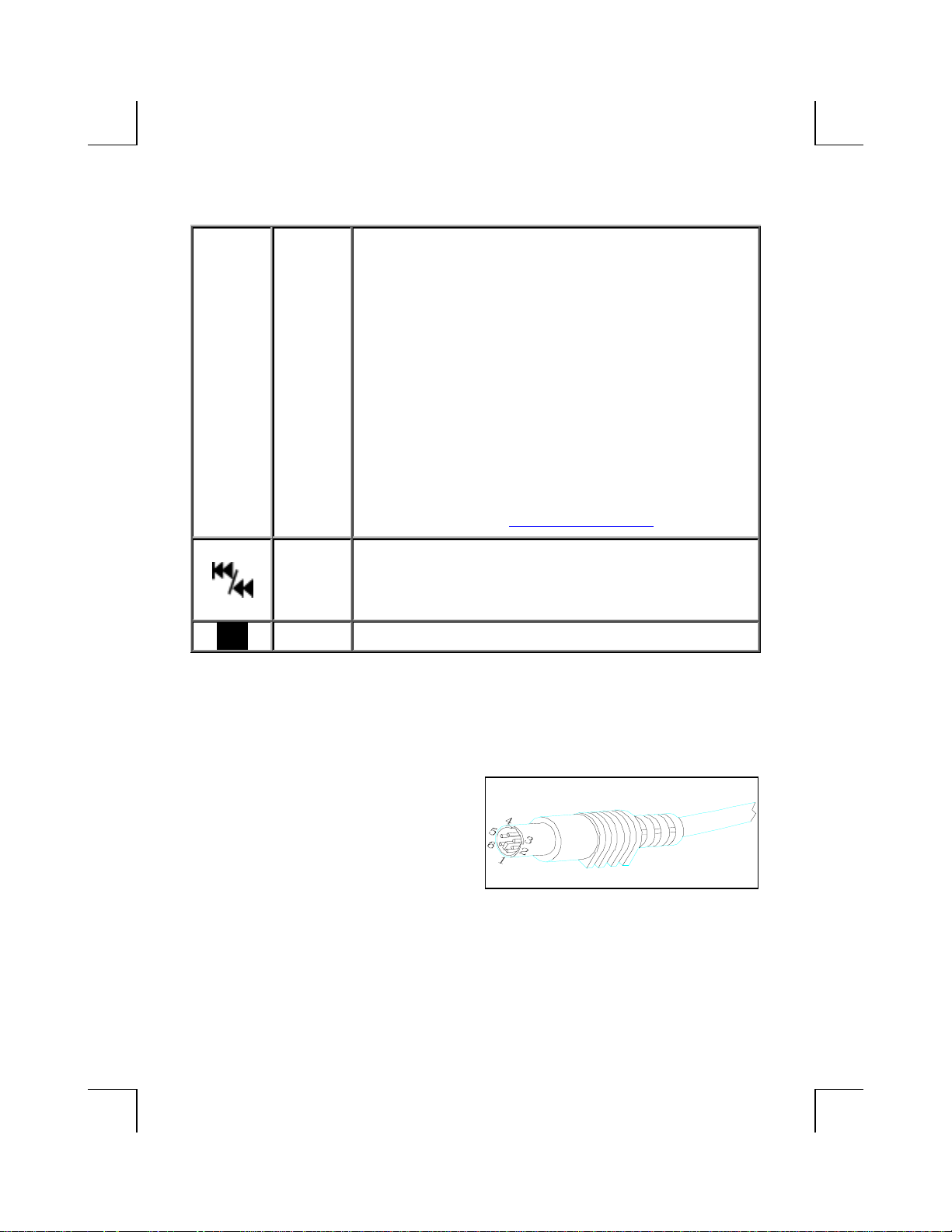
Keyboard Cable Connector
PS/2 Compatible Cable
(6-pin Miniatures Din Connector)
Pin # Signal Name Voltage
1 Keyboard Clock +5VDC Signal
2 Ground 0
3 Keyboard Data +5VDC Signal
4 Reserved 0
5 +5VDC +5VDC
6 Reserved 0
3/4
Page 4

FFCCCC GGUUIIDDEELLIINNEESS
This equipment has been tested and found to comply with the limits for a Class B digital
device, pursuant to Part 15 of the FCC Rules. These limits are designed to provide
reasonable protection against harmful interference in a residential installation. This
equipment generates, uses and can radiate radio frequency energy and, if not installed and
used in accordance with the instructions may cause harmful interference to radio
communications. However, there is no guarantee that interference will not occur in a
particular installation. If this equipment does cause harmful interference to radio or
television reception, which can be determined by turning the equipment off and on, the user
is encouraged to try to correct the interference by one or more of the following measures:
# Reorient or relocate the receiving antenna
# Increase the separation between the equipment and receiver
# Connect the equipment into an outlet on a circuit different from that to which the
receiver is connected.
# Consult the dealer or an experienced radio/TV technician for help.
# Use only shielded cables to connect I/O devices to this equipment.
This device complies with Part 15 of the FCC Rules. Operation is subject to the following
two conditions: (1) This device may not cause harmful interference. (2) This device must
accept any interference received, including interference that may cause undesired
operation.
Information to User:
$ Any changes or modifications not expressly approved by the party responsible
for compliance could void the user’s authority to operate this equipment.
Shielded interface cable, if any, must be used in order to comply with emission
limits.
IBM AT and PS/2 are registered trademarks of International Business Machines
Corporation.
Microsoft and Windows are registered trademarks of Microsoft Corporation in the United
States and/or other countries.
All other trademarks are trademarks of their respective holders.
3100504950 Version 1.0 January 2001 Printed in China
4/4
 Loading...