

Page 1
ENGLISH, VERSION 1.0
© COPYRIGHT BSR SVENSKA AB
MANUAL
®
DIAGNOSTIC SYSTEM
Page 2
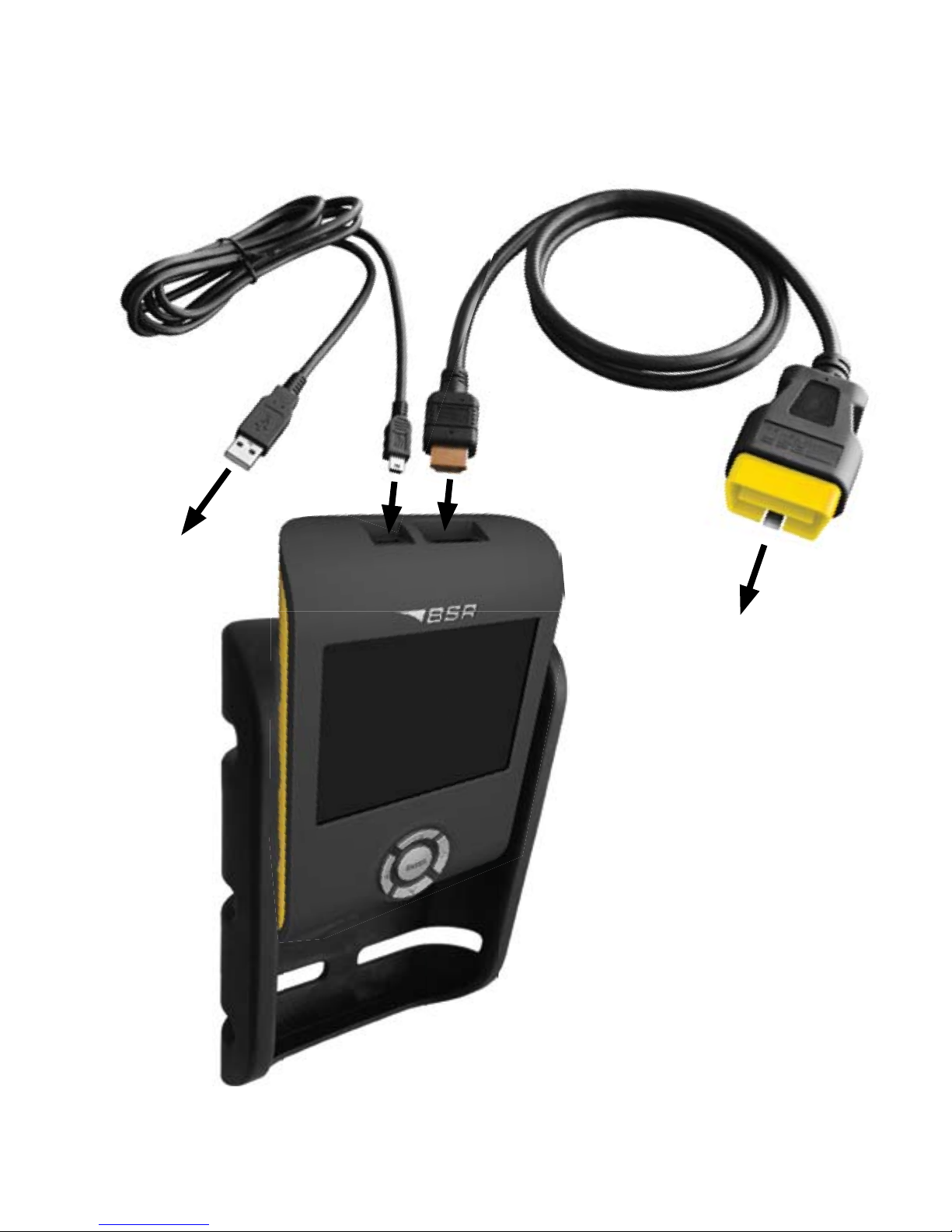
USB cable
OBDII cable
Connect to
the car.
Connect to
the computer.
Page 3

CONTENTS
Read DTCs
Erase DTCs
How to install PPC Sync
Handle DTCs via PPC Sync
and the customer page
Page 4
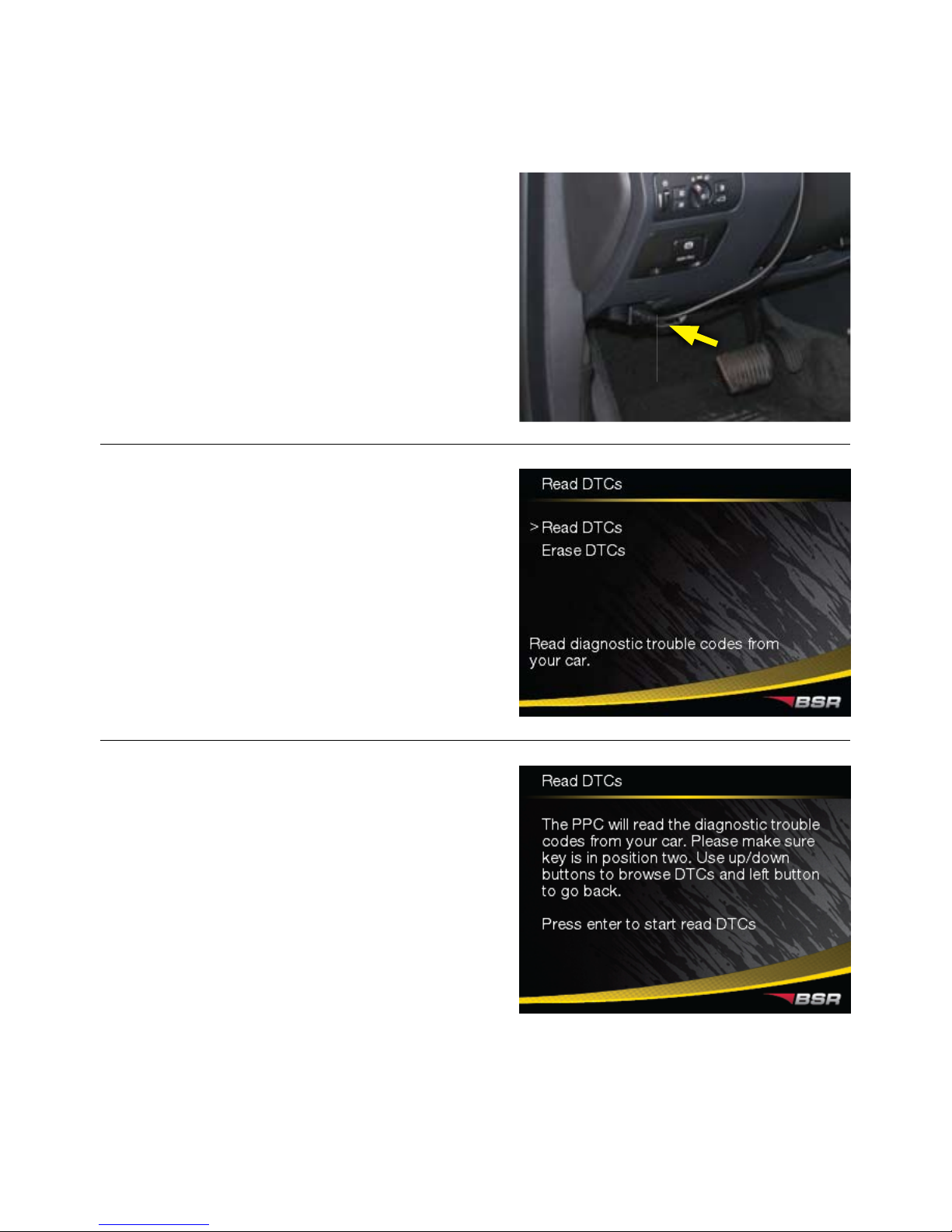
Connect PPC to the car’s diagnostic
connector with the OBDII cable. The
diagnostic connector is located in the
dash board under the steering wheel
(more info about the location at
www.bsr.se/ppc). Turn the ignition on.
Select “Read DTCs” and press enter.
Press enter to start reading.
Do not forget to turn the ignition on.
How to turn the ignition on is described
at www.bsr.se/ppc.
READ DTCS
4
Page 5
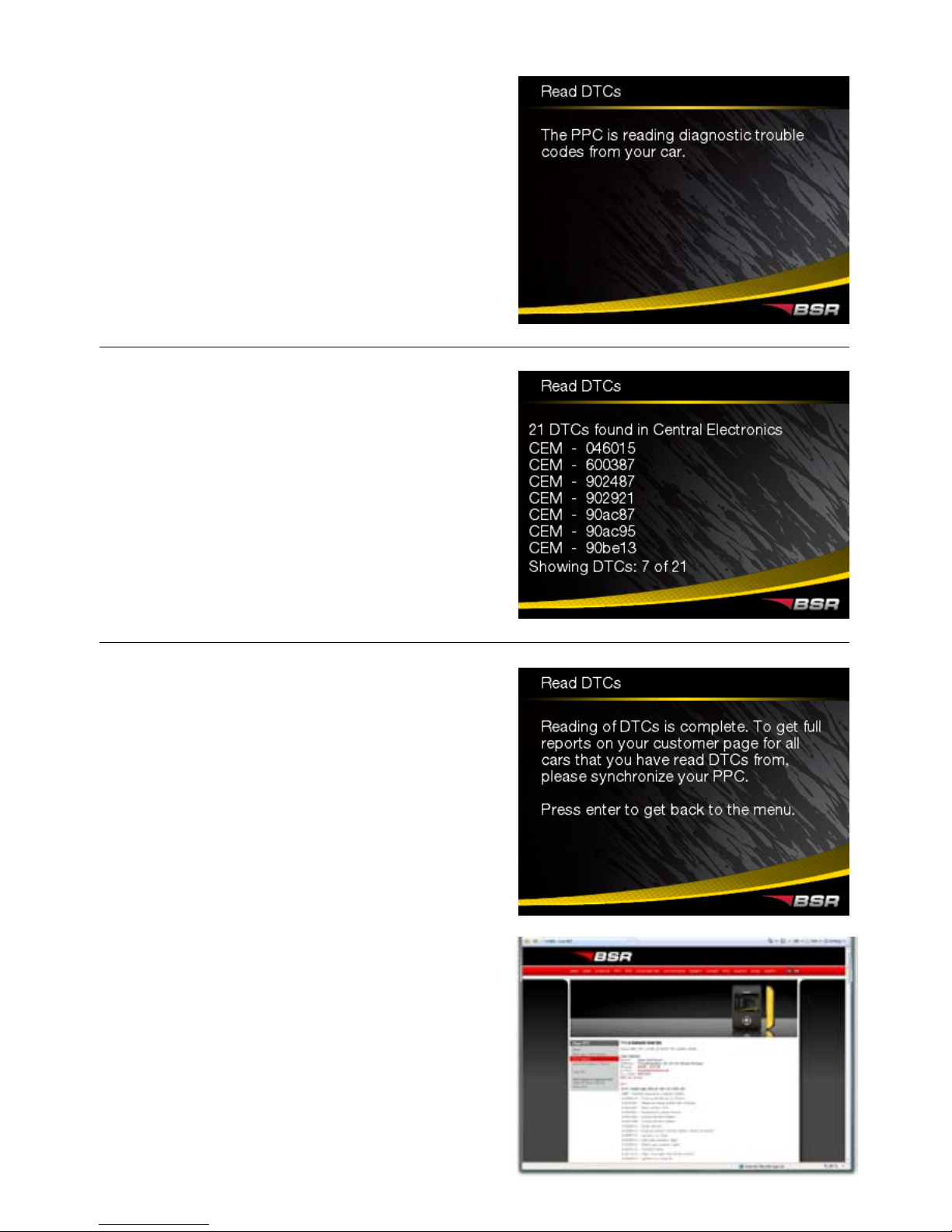
Reading DTCs.
All DTCs that have been found is
displayed. You can browse up and down
with the arrows. Go back with the left
arrow.
All DTCs are saved in the PPC’s memory,
which can hold several readouts. You
can, anytime, send all DTCs to your
customer page www.bsr.se/ppc by simply
synchronizing the PPC via the Internet. On
the customer page a detailed DTC report
with explaining texts is displayed. The
DTCs are sorted by each car.
5
Page 6
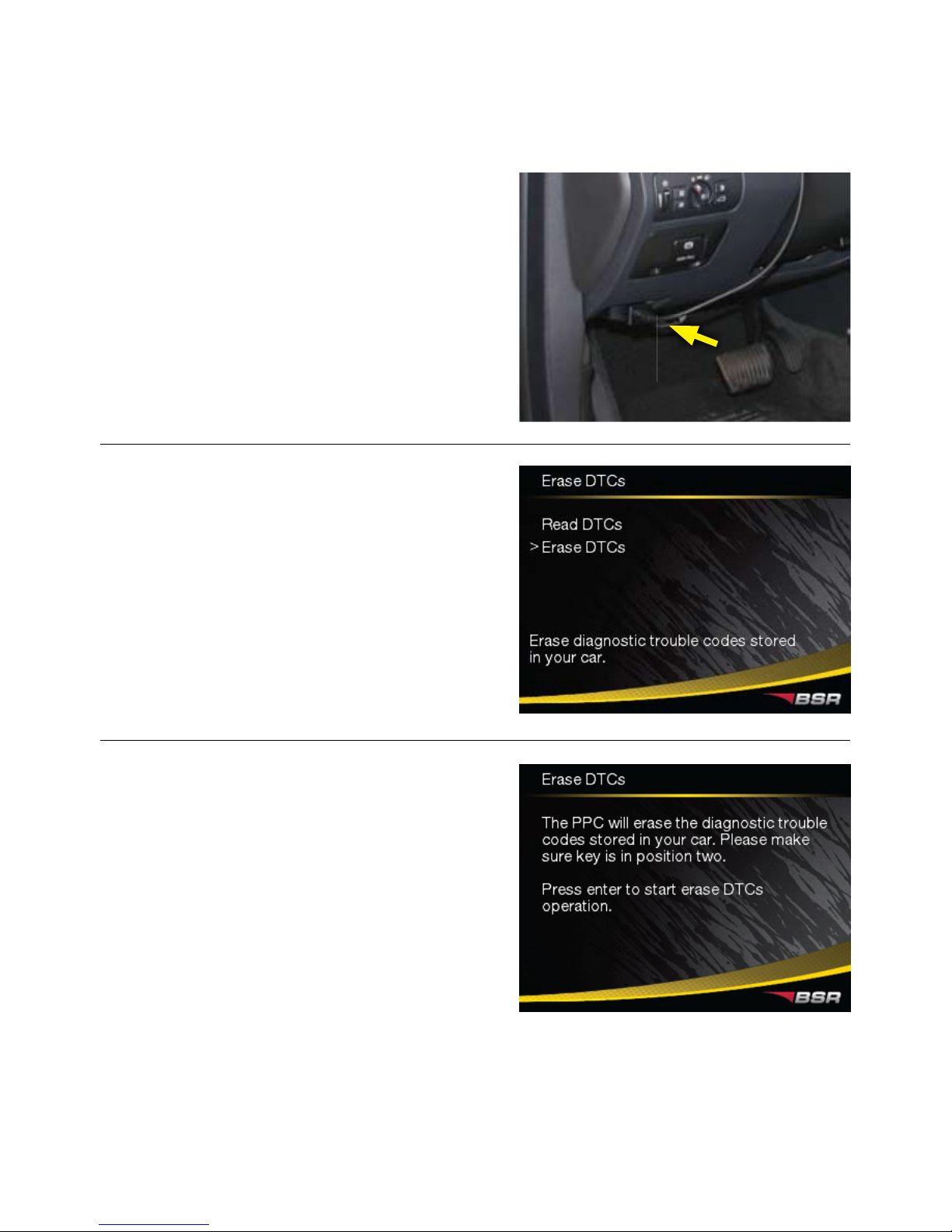
Connect PPC to the car’s diagnostic
connector with the OBDII cable. The
diagnostic connector is located in the
dash board under the steering wheel
(more info about the location at
www.bsr.se/ppc). Turn the ignition on.
Select “Erase DTCs” and press enter.
Press enter to erase DTCs.
Do not forget to turn the ignition on.
How to turn the ignition on is described
at www.bsr.se/ppc.
ERASE DTCS
6
Page 7
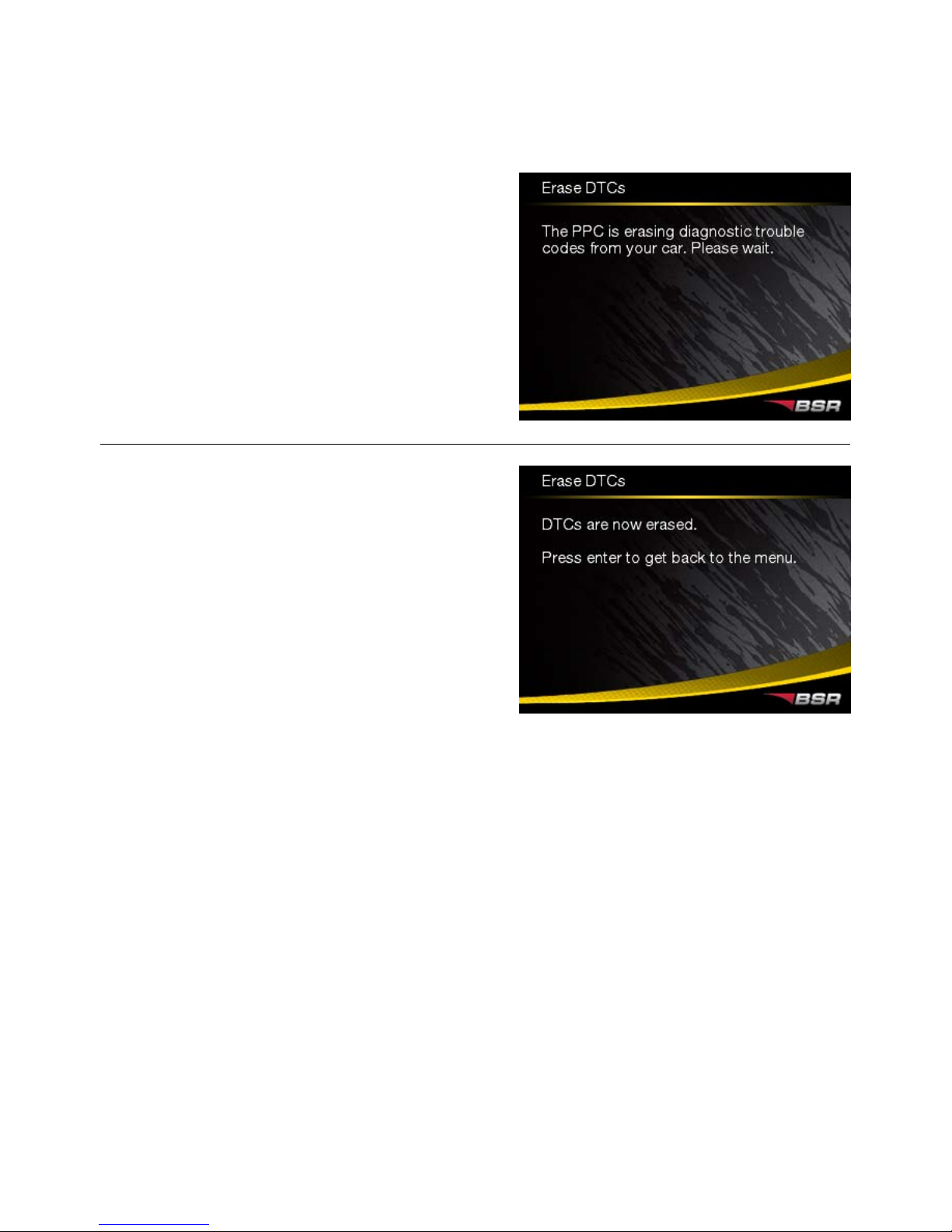
Erasing DTCs.
You can now disconnect the PPC from
your car.
7
Page 8
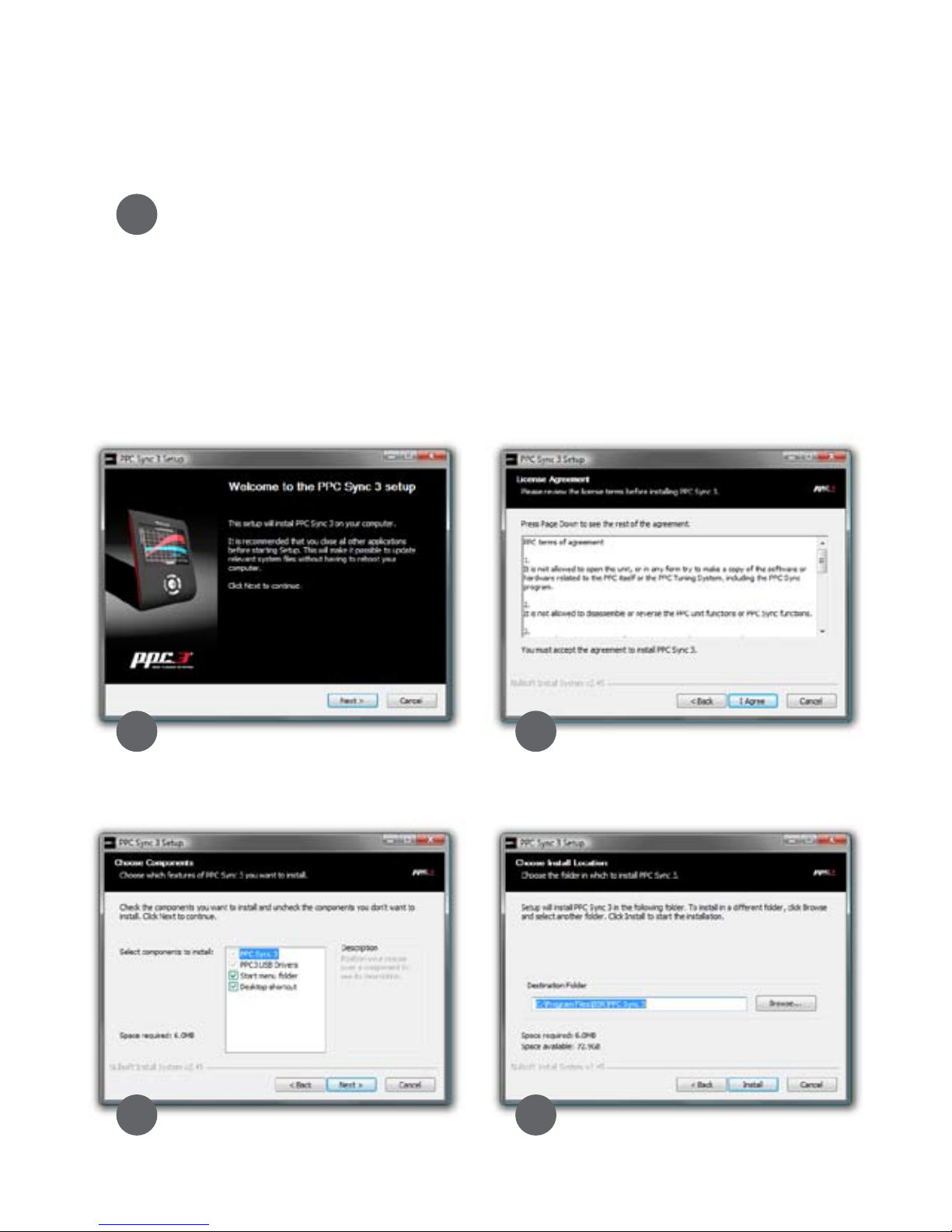
HOW TO INSTALL PPC SYNC 3
8
Click Next. If you agree, click I Agree.
Click Next. Click Install.
2
1
3
4
5
It is necessary to install the PPC Sync 3 program to be able to send
the DTCs from the PPC unit to your customer page.
Enter your customer page www.bsr.se/ppc and log in with your
PPC number and password that were sent to your e-mail. Click on
the PPC Sync 3 link to start the installation.
This is how the installation looks when using Windows Vista. The
installation might dier slightly on other operation systems.
Page 9
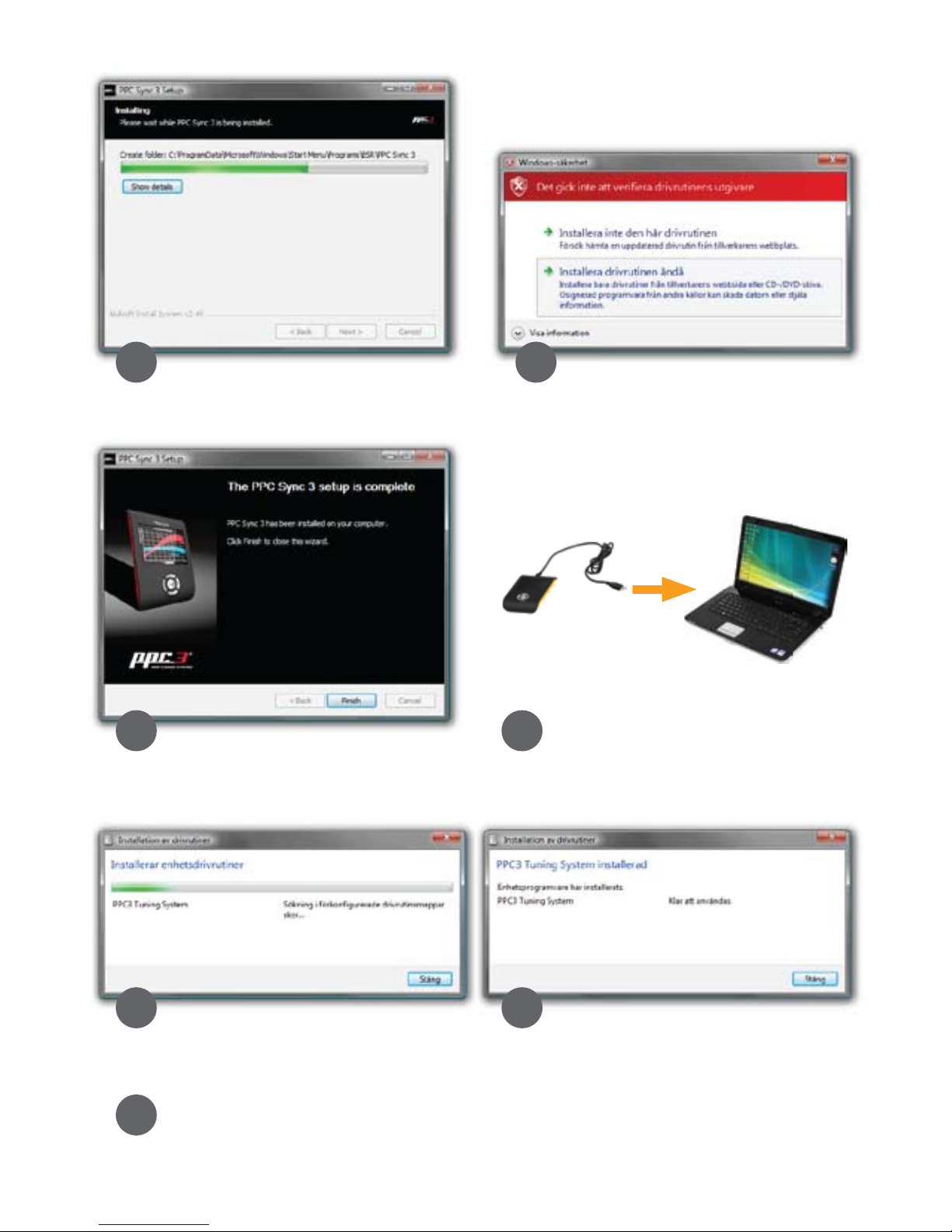
9
Click Install this driver software
anyway.
Now connect PPC to your computer
with the USB cable.
6
7
8 9
10 11
Click Finish.
12
The installation is complete! You can
now use the PPC Sync 3 program.
Page 10
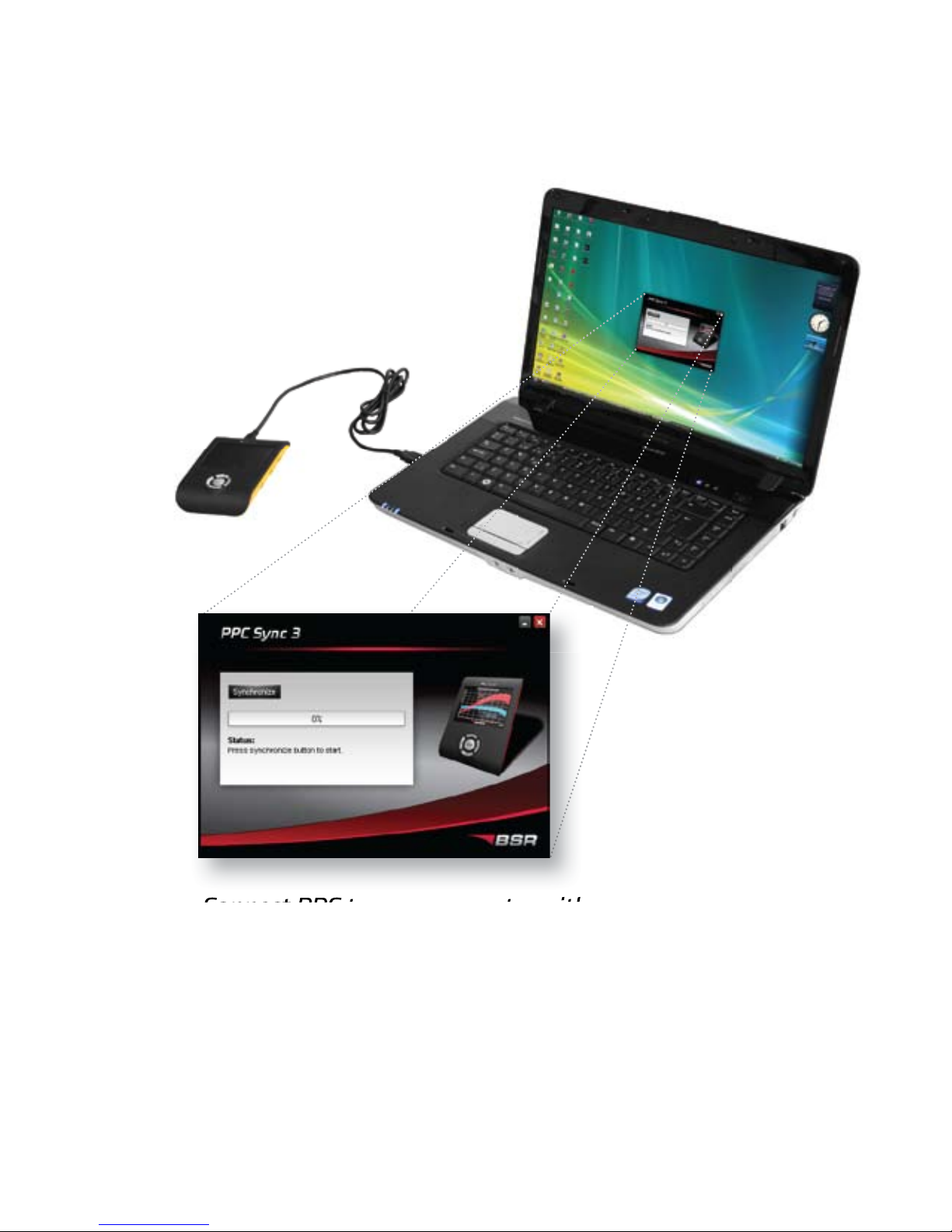
HANDLE DTCS VIA PPC SYNC 3 AND
THE CUSTOMER PAGE
1. Connect PPC to your computer with the USB cable.
The computer must be connected to the Internet.
2. Start the program PPC Sync 3.
3. Fill in the PPC number and password that were
sent to your e-mail. (Only necessary to do once.)
4. Click “Synchronize” to send the DTCs from your
PPC unit to the customer page.
USB cable
PPC Sync 3
10
PPC unit
Page 11
SPECIFICATIONS FOR PPC SYNC 3
Compatible with: Windows 7/Vista/XP/2000/ME/98/NT
Internet protocol: TCP/IP port 143
We recommend you to turn o any firewalls before using PPC Sync 3.
11
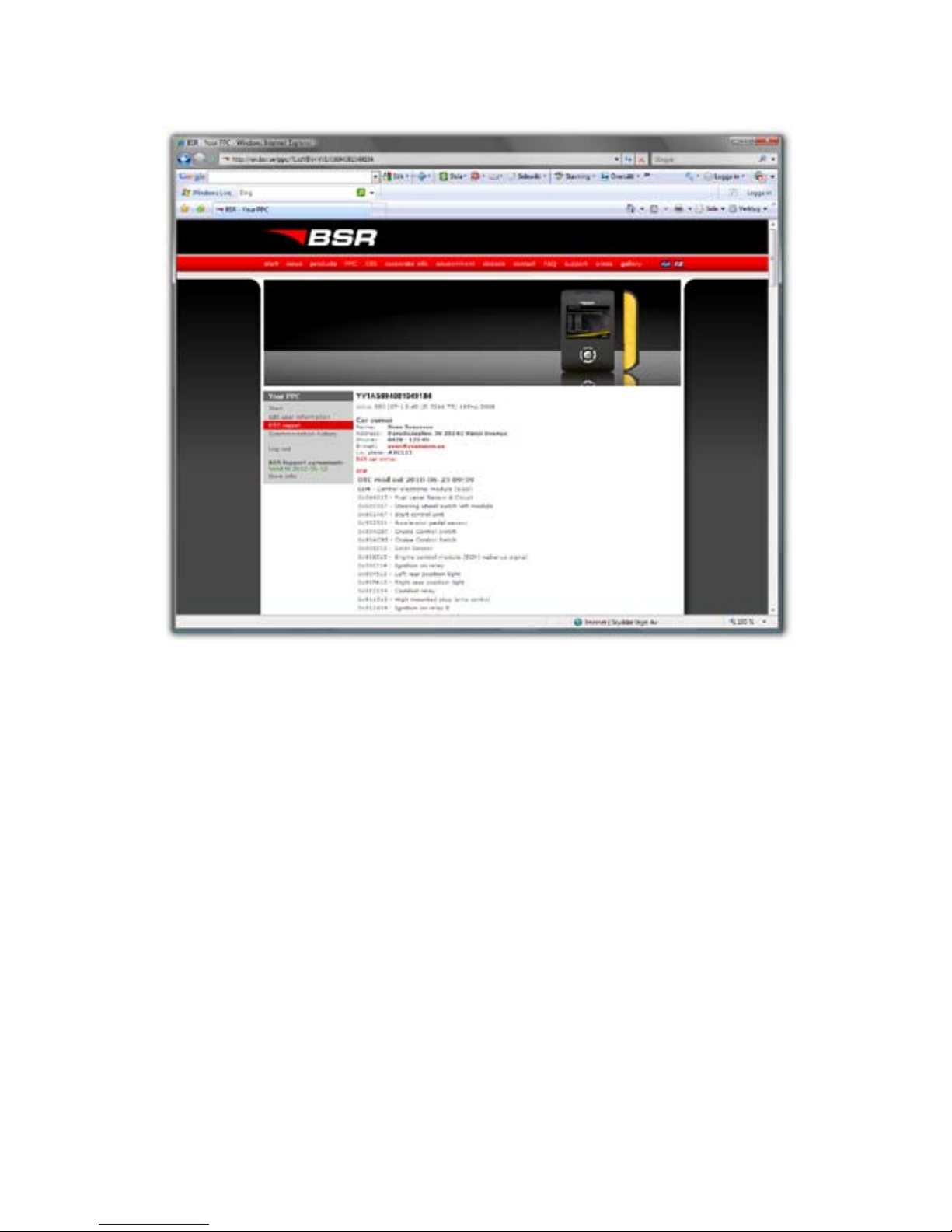
5. Enter your customer page www.bsr.se/ppc and log
in with your PPC number and password.
6. Click on “DTC report” and choose one of the cars
that you have read DTCs from. The DTCs are sorted
by the date of the reading and by the control units
of the car. They are displayed with an explaining
text message.
Click on “PDF” to create a printer friendly PDF
version of the DTC report.
www.bsr.se/ppc
Page 12

BSR Svenska AB
Deltavägen 9
352 45 Växjö
tel: 0470 - 70 96 70
fax: 0470 - 70 96 75
e-mail: [email protected]
website: www.bsr.se
support: www.bsr.se/support
© COPYRIGHT BSR SVENSKA AB | ENGLISH, VERSION 1.0 | UPDATED 2010.07.02
 Loading...