

Page 1
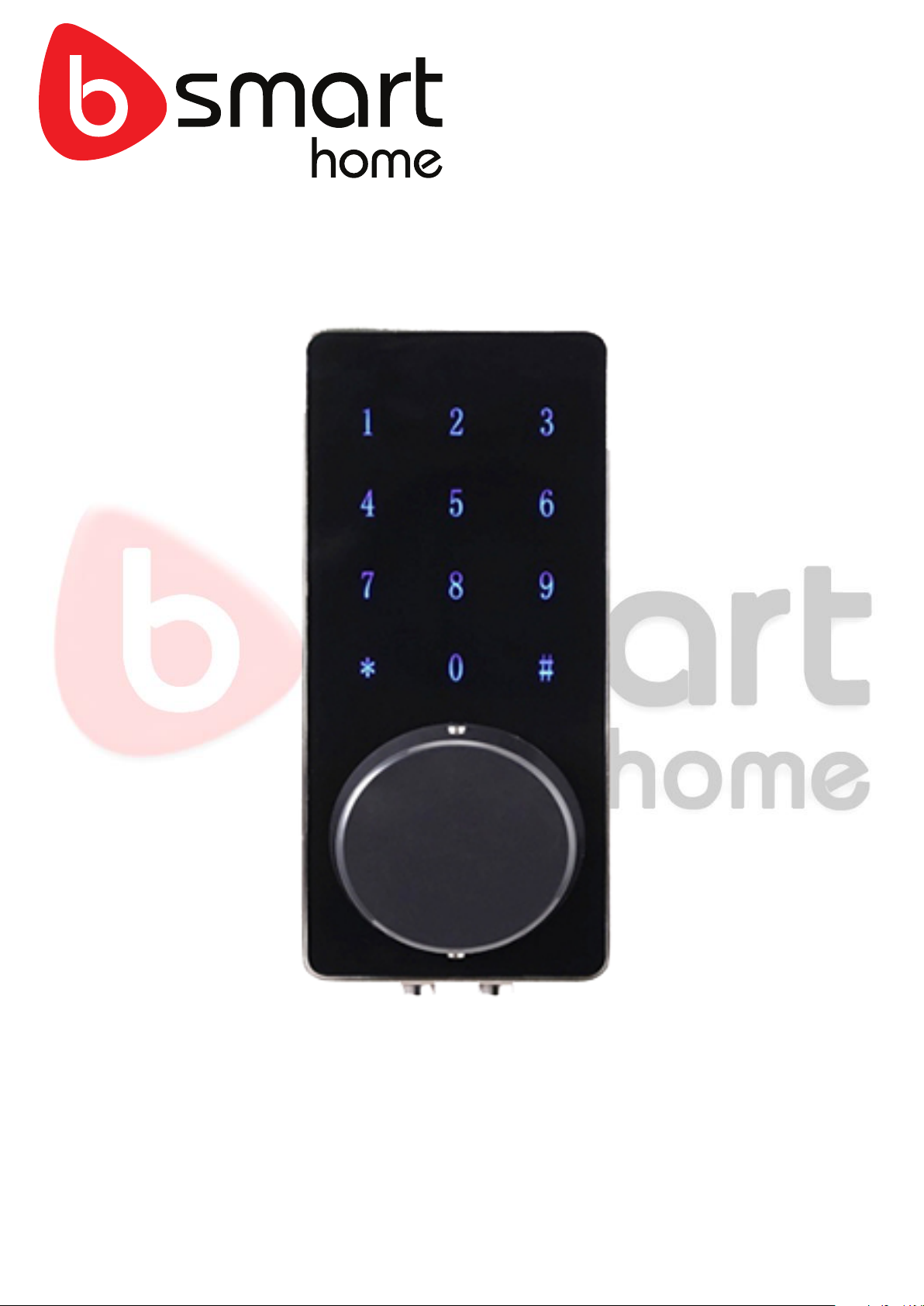
SH-02-001
Smart Bluetooth Lock
User Manual
Page 2
2
Communication mode
Bluetooth 4.0ble
Unlocking way
Bluetooth, Code, Mechanical key
Support System
Android 4.3 / IOS 7.0 above
Unlock time
≈ 1.5 sec
Power supply
4pcs AA batteries
Static current
≤30uA
Working current
≤200mA
1. FEATURES
Master Bluetooth Key: The Bluetooth lock unlocks with Bluetooth via the app.
Master Code: The Bluetooth lock unlocks with a permanent Master code.
User Code: The mobile app can generate up to 300 codes, with validity duration from One Time, Permanent, or
a range from 5 minutes to 180 days.
Wrong Code Entry Limit: After 5 unsuccessful attempts at entering a code, the Bluetooth lock will be
unresponsive for 5 minutes. Mechanical key and Bluetooth lock Unlock can be used to unlock in this state.
Time Auto lock: After successfully unlocking, the Bluetooth lock will be automatically locked after a period of
time (between 5 to 120 seconds). The owner sets this function.
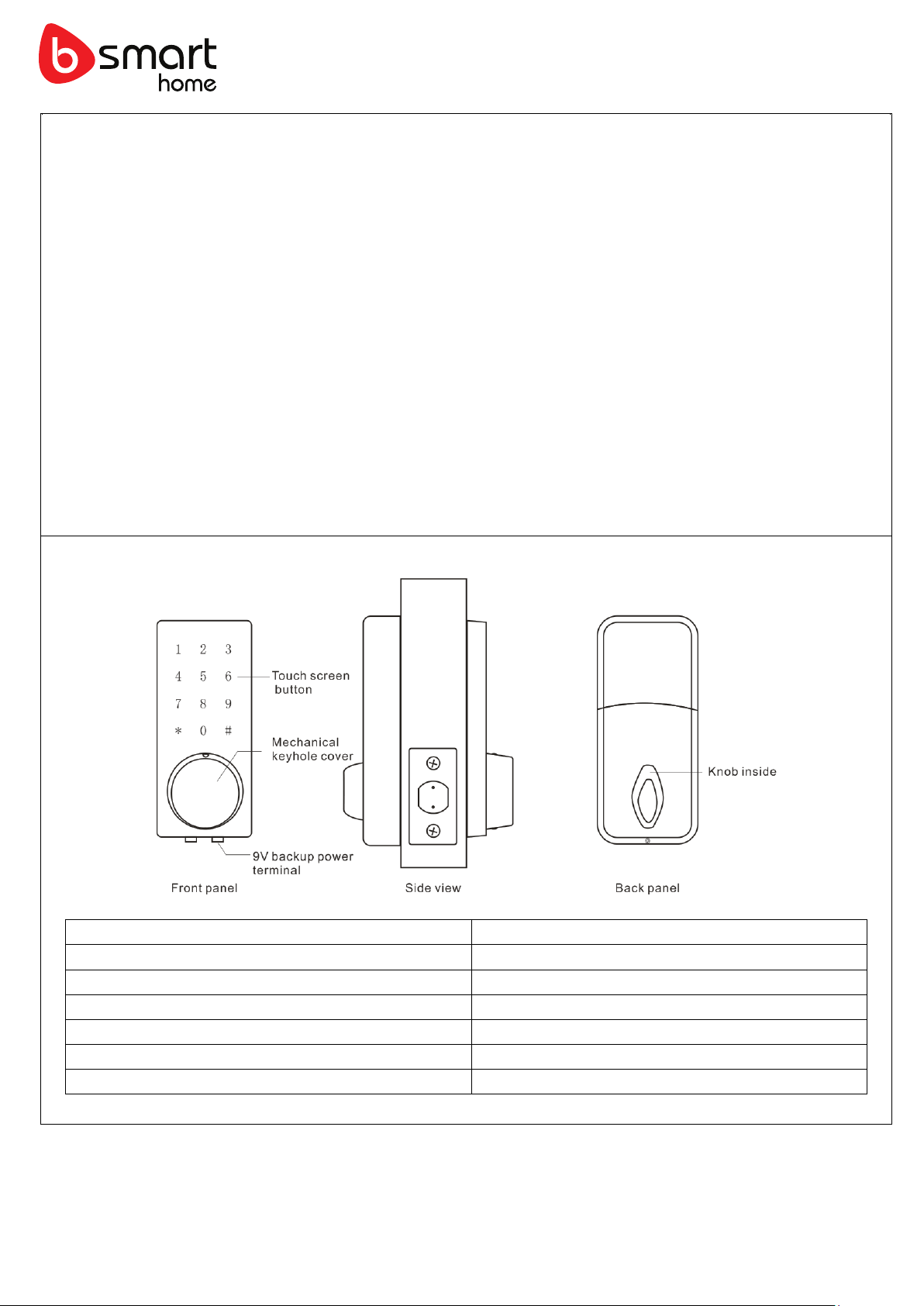
Simple Locking: Press # key for 2 seconds to lock the Bluetooth lock.
Lower Battery Consumption: 4pcs AA batteries can provide 5000 openings (approx. 6 months)
Lower Battery Indicator: When battery power is low, the Bluetooth lock will emit low battery warning sound. The
battery level will also be updated on the app during Bluetooth unlock. If battery power runs out, use 9V backup
battery or mechanical key.
Cloud Backup of Master Bluetooth Key: Master Bluetooth key is tied to users account instead of phone so any
phones logged in to user account can be used to unlock.
Decoy Code: 8 decoy digits can be entered prior to the actual code to prevent the code from being exposed.
Bluetooth Key Sharing: The Mobile app can share a Bluetooth key with other users for mobile access.
Access Logs: Entry via codes and Bluetooth Key will be logged in the Master Account.
1-1 . Specifications
Page 3
3
2. PROGRAMMING
2-1. Paring lock to the phone
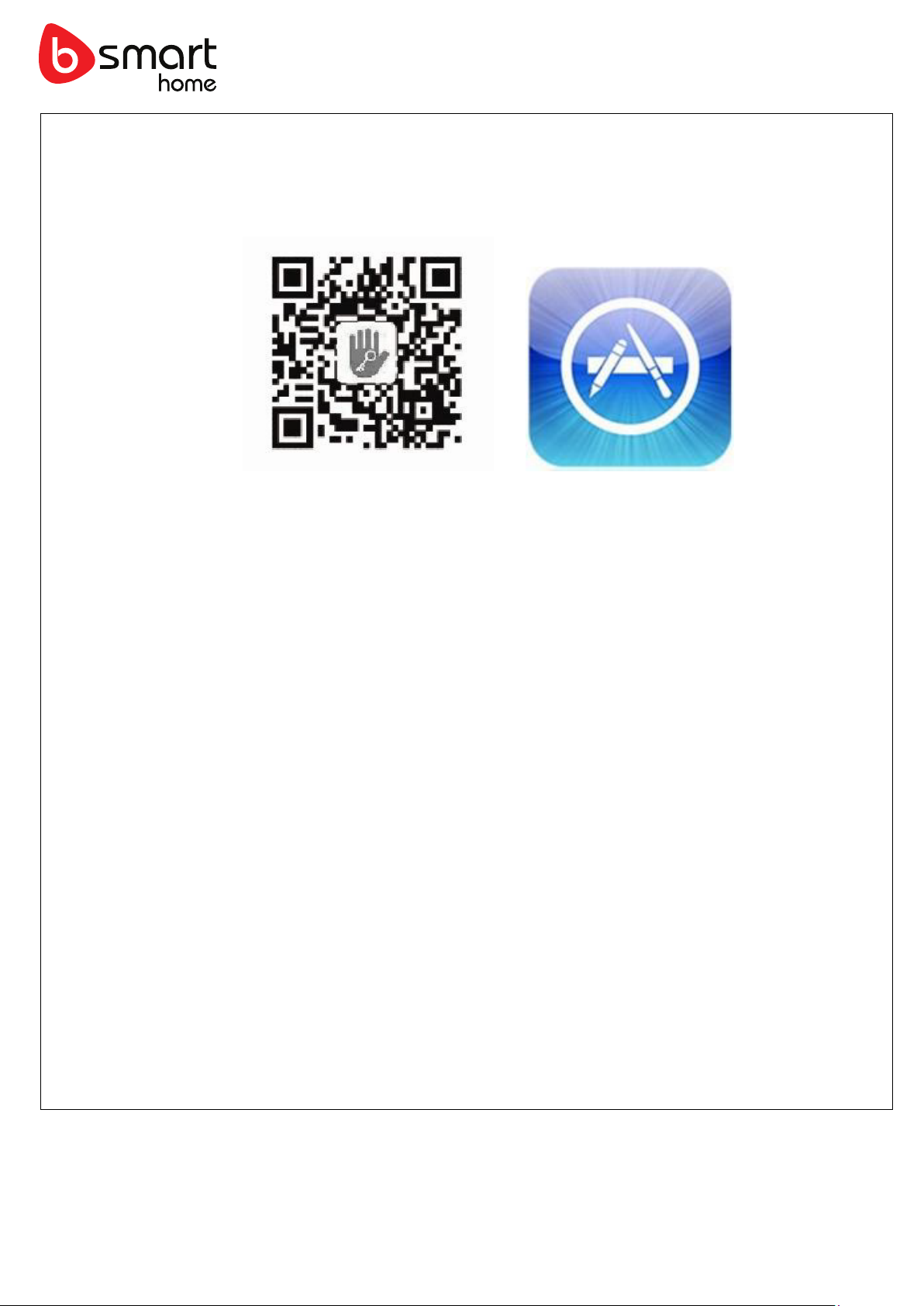
1) Android mobile phone, please scan the QR code as below.
2) Apple mobile phone, please search “TTlock” from App Store.
2. Register a new account (phone number or email) or login with an existing account.
3. Install the lock on the door or a sample holder, if you can’t install the lock immediately, please holding press
the white button on the front panel before next steps.
4. Remove one piece of battery, touch keyboard and then put back the battery immediately.
5. Open APP and Bluetooth, select Menu – Add Devices - Lock. Choose a device and connect.
2-2. To Unlock the door
Key in code and press # or use Bluetooth unlock via app, or use mechanical keys to unlock.
2-3. To lock the door
Press and hold #, or set auto lock for 5-120 seconds, or use thumb-turn on back of lock.
2-4. To change Admin code (must be done within close range of lock)
1. Once user account is paired to the phone, go to the key setting.
2. Click on Admin code, please enter your account password.
3. Enter the new master code between 7-10 digits.
2-5. To create Custom code
1. Go to the lock info page. Select code type (One time/Permanent/Duration) and click on the Generate.
2-6. To create and share Bluetooth Key
1. Go to the lock info page. Click on send eKey, select permanent or timed to Receiver.
2-7. To set Auto lock (must be done within close range of lock)
1. Go to the Key Setting – Auto Lock. Choose Set Time 5s – 120s. Click OK.
Changing batteries
To open the battery compartment, slide the cover upwards and put 4pcs AA batteries.
 Loading...