

Page 1

Wireless Cat Ear Headphones
WITH
REMOVABLE
CAT EARS
313785 Wireless_Cat_Headphones Gen 2
Size:5”Wx4.75”H_Output:100%_Prints:1/1,Blk
Page 2

TABLE OF CONTENTS
Warnings and Cautions.......................................................1
FCC Information ............................................................5
Location of Parts and Controls...............................................6
Charging the Cat Ear Headphones...........................................8
Pairing Your Device .........................................................9
Listening to Audio .........................................................10
Changing Audio Output ....................................................10
Incoming Calls.............................................................11
Selecting Light Colors......................................................12
Selecting Light Modes .....................................................13
Changing Direction of Cat Ear Speakers ....................................14
Installing the Ear Caps .....................................................1 4
Using the Headphone Cord ................................................15
Compatibility...............................................................16
Care and Maintenance . . . . . . . . . . . . . . . . . . . . . . . . . . . . . . . . . . . . . . . . . . . . . . . . . . . . . 16
Frequently Asked Questions................................................17
Specifications..............................................................19
Warranty ..................................................................20
CAUTION
• TO REDUCE THE RISK OF ELECTRIC SHOCK, DO NOT REMOVE COVER.
THERE ARE NO SERVICEABLE PARTS INSIDE.
• TO REDUCE THE RISK OF FIRE OR ELECTRIC SHOCK, DO NOT EXPOSE
THIS UNIT TO RAIN OR MOISTURE.
The lightning flash with arrow-head symbol within an equilateral triangle
is intended to alert the user to the presence of uninsulated “dangerous
voltage” within the unit’s enclosure that may be of sufficient magnitude
to constitute a risk of electric shock.
The exclamation point within an equilateral triangle is intended to alert
the user to the presence of important operating and maintenance
(servicing) instructions in the literature accompanying the unit.
IMPORTANT SAFETY INSTRUCTIONS
All the safety and operating instructions should be read, heeded, adhered to and
followed before the unit is operated.
1
313785 Wireless_Cat_Headphones Gen 2
Size:5”Wx4.75”H_Output:100%_Prints:1/1,Blk
Page 3

SAFETY AND HANDLING INFORMATION
For maximum product life, do not drop, throw or crush the headphones. Do not expose
them to humidity, dust, or operating temperatures outside 32°F to 113°F (0°C to
45°C).
SAVE THESE INSTRUCTIONS!
LITHIUM-ION BATTERY WARNINGS
This device contains a non-removable Lithium-Ion battery. The battery must be
recycled or disposed of properly. Contact your local waste management office for
information on battery recycling or disposal.
BC
DANGER
To reduce the risk of electric shock, burns, fire or injury:
1. Do not use while bathing or in a shower.
2. Do not place or store unit where it can fall or be pulled into a tub or sink.
3. Do not place in, drop or submerge in water or other liquid.
4. Do not reach for a unit that has fallen into water. Unplug it immediately.
5. Care should be taken so that objects do not fall and liquids are not spilled
onto the unit.
2 3
WARNING
1. Close supervision is necessary when this appliance/product is used by or near
children or mentally disabled individuals.
2. Use this unit only for its intended use as described in this manual.
3. Unplug this unit during lightning storms or when unused for long periods of
time.
4. Never drop or insert an object into any opening.
5. Protect the power cord from being walked on or pinched, particularly at plug
outlets, convenience receptacles and the point where it exits the unit.
6. Do not allow cord to touch hot surfaces. Wrap cord loosely around the unit when
storing.
7. The unit should be situated away from direct sunlight or heat sources such
as radiators, electric heaters, heat registers, stoves, or other units (including
amplifiers) that produce heat. Avoid placing on top of stereo equipment that
radiates heat.
8. Do not overload the electrical outlet. Use only the power source as indicated.
9. Do not carry this unit by its cord or use the cord as a handle.
313785 Wireless_Cat_Headphones Gen 2
Size:5”Wx4.75”H_Output:100%_Prints:1/1,Blk
Page 4

10. Never operate this unit if it has a damaged cord or plug, if it is not working
properly, or if it has been dropped or damaged, or dropped into water. If the unit’s
power supply cord or plug is damaged, do not attempt to fix it yourself.
11. To avoid the risk of electric shock, do not disassemble or attempt to repair the
unit. Incorrect repair can cause risk of electric shock or injury to persons when the
unit is used.
12. Do not operate in the presence of explosive and/or flammable fumes.
13. Never remove the plug from the outlet by pulling the power cord.
FCC INFORMATION
This equipment has been tested and found to comply with the limits for a Class B
Digital Device, pursuant to Part 15 of the FCC Rules. These limits are designed
to provide reasonable protection against harmful interference in a residential
installation. This equipment generates, uses, and can radiate radio frequency
energy and, if not installed and used in accordance with the instructions, may cause
harmful interference to radio communications. However, there is no guarantee that
interference will not occur in a particular installation.
If this equipment does cause harmful interference to radio or television reception,
which can be determined by turning the equipment off and on, the user is
encouraged to try to correct the interference by one or more of the following
measures:
• Reorient or relocate the receiving antenna.
• Increase the distance between the equipment and receiver.
• Connect the equipment to an outlet on a circuit different from that to which the
receiver is connected.
• Consult the dealer or an experienced radio/TV technician for help.
This equipment complies with Part 15 of the FCC Rules. Operation is subject to the
following two conditions:
1. This equipment may not cause harmful interference.
2. This equipment must accept any interference received, including interference
that may cause undesired operation.
Modifications not authorized by the manufacturer may void the user’s authority to
operate this device.
4 5
313785 Wireless_Cat_Headphones Gen 2
Size:5”Wx4.75”H_Output:100%_Prints:1/1,Blk
Page 5
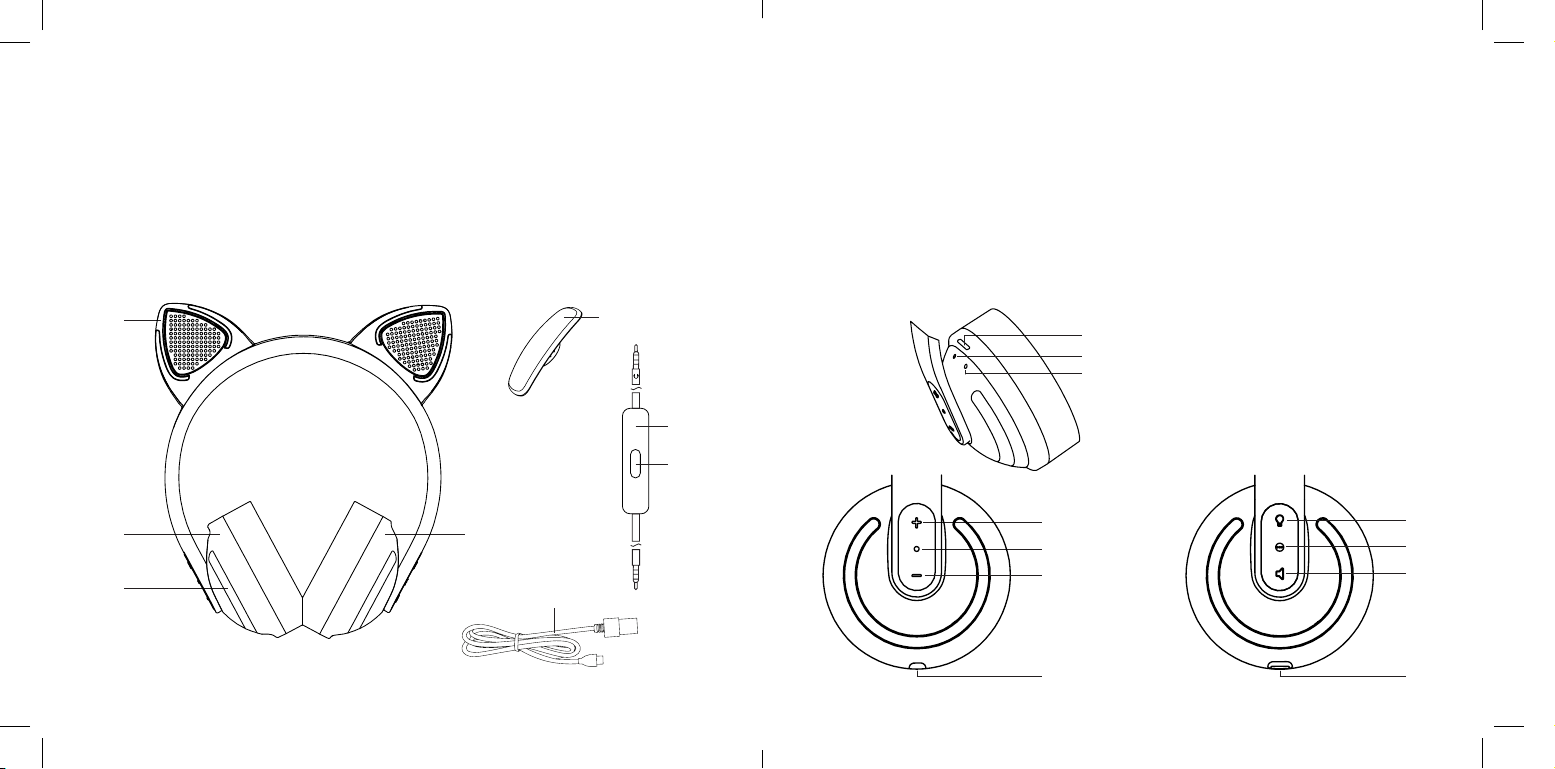
LOCATION OF PARTS AND CONTROLS LOCATION OF PARTS AND CONTROLS
1. Cat Ear Speaker with Light (2)
2. Right Ear Cup
3. Ear Cup Light (2)
4. Left Ear Cup
5. Ear Caps (2)
1
6. 3.5mm to 3.5mm Headphone Cord
with in-line microphone
7. Play/Pause/Track Forward/Track
Back Button
8. Micro USB Charging Cable
5
9. Bluetooth® Button
10. Pairing LED Indicator
11. Charging LED Indicator
12. Volume + Button
13. Play/Pause/Track Forward/Track
Back Button
14. Volume - Button
15. Headphone Cord Input
16. Lights On/Off/Choose
Color Button
17. Light Mode Button
18. Speakers On/Off Button
19. Micro USB Input
9
10
11
6
7
2
3
4
8
6
Right Ear Cup
12
13
14
15
Left Ear Cup
16
17
18
19
7
313785 Wireless_Cat_Headphones Gen 2
Size:5”Wx4.75”H_Output:100%_Prints:1/1,Blk
Page 6

CHARGING THE HEADPHONES
1. Plug one end of the included MICRO USB CHARGING CABLE into the
MICRO USB INPUT located on the left ear cup. Plug the other end of the
MICRO USB CHARGING CABLE into a USB adapter (5V, 1A or above) (not
included) or your computer's USB port. The headphones will be fully charged in
approximately 2.5 hours.
2. The CHARGING LED INDICATOR is red while the headphones are charging
and turns green when the headphones are fully charged.
3. When the headphones’ battery is low, the CHARGING LED INDICATOR
will flash red when the headphones are in Bluetooth mode.
PAIRING YOUR DEVICE
1. Prepare your device to pair using Bluetooth® wireless technology, making sure
you are within 33 feet of the headphones. Refer to your device’s owner’s manual
for details if necessary.
2. Press and hold the BLUETOOTH BUTTON until the PAIRING LED INDICATOR
illuminates to turn Bluetooth® mode on.
3. The PAIRING LED INDICATOR will be solid blue for 5 seconds as the
headphones search for previously paired devices. If no connection is made
within 5 seconds, the headphones will enter Bluetooth® pairing mode. The
PAIRING LED INDICATOR will flash blue.
4. Once the headphones are in pairing mode and your device is ready to pair, select
“Cat Headphones” on your device. If prompted, use 0000 as a PIN for the pairing
code. Once “Cat Headphones” is selected, the PAIRING LED INDICATOR will
change to solid blue and one tone will sound to confirm pairing is complete.
Notes:
• After the initial pairing of your device, the headphones should automatically
pair with your device the next time the unit is put into Bluetooth® mode.
Depending upon your device, you may have to select “Cat Headphones” in
your device’s Bluetooth® menu.
• To cancel pairing mode, press the BLUETOOTH BUTTON to turn off
Bluetooth® mode or wait 5 minutes for the headphones to cancel pairing
mode and turn off Bluetooth® mode automatically. The PAIRING LED
INDICATOR will turn off.
• To preserve battery life, turn Bluetooth mode off when not using Bluetooth to
stream audio.
8 9
313785 Wireless_Cat_Headphones Gen 2
Size:5”Wx4.75”H_Output:100%_Prints:1/1,Blk
Page 7

LISTENING TO AUDIO
1. Press and hold the BLUETOOTH BUTTON until the PAIRING LED
INDICATOR illuminates to turn Bluetooth® mode on.
2. Press the VOLUME + BUTTON to increase audio volume.
3. Press the VOLUME - BUTTON to decrease audio volume.
4. Press the PLAY/PAUSE/TRACK FORWARD/TRACK BACK BUTTON once to
play or pause audio.
5. Press the PLAY/PAUSE/TRACK FORWARD/TRACK BACK BUTTON twice in
quick succession to move one track forward.
6. Press PLAY/PAUSE/TRACK FORWARD/TRACK BACK BUTTON three times
in quick succession to move one track backward.
CHANGING AUDIO OUTPUT
1. Press the SPEAKERS ON/OFF BUTTON to turn the headphone speakers off
and turn the CAT EAR SPEAKERS on.
2. Press the SPEAKERS ON/OFF BUTTON again to turn the headphone
speakers on. The CAT EAR SPEAKERS remain on.
3. Press the SPEAKERS ON/OFF BUTTON again to turn the headphone
speakers on and turn the CAT EAR SPEAKERS off.
INCOMING CALLS
1. To answer an incoming call on your device, press the PLAY/PAUSE/TRACK
FORWARD/TRACK BACK BUTTON once.
2. To ignore an incoming call on your device, press the PLAY/PAUSE/
TRACK FORWARD/TRACK BACK BUTTON twice in quick succession.
3. To end an active call on your device, press the PLAY/PAUSE/TRACK
FORWARD/TRACK BACK BUTTON once.
10 11
313785 Wireless_Cat_Headphones Gen 2
Size:5”Wx4.75”H_Output:100%_Prints:1/1,Blk
Page 8

SELECTING LIGHT COLORS
1. Press the LIGHTS ON/OFF/CHOOSE COLOR BUTTON to turn the ear cups
and speaker lights on. The default color is Blue.
2. Press the LIGHTS ON/OFF/CHOOSE COLOR BUTTON to change the
ear cups and speaker lights to Green.
3. Press the LIGHTS ON/OFF/CHOOSE COLOR BUTTON to change the
ear cups and speaker lights to Purple.
4. Press the LIGHTS ON/OFF/CHOOSE COLOR BUTTON to change the
ear cups and speaker lights to Orange.
5. Press the LIGHTS ON/OFF/CHOOSE COLOR BUTTON to change the
ear cups and speaker lights to White.
6. Press the LIGHTS ON/OFF/CHOOSE COLOR BUTTON to change the
ear cups and speaker lights to Red.
7. Press the LIGHTS ON/OFF/CHOOSE COLOR BUTTON to change the
ear cups and speaker lights to Yellow.
8. Press the LIGHTS ON/OFF/CHOOSE COLOR BUTTON to change the
ear cups and speaker lights to Pink.
9. Press the LIGHTS ON/OFF/CHOOSE COLOR BUTTON to change the
ear cups and speaker lights to Blue.
10. Press and hold the LIGHTS ON/OFF/CHOOSE COLOR BUTTON to turn the
ear cups and speaker lights off.
SELECTING LIGHT MODES
1. Press the LIGHT MODE BUTTON to activate Breathing mode, slow flashing of
selected color.
2. Press the LIGHT MODE BUTTON to activate Transition mode, selected color
transitions to the next color every 5 seconds.
3. Press the LIGHT MODE BUTTON to activate Beat mode, selected color beats
to audio.
4. Press the LIGHT MODE BUTTON to activate Strobe mode, fast flashing of
selected color.
5. Press the LIGHT MODE BUTTON to activate Solid mode, selected color is
solid.
Note: If there is no beat detected (volume is too low or audio does not have
enough bass), Beat mode defaults to Solid mode.
12 13
313785 Wireless_Cat_Headphones Gen 2
Size:5”Wx4.75”H_Output:100%_Prints:1/1,Blk
Page 9
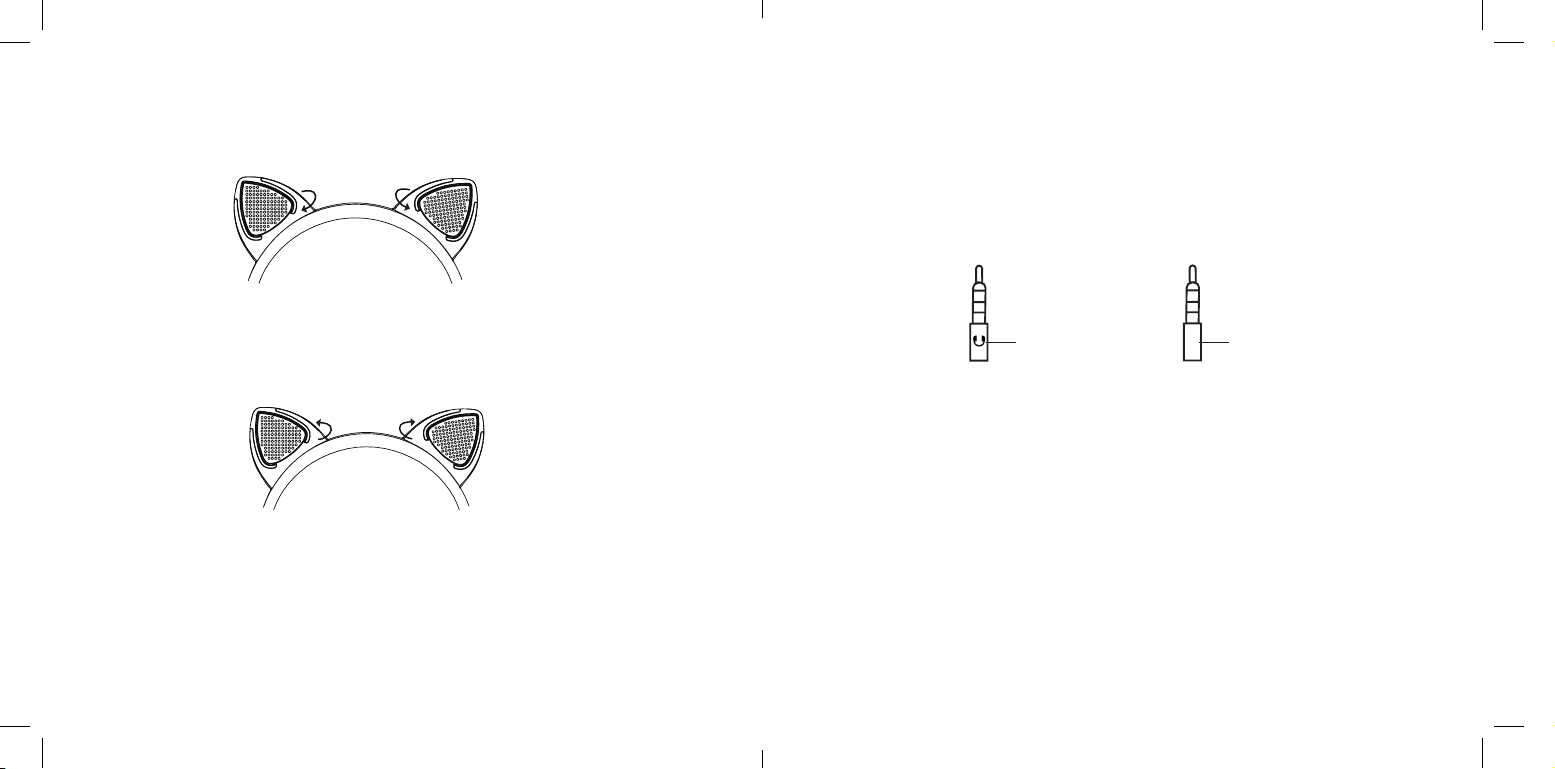
CHANGING DIRECTION OF CAT EAR SPEAKERS
Twist the CAT EAR SPEAKERS to change the direction of the speakers as shown in
figure 1.
USING THE HEADPHONE CORD
Connect your device to the headphones with the included 3.5MM TO 3.5MM
HEADPHONE CORD.
1. Plug the end of the HEADPHONE CORD with the headphone icon into the
HEADPHONE CORD INPUT on the headphones.
Fig. 1
2. Plug the end of the HEADPHONE CORD with no headphone icon into your
audio device.
Right
Left
INSTALLING THE EAR CAPS
1. Twist the CAT EAR SPEAKERS as shown in figure 2 and remove.
Right
Fig. 2
Left
End with headphone
icon to headphones
3. Use your device to control volume through headphones.
4. Press the PLAY/PAUSE/TRACK FORWARD/TRACK BACK BUTTON on the
HEADPHONE CORD once to play or pause audio.
5. Press the PLAY/PAUSE/TRACK FORWARD/TRACK BACK BUTTON on the
HEADPHONE CORD twice in quick succession to move one track forward.
6. Press the PLAY/PAUSE/TRACK FORWARD/TRACK BACK BUTTON on the
End with no headphone
icon to audio device
HEADPHONE CORD three times in quick succession to move one track
2. Align the tabs on the EAR CAPS (the tabs are keyed so they will only insert in
one orientation), insert and twist to secure.
3. To replace the CAT EAR SPEAKERS, twist and remove the EAR CAPS, align the
tabs on the CAT EAR SPEAKERS (the tabs are keyed so they will only insert in
one orientation), insert and twist to secure.
14 15
backward.
7. To answer an incoming call on your device, press the PLAY/PAUSE/TRACK
FORWARD/TRACK BACK BUTTON on the HEADPHONE CORD once.
8. To ignore an incoming call on your device, press and hold the PLAY/PAUSE/
TRACK FORWARD/TRACK BACK BUTTON on the HEADPHONE CORD for
2 seconds and then release.
313785 Wireless_Cat_Headphones Gen 2
Size:5”Wx4.75”H_Output:100%_Prints:1/1,Blk
Page 10

9. To end an active call on your device, press the PLAY/PAUSE/TRACK
FORWARD/TRACK BACK BUTTON on the HEADPHONE CORD once.
Notes:
• The HEADPHONE CORD INPUT takes precedence over the Bluetooth®
connection.
• If there is no audio streaming for 20 minutes, the CAT EAR SPEAKERS are
turned off automatically.
COMPATIBILITY
Bluetooth 2.1 or above device with A2DP and AVRCP.
CARE AND MAINTENANCE
Unplug and spot clean with a soft, dry cloth.
FREQUENTLY ASKED QUESTIONS
Why won’t audio play?
Ensure your device is within 33 feet of headphones and reconnect your device to
headphones (please refer to page 9 for pairing instructions).
Check the headphones’ or your device’s volume level.
Charge the headphones (if using the HEADPHONE CORD, headphones may
need to be charged).
Why isn’t the audio clear?
Ensure your device is within 33 feet of the headphones.
Reconnect your device to headphones (please refer to page 9 for pairing
instructions).
Check the headphones' or your device’s volume level.
Adjust your device’s equalizer.
Charge the headphones (if using the HEADPHONE CORD, headphones may
need to be charged).
16
17
313785 Wireless_Cat_Headphones Gen 2
Size:5”Wx4.75”H_Output:100%_Prints:1/1,Blk
Page 11

How do I pair a new device?
The headphones remember the last device paired. If you would like to use another
device, pair that device manually. Please refer to page 9 for pairing instructions.
You may need to turn Bluetooth® off on the last device that was paired so the
headphones will not automatically pair to that device.
SPECIFICATIONS
Power Output (Headphones) .......................................... .50mW
Power Output (Speakers) ................................................ .1W
Headphones .................................................... 40mm driver
Speakers ....................................................... 28mm driver
Why won’t the lights stay on?
Charge the headphones. If the battery is depleted, it may take several minutes after
plugging in the MICRO USB CHARGING CABLE for there to be enough battery
Frequency Response (Headphones) ..............................20Hz-20KHz
Frequency Response (Speakers) ...............................200Hz-18KHz
Li-ion Rechargeable Battery ................................... 3.7V, 1040mAh
life to keep the lights on.
Battery Life (Headphones and Speakers) ........................ Up to 5 hours
Charging Time ...............................................Approx. 2.5 hours
Why can’t I play/pause, change tracks or answer calls with the button on the
headphone cord?
Ensure the end of the HEADPHONE CORD with the headphone icon is plugged
Weight ...................................................... Approx. .64lb (290g)
Dimensions............ 6.1" (155.5mm) (w) x 3.04" (77.2mm) (d) x 8" (203.2mm) (h)
into the HEADPHONE CORD INPUT on the headphones.
Ensure the end of the HEADPHONE CORD with no headphone icon is plugged
into your audio device.
The Bluetooth® word mark and logos are registered trademarks owned by Bluetooth® SIG, Inc. and any
use of such marks by Brookstone are under license.
End with headphone
icon to headphones
18 19
End with no headphone
icon to audio device
© Brookstone 2017
313785 Wireless_Cat_Headphones Gen 2
Size:5”Wx4.75”H_Output:100%_Prints:1/1,Blk
Page 12

ONE (1) YEAR LIMITED WARRANTY
Brookstone® warrants this product against defects in materials and/or workmanship
under normal use for a period of ONE (1) YEAR from the date of purchase by the
original purchaser (“Warranty Period”). If a defect arises and a valid claim is received
within the Warranty Period, at its option, Brookstone will either 1) repair the defect
at no charge, using new or refurbished replacement parts, or 2) replace the product
with a new product that is at least functionally equivalent to the original product, or
3) provide a store credit in the amount of the purchase price of the original product.
A replacement product or part, including a user-installable part installed in accordance
with instructions provided by Brookstone, assumes the remaining warranty of the
original product. When a product or part is exchanged, any replacement item becomes
your property and the replaced item becomes Brookstone’s property. When a store
credit is given, the original product must be returned to Brookstone and becomes
Brookstone’s property.
Obtaining Service: To obtain warranty service, call Brookstone Limited Warranty Service at
1-800-292-9819. Please be prepared to describe the product that needs service and
the nature of the problem. A purchase receipt is required. All repairs and replacements
must be authorized in advance. Service options, parts availability and response times
will vary. You are responsible for delivery and the cost of delivery of the product or any
parts to the authorized service center for replacement, per our instructions.
Limits and Exclusions: Coverage under this Limited Warranty is limited to the United
States of America, including the District of Columbia and the U.S. Territories of
Guam, Puerto Rico, and the U.S. Virgin Islands. This Limited Warranty applies only
to products manufactured for Brookstone that can be identified by the “Brookstone”
trademark, trade name, or logo affixed to them or their packaging. The Limited
Warranty does not apply to any non-Brookstone products. Manufacturers or
suppliers other than Brookstone may provide their own warranties to the purchaser,
but Brookstone, in so far as permitted by law, provides these products “as is.”
This warranty does not apply to: a) damage caused by failure to follow instructions
relating to product’s use or the installation of components; b) damage caused by
accident, abuse, misuse, fire, floods, earthquake or other external causes; c) damage
caused by service performed by anyone who is not a representative of Brookstone;
d) accessories used in conjunction with a covered product; e) a product or part
that has been modified to alter functionality or capability; f) items intended to be
periodically replaced by the purchaser during the normal life of the product including,
without limitation, batteries or light bulbs; g) any product sold “as is” including, without
limitation, floor demonstration models and refurbished items; or h) a product that is
used commercially or for a commercial purpose.
BROOKSTONE SHALL NOT BE LIABLE FOR INCIDENTAL OR CONSEQUENTIAL
DAMAGES RESULTING FROM THE USE OF THIS PRODUCT, OR ARISING
OUT OF ANY BREACH OF THIS WARRANTY. TO THE EXTENT PERMITTED BY
APPLICABLE LAW, BROOKSTONE DISCLAIMS ANY AND ALL STATUTORY OR
IMPLIED WARRANTIES, INCLUDING, WITHOUT LIMITATION, WARRANTIES
OF MERCHANTABILITY, FITNESS FOR A PARTICULAR PURPOSE AND
WARRANTIES AGAINST HIDDEN OR LATENT DEFECTS. IF BROOKSTONE
CANNOT LAWFULLY DISCLAIM STATUTORY OR IMPLIED WARRANTIES, THEN
TO THE EXTENT PERMITTED BY LAW, ALL SUCH WARRANTIES SHALL BE
LIMITED IN DURATION TO THE DURATION OF THIS EXPRESS WARRANTY.
Some states disallow the exclusion or limitation of incidental or consequential
damages or how long an implied warranty lasts, so the above exclusions or limitations
may not apply to you. This warranty gives you specific legal rights and you may also
have other rights, which vary from state to state.
20 21
313785 Wireless_Cat_Headphones Gen 2
Size:5”Wx4.75”H_Output:100%_Prints:1/1,Blk
Page 13

Find thousands more
great ideas online
313785
Merrimack, New Hampshire, USA 03054 • 800-846-3000 • Brookstone.com
 Loading...