

Page 1
© Brook All Rights Reserved. www.brookaccessory.com Sep. 2016
Firmware Update Guide
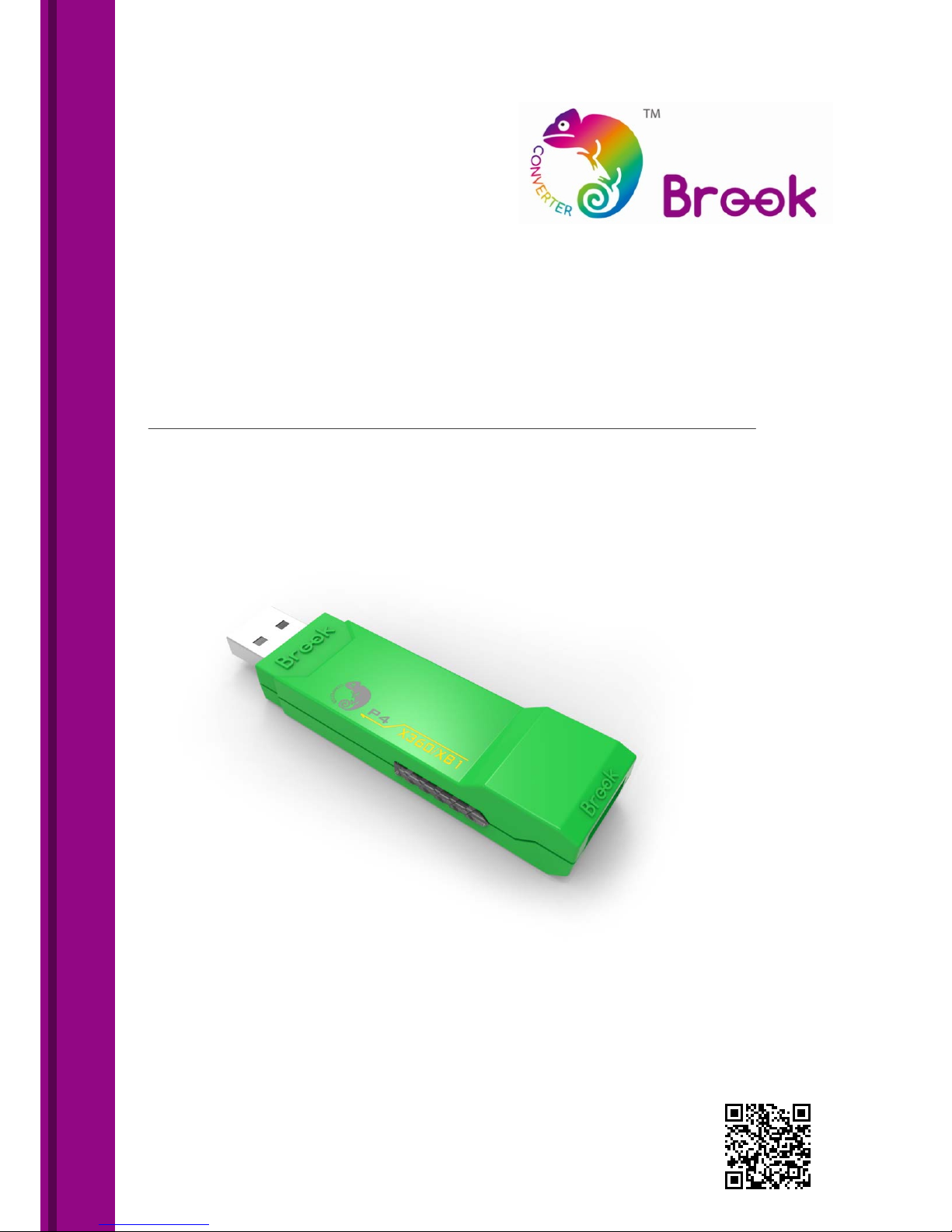
Xbox 360/Xbox ONE to PS4 Super Converter
Page 2

Xbox 360/Xbox ONE to PS4 Supper Converter - Firmware Update Guide
© Brook All Rights Reserved. www.brookaccessory.com Sep. 2016 1
This document describes how to update the firmware of Brook Super Converter.
NOTE The update must be done on a PC; it cannot be done on a console.
NOTE Operate it on desktop PC. For laptop, please connect your laptop to power supply.
NOTE Do it on Windows 7(and above) or Mac.
NOTE No need to install USB Driver for the firmware update.
NOTE Don’t connect your controller/stick when doing update
NOTE It may take some time for the firmware to run in different PC/system.
NOTE Disable antivirus when operating.
NOTE If there’s any problem during update, please try to
1. Disconnect, reconnect and retry
2. Switch another USB port and retry
3. Use another PC and retry
4. Restart PC and retry
5. Restart firmware and retry
6. Make sure you download the correct file
7. If you have installed ZeroPlus Driver before, remove it and retry
Page 3
Xbox 360/Xbox ONE to PS4 Supper Converter - Firmware Update Guide
© Brook All Rights Reserved. www.brookaccessory.com Sep. 2016 2
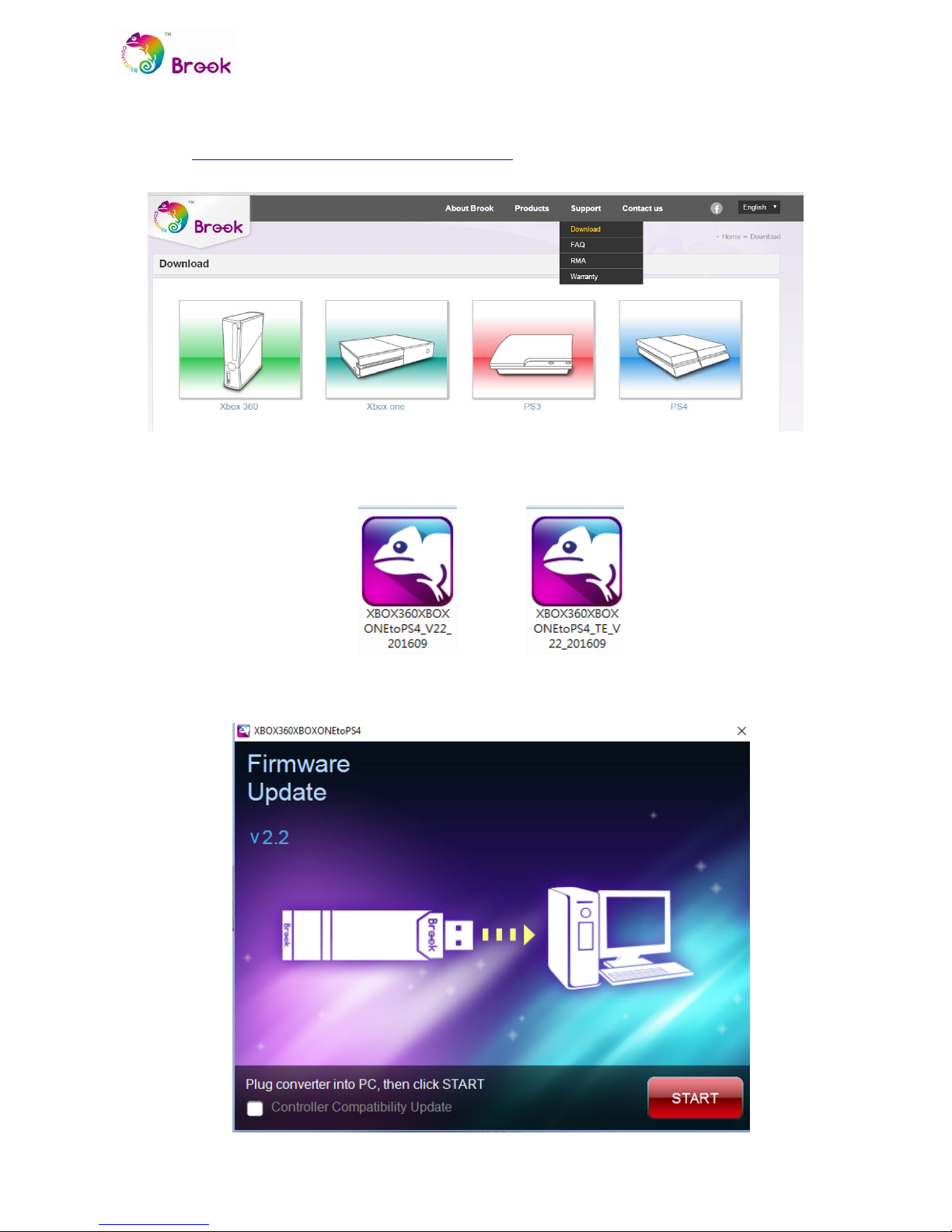
STEP 1 Download the latest update file from Brook’s website:
http://www.brookaccessory.com/download/
STEP 2 There are two versions,
STEP 3 Choose the version you want and run it.
TE Version Normal Version
Page 4
Xbox 360/Xbox ONE to PS4 Supper Converter - Firmware Update Guide
© Brook All Rights Reserved. www.brookaccessory.com Sep. 2016 3
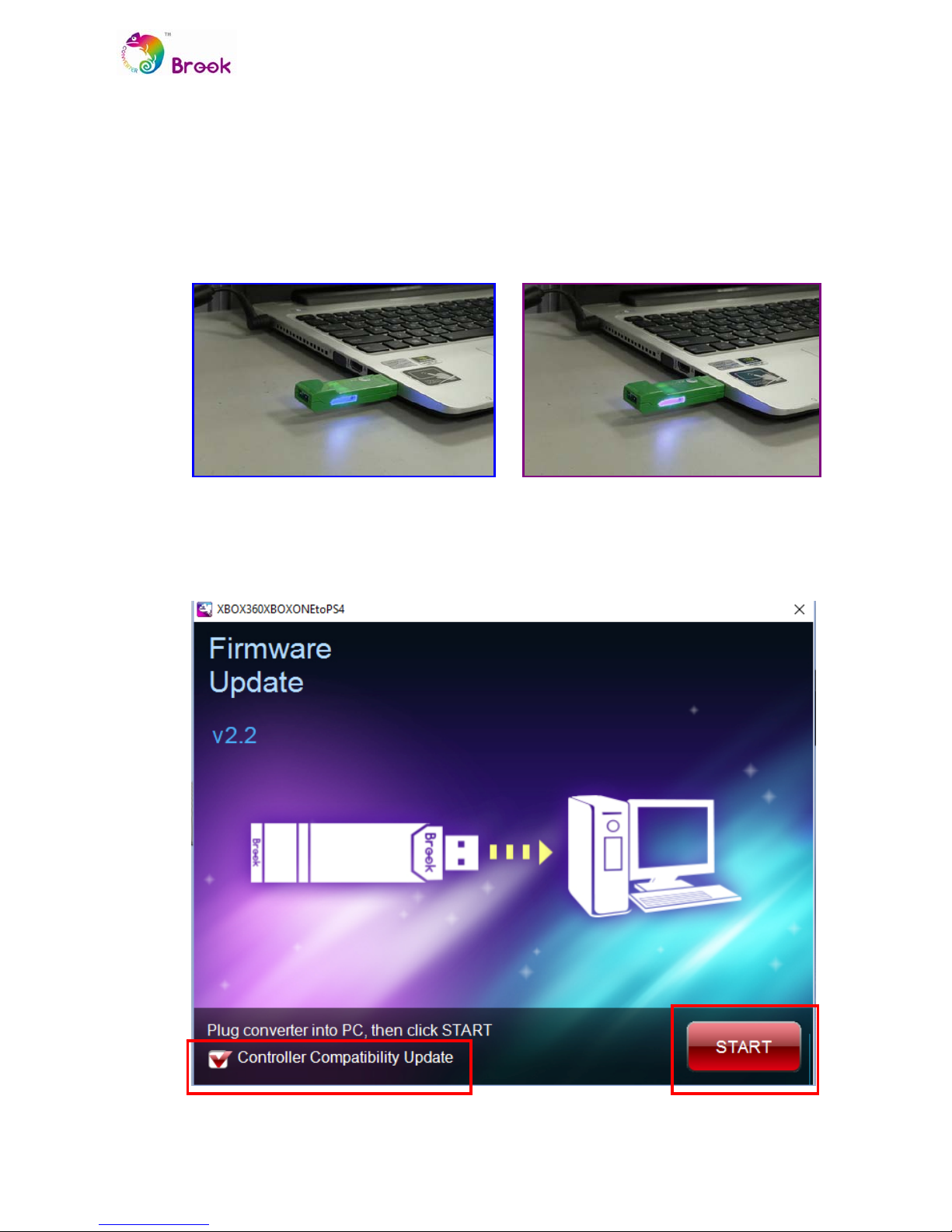
STEP 4 Plug converter into USB port on PC
Normal Mode: Blue LED
TE Mode: Purple LED
※Note: Don’t use USB hub when plugging into PC
STEP 5 Tick “Controller Compatibility Update” and click “START” button.
Normal Mode
TE Mode
Page 5
Xbox 360/Xbox ONE to PS4 Supper Converter - Firmware Update Guide
© Brook All Rights Reserved. www.brookaccessory.com Sep. 2016 4
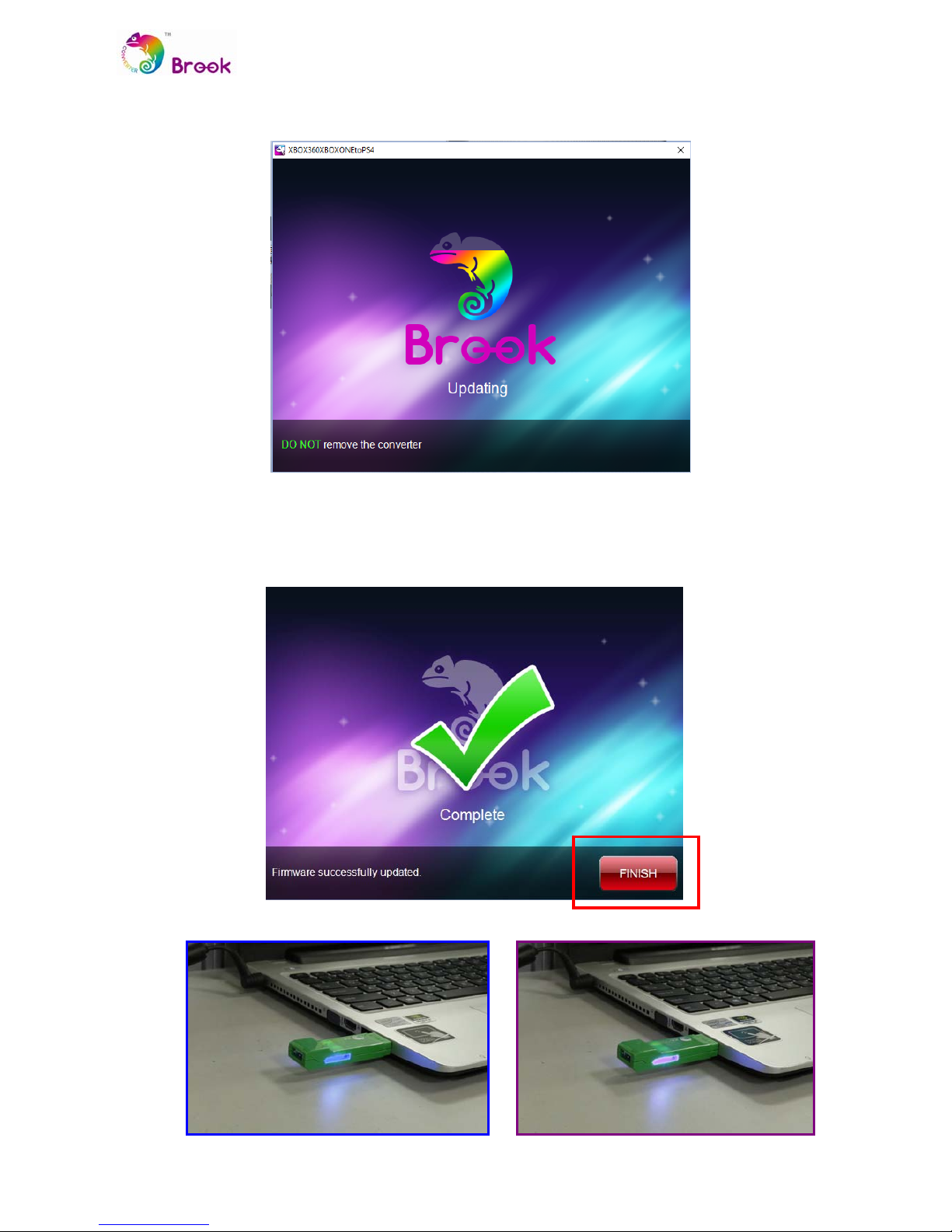
STEP 6 DO NOT remove the converter while updating
STEP 7 Update complete, click “FINISH” to close.
Normal Mode: Blue LED
TE Mode: Purple LED
Normal Mode TE Mode
 Loading...