

Page 1
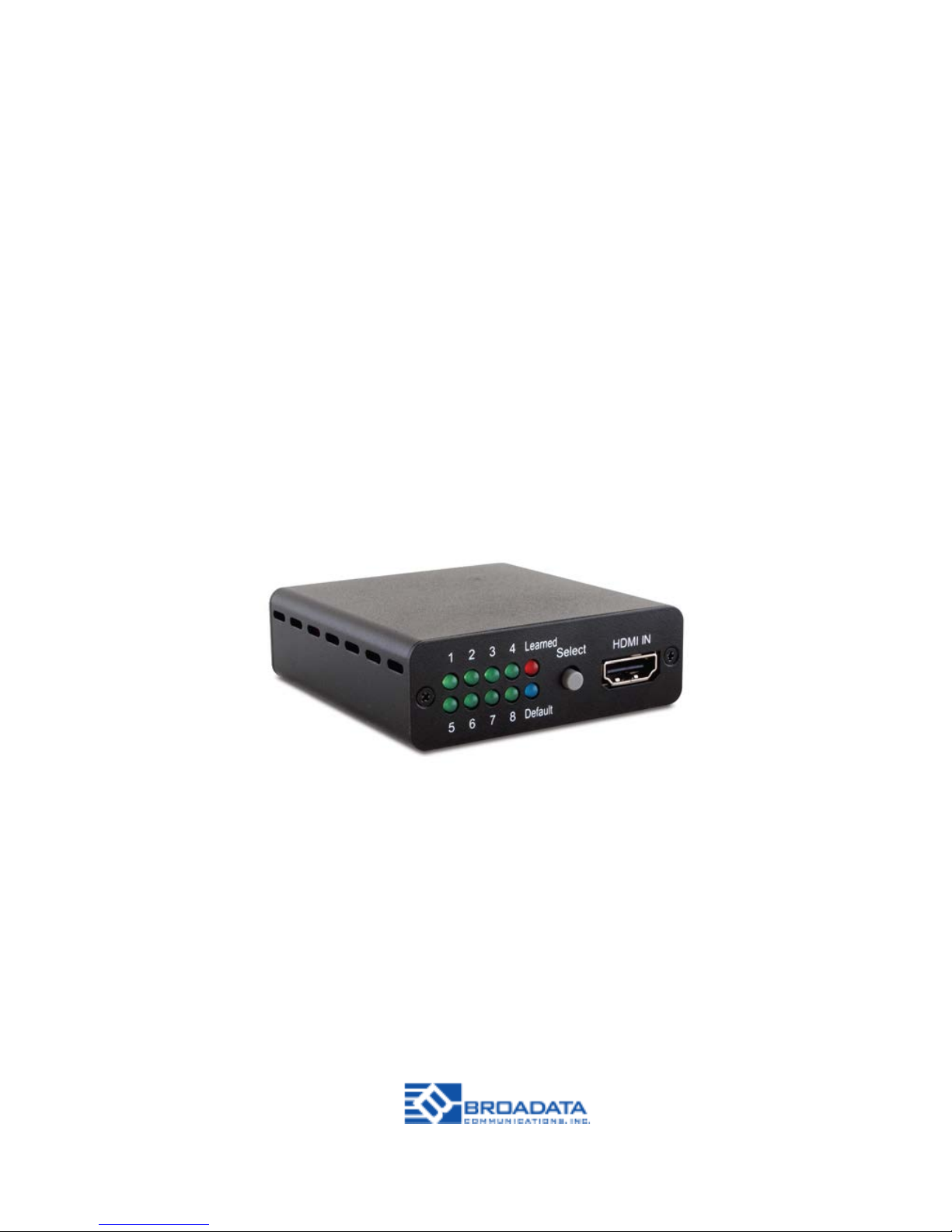
LB-H-EDID
Link Bridge HDMI 1.4
EDID Emulator
BCI reserves the right to make changes to the products described herein without
prior notice or consent. No liability is assumed as a result of their use or
application. All rights reserved.
©2017 Broadata Communications, Inc.
TM
Page 2

Page 3

SAFETY INSTRUCTIONS AND
COMPLIANCE DECLARATIONS
PLEASE OBSERVE THE FOLLOWING SAFETY
PRECAUTIONS
SURGE PROTECTION DEVICE RECOMMENDED
This product contains sensitive electrical components that may
be damaged by electrical spikes, surges, electric shock, lightning
strikes, etc. Use of surge protection systems is highly recommended
in order to protect and extend the life of your equipment.
LB-H- EDID User’s Manual
Link Bridge HDMI 1.4 EDID Emulator
TM
Page 4

TABLE OF CONTENTS
1.0 PRODUCT DESCRIPTION............................................................... 5
2.0 OPERATION CONTROLS AND FUNCTIONS................................... 6
2.1 FRONT PANEL.................................................................................. 6
2.2 REAR PANEL .......................................................................... 8
3.0 EDID LEARNING PROCEDURE........................................................ 9
3.0 DEFAULT EDID SETTINGS.............................................................. 10
3.0 EDID APPLICATION INSTALLATION.................................................11
3.0 USING THE EDID APPLICATION......................................................16
4.0 MAINTENANCE AND TROUBLESHOOTING ................................. 19
4.1 MAINTENANCE .............................................................................. 19
4.2 TROUBLESHOOTING .................................................................... 19
5.0 SPECIFICATIONS ...........................................................................21
8.0 SERVICE PROCEDURE....................................................................22
8.1 REPLACEMENT POLICY ................................................................22
8.2 RETURN & REPAIR SERVICE............................................................22
9.0 LIMITED WARRANTY.......................................................................23
LB-H- EDID User’s Manual
Link Bridge HDMI 1.4 EDID Emulator
TM
Page 5

FEATURES
• Resolutions up to 1080p@60 Hz and 4K×2K@24/30
Hz Supports
• Supports four dierent EDID Modes: Read, Write,
Emulator, and Bypass
• Supports 8 sets of default EDID
• Supports CEC and EDID pass-through
• Supports being powered by USB or HDMI input
1.0 PRODUCT DESCRIPTION
LB-H- EDID User’s Manual
Link Bridge HDMI 1.4 EDID Emulator
TM
Page 6
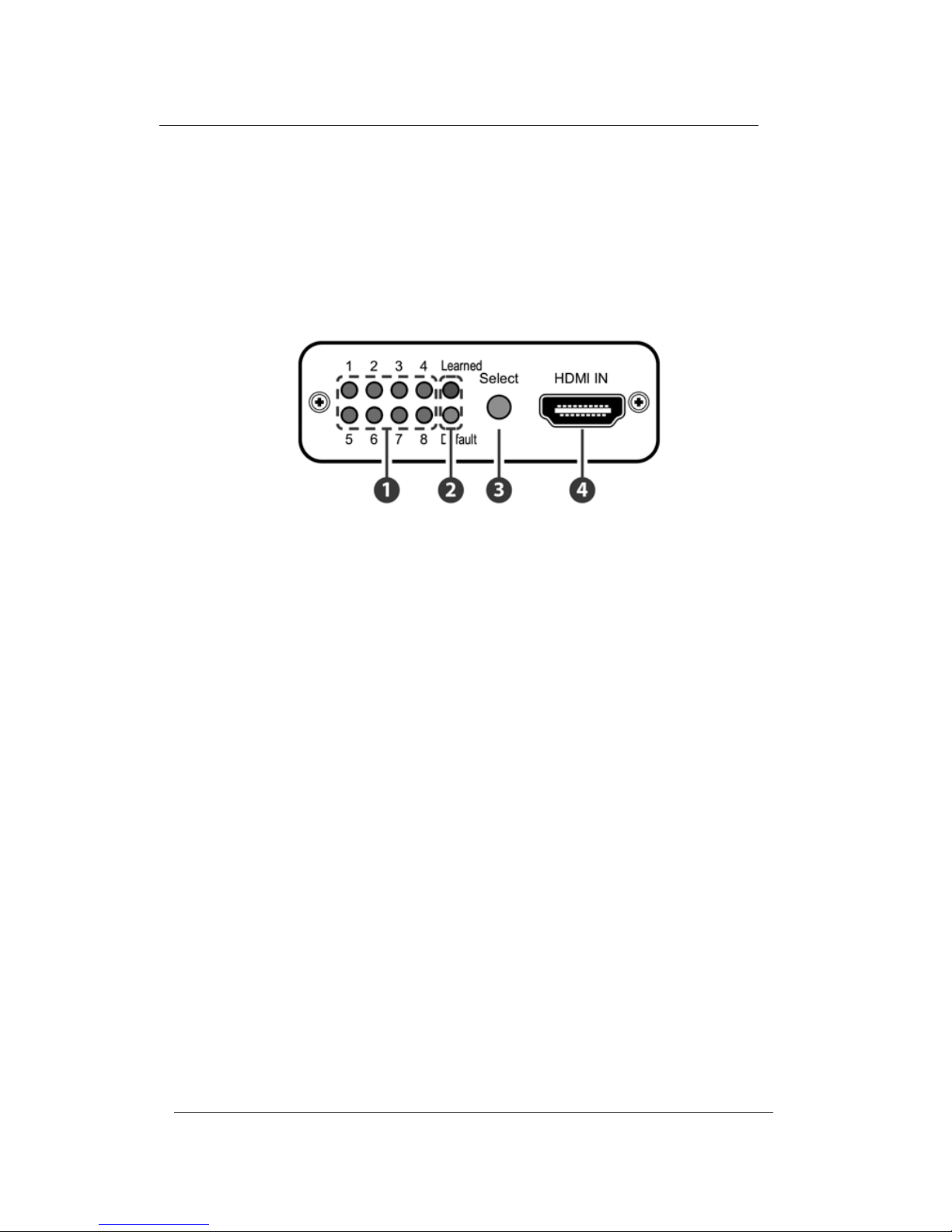
1. 1~8 LEDs: When in ‘Learned’ or ‘Default’ mode, each of
these LEDs indicates a dierent EDID setting (1 to 8).
Repeatedly press the ‘Select’ button to switch between
settings, the LED will illuminate to indicate the current
selected settings.
2. Learned LED: Select the ‘Learned’ mode to save up to 8
unique sets of HDMI EDID settings. Please refer to
Section 6.3 for the EDID learning procedure.
Default LED: Select the ‘Default’ mode to use the built-in
default EDID settings, press ‘Select’ button to choose
from 1~8. Please refer to Section 6.4 for the default EDID
settings.
3. Select Button: Press for 3 seconds to switch between
the ‘Learned’ and ‘Default’ modes, the LED will illuminate
to indicate the selected mode.
Then repeatedly press the ‘Select’ button to cycle through
EDID settings (1 to 8).
2.0 OPERATION CONTROLS AND FUNCTIONS
2.1 Front Panel
LB-H- EDID User’s Manual
Link Bridge HDMI 1.4 EDID Emulator
TM
Page 7

4. HDMI IN: Connect to an HDMI source such as a DVD/
Blu-ray or settop box. The unit can also be powered by
an source device that provides power over the HDMI
connection.
LB-H- EDID User’s Manual
Link Bridge HDMI 1.4 EDID Emulator
TM
Page 8
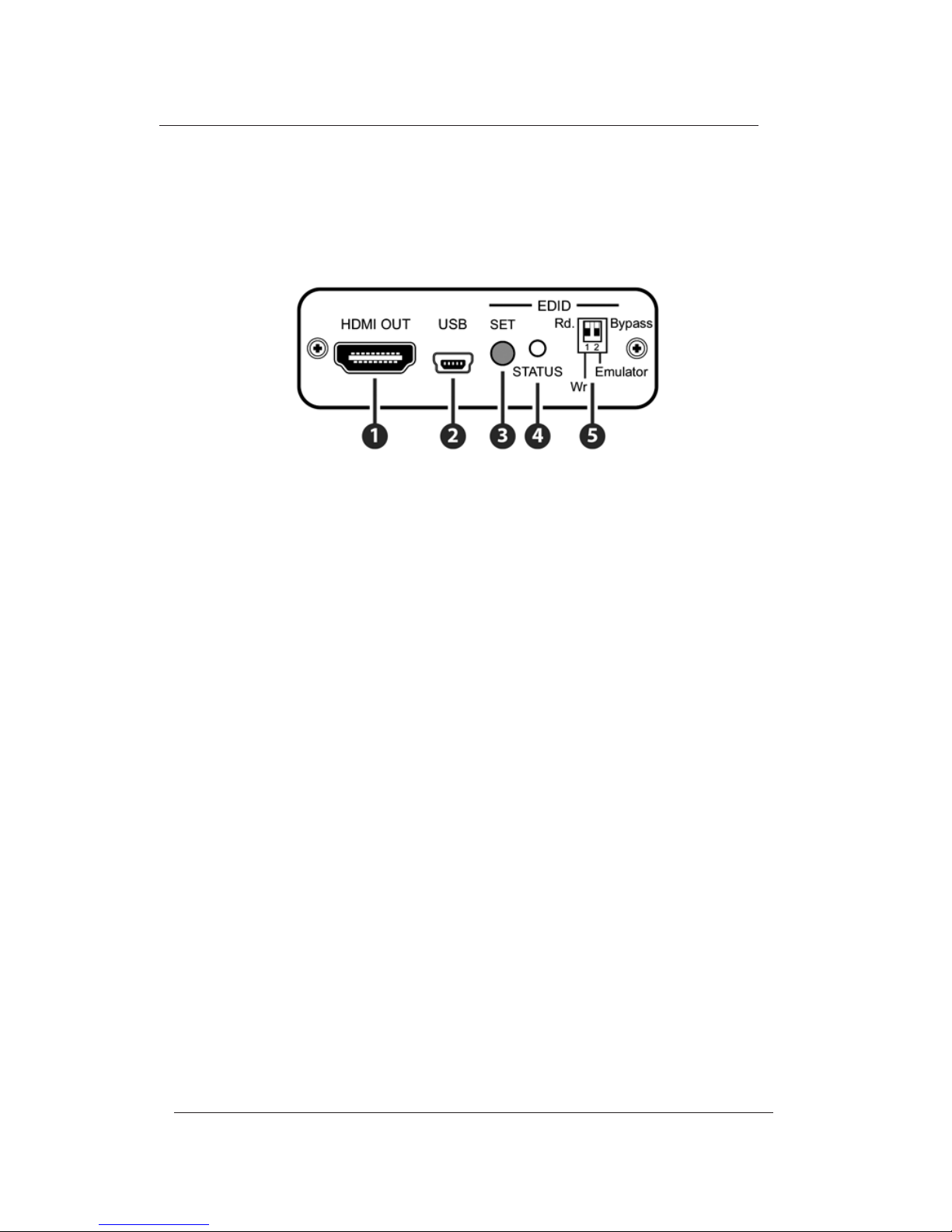
2.2 Rear Panel
1. HDMI OUT: Connect to an HDMI equipped TV/display.
2. USB: Connect the Mini-USB cable to an active USB
device to power the system. It can also be powered from
a device that has HDMI connection that supplies power.
3. EDID SET Button: Press to execute the EDID Read/Write
function.
4. EDID STATUS LED: Indicates the EDID Read/Write status.
5. EDID Switch: Selects the Read/Write and Bypass/
Emulator functions.
Rd (Read): Sets the Emulator mode to ‘Read’ (see Section
6.3).
Wr (Write): Sets the Emulator mode to ‘Write’ (see Section
6.3).
Emulator: When the DIP switch is set to the ‘Emulator’
position, the Video/Audio source device will read the unit’s
current set EDID (1~8). To change to another EDID, press
the ‘Select’ button to switch between settings, the LED will
illuminate to indicate the current selected settings.
Bypass: When the DIP switch is set to ‘Bypass’ position,
the Video/Audio source device will read HDMI TV/display’s
EDID settings directly.
LB-H- EDID User’s Manual
Link Bridge HDMI 1.4 EDID Emulator
TM
Page 9

3.0 EDID Learning Procedure
To Read the EDID:
1. Connect a TV/display to the HDMI output for EDID reading.
2. Set the ‘Emulator/Bypass (2)’ switch to ‘Emulator’ rst then set
the ‘Rd/Wr (1)’ switch to the ‘Rd. (Read)’ position.
3. Press the ‘Select’ button for 3 seconds to put the unit into
‘Learned’ mode.
4. Press the ‘Select’ button repeatedly to cycle through to the
required 1 to 8 EDID setting.
5. Press the ‘SET’ button for 3 seconds to write the EDID to the
corresponding memory as indicated by the LED.
6. When the ‘STATUS’ LED illuminates in Green the EDID learning
has been successfull but if the ‘STATUS’ LED is Red the learning
has failed.
To Write the EDID:
1. Connect a TV/display to the HDMI output for EDID writing.
2. Set the ‘Emulator/Bypass (2)’ switch to ‘Emulator’ rst then set
the ‘Rd/Wr (1)’ switch to the ‘Wr. (Write)’ position.
3. Press the ‘Select’ button repeatedly to cycle through to the
required ‘Learned/Default’ 1 to 8 EDID setting.
4. Press the ‘SET’ button for 3 seconds to overwrite the HDMI TV/
display EDID setting. The ‘STATUS’ LED will blink during the
writing process.
5. When the ‘STATUS’ LED illuminates in Green the EDID writing
has been successful but if the Status LED is Red the writing
has failed. If the ‘STATUS’ LED did not blink and illuminate in
Red it means TV’s EDID is not writable.
Warming: Once the writing is successfully done the original EDID
will be erased. It is recommended that the original EDID settings are
backed-up by storing them in the unit before performing the overwrite.
Caution is advised when using this function.
LB-H- EDID User’s Manual
Link Bridge HDMI 1.4 EDID Emulator
TM
Page 10
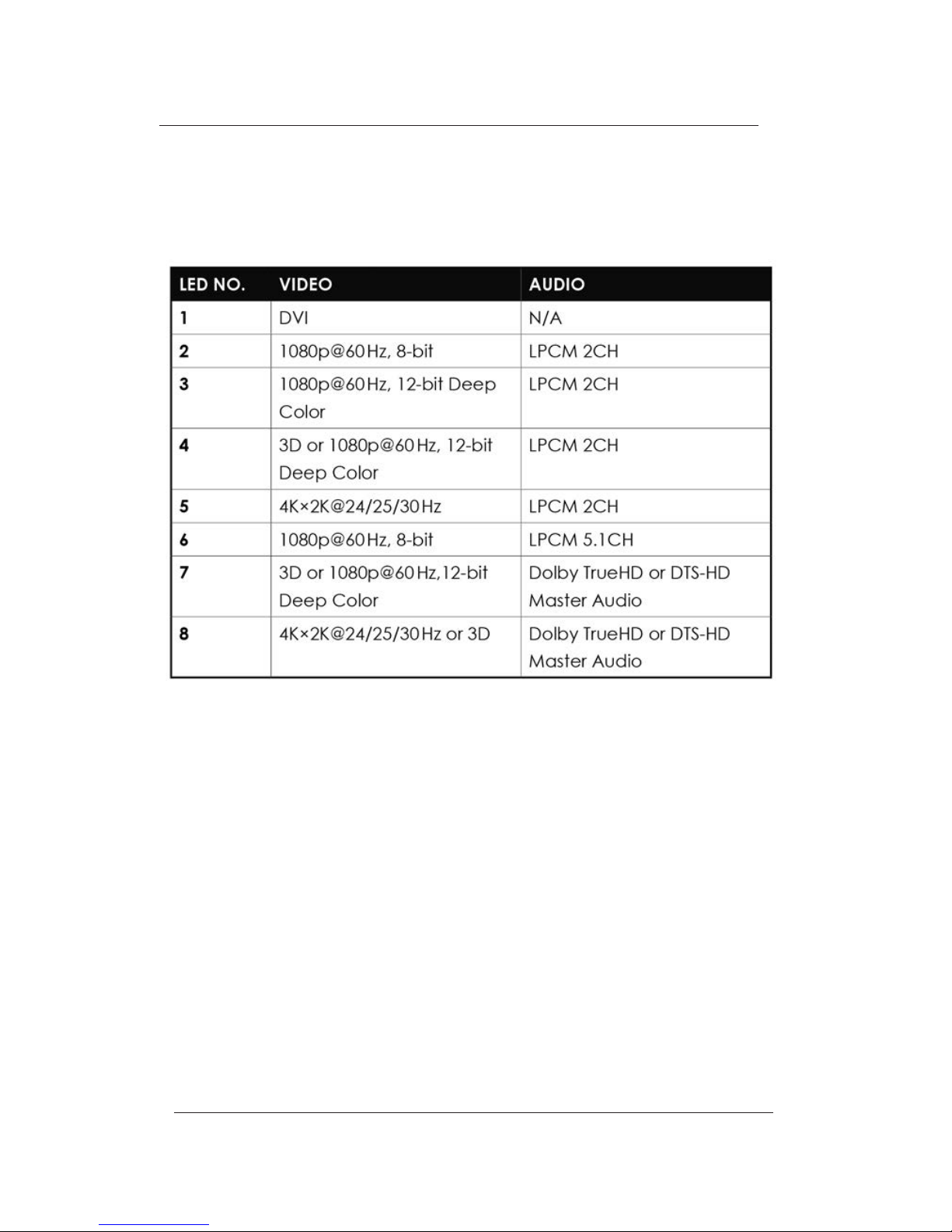
4.0 Default EDID Settings
LB-H- EDID User’s Manual
Link Bridge HDMI 1.4 EDID Emulator
TM
Page 11
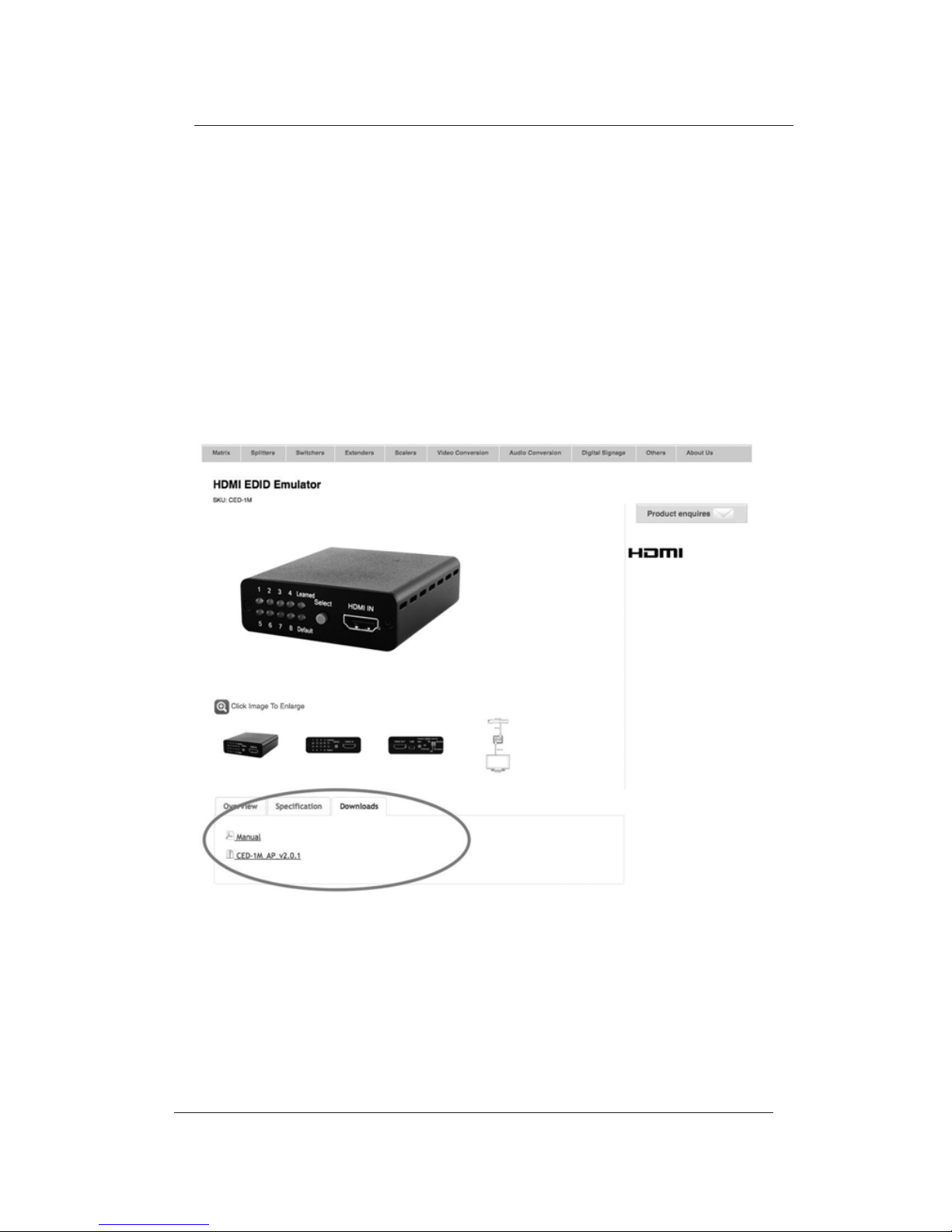
The following section lists the procedures to follow when installing
the EDID application on your Windows PC. Please follow the
steps outlined below to successfully install the software.
The application can be downloaded from the product page on
the Cypress website (http://www.cypress.com.tw) and selecting
the ‘Downloads’ tab.
Once the software has downloaded to the PC, navigate to the
download location and extract the installation folder from the
compressed le by right clicking on the .zip le and selecting ‘Extract
to Folder’.
5.0 EDID Application Installation
LB-H- EDID User’s Manual
Link Bridge HDMI 1.4 EDID Emulator
TM
Page 12
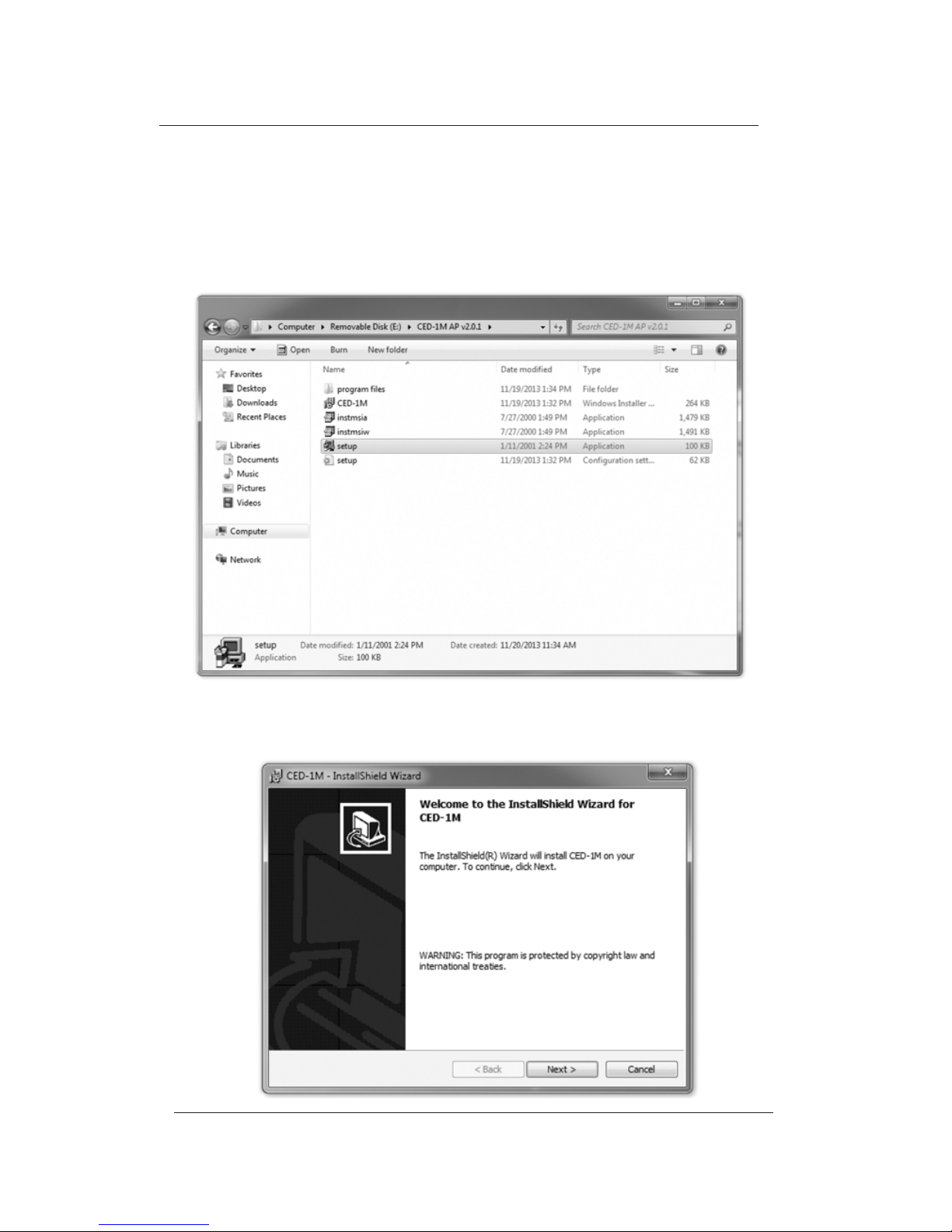
Once the software has extracted, enter the folder and double click
on the ‘setup’ application icon (highlighted below) to begin the
installation process.
The installation wizard will appear, click ‘Next’ to continue the
installation.
LB-H- EDID User’s Manual
Link Bridge HDMI 1.4 EDID Emulator
TM
Page 13
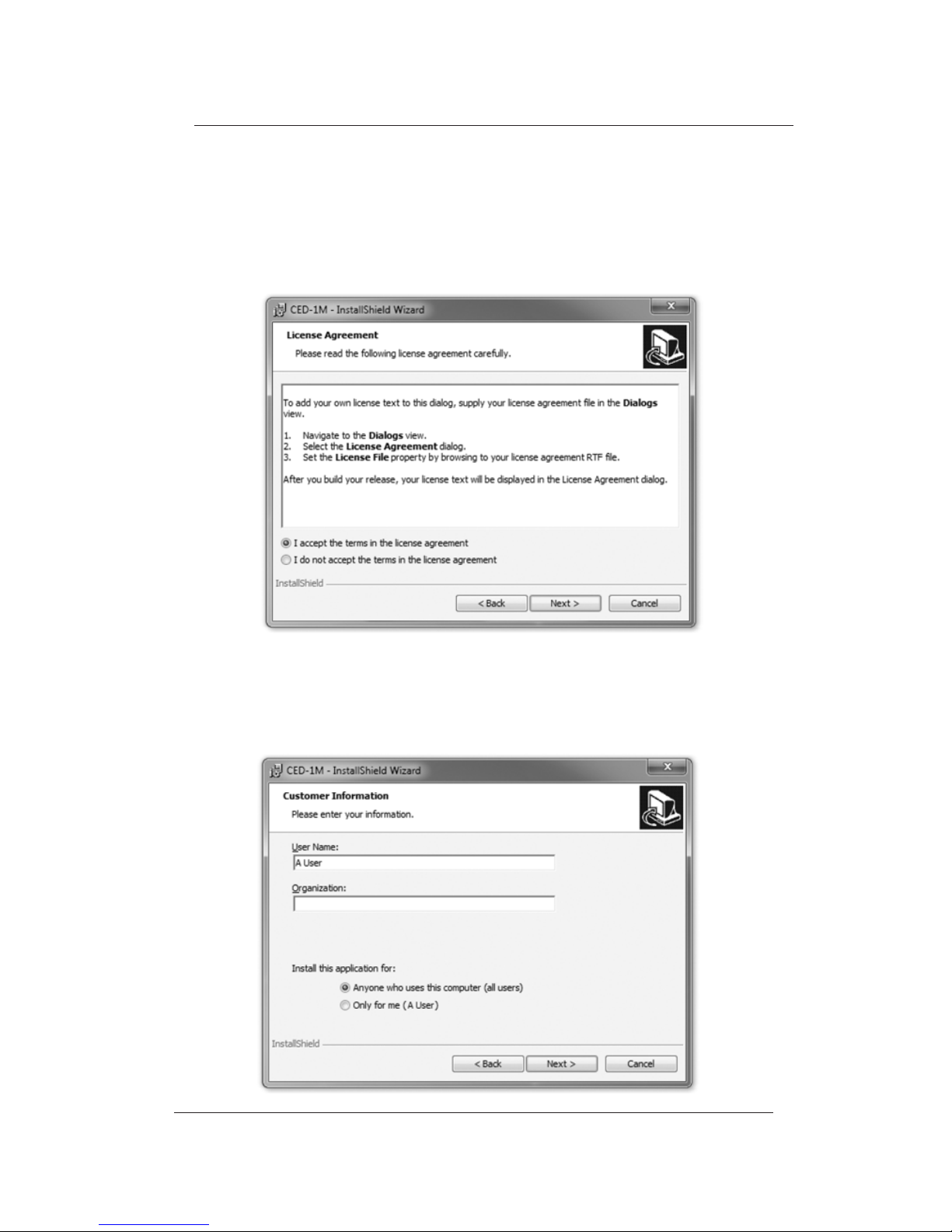
Click on ‘I accept …’ and then ‘Next’ to accept the license terms to
continue the installation.
Insert the user name and set the access rights for this application as
required and click on ‘Next’ to continue.
LB-H- EDID User’s Manual
Link Bridge HDMI 1.4 EDID Emulator
TM
Page 14
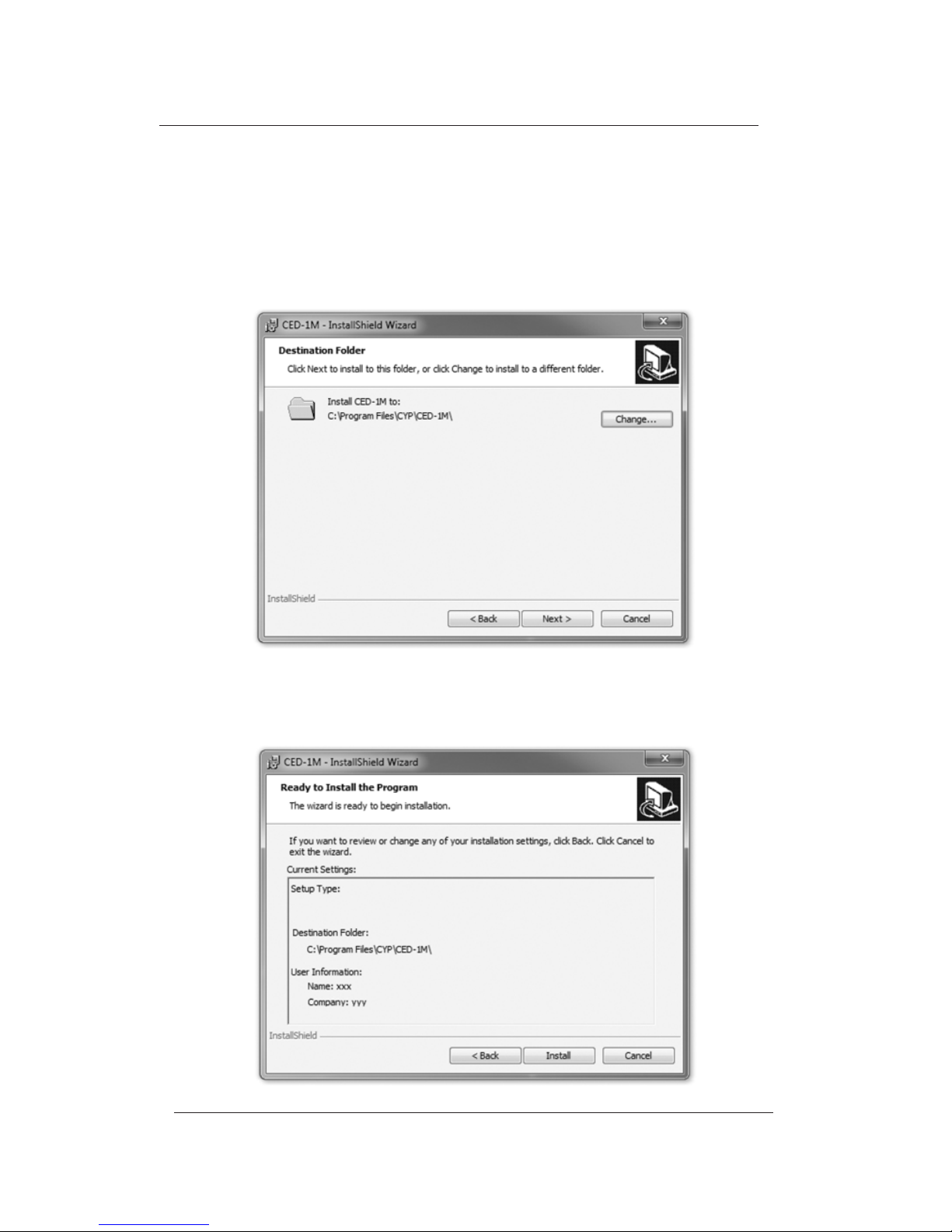
Choose a location to install the application, default is ‘C:\Program
Files\CYP\CED-1M’. Click on ‘Next’ to continue.
Click on ‘Install’ to conrm the user name and save location.
LB-H- EDID User’s Manual
Link Bridge HDMI 1.4 EDID Emulator
TM
Page 15
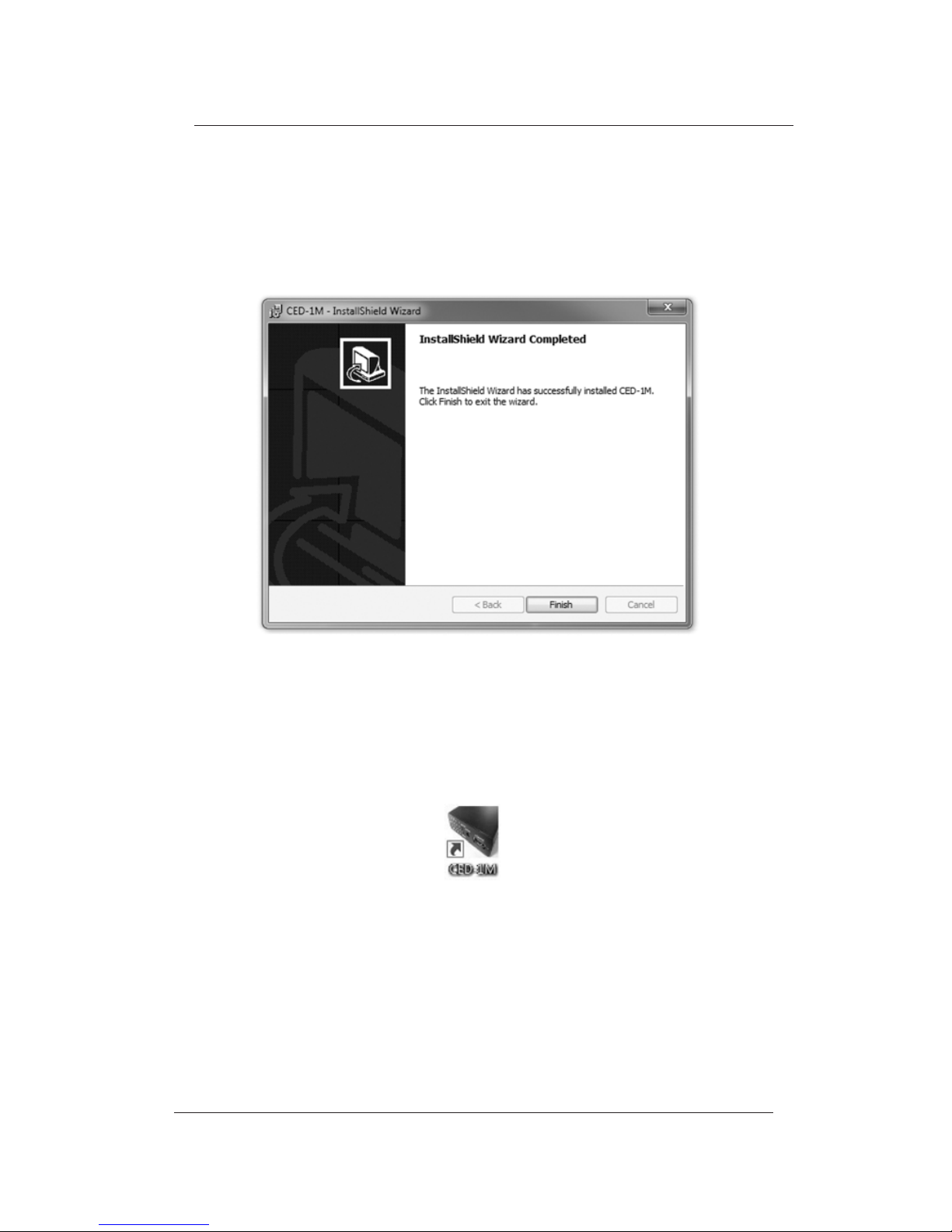
Click on ‘Finish’ to complete the installation.
An icon will appear on the desktop to indicate the successful
installation of the application.
LB-H- EDID User’s Manual
Link Bridge HDMI 1.4 EDID Emulator
TM
Page 16
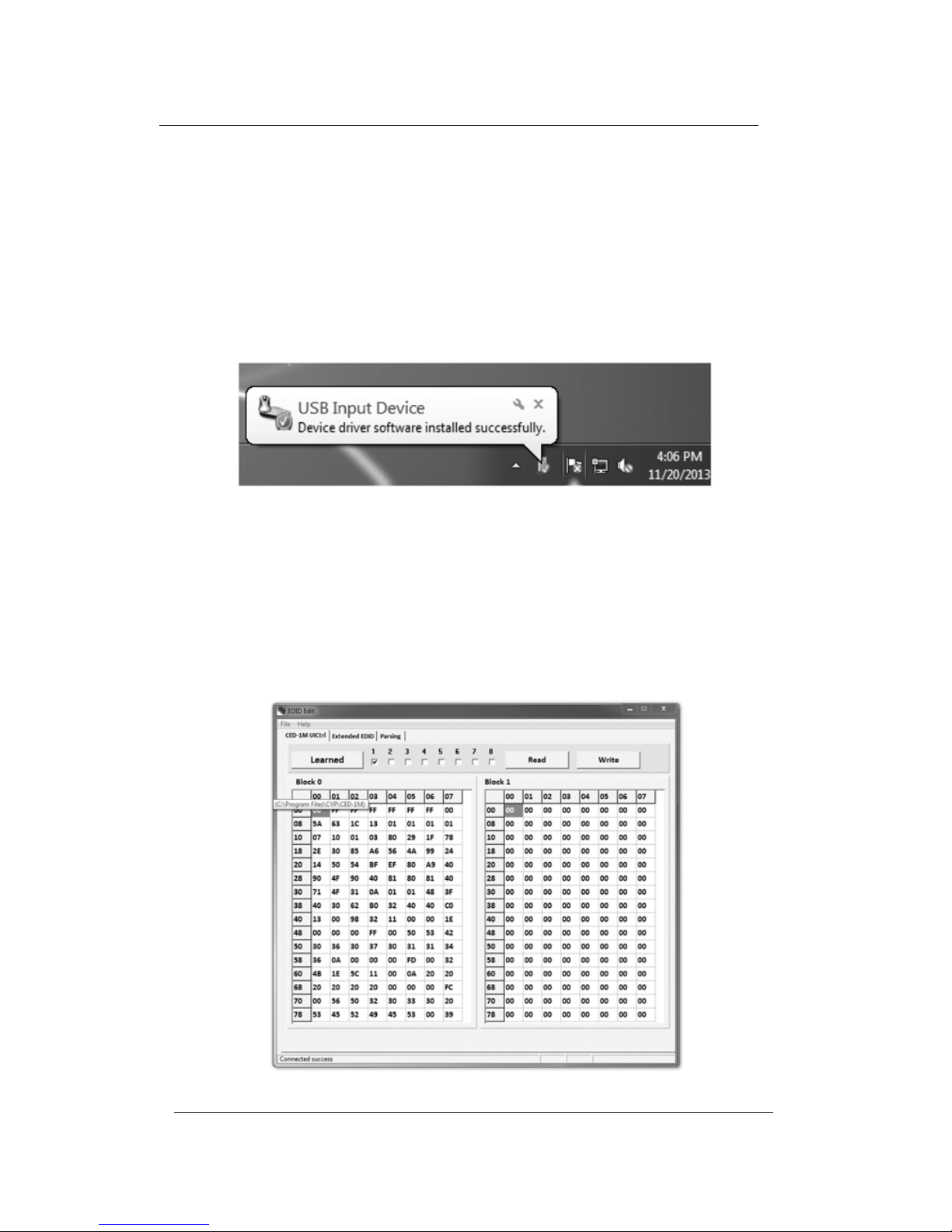
Ensure that the HDMI EDID Emulator device is connected to the PC
and that the driver has installed successfully before double clicking
on the ‘CED-1M’ icon to start using the application.
The EDID Application includes EDID Learning, Reading, Writing and
Default settings.
5.0 Using the EDID Application
LB-H- EDID User’s Manual
Link Bridge HDMI 1.4 EDID Emulator
TM
Page 17
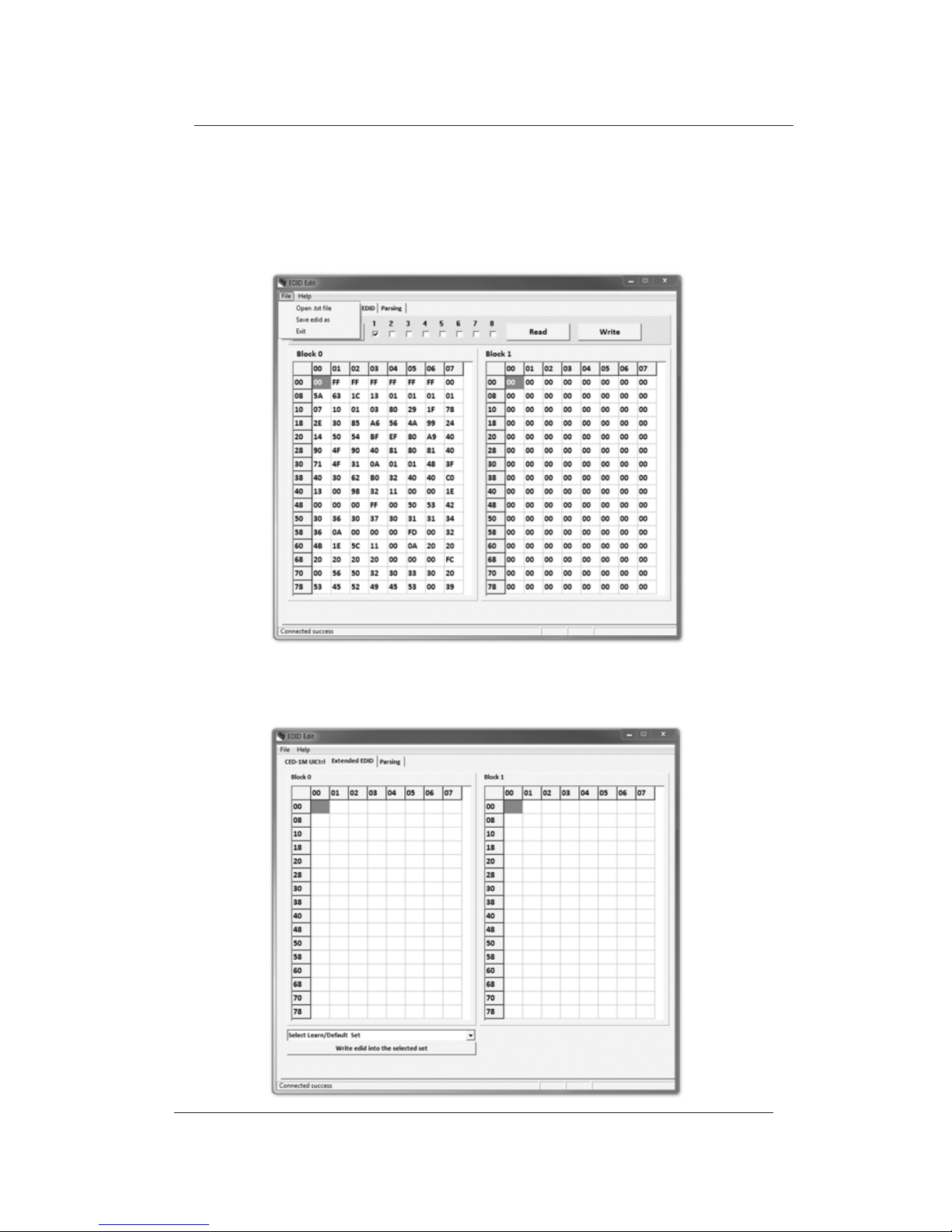
Click on ‘File’ to save the Learned and Default EDID settings (up to 8
sets each). Click on the ‘Learned/Default’ button to switch between
modes.
Click on ‘Extended EDID’ with File’s ‘Open .text le’ to save the
contents of the Learned EDID’s amended contents.
LB-H- EDID User’s Manual
Link Bridge HDMI 1.4 EDID Emulator
TM
Page 18
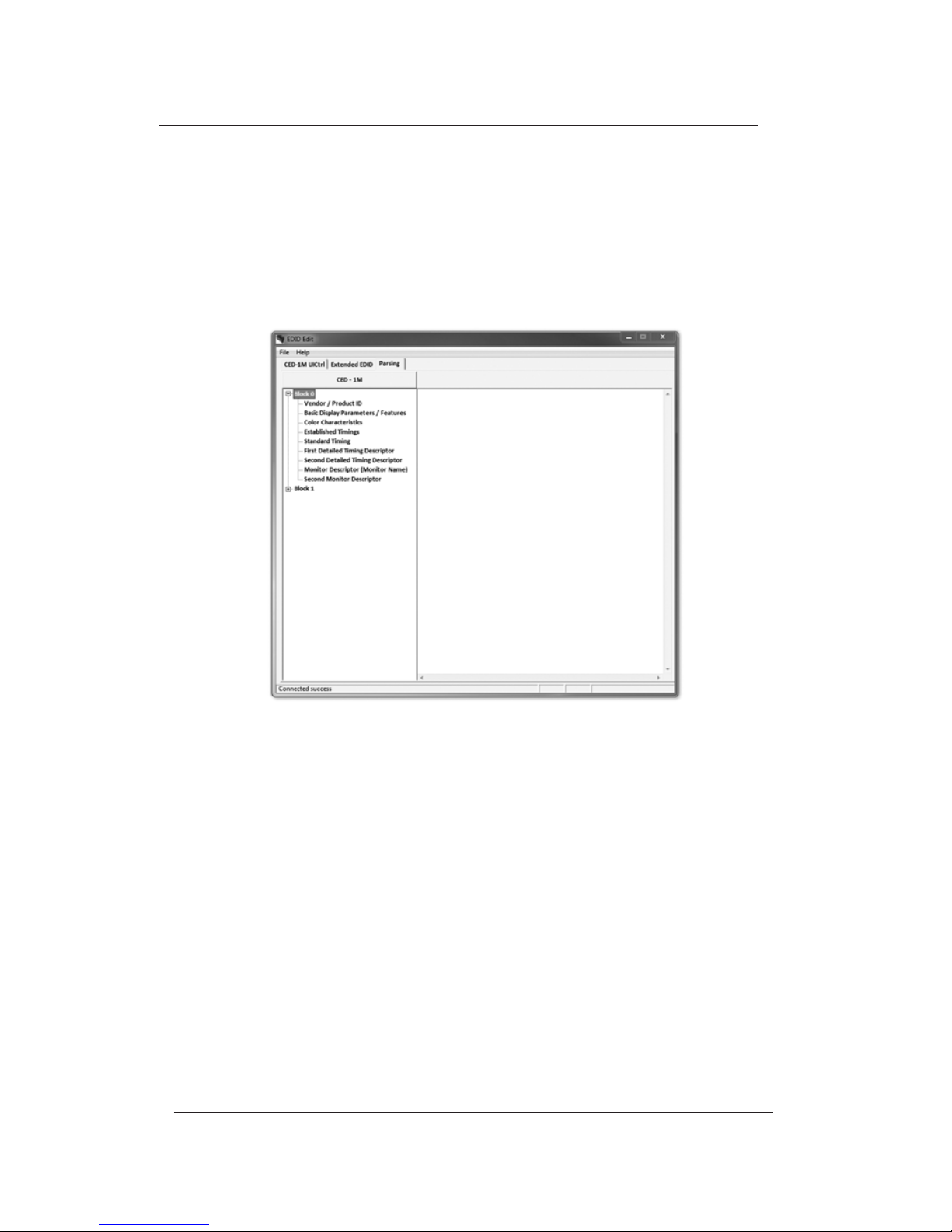
Click on ‘Parsing’ to display the contents of EDID Block 0 and 1.
LB-H- EDID User’s Manual
Link Bridge HDMI 1.4 EDID Emulator
TM
Page 19

4.0 MAINTENANCE AND TROUBLESHOOTING
4.1 Maintenance
There is no operator maintenance other then keeping the
units clean. However, observe the following light indicators
to make sure that the unit is working properly:
4.2 Troubleshooting
If the LBC-SPH4-1H3B-IR units do not operate properly after
installation, check for possible cable breaks, loose connections,
and incorrect cable connections. If problems persist that may
be ber related, contact BCI at 1-800-214-0222 for further
assistance.
For electrical problems, perform the following troubleshooting
procedures:
1. If the POWER indicator is OFF, check for the following:
a. The line cord is plugged into the unit and your outlet
has power.
2. If the POWER indicator is ON, but the Link indicator is
OFF, check for the following:
a. Make sure the appropriate cables are being used.
b. Cable and cable connectors are not broken.
c. For each unit, the transmit (TX) cable is connected to the
other unit’s receiver (RX).
3. If the POWER indicator and Link indicator are ON, but
the channels are not operating, then:
a. Check to see that the attached user equipment is turned on.
b. Both ends of the link are connected to the corresponding
equipment and to the same corresponding channel port.
LB-H- EDID User’s Manual
Link Bridge HDMI 1.4 EDID Emulator
TM
Page 20

c. Cable connections at both channels are securely fastened
to each connector. Turn the power o, then back on to reset
the link.
LB-H- EDID User’s Manual
Link Bridge HDMI 1.4 EDID Emulator
TM
Page 21

4.0 SPECIFICATIONS
EDID Emulator
Input One (1) HDMI Input port
Output One (1) HDMI Output port
Control EDID Model Selection
(Read, Write, Emulator, Bypass)
Physical
Dimensions (W x D x H) 2.80” x 2.56” x 0.91”
Operating Temperature 0°C to 40°C
Storage Temperature -20°C to 60°C
Power Supply USB Power, 5V@500ma
Ordering Information
LB-H-EDID HDMI 1.4 EDID Emulator
LB-H- EDID User’s Manual
Link Bridge HDMI 1.4 EDID Emulator
TM
Page 22

Broadata Technical Support, [email protected] 22
5.0 SERVICE PROCEDURE
5.1 REPLACEMENT POLICY
Standard products found defective on arrival (DOA) will be
replaced, based on availability, within 24 to 48 hours anywhere in
the U.S. Please call Customer Service at 800-214-0222 for
information.
5.2 RETURN/REPAIR SERVICE
The LBC-SPH8-1H7B-IR System contains no user serviceable
components. If you have a problem with your unit, please
contact the Customer Service Department. To facilitate our
return/ repair processing please contact Broadata
Communications, Inc. to obtain a Return Material Authorization
(RMA). Please include the following information:
• Product model number
• Serial Number
• Complete description of problem
• Hardware installation description
Broadata Communications, Inc.
2545 West 237th Street, Suite K
Torrance, CA 90505
1-800-214-0222
(310) 530-1416
(310) 530-5958 (Facsimile)
e-mail: [email protected]
Website: www.broadatacom.com
LB-H- EDID User’s Manual
Link Bridge HDMI 1.4 EDID Emulator
TM
Page 23

Broadata Communications, Inc. (BCI) warrants, for a period of one
year from date of shipment, each product sold shall be free from
defects in material and workmanship. BCI will correct, either by
repair, or at BCI’s election, by replacement, any said products that
in our sole discretion prove to be defective and are returned to the
manufacturing location within 30 days after such defect is ascertained.
All warranties are limited to defects arising under normal use and
do not include malfunctions or failure resulting from misuse, abuse,
neglect, alterations, electrical power problems, usage not in accordance
with product instructions, improper installation, or damage determined
by BCI to have been caused by the Buyer or repair made by a third
party. Limited warranties granted onproducts are to the initial customer
end-user and are not transferable.
OUR LIABILITY UNDER THIS WARRANTY SHALL IN ANY CASE BE
LIMITED TO THE INVOICE VALUE OF THE PRODUCT SOLD AND
BCI SHALL NOT BE LIABLE TO ANYONE FOR CONSEQUENTIAL
OR INCIDENTAL DAMAGES ARISING FROM THE USE OF ITS
PRODUCTS OR THE SALE THEREOF. We make NO WARRANTY
AS TO THE MERCHANTABILITY OF ANY GOODS, OR THAT THEY
ARE FIT FOR ANY PARTICULAR PURPOSE OR END APPLICATION
NOR DO WE MAKE ANY WARRANTY, EXPRESSED OR IMPLIED
OTHER THAN AS STATED ABOVE.
8.0 LIMITED WARRANTY
LB-H- EDID User’s Manual
Link Bridge HDMI 1.4 EDID Emulator
TM
Page 24

Broadata Communications, Inc.
2545 West 237th Street, Suite K
Torrance, CA 90505
1-800-214-0222
(310) 530-1416
(310) 530-5958 (Facsimile)
e-mail: [email protected]
Website: www.broadatacom.com
LB-H- EDID
 Loading...