

Page 1
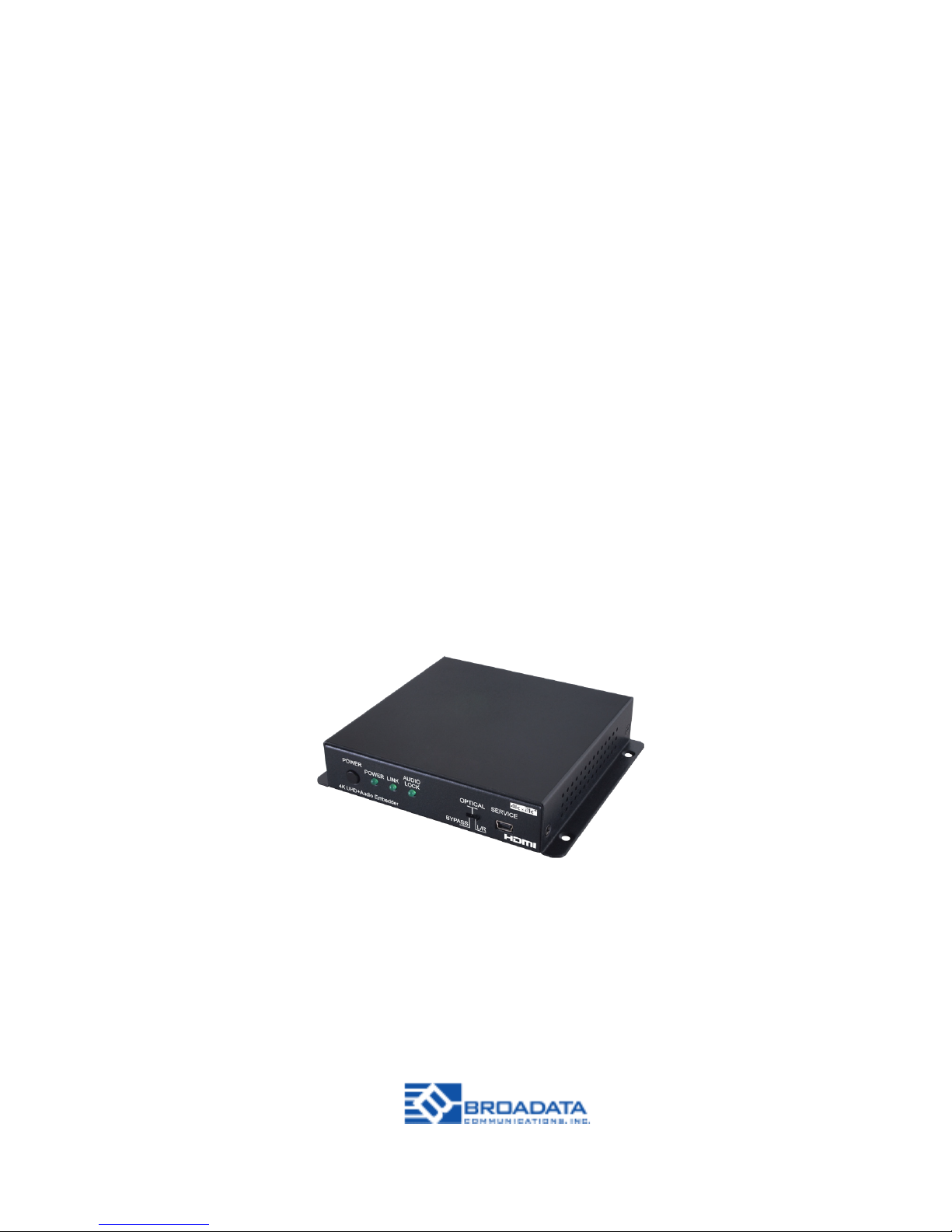
LB-H2-E
BCI reserves the right to make changes to the products described herein without
prior notice or consent. No liability is assumed as a result of their use or
application. All rights reserved.
©2017 Broadata Communications, Inc.
Link Bridge 4K UHD
+ Audio Embedder
TM
Page 2

Page 3

SAFETY INSTRUCTIONS AND
COMPLIANCE DECLARATIONS
PLEASE OBSERVE THE FOLLOWING SAFETY
PRECAUTIONS
SURGE PROTECTION DEVICE RECOMMENDED
This product contains sensitive electrical components that may
be damaged by electrical spikes, surges, electric shock, lightning
strikes, etc. Use of surge protection systems is highly recommended
in order to protect and extend the life of your equipment.
LB-H2-E User’s Manual
Link Bridge 4K UHD+ Audio Embedder
TM
Page 4

TABLE OF CONTENTS
1.0 PRODUCT DESCRIPTION............................................................... 5
2.0 OPERATION CONTROLS AND FUNCTIONS................................... 6
2.1 FRONT PANEL.................................................................................. 6
2.2 REAR PANEL .......................................................................... 8
3.0 EDID MANAGER................................................................................ 9
4.0 EDID CONTROLLER TAB ............................................................... 10
5.0 EDID CREATOR TAB ...................................................................... 12
6.0 MAINTENANCE AND TROUBLESHOOTING ............................... 14
7.0 SPECIFICATIONS ...........................................................................16
8.0 SERVICE PROCEDURE....................................................................17
8.1 REPLACEMENT POLICY ................................................................17
8.2 RETURN & REPAIR SERVICE............................................................17
9.0 LIMITED WARRANTY.......................................................................18
LB-H2-E User’s Manual
Link Bridge 4K UHD+ Audio Embedder
TM
Page 5

FEATURES
• HDMI input and output with 18Gbps (600MHz) 4K
UHD+ support
• DVI 1.0 compliant with the use of an HDMI-DVI
adaptor
• HDCP 1.4 and 2.2 compliant
• Supports HD resolutions up to 3840x2160@60 Hz
(YUV 4:4:4, 8-bit) &
4096x2160@60 Hz (YUV 4:4:4, 8-bit)
• Supports 48-bit Deep Color up to 1080p60
• Supports pass-through of LPCM 7.1, bitstream and
HD bitstream audio formats over HDMI
• Supports embedding external audio sources
(analog stereo or digital S/PDIF) into an existing
HDMI source, or adding audio to a DVI source
(output as HDMI)
• Supports HDMI audio sampling rates up to 192 kHz
• Supports the following S/PDIF audio sampling rates:
32kHz, 44.1 kHz, 48 kHz, 88.2 kHz, 96 kHz, 192 kHz
• Provides EDID management with EDID bypass and
2 user modiable EDIDs
• PC based EDID management tool support
• Outputs a 720p60 color bar pattern when no input
is connected
• Supports RS-232 style control via a Virtual COM
port over USB
1.0 PRODUCT DESCRIPTION
LB-H2-E User’s Manual
Link Bridge 4K UHD+ Audio Embedder
TM
Page 6
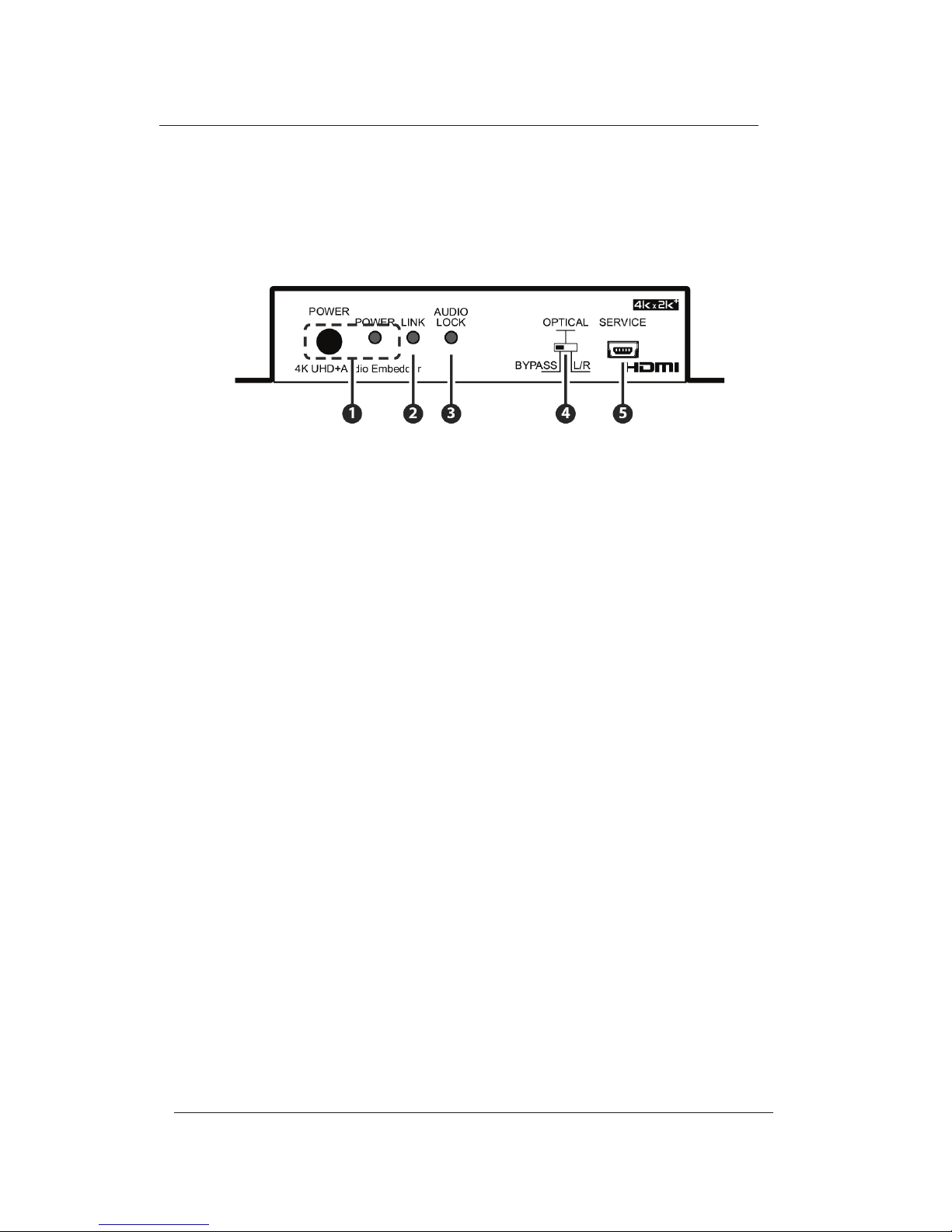
1. POWER & POWER LED: Press this button to power the unit on
or o. The LED will be lit when the unit is receiving power.
Note: Press and hold the Power button for 3 seconds to perform
a factory reset. Release the button once the LEDs begin ashing.
2. LINK: This LED will illuminate to indicate that a live source has
been detected on the input port. When no source is detected
the LED will remain o.
3. AUDIO LOCK: The LED will illuminate when Audio has been
detected.
4. BYPASS/OPTICAL & L/R: This switch selects the source of
the audio to be embedded in the HDMI output. “BYPASS” passes
the audio directly from the HDMI input to the HDMI output
without modication. “OPTICAL” embeds the audio from the
optical S/PDIF audio input (LPCM 2.0 or bitstream). “L/R” em
beds the audio from the analog stereo inputs (LPCM 2.0 only).
5. SERVICE: This slot is for EDID management, control and
firmware update use. Connect directly to your PC/laptop using
a standard Mini-USB cable to connect using the PC software
or to send commands (via virtual COM port).
2.0 OPERATION CONTROLS AND FUNCTIONS
2.1 Front Panel
LB-H2-E User’s Manual
Link Bridge 4K UHD+ Audio Embedder
TM
Page 7
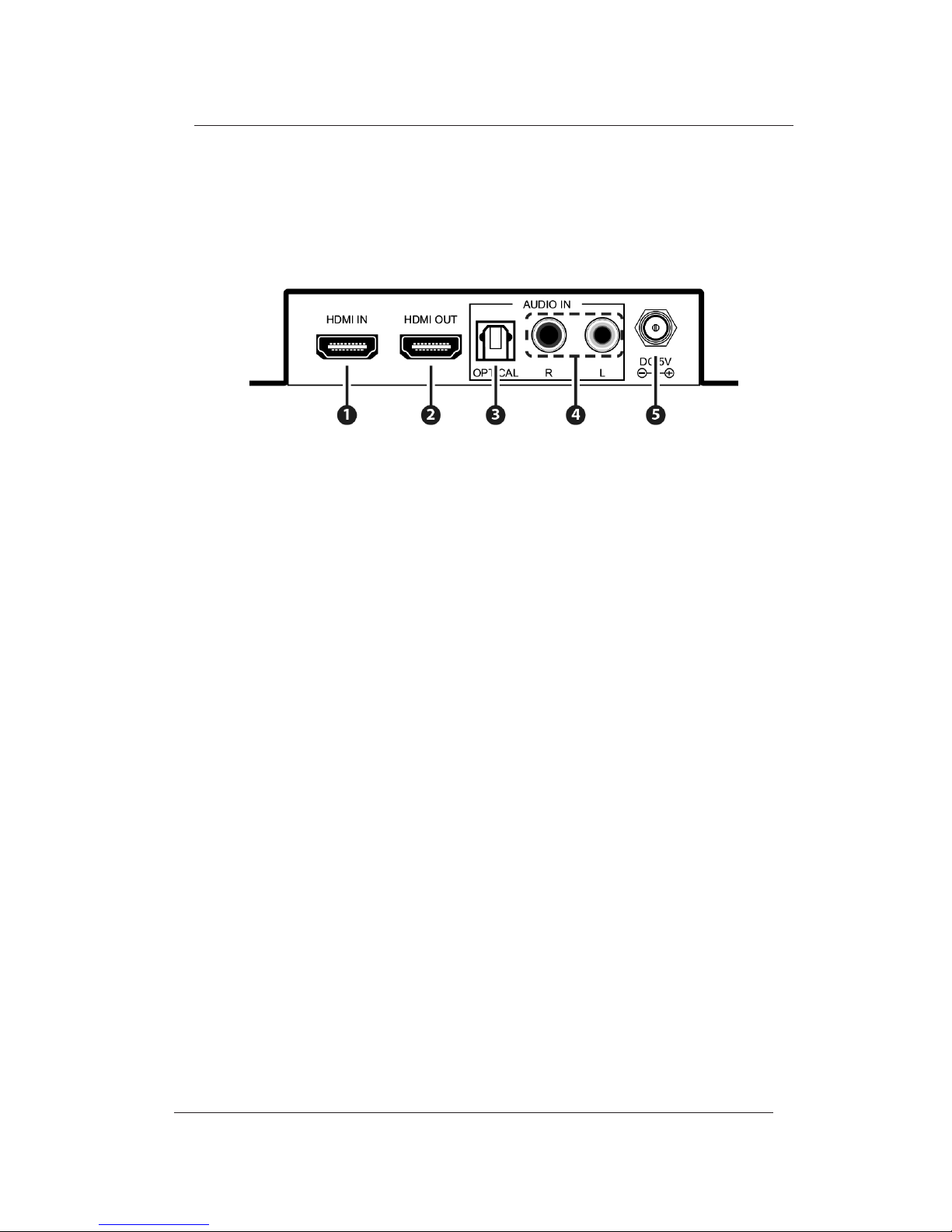
1. HDMI IN: Connect to HDMI source equipment such as a media
player, game console or set-top box.
2. HDMI OUT: Connect to HDMI TVs, monitors or ampliers for
digital video and audio output. (LPCM up to 7.1, bitstream,
HD bitstream)
3. OPTICAL IN: Connect from audio source equipment such as
AV receiver or DVD player with optical signal output.
4. L/R IN: Connect to the stereo analog output of a device such
as a CD player, PC or DVD player.
5. DC 5V:Plug the 5V DC power adapter into the unit and connect
it to an AC wall outlet for power.
2.1 Rear Panel
LB-H2-E User’s Manual
Link Bridge 4K UHD+ Audio Embedder
TM
Page 8
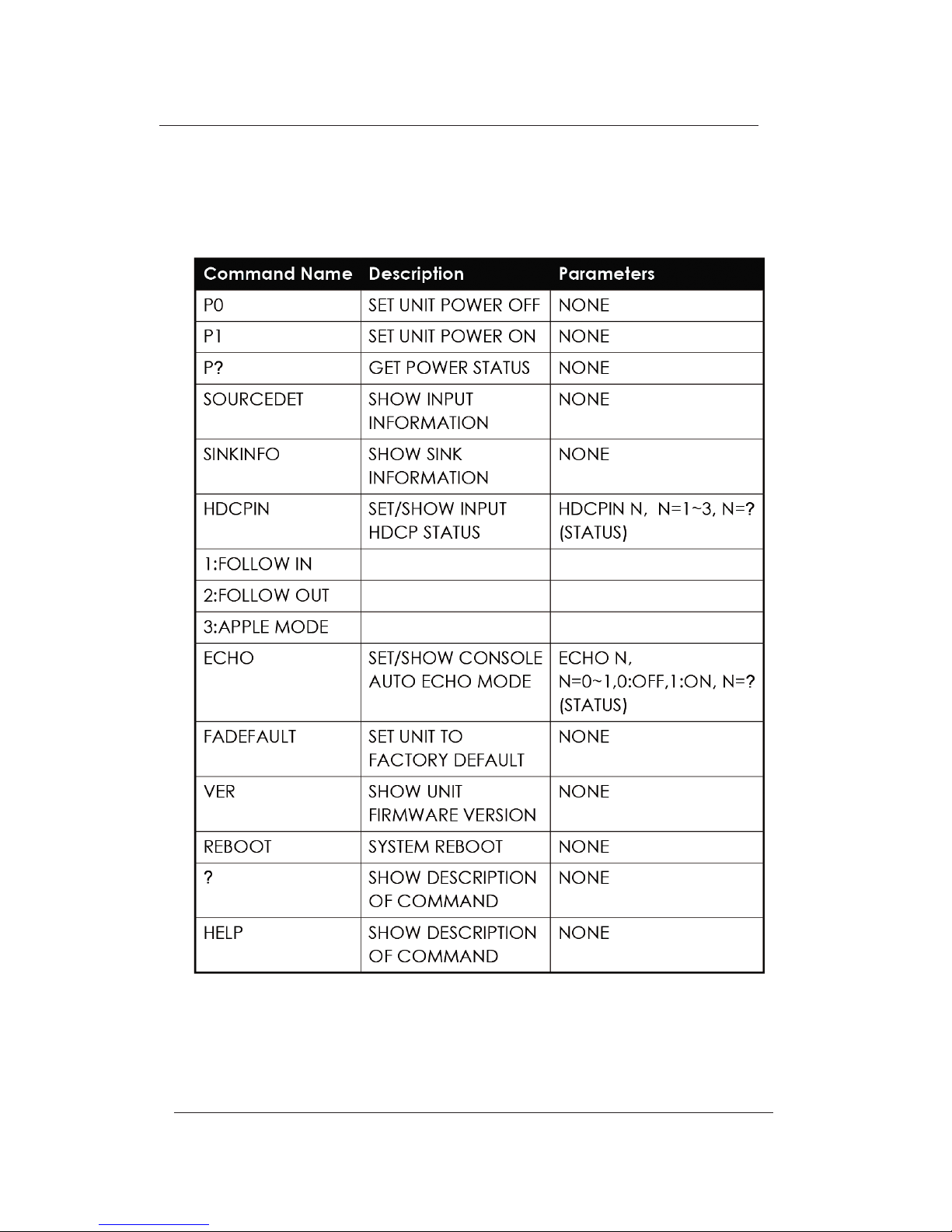
Note: Commands will not be executed unless followed by a
carriage return. Commands are not case-sensitive.
Commands:
LB-H2-E User’s Manual
Link Bridge 4K UHD+ Audio Embedder
TM
Page 9
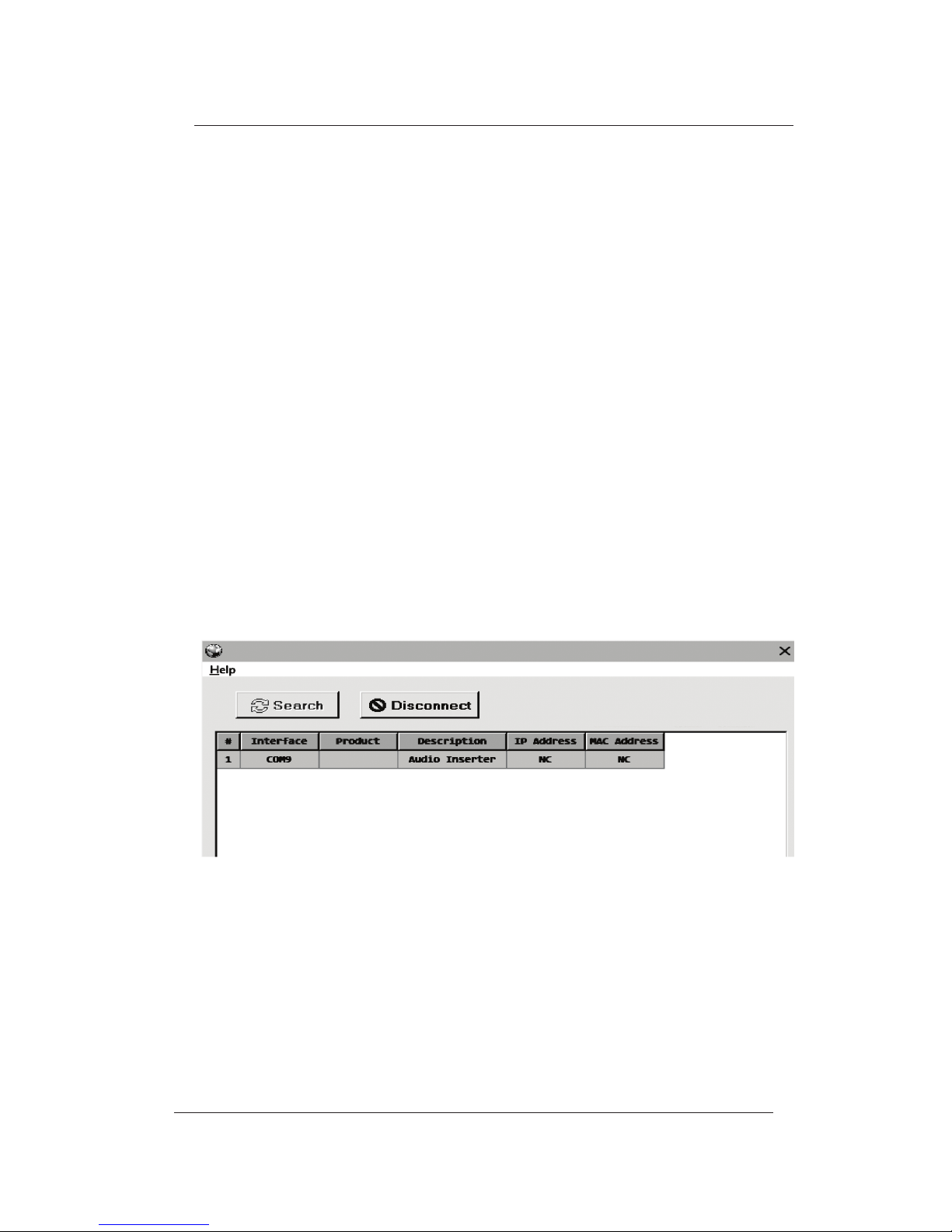
3.0 EDID MANAGER
This unit uses an EDID Management application which allows
the user to copy the EDID from an attached display, edit an
existing EDID le stored on the PC or create a basic EDID
from scratch. The EDID can then be uploaded to the unit for
use. Please obtain the EDID Management software from your
authorized dealer and save it in a directory where you can
easily nd it.
Before connecting the unit to your PC, please install the
appro pria te Virtual COM Port Driver depending on your Windows
version. Next, install the EDID Management software. After
the installation has successfully completed, an icon for it will
appear on the windows desktop. Launch the software by
double-clicking on the icon and the EDID Management device
detection window will open up on your screen.
After launching the software, power the unit on and then connect
it to the PC/laptop using a USB cable. Click on the “Search”
button and any detected units will be displayed in the list.
Clicking on a detected unit will open the EDID Commander
window.
LB-H2-E User’s Manual
Link Bridge 4K UHD+ Audio Embedder
TM
Page 10

4.0 EDID CONTROLLER TAB
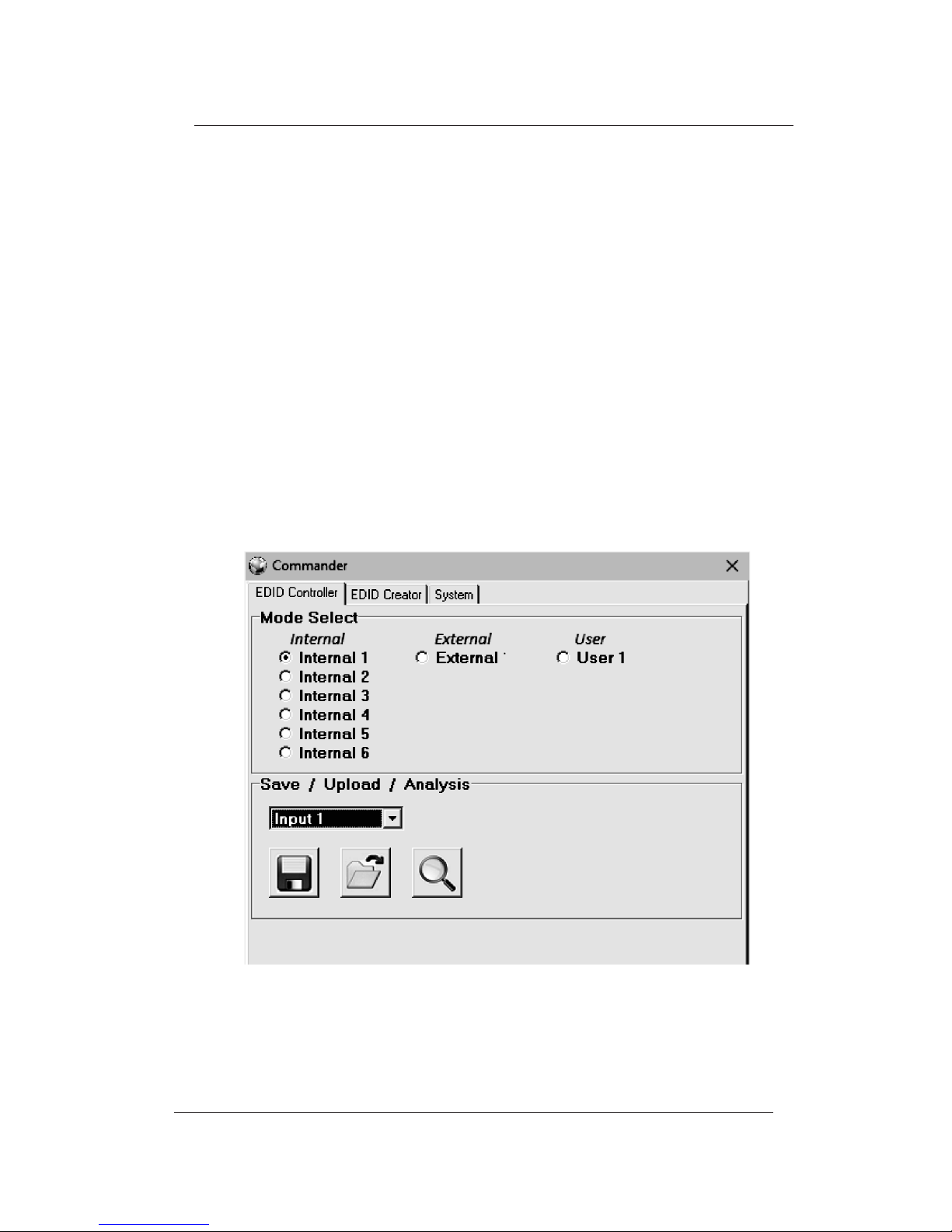
Mode Select: The currently selected EDID is displayed here
and can be changed by selecting from any of the available
EDID options. There are 6 pre-dened “Internal” EDIDs, an
“External” EDID which passes the EDID from the connected
display, and a “User” EDID which is user-replaceable. To
return the User EDID to its original value, please perform a
factory reset on the unit.
The 6 Internal EDIDs are:
1. FHD (1080p60Hz) with LPCM 2.0
2. FHD (1080p60Hz) with LPCM 7.1 & Bitstream
3. 4K UHD+ (4K@30Hz) with LPCM 2.0
4. 4K UHD+ (4K@30Hz) with LPCM 7.1 & Bitstream
5. 4K+ UHD (4K@60Hz, 4:4:4, 8-bit) with LPCM 2.0
6. 4K+ UHD (4K@60Hz, 4:4:4, 8-bit) with LPCM 7.1
& Bitstream
Save/Upload/Analysis: EDIDs may be saved to a PC, uploaded
from a PC or analyzed.
• Any EDID from the unit or the connected HDMI display
can be saved to your PC as a *.bin le by selecting
the EDID source from the drop down menu and then
clicking the “Save” icon.
• Previously saved EDID les (*.bin format) can be
re-uploaded into the unit by selecting the User EDID
to replace from the dropdown and then clicking the
“Upload” icon. Before accepting the upload, the
software will check and verify that the EDID’s header
and checksum values are acceptable.
• To analyze any EDID stored within the unit, select
the EDID to view from the dropdown and click on
the “Analysis” icon.
LB-H2-E User’s Manual
Link Bridge 4K UHD+ Audio Embedder
TM
Page 11
LB-H2-E User’s Manual
Link Bridge 4K UHD+ Audio Embedder
TM
• Previously saved EDID les (*.bin format) can be
re-uploaded into the unit by selecting the User EDID
to replace from the dropdown and then clicking the
“Upload” icon. Before accepting the upload, the
software will check and verify that the EDID’s header
and checksum values are acceptable.
• To analyze any EDID stored within the unit, select
the EDID to view from the dropdown and click on
the “Analysis” icon.
Page 12
5.0 EDID CREATOR TAB
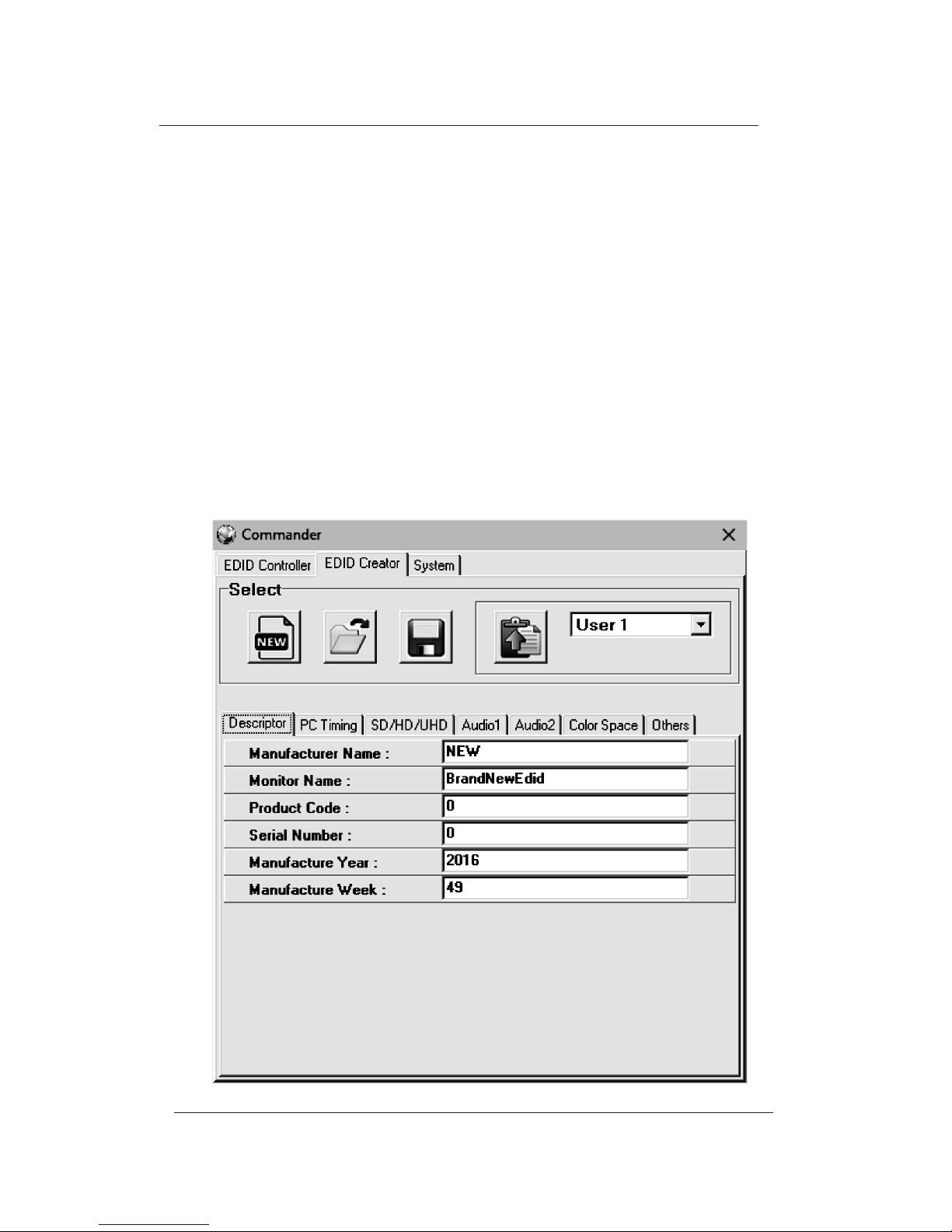
Click on the EDID Creator tab to begin designing a new EDID
from scratch (select the “New” icon), to modify an existing
EDID stored on the PC as a .bin le (select the “Load” icon) or
to edit an EDID copied from the unit via the EDID Analyzer’s
edit option. Selecting “New” will automatically populate the
various EDID elds with basic information that can be easily edited to match the user’s preferences. Clicking on the
“Load” icon will open a le load window and after the *.bin le
has been selected and loaded the EDID elds will be populated with the information from that le. The same will happen
when the EDID is copied from the EDID Analyzer window.
LB-H2-E User’s Manual
Link Bridge 4K UHD+ Audio Embedder
TM
Page 13

The following tabs provide access to a wide range of EDID
information which can be edited:
• Descriptor: This tab allows for the editing of various
description and information elds within the EDID le
such as Manufacturer Name, Monitor Name, etc.
• PC Timing and SD/HD/UHD: These tabs allow for
the selection of the resolutions and refresh rates that
the EDID will report as supported.
• Audio1 and Audio2: These tabs allow for the selection
of which audio formats, audio frequencies, channels
and speaker locations are supported.
• Color Space: This tab allows for the selection of
which color formats and bit depths are supported,
including BT.2020 and HDR support options.
• Others: This tab contains options for supporting 3D
and dening the CEC Address.
Once the user is nished editing or creating an EDID it can
be saved to a *.bin le locally or uploaded directly to the unit
using the “Save” and “Upload” icons respectively.
System Tab
Select the System tab to edit the unit’s description, to reset
the unit to factory defaults and to view the unit’s current
hardware and rmware version information.
LB-H2-E User’s Manual
Link Bridge 4K UHD+ Audio Embedder
TM
Page 14

6.0 MAINTENANCE AND TROUBLESHOOTING
4.1 Maintenance
There is no operator maintenance other then keeping the
units clean. However, observe the following light indicators
to make sure that the unit is working properly:
4.2 Troubleshooting
If the LB-H2/DE units do not operate properly after installation,
check for possible cable breaks, loose connections, and
incorrect cable connections. If problems persist that may be
fiber related, contact BCI at 1-800-214-0222 for further
assistance.
For electrical problems, perform the following troubleshooting
procedures:
1. If the POWER indicator is OFF, check for the following:
a. The line cord is plugged into the unit and your outlet
has power.
2. If the POWER indicator is ON, but the Link indicator is
OFF, check for the following:
a. Make sure the appropriate cables are being used.
b. Cable and cable connectors are not broken.
c. For each unit, the transmit (TX) cable is connected to the
other unit’s receiver (RX).
3. If the POWER indicator and Link indicator are ON, but
the channels are not operating, then:
a. Check to see that the attached user equipment is turned on.
b. Both ends of the link are connected to the corresponding
equipment and to the same corresponding channel port.
LB-H2-E User’s Manual
Link Bridge 4K UHD+ Audio Embedder
TM
Page 15

c. Cable connections at both channels are securely fastened
to each connector. Turn the power o, then back on to reset
the link.
LB-H2-E User’s Manual
Link Bridge 4K UHD+ Audio Embedder
TM
Page 16

Broadata Technical Support, [email protected] 16
7.0 SPECIFICATIONS
Video/ Audio Specications
Video Bandwidth 18Gbps (600Mhz)
Input Ports 1 x HDMI, 1 x Optical S/PDIF (Digital
Audio), 2 × RCA, 1 x Mini-USB
Output Port 1×HDMI
HDMI
Audio Sampling Rate Up to 192 kHz
Optical S/PDIF Audio 32KHz, 44.1Khz, 48Khz, 88.2Khz, 96Khz,
Sampling Rate 192 kHz
Cable I/O Distance* 10 meters, 1080p@12-bit
15 meters, 1080p@8-bit
Audio Format(Bypass) LPCM 2.0/5.1/7.1, Bitstream, HD Bitstream
Sampling Rate 192 kH
Optical Audio Format LPCM 2.0, Bitstream
Analog Audio Format 2 Channel (Stereo)
Physical
Dimensions
Standalone 128mm x 25mm x 108mm (W×H×D)
Power Consumption 3.78w
Operating Temperature 0˚C~40˚C/32˚F~104˚F
Humidity 20 to 90% RH, Non-Condensing
LB-H2-E User’s Manual
Link Bridge 4K UHD+ Audio Embedder
TM
Page 17

8.0 SERVICE PROCEDURE
8.1 REPLACEMENT POLICY
Standard products found defective on arrival (DOA) will be
replaced, based on availability, within 24 to 48 hours anywhere in
the U.S. Please call Customer Service at 800-214-0222 for
information.
8.2 RETURN/REPAIR SERVICE
The LB-H2-E System contains no user serviceable components.
If you have a problem with your unit, please contact the
Customer Service Department. To facilitate our return/ repair
processing please contact Broadata Communications, Inc. to
obtain a Return Material Authorization (RMA). Please include
the following information:
• Product model number
• Serial Number
• Complete description of problem
• Hardware installation description
Broadata Communications, Inc.
2545 West 237th Street, Suite K
Torrance, CA 90505
1-800-214-0222
(310) 530-1416
(310) 530-5958 (Facsimile)
e-mail: [email protected]
Website: www.broadatacom.com
LB-H2-E User’s Manual
Link Bridge 4K UHD+ Audio Embedder
TM
Page 18

Broadata Technical Support, [email protected] 18
Broadata Communications, Inc. (BCI) warrants, for a period of one
year from date of shipment, each product sold shall be free from
defects in material and workmanship. BCI will correct, either by
repair, or at BCI’s election, by replacement, any said products that
in our sole discretion prove to be defective and are returned to the
manufacturing location within 30 days after such defect is ascertained.
All warranties are limited to defects arising under normal use and
do not include malfunctions or failure resulting from misuse, abuse,
neglect, alterations, electrical power problems, usage not in accordance
with product instructions, improper installation, or damage determined
by BCI to have been caused by the Buyer or repair made by a third
party. Limited warranties granted onproducts are to the initial customer
end-user and are not transferable.
OUR LIABILITY UNDER THIS WARRANTY SHALL IN ANY CASE BE
LIMITED TO THE INVOICE VALUE OF THE PRODUCT SOLD AND
BCI SHALL NOT BE LIABLE TO ANYONE FOR CONSEQUENTIAL
OR INCIDENTAL DAMAGES ARISING FROM THE USE OF ITS
PRODUCTS OR THE SALE THEREOF. We make NO WARRANTY
AS TO THE MERCHANTABILITY OF ANY GOODS, OR THAT THEY
ARE FIT FOR ANY PARTICULAR PURPOSE OR END APPLICATION
NOR DO WE MAKE ANY WARRANTY, EXPRESSED OR IMPLIED
OTHER THAN AS STATED ABOVE.
9.0 LIMITED WARRANTY
LB-H2-E User’s Manual
Link Bridge 4K UHD+ Audio Embedder
TM
Page 19

LB-H2-E User’s Manual
Link Bridge 4K UHD+ Audio Embedder
TM
Page 20

Broadata Communications, Inc.
2545 West 237th Street, Suite K
Torrance, CA 90505
1-800-214-0222
(310) 530-1416
(310) 530-5958 (Facsimile)
e-mail: [email protected]
Website: www.broadatacom.com
LB-H2-E
 Loading...