

Page 1

Tire Pressure Monitoring System
Reader/Writer Outer case K812
Users Manual
1/6
Page 2

Overview
This device is equipped with TC55 (manufactured by Zebra Technologies Corporation), which has a dedicated
application (Servicing App.) installed, becomes a device which communicates with the sensor mounted in the
tire.
Applicable regulations
Radio Frequency Interference Requirements-FCC
FCC CAUTION
Changes or modifications not expressly approved by the party responsible for compliance could void the
user’s authority to operate the equipment.
Radio Transmitters (Part15)
This device complies with part 15 of FCC Rules and ISED’s applicable license-exempt RSSs. Operation is
subject to the following two conditions: (1) this device may not cause harmful interference, and (2) this device
must accept any interference received, including interference that may cause undesired operation.
Radio Frequency Interference Requirements-Canada
CAN ICES-3(B)/NMB-3(B)
2/6
Page 3
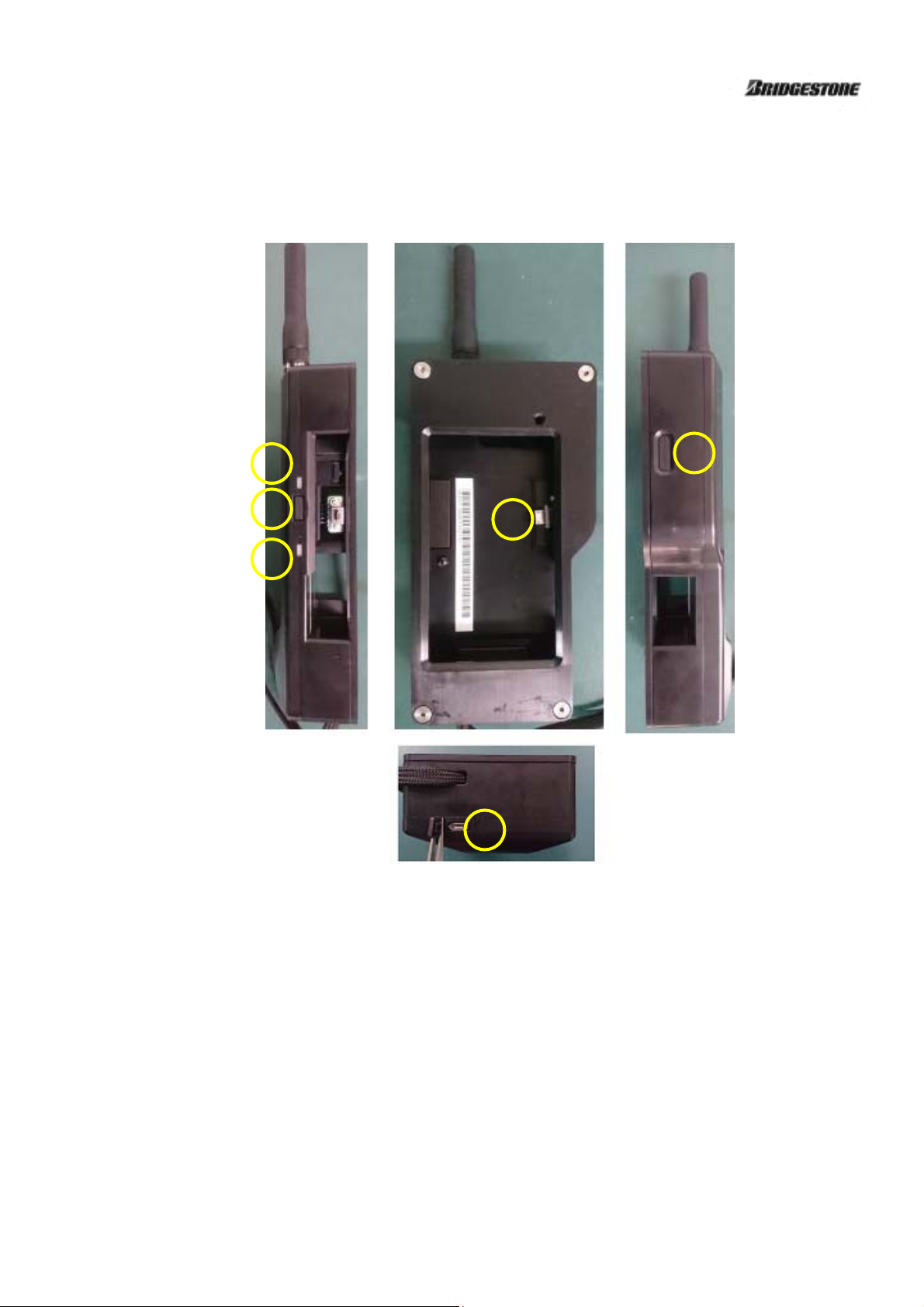
Name and function of each part
The names and functions of each part are as follows.
2
3
5
1
4
6
① POWER BUTTON (Extension)
When this button is pushed, press the power button of the mounted TC55.
② POWER LED Lamp ③ Trigger BUTTON
Outer case turns on when power is on. Press it when sending a command on the sensor
communication screen.
④ Sensor communication LED Lamp ⑤ Micro-USB Plug
Lights up when sensor communication is available. Connect to TC55.
⑥ Micro-USB Jack
It is used for charging TC55 and connecting with TC55 and PC.
Note: Restart TC55 after connecting. Also, Outer case does not work during connection.
3/6
Page 4
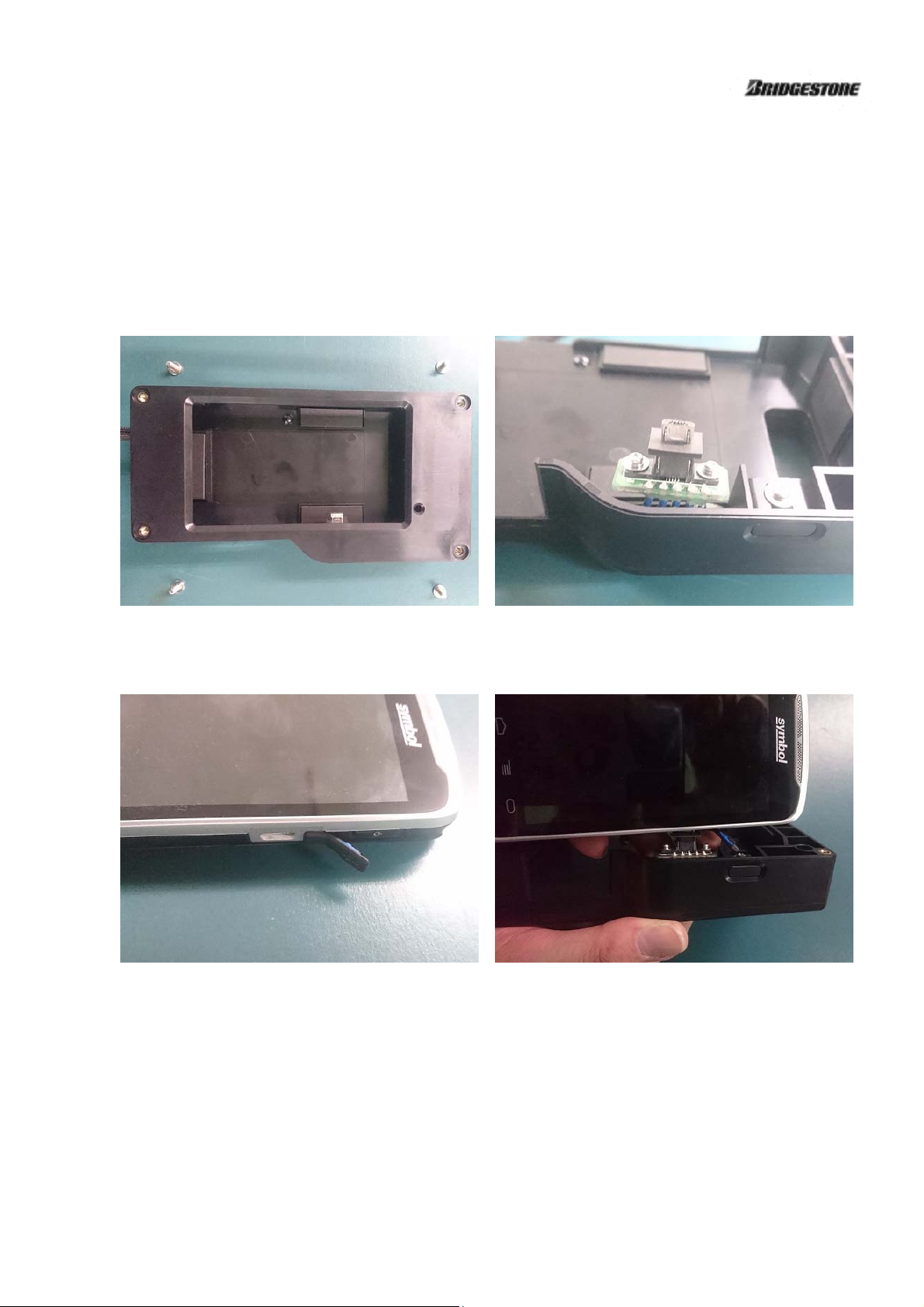
How to install TC55
Follow the procedure below to install TC55 in the Outer case. Please install Servicing App. For TC55 to be
installed before work.
① Remove the screws (4 places) with the supplied screwdriver, remove the cover, and make the USB
connector vertical as shown in the right picture.
② Rotate the USB cap of TC 55 by 180 ° as shown in the photo on the left and insert TC 55 into the USB
connector of Outer case.
4/6
Page 5
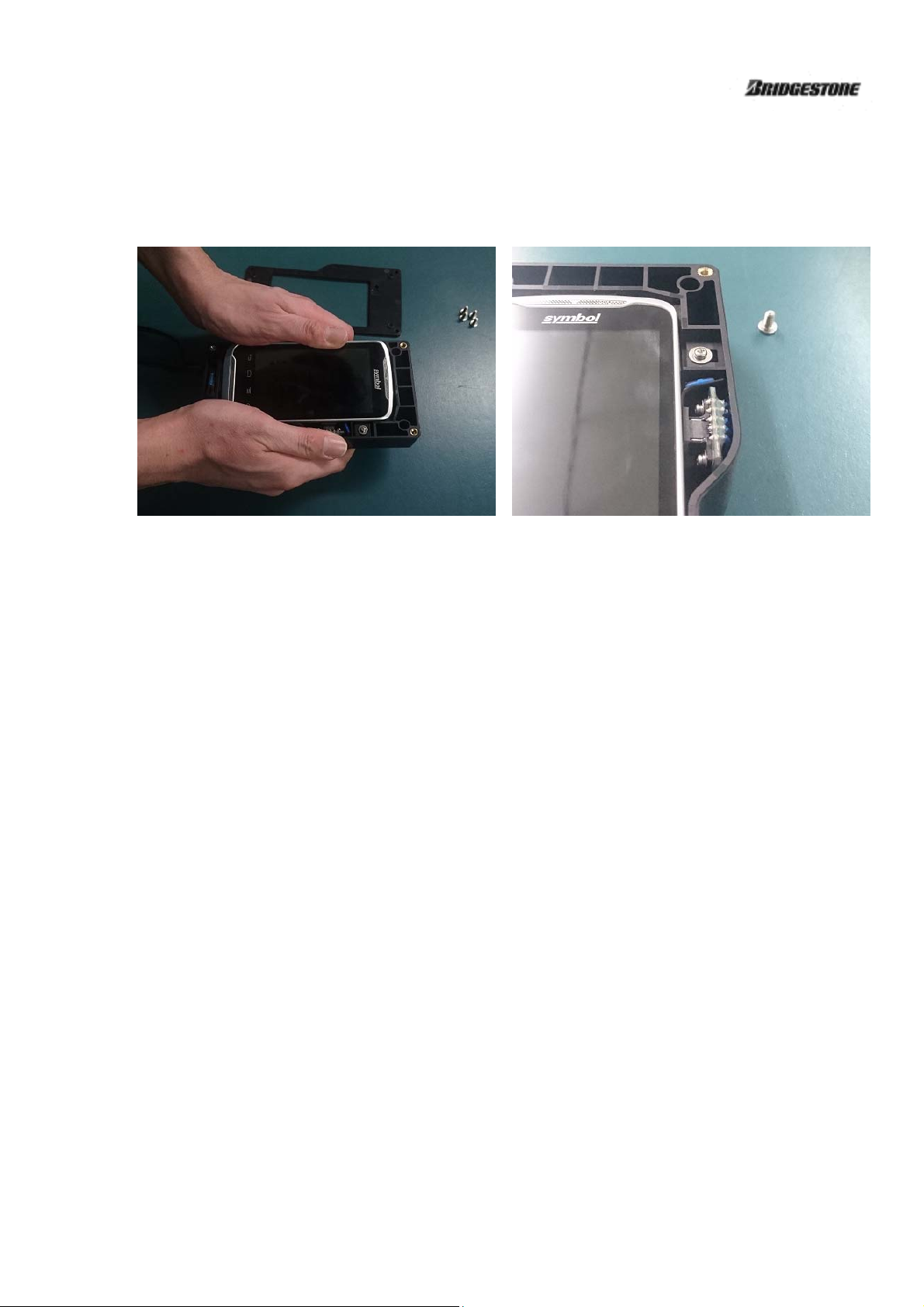
③ Please TC55 to be parallel with Outer case. In that state slowly push it into the Outer case with
both hands. In addition, the USB cap of TC 55 will be put in the position of the picture on the right.
④ Place the cover and fix the screws (4 places) with the supplied screwdriver to complete mounting.
How to Sensor communication
To communicate with the sensor in the tire, select the communication item on the TC55 screen and press the
trigger button near the sensor (0.8 m or less) you want to measure.
For details of sensor communication, please check the instruction manual of Servicing App.
How to Charging the TC55
Charge the TC55 to the Micro-USB Plug of the Outer case with the cable with the Micro-USB (Type A or B)
jack. To charge the TC55, restart it in the power OFF state or charging connection state.
Note: Outer case does not function during charging.
How to Connect TC55 and PC
To the Outer case Micro-USB Plug Connect the TC55 with the PC with the cable with the Micro-USB (Type
A or B) jack. Use a cable of 0.5 m or less to connect the TC 55 and the personal computer. Also, to connect
the TC55 to the computer, restart TC55 in the connected state.
Note: Outer case does not work during connection.
5/6
Page 6

△ CAUTION
Failure to observe the following may lead to a short circuit or charging, causing the battery to start leaking or
generate extreme heat, or the battery may even start a fire or explode.
● Never attempt to disassemble or modify the Outer case.
● Do not handle the Outer case with wet hands. Keep the product away from water.
● Always use batteries specified by TC 55.
● Be careful not to drop or step on the Outer case, or hit it against a hard object.
● Do not leave the Outer case in places of severe temperature change or outside the specified storage
temperature range.
● Turn off the power before removing the TC55 from the Outer case. Be careful not to press the POWER
button while removing the TC55. Otherwise, the Outer case may fail.
● Remove the TC55 from the Outer case if it will not be used for an extended period. Otherwise, The
batteries in TC55 may start leaking, damaging the Outer case.
● Always use 0.5 m or less Micro-USB cable. Otherwise, the battery charge or communicating with the PC
may fail
● Before handling the TC55 or TC55 built-in battery, please read the operation manual of TC55 and use it.
6/6
 Loading...