

Page 1
1
QUICK START GUIDE
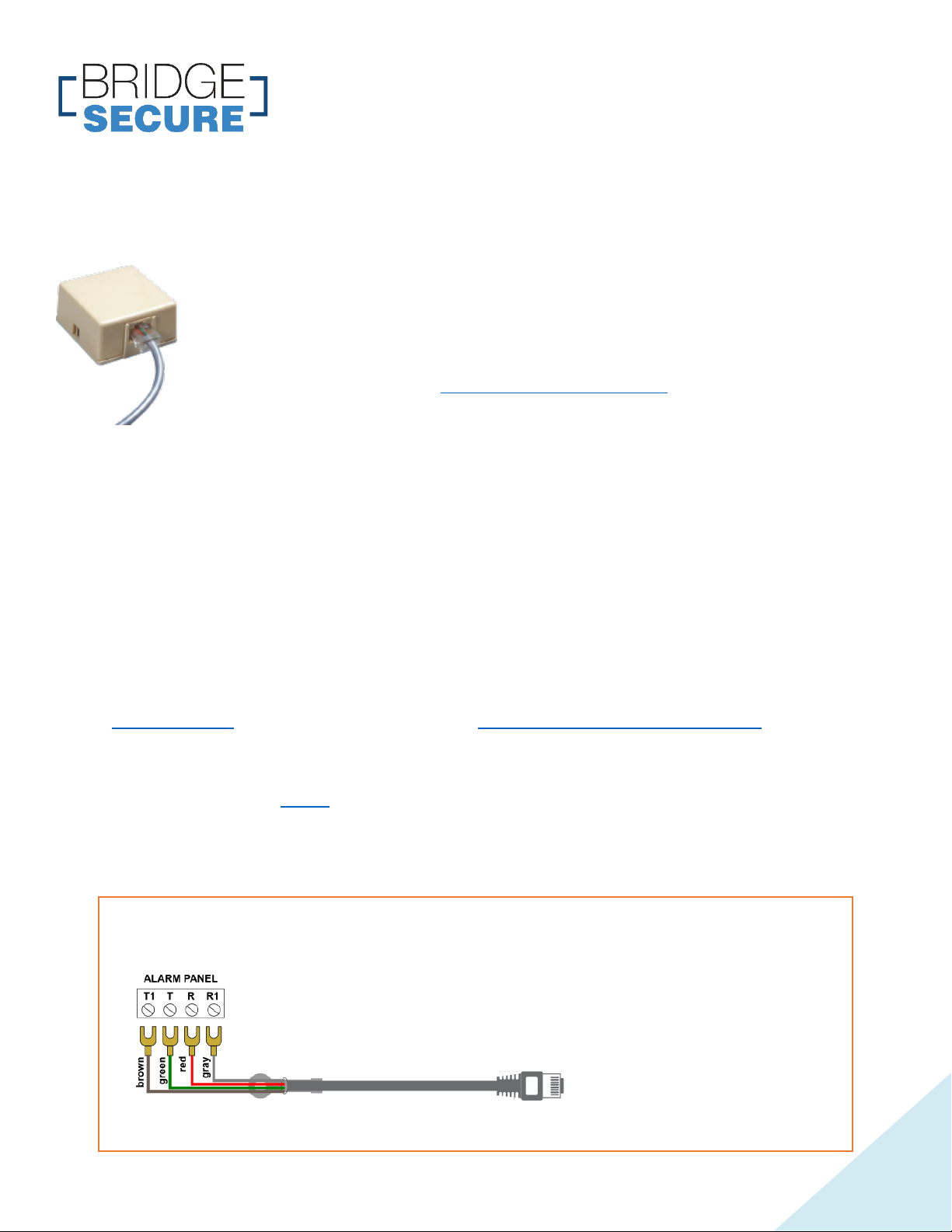
LOCATE THE ALARM PANEL TELEPHONE CABLE
The alarm panel telephone cable is usually going out of the alarm system
panel and connected to a telephone box as shown. Some systems have a
panel and keyboard integrated in the same enclosure.
Visit the FAQ section at https://bridgesecure.com/ for more help finding
and connecting this cable to BridgeSecure.
INSTRUCTIONS
1. Once found, disconnect the alarm panel telephone cable from the telephone box.
2. Place your BridgeSecure device near the alarm panel telephone cable plug.
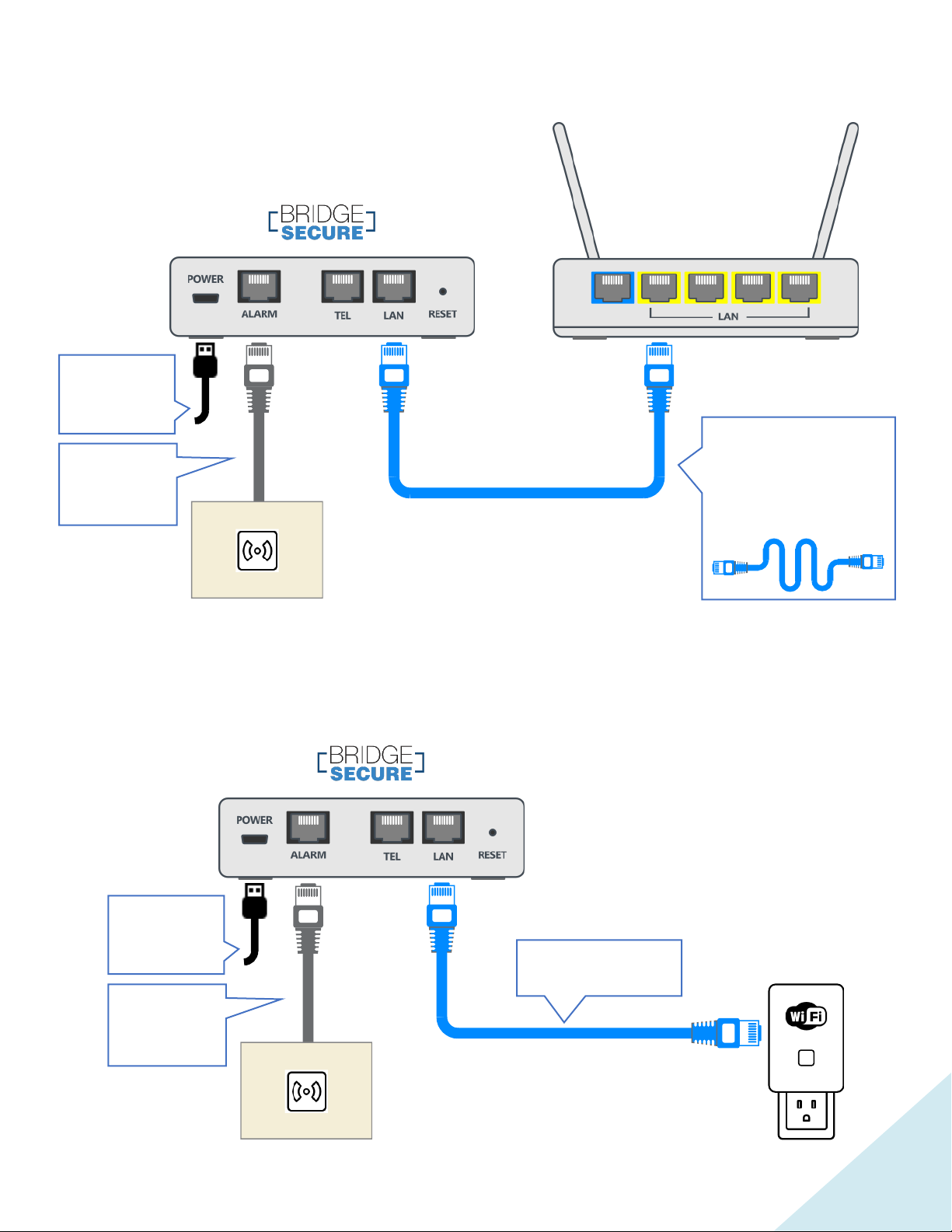
3. Connect the cables following the diagrams that correspond to your situation.
4. If you are using a Wi-Fi adapter, follow its instructions to make it work with your Router.
5. Make sure your computer, tablet, or cellphone is connected to the same local network
as your BridgeSecure device.
6. Open your web browser and go to the BridgeSecure configuration pages at
bridgesecure/ or use the device finder at https://bridgesecure.com/finder/
7. Fill the BridgeSecure configuration pages. Each page contains contextual help.
8. Generate alarms from your alarm system to make sure that you receive your alerts.
The BridgeSecure Tools page allows you to check that the whole system is working
properly.
If you don’t find the cable, your alarm system may never have been connected to an
alarm central.
Alarm Panel Telephonic Cable (included)
Then use the supplied cable and make the connections as indicated here.
Get help from an alarm system installer to program your alarm system so
that it generates calls for all types of alarms. Ask for the open/close access
notifications to be included. The protocol used must be Contact ID.
Page 2
2
CONNECTION WITH CABLES ONLY
CONNECTION WITH A Wi-Fi ADAPTER
Existing Router
Network cable
(included) or longer
network cable
(sold separately)
Wall power
adapter
(included)
Alarm Panel
Telephone
Cable
Existing
Alarm Panel
Wall power
adapter
(included)
Alarm Panel
Telephone
Cable
Existing
Alarm Panel
Network cable
(included)
Wi-Fi Adapter
(sold separately)
Page 3
3
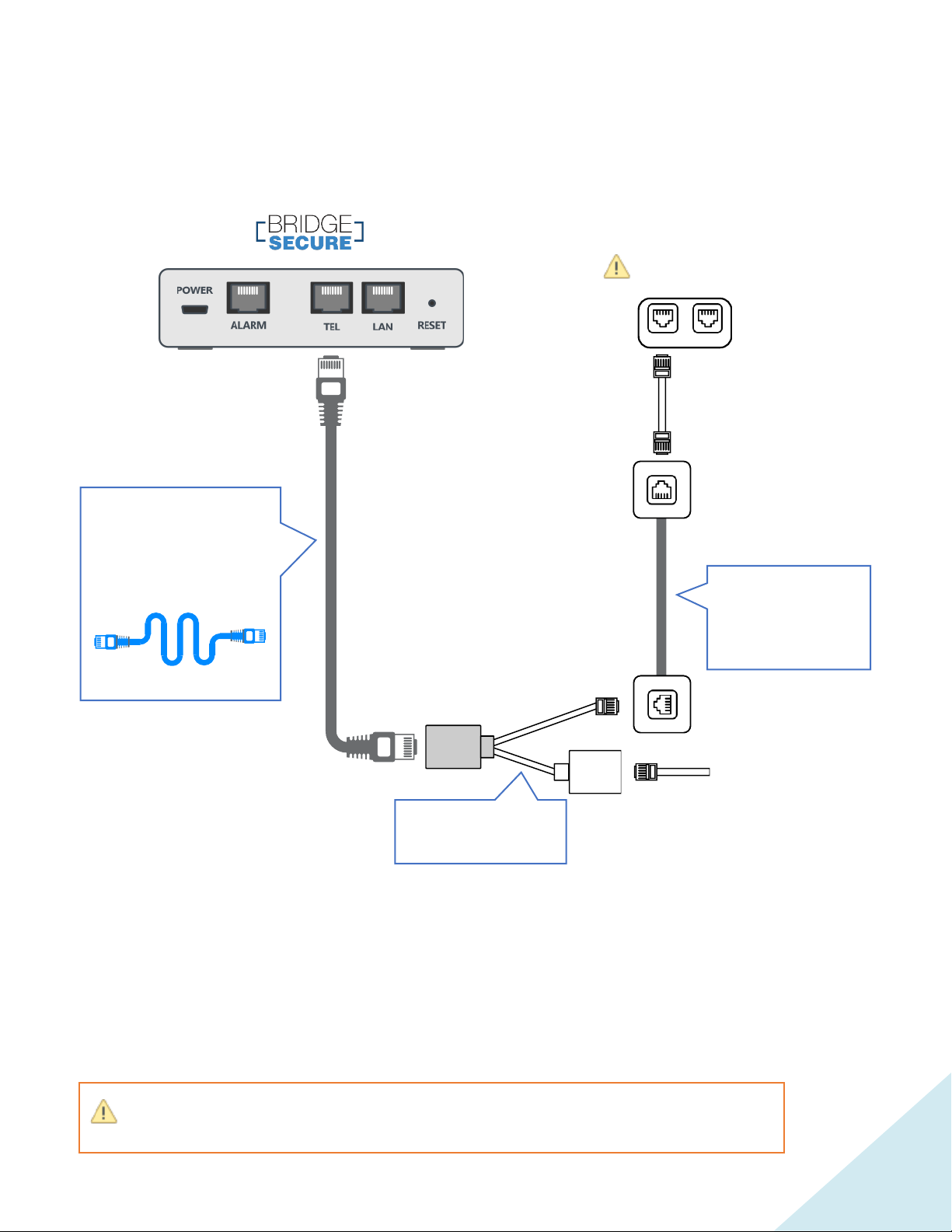
CONNECTING TO AN EXTERNAL PHONE LINE
Not required if using a VoIP account programmed in BridgeSecure (Softphone)
CAUTION: The BridgeSecure telephone connection (TEL) is designed to be connected
to an IP phone line. Do not connect to a Public Switched Telephone Network.
Existing IP
telephone line
Silver telephone cable
(included) or longer
network cable
(sold separately)
Telephone cable
extension or
inside wall wiring
(if needed)
To phones
RJ31X (CA38A)
Adapter (included)
Page 4
Copyright © 2019 Bridgesecure Technologies Inc. All rights reserved. Rev. 2.1 EN
4
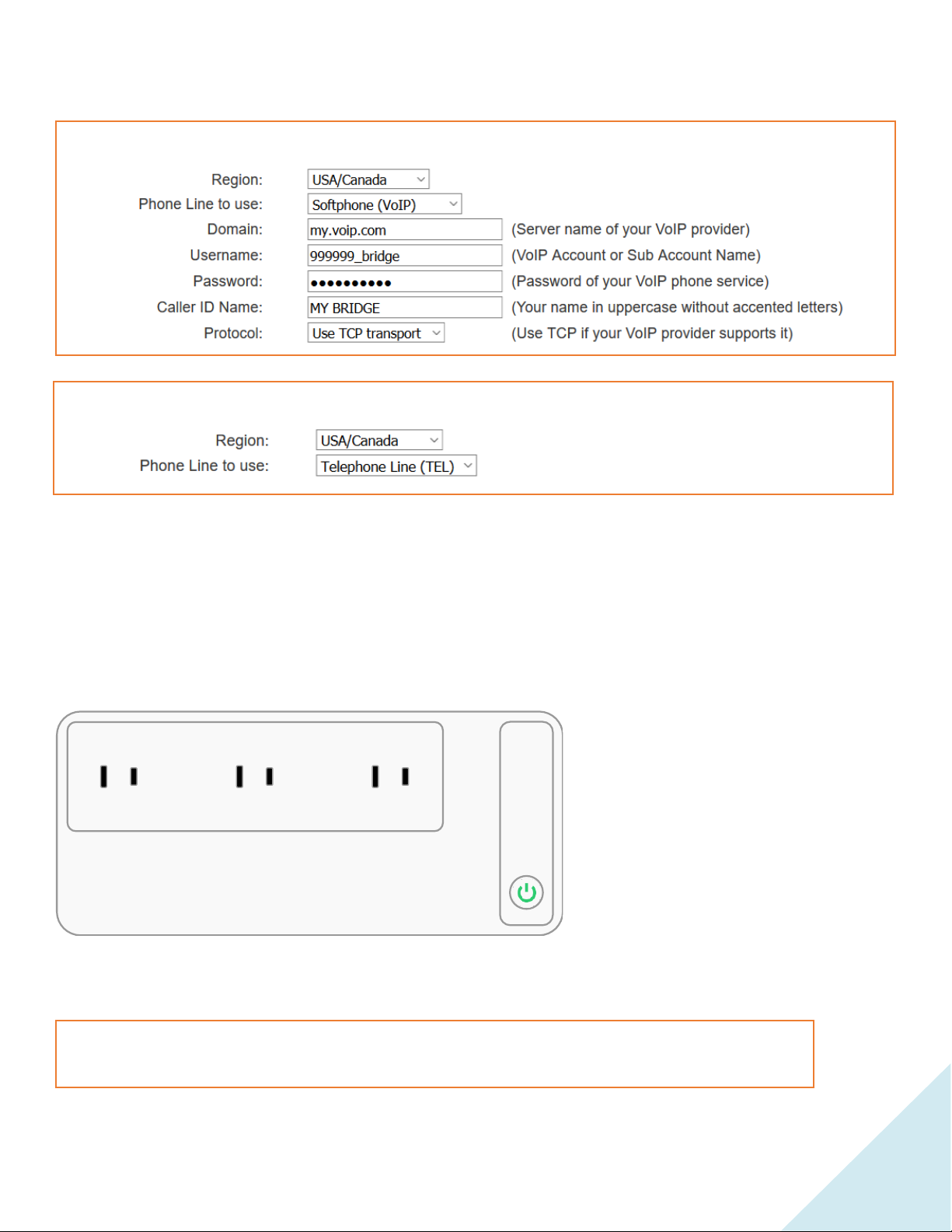
CONFIGURATION TEMPLATES
OPTIONAL UNINTURRUPTIBLE POWER SUPPLY (UPS)
If using an uninterruptible power supply, make sure you plug all power adapters of
BridgeSecure, Wi-Fi Adapter (if applicable), Modem and Router in the UPS power outlets.
Settings for use with a VoIP account within BridgeSecure (Softphone)
Settings for use with an external phone line
The Uninterruptible Power Supply will ensure continued power even during power
outages.
 Loading...