

Page 1

Megapixel Cube Network Camera
CB-500A Series
User’s Manual
Quality Service Group
Page 2
- -
Product name: Network Camera (CB-500A series)
Release Date: 2011/10
Manual Revision: V2.2
Web site: www.brickcom.com
Email: [email protected]
©2011 Brickcom Corporation. All Rights Reserved
Page 3

- -
Table of Contents
Before You Use This Product .......................................................................................... 0
FCC Warning .................................................................................................................. 0
Regulatory Information .................................................................................................... 1
Product Comparison ....................................................................................................... 0
Package Contents ........................................................................................................... 0
Cube Network Camera Overview .................................................................................... 2
Device Appearance Description ...................................................................................... 4
LED Behavior .................................................................................................................. 5
Installation ....................................................................................................................... 7
System Requirements .............................................................................................. 7
Camera Connection ................................................................................................. 8
Basic Connection ............................................................................................... 8
Software Installation ................................................................................................. 9
EasyConfig ...................................................................................................... 16
Accessing the Network Camera .................................................................................... 25
Check Network Settings ......................................................................................... 25
Add Password to Prevent Unauthorized Access .................................................... 25
Page 4

Before You Use This Product
In many countries, there are laws prohibiting or restricting the use of surveillance
devices. This Network Camera is a high-performance, web-ready camera which can be
part of a flexible surveillance system. It is the user’s responsibility to ensure that the
operation of this camera is legal before installing this unit for its intended use.
Upon opening the product’s package, verify that all the accessories listed on the
“Package Contents” are included. Before installing the Network Camera, read the
warnings in the “Quick Installation Guide” to avoid misuse. When installing the
Network Camera, carefully read and follow the instructions in the “Installation” chapters
to avoid damages due to faulty assembly or installation.
FCC Warning
This device complies with Part 15 of FCC rules.
Operation is subject to the following two conditions;
(1) This device may not cause harmful interference, and
(2) This device must accept any interference received, including interference that may
cause undesired operations.
Page 5
Regu
latory Information
Federal Communication Commission Interference Statement
This equipment has been tested and found to comply with the limits for a Class B digital device,
pursuant to Part 15 of the FCC Rules. These limits are designed to provide reasonab
protection against harmful interference in a residential installation. This equipment generates
uses and can radiate radio frequency energy and, if not installed and used in accordance with
the instructions, may cause harmful interference to radio commu
no guarantee that interference will not occur in a particular installation. If this equipment does
cause harmful interference to radio or television reception, which can be determined by turning
the equipment off and on, the
user is encouraged to try to correct the interference by one of the
following measures:
-
Reorient or relocate the receiving antenna.
-
Increase the separation between the equipment and receiver.
-
Connect the equipment into an outlet on a circuit
connected.
-
Consult the dealer or an experienced radio/TV technician for help.
FCC Caution: Any changes or modifications not expressly approved by the party responsible for
compliance could void the user's aut
This device complies with Part 15 of the FCC Rules. Operation is subject to the following two
conditions: (1) This device may not cause harmful interference, and (2) this device must accept
any interference received, incl
uding interference that may cause undesired operation.
IMPORTANT NOTE:
FCC Radiation Exposure Statement:
This equipment complies with FCC radiation exposure limits set forth for an uncontrolled
environment. This equipment should be installed and operated with minimum distance 20cm
between the radiator & your body.
This transmitter must not be co
transmitter.
The availability of some specific channels and/or operational frequency bands are country
dependent and are firmware programmed at the factory to match the intended
The firmware setting is not accessible by the end user.
- -
nications. However, there is
different from that
to which the receiver is
hority to operate this equipment.
-located or op
erating in conjunction with any other antenna or
le
destination.
Page 6
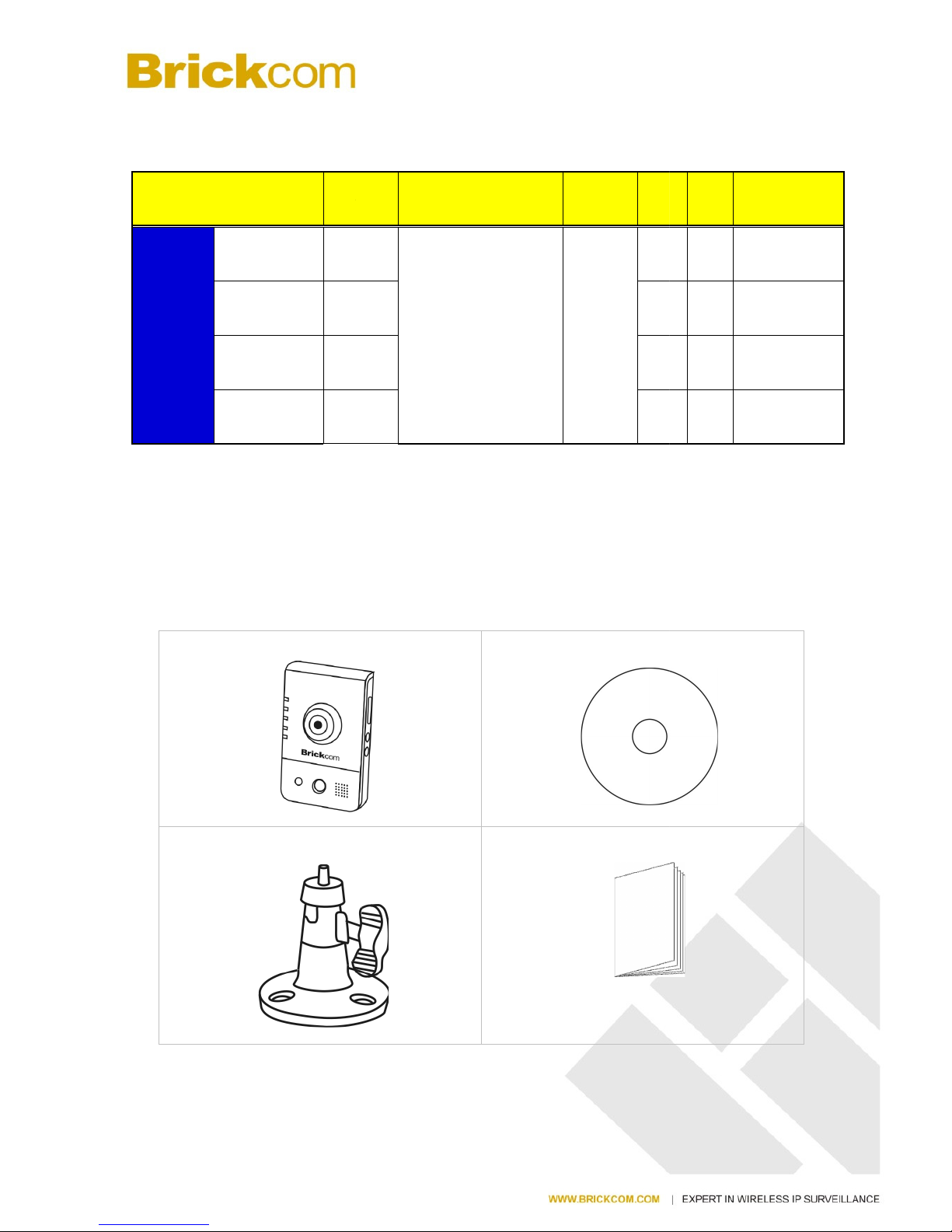
Product Comparison
Model Name
Lesns
CB-
500A
Series
CB-500Ap
Board
Lens
WCB-500Ap
Board
Lens
CB-502Ap
CS
Mount
WCB-502Ap
CS
Mount
Package Content
Please check to make sure the product package contains all the accessories listed
below.
a. CB-500A Series
c. Camera Stand
Resolution DI/DO Wi
F
2592 x 1944 pixel (1/1)
-
s
b. Product CD
d. Easy Installation
Guide
i PoE
USB port for
3G/ 4G
- -
- -
Page 7
- 1 -
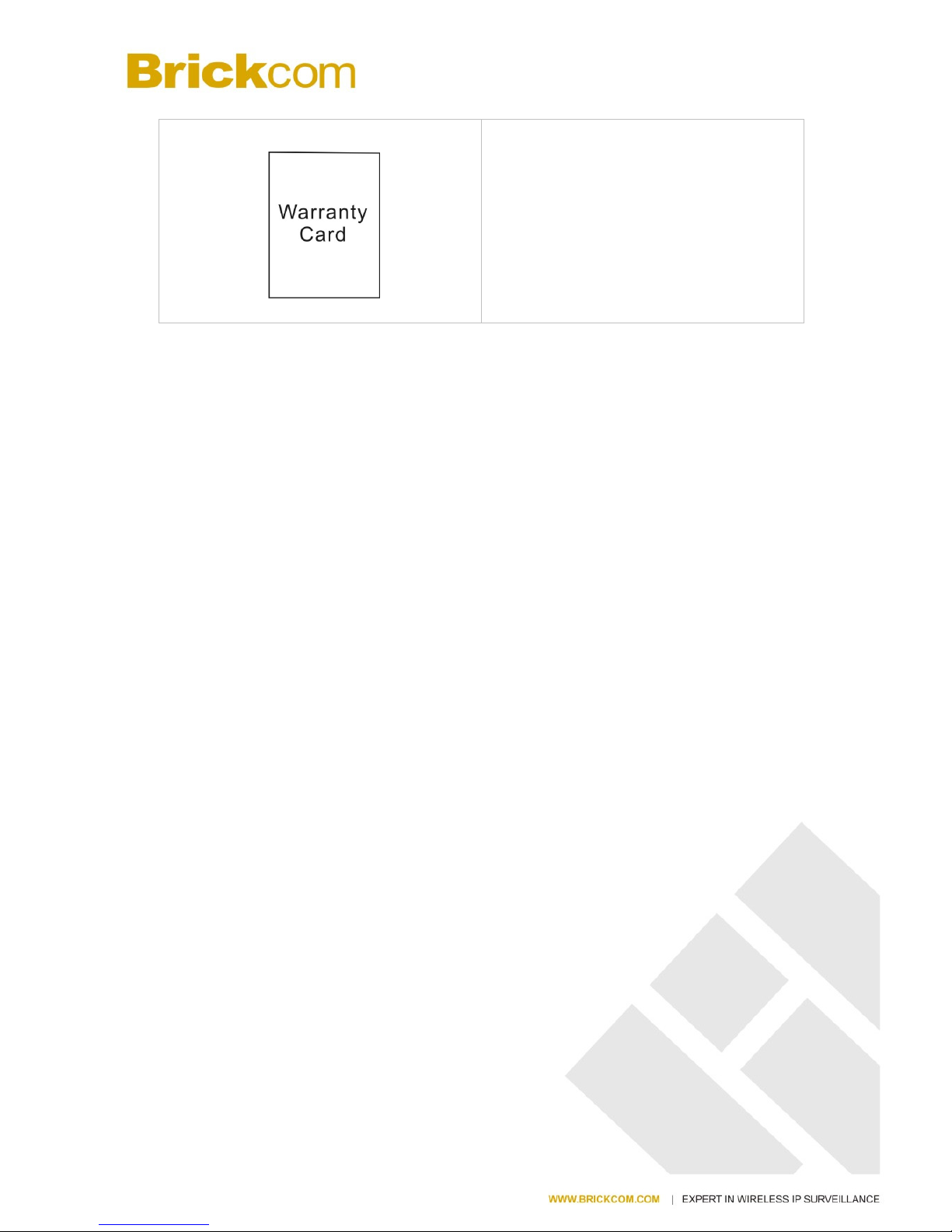
e. Warranty Card
Page 8
- 2 -
Cube Network Camera Overview
The compact Brickcom CB-500A series Cube network series offers a high quality, video
surveillance solution for residences and small businesses. Unlike a general webcam, this
camera series is a standalone surveillance system that does not need to be connected to a
computer. EasyLinkTM is a feature of the CB-500A series camera which allows for users to
simply plug in the camera to any home or small business network and play the video.
This camera series offers a user-friendly and unique design which allows anyone without a
technical background to use it. It features live video feed and two-way audio which can be
used over a local area network (LAN), through any internet browser, or via any 3G mobile
device. The wireless capability makes it easy to mount on any surface. The CB-500A
series features many cutting edge functions and its fashionable, streamline design make it the
perfect additional for any home or office.
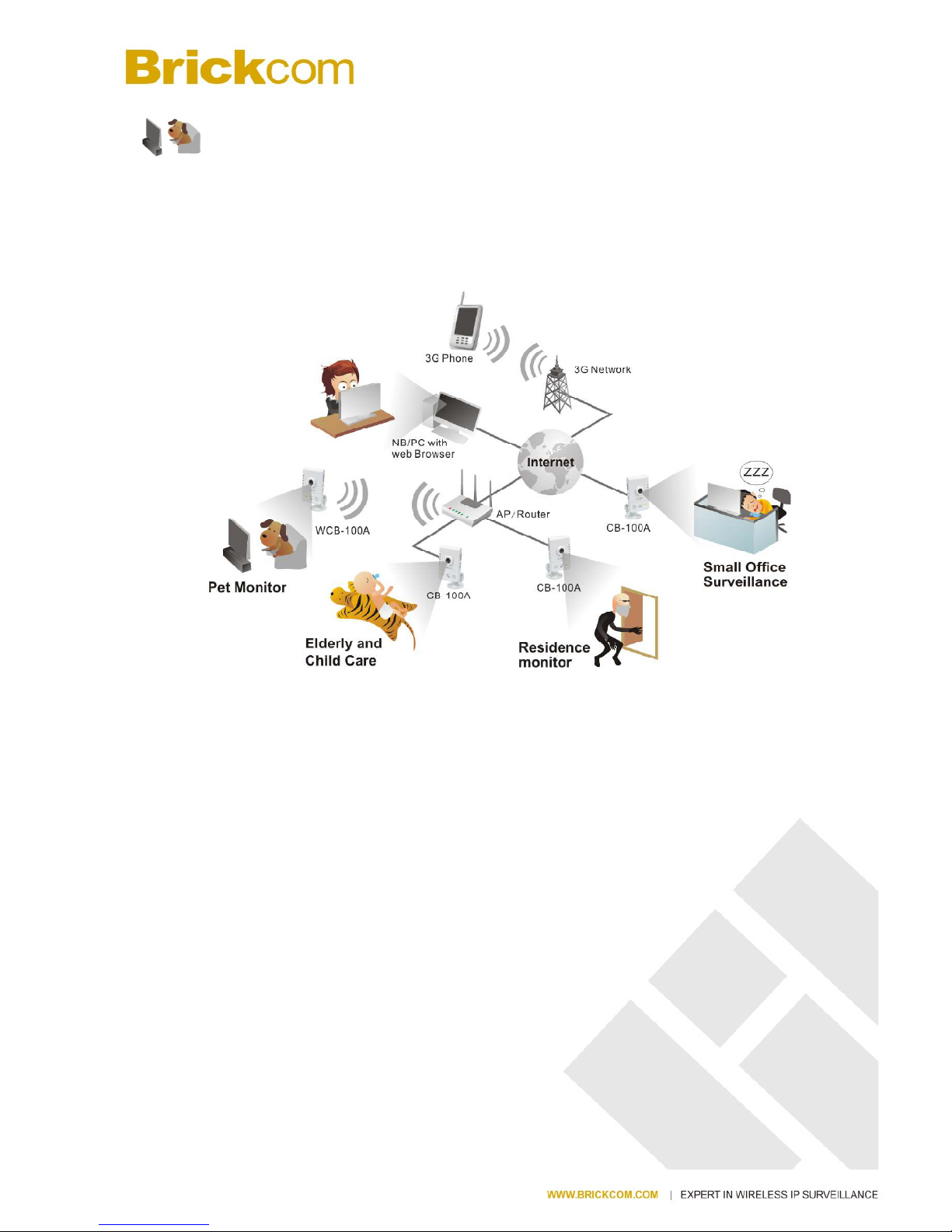
Because of its many advanced features, the CB-500A series has many versatile applications.
Users can easily monitor the safety of their family members, pets, office, valuables, and
property.
Small Office Surveillance –
Security systems for small offices can be expensive and difficult to install and maintain. With
the EasyConfig software, the CB-500A series can easily be installed and configured by
anyone without extensive technical knowledge. The video can be reviewed remotely so
business owners can monitor office safety and employee productivity at all times.
Residence monitor –
Home owners worry about their house and property when they are away. The CB-500A
series has a built-in PIR sensor which can detect unauthorized movement in a residence.
Once movement is detected, the illumination LED will be triggered and an alert with a
snapshot can be emailed or sent through an MMS to the user’s portable device.
Elderly and Child Care –
A high concern for many people is the safety of elderly relatives and small children. Users can
use the CB-500A series camera to ensure the safety of their loved ones by use of the live view
and intercom functions.
Page 9
- 3 -
Pet Monitor –
The motion detection feature can be used to create forbidden areas in the home which the pet
should not enter when the owner is away. If the camera records the pet entering the region,
a recorded message can be programmed to play and the owner will be notified via email or
MMS.
Page 10
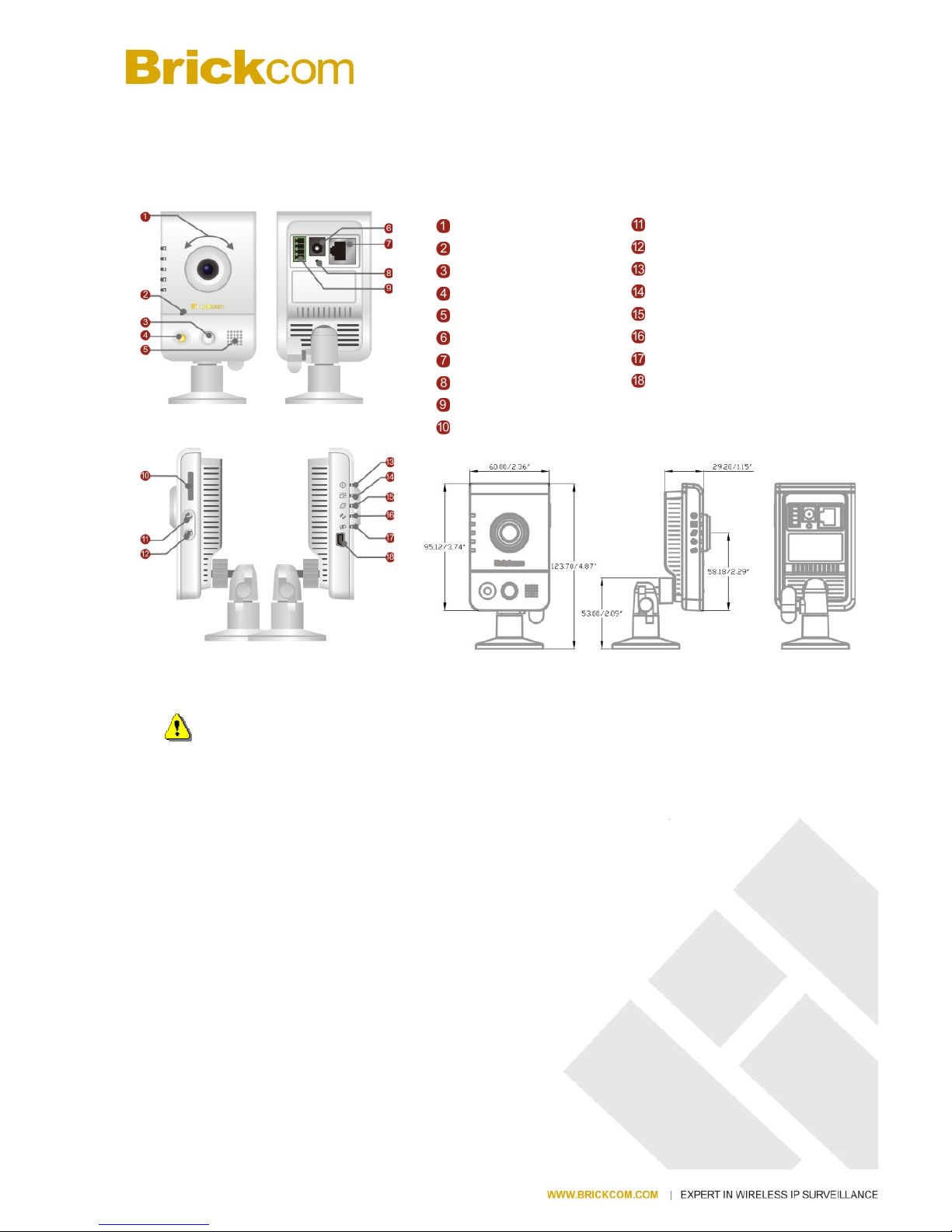
Device Appearance
< Front & Rear view >
1. NOTE -
The WPS and Privacy buttons must first be enabled through the web GUI in
order to work. See page 37 for details on how to enable the Privacy button and see page
50 for details on how to enable the WPS Button.
2.
(*) These are optional features. Please
features available for the product.
- 4 -
Description
refer to the Product List for the full list of optional
Adjustable focal Lens
Built-in Microphone
PIR
Illumination LED
Speaker
Power Connector
Ethernet RJ45 Socket
Reset Button
DIDO Terminal I/O Connector
Micro SD/SDHC slot
WPS button
Privacy button
Power LED
Status LED
Internet LED
WPS LED
Privacy LED
USB Port for 3G
/4G
Page 11
- 5 -
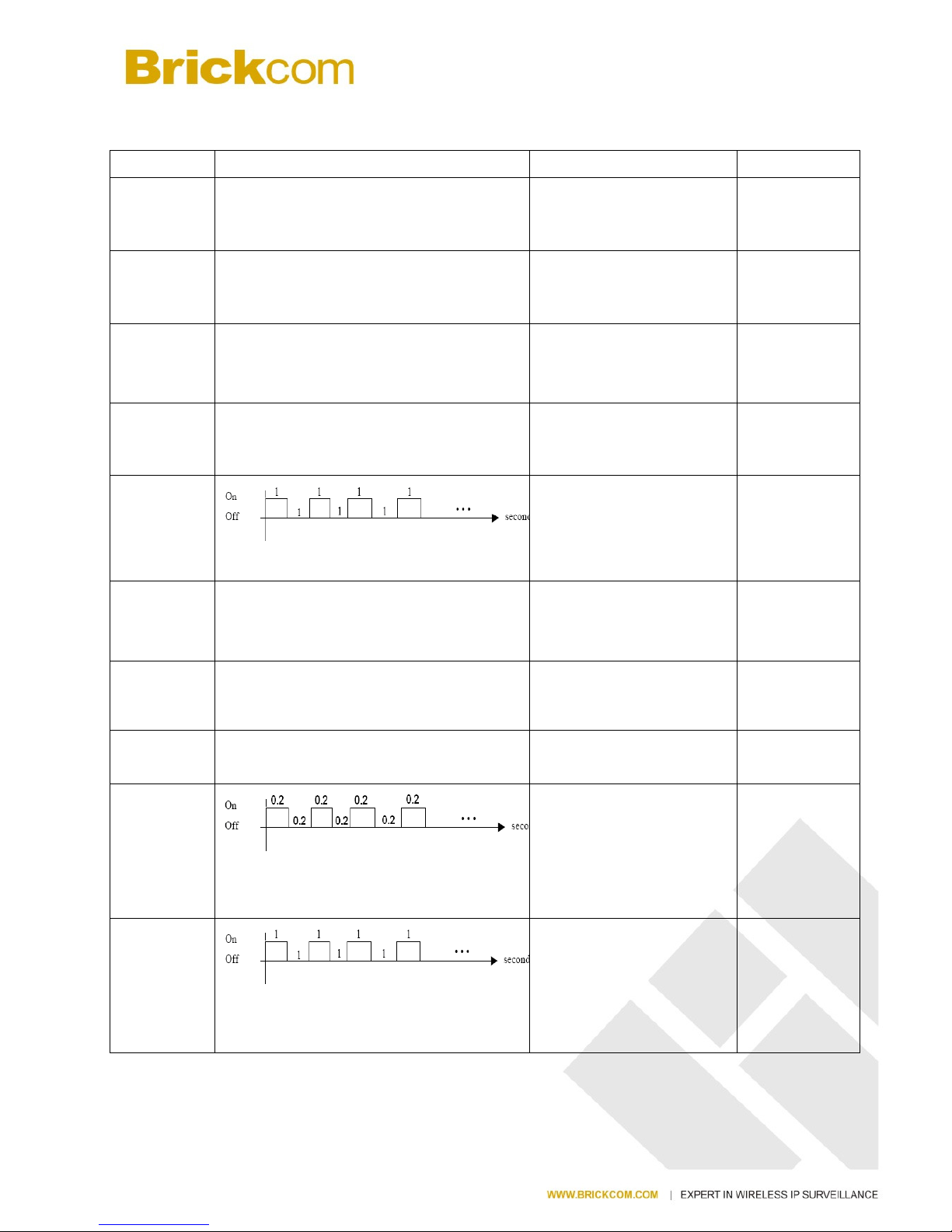
LED Behavior
Function LED Behavior Description Remark
Power Continuous Illumination
Normal Operation Top
(Blue)
Power Unlit
Powered off Top
(Blue)
Status
Continuous Illumination
1. Connected to switch by
Ethernet or WiFi.
2. Reset to default.
Second (Blue)
Status
Unlit
1. Powered off
2. No connection
Second (Blue)
Status
1. Upgrading F/W
2. Performing site survey
Second (Blue)
Status
Blinking
1. .Connecting to the
network
2. Restoring settings.
Second (Blue)
Internet
Continuous Illumination
Connected to Internet Third (Blue)
Internet
Unlit
1. Powered off
2. No connection
Third (Blue)
WPS
WPS in progress
WCB-500A
/WCB-502A
Fourth (Blue)
WPS
WPS Connection Error
WCB-500A
/WCB-502A
Fourth (Blue)
Page 12
WPS
WPS
Continuous Illumination
Firmware
Upgrade
Continuous Illumination
Privacy
Continuous Illumination
Privacy Unlit
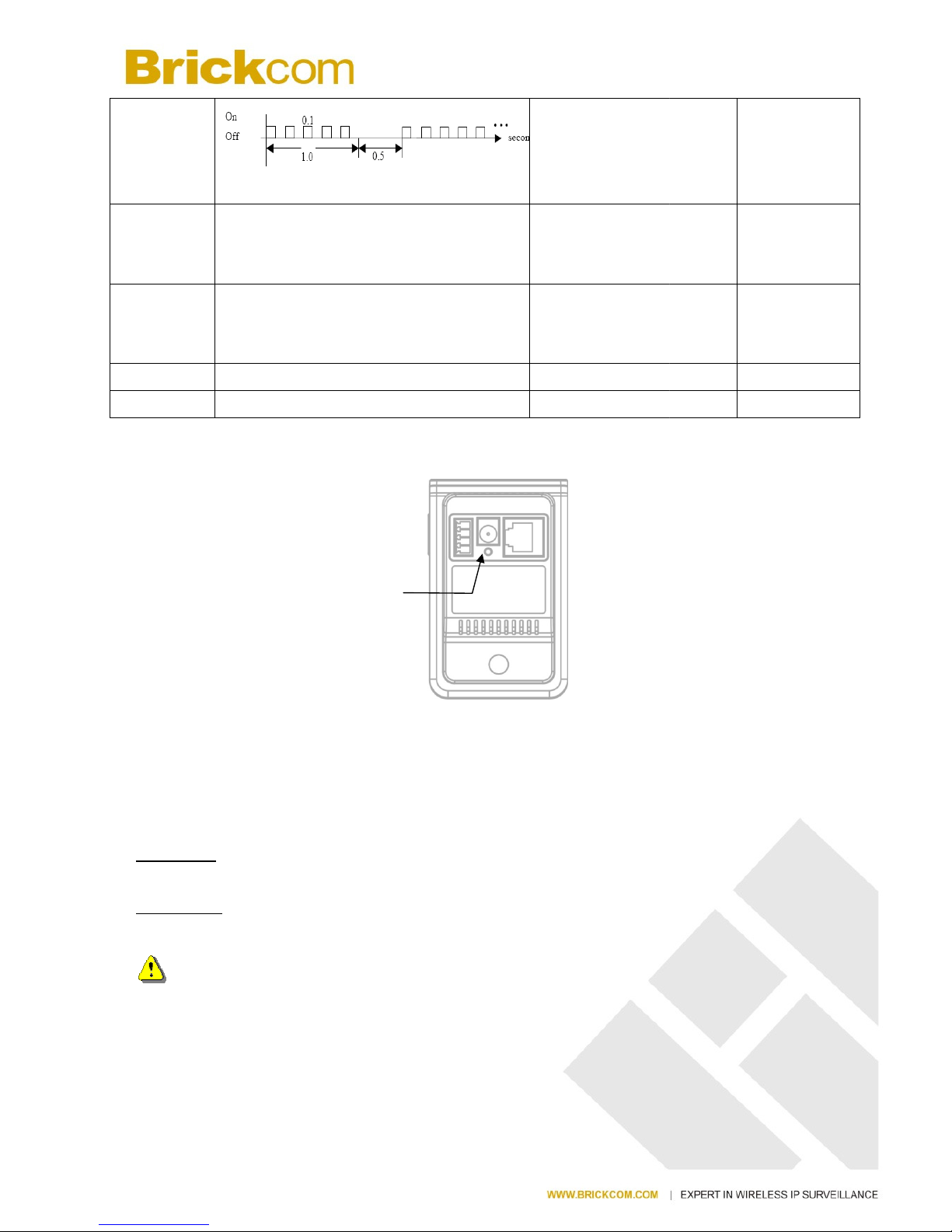
Hardware Reset
The Reset Button can be used to reboot the camera or restore it to factory default settings. If
the camera experiences a problem, rebooting the camera may correct the problem. If the
problem remains, p
lease restore the camera to factory default settings and reinstall the
software.
To Reboot -
Press and hold the Reset Button for one second using a paper clip or thin object.
Wait for the camera to reboot.
To Restore –
Press and hold the Reset Button for
When successful restored, the LED will be blue during normal operation.
NOTE -
By restoring the camera, all settings will be restored to the factory default settings.
Micro-SD/SDHC
Card Capacity
The network camera is
compatible
Reset Button
- 6 -
Session overlap detected
WPS success
Firmware successfully
upgraded
Privacy mask active
Privacy mask inactive
CB-500A Series
ten seconds until the LED light turns off.
with Micro-SD/SDHC (Maximum
3
WCB-500A
/WCB-502A
Fourth (Blue)
WCB-500A
/WCB-502A
Fourth (Blue)
CB-500A
SERIES
Fourth (Blue)
Bottom(Red)
Bottom(Red)
2GB) cards.
Page 13

- 7 -
Installation
System Requirements
Operating System:
Microsoft Windows XP Home Edition SP2
Microsoft Windows XP Professional SP2
Computer:
IBM PC/AT Compatible
CPU:
Pentium 3GHz or faster
Memory:
1024 MB or more
Monitor:
1024 x 768 pixels or more, 24-bit True color or better
Network Interface:
10/100Mbps Network interface card must be installed
Web Browser:
Microsoft Internet Explorer 6.0 SP2 or higher
Adobe Reader:
Adobe Reader 8.0 or higher
Audio:
The audio function will not work if a sound card is not installed in the PC. Audio may be
interrupted depending on network traffic.
Page 14
- 8 -
Camera Connection
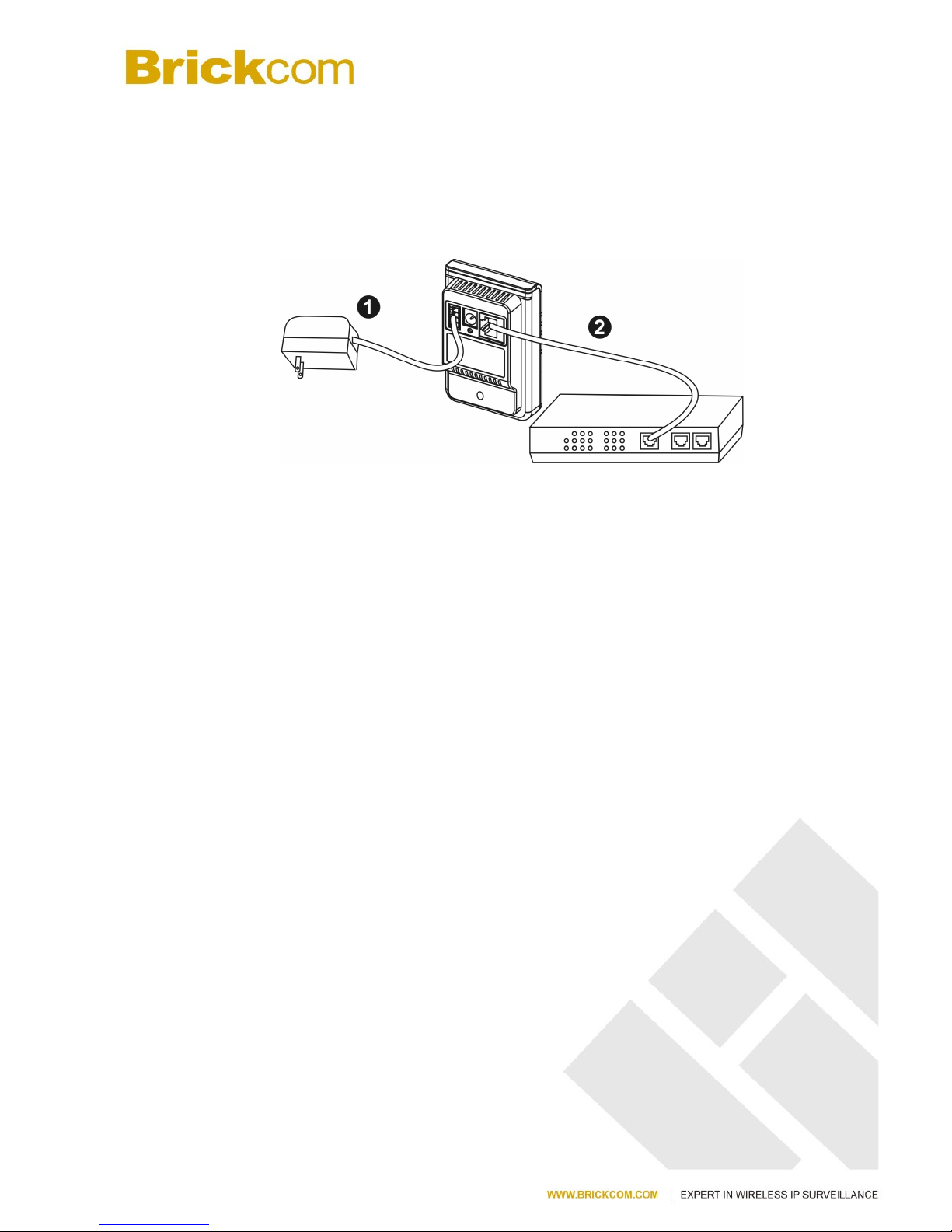
Basic Connection
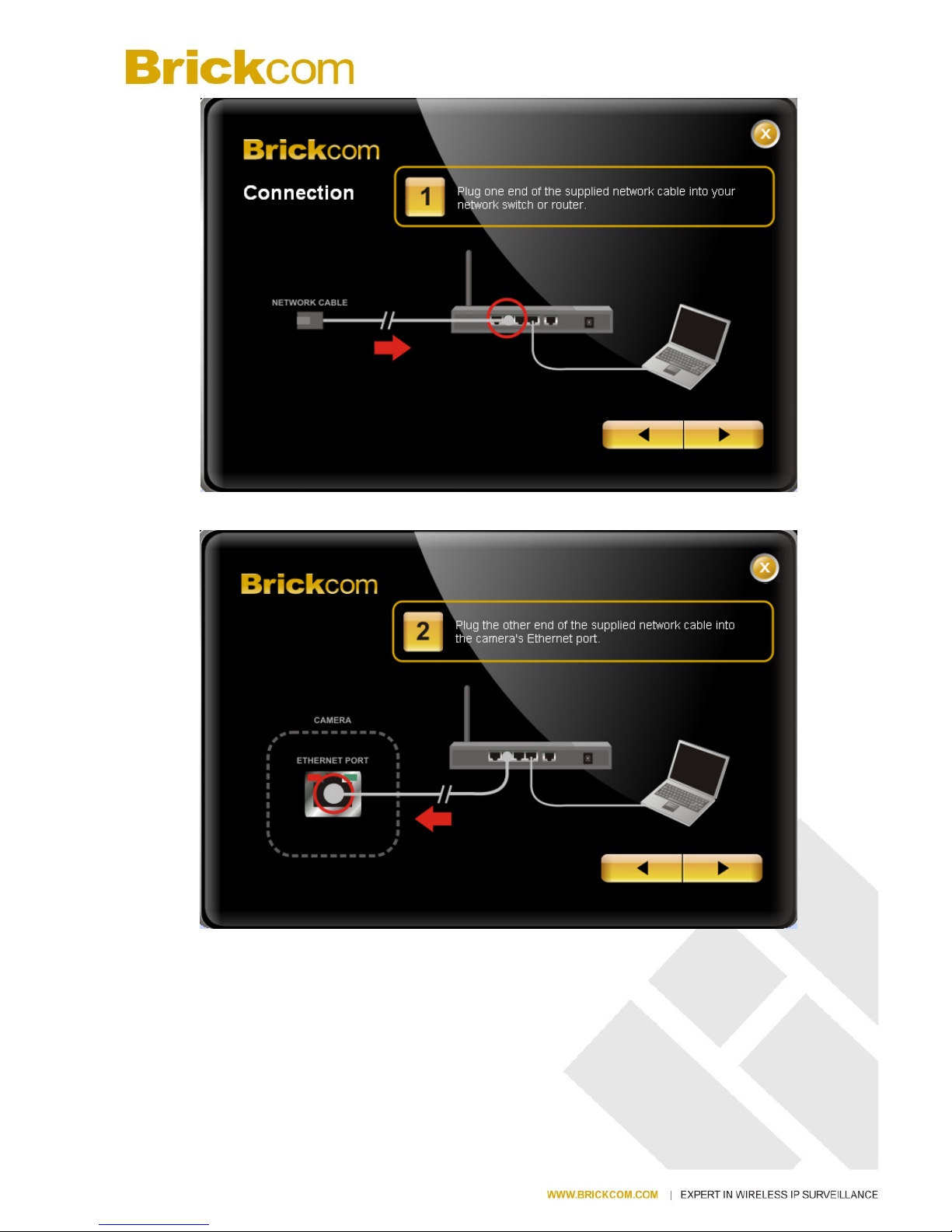
1. Connect the supplied power cable from the camera to a power outlet.
2. Connect the camera to a switch using an Ethernet cable.
CB-500A Series
When powering up, the power LED will light up and the camera will boot up. The status
LED will turn amber when the camera is obtaining the IP address. After obtaining the IP
address, the link LED will flash orange while the network connection is processing.
Page 15
- 9 -
Software Installation
In this manual, "User" refers to whoever has access to the Network Camera, and
"Administrator" refers to the person who can configure the camera and grant user access to
the camera.
After checking the hardware connection, run the Installation Wizard program included on the
product’s CDROM to automatically search the intranet for the camera. There may be many
cameras on the local network. Differentiate the cameras using the serial number which is
printed on the labels on the carton and the bottom of the camera.
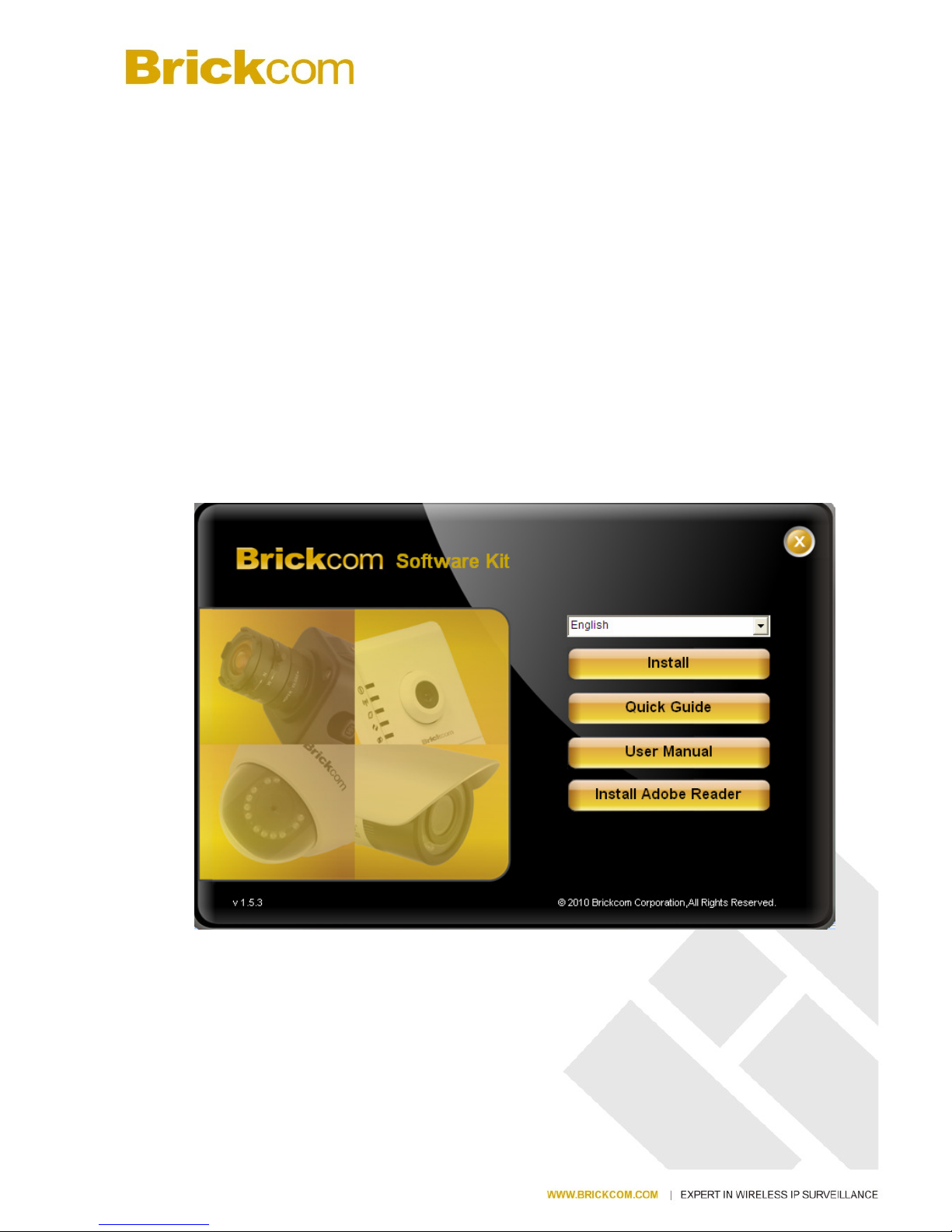
1. Insert the Installation CD into the CD-ROM driver. Run Auto-Run Tool directly from
the CD-ROM to start the installation. When installing the Brickcom software kit for the
first time, select a desired language for the interface. The available languages are
listed in the scroll box. Click <Install> and follow the steps to install the EasyConfig
wizard on the desired computer.
Page 16
- 10 -
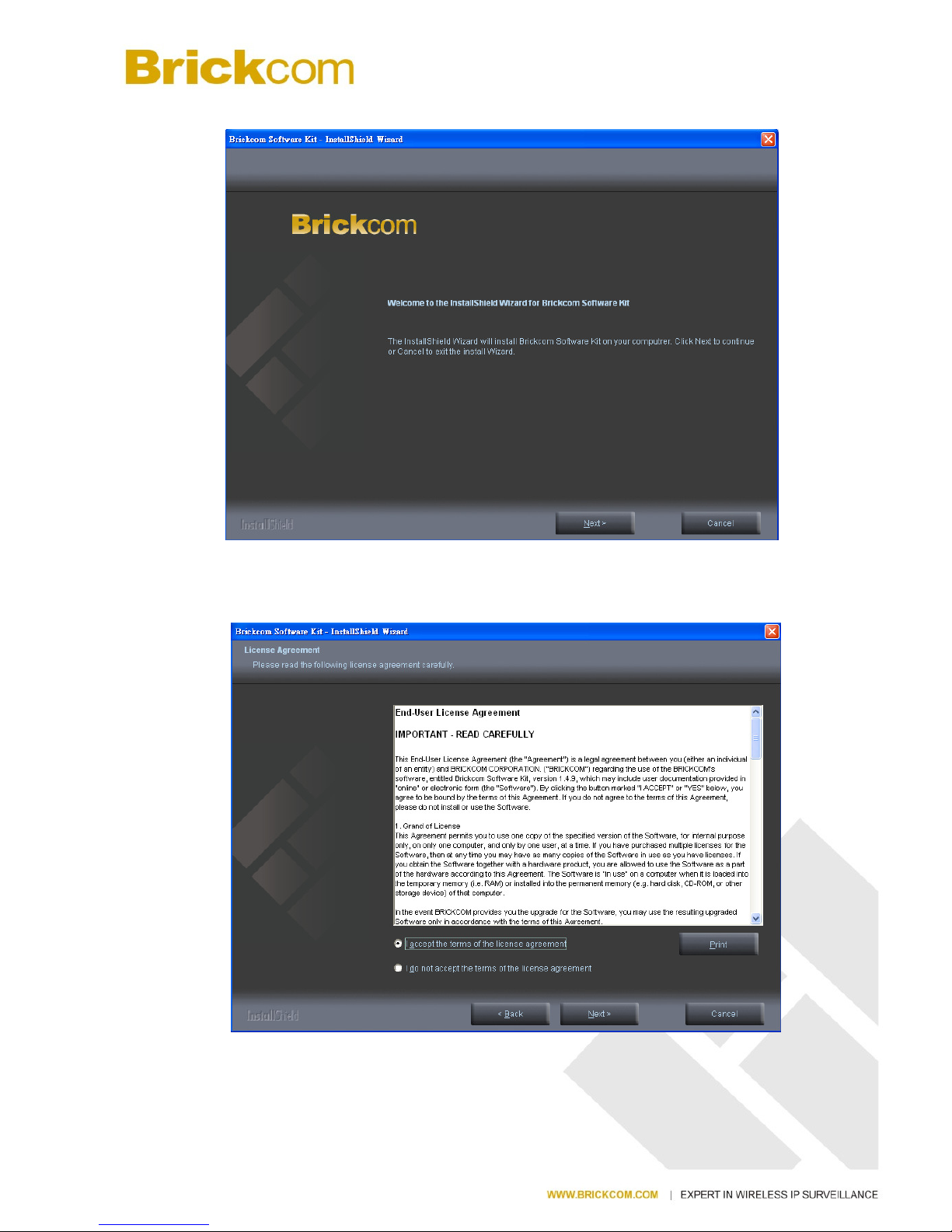
2. In the Install Shield Wizard dialog box, click <Next> to continue.
3. Read the End-User License Agreement and check the option “I accept the terms of the
license agreement”. Click <Next> to continue.
Page 17
- 11 -
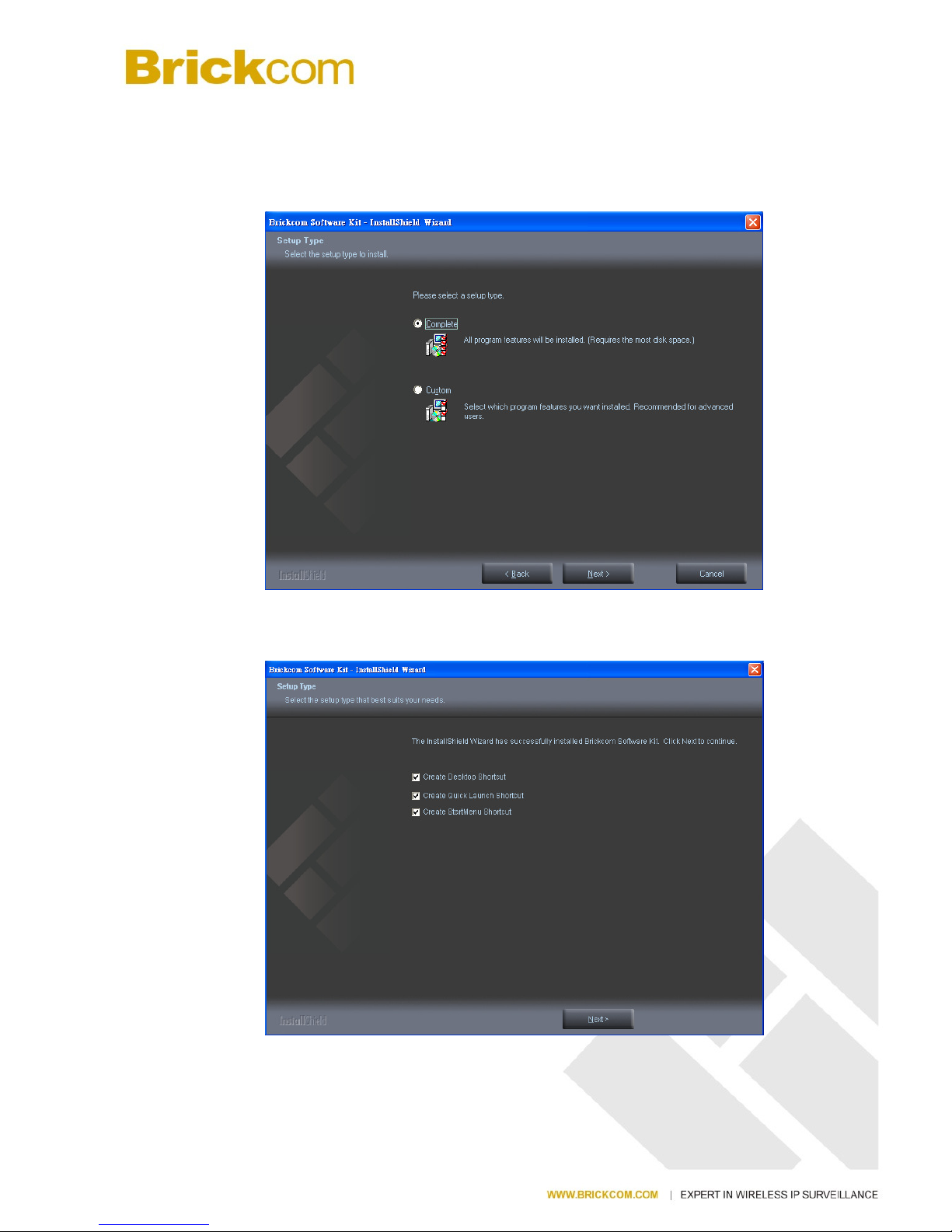
4. Select either “Complete” setup or “Custom” setup to install the system.
a. If COMPLETE SETUP is selected:
i. All program features will be installed into the default directory. Check the
option “Complete” and then click <Next>.
ii. Select to create shortcuts. Click <Next> to continue.
Page 18
- 12 -
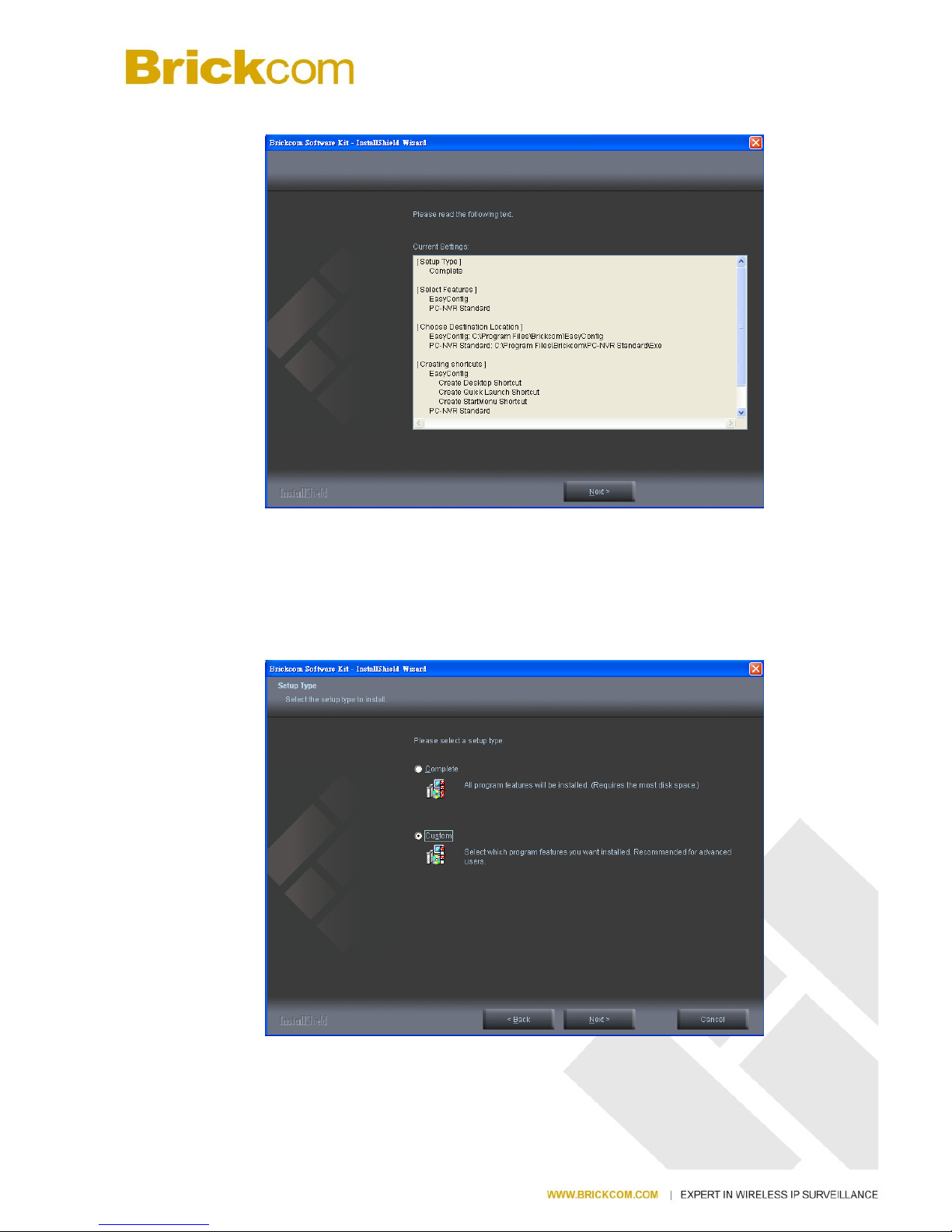
iii. The installation information will be displayed. Click <Next> to continue.
b. If CUSTOM SETUP is selected:
i. This option is recommended for advanced users. It can be used to install the
system to a preferred directory or to select specific program feature(s).
ii. Check the option “Custom”, and then click <Next>.
Page 19
- 13 -
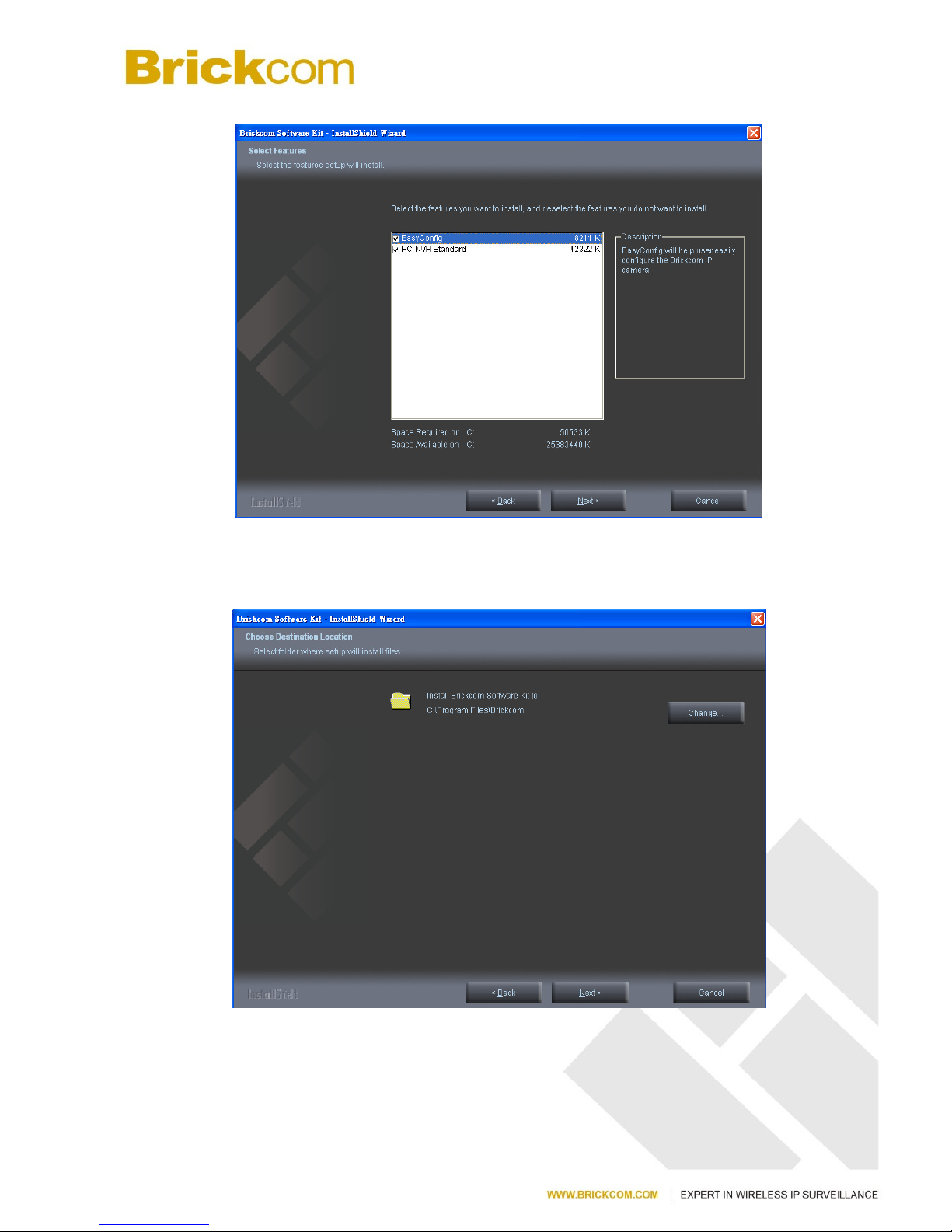
iii. Select the features to install. Click <Next> to continue.
iv.
Click <Change> to change the appointed folder where installation and
program files will be stored. Click <Next> to continue.
Page 20
- 14 -
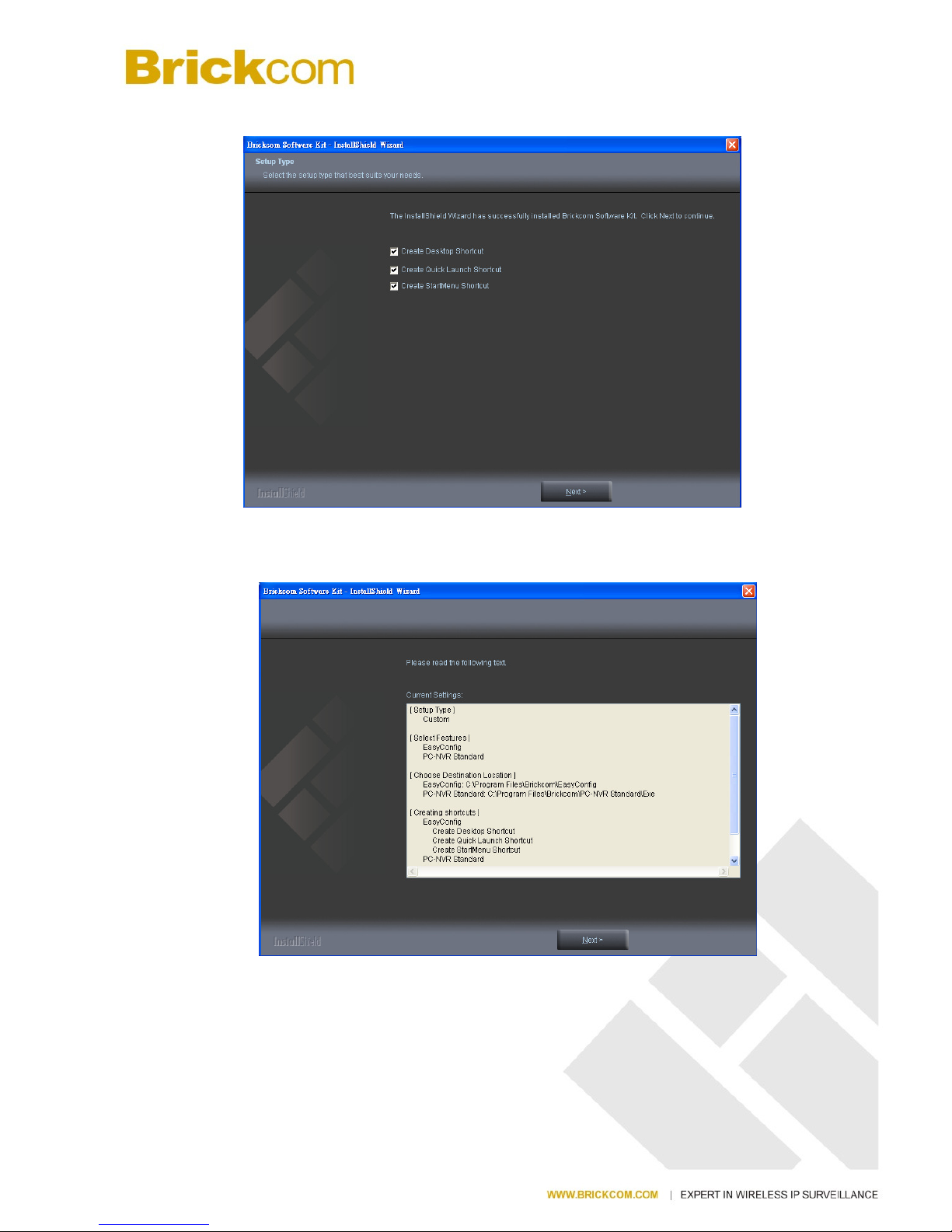
v. Select programs to create shortcuts. Click <Next> to continue.
vi. The installation information will be displayed. Click <Next> to continue.
Page 21
- 15 -
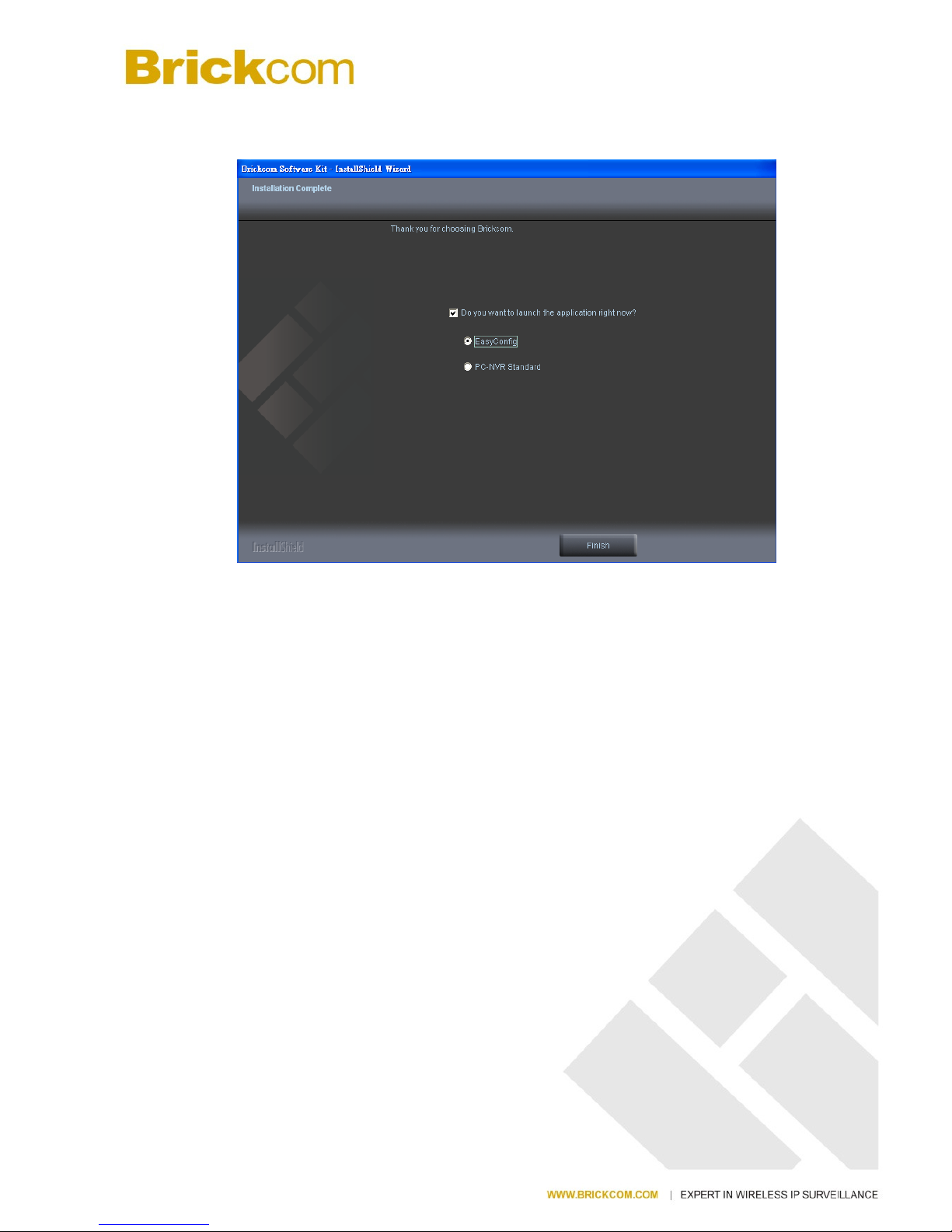
5. To launch EasyConfig or PC-NVR Standard, select the application and click <Finish>.
When launching the PC-NVR program, please refer to the PC-NVR user manual.
Page 22
EasyConfig
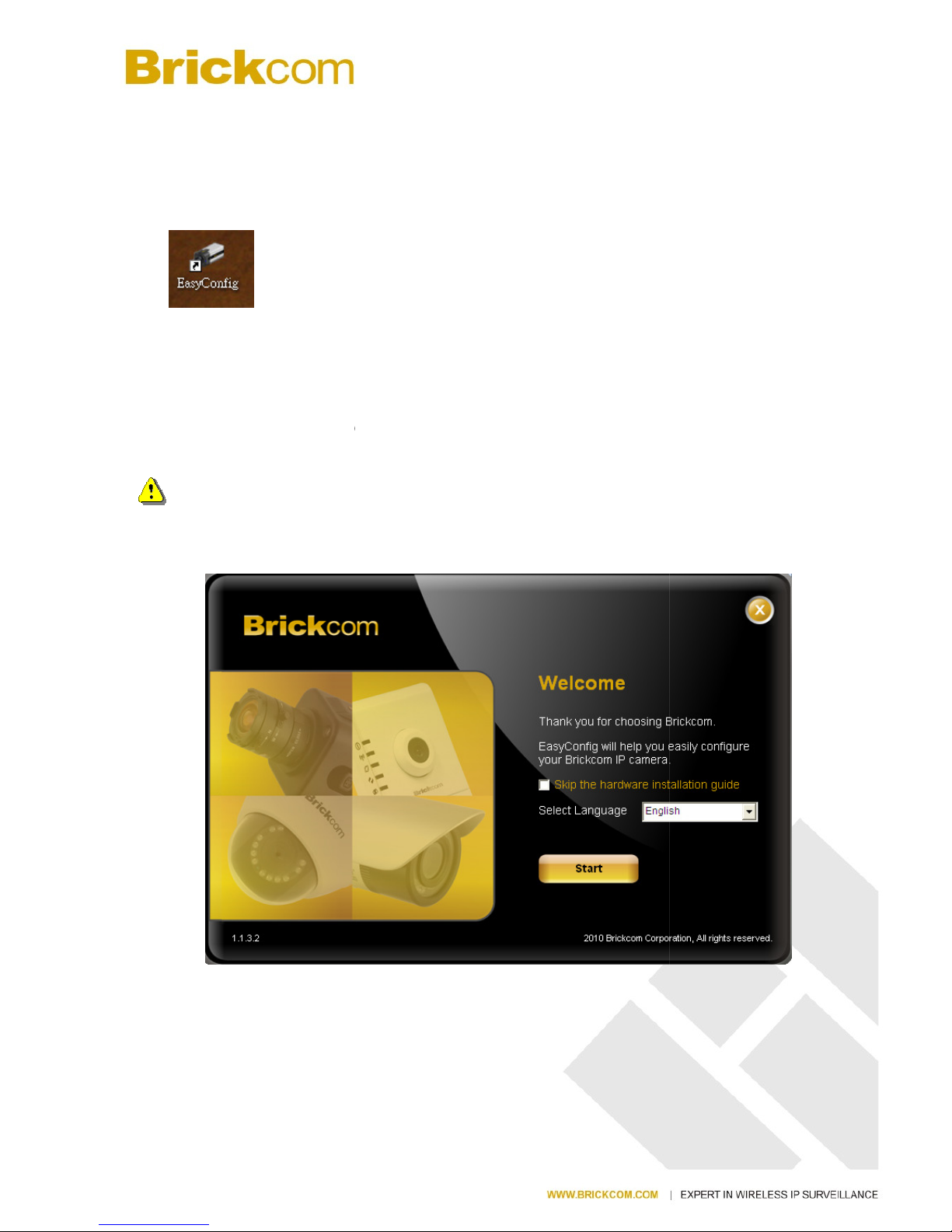
To launch EasyConfig,
select EasyConfig from the start menu. If Complete Setup type was
used in the software installation, an EasyConfig icon was installed on the desktop. Double
click to open the icon.
If Custom Setup type was
used in the software installation and an EasyConfig icon was not
installed on the desktop, the program will be installed under C:
Files\Brickcom\
EasyConfig unless the program was saved to a preferred directory.
1. Click <Start
> to continue.
in the intranet.
NOTE - Check “
Skip the hardware installation
connec
tion. To check the hardware installation settings, do not check the option box.
- 16 -
The prog
ram will automatically search for the camera
guide”
to skip
\Program
checking the hardware
Page 23
- 17 -
Page 24
- 18 -
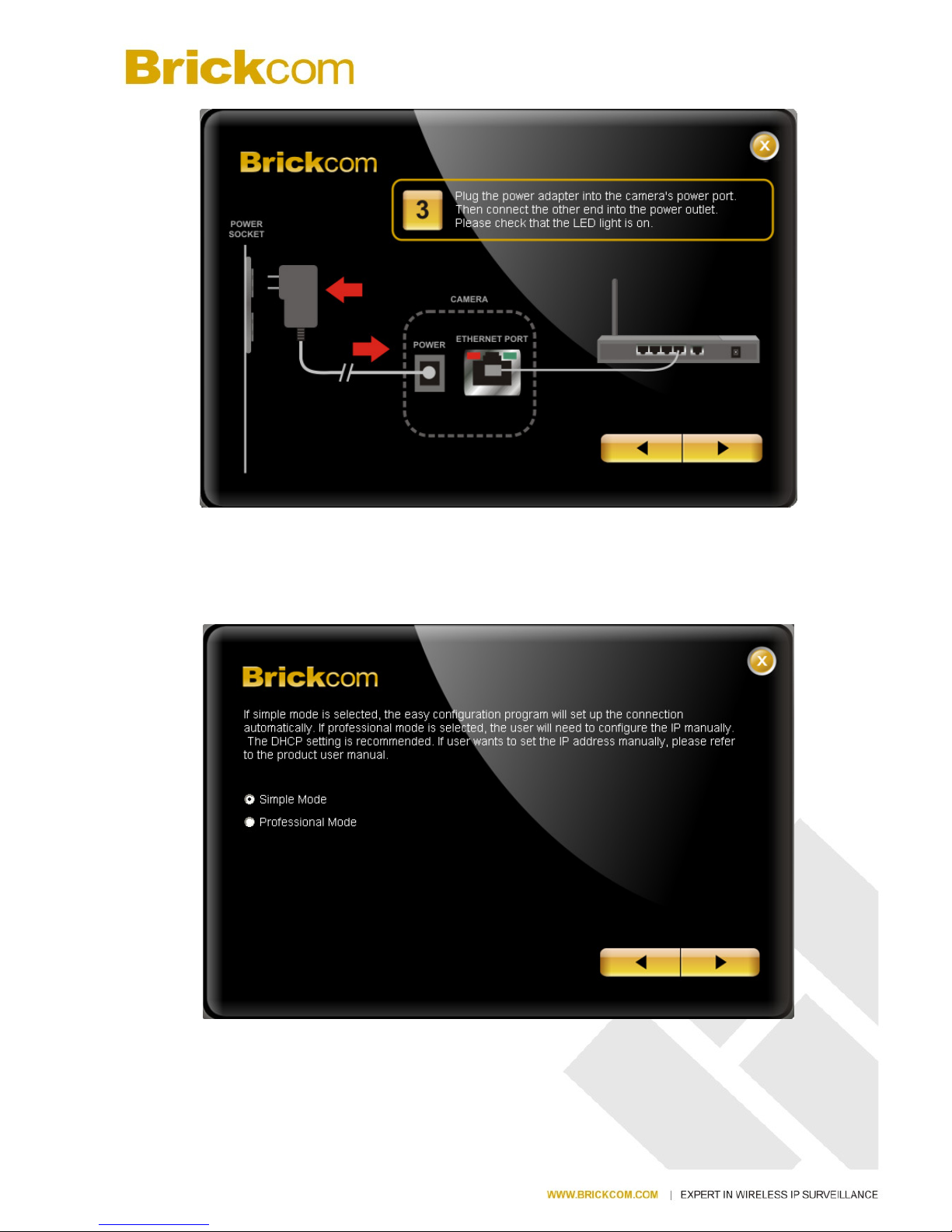
2. Select either “Simple Mode” or “Professional Mode” to obtain the camera’s IP
settings. If “Simple Mode” is selected, EasyConfig will set up the connection
automatically. If “Professional Mode” is selected, the user will need to configure
the IP settings manually.
Page 25
- 19 -
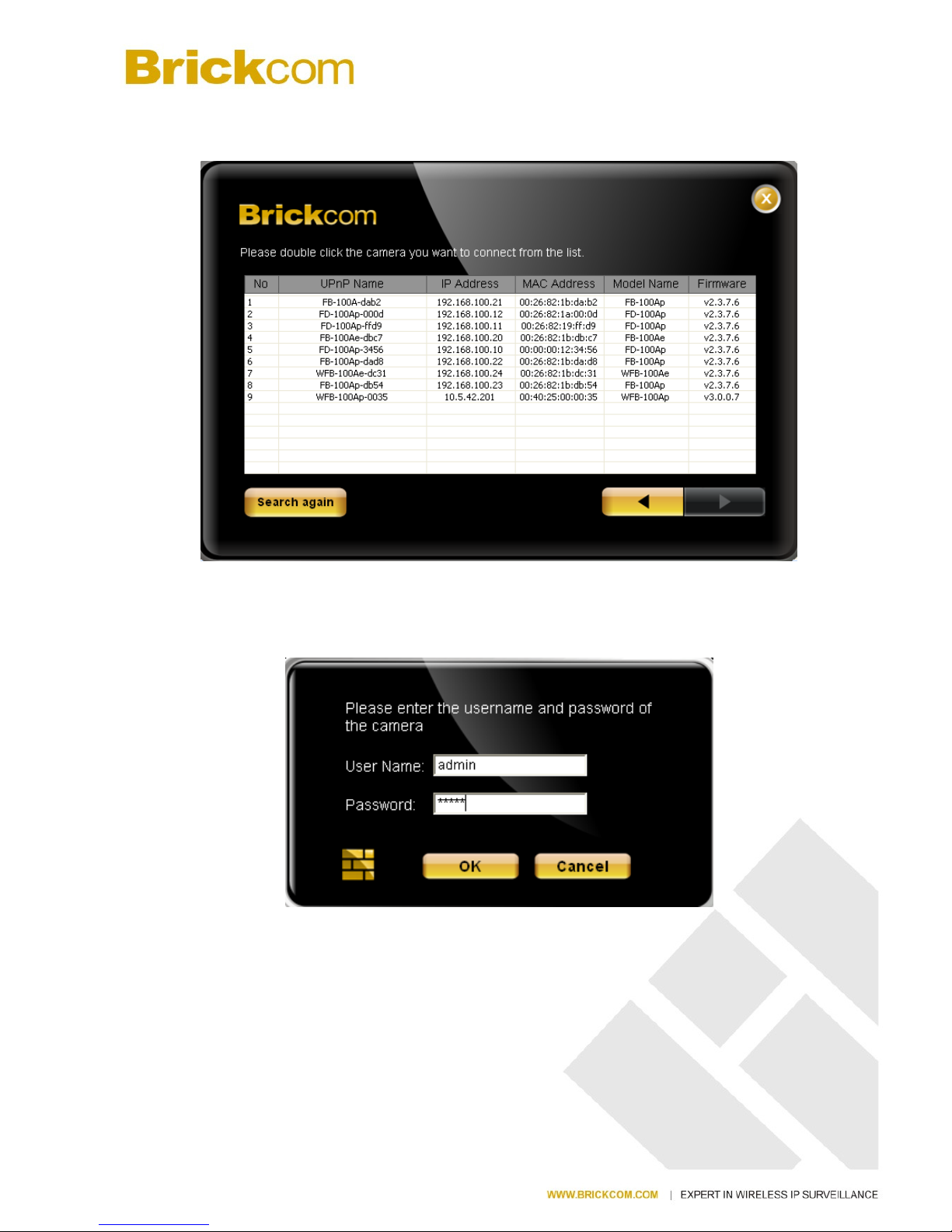
3. There may be many cameras in the local network. Differentiate the cameras using
their UPnP name. Double click on the camera from the survey list to connect.
4. Enter the username and password of the camera. For first time use, the default
username and password are “admin/admin.”
Page 26
- 20 -
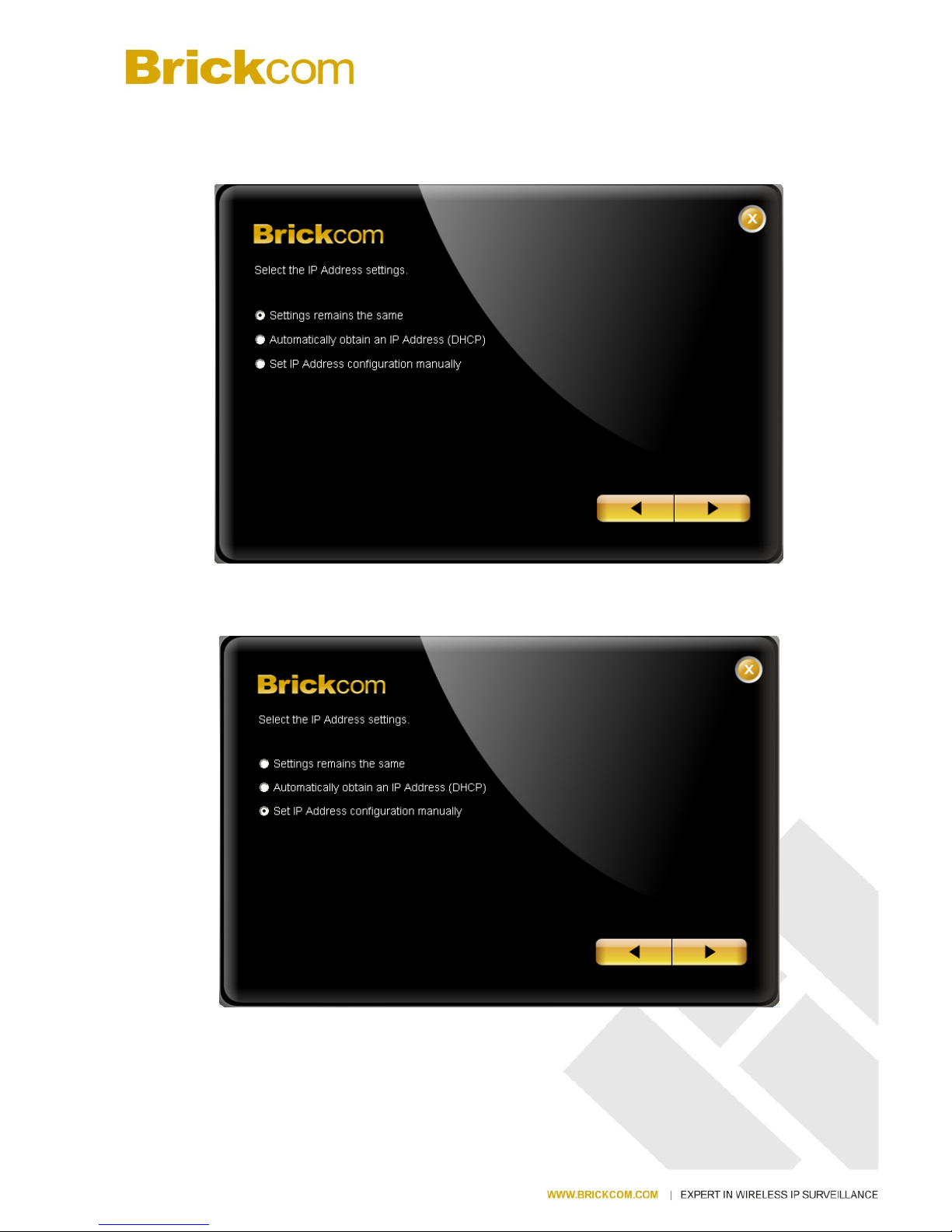
5. For configuring the IP address settings, select either <Settings remain the same>,
<Automatically obtain an IP Address (DHCP)> or <Set IP Address configuration
manually>. The DHCP setting is recommended.
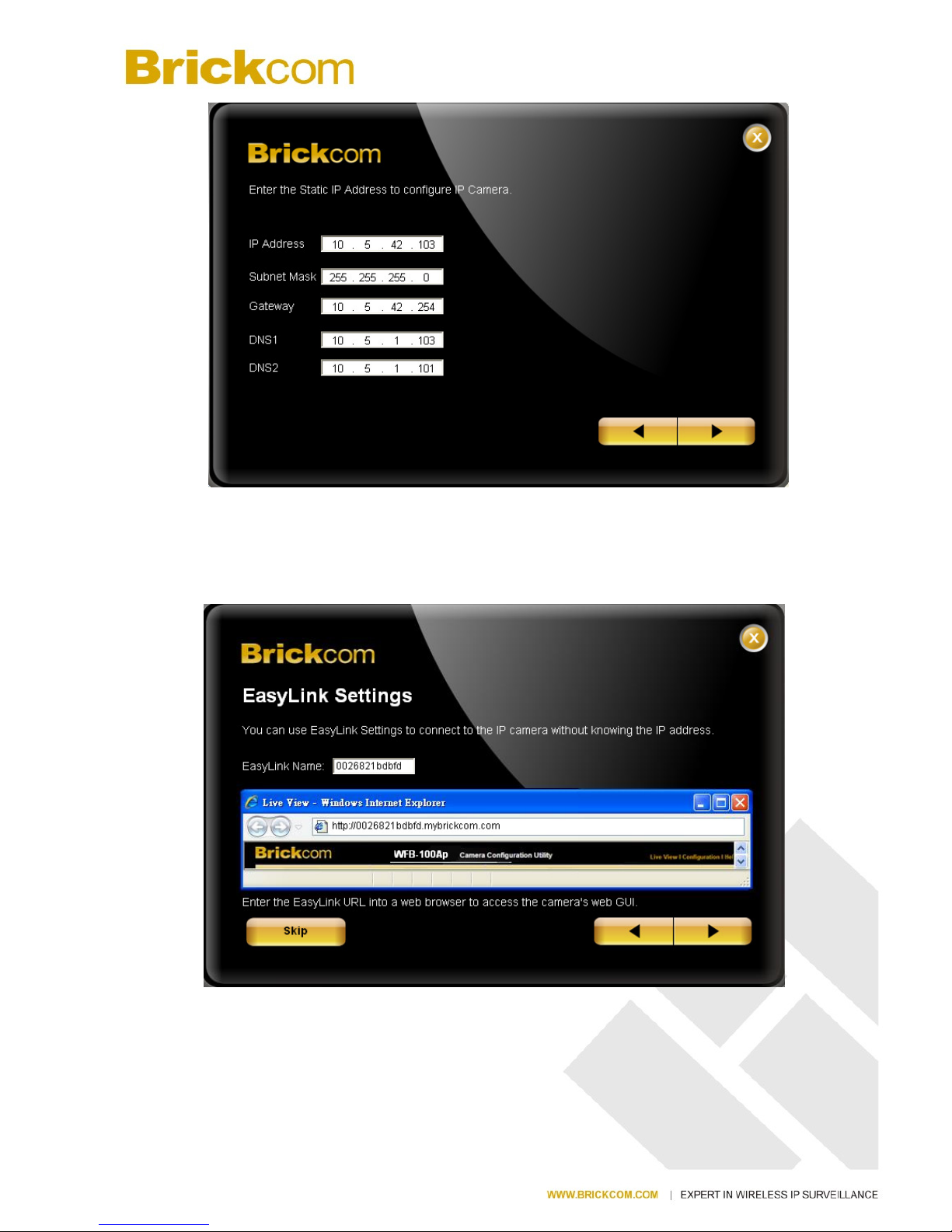
a. If <Set IP Address configuration manually> is selected, the following pages will be
displayed.
Page 27
- 21 -
6. If the camera supports the EasyLinkTM function, the following page will be
displayed. Otherwise, this page will not be shown. *If desired, click <Skip> to
skip this setting.
Page 28

EasyLinkTM
is a unique Brickcom function which allo
name to their network camera’s IP address.
up ports or remember hard-
to
can log onto [unique
EasyLink
view.
1. Enter a unique
EasyLink name
2.
When finished, click the arrow button to continue.
3. NOTE - See
page 42
- 22 -
ws users to assign a unique
There is no need to configure the
-
memorize IP addresses. When this feature is enabled,
name].mybrickcom.com to view the camera’s web
whose length must
be between 5
for more details about the EasyLink function.
EasyLink
router to open
users
GUI and live
-32 characters.
Page 29
- 23 -
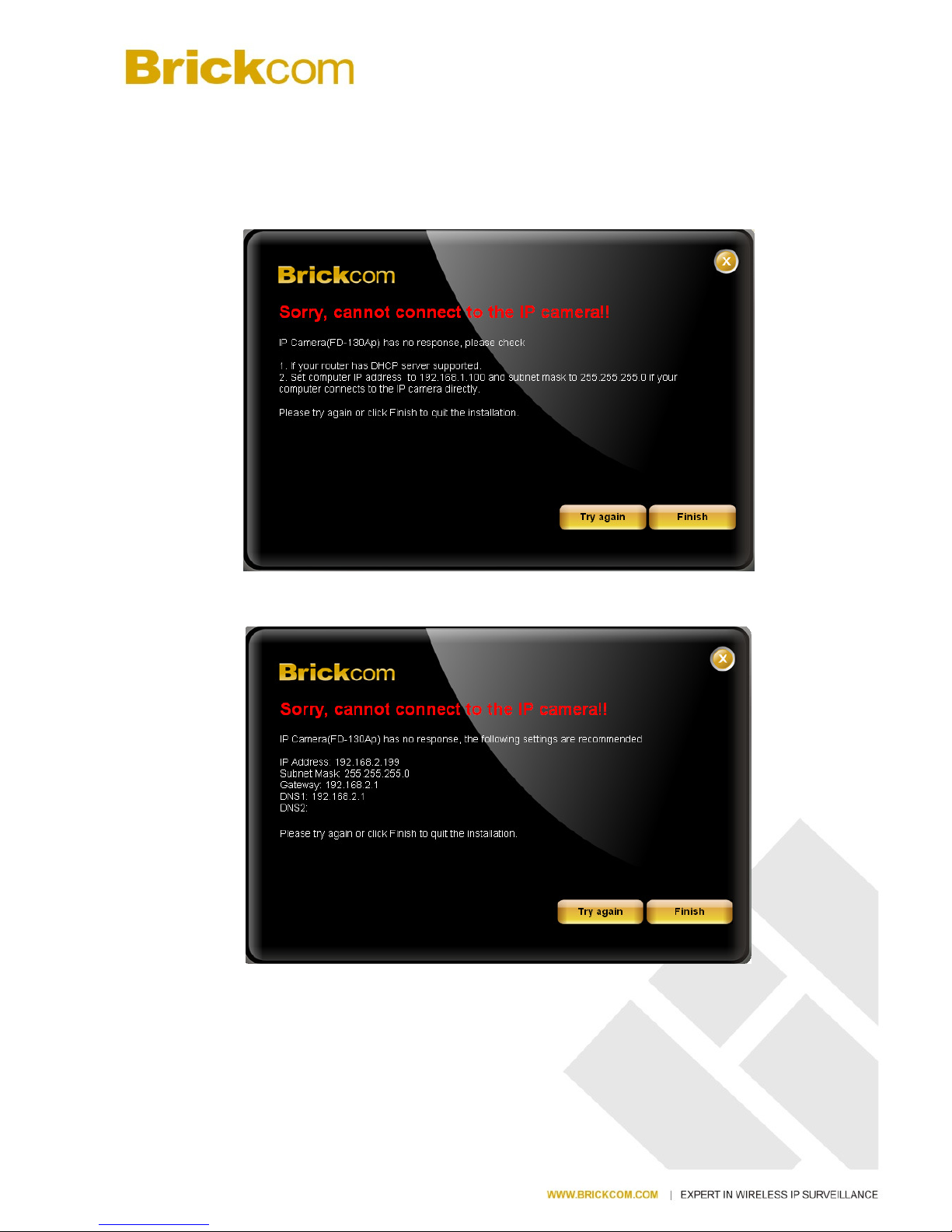
7. When the IP address settings have been configured, the screen will either display a
successful or failed connection message. If the connection failed, either try again or
quit the installation.
a. If “DHCP IP address settings” was selected, the failure page will be displayed as
below:
b. If “Static IP address settings” was selected, the failure page will be displayed as
below:
Page 30
- 24 -
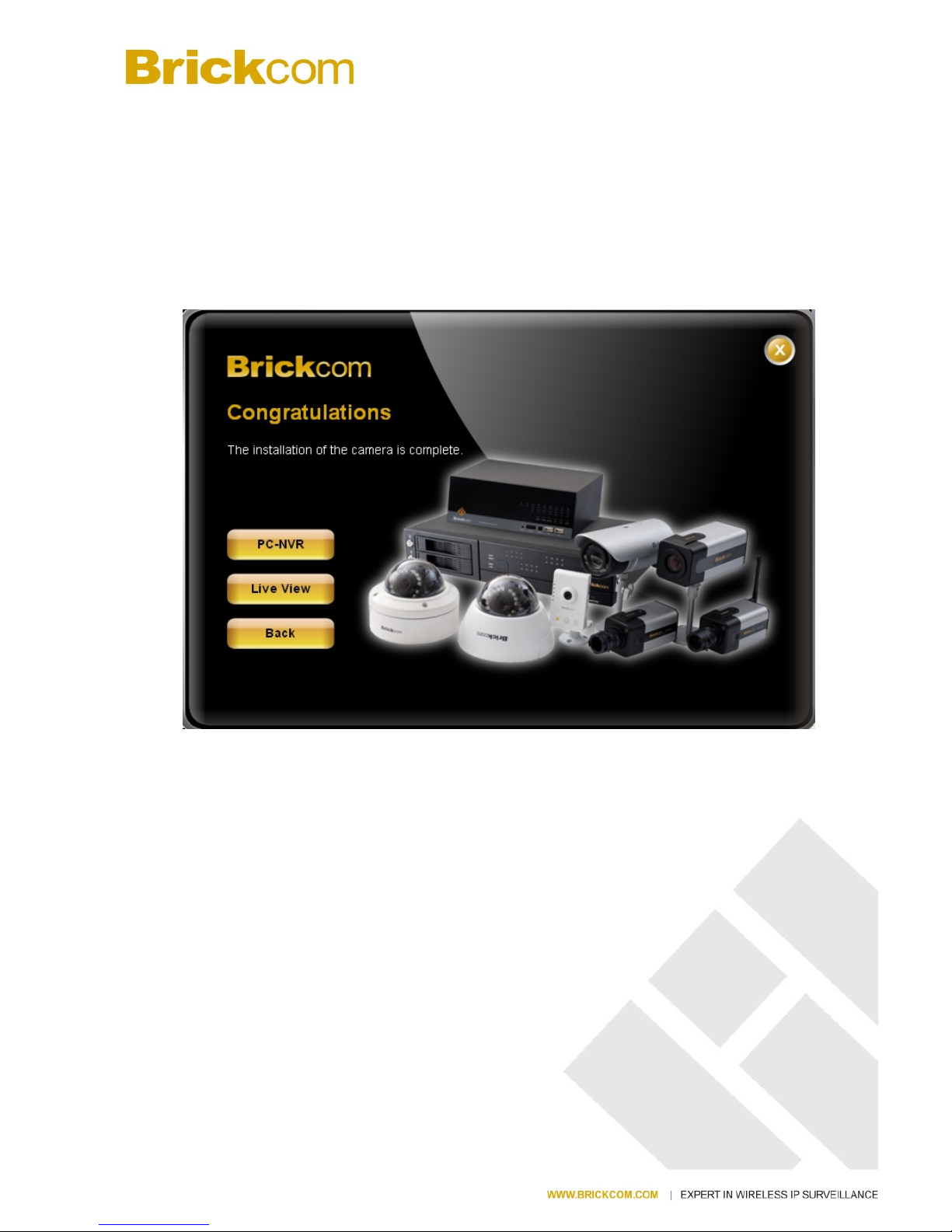
c. If the connection was successful, the user will see the message:
“Congratulations. The installation of the camera is complete.”
When this window is displayed, click <PC-NVR> to start the PC-NVR program, <Live
View> to view the live video from the connected IP camera, or <X> in the top right corner
of the screen to close the installation window. To run the PC-NVR program, please refer
to the PC-NVR user manual for more information.
Once installation is complete, the Administrator should proceed to the next section
"Accessing the Network Camera" for necessary changes and configurations.
Page 31

- 25 -
Accessing the Network Camera
Check Network Settings
The camera can be connected either before or immediately after the software installation. The
Administrator should complete the network settings on the configuration page, including
entering the correct subnet mask and IP address of gateway and DNS. Ask the network
administrator or Internet service provider for the detail information.
Add Password to Prevent Unauthorized Access
The Administrator should immediately implement a new password as a matter of
prudent security practice. For first time use, the user name and password for the
Administrator are assigned as “admin/admin”. After the Administrator changes the
Administrator password, the web browser will display an authentication window to confirm the
new password. Once the password is set, there is no provision to recover the
Administrator’s password. If the Administrator’s password is lost, the only option is
to restore the original factory default settings.
The Administrator can set up a maximum of ten (10) user accounts. Users will be able to
access the Network Camera, but will not be allowed to access system configurations.
 Loading...