

Page 1
VPULSE® Connect
User’s Guide
TM
Page 2
VPULSE Connect User’s Guide
Below are step-by-step instructions to install, access and print reports from the SD card assigned to each Breg
VPULSE System. To begin, you will need:
1. SD Card
2. SD Card reader
3. Computer and Internet Access
Software Installation Steps
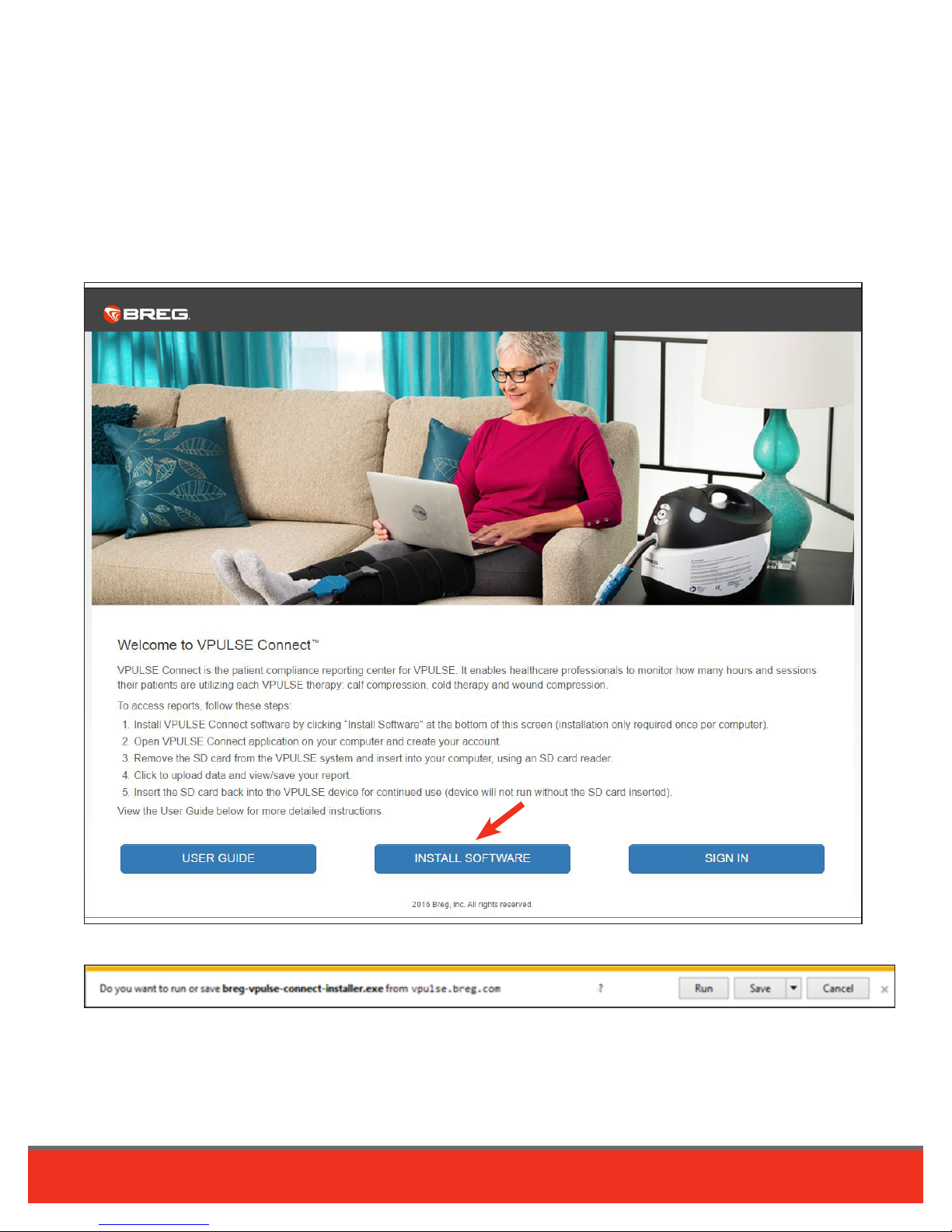
1. Download VPULSE Connect software. Visit breg.com/vpulseconnect and click “Install Software” button.
2. Save breg-vpulse-connect-installer.exe. Click Save File.
2
VPULSE Connect User's Guide
|
Page 3
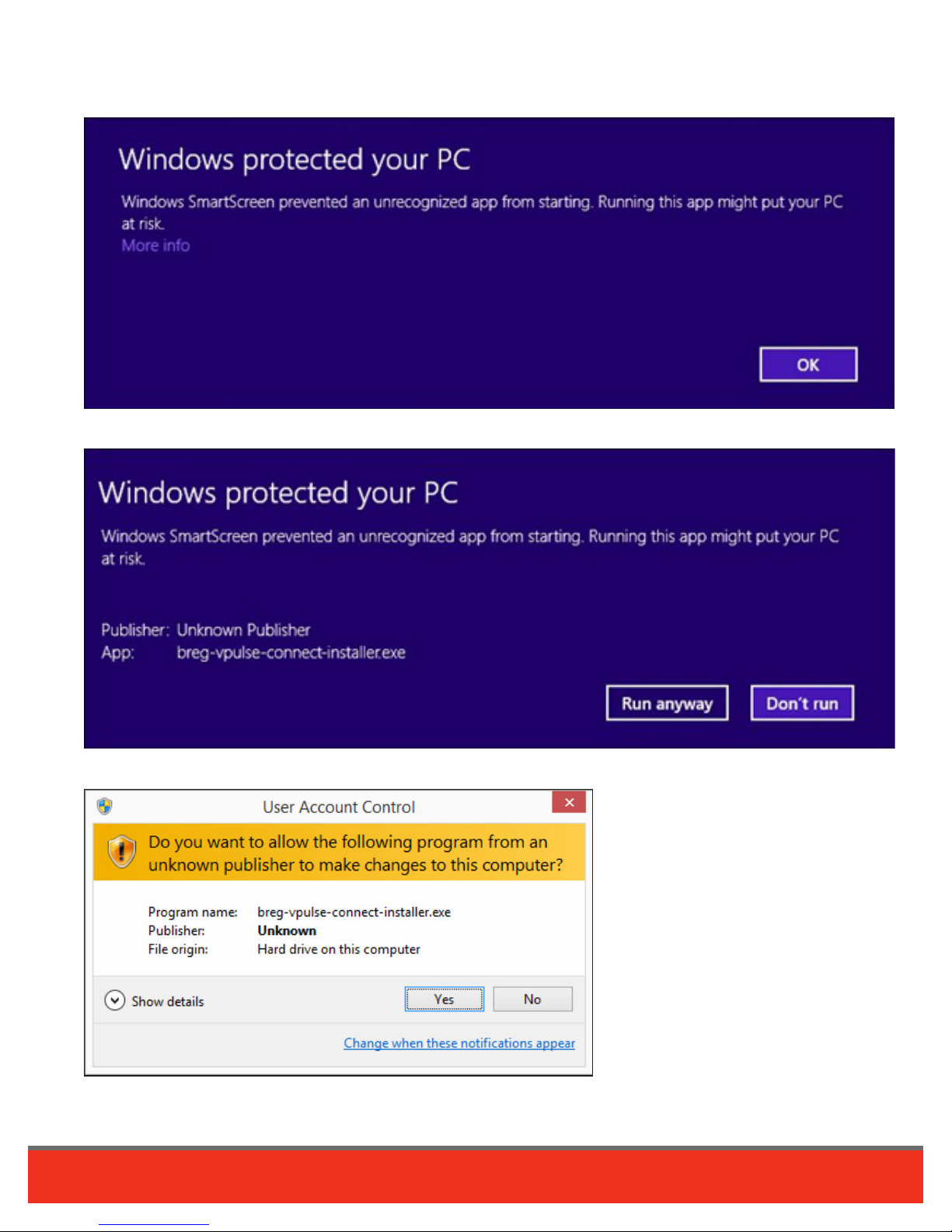
3. Open breg-vpulse-connect-installer.exe. From your browser’s downloads window, double-click the breg-vpulseconnect-installer.exe file. Click the “Run” button if prompted.
Click on “More Info”, If Prompted.
Click on “Run Anyway” button, If Prompted.
Click on “Yes” button, If Prompted.
3
VPULSE Connect User's Guide
|
Page 4
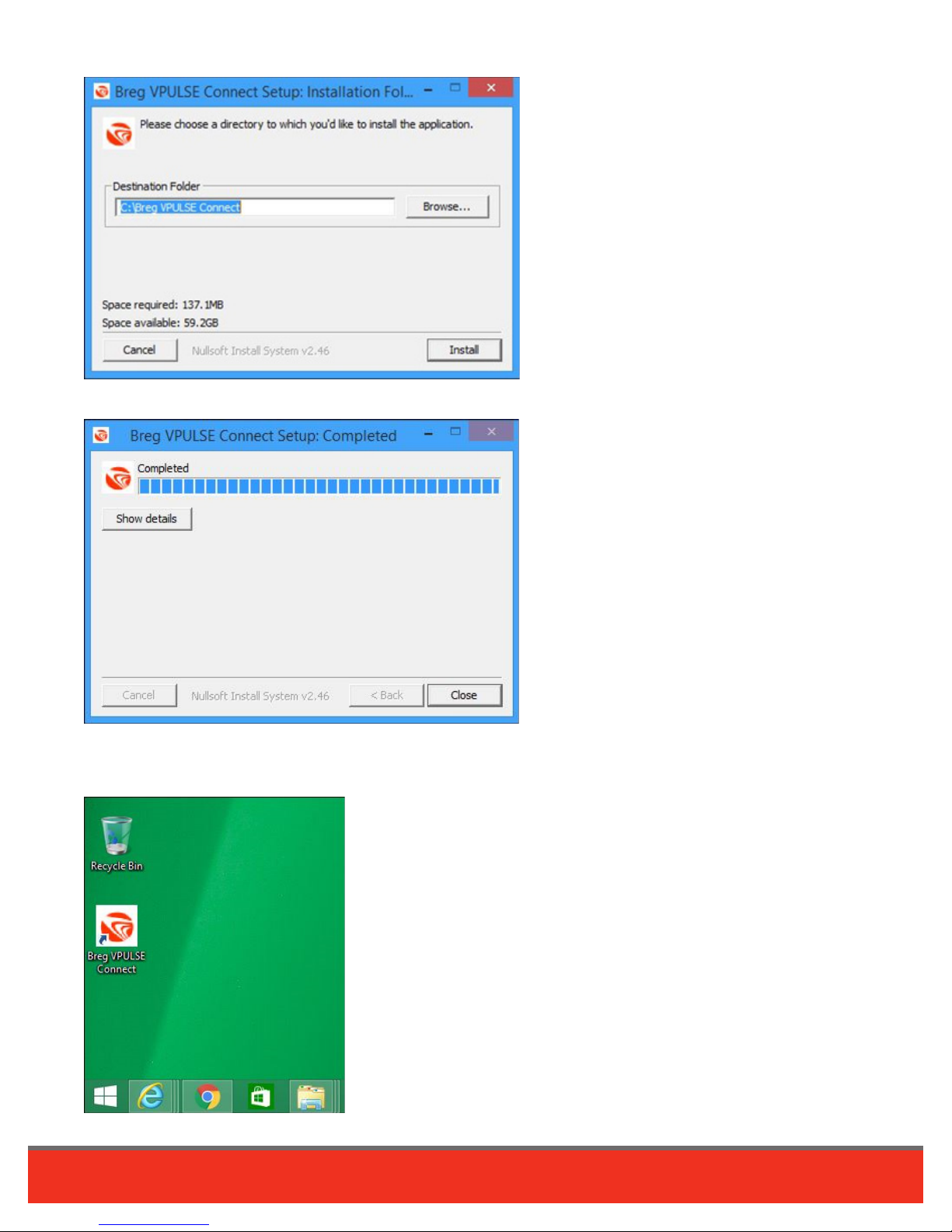
4. Install software. Browse and choose an Install location, then click “Install.”
After the installation has completed click the “Close” button on the Installation Window.
5. Locate VPULSE Connect icon. A shortcut icon will be placed on your desktop and a menu group in the Windows
Start Menu. Software will only need to be installed once on a computer and then you can read cards as many times
as necessary.
4
VPULSE Connect User's Guide
|
Page 5
Using VPULSE Connect
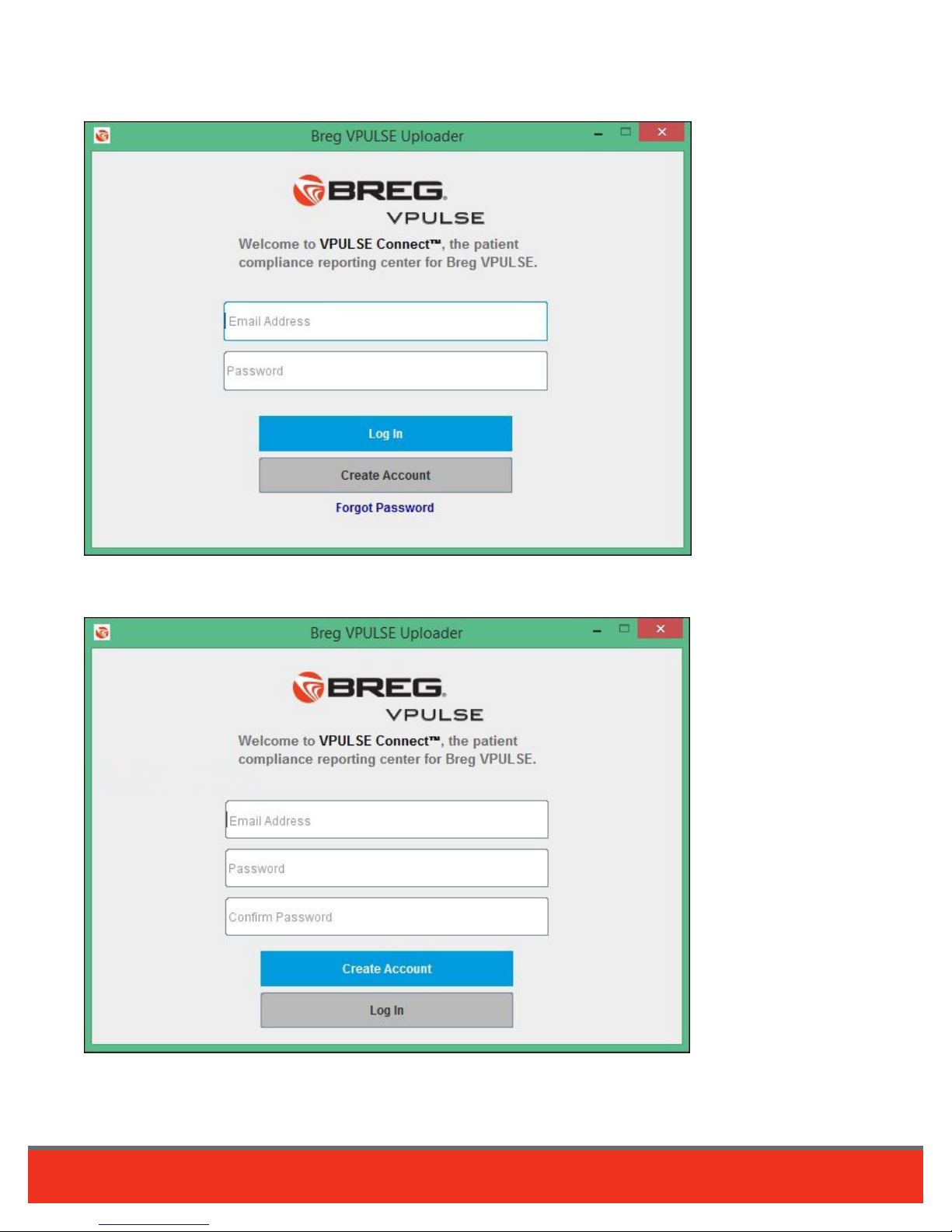
1. To start, double click the Breg VPULSE Connect Icon. If you have an account, enter email and password and click on
“Log In.” If not, click “Create Account.”
To create a new account, enter email address and password. Your email address is for your account access only and
will not be shared.
5
VPULSE Connect User's Guide
|
Page 6
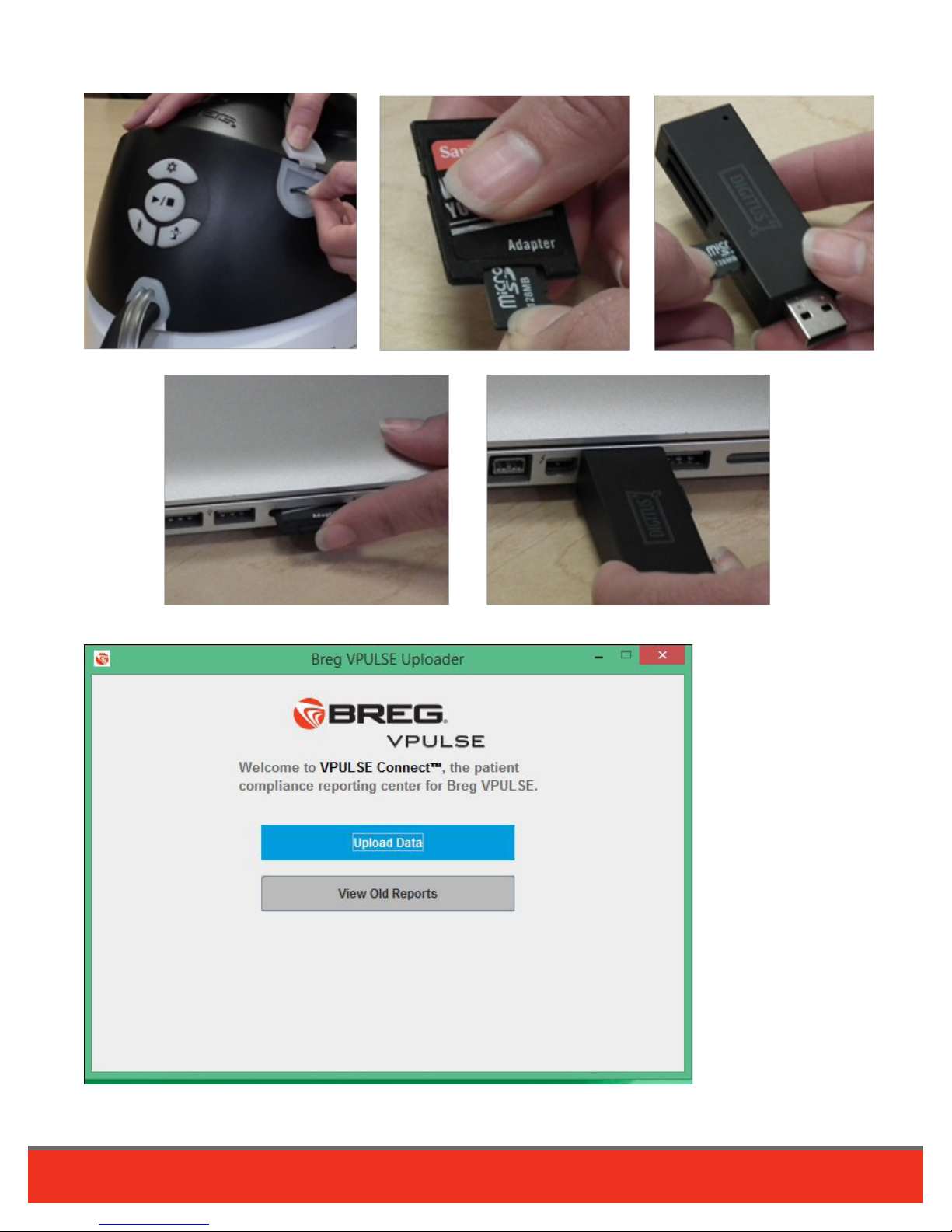
2. Push the SD card to pop it out of the device and then remove. Insert it into an SD card reader or adapter and insert
into the USB port or card slot on the side of your computer.
3. Once the SD card has been recognized, click “Upload Data.”
6
VPULSE Connect User's Guide
|
Page 7
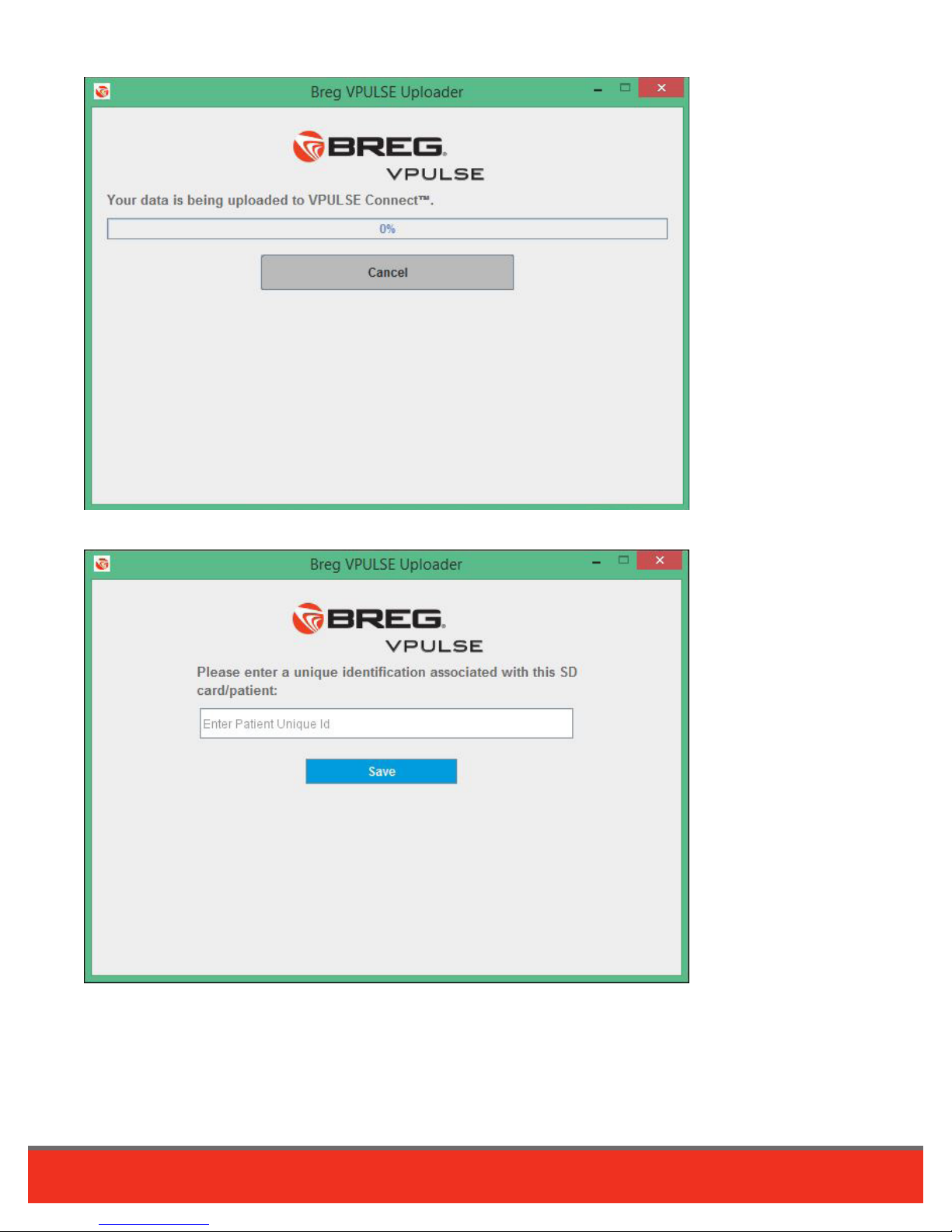
You will see the progress of the data upload.
4. Once the data is uploaded, enter “Patient Unique ID” and click “Save” button.
7
VPULSE Connect User's Guide
|
Page 8
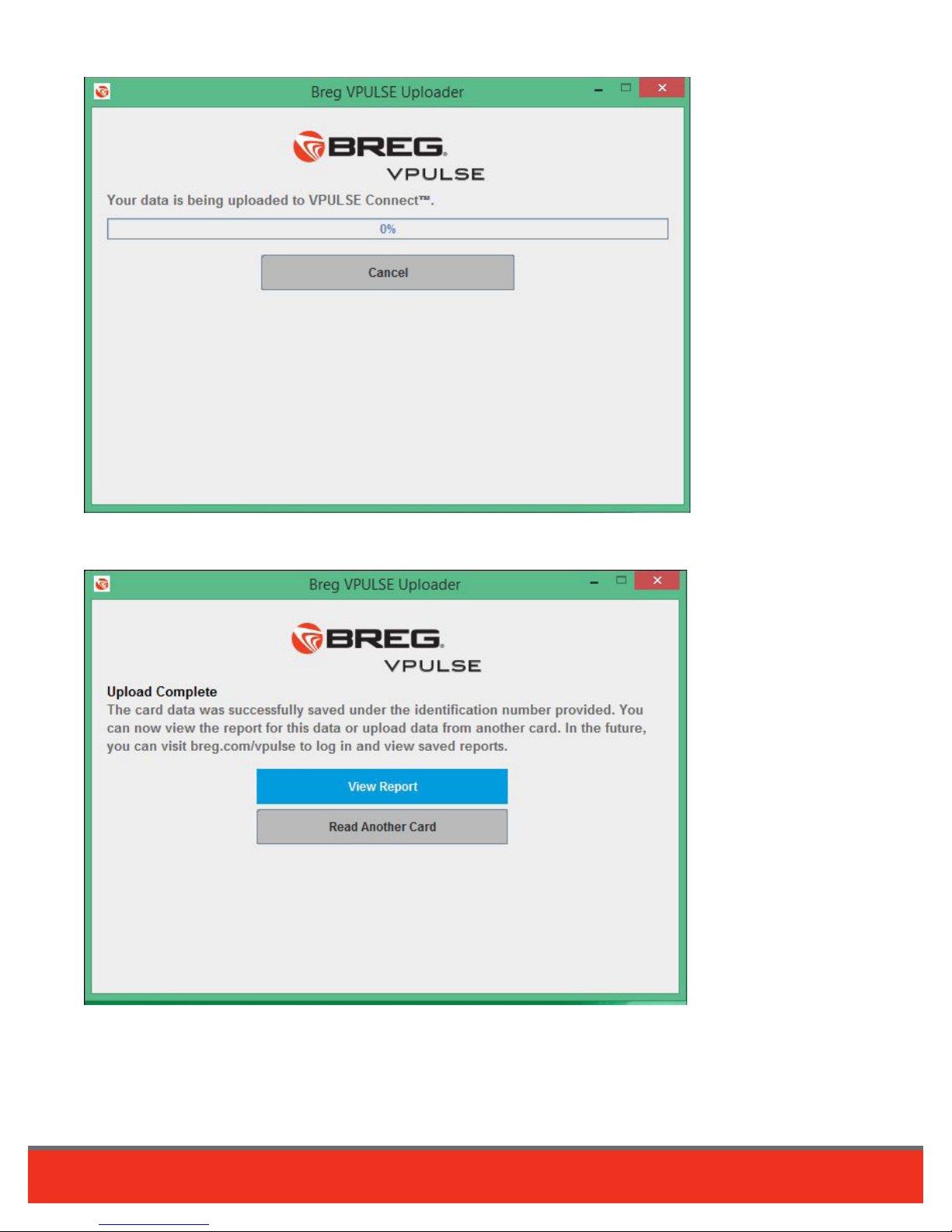
Once you click “Save,” data will be turned into a report.
5. Click “View Report” to open the browser & show the report.
Or click “Read Another Card” to start reading another card.
8
VPULSE Connect User's Guide
|
Page 9
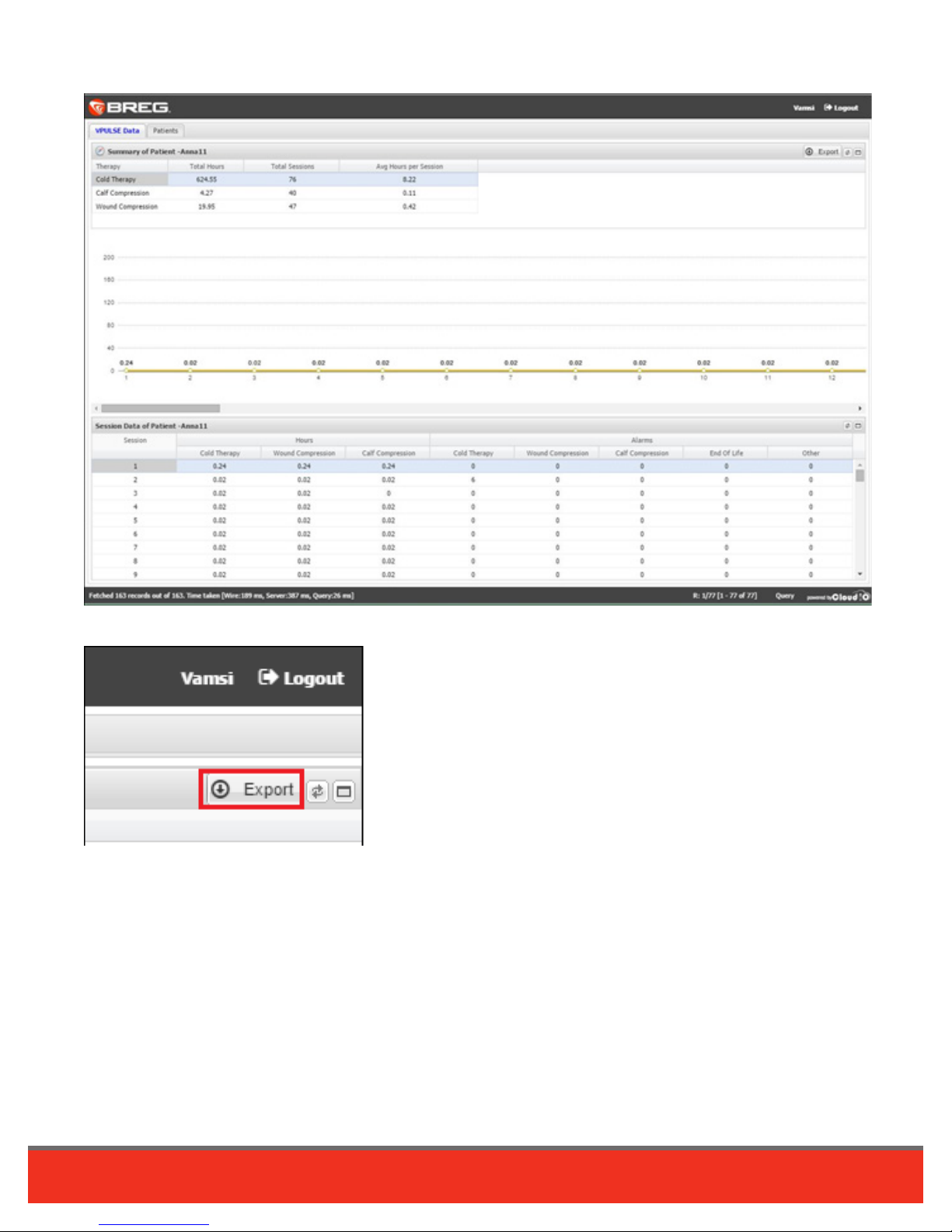
6. The report will indicate hours of therapy usage and number of sessions that a patient has utilized each VPULSE
therapy: calf compression, cold therapy, and wound compression. Here is a sample report:
To save/print the report, click on the Export button on Top Right corner “Summary of Patient XXX” table.
9
VPULSE Connect User's Guide
|
Page 10

Toll Free Tel: 1-800-321-0607
Local: +1-760-795-5440
Fax: +1-760-795-5295
www.Breg.com
Breg, Inc.
2885 Loker Ave E
Carlsbad, CA 92010 USA
© 2016 Breg, Inc. All rights reserved. M.2607 03/16
 Loading...