

Page 1
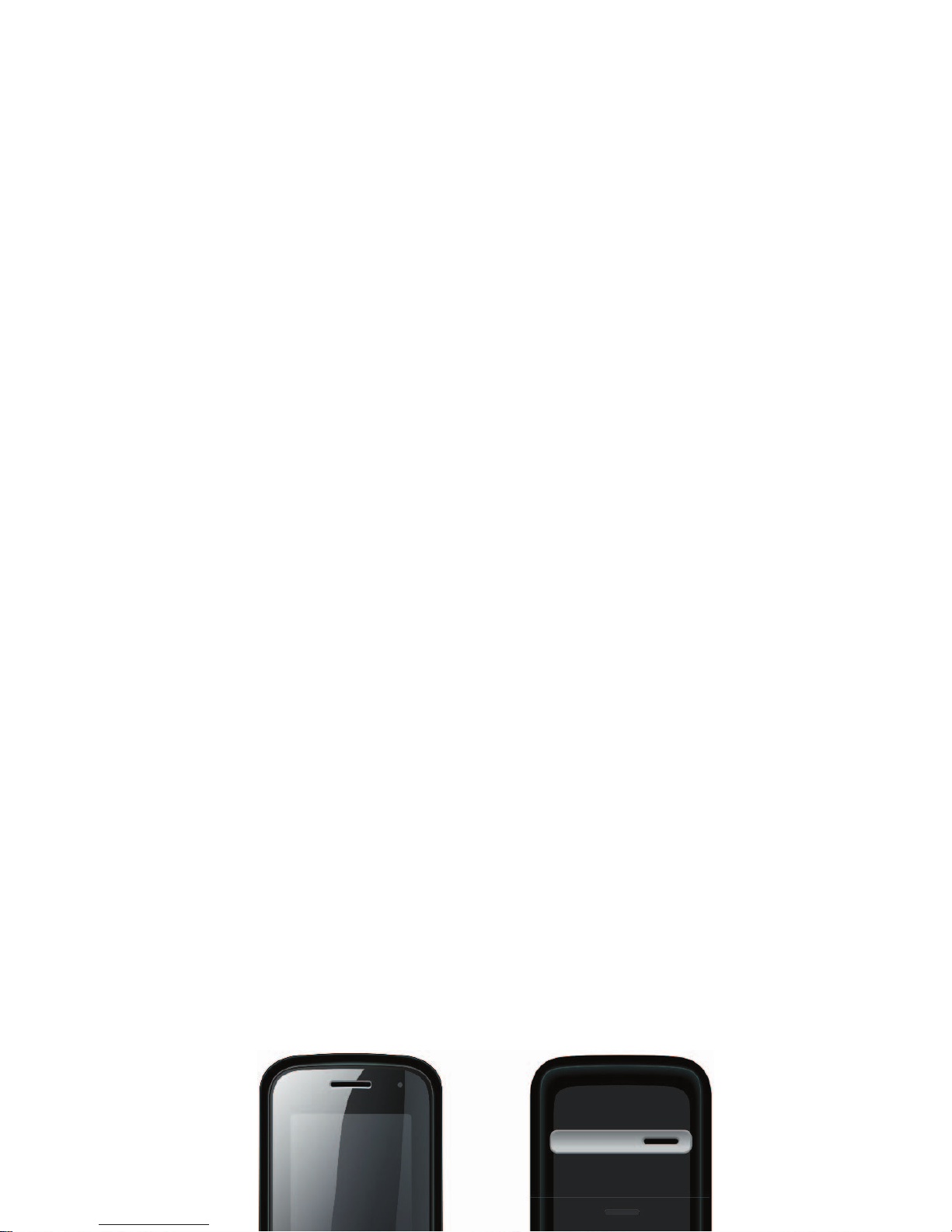
Dos DM-270 from BRAVA
User Manual
Page 2

ii
Statement
The contents of this manual maybe different wording with the cell phone, please
consider information according to the cell phone.
Brava reserves the right to revise this document or withdraw it at any time without
prior notice.
Copyright©2008 Brava Techno Corporation Ltd.
All Rights Reserved
No part of this manual is allowed to be reproduced or forwarded in any form or by
any means without prior written consent of Brava.
Page 3

iii
Contents
1 Getting to Know Your Phone ........................................................................................1
Package list.........................................................................................................................................1
Basic specification ...............................................................................................................................1
Mobile phone appearance ...................................................................................................................2
2 Getting Started...................................................................................................................7
3 Basic Functions...................................................................................................................8
Switching On/Off.................................................................................................................................8
Making phone call ...............................................................................................................................8
Answering the call...............................................................................................................................9
Operations during a call...................................................................................................................... 9
Keypad lock.......................................................................................................................................10
4 Input Methods .................................................................................................................. 11
5 Phone book ........................................................................................................................12
Add new............................................................................................................................................12
View a contact ..................................................................................................................................12
Search...............................................................................................................................................13
Groups ..............................................................................................................................................13
Copy..................................................................................................................................................13
Speed dial .........................................................................................................................................13
Delete ...............................................................................................................................................14
Storage type......................................................................................................................................14
Memory status ..................................................................................................................................14
My number........................................................................................................................................14
6 Messages ............................................................................................................................15
Create message ................................................................................................................................15
Page 4

iv
Inbox.................................................................................................................................................15
Sent items.........................................................................................................................................16
Drafts ................................................................................................................................................ 16
Favori tes............................................................................................................................................16
Delivery report ..................................................................................................................................17
Templ at es ..........................................................................................................................................17
Delete messages...............................................................................................................................17
Settings.............................................................................................................................................17
Memory status ..................................................................................................................................18
Voice mail..........................................................................................................................................18
7 Call history .........................................................................................................................20
Missed calls .......................................................................................................................................20
Answered calls ..................................................................................................................................20
Dialed calls........................................................................................................................................20
Delete ...............................................................................................................................................20
Call duration......................................................................................................................................21
8 My files.................................................................................................................................22
Pictures .............................................................................................................................................22
Sounds .............................................................................................................................................. 22
Memory status ..................................................................................................................................22
9 Tools .....................................................................................................................................23
Alarm ................................................................................................................................................23
Scheduler ..........................................................................................................................................23
Calculator ..........................................................................................................................................23
Worl d ti me ........................................................................................................................................24
Radio.................................................................................................................................................24
Stopwatch .........................................................................................................................................24
Currency converter............................................................................................................................25
Page 5

v
10 Profiles...............................................................................................................................26
11 Games.................................................................................................................................27
Bubble...............................................................................................................................................27
Tetri s .................................................................................................................................................27
12 Networks services.........................................................................................................28
BREW application ..............................................................................................................................28
STK ...................................................................................................................................................28
UTK...................................................................................................................................................28
13 Settings .............................................................................................................................29
Display ..............................................................................................................................................29
Phone settings ..................................................................................................................................30
Call settings.......................................................................................................................................31
Call firewall .......................................................................................................................................35
Security.............................................................................................................................................36
My shortcuts .....................................................................................................................................37
Network settings...............................................................................................................................37
14 Maintenance Guidelines..............................................................................................38
15 Safety Information .......................................................................................................40
Page 6
vi
Safety Precautions
Please read these simple guidelines. Not following them may be dangerous or illegal. For further
information, see the section of “Safety information”.
Do not switch the phone when the use of mobile phone is prohibited or may cause
interference or danger.
Do not place your phone and its accessories in containers with strong
electromagnetic field.
Obey all local laws. Always keep your hands free to operate the vehicle while
driving. Your first consideration while driving should be road safety.
Hospitals or health care facilities may be using equipments that could be sensitive
to external radio frequency energy. Follow any regulations or rules in force.
Do not use the phone at a refueling point. Do not use near fuel or chemicals.
Follow any restrictions. Wireless devices can cause interference in aircraft.
Keep the phone and all its parts, including accessories, out of the reach of small
children.
Use only Brava approved batteries and chargers. Disconnect the charger from the
power source when it is not in use. Do not leave the battery connected to a charger
for more than a week, since overcharging may shorten its Life
Please remove the battery only after the phone is switched off normally,
otherwise it could cause unpredictable damage for the phone.
Page 7
vii
Only qualified personnel should service the phone or install the phone in a vehicle.
Faulty installation or service may be dangerous and may invalidate any warranty
applicable to the device.
Page 8

Page 9

1
1 Getting to Know Your Phone
Package list
Your phone package box contains the following items:
z One phone
z One battery
z One USB data cable
z One charger
z One earphone
z One user manual
z One quick guide
z One CD for CDMA modem driver
z One warranty card
Basic specification
z Size: 108.9mm [L] ×46.6 mm [W] ×15.5mm [H]
z Weight: About 90g (including Li-polymer battery)
z Standby Time: GSM only: 150 hours CDMA only: 150 hours
GSM CDMA simultaneously: 150 hours
z Talking Time: GSM talk time 2.5 hours
CDMA talk time 3 hours
z Notice:
Standby time is the handset continuous working time without making phone calls. Standby
time and talking time are both depending on mobile phone using situations, network
situations and environments.
Page 10
2
Mobile phone appearance
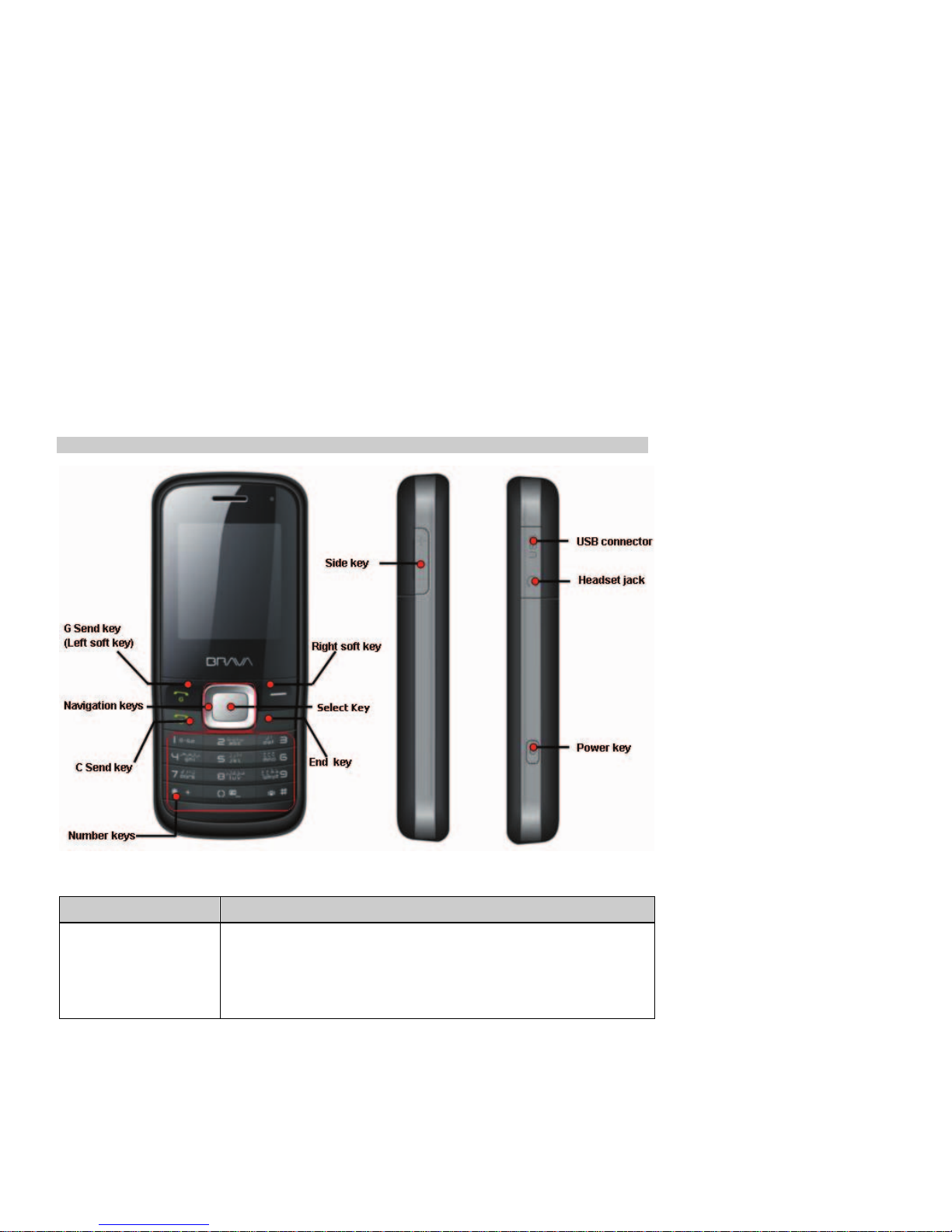
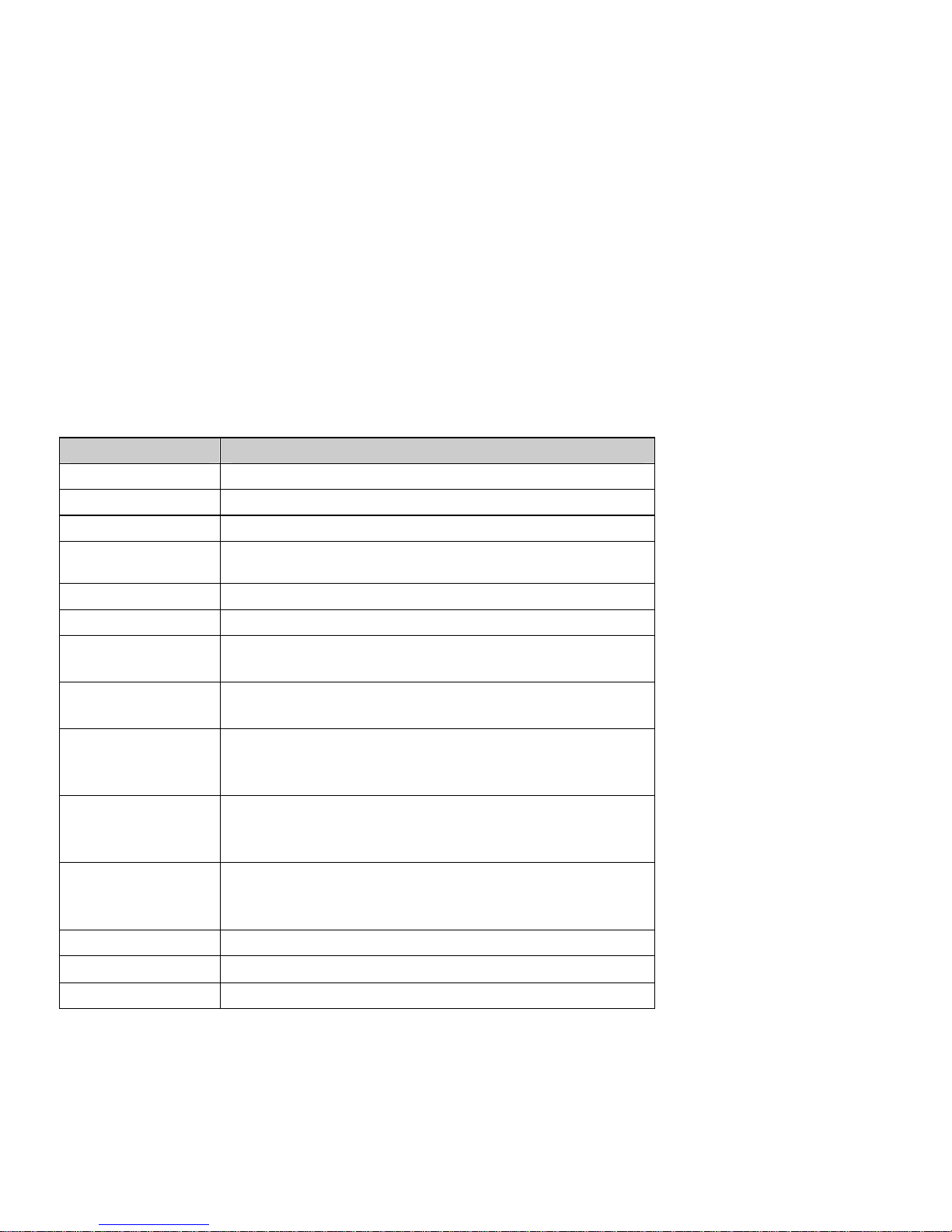
Name Descriptions
G Send key
(Left loft key)
In standby mode, press G Send key to Answered calls; press G
Send key and then immediately press * key to lock/Unlock the
keypad.
Making or answering a call; used as "OK key" in some places; used as
"Options" in some places.
Page 11
3
Name Descriptions
Right soft key In standby mode, press right soft key to Contacts.
Up key In standby mode, press up key to Select network.
Down key In standby mode, press up key to Contacts list.
Left key
In standby mode, press down key to My shortcuts. [The default is
Tools].
Right key In standby mode, press right key to Messages.
Select Key In standby mode, press Select Key to Main menu.
C Send key
Making or answering a call.
In standby mode, press C Send key to Dialed calls.
End key
End calls or reject calls.
Close opened window and switch to idle screen.
Number keys
In standby mode, press and hold [1] to access your Voice mail
server. Enter numbers, letters, and some special characters.
[*] key
In the standby mode, short press enter “*”, "P", "+"symbol.
In the edit mode, press to switch between upper case lower case and
sentence case.
[#] key
In the standby mode, short press enter “#” symbol; long press to
enable Meeting mode.
In the edit mode, press to switch input method.
[0] key In standby mode, long press 0 key to operate FM radio.
Side key
Adjust volume.
USB connector Plug the charger or to connect to PC as a CDMA modem.
Page 12
4
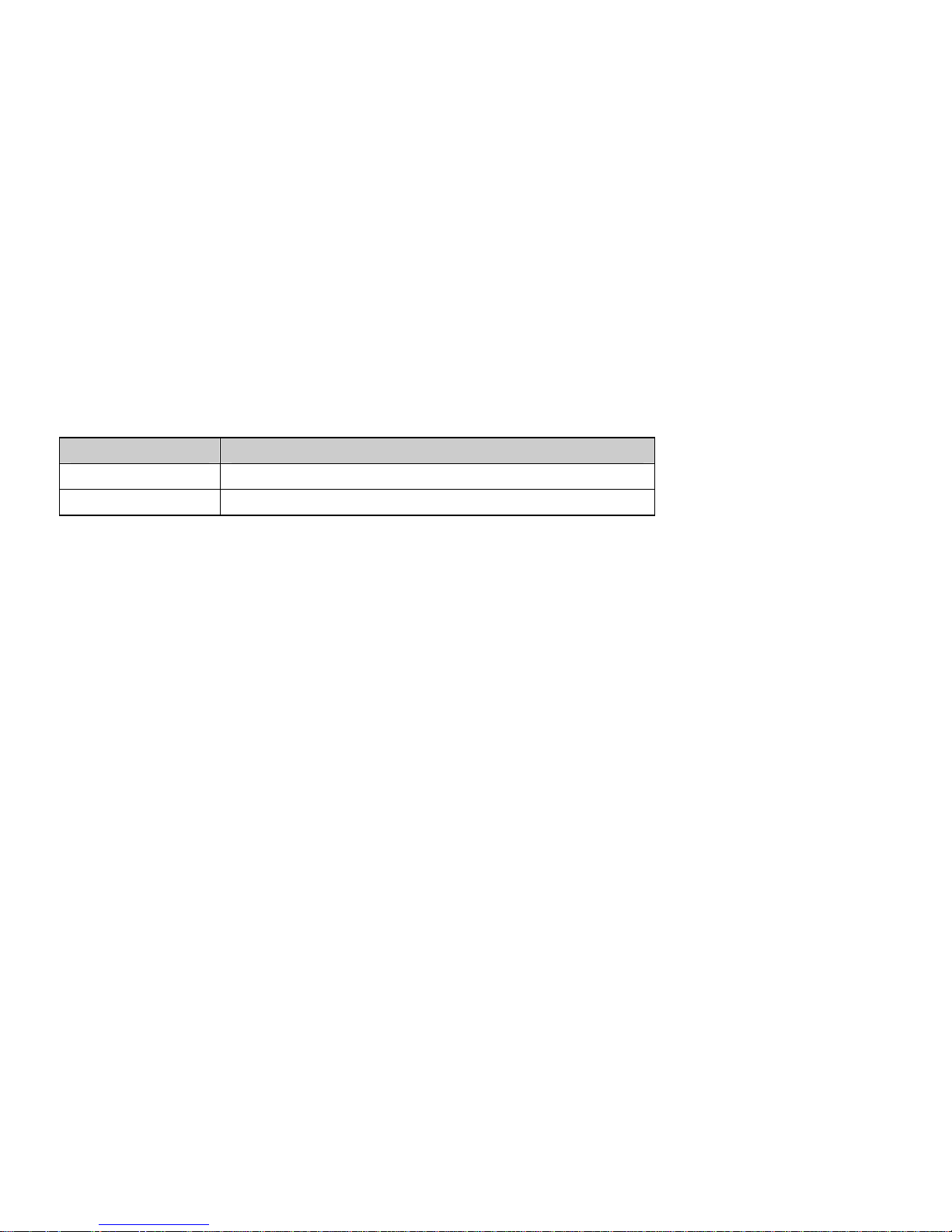
Name Descriptions
Headset jack Before using headset, pull in the headset to this hole.
Power key Power on, power off.
Page 13
5
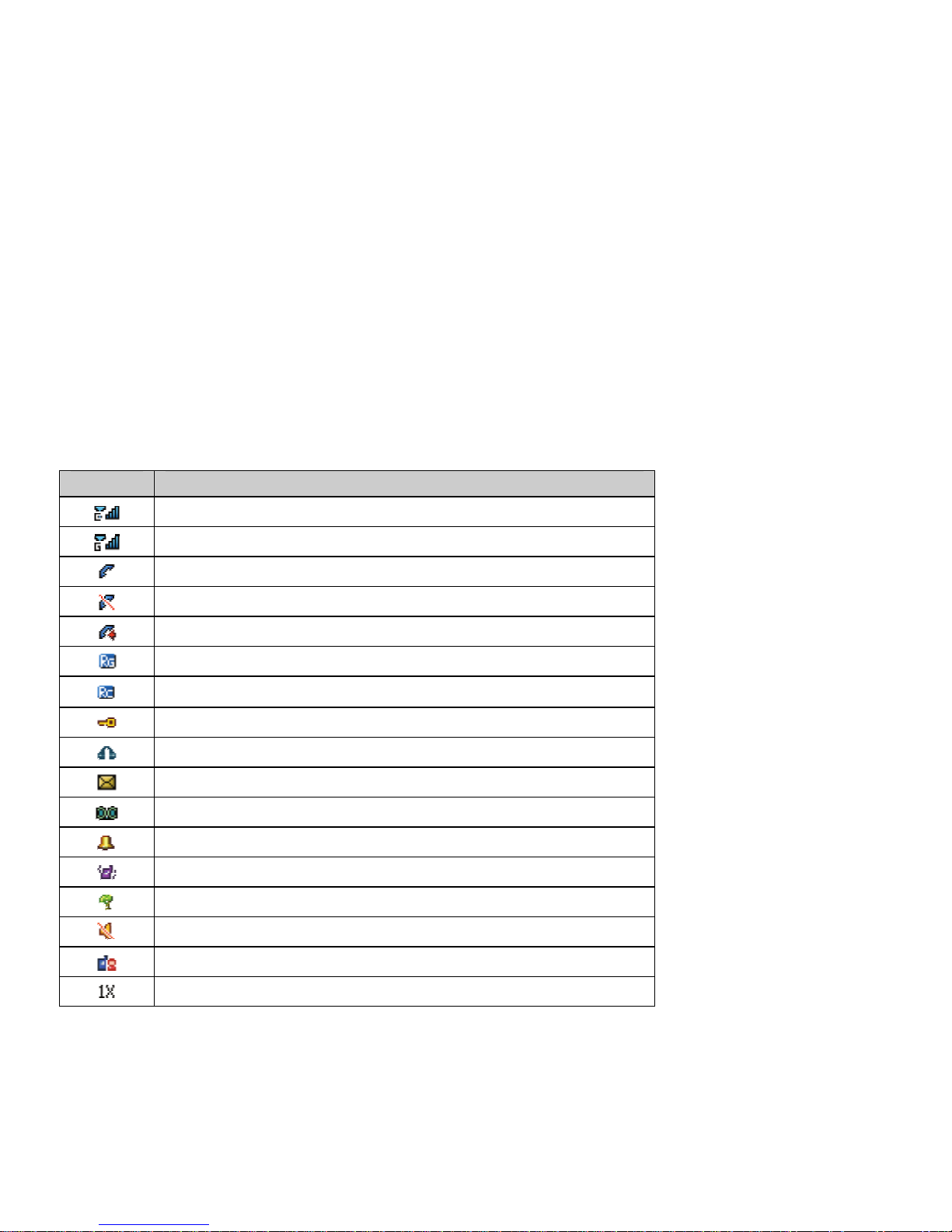
Icon bar
Icon Description
The signal strength of the CDMA network.
The signal strength of the GSM network.
The phone is in call status.(connected with the network)
No network.
You have one or more missed call.
The mobile phone is being used in a GSM roaming network.
The mobile phone is being used in a CDMA roaming network.
The keypad or the phone is locked.
A headset is connected to the phone.
You have one or more unread massages in the inbox.
You have one or more new voice messages.
The alarm clock is set to on.
Meeting mode is activated.
Outdoor mode is activated.
Silent mode is activated.
Personal mode is activated.
The phone is in data connection mode.
Page 14
6
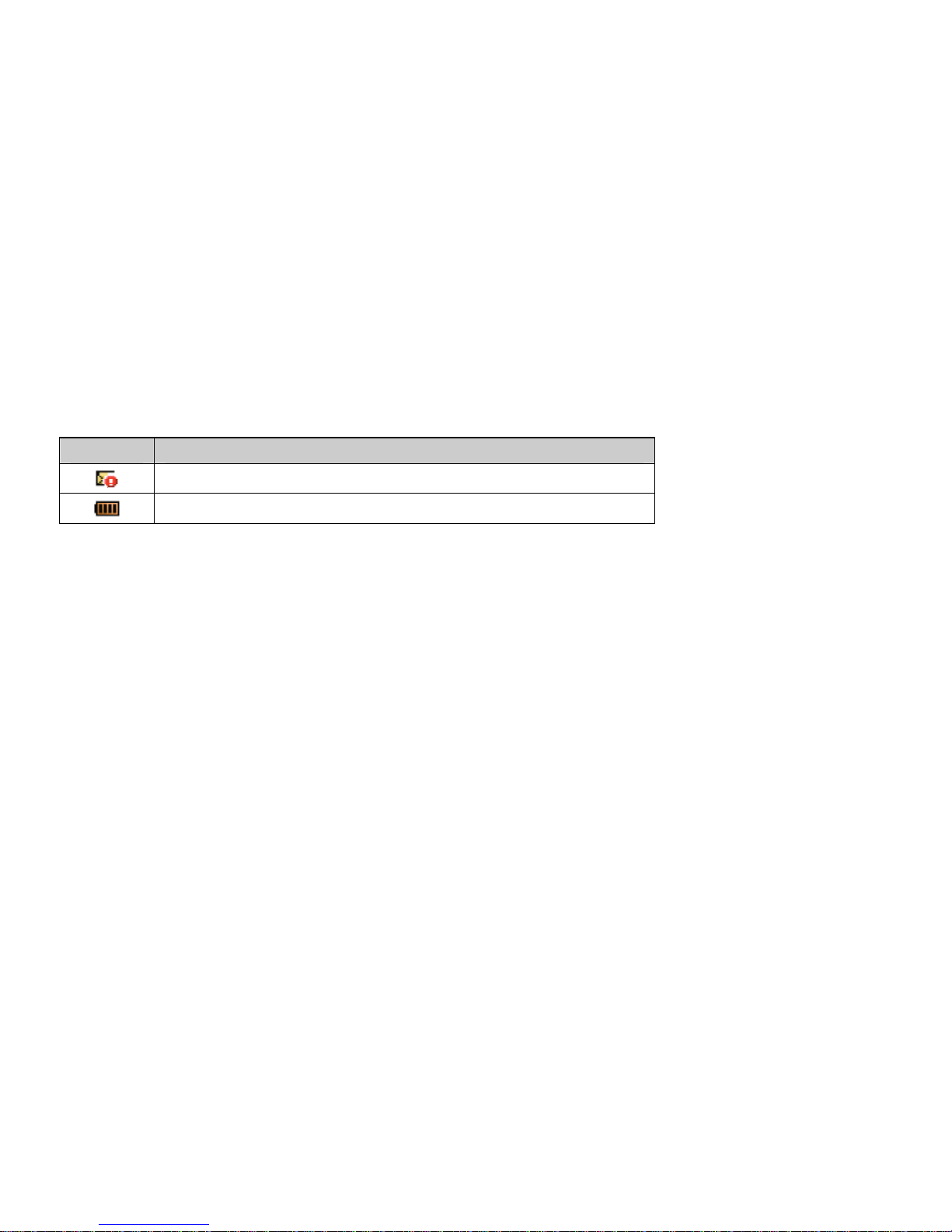
Icon Description
You have one or more new emergency messages.
Battery power level.
Page 15
7
2 Getting Started
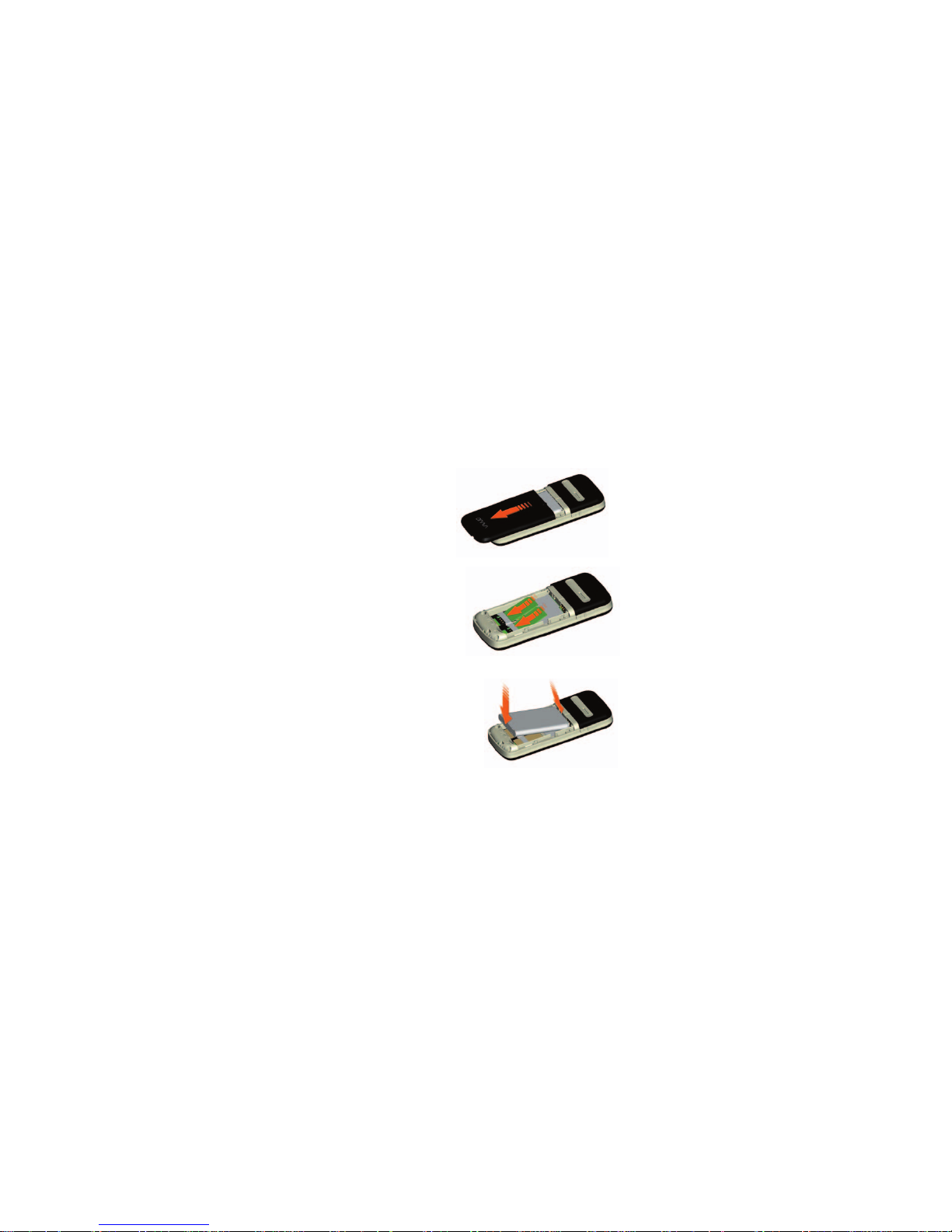
Insert the RUIM/SIM card
1. With the back of the phone facing you, push down and
slide the cover off in the direction shown.
2. Push the RUIM/SIM card into the RUIM/SIM card holder.
Insert and charge the battery
1. Align the gold-colored contacts of the battery with the
battery compartment contacts and press the battery into
place.
2. Replace the back cover by aligning the tabs and sliding the
cover until it locks into place.
3. Plug the charger into a standard AC wall outlet.
4. Connect the USB data cable to the Charger connector.
Page 16

8
3 Basic Functions
Switching On/Off
z In the power off status, press and hold the End Key to switch on the phone.
z In the power on status and the keypad is unlocked, press and hold the End Key to switch
off the phone.
Making phone call
Making phone call using the keypad
1. In the standby mode, enter the phone number you want to dial, and press the C Send Key
or G Send Key to make the call.
To delete a character on the left of the cursor, press <Clear>.
2. To end the call, press the End Key.
Making phone call using contacts
1. In the standby mode, press <Contacts> or press Select Key to access the Main menu >
Phone book.
2. View the Contacts list, select the contact you want to call.
3. Press <Options> and select Call >Via CDMA or Via GSM to make the phone call; or Press
the C Send Key or G Send Key to make the call.
Making phone call using last dialed number
1. In the standby mode, press the C Send Key to display the last numbers dialed.
2. Scroll to the number or name you wish to redial, and press <Options> and select Call >Via
CDMA, Via GSM or press the G Send Key or C Send key to make the call..
Making phone call using speed dial
In standby mode, long press a number key to make phone call. See “Speed dial” P13 for more
information about configuring speed dial.
Page 17

9
Making a conference call
Conference call is a network service that allows you to make a call with more than one person in
the same time.
1. Make a call to the first person.
2. Enter the phone number of the second person or retrieve a number from the Phone book.
3. Press <Options> and select Call >Via CDMA, Via GSM or press the G Send Key or C
Send key.
4. In CDMA, Press the C Send Key, the first person is put on CDMA conference call; In GSM,
Press <Options>and select <Conference>, the first participant is put on GSM conference call.
5. To end the conference call, press the End Key.
Answering the call
Answer or silence an incoming call
1. To answer the call, press the C Send Key or G Send Key or select <Accept>.
Select <Silence> or press side key to mute the ringing tone before you answer the call.
2. To reject the call, press the End Key or select <Reject>.
Adjust the earpiece volume
Press the navigation key of your phone to adjust the volume of the earpiece during a call.
Answer a call when the keypad locked
To answer a call when the keypad is locked, simply press the C Send Key or G Send Key.
When you end or reject the call, the keypad automatically goes unlocked. For more details, see
“Keypad lock” P10.
Operations during a call
During a call, press <Options> to have the following options:
¾ Active/hold: To put the current call on active or hold
¾ Mute on (off): To mute or un-mute your phone during a call.
¾ DTMF on (off): To enable or disable the DTMF tone of your phone during a call.
Page 18

10
¾ Hand free on (off): To activate or deactivate the loudspeaker.
¾ New call: Initiate a conference call. See “Make a conference call” P9 for information.
¾ Contacts list: To the contacts list.
¾ Messages: To the messages menu.
Notice:
During a call, you can also press the Select Key to activate or deactivate the loudspeaker.
Keypad lock
To prevent the keys from being pressed accidentally, you can lock the keypad.
When the keypad is locked, calls may be possible to the official emergency number programmed
in your phone.
Lock the keypad
In the standby mode, press the G Send Key; and press (*) key within 1 second to lock the
keypad.
Unlock the keypad
To unlock the keypad, press the G Send Key; and press(*) key within 1 second to unlock the
keypad.
Page 19
11
4 Input Methods
Your phone provides the following text input methods:
z English input method: To input English characters;
z Arabic input method: To input Arabic characters;
z Numeric input method: To input Numeric characters;
Input method Icon Letter case
Traditional (Arabic) ت ب ا -
Predictive (Arabic) T9 ﻲﺑﺮﻋ -
EN Upper case
predictive (English)
en Lower case
ABC Upper case
abc Lower case
Traditional (English)
Abc Sentence case text, only available at the
beginning of a sentence.
Numeric 123 -
Change the input method
z Press [*] Key to switch between upper case, lower case and sentence case;
z Press [#] Key to switch ت ب ا, T ﻲﺑﺮﻋ9 , Intelligent (English), Multi-tap (English) and
Numeric mode.
Notice
5 Press [1] Key to insert common symbol under the predictive mode or Traditional mode.
6 Press [0] Key to insert “space, 0, enter” under the predictive mode or Traditional mode.
Page 20

12
5 Phone book
You can save names and phone numbers (contacts) in the phone memory
RUIM card memory, or SIM card memory.
Add new
1. In the standby mode, press Select Key to access the Main menu > Phone book > Add
new;
2. Choose storing phone numbers in your phone memory or in your RUIM or SIM card.
3. Input information about the contact.
View a contact
1. In the standby mode, press <Contacts> or press Select Key to access the Main menu >
Phone book >Contacts list;
2. Press Select Key to view the details of the contact.
3. Highlight a contact; press <Options> to have the following options:
¾ View: View the details of the contact.
¾ Search: Search out the contact by name, by number or by location.
¾ Call: Make a phone call with the contact.
¾ IP call: Insert the IP number in front of the number then dial out. (IP number must be
set before use.)
¾ Send message: Send a message to the contact.
¾ Send business card: Send the business card via SMS or via Bluetooth.
¾ Edit: Edit the details of the contact.
¾ Delete: Delete the contact.
¾ Copy: Copy the contact between phone memory, RUIM, and SIM card memory.
¾ Add to blacklist: Add the selected number in the contact to the blacklist.
¾ Add to whitelist: Add the selected number in the contact to the whitelist.
Page 21

13
Search
1. In the standby mode, press Select Key to access the Main menu > Phone book >
Search.
2. 2. Search out the contact By name or By number.
Groups
1. In the standby mode, press Select Key to access the Main menu > Phone book >
Groups;
2. Highlight a group, press <Options>to have the following options:
z Rename: Edit the group’s name (RUIM, SIM and Default cannot be renamed).
z Ring tone: Set special ring tone to the group.
z List: View the members of the group.
Copy
1. In the standby mode, press Select Key to access the Main menu > Phone book >Copy;
2. Select a copy type: Copy all or Multi Copy.
Speed dial
Your device can dial a phone number with one key press. You can assign the most 8 numbers you
frequently dial to the keys 2-9.
To assign a phone number to a number key, do the following:
1. In the standby mode, press Select Key to access the Main menu > Phone book > Speed
dial.
2. Scroll to any empty item, and press <Assign> to enter the number. If a number has already
been assigned to the key, press <Options> > and select View, Edit or Delete.
Page 22

14
Delete
1. In the standby mode, press Select Key to access the Main menu > Phone book >
Delete;
2. Select a delete type: Delete all, Multi Delete or Delete group list.
Storage type
Use this feature to choose storing phone numbers on your RUIM, SIM, phone and RUIM and SIM,
or in your phone’s memory.
Memory status
Check the number of contacts you have stored in the phone memory, SIM card, and the RUIM
card.
My number
Use this feature to check your phone number, or to assign a new number. The Changes which are
made here do not affect the actual subscriber number on your RUIM card or SIM card.
Page 23

15
6 Messages
In the messages you can create, send, receive, view, edit, and organize text
messages and e-mails.
Create message
Create and send messages.
1. In the standby mode, press Select Key to access the Main menu > Messages > Create
message.
2. Write your message.
3. Press <Options> and select Send >Via CDMA, Via GSM.
4. Enter a destination number.
To send the message to more than one recipient, fill in additional destination fields.
5. Press Select Key to send the message.
Using options while creating SMS messages
While composing a message, press <Options> to access the following options:
¾ Send: Send the message.
¾ Insert symbol: Insert a special character.
¾ Insert expression: Insert an expression.
¾ Insert templates: Insert a predefined template or personalized template.
¾ Insert number: Add a number from the Phone book.
¾ Save to drafts: Save the message to the draft box.
Inbox
Text messages are automatically stored in the inbox when they are received.
A notification appears for the new unread messages.
1. In the standby mode, press Select Key to access the Main menu > Messages > Inbox;
2. While viewing a message, press <Options> to access the following options:
¾ Reply: Reply to the sender via SMS.
Page 24

16
¾ Forward: Edit and forward the message to other people.
¾ Delete: Delete the message.
¾ Use number: Save the number to contacts, call the number Via CDMA or Via GSM, send
message to the number, or add the number to blacklist or whitelist.
¾ Lock/Unlock: Lock the message to protect it from being deleted, or unlock the message.
You can protect only those messages stored in the phone memory.
¾ Copy: Copy the message between the phone memory, RUIM card, and SIM card.
¾ Move to favorites: Move the message to the favorites box.
Sent items
Text messages that have been sent or not are automatically stored in this box, if “Auto save” in
the message settings is enabled.
1. In the standby mode, press Select Key to access the Main menu > Messages > Sent
items;
2. While viewing a message, press <Options> to access the following options:
¾ Resend: Retry sending the message.
¾ Forward: Edit and forward the message to other people.
¾ Delete: Delete the message.
¾ Move to favorites: Move the message to the favorites box.
Drafts
Save incomplete text messages in the draft box.
1. In the standby mode, press Select Key to access the Main menu > Messages > Drafts;
2. Press <Options> to access the following options: Send, Delete and Delete all.
Favorites
Save your important text messages in this box.
1. In the standby mode, press Select Key to access the Main menu > Messages >
Favorites;
While viewing a message, press <Options> to access the following options: Forward,
Delete and Lock/Unlock.
Page 25

17
Delivery report
This is network service to confirm you that the other side has received the message.
1. In the standby mode, press Select Key to access the Main menu > Messages > Delivery
report.
2. Press <Options> to access the following options:
¾ Read: View the detail of delivery report.
¾ Delete: Delete the selected delivery report.
¾ Delete all: Delete all delivery report in the box.
Templates
1. In the standby mode, press Select Key to access the Main menu > Messages >
Templates;
2. Highlight the template message you want to use.
3. Press <Options> to Edit, Delete and Send the template.
Delete messages
In the standby mode, press Select Key to access the Main menu > Messages > Text
message > Delete messages and have the following options: Inbox, Sent items, Drafts,
Favorites, Multi Delete and Delete all.
Settings
Change settings for receiving and sending text messages.
CDMA settings
In the standby mode, press Select Key to access the Main menu > Messages > CDMA
Settings and have the following options:
z Storage type: Allows you to select a storage location for the message. It can be stored
either in the phone memory or in the RUIM card.
z Priority: To set Message sending priority levels which are classified as: Normal, Urgent
and Emergency.
z Auto save: To set the automatically save for the sent or unsent message in the Sent items.
Page 26

18
z Delivery report: Set the network to inform you when your messages have been
delivered.
z Validity period: Set the period that SMS center will store the sent massages, (if the
receiving phone is not reachable due to: power off, the inbox is full and so on) to deliver it
to the destination in a later time. If the storage time becomes longer than the valid period,
the SMS would be deleted and will not be sent to the contact again.
GSM settings
z SMS Center: If this service is supported, the number of SMS center will be provided by
your network operator.
z Storage type: Allows you to select a storage location for the message. It can be stored
either in the phone memory or in the SIM card.
z Priority: To set Message sending priority levels which are classified as: Normal, Urgent
and Emergency.
z Auto save: To set the automatically save for the sent or unsent message in the Sent items.
z Delivery report: Set the network to inform you when your messages have been
delivered.
z Validity period: Set the period that SMS center will store the sent massages, (if the
receiving phone is not reachable due to: power off, the inbox is full and so on) to deliver it
to the destination in a later time. If the storage time becomes longer than the valid period,
the SMS would be deleted and will not be sent to the contact again.
z Auto delete: Delete the message automatically when the memory is full.
Memory status
View the currently used memory for messages.
Voice mail
The voice mailbox is a network service (you may need to subscribe to it). For more information
and for your voice mailbox number, contact your service provider.
CDMA voice mail
In the standby mode, press Select Key to access the Main menu > Messages > Voice mail >
CDMA voice mail and one of the following options:
Page 27

19
z Listen voice messages: Connect to the voicemail server to listen to your messages.
z View details: View the details of the last voice mail
z Voice mailbox number: Edit the voice mail server number.
z Clear voice mail icon: Clear the prompt icon in standby mode.
GSM voice mail
z Listen voice messages: Connect to the voicemail server to listen to your messages.
z Voice mailbox number: Edit the voice mail server number.
Page 28
20
7 Call history
Call history stores information about the missed, answered, or dialed calls.
It also adds the total duration of all calls. When the number of calls
exceeds the maximum, the latest call replaces the oldest.
Missed calls
1. In the standby mode, press Select Key to access the Main menu > Call history;
2. Go to Missed calls, Answered calls, or Dialed calls, select a call record, press <Options>
to access the following options:
¾ View: View the selected missed call details.
¾ Call: Dial the number Via CDMA or Via GSM.
¾ Save number: Save the number to Phone book.
¾ Send message: Send message to the selected number.
¾ Delete: Delete the selected record.
¾ Delete all: Delete all records.
¾ Add to blacklist: Add the number to blacklist.
¾ Add to whitelist: Add the number to whitelist.
Answered calls
The answered calls are calls that have been answered or rejected. Answered calls have the
same options as the Missed calls.
Dialed calls
The dialed calls are previous calls you have dialed from your phone. Dialed calls have the same
options as the Missed calls.
Delete
You can delete any missed, answered, dialed, or all calls from phone memory.
Page 29

21
Call duration
You can view the duration of Last call, Answered calls, Dialed calls, Total airtimes or
Reset timers.
Page 30

22
8 My files
My files menu allows you to access files including downloaded pictures and
ringers that are stored in the phone's memory.
Pictures
This menu displays images you have downloaded.
1. In the standby mode, press Select Key to access the Main menu >My files > Pictures.
2. Highlight an image, and press <Options> to access the following options: View, Auto view,
Rename, Mark several, Details, Delete, Delete all.
Sounds
This menu displays sound files you have downloaded.
1. In the standby mode, press Select Key to access the Main menu >My files > Sounds.
2. Highlight a sound file, and press <Options> to access the following options: Play, Rename,
Mark several, Set as, Details, Delete, Delete all.
Memory status
Use this menu to view the free and used memory capacity.
Page 31
23
9 Tools
Your phone contains features helping you to organize your everyday life.
Alarm
Use this menu to set alarms. The alert type for a normal alarm corresponds to the call alert type
settings.
Setting an alarm
1. In the standby mode, press Select Key to access the Main menu > Tools > Alarm;
2. Select an alarm, and each alarm options:
z Time: Enter the time for alarm to ring.
z Period: Select an alert period for the alarm.
z Snooze: Turn on or off the snooze time-out.
z On/Off: Turn on or off the alarm.
Scheduler
Use this menu to enables you to keep track of reminders. It can even sound an alarm for any of
these events.
1. In the standby mode, press Select Key to access the Main menu > Tools > Scheduler;
2. Press <Options> and one of following:
¾ Select date: Go to a specific date.
¾ Item list: Use this menu to view, add, delete, delete expired or delete all items.
Calculator
Use this menu to perform basic arithmetic functions, such as addition, subtraction, multiplication,
and division.
1. In the standby mode, press Select Key to access the Main menu > Tools >Calculator.
2. Enter the first number.
Page 32

24
3. Press one of the navigation keys to access the math function you want.
4. Enter the second number.
5. Press the Select Key to view the result.
6. If necessary, repeat from step 3 to continue the calculation.
World time
Use this menu to set your local time zone and find out the current time in another part of the
world.
1. In the standby mode, press Select Key to access the Main menu > Tools > World Time;
2. From the world map, press the navigation key to scroll to the city you want. As the time line
moves, the time and the date of the given zone will be shown.
3. Press the Select Key to save the city time as your local time zone.
Radio
A compatible headset needs to be attached to the device for the Radio to work properly.
The quality of a radio broadcast depends on coverage of the radio station in that particular area.
Play radio
In the standby mode, press Select Key to access the Main menu > Tools > Radio.
Radio options
¾ Turn off: Turn off the radio.
¾ Channel list: View the channel list.
¾ Set frequency: Manually set the frequency of a known radio station.
¾ Save: Save the current channel.
¾ Auto search: Search channels automatically.
Stopwatch
1. In the standby mode, press Select Key to access the Main menu > Tools > Stopwatch;
2. Press <Start> to start the stopwatch.
Page 33

25
3. Press <Pause> to pause the stopwatch.
4. Press <Resume> to continue the stopwatch.
5. Press <Reset> to reset the stopwatch.
Currency converter
You can use this menu for currency conversions. You can also set the rates for the converter.
Options for currency converter
¾ From: Select the original unit.
¾ To: Select the target unit.
¾ Rate: Enter the rate for converter.
¾ Amount: Enter the amount for converter.
¾ Result: The equivalent value for the amount you entered displays.
Page 34

26
10 Profiles
Profiles define how your phone reacts when you receive a call or message,
and other settings. Your phone has various setting groups of profiles, for
which you can customize the phone tones for different events and environments.
Activate
In the standby mode, press Select Key to access the Main menu > Profiles > General,
Meeting, Outdoor, Silent, or Personal > Activate.
Personalize
In the standby mode, press Select Key to access the Main menu > Profiles > General,
Outdoor or Personal > Personalize and set the related options:
¾ Ring type: Use this menu to change the alert prompt for Incoming call, SMS, Alarm and
Scheduler individually.
¾ Ring tone: Use this menu to change the ring tone for Incoming call, SMS, Alarm and
Scheduler individually.
¾ Volume: Use this menu to change the sound volume of Ring tone, SMS, Keypad tone,
Earpiece, Alarm, and Scheduler. You can use the [Up/Down/Left/Right] navigation keys to
adjust the volume.
¾ Alerts: Use this menu to change the phone alerts for the following:
z Calls connect beep: Set the phone to beep when an outgoing call connects to the
network.
z Charger beep: Set the phone to beep when the charger is plugged to the phone.
z Minute beep: Set the phone to beep ten seconds before every minute during a call to
keep you informed about the length of your call.
z Power on/off: Enable or disable the alert when you power the phone on or off.
Rename
In the standby mode, press Select Key to access the Main menu > Profiles > Personal>
Rename and edit the name.
Page 35

27
11 Games
Your phone includes two games for your choice.
Bubble
Emit the ball and try to make it hit upper balls with the same color. If the number of the same
color balls reaches 3 or more, all these balls will disappear. You may enter next stage if all
current balls disappear. Press 4 and 6 keys to adjust emitter angle, and press 5 key to emit it.
Pressing left soft key to pause or continue the game, press right soft key or power key can save
and exit game.
Tetris
Control objects to move by 2, 4, 6, 8 keys and direction keys. Try to make falling objects fill a
line which can be erased. The game will be over when objects reach the top of screen. Press
right soft key or power key can save and exit game.
Page 36

28
12 Networks services
BREW application
You could use the function to download kinds of brew applications from your carrier server. It will
offer huge information, for example games and cartoon. In the standby mode, press Select Key
to access the Main menu >
Network services> BREW application, you can choose the
services as you needed.
STK
STK(SIM TOOL KIT)allows to operate its own software based on SIM card. STK card can receive
and send short message data of GSM. This mobile phone supports the service for various network
operators.
Notice:
[STK] The menu is stored in SIM card, so that the menu list in the phone might be different due
to different SIM Card. And it is likely slower to operate.
UTK
You can use the function if your RUIM card supports this service, and perhaps different RUIM card
provide different service on different network. For details, please contact your local wireless
network provider.
Notice:
[UTK] The menu is stored in RUIM card, so that the menu list in the phone might be different
due to different RUIM Card. And it is likely slower to operate.
Page 37

29
13 Settings
The settings menu provides you with various setting options to customize the
phone to your preferences and needs. You can also reset the settings to their
default status.
Display
Wallpapers
You can set an image as wallpaper for the phone display.
In the standby mode, press Select Key to access the Main menu >Settings > Display >
Wallpapers and select one of following: Predefined, pictures.
Banner
Use this menu to set the display (in the standby mode) shows a customized banner under the
operation logo.
In the standby mode, press Select Key to access the Main menu >Settings > Display >
Banner> Enable or Disable;
Screen saver
In the standby mode, press Select Key to access the Main menu >Settings > Display >
Screen saver > On > Screen saver1, Screen saver2, Screen saver3 or select Off to
deactivate screen saver on your phone.
Backlight
You can control the time-out of the backlight on your phone.
In the standby mode, press Select Key to access the Main menu >Settings > Display >
Backlight > 10 Sec., 20 Sec., 30 Sec., 1 Min. or Always on;
Page 38

30
Phone settings
Language
Use this menu to select a language for the display text.
In the standby mode, press Select Key to access the Main menu >Settings >Phone
settings > Language > ﻲﺑﺮﻋ or English;
Auto keypad lock
Use this menu to set the phone keypad to lock automatically after a preset time delay when the
phone is in the standby mode and no function of the phone is in progress.
In the standby mode, press Select Key to access the Main menu >Settings >Phone
settings > Auto key lock >10 Sec., 20 Sec., 30 Sec., 1 Min. or select Off to disable the
feature;
Input settings
Use this menu to set the default input method for editing.
In the standby mode, press Select Key to access the Main menu >Settings >Phone
settings > Input settings>ت ب ا , T9 ﻲﺑﺮﻋ, abc, Abc, ABC, en, EN, or 123;
Date and time
Use this menu to change the time and date format.
Time
In the standby mode, press Select Key to access the Main menu >Settings >Phone
settings > Date&Time>Time and set the following options:
z Set time: To set local time and remote time.
z Time zone: To set time zone.
z Time format: Adjust the format to show the time.
Notice:
Time and time zone can’t be set in CDMA network.
Page 39

31
Date
In the standby mode, press Select Key to access the Main menu >Settings >Phone settings
> Date&Time > Date and set the following options:
z Set date: To input the correct date.
z Date format: Set up the format to show the date.
z Date separator: To set date separate.
Notice:
Date can’t be set in CDMA network.
Power off time
Use this menu to set the phone to power off automatically in a specific time.
In the standby mode, press Select Key to access the Main menu >Settings >Phone
settings > Power off time> Enable, Disable or Settings;
Call settings
CDMA call settings
Answering call
Use this menu to set the answer method used by the phone for the incoming call,(In this menu
you can set the phone to answer the incoming call by many methods).
In the standby mode, press Select Key to access the Main menu >Settings >Call
settings> CDMA call settings> Answering call> Send key only or Press any key;
Auto answer
Set the phone to answer the CDMA incoming call automatically with the earphone.
In the standby mode, press Select Key to access the Main menu >Settings >Call
settings> CDMA call settings> Auto answer> after 5 Sec. or off;
Page 40

32
Auto redial
Set the phone to make attempts up to three to redial a phone number after an unsuccessful call.
In the standby mode, press Select Key to access the Main menu >Settings >Call
settings> CDMA call settings> Auto redial> Enable or Disable;
Call forward
This network service reroutes CDMA incoming calls to a phone number that you specify.
In the standby mode, press Select Key to access the Main menu >Settings >Call
settings> CDMA call settings> Call forward;
1. To set type of call forwarding, Select call forward options:
z Unconditional: Divert all calls.
z When busy: Divert calls when your phone is on another call.
z No reply: Divert calls when you do not answer the phone.
z Unreachable: Divert calls when you do not answer the phone or when you are on
another call
z Cancel all: Cancel all call forward.
2. Select the type of calls to be diverted.
3. To activate call diverting, select Enable.
To deactivate call diverting, select Disable.
4. Enter the number to which calls are to be diverted, and select <OK>.
Call waiting
If your wireless provider supports this feature, call waiting service notifies you of an incoming
call while you are in a call. You can accept or ignore the CDMA incoming call.
In the standby mode, press Select Key to access the Main menu >Settings >Call
settings> CDMA call settings> Call waiting> Enable or Disable;
To activate call waiting, select Enable.
To deactivate call waiting, select Disable.
During a call, press<Accept> or press the C Send Key to answer the waiting call. The first call
is put on hold. Press the End Key to end all calls.
Page 41

33
Call restriction
This network service allows you to restrict your CDMA calls.
In the standby mode, press Select Key to access the Main menu >Settings > Call
settings> CDMA call settings> Call restriction and select one of the following menus:
Incoming calls and Dialed call.
IP number
You can edit a 10- digit number as CDMA IP number.
In the standby mode, press Select Key to access the Main menu >Settings >Call
settings> CDMA call settings> IP number.
GSM call settings
Answering call
Use this menu to set the answer method used by the phone for the incoming call.
In the standby mode, press Select Key to access the Main menu >Settings >Call
settings> GSM call settings> Answering call> Send key only or Press any key;
Auto answer
Set the phone to answer the GSM incoming call automatically with the earphone.
In the standby mode, press Select Key to access the Main menu >Settings >Call
settings> GSM call settings> Auto answer> after 5 Sec. or off;
Auto redial
Set the phone to make attempts up to three to redial a phone number after an unsuccessful call.
In the standby mode, press Select Key to access the Main menu >Settings >Call
settings> GSM call settings> Auto redial> Enable or Disable;
Call forward
This network service reroutes GSM incoming calls to a phone number that you specify.
In the standby mode, press Select Key to access the Main menu >Settings >Call
settings> GSM call settings> Call forward;
Page 42

34
1. To set type of call forwarding, Select call forward options:
z Unconditional: Divert all calls.
z When busy: Divert calls when your phone is on another call.
z No reply: Divert calls when you do not answer the phone.
z Unreachable: Divert calls when you do not answer the phone or when you are on
another call
z Cancel all: Cancel all call forward.
2. Select the type of calls to be diverted.
3. To activate call diverting, select Enable.
To deactivate call diverting, select Disable.
4. Enter the number to which calls are to be diverted, and select <OK>.
Call waiting
If your wireless provider supports this feature, call waiting service notifies you of an incoming
call while you are in a call. You can accept or ignore the GSM incoming call.
In the standby mode, press Select Key to access the Main menu >Settings >Call
settings> GSM call settings> Call waiting> Enable or Disable;
To activate call waiting, select Enable.
To deactivate call waiting, select Disable.
During a call, press<Accept> to answer the waiting call. The first call is put on hold. Press the
End Key to end all calls.
Call barring
Network operator will provide the password (taken from the carrier) to start the Call barring.
z Incoming calls:
When roaming: When roaming set the phone to Prohibit all incoming call.
All incoming: Prohibit all incoming calls. The default password can be taken from the service
provider.
z Dialed call:
Page 43

35
International: Prohibit all international call.
Local calls: Only allow the local calls.
All outgoing: Forbid all the outgoing call.
Cancel all: Cancel all bar call, must input the right password.
Modify password: To modify the password for call barring.
IP number
You can edit a 10- digit number as the GSM IP number. In the standby mode, press Select Key
to access the Main menu >Settings >Call settings> GSM call settings> IP number.
Network
You can select whether the CDMA/GSM network used when roaming (outside your home
network area) is searched automatically or manually.
z Current network: view the name and ID of the current network.
z Auto select: the phone will search the original network, and then the network list saved
on the SIM card. If all of these are failed, any network having roam protocol with the
original network can be connected.
z Manual select: the system will search the network, and provide you the list of currently
available network for you to choose.
Dialer style
Use this menu to choose the style of inputting numbers when you make a call through the
keypad in the standby mode.
In the standby mode, press Select Key to access the Main menu >Settings >Call settings
> Dialer style >
There are three dialer styles for your choice: Scratchpad, Color and Normal.
Call firewall
Use this menu to block or allow some numbers to call you.
Blacklist
1. In the standby mode, press Select Key to access the Main menu >Settings > Call
Page 44

36
firewall > Blacklist;
2. Scroll to any empty entry, and press <Assign>.
3. Enter the number, and press <OK>; or select <Search> to retrieve a number from Phone
book.
4. You can use the options and have one of the following: View, Edit, Delete, Delete all.
Whitelist
1. In the standby mode, press Select Key to access the Main menu >Settings > Call
firewall > Whitelist;
2. Scroll to any empty entry, and press <Assign>.
3. Enter the number, and press <OK>; or select <Search> to retrieve a number from the Phone
book.
4. You can use the options and go to one of the following: View, Edit, Delete, Delete all.
Settings
Use this menu to enable or disable the blacklist and whitelist.
Security
To access security, you must enter the preset lock code. By default, the preset lock code is 0000.
If none of these work, contact your wireless device provider for help.
Phone lock
The phone lock feature protects your phone from unauthorized outgoing calls or unauthorized
access to information stored in the phone.
When the device is locked, you can still call the official emergency number programmed into
your phone.
In the standby mode, press Select Key to access the Main menu >Settings > Security>
Phone lock and have the following options:
¾ On power up: Phone locked is displayed each time you turn your phone on.
¾ Lock now: Enable the phone to lock right now.
¾ Disable: Disable the phone lock.
Page 45

37
RUIM PIN management
In the standby mode, press Select Key to access the Main menu >Settings > Security>
RUIM PIN management > Enable PIN, Disable PIN, and PIN Change;
If you forget any of these codes, contact your service provider.
SIM PIN management
The personal identification number (PIN code) helps to protect your SIM card against
unauthorized use.
In the standby mode, press Select Key to access the Main menu >Settings > Security>
SIM PIN management and have the following menus: Enable PIN, Disable PIN and PIN
Change.
If you forget any of these codes, contact your service provider.
Change security code
1. In the standby mode, press Select Key to access the Main menu >Settings > Security >
Change security code;
2. Enter your four-digit lock code and press <OK>.
3. Enter the new lock code (only 4 characters), and press <OK>.
4. Enter the new lock code again for verification, and press <OK>.
Factory reset
Use this menu to reset the phone’s settings you have changed.(all the contacts, numbers,
messages, and files in the device will not be lost.)
My shortcuts
You can choose Tools, BREW application, Settings, Alarm, Scheduler, Calculator, Stopwatch, or
Games to set my shortcuts. In standby mode, press left key to enter it. The default is Tools.
Network settings
To set network selection mode and select the network between card 1 and card 2 (CDMA and
GSM).
Page 46
38
14 Maintenance Guidelines
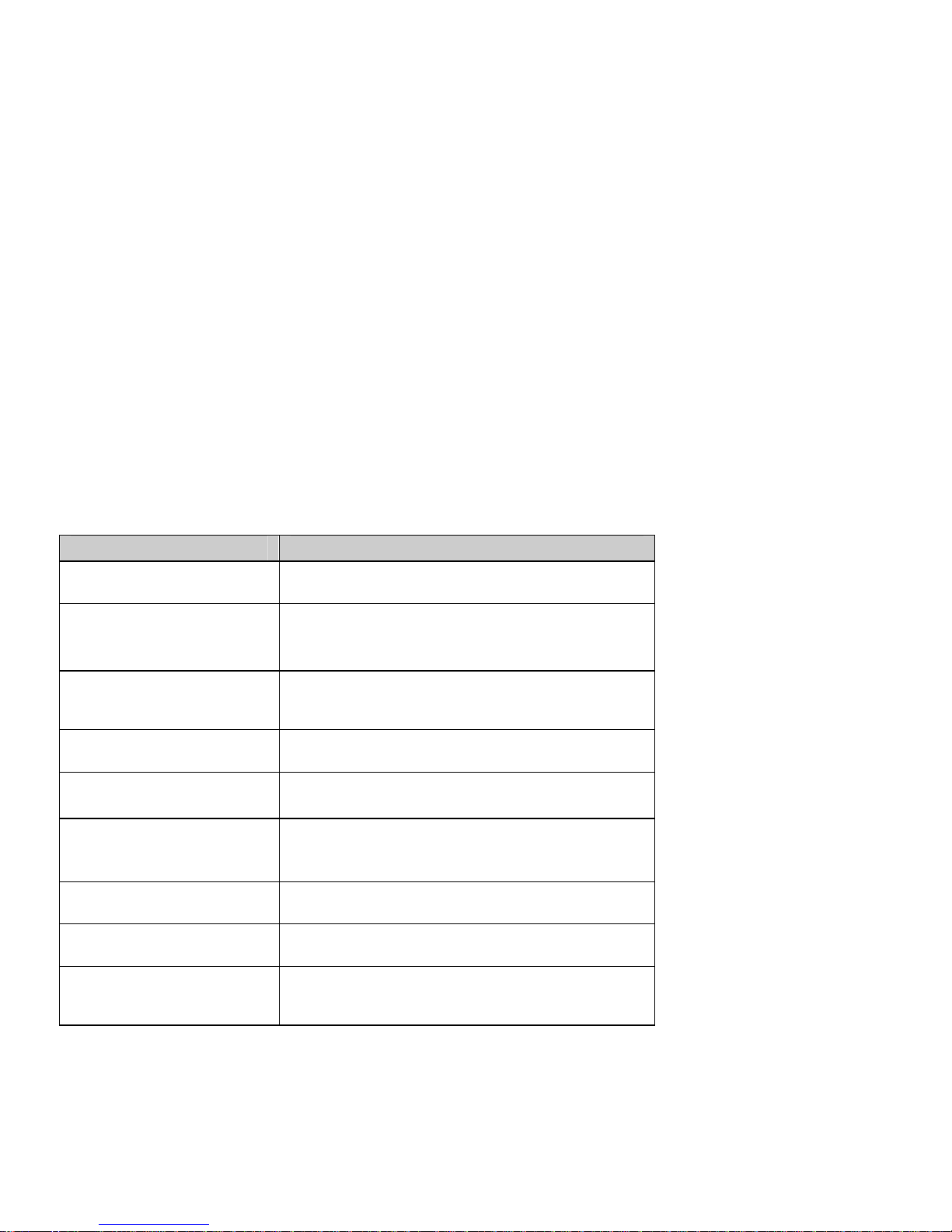
If your mobile phone had abnormal conditions, please check it with the following table. If the
problem still remains, please contact the mobile phone service center for help.
Common problems Check item
Can not charge Please check if the charger is properly connected to the
phone and the power source jack.
Can not power on Please check if the battery level is too low;
Please check if the batter is properly loaded;
Please press End Key enough time.
RUIM card is Inserted, but
cannot read the information in
the RUIM card.
Please check if the RUIM card is inserted properly ;
Please check if your RUIM card is valid.
The mobile phone displays
“Input PUK”
Please communicate with the service provider to get the
PUK code and use it to unlock the RUIM.
The phone Can't make a call Please check if the phone number is valid.
Please check if you are in service area.
Weak talk quality Please check if the phone signal is strong enough;
If you are in the building, please move the phone or move
near to the window.
The contact cannot hear your
voice when making phone call
Please check if your mike has been blocked by fittings or
other blocks.
Receiver sound is too low Please check if your receiver volume has been adjusted to
the largest.
The mobile phone has a weak
receive signal or usually drops in
the phone call
Please check if the phone has a strong signal.
If there is no signal, please use it in a strong signal place.
Page 47
39
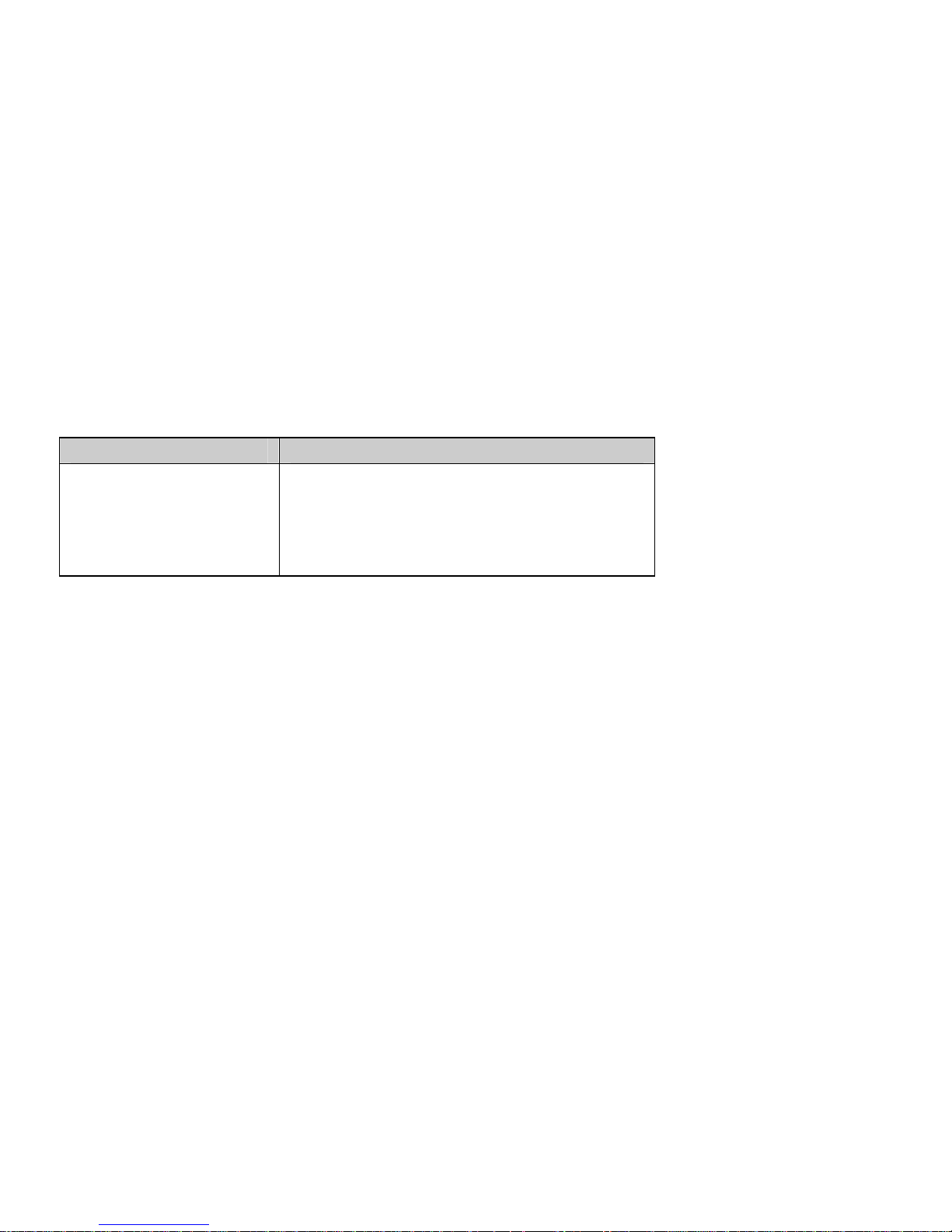
Common problems Check item
The screen displays the
information such as “Emergency
calls only”
Please check if you are in a weak signal area (in the
channel or surround by buildings), change the area and
retry.
Please check if you can try to get the services without the
service provider permission. If you need the service, please
contact the service provider for more information.
Page 48

40
15 Safety Information
Electronic Device
Most modern electronic equipments are shielded from radio frequency (RF) signals. However,
certain electronic equipment maybe is not shielded against the RF signals from your Mobile Phone.
Consult the manufacturer to discuss alternatives.
Hospital
z Do not take your phone into the operating room (OR), intensive care unit (ICU), or coronary
care unit (CCU).
z Do not use your phone at places for medical treatment where it is prohibited to use mobile
phones.
z When you use your phone near someone who is suffering from a heart disease, turn down the
ring tone volume or turn Vibrate mode on, so that it does not influence the person.
Storage Environment
Switch off your phone when you are in any area with a potentially explosive atmosphere, and
obey all signs and instructions. Sparks in such areas could cause an explosion or fire resulting in
bodily injury or even death.
Users are advised to switch off the phone at a refueling point (service station). Users need to
observe restrictions on the use of radio equipment in fuel depots (fuel storage and distribution
areas), chemical plants, or where blasting operations are in progress.
Areas with a potentially explosive atmosphere are often (but not always) marked clearly. They
include the areas below decks on boats, chemical transfer or storage facilities, vehicles using
liquefied petroleum gas, such as propane or butane, areas where the air contains chemicals or
particles, such as grain, dust or metal powders, and any other area where you would be advised
to turn off your vehicle engine.
Children Safety
z Put your phone, battery, and charger in places beyond the reach of children. Do not allow
children to use the phone, battery, or charger without guidance.
Page 49

41
z Do not allow children to put the battery in mouth, the electrolyte in the battery is poisonous.
z Do not allow children to touch the small fittings. Otherwise, suffocation or gullet jam can be
caused if children swallow the small fittings.
Operating Environment
Remember to follow any special regulations in force applied in the area you are in, and always
switch off your phone whenever it is forbidden to use it, or when it may cause interference or
danger. When connecting the phone or any accessory to another device, read its user’s guide for
detailed safety instructions. Do not connect incompatible products.
Like with other mobile radio transmitting equipment, users are recommended to use the
equipment in the normal operating position (held to your ear with the antenna pointing over your
shoulder).This advice for the satisfactory operation of the equipment and for the safety of
personnel.
Battery
z Never use a charger or battery that is damaged in any way.
z Use the battery only for its intended purpose.
If you use the phone near the network’s base station, it uses less power. Talk and standby time
are greatly affected by the signal strength on the cellular network and the parameters set by
the network operator.
z Your device is powered by a rechargeable battery. The full performance of a new battery is
achieved only after two or three complete charge and discharge cycles.
z Battery charging time depends on the remaining battery charge, the type of battery, and the
charger used. The battery can be charged and discharged hundreds of times, but it will
gradually wear out. When the operation time is noticeably shorter than normal, it is time to
buy a new battery.
z If the battery left unused, a fully charged battery will discharge itself over time.
z Extreme temperatures will affect the charging capacity of your battery.
z Do not leave the battery in hot or cold places because the capacity and lifetime of the battery
will be reduced. Try to keep the battery at room temperature. A phone with a hot or cold
battery may not work temporarily, even when the battery is fully charged. Li-ion batteries are
particularly affected by temperatures below 0°C (32°F).
Page 50

42
z Use only approved batteries and chargers. Disconnect the charger from the power source
when it is not in use. Do not leave the battery connected to a charger for more than a week,
since overcharging may shorten its life.
Page 51

40
ﻞﻴﻐﺸﺘﻟا ﺔﺌﻴﺑ
ﺮآﺬﺗنأﻚﻴﻠﻋ عﺎﺒﺗإ يأ ﻦﻴﻧاﻮﻗ ﺔﺻﺎﺧ ﻲﻓ ﺘﺗ ﻲﺘﻟا ﺔﻘﻄﻨﻤﻟاﺎﻬﻴﻓ ﺪﺟاﻮ ﺎﻤﺋادو ،قﻼﻏﺈﺑ ﻢﻗ ﺎﻤﻠآ ﻚﻔﺗﺎه نﺎآ
ﻪﻣاﺪﺨﺘﺳا ،رﻮﻈﺤﻣوأ ﻳ اﺮﻄﺧ ﺐﺒﺴوأﺎﺸﻳﻮﺸﺗ .
ﺗ ﺪﻨﻋﻮﺻﻴ ﻒﺗﺎﻬﻟا ﻞوأ يأﻰﻟإ ﻪﺗﺎﻘﺤﻠﻣ ﻦﻣ ،ﺮﺧﺁ زﺎﻬﺟ ﺐﺠﻳ ﺮﻗةءا مﺪﺨﺘﺴﻤﻟا ﻞﻴﻟد ﻟ تﺎﻤﻴﻠﻌﺘنﺎﻣﻷاا ﺔﻠﺼﻔﻤﻟ .
ﻻﻪﻌﻣ ﺔﻘﻓاﻮﺘﻣ ﺮﻴﻏ ىﺮﺧأ تﺎﺠﺘﻨﻣ ﻊﻣ ﻒﺗﺎﻬﻟا ﻞﻴﺻﻮﺘﺑ ﻢﻘﺗ .
لﺎﺤﻟا ﻮه ﺎﻤآﻊﻣ ةﺰﻬﺟأ ﺔﻠﺳﺮﻤﻟا ىﺮﺧﻷا ﻞﻳﺎﺑﻮﻤﻟا تارﺎﺷﻺﻟﺔﻳﻮﻳداﺮﻟا ،ﻟا نﺎﻓﺢﺼﻨﻳ ﻦﻴﻣﺪﺨﺘﺴﻤﻢﻬﻟ ﻞﺟا ﻦﻣ
ﺔﻳدﺮﻔﻟاو ﺔﻴﺒﻄﻟا ﺔﻣﻼﺴﻟانأ ،ةﺰﻬﺟﻷا اﻮﻣﺪﺨﺘﺴﻳ ﻞﻴﻐﺸﺘﻟا ﻊﺿو ﻲﻓ يدﺎﻌﻟا) نذﻷا بﺮﻗ ﻰﻟإ ﻒﺗﺎﻬﻟا ﻞﻤﺣا
ﻲﺋاﻮﻬﻟا ﻪﻴﺟﻮﺗ ﻊﻣﻩﺎﺠﺗﺎﺑ ﻷاﻰﻠﻋ .(
ﺔﻳرﺎﻄﺒﻟا
• ﺗ ﻻ مﺪﺨﺘﺴيأ ﻦﺣﺎﺷوأ ﺔﻳرﺎﻄﺑ ةرﺮﻀﺘﻣ يﺄﺑﻜﺷ ﻦﻣ ﻞلﺎﻜﺷﻹا .
• مﺪﺨﺘﺳاﺔﻳرﺎﻄﺒﻟاضﺮﻐﻠﻟ ﻂﻘﻓ ﻪﻟ ﺺﺼﺨﻤﻟا .
اذإ ﺖﻨآ ﺗ ﻒﺗﺎﻬﻟا ﻞﻤﻌﺘﺴ ﺔﻄﺤﻣ ﻦﻣ بﺮﻘﻟﺎﺑلﺎﺳرإ ا ، ﺔﻜﺒﺸﻟ ﻒﺗﺎﻬﻟا نﺎﻓ مﺪﺨﺘﺴﻳﻗرﺪ ةﻞﻗا . ةﻮﻗ
رﺎﺷﻹاﻟا ﻦﻣ ﺔﻠﺳﺮﻤﻟا ة ﺔﻜﺒﺸتﻼﻣﺎﻌﻤﻟاو ﻣ ﻞﺒﻗ ﻦﻣ ةدﺪﺤﻤﻟا ﻞﻐﺸﺔﻜﺒﺸﻟاﻞﻜﺸﺑ ﺮﺛﺆﺗ ﺮﻴﺒآ ﻰﻠﻋ ةﺮﺘﻓ
ﺘﻟا ثﺪﺤداﺪﻌﺘﺳﻻا ﻊﺿو ةﺮﺘﻓ و .
• ه ﻒﺗﺎBRAVA DM-270ﻦﺤﺸﻟا ةدﺎﻋﻹ ﺔﻠﺑﺎﻗ ﺔﻳرﺎﻄﺒﺑ دوﺰﻣ .ءادﻷا ﻞﻣﺎﻜﻟا ﺔﻳرﺎﻄﺒﻠﻟ ﻟا ةﺪﻳﺪﺠ نأ ﻦﻜﻤﻳ
ﻖﻘﺤﺘﻳ ﺪﻌﺑﻦﻴﺗﺮﻤﻟ ﻞﻣﺎﻜﻟﺎﺑ ﺎﻬﻐﻳﺮﻔﺗو ﺎﻬﻨﺤﺷ وأ ثﻼﺛ تاﺮﻣ .
• ﻦﻣزﻳرﺎﻄﺒﻟا ﻦﺤﺷﺔ ﻦﻣ ﻰﻘﺒﺗ ﺎﻣ ﻰﻠﻋ ﻒﻗﻮﺘﻳ ﻟا ﻲﻓ ﺔﻨﺤﺷﺔﻳرﺎﻄﺒ، عﻮﻧﺔﻳرﺎﻄﺒﻟاو ،ﻟا ﻦﺣﺎﺸاﻤﻟمﺪﺨﺘﺴ .
ﺔﻳرﺎﻄﺒﻟا ﻦﻜﻤﻳ نأ و ﻦﺤﺸﺗ غﺮﻔﺗﻬﻨﻜﻟو ،تاﺮﻤﻟا تﺎﺌﻣ ﻒﻌﻀﺘﺳ ﺎﺎﻴﺠﻳرﺪﺗ ﻦﻣﺰﻟا ﻊﻣ . ﺎﻣﺪﻨﻋﺗ نﻮﻜ ةﺮﺘﻓ
ﻦﺤﺸﻟادﺎﺘﻌﻤﻟا ﻦﻣ ﺮﺼﻗأ ،ﺪﻗ ﻪﻧﺎﻓ ءاﺮﺸﻟ ﺖﻗﻮﻟا نﺎﺣ ﺔﻳرﺎﻄﺑةﺪﻳﺪﺟ .
• اذإﺖآﺮﺗ ﻞﻣﺎﻜﻟﺎﺑ ﺔﻧﻮﺤﺸﻣ ﺔﻳرﺎﻄﺑ ماﺪﺨﺘﺳا نود,ﺔﻴﻨﻣز ةﺮﺘﻓ ﺪﻌﺑ ﺔﻨﺤﺸﻟا غﺮﻔﺗ فﻮﺳ ﺔﻳرﺎﻄﺒﻟا نﺎﻓ .
• تﺎﺟردةراﺮﺤﻟا ﺔﻴﻟﺎﻌﻟا ﻰﻠﻋ ﺮﺛﺆﺗ فﻮﺳ ﺔﻌﺳ ﻦﺤﺷ ﺔﻳرﺎﻄﺒﻟا .
• كﺮﺘﺗ ﻻﺔﻳرﺎﻄﺒﻟا ﻲﻓ ﻦآﺎﻣﻷا ﺔﻨﺧﺎﺴﻟا وأ ،ةدرﺎﺒﻟا نﻷ ﻦﺤﺸﻟا ﺔﻌﺳ ﺮﻤﻋو ﺔﻳرﺎﻄﺒﻟا ﻞﻗا ﺢﺒﺼﻴﺳ . لوﺎﺣنأ
ﻰﻘﺒﺗﺔﻳرﺎﻄﺒﻟاﺔﻓﺮﻐﻟا ةراﺮﺣ ﺔﺟرد ﻲﻓ . ﻻ ﺪﻗﻳ ﻞﻤﻌﻟا ﻒﺗﺎﻬوذ ﻟاﺔﻳرﺎﻄﺒ ﺔﻨﺧﺎﺴﻟا وأ ةرﻮﺼﺑ ةدرﺎﺒﻟا ،ﺔﺘﻗﺆﻣ
ﻰﺘﺣﻮﻟو ﺖﻧﺎآ ﻟاﺔﻳرﺎﻄﺒﻞﻣﺎﻜﻟﺎﺑ ﺔﻧﻮﺤﺸﻣ .ا تﺎﻳرﺎﻄﺑ نﻮﻴﺜﻴﻠﻟ ﺮﺛﺄﺘﺗﻞﻜﺸﺑصﺎﺧ ﺪﻨﻋ تﺎﺟرد ﻟا ةراﺮﺤﻷاﻞﻗ
ﻦﻣ0ﻣ ﺔﺟرد ﺌﻳﻮﺔ (32°F).
• و تﺎﻳرﺎﻄﺒﻟا مﺪﺨﺘﺳاﻟا ةﺰﻬﺟأ ﻦﺤﺸﺔﻴﻠﺻﻷاﻂﻘﻓ .ﻦﺣﺎﺸﻟا ﻞﺼﻓا ﻦﻣ رﺎﻴﺘﻟا ﺬﺧﺄﻣ ﻻ ﺎﻣﺪﻨﻋ ﻳ ﺪﻴﻗ نﻮﻜ
ماﺪﺨﺘﺳﻻا . كﺮﺘﺗ ﻻﺔﻳرﺎﻄﺒﻟا ﻮﻣ ﺔﻠﺻﻰﻟإ ﻟا ﻦﺣﺎﺸﺮﺜآﻷ ﻦﻣ عﻮﺒﺳأ ﺪﺣاو نﻻ ةدﺎﻳزﻦﺤﺸﻟا ﻦﻣ ﺮﺼﻘﺗ ﺪﻗ
هﺮﻤﻋﻲﺿاﺮﺘﻓﻻا ﺎ.
Page 52

39
15. تادﺎﺷرإ
ﺔﻣﻼﺴﻟا
ةﺰﻬﺟﻷاﻻا ﻟﻴﻧوﺮﺘﻜﺔ
ﻢﻈﻌﻣ تاﺪﻌﻤﻟاﺔﻴﻧوﺮﺘﻜﻟﻻا ﻟاﺪﺤﻳﺜﺔ ﺔﻴﻤﺤﻣ ﻦﻣ تارﺎﺷﻹاﻳﻮﻳداﺮﻟاﺔ ﺔﻴﻜﻠﺳﻼﻟا . تاﺪﻌﻤﻟا ﺾﻌﺑ نﺎﻓ ،ﻚﻟذ ﻊﻣو
ﺔﻴﻧوﺮﺘﻜﻟﻻا ﻦﻜﻤﻳ ﻻ ﺪﻗ ﺎﻬﺘﻳﺎﻤﺣ ﻦﻣ رﺎﺷإة تاددﺮﺘﻟاﺔﻴﻜﻠﺳﻼﻟاﺔﺜﻌﺒﻨﻤﻟا لﻮﻤﺤﻤﻟا ﻚﻔﺗﺎه ﻦﻣ .ﻰﺟﺮﻳ روﺎﺸﺘﻟا
ﺔآﺮﺸﻟا ﻊﻣﺔﻌﻨﺼﻤﻟاتاﺪﻌﻤﻠﻟ ﺔﺸﻗﺎﻨﻤﻟ ﺮﻣﻷا .
ﻰﻔﺸﺘﺴﻤﻟا
ﻚﻔﺗﺎه ﺬﺧﺄﺗ ﻻﻰﻟإ تﺎﻴﻠﻤﻌﻟا ﺔﻓﺮﻏ )OR( ، وأ ةﺪﺣوﺔﻳﺎﻨﻌﻟا ةﺰآﺮﻤﻟا) ICU( وأ ، ﻩﺪﺣوﺔﻳﺎﻨﻌﻟا ةﺰآﺮﻤﻟا
ﻷ ﺐﻠﻘﻟا ضاﺮﻣ)CCU .(
ﻲﻓ ﻚﻔﺗﺎه مﺪﺨﺘﺴﺗ ﻻﻦآﺎﻣأ ﻒﺗاﻮﻬﻟا ماﺪﺨﺘﺳا ﺮﻈﺤﻳ ﺚﻴﺣ ﻲﺒﻄﻟا جﻼﻌﻟا ﻲﻘﻠﺗ ﺔﻟﺎﻘﻨﻟا .
ﺪﻨﻋاﺪﺨﺘﺳاﻣﻚ ﻠﻟ ،ﺐﻠﻘﻟا ضﺮﻣ ﻦﻣ ﻲﻧﺎﻌﻳ ﺺﺨﺷ ﻦﻣ بﺮﻘﻟﺎﺑ ﻒﺗﺎﻬ ﻦﻴﻧﺮﻟا تﻮﺻ ىﻮﺘﺴﻣ ﺾﻔﺧا
وأ زاﺰﻬﻟا ﻊﺿو ﻲﻓ ﻒﺗﺎﻬﻟا ﻞﻌﺟا ﻰﺘﺣ ﻻ ﻳﺺﺨﺸﻟا ﻰﻠﻋ ﺮﺛﺆﺾﻳﺮﻤﻟا .
ﻦآﺎﻣأ ﻦﻳﺰﺨﺘﻟا
ﻖﻠﻏأ ﻲﻓ ﻚﻔﺗﺎه يأ ﺔﻘﻄﻨﻣ ﺔﻠﺑﺎﻗ ، رﺎﺠﻔﻧﻼﻟﻊﺒﺗاو ﻊﻴﻤﺟ ﻹادﺎﺷرتاتﺎﻤﻴﻠﻌﺘﻟاو ﻚﻟﺬﺑ ﺔﻘﻠﻌﺘﻤﻟا . ﻦﻜﻤﻳنأ
ﻳ ﺐﺒﺴ ﻖﻃﺎﻨﻤﻟا ﻩﺬه ﻲﻓ رﺮﺸﻟاﻰﻟإ رﺎﺠﻔﻧا ثوﺪﺣ وأ ﺎﻤﻣ ﻖﻳﺮﺣ ﻳ ﻦﻋ ﺮﻔﺴﺔﺑﺎﺻإ ﻪﻳﺪﺴﺟ وأ ﻰﺘﺣ ةﺎﻓﻮﻟا .
ﻲﻣﺪﺨﺘﺴﻣ ﺢﺼﻨﻳﻟا ﻒﺗﺎﻬﻼﻏﺈﺑﻪﻗ ﻲﻓ ﺔﻄﺤﻣدﻮﻗﻮﻟﺎﺑ دوﺰﺘﻟا . ﻰﻠﻋ ﺐﺠﻳﻦﻴﻣﺪﺨﺘﺴﻤﻟا ةﺎﻋاﺮﻣ دﻮﻴﻘﻟا
ماﺪﺨﺘﺳا ﻰﻠﻋ ﺔﺿوﺮﻔﻤﻟاةﺰﻬﺟأ ﺔﻴﻜﻠﺳﻻ دﻮﻗﻮﻟا تﺎﻋدﻮﺘﺴﻣ ﻲﻓ )و دﻮﻗﻮﻟا ﻦﻳﺰﺨﺗ ﻊﻳزﻮﺘﻟا ﻖﻃﺎﻨﻣ ( ﻊﻧﺎﺼﻣو ،
ﺎﻴﻤﻴﻜﻟا داﻮﻤﻟاﺋﻴﺔ ،وأ تﺎﻴﻠﻤﻌﺑ مﺎﻴﻘﻟا ءﺎﻨﺛأﺮﻴﺠﻔﺘﻟا .
نﺎﻴﺣﻷا ﻢﻈﻌﻣ ﻲﻓ ﺎﻤﺋاد ﺲﻴﻟو ﻖﻃﺎﻨﻤﻟاﺔﻠﺑﺎﻘﻟا ﻟﺠﻔﻧﻼ رﺎ تﺎﻣﻼﻋ ىﻮﺘﺤﺗﺔﺤﺿاو ﻞﺑﺎﻗ ﻞﺋﺎﺳ وأ زﺎﻏ دﻮﺟﻮﺑ
رﺎﺠﻔﻧﻼﻟ . ﻩﺬهﻖﻃﺎﻨﻤﻟا ﻞﻤﺸﺗ ﻞﻔﺳأ ،براﻮﻘﻟاوأ ﻦﻳﺰﺨﺗ تاﺪﻌﻣﺎﻴﻤﻴﻜﻟا داﻮﻤﻟا ﻞﻘﻧ ﺋﻴﺔ ،ﻟاتﺎﺒآﺮﻤ ﻲﺘﻟا
ﺗ ﻞﻤﻌﺘﺴﻟا ﻞﺜﻣ ،لﺎﺴﻤﻟا زﺎﻐﺎﺑوﺮﺒﻟان وأﺒﻟا ﻴﺎﻴﻤﻴﻜﻟا داﻮﻤﻟا ﻰﻠﻋ يﻮﺘﺤﺗ ﻲﺘﻟا ﻖﻃﺎﻨﻤﻟاو نﺎﺗﻮﺋﻴﺔ ءاﻮﻬﻟا ﻲﻓ وأ
ﻟا ﻞﺜﻣ ،تﺎﻤﻴﺴﺠﻟا ﺔﻴﻧﺪﻌﻤﻟا ﻖﻴﺣﺎﺴﻤﻟاو بﻮﺒﺤوأ ﻲﻓو ،رﺎﺒﻐﻟا يأ ﺔﻘﻄﻨﻣ ىﺮﺧأ ﺪﺟاﻮﺘﺗﺎﻬﻴﻓ و ﺢﺼﻨﻳ ﺑفﺎﻘﻳﺈ
ﻚﺗرﺎﻴﺳ كﺮﺤﻣ ﻞﻴﻐﺸﺗ.
ﺔﻣﻼﺳ لﺎﻔﻃﻷا
،ﻚﻔﺗﺎه ﻊﺿﺔﻳرﺎﻄﺒﻟا، وﻟا لوﺎﻨﺘﻣ ﻦﻋ ةﺪﻴﻌﺑ ﻦآﺎﻣأ ﻲﻓ ﻦﺣﺎﺸﺪﻳ لﺎﻔﻃﻷا . ﻞﻔﻄﻠﻟ ﺢﻤﺴﺗ ﻻﺑ ﻒﺗﺎﻬﻟا لﺎﻤﻌﺘﺳﺎ
،ﺔﻳرﺎﻄﺒﻟا و وأ ﻟا ﻦﺣﺎﺸ نودﺔﺒﻗاﺮﻣ و ﻪﻴﺟﻮﺗ .
ﻻ ﺢﻤﺴﺗ لﺎﻔﻃﻸﻟ ﻊﺿو ﺔﻳرﺎﻄﺒﻟاﻻ ،ﻢﻔﻟا ﻲﻓ ا نﻠﺤﻤﻟلﻮﺎﺑﺮﻬﻜﻟا ﻲﺋ ﻲﻓ ﻟاﻳرﺎﻄﺒﺔمﺎﺳ .
ﺢﻤﺴﺗ ﻻلﺎﻔﻃﻸﻟ ﺬﺧا تﺎﻘﺤﻠﻤﻟاةﺮﻴﻐﺼﻟا . ﻦﻜﻤﻳنأ ﻲﻓ ﺐﺒﺴﺘﺗ ءيﺮﻤﻟا قﺎﻨﺘﺧااذإ مﺎﻗ الﺎﻔﻃﻷ ﻩﺬه ﻊﻠﺒﺑ
تﺎﻘﺤﻠﻤﻟا ةﺮﻴﻐﺼﻟا .
Page 53

38
ﻞﺜﻣ ﺔﻟﺎﺳر ضﺮﻌﺗ ﺔﺷﺎﺸﻟا" لﺎﺼﺗﻻا
ﻂﻘﻓ ئراﻮﻄﻟا مﺎﻗرﺄﺑ"
ﻰﺟﺮﻳﺪآﺄﺘﻟا اذإ ﺔﻔﻴﻌﺿ ﺔﻴﻄﻐﺗ تاذ ﺔﻘﻄﻨﻣ ﻲﻓ ﺖﻨآ ) ﻲﻓ
ﻖﻔﻨﻟاوأ ﻲﻧﺎﺒﻤﻟﺎﺑ طﺎﺤﻣ( , ةﺮﻣ لوﺎﺣو ﺔﻘﻄﻨﻤﻟا ﺮﻴﻏىﺮﺧأ.
ﻰﺟﺮﻳﺪآﺄﺘﻟا نوﺪﺑ ﺔﻣﺪﺨﻟا ﻰﻠﻋ ﻚﻟﻮﺼﺣ ﻦﻣ نذإدوﺰﻣ
ﺔﻣﺪﺨﻟا. ﺔﻣﺪﺨﻟا دوﺰﻣ ﻊﻣ ﻞﺻاﻮﺘﻟا ﻰﺟﺮﻳ ﺔﻣﺪﺨﻟا تدرأ اذإ
تﺎﻣﻮﻠﻌﻤﻟا ﻦﻣ ﺪﻳﺰﻤﻟ.
Page 54
37
14. ﻞﻴﻟدﺔﻧﺎﻴﺼﻟا
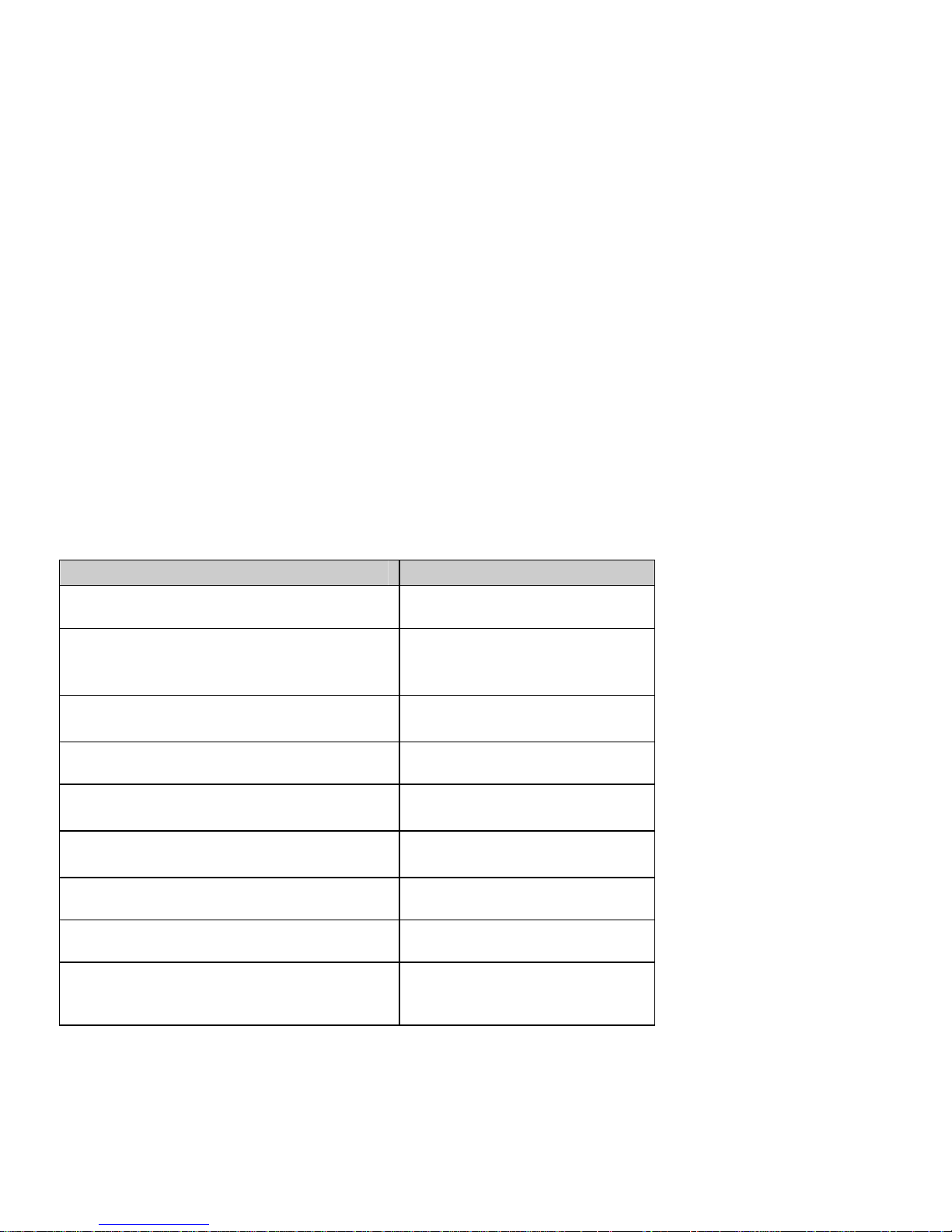
اذإﺔﻨﻴﻌﻣ فوﺮﻇ ﺖﺤﺗ ﺪﻴﺟ ﻞﻜﺸﺑ ﻞﻤﻌﻳ ﻻ ﻒﺗﺎﻬﻟا نﺎآ ,ﻲﻟﺎﺘﻟا لوﺪﺠﻟا ﺐﺴﺣ ﻪﻨﻣ ﺪآﺄﺘﻟا ﻰﺟﺮﻳ. ﺖﻧﺎآ اذإ
اﺰﺗ ﻻ ﺔﻠﻜﺸﻤﻟا لﺔﻤﺋﺎﻗ , ﺰآﺮﻣ ﻊﻣ ﻞﺻاﻮﺘﻟا ﻰﺟﺮﻳ ﺔﻧﺎﻴﺻﻒﺗﺎﻬﻟا ةﺪﻋﺎﺴﻤﻠﻟ.
ﺔﻌﺋﺎﺸﻟا ﺔﻠﻜﺸﻤﻟا ﺺﺤﻔﻟا تاﻮﻄﺧ
ﻒﺗﺎﻬﻟا ﻦﺤﺷ ﻦﻜﻤﻳ ﻻ. ﻒﺗﺎﻬﻟا ﻦﻴﺑ ﺪﻴﺟ ﻞﻜﺸﺑ ﻞﺻﻮﻣ ﻦﺣﺎﺸﻟا نأ ﻦﻣ ﺪآﺄﺘﻟا ﻰﺟﺮﻳ
ددﺮﺘﻤﻟا رﺎﻴﺘﻟا ﺬﺧﺄﻣو .
ﻒﺗﺎﻬﻟا ﻞﻴﻐﺸﺗ ﻦﻜﻤﻳ ﻻ. اﺪﺟ ﻒﻴﻌﺿ ﺔﻳرﺎﻄﺒﻟا ىﻮﺘﺴﻣ نﺎآ اذإ ﺪآﺄﺗ.
اذإ ﺪآﺄﺘﻟا ﻰﺟﺮﻳﻧﺎآ ﺔﻘﺒﻄﻣ ﺔﻳرﺎﻄﺒﻟا ﺖﺪﻴﺟ ﻞﻜﺸﺑ .
حﺎﺘﻔﻣ ﻰﻠﻋ ﻂﻐﻀﻟا ﻰﺟﺮﻳءﺎﻬﻧإﺔﻴﻓﺎآ ةﺮﺘﻔﻟ .
ﺔﻗﺎﻄﺑ ﻲﻓ تﺎﻣﻮﻠﻌﻤﻟا ةءاﺮﻗ ﻦﻜﻤﻳ ﻻ
RUIM ﻒﺗﺎﻬﻟا ﻲﻓ ﺔﺟرﺪﻤﻟا .
ﺔﺤﻳﺮﺸﻟا نأ ﺪآﺄﺗ)ﺔﻗﺎﻄﺒﻟا (ﺪﻴﺟ ﻞﻜﺸﺑ ﺎﻬﻟﺎﺧدإ ﻢﺗ.
ﻰﺟﺮﻳﺪآﺄﺘﻟا نأ ﻚﺘﻗﺎﻄﺑ RUIMماﺪﺨﺘﺳﻼﻟ ﺔﺤﻟﺎﺻ .
ﺔﻟﺎﺳر ضﺮﻌﻳ ﻒﺗﺎﻬﻟا" ﻞﺧداPUK" ﺘﻟا ﻰﺟﺮﻳ ﺰﻣر ﻰﻠﻋ لﻮﺼﺤﻠﻟ ﺔﻣﺪﺨﻟا دوﺰﻣ ﻊﻣ ﻞﺻاﻮPUK
ﻢﺛ ﻦﻣوﻪﻟﺎﺧدإ ءﺎﻐﻟﻹﺔﻗﺎﻄﺒﻟا ﻞﻔﻗ .
ﺔﻴﻔﺗﺎه ﺔﻤﻟﺎﻜﻣ ءاﺮﺟإ ﻦﻜﻤﻳ ﻻ ﻰﺟﺮﻳﺪآﺄﺘﻟا اذإﺢﻴﺤﺻ ﻒﺗﺎﻬﻟا ﻢﻗر نﺎآ .
ﻰﺟﺮﻳﺪآﺄﺘﻟا اذإﺔﻜﺒﺸﻟا ﺔﻴﻄﻐﺗ قﺎﻄﻧ ﻦﻤﺿ ﺖﻨآ .
ﺔﻔﻴﻌﺿ ﺔﻤﻟﺎﻜﻤﻟا ةدﻮﺟ ﻰﺟﺮﻳﺪآﺄﺘﻟا ﻦﻣ ةرﺎﺷإﻲﻓﺎآ ﻞﻜﺸﺑ ﺔﻳﻮﻗ ﻒﺗﺎﻬﻟا ,
اذإد ﺖﻨآ ﻰﻨﺒﻣ ﻞﺧا , كﺮﺤﺘﻟا ﻰﺟﺮﻳﻰﻟإةﺬﻓﺎﻨﻟا بﺮﻗ .
ﻲﺗﻮﺻ عﺎﻤﺳ ﻊﻴﻄﺘﺴﻳ ﻻ ﻞﺼﺘﻤﻟا ﺪﻨﻋ
ءاﺮﺟإ ﺔﻤﻟﺎﻜﻤﻟا.
نﻮﻓوﺮﻜﻴﻤﻟا نﺎآ اذإ ﺪآﺄﺗﻞﻔﻘﻣ ﻒﺗﺎﻬﻟا تﺎﻘﺤﻠﻣ ﺔﻄﺳاﻮﺑ وأ
يأ ﻖﺋاﻮﻋ ىﺮﺧأ.
اﺪﺟ ﻒﻴﻌﺿ ﻞﺼﺘﻤﻟا تﻮﺻ ﺪآﺄﺗ اذإ ﻪﻌﻓر ﻢﺗ ﻒﺗﺎﻬﻟا ﻲﻓ تﻮﺼﻟا ىﻮﺘﺴﻣ نﺎآ ﻰﻟإ ﻰﺼﻗأ
ﺪﺣ.
ةﻮﻗةرﺎﺷﻹاﺿ ﻒﺗﺎﻬﻟا ﻲﻓ ﺔﻔﻴﻌوأ
ةدﺎﻋﺔﻤﻟﺎﻜﻤﻟا ءﺎﻨﺛأ لﺎﺼﺗﻻا ﻊﻄﻘﻳ .
ﺪآﺄﺗ اذإ ﻪﻳﺪﻟ ﻒﺗﺎﻬﻟا نﺎآ ةرﺎﺷإﺔﻳﻮﻗ .
اذإ ﺪﺟﻮﺗ ﻢﻟ ةرﺎﺷإ , تاذ ﺔﻘﻄﻨﻣ ﻲﻓ ﻒﺗﺎﻬﻟا ماﺪﺨﺘﺳا ﻰﺟﺮﻳ
ﺔﻳﻮﻗ ﺔﻴﻄﻐﺗ.
Page 55

36
2. ﺔﻳﺎﻤﺤﻟا ﺰﻣر ﻞﺧدا ﻢﻳﺪﻘﻟا ﻂﻐﺿا ﻢﺛ مﺎﻗرأ ﻊﺑرأ ﻦﻣ نﻮﻜﻤﻟاﻖﻓاﻮﻣ .
3. ﺔﻳﺎﻤﺤﻟا ﺰﻣر ﻞﺧداﺪﻳﺪﺠﻟا ﺪﻳﺮﺗ يﺬﻟا )ﻂﻘﻓمﺎﻗرأ ﻊﺑرأ ( ﻂﻐﺿا ﻢﺛﻖﻓاﻮﻣ .
4. ﺪﻋاﺧدإﺎﺔﻳﺎﻤﺤﻟا ﺰﻣر لﺪآﺄﺘﻠﻟ ىﺮﺧأ ةﺮﻣ ﺪﻳﺪﺠﻟا , ﻂﻐﺿا ﻢﺛ ﻖﻓاﻮﻣ .
ةدﺎﻌﺘﺳاﻊﻨﺼﻤﻟا ﻂﺒﺿ
ﻴﻐﺘﻟا ةدﺎﻌﺘﺳﻻ ﺔﻤﺋﺎﻘﻟا ﻩﺬه مﺪﺨﺘﺳاﻴﻊﻨﺼﻤﻟا تاداﺪﻋإ ﻰﻟإ ﻒﺗﺎﻬﻟا ﻲﻓ ﺎﻬﺘﻠﻤﻋ ﻲﺘﻟا تاﺮ).ءﺎﻤﺳﻷا ﻞآ,
مﺎﻗرﻷا ,ﻞﺋﺎﺳﺮﻟا ,تﺎﻔﻠﻤﻟا ...ﺎﻬﻓﺬﺣ ﻢﺘﻳ ﻦﻟ ﻒﺗﺎﻬﻟا ﻲﻓ.(
ﻲﺗارﺎﺼﺘﺧا
ﻤﻳﺎﻬﻴﻟإ ﻊﻳﺮﺴﻟا لﻮﺻﻮﻠﻟ ﻚﻟذو ﻲﺗارﺎﺼﺘﺧا ﺔﻤﺋﺎﻗ ﻲﻓ ﻲﺗﻵا ﻊﺿو ﻚﻨﻜ ماﺪﺨﺘﺳﺎﺑﺮﺴﻳﻷا رﺎﻴﺘﺧﻻا حﺎﺘﻔﻣ
ﻲهو :تاودﻷا , تﺎﻘﻴﺒﻄﺗBREW ,ﻂﺒﻀﻟا ,ﻪﺒﻨﻤﻟا ,ﺪﻴﻋاﻮﻤﻟا ﻖﺴﻨﻣ ,ﺔﺒﺳﺎﺤﻟا ,فﺎﻘﻳﻹا ﺔﻋﺎﺳ بﺎﻌﻟﻷا وأ.
داﺪﻌﺘﺳﻻا ﻊﺿو ﻲﻓ , ﻂﻐﺿارﺎﻴﺘﺧﻻا حﺎﺘﻔﻣ ﺮﺴﻳﻷا ﻰﻟإ لﻮﺧﺪﻠﻟ ﻲﺗارﺎﺼﺘﺧا ﺔﻤﺋﺎﻗ. ﺘﺳﻻوأ تاودﻷا ضﺮﻌ.
ﺔﻜﺒﺸﻟا تاداﺪﻋإ
ﻰﻟوﻷا ﺔﻗﺎﻄﺒﻟا ﺔﻜﺒﺷ رﺎﻴﺘﺧا ﻞﺟا ﻦﻣ ﻚﻟذو ﺔﻜﺒﺸﻟا رﺎﻴﺘﺧا ﻂﻤﻧ ﻂﺒﻀﻟ) CDMA(ﺔﻴﻧﺎﺜﻟا ﺔﻗﺎﻄﺒﻟا ﺔﻜﺒﺷ وأ
)GSM(.
Page 56

35
ﻂﺒﻀﻟا
ﺗ ﺎﻬﻟﻼﺧ ﻦﻣ ﻦﻜﻤﻳ ﺔﻤﺋﺎﻘﻟا ﻩﺬهﻌﻔءﺎﻀﻴﺒﻟا ﺔﻤﺋﺎﻘﻟا و ءادﻮﺴﻟا ﺔﻤﺋﺎﻘﻟا ﻞﻴﻄﻌﺗ وأ ﻞﻴ.
ﺔﻳﺎﻤﺤﻟا
ﺔﻳﺎﻤﺤﻟا ﻰﻟإ لﻮﺧﺪﻠﻟ ﺔﻴﺿاﺮﺘﻓﻻا ﻞﻔﻘﻟا ةﺮﻔﺷ لﺎﺧدإ ﻚﻴﻠﻋ ﺐﺠﻳ .نإﻘﻟا ةﺮﻔﺷ ﻲه ﻊﻨﺼﻤﻟا ﻦﻣ ﺔﻴﺿاﺮﺘﻓﻻا ﻞﻔ
0000 .ةﺪﻋﺎﺴﻤﻠﻟ لﻮﻤﺤﻤﻟا ﻒﺗﺎﻬﻠﻟ ﺔﻌﺋﺎﺒﻟا ﺔآﺮﺸﻟا ﺔﻌﺟاﺮﻣ ﻚﻴﻠﻋ دﻮﻜﻟا ﻞﻤﻌﻳ ﻢﻟ اذإ.
ﻞﻔﻗﻒﺗﺎﻬﻟا
ﺔﻴﺼﺨﺸﻟا تﺎﻣﻮﻠﻌﻤﻟا ﻰﻠﻋ عﻼﻃﻻا وأ ﻚﻨﻣ نذإ نود تﺎﻤﻟﺎﻜﻣ ءاﺮﺟإ ﻦﻣ ﻚﻔﺗﺎه ﻲﻤﺤﺗ زﺎﻬﺠﻟا ﻞﻔﻗ ةﺰﻴﻣ
ﻒﺗﺎﻬﻟا ﻲﻓ ﺔﻧوﺰﺨﻤﻟا.
ﻞﻔﻘﻣ ﻒﺗﺎﻬﻟا نﺎآ اذإ ,ﺼﺗﻻا ﻚﻨﻜﻤﻴﻓ ئراﻮﻄﻟا مﺎﻗرﺄﺑ ﻂﻘﻓ لﺎﺔﻴﻤﺳﺮﻟاﻚﻔﺗﺎه ﻲﻓ ﺔﻧﺰﺨﻤﻟا .
داﺪﻌﺘﺳﻻا ﻊﺿو ﻲﻓ , ﻂﻐﺿارﺎﻴﺘﺧﻻا حﺎﺘﻔﻣ لﻮﺧﺪﻠﻟ ﻰﻟإﺔﻴﺴﻴﺋﺮﻟا ﺔﻤﺋﺎﻘﻟا < ﻂﺒﻀﻟا <ﺔﻳﺎﻤﺤﻟا < ﻞﻔﻗ
ﻒﺗﺎﻬﻟا ,ﺔﻴﻟﺎﺘﻟا ﻢﺋاﻮﻘﻟا ﻚﻴﻄﻌﺘﺳ ﻲﺘﻟاو:
¾ ﻞﻴﻐﺸﺘﻟا ﺔﻳاﺪﺑ:زﺎﻬﺠﻟا ﻞﻴﻐﺸﺗ ﺔﻳاﺪﺑ ﺪﻨﻋ ةﺮﻣ ﻞآ ﻒﺗﺎﻬﻟا ﻞﻔﻗ .
¾ نﻵا ﻞﻔﻗ:ﻬﻟا ﻞﻔﻗ ﻞﻴﻌﻔﺗ نﻵا ﻒﺗﺎ.
¾ ﻞﻴﻄﻌﺗ:ﻒﺗﺎﻬﻟا ﻞﻔﻗ ةﺰﻴﻣ ﻞﻴﻄﻌﺗ .
ﺰﻣرPIN ﺔﻗﺎﻄﺒﻟRUIM
داﺪﻌﺘﺳﻻا ﻊﺿو ﻲﻓ , ﻂﻐﺿارﺎﻴﺘﺧﻻا حﺎﺘﻔﻣ لﻮﺧﺪﻠﻟ ﻰﻟإﺔﻴﺴﻴﺋﺮﻟا ﺔﻤﺋﺎﻘﻟا < ﻂﺒﻀﻟا <ﺔﻳﺎﻤﺤﻟا < ﺰﻣر
PIN ﺔﻗﺎﻄﺒﻟRUIM <ﺔﻴﻟﺎﺘﻟا تارﺎﻴﺨﻟا ﺮﻬﻈﺘﺳو :ﻞﻴﻐﺸﺗ PIN ,ﻞﻴﻄﻌﺗ PIN ,و ﺮﻴﻴﻐﺗ PIN.
اذإ ﺖﻴﺴﻧ يأزﻮﻣﺮﻟا ﻩﺬه ﻦﻣ ,ﺔﻣﺪﺨﻟا دوﺰﻣ ﻊﻣ ﻞﺻاﻮﺘﻟا ﻰﺟﺮﻳ .
ﺰﻣرPIN ﺔﻗﺎﻄﺒﻟSIM
داﺪﻌﺘﺳﻻا ﻊﺿو ﻲﻓ , ﻂﻐﺿارﺎﻴﺘﺧﻻا حﺎﺘﻔﻣ لﻮﺧﺪﻠﻟ ﻰﻟإﺔﻴﺴﻴﺋﺮﻟا ﺔﻤﺋﺎﻘﻟا < ﻂﺒﻀﻟا <ﺔﻳﺎﻤﺤﻟا < ﺰﻣر
PIN ﺔﻗﺎﻄﺒﻟSIM < ﺔﻴﻟﺎﺘﻟا تارﺎﻴﺨﻟا ﺮﻬﻈﺘﺳو :ﻞﻴﻐﺸﺗ PIN ,ﻞﻴﻄﻌﺗ PIN , وﺮﻴﻴﻐﺗ PIN.
زﻮﻣﺮﻟا ﻩﺬه ﻦﻣ يأ ﺖﻴﺴﻧ اذإ ,اﻮﺘﻟا ﻰﺟﺮﻳﺔﻣﺪﺨﻟا دوﺰﻣ ﻊﻣ ﻞﺻ.
ﺮﻴﻴﻐﺗﺰﻣرﺔﻳﺎﻤﺤﻟا
1. داﺪﻌﺘﺳﻻا ﻊﺿو ﻲﻓ , ﻂﻐﺿارﺎﻴﺘﺧﻻا حﺎﺘﻔﻣ لﻮﺧﺪﻠﻟ ﻰﻟإﺔﻴﺴﻴﺋﺮﻟا ﺔﻤﺋﺎﻘﻟا < ﻂﺒﻀﻟا <ﺔﻳﺎﻤﺤﻟا <
ﺔﻳﺎﻤﺤﻟا ﺰﻣر ﺮﻴﻴﻐﺗ,
Page 57

34
ﺔﻜﺒﺷ ﺪﻳﺪﺤﺗ ﺔﻤﺋﺎﻘﻟا ﻩﺬه لﻼﺧ ﻦﻣ ﻚﻨﻜﻤﻳCDMA/GSM مﺪﺨﺘﺴﺗ ﻲآلاﻮﺠﺘﻠﻟ ) قﺎﻄﻧ جرﺎﺧ نﻮﻜﺗ ﺎﻣﺪﻨﻋ
ﻜﺒﺷ ﺔﻴﻄﻐﺗ ﻚﺘمﻷا ( ﻢﺘﻳوﺪﻳﺪﺤﺗ ﺎﻣإ ﺎﻬﻨﻋ ﺚﺤﺒﻟا يوﺪﻳ وأ ﻲﺗاذ ﻞﻜﺸﺑ.
• ﺔﻴﻟﺎﺤﻟا ﺔﻜﺒﺸﻟا:ﺎﻬﻟ ﻒﻳﺮﻌﺘﻟا ﻢﻗرو ﺔﻴﻟﺎﺤﻟا ﺔﻜﺒﺸﻟا ﻢﺳا ضﺮﻋ .
• ﻲﺋﺎﻘﻠﺗ ﺪﻳﺪﺤﺗ:ﻻوأ مﻷا ﺔﻜﺒﺸﻟا ﻦﻋ ﺚﺤﺒﻳ ﻒﺗﺎﻬﻟا , ﺔﻗﺎﻄﺑ ﻲﻓ ﺔﻧﺰﺨﻤﻟا تﺎﻜﺒﺸﻟا ﻢﺛSIM . ﻢﻟ اذإ
تﺎﻜﺒﺸﻟا ﻩﺬه ﻦﻣ يأ ﺪﺠﻳ ,ﺎﻔﺗا ﺎﻬﻳﺪﻟ ﺔﻜﺒﺷ يأ ﻊﻣ ﻞﻴﺻﻮﺘﻟا ﻢﺘﻴﺳمﻷا ﺔﻜﺒﺸﻟا ﻊﻣ لاﻮﺠﺗ ﺔﻴﻗ.
• يوﺪﻳ ﺪﻳﺪﺤﺗ: ﻦﻋ ﺚﺤﺒﻳ ﻒﺗﺎﻬﻟا يأﺔﻜﺒﺷ ,ﻢﺛ رﺎﺘﺨﺗ ﻲﻜﻟ ﺎﻴﻟﺎﺣ ةﺮﻓﻮﺘﻤﻟا تﺎﻜﺒﺸﻟﺎﺑ ﺔﻤﺋﺎﻘﺑ كدوﺰﻳ
ﺪﻳﺮﺗ ﻲﺘﻟا ﺔﻜﺒﺸﻟا ﻦﻤﺿ لاﻮﺠﺘﻟا.
لﺎﺼﺗﻻا ﻂﻤﻧ
ﺔﻤﻟﺎﻜﻣ ءاﺮﺟإ ﺪﻨﻋ ﺔﺷﺎﺸﻟا ﻰﻠﻋ مﺎﻗرﻷا ﺔﺑﺎﺘآ ﻂﻤﻧ رﺎﻴﺘﺧﻻ ﺔﻤﺋﺎﻘﻟا ﻩﺬه مﺪﺨﺘﺴﺗ.
داﺪﻌﺘﺳﻻا ﻊﺿو ﻲﻓ , ﻂﻐﺿاﺎﺘﻔﻣرﺎﻴﺘﺧﻻا ح لﻮﺧﺪﻠﻟ ﻰﻟإﺔﻴﺴﻴﺋﺮﻟا ﺔﻤﺋﺎﻘﻟا< ﻂﺒﻀﻟا < تاداﺪﻋإ
ﺔﻤﻟﺎﻜﻤﻟا <لﺎﺼﺗﻻا ﻂﻤﻧ.
ﻲه لﺎﺼﺗﻼﻟ طﺎﻤﻧأ ﺔﺛﻼﺛ ﺪﺟﻮﻳ :شﺪﺨﻟا ﺔﺣﻮﻟ ,نﻮﻠﻣ, يدﺎﻋ.
يرﺎﻨﻟا تﺎﻤﻟﺎﻜﻤﻟا راﺪﺟ
مﺪﺨﺘﺴﺗﻚﺑ لﺎﺼﺗﻻا ﻦﻣ مﺎﻗرﻷا ﺾﻌﺑ ﻊﻨﻤﻟ وأ حﺎﻤﺴﻠﻟ ﺔﻤﺋﺎﻘﻟا ﻩﺬه.
ﺔﻤﺋﺎﻘﻟاءادﻮﺴﻟا
1. داﺪﻌﺘﺳﻻا ﻊﺿو ﻲﻓ , ﻂﻐﺿارﺎﻴﺘﺧﻻا حﺎﺘﻔﻣ لﻮﺧﺪﻠﻟ ﻰﻟإﺔﻴﺴﻴﺋﺮﻟا ﺔﻤﺋﺎﻘﻟا < ﻂﺒﻀﻟا < راﺪﺟ
يرﺎﻨﻟا تﺎﻤﻟﺎﻜﻤﻟا < ءادﻮﺴﻟا ﺔﻤﺋﺎﻘﻟا.
2. ﺔﻏرﺎﻓ ﺔﻧﺎﺧ يأ ﻰﻟإ كﺮﺤﺗ , ﻂﻐﺿا و>ﻦﻴﻴﻌﺗ<,
3. ﻢﻗﺮﻟا ﻞﺧدا . ﻂﻐﺿاو>ﻖﻓاﻮﻣ ,< ﺮﺘﺧا وأ>ﺚﺤﺒﻟا < ﻦﻣ ﻦﻴﻌﻣ ﻢﻗر ﻦﻋ مﻼﻌﺘﺳﻼﻟﻞﺠﺳﻒﺗﺎﻬﻟا .
4. ماﺪﺨﺘﺳا ﻦﻜﻤﻳتارﺎﻴﺧﻲﻟﺎﺘﻟا ﻚﻴﻄﻌﺘﺳ ﻲﺘﻟاو :ﻋضﺮ ,ﺮﻳﺮﺤﺗ ,فﺬﺣ وأ ﻞﻜﻟا فﺬﺣ.
ﺔﻤﺋﺎﻘﻟا ءﺎﻀﻴﺒﻟا
1. داﺪﻌﺘﺳﻻا ﻊﺿو ﻲﻓ , ﻂﻐﺿارﺎﻴﺘﺧﻻا حﺎﺘﻔﻣ لﻮﺧﺪﻠﻟ ﻰﻟإﺔﻴﺴﻴﺋﺮﻟا ﺔﻤﺋﺎﻘﻟا < ﻂﺒﻀﻟا < راﺪﺟ
يرﺎﻨﻟا تﺎﻤﻟﺎﻜﻤﻟا < ﺔﻤﺋﺎﻘﻟاءﺎﻀﻴﺒﻟا.
2. ﻰﻟإ كﺮﺤﺗ ﺔﻏرﺎﻓ ﺔﻧﺎﺧ يأ , ﻂﻐﺿا و>ﻦﻴﻴﻌﺗ<.
3. ﻢﻗﺮﻟا ﻞﺧدا, ﻂﻐﺿاو >ﻖﻓاﻮﻣ ,<وأ ﺮﺘﺧا >ﺚﺤﺑ <ﻦﻋ مﻼﻌﺘﺳﻼﻟ ﻦﻣ ﻦﻴﻌﻣ ﻢﻗر ﻞﺠﺳﻒﺗﺎﻬﻟا .
4. ماﺪﺨﺘﺳا ﻦﻜﻤﻳتارﺎﻴﺧﻲﻟﺎﺘﻟا ﻚﻴﻄﻌﺘﺳ ﻲﺘﻟاو :ضﺮﻋ ,ﺮﻳﺮﺤﺗ ,فﺬﺣ وأ ﻞﻜﻟا فﺬﺣ.
Page 58

33
تﺎﻤﻟﺎﻜﻤﻟا ﻞﻳﻮﺤﺗ ﻒﻗﻮﻟ , ﺮﺘﺧاﻞﻴﻄﻌﺗ.
3. ﻪﻴﻟإ تﺎﻤﻟﺎﻜﻤﻟا ﻞﻳﻮﺤﺗ داﺮﻤﻟا ﻢﻗﺮﻟا ﻞﺧدا , ﺮﺘﺧاو>ﻖﻓاﻮﻣ<.
رﺎﻈﺘﻧاﺔﻤﻟﺎﻜﻤﻟا
ةﺰﻴﻤﻟا ﻩﺬه ﻢﻋﺪﻳ ﺔﻜﺒﺸﻟا ﻞﻐﺸﻣ نﺎآ اذإ , نﺎﻓ ءﺎﻨﺛأ ﺔﻴﻧﺎﺛ ﺔﻤﻟﺎﻜﻣ دﻮﺟﻮﺑ ﻚﻬﺒﻨﺗ فﻮﺳ ﺔﻤﻟﺎﻜﻤﻟا رﺎﻈﺘﻧا ﺔﻣﺪﺧ
ﻰﻟوﻷا ﺔﻤﻟﺎﻜﻤﻟا ﻊﻣ ﺚﻳﺪﺤﻟا . ﺔﻤﻟﺎﻜﻣ لﻮﺒﻗ ﻚﻨﻜﻤﻳGSMﺎﻬﻀﻓر وأ .
داﺪﻌﺘﺳﻻا ﻊﺿو ﻲﻓ , ﻂﻐﺿارﺎﻴﺘﺧﻻا حﺎﺘﻔﻣ لﻮﺧﺪﻠﻟ ﻰﻟإﺔﻴﺴﻴﺋﺮﻟا ﺔﻤﺋﺎﻘﻟا < ﻂﺒﻀﻟا < تاداﺪﻋإ
ﺔﻤﻟﺎﻜﻤﻟا < تاداﺪﻋإGSM< ﺔﻤﻟﺎﻜﻤﻟا رﺎﻈﺘﻧا <ﻞﻴﻌﻔﺗوأ ﻞﻴﻄﻌﺗ .
تﺎﻤﻟﺎﻜﻤﻟا رﺎﻈﺘﻧا ﻞﻴﻌﻔﺘﻟ , ﺮﺘﺧاﻞﻴﻌﻔﺗ.
تﺎﻤﻟﺎﻜﻤﻟا ﻞﻳﻮﺤﺗ ﻞﻴﻄﻌﺘﻟ , ﺮﺘﺧاﻞﻴﻄﻌﺗ.
ﺔﻤﻟﺎﻜﻤﻟا ءﺎﻨﺛأ , ﻂﻐﺿا>لﻮﺒﻗ <رﺎﻈﺘﻧﻻا ﺔﻤﻟﺎﻜﻣ ﻰﻠﻋ دﺮﻠﻟ , ﺔﻟﺎﺣ ﻲﻓ ﻰﻟوﻷا ﺔﻤﻟﺎﻜﻤﻟا ﻊﺿو ﺎهﺪﻨﻋ ﻢﺘﻴﺳ
ﻖﻴﻠﻌﺗ. ﻂﻐﺿا ءﺎﻬﻧإ حﺎﺘﻔﻣتﺎﻤﻟﺎﻜﻤﻟا ﻊﻴﻤﺟ ءﺎﻬﻧﻹ .
ﺮﻈﺣتﺎﻤﻟﺎﻜﻤﻟا
ﺔﻜﺒﺷ ﻲﻓ ﺔﻣﺪﺨﻟا دوﺰﻣGSMمﺪﻘﻴﺳ ﺮﺴﻟا ﺔﻤﻠآ تﺎﻤﻟﺎﻜﻤﻟا ﺮﻈﺤﺑ ءﺪﺒﻠﻟ.
ةدراﻮﻟا تﺎﻤﻟﺎﻜﻤﻟا:
o لاﻮﺠﺘﻟا ءﺎﻨﺛأ :ةدراﻮﻟا تﺎﻤﻟﺎﻜﻤﻟا ﺮﻈﺣ ﻚﻨﻜﻤﻳ لاﻮﺠﺘﻟا ءﺎﻨﺛأ,)ﺔﻴﺿاﺮﺘﻓﻻا ﺮﺴﻟا ﺔﻤﻠآ
جﺮﺨﺘﺴﺗ نأ ﻦﻜﻤﻳ ﻦﻣﺔﻣﺪﺨﻟا دوﺰﻣ .(
o ةدراﻮﻟا ﻞآ:ةدراﻮﻟا تﺎﻤﻟﺎﻜﻤﻟا ﻊﻴﻤﺟ ﺮﻈﺣ .
ةردﺎﺼﻟا تﺎﻤﻟﺎﻜﻤﻟا:
o ﺔﻴﻟوﺪﻟا: ﺮﻈﺣءاﺮﺟإ تﺎﻤﻟﺎﻜﻤﻟا ﺪﻟاﺔﻴﻟو.
o ﺔﻴﻠﺤﻤﻟا تﺎﻤﻟﺎﻜﻤﻟا :ﻂﻘﻓ ﺔﻴﻠﺤﻤﻟا تﺎﻤﻟﺎﻜﻤﻠﻟ حﺎﻤﺴﻟا.
o ةردﺎﺼﻟا ﻞآ :ﻒﺗﺎﻬﻟا ﻦﻣ ةردﺎﺻ ﺔﻤﻟﺎﻜﻣ يأ ءاﺮﺟإ ﻊﻨﻣ.
ﻞﻜﻟا ءﺎﻐﻟإ :ءﺎﻐﻟإتﺎﻤﻟﺎﻜﻤﻟا ﻊﻴﻤﺟ ﺮﻈﺣ ,ﺔﺤﻴﺤﺼﻟا روﺮﻤﻟا ﺔﻤﻠآ لﺎﺧدإ ﺐﺠﻳ.
روﺮﻤﻟا ﺔﻤﻠآ ﻞﻳﺪﻌﺗ :تﺎﻤﻟﺎﻜﻤﻟا ﺮﻈﺤﺑ ﺔﺻﺎﺨﻟا روﺮﻤﻟا ﺔﻤﻠآ ﻞﻳﺪﻌﺗ.
ﻢﻗر IP
ﺮﻳﺮﺤﺗ ﻚﻨﻜﻤﻳ10 ﻢﻗر ﺢﺒﺼﺘﻟ مﺎﻗرأ تﺎﻧﺎﺧIP ﺔﻜﺒﺸﻟ GSM.
داﺪﻌﺘﺳﻻا ﻊﺿو ﻲﻓ , ﻂﻐﺿارﺎﻴﺘﺧﻻا حﺎﺘﻔﻣ لﻮﺧﺪﻠﻟ ﻰﻟإﺔﻴﺴﻴﺋﺮﻟا ﺔﻤﺋﺎﻘﻟا < ﻂﺒﻀﻟا < تاداﺪﻋإ
ﺔﻤﻟﺎﻜﻤﻟا <تاداﺪﻋإ GSM <ﻢﻗر IP.
ﺔﻜﺒﺸﻟا
Page 59

32
داﺪﻌﺘﺳﻻا ﻊﺿو ﻲﻓ , ﻂﻐﺿارﺎﻴﺘﺧﻻا حﺎﺘﻔﻣ لﻮﺧﺪﻠﻟ ﻰﻟإﺔﻴﺴﻴﺋﺮﻟا ﺔﻤﺋﺎﻘﻟا < ﻂﺒﻀﻟا < تاداﺪﻋإ
ﺔﻤﻟﺎﻜﻤﻟا <تاداﺪﻋإ CDMA <ﻢﻗر IP.
تاداﺪﻋإ GSM
دﺮﻟاﻰﻠﻋ ﺔﻤﻟﺎﻜﻤﻟا
تﺎﻤﻟﺎﻜﻤﻟا ﻰﻠﻋ دﺮﻟا ﺔﻘﻳﺮﻃ ﺪﻳﺪﺤﺘﻟ ﺔﻤﺋﺎﻘﻟا ﻩﺬه مﺪﺨﺘﺴﺗةدراﻮﻟا .
داﺪﻌﺘﺳﻻا ﻊﺿو ﻲﻓ , ﻂﻐﺿارﺎﻴﺘﺧﻻا حﺎﺘﻔﻣ لﻮﺧﺪﻠﻟ ﻰﻟإﺔﻴﺴﻴﺋﺮﻟا ﺔﻤﺋﺎﻘﻟا < ﻂﺒﻀﻟا < تاداﺪﻋإ
ﺔﻤﻟﺎﻜﻤﻟا < تاداﺪﻋإGSM < ا ﻰﻠﻋ دﺮﻟاﺔﻤﻟﺎﻜﻤﻟ< لﺎﺳرإ حﺎﺘﻔﻣ ﻂﻘﻓ وأ حﺎﺘﻔﻣ يأ ﻂﻐﺿا.
دﺮﻟاﻲﺋﺎﻘﻠﺘﻟا
ﺔﻜﺒﺷ ﻲﻓ ﺎﻴﺋﺎﻘﻠﺗ ةدراﻮﻟا تﺎﻤﻟﺎﻜﻤﻟا ﻰﻠﻋ دﺮﻳ ﻲﻜﻟ ﻒﺗﺎﻬﻟا ﻂﺒﺿGSM.
داﺪﻌﺘﺳﻻا ﻊﺿو ﻲﻓ , ﻂﻐﺿارﺎﻴﺘﺧﻻا حﺎﺘﻔﻣ لﻮﺧﺪﻠﻟ ﻰﻟإﺔﻴﺴﻴﺋﺮﻟا ﺔﻤﺋﺎﻘﻟا < ﻂﺒﻀﻟا < تاداﺪﻋإ
ﺔﻤﻟﺎﻜﻤﻟا < تاداﺪﻋإGSM < ﻲﺋﺎﻘﻠﺘﻟا دﺮﻟا < ﺪﻌﺑ5ناﻮﺛ أ وفﺎﻘﻳإ.
ةدﺎﻋإلﺎﺼﺗﻻاﻴﺋﺎﻘﻠﺗ ﺎ
تﻻوﺎﺤﻤﻟا ﻦﻣ دﺪﻋ ءاﺮﺟﻹ ﻒﺗﺎﻬﻟا ﻂﺒﺿ)3تاﺮﻣ (ﺔﻜﺒﺸﻟﺎﺑ لﺎﺼﺗﻻا ﻞﺸﻓ ﺪﻌﺑ لﺎﺼﺗﻻا ةدﺎﻋﻹ.
داﺪﻌﺘﺳﻻا ﻊﺿو ﻲﻓ , ﻂﻐﺿارﺎﻴﺘﺧﻻا حﺎﺘﻔﻣ لﻮﺧﺪﻠﻟ ﻰﻟإﺔﻴﺴﻴﺋﺮﻟا ﺔﻤﺋﺎﻘﻟا < ﻂﺒﻀﻟا < تاداﺪﻋإ
ﺔﻤﻟﺎﻜﻤﻟا< تاداﺪﻋإGSM < لﺎﺼﺗﻻا ةدﺎﻋإﻴﺋﺎﻘﻠﺗﺎ < ﻞﻴﻌﻔﺗوأ ﻞﻴﻄﻌﺗ.
تﺎﻤﻟﺎﻜﻤﻟا ﻞﻳﻮﺤﺗ
تﺎﻤﻟﺎﻜﻣ ﻪﻴﺟﻮﺗ ﺎﻬﻟﻼﺧ ﻦﻣ ﻢﺘﻳ ﺔﻜﺒﺸﻟا دوﺰﻣ ﻦﻣ ﺔﻣﺪﺧ ﻦﻋ ةرﺎﺒﻋGSM ﻢﺘﻳ ﺮﺧﺁ ﻒﺗﺎه ﻢﻗر ﻰﻟإ ةدراﻮﻟا
ﻩرﺎﻴﺘﺧا.
داﺪﻌﺘﺳﻻا ﻊﺿو ﻲﻓ , ﻂﻐﺿارﺎﻴﺘﺧﻻا حﺎﺘﻔﻣ لﻮﺧﺪﻠﻟ ﻰﻟإﺔﻴﺴﻴﺋﺮﻟا ﺔﻤﺋﺎﻘﻟا < ﻂﺒﻀﻟا < تاداﺪﻋإ
ﺔﻤﻟﺎﻜﻤﻟا< تاداﺪﻋإGSM < تﺎﻤﻟﺎﻜﻤﻟا ﻞﻳﻮﺤﺗ,
1. ﻴﺧ ﺮﺘﺧاتﺎﻤﻟﺎﻜﻤﻟا ﻞﻳﻮﺤﺗ ﺔﺷﺎﺷ ﻲﻓ تارﺎ
• ﻞﻜﻟا:تﺎﻤﻟﺎﻜﻤﻟا ﻊﻴﻤﺟ ﻞﻳﻮﺤﺗ .
• لﻮﻐﺸﻣ :ﺮﺧﺁ ﻢﻗر ﻊﻣ لﻮﻐﺸﻣ ﻂﺨﻟا نﻮﻜﻳ ﺎﻣﺪﻨﻋ ﺔﻤﻟﺎﻜﻤﻟا ﻞﻳﻮﺤﺗ .
•ﺐﻴﺠﻳ ﻻ : ﺐﻴﺠﻳ ﺪﺣا ﻻ ﺎﻣﺪﻨﻋ ﺔﻤﻟﺎﻜﻤﻟا ﻞﻳﻮﺤﺗ.
• دﻮﺟﻮﻣ ﺮﻴﻏ :ﺐﻴﺠﻳ ﺪﺣا ﻻ ﺎﻣﺪﻨﻋ ﻞﻳﻮﺤﺘﻟا وأ ىﺮﺧأ ﺔﻤﻟﺎﻜﻣ ﻲﻓ ﻒﺗﺎﻬﻟا نﻮﻜﻳ ﺎﻣﺪﻨﻋ ﺔﻤﻟﺎﻜﻤﻟا ﻞﻳﻮﺤﺗ .
•ﻟإ ﻞﻜﻟا ءﺎﻐ:تﺎﻤﻟﺎﻜﻤﻟا ﻞﻳﻮﺤﺗ ﺔﻓﺎآ ﻞﻴﻄﻌﺘﻟ .
2. ﺎﻬﻠﻳﻮﺤﺗ داﺮﻤﻟا تﺎﻤﻟﺎﻜﻤﻟا عﻮﻧ ﺮﺘﺧا.
تﺎﻤﻟﺎﻜﻤﻟا ﻞﻳﻮﺤﺗ ﻞﻴﻌﻔﺘﻟ , ﺮﺘﺧاﻞﻴﻌﻔﺗ.
Page 60

31
داﺪﻌﺘﺳﻻا ﻊﺿو ﻲﻓ , ﻂﻐﺿارﺎﻴﺘﺧﻻا حﺎﺘﻔﻣ لﻮﺧﺪﻠﻟ ﻰﻟإﺔﻴﺴﻴﺋﺮﻟا ﺔﻤﺋﺎﻘﻟا < ﻂﺒﻀﻟا < تاداﺪﻋإ
ﺔﻤﻟﺎﻜﻤﻟا < تاداﺪﻋإCDMA< تﺎﻤﻟﺎﻜﻤﻟا ﻞﻳﻮﺤﺗ,
1. تﺎﻤﻟﺎﻜﻤﻟا ﻞﻳﻮﺤﺗ ﺔﺷﺎﺷ ﻲﻓ تارﺎﻴﺧ ﺮﺘﺧا
• ﻞﻜﻟا:تﺎﻤﻟﺎﻜﻤﻟا ﻊﻴﻤﺟ ﻞﻳﻮﺤﺗ .
• لﻮﻐﺸﻣ :ﺮﺧﺁ ﻢﻗر ﻊﻣ لﻮﻐﺸﻣ ﻂﺨﻟا نﻮﻜﻳ ﺎﻣﺪﻨﻋ ﺔﻤﻟﺎﻜﻤﻟا ﻞﻳﻮﺤﺗ .
• ﺐﻴﺠﻳ ﻻ : ﻟﺎﻜﻤﻟا ﻞﻳﻮﺤﺗﺐﻴﺠﻳ ﺪﺣا ﻻ ﺎﻣﺪﻨﻋ ﺔﻤ.
• دﻮﺟﻮﻣ ﺮﻴﻏ: ﺔﻤﻟﺎﻜﻣ ﻲﻓ ﻒﺗﺎﻬﻟا نﻮﻜﻳ ﺎﻣﺪﻨﻋ ﺔﻤﻟﺎﻜﻤﻟا ﻞﻳﻮﺤﺗ ىﺮﺧأ وأ ﺪﺣا ﻻ ﺎﻣﺪﻨﻋ ﻞﻳﻮﺤﺘﻟا
ﺐﻴﺠﻳ.
• ﻞﻜﻟا ءﺎﻐﻟإ :تﺎﻤﻟﺎﻜﻤﻟا ﻞﻳﻮﺤﺗ ﺔﻓﺎآ ﻞﻴﻄﻌﺘﻟ .
2. ﺎﻬﻠﻳﻮﺤﺗ داﺮﻤﻟا تﺎﻤﻟﺎﻜﻤﻟا عﻮﻧ ﺮﺘﺧا.
3. تﺎﻤﻟﺎﻜﻤﻟا ﻞﻳﻮﺤﺗ ﻞﻴﻌﻔﺘﻟ , ﺮﺘﺧاﻞﻴﻌﻔﺗ.
تﺎﻤﻟﺎﻜﻤﻟا ﻞﻳﻮﺤﺗ ﻒﻗﻮﻟ , ﺮﺘﺧاﻄﻌﺗﻞﻴ.
4. ﻪﻴﻟإ تﺎﻤﻟﺎﻜﻤﻟا ﻞﻳﻮﺤﺗ داﺮﻤﻟا ﻢﻗﺮﻟا ﻞﺧدا , ﺮﺘﺧاو>ﻖﻓاﻮﻣ<.
رﺎﻈﺘﻧاﺔﻤﻟﺎﻜﻤﻟا
نﺎآ اذإﺔﻜﺒﺸﻟا ﻞﻐﺸﻣةﺰﻴﻤﻟا ﻩﺬه ﻢﻋﺪﻳ , ءﺎﻨﺛأ ﺔﻴﻧﺎﺛ ﺔﻤﻟﺎﻜﻣ دﻮﺟﻮﺑ ﻚﻬﺒﻨﺗ فﻮﺳ ﺔﻤﻟﺎﻜﻤﻟا رﺎﻈﺘﻧا ﺔﻣﺪﺧ نﺎﻓ
ﻰﻟوﻷا ﺔﻤﻟﺎﻜﻤﻟا ﻊﻣ ﺚﻳﺪﺤﻟا . ﻚﻨﻜﻤﻳلﻮﺒﻗﺔﻤﻟﺎﻜﻣ CDMAﺎﻬﻀﻓر وأ .
داﺪﻌﺘﺳﻻا ﻊﺿو ﻲﻓ , ﻂﻐﺿاﻣرﺎﻴﺘﺧﻻا حﺎﺘﻔ لﻮﺧﺪﻠﻟ ﻰﻟإﺔﻴﺴﻴﺋﺮﻟا ﺔﻤﺋﺎﻘﻟا < ﻂﺒﻀﻟا < تاداﺪﻋإ
ﺔﻤﻟﺎﻜﻤﻟا < تاداﺪﻋإCDMA< ﺔﻤﻟﺎﻜﻤﻟا رﺎﻈﺘﻧا <ﻞﻴﻌﻔﺗوأ ﻞﻴﻄﻌﺗ .
ﺘﻟتﺎﻤﻟﺎﻜﻤﻟا رﺎﻈﺘﻧا ﻞﻴﻌﻔ , ﺮﺘﺧاﻞﻴﻌﻔﺗ.
تﺎﻤﻟﺎﻜﻤﻟا ﻞﻳﻮﺤﺗ ﻞﻴﻄﻌﺘﻟ , ﺮﺘﺧاﻞﻴﻄﻌﺗ.
ﺔﻤﻟﺎﻜﻤﻟا ءﺎﻨﺛأ , ﻂﻐﺿا>لﻮﺒﻗ < ﻂﻐﺿا وألﺎﺳرإ حﺎﺘﻔﻣ Cﻤﻟﺎﻜﻣ ﻰﻠﻋ دﺮﻠﻟ ﺔرﺎﻈﺘﻧﻻا , ﻊﺿو ﺎهﺪﻨﻋ ﻢﺘﻴﺳ
ﻖﻴﻠﻌﺗ ﺔﻟﺎﺣ ﻲﻓ ﻰﻟوﻷا ﺔﻤﻟﺎﻜﻤﻟا . ﻂﻐﺿاءﺎﻬﻧإ حﺎﺘﻔﻣتﺎﻤﻟﺎﻜﻤﻟا ﻊﻴﻤﺟ ءﺎﻬﻧﻹ .
ﺮﻈﺣتﺎﻤﻟﺎﻜﻤﻟا
ﺔﻜﺒﺷ ﻲﻓ ﺔﻣﺪﺨﻟا دوﺰﻣ ﻦﻣ ةﺰﻴﻤﻟا ﻩﺬهCDMAةدراﻮﻟا تﺎﻤﻟﺎﻜﻤﻟا ﺮﻈﺤﺑ ﻚﻟ ﺢﻤﺴﺗ ﻲﺘﻟاو .
داﺪﻌﺘﺳﻻا ﻊﺿو ﻲﻓ , ﻂﻐﺿارﺎﻴﺘﺧﻻا حﺎﺘﻔﻣ لﻮﺧﺪﻠﻟ ﻰﻟإﺔﻴﺴﻴﺋﺮﻟا ﺔﻤﺋﺎﻘﻟا < ﻂﺒﻀﻟا <تاداﺪﻋإ
ﺔﻤﻟﺎﻜﻤﻟا <تاداﺪﻋإ CDMA <تﺎﻤﻟﺎﻜﻤﻟا ﺮﻈﺣﺔﻴﻟﺎﺘﻟا ﻢﺋاﻮﻘﻟا ﻚﻴﻄﻌﺘﺳ ﻲﺘﻟاو : تﺎﻤﻟﺎﻜﻤﻟا
ةدراﻮﻟا,ةردﺎﺼﻟا تﺎﻤﻟﺎﻜﻤﻟا.
ﻢﻗر IP
ﺮﻳﺮﺤﺗ ﻚﻨﻜﻤﻳ10 تﺎﻧﺎﺧ مﺎﻗرأ ﺢﺒﺼﺘﻟ ﻢﻗر IP ﺔﻜﺒﺸﻟ CDMA.
Page 61

30
o ﺦﻳرﺎﺘﻟا ﻞﺼﻓ : ﻂﺒﻀﻟﺦﻳرﺎﺘﻟا ﻞﺻﺎﻓ.
ﺔﻈﺣﻼﻣ:
ﺔﻜﺒﺷ ﻲﻓ ﻪﻄﺒﺿ ﻦﻜﻤﻳ ﻻ ﺦﻳرﺎﺘﻟاCDMA.
ﺖﻗوفﺎﻘﻳإﻞﻴﻐﺸﺘﻟا
ﺔﻤﺋﺎﻘﻟا ﻩﺬه مﺪﺨﺘﺳاﻲﺋﺎﻘﻠﺗ ﻞﻜﺸﺑ ﻒﺗﺎﻬﻟا ءﺎﻔﻃإ ﺖﻗو ﺪﻳﺪﺤﺘﻟ.
داﺪﻌﺘﺳﻻا ﻊﺿو ﻲﻓ , ﻂﻐﺿارﺎﻴﺘﺧﻻا حﺎﺘﻔﻣ ﻰﻟإ لﻮﺧﺪﻠﻟﺔﻴﺴﻴﺋﺮﻟا ﺔﻤﺋﺎﻘﻟا < ﻂﺒﻀﻟا < ﻒﺗﺎﻬﻟا ﻂﺒﺿ <
ﺖﻗوﻞﻴﻐﺸﺘﻟا فﺎﻘﻳإ <ﻞﻴﻄﻌﺗ ,ﻞﻴﻐﺸﺗ وأ ﻂﺒﺿ.
تاداﺪﻋإتﺎﻤﻟﺎﻜﻤﻟا
تاداﺪﻋإ CDMA
دﺮﻟاﻰﻠﻋ ﺔﻤﻟﺎﻜﻤﻟا
تﺎﻤﻟﺎﻜﻤﻟا ﻰﻠﻋ دﺮﻟا ﺔﻘﻳﺮﻃ ﺪﻳﺪﺤﺘﻟ ﺔﻤﺋﺎﻘﻟا ﻩﺬه مﺪﺨﺘﺴﺗةدراﻮﻟا .
ﺪﻌﺘﺳﻻا ﻊﺿو ﻲﻓدا , ﻂﻐﺿارﺎﻴﺘﺧﻻا حﺎﺘﻔﻣ لﻮﺧﺪﻠﻟ ﻰﻟإﺔﻴﺴﻴﺋﺮﻟا ﺔﻤﺋﺎﻘﻟا < ﻂﺒﻀﻟا < تاداﺪﻋإ
ﺔﻤﻟﺎﻜﻤﻟا < تاداﺪﻋإCDMA < ﺔﻤﻟﺎﻜﻤﻟا ﻰﻠﻋ دﺮﻟا< لﺎﺳرإ حﺎﺘﻔﻣ ﻂﻘﻓ وأ حﺎﺘﻔﻣ يأ ﻂﻐﺿا.
دﺮﻟاﻲﺋﺎﻘﻠﺘﻟا
ﺎﻴﺋﺎﻘﻠﺗ ةدراﻮﻟا تﺎﻤﻟﺎﻜﻤﻟا ﻰﻠﻋ دﺮﻳ ﻲﻜﻟ ﻒﺗﺎﻬﻟا ﻂﺒﺿ ﺔﻜﺒﺷ ﻲﻓCDMA.
داﺪﻌﺘﺳﻻا ﻊﺿو ﻲﻓ , ﻂﻐﺿاا حﺎﺘﻔﻣرﺎﻴﺘﺧﻻ لﻮﺧﺪﻠﻟ ﻰﻟإﺔﻴﺴﻴﺋﺮﻟا ﺔﻤﺋﺎﻘﻟا < ﻂﺒﻀﻟا < تاداﺪﻋإ
ﺔﻤﻟﺎﻜﻤﻟا < تاداﺪﻋإCDMA < ﻲﺋﺎﻘﻠﺘﻟا دﺮﻟا < ﺪﻌﺑ5ناﻮﺛ وأ فﺎﻘﻳإ.
ةدﺎﻋإلﺎﺼﺗﻻاﻴﺋﺎﻘﻠﺗ ﺎ
تﻻوﺎﺤﻤﻟا ﻦﻣ دﺪﻋ ءاﺮﺟﻹ ﻒﺗﺎﻬﻟا ﻂﺒﺿ) ﻰﺘﺣ3تاﺮﻣ ( ةدﺎﻋﻹﺔﻟوﺎﺤﻤﻟاﺔﻜﺒﺸﻟﺎﺑ لﺎﺼﺗﻻا ﻞﺸﻓ ﺪﻌﺑ .
داﺪﻌﺘﺳﻻا ﻊﺿو ﻲﻓ , ﻂﻐﺿاحﺎﺘﻔﻣرﺎﻴﺘﺧﻻا لﻮﺧﺪﻠﻟ ﻰﻟإﺔﻴﺴﻴﺋﺮﻟا ﺔﻤﺋﺎﻘﻟا < ﻂﺒﻀﻟا < تاداﺪﻋإ
ﺔﻤﻟﺎﻜﻤﻟا < تاداﺪﻋإCDMA< لﺎﺼﺗﻻا ةدﺎﻋإ ﻴﺋﺎﻘﻠﺗﺎ < ﻞﻴﻌﻔﺗ وأ ﻞﻴﻄﻌﺗ.
ﻞﻳﻮﺤﺗتﺎﻤﻟﺎﻜﻤﻟا
تﺎﻤﻟﺎﻜﻣ ﻪﻴﺟﻮﺗ ﺎﻬﻟﻼﺧ ﻦﻣ ﻢﺘﻳ ﺔﻜﺒﺸﻟا دوﺰﻣ ﻦﻣ ﺔﻣﺪﺧ ﻦﻋ ةرﺎﺒﻋCDMA ﻢﺘﻳ ﺮﺧﺁ ﻒﺗﺎه ﻢﻗر ﻰﻟإ ةدراﻮﻟا
ﻩرﺎﻴﺘﺧا.
Page 62

29
ضﺮﻌﻟا ﺔﻐﻟ رﺎﻴﺘﺧﻻ ﺔﻤﺋﺎﻘﻟا ﻩﺬه مﺪﺨﺘﺴﺗ.
داﺪﻌﺘﺳﻻا ﻊﺿو ﻲﻓ , ﻂﻐﺿارﺎﻴﺘﺧﻻا حﺎﺘﻔﻣ ﻰﻟإ لﻮﺧﺪﻠﻟﺔﻴﺴﻴﺋﺮﻟا ﺔﻤﺋﺎﻘﻟا< ﻂﺒﻀﻟا <ﻒﺗﺎﻬﻟا ﻂﺒﺿ <
ﺔﻐﻠﻟا < وأ ﻲﺑﺮﻋEnglish .
ﺎﻴﺋﺎﻘﻠﺗ ﺢﻴﺗﺎﻔﻤﻟا ﻞﻔﻗ
ﻞﻔﻘﺗ ﺢﻴﺗﺎﻔﻤﻟا ﺔﺣﻮﻟ ﻞﻌﺠﻟ ﺔﻤﺋﺎﻘﻟا ﻩﺬه مﺪﺨﺘﺴﺗﺎﻴﺋﺎﻘﻠﺗﺤﻣ ﺔﻴﻨﻣز ةﺮﺘﻓ ﺪﻌﺑ ةدﺪ , ﻚﻟذو ﻒﺗﺎﻬﻟا نﻮﻜﻳ ﺎﻣﺪﻨﻋ
داﺪﻌﺘﺳﻻا ﻊﺿو ﻲﻓSTDBYﻒﺗﺎﻬﻟا ﺎﻬﺑ مﻮﻘﻳ ﺔﻔﻴﻇو يأ ﺪﺟﻮﻳ ﻻو .
داﺪﻌﺘﺳﻻا ﻊﺿو ﻲﻓ , ﻂﻐﺿارﺎﻴﺘﺧﻻا حﺎﺘﻔﻣ ﻰﻟإ لﻮﺧﺪﻠﻟﺔﻴﺴﻴﺋﺮﻟا ﺔﻤﺋﺎﻘﻟا< ﻂﺒﻀﻟا <ﻒﺗﺎﻬﻟا ﻂﺒﺿ <
ﺎﻴﺗاذ ﺢﻴﺗﺎﻔﻤﻟا ﻞﻔﻗ <10ﻲﻧاﻮﺛ ,20ﺔﻴﻧﺎﺛ ,1 ﺔﻘﻴﻗد ﺮﺘﺧا وأ فﺎﻘﻳإ ﻴﻤﻟا ﻩﺬه ﻞﻴﻄﻌﺘﻟ ﻚﻟذوةﺰ.
لﺎﺧدﻹا تاداﺪﻋإ
ﺔﻴﺿاﺮﺘﻓﻻا ﺔﺑﺎﺘﻜﻟا ﺔﻘﻳﺮﻃ ﺪﻳﺪﺤﺘﻟ ﺔﻤﺋﺎﻘﻟا ﻩﺬه مﺪﺨﺘﺳا.
داﺪﻌﺘﺳﻻا ﻊﺿو ﻲﻓ , ﻂﻐﺿارﺎﻴﺘﺧﻻا حﺎﺘﻔﻣ ﻰﻟإ لﻮﺧﺪﻠﻟﺔﻴﺴﻴﺋﺮﻟا ﺔﻤﺋﺎﻘﻟا < ﻂﺒﻀﻟا <ﻒﺗﺎﻬﻟا ﻂﺒﺿ <
لﺎﺧدﻹا تاداﺪﻋإ <ا ت ب ,T9 ﻲﺑﺮﻋ ,abc , Abc , ABC , en , En وأ 123.
و ﺦﻳرﺎﺘﻟاﺖﻗﻮﻟا
مﺪﺨﺘﺳاﻟ ﺔﻤﺋﺎﻘﻟا ﻩﺬه ضﺮﻋ ﺔﻐﻴﺻ ﺮﻴﻴﻐﺘ و ﺦﻳرﺎﺘﻟا ﺖﻗﻮﻟا.
ﺖﻗﻮﻟا
داﺪﻌﺘﺳﻻا ﻊﺿو ﻲﻓ , ﻂﻐﺿارﺎﻴﺘﺧﻻا حﺎﺘﻔﻣ ﻰﻟإ لﻮﺧﺪﻠﻟﺔﻴﺴﻴﺋﺮﻟا ﺔﻤﺋﺎﻘﻟا < ﻂﺒﻀﻟا <ﻒﺗﺎﻬﻟا ﻂﺒﺿ <
و ﺦﻳرﺎﺘﻟاﺖﻗﻮﻟا <ﺖﻗﻮﻟا ﺮﻬﻈﺘﺳوتاداﺪﻋإﻲﻟﺎﺘﻟﺎآ ﺖﻗﻮﻟا :
o ﺪﻳﺪﺤﺗﺖﻗﻮﻟا : ﻲﻠﺤﻤﻟا ﺖﻗﻮﻟا ﻂﺒﻀﻟوأﺮﺧأ ﺖﻗو يأ .
o ﺖﻴﻗﻮﺘﻟا ﺔﻘﻄﻨﻣ :ﺔﻘﻄﻨﻤﻟا ﺖﻴﻗﻮﺗ ﻂﺒﻀﻟ.
o ﺖﻗﻮﻟا ﺔﻐﻴﺻ: ﺖﻗﻮﻟا ضﺮﻋ ﺔﻐﻴﺻ ﻂﺒﻀﻟ 12 وأ ﺔﻋﺎﺳ 24ﺔﻋﺎﺳ .
ﺔﻈﺣﻼﻣ:
ﺔﻜﺒﺷ ﻲﻓ ﺎﻤﻬﻠﻳﺪﻌﺗ ﻦﻜﻤﻳ ﻻ ﺖﻴﻗﻮﺘﻟا ﺔﻘﻄﻨﻣ و ﺖﻗﻮﻟاCDMA.
ﺘﻟاﺦﻳرﺎ
داﺪﻌﺘﺳﻻا ﻊﺿو ﻲﻓ , ﻂﻐﺿارﺎﻴﺘﺧﻻا حﺎﺘﻔﻣ ﻰﻟإ لﻮﺧﺪﻠﻟﺔﻴﺴﻴﺋﺮﻟا ﺔﻤﺋﺎﻘﻟا < ﻂﺒﻀﻟا <ﻒﺗﺎﻬﻟا ﻂﺒﺿ <
و ﺦﻳرﺎﺘﻟاﺖﻗﻮﻟا <ﺘﻟا ﺦﻳرﺎﺳوﻲﻟﺎﺘﻟﺎآ ﺦﻳرﺎﺘﻟا تاداﺪﻋإ ﺮﻬﻈﺘ :
o ﺪﻳﺪﺤﺗ ﺦﻳرﺎﺘﻟا :ﺢﻴﺤﺼﻟا ﺦﻳرﺎﺘﻟا لﺎﺧدﻹ.
o ﺦﻳرﺎﺘﻟا ﺔﻐﻴﺻ:ﺦﻳرﺎﺘﻟا ضﺮﻋ ﺔﻐﻴﺻ ﻂﺒﻀﻟ .
Page 63

28
13. ﻂﺒﻀﻟا
كدوﺰﺗ ﺔﺷﺎﺷ ﻂﺒﻀﻟا تارﺎﻴﺨﺑ بﻮﻏﺮﻤﻟا ءادﻷا ﻰﻟإ ﻚﻔﺗﺎه ﺺﻴﺼﺨﺗ ﻢﺘﻳ ﻲﻜﻟ ةدﺪﻌﺘﻣ
ﻪﺑ .ﺎﻀﻳأ ﻚﻨﻜﻤﻳنَأ ﺪﻴﻌﺗ ﺔﻴﺿاﺮﺘﻓﻻا تاداﺪﻋﻹا ﻰﻟإ ﻒﺗﺎﻬﻟا تاداﺪﻋإ.
ضﺮﻌﻟا
ﻂﺋﺎﺣ قرو )تﺎﻴﻔﻠﺨﻟا(
ﻚﻨﻜﻤﻳ ﻲﻓ ضﺮﻌﺗ ﻂﺋﺎﺣ قرﻮآ ةرﻮﺻ يأ ﻂﺒﺿ ﺔﺷﺎﺷﻒﺗﺎﻬﻟا .
داﺪﻌﺘﺳﻻا ﻊﺿو ﻲﻓ , ﻂﻐﺿارﺎﻴﺘﺧﻻا حﺎﺘﻔﻣ لﻮﺧﺪﻠﻟ ﻰﻟإﺔﻴﺴﻴﺋﺮﻟا ﺔﻤﺋﺎﻘﻟا< ﻂﺒﻀﻟا <ضﺮﻌﻟا < قرو
ﻂﺋﺎﺣﻲﻟﺎﺘﻟا ﻦﻣ ﺪﺣاو ﺮﺘﺧاو :ﺔﻴﺿاﺮﺘﻓﻻا ,رﻮﺼﻟا.
رﺎﻌﺸﻟا
ﻊﺿو ﻲﻓ ﻒﺗﺎﻬﻟا نﻮﻜﻳ ﺎﻣﺪﻨﻋ ﻞﻴﻐﺸﺘﻟا ﺔﻴﻠﻤﻋ ءﺎﻨﺛأ ﺺﺼﺨﻤﻟا رﺎﻌﺸﻟا ضﺮﻋ رﺎﻴﺘﺧﻻ ﺔﻤﺋﺎﻘﻟا ﻩﺬه مﺪﺨﺘﺳا
داﺪﻌﺘﺳﻻا.
ﻌﺘﺳﻻا ﻊﺿو ﻲﻓداﺪ , ﻂﻐﺿارﺎﻴﺘﺧﻻا حﺎﺘﻔﻣ لﻮﺧﺪﻠﻟ ﻰﻟإﺔﻴﺴﻴﺋﺮﻟا ﺔﻤﺋﺎﻘﻟا< ﻂﺒﻀﻟا <ضﺮﻌﻟا <
رﺎﻌﺸﻟا < ﻞﻴﻌﻔﺗ وأ ﻞﻴﻄﻌﺗ.
ﺔﺷﺎﺷﻒﻗﻮﺘﻟا
داﺪﻌﺘﺳﻻا ﻊﺿو ﻲﻓ , ﻂﻐﺿارﺎﻴﺘﺧﻻا حﺎﺘﻔﻣ لﻮﺧﺪﻠﻟ ﻰﻟإﺔﻴﺴﻴﺋﺮﻟا ﺔﻤﺋﺎﻘﻟا < ﻂﺒﻀﻟا < ضﺮﻌﻟا <
ﻒﻗﻮﺘﻟا ﺔﺷﺎﺷ < ﻒﻗﻮﺗ ﺔﺷﺎﺷ1 , ﻒﻗﻮﺗ ﺔﺷﺎﺷ2, ﻒﻗﻮﺗ ﺔﺷﺎﺷ3 ﺮﺘﺧا وأفﺎﻘﻳإ ﻞﻴﻄﻌﺘﻟ ﻚﻟذو
ﻚﻔﺗﺎه ﻲﻓ ﻒﻗﻮﺘﻟا ﺔﺷﺎﺷ.
ﻲﻔﻠﺨﻟا ءﻮﻀﻟا
ﻒﺗﺎﻬﻟا ﻲﻓ ﻲﻔﻠﺨﻟا ءﻮﻀﻠﻟ ﺔﻴﻨﻣﺰﻟا ةﺮﺘﻔﻟﺎﺑ ﻢﻜﺤﺘﻟا ﻚﻨﻜﻤﻳ.
داﺪﻌﺘﺳﻻا ﻊﺿو ﻲﻓ , ﻂﻐﺿارﺎﻴﺘﺧﻻا حﺎﺘﻔﻣ لﻮﺧﺪﻠﻟ ﻰﻟإﺔﻴﺴﻴﺋﺮﻟا ﺔﻤﺋﺎﻘﻟا < ﻂﺒﻀﻟا < ضﺮﻌﻟا <
ﻲﻔﻠﺨﻟا ءﻮﻀﻟا <10ناﻮﺛ ,20ﺔﻴﻧﺎﺛ ,30ﺔﻴﻧﺎﺛ ,1ﺔﻘﻴﻗد وأ ﺎﻤﺋاد ﻞﻤﻌﻳ.
ﺿﻒﺗﺎﻬﻟا ﻂﺒ
ﺔﻐﻠﻟا
Page 64

27
12. ﺧﺔﻜﺒﺸﻟا تﺎﻣﺪ
تﺎﻘﻴﺒﻄﺗBREW
ﻞﻴﻤﺤﺘﻟ ﺔﻔﻴﻇﻮﻟا ﻩﺬه ماﺪﺨﺘﺳا ﻚﻨﻜﻤﻳعاﻮﻧأتﺎﻘﻴﺒﻄﺗ ﻦﻣ ﺔﻔﻠﺘﺨﻣ BREW ﻦﻣ ﻢﻘﻠﻤﻟاتﺎﻘﻴﺒﻄﺘﻟا ﻩﺬﻬﻟ دوﺰﻤﻟا.
ﺎﻬﻟﻼﺧ ﻦﻣ ﻦﻜﻤﻳ ﻲﺘﻟاوﺪﻘﺗﻳتﺎﻣﻮﻠﻌﻣ ﻢ ةﺮﻴﺜآ ,ﺔآﺮﺤﺘﻤﻟا مﻮﺳﺮﻟاو بﺎﻌﻟﻷا لﺎﺜﻤﻟا ﻞﻴﺒﺳ ﻰﻠﻋ .
داﺪﻌﺘﺳﻻا ﻊﺿو ﻲﻓ , ﻂﻐﺿارﺎﻴﺘﺧﻻا حﺎﺘﻔﻣ ﻰﻟإ لﻮﺧﺪﻠﻟﻟاﺔﻴﺴﻴﺋﺮﻟا ﺔﻤﺋﺎﻘ< ﺔﻜﺒﺸﻟا تﺎﻣﺪﺧ <
تﺎﻘﻴﺒﻄﺗBREW ,ﺪﻳﺮﺗ ﻲﺘﻟا ﺔﻣﺪﺨﻟا رﺎﻴﺘﺧﺎﺑ ﻢﻗ ﻢﺛ.
STK
ﻒﺗﺎهBRAVA DM-270 تﺎﻜﺒﺸﻟ ﻦﻴﻠﻐﺸﻤﻟا ﻒﻠﺘﺨﻤﻟ ﺔﻣﺪﺨﻟا ﻩﺬه ﻢﻋﺪﻳGSM . ةﺰﻴﻤﻟا ﻩﺬه ﻚﻟ ﺢﻴﺘﺗنأ
ﺔﻗﺎﻄﺑ ﻲﻓ ﺔﺠﻣﺪﻤﻟا تﺎﻴﺠﻣﺮﺒﻟا ﻞﻐﺸﺗSIM .ﺚﻴﺤﺑ ﺎﻬﻨﻜﻤﻳ نأو ﻞﺳﺮﺗ تﺎﻧﺎﻴﺑ ﺔﻟﺎﺳر ﻞﺒﻘﺘﺴﺗGSM ةﺮﻴﺼﻗ .
ﺔﻈﺣﻼﻣ :
ﺔﻤﺋﺎﻗ [STK] ﺔﻗﺎﻄﺑ ﻲﻓ نﺰﺨﺗ SIM ,ﻒﻠﺘﺨﺗ نأ ﻦﻜﻤﻤﻟا ﻦﻣ اﺬﻟﺔﻤﺋﺎﻘﻟا ﺔﺠﻴﺘﻧ ﻒﺗﺎﻬﻟا ﻲﻓ دﻮﺟﻮﻣ ﻮه ﺎﻣ ﻦﻋ
جاردﻹ ﺔﻗﺎﻄﺑSIMﺔﻔﻠﺘﺨﻣ ىﺮﺧأ .ﻞﻴﻐﺸﺘﻟا ﻲﻓ ﺔﺌﻴﻄﺑ نﻮﻜﺗ نأ ﻞﻤﺘﺤﻣو.
UTK
ﺔﻔﻴﻇﻮﻟا ﻩﺬه ماﺪﺨﺘﺳا ﻚﻨﻜﻤﻳاذإﺔﺤﻳﺮﺸﻟا ﺖﻧﺎآ ) ﺔﻗﺎﻄﺑRUIM (ﺔﻣﺪﺨﻟا ﻩﺬه ﻢﻋﺪﺗ , ﻦﻜﻤﻳ ﺎﻤآنأ ﻢﻋﺪﺗ
ﺮﺷﻳﺤﺔ ﺔﻔﻠﺘﺨﻣﻜﺒﺷ ﻲﻓ ﺔﻔﻠﺘﺨﻣ تﺎﻣﺪﺧ ةﺪﻋ ﺔىﺮﺧأ .ﻞﻴﺻﺎﻔﺘﻟا ﻦﻣ ﺪﻳﺰﻤﻟ , دوﺰﻣ ﻊﻣ ﻞﺻاﻮﺘﻟا ﻰﺟﺮﻳ
ﺔﻜﺒﺸﻟاﻚﺑ صﺎﺨﻟا ﺔﻴﻜﻠﺳﻼﻟا .
ﺔﻈﺣﻼﻣ:
ﺔﻤﺋﺎﻗ [UTK] ﺔﻗﺎﻄﺑ ﻲﻓ نﺰﺨﺗ RUIM ,ﻒﻠﺘﺨﺗ نأ ﻦﻜﻤﻤﻟا ﻦﻣ اﺬﻟ ﺔﻤﺋﺎﻘﻟا ﻒﺗﺎﻬﻟا ﻲﻓ دﻮﺟﻮﻣ ﻮه ﺎﻣ ﻦﻋ
ﺔﺠﻴﺘﻧ جاردﻹ ﺔﻗﺎﻄﺑRUIMﺔﻔﻠﺘﺨﻣ ىﺮﺧأ .ﻣوﺔﺌﻴﻄﺑ نﻮﻜﺗ نأ ﻞﻤﺘﺤ ﻞﻴﻐﺸﺘﻟا ﻲﻓ.
Page 65
26
11. بﺎﻌﻟﻷا
ﻒﺗﺎه يﻮﺘﺤﻳBRAVA DM-270ﺒﻌﻟ ﻰﻠﻋ ﻦﻴﺘﺔﺒﻌﻟ يأ رﺎﻴﺘﺧا ﻚﻨﻜﻤﻳ ﺪﻳﺮﺗ .
تﺎﻋﺎﻘﻔﻟا
نأ لوﺎﺣو ةﺮﻜﻟا فﺬﻗانﻮﻠﻟا ﺲﻔﻧ ﺎﻬﻟ ﻲﺘﻟا ﻰﻠﻋأ تاﺮﻜﻟا بﺮﻀﺗ ﺎﻬﻠﻌﺠﺗ. ﻲﻓ ﺔﺴﻧﺎﺠﺘﻤﻟا تاﺮﻜﻟا دﺪﻋ نﺎآ اذإ
يوﺎﺴﻳ نﻮﻠﻟا3 ﺮﺜآأ وأ .ﻲﻔﺘﺨﺘﺳ تاﺮﻜﻟا ﻩﺬه نﺎﻓ .ﻟا ﻰﻟإ ﻞﻘﺘﻨﺘﺳتاﺮﻜﻟا ﻊﻴﻤﺟ ﺖﻔﺘﺧا اذإ ﻲﻟﺎﺘﻟا ىﻮﺘﺴﻤ .
مﺎﻗرﻷا ﻂﻐﺿا4 و 6فﺬﻘﻟا ﺔﻳواز ﻂﺒﻀﻟ , ﻢﻗﺮﻟا ﻂﻐﺿاو5ةﺮﻜﻟا فﺬﻘﻟ . رﺎﻴﺘﺧﻻا حﺎﺘﻔﻣ ﻂﻐﺿاﻒﻗﻮﻟ ﺮﺴﻳﻷا
ﺎﻬﻓﺎﻨﺌﺘﺳا وأ ﺎﺘﻗﺆﻣ ﺔﺒﻌﻠﻟا.ﺎﻬﻨﻣ جوﺮﺨﻟاو ﺔﺒﻌﻠﻟا ﻆﻔﺤﻟ ﻞﻴﻐﺸﺘﻟا حﺎﺘﻔﻣ وأ ﻦﻤﻳﻷا رﺎﻴﺘﺧﻻا حﺎﺘﻔﻣ ﻂﻐﺿا.
ﺔﺒﻌﻟﺐﻟاﻮﻘﻟا
ﻦﻜﻤﻳﻬﺑ ﻢﻜﺤﺘﻟا مﺎﻗرﻷا ﺢﻴﺗﺎﻔﻣ ﻖﻳﺮﻃ ﻦﻋ ﺔﺒﻌﻠﻟا ﻩﺬ2, 4, 6, 8ﻞﻘﻨﺘﻟا ﺢﻴﺗﺎﻔﻣ ﻚﻟﺬآو . ﻞﻌﺠﺗ نأ لوﺎﺣ
ﺔﻘﻓاﻮﺘﻣ ﺔﻄﻗﺎﺴﺘﻤﻟا لﺎﻜﺷﻷاﺎﻬﺋﺎﻔﺘﺧا ﻦﻜﻤﻳ ﺚﻴﺤﺑ .ﻲﻬﺘﻨﺘﺳ ﺔﺒﻌﻠﻟا ﻰﻠﻋأ ﻰﻟإ لﺎﻜﺷﻹا ﻞﺼﺗ ﺎﻣﺪﻨﻋ
ﺔﺷﺎﺸﻟا . ﻞﻴﻐﺸﺘﻟا حﺎﺘﻔﻣ وأ ﻦﻤﻳﻷا رﺎﻴﺘﺧﻻا حﺎﺘﻔﻣ ﻂﻐﺿاﺎﻬﻨﻣ جوﺮﺨﻟاو ﺔﺒﻌﻠﻟا ﻆﻔﺤﻟ.
Page 66

25
10. عﺎﺿوﻷا
ر وأ ﺔﻤﻟﺎﻜﻣ مﻼﺘﺳا ﺪﻨﻋ ﻒﺗﺎﻬﻟا كﻮﻠﺳ ﻦﻋ عﺎﺿوﻷا ﺮﺒﻌﺗ ﻰﻟإ ﺔﻓﺎﺿإ ﺔﻟﺎﺳ
تاداﺪﻋﻹاىﺮﺧﻷا . ﻒﺗﺎه يﻮﺘﺤﻳBravaﺔﻋﻮﻨﺘﻣ عﺎﺿوأ ﺔﻋﻮﻤﺠﻣ ﻰﻠﻋ , ﺚﻴﺤﺑ
ﺐﺴﺤﺑ ﺎﻬﻟ تﺎﻤﻐﻨﻟا ﺺﻴﺼﺨﺗ ﻦﻜﻤﻳ جﺎﻴﺘﺣﻻاﺔﻔﻠﺘﺨﻤﻟا ﻦآﺎﻣﻷاو. ﻦﻣ ﻊﺿو ﻞآ تاداﺪﻋإ ءﺎﻘﺑإ ﻦﻜﻤﻳ ﺎﻤآ
ﺎﺿوﻷاﺔﻴﺿاﺮﺘﻓﻻا ﻪﺗاداﺪﻋﻹ ﺎﻘﺒﻃ ع.
ﻊﺿو ﻞﻴﻌﻔﺗ:
داﺪﻌﺘﺳﻻا ﻊﺿو ﻲﻓ , ﻂﻐﺿارﺎﻴﺘﺧﻻا حﺎﺘﻔﻣ ﻰﻟإ لﻮﺧﺪﻠﻟﺔﻴﺴﻴﺋﺮﻟا ﺔﻤﺋﺎﻘﻟا< عﺎﺿوﻷا < مﺎﻋ ,عﺎﻤﺘﺟا ,
جرﺎﺨﻟا ﻲﻓ ,ﺖﻣﺎﺻ , ﺺﻴﺼﺨﺗ <ﻞﻴﻌﻔﺗ,
ﻊﺿو ﺺﻴﺼﺨﺗ:
داﺪﻌﺘﺳﻻا ﻊﺿو ﻲﻓ , ﻂﻐﺿارﺎﻴﺘﺧﻻا حﺎﺘﻔﻣ ﻰﻟإ لﻮﺧﺪﻠﻟﺔﻴﺴﻴﺋﺮﻟا ﺔﻤﺋﺎﻘﻟا< عﺎﺿوﻷا < مﺎﻋ ,عﺎﻤﺘﺟا ,
جرﺎﺨﻟا ﻲﻓ ,ﺖﻣﺎﺻ ,ﺺﻴﺼﺨﺗ < ﺺﻴﺼﺨﺗ ﺔﻴﻟﺎﺘﻟا تارﺎﻴﺨﻟا ﺮﻬﻈﺘﺳو:
¾ ﺔﻤﻐﻨﻟا عﻮﻧ:ةدراﻮﻟا تﺎﻤﻟﺎﻜﻤﻟا ﻦﻣ ﻞﻜﻟ ﻪﻴﺒﻨﺘﻟا ﺔﺷﺎﺷ ﺮﻴﻴﻐﺘﻟ ﺔﻤﺋﺎﻘﻟا ﻩﺬه مﺪﺨﺘﺳا ,ةﺮﻴﺼﻘﻟا ﻞﺋﺎﺳﺮﻟا
ﺪﻴﻋاﻮﻤﻟا ﻖﺴﻨﻣ و ﻪﺒﻨﻤﻟا.
¾ ﻦﻴﻧﺮﻟا ﺔﻤﻐﻧ: ﺔﻤﺋﺎﻘﻟا ﻩﺬه مﺪﺨﺘﺳا دراﻮﻟا تﺎﻤﻟﺎﻜﻤﻟا ﻦﻣ ﻞﻜﻟ ﺔﻤﻐﻨﻟا سﺮﺟ ﺮﻴﻴﻐﺘﻟة ,ةﺮﻴﺼﻘﻟا ﻞﺋﺎﺳﺮﻟا
ﺪﻴﻋاﻮﻤﻟا ﻖﺴﻨﻣ و ﻪﺒﻨﻤﻟا.
¾ تﻮﺼﻟا ىﻮﺘﺴﻣ :ﺔﻤﺋﺎﻘﻟا ﻩﺬه مﺪﺨﺘﺳا ﻦﻴﻧﺮﻟا ﺔﻤﻐﻧ ﻦﻣ ﻞﻜﻟ تﻮﺼﻟا ىﻮﺘﺴﻣ ﺮﻴﻴﻐﺘﻟ ,ﺔﻤﻐﻧ
ةﺮﻴﺼﻘﻟا ﻞﺋﺎﺳﺮﻟاSMS,ﺢﻴﺗﺎﻔﻤﻟا ﺔﻤﻐﻧ ,نذﻷا ﺔﻋﺎﻤﺳ ,ﺪﻴﻋاﻮﻤﻟا ﻖﺴﻨﻣ و ﻪﺒﻨﻤﻟا. ﻳﻚﻨﻜﻤ
ﻞﻘﻨﺘﻟا ﺢﻴﺗﺎﻔﻣ ماﺪﺨﺘﺳا)ﻰﻠﻋأ ,ﻞﻔﺳأ ,رﺎﺴﻳ ,ﻦﻴﻤﻳ( ﻮﺘﺴﻣ ﻂﺒﻀﻟتﻮﺼﻟا ى.
¾ تﺎﻬﻴﺒﻨﺘﻟا :ﻲﺗﻼﻟ ﻒﺗﺎﻬﻟا تﺎﻬﻴﺒﻨﺗ ﺮﻴﻴﻐﺘﻟ ﺔﻤﺋﺎﻘﻟا ﻩﺬه مﺪﺨﺘﺳا:
ﻞﻴﺻﻮﺘﻟا ﺔﻤﻐﻧ:ﺔﻜﺒﺸﻟﺎﺑ ﺎﻬﻃﺎﺒﺗراو ﺔﻤﻟﺎﻜﻣ ءاﺮﺟإ ﺪﻨﻋ ةرﺎﻔﺻ ﺔﻤﻐﻧ رﺪﺼﻳ ﻒﺗﺎﻬﻟا ﻞﻌﺟ .
ﺸﻟا ﺔﻤﻐﻧﺎﻦﺣ: ﻦﺣﺎﺸﻟﺎﺑ ﻒﺗﺎﻬﻟا ﻞﻴﺻﻮﺗ ﺪﻨﻋ ةرﺎﻔﺻ ﺔﻤﻐﻧ رﺪﺼﻳ ﻒﺗﺎﻬﻟا ﻞﻌﺟ.
ﺔﻘﻴﻗﺪﻟا ﺔﻤﻐﻧ: ﻞﺒﻗ ةرﺎﻔﺻ ﺔﻤﻐﻧ رﺪﺼﻳ ﻒﺗﺎﻬﻟا ﻞﻌﺟ 10ءﺎﻬﺘﻧا ﻦﻣ ناﻮﺛ ﻞآ ﺔﻘﻴﻗدءﺎﻨﺛأ ﺔﻤﻟﺎﻜﻤﻟا
ﻚﺘﻤﻟﺎﻜﻣ ةﺪﻣ ﺔﻓﺮﻌﻤﻟ.
ﻞﻴﻐﺸﺗ/ﻒﺗﺎﻬﻟا ءﺎﻔﻃإ : ﻞﻴﻄﻌﺗ وأ ﻞﻴﻌﻔﺗ تﻮﺻ ﻪﻴﺒﻨﺘﻟا ءﺎﻨﺛأﻒﺗﺎﻬﻟا ﻞﻴﻐﺸﺗو ءﺎﻔﻃإ ﺔﻴﻠﻤﻋ.
ﻊﺿو ﺔﻴﻤﺴﺗ ةدﺎﻋإ:
داﺪﻌﺘﺳﻻا ﻊﺿو ﻲﻓ , ﻂﻐﺿارﺎﻴﺘﺧﻻا حﺎﺘﻔﻣ ﻰﻟإ لﻮﺧﺪﻠﻟﺔﻴﺴﻴﺋﺮﻟا ﺔﻤﺋﺎﻘﻟا< عﺎﺿوﻷا <ﺺﻴﺼﺨﺗ < ةدﺎﻋإ
ﺔﻴﻤﺴﺘﻟا ﻢﺛﺑ ﻢﻗ ﻢﺳﻻا ﻞﻳﺪﻌﺘ.
Page 67

24
2. ﻂﻐﺿاءﺪﺑ ﻞﻴﻐﺸﺘﻟفﺎﻘﻳﻹا ﺔﻋﺎﺳ .
3. ﻂﻐﺿاﻒﻴﻗﻮﺗﺎﺘﻗﺆﻣ ﺔﻋﺎﺴﻟا ﻒﻗﻮﻟ
4. ﻂﻐﺿافﺎﻨﺌﺘﺳاﺔﻋﺎﺴﻟا ﻞﻴﻐﺸﺗ فﺎﻨﺌﺘﺳﻻ .
5. ﻂﻐﺿاﻂﺒﺿ ةدﺎﻋإﺮﻔﺼﻟا ﻦﻣ ﺔﻋﺎﺴﻟا ﻞﻴﻐﺸﺗ ةدﺎﻋﻹ .
ﺔﻠﻤﻌﻟا لﻮﺤﻣ
ا ﻚﻨﻜﻤﻳتﻼﻤﻌﻟا ﻞﻳﻮﺤﺘﻟ ﺔﻤﺋﺎﻘﻟا ﻩﺬه ماﺪﺨﺘﺳ.ﻞﻳﻮﺤﺘﻟا لﺪﻌﻣ ﻊﺿو ﻚﻨﻜﻤﻳ ﺎﻤآ.
ﺔﻠﻤﻌﻟا لﻮﺤﻣ تارﺎﻴﺧ
¾ ﻦﻣ :ﺎﻬﻠﻳﻮﺤﺗ داﺮﻤﻟا ﺔﻠﻤﻌﻟا رﺎﺘﺧا.
¾ ﻰﻟإ :ﺎﻬﻴﻟإ ﻞﻳﻮﺤﺘﻟا داﺮﻤﻟا ﺔﻠﻤﻌﻟا رﺎﺘﺧا.
¾ لﺪﻌﻤﻟا :فﺮﺼﻟا لﺪﻌﻣ ﻞﺧدا.
¾ ﺔﻴﻤﻜﻟا :ﻪﻠﻳﻮﺤﺗ داﺮﻤﻟا ﻎﻠﺒﻤﻟا ﻞﺧدا.
¾ ﺔﺠﻴﺘﻨﻟا :ﺪﺠﻟا ﺔﻠﻤﻌﻟﺎﺑ ﺔﺌﻓﺎﻜﻤﻟا ﺔﻤﻴﻘﻟا ضﺮﻌﻳلﻮﺤﻤﻟا ﻎﻠﺒﻤﻠﻟ ةﺪﻳ.
Page 68

23
3. ﺔﻴﻠﻤﻌﻟا لﺎﺧدﻹ ﻞﻘﻨﺘﻟا ﺢﻴﺗﺎﻔﻣ ﻰﻠﻋ ﻂﻐﺿاﺪﻳﺮﺗ ﻲﺘﻟا ﺔﻴﺑﺎﺴﺤﻟا .
4. ﻲﻧﺎﺜﻟا ﻢﻗﺮﻟا ﻞﺧدا.
5. ﻂﻐﺿارﺎﻴﺘﺧﻻا حﺎﺘﻔﻣﺔﺠﻴﺘﻨﻟا ضﺮﻌﻟ .
6. ﺮﻣﻷا مﺰﻟ اذإ , ﻢﻗر ةﻮﻄﺨﻟا ﻦﻣ رﺮآ3ﻴﻠﻤﻋ ﻲﻓ راﺮﻤﺘﺳﻼﻟ ﺔبﺎﺴﺤﻟا .
ﻲﻤﻟﺎﻌﻟا ﺖﻴﻗﻮﺘﻟا:
ﻢﻟﺎﻌﻟا ﻦﻣ ىﺮﺧأ ءاﺰﺟأ ﻲﻓ ﻲﻟﺎﺤﻟا ﺖﻗﻮﻟا ﺔﻓﺮﻌﻣو ﻲﻠﺤﻤﻟا ﺖﻴﻗﻮﺘﻟا ﻂﺒﻀﻟ ﺔﻤﺋﺎﻘﻟا ﻩﺬه مﺪﺨﺘﺳا.
1. داﺪﻌﺘﺳﻻا ﻊﺿو ﻲﻓ ,ا ﻂﻐﺿرﺎﻴﺘﺧﻻا حﺎﺘﻔﻣ ﻰﻟإ لﻮﺧﺪﻠﻟﺔﻴﺴﻴﺋﺮﻟا ﺔﻤﺋﺎﻘﻟا< تاودﻷا < ﺖﻴﻗﻮﺘﻟا
ﻲﻤﻟﺎﻌﻟا.
2. ﻲﻓ ﺔﻄﻳﺮﺧﻢﻟﺎﻌﻟا ,ﺔﻨﻳﺪﻤﻟا ﻰﻟإ ﺮﺷﺆﻤﻟا ﺮﻳﺮﻤﺘﻟ ﻞﻘﻨﺘﻟا حﺎﺘﻔﻣ ﻂﻐﺿاﺔﺑﻮﻠﻄﻤﻟا . ﺪﻨﻋﺮﺤﺗﻳﻚ ﻲﻨﻣﺰﻟا ﻂﺨﻟا
ﺔﺷﺎﺸﻟا ﻰﻠﻋ ضﺮﻌﻳ ﺔﻘﻄﻨﻤﻟا ﺦﻳرﺎﺗو ﺖﻗو نﺎﻓ ﺔﻨﻴﻌﻣ ﺔﻘﻄﻨﻤﻟ.
3. ﻂﻐﺿاحﺎﺘﻔﻣرﺎﻴﺘﺧﻻا ﺔﻨﻳﺪﻤﻟا ﺖﻗو ﻂﺒﻀﻟ ﻚﻔﺗﺎﻬﻟ ﻲﻠﺤﻤﻟا ﺖﻴﻗﻮﺘﻟا نﻮﻜﻳ ﻲآ ةدﺪﺤﻤﻟا .
ﻮﻳداﺮﻟا
ﻮﻳدار ﻰﻟإ عﺎﻤﺘﺳﻻا ﻦﻜﻤﻳFM نذإ ﺔﻋﺎﻤﺳ ﻞﻴﺻﻮﺗ ﺪﻌﺑ ﻚﻟذو ﺔﻘﻓاﻮﺘﻣﻒﺗﺎﻬﻟا ﻰﻟإ . يﻮﻳداﺮﻟا ﺚﺒﻟا ةدﻮﺟ نإ
ﺔﻘﻄﻨﻤﻟا ﻚﻠﺘﻟ لﺎﺳرﻹا ﺔﻄﺤﻣ ﺔﻴﻄﻐﺗ ﻰﻠﻋ ﺪﻤﺘﻌﺗ ﺔﻨﻴﻌﻣ ﺔﻘﻄﻨﻣ ﻲﻓ.
ﻞﻴﻐﺸﺗﻮﻳداﺮﻟا
داﺪﻌﺘﺳﻻا ﻊﺿو ﻲﻓ , ﻂﻐﺿارﺎﻴﺘﺧﻻا حﺎﺘﻔﻣ ﺧﺪﻠﻟ ﻰﻟإ لﻮﻴﺴﻴﺋﺮﻟا ﺔﻤﺋﺎﻘﻟاﺔ< ﻂﺋﺎﺳﻮﻟا <ﻮﻳداﺮﻟا.
ﻮﻳداﺮﻟا تارﺎﻴﺧ
• ءﺎﻔﻃإ :ﻮﻳداﺮﻟا ﻞﻴﻐﺸﺗ ﻒﻗﻮﻟ.
• ﺔﻤﺋﺎﻗتﺎﻄﺤﻤﻟا:ﻮﻳداﺮﻟا ﻲﻓ تﺎﻄﺤﻤﻟا ﺔﻤﺋﺎﻗ ضﺮﻌﻟ .
• ددﺮﺗ ﻂﺒﺿ:ﺔﻨﻴﻌﻣ ﺔﻄﺤﻤﻟ ﺎﻳوﺪﻳ ددﺮﺘﻟا لﺎﺧدﻹ .
• ﻆﻔﺣ:ﺔﻴﻟﺎﺤﻟا ﺔﻄﺤﻤﻟا ددﺮﺗ ﻆﻔﺤﻟ .
• ﺗ ﺚﺤﺑﺋﺎﻘﻠﻲ:ﻲﺗاذ ﻞﻜﺸﺑ ﻮﻳداﺮﻟا تﺎﻄﺤﻣ ﻦﻋ ﺚﺤﺒﻠﻟ .
ﺔﻋﺎﺳفﺎﻘﻳإ
1. داﺪﻌﺘﺳﻻا ﻊﺿو ﻲﻓ , ﻂﻐﺿارﺎﻴﺘﺧﻻا حﺎﺘﻔﻣ ﻰﻟإ لﻮﺧﺪﻠﻟ ﺔﻴﺴﻴﺋﺮﻟا ﺔﻤﺋﺎﻘﻟا< تاودﻷا < ﺔﻋﺎﺳ
فﺎﻘﻳإ.
Page 69
22
9. تاودﻷا
ﺘﺤﻳ ﻒﺗﺎه يﻮBrava DM-270 ةﺪﻋ ﻰﻠﻋتاودأ ﻚﺗﺪﻋﺎﺴﻤﻟ ﻚﻟذو ﻲﻓ ﻚﺗﺎﻴﺣ ﻢﻴﻈﻨﺗ
ﺔﻴﻣﻮﻴﻟا.
ﻪﺒﻨﻤﻟا
تﺎﻬﻴﺒﻨﺘﻟا ﻊﺿﻮﻟ ﺔﻤﺋﺎﻘﻟا ﻩﺬه مﺪﺨﺘﺳا. يدﺎﻌﻟا ﻪﻴﺒﻨﺘﻟا تاداﺪﻋإﺬﺧﺄﺗ ﺲﻔﻧ تاداﺪﻋإتﺎﻤﻟﺎﻜﻤﻟا ﻪﻴﺒﻨﺗ .
ﻂﺒﺿﻪﺒﻨﻤﻟا
1. داﺪﻌﺘﺳﻻا ﻊﺿو ﻲﻓ , ﻂﻐﺿارﺎﻴﺘﺧﻻا حﺎﺘﻔﻣ ﻰﻟإ لﻮﺧﺪﻠﻟﺔﻴﺴﻴﺋﺮﻟا ﺔﻤﺋﺎﻘﻟا< اودﻷات <ﻪﺒﻨﻤﻟا.
2. ﺮﺘﺧاﻪﺒﻨﻣ ﻞآو ﻖﻠﻌﺘﻳ ﺎﻣﻪﺑ ﻦﻣ تارﺎﻴﺧ:
• ﺖﻗﻮﻟا :ﻪﻴﺒﻨﺘﻟا راﺪﺻإ ﺖﻗو ﻞﺧدا.
• ةﺮﺘﻔﻟا:ﻪﻴﺒﻨﺘﻟا ةﺮﺘﻓ ﺮﺘﺧا .
• ةﻮﻔﻏ : فﺎﻘﻳإ وأ ﻞﻴﻐﺸﺗﺔﻴﺻﺎﺧةﻮﻔﻐﻟا .
• ﻞﻴﻐﺸﺗ/فﺎﻘﻳإ : فﺎﻘﻳإ وأ ﻞﻴﻐﺸﺗﻪﺒﻨﻤﻟا.
ﺪﻴﻋاﻮﻤﻟا ﻖﺴﻨﻣ
ﻦﻣ ﻚﻨﻴﻜﻤﺘﻟ ﺔﻤﺋﺎﻘﻟا ﻩﺬه مﺪﺨﺘﺳا ﺔﻌﺑﺎﺘﻣﺮﻴآﺬﺘﻟا ﻞﺋﺎﺳر .ﻧ راﺪﺻإ ﻦﻜﻤﻳﺔﻤﻐ ﻪﻴﺒﻨﺗيﻷ ﻦﻣ ﻩﺬه ﺪﻴﻋاﻮﻤﻟا.
1. داﺪﻌﺘﺳﻻا ﻊﺿو ﻲﻓ , ﻂﻐﺿارﺎﻴﺘﺧﻻا حﺎﺘﻔﻣ ﻰﻟإ لﻮﺧﺪﻠﻟ ﺔﻴﺴﻴﺋﺮﻟا ﺔﻤﺋﺎﻘﻟا< تاودﻷا < ﻖﺴﻨﻣ
ﺪﻴﻋاﻮﻤﻟا.
2. ﻂﻐﺿا> تارﺎﻴﺧ<ﺔﻴﻟﺎﺘﻟا تارﺎﻴﺨﻟا ﻚﻴﻄﻌﺘﺳ ﻲﺘﻟاو :
¾ ﺦﻳرﺎﺗ ﺪﻳﺪﺤﺗ: ﻦﻴﻌﻣ ﺦﻳرﺎﺗ ﻰﻟإ بﺎهﺬﻠﻟ.
¾ ﺪﻴﻋاﻮﻤﻟا ﺔﻤﺋﺎﻗ:ﺪﻋﻮﻣ ضﺮﻌﻟ ,ﺔﻓﺎﺿإ وأ ,فﺬﺣ ,ﻨﻣ ﺪﻋﻮﻣ فﺬﺣﻲﻬﺘ ,ﺪﻴﻋاﻮﻤﻟا ﺔﻓﺎآ فﺬﺣ.
ﺔﺒﺳﺎﺤﻟا
ﺔﻴﺑﺎﺴﺤﻟا تﺎﻴﻠﻤﻌﻟا ﺾﻌﺑ ءاﺮﺟﻹ ﺔﻤﺋﺎﻘﻟا ﻩﺬه مﺪﺨﺘﺳا,ﺔﻓﺎﺿﻹا ﻞﺜﻣ, حﺮﻄﻟا,بﺮﻀﻟا ,ﺔﻤﺴﻘﻟاو.
1. داﺪﻌﺘﺳﻻا ﻊﺿو ﻲﻓ , ﻂﻐﺿارﺎﻴﺘﺧﻻا حﺎﺘﻔﻣ ﻰﻟإ لﻮﺧﺪﻠﻟﺔﻴﺴﻴﺋﺮﻟا ﺔﻤﺋﺎﻘﻟا< تاودﻷا <ﺔﺒﺳﺎﺤﻟا.
2. لوﻷا ﻢﻗﺮﻟا ﻞﺧدا.
Page 70
21
8. ﻲﺗﺎﻔﻠﻣ
ﺔﻤﺋﺎﻗ ﺔﻠﻤﺤﻤﻟا رﻮﺼﻟا ﻦﻣ ﻞآ ﻞﻤﺸﺗ ﻲﺘﻟا ﻚﺗﺎﻔﻠﻣ ﻰﻟإ لﻮﺻﻮﻟﺎﺑ ﻚﻟ ﺢﻤﺴﺗ ﻲﺗﺎﻔﻠﻣ
ﻒﺗﺎﻬﻟا ةﺮآاذ ﻲﻓ ﺔﻧﺰﺨﻤﻟا تﺎﻤﻐﻨﻟاو.
رﻮﺼﻟا
ﻒﺗﺎﻬﻟا ﻰﻟإ ﺎﻬﻠﻴﻤﺤﺘﺑ ﺖﻤﻗ ﻲﺘﻟا رﻮﺼﻟا ضﺮﻌﺗ ﺔﻤﺋﺎﻘﻟا ﻩﺬه.
1. داﺪﻌﺘﺳﻻا ﻊﺿو ﻲﻓ , ﻂﻐﺿارﺎﻴﺘﺧﻻا حﺎﺘﻔﻣ ﻰﻟإ لﻮﺧﺪﻠﻟ ﺔﻴﺴﻴﺋﺮﻟا ﺔﻤﺋﺎﻘﻟا< ﻲﺗﺎﻔﻠﻣ <رﻮﺼﻟا.
2. ةرﻮﺼﻟا ﻰﻠﻋ ﻞﻠﻇ , ﻂﻐﺿاو>تارﺎﻴﺧ <ﺔﻴﻟﺎﺘﻟا تارﺎﻴﺨﻟا ﻰﻟإ لﻮﺧﺪﻠﻟ:ضﺮﻋ ,ﻲﺋﺎﻘﻠﺗ ضﺮﻋ , ةدﺎﻋإ
ﺔﻴﻤﺴﺗ ,دﺪﻌﺘﻣ ﺪﻳﺪﺤﺗ ,ﻞﻴﺻﺎﻔﺗ ,فﺬﺣ ,ﻞﻜﻟا فﺬﺣ .
تاﻮﺻﻷا
ضﺮﻌﺗ ﺔﻤﺋﺎﻘﻟا ﻩﺬهﺔﻴﺗﻮﺼﻟا تﺎﻔﻠﻤﻟاﻒﺗﺎﻬﻟا ﻰﻟإ ﺎﻬﻠﻴﻤﺤﺘﺑ ﺖﻤﻗ ﻲﺘﻟا .
1. داﺪﻌﺘﺳﻻا ﻊﺿو ﻲﻓ , ﻂﻐﺿارﺎﻴﺘﺧﻻا حﺎﺘﻔﻣﺪﻠﻟ ﻰﻟإ لﻮﺧﺔﻴﺴﻴﺋﺮﻟا ﺔﻤﺋﺎﻘﻟا< ﻲﺗﺎﻔﻠﻣ <تاﻮﺻﻷا.
2. ﻰﻠﻋ ﻞﻠﻇﻲﺗﻮﺼﻟا ﻒﻠﻤﻟا , ﻂﻐﺿاو>تارﺎﻴﺧ <ﺔﻴﻟﺎﺘﻟا تارﺎﻴﺨﻟا ﻰﻟإ لﻮﺧﺪﻠﻟ: ﻞﻴﻐﺸﺗ ,ﺔﻴﻤﺴﺗ ةدﺎﻋإ ,
دﺪﻌﺘﻣ ﺪﻳﺪﺤﺗ,ﻦﻴﻴﻌﺗ ,ﻞﻴﺻﺎﻔﺗ ,فﺬﺣ ,ﻞﻜﻟا فﺬﺣ .
ةﺮآاﺬﻟا ﺔﻟﺎﺣ
ﺔﻴﻘﺒﺘﻤﻟاو ﺔﻣﺪﺨﺘﺴﻤﻟا ةﺮآاﺬﻟا ﺔﻌﺳ ضﺮﻌﻟ ﺔﻤﺋﺎﻘﻟا ﻩﺬه مﺪﺨﺘﺳا.
Page 71

20
ﻟا فﺬﺤ
ﺔﻤﻟﺎﻜﻣ يأ ﻞﺠﺳ فﺬﺣ ﻚﻨﻜﻤﻳةدﻮﻘﻔﻣ, ةدراو, ةردﺎﺻوأﻒﺗﺎﻬﻟا ةﺮآاذ ﻦﻣ تﺎﻤﻟﺎﻜﻤﻟا ﻞآ فﺬﺣ ﻚﻨﻜﻤﻳ ﻰﺘﺣ .
ةﺪﻣﺔﻤﻟﺎﻜﻤﻟا
ةﺮﺘﻓ ضاﺮﻌﺘﺳا ﻚﻨﻜﻤﻳةﺮﻴﺧﻷا تﺎﻤﻟﺎﻜﻤﻟا , تﺎﻤﻟﺎﻜﻤﻟاةدراﻮﻟا , تﺎﻤﻟﺎﻜﻤﻟاةردﺎﺼﻟا و ةﺪﻣ ﻤﻟﺎﻜﻤﻟا ﻞآتﺎ وأ
داﺪﻌﻟا ﺢﺴﻣ.
Page 72
19
7. تﺎﻤﻟﺎﻜﻤﻟا ﻞﺠﺳ
تﺎﻤﻟﺎﻜﻤﻟا ﻞﺠﺳﺘﺑ مﻮﻘﻳﺰﺨﻳ ﻦ ﻦﻋ تﺎﻣﻮﻠﻌﻤﻟا تﺎﻤﻟﺎﻜﻤﻟاةدﻮﻘﻔﻤﻟا, و ةردﺎﺼﻟا
ةدراﻮﻟا . ﻪﻧا ﺎﻤآﻊﻤﺠﻳ ﺔﻴﻨﻣﺰﻟا ةﺮﺘﻔﻟاﻞﻜﻟ تﺎﻤﻟﺎﻜﻤﻟا . ﺎﻣﺪﻨﻋ تﺎﻤﻟﺎﻜﻤﻟا دﺪﻋ ىﺪﻌﺘﻳ
ﺪﺤﻟاﻰﺼﻗﻷا ﺎﻬﻓﺬﺣ ﻢﺘﻳ فﻮﺳ ﺔﻤﻟﺎﻜﻣ مﺪﻗأ نﺎﻓﺔﻤﺋﺎﻘﻟا ﻦﻣ .
ﻟا تﺎﻤﻟﺎﻜﻤﻟاةدﻮﻘﻔﻤ
1. داﺪﻌﺘﺳﻻا ﻊﺿو ﻲﻓ , ﻂﻐﺿارﺎﻴﺘﺧﻻا حﺎﺘﻔﻣ ﻰﻟإ لﻮﺧﺪﻠﻟ ﺔﻴﺴﻴﺋﺮﻟا ﺔﻤﺋﺎﻘﻟا< تﺎﻤﻟﺎﻜﻤﻟا ﻞﺠﺳ.
2. ﺐهذاﻰﻟإ ﻟا تﺎﻤﻟﺎﻜﻤةدﻮﻘﻔﻤﻟا ,ﻟا تﺎﻤﻟﺎﻜﻤﻟاةدراﻮ وأ ﻟا تﺎﻤﻟﺎﻜﻤﻟاةردﺎﺼ , ﺮﺘﺧا ﻞﺠﺳ يأ
ﺔﻤﻟﺎﻜﻣ , ﻂﻐﺿا>تارﺎﻴﺧ < لﻮﺧﺪﻠﻟﻰﻟإ ﺔﻴﻟﺎﺘﻟا تارﺎﻴﺨﻟا:
¾ ضﺮﻋ:ﻌﻟ ﺔﻤﻟﺎﻜﻤﻟا ﺖﻗو ضﺮ.
¾ لﺎﺼﺗا: ﻢﻗﺮﻟﺎﺑ لﺎﺼﺗﻼﻟ .
¾ ﻢﻗﺮﻟا ﻆﻔﺣ: ﻢﻗﺮﻟا ﻆﻔﺤﻟ ﻰﻟإ ﻞﺠﺳﻒﺗﺎﻬﻟا .
¾ لﺎﺳرإﺔﻟﺎﺳر : لﺎﺳرﻹ ﺔﻟﺎﺳر ﻰﻟإدﺪﺤﻤﻟا ﻢﻗﺮﻟا .
¾ فﺬﺣ: ﺔﻤﻟﺎﻜﻤﻟا ﻞﺠﺳ فﺬﺤﻟ ﺎهرﺎﻴﺘﺧا ﻢﺗ ﻲﺘﻟا.
¾ ﻞﻜﻟا فﺬﺣ:تﺎﻤﻟﺎﻜﻤﻟا تﻼﺠﺳ ﻞآ فﺬﺤﻟ .
¾ ﺔﻓﺎﺿإ ﻰﻟإءادﻮﺴﻟا ﺔﻤﺋﺎﻘﻟا : ﻒﺿأ ﻢﻗﺮﻟا ﻰﻟإءادﻮﺴﻟا ﺔﻤﺋﺎﻘﻟا .
¾ ﺔﻓﺎﺿإ ﻰﻟإءﺎﻀﻴﺒﻟا ﺔﻤﺋﺎﻘﻟا : ﻒﺿأ ﻢﻗﺮﻟا ﻰﻟإءﺎﻀﻴﺒﻟا ﺔﻤﺋﺎﻘﻟا .
ةدراﻮﻟا تﺎﻤﻟﺎﻜﻤﻟا
ﺎﻬﻀﻓر ﻢﺗ وأ ﺎﻬﻴﻠﻋ دﺮﻟا ﻢﺗ ﻲﺘﻟا تﺎﻤﻟﺎﻜﻤﻟا ﻲه ةدراﻮﻟا تﺎﻤﻟﺎﻜﻤﻟا . تارﺎﻴﺧ ﺲﻔﻧ ﺎﻬﻟ ةدراﻮﻟا تﺎﻤﻟﺎﻜﻤﻟا
ةدﻮﻘﻔﻤﻟا تﺎﻤﻟﺎﻜﻤﻟا.
ةردﺎﺼﻟا تﺎﻤﻟﺎﻜﻤﻟا
ﻚﻔﺗﺎه ﻦﻣ اﺮﺧﺆﻣ ﺎهءاﺮﺟإ ﻢﺗ ﻲﺘﻟا تﺎﻤﻟﺎﻜﻤﻟا ﻲه .ةردﺎﺼﻟا تﺎﻤﻟﺎﻜﻤﻟا ةدﻮﻘﻔﻤﻟا تﺎﻤﻟﺎﻜﻤﻟا تارﺎﻴﺧ ﺲﻔﻧ ﺎﻬﻟ.
Page 73

18
داﺪﻌﺘﺳﻻا ﻊﺿو ﻲﻓ , ﻂﻐﺿارﺎﻴﺘﺧﻻا حﺎﺘﻔﻣ ﻟ ﻰﻟإ لﻮﺧﺪﻠﺔﻴﺴﻴﺋﺮﻟا ﺔﻤﺋﺎﻘﻟا< ﻞﺋﺎﺳﺮﻟا< ﺪﻳﺮﺒﻟا
ﻲﺗﻮﺼﻟا <ﻲﺗﻮﺼﻟا ﺪﻳﺮﺒﻟا CDMA,ﺔﻴﻟﺎﺘﻟا تارﺎﻴﺨﻟا ﺮﻬﻈﺘﺳ :
• ﻰﻟإ عﺎﻤﺘﺳﻻا ﻞﺋﺎﺳﺮﻟاﺔﻴﺗﻮﺼﻟا : ﻚﻠﻴﺻﻮﺗ ﻢﺘﻳﻢﻘﻠﻤﺑﻠﺋﺎﺳر ﻰﻟإ عﺎﻤﺘﺳﻼﻟ ﺔﻴﺗﻮﺼﻟا ﻞﺋﺎﺳﺮﻟا ﻚ
ﺔﻴﺗﻮﺼﻟا.
• ﻞﻴﺻﺎﻔﺘﻟا ضﺮﻋ:ﻲﺗﻮﺻ ﺪﻳﺮﺑ ﺮﺧﺁ ﻞﻴﺻﺎﻔﺗ ضﺮﻌﻟ .
• ﺪﻳﺮﺒﻟا ﻢﻗرﻟاﺗﻮﺼﻲ :ﺎﺘآ مدﺎﺨﻟا ﻢﻗر ﺔﺑ)ﻢﻘﻠﻤﻟا( صﺎﺨﻟا ﺔﻴﺗﻮﺼﻟا ﻞﺋﺎﺳﺮﻟﺎﺑ.
• ﻲﺗﻮﺼﻟا ﺪﻳﺮﺒﻟا ﺰﻣر ﺢﺴﻣ :داﺪﻌﺘﺳﻻا ﻊﺿو ﺔﺷﺎﺷ ﻲﻓ دﻮﺟﻮﻤﻟا ﻲﺗﻮﺼﻟا ﺪﻳﺮﺒﻟا ﺰﻣر ﺢﺴﻤﻟ.
ﻲﺗﻮﺼﻟا ﺪﻳﺮﺒﻟاGSM
• ﻰﻟإ عﺎﻤﺘﺳﻻا ﻞﺋﺎﺳﺮﻟاﺔﻴﺗﻮﺼﻟا : ﻚﻠﺋﺎﺳر ﻰﻟإ عﺎﻤﺘﺳﻼﻟ ﺔﻴﺗﻮﺼﻟا ﻞﺋﺎﺳﺮﻟا ﻢﻘﻠﻤﺑ ﻚﻠﻴﺻﻮﺗ ﻢﺘﻳ
ﺔﻴﺗﻮﺼﻟا .
• ﺪﻳﺮﺒﻟا ﻢﻗرﻟاﺗﻮﺼﻲ: ﺘآ مدﺎﺨﻟا ﻢﻗر ﺔﺑﺎ)ﻢﻘﻠﻤﻟا( صﺎﺨﻟا ﺔﻴﺗﻮﺼﻟا ﻞﺋﺎﺳﺮﻟﺎﺑ.
Page 74

17
تاداﺪﻋإCDMA,ﺔﻴﻟﺎﺘﻟا تارﺎﻴﺨﻟا ﺮﻬﻈﺘﺳ :
• عﻮﻧةﺮآاﺬﻟا: ﺪﻳﺪﺤﺗ ﺎﻬﻟﻼﺧ ﻦﻣ ﻦﻜﻤﻳﻦﻳﺰﺨﺘﻟا نﺎﻜﻣﻞﺋﺎﺳﺮﻠﻟ ﺎﻣإ ﻒﺗﺎﻬﻟا ةﺮآاذ ﻲﻓ وأ ﺔﺤﻳﺮﺸﻟا ةﺮآاذ
) ﺔﻗﺎﻄﺑRUIM(ﺎﻤﻬﻴﻠآ ﻲﻓ وأ .
• ﺔﻳﻮﻟوﻷا: ﻲﺘﻟاو ﺔﻠﺳﺮﻤﻟا ﻞﺋﺎﺳﺮﻠﻟ ﺔﻳﻮﻟوﻷا ﻒﻴﻨﺼﺗﺗﻲﻟﺎﺘﻟﺎآ ﻒﻨﺼ: ﺔﻳدﺎﻋ ,ﺔﻠﺟﺎﻋ ,ﺔﺋرﺎﻃ.
• ﻆﻔﺣﻲﺋﺎﻘﻠﺗ: ﻢﺘﻳ ﻢﻟ وأ ﺎﻬﻟﺎﺳرإ ﻢﺗ ءاﻮﺳ ﻞﺋﺎﺳﺮﻟا ﻦﻳﺰﺨﺗ ﻞﻴﻌﻔﺘﻟ.
• ﻢﻴﻠﺴﺘﻟا ﺮﻳﺮﻘﺗ : ﺔﻜﺒﺸﻟا ﻞﻌﺟآﺆﺗﺪﻠﺘﺳا ﻞﺒﻘﺘﺴﻤﻟا نﺎﺑ ﻚﻟ ﻢﻚﺘﻟﺎﺳر .
• ةﺮﺘﻓﺔﻴﺣﻼﺼﻟا : لﺎﺣ ﻲﻓ ﻞﺋﺎﺳﺮﻟا ﺔﻣﺪﺧ ﺰآﺮﻣ ﻲﻓ ﺔﻠﺳﺮﻤﻟا ﺔﻟﺎﺳﺮﻟا ﻦﻳﺰﺨﺗ ﻢﺘﻳ ﻲﺘﻟا ةﺮﺘﻔﻟا ﺪﻳﺪﺤﺗ
ةدراﻮﻟا ﻞﺋﺎﺳﺮﻟا قوﺪﻨﺻ نأ وأ ﻖﻠﻐﻣ ﻢﻠﺘﺴﻤﻟا زﺎﻬﺟ نأ ﺐﺒﺴﺑ ﻚﻟذو ﺮﺧﻵا فﺮﻄﻟا ﻦﻣ ﺎﻬﻣﻼﺘﺳا مﺪﻋ
ﺊﻠﺘﻤﻣ.ﺣﻮﻤﺴﻤﻟا ةﺮﺘﻔﻟا ﻆﻔﺤﻟا ةﺮﺘﻓ تﺪﻌﺗ اذإ ﺔآﺮﻣ نﺎﻓ ﺎﻬﻠﺳﺮﻳ ﻦﻟو ﺔﻟﺎﺳﺮﻟا فﺬﺤﻴﺳ ﻞﺋﺎﺳﺮﻟا ﺰ
ﺮﺧﻵا فﺮﻄﻟا ﻰﻟإ.
داﺪﻋإات GSM
• ﻞﺋﺎﺳﺮﻟا ﺰآﺮﻣ :ةدﻮﺟﻮﻣ ةﺰﻴﻤﻟا ﻩﺬه ﺖﻧﺎآ اذإ , دوﺰﻣ ﻞﺒﻗ ﻦﻣ ﻚﻟ ﻰﻄﻌﻳ فﻮﺳ ﻞﺋﺎﺳﺮﻟا ﺰآﺮﻣ ﻢﻗر نﺎﻓ
ﺔﻣﺪﺨﻟا)ﺔﻜﺒﺸﻟا ﻞﻐﺸﻣ .(
• عﻮﻧةﺮآاﺬﻟا :ﻦﻳﺰﺨﺘﻟا نﺎﻜﻣ ﺪﻳﺪﺤﺗ ﺎﻬﻟﻼﺧ ﻦﻣ ﻦﻜﻤﻳﻞﺋﺎﺳﺮﻠﻟ وأ ﻒﺗﺎﻬﻟا ةﺮآاذ ﻲﻓ ﺎﻣإ ﻲﻓ ﺔﻗﺎﻄﺑSIM
وﻒﺗﺎﻬﻟا.
• ﻆﻔﺣﻲﺋﺎﻘﻠﺗ: ﻢﺘﻳ ﻢﻟ وأ ﺎﻬﻟﺎﺳرإ ﻢﺗ ءاﻮﺳ ﻞﺋﺎﺳﺮﻟا ﻦﻳﺰﺨﺗ ﻞﻴﻌﻔﺘﻟ.
• ﻢﻴﻠﺴﺘﻟا ﺮﻳﺮﻘﺗ : ﺔﻜﺒﺸﻟا ﻞﻌﺟﺪآﺆﺗﻠﺘﺳا ﻞﺒﻘﺘﺴﻤﻟا نﺎﺑ ﻚﻟ ﻢﻚﺘﻟﺎﺳر .
• ةﺮﺘﻓﺔﻴﺣﻼﺼﻟا : لﺎﺣ ﻲﻓ ﻞﺋﺎﺳﺮﻟا ﺔﻣﺪﺧ ﺰآﺮﻣ ﻲﻓ ﺔﻠﺳﺮﻤﻟا ﺔﻟﺎﺳﺮﻟا ﻦﻳﺰﺨﺗ ﻢﺘﻳ ﻲﺘﻟا ةﺮﺘﻔﻟا ﺪﻳﺪﺤﺗ
ﺮﺧﻵا فﺮﻄﻟا ﻦﻣ ﺎﻬﻣﻼﺘﺳا مﺪﻋ ةدراﻮﻟا ﻞﺋﺎﺳﺮﻟا قوﺪﻨﺻ نأ وأ ﻖﻠﻐﻣ ﻢﻠﺘﺴﻤﻟا زﺎﻬﺟ نأ ﺐﺒﺴﺑ ﻚﻟذو
ﺊﻠﺘﻤﻣ . ﻰﻟإ ﺎﻬﻠﺳﺮﻳ ﻦﻟو ﺔﻟﺎﺳﺮﻟا فﺬﺤﻴﺳ ﻞﺋﺎﺳﺮﻟا ﺰآﺮﻣ نﺎﻓ ﺔﺣﻮﻤﺴﻤﻟا ةﺮﺘﻔﻟا ﻆﻔﺤﻟا ةﺮﺘﻓ تﺪﻌﺗ اذإ
ﺮﺧﻵا فﺮﻄﻟا.
• ﻲﺗاذ فﺬﺣ: فﺬﺣﻞﺋﺎﺳﺮﻟا ﺎﻣﺪﻨﻋ ﻲﺋﺎﻘﻠﺗ ﻞﻜﺸﺑ ﻳ نﻮﻜدراﻮﻟا قوﺪﻨﺻ ﻣﻤﺘﺊﻠ.
ةﺮآاﺬﻟا ﺔﻟﺎﺣ
ةﺮآاﺬﻟا ﺔﻟﺎﺣ ضﺮﻌﻟﻞﺋﺎﺳﺮﻠﻟ ﺎﻴﻟﺎﺣ ﺔﻣﺪﺨﺘﺴﻤﻟا .
ﻲﺗﻮﺼﻟا ﺪﻳﺮﺒﻟا
ﻲﺗﻮﺼﻟا ﺪﻳﺮﺒﻟاﺪﻗو ﺔﻜﺒﺸﻟا دوﺰﻣ ﻦﻣ ﺔﻣﺪﺧ ﻦﻋ ةرﺎﺒﻋ جﺎﺘﺤﺗ ﻰﻟإ ﺎﻬﻴﻓ كاﺮﺘﺷﻻا .تﺎﻣﻮﻠﻌﻤﻟا ﻦﻣ ﺪﻳﺰﻤﻟ ﻦﻋ
ﻚﺑ صﺎﺨﻟا ﻲﺗﻮﺼﻟا ﺪﻳﺮﺒﻟا ﻢﻗر ، ﺔﻣﺪﺨﻟا دوﺰﻣ ﻊﻣ ﻞﺻاﻮﺘﻟا ﻰﺟﺮﻳﻚﻳﺪﻟ .
ﻲﺗﻮﺼﻟا ﺪﻳﺮﺒﻟاCDMA
Page 75

16
1. داﺪﻌﺘﺳﻻا ﻊﺿو ﻲﻓ , ﻂﻐﺿارﺎﻴﺘﺧﻻا حﺎﺘﻔﻣ ﻰﻟإ لﻮﺧﺪﻠﻟﺔﻴﺴﻴﺋﺮﻟا ﺔﻤﺋﺎﻘﻟا< ﻞﺋﺎﺳﺮﻟا< ﺔﻠﻀﻔﻤﻟا.
2. ﺔﻟﺎﺳﺮﻟا ضاﺮﻌﺘﺳا ﺪﻨﻋ , ﻂﻐﺿا>تارﺎﻴﺧ <ﺔﻴﻟﺎﺘﻟا تارﺎﻴﺨﻟا ﻰﻟإ لﻮﺧﺪﻠﻟ: ﻪﻴﺟﻮﺗ ,فﺬﺣو ﻞﻔﻗ/ ءﺎﻐﻟإ
ﻞﻔﻘﻟا.
ﺴﺘﻟا ﺮﻳﺮﻘﺗﻢﻴﻠ
ﺔﻔﻴﻇﻮﻟا ﻩﺬه ﺔﻜﺒﺸﻟا ﻦﻣ ﺔﻣﺪﺧ ﺮﺒﺘﻌﺗﺔﻟﺎﺳﺮﻟا ﻢﻠﺘﺳا ﺮﺧﻵا فﺮﻄﻟا نﺎآ اذإ ﺎﻣ ﺪﻴآﺄﺘﻟ.
1. داﺪﻌﺘﺳﻻا ﻊﺿو ﻲﻓ , ﻂﻐﺿارﺎﻴﺘﺧﻻا حﺎﺘﻔﻣ ﻰﻟإ لﻮﺧﺪﻠﻟ ﺔﻴﺴﻴﺋﺮﻟا ﺔﻤﺋﺎﻘﻟا <ﻞﺋﺎﺳﺮﻟا < ﺮﻳﺮﻘﺗ
ﻢﻴﻠﺴﺘﻟا.
2. ﺔﻴﻟﺎﺘﻟا تارﺎﻴﺨﻟا ﻰﻟإ لﻮﺧﺪﻠﻟ تارﺎﻴﺧ ﻂﻐﺿا:
¾ ةءاﺮﻗ:ﻢﻴﻠﺴﺘﻟا ﺮﻳﺮﻘﺗ ﻞﻴﺻﺎﻔﺗ ضﺮﻌﻟ .
¾ فﺬﺣ:ﺬﺤﻟ دﺪﺤﻤﻟا ﻢﻴﻠﺴﺘﻟا ﺮﻳﺮﻘﺗ ف.
¾ ﻞﻜﻟا فﺬﺣ: ﺔﻈﻓﺎﺤﻟا ﻲﻓ ﻢﻴﻠﺴﺘﻟا ﺮﻳرﺎﻘﺗ ﺔﻓﺎآ فﺬﺤﻟ.
جذﺎﻤﻨﻟا
ماﺪﺨﺘﺳﻻا ةرﺮﻜﺘﻤﻟا ﺮﻴﺑﺎﻌﺘﻟا و ﻞﺋﺎﺳﺮﻠﻟ جذﺎﻤﻨﻟا مﺪﺨﺘﺳا .
1. داﺪﻌﺘﺳﻻا ﻊﺿو ﻲﻓ , ﻂﻐﺿارﺎﻴﺘﺧﻻا حﺎﺘﻔﻣ ﻰﻟإ لﻮﺧﺪﻠﻟ ﺔﻴﺴﻴﺋﺮﻟا ﺔﻤﺋﺎﻘﻟا< ﻞﺋﺎﺳﺮﻟا <جذﺎﻤﻨﻟا.
2. ﺎﻬﻣاﺪﺨﺘﺳا ﺪﻳﺮﺗ ﻲﺘﻟا جذﻮﻤﻨﻟا ﺔﻟﺎﺳر ﻞﻠﻇ .
3. ﻂﻐﺿا>تارﺎﻴﺧ <ﺔﻴﻟﺎﺘﻟا تارﺎﻴﺨﻟا ﻰﻟإ لﻮﺧﺪﻠﻟ: ﺮﻳﺮﺤﺗ ,فﺬﺣ ,لﺎﺳرإ جذﻮﻤﻨﻟا.
ﻞﺋﺎﺳﺮﻟا فﺬﺣ
داﺪﻌﺘﺳﻻا ﻊﺿو ﻲﻓ , ﻂﻐﺿارﺎﻴﺘﺧﻻا حﺎﺘﻔﻣ ﻰﻟإ لﻮﺧﺪﻠﻟﺔﻴﺴﻴﺋﺮﻟا ﺔﻤﺋﺎﻘﻟا < ﻞﺋﺎﺳﺮﻟا < فﺬﺣ
ﻞﺋﺎﺳﺮﻟا , وﺔﻴﻟﺎﺘﻟا تارﺎﻴﺨﻟا ﺮﻬﻈﺘﺳ: ةدراﻮﻟا ﻞﺋﺎﺳﺮﻟا ,ﺔﻠﺳﺮﻤﻟا ,تادﻮﺴﻤﻟا ,ﺔﻠﻀﻔﻤﻟا, ﺮﻳﺮﻘﺗ
ﺘﻟاﻢﻴﻠﺴ, دﺪﻌﺘﻣ فﺬﺣ ,ﻞﻜﻟا فﺬﺣ.
تاداﺪﻋﻹا
ﻞﺋﺎﺳﺮﻟا لﺎﺒﻘﺘﺳاو لﺎﺳرﻹ تاداﺪﻋﻹا ﺮﻴﻴﻐﺗ ﻦﻜﻤﻳ.
داﺪﻋإات CDMA
داﺪﻌﺘﺳﻻا ﻊﺿو ﻲﻓ , ﻂﻐﺿارﺎﻴﺘﺧﻻا حﺎﺘﻔﻣ ﻰﻟإ لﻮﺧﺪﻠﻟﺔﻴﺴﻴﺋﺮﻟا ﺔﻤﺋﺎﻘﻟا< ﻞﺋﺎﺳﺮﻟا< تاداﺪﻋﻹا <
Page 76

15
2. ﺔﻟﺎﺳﺮﻟا ضاﺮﻌﺘﺳا ﺪﻨﻋ , لﻮﺧﺪﻠﻟ تارﺎﻴﺧ ﻂﻐﺿاﻰﻟإﺔﻴﻟﺎﺘﻟا تارﺎﻴﺨﻟا :
¾ در: ﺔﻟﺎﺳﺮﻟا دﺮﻟ ﻰﻟإ ﺮﺒﻋ ﻞﺳﺮﻤﻟا SMS.
¾ ﻪﻴﺟﻮﺗ: ﺔﻟﺎﺳﺮﻟا ﻪﻴﺟﻮﺗو ﺮﻳﺮﺤﺘﻟﻰﻟإ صﺎﺨﺷأ ﻦﻳﺮﺧﺁ.
¾ فﺬﺣ: ﺔﻟﺎﺳﺮﻟا فﺬﺤﻟ.
¾ ﺘﺳاﻢﻗﺮﻟا ماﺪﺨ: ﻲﻓ ﻞﺳﺮﻤﻟا ﻢﻗر ﻆﻔﺤﻟ ﻒﺗﺎﻬﻟا ﻞﺠﺳ, لﺎﺼﺗﻻا/ لﺎﺼﺗاIPﻞﺳﺮﻤﻟﺎﺑ , لﺎﺳرإ
ﺔﻟﺎﺳرﻰﻟإ ﻚﻟﺬآو ﻢﻗﺮﻟا ﺔﻓﺎﺿإ ﻢﻗﺮﻟا ﻰﻟإ ءادﻮﺴﻟا ﺔﻤﺋﺎﻘﻟا وأءﺎﻀﻴﺒﻟا .
¾ ﻞﻔﻗ/ﻞﻔﻘﻟا ءﺎﻐﻟإ: فﺬﺤﻟا ﻦﻣ ﺎﻬﺘﻳﺎﻤﺤﻟ ﺔﻟﺎﺳﺮﻟا ﻞﻔﻘﻟ ,وأ ءﺎﻐﻟإﻞﻔﻘﻟا . ﻞﺋﺎﺳﺮﻟا ﺔﻳﺎﻤﺣ ﻚﻨﻜﻤﻳ
ةدﻮﺟﻮﻤﻟاﻂﻘﻓ ﻒﺗﺎﻬﻟا ةﺮآاذ ﻲﻓ .
¾ ﺦﺴﻧ: ﺔﻗﺎﻄﺑ ﻰﻟإ ﻒﺗﺎﻬﻟا ةﺮآاذ ﻦﻣ ﺔﻟﺎﺳﺮﻟا ﺦﺴﻨﻟ RUIMو GSM ﺲﻜﻌﻟاو.
¾ ﻞﻘﻧﻰﻟإﺔﻠﻀﻔﻤﻟا : ﺔﻟﺎﺳﺮﻟا ﻞﻘﻨﻟﻰﻟإ قوﺪﻨﺻﺔﻠﻀﻔﻤﻟا .
ﺔﻠﺳﺮﻤﻟا ﻞﺋﺎﺳﺮﻟا
ﺔﻴﺻﺎﺧ ﻞﻴﻌﻔﺗ ﺔﻟﺎﺣ ﻲﻓ ﻚﻟذو ﻢﺘﻳ ﻢﻟ وأ ﺎﻬﻟﺎﺳرإ ﻢﺗ ءاﻮﺳ ﻞﺋﺎﺳﺮﻟا ﻦﻳﺰﺨﺗ ﻢﺘﻴﺳ"ﻲﺋﺎﻘﻠﺘﻟا ﻆﻔﺤﻟا "ﻞﺋﺎﺳﺮﻠﻟ
ﺔﻠﺳﺮﻤﻟا.
1. داﺪﻌﺘﺳﻻا ﻊﺿو ﻲﻓ , ﻂﻐﺿارﺎﻴﺘﺧﻻا حﺎﺘﻔﻣ ﻰﻟإ لﻮﺧﺪﻠﻟﺔﻴﺴﻴﺋﺮﻟا ﺔﻤﺋﺎﻘﻟا< ﻞﺋﺎﺳﺮﻟا < ﻞﺋﺎﺳﺮﻟا
ﺔﻠﺳﺮﻤﻟا.
2. ﺔﻟﺎﺳﺮﻟا ضاﺮﻌﺘﺳا ﺪﻨﻋ ,ﺔﻴﻟﺎﺘﻟا تارﺎﻴﺨﻟا ﻰﻟإ لﻮﺧﺪﻠﻟ تارﺎﻴﺧ ﻂﻐﺿا:
¾ لﺎﺳرإ ةدﺎﻋإ: ةﺮﻣ ﺔﻟﺎﺳﺮﻟا لﺎﺳرإ ﺔﻟوﺎﺤﻤﻟ ىﺮﺧأ.
¾ ﻪﻴﺟﻮﺗ:ﻦﻳﺮﺧﺁ صﺎﺨﺷأ ﻰﻟإ ﺔﻟﺎﺳﺮﻟا ﻪﻴﺟﻮﺗو ﺮﻳﺮﺤﺘﻟ .
¾ فﺬﺣ: فﺬﺤﻟ ﺔﻟﺎﺳﺮﻟا.
¾ ﻞﻘﻧﻰﻟإﺔﻠﻀﻔﻤﻟا : ﻰﻟإ ﺔﻟﺎﺳﺮﻟا ﻞﻘﻨﻟقوﺪﻨﺻﺔﻠﻀﻔﻤﻟا .
تادﻮﺴﻤﻟا
تادﻮﺴﻤﻟا قوﺪﻨﺻ ﻲﻓ ﺔﻠﻤﺘﻜﻣ ﺮﻴﻐﻟا ﺔﻴﺼﻨﻟا ﻞﺋﺎﺳﺮﻟا ﻆﻔﺤﻟ.
1. داﺪﻌﺘﺳﻻا ﻊﺿو ﻲﻓ , ﻂﻐﺿارﺎﻴﺘﺧﻻا حﺎﺘﻔﻣ ﻰﻟإ لﻮﺧﺪﻠﻟ ﺔﻴﺴﻴﺋﺮﻟا ﺔﻤﺋﺎﻘﻟا< ﻞﺋﺎﺳﺮﻟا <
تادﻮﺴﻤﻟا.
2. ﻂﻐﺿا>تارﺎﻴﺧ <ﺔﻴﻟﺎﺘﻟا تارﺎﻴﺨﻟا ﻰﻟإ لﻮﺧﺪﻠﻟ :لﺎﺳرإ ,ﺣفﺬ ,ﻞﻜﻟا فﺬﺣ.
ﺔﻠﻀﻔﻤﻟا
ﺔﻴﺼﻨﻟا ﻞﺋﺎﺳﺮﻟا ﻆﻔﺤﻟﺔﻤﻬﻤﻟاﻲﻓ قوﺪﻨﺻﺔﻠﻀﻔﻤﻟا .
Page 77

14
6. ﻞﺋﺎﺳﺮﻟا
زﺎﻬﺟ ﻚﻠﻤﻳ BRAVA DM-270ءﺎﺸﻧإ ﻰﻠﻋ ةرﺪﻘﻟا ,لﺎﺳرإ, لﺎﺒﻘﺘﺳاﺔﻨﻳﺎﻌﻣو ﻞﺋﺎﺳﺮﻟا
ﺔﻴﺼﻨﻟا ﻲﻧوﺮﺘﻜﻟﻻا ﺪﻳﺮﺒﻟاو.
ءﺎﺸﻧإﺔﻟﺎﺳر
ءﺎﺸﻧإو لﺎﺳرإﻞﺋﺎﺳﺮﻟا .
1. ﻻا ﻊﺿو ﻲﻓداﺪﻌﺘﺳ , ﻂﻐﺿارﺎﻴﺘﺧﻻا حﺎﺘﻔﻣ ﻰﻟإ لﻮﺧﺪﻠﻟﺔﻴﺴﻴﺋﺮﻟا ﺔﻤﺋﺎﻘﻟا < ﻞﺋﺎﺳﺮﻟا <ﻞﺋﺎﺳﺮﻟا
ﺔﻴﺼﻨﻟا < ءﺎﺸﻧإﺔﻟﺎﺳر .
2. ﻚﺘﻟﺎﺳر ﺐﺘآا.
3. ﻂﻐﺿا >تارﺎﻴﺧ< ﺮﺘﺧا و لﺎﺳرإ < ﺮﺒﻋ ﺔﻗﺎﻄﺑCDMA ,ﺮﺒﻋ ﺔﻗﺎﻄﺑGSM.
4. ﻞﺒﻘﺘﺴﻤﻟا ﻢﻗر ﻞﺧدا.
لﺎﺳرﻹ ﺔﻟﺎﺳﺮﻟاﻰﻟإ ﻦﻴﻠﺒﻘﺘﺴﻣ ةﺪﻋ ,ﻦﻴﻠﺒﻘﺘﺴﻤﻟا لﻮﻘﺣ ﻲﻓ مﺎﻗرﻷا ﻞﺧدا.
5. ﻂﻐﺿاحﺎﺘﻔﻣ >ﻖﻓاﻮﻣ<ﺔﻟﺎﺳﺮﻟا لﺎﺳرﻹ .
ﺔﻴﺼﻨﻟا ﺔﻟﺎﺳﺮﻟا ﺔﺑﺎﺘآ ءﺎﻨﺛأ تارﺎﻴﺧ ماﺪﺨﺘﺳا
ﻂﻐﺿا ،ﺔﻟﺎﺳﺮﻟا ﺔﺑﺎﺘآ ءﺎﻨﺛأ>تارﺎﻴﺧ <ﺔﻴﻟﺎﺘﻟا تارﺎﻴﺨﻟا ﻰﻟإ لﻮﺧﺪﻠﻟ:
¾ لﺎﺳرإ: لﺎﺳرﻹﺔﻟﺎﺳﺮﻟا .
¾ جاردإﺰﻣر : لﺎﺧدﻹ صﺎﺧ ﺰﻣر ﻰﻟإﺔﻟﺎﺳﺮﻟا .
¾ جاردإﺮﻴﺒﻌﺗ : لﺎﺧدﻹ ﺮﻴﺒﻌﺗ ﻰﻟإﺔﻟﺎﺳﺮﻟا .
¾ جاردإجذﺎﻤﻧ : لﺎﺧدﻹ ﺼﺨﺷ جذﻮﻤﻧ وأ ﻲﺿاﺮﺘﻓا جذﻮﻤﻧﻲ.
¾ جاردإﻢﻗر : ﺔﻓﺎﺿﻹ ﻢﻗر ﻰﻟإ ﻦﻣ ﺔﻟﺎﺳﺮﻟا ﻞﺠﺳﻒﺗﺎﻬﻟا .
¾ ﻆﻔﺣ ﻲﻓتادﻮﺴﻤﻟا : ﻆﻔﺤﻟ ﺔﻟﺎﺳﺮﻟا ﻰﻟإ قوﺪﻨﺻتادﻮﺴﻤﻟا .
دراﻮﻟا قوﺪﻨﺻ
ﻞﻜﺸﺑ ﺎﻬﻨﻳﺰﺨﺗ ﻢﺘﻳ ﺔﻴﺼﻨﻟا ﻞﺋﺎﺳﺮﻟا مﻼﺘﺳا ﺪﻨﻋﻲﺋﺎﻘﻠﺗدراﻮﻟا قوﺪﻨﺻ ﻲﻓ . ﺮﻬﻈﻳ ﺎهﺪﻨﻋرﺎﻌﺷإ ﺔﺷﺎﺸﻟا ﻲﻓ
دﻮﺟﻮﺑ ﺔﻴﺴﻴﺋﺮﻟاةﺪﻳﺪﺟ ةدراو ﻞﺋﺎﺳر .
1. داﺪﻌﺘﺳﻻا ﻊﺿو ﻲﻓ , ﻂﻐﺿارﺎﻴﺘﺧﻻا حﺎﺘﻔﻣ ﻰﻟإ لﻮﺧﺪﻠﻟﺔﻴﺴﻴﺋﺮﻟا ﺔﻤﺋﺎﻘﻟا < ﻞﺋﺎﺳﺮﻟا < قوﺪﻨﺻ
دراﻮﻟا.
Page 78

13
ﺔﻗﺎﻄﺑRUIM.
ﺔﻗﺎﻄﺑSIM.
ﺔﻗﺎﻄﺑو ﻒﺗﺎﻬﻟا ةﺮآاذRUIM ﺔﻗﺎﻄﺑو SIM.
ﻂﻘﻓ ﻒﺗﺎﻬﻟا ةﺮآاذ وأ.
ةﺮآاﺬﻟا ﺔﻟﺎﺣ
ﺔﻗﺎﻄﺑ و ﻒﺗﺎﻬﻟا ةﺮآاذ ﻲﻓ ﺎﻬﻨﻳﺰﺨﺗ ﻢﺗ ﻲﺘﻟا ءﺎﻤﺳﻷا دﺪﻋ ﺔﻓﺮﻌﻤﻟRUIM ﺔﻗﺎﻄﺑو SIM.
ﻲﻤﻗر
ﻚﻔﺗﺎه ﻢﻗر ﺔﻓﺮﻌﻤﻟ ﺔﻴﺻﺎﺨﻟا ﻩﺬه مﺪﺨﺘﺴﺗ ,ﺪﻳﺪﺟ ﻢﻗر ﺺﻴﺼﺨﺘﻟ وأ . نإ ةﺮﻘﻔﻟا ﻩﺬه ﻲﻓ ﺖﻤﺗ ﻲﺘﻟا تﻼﻳﺪﻌﺘﻟا
ﺔﻗﺎﻄﺑ ﻲﻓ دﻮﺟﻮﻤﻟا ﻲﻠﻌﻔﻟا كﺮﺘﺸﻤﻟا ﻢﻗر ﻰﻠﻋ ﺮﺛﺆﺗ ﻻRUIM ﺔﻗﺎﻄﺑ وأ SIM.
Page 79

12
تﺎﻋﻮﻤﺠﻤﻟا
1. داﺪﻌﺘﺳﻻا ﻊﺿو ﻲﻓ , ﻂﻐﺿارﺎﻴﺘﺧﻻا حﺎﺘﻔﻣ ﻰﻟإ لﻮﺧﺪﻠﻟ ﺔﻴﺴﻴﺋﺮﻟا ﺔﻤﺋﺎﻘﻟا < ﻞﺠﺳﻒﺗﺎﻬﻟا <
ﺠﻤﻟاتﺎﻋﻮﻤ.
2. ﺔﻋﻮﻤﺠﻤﻟا ﻞﻠﻇ , ﻂﻐﺿا>تارﺎﻴﺧ <تارﺎﻴﺨﻟا ﻦﻣ ﺪﻳﺰﻤﻟ:
• ﺔﻴﻤﺴﺗ ةدﺎﻋإ: ﺔﻋﻮﻤﺠﻤﻟا ﻢﺳا ﻞﻳﺪﻌﺗ ) وأ ﺔﻴﺿاﺮﺘﻓﻻا ﺔﻋﻮﻤﺠﻤﻟا ءﺎﻤﺳأ ﻞﻳﺪﻌﺗ ﻦﻜﻤﻳ ﻻ
ﺔﻗﺎﻄﺑ ﻲﻓ ةدﻮﺟﻮﻤﻟاRUIM ﺔﻗﺎﻄﺑ وأ SIM.(
• ﺔﻤﻐﻧﻟاﻦﻴﻧﺮ:ﻤﻐﻧ ﺪﻳﺪﺤﺘﻟ ﺔﺔﻋﻮﻤﺠﻤﻠﻟ ﺔﺻﺎﺧ ﻦﻴﻧر .
• ءﺎﻀﻋﻷا:ﺔﻋﻮﻤﺠﻤﻟا ءﺎﻀﻋأ ضﺮﻌﻟ .
ﺦﺴﻧ
1. ا ﻊﺿو ﻲﻓداﺪﻌﺘﺳﻻ , ﻂﻐﺿارﺎﻴﺘﺧﻻا حﺎﺘﻔﻣ ﻰﻟإ لﻮﺧﺪﻠﻟ ﺔﻴﺴﻴﺋﺮﻟا ﺔﻤﺋﺎﻘﻟا< ﻞﺠﺳﻒﺗﺎﻬﻟا <ﺦﺴﻧ.
2. ﺦﺴﻨﻟا عﻮﻧ ﺮﺘﺧا :ﻞﻜﻟا ﺦﺴﻧ وأ دﺪﻌﺘﻣ ﺦﺴﻧ.
ﻊﻳﺮﺴﻟا لﺎﺼﺗﻻا
ﺔﻄﻐﻀﺑ ﺔﻨﻴﻌﻣ مﺎﻗرﺄﺑ لﺎﺼﺗﻻا ﻒﺗﺎﻬﻟا اﺬه ﺢﻴﺘﻳحﺎﺘﻔﻣةﺪﺣاو . ﺢﻴﺗﺎﻔﻤﻟا ﺪﺣﻷ ﻒﺗﺎه ﻢﻗر ﺺﻴﺼﺨﺗ ﻦﻜﻤﻳ ﺚﻴﺣ
ﻗﺮﻟاﻤ ﺔﻴ2-9ﺢﻴﺗﺎﻔﻤﻟا ﺔﺣﻮﻟ ﻲﻓ .ﻤﻳ ﻞﺻاﻮﺘﻟﺎﺑ ﺐﻏﺮﺗ ﻦﻳﺬﻟا صﺎﺨﺷﻸﻟ ﺔﻴﻧﺎﻤﺜﻟا مﺎﻗرﻷا ﻩﺬه ﺺﻴﺼﺨﺗ ﻚﻨﻜ
راﺮﻤﺘﺳﺎﺑ ﻢﻬﻌﻣ.
1. داﺪﻌﺘﺳﻻا ﻊﺿو ﻲﻓ , ﻂﻐﺿارﺎﻴﺘﺧﻻا حﺎﺘﻔﻣ ﻰﻟإ لﻮﺧﺪﻠﻟﺔﻴﺴﻴﺋﺮﻟا ﺔﻤﺋﺎﻘﻟا< ﻞﺠﺳﻒﺗﺎﻬﻟا <
ﻊﻳﺮﺴﻟا لﺎﺼﺗﻻا.
2. غرﺎﻓ ﻞﻘﺣ يأ ﻰﻟإ كﺮﺤﺗ , ﻂﻐﺿا و>ﻦﻴﻴﻌﺗ <ﻢﻗﺮﻟا لﺎﺧدﻹ .ﺼﺨﺗ ﻢﺗ ﺪﻗ ﻊﻳﺮﺴﻟا حﺎﺘﻔﻤﻟا ﻢﻗر نﺎآ اذإ ﻪﺼﻴ
ﺮﺧﺁ ﻒﺗﺎه ﻢﻗﺮﻟ ,ﻰﻠﻋ ﻂﻐﻀﻟا ﻚﻨﻜﻤﻴﻓ>تارﺎﻴﺧ < ﺮﺘﺧاوضﺮﻋ,ﺮﻳﺮﺤﺗ وأ فﺬﺣ.
فﺬﺣ
1. داﺪﻌﺘﺳﻻا ﻊﺿو ﻲﻓ , ﻂﻐﺿارﺎﻴﺘﺧﻻا حﺎﺘﻔﻣ ﻰﻟإ لﻮﺧﺪﻠﻟﺔﻴﺴﻴﺋﺮﻟا ﺔﻤﺋﺎﻘﻟا< ﻞﺠﺳﻒﺗﺎﻬﻟا <فﺬﺣ.
2. فﺬﺤﻟا عﻮﻧ ﺮﺘﺧا :ﻞﻜﻟا فﺬﺣ,دﺪﻌﺘﻣ فﺬﺣ وأ فﺬﺣ ﺔﻋﻮﻤﺠﻣ.
ةﺮآاﺬﻟا عﻮﻧ
ﻳﺰﺨﺗ نﺎﻜﻣ رﺎﻴﺘﺧﻻ ﺔﻔﻴﻇﻮﻟا ﻩﺬه مﺪﺨﺘﺳا ﺎﻣإ مﺎﻗرﻷا ﻦﻲﻓ:
Page 80
11
5. ﻞﺠﺳ
ﻒﺗﺎﻬﻟا
و ءﺎﻤﺳﻷا ﻆﻔﺣ ﻚﻨﻜﻤﻳﻷا مﺎﻗر)ءﺎﻤﺳﻷا ﺔﻤﺋﺎﻗ (ةﺮآاذ ﻲﻓ ﻒﺗﺎﻬﻟا ﺔﻗﺎﻄﺒﻟا ةﺮآاذ و RUIM
ﺔﻗﺎﻄﺒﻟا ةﺮآاذوSIM.
ﺪﻳﺪﺟ ﻢﺳا ﺔﻓﺎﺿإ
1. داﺪﻌﺘﺳﻻا ﻊﺿو ﻲﻓ , ﻂﻐﺿارﺎﻴﺘﺧﻻا حﺎﺘﻔﻣ ﻰﻟإ لﻮﺧﺪﻠﻟ ﺔﻴﺴﻴﺋﺮﻟا ﺔﻤﺋﺎﻘﻟا<ﻞﺠﺳ ﻒﺗﺎﻬﻟا < ﺔﻓﺎﺿإ
ﺪﻳﺪﺟ ﻢﺳا.
2. ﺧدإ وأ ﻞﻳﺪﻌﺘﺑ ﻢﻗﻢﺳﻻﺎﺑ ﺔﻘﻠﻌﺘﻤﻟا تﺎﻣﻮﻠﻌﻤﻟا لﺎ.
ﺔﻤﺋﺎﻗ ءﺎﻤﺳﻷا
1. داﺪﻌﺘﺳﻻا ﻊﺿو ﻲﻓ , ﻂﻐﺿارﺎﻴﺘﺧﻻا حﺎﺘﻔﻣ ﻰﻟإ لﻮﺧﺪﻠﻟ ﺔﻴﺴﻴﺋﺮﻟا ﺔﻤﺋﺎﻘﻟا< ﻞﺠﺳﻒﺗﺎﻬﻟا < ﺔﻤﺋﺎﻗ
ءﺎﻤﺳﻷا.
2. ﻂﻐﺿارﺎﻴﺘﺧﻻا حﺎﺘﻔﻣﻢﺳﻻا ﻞﻴﺻﺎﻔﺗ ضﺮﻌﻟ .
3. ﻢﺳﻻا ﻞﻠﻇ , ﻂﻐﺿا>تارﺎﻴﺧ <تارﺎﻴﺨﻟا ﻦﻣ ﺪﻳﺰﻤﻟ:
¾ لﺎﺼﺗا : ﻢﻗﺮﻟﺎﺑ لﺎﺼﺗﻻا) ﺮﺒﻋCDMA وأ ﺮﺒﻋGSM.(
¾ ﺔﻟﺎﺳر لﺎﺳرإ:ﻢﻗﺮﻟا ﻰﻟإ ﺔﻟﺎﺳر لﺎﺳرﻹ .
¾ ﻞﻤﻋ ﺔﻗﺎﻄﺑ لﺎﺳرإ:ﺋﺎﺳﺮﻟا ﺮﺒﻋ ﻞﻤﻋ ﺔﻗﺎﻄﺑ لﺎﺳرﻹ ﻞةﺮﻴﺼﻘﻟا .
¾ ﺮﻳﺮﺤﺗ:ﻢﺳﻻا ﻞﻴﺻﺎﻔﺗ ﻞﻳﺪﻌﺘﻟ .
¾ فﺬﺣ:ﻢﺳﻻا ﻞﺠﺳ فﺬﺤﻟ .
¾ ءادﻮﺴﻟا ﺔﻤﺋﺎﻘﻟا ﻰﻟإ ﻒﺿأ:ءادﻮﺴﻟا ﺔﻤﺋﺎﻘﻟا ﻰﻟإ دﺪﺤﻤﻟا ﻢﺳﻻا ﻒﺿأ .
¾ ءﺎﻀﻴﺒﻟا ﺔﻤﺋﺎﻘﻟا ﻰﻟإ ﻒﺿأ: دﺪﺤﻤﻟا ﻢﺳﻻا ﻒﺿأ ءﺎﻀﻴﺒﻟا ﺔﻤﺋﺎﻘﻟا ﻰﻟإ.
ﺚﺤﺑ
1. داﺪﻌﺘﺳﻻا ﻊﺿو ﻲﻓ , ﻂﻐﺿارﺎﻴﺘﺧﻻا حﺎﺘﻔﻣ ﻰﻟإ لﻮﺧﺪﻠﻟ ﺔﻴﺴﻴﺋﺮﻟا ﺔﻤﺋﺎﻘﻟا< ﻞﺠﺳﻒﺗﺎﻬﻟا <ﺚﺤﺑ.
2. ﻖﻳﺮﻃ ﻦﻋ ﺎﻣإ ﺚﺤﺒﻟا ﺔﻘﻳﺮﻃ رﺎﻴﺘﺧﺎﺑ ﻢﻗﻢﺳﻻا وأ ﻢﻗﺮﻟا.
Page 81
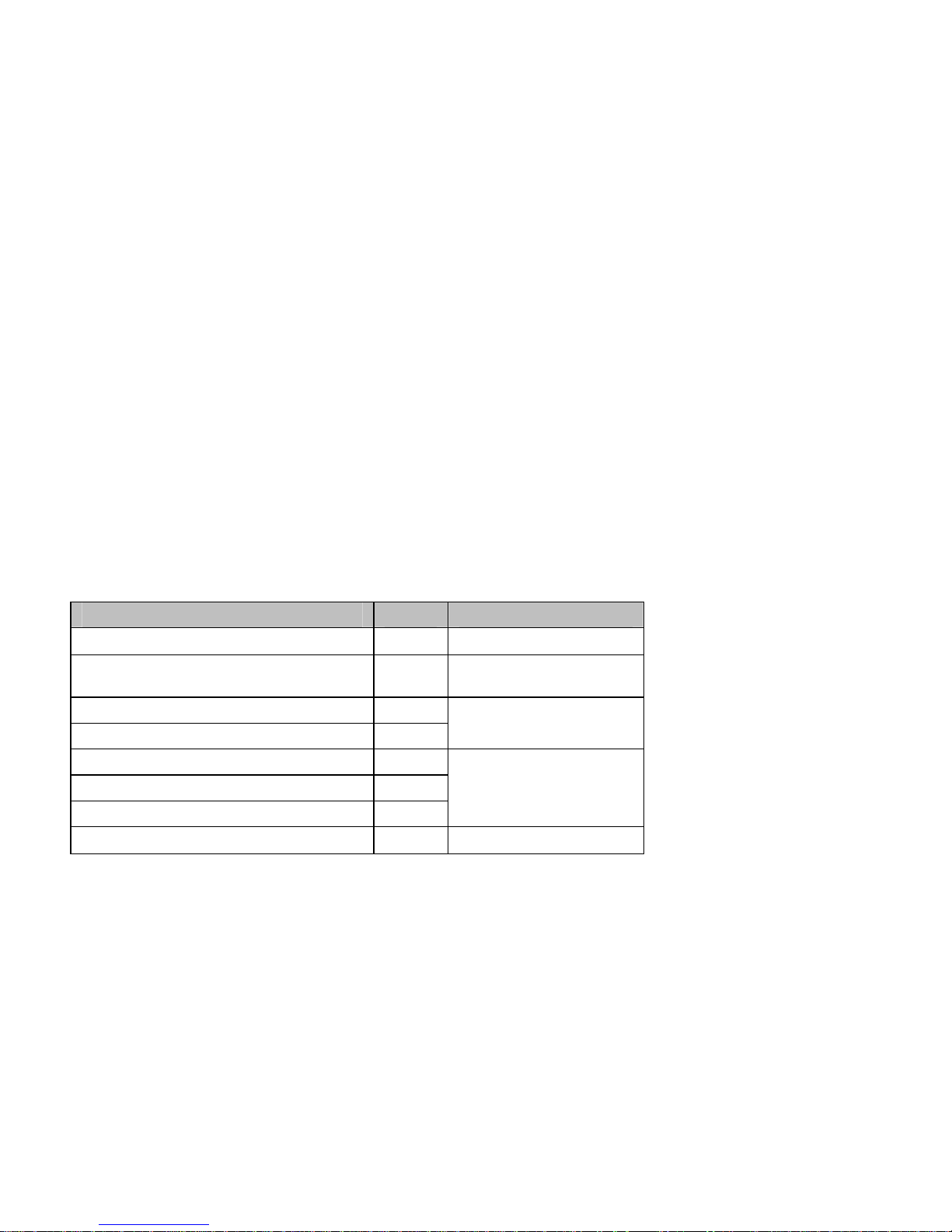
10
4. لﺎﺧدﻹا قﺮﻃ
ﻒﺗﺎه مﺪﻘﻳBrava DM-270 ﻲهو ﺔﻟﺎﺳر ﺔﺑﺎﺘﻜﻟ قﺮﻃ ةﺪﻋ :
• ﺔﻴﺑﺮﻌﻟا ﺔﺑﺎﺘﻜﻟا ﺔﻘﻳﺮﻃ: لﺎﺧدﻹ ﺔﻴﺑﺮﻌﻟا فوﺮﺤﻟا.
• ﺔﻳﺰﻴﻠﺠﻧﻻا ﺔﺑﺎﺘﻜﻟا ﺔﻘﻳﺮﻃ:ﺔﻳﺰﻴﻠﺠﻧﻻا فوﺮﺤﻟا لﺎﺧدﻹ .
• مﺎﻗرﻷا لﺎﺧدإ ﺔﻘﻳﺮﻃ: لﺎﺧدﻹ ﻟاﻤﻗﺮﻟا زﻮﻣﺮﺔﻴ.
لﺎﺧدﻹا ﺔﻘﻳﺮﻃ ﺰﻣﺮﻟا فﺮﺤﻟا ﺔﻟﺎﺣ
ﺔﻳدﺎﻌﻟا ﺔﺑﺎﺘﻜﻟا)ﻲﺑﺮﻋ(
ت ب ا -
ﺔﺑﺎﺘﻜﻟاﺆﺒﻨﺘﻟﺎﺑ) ﻲﺑﺮﻋ(
T9
ﻲﺑﺮﻋ
-
EN ةﺮﻴﺒﻜﻟا فﺮﺣﻷا.
ﺔﺑﺎﺘﻜﻟاﺆﺒﻨﺘﻟﺎﺑ) يﺰﻴﻠﺠﻧا(
en ةﺮﻴﻐﺼﻟا فﺮﺣﻷا.
ABC ةﺮﻴﺒﻜﻟا فﺮﺣﻷا.
abc ةﺮﻴﻐﺼﻟا فﺮﺣﻷا.
ﺔﻳدﺎﻌﻟا ﺔﺑﺎﺘﻜﻟا)يﺰﻴﻠﺠﻧا(
Abc ﺔﻠﻤﺠﻟا ﺔﻳاﺪﺑ, ﻲﻓ ﻖﺒﻄﺗ ﻂﻘﻓ ﺔﻠﻤﺠﻟا ﺔﺑﺎﺘآ ﺔﻳاﺪﺑ.
مﺎﻗرﻷا
123 -
ﺮﻴﻴﻐﺗلﺎﺧدﻹا ﺔﻘﻳﺮﻃ
•حﺎﺘﻔﻣ ﻂﻐﺿا(*) ﺔﻟﺎﺣ ﻦﻴﺑ ﻞﻳﺪﺒﺘﻠﻟ فﺮﺣﻷاﺔﻠﻤﺠﻟا ﺔﻳاﺪﺑو ةﺮﻴﻐﺼﻟاو ةﺮﻴﺒﻜﻟا ,
•ﻂﻐﺿاحﺎﺘﻔﻣ ) #( ﻦﻴﺑ ﻞﻳﺪﺒﺘﻠﻟ ﺔﺑﺎﺘﻜﻟا ﻂﻤﻧ :ت ب ا , ﻲﺑﺮﻋT9, ﺔﺑﺎﺘﻜﻟا ﻂﻤﻧﺆﺒﻨﺘﻟﺎﺑ , ﺔﻳدﺎﻌﻟاأو مﺎﻗرﻷا.
ﺔﻈﺣﻼﻣ :
حﺎﺘﻔﻣ ﻂﻐﺿا) 1( ﺔﺑﺎﺘﻜﻟا ﻂﻤﻧ ﺔﻟﺎﺣ ﻲﻓ ماﺪﺨﺘﺳﻻا ﺔﻌﺋﺎﺸﻟا زﻮﻣﺮﻟا لﺎﺧدﻹﺆﺒﻨﺘﻟﺎﺑ وأﺔﻳدﺎﻌﻟا .
حﺎﺘﻔﻣ ﻂﻐﺿا) 0( لﺎﺧدﻹ “ﺔﻓﺎﺴﻣ, 0, ﺪﻳﺪﺟ ﺮﻄﺳ" ﺔﺑﺎﺘﻜﻟا ﻂﻤﻧ ﺔﻟﺎﺣ ﻲﻓﻟﺎﺑﺆﺒﻨﺘ وأﺔﻳدﺎﻌﻟا .
Page 82

9
¾ ﺖﻣﺎﺻ/ﺖﻣﺎﺻ ﺮﻴﻏ :ﺔﻤﻟﺎﻜﻤﻟا ءﺎﻨﺛأ ﻪﻠﻴﻐﺸﺗ وأ ىﺮﺧﻷا فاﺮﻃﻷا ﻦﻋ ﻚﺗﻮﺻ ﻢﺘﻜﻟ.
¾ ﺗﻞﻴﻐﺸ/ فﺎﻘﻳإDTMF :وأ ﻞﻴﻐﺸﺘﻟ ﺔﻤﻐﻧ فﺎﻘﻳإDTMFﺔﻤﻟﺎﻜﻤﻟا ءﺎﻨﺛأ ﻚﻔﺗﺎﻬﻟ .
¾ ﻞﻴﻐﺸﺗ/ فﺎﻘﻳإنﻮﻓوﺮﻜﻴﻤﻟا : ﻞﻴﻐﺸﺘﻟ ﺔﻋﺎﻤﺳ وأ نﻮﻓوﺮﻜﻴﻤﻟاﻒﺗﺎﻬﻟا ﺔﻋﺎﻤﺳ.
¾ ﺟ ﺔﻤﻟﺎﻜﻣةﺪﻳﺪ :ءاﺮﺟﻹ ﺔﻤﻟﺎﻜﻣ ﻲﻋﺎﻤﺟ لﺎﺼﺗا. ﺮﻈﻧا" ءاﺮﺟإ لﺎﺼﺗا ﻲﻋﺎﻤﺟ)ﻲﺛﻼﺛ ﺮﻤﺗﺆﻣ( " ص
8تﺎﻣﻮﻠﻌﻤﻟا ﻦﻣ ﺪﻳﺰﻤﻟ .
¾ ءﺎﻤﺳﻷا ﺔﻤﺋﺎﻗ: ءﺎﻤﺳﻷا ﺔﻤﺋﺎﻗ ضﺮﻌﻟ.
¾ ﻞﺋﺎﺳﺮﻟا :ﻞﺋﺎﺳﺮﻟا ﺔﻤﺋﺎﻗ ضﺮﻌﻟ.
ﺔﻈﺣﻼﻣ :
ﺔﻤﻟﺎﻜﻤﻟا ءﺎﻨﺛأ , ﻰﻠﻋ ﻂﻐﻀﻟا ﻚﻨﻜﻤﻳرﺎﻴﺘﺧﻻا حﺎﺘﻔﻣ وأ ﻞﻴﻐﺸﺘﻟ فﺎﻘﻳإنﻮﻓوﺮﻜﻴﻤﻟا .
ﻞﻔﻗ ﺔﺣﻮﻟ ﺢﻴﺗﺎﻔﻤﻟا
ﺢﻴﺗﺎﻔﻤﻟا ﻊﻨﻤﻟﺄﻄﺨﻟا ﻖﻳﺮﻃ ﻦﻋ ﻂﻐﻀﺗ نأ , ﻚﻨﻜﻤﻳﻞﻔﻗﺢﻴﺗﺎﻔﻤﻟا ﺔﺣﻮﻟ .
ﺢﻴﺗﺎﻔﻤﻟا ﺔﺣﻮﻟ نﻮﻜﺗ ﺎﻣﺪﻨﻋ ﺔﻠﻔﻘﻣ ,ﻒﺗﺎﻬﻟا ﻲﻓ ﺔﻧﺰﺨﻤﻟا ئراﻮﻄﻟا مﺎﻗرﻷ ﻂﻘﻓ تﺎﻤﻟﺎﻜﻣ ءاﺮﺟإ ﻊﻴﻄﺘﺴﺗ ﻚﻧﺎﻓ.
ﺢﻴﺗﺎﻔﻤﻟا ﺔﺣﻮﻟ ﻞﻔﻗ
داﺪﻌﺘﺳﻻا ﻊﺿو ﻲﻓ, ﻂﻐﺿا حﺎﺘﻔﻣ لﺎﺳرإG, ةﺮﺷﺎﺒﻣ ﺎهﺪﻌﺑ ﻂﻐﺿا ﻢﺛ حﺎﺘﻔﻣ)*(ﺪﻤﻟ ﺔﻴﻧﺎﺛ ة ﻟ ﺔﺣﻮﻟ ﻞﻔﻘ
ﺢﻴﺗﺎﻔﻤﻟا.
ﺢﻴﺗﺎﻔﻤﻟا ﺔﺣﻮﻟ ﻞﻔﻗ ءﺎﻐﻟإ
ﺢﻴﺗﺎﻔﻤﻟا ﺔﺣﻮﻟ ﻞﻔﻗ ءﺎﻐﻟﻹ ﻂﻐﺿا حﺎﺘﻔﻣلﺎﺳرإG , ةﺮﺷﺎﺒﻣ ﺎهﺪﻌﺑ ﻂﻐﺿا ﻢﺛ حﺎﺘﻔﻣ)*( ﺔﻴﻧﺎﺛ ةﺪﻤﻟ ﻞﻔﻗ ءﺎﻐﻟﻹ
ﺢﻴﺗﺎﻔﻤﻟا ﺔﺣﻮﻟ.
Page 83

8
ءاﺮﺟإ ﻲﻋﺎﻤﺟ لﺎﺼﺗا )ﻟاﺮﻤﺗﺆﻤ ﻟاﻲﺛﻼﺜ(
ﺔﻤﻟﺎﻜﻣ ﻲﻋﺎﻤﺠﻟا لﺎﺼﺗﻻا ﺔﻣﺪﺧ ﻦﻋ ةرﺎﺒﻋدوﺰﻣ ﻦﻣﺔﻜﺒﺸﻟا , و ﺎﻬﻟﻼﺧ ﻦﻣ ﻦﻜﻤﻳ ﻲﺘﻟاءاﺮﺟإ ﺔﻤﻟﺎﻜﻣ ﺔﻴﻋﺎﻤﺟ
ﻦﻴآﺮﺘﺸﻣ ﻊﻣﻦﻳﺮﺧﺁﺔﻈﺤﻠﻟا ﺲﻔﻧ ﻲﻓ .
1. ﻢﻗءاﺮﺟﺈﺑ ﺔﻴﻔﺗﺎﻬﻟا ﺔﻤﻟﺎﻜﻤﻟا ﻰﻟإ فﺮﻄﻟا لوﻷا.
2. ﻒﺗﺎﻬﻟا ﻢﻗر ﻞﺧداﺮﻠﻟﻢﻗﻲﻧﺎﺜﻟا ,وأ لﻼﺧ ﻦﻣﻞﺠﺳﻒﺗﺎﻬﻟا .
3. ﻂﻐﺿا>تارﺎﻴﺧ< ﺮﺘﺧاولﺎﺼﺗا < ﺔﻗﺎﻄﺑ ﺮﺒﻋCDMA وأ ﺔﻗﺎﻄﺑ ﺮﺒﻋGSM وأﻂﻐﺿا حﺎﺘﻔﻣ
لﺎﺳرإ C حﺎﺘﻔﻣ وأ لﺎﺳرإG.
4. لﺎﺼﺗا ﺔﻟﺎﺣ ﻲﻓCDMA ﻂﻐﺿا حﺎﺘﻔﻣلﺎﺳرإ C, رﺎﻈﺘﻧا ﺔﻟﺎﺣ ﻲﻓ لوﻷا ﺺﺨﺸﻟا ﻊﺿو ﻢﺘﻴﺳ
ـﻟ ﻲﻋﺎﻤﺠﻟا لﺎﺼﺗﻻا ﻲﻓCDMA. لﺎﺼﺗا ﺔﻟﺎﺣ ﻲﻓ GSM ﺮﺘﺧاو تارﺎﻴﺧ ﻂﻐﺿا >ﻲﻋﺎﻤﺟ لﺎﺼﺗا ,<
ﺘﻴﺳ ﻢﻢﺿ فﺮﻄﻟا لوﻷا ﻰﻟإﻲﻋﺎﻤﺠﻟا لﺎﺼﺗﻻا .
5. ﻹءﺎﻬﻧﻲﺛﻼﺜﻟا ﺮﻤﺗﺆﻤﻟا ﺔﻤﻟﺎﻜﻣ , ﻂﻐﺿا حﺎﺘﻔﻣءﺎﻬﻧإ.
تﺎﻤﻟﺎﻜﻤﻟا ﻰﻠﻋ دﺮﻟا
سﺮﺠﻟا تﺎﻜﺳإ وأ ﺔﻤﻟﺎﻜﻤﻟا ﻰﻠﻋ دﺮﻟا
1. ﺔﻤﻟﺎﻜﻤﻟا ﻰﻠﻋ دﺮﻠﻟ, ﻂﻐﺿاحﺎﺘﻔﻣ لﺎﺳرإ C حﺎﺘﻔﻣ وأ لﺎﺳرإG .وأ ﺮﺘﺧا >در,<
ﻂﻐﺿا>ﺖﻣﺎﺻ <وأﺒﻧﺎﺠﻟا حﺎﺘﻔﻤﻟا ﻲﻢﺘﻜﻟ سﺮﺟﺔﻤﻟﺎﻜﻤﻟا ﻰﻠﻋ دﺮﻟا ﻞﺒﻗ ﻦﻴﻧﺮﻟا .
2. ﺔﻤﻟﺎﻜﻤﻟا ﺾﻓﺮﻟ , ﻂﻐﺿا حﺎﺘﻔﻣ ءﺎﻬﻧإوأ ﺮﺘﺧا >ﺾﻓر<.
تﻮﺻ ىﻮﺘﺴﻣ ﻂﺒﺿﻟا ﺔﻋﺎﻤﺴ
ﻞﻘﻨﺘﻟا حﺎﺘﻔﻣ ﻂﻐﺿا وأ ﻲﺒﻧﺎﺠﻟا حﺎﺘﻔﻤﻟا تﻮﺻ ىﻮﺘﺴﻣ ﺮﻴﻴﻐﺘﻟﻟاﺔﻤﻟﺎﻜﻤﻟا ءﺎﻨﺛأ ﺔﻋﺎﻤﺴ.
ﻰﻠﻋ دﺮﻟاﻟا ﺔﻤﻟﺎﻜﻤوﺢﻴﺗﺎﻔﻤﻟا ﺔﺣﻮﻟ ﺔﻠﻔﻘﻣ
ﻜﺗ ﺎﻣﺪﻨﻋ ﺔﻤﻟﺎﻜﻤﻟا ﻰﻠﻋ دﺮﻠﻟ ﺢﻴﺗﺎﻔﻤﻟا ﺔﺣﻮﻟ نﻮﺔﻠﻔﻘﻣ ,ﻂﻐﺿا حﺎﺘﻔﻣ لﺎﺳرإ C حﺎﺘﻔﻣ وأ لﺎﺳرإG.
ﺪﻨﻋءﺎﻬﻧإ ﺔﻤﻟﺎﻜﻤﻟا وأ فﻮﺳ ﺢﻴﺗﺎﻔﻤﻟا ﺔﺣﻮﻟ نﺎﻓ ﺎﻬﻀﻓر ﻞﻔﻘﺗ ﻞﻜﺸﺑ ﻲﺋﺎﻘﻠﺗ . ﻞﻴﺻﺎﻔﺘﻟا ﻦﻣ ﺪﻳﺰﻤﻟ, ﺮﻈﻧا"ﻞﻔﻗ
ﺢﻴﺗﺎﻔﻤﻟا ﺔﺣﻮﻟ " ص9.
تارﺎﻴﺨﻟا ﺔﻤﻟﺎﻜﻤﻟا ءﺎﻨﺛأ
ﺔﻤﻟﺎﻜﻤﻟا ءﺎﻨﺛأ , ﻂﻐﺿا>تارﺎﻴﺧ< ﺔﻴﻟﺎﺘﻟا تارﺎﻴﺨﻠﻟ:
¾ ﺗﻞﻴﺻﻮ/ﻖﻴﻠﻌﺗ :وأ ﻞﺼﺘﻤﻟا ﺔﻤﻟﺎﻜﻣ ﻖﻴﻠﻌﺗ ﻢﺘﻳﻪﻠﻴﻌﻔﺗ .
Page 84

7
3. ﻒﺋﺎﻇﻮﻟاﺔﻴﺳﺎﺳﻷا
فﺎﻘﻳإ/ﻞﻴﻐﺸﺗ ﻒﺗﺎﻬﻟا
• نﻮﻜﻳ ﺎﻣﺪﻨﻋﻖﻠﻐﻣ زﺎﻬﺠﻟا , ﻂﻐﺿاﺑ ﻰﻠﻋ راﺮﻤﺘﺳﺎحﺎﺘﻔﻣ ءﺎﻬﻧإ زﺎﻬﺠﻟا ﻞﻴﻐﺸﺘﻟ.
• اذإآﺎ ن زﺎﻬﺠﻟاﻞﻤﻌﻳ ﺔﻠﻔﻘﻣ ﺮﻴﻏ ﺢﻴﺗﺎﻔﻤﻟا ﺔﺣﻮﻟو , ﻂﻐﺿاﺑ ﻰﻠﻋ راﺮﻤﺘﺳﺎﺘﻔﻣحﺎ ءﺎﻬﻧإ فﺎﻘﻳﻹ
زﺎﻬﺠﻟا ﻞﻴﻐﺸﺗ.
ءاﺮﺟإﺔﻴﻔﺗﺎه ﺔﻤﻟﺎﻜﻣ
ءاﺮﺟإﺢﻴﺗﺎﻔﻤﻟا ﺔﺣﻮﻟ ماﺪﺨﺘﺳﺎﺑ ﺔﻴﻔﺗﺎه ﺔﻤﻟﺎﻜﻣ
1. داﺪﻌﺘﺳﻻا ﻊﺿو ﻲﻓ ,ﻪﺑ لﺎﺼﺗﻻا داﺮﻤﻟا ﻒﺗﺎﻬﻟا ﻢﻗر ﻞﺧدا, ﻂﻐﺿا ﻢﺛحﺎﺘﻔﻣ لﺎﺳرإ C حﺎﺘﻔﻣ وأ
لﺎﺳرإG ءاﺮﺟﻹﺔﻤﻟﺎﻜﻤﻟا .
ءﺎﻐﻟﻹ ﻢﻗر ﺮﺷﺆﻤﻟا رﺎﺴﻳ ﻲﻓ , ﻂﻐﺿا>ﺢﺴﻣ <clear.
2. ﻹءﺎﻬﻧ ﺔﻤﻟﺎﻜﻤﻟا , ﻂﻐﺿاحﺎﺘﻔﻣ ءﺎﻬﻧإ.
ءاﺮﺟإﺔﻤﻟﺎﻜﻣ ﺔﻴﻔﺗﺎه ﺔﻤﺋﺎﻗ ماﺪﺨﺘﺳﺎﺑ ءﺎﻤﺳﻷا
1. داﺪﻌﺘﺳﻻا ﻊﺿو ﻲﻓ , ﻂﻐﺿا>ءﺎﻤﺳﻷا <وأ ﻂﻐﺿا رﺎﻴﺘﺧﻻا حﺎﺘﻔﻣ لﻮﺧﺪﻠﻟ ﻰﻟإ ﺔﺷﺎﺸﻟا
ﺔﻴﺴﻴﺋﺮﻟا <ﻞﺠﺳﻒﺗﺎﻬﻟا .
2. ﻪﺑ لﺎﺼﺗﻻا داﺮﻤﻟا ﻢﺳﻻا ﺮﺘﺧاءﺎﻤﺳﻷا ﺔﻤﺋﺎﻗ ﻦﻣ .
3. ﻂﻐﺿا>تارﺎﻴﺧ< ﺮﺘﺧاولﺎﺼﺗا <ﺮﺒﻋﺔﻗﺎﻄﺑ CDMA وأ ﺔﻗﺎﻄﺑ ﺮﺒﻋGSM ﺔﻤﻟﺎﻜﻤﻟا ءاﺮﺟﻹ
وأﻂﻐﺿا حﺎﺘﻔﻣ لﺎﺳرإ C حﺎﺘﻔﻣ وأ لﺎﺳرإG.
ءاﺮﺟإﺔﻤﻟﺎﻜﻣ ﺔﻴﻔﺗﺎه ماﺪﺨﺘﺳﺎﺑ ﺮﺧﺁ مﺎﻗرأةردﺎﺻ
1. داﺪﻌﺘﺳﻻا ﻊﺿو ﻲﻓ , ﻂﻐﺿا حﺎﺘﻔﻣلﺎﺳرإ C ضﺮﻌﻟ مﺎﻗرﻷا ةردﺎﺼﻟا ةﺮﻴﺧﻷا.
2. كﺮﺤﺗﻰﻟإ ﻢﻗﺮﻟا وأ داﺮﻤﻟا ﻢﺳﻻا ةدﺎﻋإ ﻪﺑ لﺎﺼﺗﻻا ,ﻂﻐﺿا ﻢﺛ>تارﺎﻴﺧ< ﺮﺘﺧاولﺎﺼﺗا < ﺮﺒﻋ
ﺔﻗﺎﻄﺑCDMA وأ ﺔﻗﺎﻄﺑ ﺮﺒﻋGSM ﺔﻤﻟﺎﻜﻤﻟا ءاﺮﺟﻹ.
ءاﺮﺟإﺔﻤﻟﺎﻜﻣ ﺔﻴﻔﺗﺎه ماﺪﺨﺘﺳﺎﺑ ﻊﻳﺮﺴﻟا لﺎﺼﺗﻻا
داﺪﻌﺘﺳﻻا ﻊﺿو ﻲﻓ , ﻂﻐﺿاﺑﻰﻠﻋ راﺮﻤﺘﺳﺎ ءاﺮﺟﻹ ﻢﻗر حﺎﺘﻔﻣ يأ ﺔﻴﻔﺗﺎﻬﻟا ﺔﻤﻟﺎﻜﻤﻟا . ﺮﻈﻧا"ﻊﻳﺮﺴﻟا لﺎﺼﺗﻻا "
ص12 ﻦﻋ تﺎﻣﻮﻠﻌﻤﻟا ﻦﻣ ﺪﻳﺰﻤﻟ تاداﺪﻋإﻊﻳﺮﺴﻟا لﺎﺼﺗﻻا .
Page 85
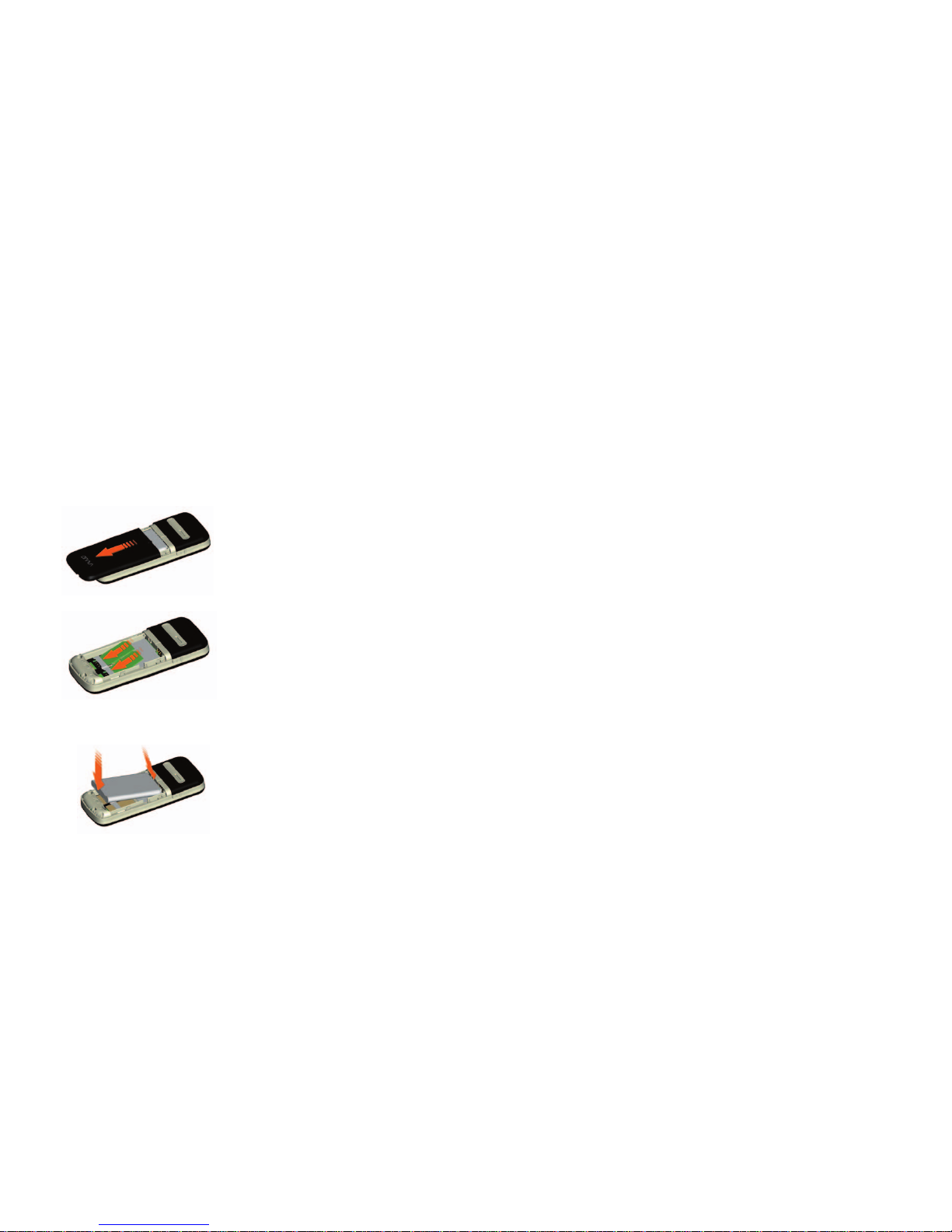
6
2. أﺪﺒﺘﻟ
لﺎﺧدإ ﻟاﻗﺎﻄﺒتﺎ RUIM/SIM
1. ﻚﻟ ﻪﺟاﻮﻣ ﻒﺗﺎﻬﻟا ﻒﻠﺧ ﻞﻌﺟا, ﻂﻐﺿاﻞﻔﺳﻸﻟ وحزأ ءﺎﻄﻐﻟا
ﻲﻔﻠﺨﻟا ﻩﺎﺠﺗا ﻲﻓﻢﻬﺴﻟا
2. ﻞﺧدا ﺔﻗﺎﻄﺑ
RUIM/SIM
ﻰﻟإ ﺎﺣﻞﻣﺔﻗﺎﻄﺒﻟا .
ﺐﻴآﺮﺗﺔﻳرﺎﻄﺒﻟا ﻦﺤﺷو
1. ﻢﻗﻖﻴﺒﻄﺘﺑ لﺎﺼﺗﻻا طﺎﻘﻧ ﺔﻴﺒهﺬﻟا ﻊﻣ ﺔﻳرﺎﻄﺒﻟا ﻰﻠﻋ ةدﻮﺟﻮﻤﻟا
ﻞﻴﺻﻮﺘﻟا ﺬﻓﺎﻨﻣﺔﻠﺑﺎﻘﻤﻟا ﻲﻓ ﻒﻳﻮﺠﺗﺔﻳرﺎﻄﺒﻟا . ﻢﺛﻂﻐﺿا ﺔﻳرﺎﻄﺒﻟا
ﻲﻓﻒﻳﻮﺠﺘﻟاﺎﻬﻟ ﺺﺼﺨﻤﻟا .
2. ﻢﺛ ﻲﻔﻠﺨﻟا ءﺎﻄﻐﻟا ﺪﻋاحزأ ءﺎﻄﻐﻟا ﻰﻟإ نأﺺﺼﺨﻤﻟا ﻪﻧﺎﻜﻣ ﻲﻓ ﻖﺒﻄﻨﻳ .
3. ﻞﻴﺻﻮﺘﺑ ﻢﻗزﺎﻬﺟ ﺣﺎﺸﻟا ﻂﺋﺎﺤﻟا ﻲﻓ ددﺮﺘﻣ رﺎﻴﺗ ﺬﺧﺄﻤﺑ ﻦ.
4. ﻞﺑﺎآ ﻞﻴﺻﻮﺘﺑ ﻢﻗUSBزﺎﻬﺠﻟا ﻲﻓ ﻦﺣﺎﺸﻟا ﺔﺤﺘﻓ ﻰﻟإ .
Page 86
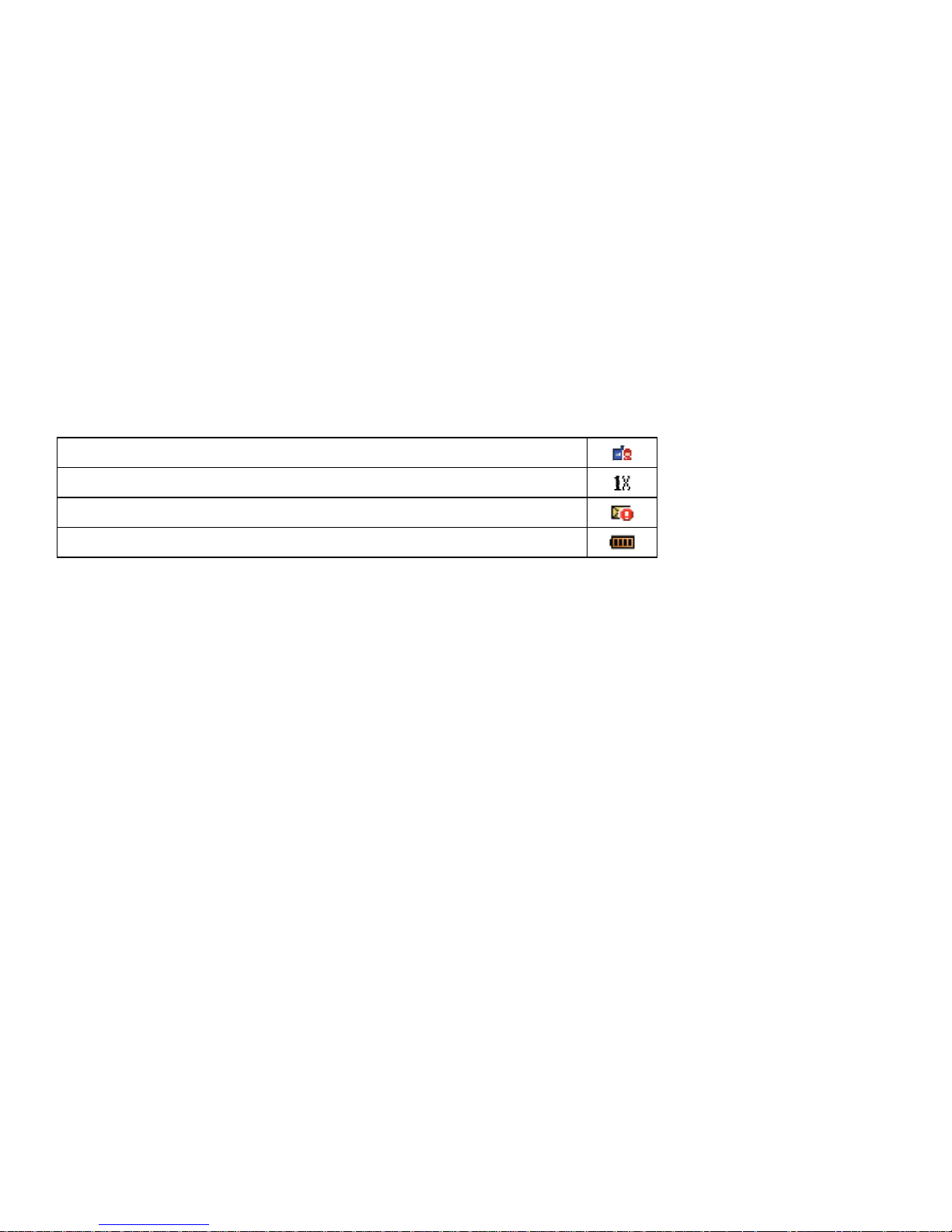
5
ﺿو ﻞﻴﻐﺸﺗ ﻢﺗ ﻊﺺﺼﺨﻣ.
ﻲﻓ ﻞﻤﻌﻳ ﻒﺗﺎﻬﻟا ﻊﺿولﺎﺼﺗاتﺎﻧﺎﻴﺑ
ةﺪﻳﺪﺟ ئراﻮﻃ ﻞﺋﺎﺳر ةﺪﻋ وأ ئراﻮﻃ ﺔﻟﺎﺳر ﻚﻳﺪﻟ.
ﺔﻴﻘﺒﺘﻤﻟا ﺔﻳرﺎﻄﺒﻟا ىﻮﺘﺴﻣ ﺢﺿﻮﻳ .
Page 87
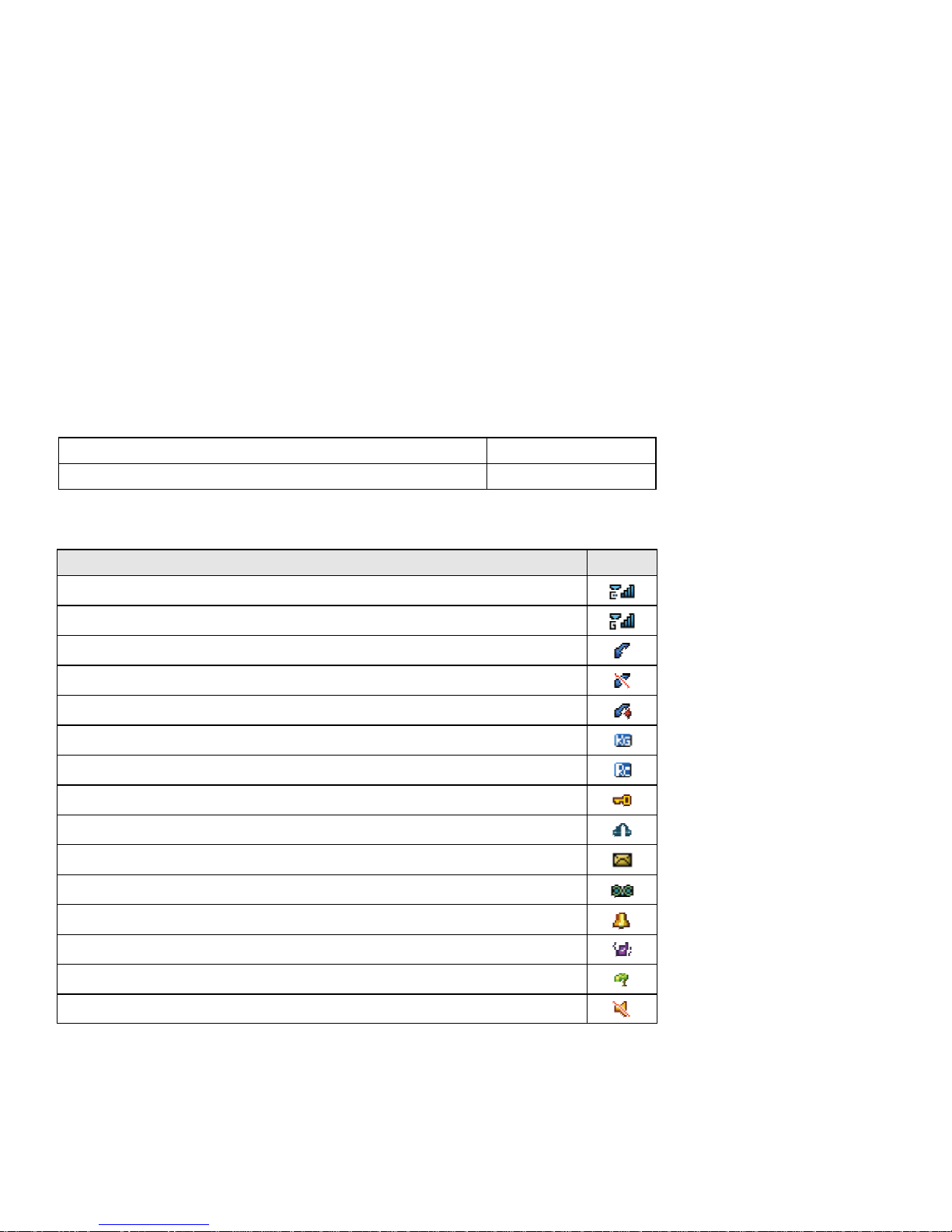
4
سأﺮﻟا ﺔﻋﺎﻤﺳ ﺬﻔﻨﻣ سأﺮﻟا ﺔﻋﺎﻤﺳ ماﺪﺨﺘﺳا ﻞﺒﻗ ,ﺬﻔﻨﻤﻟا اﺬه ﻲﻓ ﺔﻋﺎﻤﺴﻟا ﻞﺧدا.
ﻞﻴﻐﺸﺘﻟا حﺎﺘﻔﻣ ﻒﺗﺎﻬﻟا ﻞﻴﻐﺸﺗ ,ﻒﺗﺎﻬﻟا ءﺎﻔﻃإ.
تﺎﻧﻮﻘﻳﻷا ﻂﻳﺮﺷ
ﺔﻧﻮﻘﻳﻷا ﻒﺻﻮﻟا
رﺎﺷﻹا ةﻮﻗة ﺔﻜﺒﺷ ﻲﻓ CDMA.
ﺔﻜﺒﺷ ﻲﻓ ةرﺎﺷﻹا ةﻮﻗGSM.
ﺔﻤﻟﺎﻜﻣ ثوﺪﺣ ﺮﺷﺆﻣ)ﺔﻜﺒﺸﻟﺎﺑ ﻞﺼﺘﻣ ﻒﺗﺎﻬﻟا.(
ﺔﻜﺒﺷ ﺪﺟﻮﻳ ﻻ.
تﺎﻤﻟﺎﻜﻣ ةﺪﻋ وأ ﺔﻤﻟﺎﻜﻣ ﻚﻳﺪﻟةدﻮﻘﻔﻣ.
ﺔﻜﺒﺷ ﻲﻓ ﻒﺗﺎﻬﻟاGSMلاﻮﺠﺘﻟا ﺔﻣﺪﺧ ﻦﻤﺿ ىﺮﺧأ .
ﺔﻜﺒﺷ ﻲﻓ ﻒﺗﺎﻬﻟاCDMAلاﻮﺠﺘﻟا ﺔﻣﺪﺧ ﻦﻤﺿ ىﺮﺧأ .
ﺎﻔﻤﻟا ﺔﺣﻮﻟ وأ ﻒﺗﺎﻬﻟاﺔﻠﻔﻘﻣ ﺢﻴﺗ.
ﻒﺗﺎﻬﻟﺎﺑ ﺔﻟﻮﺻﻮﻣ سأﺮﻟا ﺔﻋﺎﻤﺳ.
ةﺪﻳﺪﺟ ﺔﻴﺼﻧ ﻞﺋﺎﺳر ةﺪﻋ وأ ﺔﻴﺼﻧ ﺔﻟﺎﺳر ﻚﻳﺪﻟ.
ﺔﻟﺎﺳر ﻚﻳﺪﻟﺔﻴﺗﻮﺻ ةﺪﻳﺪﺟ ﺔﻴﺗﻮﺻ ﻞﺋﺎﺳر ةﺪﻋ وأ ةﺪﺣاو .
ﻪﺒﻨﻤﻟا ﺔﻋﺎﺳ ﻞﻴﻐﺸﺗ ﻢﺗ.
ﻞﻴﻌﻔﺗ ﻢﺗﻟا ﻊﺿﻮعﺎﻤﺘﺟا.
ﻞﻴﻌﻔﺗ ﻢﺗﻟا ﻊﺿﻮجرﺎﺨﻟا ﻲﻓ.
ﻊﺿو ﻞﻴﻐﺸﺗ ﻢﺗﺖﻣﺎﺻ.
Page 88
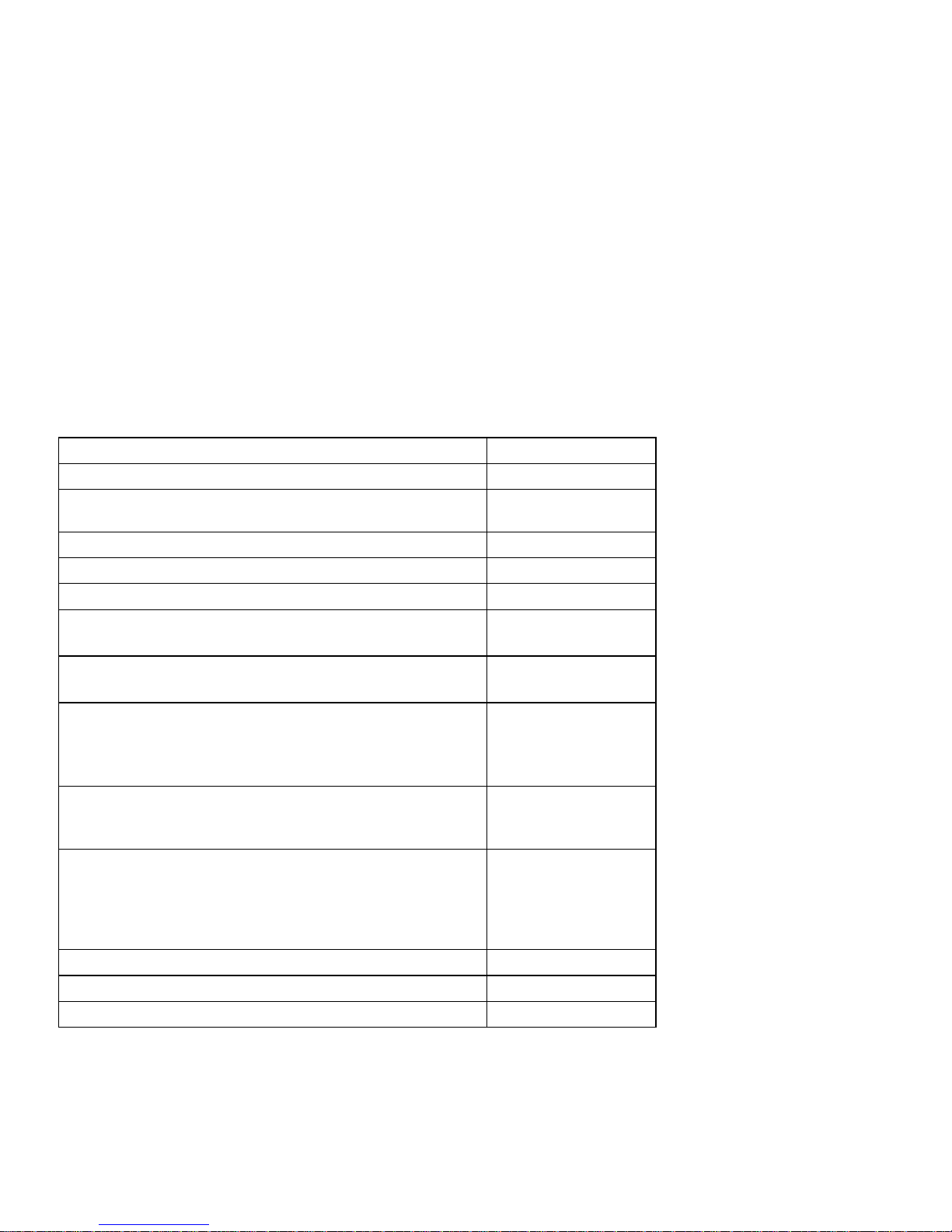
3
حﺎﺘﻔﻣرﺎﻴﺘﺧﻻا ﻦﻤﻳﻷا داﺪﻌﺘﺳﻻا ﻊﺿو ﻲﻓ, ﻠﻟ ﻦﻤﻳﻷا رﺎﻴﺘﺧﻻا حﺎﺘﻔﻣ ﻂﻐﺿا ﻰﻟإ لﻮﺻﻮءﺎﻤﺳﻷا.
ﻞﻘﻨﺘﻟا حﺎﺘﻔﻣﻰﻠﻋأ داﺪﻌﺘﺳﻻا ﻊﺿو ﻲﻓ, ﻞﻘﻨﺘﻟا حﺎﺘﻔﻣ ﻂﻐﺿاﻰﻠﻋأ ﺔﻜﺒﺸﻟا عﻮﻧ رﺎﻴﺘﺧﻻ.
ﻞﻘﻨﺘﻟا حﺎﺘﻔﻣﻞﻔﺳأ داﺪﻌﺘﺳﻻا ﻊﺿو ﻲﻓ, ﻞﻘﻨﺘﻟا حﺎﺘﻔﻣ ﻂﻐﺿاﻞﻔﺳأ ﻰﻟإ لﻮﺻﻮﻠﻟ ﺔﻤﺋﺎﻗ
ءﺎﻤﺳﻷا.
حﺎﺘﻔﻣ ﻞﻘﻨﺘﻟاﺴﻳ ﺎر داﺪﻌﺘﺳﻻا ﻊﺿو ﻲﻓ, حﺎﺘﻔﻣ ﻂﻐﺿاﻞﻘﻨﺘﻟا ﺮﺴﻳﻷاﻰﻟإ لﻮﺻﻮﻠﻟ ﻲﺗارﺎﺼﺘﺧا.
حﺎﺘﻔﻣ ﻞﻘﻨﺘﻟاﻤﻳ ﻴﻦ داﺪﻌﺘﺳﻻا ﻊﺿو ﻲﻓ, حﺎﺘﻔﻣ ﻂﻐﺿاﻞﻘﻨﺘﻟا ﻦﻤﻳﻷا ﻰﻟإ لﻮﺻﻮﻠﻟ ﻞﺋﺎﺳﺮﻟا.
رﺎﻴﺘﺧﻻا حﺎﺘﻔﻣ داﺪﻌﺘﺳﻻا ﻊﺿو ﻲﻓ, ﻂﻐﺿاﻟاحﺎﺘﻔﻤ ﻰﻟإ لﻮﺻﻮﻠﻟ ﺔﻴﺴﻴﺋﺮﻟا ﺔﻤﺋﺎﻘﻟا.
حﺎﺘﻔﻣلﺎﺳرإ C ﺎﻬﻴﻠﻋ دﺮﻟا وأ تﺎﻤﻟﺎﻜﻤﻟا ءاﺮﺟإ.
داﺪﻌﺘﺳﻻا ﻊﺿو ﻲﻓ,ﻰﻟإ لﻮﺻﻮﻠﻟ حﺎﺘﻔﻤﻟا ﻂﻐﺿا ةردﺎﺼﻟا تﺎﻤﻟﺎﻜﻤﻟا.
حﺎﺘﻔﻣ ءﺎﻬﻧﻹا ﻟا ﻂﻐﺿاحﺎﺘﻔﻤ ﺔﻤﻟﺎﻜﻤﻟا ءﺎﻬﻧﻹ وأﺎﻬﻀﻓر .
ﻟ عﻮﺟﺮﻟاو ﺔﺣﻮﺘﻔﻤﻟا ةﺬﻓﺎﻨﻟا ﻖﻠﻐﻰﻟإ ﺔﻴﺴﻴﺋﺮﻟا ﺔﺷﺎﺸﻟا )داﺪﻌﺘﺳﻻا ﻊﺿو(.
مﺎﻗرﻷا ﺢﻴﺗﺎﻔﻣ داﺪﻌﺘﺳﻻا ﻊﺿو ﻲﻓ, ﻢﻗر راﺮﻤﺘﺳﺎﺑ ﻂﻐﺿا)1 ( ﺪﻳﺮﺒﻟا ﺔﻣﺪﺧ ﻰﻟإ لﻮﺻﻮﻠﻟ
ﻲﺗﻮﺼﻟا . ﺾﻌﺑو فﺮﺣﻷاو مﺎﻗرﻷا لﺎﺧدإﺔﺻﺎﺨﻟا زﻮﻣﺮﻟا.
داﺪﻌﺘﺳﻻا ﻊﺿو ﻲﻓ, حﺎﺘﻔﻣ راﺮﻤﺘﺳﺎﺑ ﻂﻐﺿا)0 (ﻮﻳداﺮﻟا ﻞﻴﻐﺸﺘﻟ.
داﺪﻌﺘﺳﻻا ﻊﺿو ﻲﻓ, حﺎﺘﻔﻣ راﺮﻤﺘﺳﺎﺑ ﻂﻐﺿا)# (عﺎﻤﺘﺟﻻا ﻊﺿو ﻞﻴﻌﻔﺘﻟ.
حﺎﺘﻔﻣ(*) داﺪﻌﺘﺳﻻا ﻊﺿو ﻲﻓ, ﺰﻣر لﺎﺧدﻹ ﻂﻐﺿا"+","*" ,"P."
ﺔﺑﺎﺘﻜﻟا ﻂﻤﻧ ﻲﻓ, ةﺮﻴﺒﻜﻟا فﺮﺣﻷا ﻂﻤﻧ ﻦﻴﺑ ﻞﻳﺪﺒﺘﻠﻟ ﻂﻐﺿا ,ا فﺮﺣﻷاةﺮﻴﻐﺼﻟ , و
ﺔﻠﻤﺠﻟا ﺔﻳاﺪﺑ ﻂﻤﻧ.
حﺎﺘﻔﻣ)#( داﺪﻌﺘﺳﻻا ﻊﺿو ﻲﻓ, ﺰﻣر لﺎﺧدﻹ ﻂﻐﺿا"#" , ﻞﻴﻌﻔﺘﻟ راﺮﻤﺘﺳﺎﺑ ﻂﻐﺿا وأﻊﺿو
عﺎﻤﺘﺟا.
ﺔﺑﺎﺘﻜﻟا ﻂﻤﻧ ﻲﻓ, ﻦﻴﺑ ﻞﻳﺪﺒﺘﻠﻟ ﻂﻐﺿا ﺔﺑﺎﺘﻜﻟا ﺔﻘﻳﺮﻃ)ﻲﺑﺮﻋ ,يﺰﻴﻠﺠﻧا , ﺆﺒﻨﺗ ...
ﺦﻟا(.
حﺎﺘﻔﻣ)0( داﺪﻌﺘﺳﻻا ﻊﺿو ﻲﻓ, ﻮﻳدار ﻞﻴﻐﺸﺘﻟ راﺮﻤﺘﺳﺎﺑ ﻂﻐﺿاFM.
ﻟاﻔﻤﻲﺒﻧﺎﺠﻟا حﺎﺘ تﻮﺼﻟا ىﻮﺘﺴﻣ ﻂﺒﻀﻟ.
ﺬﻔﻨﻣUSB ﺎﺷ ﻞﻴﺻﻮﺘﻟ ﻒﺗﺎﻬﻟا ﻦﺣ وأﻞﻴﺻﻮﺘﻟا مدﻮﻤآ ﺮﺗﻮﻴﺒﻤﻜﻟا ﻰﻟإ CDMA .
Page 89
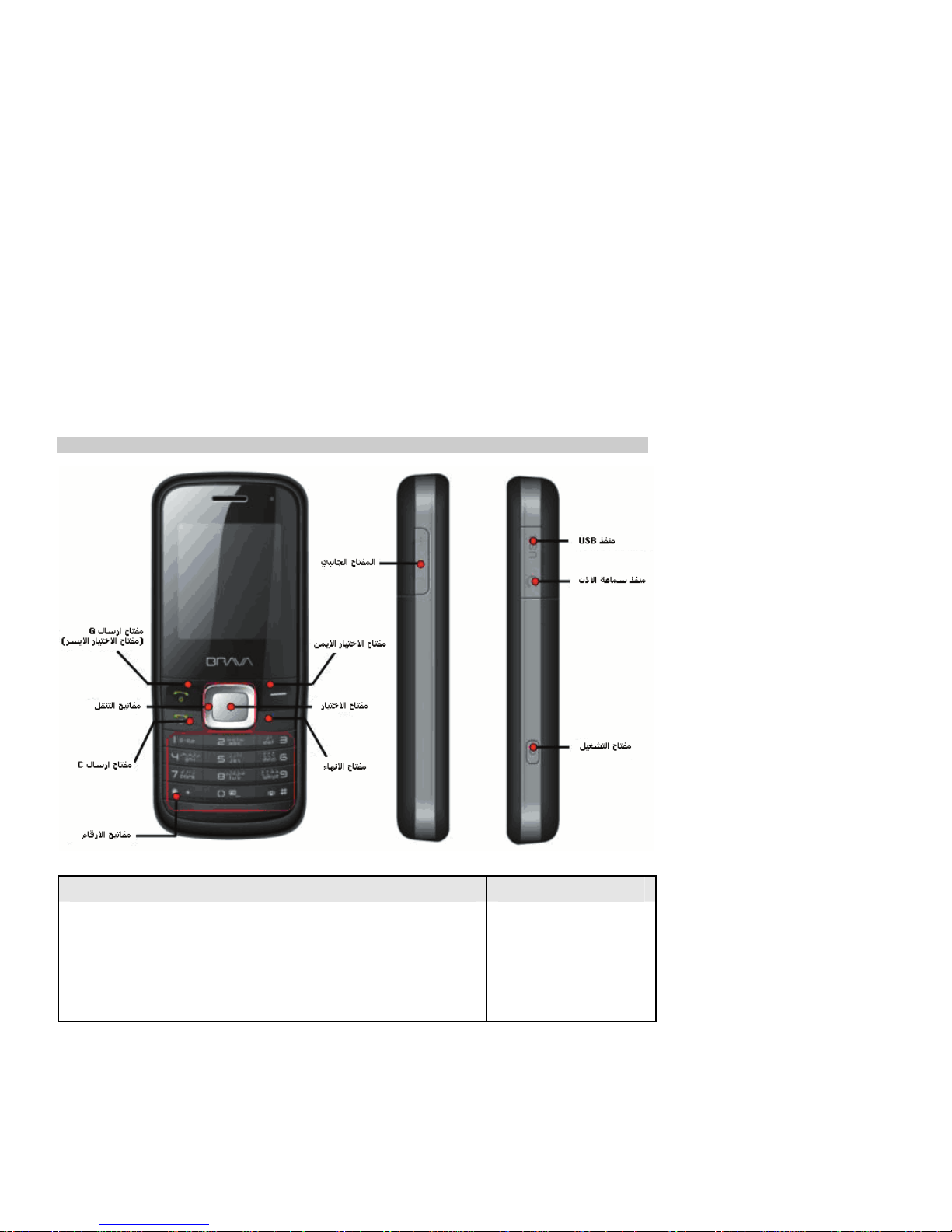
2
لاﻮﺠﻟا ﻒﺗﺎﻬﻟا ﻞﻜﺷ
حﺎﺘﻔﻤﻟا ﻒﺻﻮﻟا
لﺎﺳرإ حﺎﺘﻔﻣG
)حﺎﺘﻔﻣرﺎﻴﺘﺧﻻا ﺮﺴﻳﻷا (
داﺪﻌﺘﺳﻻا ﻊﺿو ﻲﻓ
• حﺎﺘﻔﻣ ﻂﻐﺿا لﺎﺳرإGةدراﻮﻟا تﺎﻤﻟﺎﻜﻤﻟا ﻰﻟإ لﻮﺻﻮﻠﻟ ,
• ﻂﻐﺿا حﺎﺘﻔﻣ لﺎﺳرإG حﺎﺘﻔﻣ ةﺮﺷﺎﺒﻣ ﻂﻐﺿا ﻢﺛ (*)ﻞﻔﻘﻟ/ ءﺎﻐﻟإ
ﺢﻴﺗﺎﻔﻤﻟا ﺔﺣﻮﻟ ﻞﻔﻗ
ﺎﻬﻴﻠﻋ دﺮﻟا وأ تﺎﻤﻟﺎﻜﻤﻟا ءاﺮﺟإ , ـآ مﺪﺨﺘﺴﻳ ﺎﻤآ" حﺎﺘﻔﻣﻖﻓاﻮﻣ " ﺾﻌﺑ ﻲﻓ
تارﺎﻴﺘﺧﻻا , ـآ مﺪﺨﺘﺴﻳ ﺎﻤآ"تارﺎﻴﺧ "تﺎﺷﺎﺸﻟا ﺾﻌﺑ ﻲﻓ.
Page 90

1
1. لﻮﺣ تﺎﻣﻮﻠﻌﻣﻒﺗﺎﻬﻟا زﺎﻬﺟ
ﻟا ﺔﻤﺋﺎﻗتﺎﻳﻮﺘﺤﻤ
ﺔﺒﻠﻋزﺎﻬﺠﻟاﺘﺤﺗ ﺔﻴﻟﺎﺘﻟا ﺮﺻﺎﻨﻌﻟا ﻰﻠﻋ يﻮ:
z ﻒﺗﺎه
z ﺔﻳرﺎﻄﺑ
z تﺎﻧﺎﻴﺑ ﻞﺑﺎآUSB
z ﻦﺣﺎﺷ
z نذأ ﺔﻋﺎﻤﺳ
z مﺪﺨﺘﺴﻤﻟا ﻞﻴﻟد
z ﻊﻳﺮﺴﻟا ﻞﻴﻟﺪﻟا
z مدﻮﻣ ﻒﻳﺮﻌﺗ ﺞﻣﺎﻧﺮﺑCDMA
z ﺔﻧﺎﻤﺿ ﺔﻗﺎﻄﺑ
تﺎﻔﺻاﻮﻤﻟاﺔﻴﺳﺎﺳﻷا
z ﻢﺠﺤﻟا: 108.9 ﻢﻣ )لﻮﻃ ( ×46.6 ﻢﻣ )ضﺮﻋ ( ×15.5 ﻢﻣ )عﺎﻔﺗرا(
z نزﻮﻟا :ﻲﻟاﻮﺣ90 ماﺮﺟ )ﺔﻳرﺎﻄﺒﻟا ﺎﻬﻴﻓ ﺎﻤﺑ(
z ﻗوداﺪﻌﺘﺳﻻا ﺖ:ﺔﻗﺎﻄﺑ GSMﻂﻘﻓ :150 ﺔﻋﺎﺳ – -- ﺔﻗﺎﻄﺑ CDMAﻂﻘﻓ : 150ﺔﻋﺎﺳ .
GSM
و CDMA ﺎﻌﻣ: 150ﺔﻋﺎﺳ .
z ﺖﻗوثﺪﺤﺘﻟا: ثﺪﺤﺗ ﺮﺒﻋ GSM ﻲﻟاﻮﺣ 2.5 ﺔﻋﺎﺳ.
ﺮﺒﻋ ثﺪﺤﺗ CDMA ﻲﻟاﻮﺣ3 ﻋﺎﺳتﺎ.
ﺔﻈﺣﻼﻣ:
داﺪﻌﺘﺳﻻا ﺖﻗو ﻮهﺖﻗوا ﺮﻤﺘﺳرا ﻞﻤﻌﻟﺎﺑ ﻒﺗﺎﻬﻟاﺑ ءاﺮﺟا نوﺪﻜﻣﺔﻴﻔﺗﺎه تﺎﻤﻟﺎ .داﺪﻌﺘﺳﻻا ﺖﻗو ﻦﻣ ﻞآ ﺪﻤﺘﻌﻳ و
ﺖﻗوثﺪﺤﺘﻟاﻰﻠﻋ ماﺪﺨﺘﺳا ﺔﻟﺎﺣ و ﻒﺗﺎﻬﻟا ﻟا ﺔﻴﻄﻐﺗ ﺔﻜﺒﺸﺲﻳرﺎﻀﺘﻟاو .
Page 91

Page 92
7
ﺐﺠﻳنَأ ﻢﺘﻳ حﻼﺻإ وَأ ﻒﺗﺎﻬﻟا ﻲﻓ ﻪﺒﻴآﺮﺗﻟاةرﺎﻴﺴ ﻟا ﻞﺒﻗ ﻦﻣﻔﻇﻮﻤﻴ ﻦﻟاﻠهﺆﻤﻴﻂﻘﻓ ﻦ . وَأ ﺔﻣﺪﺨﻟا
ﺐﻴآﺮﺘﻟاﺄﻄﺨﻟا ْﺪ َﻗ ﺐﺒﺴﻳ ﺮﻄﺧ وﻳ ﻞﻄﺒﻧﺎﻤﺿ يأ ﺔ زﺎﻬﺠﻠﻟ.
Page 93
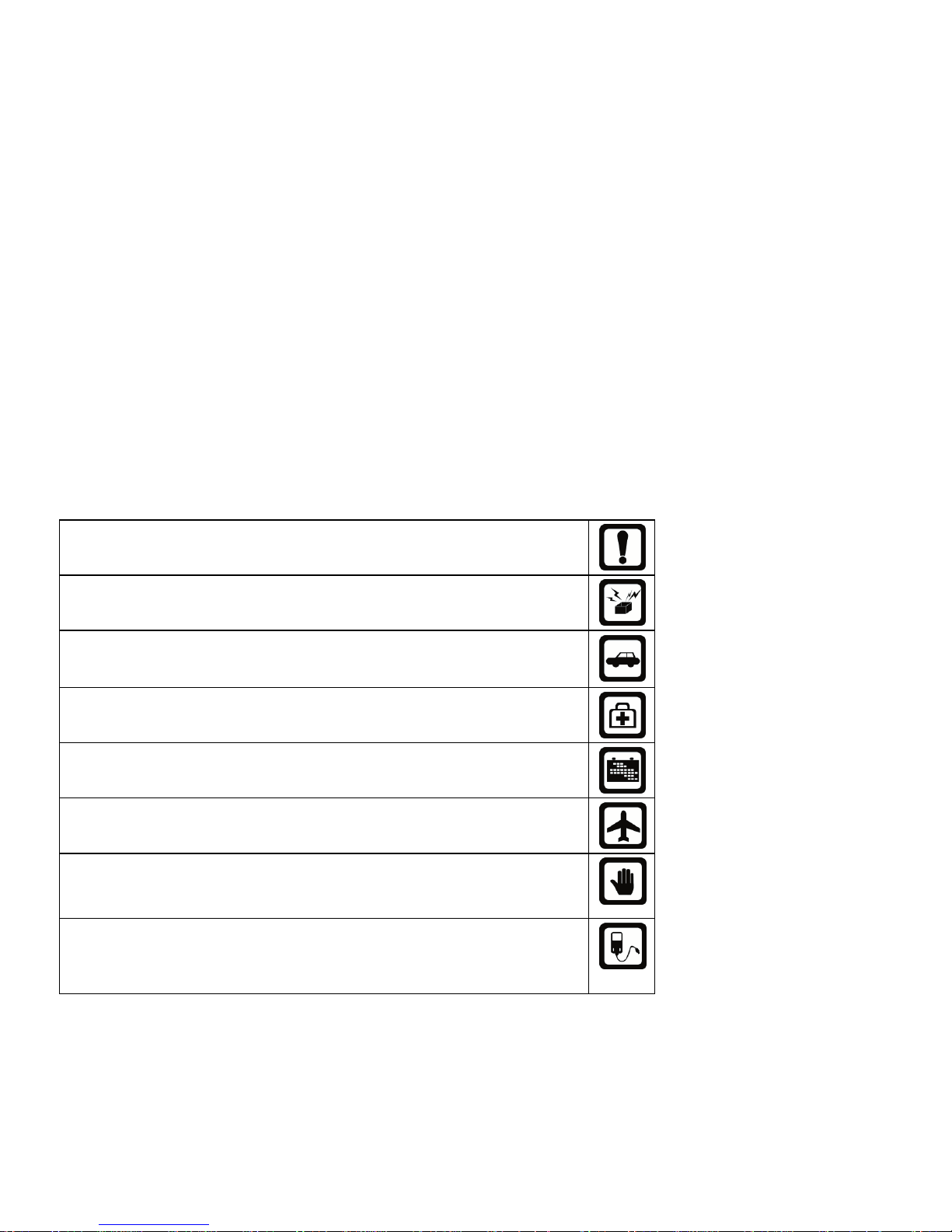
6
ﺔﻣﻼﺴﻟا تاﺮﻳﺬﺤﺗ
ﺴﺒﻟا تادﺎﺷرﻹا ﻩﺬه ةءاﺮﻗ ﻰﺟﺮﻳﺔﻄﻴ .ﻲﻧﻮﻧﺎﻗ ﺮﻴﻏ وأ ﺮﻄﺧ ﻞﻜﺸﻳ ﺪﻗ تﺎﻤﻴﻠﻌﺘﻟا عﺎﺒﺗأ مﺪﻋ. تادﺎﺷرإ ةﺮﻘﻓ ﺮﻈﻧا
تﺎﻣﻮﻠﻌﻤﻟا ﻦﻣ ﺪﻳﺰﻤﻟ ﺔﻣﻼﺴﻟا .
ﺶﻳﻮﺸﺗ وأ اﺮﻄﺧ ﺐﺒﺴﻳ ﺪﻗ وأ ارﻮﻈﺤﻣ ﻪﻣاﺪﺨﺘﺳا نﻮﻜﻳ ﺎﻤﻨﻴﺣ ﻒﺗﺎﻬﻟا مﺪﺨﺘﺴﺗ ﻻ.
ﺎه ﻊﻀﺗ ﻻﻔﺗ ﻚﻪﺗﺎﻘﺤﻠﻣو تﺎﻳوﺎﺣ ﻲﻓ ﻟ ﺔﺿﺮﻌﻣيﻮﻗ ﻲﺴﻴﻃﺎﻨﻐﻣوﺮﻬآ ِﻞﻘﺤ.
ﻘﻟا ﺔﻓﺎﻜﺑ ماﺰﺘﻟﻻا ﺔﻴﻠﺤﻤﻟا ﻦﻴﻧاﻮ .ءﺎﻨﺛأ ﺎﻳوﺪﻳ ﻒﺗﺎﻬﻟا مﺪﺨﺘﺴﺗ ﻻ دﺎﻴﻗ ةةرﺎﻴﺴﻟا . نﻮﻜﻳ نأ ﺐﺠﻳ
كﺰﻴآﺮﺗ لوﻷاءﺎﻨﺛأ ﻟا ةدﺎﻴﻘﻰﻠﻋ ﺔﻣﻼﺳ ﻟاﻖﻳﺮﻄ.
تاودأﺎﻋﺮﻟا ﺔﻳوَأ ﺔﻴﺤﺼﻟاﻲﻓ ﺔﻴﺒﻄﻟا تاﺪﻌﻤﻟا تﺎﻴﻔﺸﺘﺴﻤﻟا ﻳ ﻦﻜﻤنأ ﺔﺳﺎﺴﺣ نﻮﻜﺗ ﺔﻗﺎﻄﻠﻟ
تﺎﺟﻮﻣ ﻦﻣ ﺔﺜﻌﺒﻨﻤﻟاﺔﻴﺟرﺎﺨﻟا لﺎﺳرﻹا .اﺬﻟ ﻊﺒﺗا يأ أ ﻦﻴﻧاﻮﻗﻟ وﻮ ﺢﺋاﻰﻔﺸﺘﺴﻤﻟا ﻲﻓ ﺎﻬﺑ لﻮﻤﻌﻣ.
دﻮﻗﻮﻟﺎﺑ دوﺰﺘﻟا تﺎﻄﺤﻣ ﻲﻓ ﻒﺗﺎﻬﻟا مﺪﺨﺘﺴﺗ ﻻ . داﻮﻤﻟا وأ دﻮﻗﻮﻟا بﺮﻗ ﻒﺗﺎﻬﻟا مﺪﺨﺘﺴﺗ ﻻ ﺎﻀﻳأ
ﺔﻴﺋﺎﻴﻤﻴﻜﻟا.
دﻮﻴﻘﻟا ﺔﻓﺎآ ﻊﺒﺗا . ﺶﻳﻮﺸﺗ ﺐﺒﺴﺗ نأ ﻦﻜﻤﻳ ﺔﻴﻜﻠﺳﻼﻟا ةﺰﻬﺟﻷاﻞﺧادةﺮﺋﺎﻄﻟا .
ﻒﺗﺎﻬﻟا ﻖﺑأﻞآو ،ﻪﺋاﺰﺟأ ﻲﻓ ﺎﻤﺑ ،تﺎﻘﺤﻠﻤﻟا ﻚﻟذ ﺪﻴﻌﺑ ﺪﻳ لوﺎﻨﺘﻣ ﻦﻋِرﺎﻐﺼﻟا لﺎﻔﻃﻷا.
مﺪﺨﺘﺳاو تﺎﻳرﺎﻄﺒﻟا ةﺰﻬﺟأ ﻦﺤﺸﻟاةﺪﻤﺘﻌﻤﻟاﻂﻘﻓ ﻦﻣ Brava .ﻞﺼﻓأ ﻦﺣﺎﺸﻟا ﻦﻣرﺪﺼﻣ ﺔﻳﺬﻐﺘﻟا
ﻲﺋﺎﺑﺮﻬﻜﻟانﻮﻜﻳ ﻻ ﺎﻣﺪﻨﻋ ﺪﻴﻗ لﺎﻤﻌﺘﺳﻻا . ﻻكﺮﺘﺗ ﺔﻳرﺎﻄﺒﻟا ﺔﻟﻮﺻﻮﻣ ﻰﻟإ ﻟا ﻦﻣ ﺮﺜآﻷ ﻦﺣﺎﺸ
عﻮﺒﺳأةدﺎﻳز ،ﻦﺤﺸﻟا ﺔﻳرﺎﻄﺒﻟا ﺮﻤﻋ ﻦﻣ ﺮﺼﻘﻳ ﺪﻗ.ﺔﻟازإ ﻰﺟﺮﻳﺎﻄﺒﻟا ﺪﻌﺑ ﺔﻳر ءﺎﻔﻃإ ،ﻒﺗﺎﻬﻟا ﺪﻗ ﻪﻧﻷ
ﺗثﺪﺤ أ راﺮﺿﺔﻌﻗﻮﺘﻣ ﺮﻴﻏ.
Page 94

v
10. عﺎﺿوﻷا.........................................................................................................................25
11. بﺎﻌﻟﻷا..........................................................................................................................26
ﻘﻔﻟاتﺎﻋﺎ.............................................................................................................................................26
ﺔﺒﻌﻟ ﺐﻟاﻮﻘﻟا........................................................................................................................................26
12. تﺎﻣﺪﺧ ﺔﻜﺒﺸﻟا...........................................................................................................27
تﺎﻘﻴﺒﻄﺗ BREW...................................................................................................................................27
STK...................................................................................................................................................27
UTK...................................................................................................................................................27
13. ﻂﺒﻀﻟا............................................................................................................................28
ضﺮﻌﻟا................................................................................................................................................28
ﻂﺒﺿ ﻒﺗﺎﻬﻟا.........................................................................................................................................28
تاداﺪﻋإ تﺎﻤﻟﺎﻜﻤﻟا...............................................................................................................................30
راﺪﺟ تﺎﻤﻟﺎﻜﻤﻟا يرﺎﻨﻟا..........................................................................................................................34
ﺔﻳﺎﻤﺤﻟا...............................................................................................................................................35
ﻲﺗارﺎﺼﺘﺧا..........................................................................................................................................36
تاداﺪﻋإ ﺒﺸﻟاﺔﻜ..................................................................................................................................36
14. ﻞﻴﻟد ﺔﻧﺎﻴﺼﻟا................................................................................................................37
15. تادﺎﺷرإ ﺔﻣﻼﺴﻟا.......................................................................................................39
Page 95

iv
قوﺪﻨﺻ دراﻮﻟا......................................................................................................................................14
ﻞﺋﺎﺳﺮﻟا ﺔﻠﺳﺮﻤﻟا................................................................................................................................15
تادﻮﺴﻤﻟا...........................................................................................................................................15
ﺔﻠﻀﻔﻤﻟا.............................................................................................................................................15
ﺮﻳﺮﻘﺗ ﺘﻟاﻢﻴﻠﺴ......................................................................................................................................16
جذﺎﻤﻨﻟا...............................................................................................................................................16
فﺬﺣ ﻞﺋﺎﺳﺮﻟا.....................................................................................................................................16
تاداﺪﻋﻹا............................................................................................................................................16
ﺔﻟﺎﺣ ةﺮآاﺬﻟا........................................................................................................................................17
ﺪﻳﺮﺒﻟا ﻲﺗﻮﺼﻟا......................................................................................................................................17
7. ﻞﺠﺳ تﺎﻤﻟﺎﻜﻤﻟا.........................................................................................................19
تﺎﻤﻟﺎﻜﻤﻟا ةدﻮﻘﻔﻤﻟا..............................................................................................................................19
تﺎﻤﻟﺎﻜﻤﻟا ةدراﻮﻟا.................................................................................................................................19
تﺎﻤﻟﺎﻜﻤﻟا ةردﺎﺼﻟا................................................................................................................................19
فﺬﺤﻟا................................................................................................................................................20
ةﺪﻣ ﺔﻤﻟﺎﻜﻤﻟا.......................................................................................................................................20
8. ﻲﺗﺎﻔﻠﻣ..........................................................................................................................21
رﻮﺼﻟا..................................................................................................................................................21
تاﻮﺻﻷا..............................................................................................................................................21
ﺔﻟﺎﺣ ةﺮآاﺬﻟا........................................................................................................................................21
9. تاودﻷا..........................................................................................................................22
ﻪﺒﻨﻤﻟا.................................................................................................................................................22
ﻖﺴﻨﻣ ﺪﻴﻋاﻮﻤﻟا..................................................................................................................................22
ﺔﺒﺳﺎﺤﻟا.............................................................................................................................................22
ﺖﻴﻗﻮﺘﻟا ﻲﻤﻟﺎﻌﻟا:.................................................................................................................................23
ﻮﻳداﺮﻟا.................................................................................................................................................23
ﺔﻋﺎﺳ فﺎﻘﻳإ........................................................................................................................................23
لﻮﺤﻣ ﺔﻠﻤﻌﻟا.......................................................................................................................................24
Page 96

iii
تﺎﻳﻮﺘﺤﻤﻟا
ﺔﻤﺋﺎﻗ تﺎﻳﻮﺘﺤﻤﻟا....................................................................................................................................1
تﺎﻔﺻاﻮﻤﻟا ﺔﻴﺳﺎﺳﻷا.............................................................................................................................1
ﻞﻜﺷ ﻒﺗﺎﻬﻟا لاﻮﺠﻟا...............................................................................................................................2
2.
ﻒﺋﺎﻇﻮﻟا ﺔﻴﺳﺎﺳﻷا.......................................................................................................7
فﺎﻘﻳإ/ﻞﻴﻐﺸﺗ ﻒﺗﺎﻬﻟا..............................................................................................................................7
ءاﺮﺟإ ﺔﻤﻟﺎﻜﻣ ﺔﻴﻔﺗﺎه...............................................................................................................................7
دﺮﻟا ﻰﻠﻋ تﺎﻤﻟﺎﻜﻤﻟا...............................................................................................................................8
تارﺎﻴﺨﻟا ءﺎﻨﺛأ ﺔﻤﻟﺎﻜﻤﻟا............................................................................................................................8
ﻞﻔﻗ ﺔﺣﻮﻟ ﺢﻴﺗﺎﻔﻤﻟا.................................................................................................................................9
4. قﺮﻃ لﺎﺧدﻹا...............................................................................................................10
5. ﻞﺠﺳ ﻒﺗﺎﻬﻟا................................................................................................................11
ﺔﻓﺎﺿإ ﻢﺳا ﺪﻳﺪﺟ.................................................................................................................................11
ﺔﻤﺋﺎﻗ ءﺎﻤﺳﻷا.....................................................................................................................................11
ﺚﺤﺑ...................................................................................................................................................11
تﺎﻋﻮﻤﺠﻤﻟا.........................................................................................................................................12
ﺦﺴﻧ..................................................................................................................................................12
لﺎﺼﺗﻻا ﻊﻳﺮﺴﻟا....................................................................................................................................12
فﺬﺣ..................................................................................................................................................12
عﻮﻧ ةﺮآاﺬﻟا..........................................................................................................................................12
ﺔﻟﺎﺣ ةﺮآاﺬﻟا........................................................................................................................................13
ﻲﻤﻗر.................................................................................................................................................13
6. ﻞﺋﺎﺳﺮﻟا........................................................................................................................14
ءﺎﺸﻧإ ﺔﻟﺎﺳر.......................................................................................................................................14
6 ................................................................................................................................. أﺪﺒﺘﻟ
1 .........................................................................................ﻒﺗﺎﻬﻟا زﺎﻬﺟ لﻮﺣ تﺎﻣﻮﻠﻌﻣ .1
.3
Page 97

ii
ﺢﻴﺿﻮﺗ
اﺬه تﺎﻳﻮﺘﺤﻣﻟاﻞﻴﻟﺪﻲﺴﻴﺋر ﻊﺟﺮﻤآ ﻒﺗﺎﻬﻟا ﺬﺧا ﻰﺟﺮﻳ ﻒﺗﺎﻬﻟا ﻲﻓ دﻮﺟﻮﻣ ﻮه ﺎﻣ ﻦﻋ ﻒﻠﺘﺨﺗ ﺪﻗ .
ﻆﻔﺘﺤﺗ Brava ﺔﻌﺟاﺮﻣ ﻲﻓ ﻖﺤﻟﺎﺑ ﻞﻴﻟﺪﻟا اﺬه ﻪﺨﺴﻧ وأﻖﺑﺎﺳ نوﺪﺑ ﺖﻗو يأ ﻲﻓرﺎﻌﺷإ .
ﺔﺴﺳﺆﻣ ىﺪﻟ ﻊﺒﻄﻟا قﻮﻘﺣBrava Techno 2008
ﺔﻇﻮﻔﺤﻣ قﻮﻘﺤﻟا ﻊﻴﻤﺟ
نوﺪﺑ ﺔﻠﻴﺳو يأ وأ لﺎﻜﺷﻷا ﻦﻣ ﻞﻜﺷ يﺄﺑ ﻞﻴﻟﺪﻟا اﺬه لﺎﺳرإ وأ جﺎﺘﻧإ ةدﺎﻋإ ﺎﺗﺎﺑ ﺎﻌﻨﻣ ﻊﻨﻤﻳ
ﻦﻣ ﺎﻘﺒﺴﻣ ﺔﺑﻮﺘﻜﻣ ﺔﻘﻓاﻮﻣ ﺬﺧاBrava.
Page 98
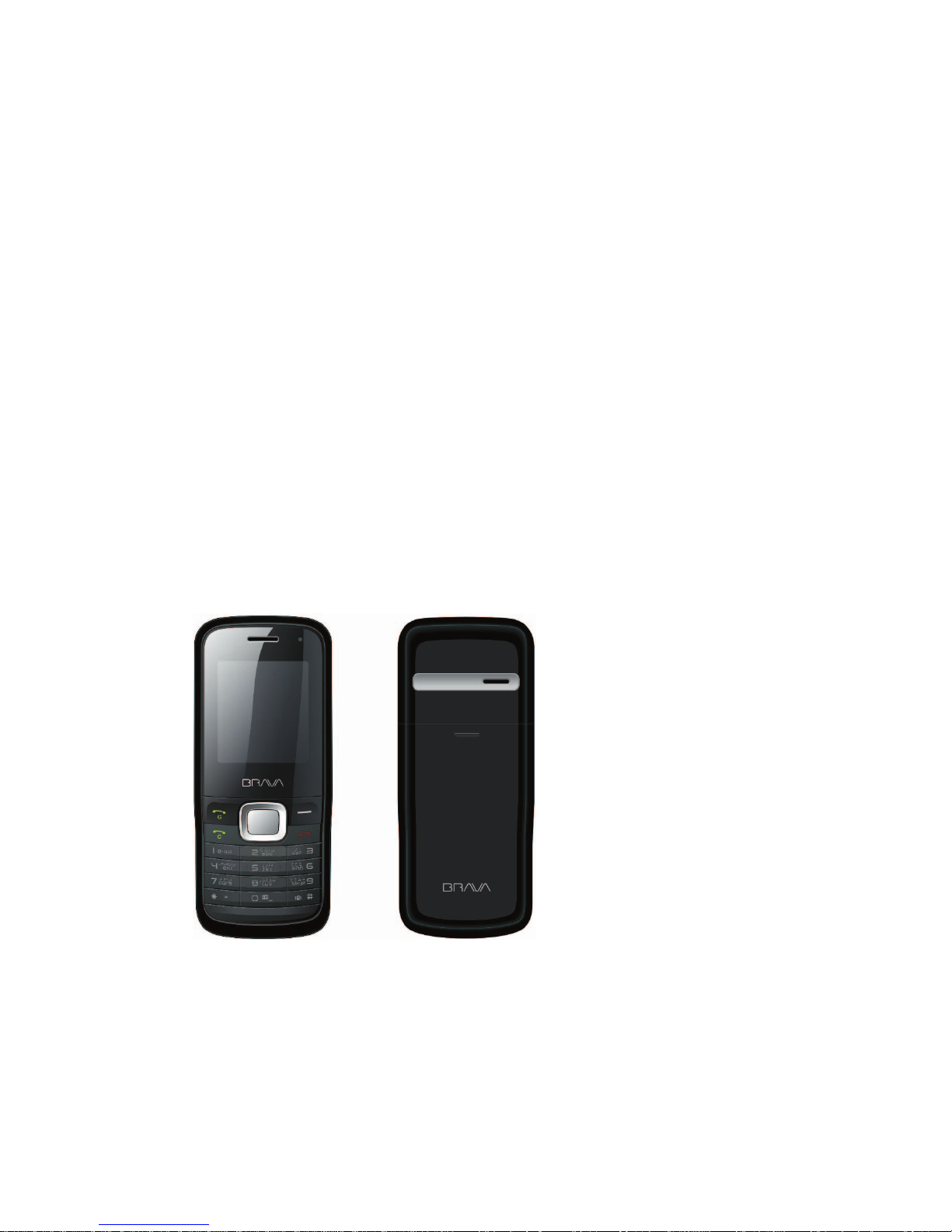
i
مﺪﺨﺘﺴﻤﻟا ﻞﻴﻟد
Dos DM-270 ﻦﻣ Brava
 Loading...