

Page 1
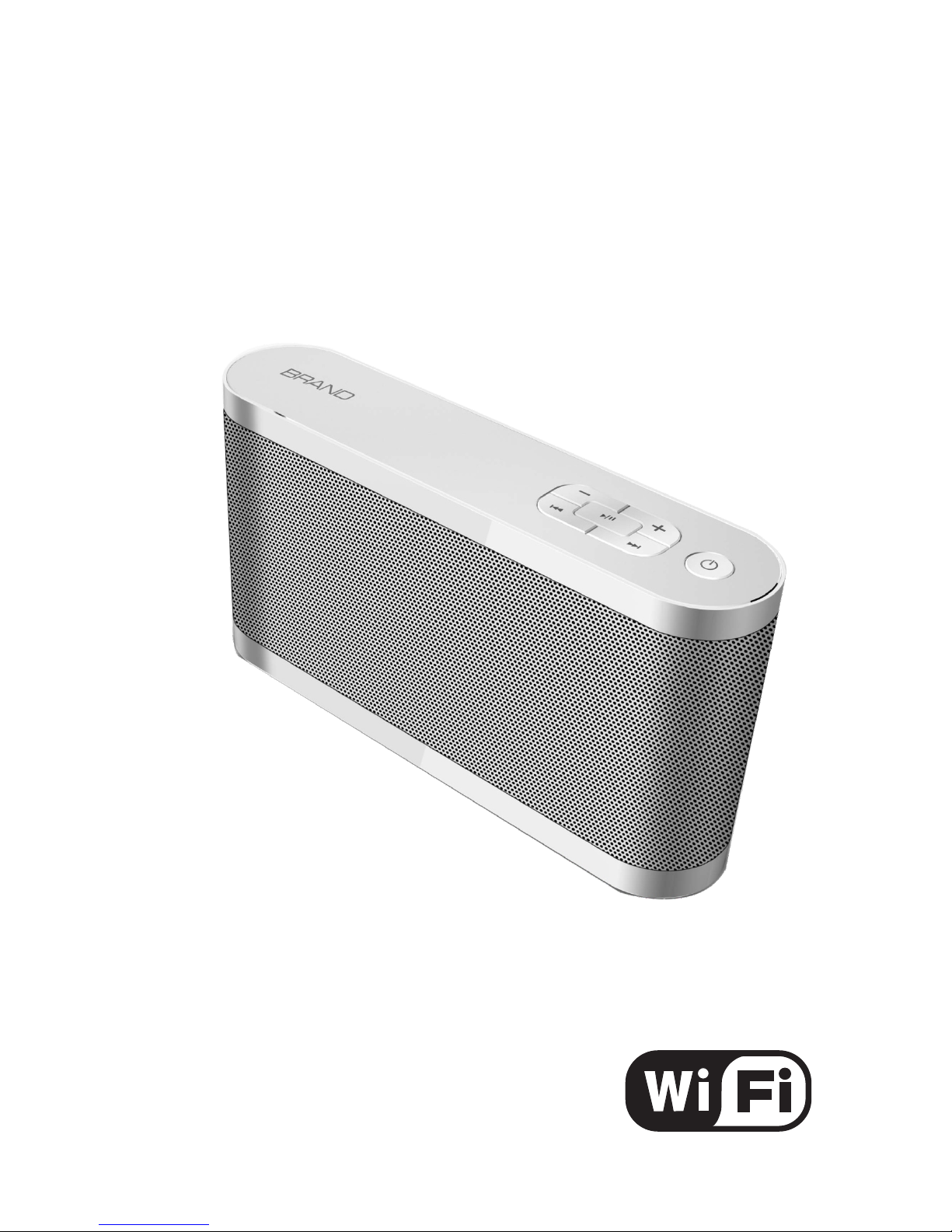
User Manual
WiFi Smart Speaker
Page 2
WiFi Smart Speaker
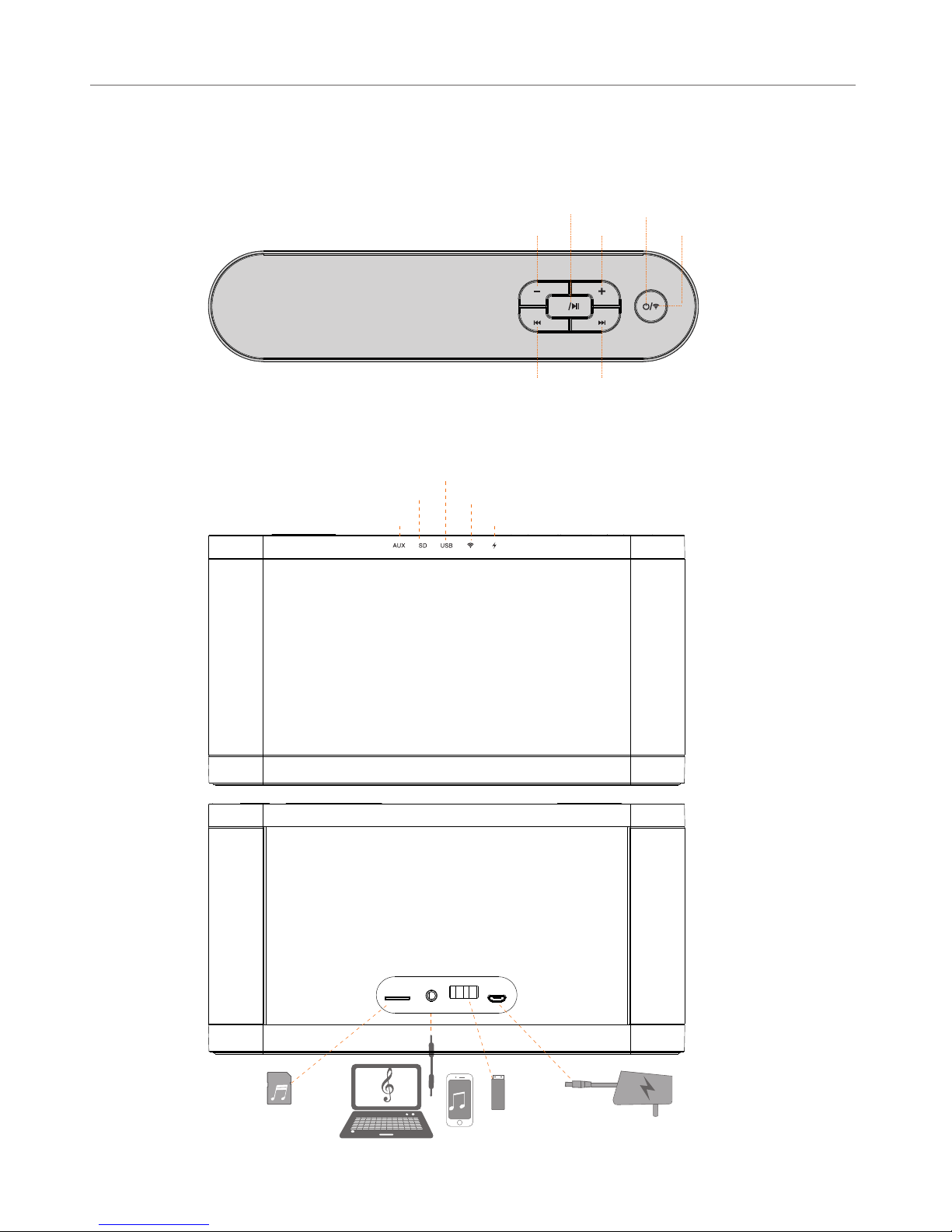
1.Function Profile
M
mode button
Wi-Fi button
power button
Previous trace button
Next trace button
Vol- Vol+
Play / Pause
SD
AUX
USB DC IN
Wi-Fi mode ind ic at or
Charging indicator
AUX mode indicator
SD mode indicator
USB mode indicator
Page 3
2. APP
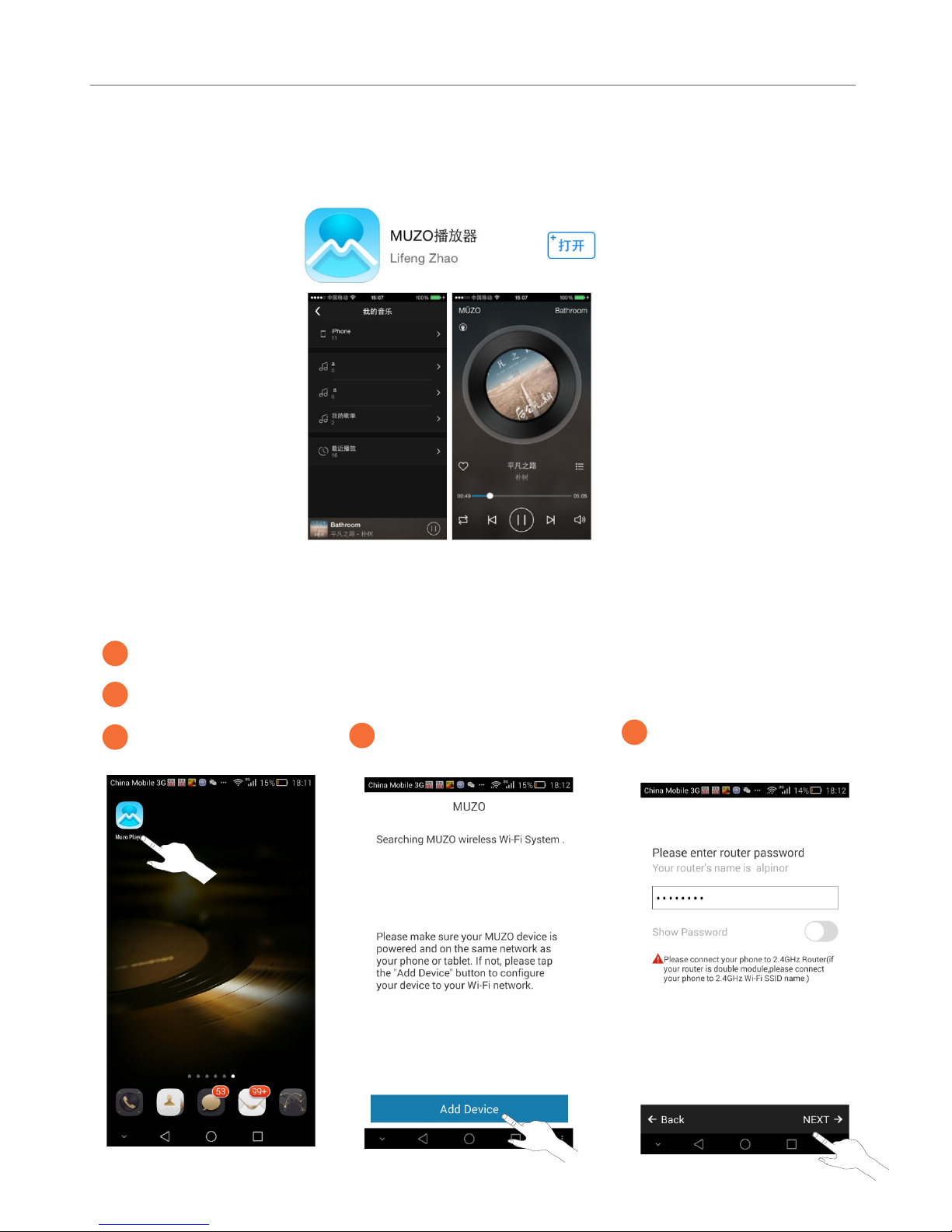
Search the “MUZO PLAYER” in APP Store, and install the APP.
WiFi Smart Speaker
3.Connect speaker to Wi-Fi network
2
Open the mobile wi-fi and connect to router.
3
Open MUZO APP
4
Add a new speaker
5
Input router password
and press “NEXT”
1
Press and hold the power button of speaker 3 seconds to power on
Page 4
WiFi Smart Speaker
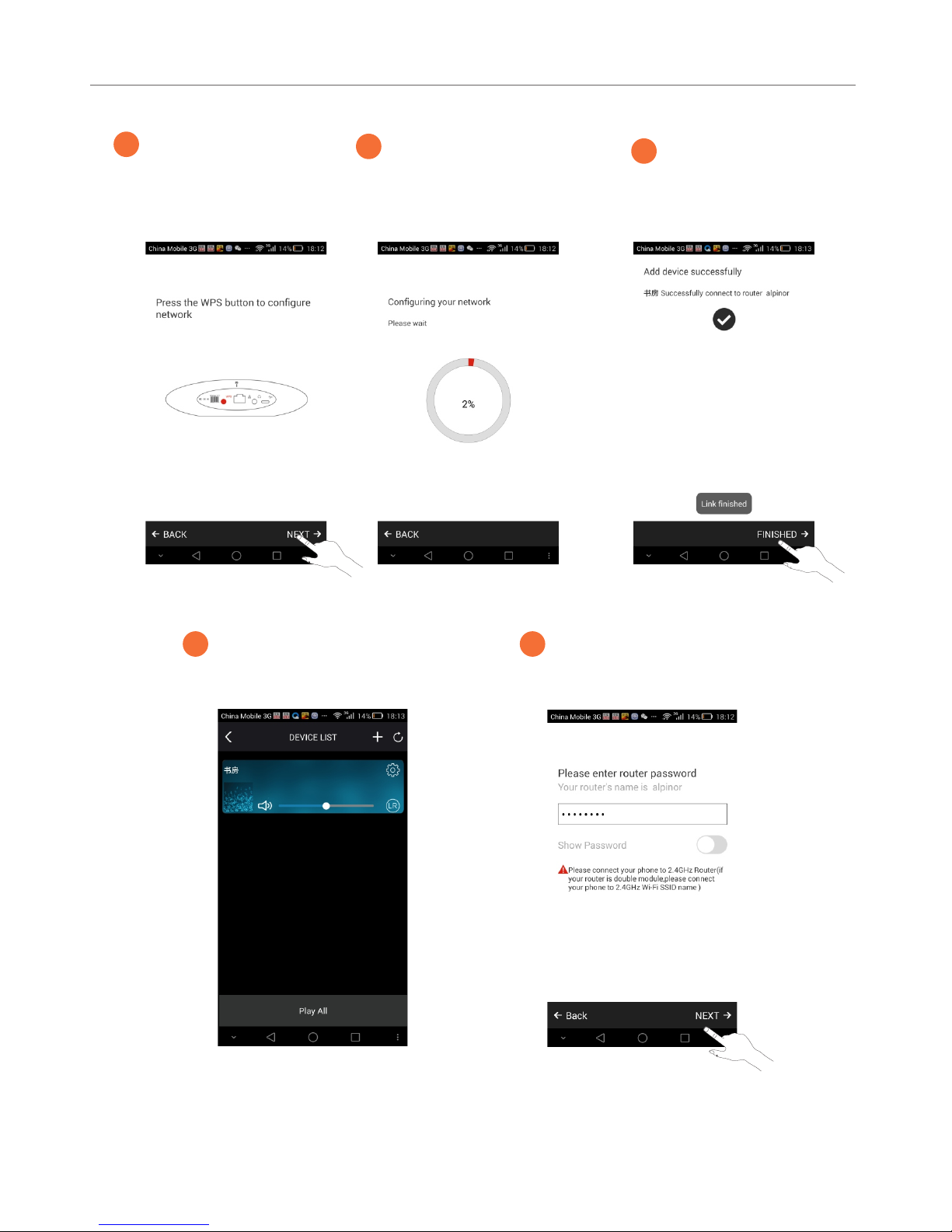
4.Add a new speaker to network
5.Mobile Phone directly connected to the speaker
If there are not any Wi-Fi router can be connect, Open the mobile phone Wi-Fi and
connect to speaker directly, the speaker can play the mobile phone local music through
phone Wi-Fi (can by airplay, DLNA or APP).
6
Press the Wi-Fi button
hear the warning tone
“Wi-Fi searching”
Press “NEXT” on APP
7
Speaker connecting to
network and hear the
warning tone “Wi-Fi
connecting’
8
Speaker connect to
network successfully
and hear the warning
tone “Wi-Fi connected”
Press finished on APP
1
On device list page, Press
the “+” icon.
2
The rest of the steps same
to third points
Page 5
WiFi Smart Speaker
6.APP Interface
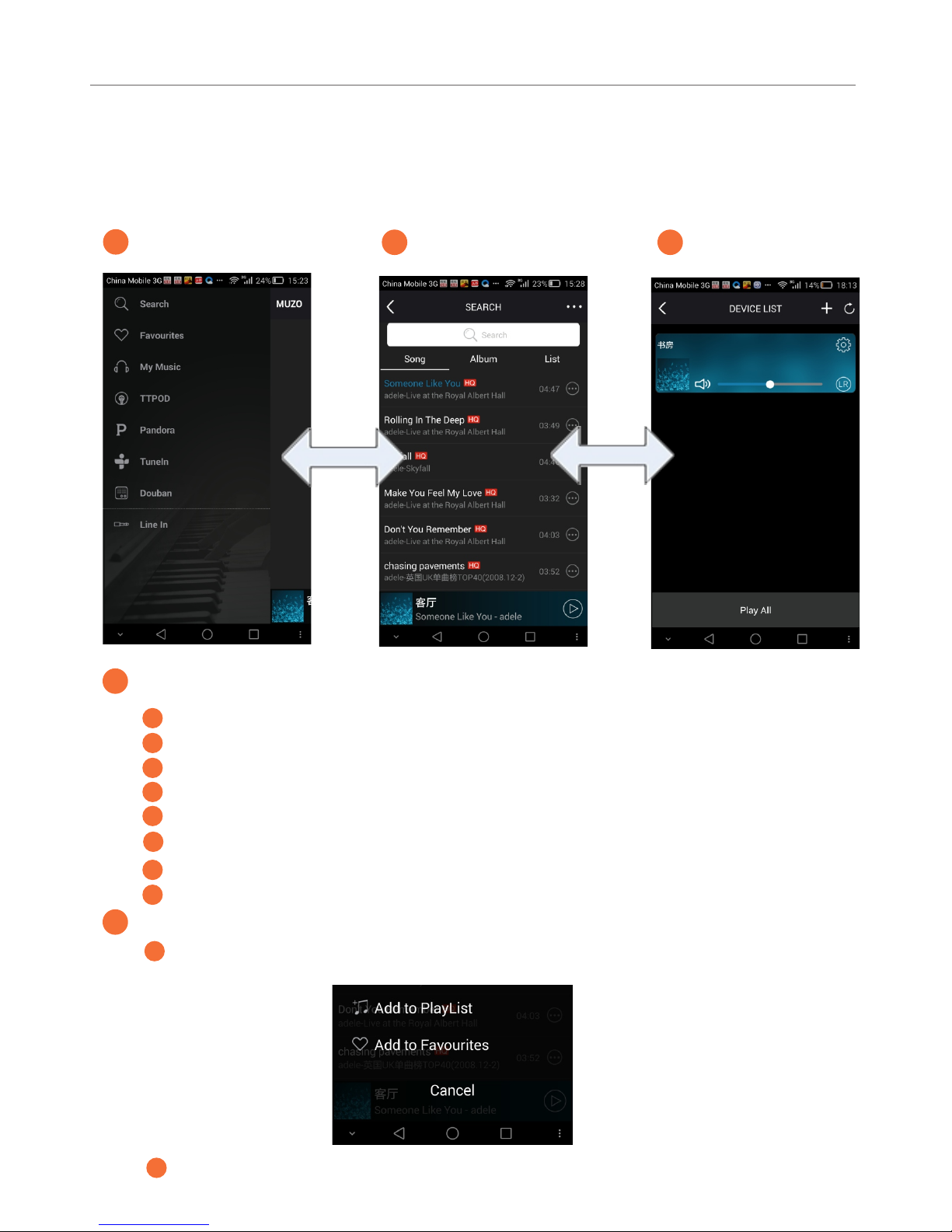
There are 3 interface: menu; music list/player ; device list, can be sliding on the screen
to choose.
1
Menu
2
Music List/player
3
Device List
a
Search: Search music from internet by Pandora engine.
b
Favourites: favourites music list.
с
My Music: can choose music from mobile phone/upnp/play list.
d
TTPOD: Online music (chinese).
e
Pandora: Online music (USA).
Douban: Online music.
h
Line in: AUX input.
1
Menu
2
Music List/player
a
Music list: can choose music to play, touch and hold 3 seconds can add music t o pl ay l is t or f av ou ri te s.
b
Player: control music play/pause/next/previous/vol+/vol-
f
TuneI n: i nt er ne t ra di o.
g
Page 6
WiFi Smart Speaker
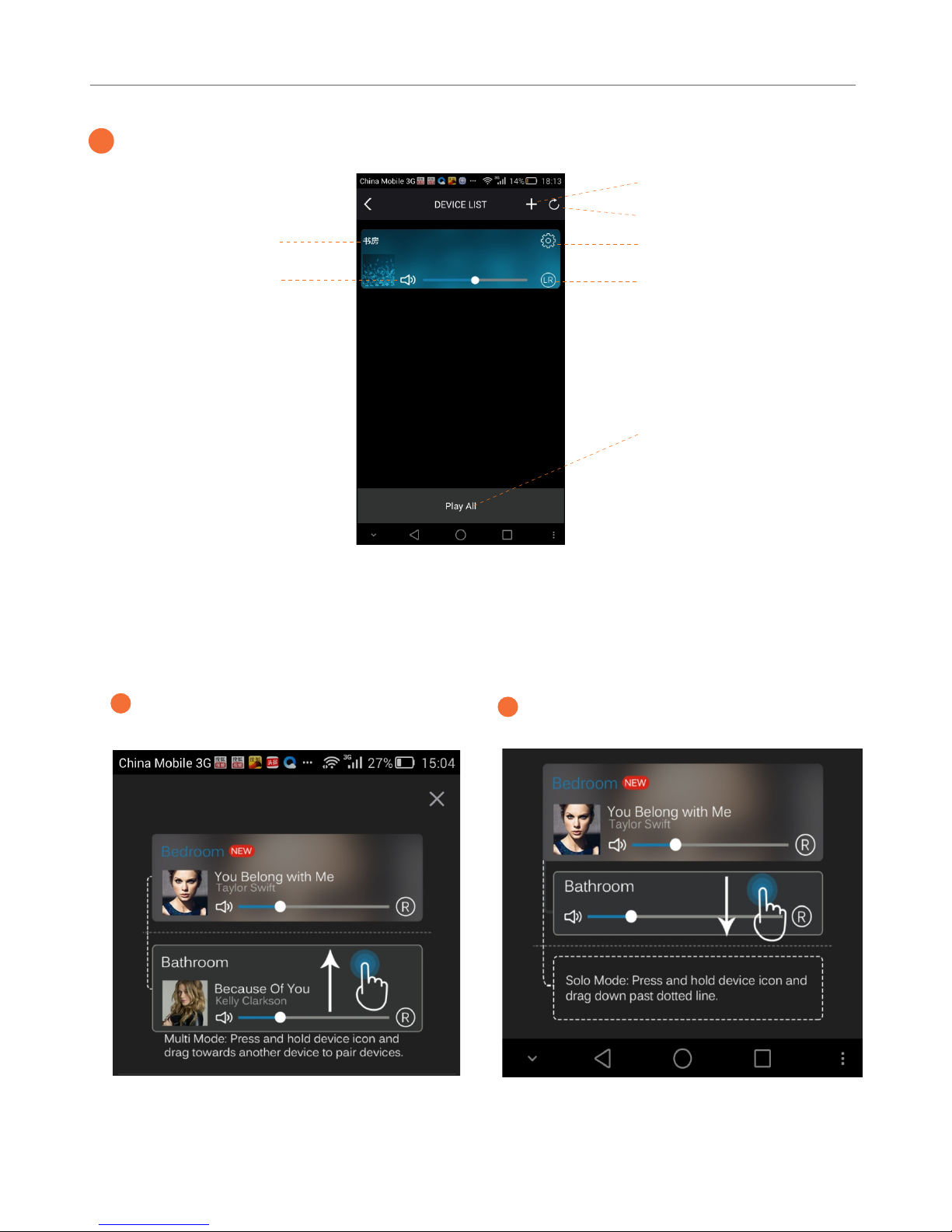
7. Multi-room Function
In the device list, all device(speaker) can play be Multi mode or Solo Mode.
3
Device List
Add new device (speaker)
Refresh device list
Setting: can rename the device
Device can be as L-ch/R-ch/stereo
Device name
Volume control
Play/Pause all device
a
Multi Mode: All device in the same group play
same song at the same time. And device can
be L-ch/R-ch/stereo
b
Solo Mode: All device play song separately.
Page 7

9.The lssues May Cause failing To Adding Device
10.The Basic Parameters
Technical Specs
Output power: 5Wx4 RMS
Speaker size:1.5" x 4
Micro USB charging
Battery Capacity:7.4V 1800mAh
External Audio Model:WIFI/3.5mm AUX/SD
Product size:(L)220mm x (W)50mm x (H)116mm
WiFi Smart Speaker
8.Online Music
In the menu: TTPOD/Pandora/Douban can play music online. The device play music
from internet directly. The mobile phone just as a remote controller.
1. If user’s mobile phone connect to 5G router, the speaker cannot receive the connecting
request data send by the phone, this is the most impossible reason.
2. The router connected with your phone use Enterprise WPA, the speaker doesn’t
support this WPA.
3. For below issues, the user will know it’s limited in connecting.
A. The router is set to static IP addressing.
B. The router is set MAC address restriction, only special address can connect to it.
C. The router is set an internet portal, which means after connecting to the router,the
phone will appears a pop-up page automatically or by hand, users need enter
password to connect the internet, if not enter a while later, the internet will
disconnect.
4. The router forbid the IGMP function, as adding and searching device depend on IGMP,
that lead to the device not available.
5. The bad network environment, long distance of router, the weak signal will lead to
Tailing adding device. Try more times may be successful.
 Loading...