

Page 1

2013-12-23
Doc Ver. 2.0.5.383
SECUDRIVE USB CAD
User Guide
Brainzsquare, Inc.
Page 2

SECUDRIVE USB CAD User Guide
Table of Contents
1. Overview ............................................................................................................................................... 3
1.1 Features ............................................................................................................................................................................... 3
1.2 Product ................................................................................................................................................. 4
1.3 Glossary ............................................................................................................................................................................... 4
2. How to use SECUDRIVE USB CAD .................................................................................................... 5
2.1 Running the Login Program Manually .................................................................................................................. 5
2.2 Agreeing to the End User License Agreement (EULA) .................................................................................. 5
2.3 Setting up the Password ............................................................................................................................................. 6
2.4 User Info .............................................................................................................................................................................. 6
2.5 Auto-notification ............................................................................................................................................................. 7
2.6 DRM Policy Management Setting ........................................................................................................................... 8
2.7 Setup Complete ............................................................................................................................................................... 8
2.8 Features of USB CAD .................................................................................................................................................... 9
2.9 Login ..................................................................................................................................................................................... 9
2.10 How to Use the Vaccine Program ........................................................................................................................ 10
2.11 SECUDRIVE USB CAD Menu ................................................................................................................................... 13
2.12 USB Settings Tab .......................................................................................................................................................... 16
2.13 DRM Settings Tab ........................................................................................................................................................ 20
2.14 Unlocking the USB Flash Drive .............................................................................................................................. 28
2.15 Running the Product with Administrator Privileges in Windows Vista / 7 ....................................... 29
3. How to Uninstall SECUDRIVE Agent ............................................................................................... 30
2
Page 3

SECUDRIVE USB CAD User Guide
1. Overview
The portable USB drive is a very efficient method to carry data. Important data saved on the USB
drive however, is vulnerable to being copied to the local PC or other removable storage devices by
unauthorized personnel.
SECUDRIVE USB CAD is a secure USB flash drive with copy prevention to solve this problem.
All of the saved data is automatically encrypted by the embedded AES 256-bit crypto chip. Also, the
data is prevented from illegal copy, screen capture, and print and it is possible to view a detailed
event log of the files.
1.1 Features
Login: To use the USB flash drive, a user must login by typing in the correct password. A
person without the correct password cannot access the data on the device. When the USB flash
drive is lost, it prevents the data from being copied by an unauthorized third party.
Prevent Copy & Paste: Data saved in the USB stick is prevented from being copied to a local disk
or other removable disks.
Prevent Save As: Saving a file in SECUDRIVE USB CAD to a local PC with another name (Save
As) is also denied.
Prevent clipboard copy & paste: For data saved in the device, clipboard copy & paste by
opening the file, copying it to the clipboard, and pasting is denied.
Print protection and watermark printing: Printing of the file saved in the USB flash drive can be
allowed or restricted. Printing with watermarks is also available.
Screen capture prevention: Attempts to capture the screen with capture tools, including the Print
Screen Key, are disabled.
Prevent file transfer over the network: Data saved in the device is prevented from being
transferred over the network by email attachment or messengers.
Setting the valid period and maximum usage: Validity period and maximum usage of the USB
flash drive can be set, which limits usage. When it exceeds the limit, the user cannot log in to the
device and the USB stick is not available any more.
3
Page 4

SECUDRIVE USB CAD User Guide
1.2 Product
SECUDRIVE USB CAD flash drive
SECUDRIVE USB CAD master token
The master token is an optional product and should be purchased separately.
1.3 Glossary
The terms used throughout this manual have the following meaning.
USB: SECUDRIVE USB CAD flash drive
Administrator: Person in charge of setting the DRM security policy of the device.
User: Person who uses SECUDRIVE USB CAD.
Policy setup PC: The designated PC where the DRM policy can be set for the device. Or the PC
where the master token connected. For both options, the product runs in administrator mode.
User PC: User’s PC where SECUDRIVE USB CAD is connected to.
Secure zone: Data saving area of SECUDRIVE USB CAD. A user can only access this area by
executing the login program with the correct password.
CD area: Is displayed automatically when connecting SECUDRIVE USB CAD to the PC. CD area
contains a login program to accessing the secure zone.
4
Page 5
SECUDRIVE USB CAD User Guide
2. How to use SECUDRIVE USB CAD
2.1 Running the Login Program Manually
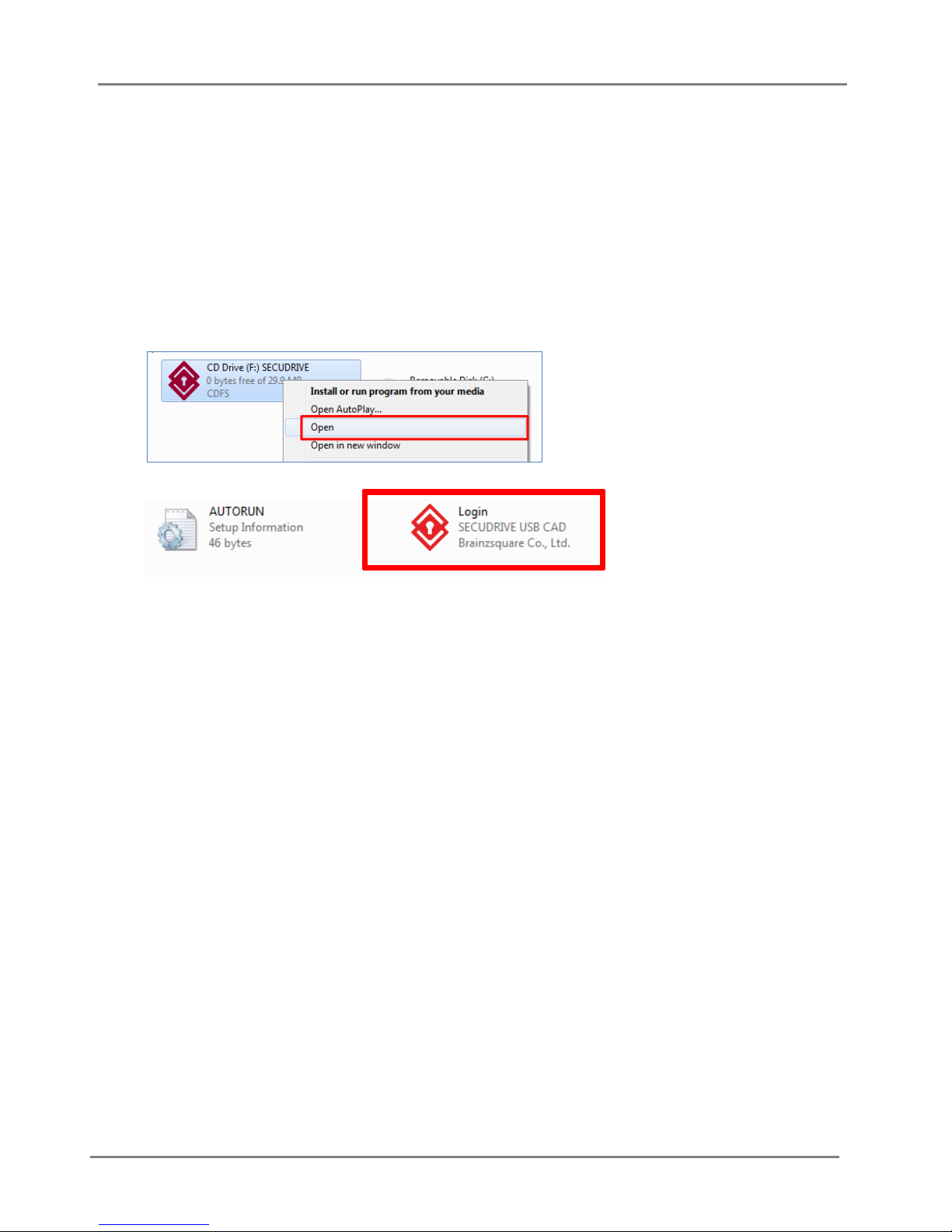
License agreement or the login window automatically displays when SECUDRIVE USB CAD is
connected to PC. If either the license agreement or the login window does not appear, you should
manually run the login program.
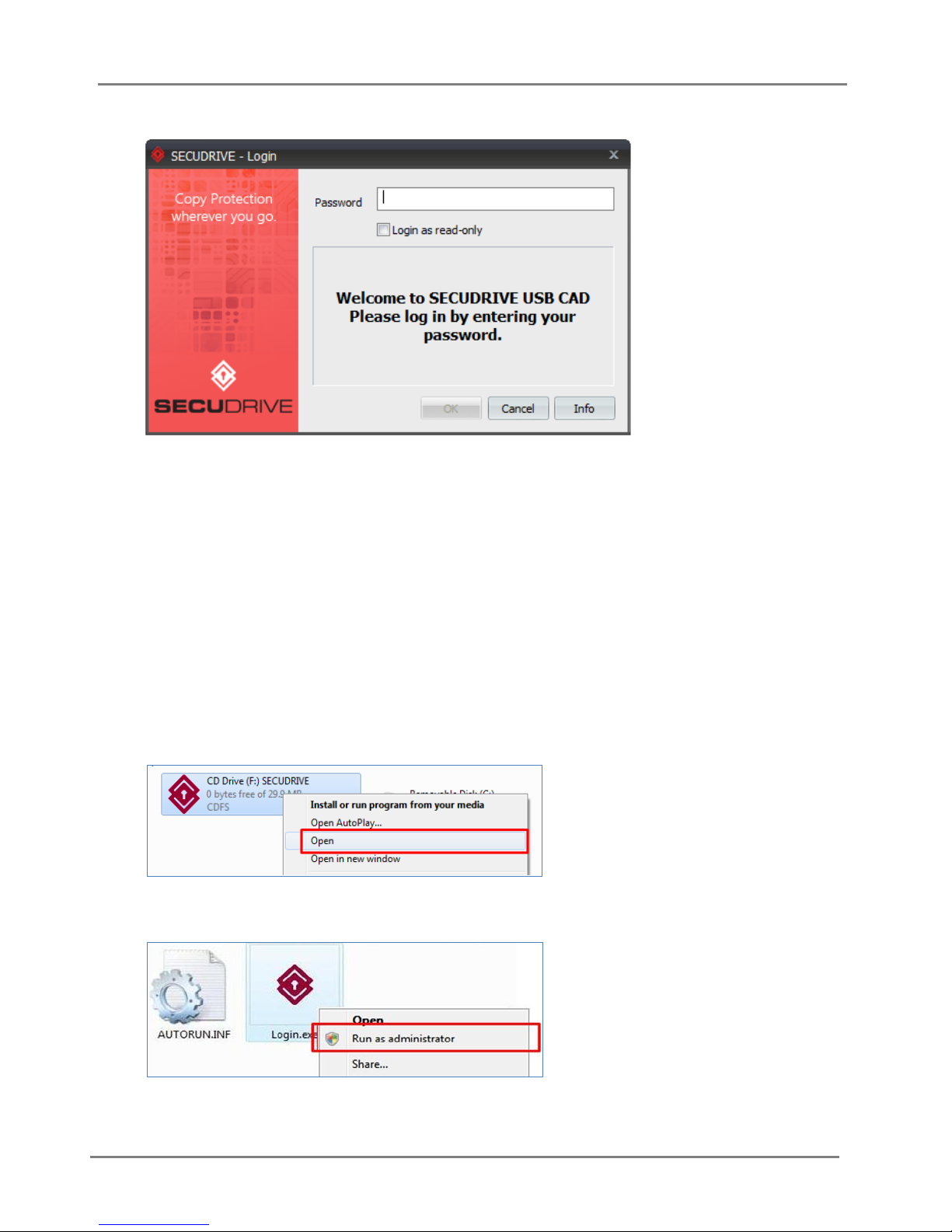
Right click on SECUDRIVE CD area below and select “Open”.
Run “Login.exe” below.
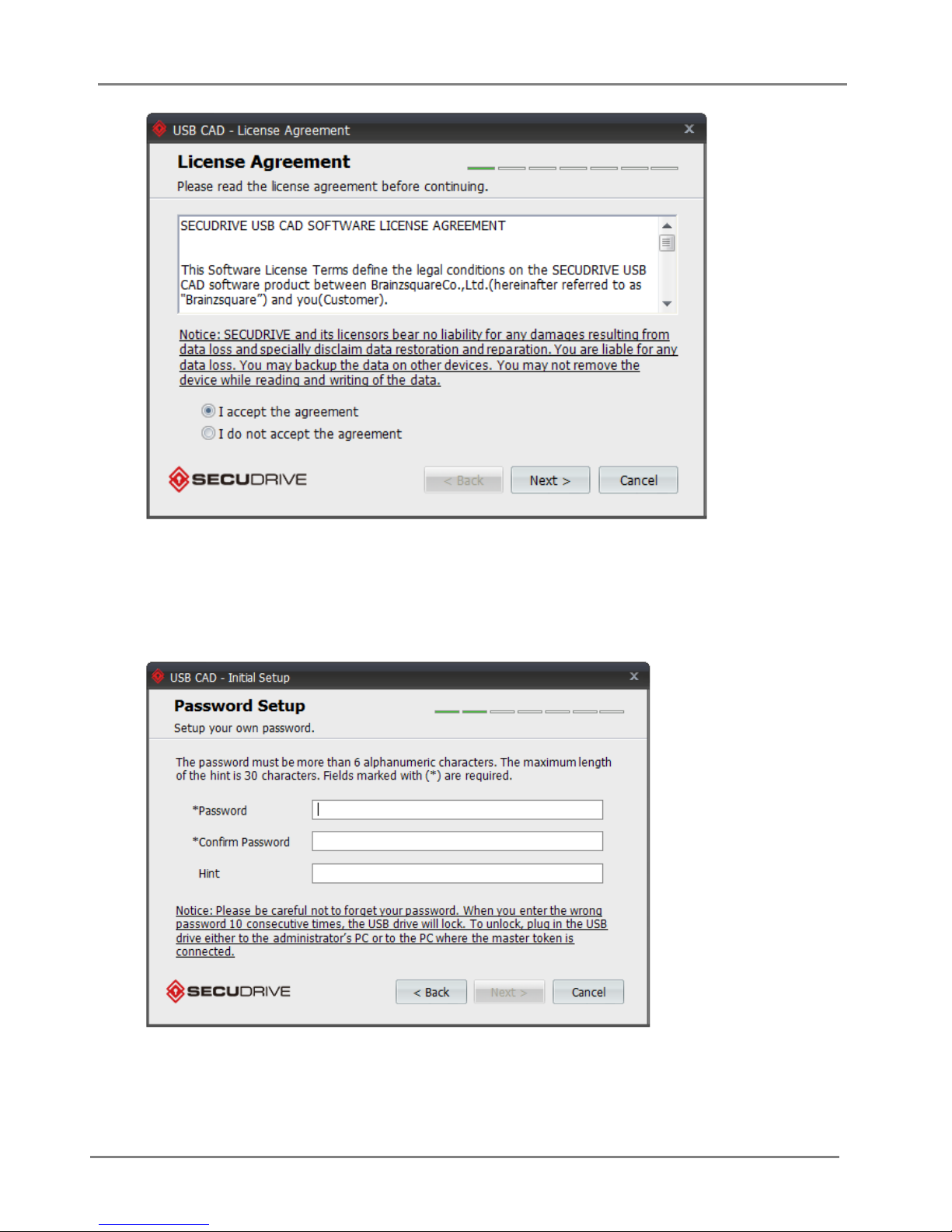
2.2 Agreeing to the End User License Agreement (EULA)
When using the product for the first time, you should agree to the terms by selecting ‘I accept the
agreement’ and then click “OK”.
5
Page 6
SECUDRIVE USB CAD User Guide
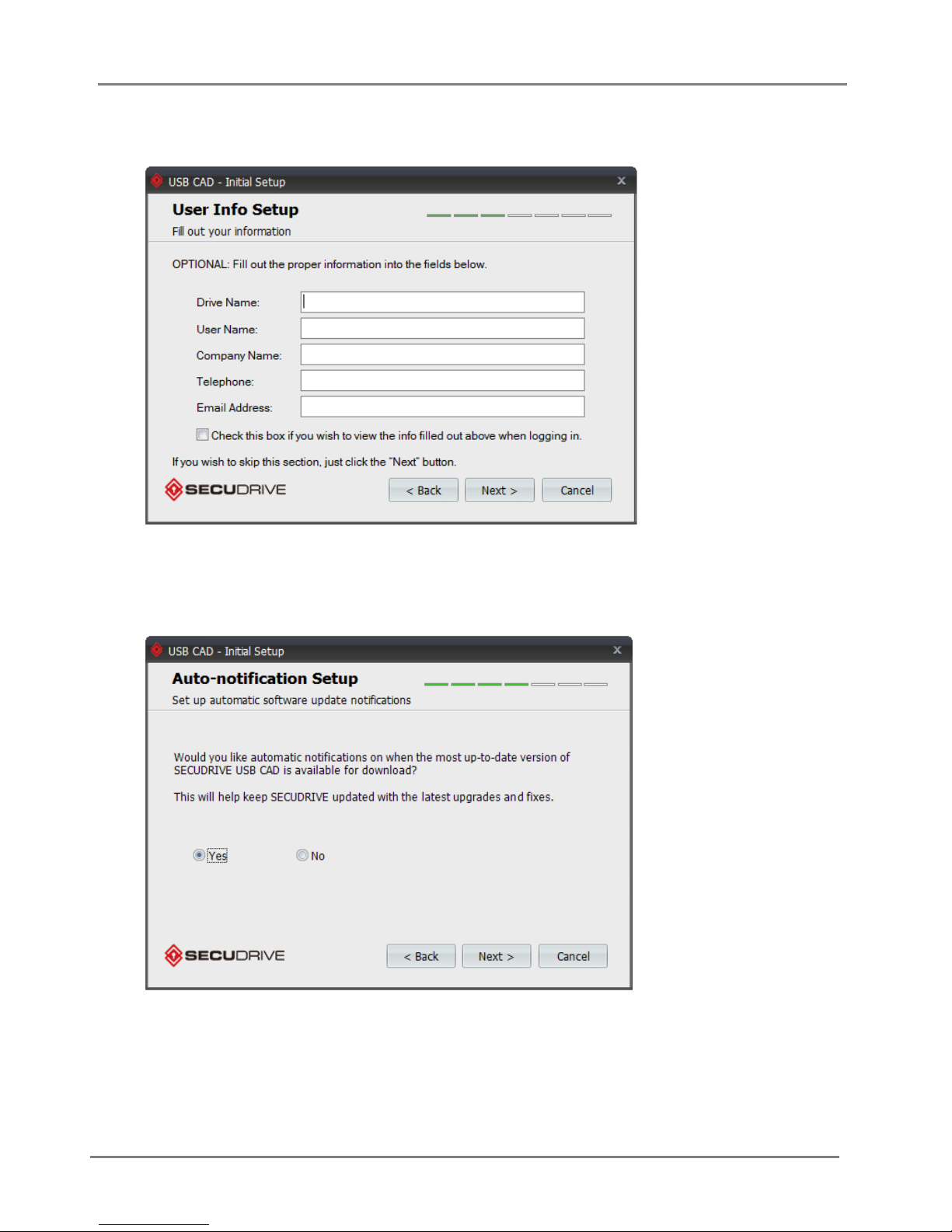
2.3 Setting up the Password
At your first use of the product, you should set up your login password to access the secure zone.
The password must be more than 6 alphanumeric characters.
2.4 User Info
Fill out your user information for the USB. You can choose to show the info at login by pressing the
6
Page 7
check box near the bottom. Click ‘Next’ to continue.
This section is optional so click ‘Next’ to skip this section.
SECUDRIVE USB CAD User Guide
2.5 Auto-notification
Choose whether or not you wish to have automatic notifications for the latest updates for USB CAD.
Click “Next” to continue.
7
Page 8
SECUDRIVE USB CAD User Guide
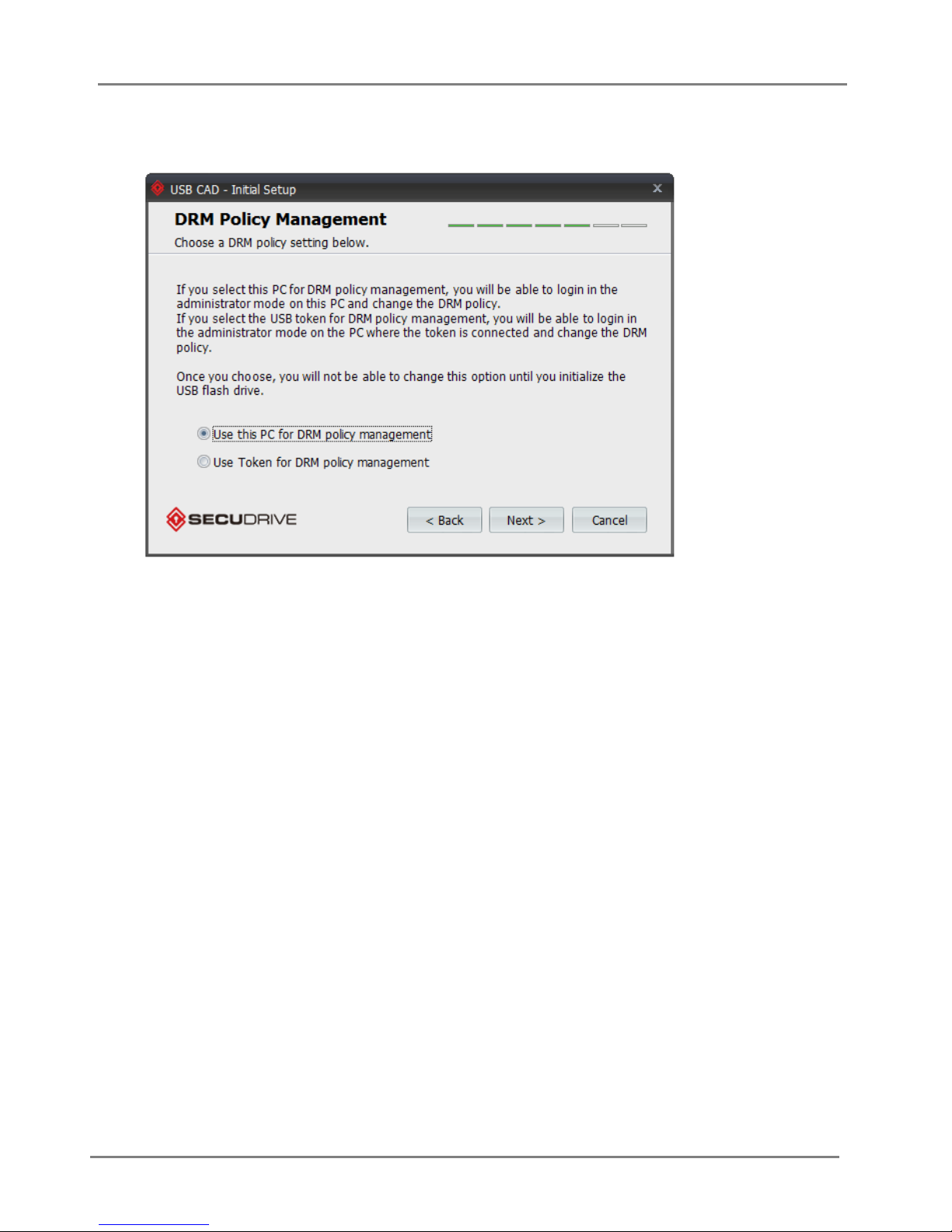
2.6 DRM Policy Management Setting
After setting the password, click OK and the DRM Policy Management window is displayed.
Use this PC for DRM policy management: DRM policy setup and change is only available on the
current PC where the USB flash drive is connected to. In other PCs, setup or change is impossible.
Use Token for DRM policy management: DRM policy and change is available on any PC where
the master token is connected to.
On the policy setup PC, copy protection does not work.
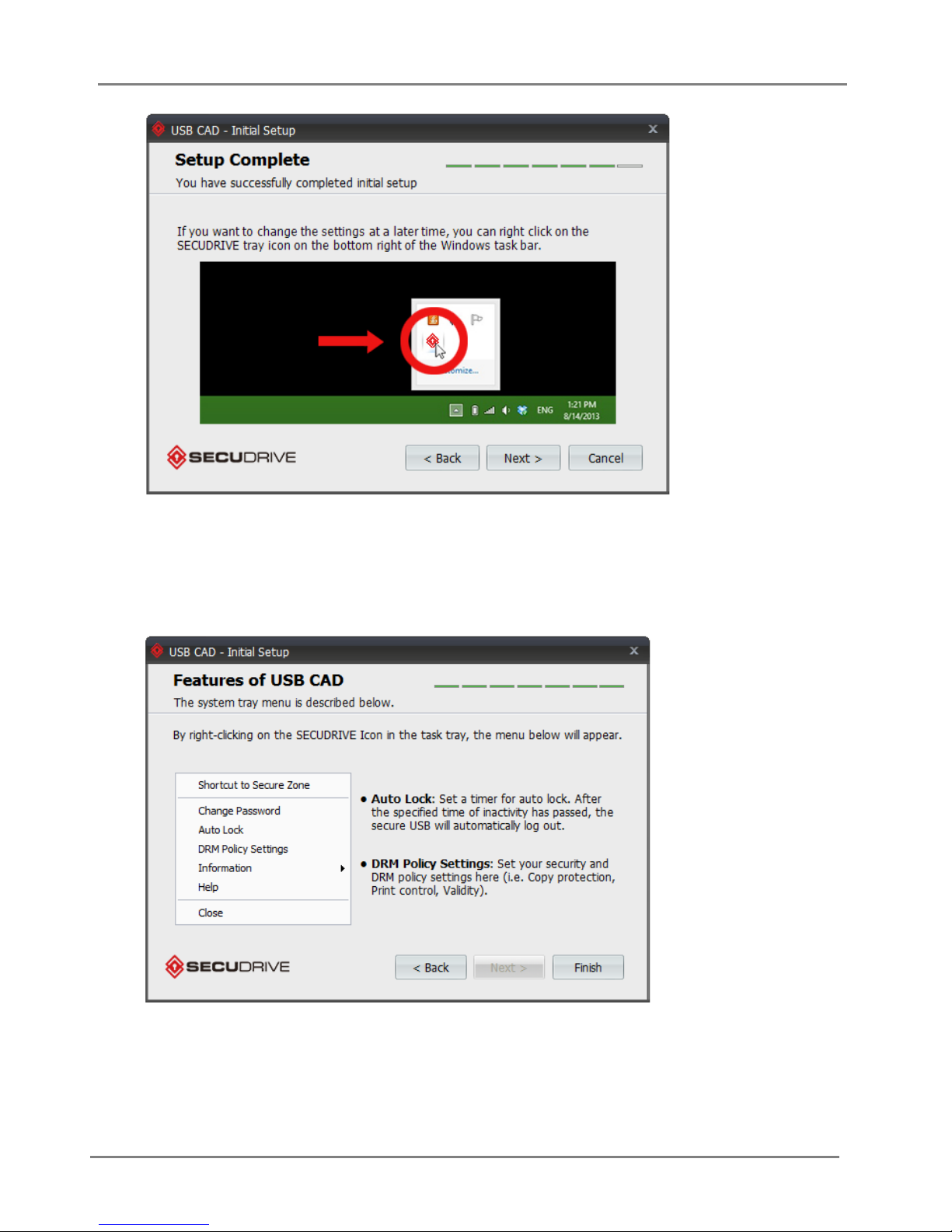
2.7 Setup Complete
If you want to change any of these settings at a later time, right click on the SECUDRIVE icon in
Windows Task bar.
Click “Next” to continue.
8
Page 9
SECUDRIVE USB CAD User Guide
2.8 Features of USB CAD
To change the auto lock and DRM policy settings, right-click on the SECUDRIVE icon in the windows
task bar.
Click “Finish” to proceed to login.
2.9 Login
9
Page 10
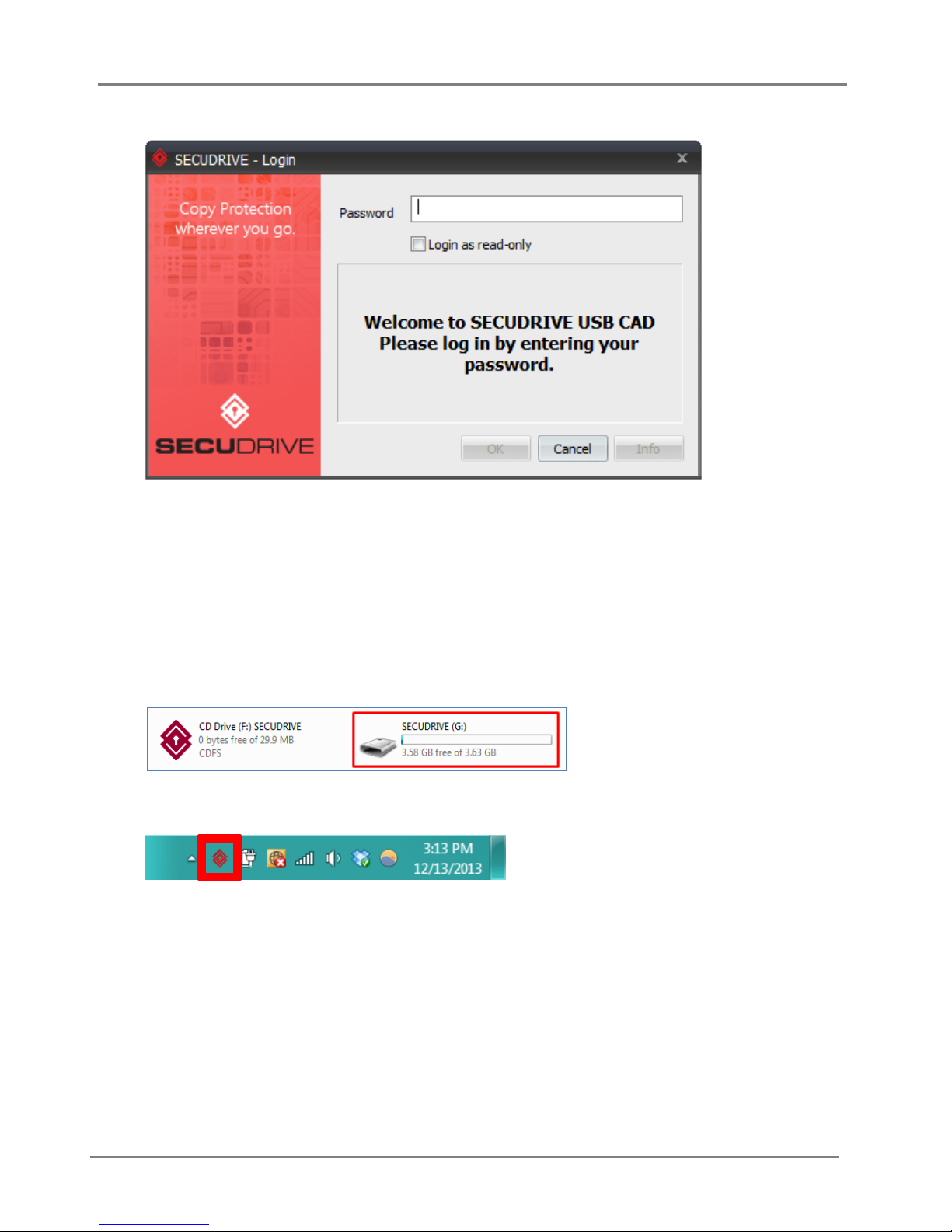
The login window will be displayed as follows.
SECUDRIVE USB CAD User Guide
Enter the configured password and click “OK” to login.
To execute the device in read-only mode, check “Login as read-only” and login.
After 10 consecutive incorrect password inputs, the USB flash drive is locked and unavailable.
The locked device can be unlocked on the policy setup (Administrator’s) PC.
When you have successfully logged in, you will see a removable disk called “SECUDRIVE”.
This is the secure zone and all the data will be encrypted by the AES 256-bit crypto chip and saved
into this area.
The login program will be displayed as an icon in the system tray as follows.
2.10 How to Use the Vaccine Program
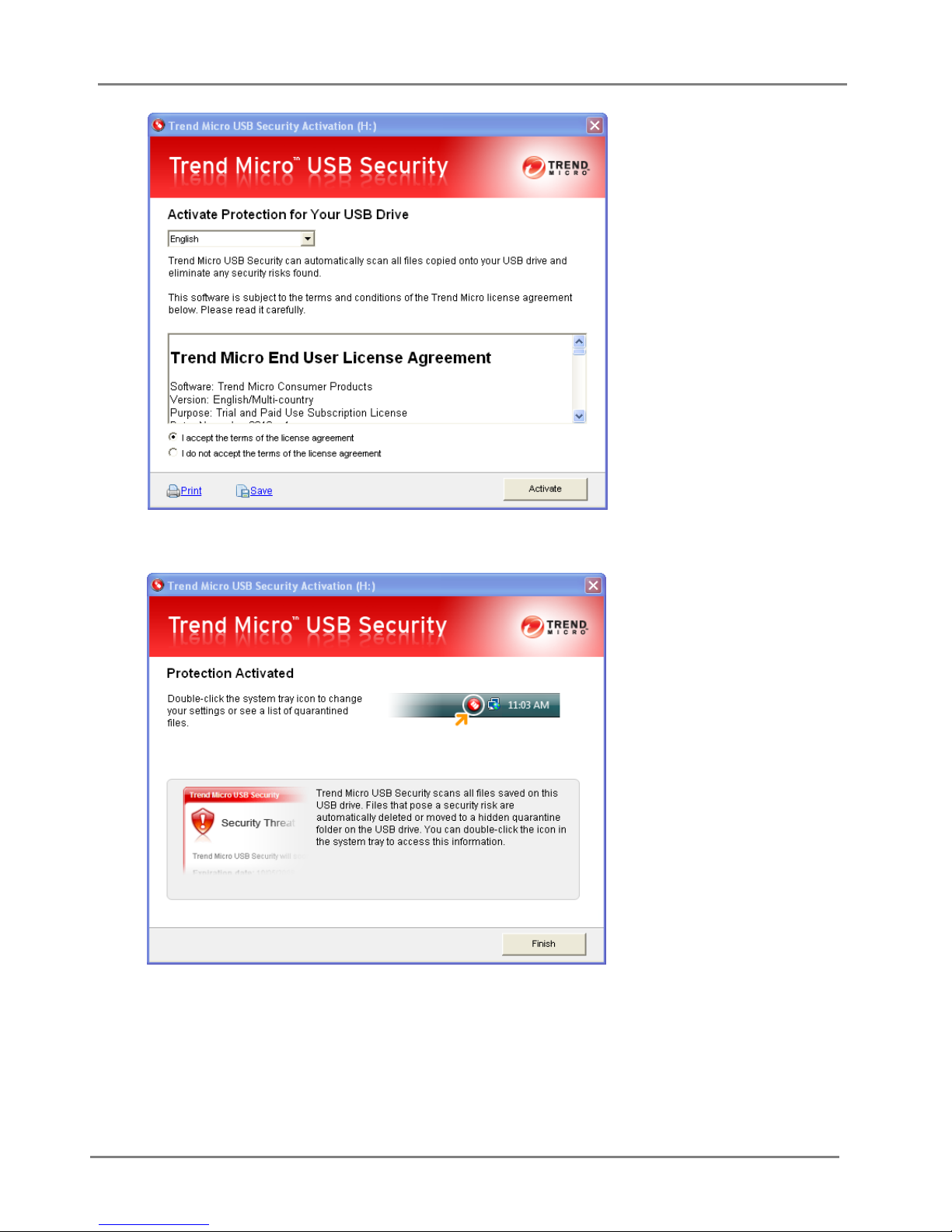
When using the product for the first time, accept the terms of the license agreement of the vaccine
program and click “Activate”.
10
Page 11
SECUDRIVE USB CAD User Guide
Click “Finish” to complete installation.
Once installed, the vaccine program initiates when USB flash drive is logged in and the icon is
displayed in the system tray. The program terminates when the USB flash drive is logged out.
11
Page 12
SECUDRIVE USB CAD User Guide
The vaccine program runs for 1 year from the date of agreement. After 1 year, it stops operation. To
continue Trend Micro USB Security service, the user should purchase the license update tool and
extend the period. License renewal is available from less than 30 days of expiration.
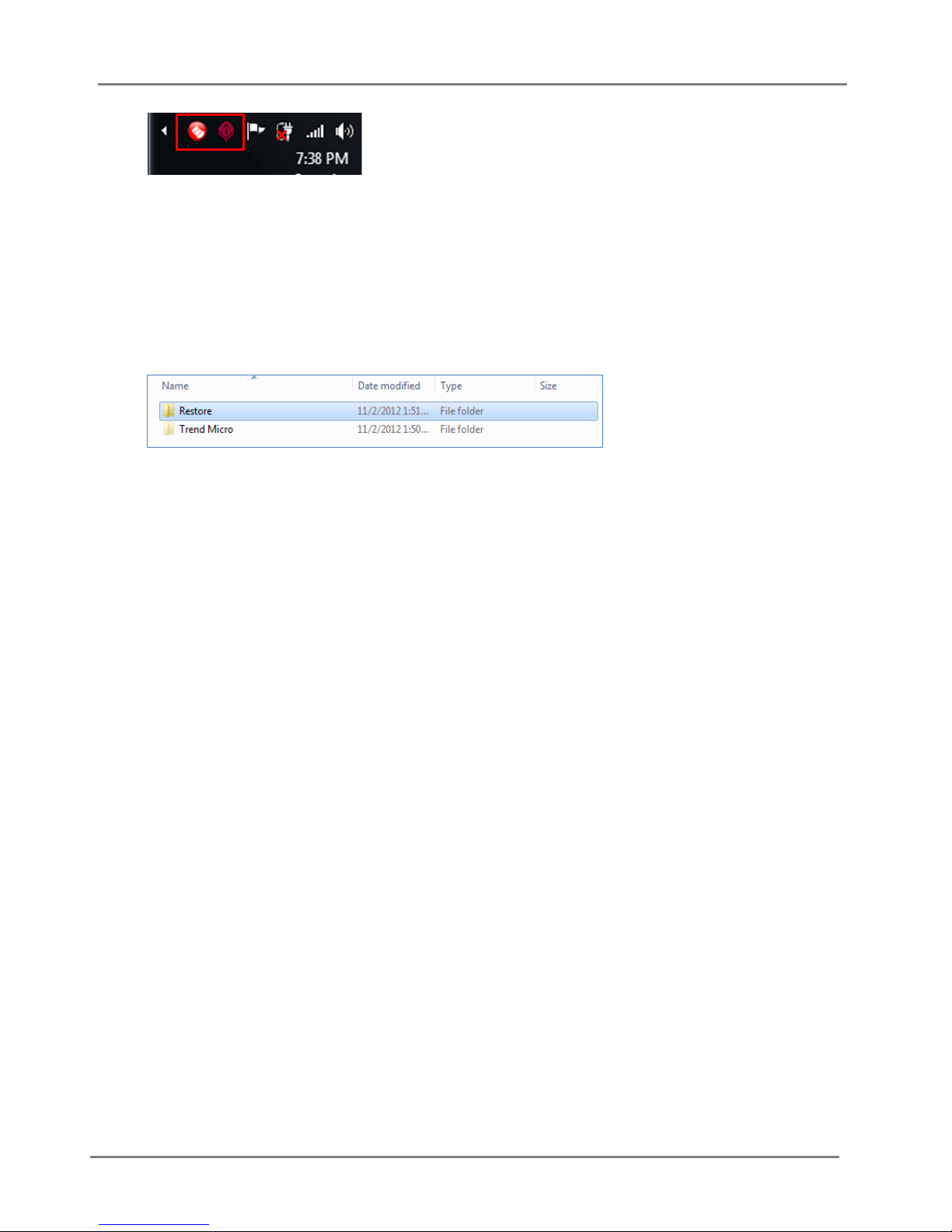
You will see the “Restore” folder and the “Trend Micro” folder in the secure zone of the USB flash
drive. These folders are used by the vaccine program.
12
Page 13
SECUDRIVE USB CAD User Guide
2.11 SECUDRIVE USB CAD Menu
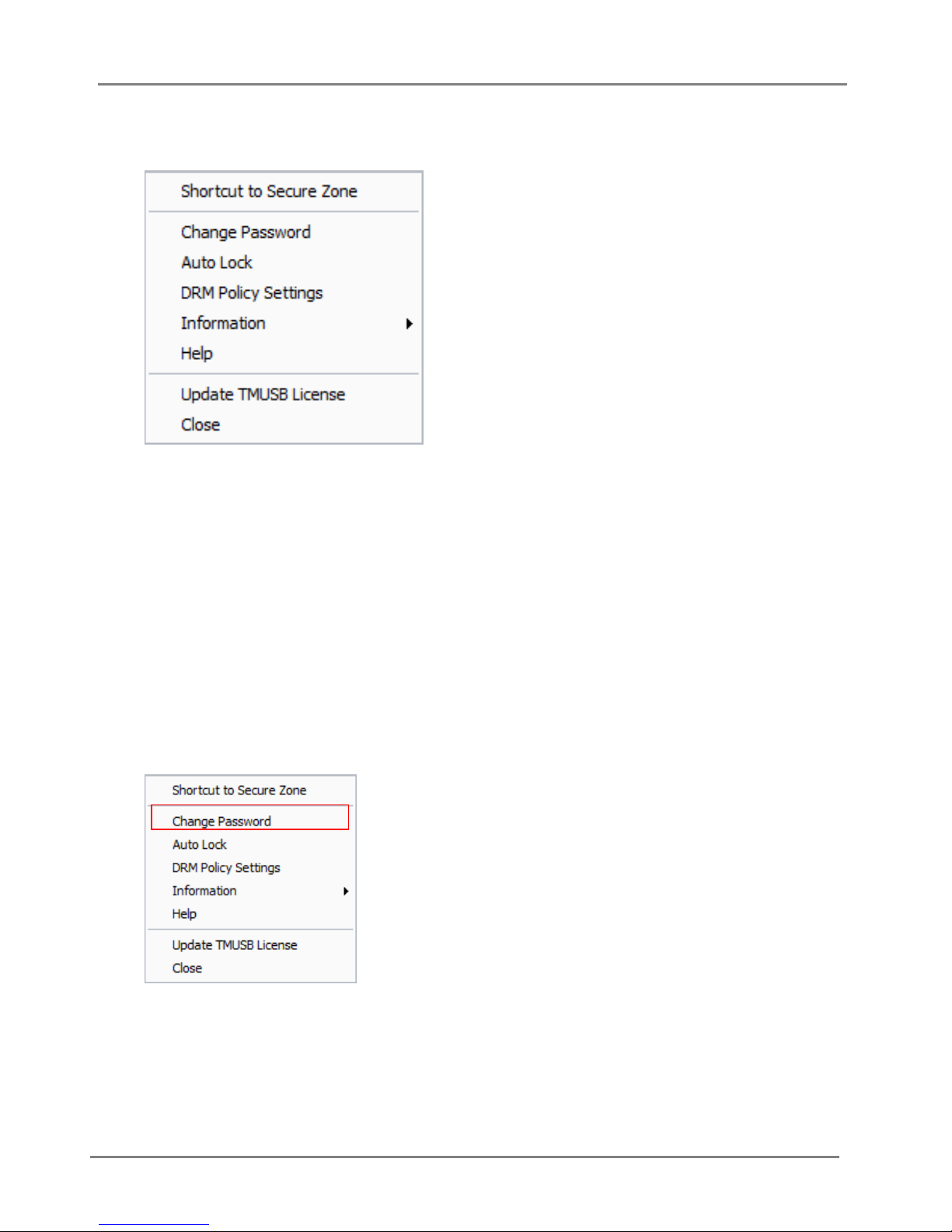
Right click the tray icon and you will see the menu as follows.
Shortcut to Secure Zone: Access the secure storage area of the USB flash drive.
Change Password: You can change the login password.
Auto Lock: Automatically lock the device when keyboard and mouse are not in use for a designated
time.
DRM Policy Settings: Set or modify DRM security policy (Copy Protection, print protection, etc.)
Information: Either enter the user information or view SECUDRIVE information.
Help: Display the user guide of the product. You need a PDF viewer on your PC to open the file.
Close: Close the program and log out of the USB, so you can disconnect the device from the PC.
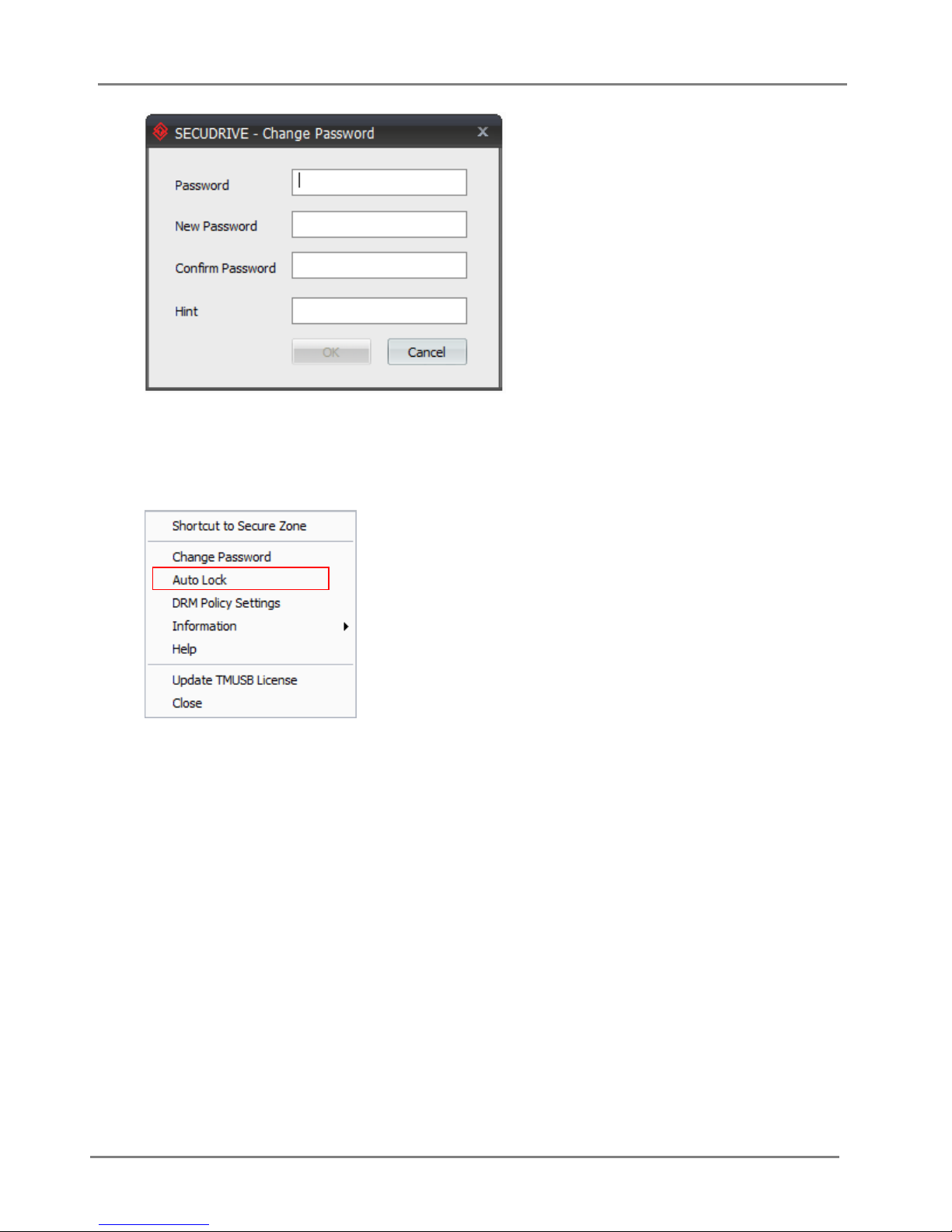
[Change Password]
Right click on the tray icon and select “Change Password”.
Enter both the current password and a new password and then click “OK”.
13
Page 14
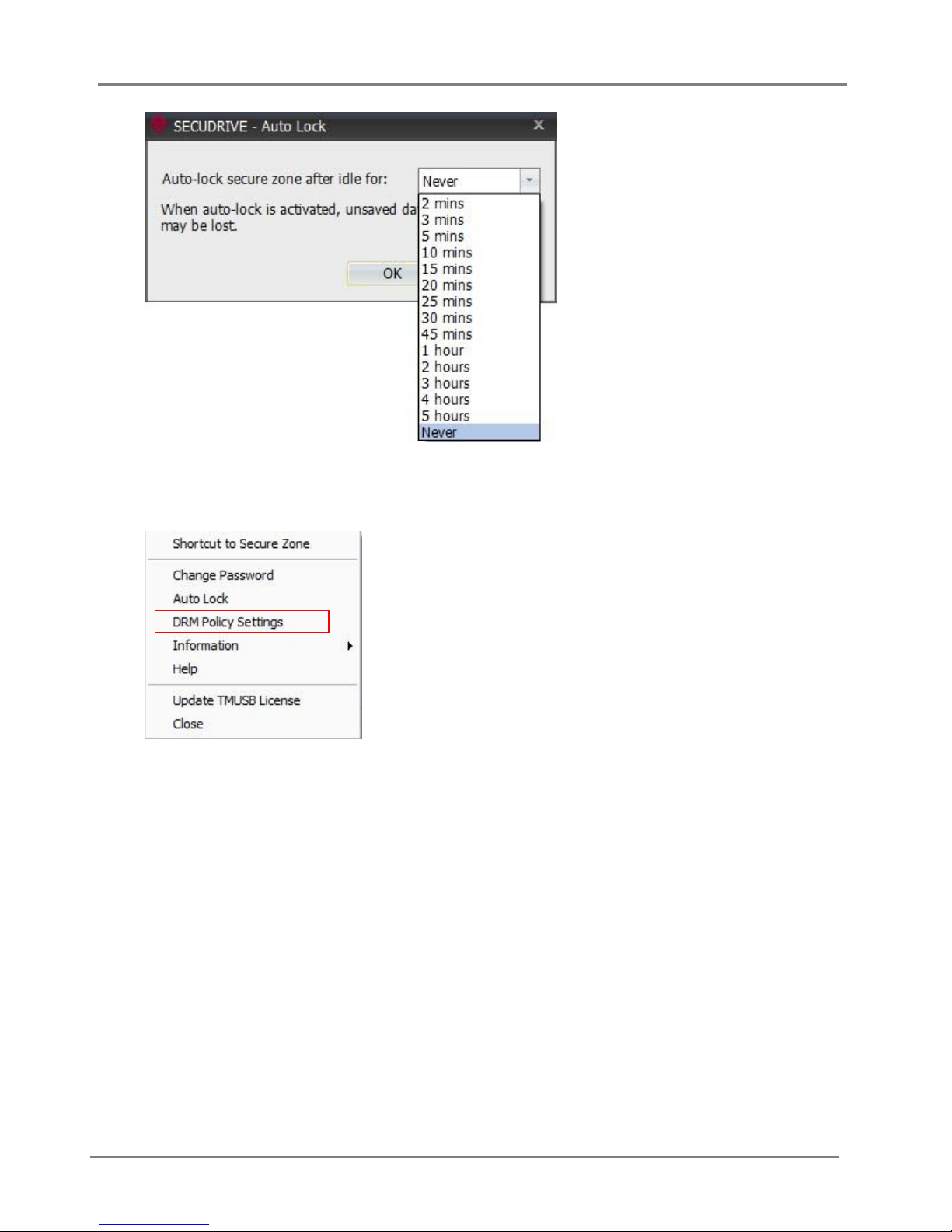
[Auto Lock]
Right click on the tray icon and select “Auto Lock”.
SECUDRIVE USB CAD User Guide
If keyboard and mouse are not in use for a designated time period, the secure zone will lock.
It is set to “Never” by default. Select your own time period and click “OK”.
14
Page 15
[DRM Policy Settings]
Right click on the tray icon and select “DRM Policy Settings”.
SECUDRIVE USB CAD User Guide
The DRM Policy Settings window will be displayed as follows.
15
Page 16
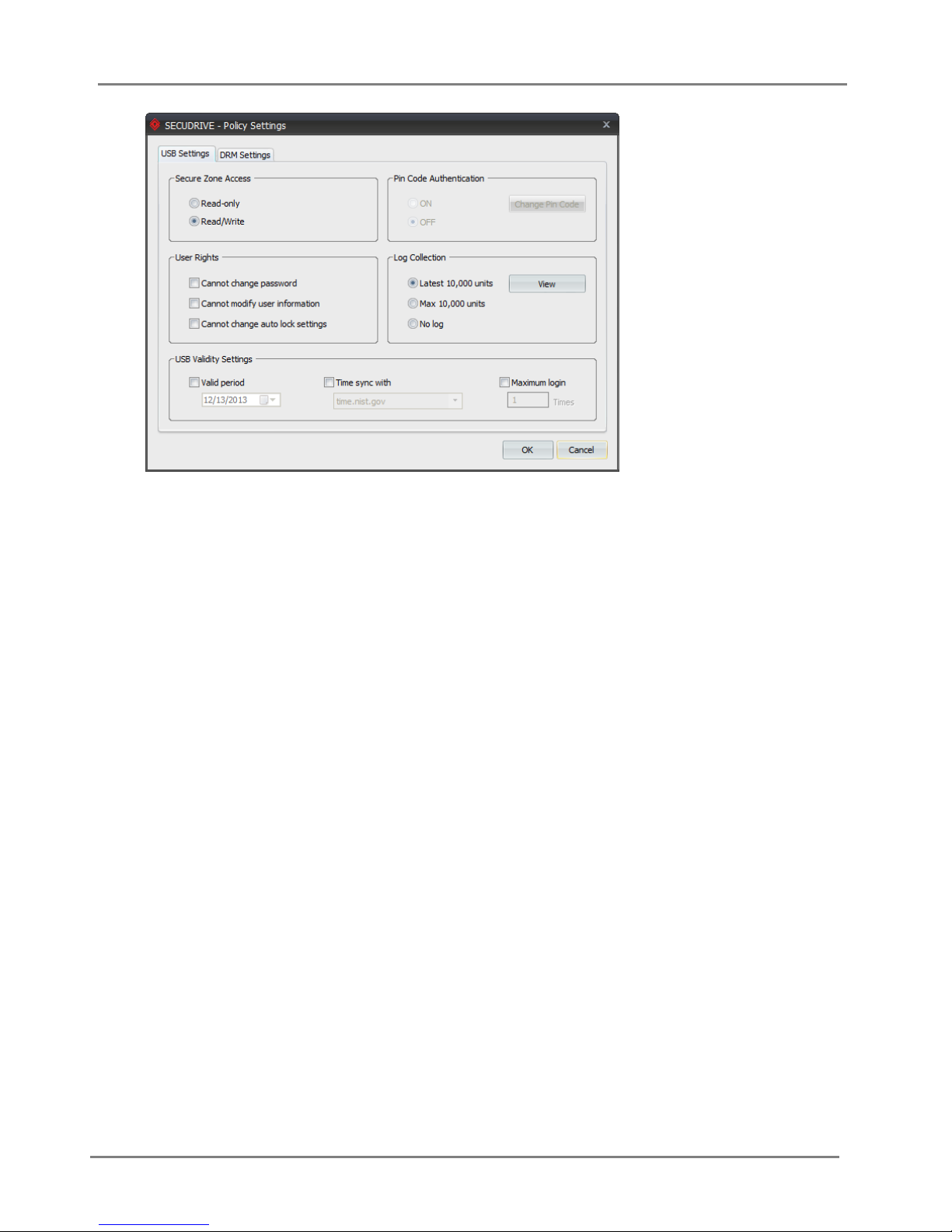
This window has two tabs, USB Settings and DRM Settings.
SECUDRIVE USB CAD User Guide
2.12 USB Settings Tab
[Secure Zone Access]
Read-only: Set the USB flash drive in read-only mode. When you login again after setting this
option, the device works as read-only even in the policy setup PC.
Read/Write: The USB drive runs in read/write mode. To apply the settings, you should login again.
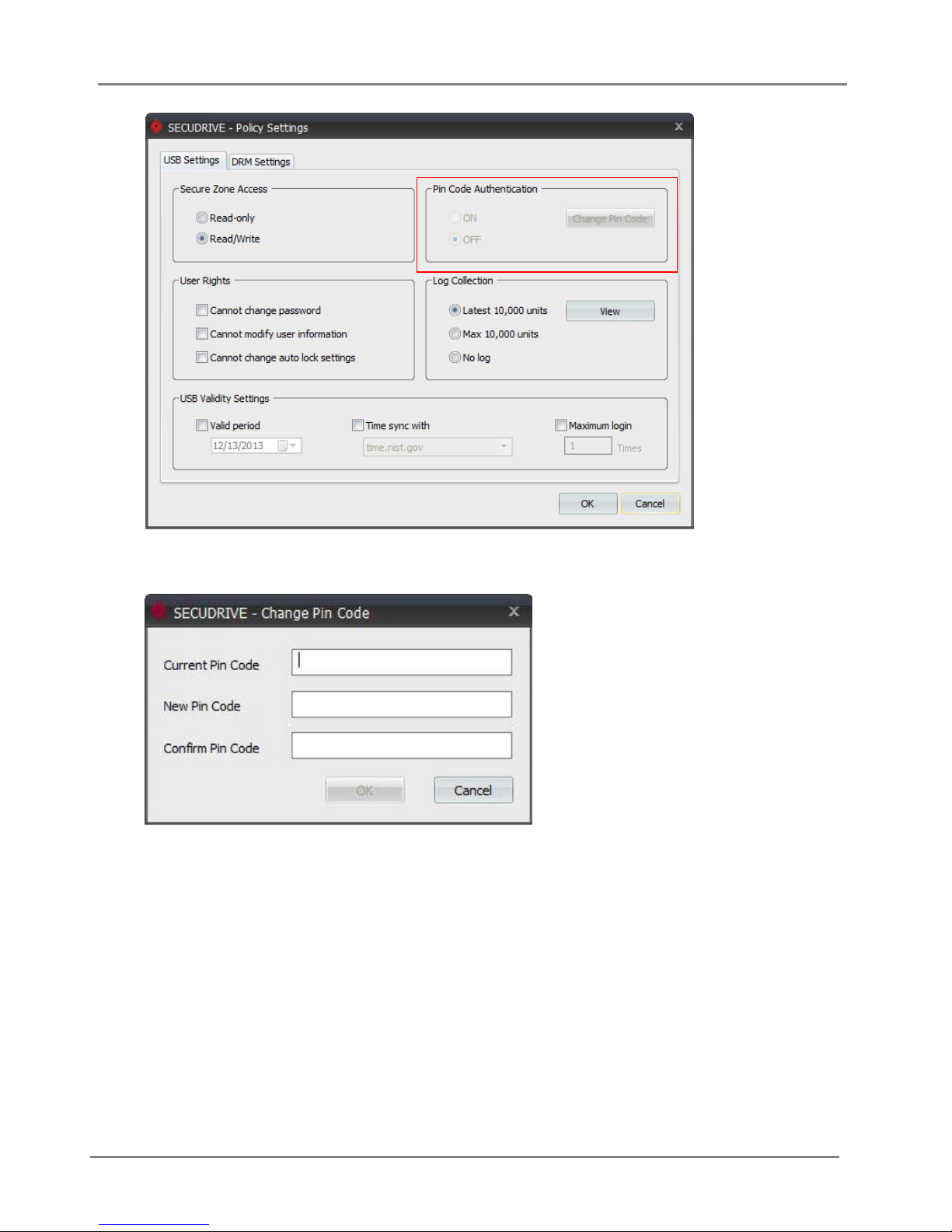
[PIN Code Authentication]
You can set up pin code to the master token.
Only when you select “Use token for DRM policy management” in the initial setup of the product, can
you use the “Pin Code Authentication” feature.
16
Page 17
SECUDRIVE USB CAD User Guide
If you set “Pin Code Authentication” to ON, you can set the pin code in the following window.
If the master token already has a pin code, you should enter it to set “Pin Code Authentication” to
ON.
Click “Change Pin Code” and you can change it. If your master token does not have a pin code, this
feature is not active.
If “Pin Code Authentication” is set ON, You must enter the correct pin code to run the device as the
administrator when you connect the USB flash drive with the master token.
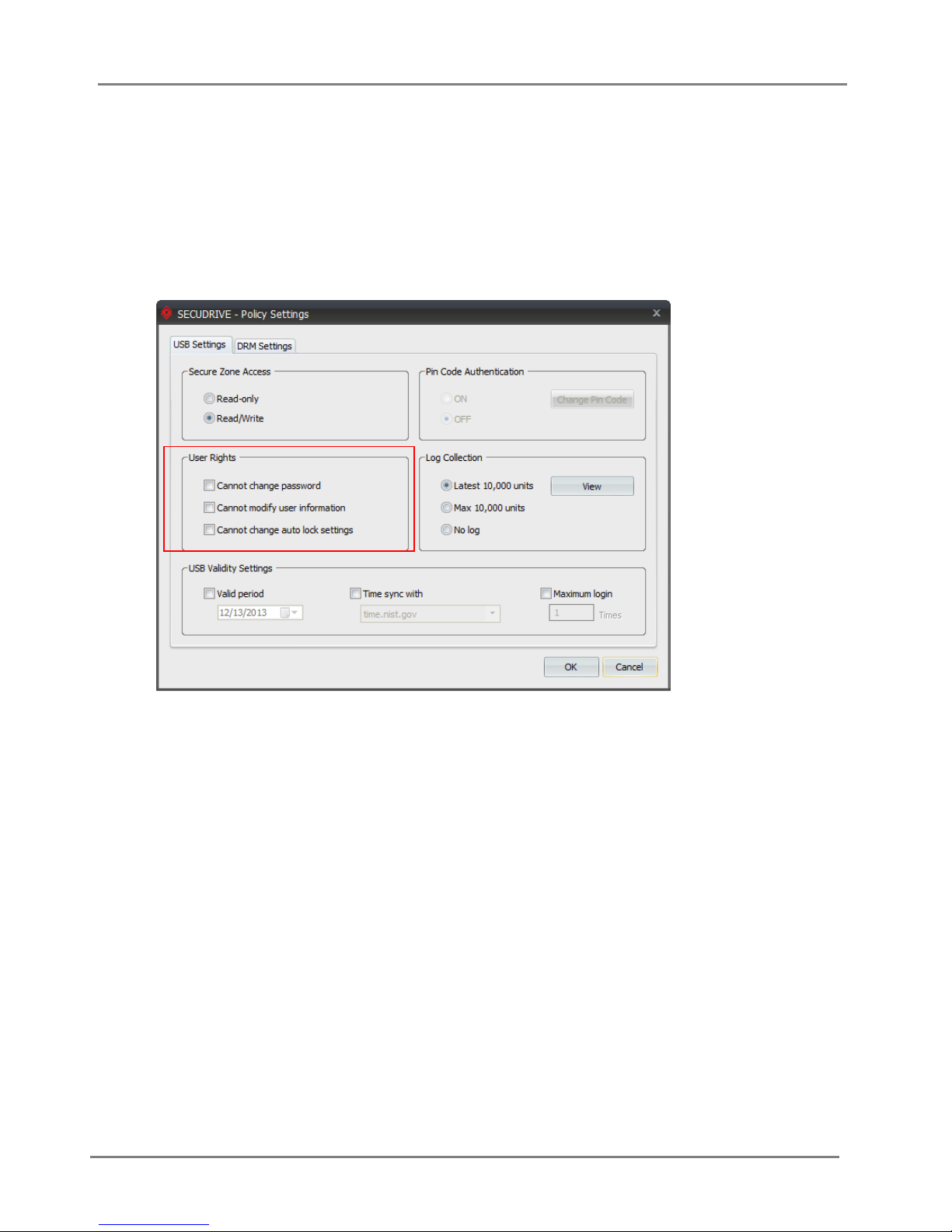
[User Rights ]
Cannot change password: A user cannot change the password of the USB flash drive which is
configured by the administrator. When this option is checked, “Change Password” does not show in
17
Page 18
SECUDRIVE USB CAD User Guide
the tray icon menu when logged in as a user.
Cannot modify user information: A user cannot change the user information of the USB flash drive
which is configured by the administrator. When this option is checked, “User Information” does not
show in the tray icon menu when logged in as a user.
Cannot change auto lock settings: A user cannot change the auto lock setting of the USB flash
drive which is configured by the administrator. When this option is checked, “Auto Lock” does not
show in the tray icon menu when logged in as a user.
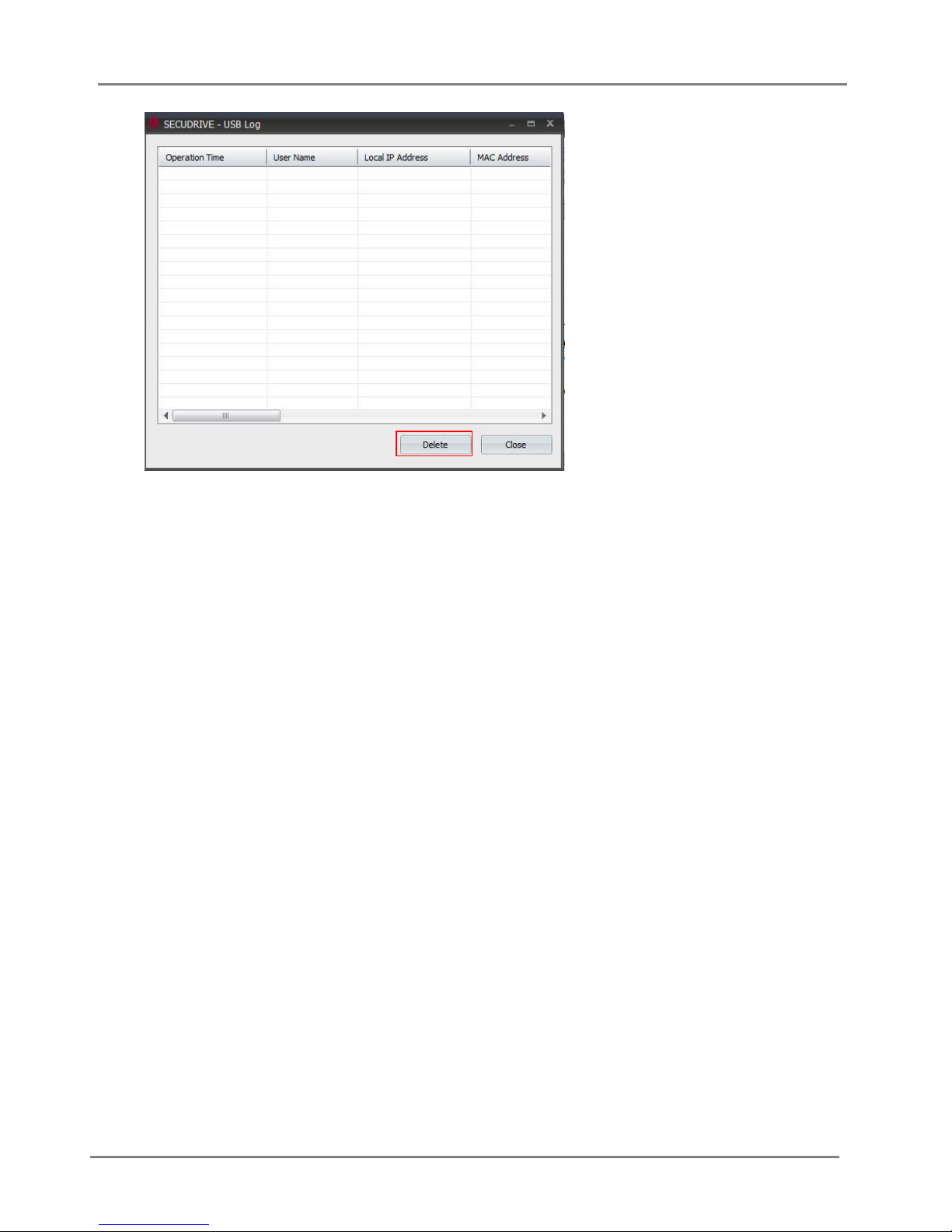
[Log Collection]
Current 2048 units: It gathers total of 2048 logs. When it exceeds the limit, it deletes the older logs
and saves the current ones.
Max 2048 units: Logs, as many as 2048, are collected. When it exceeds the limits, the USB flash
drive is forced to log out and becomes unavailable for use. To use the product again, the stored logs
should be deleted on the policy setup PC.
No log: It does not save any event log from SECUDRIVE USB CAD.
View: You can view the stored logs.
18
Page 19
SECUDRIVE USB CAD User Guide
Delete : Click “Delete” and you can delete all the logs stored.
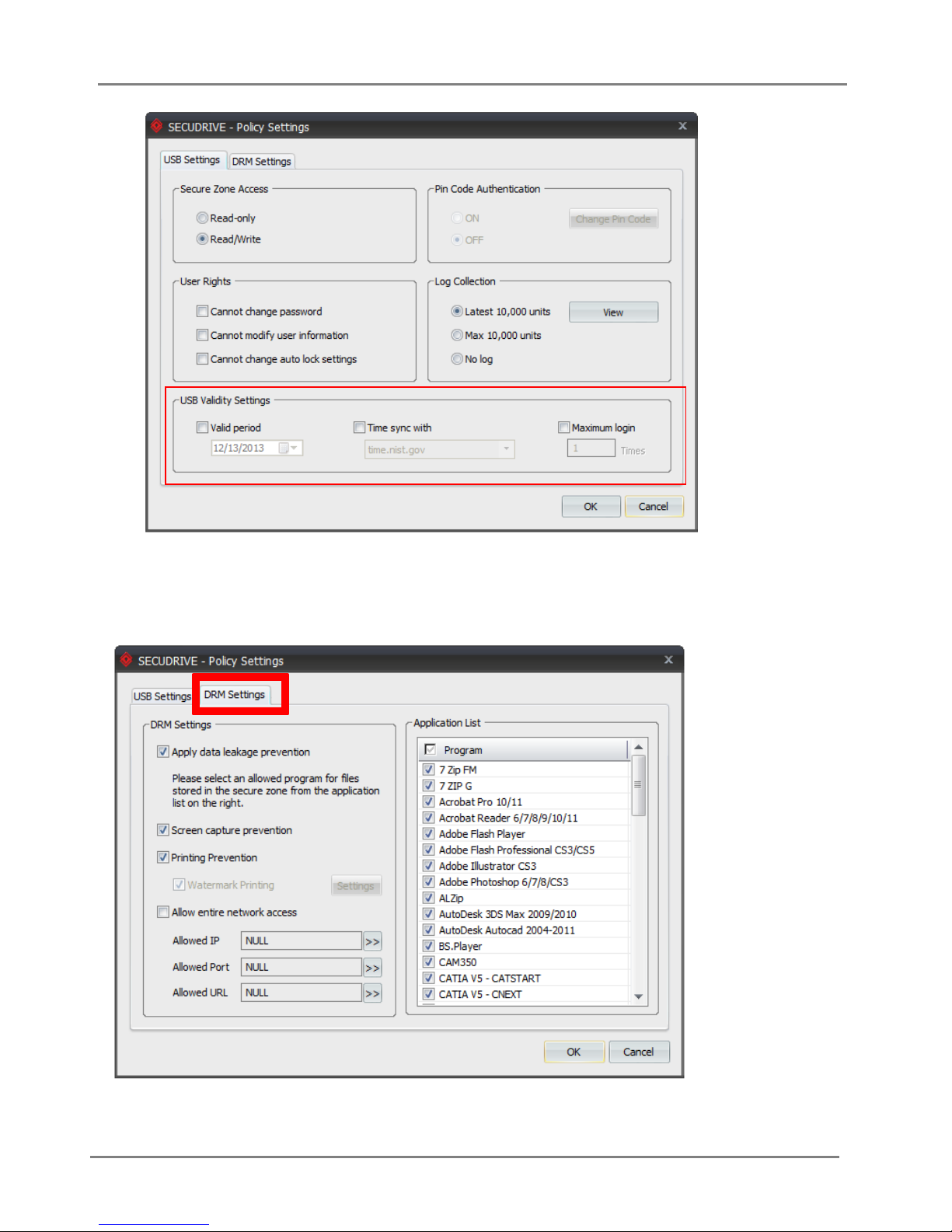
[USB Validity Settings]
Valid period: Set up valid period of the USB flash drive. When it exceeds the limit, the device is
locked and is not available any more. To use the product again, “Valid period” should be disabled or
reset on the policy setup PC.
Time sync with: Check the valid period based on the internet time server which provides standard
time. To use this feature, the PC where SECUDRIVE USB CAD is connected must have access to
the Internet. If the PC cannot communicate with the internet time server, the USB flash drive cannot
be used.
Maximum login: Set up maximum login count for the USB flash drive. When it exceeds the limit, the
device is locked and becomes unavailable. To use the product again, “Maximum login” should be
disabled or reset on the policy setup PC.
19
Page 20
SECUDRIVE USB CAD User Guide
2.13 DRM Settings Tab
Press the DRM Settings tab at the top to modify DRM policy.
20
Page 21
SECUDRIVE USB CAD User Guide
[DRM Settings]
[Apply Data Leakage prevention]
Prevent copying files out of the secure zone of the USB flash drive
If it is set “ON”, the file saved in the USB flash drive is prevented from being copied out of the device
using “Copy &Paste”, or “Save As…” functions of applications. Also, if a user tries save the content
outside of the USB drive by copying the content of a file to the clipboard and pasting it, it is
prevented.
Please note that you will have to select at LEAST one application from the application list on the
right.
[Screen Capture Prevention]
Prevent screen capture by capture tools or the PrintScreen Key.
[Print Protection]
Prevent printing of files in the USB flash drive.
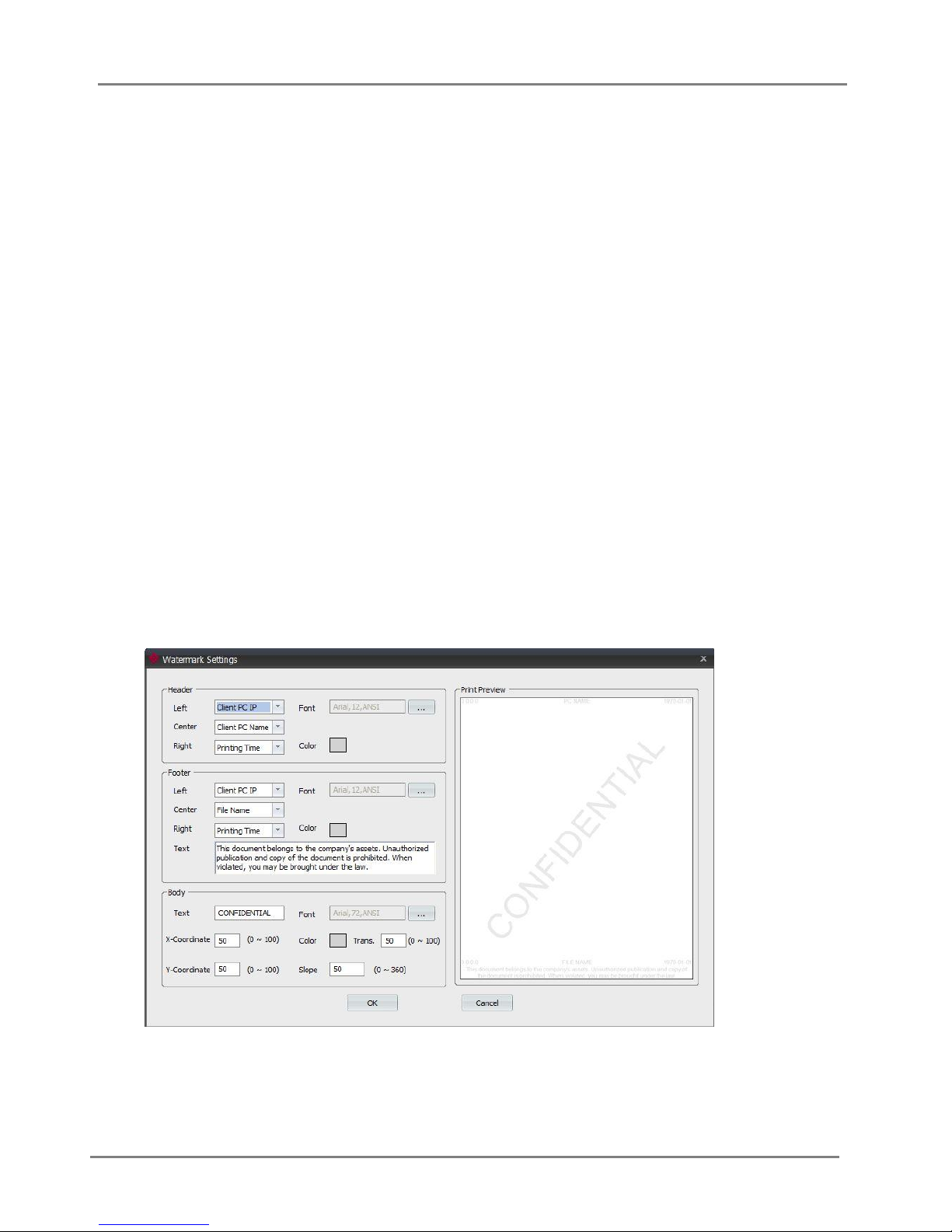
[Watermark Printing]
This feature is only available when “Print Protection” is not selected.
Use watermark when printing a file. Click “Settings” and you can set watermark options.
21
Page 22
SECUDRIVE USB CAD User Guide
[Secure Process Settings]
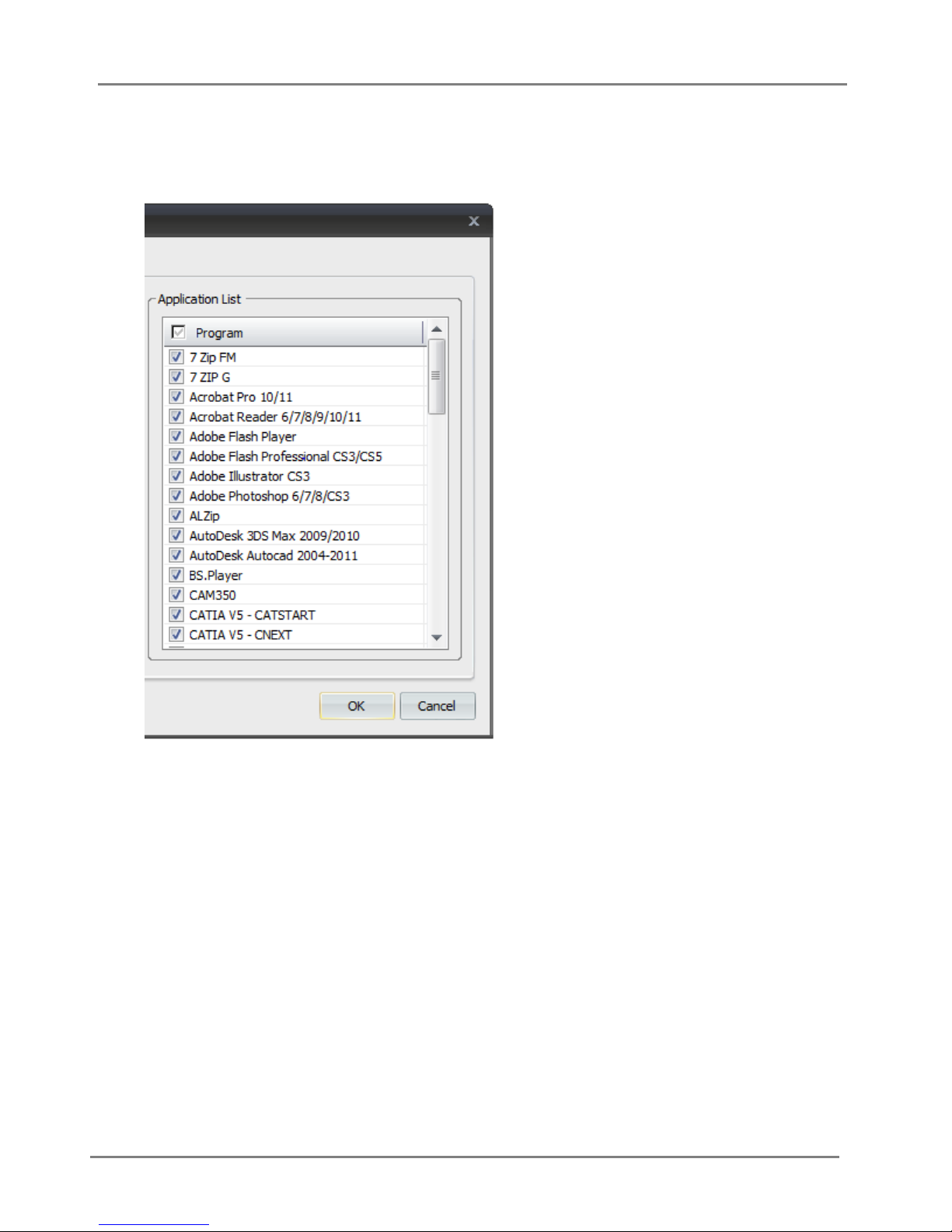
Click “Settings” and the following window will be displayed. Only the selected application from the
“Secure Process List” can access the secure zone of the USB flash drive.
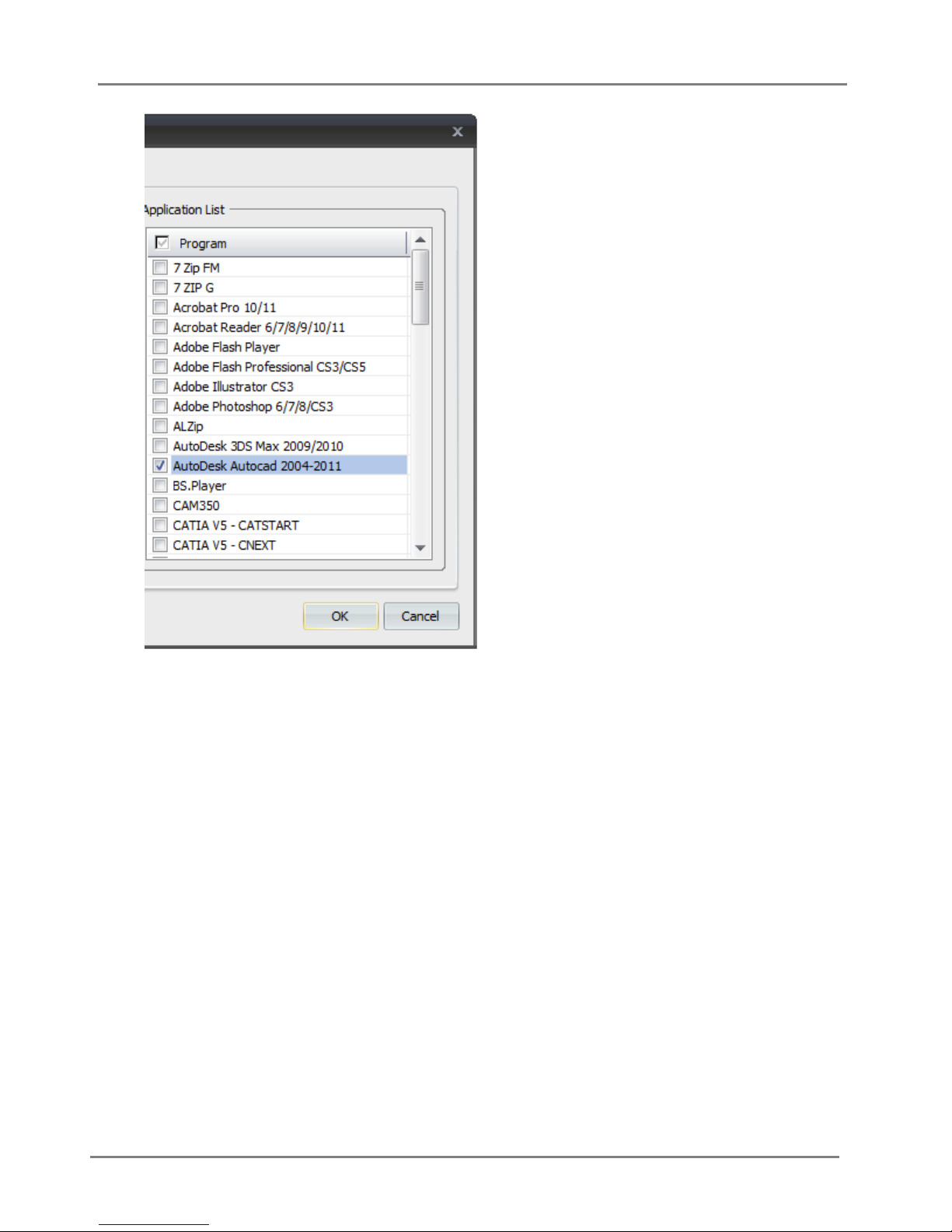
For example, if you only select ‘AutoDesk Autocad’ from the “Secure Process List”, only
‘AutoDesk Autocad’ can access the files in the secure zone of the USB flash drive.
22
Page 23
SECUDRIVE USB CAD User Guide
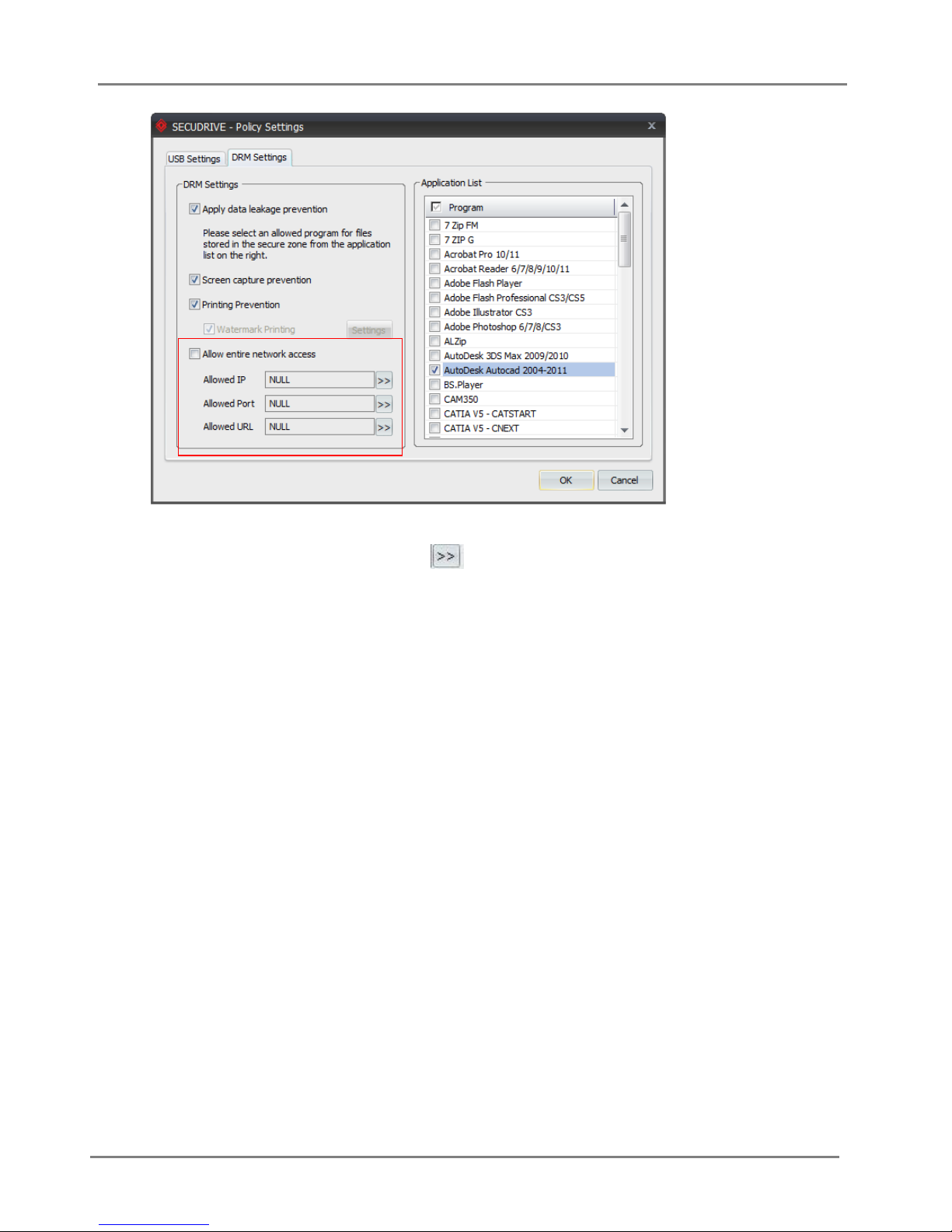
For selected applications that can access the secure zone, network connection is blocked by default.
You can make exceptions and allow network access for designated processes by changing the
“Allowed IP”, “Allowed Port”, or “Allowed URL”.
23
Page 24
SECUDRIVE USB CAD User Guide
After selecting an item(s) on the list, click by “Allowed IP”, “Allowed Port”, or “Allowed
URL” to change the secure network settings as follows.
No item is set (All network settings are “NULL”): All network paths are blocked.
Settings on IP and Port: Access is only available through the port of the registered IP.
Settings on URL and Port: Access is only available through the port of the registered URL.
Settings on IP only without Port: Access is available through all ports of the registered IP.
Settings on URL only without Port: Access is available through all ports of the registered URL.
Settings on Port only without IP or URL: Access is available through the registered port of any
IP and URL.
Allow entire network access: Access is available through all ports, IPs, and URLs.
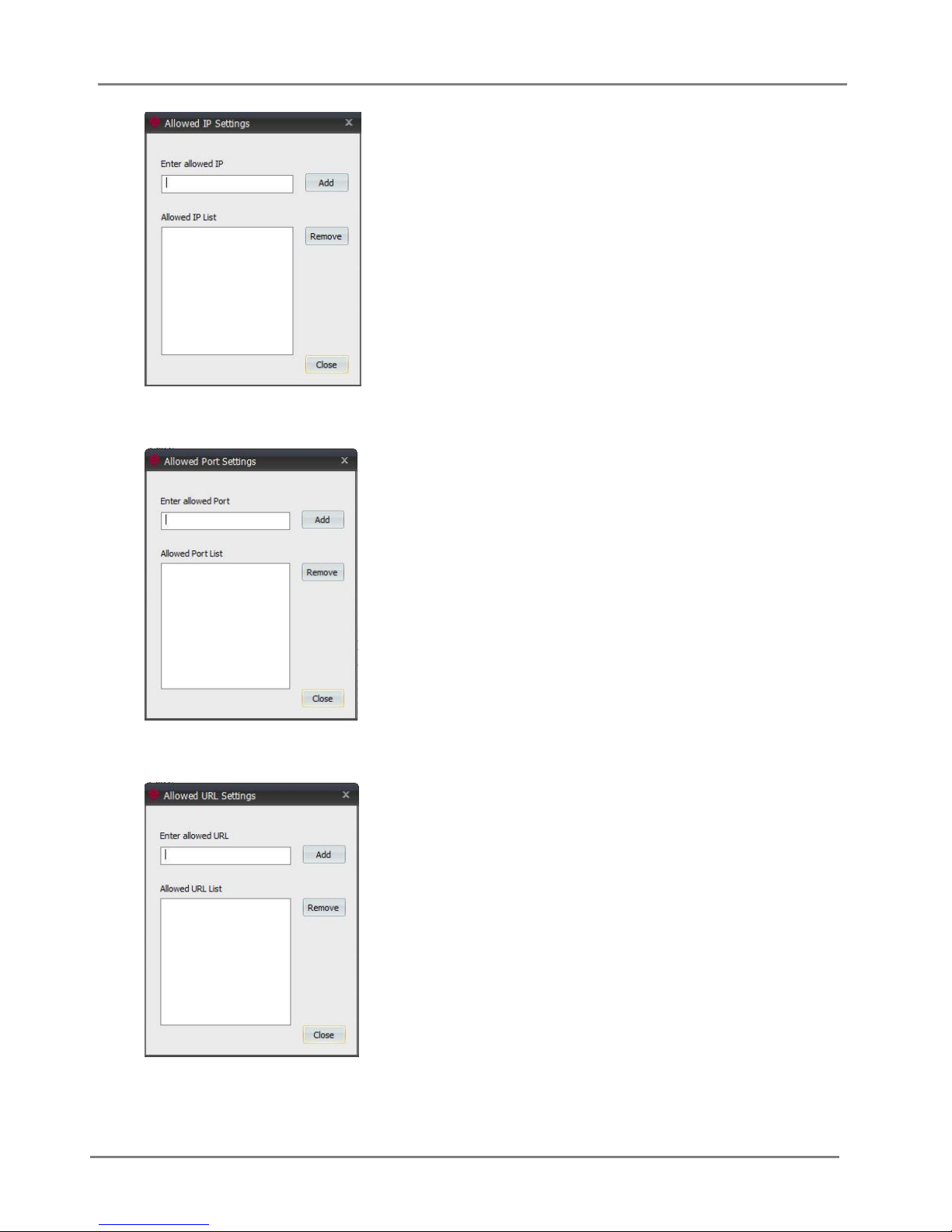
Allowed IP Settings: Enable access by certain IP. Type in the IP and click “Add”.
24
Page 25
SECUDRIVE USB CAD User Guide
Allowed Port Settings: Enable access by certain Port. Type in the Port number and click “Add. ”
Allowed URL Settings:Enable access by certain URL. Type in the URL and click “Add.”
25
Page 26
SECUDRIVE USB CAD User Guide
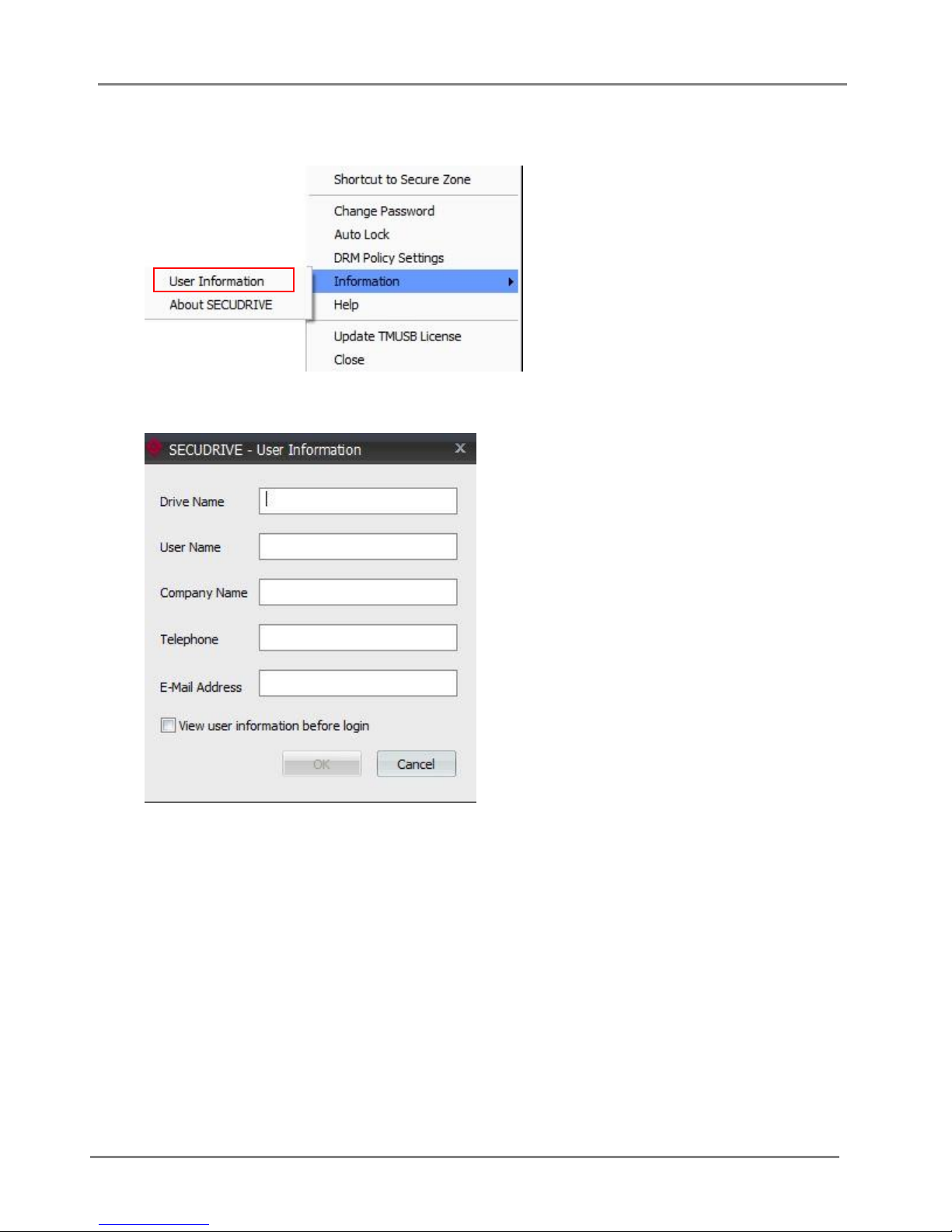
[User Information]
Right click the tray icon and select “Information” “User Information”.
In the window below, fill in items and click “OK”.
If you have checked “View user information before login”, you can view user information in the
login window shown below.
26
Page 27
SECUDRIVE USB CAD User Guide
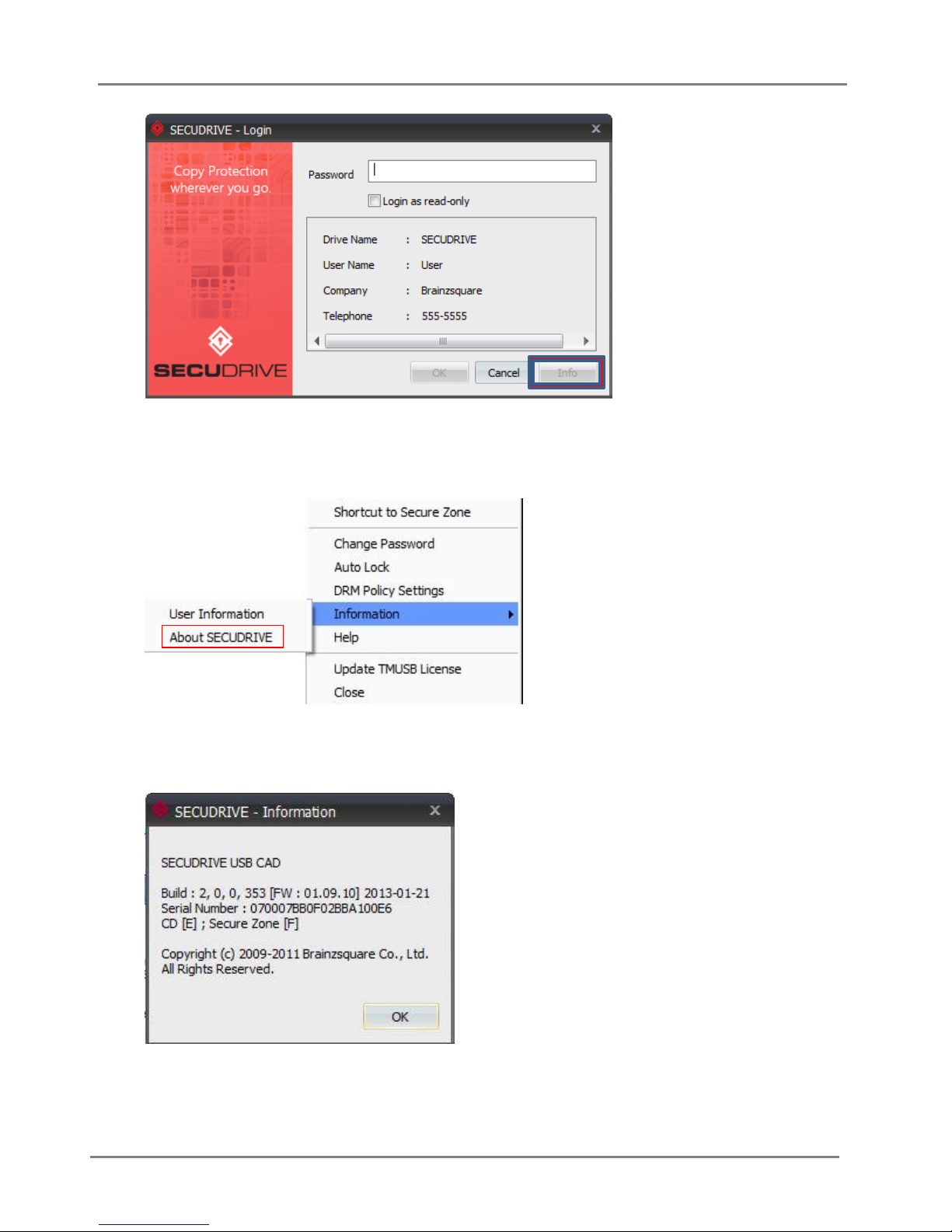
[About SECUDRIVE]
Right click the tray icon and select “Information” “About SECUDRIVE”.
You can view hardware and software information of the USB flash drive.
27
Page 28
SECUDRIVE USB CAD User Guide
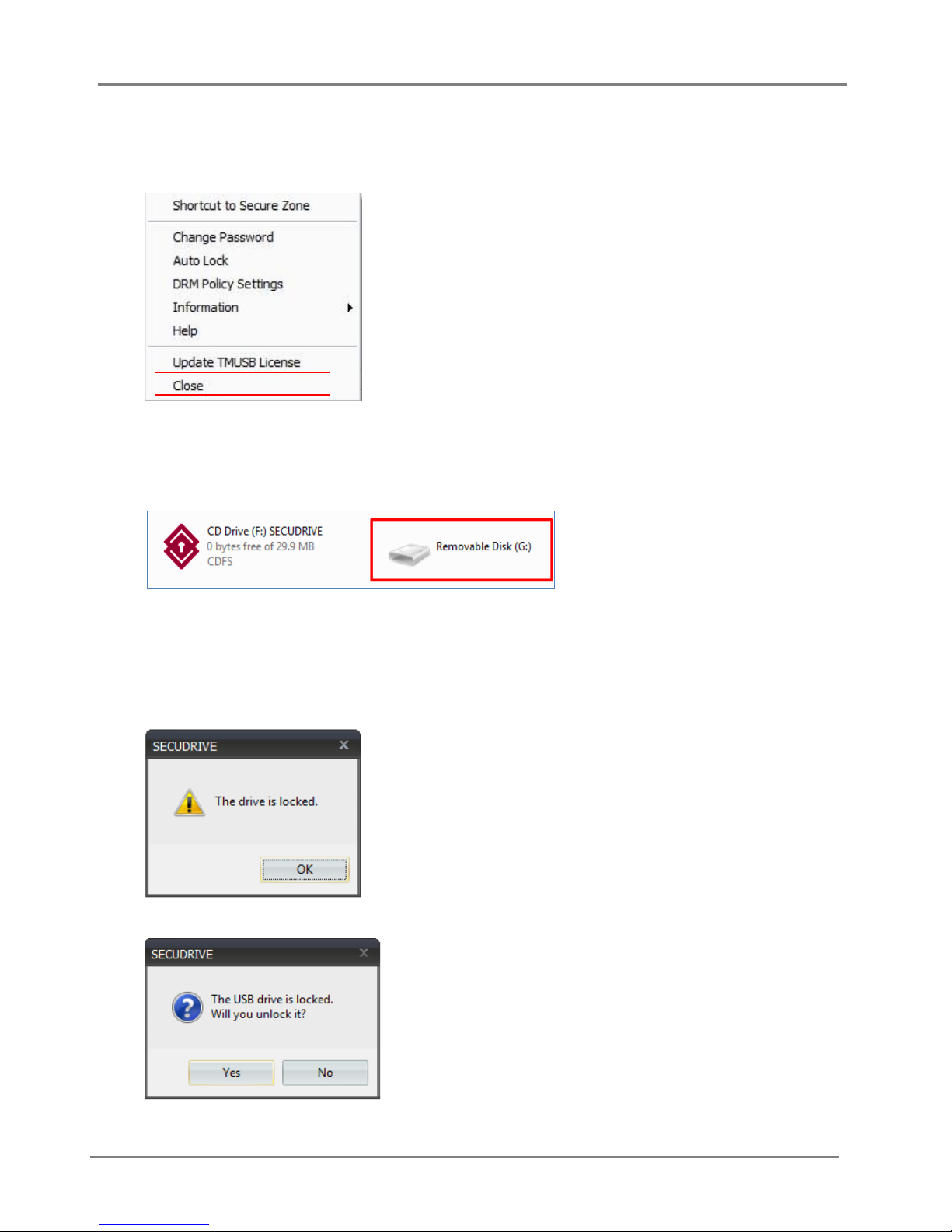
[Close]
Right click the tray icon and select “Close”.
When you close the program, the secure zone is logged off and you can remove the USB flash drive
from the PC.
2.14 Unlocking the USB Flash Drive
Drive will lock and a user cannot log in to the device any more.
When you login to the device on the policy setup PC, the following message will be displayed.
28
Page 29
SECUDRIVE USB CAD User Guide
Click “Yes” and the device will be unlocked and the login window will appear.
If the device is locked due to 10 consecutive failed login attempts, you can unlock it on the policy
setup PC.
If “Valid period” or “Maximum login” has exceeded the limit, you can disable the option in “DRM
Policy Settings” of the tray icon or reset the number of maximum logins to use the product again.
2.15 Running the Product with Administrator Privileges in Windows Vista / 7
To use the product in user mode on the PC for the first time, a user should run the login program with
administrator privileges.
Right click CD area of SECUDRIVE USB CAD and click “Open”.
Right click on Login.exe and select “Run as administrator”.
29
Page 30
SECUDRIVE USB CAD User Guide
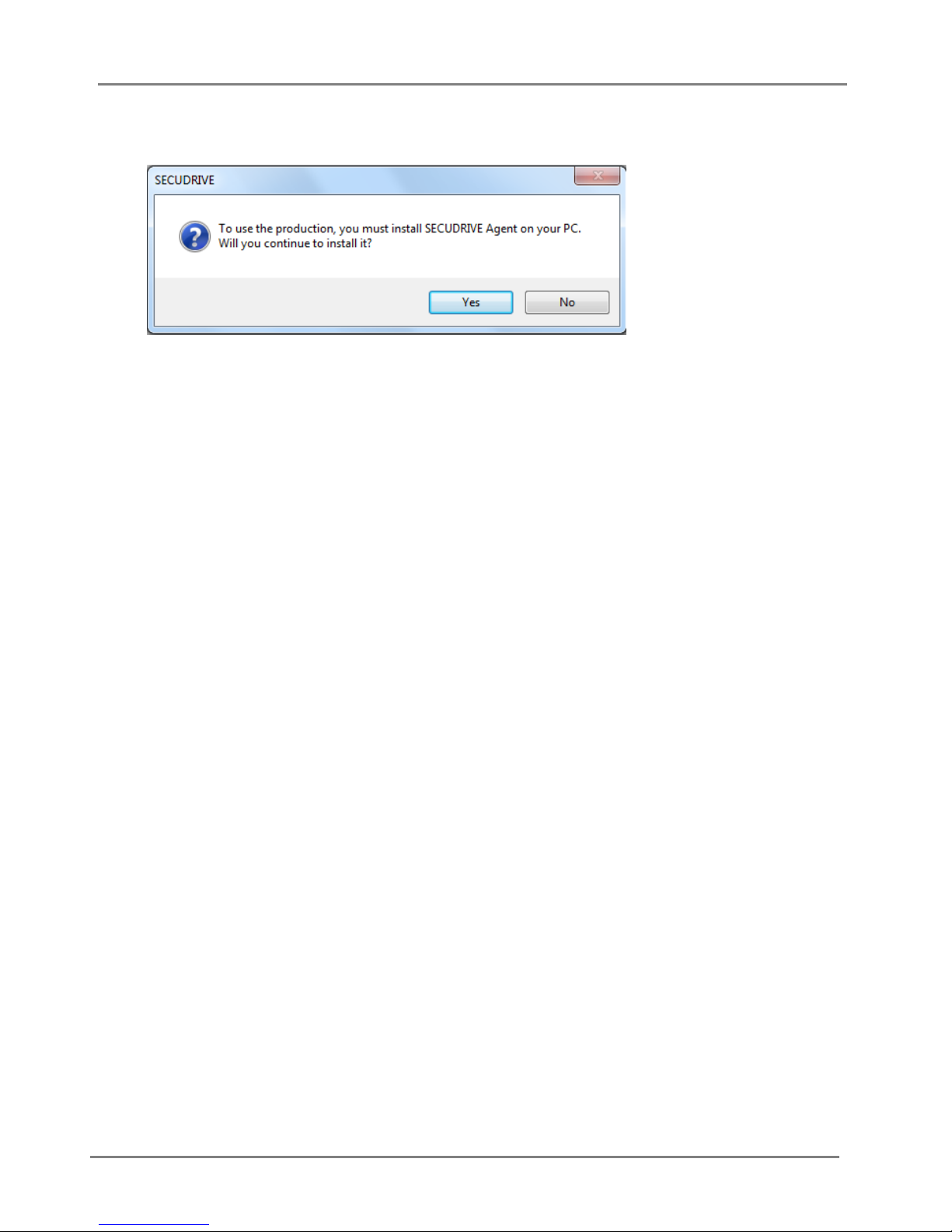
When you run “Login.exe” with administrator privileges, the SECUDRIVE Agent installation
message will be displayed as follows. Click “Yes” to continue installation.
For the installed SECUDRIVE Agent program, you can uninstall it by executing “Uninstall.exe” in
“C:\Program Files\SECUDRIVE Agent” or in “C:\Program Files (x86)\SECUDRIVE Agent”.
3. How to Uninstall SECUDRIVE Agent
For the installed SECUDRIVE Agent program, you can uninstall it by executing “Uninstall.exe” in
“C:\Program Files\SECUDRIVE Agent” or in “C:\Program Files (x86)\SECUDRIVE Agent”.
30
 Loading...