

Page 1
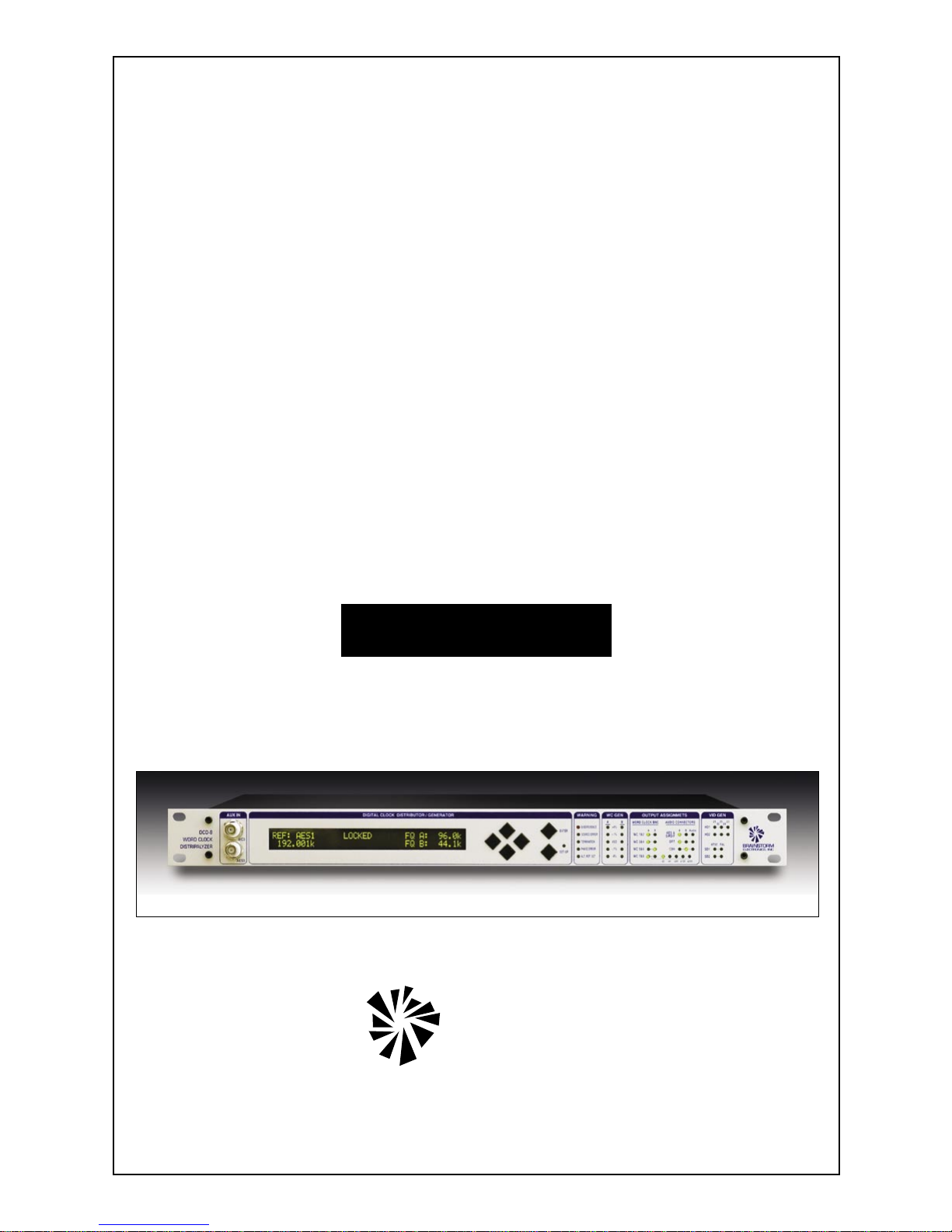
DCD-8
Word Clock
Distripalyzer
A Distributor, a Stripper and an Analyzer
Operation Manual
Software version 1.03
AUDIO RENTS, INC.
BRAINSTORM
ELECTRONICS, INC.
...Intelligent Solutions For The Recording Studio
Page 2

DCD-8
Word Clock Distripalyzer
Owner’s manual
Version 1.0.3
Sept. 2006
All materials herein © Brainstorm Electronics, Inc.
Brainstorm Electronics reserves the right to change or modify the contents
of this manual at any time.
Credits
Concept: AID, Brainstorm Electronics
Software: Gerry Lester
Manual: Bernard Frings, Gerry Lester
Technical Assistance: Jeff Evans, Jim Pace
AUDIO RENTS, INC.
Brainstorm Electronics, Inc.
5100 Goldleaf Circle, 215 - Los Angeles, CA 90056 - USA - Tel: +1/323/845-1171
www.brainstormtime.com
Page 3

Page 2
DCD-8 User Manual
Page 3
Table of contents
1. INTRODUCTION . . . . . . . . . . . . . . . . . . . . . . . . . . . . . . . . . . . . . . . . . . . . . . . . . . . 3
2. I/O’S DESCRIPTION AND CABLE REQUIREMENTS . . . . . . . . . . . . . . . . . . . . . . . . 4
3. INSTALLATION . . . . . . . . . . . . . . . . . . . . . . . . . . . . . . . . . . . . . . . . . . . . . . . . . . . . 5
4. QUICK START . . . . . . . . . . . . . . . . . . . . . . . . . . . . . . . . . . . . . . . . . . . . . . . . . . . . 5
5. FRONT PANEL DISPLAY & LED’S . . . . . . . . . . . . . . . . . . . . . . . . . . . . . . . . . . . . . . 6
6. NAVIGATION KEYS . . . . . . . . . . . . . . . . . . . . . . . . . . . . . . . . . . . . . . . . . . . . . . . . 7
7. MENU NAVIGATION . . . . . . . . . . . . . . . . . . . . . . . . . . . . . . . . . . . . . . . . . . . . . . . 8
8. MENUS DESCRIPTION . . . . . . . . . . . . . . . . . . . . . . . . . . . . . . . . . . . . . . . . . . . . . . 9
01- Rate A . . . . . . . . . . . . . . . . . . . . . . . . . . . . . . . . . . . . . . . . . . . . . . . . . . 9
02- Reference A . . . . . . . . . . . . . . . . . . . . . . . . . . . . . . . . . . . . . . . . . . . . . . 9
03- Alternate Reference . . . . . . . . . . . . . . . . . . . . . . . . . . . . . . . . . . . . . . . . . 9
04- Word Clock Out . . . . . . . . . . . . . . . . . . . . . . . . . . . . . . . . . . . . . . . . . . 10
05- Audio Out . . . . . . . . . . . . . . . . . . . . . . . . . . . . . . . . . . . . . . . . . . . . . . 10
06- Audio In A . . . . . . . . . . . . . . . . . . . . . . . . . . . . . . . . . . . . . . . . . . . . . . 10
07- Audio In B . . . . . . . . . . . . . . . . . . . . . . . . . . . . . . . . . . . . . . . . . . . . . . 10
21- Rate B . . . . . . . . . . . . . . . . . . . . . . . . . . . . . . . . . . . . . . . . . . . . . . . . . 11
22- Reference B . . . . . . . . . . . . . . . . . . . . . . . . . . . . . . . . . . . . . . . . . . . . . 11
31- DCD-8 Link . . . . . . . . . . . . . . . . . . . . . . . . . . . . . . . . . . . . . . . . . . . . . 11
32- Optical I/O . . . . . . . . . . . . . . . . . . . . . . . . . . . . . . . . . . . . . . . . . . . . . 11
33- AES Input Default Clock Source . . . . . . . . . . . . . . . . . . . . . . . . . . . . . . . 12
41- Input Status . . . . . . . . . . . . . . . . . . . . . . . . . . . . . . . . . . . . . . . . . . . . . . 12
42- Termination . . . . . . . . . . . . . . . . . . . . . . . . . . . . . . . . . . . . . . . . . . . . . . 12
91- Menu Lockout . . . . . . . . . . . . . . . . . . . . . . . . . . . . . . . . . . . . . . . . . . . . 12
92- Settings . . . . . . . . . . . . . . . . . . . . . . . . . . . . . . . . . . . . . . . . . . . . . . . . 13
99- DCD-8 Software version & FW Serial No . . . . . . . . . . . . . . . . . . . . . . . 13
DCD-8 User Manual
9. NON-VOLATILE STORAGE . . . . . . . . . . . . . . . . . . . . . . . . . . . . . . . . . . . . . . . . . . 13
10. LOCK STATUS . . . . . . . . . . . . . . . . . . . . . . . . . . . . . . . . . . . . . . . . . . . . . . . . . . . 14
11. DEFINING THE RATE: Set, Auto & Learn . . . . . . . . . . . . . . . . . . . . . . . . . . . . . . . 14
12. ALTERNATE REFERENCE . . . . . . . . . . . . . . . . . . . . . . . . . . . . . . . . . . . . . . . . . . . 16
13. AUDIO ROUTING . . . . . . . . . . . . . . . . . . . . . . . . . . . . . . . . . . . . . . . . . . . . . . . . 17
14. REF B . . . . . . . . . . . . . . . . . . . . . . . . . . . . . . . . . . . . . . . . . . . . . . . . . . . . . . . . . 18
15. FIREWIRE . . . . . . . . . . . . . . . . . . . . . . . . . . . . . . . . . . . . . . . . . . . . . . . . . . . . . . 19
AUDIO RENTS, INC.
16. DCD-Link . . . . . . . . . . . . . . . . . . . . . . . . . . . . . . . . . . . . . . . . . . . . . . . . . . . . . . 19
17. UPDATING THE DCD-8 FIRMWARE . . . . . . . . . . . . . . . . . . . . . . . . . . . . . . . . . . . 19
18. APPENDIX . . . . . . . . . . . . . . . . . . . . . . . . . . . . . . . . . . . . . . . . . . . . . . . . . . . . . 20
Pulled Rates . . . . . . . . . . . . . . . . . . . . . . . . . . . . . . . . . . . . . . . . . . . . . . . . . 20
Multiplier Rates . . . . . . . . . . . . . . . . . . . . . . . . . . . . . . . . . . . . . . . . . . . . . . 20
Error Messages . . . . . . . . . . . . . . . . . . . . . . . . . . . . . . . . . . . . . . . . . . . . . . 21
Digital Audio Formats . . . . . . . . . . . . . . . . . . . . . . . . . . . . . . . . . . . . . . . . . 23
Video Input Formats . . . . . . . . . . . . . . . . . . . . . . . . . . . . . . . . . . . . . . . . . 23
Factory Default Settings . . . . . . . . . . . . . . . . . . . . . . . . . . . . . . . . . . . . . . . . 23
User Settings . . . . . . . . . . . . . . . . . . . . . . . . . . . . . . . . . . . . . . . . . . . . . . . . 24
Page 4
DCD-8 User Manual
AUDIO OUTPUTS
REFERENCE SELECTOR
WC GENERATOR
“A” DOMAIN
Rate selection
WC GENERATOR
“B” DOMAIN
Rate selection
BNC OUT 1&2
BNC OUT 3&4
BNC OUT 5&6
BNC OUT 7&8
MULTIPLIER
Domain Select
AES/EBU OUT
S/PDIF OUT
OPT OUT
1392 OUT
Domain Select Domain Select Domain Select
WORD CLOCK OUTPUTS
AUDIO INPUT SELECTOR
AUDIO RECLOCKING
“A” Domain
AUDIO RECLOCKING
“B” Domain
Source Select Source Select Source Select
WC 1
WC 2
WC 3
AES 1
AES 2
AES 3
S/PDIF
1392
OPTICAL
VIDEO
INTERNAL
AES 1
AES 2
AES 3
S/PDIF
1392
OPTICAL
1. Introduction
Congratulations on purchasing the DCD-8 Word Clock Distripalyzer. In the tradition of the
Brainstorm Distripalyzers, the DCD-8 is a Word Clock distributor, striper and analyzer.
Inside the DCD-8 is a very flexible generator with ultra low-jitter. With its many I/O’s the
DCD-8 is a complete word clock solution. It’s main features include:
• Word clock generator
• Word clock extractor
• Word clock distributor
• Digital Audio router
• Format converter
• Word clock analyzer
• Video Sync Generator (optional)
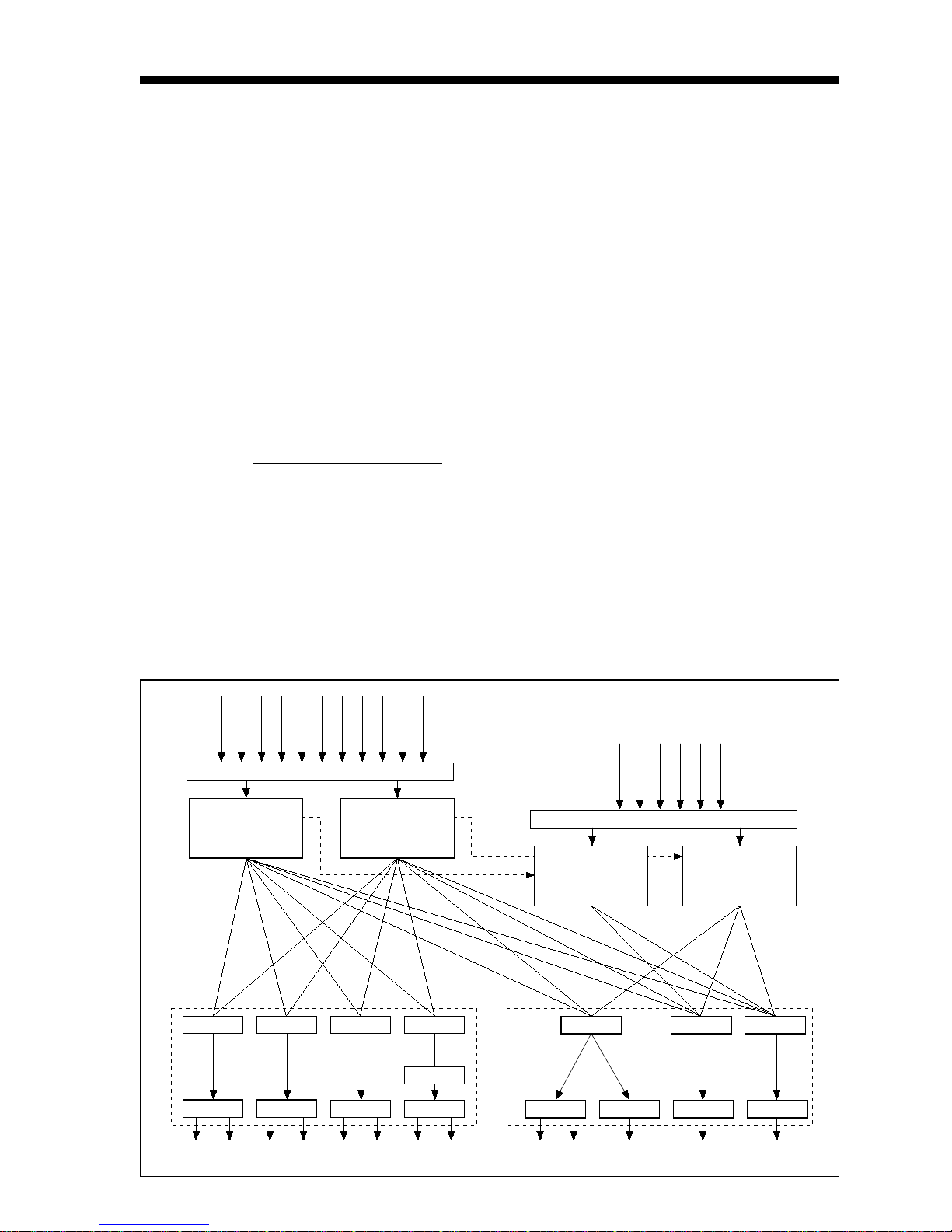
1.1. SYSTEM ARCHITECTURE
Page 3
The DCD-8 generator has 2 domains, A & B, each capable of generating a different rate. Any rate can be generated, up to 192KHz.
AUDIO RENTS, INC.
The DCD-8 can be referenced to any of the inputs: WC, AES, S/PDIF, FireWire,
Optical, video or internal crystal.
The A and the B rates can be assigned to any word clock BNC output and audio
output, as silent audio.
In addition, each domain can re-clock any audio input and route it to any audio output.
Page 5
Page 4
DCD-8 User Manual
Page 5
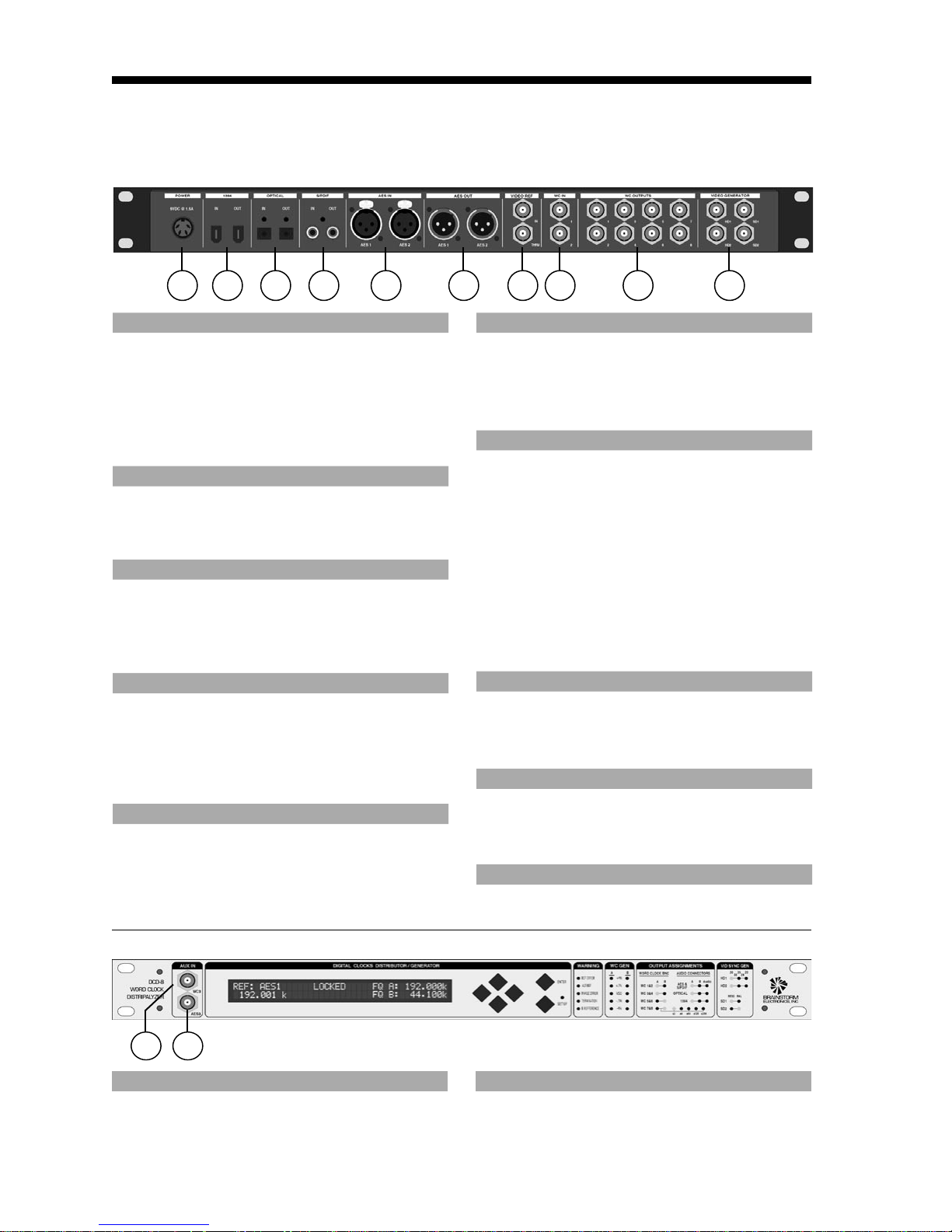
2. I/O’s Description and Cable Requirements
1 2 3 4 5 6 7 8 9 10
DCD-8 User Manual
1. POWER
The DCD-8 requires 12VDC @ 25W. Acceptable
voltage range is 12VDC -10% thru 18VDC +10%.
The external power supply provided with the DCD-8
can accept 100 to 240 VAC input at 50 - 60 Hz so
it is suitable for use anywhere in the world.
Use the standard IEC power cable supplied.
2. 1394
This IEEE 1394 I/O is used to send /receive digital
audio to /from a FireWire device.
Use standard 6-pin FireWire 400 cables.
3. OPTICAL
Optical transmitter & receiver - this I/O can be
used with ADAT or S/PDIF optical audio signals.
See menu 32 for selecting the appropriate format.
Use standard optical fiber cables.
4. S/PDIF
2 RCA connectors - I/O. transformer isolated
Used for coaxial S/PDIF.
Used also to link multiple DCD-8’s together (see
menu 31).
Use standard 75Ω RCA coaxial cables.
5. AES/EBU IN
2 XLR female connectors - Transformer isolated balanced inputs; accepts AES3 or AES11.
Use standard 3-conductor shielded 110Ω XLR
cables.
6. AES/EBU OUT
2 XLR male connectors - Transformer isolated balanced outputs for AES3 or AES11.
Use standard 3-conductor shielded 110Ω XLR
cables.
7. VIDEO REF (IN & LOOP)
2 BNC connectors - Input & Loop through
Video Ref can be NTSC, PAL or HD analog reference signal
IMPORTANT NOTES:
• This input is unterminated. If the DCD-8 is the
last item in the chain, it needs to be terminated by
placing a 75Ω terminator on the loop BNC.
• If the video reference is HD analog reference
signal, we recommend NOT daisy-chaining it.
Use a standard 75Ω video cable.
8. WORD CLOCK IN
2 BNC connectors - Transformer isolated WC inputs
Internally terminated with 75Ω.
Use standard 75Ω coaxial BNC cables.
9. WORD CLOCK OUT
8 BNC connectors - WC outputs grouped in 4
pairs: 1&2, 3&4, 5&6, 7&8.
Use standard 75Ω coaxial BNC cables.
10. VIDEO SYNC GEN OUT (Optional)
For info, see the Video Sync Generator’s manual.
AUDIO RENTS, INC.
12
11
11. WORD CLOCK INPUT 3 - FRONT PANEL
1 BNC connector - transformer isolated
This connector is identical to the other 2 WC inputs
on the rear panel.
Use a standard 75Ω coaxial BNC cable.
12. AES/EBU INPUT 3 - FRONT PANEL
1 BNC connector - transformer isolated
This front panel BNC accepts unbalanced AES/EBU
input (AES3id).
Use a standard 75Ω coaxial BNC cable.
Page 6

DCD-8 User Manual
3. Installation
3.1. UNPACKING
When unpacking the DCD-8 the following items should be in the shipping carton:
• DCD-8 unit
• Universal Power Supply (12VDC @ 25w)
• IEC power cable
• Owner’s Manual & Registration card
3.2. INSTALLING THE DCD-8
The DCD-8 is designed to be mounted in a standard 19” rack. It requires 1U in height.
Ideally, it should be located near your AD/DA and in the same rack.
Usual precautions should be respected when wiring the DCD-8: use high quality cables with
good shield to guarantee a good signal transmission. Keep your cables as short as possible.
Devices connected to the DCD-8’s WC outputs need to be terminated. If no termination is provided on the device, use a BNC-T with a 75Ω termination. If multiple devices are connected to
a single DCD-8 WC output, only the last device in the chain should be terminated. However,
to preserve the integrity of the transmission line, it is recommended that you do not daisychain word clock outputs as it can significantly degrade signal quality.
Page 5
4. Quick Start
The DCD-8 is very versatile and can accommodate many different situations. You should
read through this manual to familiarize yourself with its many features. The following
few simple steps are only provided to get you started right away.
Connect the power supply provided with the DCD-8 to the 4 pin DIN power connector on
the rear panel and plug the IEC cable into a proper wall outlet. This turns on your unit.
If the unit has already been used, please refer to page 13 to reset the factory settings. If not,
out of the box, the DCD-8 is set to generate a 48KHz Word Clock, referenced to its internal
crystal. This rate is fed to all 8 WC outputs, as well as all 5 audio outputs (as silent audio).
4.1. CHANGING THE RATE
To select a different rate, follow these steps:
• Press the [SET UP] key (the SET UP LED lights up)
• In Menu 01, press the [RIGHT] navigation key once to move to the Rate field
• Press the [UP] or [DOWN] keys to select the desired rate
• Press the [ENTER] key to confirm your choice
• Press the [SET UP] key again to exit SET UP (the Set Up LED goes out)
AUDIO RENTS, INC.
Your selection is reflected in the upper right corner of the LCD display, following FQ A.
4.2. CHANGING THE REFERENCE
To select a different reference, follow these steps:
• Press the [SET UP] key (the SET UP LED lights up)
• Press the [UP] key once to go to Menu 02
• Press the [RIGHT] navigation key once to go to the REF selection
• Press the [UP] or [DOWN] keys to select the desired reference
• Press the [ENTER] key to confirm your choice
• Press the [SET UP] key again to exit SET UP (the Set Up LED goes out)
Your selection is reflected in the upper left corner of the LCD display, following REF.
Page 7
Page 6
DCD-8 User Manual
Page 7
5. Front Panel Displays & LED’s
The DCD-8 has been designed so that most of the relevant information would always be
available at a glance on it’s front panel.
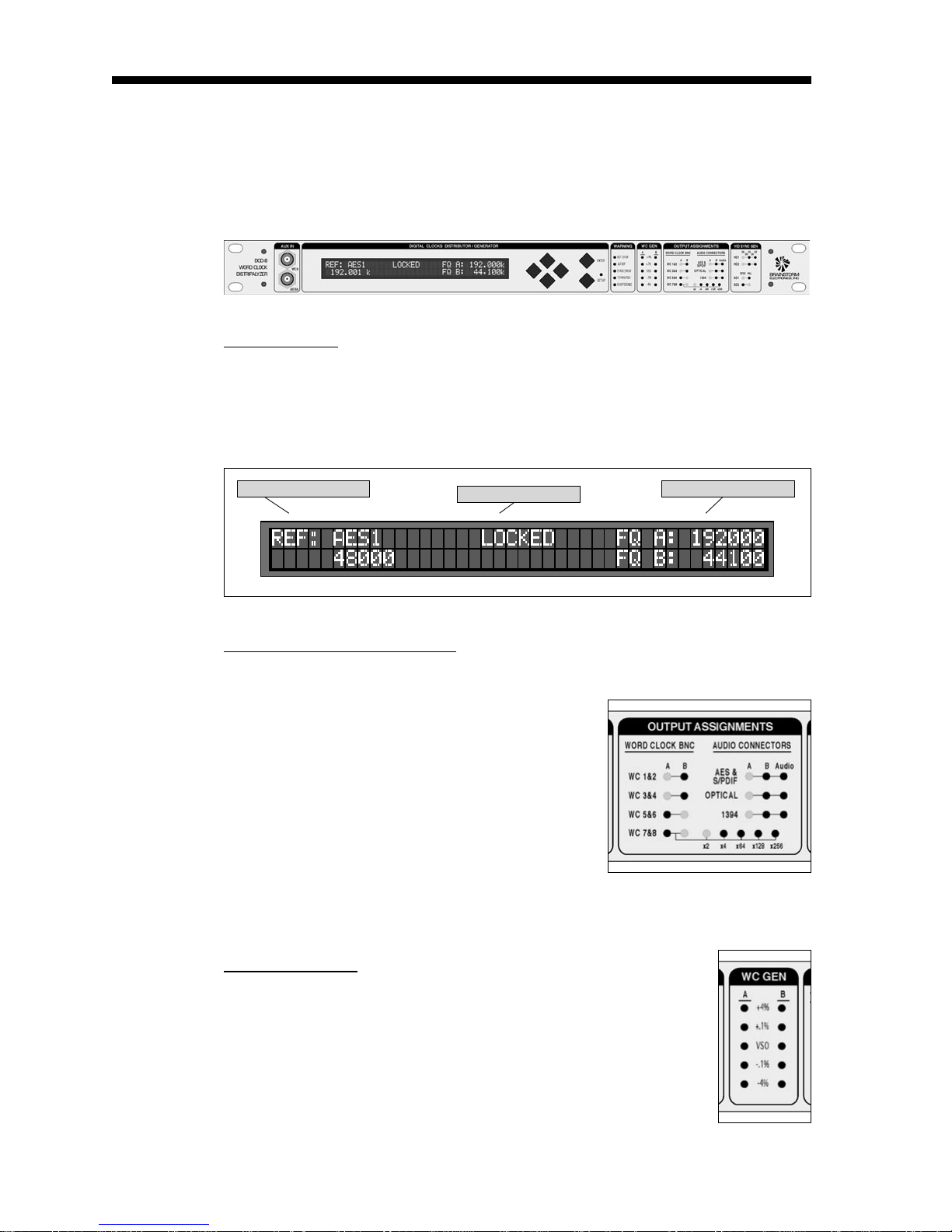
5.1. LCD DISPLAY
The 80 character LCD is broken into three separate areas:
• Left: displays the currently selected reference and it’s frequency
• Center: shows the Lock Status
• Right: displays the selected A & B frequencies.
DCD-8 User Manual
Selected Reference
5.2. OUTPUT ASSIGNMENTS LED’S
To know what signal has been assigned to each output, there are 22 LED’s describ-
ing the selections made.
Word Clock Outputs: A-B
These LED’s indicate which frequency has been
assigned to each WC output pair: A or B.
For WC Outputs 7&8, 5 LED’s indicate if a multiplier has been applied.
Audio Outputs: A-B-Audio
• If ‘Audio’ is off, the output is silent audio at the
A or B rate; LED’s indicate which.
• If ‘Audio’ is on, the output is the audio source selected in menu 6 for A or 7 for B.
Lock Status
A & B Frequencies
AUDIO RENTS, INC.
5.3. WC GEN LED’S
4 different “pull” coefficients are available. Each has a corre-
sponding LED for A and B domains:
• + 4.16%
• + 0.1%
• - 0.1%
• - 4.0%
These coefficients can be combined to create +4.27% and -4.096%.
VSO (varispeed) LED indicates that another rate (non-standard) is generated.
Page 8
DCD-8 User Manual
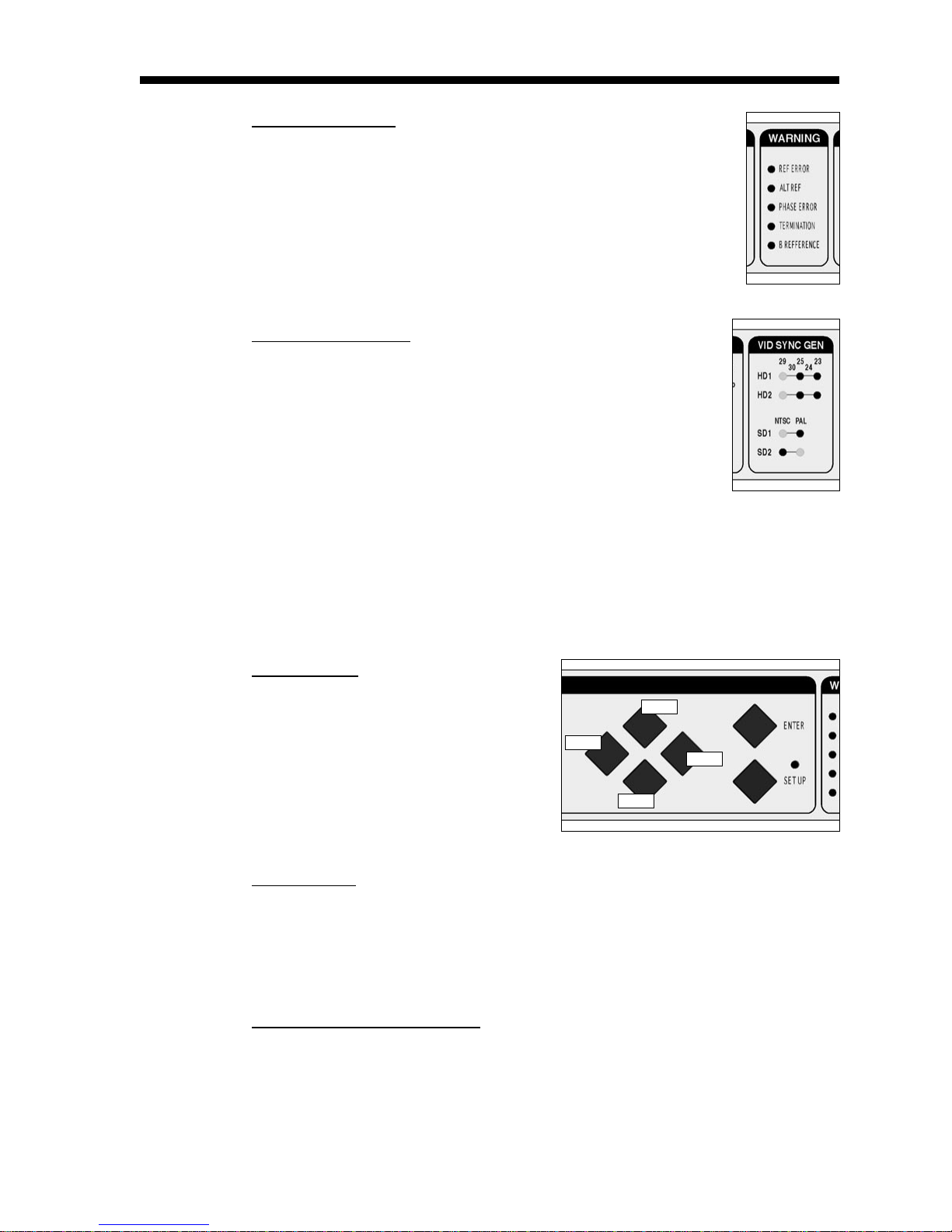
5.4. WARNING LED’S
5.5. VIDEO SYNC LED’S
Page 7
REF ERROR: a failure of the selected reference occurred
ALT REF: the DCD-8 had to switch to the alternate reference
PHASE ERROR: one of the inputs is out of phase (see menu 41)
TERMINATION: a unit connected to one of the WC outputs is improp-
erly terminated (see menu 42)
B REFERENCE: domain B is not using the same reference as domain A
These LED’s are only active if the optional Video Sync Generator
card has been installed in your DCD-8.
For information on these LED’s, please refer to the manual of the
optional Video Sync Generator card.
6. Navigation Keys
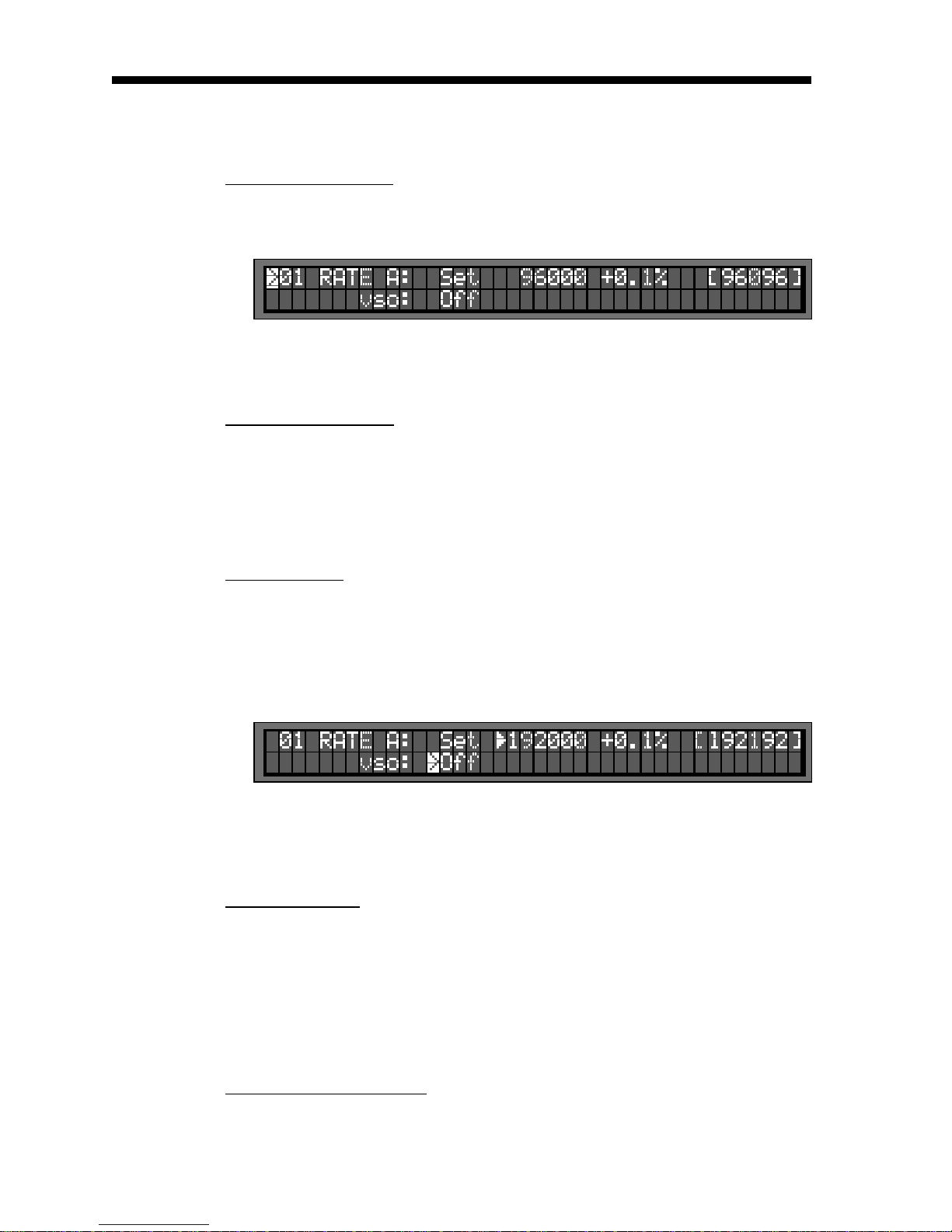
6.1. SET UP KEY
To access the different menus, press the
[SET UP] key.
While in SET UP mode, the Set Up LED
is on.
To exit the SET UP mode, simply press
the [SET UP] key again.
6.2. ENTER KEY
Scrolling through the different values will not affect anything. Only after the [ENTER] key
is pressed will a change take place.
AUDIO RENTS, INC.
When exiting a menu without pressing the [ENTER] key, the changes are lost.
6.3. UP, DOWN, LEFT, RIGHT KEYS
These keys are directly left of the [ENTER] and [SET UP] keys. They are not labeled as such
because their function is fairly obvious.
Up
Left
Right
Down
While in Set Up mode, the [UP] and [DOWN] keys are used to change the value of the
selected field, while the [LEFT] and [RIGHT] keys are used to select the different fields.
[UP] and [DOWN] keys are also used to change menu pages.
Page 9
Page 8
DCD-8 User Manual
Page 9
7. Menu Navigation
7.1. SELECTING A MENU
When the Set Up mode is entered, the LCD display switches to the Set Up menu last
used, with the cursor on the far left position in the upper line.
To move to another menu, with the cursor on the upper left position, press the [UP] or
[DOWN] key.
7.2. CHANGING VALUES
To edit one of the fields on the current menu, press the [RIGHT] or [LEFT] key to move the
cursor to the desired field. Then, press the [UP] or [DOWN] key to change the value.
Note that no change will take effect until the [ENTER] key is pressed. When exiting a
menu without pressing the [ENTER] key, the changes are lost.
DCD-8 User Manual
7.3. THE CURSOR
The cursor position is indicated with a ‘>’ character, implemented as inverse video,
flashing on and off. For numeric entry such as the VSO value, an additional underline cursor appears beneath the digit column being adjusted.
After a value is edited, the cursor changes to a solid triangle, until the [ENTER] key is
pressed.
If the cursor is moved to another field without pressing the [ENTER] key first, the solid
triangle stays in front of the edited field to indicate a change was made but not
entered yet.
7.4. STATUS VALUES
Throughout he different menus, values appear in the display enclosed in square brack-
AUDIO RENTS, INC.
ets. These are status values.
Status values are the values actually obtained, based on a menu selection. In some
cases, this might be a rate in Hz. In others it might be a different value if the one asked
for is unavailable. For example, in menu 5, if Audio is unavailable [Mute] will be displayed.
7.5. SET VS. AUTO VS. LEARN
The words “Set”, “Auto” and “Learn” are used to distinguish whether the user is establishing the value (Set) or if the system is deducing the value automatically (Auto & Learn).
See chapter 11 for more information on these functions.
Page 10
DCD-8 User Manual
8. Menus Description
Chapter 8 lists all the different menus available in the SET UP mode. Note that some of
the menu options will change based on your selections. As an example, if S/PDIF has
been selected in menu 32 as the optical connector format, ADAT no longer appears as a
reference option in menu 02, and vide-versa.
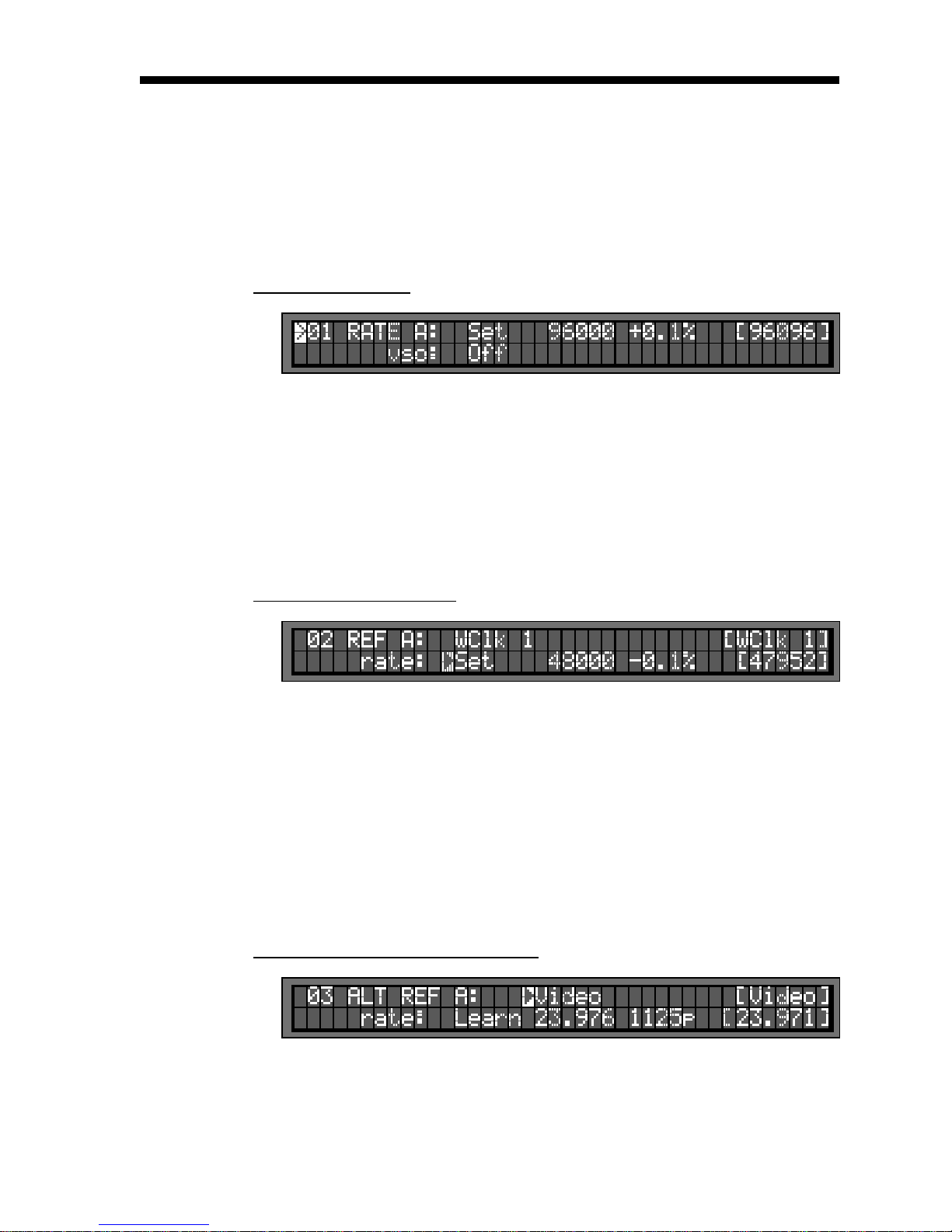
8.1. MENU 01: RATE A
In SET mode, a specific frequency can be selected; in AUTO mode, the reference’s
rate is automatically selected. AUTO mirrors the reference selection. AUTO is not
available if the reference is Internal Crystal or Video.
VSO can be activated in SET mode. VSO range is +/- 5% in .001% steps or .001
semi-tone.
Page 9
Please note that VSO is not implemented in software version 1.03.
Status is the actual rate in Hz.
8.2. MENU 02: REFERENCE A
Select any of the available external sources as reference or use the internal crystal.
Choices are: Internal AES 1 ADAT
Word Clock 1 AES 2 Optical (S/PDIF)
Word Clock 2 AES 3 1394
Word Clock 3 S/PDIF Video
When selecting any of the external sources, a RATE menu appears on the bottom
line. RATE has 2 modes: - LEARN: the DCD-8 determines the incoming rate;
- SET: the user determines the incoming rate.
For more information on Set vs. Learn, go to chapter 11.
AUDIO RENTS, INC.
8.3. MENU 03: ALTERNATE REFERENCE A
The alternate reference is used as a backup reference in case the main reference
fails. If it happens, the DCD-8 smoothly switches to the alternate reference. For more
on Alternate Reference, see chapter 12.
Similar to menu 02, when selecting any of the external sources, a RATE menu
appears on the bottom line. The RATE can be on AUTO or SET.
Page 11
Page 10
DCD-8 User Manual
Page 11
DCD-8 User Manual
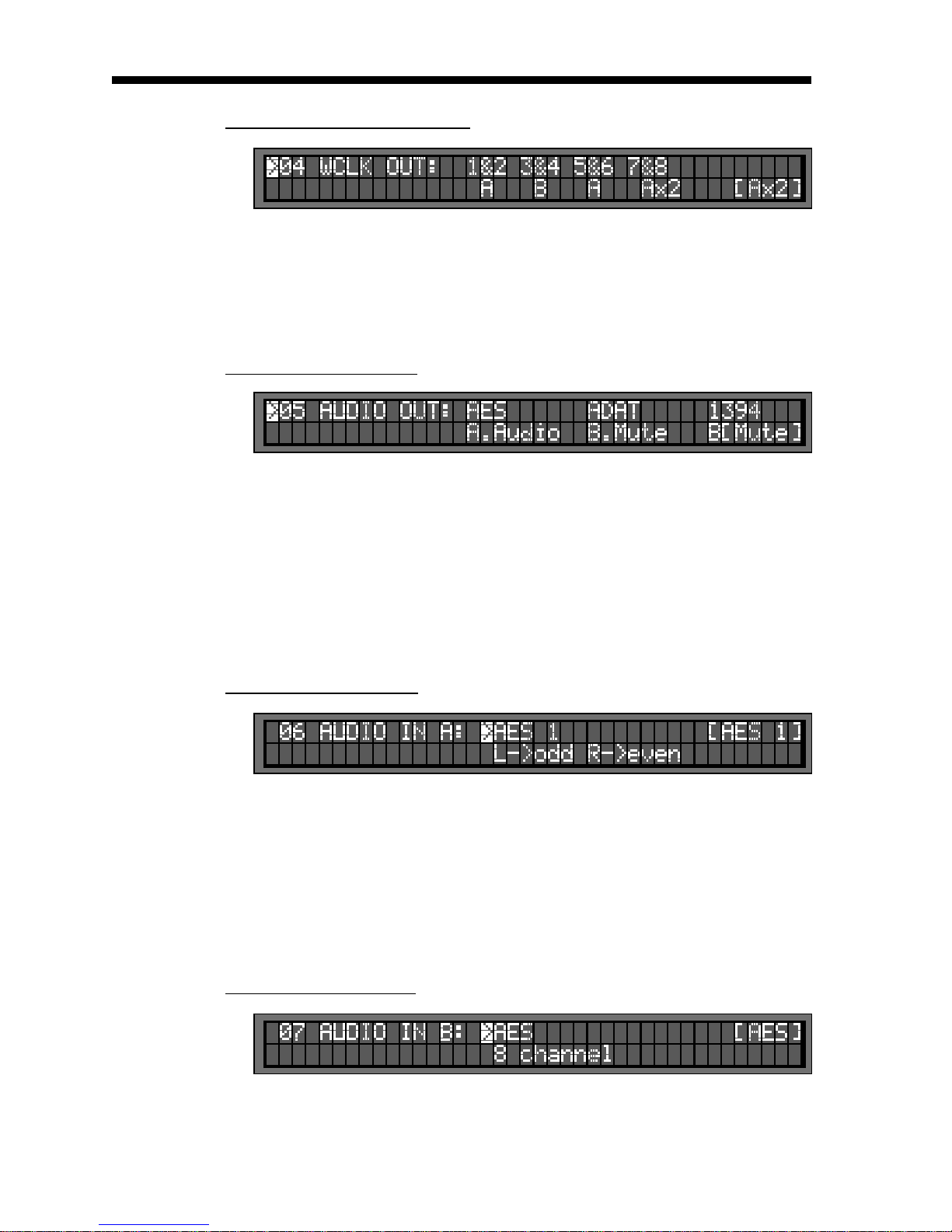
8.4. MENU 04: WORD CLOCK OUT
Word Clock outputs are adjustable in pairs. For each pair, the choice is A or B,
referring to the rates set in menus 01 and 21.
Outputs 7 & 8 can also add a multiplier to the A or B rates (see Appendix 2). Note
that only the available choices will be displayed.
8.5. MENU 05: AUDIO OUT
For each Audio Out, the choices are:
• A.Mute Silent audio at the A rate
• A.Audio Re-clocked audio source A as selected in menu 06
• B.Mute Silent Audio at the B rate
• B.Audio Re-clocked audio source B as selected in menu 07
NOTE: The AES Audio Out includes all AES and S/PDIF outputs.
If audio is unavailable, status indicates [Mute]
8.6. MENU 06: AUDIO IN A
The selected audio source can be re-clocked in domain A and routed to any of the
audio outputs in menu 05. For more on Audio Routing, see chapter 13.
NOTE: this re-clocking occurs in the A domain. If your audio source is not synchronous with the A rate, sound degradation will occur.
If the input selected is unavailable, the status is [OFF] and an error message appears
(see appendix 3).
AUDIO RENTS, INC.
8.7. MENU 07: AUDIO IN B
Menu 07 is identical to menu 06, for domain B.
Page 12
DCD-8 User Manual
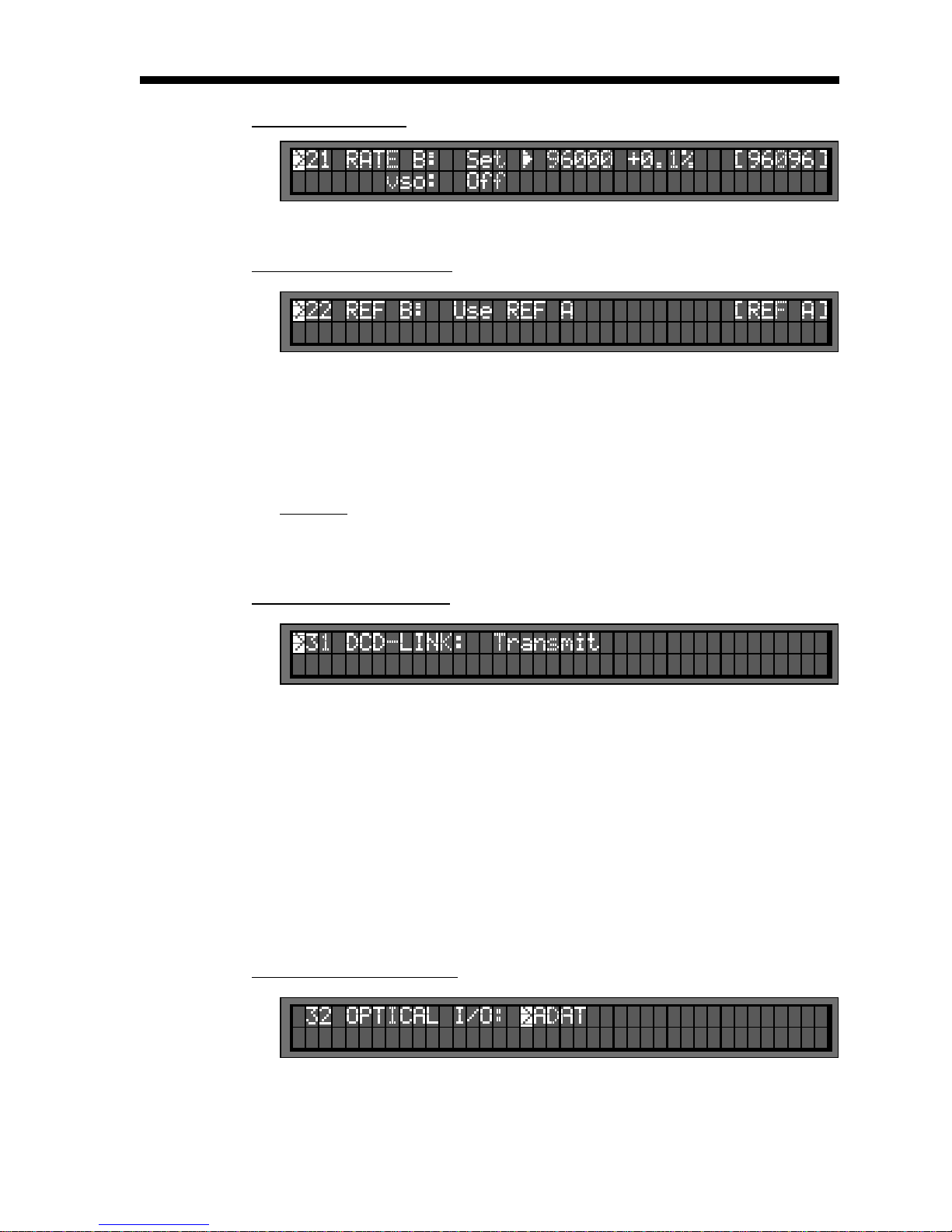
8.8. MENU 21: RATE B
8.9. MENU 22: REFERENCE B
Page 11
Menu 21 is identical to Menu 01, for domain B
Under most circumstances, the B domain will use the same reference as A. However,
if necessary, a separate reference can be selected for B.
This menu is identical to menu 02, for domain B, with one additional choice: ‘Use
REF A’ (default setting).
For more on Ref B, go to Chapter 14, page 18.
CAUTION: When selecting a reference in menu 22, domains A and B no longer
share the same reference. To alert the user of this condition, a front panel warning
LED turns on, labeled “B Reference”.
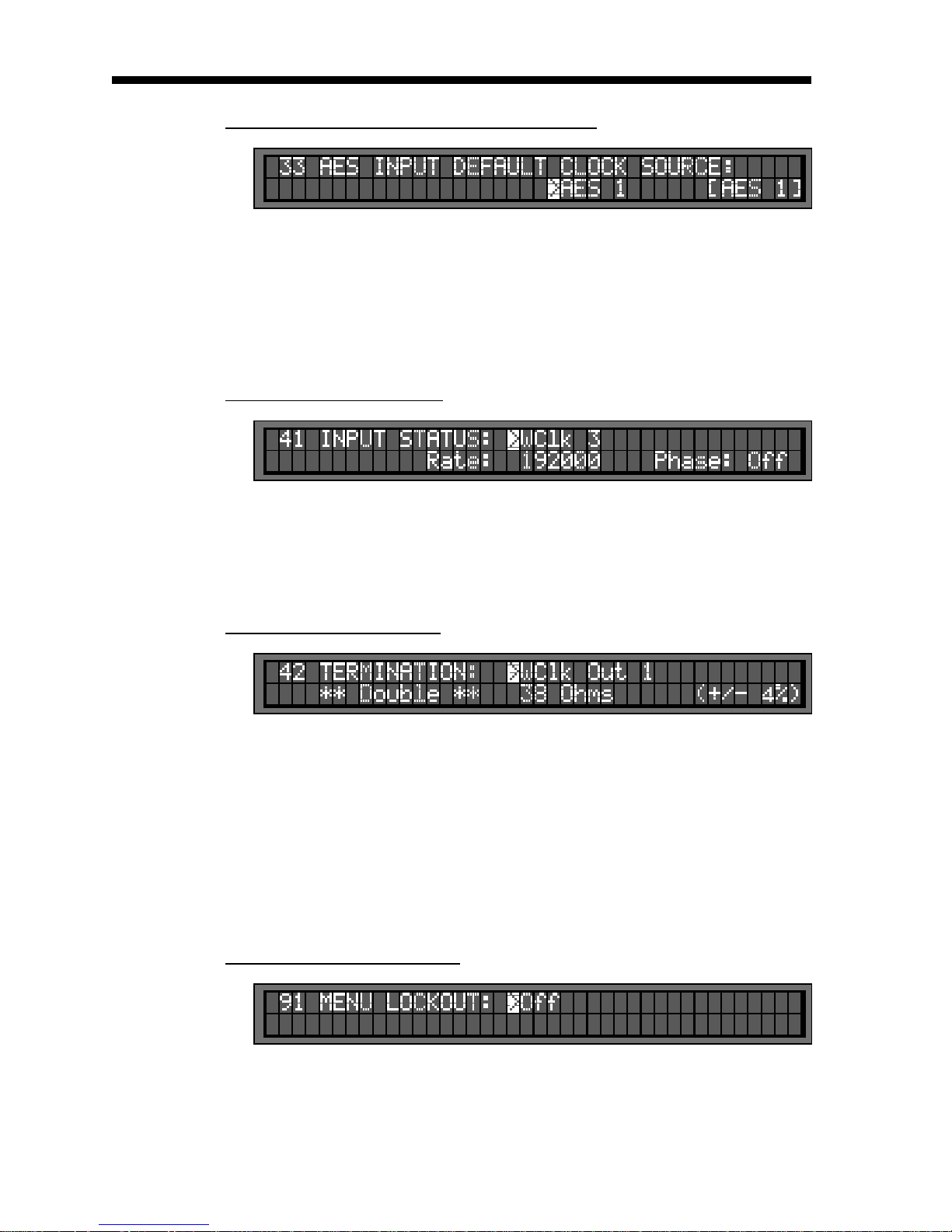
8.10. MENU 31: DCD-8 LINK
When using multiple DCD-8 together and the optional video sync generator the
DCD-link feature guarantees that they stay in phase. The S/PDIF port is used for this
link (RCA connectors).
The choices are: Off
Transmit
Receive, re-transmit
When DCD-Link is set to ‘Receive & re-transmit’, the Reference is automatically
changed to DCD-Link.
This advanced feature is not implemented in version 1.03.
AUDIO RENTS, INC.
8.11. MENU 32: OPTICAL I/O
Optical I/O can be set to ADAT or S/PDIF Optical.
Changing this setting may cause an error of this I/O was selected as a reference or
an audio source (see appendix 3 for more on error messages).
Page 13
Page 12
DCD-8 User Manual
Page 13
DCD-8 User Manual
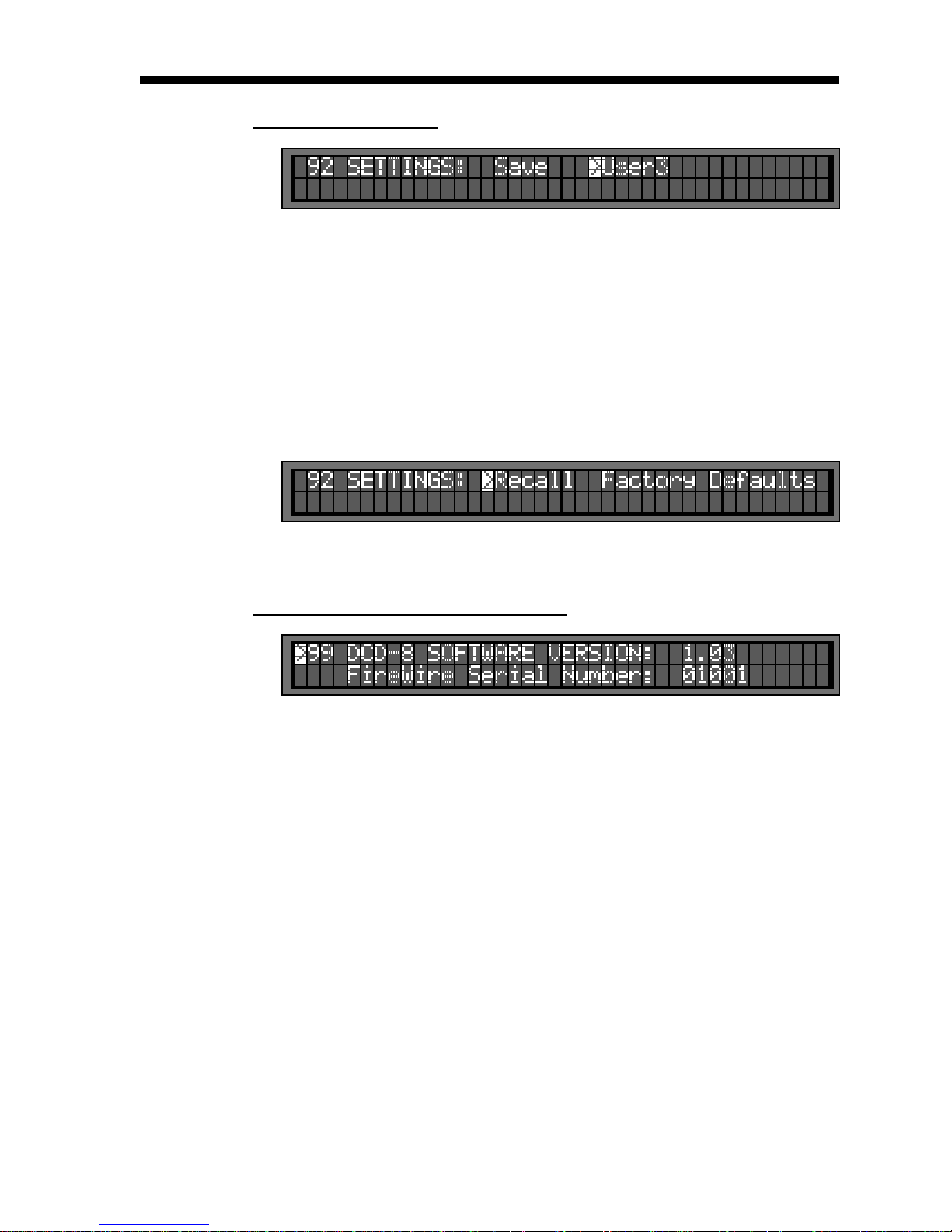
8.12. MENU 33: AES INPUT DEFAULT CLOCK SOURCE
When any AES or S/PDIF source is used as a reference or as an audio source, it is
automatically used as the default clock source, in that order of priority. If not, the user
can determine in this menu which AES or S/PDIF source to use as the clock source.
This will be used by the DCD-8 primarily for measurements (frequency & phase).
In AUTO mode, the DCD-8 scans through each input and selects the first valid signal
it finds. When no AES inputs are connected, status indicates [Scanning].
8.13. MENU 41: INPUT STATUS
This menu displays the rate and phase information for each input.
To view a different input, go to the input field and use the [UP] and [DOWN] keys.
Note that the phase information is not implemented in software version 1.03.
8.14. MENU 42: TERMINATION
This pages shows a termination measurement for each of the 8 word clock outputs.
These measurements are not meant to be accurate, but to give an indication.
Ideally, the value displayed should be 75Ω. If < 48Ω, the word ‘Double’ is displayed;
if < 30Ω, ‘Triple’; if >500Ω, ‘Open’.
If any output is double or triple-terminated, the TERMINATION warning LED lights up.
To view a different output, go to the output field and use the [UP] and [DOWN] keys.
NOTE: These are DC measurements. It may not measure AC coupled inputs correctly.
AUDIO RENTS, INC.
8.15. MENU 91: MENU LOCKOUT
To prevent accidental changes, the DCD-8 menus can be locked out. In this mode,
no changes are permitted.
If a change is attempted while the menus are locked out, an error message appears
on the LCD display: “ERROR - Menus Locked Out.”
Page 14
DCD-8 User Manual
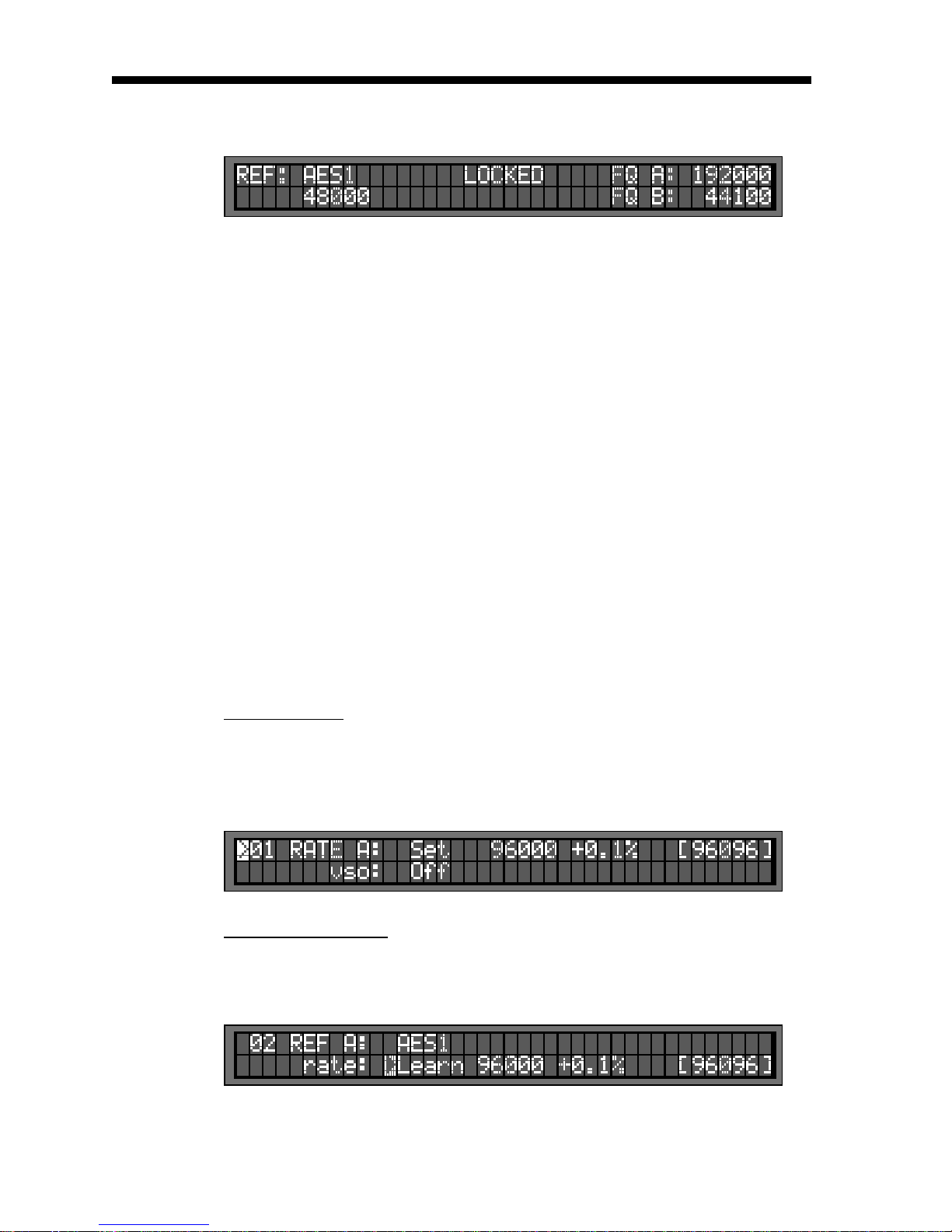
8.16. MENU 92: SETTINGS
Page 13
This menu is used to store and recall user presets. The DCD-8 has provisions to store
up to 4 different presets, labeled USER 0 through USER 3.
To store a preset, select SAVE. Then select the user preset number you would like to
save to and press [ENTER].
To recall a preset, select RECALL. Then select the user preset number you would like
to recall and press [ENTER].
FACTORY DEFAULTS: There is an additional preset holding the Factory Defaults.
This preset can only be recalled and cannot be modified.
For details on the Factory Defaults, see Appendix 5.
8.17. MENU 99: DCD-8 SOFTWARE VERSION
This menu displays the unit’s software version number and its FireWire serial number.
To update the software version, refer to chapter 17.
The FireWire serial number is pre programmed at the factory and cannot be
changed. Identication over FireWire has to be different for each DCD-8 so that
more than one of them can co-exist on the same bus.
9. Non-Volatile Storage
AUDIO RENTS, INC.
The DCD-8 has 4 user presets and a factory default preset (see menu 92 above).
In addition, it has non-volatile memory holding the current settings. This includes all DCD-8
settings such as rate and reference selections as well as output assignments. This memory
is continuously updated so that, when the unit is turned on, it is in the same condition as it
was when powered down.
NOTE: You should wait approximately 10 seconds after a change was entered before powering down, to allow for the flash memory to be updated.
Page 15
Page 14
DCD-8 User Manual
Page 15
10. Lock Status
The lock status of the DCD-8 is displayed in the center of the LCD display. Below are the 7
different possibilities and what they indicate:
The DCD-8 always tries to lock to it’s input. Once the rate has been established (SET or
LEARN), if the reference is off speed by more than 10%, it switches to SLEW. Note that with
video, the 10% rule applies to the horizontal frequency and not the frame rate.
DCD-8 User Manual
NO REF Reference missing
UNLOCKED Unable to lock
SLEW PLL is trying to lock
LOCKED -- Loose Lock
LOCKED - Lock confirmation phase
LOCKED Good and locked
HOLDING Holding last known frequency after lock failure
11. Defining the rate: Set, Auto & Learn
Part of the DCD-8’s great flexibility comes from the fact that the rate generated does not
have to match the rate of the reference. Different frequencies can be cross-locked if necessary. But the DCD-8 can also be set up to simply generate the reference frequency.
This is done through the use of the SET, AUTO and LEARN functions.
11.1. RATE MENU
In the Rate menu, the DCD-8 offers a choice between SET and AUTO. With SET, the user
can select a specific rate. With AUTO, the DCD-8 determines the rate, based on the selection made in the Reference menu. AUTO simply mirrors the Reference menu.
NOTE: Auto is not available if the reference selected is Internal or Video.
11.2. REFERENCE MENU
AUDIO RENTS, INC.
In the Reference menu, the DCD-8 offers a choice between LEARN and SET. In the LEARN
mode, the DCD-8 measures the input reference and determines it’s rate. In SET, the user
determines it.
Most of the time LEARN will work fine. However, at times, the user may choose SET to be
sure the DCD-8 does not misinterpret an input frequency which is slightly incorrect. The
Set mode may also be chosen for more failsafe operation, in that there is no chance that
the DCD-8 will re-dene a frequency which drifts over time.
Page 16
DCD-8 User Manual
11.3 ABOUT USING THE SET MODE FOR THE REFERENCE
WARNING: It is very important to understand that SET (in the REF menu) overrides the
DCD-8. When using this function, the user can potentially mislead the DCD-8 and affect
the output frequency, even if that is also SET. This could be intentional. But caution should
be used here.
When SETTING the rate of the reference, there is the possibility that the selected rate will
not match the measured rate (actual rate). If that is the case, the DCD-8 will still lock to the
reference but the output frequency will be adjusted proportionately.
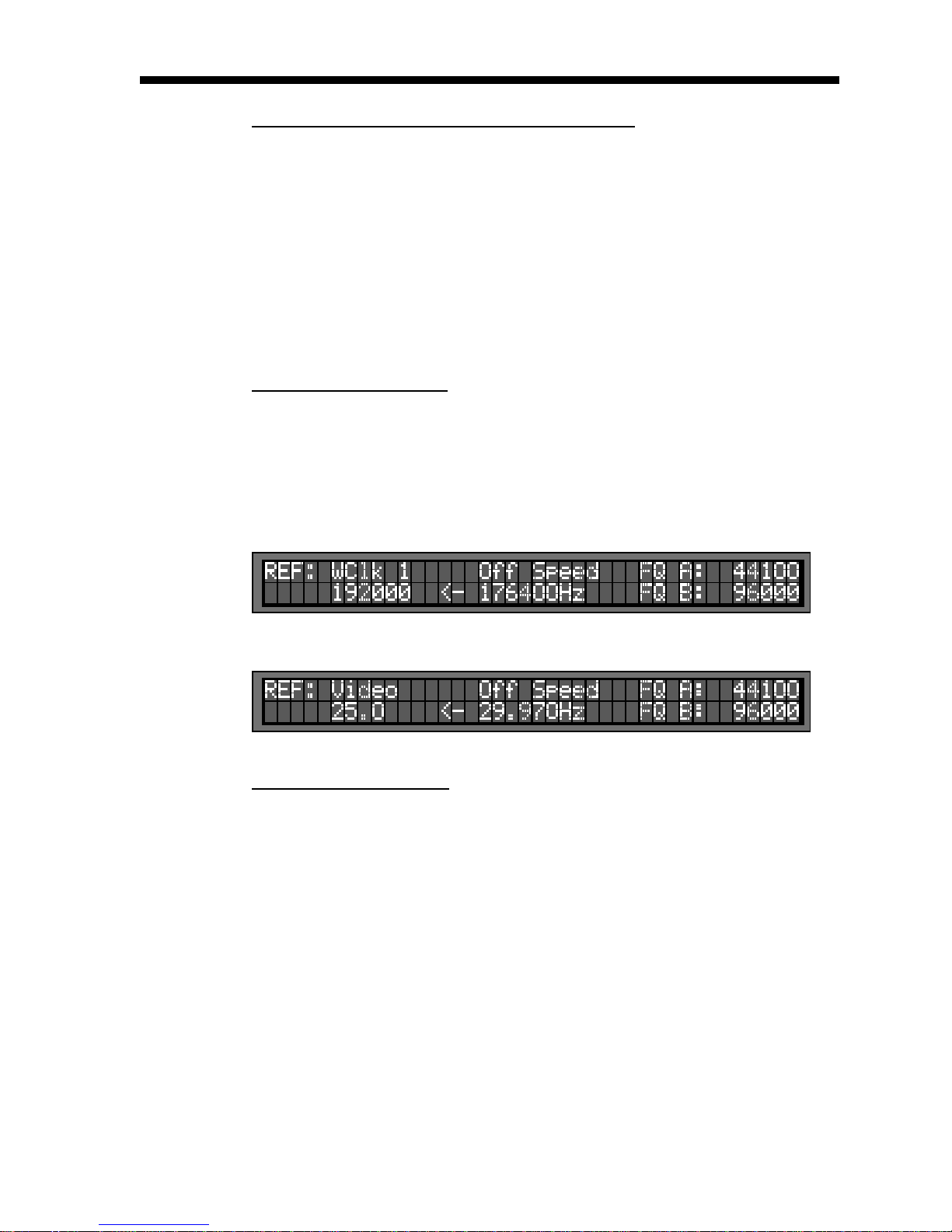
In the second illustration below, with the NTSC video reference is SET as PAL, the A frequency SET at 44100Hz will actually be 52867Hz (25/29.97 x 44100 = 52867).
11.4 OFF SPEED INDICATION
When the reference is detected to be off speed by more than 1.5%, the DCD-8 alerts the
user as follows. The main display alternates between the normal LOCKED status and the
OFF SPEED indication, staying about 2 seconds on each one. The measured reference
frequency is shown under the words ‘Off Speed’ for comparison with the nominal rate,
shown under the reference.
Page 15
Here is an example of the Off Speed indication for Ref A WC1.
For comparison, here is another example for Ref A Video, off speed:
11.5 HOW ALL THIS WORKS
To help understand how these different modes interact, let’s take a look at a few examples.
• Ref: LEARN & Rate: AUTO In this case, no rate needs to be programmed.
48.003k in = 48.003k out The DCD-8 learns the incoming rate and rege-
44.1k in = 44.1k out nerates it. What comes in is what comes out.
• Ref: LEARN & Rate: SET (48k) Here, if the DCD-8 detects that the input rate
AUDIO RENTS, INC.
48.003k in = 48.003k out has changed, it makes the necessary adjust-
44.1k in = 48k out ments to maintain the output rate as set.
• Ref: SET (48k) & Rate: AUTO When set on AUTO, the rate mirrors the refe-
48.003k in = 48.003K out rence. The OFF SPEED message will appear on
44.1k in = 44.1k out (OS message) the LCD if the reference is off (44.1).
• Ref: SET (48k) & Rate: SET (44.1k) With Ref in SET, if the input rate is different than
48.003k in = 44.103k out what was set, the DCD-8 applies the off-speed
44.1k in = 40.517k out (OS message) ratio to the SET output frequency
Note: 48.003 is only used in these example to illustrate that the DCD-8, when locked to
the reference, will track small variations.
Page 17
Page 16
DCD-8 User Manual
Page 17
12. Alternate Reference
If the external reference fails, the DCD-8 has 2 different ways of insuring that the WC output
remains safely uninterrupted.
12.1. MAIN REFERENCE FAILURE WITH AN ALTERNATE REFERENCE SET
If an alternate reference was set in menu 3, the DCD-8 goes into the following cycle:
• Step 1: When a failure occurs, 2 things happen immediately:
- the PLL switches to the Alternate Reference
- the generator goes in HOLDING mode, holding the last known frequency.
• Step 2: After about 2 seconds, the generator switches smoothly to the alternate reference.
During Step 1, the LCD display indicates “HOLDING” as the lock status.
During Step 2, the lock status goes from ‘LOCKED --” to “LOCKED” as it reaches full lock.
If the Alternate Reference fails, the DCD-8 goes back through steps 1 and 2, but this time,
Internal Crystal is used as the new reference.
DCD-8 User Manual
12.2. MAIN REFERENCE FAILURE WITH NO ALTERNATE REFERENCE SET
If no alternate reference was set in menu 3, the DCD-8 holds the last known frequency and
displays “HOLDING” in the LCD display.
If a signal is still present at the main reference input, the DCD-8 attempts to lock to it again.
If it succeeds, it goes through the normal ‘Locked’ sequence; if not, it continues holding and
attempts to Lock to the main reference again.
If no signal is present at the main reference input, the DCD-8 will remain in ‘HOLDING’
mode indefinitely.
12.3. REVERT TO REF A
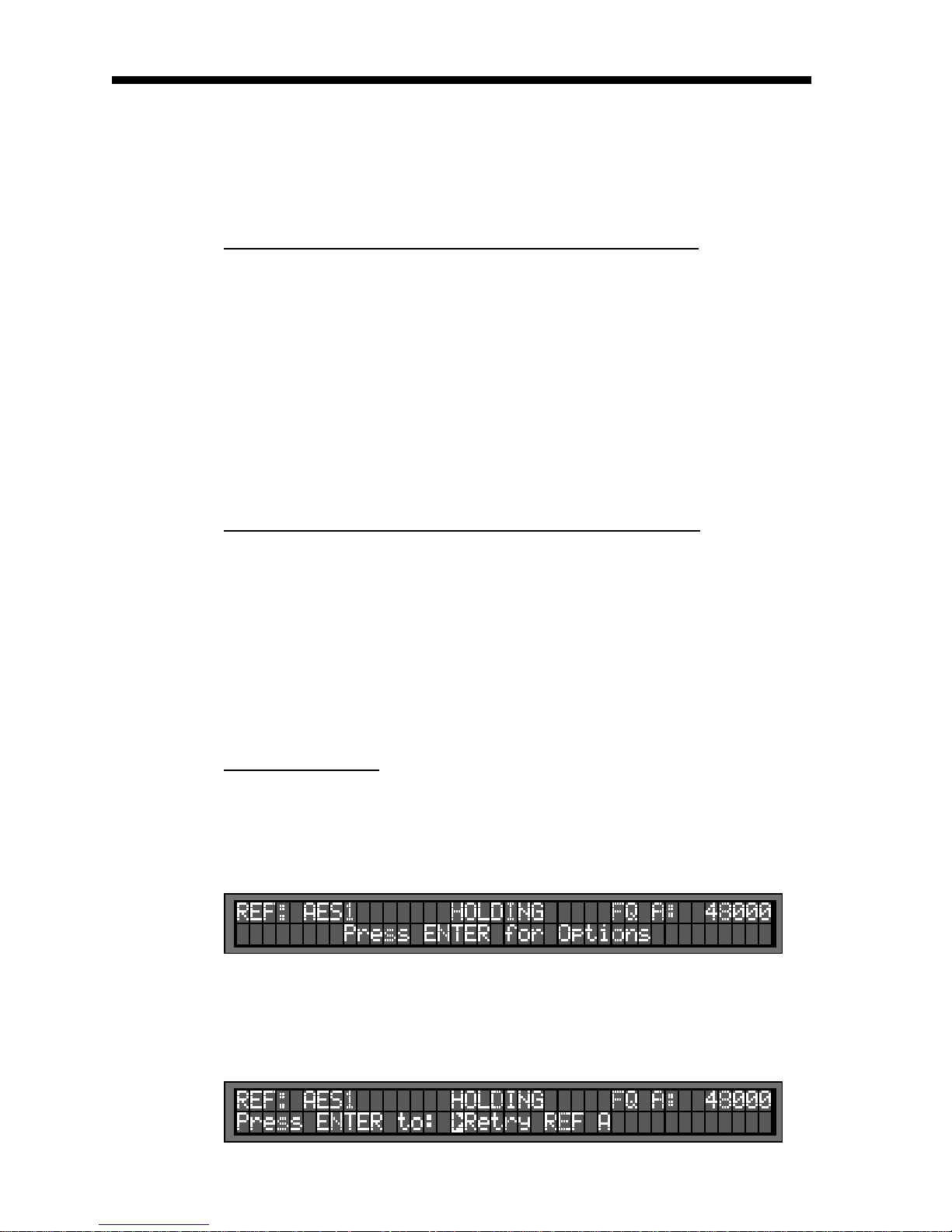
After a failure of the main reference, the following error message appears on the lower line
of the LCD display:
“PRESS ENTER FOR OPTIONS”
This message flashes to alert the user of the problem, along with the REF ERROR LED.
AUDIO RENTS, INC.
After pressing the [ENTER] key, the options available are:
- EXIT WITH NO CHANGE
- CLEAR REF ERROR
- RETRY REF A
Page 18

DCD-8 User Manual
The third option, RETRY REF A, is only available if an Alternate Reference has been set in
menu 03. If no Alternate Reference was set, the DCD-8 will automatically retry Ref A.
NOTE: When reverting to Ref A, the transition will be smooth, but only if the DCD-8 was
locked to either the alternate reference or the internal crystal before selecting RETRY REF A.
12.4. ERROR MESSAGES
The following messages appear in the LCD display when appropriate:
REF RETRY FAILED
REF RETRY REQUIRE PLL RESET (DCD-8 was not locked - see NOTE above)
12.5. WARNING LEDS
REF ERROR: This red LED flashes as soon as the main reference fails.
ALT REF: This green LED lights up as soon as the DCD-8 switches to the alternate refer-
12.6. REF B
Under most circumstances, REF A will be used by domains A & B. However, in menu 07,
a separate reference can be set for domain B. But, the Alternate Reference option is only
available for the main reference (REF A) and not REF B. If REF B fails, it will go through the
procedure described in 12.2 on the previous page.
Page 17
ence. It flashes if the Alternate Reference fails.
13. Audio Routing
One of the features of the DCD-8 is to re-clock an audio input and route it to an audio output.
• SELECT AN INPUT: To route audio through the DCD-8, an input must first be selected
• SELECT AN OUTPUT: That input must then be assigned to an output. In menu 05, under
On the front panel, under ‘Output Assignments’, the AUDIO LED’s indicate that audio is being
routed; at the same time, the A and B LED’s indicate which input is being routed.
AUDIO RENTS, INC.
WARNING: When routing audio through the DCD-8, the audio is re clocked in either
domain A or B. It is imperative that the audio source be synchronous with the domain
selected. Otherwise, signal degradation will occur.
13.1. MAPPING OPTION 1: LEFT TO ODD AND RIGHT TO EVEN
In menu 06 & 07, when selecting a stereo source as the input (AES or S/PDIF), the DCD-8
gives you the option to map this input to all of the output pairs, including the FireWire and
ADAT connectors. This means that the left channel would go to channels 1,3,5,7 and the
right channel to 2,4,6,8. They would also go to all the stereo outputs (AES or S/PDIF).
in menu 06 or 07 (the DCD-8 allows 2 separate inputs to be
selected, one for domain A and one for domain B).
the desired output, select ‘A.Audio’ to assign the A input or
‘B.Audio’ to assign the B input.
Page 19
Page 18
DCD-8 User Manual
Page 19
DCD-8 User Manual
13.2. MAPPING OPTION 2: 8 CHANNEL ROUTING MAP
If not selecting ‘Left to Odd/ Right to Even’, the DCD-8 uses a routing map as described
below. This routing map will vary, depending on the rate at which the router is running due
to the various bit-splitting formats accepted by the DCD-8 (S/MUX and AES double-wire).
For more on digital audio formats, go to Appendix 4 on page 23.
14. Ref B
FireWire
44.1 to 96k
1 1 1&2 AES-1 L
2 2 3&4 AES-1 R
3 3 5&6 AES-2 L
4 4 7&8 AES-2 R
5 5 S/PDIF L
6 6 S/PDIF R
7 7 AES-3/ Optical L
8 8 AES-3 /Optical R
FireWire
176.4 to 192k
1 1&2&3&4 AES-1
2 5&6&7&8 AES-2
ADAT
44.1 to 48k
ADAT S/MUX IV
176.4 to 192k
ADAT S/MUX
88.2 to 96k
AES & S/PDIF
44.1 to 96k
AES Double Wire
176.4 to 192k
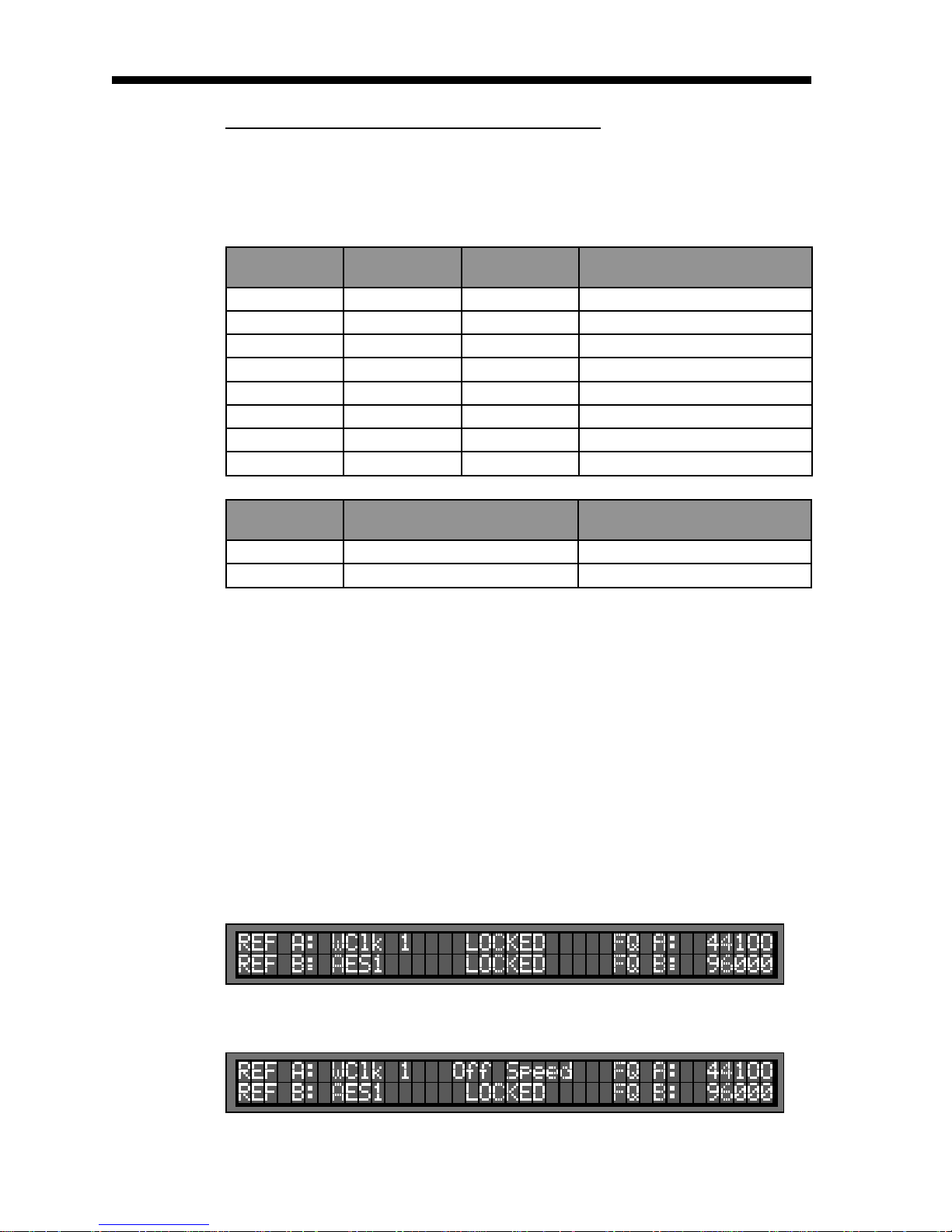
The DCD-8 has 2 separate domains, A and B. These domains are used to generate multiple rates simultaneously. Under most circumstances, both domains will use the same reference. Therefore, the default setting for Ref B (menu 22) is ‘USE REF A”.
However, if necessary, a separate reference can be selected for domain B. In essence, this
would be separating the DCD-8 in 2 completely independent units.
NOTE: A warning LED lights up on the front panel to alert the user.
When setting a separate reference for B, the main menu will reflect this. However, the
amount of information displayed will be reduced, due to the space available. Both references will be displayed, but not their frequency.
AUDIO RENTS, INC.
Similarly, when displaying Off Speed condition (see chapter 11), the measured frequency
will not be displayed.
Those missing frequency indications normally appear on the bottom line, which is used
up here for Ref B.
Page 20
DCD-8 User Manual
15. FireWire
The DCD-8 includes a FireWire I/O which is used to transmit and receive digital audio as
well as to update the current software version (see chapter 17).
Drivers for PC and Mac are available for download at www.brainstormtime.com. Once
installed, the DCD-8 should be recognized by your computer as an 8 channel device.
The DCD-8 can lock to the clock coming from the FireWire audio and clean it up. It can
also re-clock and route audio to and from a FireWire device.
The FireWire audio is not implemented yet in version 1.03.
16. DCD-Link
Multiple DCD-8’s can be linked together by simply connecting an output from the Master
DCD-8 into the slave DCD-8 and selecting it as the reference on the slave DCD-8.
Page 19
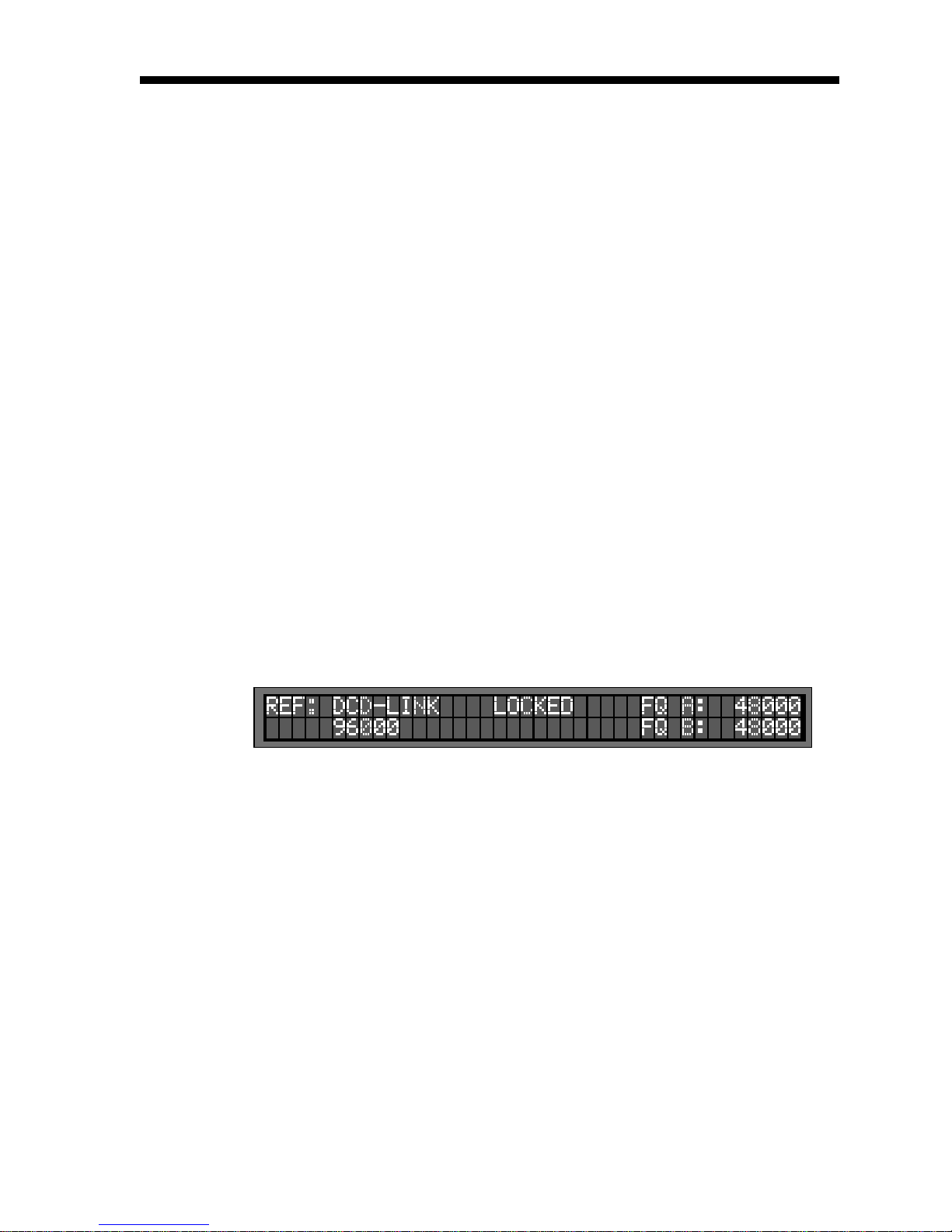
The DCD-link option goes a little further by keeping multiple DCD-8’s and the optional
video sync generator in phase.
DCD-Link is activated in menu 31. The master unit should be on ‘Transmit’ and the slave
unit(s) on ‘Receive and re-transmit’. Connect a 75Ω coaxial cable between the DCD-Link
OUT (RCA - S/PDIF OUT) on the master unit and the DCD-Link IN on the slave unit.
The reference on the slave DCD-8 is automatically changed to ‘DCD-Link’ and the reference
rate is shown on the LCD display.
DCD-Link is not implemented in version 1.03.
17. Updating the Firmware
You should compare your software version number (menu 99) to the latest version num-
AUDIO RENTS, INC.
ber, as listed on our web site. If not current, you should update your DCD-8.
Updating the software version is done through the FireWire port. It can be done with a
Mac or a PC. The procedure is similar for both computers:
1. Install the DCD-8 driver on your computer (this would have already been done if you
are using FireWire audio)
2. Connect a FireWire cable between the DCD-8 and your computer
3. Run the Firmware Loader software on your computer
4. Load the new file into the DCD-8, replacing the old one
5. Exit the Firmware Loader
6. Power down the DCD-8 then power up again
7. Go to Menu 99 to verify the current software version number.
Page 21
Page 20
DCD-8 User Manual
Page 21
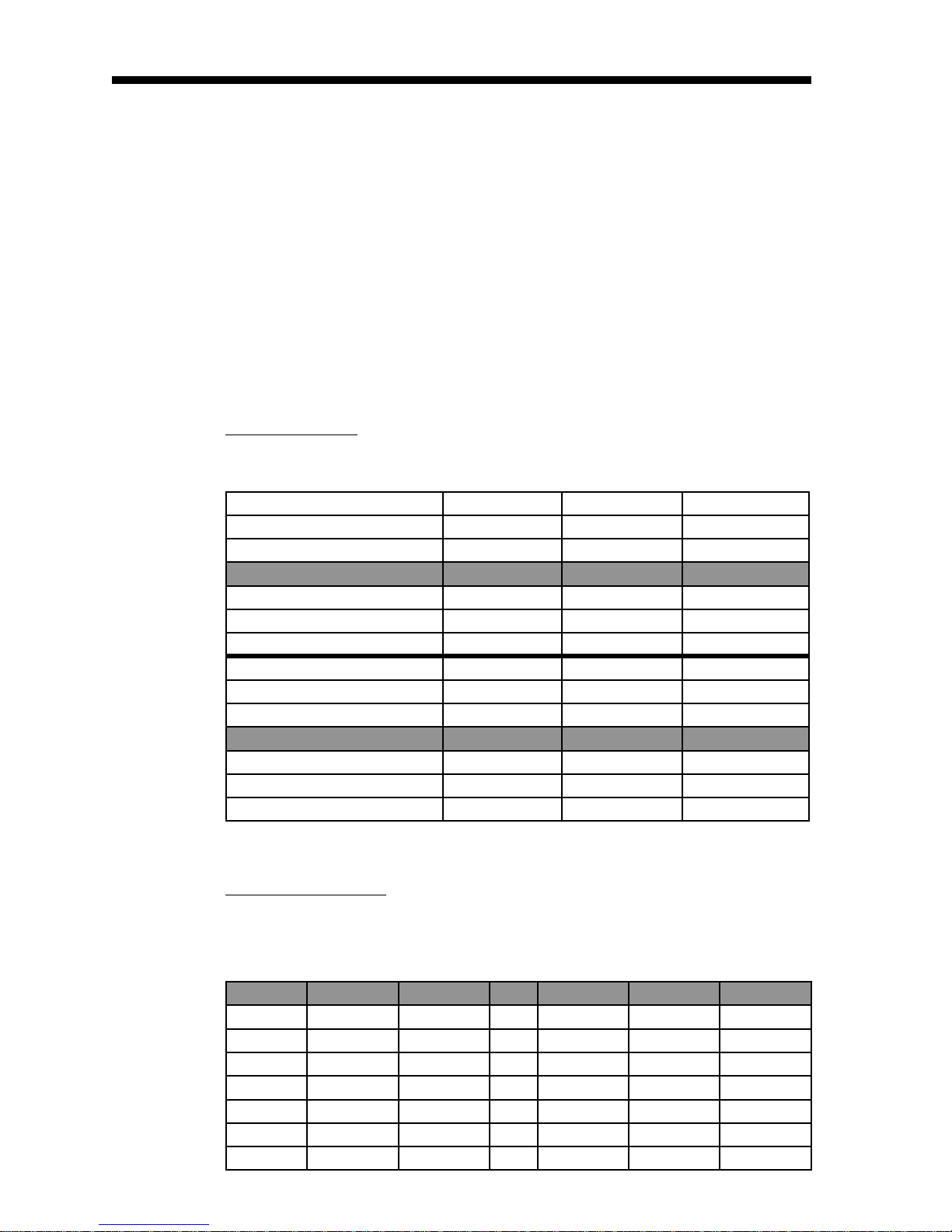
These are the files available for download from our web site (www.brainstormtime.com):
Please note that only registered users are allowed to download these files so be sure to register your unit as soon as possible.
A CD containing these files can also be purchased. Please contact us for more information.
18. Appendix
18.1. PULLED RATES
Here is a list of the standard and pulled rates generated by the DCD-8.
• DCD-8 driver (PC and Mac)
• Firmware loader (PC or Mac)
• DCD-8 current software
• Installation instructions (PC and Mac)
DCD-8 User Manual
-4.096%
-4.0%
-0.1%
BASE RATE 44,100 88,200 176,400
+0.1%
+4.166%
+4.2709%
-4.096%
-4.0%
-0.1%
BASE RATE 48,000 96,000 192,000
+0.1%
+4.166%
+4.2709%
18.2. MULTIPLIER RATES
Through WC outputs 7&8, the DCD-8 can apply a multiplier to the selected base frequency.
Here is a list of the available rates. An ‘X’ indicates this choice is not available.
AUDIO RENTS, INC.
(25 to 23.976 f/s)
(25 to 24 f/s)
(30 to 29.97 f/s)
(29.97 to 30 f/s)
(24 to 25 f/s)
(23.976 to 25 f/s)
(25 to 23.976 f/s)
(25 to 24 f/s)
(30 to 29.97 f/s)
(29.97 to 30 f/s)
(24 to 25 f/s)
(23.976 to 25 f/s)
42,294 84,587 169,175
42,336 84,672 169,344
44,056 88,112 176,224
44,144 88,288 176,576
45,938 91,875 183,750
45,983 91,967 183,934
46,034 92,068 184,136
46,080 92,160 184,320
47,952 95,904 191,808
48,048 96,096 192,192
50,000 100,000 200,000
50,050 100,100 200,200
192 KHz 192.0KHz X X 12.2880MHz X X
176 KHz 176.4KHz X X 11.2896MHz X X
96 KHz 96.0KHz 192.0KHz X 6.1440MHz 12.2880MHz X
88 KHz 88.2KHz 176.4KHz X 5.6448MHz 11.2896MHz X
48 KHz 48.0KHz 96.0KHz X 3.0720MHz 6.1440MHz 12.2880MHz
44 KHz 44.1KHz 88.2KHz X 2.8224MHz 5.6448MHz 11.2896MHz
32 KHz 32.0KHz 64.0KHz X 2.0480MHz 4.0960MHz 8.1920MHz
FSx1 FSx2 FSx4 FSx64 FSx128 FSx256
Page 22

DCD-8 User Manual
18.3. ERROR MESSAGES
When a faulty value is selected, an error message is displayed as soon as the [ENTER] key
is pressed. Although the request is not granted, only the [status value] is adjusted, not
the selected value. Therefore, every time the [ENTER] key is pressed, the error message re-
appears. To eliminate this, an ‘acceptable’ value must be entered in the proper menu.
Below is a complete list of all the error messages generated by the DCD-8 along with a
description and the menus concerned.
NOTE: These messages appear on the LCD display for about 3 1/2 seconds and may be
cancelled by any key press.
• ERROR: Same audio source both domains
Page 21
Same audio (group) cannot be source to both domains (see menus 06 & 07).
NOTE: the DCD-8 considers all AES & S/PDIF as a single source, as far as the audio
router is concerned
• ERROR: ADAT input selected but not available
Can’t choose ADAT as audio source when optical connectors switched to Optical
S/PDIF (see menus 06, 07 & 32)
• ERROR: AES 3 input selected but not available
Can’t choose AES3 as audio source when optical connectors switched to Optical
S/PDIF (see menus 06, 07 & 32)
• ERROR: Optical input selected but not available
Can’t choose Optical S/PDIF as audio source when optical connectors switched to
ADAT (see menus 06, 07 & 32)
• ERROR: Optical reference not available
Can’t choose Optical S/PDIF reference when optical connectors switched to ADAT
- may occur when switching the optical input from Optical S/PDIF to ADAT (see
menus 02 & 32)
• ERROR: Optical choice prevents reference select
Can’t choose ADAT or AES3 reference when optical connectors switched to Optical
S/PDIF - may occur when switching the optical input from ADAT to Optical S/PDIF
(see menus 02 & 32)
• ERROR: Menus Locked Out
AUDIO RENTS, INC.
Attempt to change a menu setting while menus are locked out (see menu 91)
• ERROR: REF combination (A, B) unavailable
• ERROR: REF combination (alt A, B) unavailable
Domains A & B cannot have dissimilar AES/SPDIF reference combinations (AES inputs
share a single PLL) - (see menus 02 & 22) - The same applies to ALT REF A (menu 03)
• ERROR: REF B same as REF A
• ERROR: REF B same as ALT REF A
The same source cannot be assigned to Ref B and REF A (or ALT REF A). In that case,
Ref B reverts to ‘Use Ref A’.
Page 23

Page 22
DCD-8 User Manual
Page 23
DCD-8 User Manual
The following 3 messages are informative messages.
• ERROR: REF Retry failed
Original reference found to be missing during Retry
• INFO: REF Retry required PLL reset
System was not locked when ref Retry requested -- smooth re-lock not attempted and
PLL re-started to guarantee synchronization
• INFO: Saving User Settings
System is in the process of saving user settings following a Save request
The following 3 are also informative. They display if the reference rate (or alt ref rate) is
on LEARN and the incoming rate changes
• INFO “Learned rate change: REF A”
• INFO “Learned rate change: REF B”
• INFO “Learned rate change: ALT REF A”
• Off Speed
This message appears when the reference is detected to be off speed by more than
1.5%. The main display alternates between the normal LOCKED status and the Off
Speed indication - staying about 2 sec. on each one. When there is only a single
reference (A), the measured reference frequency is shown on the bottom line, for
comparison with the nominal reference rate.
For additional information, go to chapter 11, on page 15.
The last type of message is more of a warning message and requires user feedback.
• Press ENTER for options
This message appears after a failure of the reference.
To alert the user, it flashes continuously on and off on the bottom line of the LCD dis-
play, along with the REF ERROR LED.
Pressing the [ENTER] key gives several options. To access these options, use the [UP] and
[DOWN] keys.
The options available vary depending on the ALT REF settings (menu 03):
- If an alternate reference had been set and the DCD-8 switched to it:
Retry REF A: to attempt to re-clock to the main reference.
AUDIO RENTS, INC.
Clear REF ERROR: this option clears the flashing REF ERROR LED and exits;
the DCD-8 stays locked to the alternate reference and the LCD keeps on flashing the ‘Enter for options’ message, offering only options 1 & 3 this time;
EXIT with no change: exit but leave everything as is.
- If no alternate reference had been set and the DCD-8 is HOLDING:
Clear REF ERROR: this option clears the flashing REF ERROR LED and exits;
the DCD-8 stays in HOLDING mode;
EXIT with no change: exit but leave everything as is.
Page 24
DCD-8 User Manual
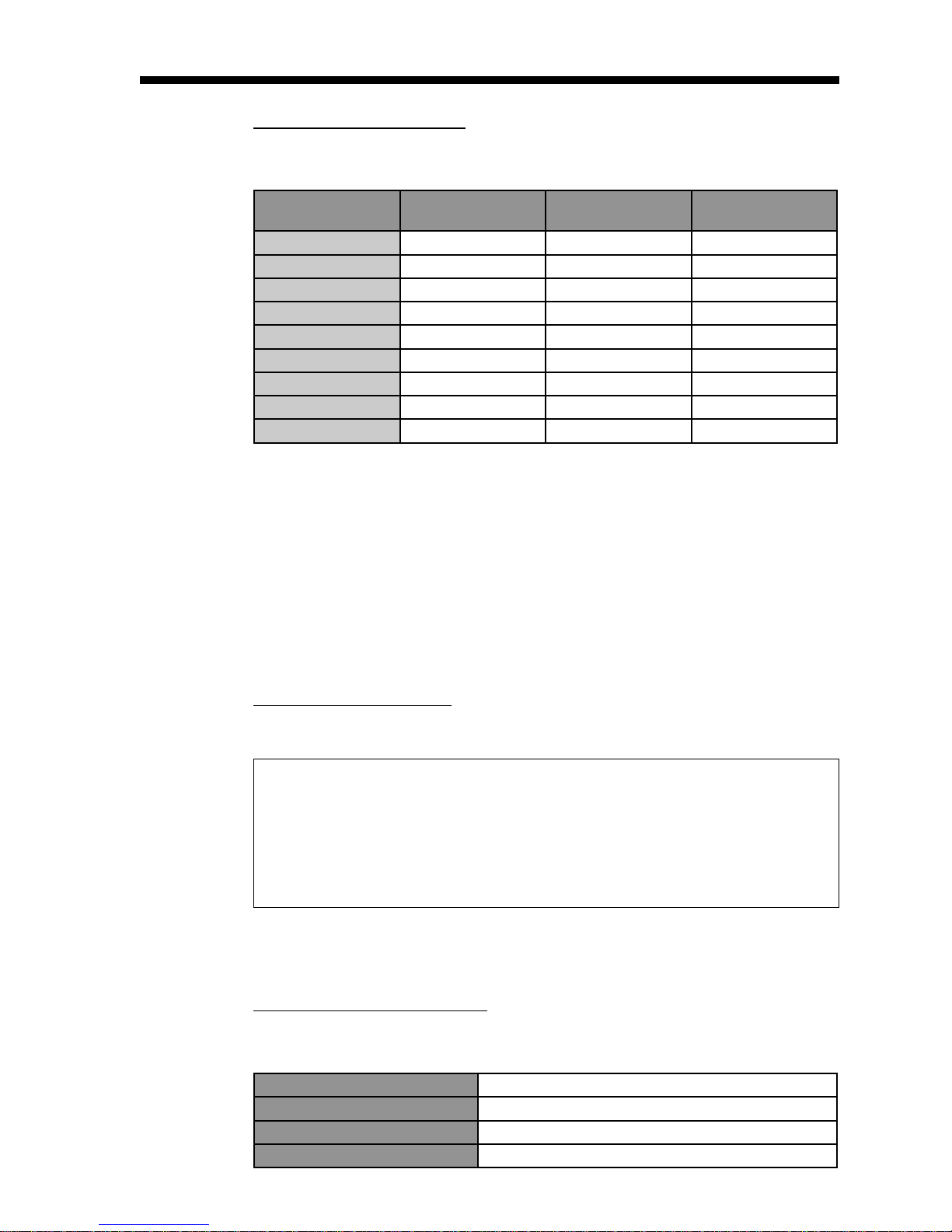
18.4. DIGITAL AUDIO FORMATS
The following table lists all the digital audio formats accepted by the DCD-8:
Page 23
Formats
AES Single Wire 2 XLR 44.1-96 KHz
AES Double Wire 1 XLR 176.4-192KHz
AES3id 2 BNC 44.1-192 KHz
S/PDIF Coaxial 2 RCA 44.1-192 KHz
S/PDIF Optical 2 TOS-Link 44.1-96KHz
ADAT Lightpipe 8 TOS-Link 44.1-48KHz
ADAT S/MUX 4 TOS-Link 88.2-96KHz
ADAT S/MUX IV 2 TOS-Link 176.4-192KHz
FireWire 8 1394 44.1-192 KHz
The DCD-8 accepts AES double-wire, ADAT S/MUX and S/MUX IV. The input formats on
the AES / S/PDIF and ADAT connectors will be adjusted based on the REFERENCE; the
output formats will be adjusted based on the RATE.
To run the ADAT input in S/MUX mode, the relevant domain REFERENCE must be forced
into the 96000 range (4 channels) or in the 192000 range (2 channels); to run the ADAT
output in S/MUX mode, the relevant domain RATE must be forced into the 96000 range (4
channels) or in the 192000 range (2 channels).
All AES, S/PDIF and Optical S/PDIF I/O’s run in standard single-wire mode from 44.1k to
96k and in double-wire mode from 176.4k to 192k range.
Number of channels
per connector
Connector Valid Rates
18.5. VIDEO INPUT FORMATS
The following table lists all the video formats recognized by the DCD-8 as reference:
525i/29.97 NTSC
625i/25 PAL
720p/50
720p/59.94
720p/60
Not supported are the low frame rate 720p formats.
1080i/25
1080i/25 295M
1080i/29.97
1080i/30
1080sF/23.976
1080sF/24
1080sF/25
1080sF/29.97
1080sF/30
1080p/23.976
1080p/24
1080p/25
1080p/29.97
1080p/30
1080p/50
1080p/50 295M
1080p/59.94
1080p/60
AUDIO RENTS, INC.
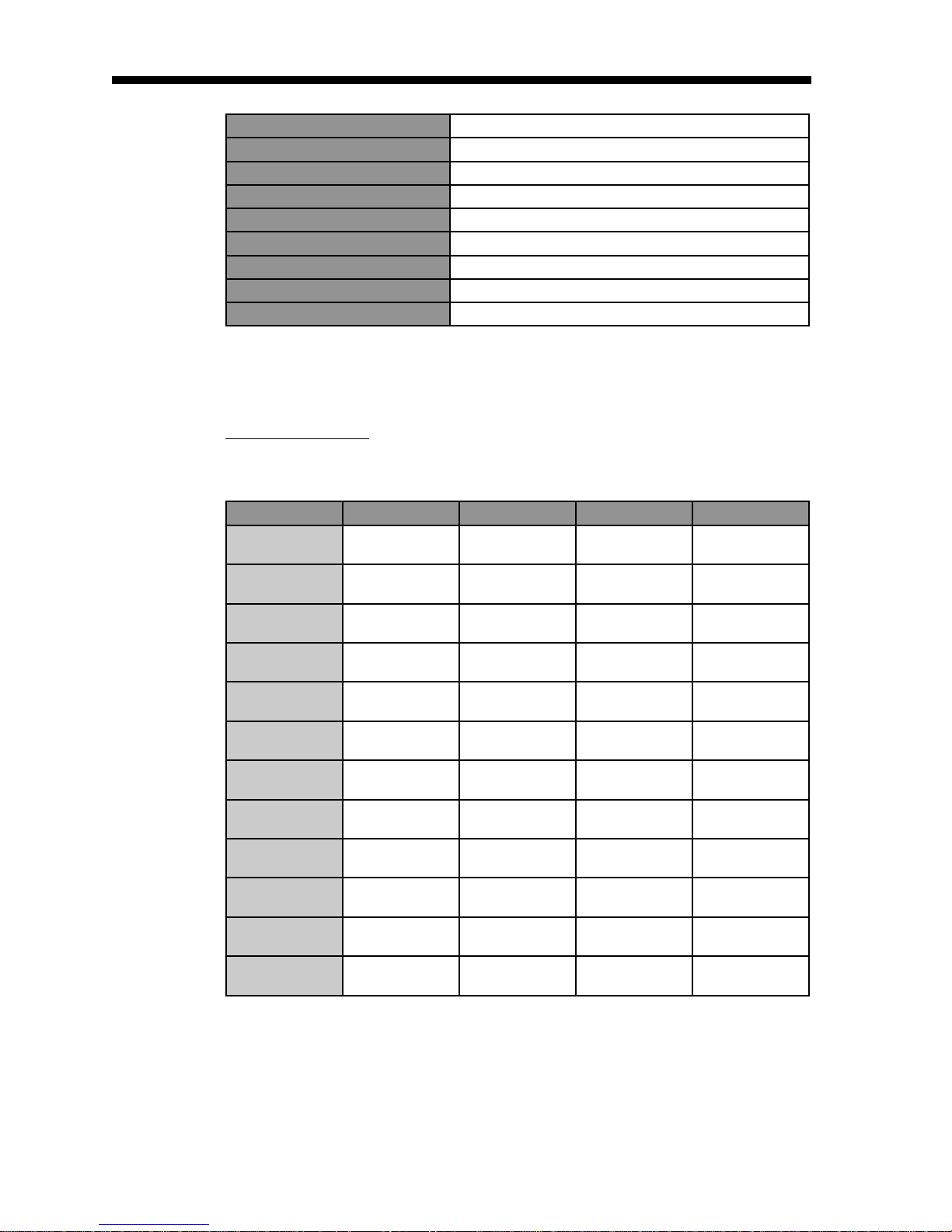
18.6. FACTORY DEFAULT SETTINGS
The following are the factory default settings.
Rate A 48000 Hz (SET- VSO off)
REF A Internal (LEARN)
ALT REF A Off
WCLK OUT All outputs on A
Page 25
Page 24
DCD-8 User Manual
AUDIO OUT All outputs on A.Mute
AUDIO IN A Off
AUDIO IN B Off
RATE B 48000 Hz (Set - VSO off)
REF B Use Ref A
DCD-Link Off
Optical I/O ADAT
AES Input Default Clock Source Auto
Menu Lockout Off
These settings can be recalled in menu 92.
18.7. USER SETTINGS
Use this chart to note your own settings.
USER 0 USER 1 USER 2 USER 3
RATE A
REF A
ALT REF A
WCLK OUT
AUDIO OUT
AUDIO IN A
AUDIO IN B
RATE B
REF B
Optical I/O
AES In Default
AUDIO RENTS, INC.
Clock Source
Menu Lockout
Page 26

AUDIO RENTS, INC.
BRAINSTORM ELECTRONICS, INC.
1155 N. La Brea Avenue, West Hollywood, CA 90038 - USA
www.brainstormtime.com
Distributed Exclusively by
plus24
Tel: (323) 845-1171 - Fax: (323) 845-1170
www.plus24.net
 Loading...