

Page 1
The Dash
PRO
Quick Start Guide
Bragi GmbH, Sendlinger Str. 7/Angerblock, 80331 Munich, Germany, Earth
Copyright ©2015 Bragi GmbH. All rights reserved. BRAGI, The Dash, and the B logo are trademarks
of Bragi GmbH in the U.S. or one or more other countries. The absence of a product or service name
or logo from this list does not constitute a waiver of Bragi GmbH trademark or other intellectual
property rights concerning that name or logo. Patents pending.
v1.4, 2017-04, V3 QSG English
BT: 2.4GHz ISM Band 2.402-2.480GHz Output Power: +4dBm
Model No: B1002-01 NFMI: 10.5MHz
FCC ID: 2AF5T-B1002L FCC ID: 2AF5T-B1002R
IC: 20811-2AF5TB1002L IC: 20811-2AF5TB1002R
Environmentally friendly disposal
Old electrical appliances must not be disposed of together with the
residual waste, but have to be disposed of separately. The disposal
at the communal collecting point via private persons is for free.
The owner of old appliances is responsible to bring the appliances
to these collecting points or similar collection points. With this little
personal effort, you contribute to recycle valuable raw materials
and the treatment of toxic substances.
Page 2

Thank you.
Page 3
Charge your Dash
before first use.
Charge & Activate
Page 4
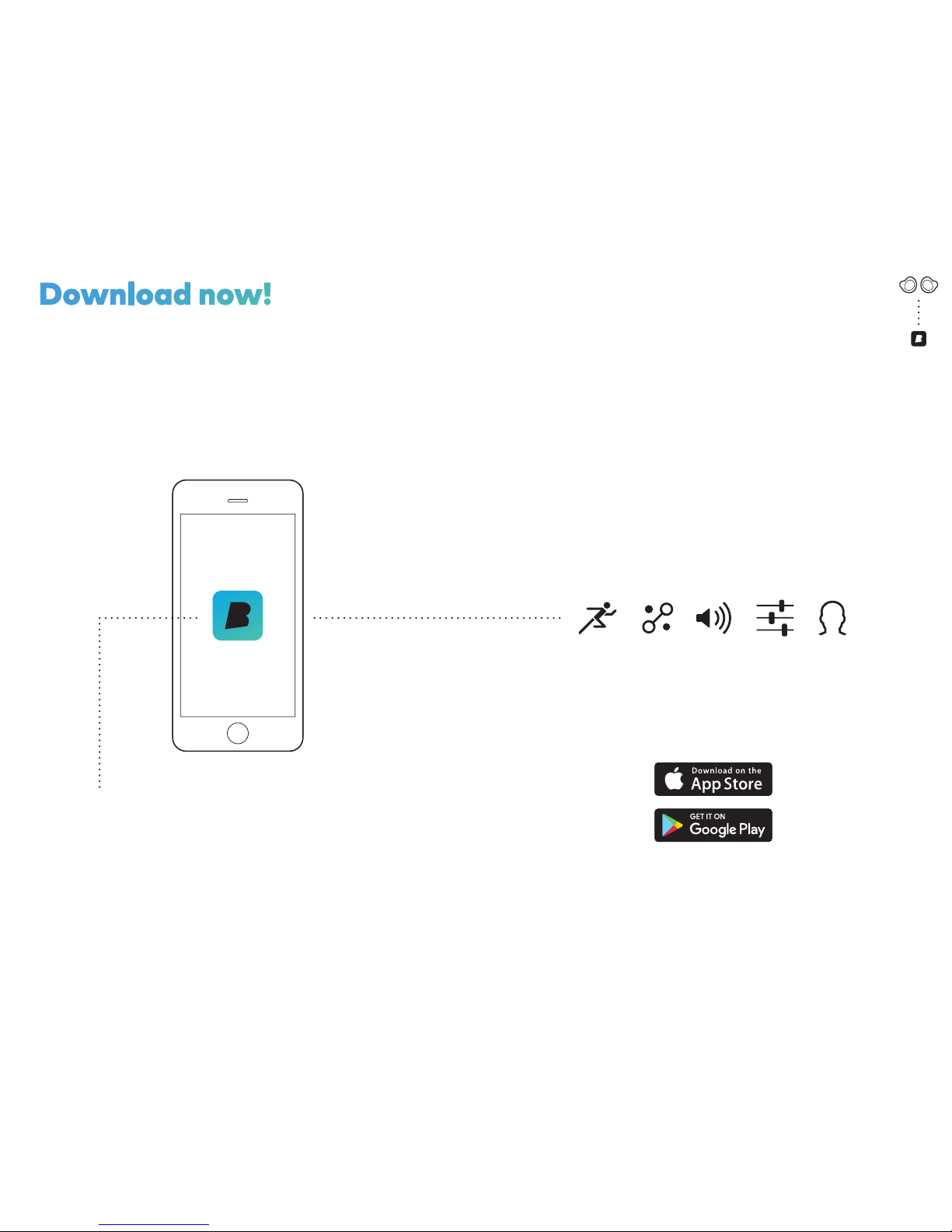
Downlod the free Brgi App to set up
nd remote-control your Dsh.
Unlock ll of its dvnced fetures now!
Bragi AppDownload now!
Use the Bragi App to set up:
Activities
Auto-Tracking
Controls
Head Gestures
Routines
Sound Settings
... and more
Page 5
BRAGI
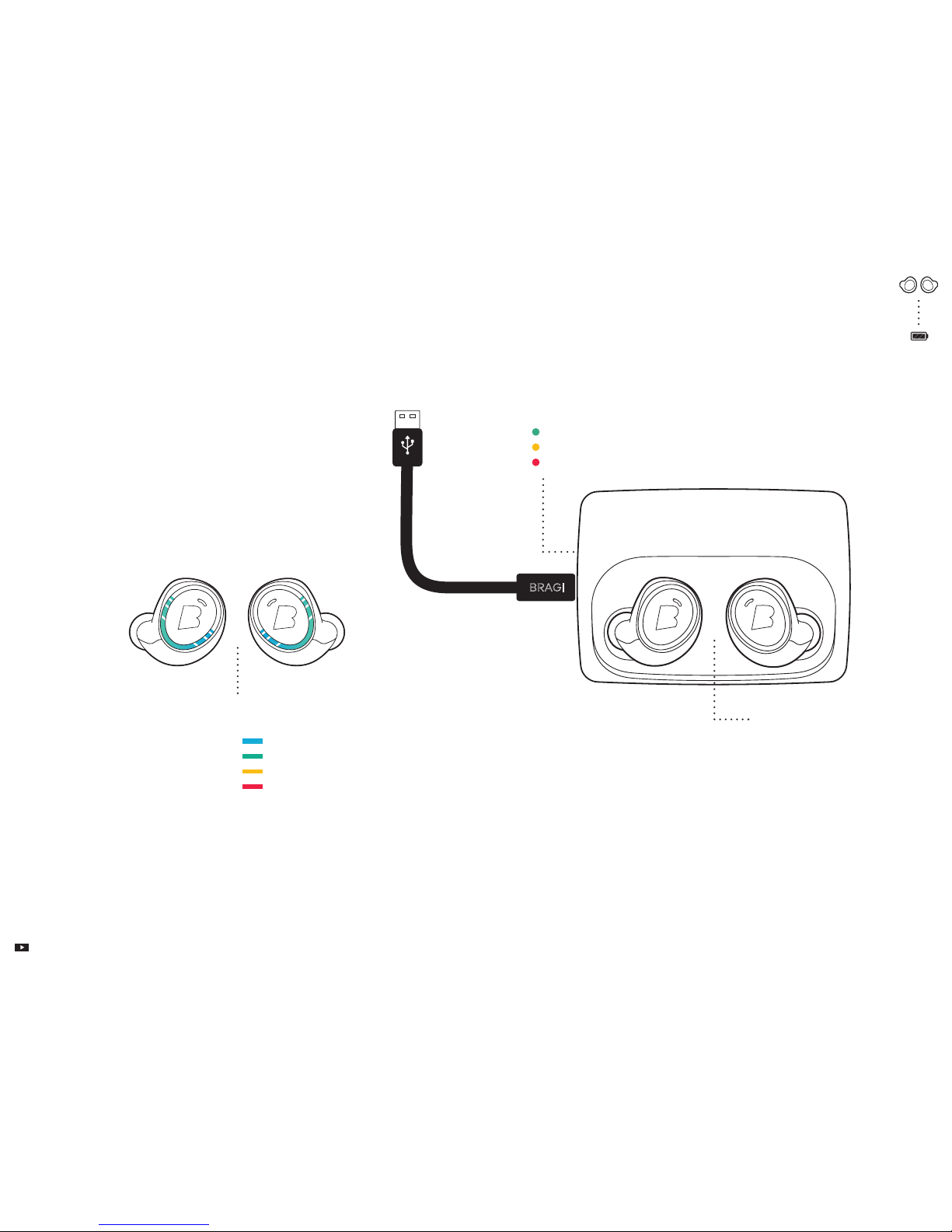
The Charger will power
The Dash up to 5 times
while on-the-go.
With The Dash in The Charger,
connect to your computer or
a power supply via USB.
high
Battery status
of The Charger
Battery status
of The Dash
medium
low
Before using The Dash, charge it for
at lea 1 hour. This will also activate
your Dash.
Charge
Shake.
See the current battery
status by shaking your Dash.
high
full
medium
low
User manuals on bragi.com/support Only put a dry Dash into the Charger!
Page 6
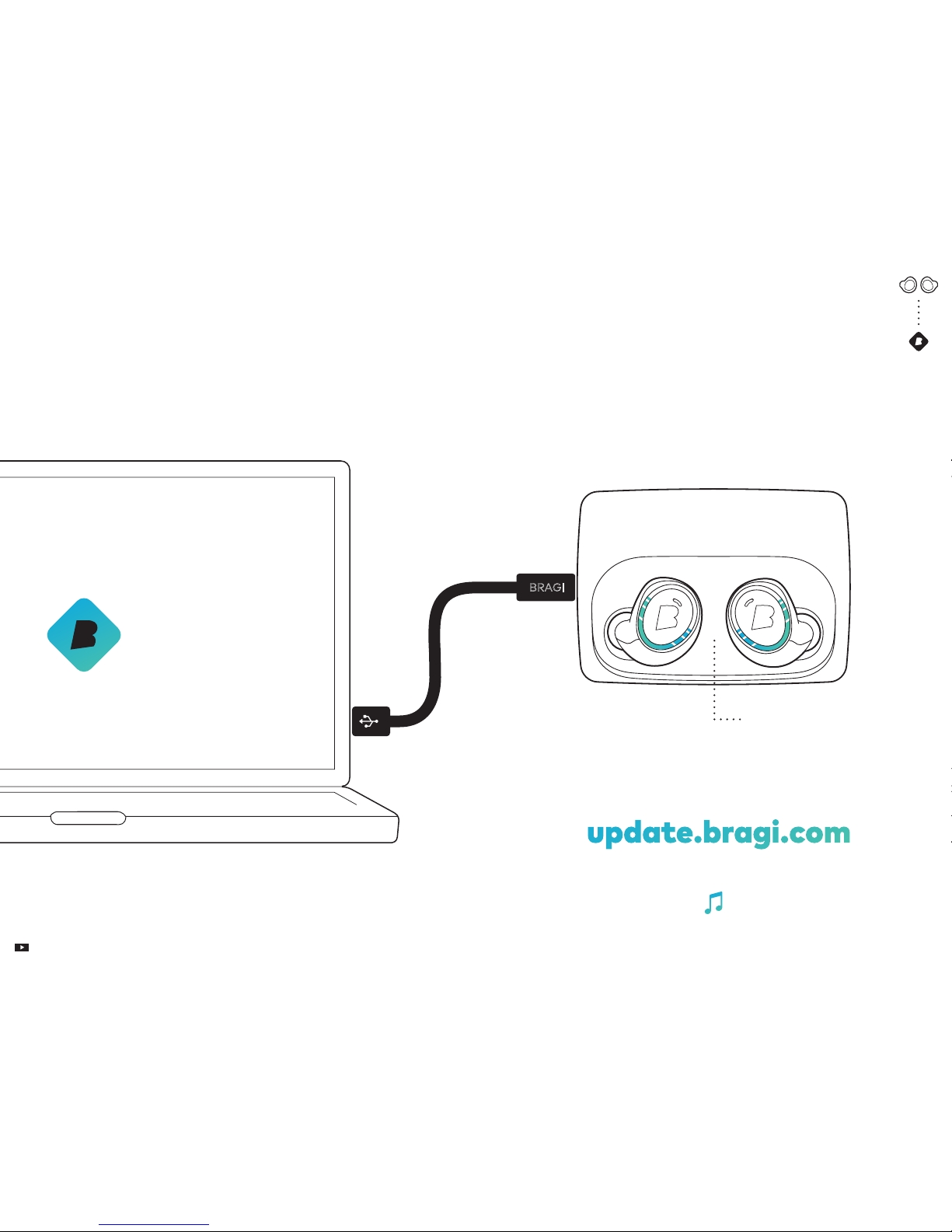
Your Dash learns new skills when
updated to the newe Bragi OS.
Download from update.bragi.com
Make sure your Dash is
charged before updating.
Update
update.bragi.com
BRAGI
Video tutorials on bragi.com/support
When connected to your computer you can also
upload songs into the My Music folder on The Dash.
Page 7
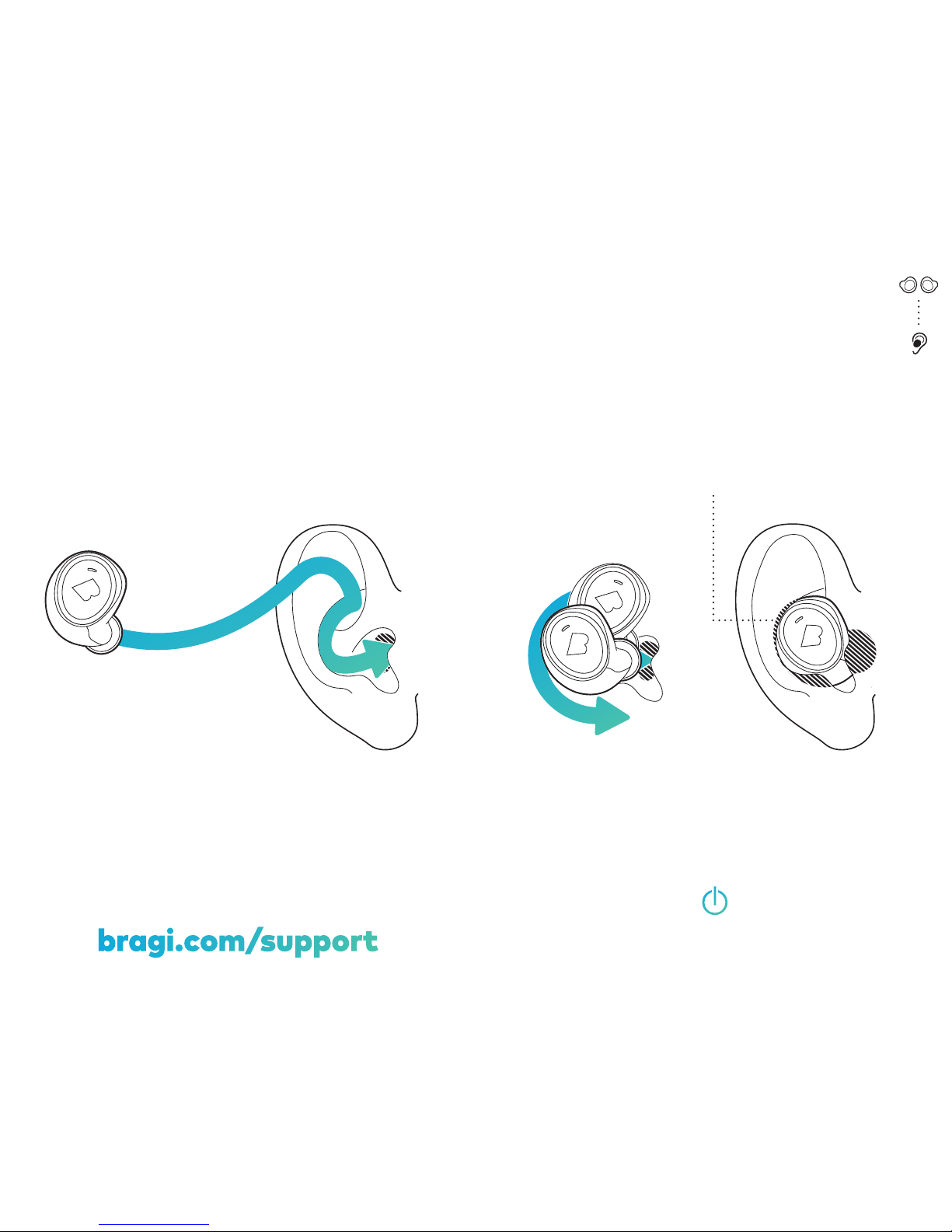
Tilt The Dash slightly forward.
Insert the tip firmly in your ear canal.
Adjust The Dash by rotating it backwards.
1.
2.
3.
Insert
1
2
3
The PerfectFit
bragi.com/support
Your Dash will automatically turn on
once both The Left & Right Dash are inser ted
Page 8
Video tutorials on bragi.com/support
PerfectFit
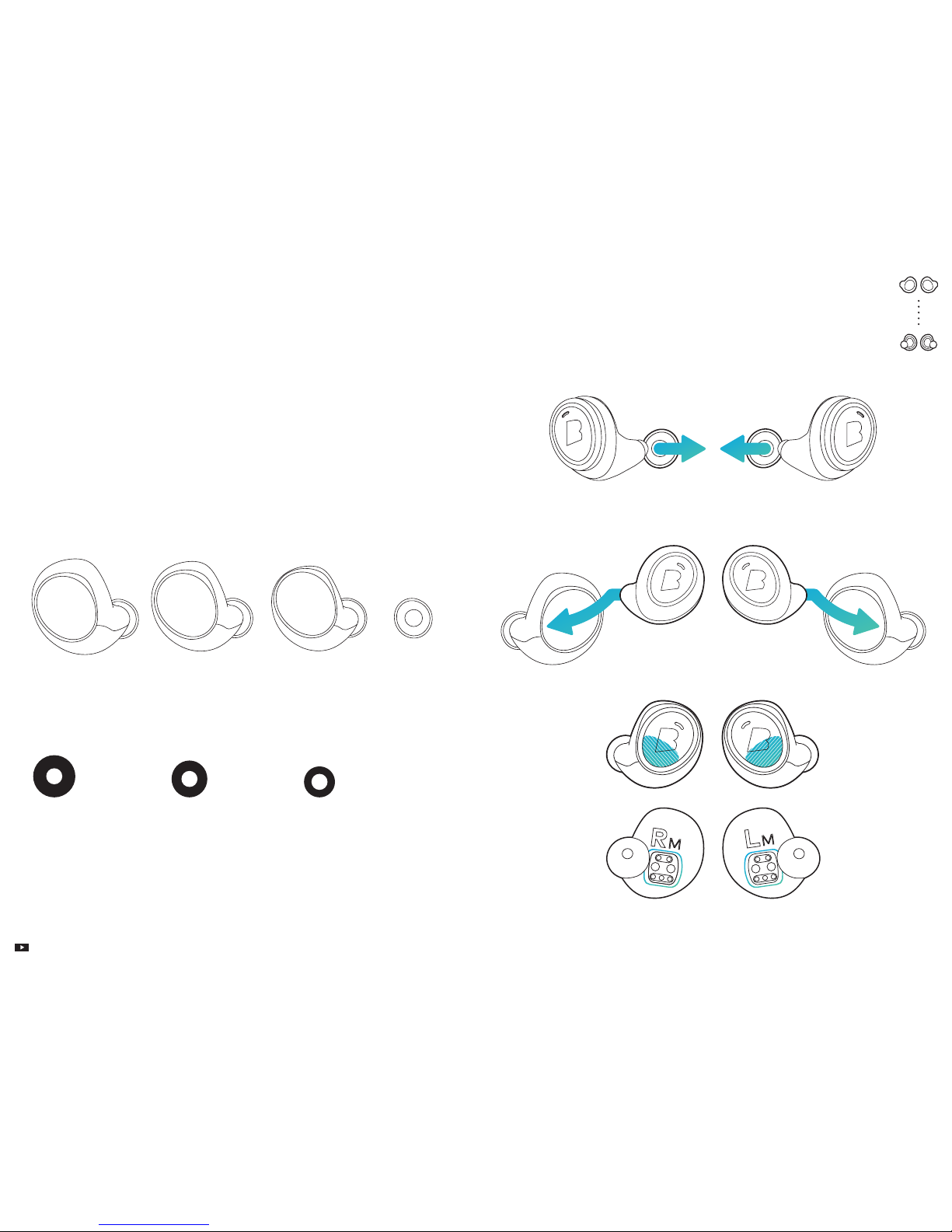
Try all FitSleeve & FitTip sizes to get the
PerfectFit. The sensors must be in contact
with your skin to get best tracking results.
FitSleeves best for Activities
FitTips Pro best for Audio
Make sure not to cover the EarTouch area & DataHub
Remove FitTips
Put on FitSleeves or FitTips
M
M
S
1
2
3
S
XS
L
L
!
Page 9
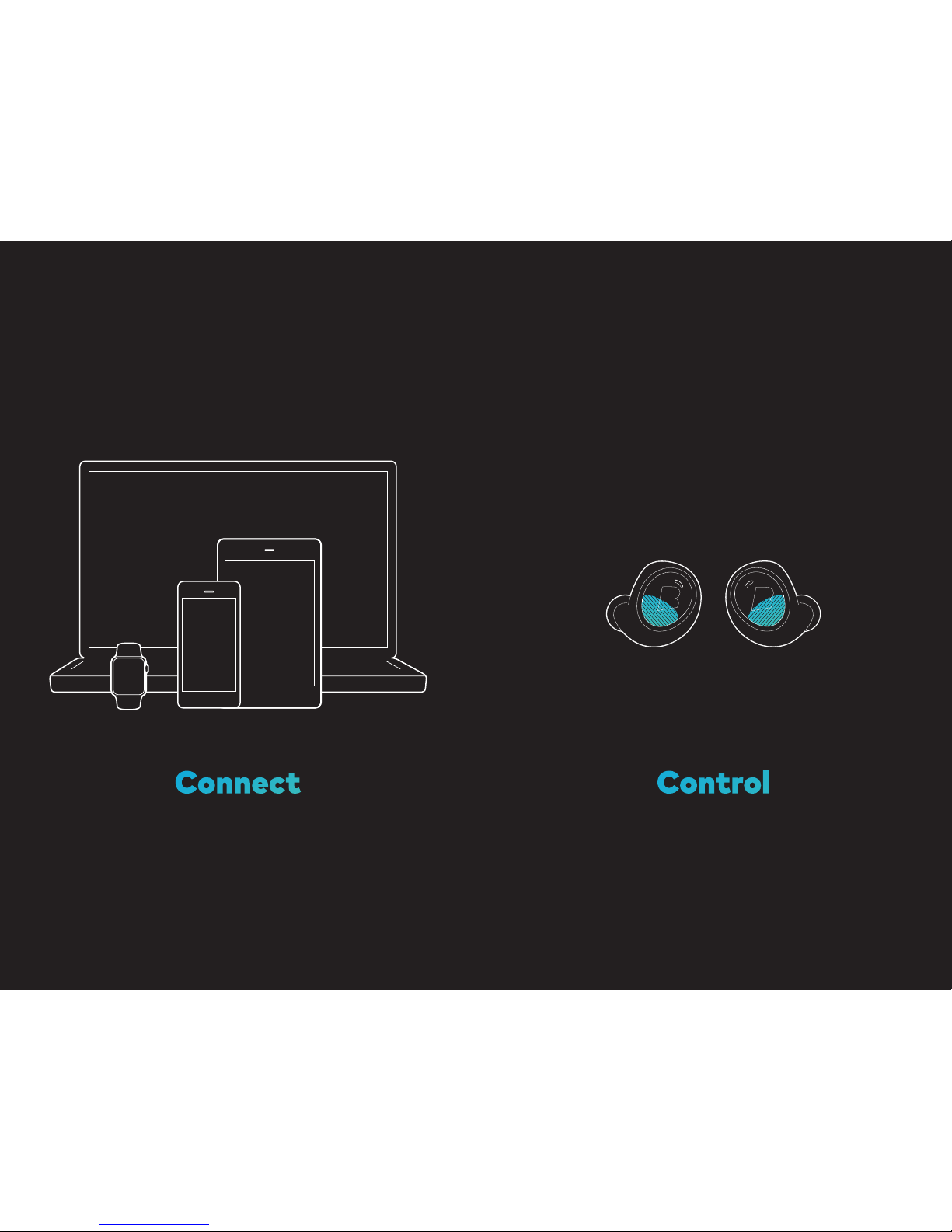
Connect Control
And now …
Page 10
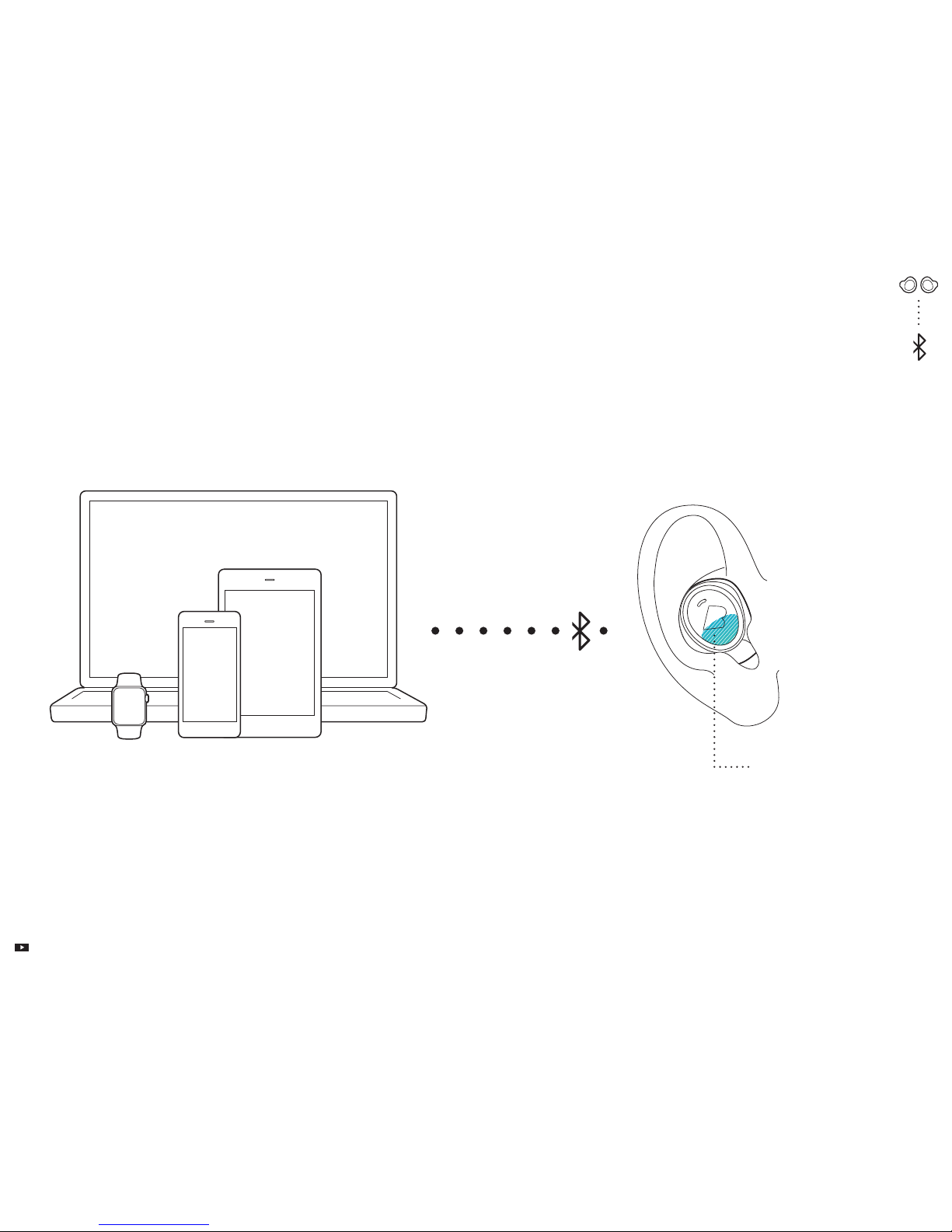
Insert The Dash into your ear and search for
The Dash in the Bluetooth® menu of your device.
If your Dash does not show up in the list,
do a Long Hold (5sec) on the Right Dash.
You can find video tutorials on
bragi.com/support
!
Video tutorials on bragi.com/support
Fir connect Audio
Long Hold (5sec) on
the Right Dash to make
Bluetooth® visible
Page 11
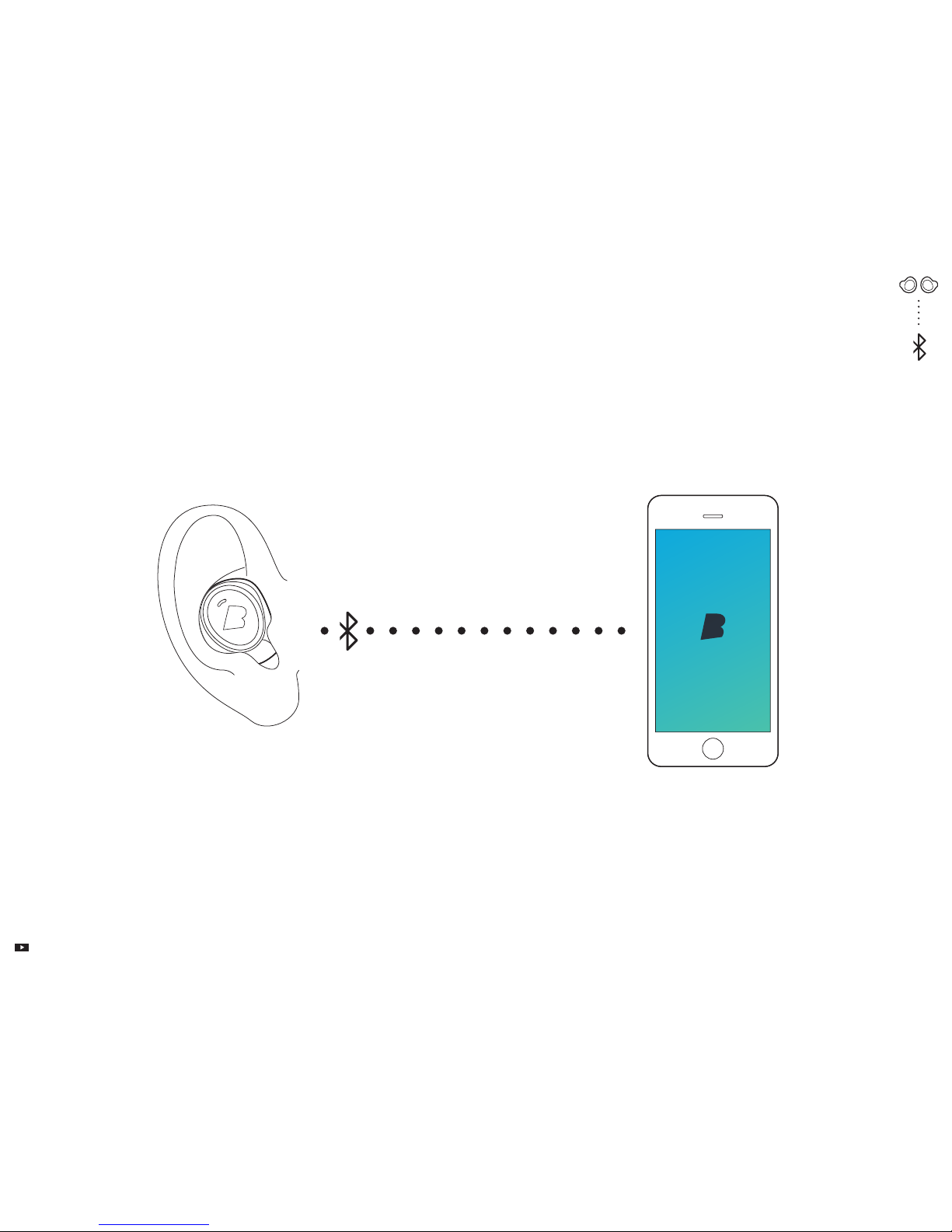
To connect The Dash sensors to your device, open
the Bragi App and select your Dash in the device list.
Make sure to connect The Dash audio system first
before connecting the sensors.
User manuals on bragi.com/support
Then connect Sensors
BLE
BLE
!
Page 12
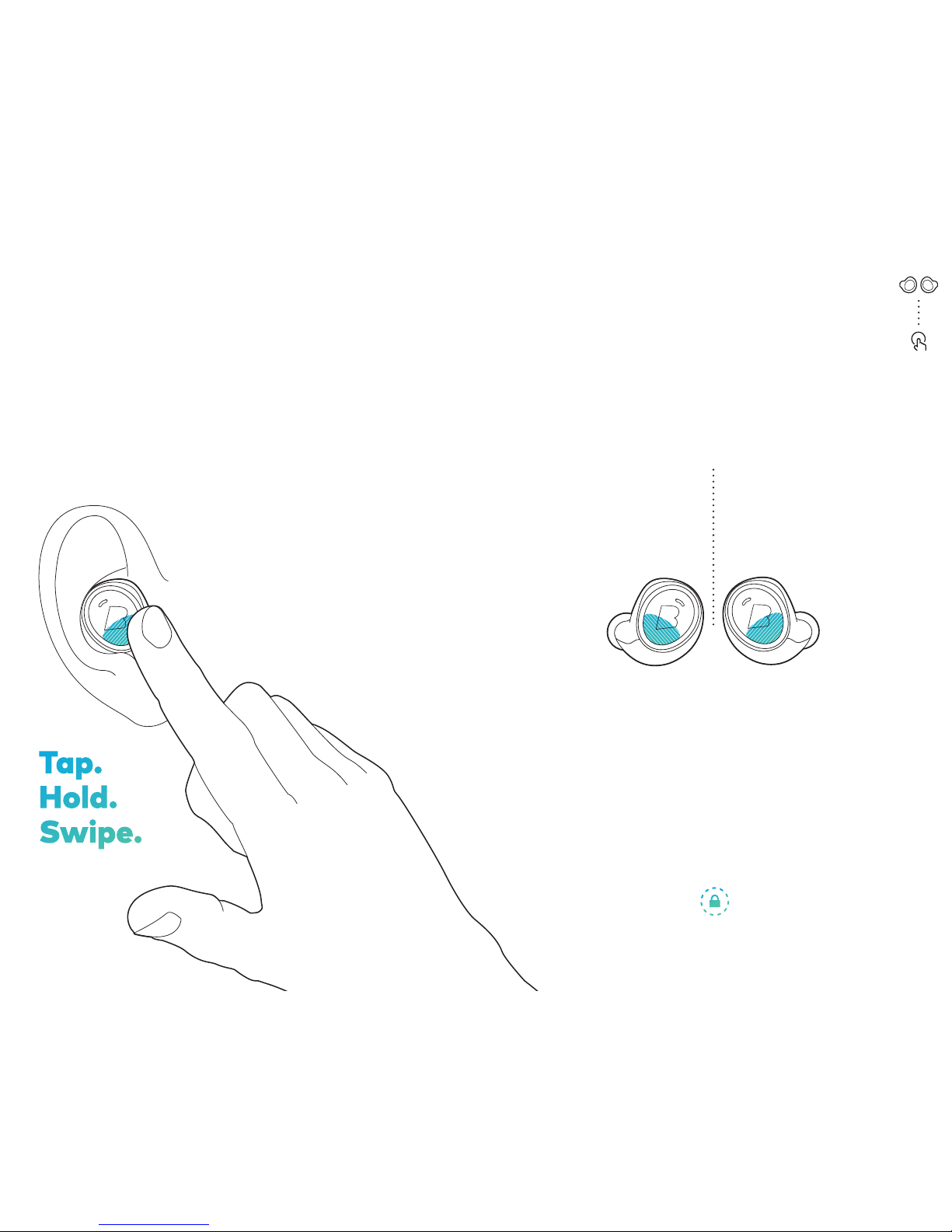
Control your Dash with tap, hold and swipe
gestures using the EarTouch Interface.
EarTouch
The EarTouch Interface
is located on the lower
half of each Dash.
Hold on both Dash simultaneously
to turn TouchLock on
Tap.
Hold.
Swipe.
Page 13
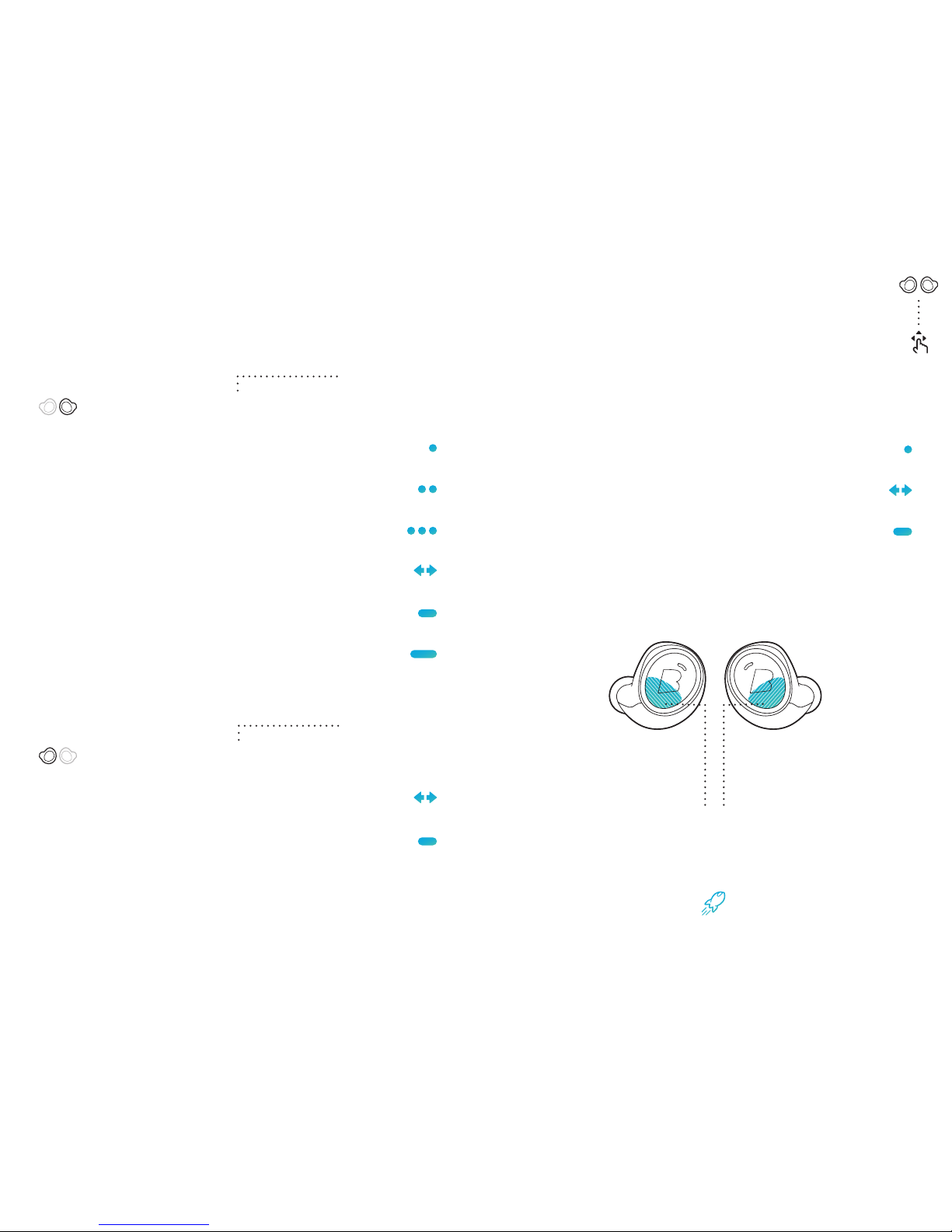
Activate more features
in the Bragi App
Select
Next / Previous menu item
Close menu
Menu navigation
Connect Bluetooth®
Right Menu
Left Menu
Next song
Previous song
Play/Pause
Volume Up/Down
Basic Controls
Audio Transparency
Tap Tap
2×Tap
3×Tap
Swipe
Swipe
Swipe
Long Hold 5sec
Hold 1sec
Hold 1sec
Hold 1sec
Right Dash
Left Dash
Hold 1sec to
open Right Menu
Hold 1sec to
open Left Menu
Listen &
Communicate
Control
Applications
Page 14
Languages
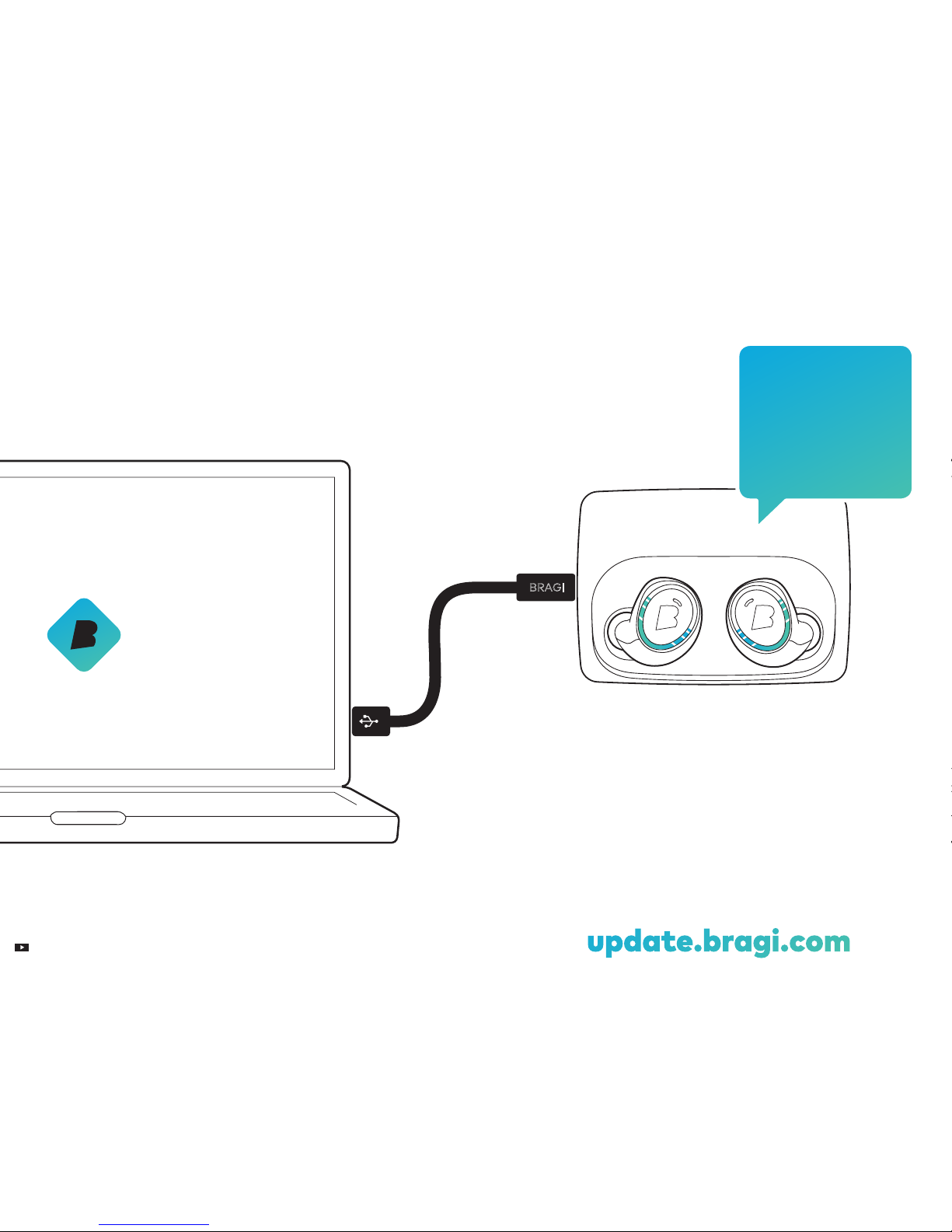
Use the Bragi Updater to change the language
of your Dash. Download from update.bragi.com
BRAGI
I speak English
Ich spreche Deutsch
Je parle Français
Hablo Español
我会说中文
...
update.bragi.com
update.bragi.comVideo tutorials on bragi.com/support
Page 15

Queions?
We are here to help.
support.bragi.com
 Loading...