

Page 1
The Dash
PRO
Quick Start Guide
Charge & Activate
Charge your Dash
before first use.
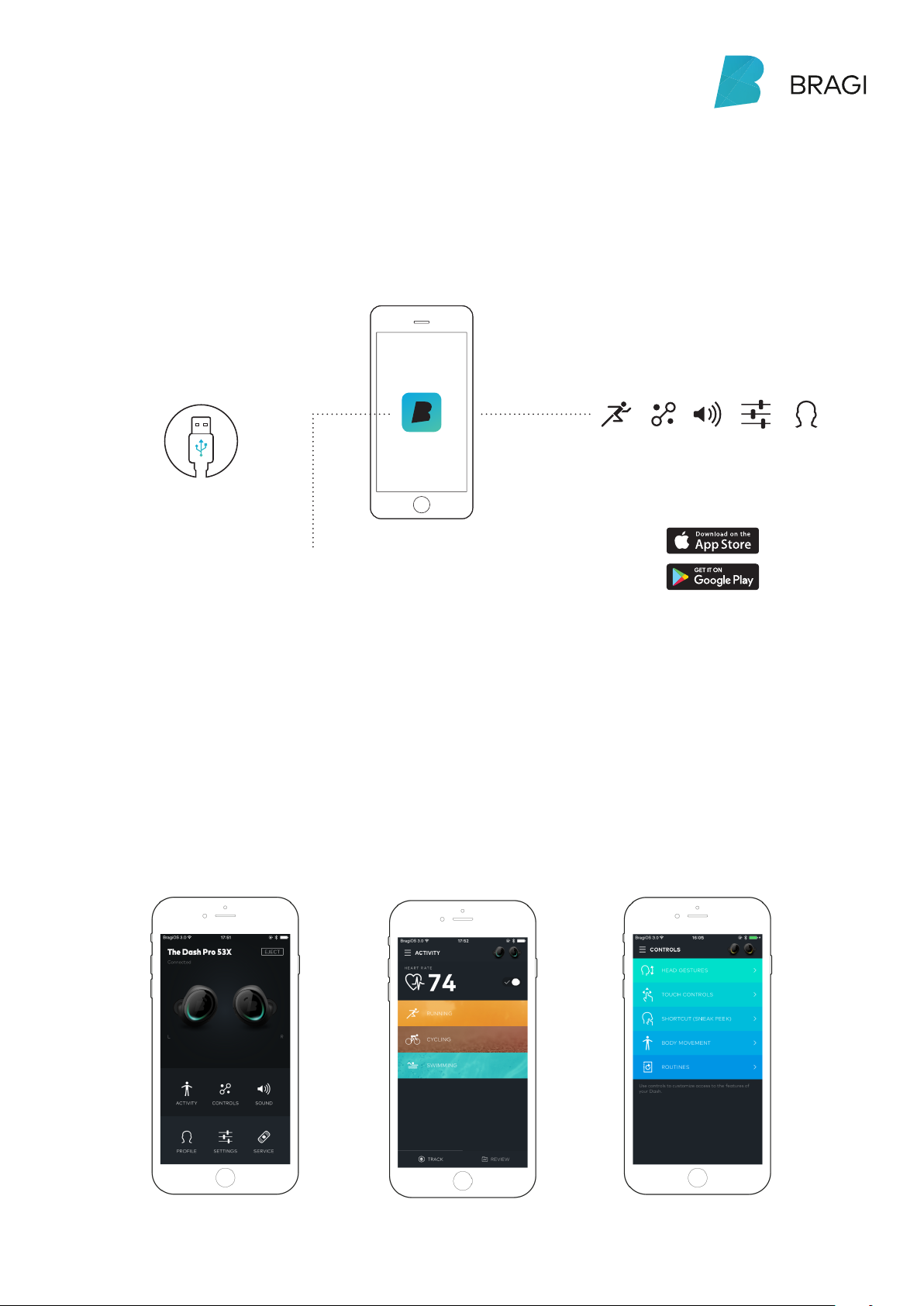
Use the B ragi Ap p to set up:
Activities
Auto-Tracking
Controls
Head Gestures
Routines
Sound S ettin gs
... and more
Download now!
Bragi App
Download the free Bragi App to set up
and remote-control your Dash.
Unlock all of its advanced features now!
Page 2
The Dash
PRO
Quick Start Guide
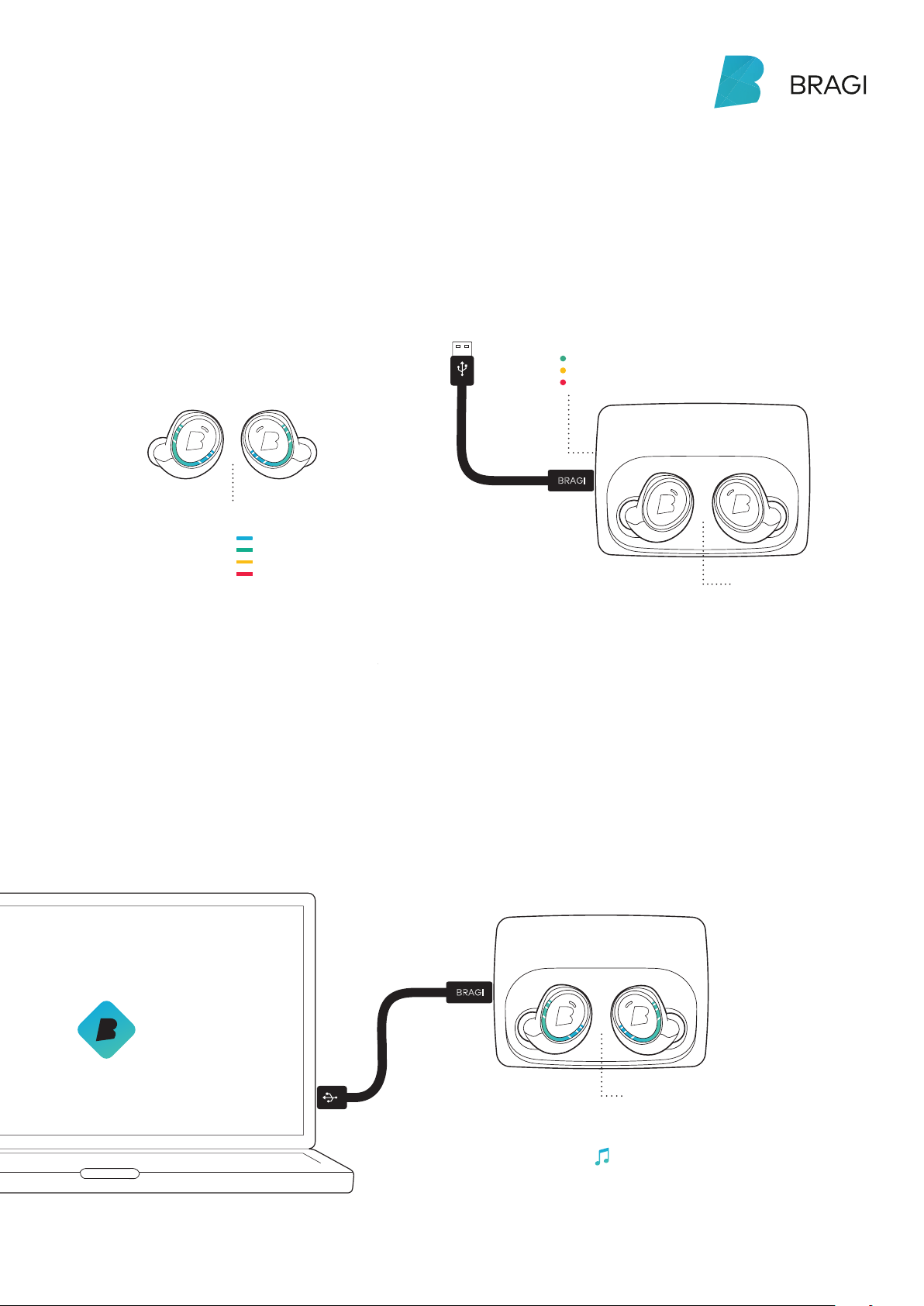
Charge
Before using The Dash, charge it for
at least 1 hour. This will also activate
your Dash.
Batte ry status
of The Da sh
full
high
medium
low
Shake.
See the current battery
status by shaking your Dash.
Update
Your Dash learns new skills when
updated to the newest Bragi OS.
Download from update.bragi.com
Batte ry status
of The Charger
high
medium
low
BRAGI
With The Dash in The Charger,
connect to your computer or
a power supply via USB.
!
Only pu t a dry Dash into t he Charger
The Charger wil l power
The Das h up to 5 tim es
while o n-the -go.
BRAGI
Make sure your Dash is
charged befor e updat ing.
When connected to your co mputer you can als o
uploa d songs i nto the My M usic folder on T he Dash .
Page 3
The Dash
PRO
Quick Start Guide
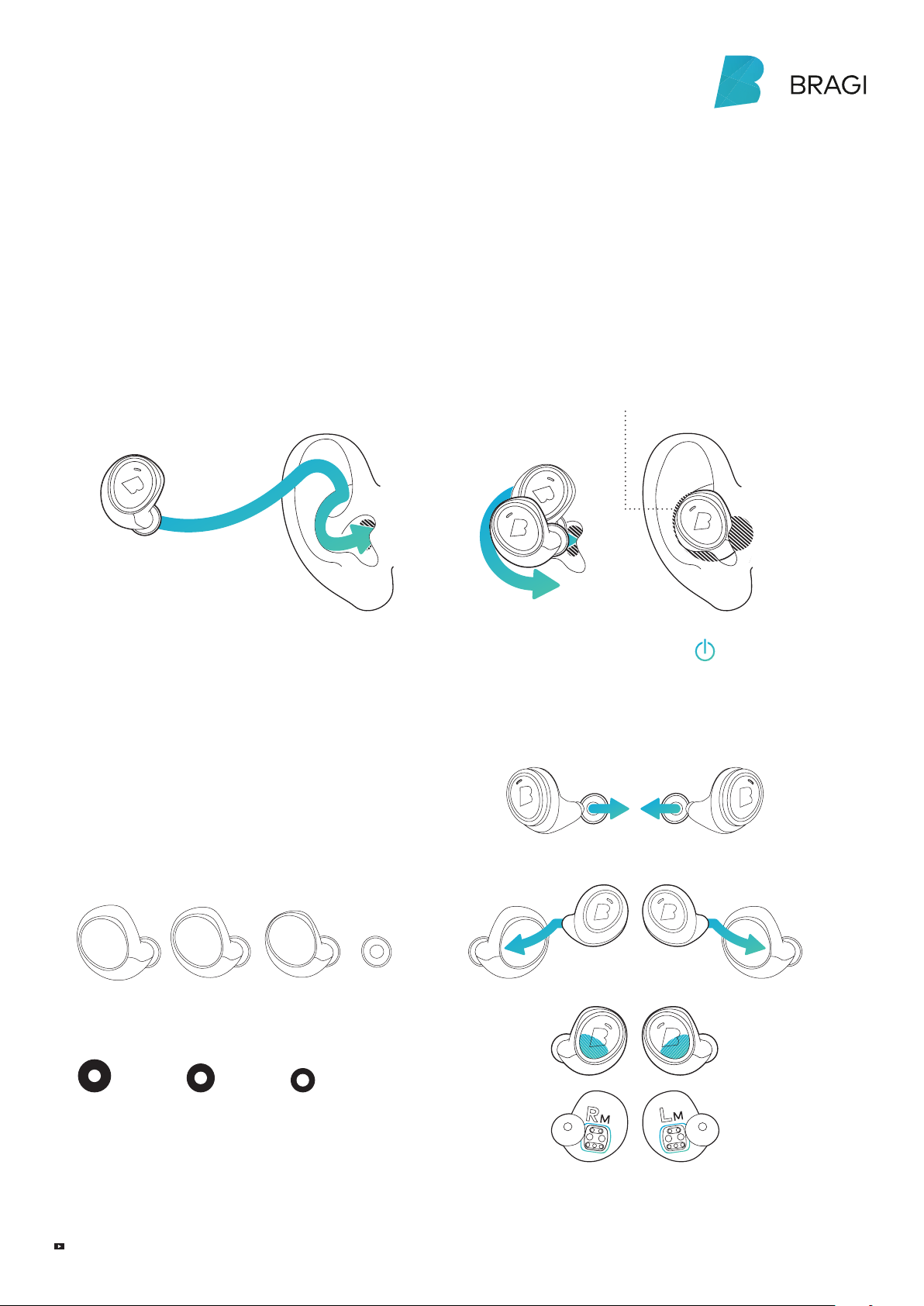
Insert
1.
Tilt The Dash slightly forward.
2.
Insert the tip firmly in your ear canal.
3.
Adjust The Dash by rotating it back wards.
1
The Per fectFit
PerfectFit
Try all FitSleeve & FitTip sizes to get the
PerfectFit. The sensors must be in contact
with your skin to get best tracking results.
L
FitSleeves best for Activities
M
S
2
XS
3
Your Dash wi ll autom atically turn o n
once bot h The Lef t & Right Dash are ins erte d
1
Remove FitTips
2
Put on Fit Sleeves or FitTips
L
FitTips Pro best for Audio
Video t utorials on bra gi.co m/suppo rt
M
3
S
Make sure n ot to cover the EarTouch area & DataHub
!
Page 4
The Dash
PRO
Quick Start Guide
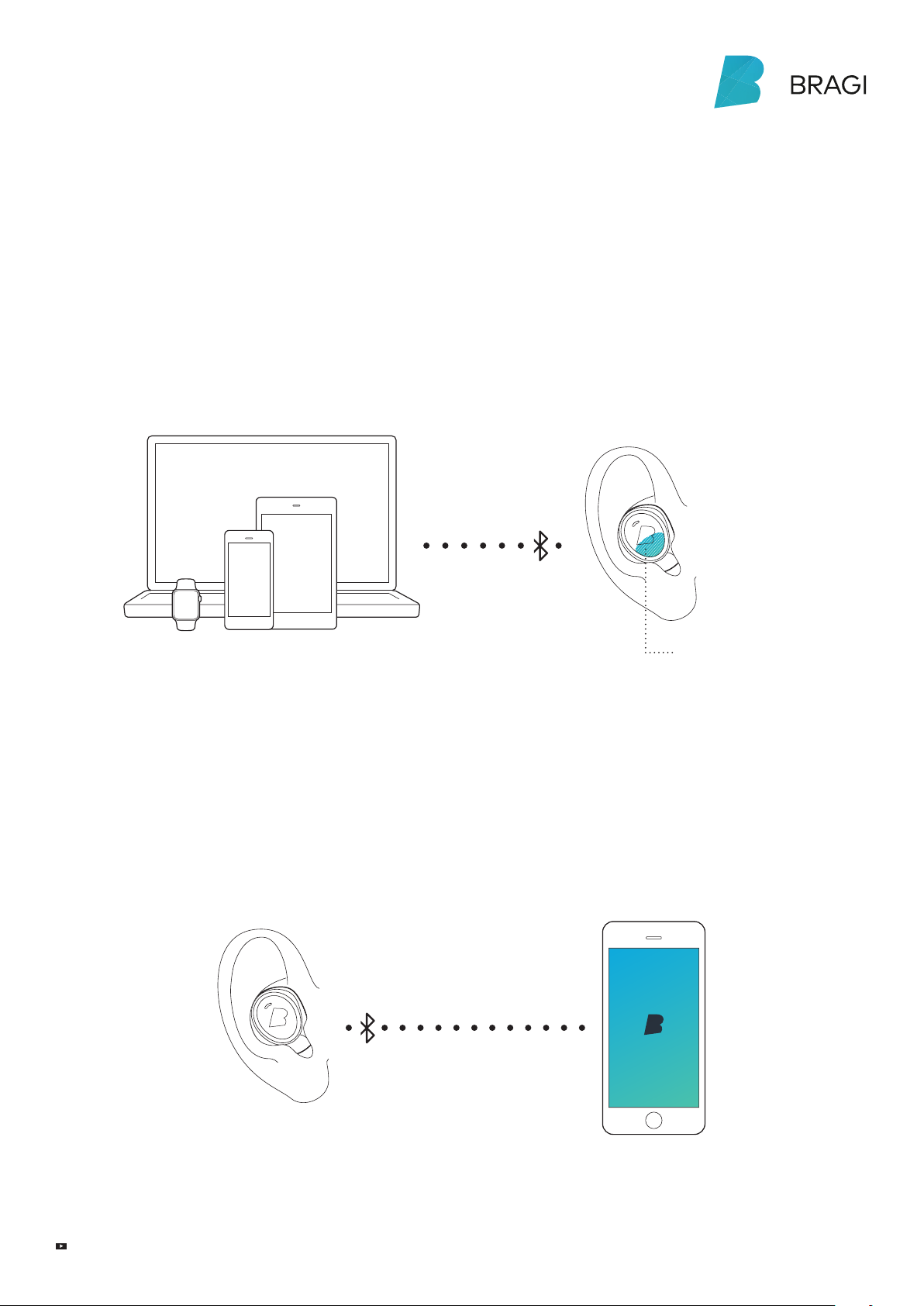
First connect Audio
Insert The Dash into your ear and search for
The Dash in the Bluetooth® menu of your device.
!
If your Dash does not show up in the list,
do a Long Hold (5 sec) on the Right Dash.
You can find video tutorials on
bragi.com/support
Then connect Sensors
To connect The Dash sensors to your device, open
the Bragi App and select your Dash in the device list.
!
Make sure to connect The Dash audio system first
before connecting the sensors.
BLE
Long Hold (5 sec) on
the Right Dash to make
Bluet ooth® visibl e
User manuals on b ragi.com/sup port
Page 5
The Dash
PRO
Quick Start Guide
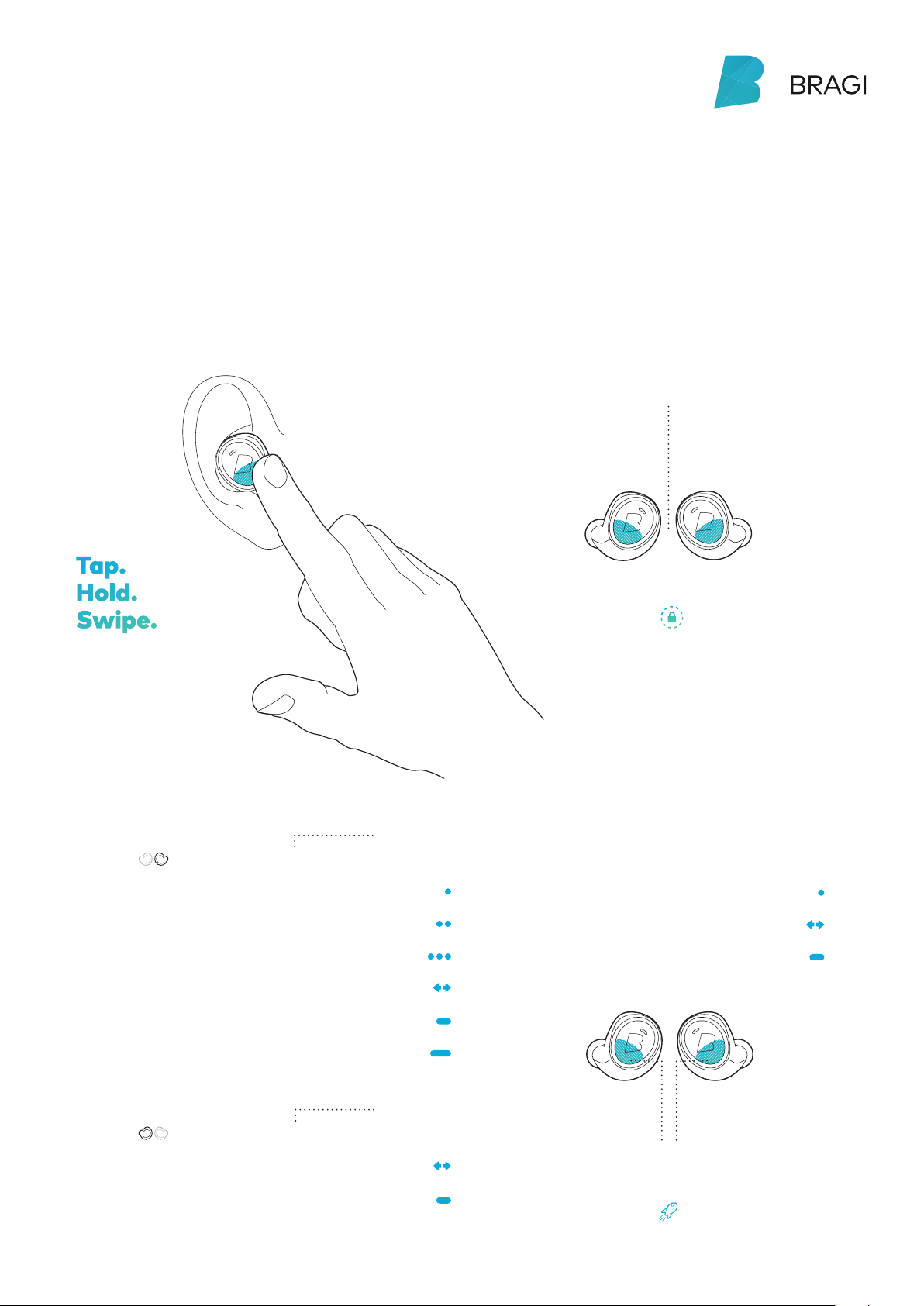
EarTouch
Control your Dash with tap, hold and swipe
gestures using the EarTouch Interface.
Tap.
Hold.
The EarTouch Interfa ce
is locat ed on the l ower
half of e ach Das h.
Swipe.
Basic Controls
Tap
2× Tap
3× Tap
Swipe
Hold 1 sec
Long Hold 5 sec
Connect Bluetooth®
Right Dash
Play / Pause
Next song
Previous song
Volume Up / Down
Right Menu
Liste n &
Communicate
Tap
Swipe
Hold 1 sec
Hold on b oth Das h simultaneously
to turn To uch Loc k on
Menu navigation
Select
Next / Previous menu item
Close menu
Swipe
Hold 1 sec
Left Dash
Audio Transparency
Left Menu
Control
Applications
Hold 1 se c to
open Left Men u
Acti vate more feature s
in the Bragi App
Hold 1 se c to
open Ri ght Men u
 Loading...