

Page 1
VTr93M
Streaming Media Rear-View Mirror Monitor
USER MANUAL
Page 2

Page 3

VTR93M Streaming Media Rear-View Mirror Monitor
Precautions
● Please insert the micro SD card in the right direction to avoid damage to
the card or the VTR93M. If the VTR93M shows an error message, please
format the micro SD card from the VTR93M menu. Please reset the
VTR93M or replace the micro SD card if the error continues.
Note: All les will be deleted when formatting the micro SD card. Please
backup the important les before you format. When the reset function is
selected, the settings will be returned to the default setting.
● Recommended micro SD card: CLASS 10 or above micro SD card. Micro
SD card specication varies from one brand to another and it may not
function as expected when using with the VTR93M. Please review the
micro SD’s specications before you use the micro SD card.
● The micro SD card must be formatted before using with the VTR93M.
Backup recording les once a week to prevent les from being
overwritten. Please format the micro SD card once every month for
recording stability.
● Please make sure the straps are installed properly and rmly onto the
rearview mirror to avoid any damage to the VTR93M and for better
recording angle.
● The battery life-span will continuously decrease upon usage. Please
charge the battery once every month to preserve the battery life.
● Please do not use the VTR93M in a wet environment as the mirror
monitor is not waterproof or water resistant.
● Please do not record or take pictures in direct sunlight.
● To obtain clear images, please clean the windshield and the VTR93M
cameras on a regular basis. Avoid using the VTR93M in a dusty
environment.
1
Page 4

VTR93M Streaming Media Rear-View Mirror Monitor
● Please handle the VTR93M with care. Avoid using the VTR93M in a high
electromagnetic environment.
● Operating temperature of the VTR93M is -4°F to 140°F. Continuous
exposure to sunlight, especially when the VTR93M is mounted in a
vehicle where the temperature exceeds above 158°F, the VTR93M may
malfunction, screen change colors or image distortion.
Disclaimer:
This device is NOT intended to be used for illegal purposes; surveillance
shall not be used in any form as evidence for claim purposes. Some
countries prohibit drivers from mounting anything on the windshield, or
restrict mounting to specic areas of the windshield. It is the owner’s
responsibility to mount the device in compliance with local laws. Errors
may occur depending on the surrounding environment and the voltage
of the vehicle. Company is not liable or responsible for non-recorded
event, missing les and others. Company will not be liable for any damage
incurred directly or indirectly from errors, omissions, or discrepancies.
Do not operate the device while driving. Using this device does not change
the requirement for a driver to take full responsibility for his or her behavior.
This responsibility includes observing all trafc rules and regulations in
order to avoid accidents, personal injury or property damage.
2
Page 5
VTR93M Streaming Media Rear-View Mirror Monitor
1234
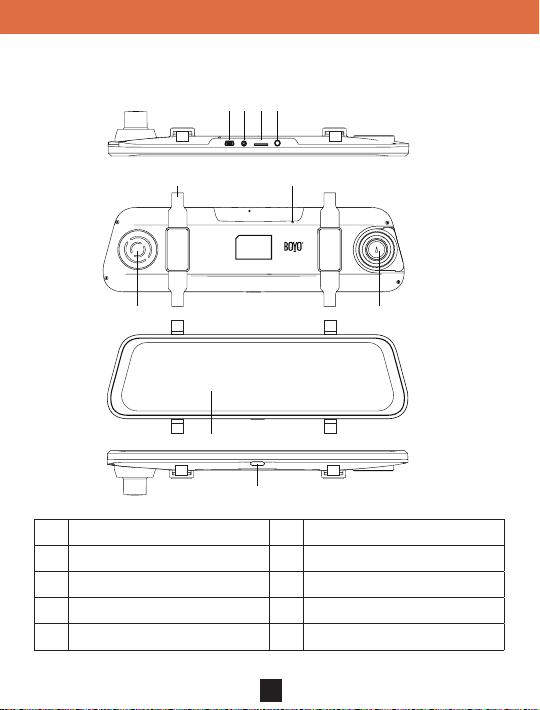
1. Product Structure
56
GPS TF AV-INUSB
RESET
7
9
10
1 USB power input 6 RESET button
2 AV-IN rear camera input 7 Speaker
3 Micro SD Card slot 8 Front Camera
4 G P S a n t e n n a i n p u t 9 LCD Screen
5 Back strap mounting hook 10 ON/OFF/LCD Off
8
3
Page 6
VTR93M Streaming Media Rear-View Mirror Monitor
11-23
Friday
AM
23:11
08 56
:
2. Function
A. Power Function
1. Power On
In the off state, long press the ON/OFF button, the VTR93M enters into
video mode and starts recording automatically. Or when the VTR93M is
connected with the vehicle charger in the off state, it enters video mode
and starts recording automatically. When the USB charger is unplugged,
the VTR93M will automatically save the current le and shut down within 10
seconds delay.
Note: LCD screen displays ‘Please insert SD card’ if Micro SD card not
inserted.
2. Power Off
In the working state, long press ON/OFF button to power off the VTR93M.
Note: In low battery state, the VTR93M displays ‘Low Battery’ and will
automatically saves the current le and shuts down.
B. Function Keys
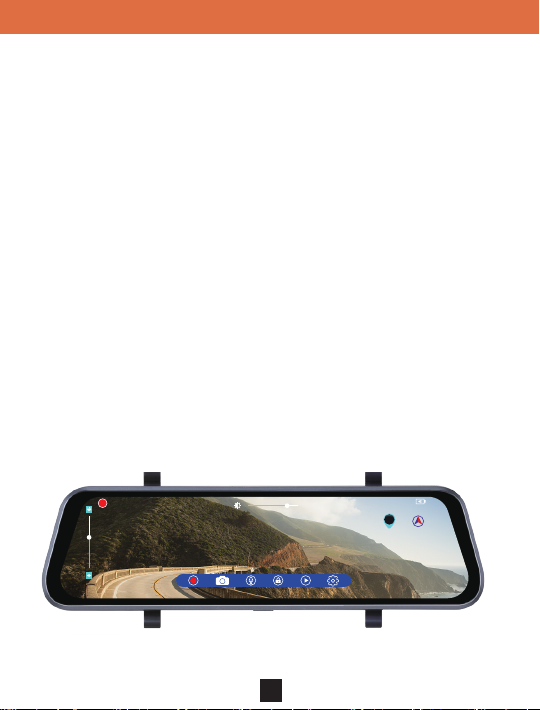
VTR93M will enter into the main interface after it is powered on. (As shown
below)
01:48
0
MPH
1 2 A B C D
GPS
08 58
11-23
AM
N
W E
S
:
Friday
4
Page 7
GPS
VTR93M Streaming Media Rear-View Mirror Monitor
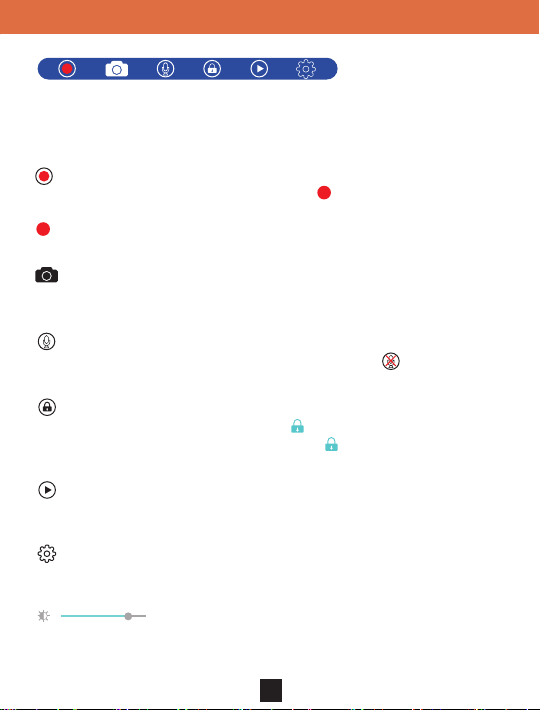
These are function operation keys. If no operations within 5 seconds, the
keys will disappear, touch the LCD screen anywhere and the keys will
appear on the screen again.
Video key: Click the key in video standby mode, the VTR93M enters
into video mode and starts recording and the
corner of the screen. Click it again, the VTR93M stops recording and the
disappears off the screen.
Photo key: Click the key to take a photo with sounds prompt in the
standby or video mode.
Record audio key: The icon shows the record audio on. Click the key
to close record audio in the standby or video mode and
appears on the top left
appears.
Manual lock key: Click the key in the recording to save the current
video le from being overwritten and the
Click it again to unlock the current le and the
appears on the top of screen.
disappears off the screen.
File management key: In video standby mode, click the key to access
the le management interface to playback/delete videos and photos.
System setting key: In video standby mode, click the key to enter into
system setting.
adjustment button and drag it left or right to adjust the brightness of the
Screen brightness adjustment bar: Hold the middle
screen.
5
Page 8
GPS
GPS
GPS
VTR93M Streaming Media Rear-View Mirror Monitor
01:48
0
MPH
1 2 A B C D
08 58
11-23
Friday
AM
11-23
Friday
AM
GPS
N
S
W E
:
23:11
08 56
:
Window adjustment bar of rear camera: The icon appears after
the VTR93M is powered on and connects with rear camera. Click on
the top or bottom position of the adjustment bar to adjust the viewing
position of rear camera’s image on the screen, this allows the users
to focus on the appropriate area behind the vehicle.
Front and rear camera image display switch: In the screen control
interface, click any position of the screen (non-operation button) to switch
between the current camera image to the other camera image.
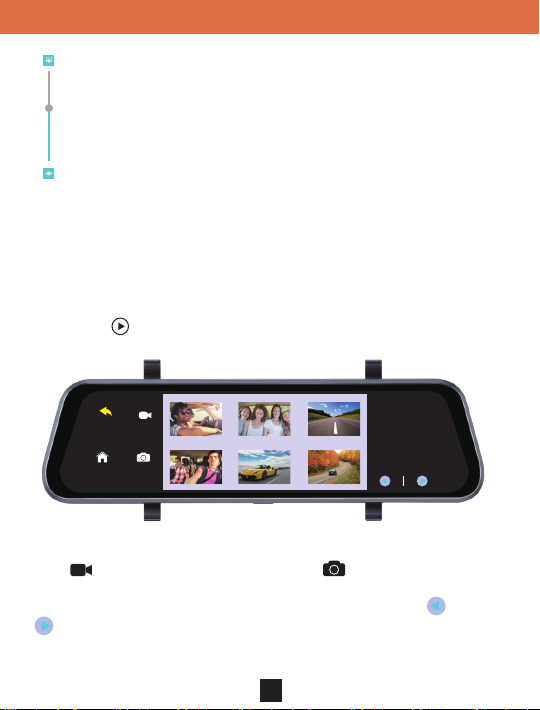
C. File management
1. Click the
below)
key to enter into le management interface. (As shown
to playback the videos and click the
Click
08 59
11-23
1 2
:
Friday
to view the photos; the
middle window displays the les and the bottom right window displays the
current page and the total number of pages of the e. Click the
or the
to change the le page.
6
Page 9
GPS
GPS
GPS
GPS
01:48
0
MPH
1 2 A B C D
08 58
11-23
Friday
AM
11-23
Friday
AM
GPS
N
S
W E
:
08 59
11-23
Friday
:
23:11
08 56
:
1 2
01:48
0
MPH
1 2 A B C D
08 58
11-23
Friday
AM
GPS
N
S
W E
:
08 59
11-23
Friday
:
06 60
11-23
Friday
:
:
1 2
VID_007.MOV
1080P 1920x1080
00:00 03:00
VTR93M Streaming Media Rear-View Mirror Monitor
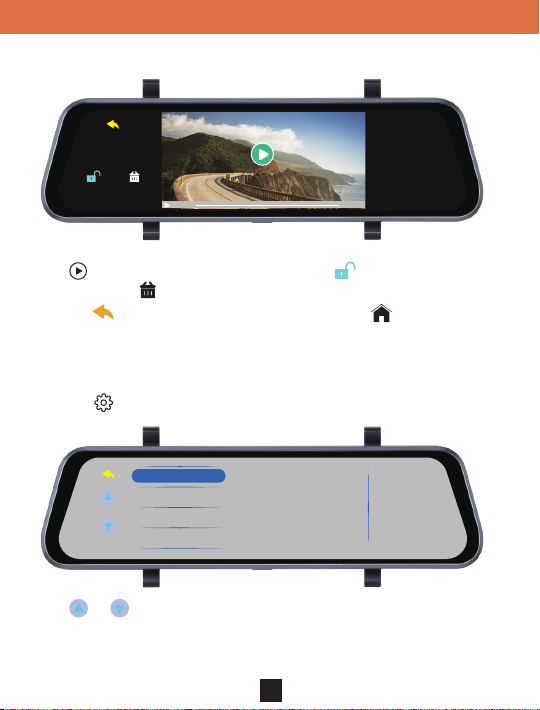
2. Click the play icon in the middle window to play the video. (As shown
below)
VID_007.MOV
1080P 1920x1080
key to play the current video, click the
Click
the le, click the
Click the
00:00 03:00
key to delete the current le that is unlocked.
to return the last interface and Click the
:
:
06 60
Friday
11-23
key to lock or unlock
to return to the
main interface.
D. System setting
Click the
key to enter into the system setting menu. (As shown below)
Resolution
Loop Recording
Exposure
LCD Off
1080P
720P
:
:
06 60
Friday
11-23
Click
or
key to switch the menu page.When set a menu,click the
menu and the setting options of the menu will be shown on the right,and
then click the setting option with its color changed.The setting is completed.
7
Page 10

VTR93M Streaming Media Rear-View Mirror Monitor
E. G-Sensor
When the vehicle brakes suddenly or being hit heavily, G-sensor will
activate to save and protect the current video clip from being overwritten
automatically. Three grades setting (high, medium and low) to cater for
different vehicle owners.
F. Parking Monitor
Parking monitor is for security monitoring when the vehicle is parked.
Please set the Parking Monitor ON in settings menu. After the vehicle
engine is off, the VTR93M will power off accordingly. If the VTR93M detects
vibration, it will power up to record automatically. The function only can be
used in the condition of a fully charged battery.
G. Motion Detection
When motion detection is on, the camera automatically starts recording
when it detects movement in the front camera eld of view. The function
only works when the camera is turned on. Factory default is OFF, turn on if
needed.
H. Vehicle License Plate Number
Go to vehicle license plate number in the setting menu to input the license
plate number.
I. GPS Tracking
1. As soon as GPS antenna is connected to the VTR93M and detects a
signal, the GPS icon
VTR93M locates GPS successfully, the driving speed and compass
direction can be viewed on the screen.
2. Please use a professional Dash Cam player to play video les. The
current driving track, speed and coordinates will be displayed on the
player.
GPS
will appear on the right of screen, when the
8
Page 11

VTR93M Streaming Media Rear-View Mirror Monitor
Go to Update Time of GPS settings menu to select time zones. When
the VTR93M locates GPS successfully, the VTR93M’s current time will
be synchronized with the GPS satellite time. GPS functions outdoors, the
VTR93M may not receive GPS signal indoors.
J. USB Mode (USB cable not included)
Connect the USB cable to the computer, the VTR93M will automatically pop
up the USB menu. There are three different modes to choose from:
1. Memory Mode
In this mode, you can access video les and photo les.
2. Camera Mode
Selecting this mode, the VTR93M can be used as a PC Camera.
3. Camera Recording Mode (USB cable is used as a power supply in
this mode)
In this mode, you can record the video and take pictures.
Note: Incorrect operation can leads to a system crash. Please use a small
hard pin to press the reset button to restart the VTR93M.
9
Page 12

VTR93M Streaming Media Rear-View Mirror Monitor
3. Specications
Specications may change without prior notice.
Screen 9.35” full touch screen display
Video Resolution
Cameras
Video Format MOV
Photo Resolution 2M
Photo Format JPG
G-sensor Supported
GPS Tracking Supported
Motion Detection Supported
Parking Monitoring Supported
Loop Recording Supported
Vehicle License Plate Number Supported
Microphone/Speaker Supported
Memory Card Capacity
Frequency 50HZ/60HZ
Power 5V/2A
USB Type Mini USB
Language
Battery Built-in battery
1920*1080P or 1280*720P (front cam);
1280*720P (rearview cam)
170° diagonal for front camera; 120°
diagonal for rearview camera
Max. support 32GB (class 10 or above
suggested)
English/Spanish/French/Chinese/
Japanese/Russian
10
Page 13
VTR93M Streaming Media Rear-View Mirror Monitor
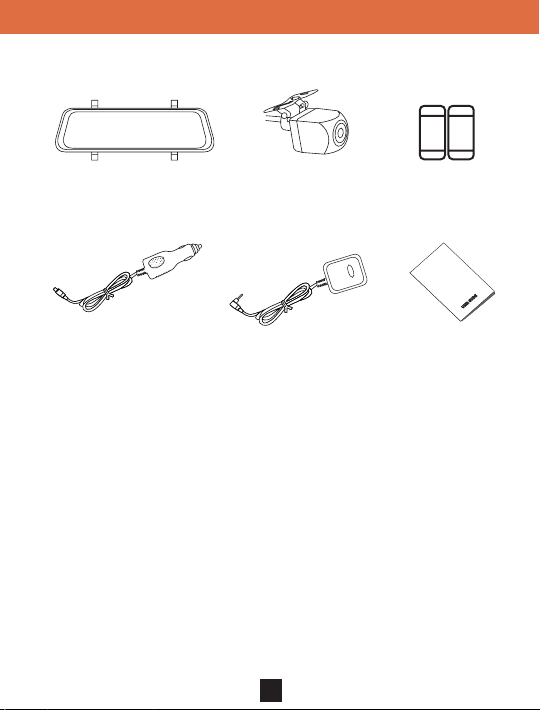
4. Accessories
Mirror Monitor/Front Camera
Vehicle USB Charger GPS Antenna
11
Mounting StrapsRearview Camera
User Manual
Page 14

 Loading...