

Page 1

Carrobot C2-Lite User Manual
Page 2

Page 3

Table of Contents
Introduction 01
Disclaimer 02
Carrobot components 03
Installation 04
Power supply instructions 05
Button descriptions 06
Screen cast instructions 07
Troubleshooting 26
Carrobot C2-Lite specs 29
Page 4

Page 5

Carrobot C2-Lite is your personal driving assistant which can project your
phone's screen on an HUD. It works both with Android phones and iPhones.
It is designed to keep you safe and make your journey more efficient and
enjoyable.
01
Product introduction
Page 6

Looking away from the road can be dangerous. Watching HUD screens may
increase your risk of distraction and accident. Vision Tech America, Inc. is not
responsible for any damage, injury, or death due to the use of this product.
Users assume all liability for all consequences, financial and otherwise while
using this product.
02
Disclaimer
Page 7
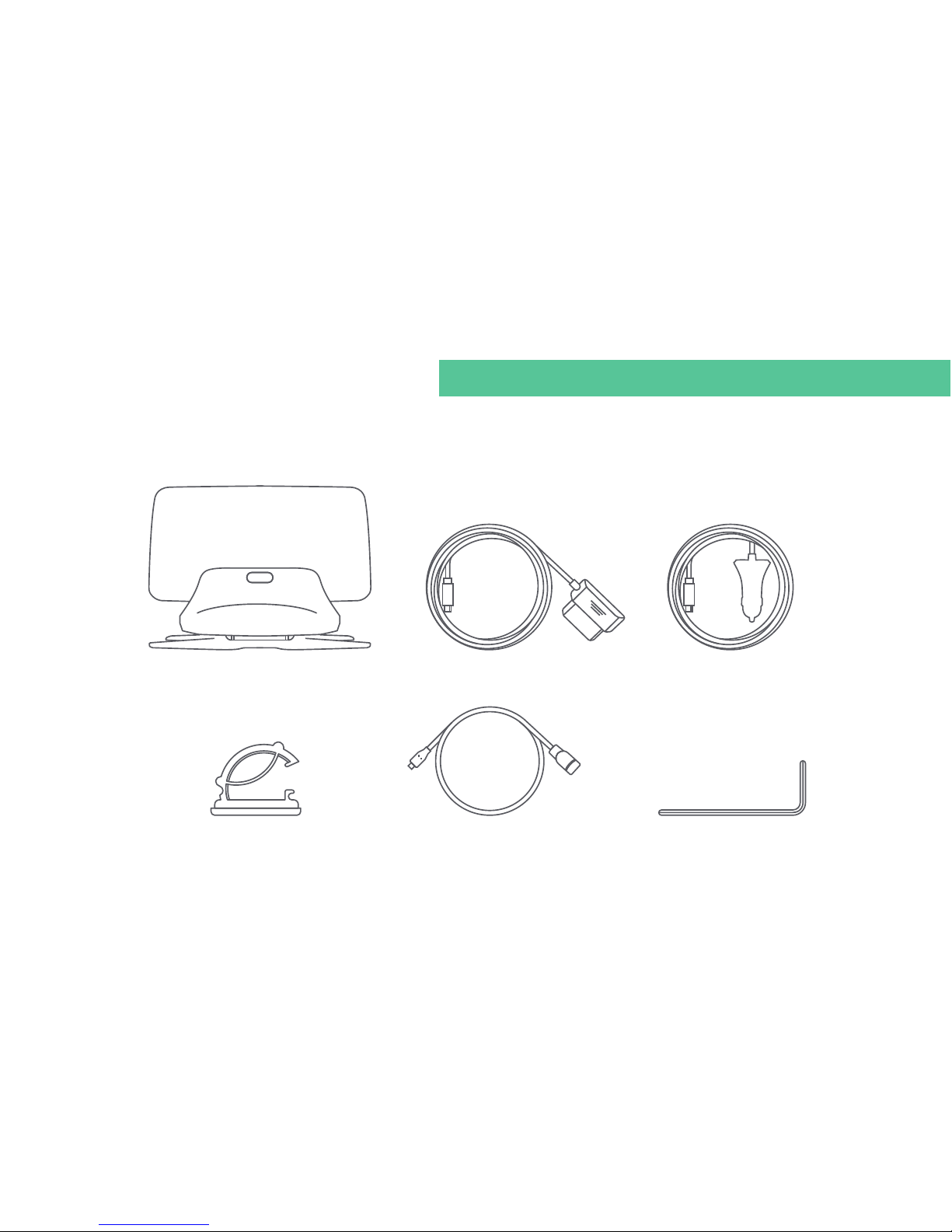
03
OBD-II Connector
Cable Clamp OTG Cable
Carrobot
Standard components: Carrobot, Carrobot power cord
Hexagon Spanner
Carrobot components
Cigarette Lighter Adapter
Page 8
04
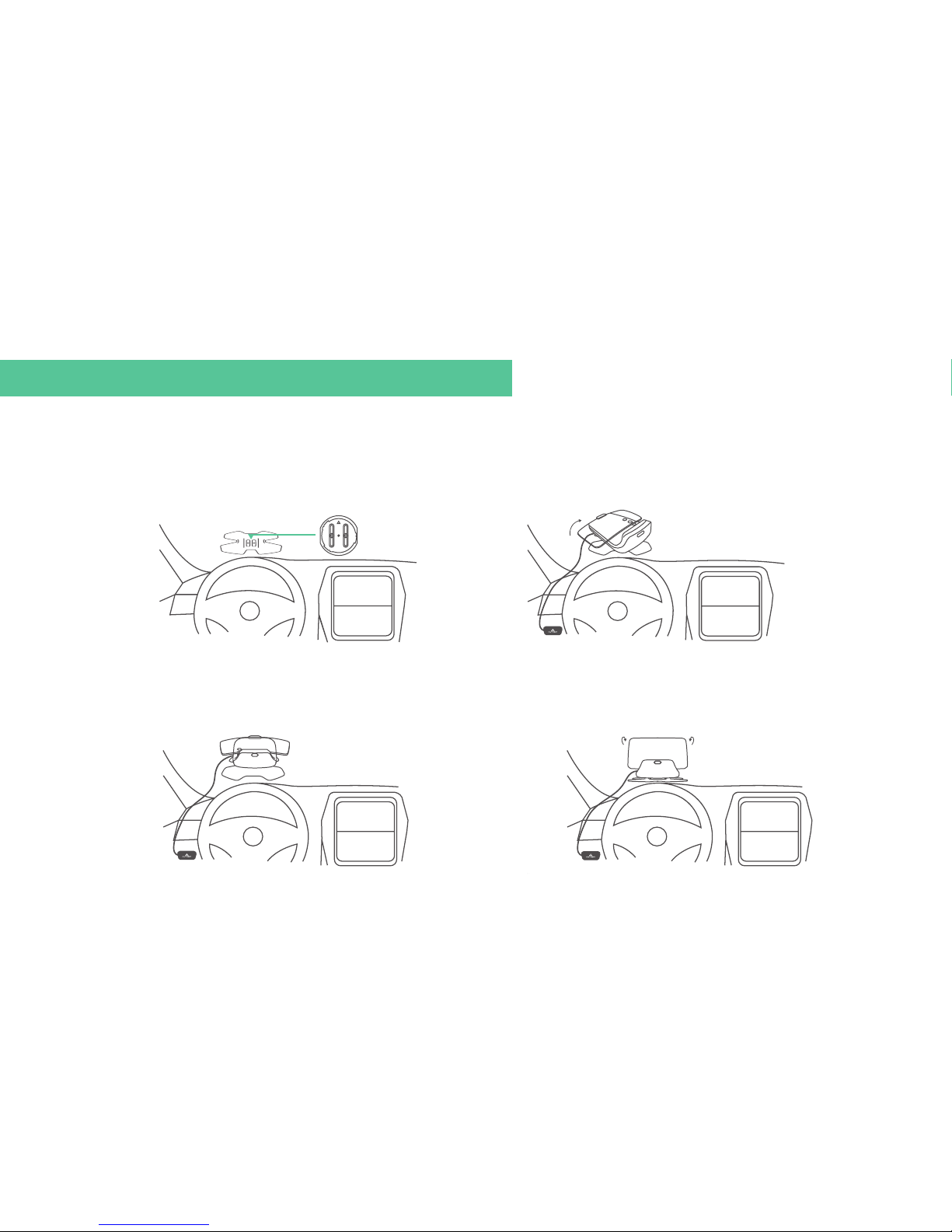
Install Carrobot on base.
Adhere Carrobot base to
dashboard and adjust angle with
hexagon spanner on Carrobot Saucer.
Connect Carrobot with Carrobot OBD-II
connector/Cigarette lighter adapter.
Open reective screen and
adjust to appropriate angle.
Installation
1.
3.
2. 4.
Carrobot Saucer
Page 9
When Carrobot is connected with Carrobot OBD-II connector/Cigarette lighter adapter,
it will charge whenever you turn it on.
We recommend that you charge your Carrobot with the provided Carrobot OBD-II
connector/Cigarette lighter adapter. While connected to your car with the Carrobot
OBD-II connector/Cigarette lighter adapter, the unit can be turned on or o
automatically when you operate your vehicle.
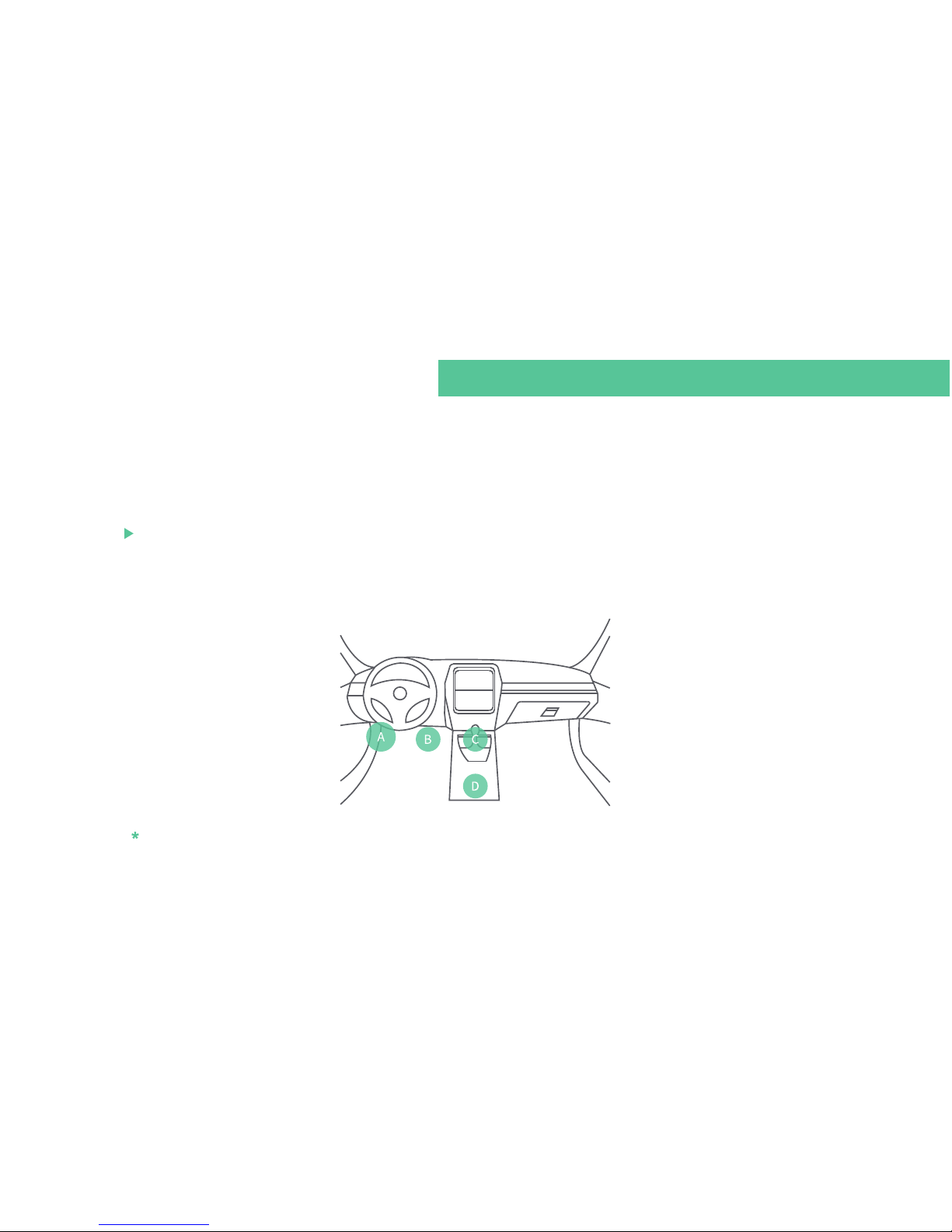
Note: Typically, OBD-II connector is installed in Area A or B, Cigarette lighter in Area C or D.
05
Power supply instructions
Page 10
06
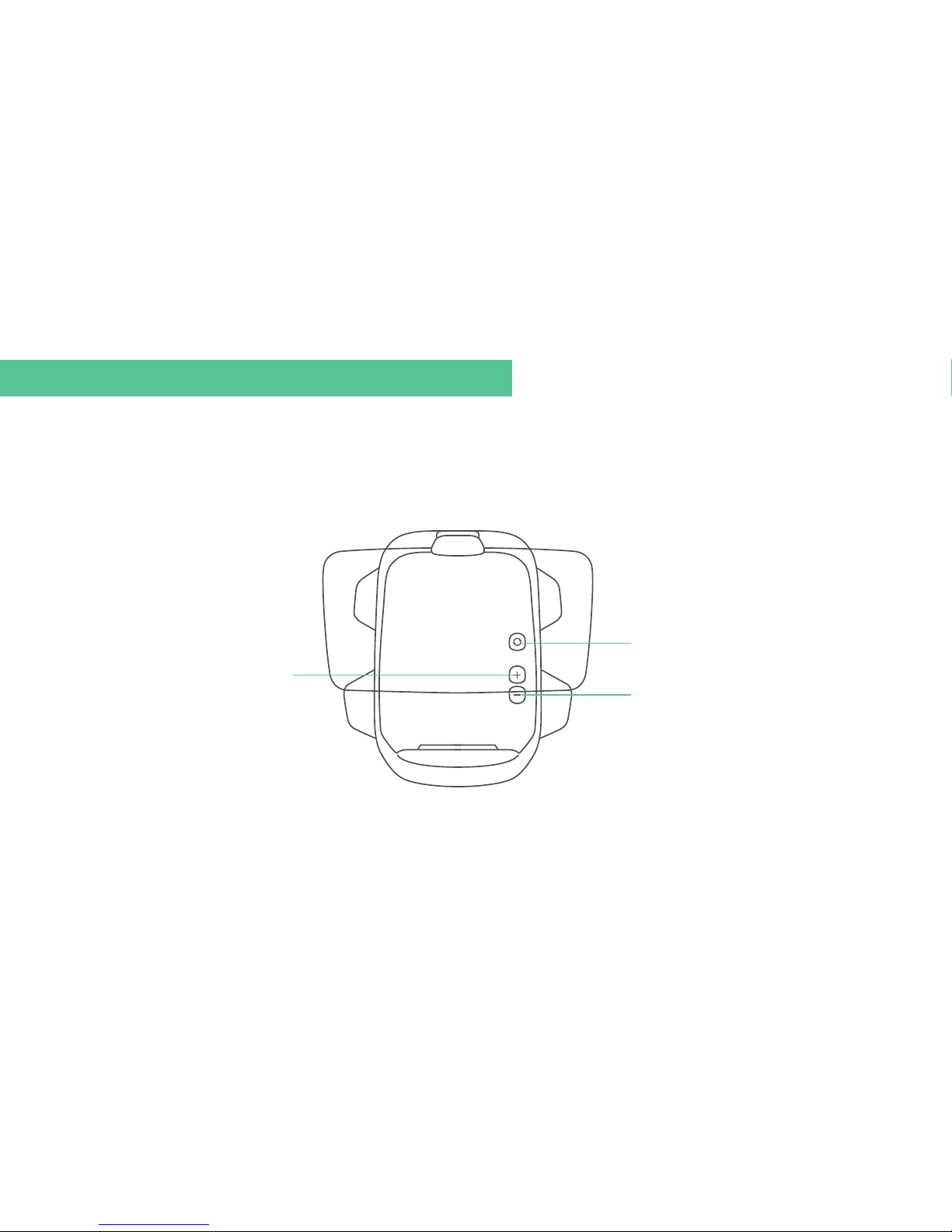
There are three buttons on Carrobot. You can switch between Android screen cast or
iPhone screen cast very easily with a short press on the “Mode switch button”.
Mode switch button
Volume up button
Volume down button
Button descriptions
Page 11

Android
You can choose either wired or wireless connections to mirror your phone screen to the
HUD. Please verify that the HUD is in the correct state to pair with the device before
connecting.
Wired connection method
07
Screen cast instructions
Page 12
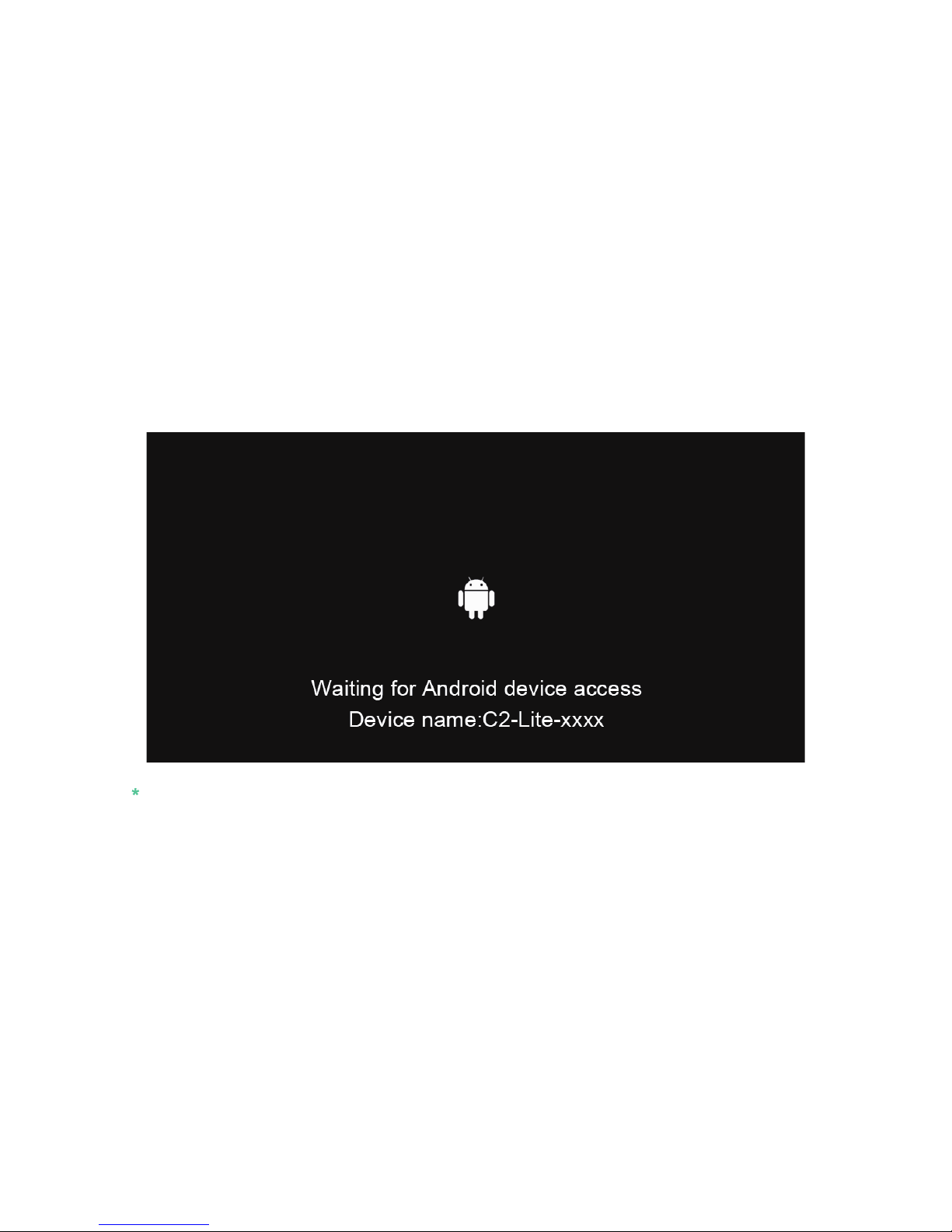
Switch Carrobot to Android screen cast mode.
08
1.
Note: The interface is inactive when mobile phone is disconnected.
Page 13
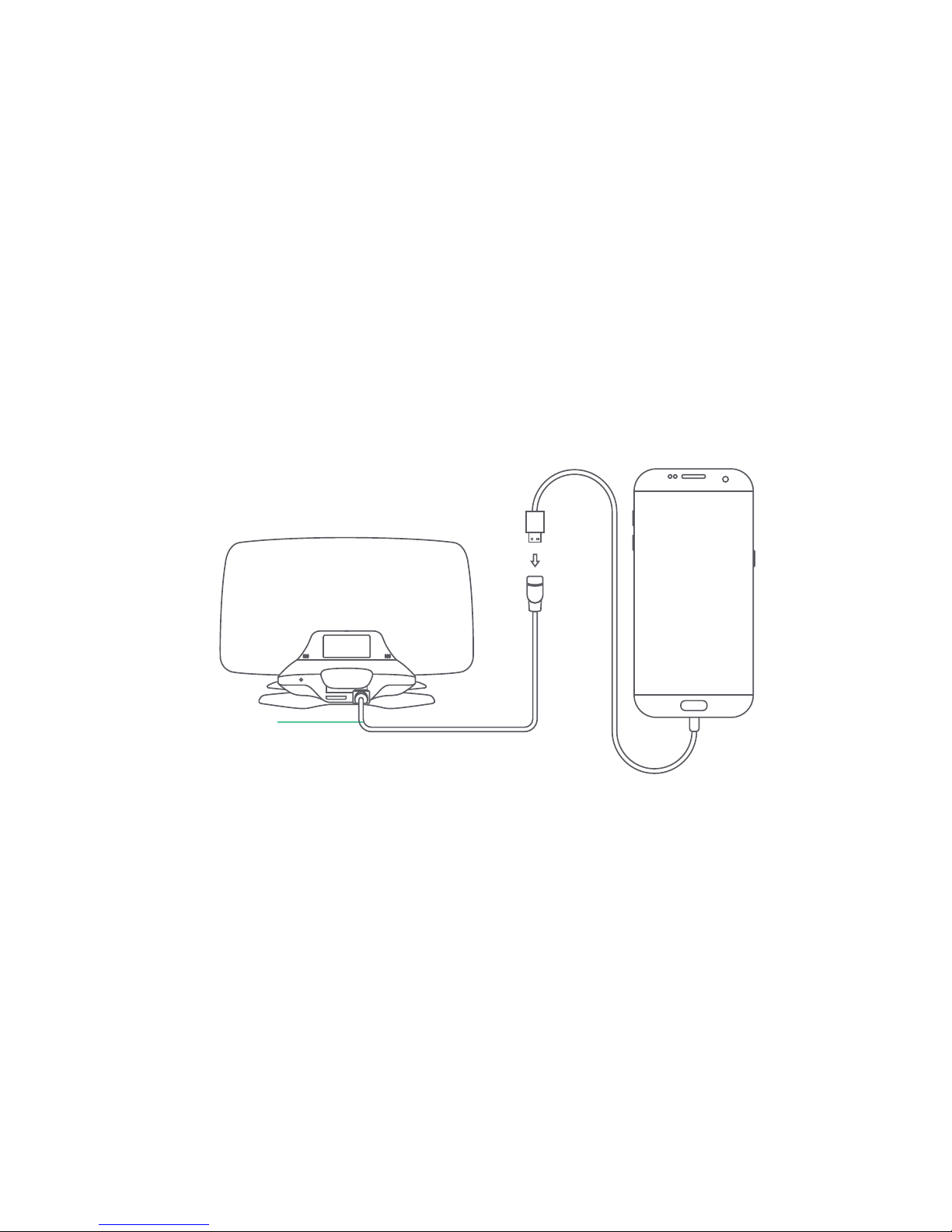
Connect OTG Cable to the HUD.
09
2.
OTG Cable
Page 14
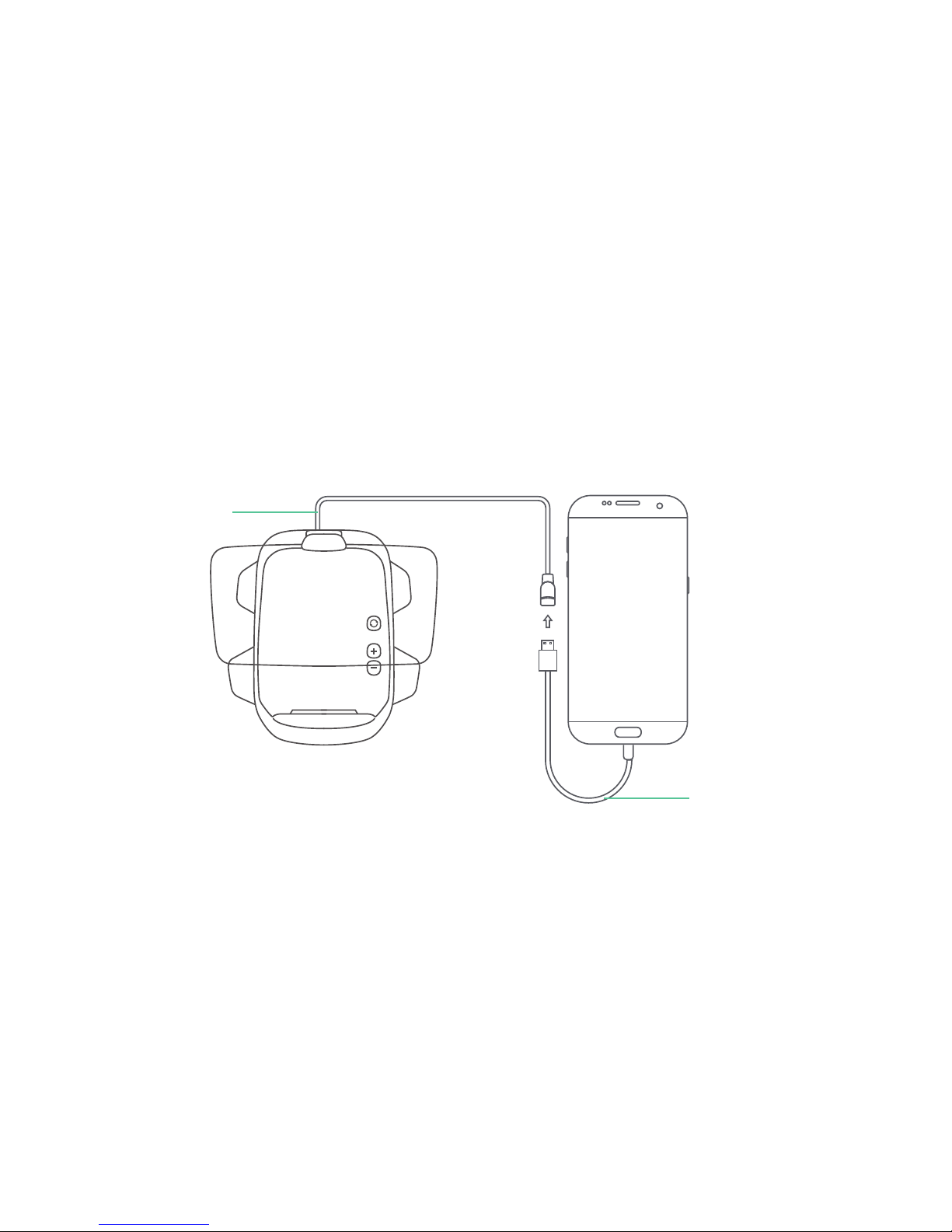
10
Use the charger cable to connect both OTG cable and the phone.
3.
Charger Cable
OTG Cable
Page 15
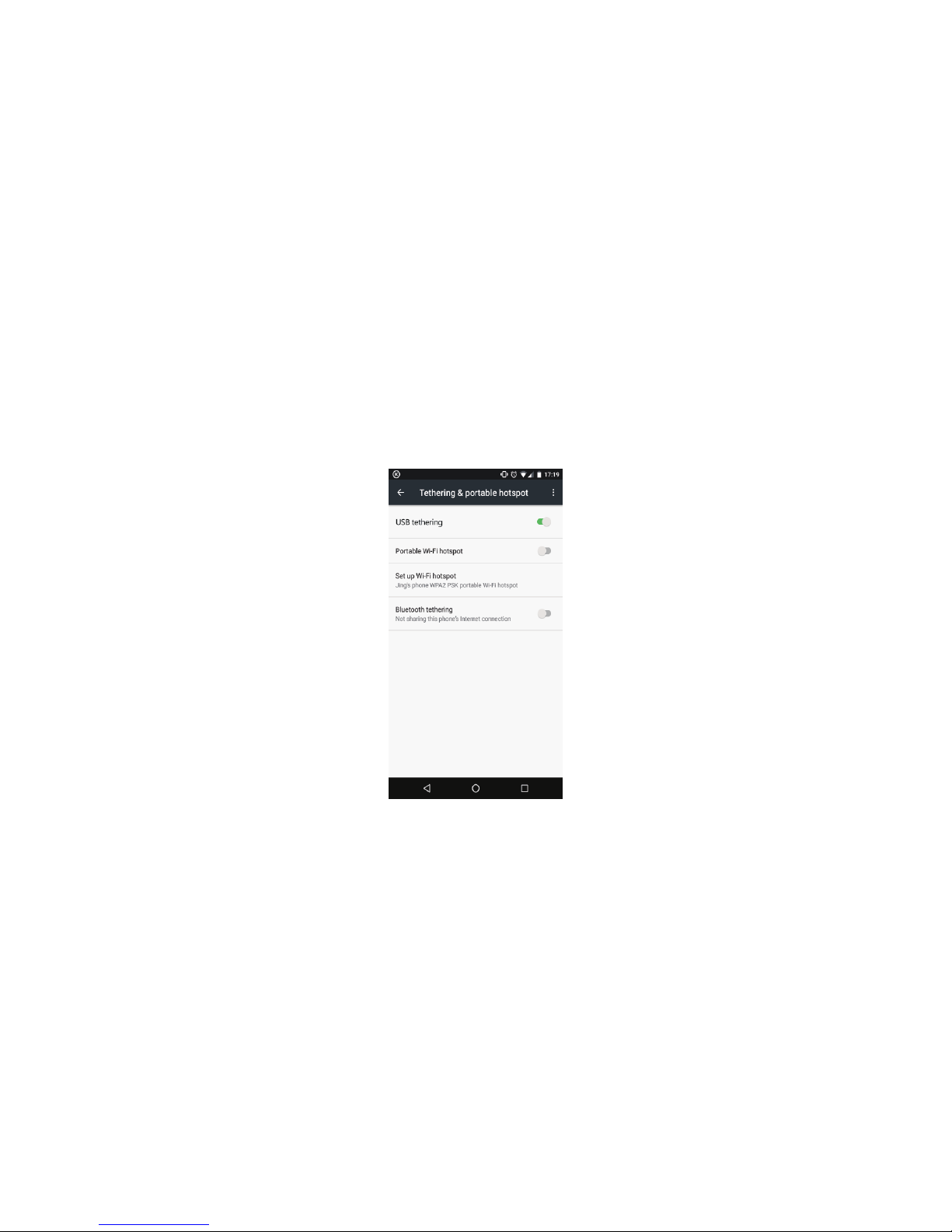
Open the phone settings and turn on the USB tethering mode (which is generally
located in the system settings - Tethering&portable hotspot).
11
4.
Page 16
12
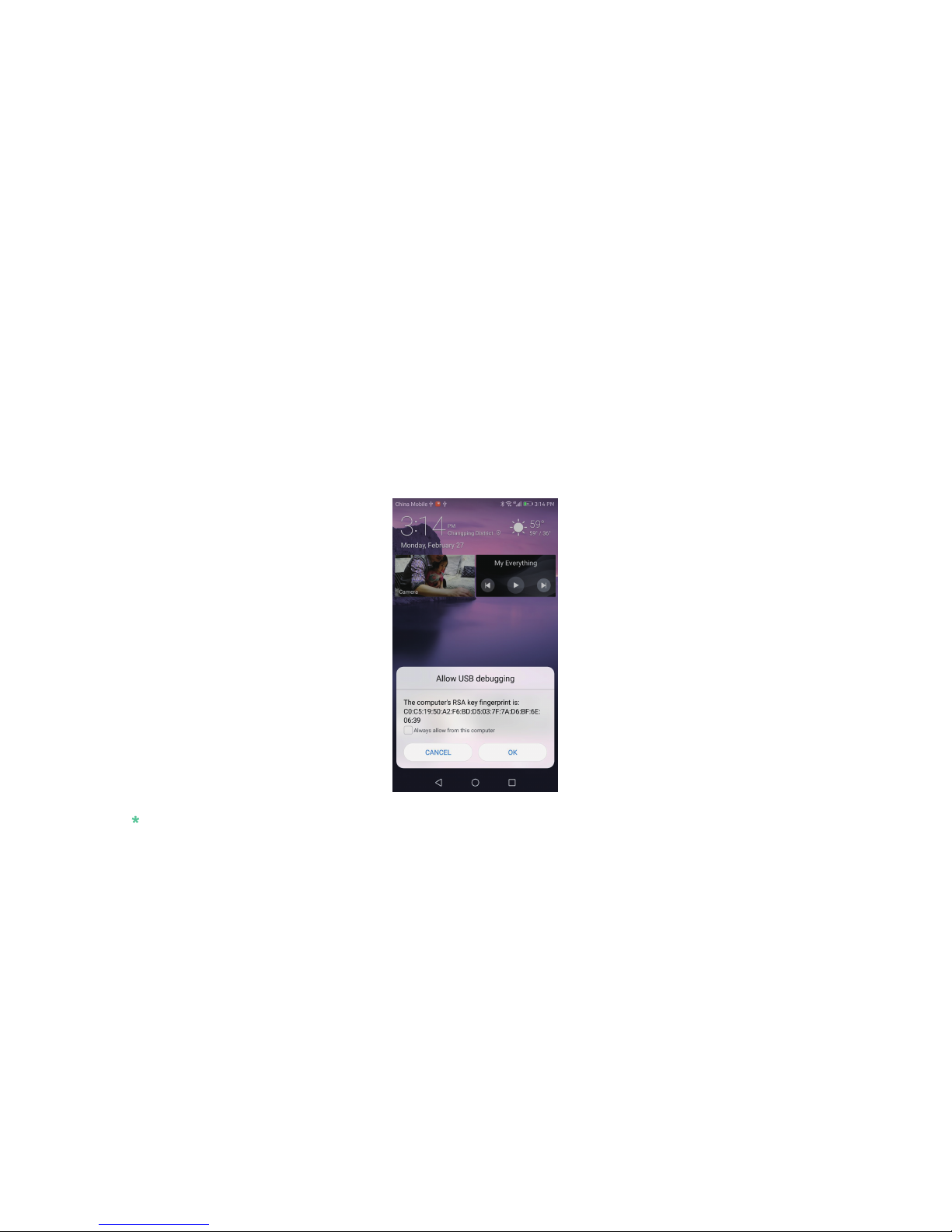
Please choose “allow the use of this computer debugging” in the pop-up window,
then click OK and wait until the Carrobot connects, you can cast phone screen now.
5.
Note:All sounds will play from phone.
Page 17
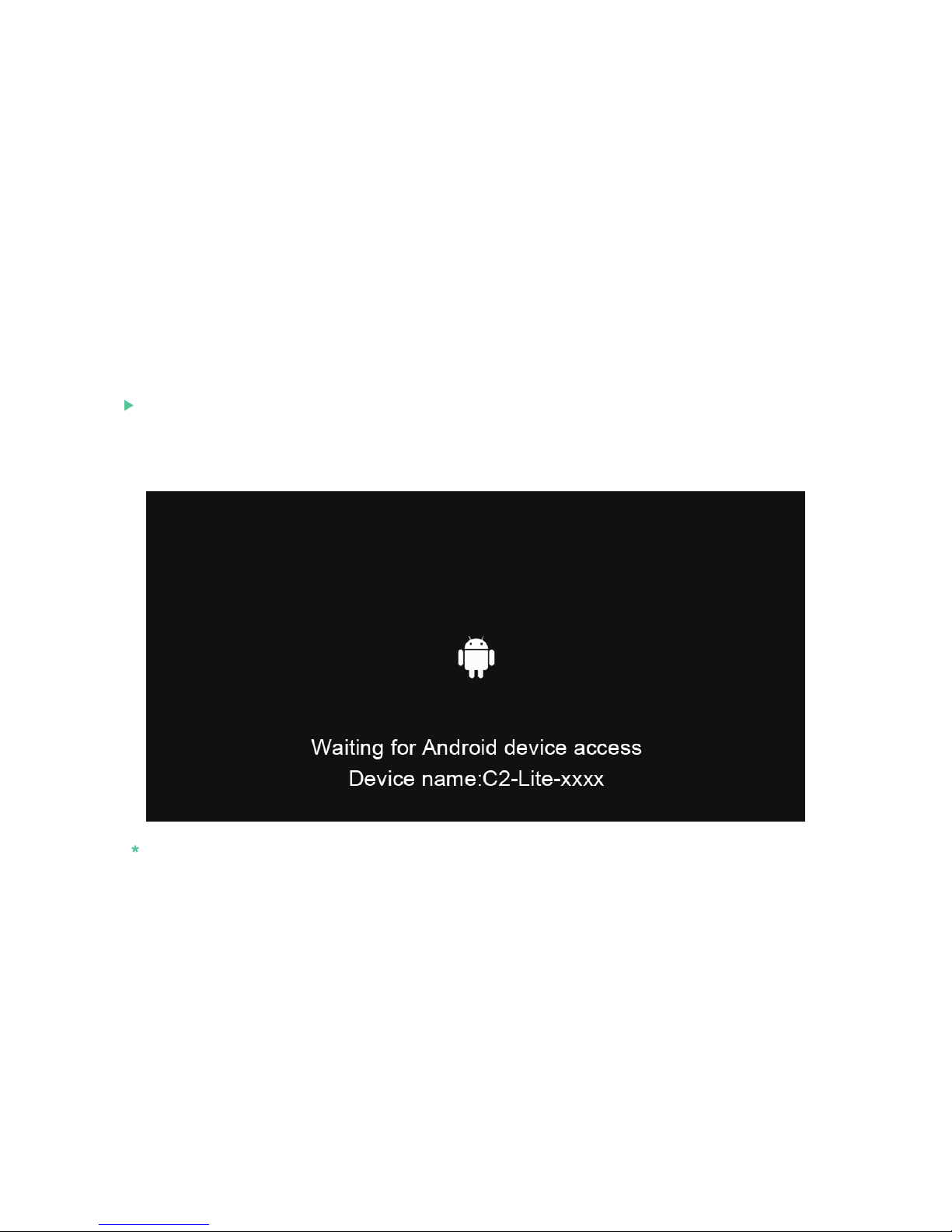
Wireless connection method
Switch Carrobot to Android screen cast mode.
13
1.
Note: The interface is inactive when mobile phone is disconnected.
Page 18
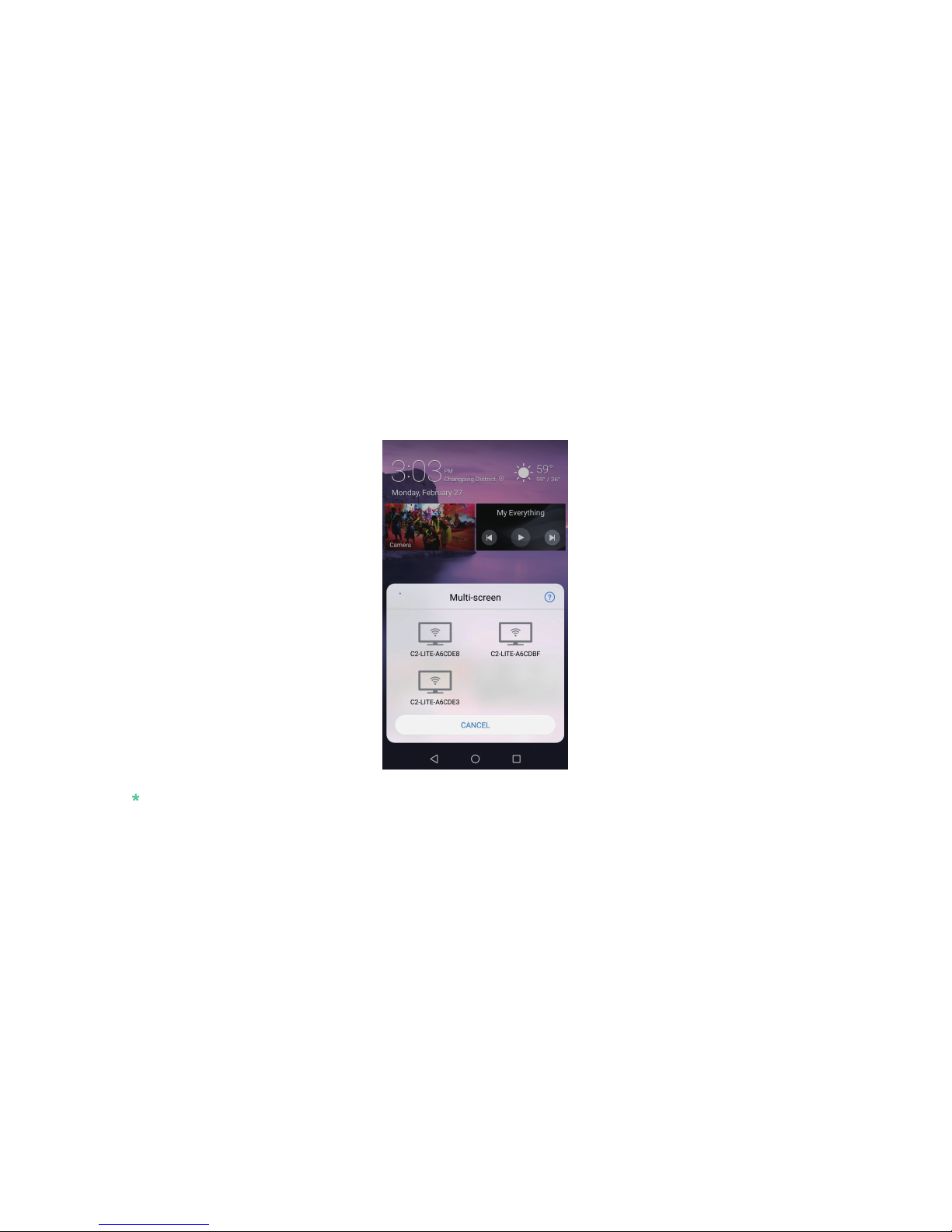
Please choose “Multi-cast” in your phone setting screen.
14
2.
Note: It will display in dierent names for dierent brand phone, such as “Cast”, “Multi-cast”.
Page 19
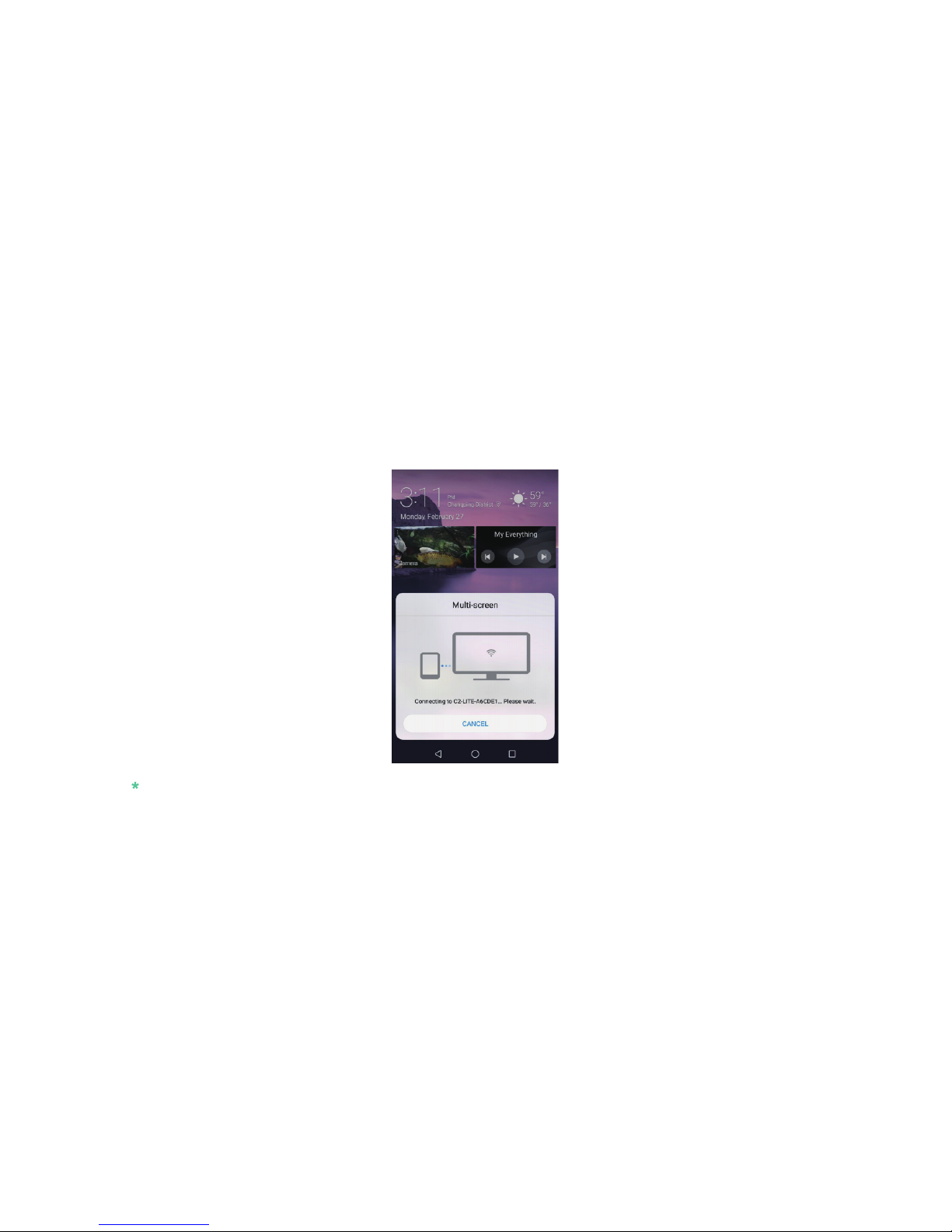
Connect your phone with “C2-Lite-xxxxxx” device, when the Carrobot receives the
signal, you can then begin the screen cast.
15
3.
Note: If the projection image is vertical screen display screen, please try to cross screen phone rotation
state and check the settings if needed.
Page 20

iPhone
You can choose either wired or wireless connections to mirror your phone screen to the
HUD. Please verify that the HUD is in the correct state to pair with the device before
connecting.
Wired connection method
16
Page 21
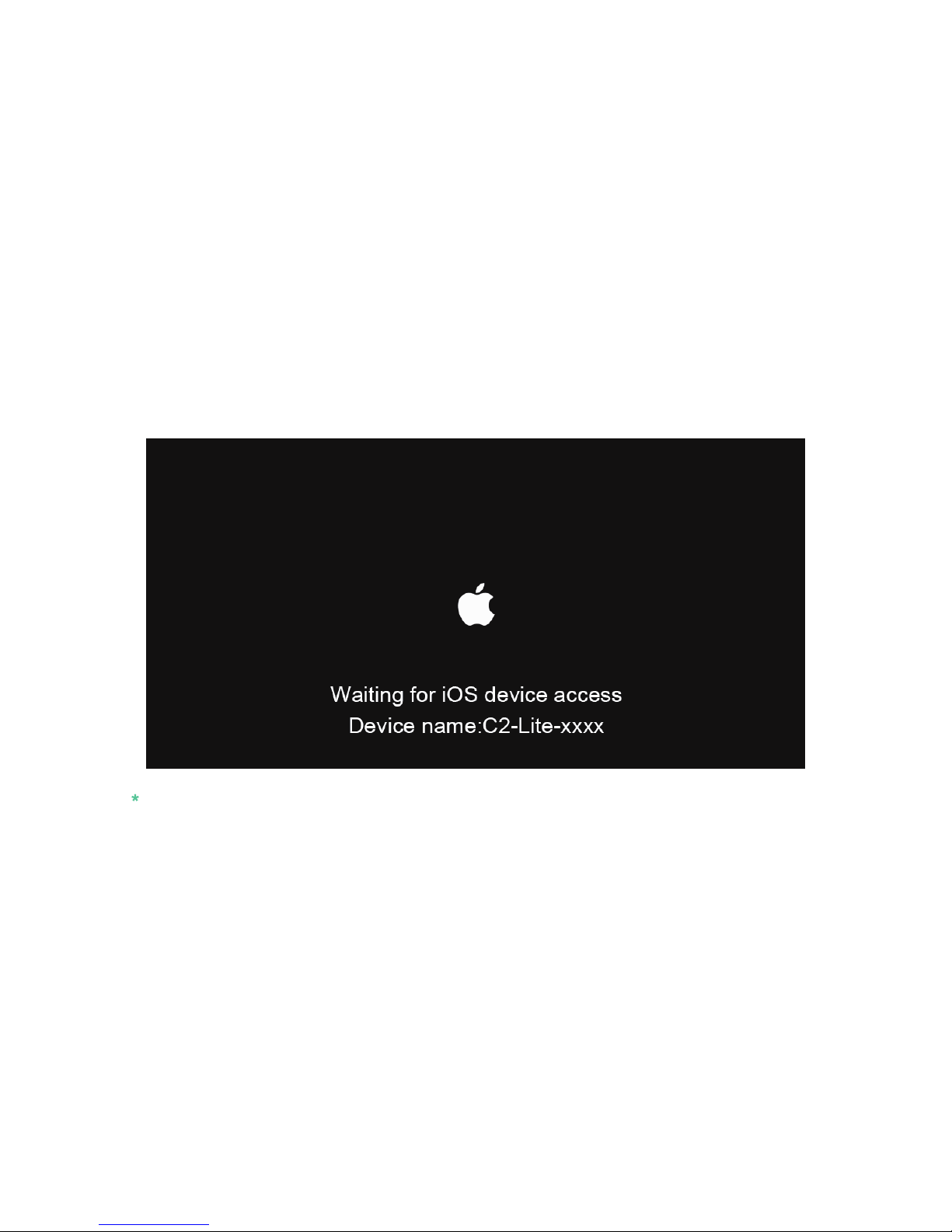
Switch Carrobot to iOS screen cast mode.
17
1.
Note: The interface is inactive when mobile phone is disconnected.
Page 22
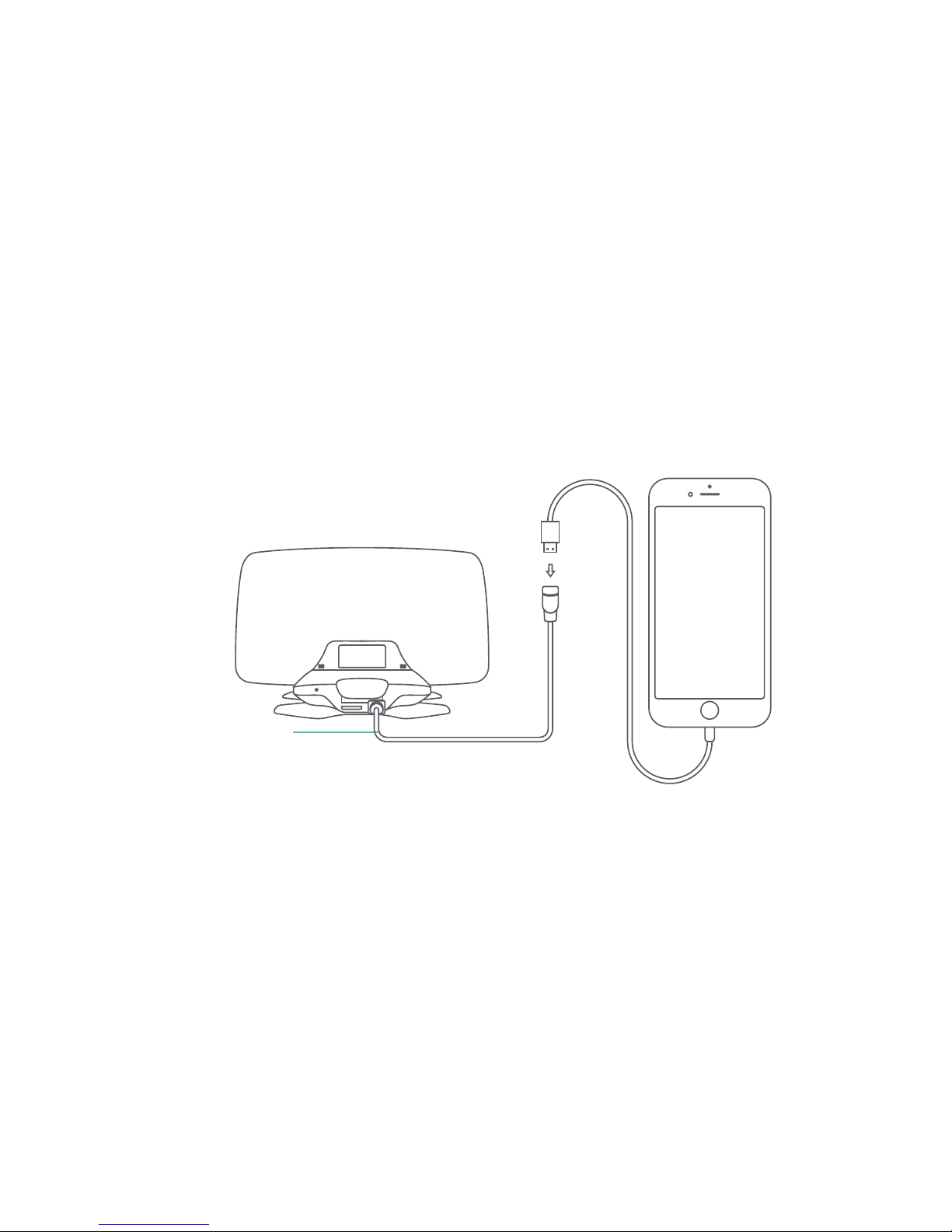
Connect OTG Cable to the HUD.
18
2.
OTG Cable
Page 23
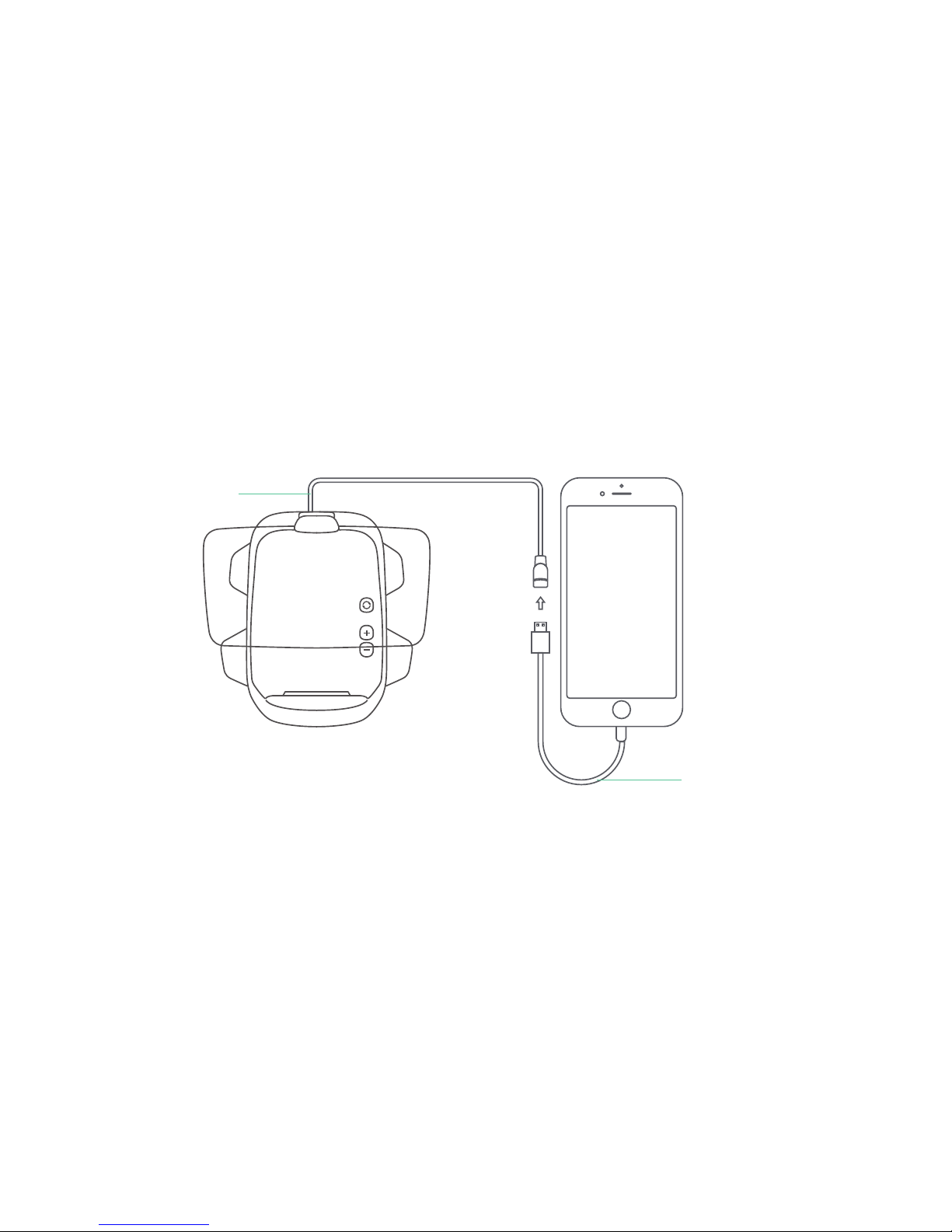
Use the Charger Cable to connect both OTG Cable and the phone.
19
3.
Charger Cable
OTG Cable
Page 24
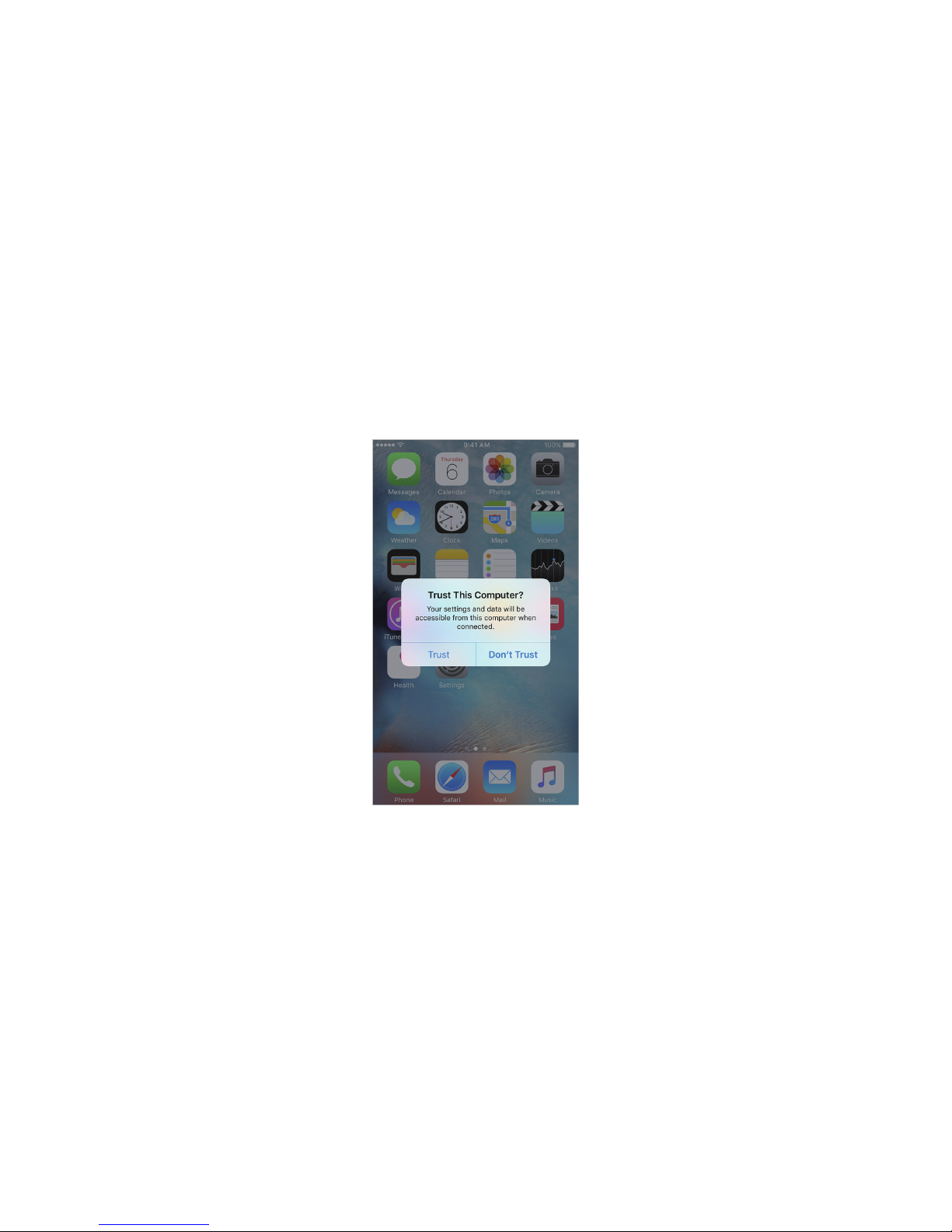
Choose “Trust” in the pop-up window.
20
4.
Page 25
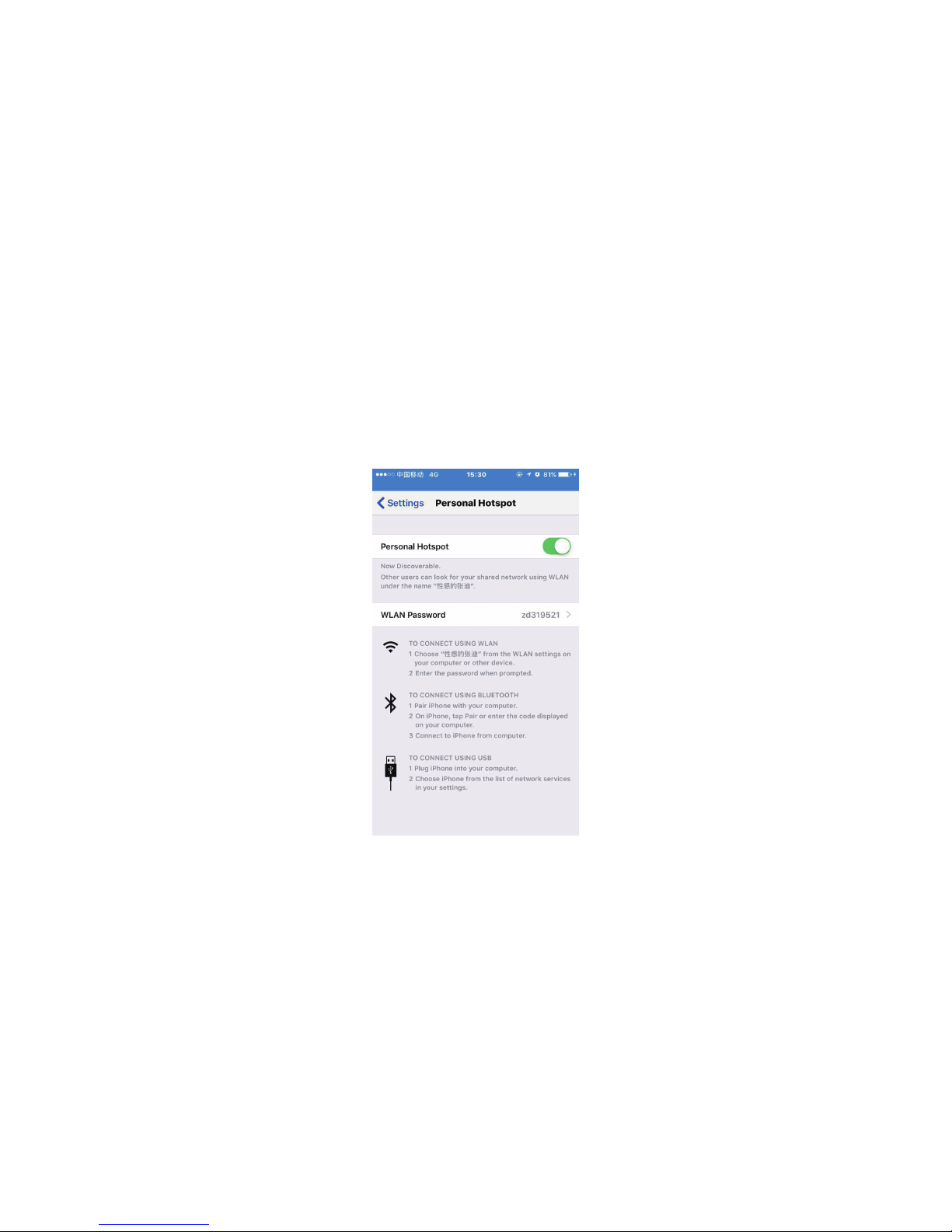
Choose the system settings, then turn on your phone’s hotspot, wait for the top tip
“personal hot spots: 1 connection”.
21
5.
Page 26
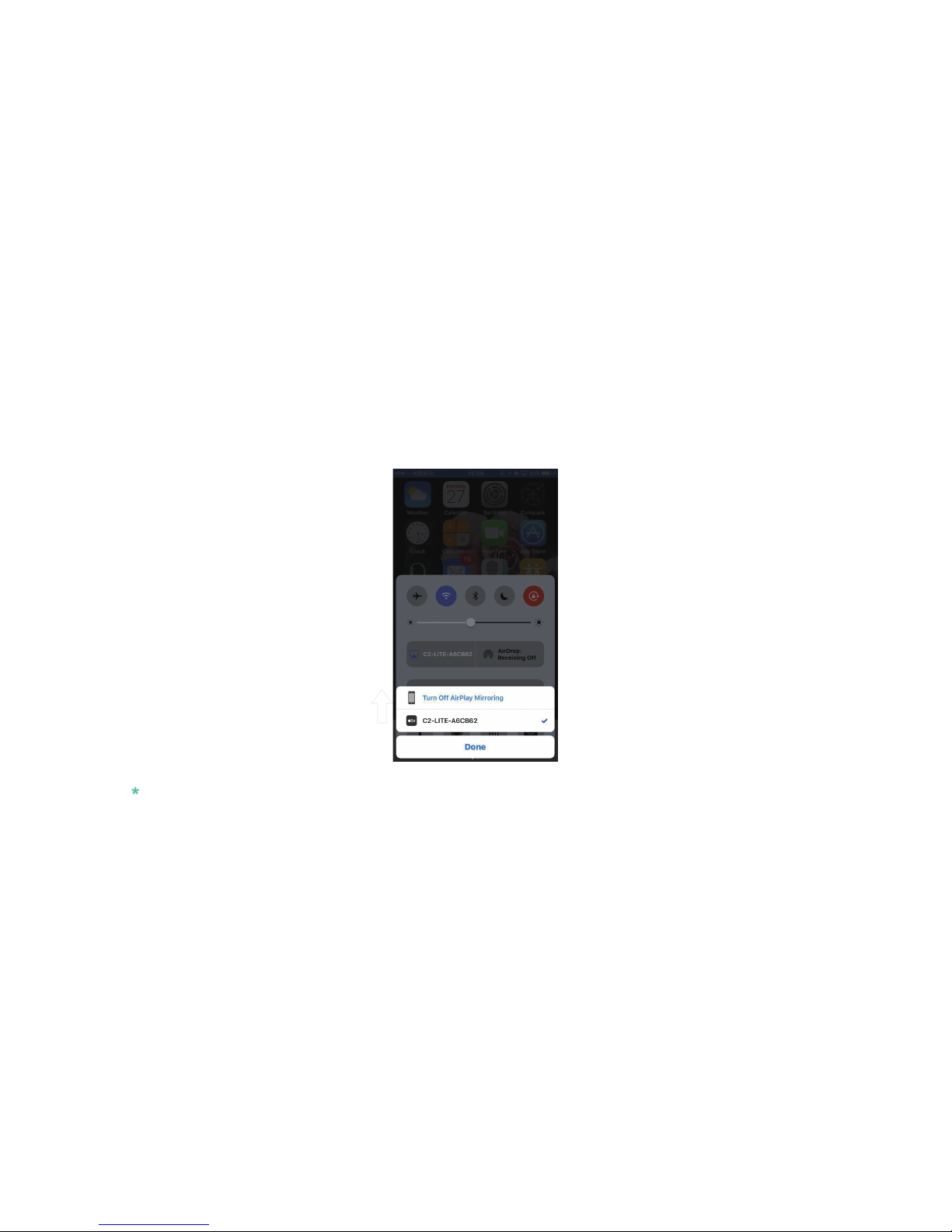
Turn on “AirPlay mirroring”, select the “C2-Lite-xxxxxx” device. Once the Carrobot
receives the signal, you can then begin the screen cast.
22
6.
Note:
If the projection image is vertical screen display screen, please try to cross screen phone rotation state
and check the settings if needed.
Page 27
23
Wireless connection method
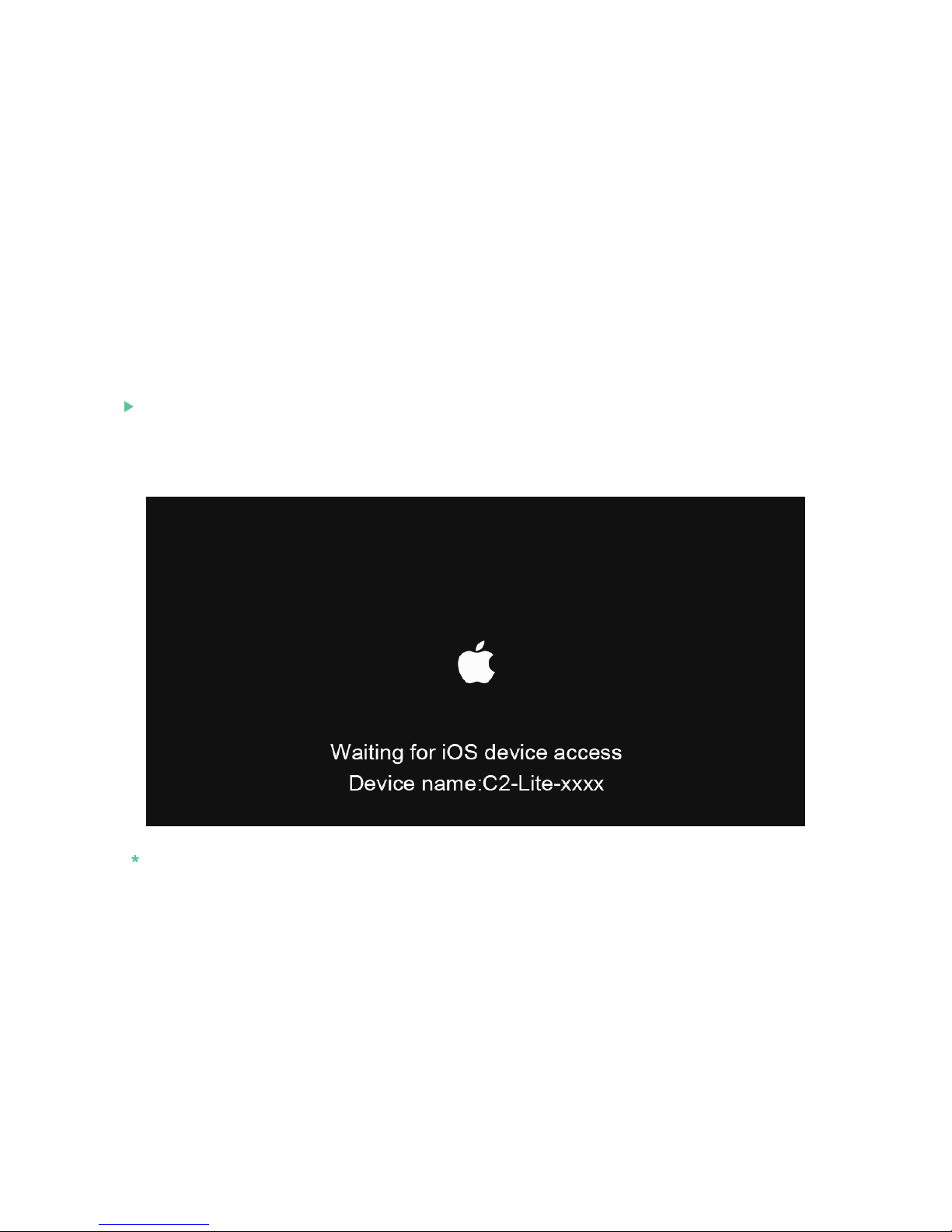
Switch Carrobot to iOS screen cast mode.
1.
Note: The interface is inactive when mobile phone is disconnected.
Page 28
24
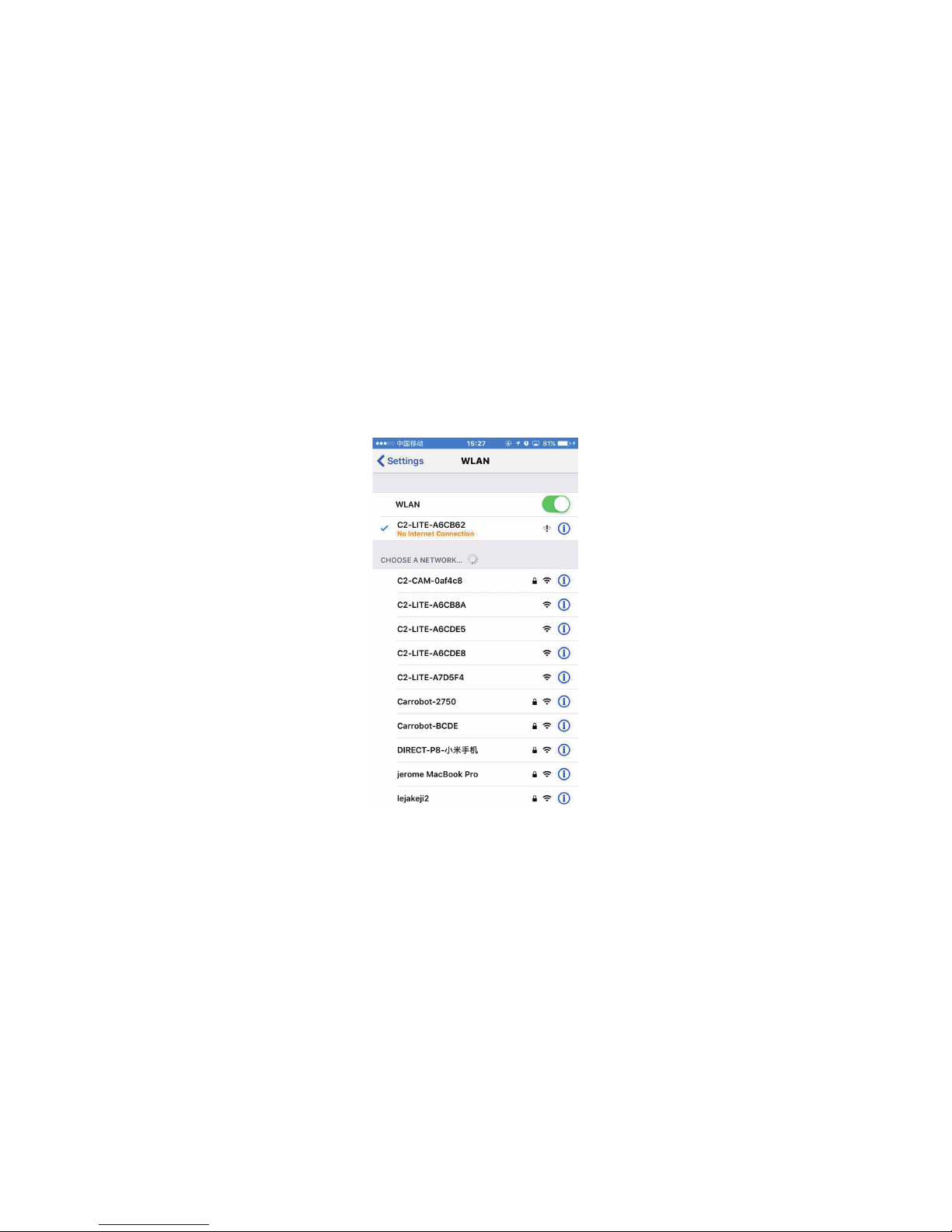
Turn on “Wi-Fi”,connect your phone with “C2-Lite-xxxxxx” device.
2.
Page 29
25
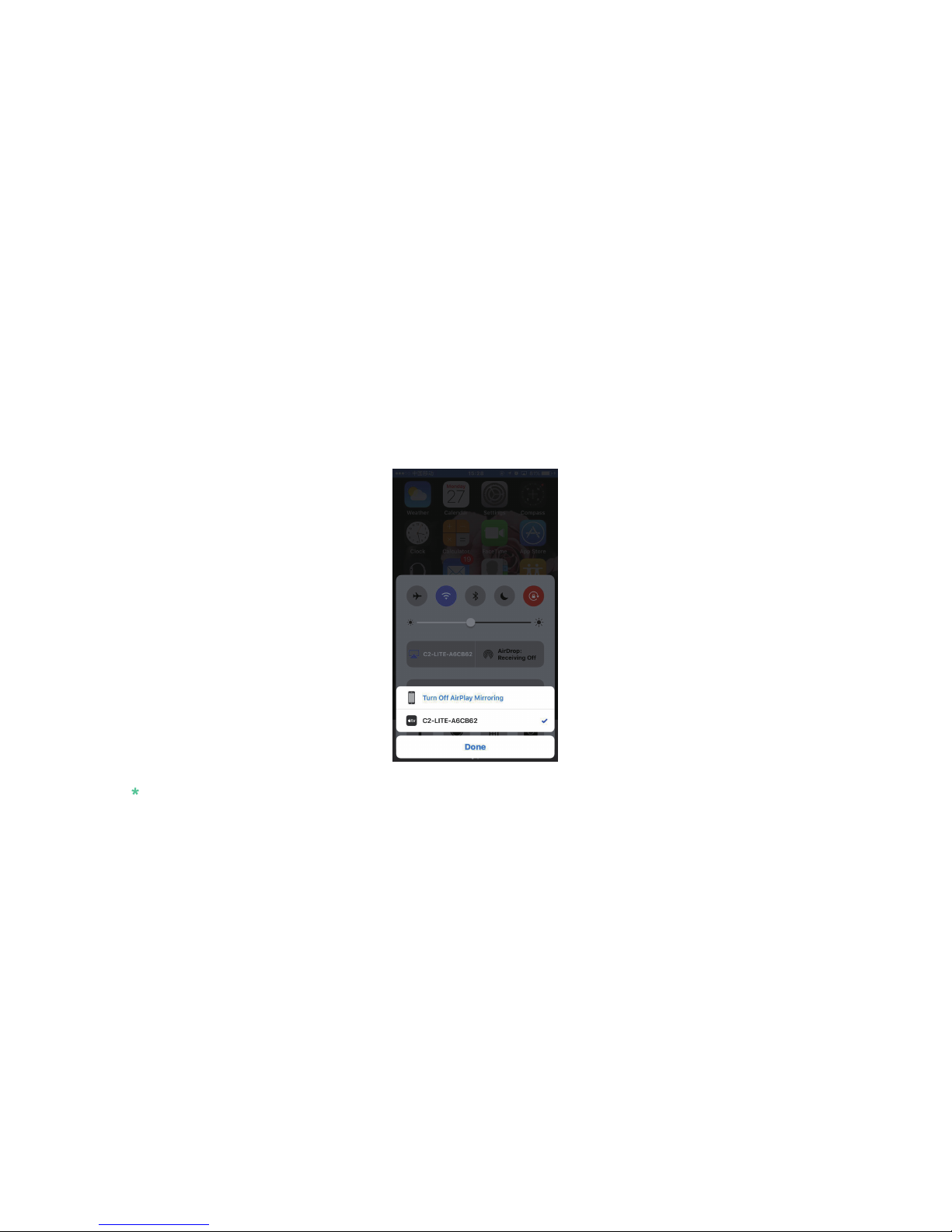
Turn on “AirPlay mirroring”, select the “C2-Lite-xxxxxx” device. Once the Carrobot
receives the signal, you can then begin the screen cast.
Note:
If the projection image is vertical screen display screen, please try to cross screen phone rotation state
and check the settings if needed.
3.
Page 30

26
A:
Q:
Can I insert a SIM card into Carrobot Lite for Internet?
No, you can’t.
Q:
A:
What is the dierence between Carrobot Lite and Carrobot Pro?
Carrobot Lite must be operated with the Phone APP on
your mobile device while Carrobot Pro can operate as a
standalone device.
Troubleshooting
Page 31

27
Q:
A:
Will GPS navigation be interrupted when the phone is ringing?
Yes, it will, as the GPS navigation application is
installed on the phone.
Q:
A:
Can I cast any phone app to Carrobot?
Yes. (Note: For your safety, restrict screen casting
to GPS navigation app while driving.)
Page 32

28
Q:
A:
Is that OK if I cast phone screen to Carrobot
with both wired and wireless method?
No, it may cause some unpredictable problems. We
recommend screen casting in 'Wired Mode' for best
results.
Q:
A:
You can use the included cigarette lighter adapter.
What if my car doesn’t support OBD-II connector
to the HUD?
Page 33
29
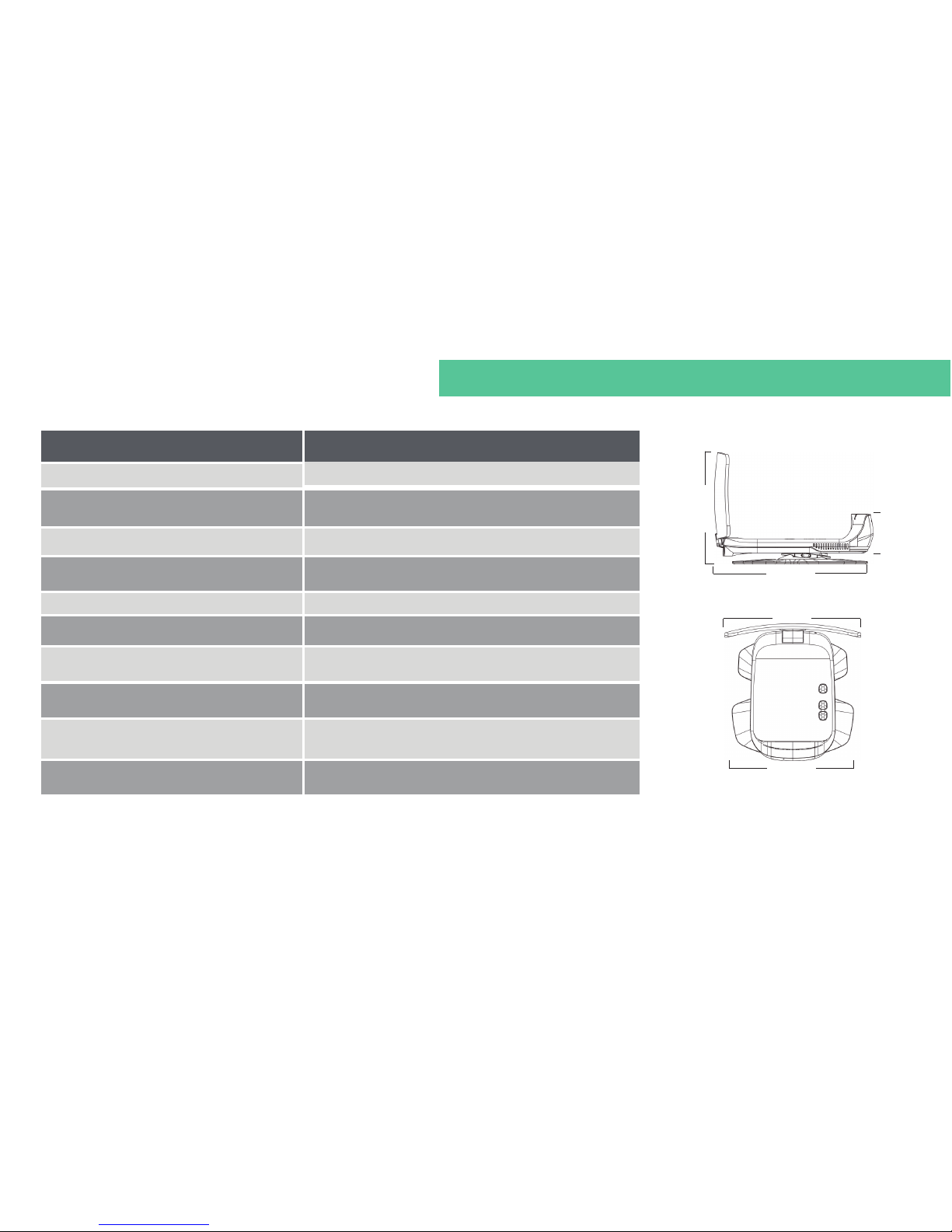
Carrobot C2-Lite specs
Model
Accessories
OBD-II connector &
Cigarette lighter adapter
Carrobot C2-Lite
CPU
Single-core ARM-A9
Operating Mode
Pair with Mobile App
Projected Distance
about 8ft.
Virtual image size
18 inches
Display
Automobile standard TFT LCD
Screen Type
Multi-layer nanometer optical coated acrylic
Network
8o2.11 b/g/n,support WIFI connecting and hotspot
sharing
160.08mm
114.30mm
51.58mm
162.00mm
144.24mm
weight: 300g
Page 34

Page 35

Page 36
Vision Tech America, Inc.
For U.S. 888-941-3060
International 714-446-0543
www.visiontechamerica.com
 Loading...