

Page 1
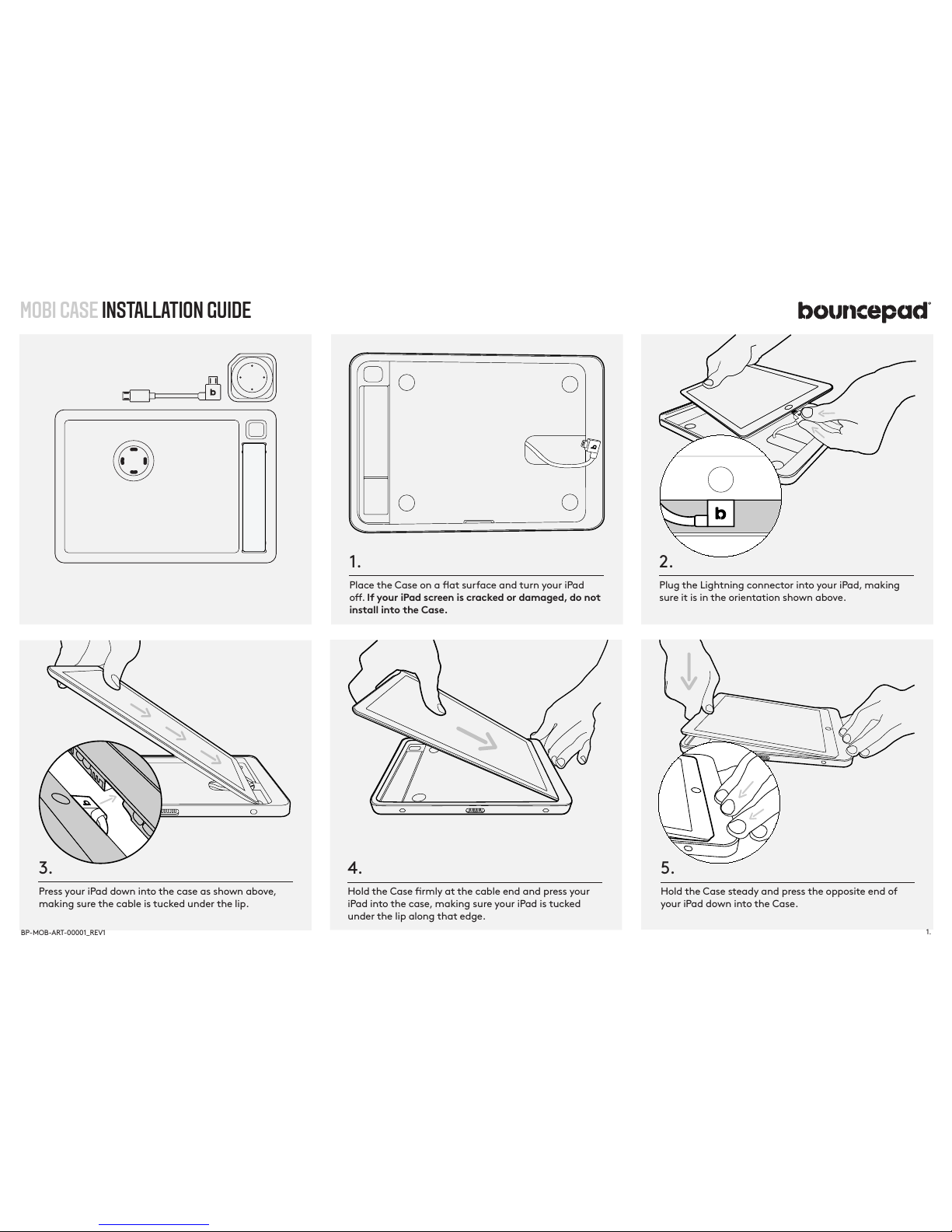
1.
Place the Case on a at surface and turn your iPad
o. If your iPad screen is cracked or damaged, do not
install into the Case.
2.
Plug the Lightning connector into your iPad, making
sure it is in the orientation shown above.
3.
Press your iPad down into the case as shown above,
making sure the cable is tucked under the lip.
4.
Hold the Case rmly at the cable end and press your
iPad into the case, making sure your iPad is tucked
under the lip along that edge.
5.
Hold the Case steady and press the opposite end of
your iPad down into the Case.
MOBI CASE INSTALLATION GUIDE
1.
BP-MOB-ART-00001_REV1
Page 2
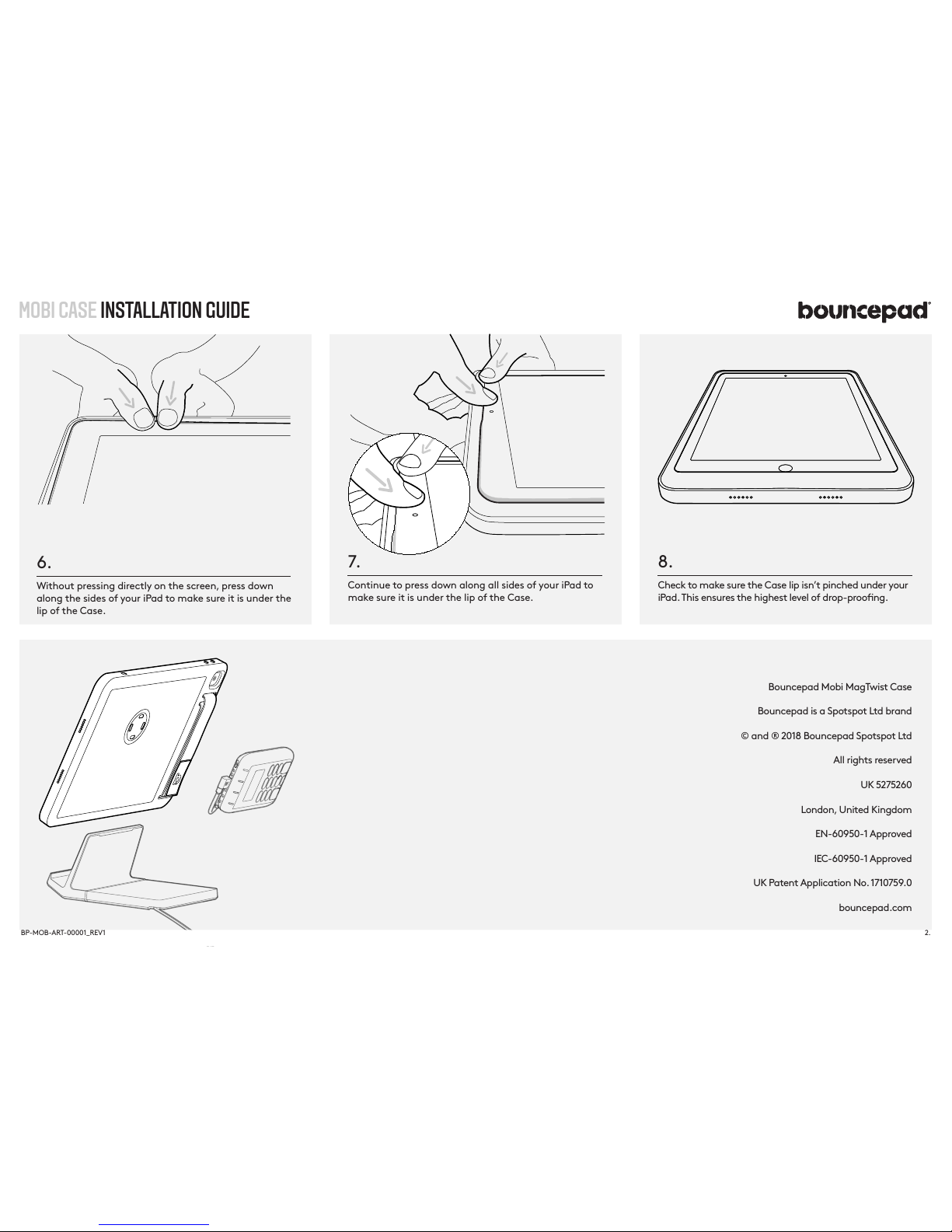
7.
Continue to press down along all sides of your iPad to
make sure it is under the lip of the Case.
8.
Check to make sure the Case lip isn’t pinched under your
iPad. This ensures the highest level of drop-proong.
MOBI CASE INSTALLATION GUIDE
Bouncepad Mobi MagTwist Case
Bouncepad is a Spotspot Ltd brand
© and ® 2018 Bouncepad Spotspot Ltd
All rights reserved
UK 5275260
London, United Kingdom
EN-60950-1 Approved
IEC-60950-1 Approved
UK Patent Application No. 1710759.0
bouncepad.com
6.
Without pressing directly on the screen, press down
along the sides of your iPad to make sure it is under the
lip of the Case.
2.
BP-MOB-ART-00001_REV1
Page 3
MOBI BLOCK
INSTALLATION GUIDE
1.
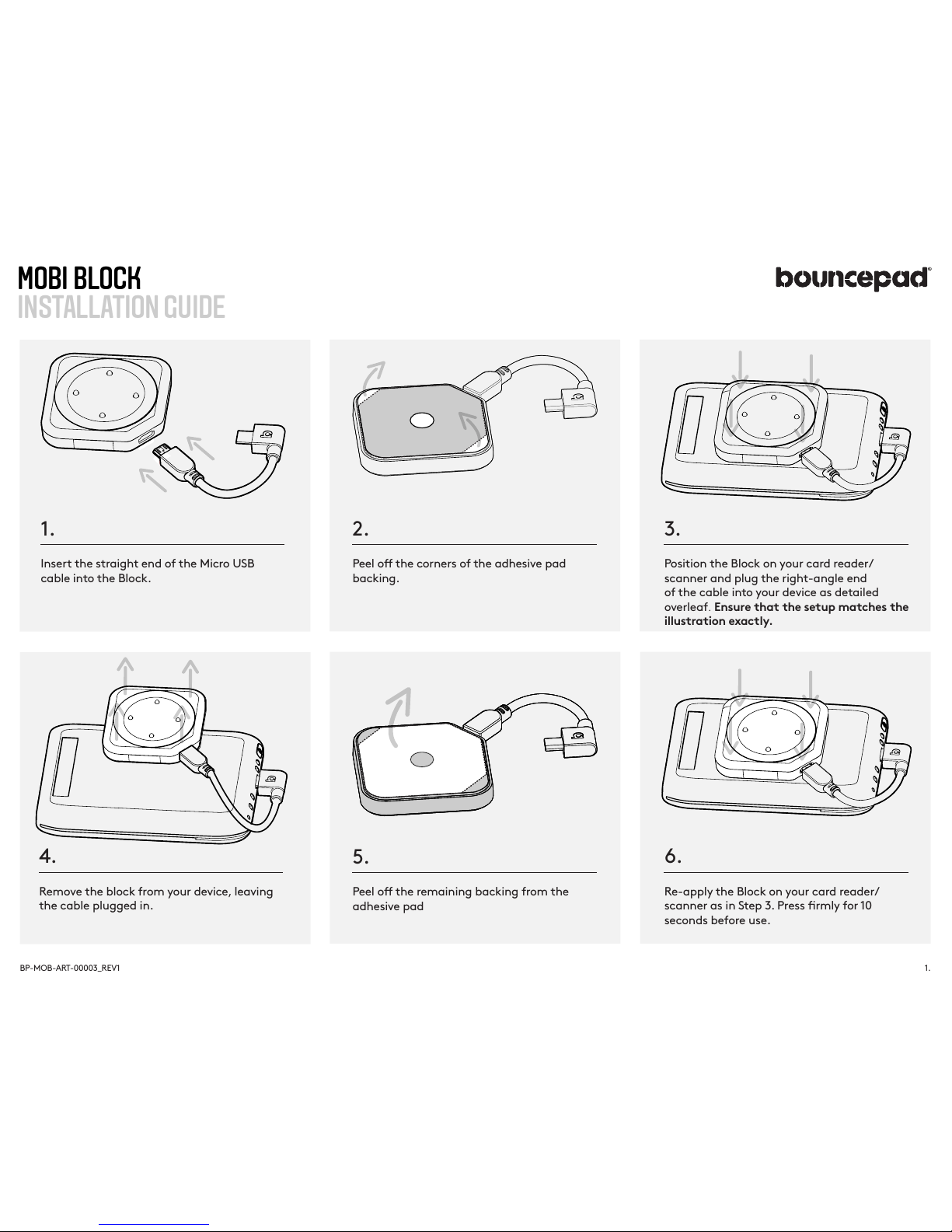
Insert the straight end of the Micro USB
cable into the Block.
2.
Peel o the corners of the adhesive pad
backing.
3.
Position the Block o n yo ur card rea der/
scanner and plug the right-angle end
of the cable into your device as detailed
overleaf. Ensure that the setup matches the
illustration exactly.
6.
Re-apply the Block on your card reader/
scanner as in Step 3. Press rmly for 10
seconds before use.
4.
Remove the block from your device, leaving
the cable plugged in.
5.
Peel o the remaining backing from the
adhesive pad
1.
BP-MOB-ART-00003_REV1
Page 4
MOBI BLOCK
INSTALLATION GUIDE
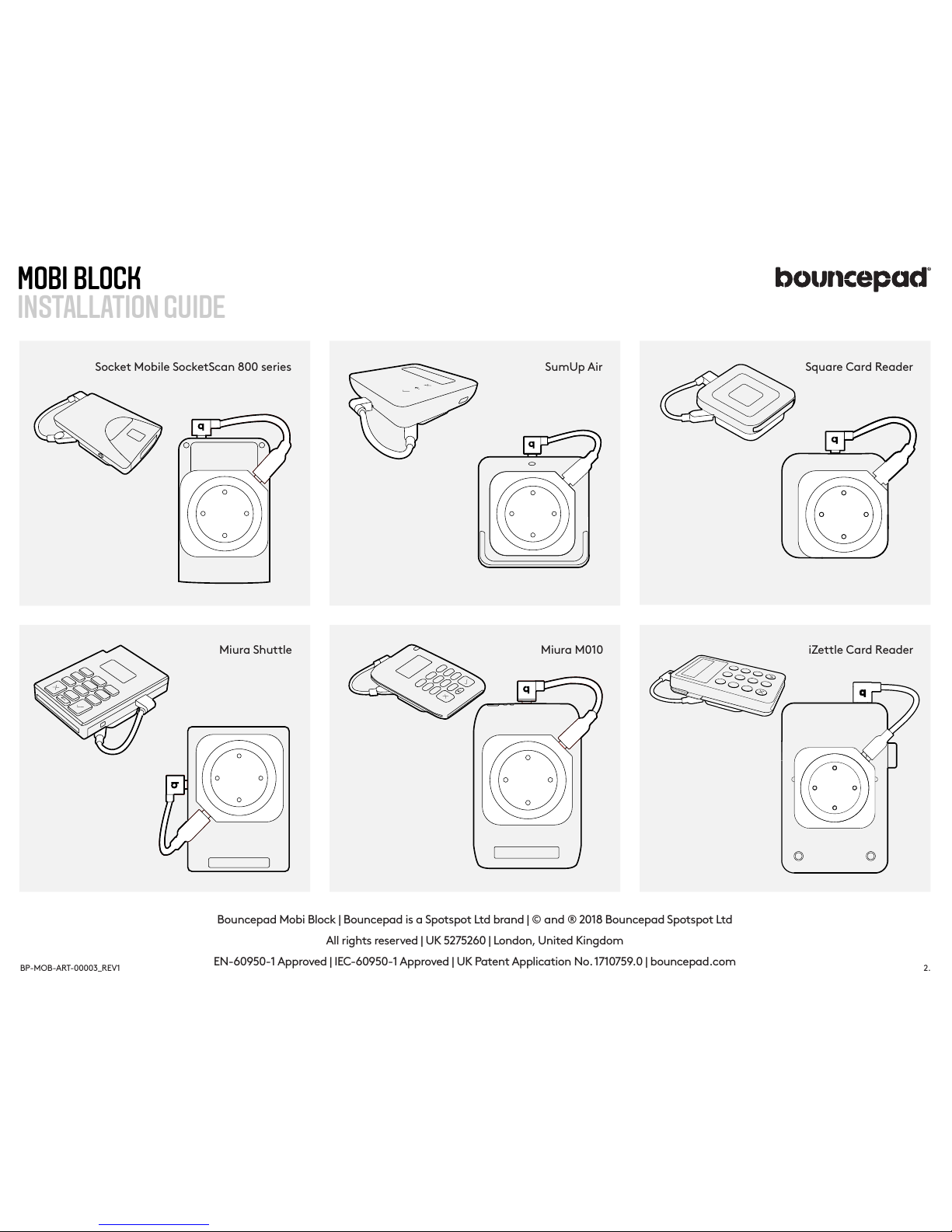
Socket Mobile SocketScan 800 series SumUp Air
Square Card Reader
Bouncepad Mobi Block | Bouncepad is a Spotspot Ltd brand | © and ® 2018 Bouncepad Spotspot Ltd
All rights reserved | UK 5275260 | London, United Kingdom
EN-60950-1 Approved | IEC-60950-1 Approved | UK Patent Application No. 1710759.0 | bouncepad.com
Miura Shuttle Miura M010 iZettle Card Reader
2.
BP-MOB-ART-00003_REV1
Page 5
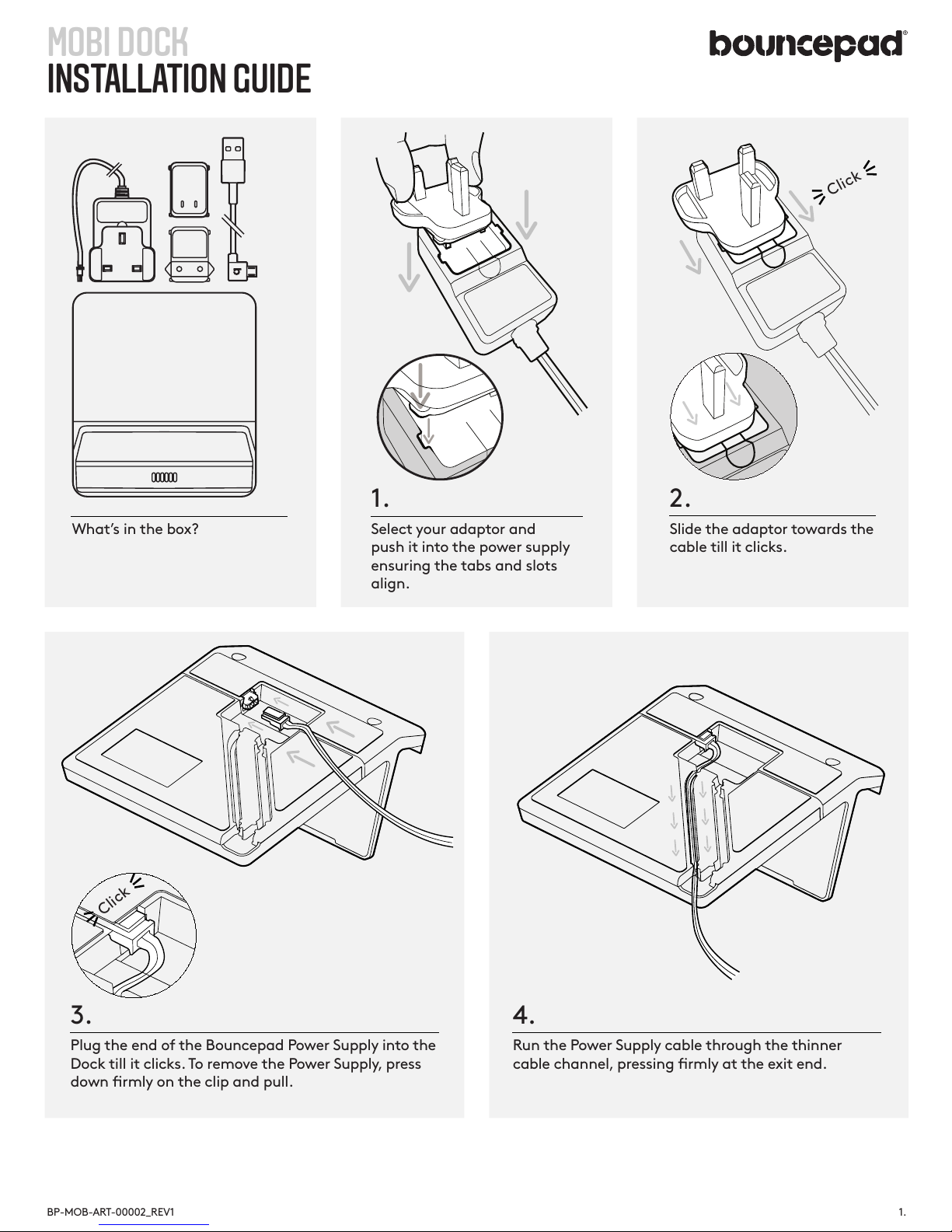
MOBI DOCK
INSTALLATION GUIDE
What’s in the box?
1.
1.
Select your adaptor and
push it into the power supply
ensuring the tabs and slots
align.
2.
Slide the adaptor towards the
cable till it clicks.
Click
3.
Plug the end of the Bouncepad Power Supply into the
Dock till it clicks. To remove the Power Supply, press
down rmly on the clip and pull.
4.
Run the Power Supply cable through the thinner
cable channel, pressing rmly at the exit end.
BP-MOB-ART-00002_REV1
Click
Page 6
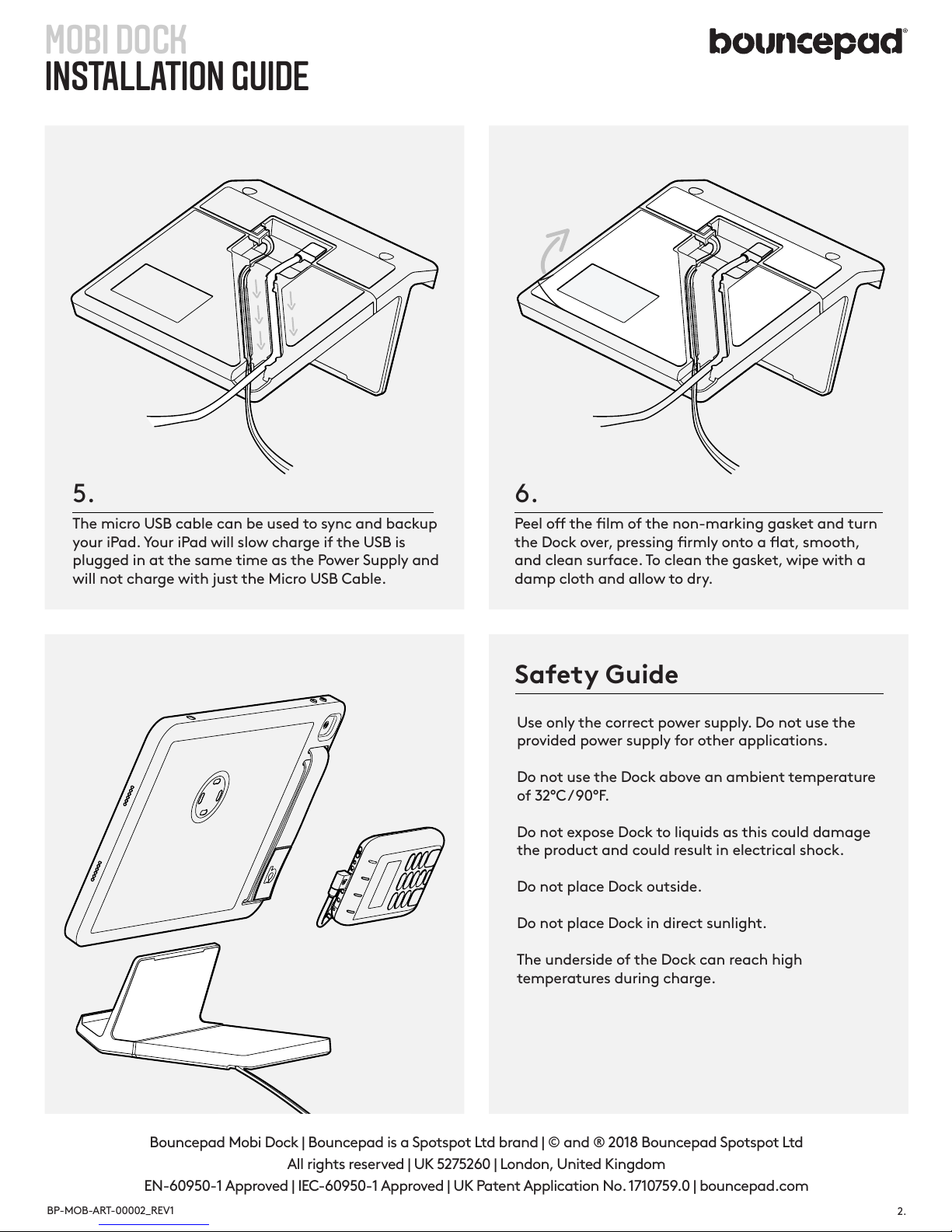
MOBI DOCK
INSTALLATION GUIDE
5.
The micro USB cable can be used to sync and backup
your iPad. Your iPad will slow charge if the USB is
plugged in at the same time as the Power Supply and
will not charge with just the Micro USB Cable.
2.
Use only the correct power supply. Do not use the
provided power supply for other applications.
Do not use the Dock above an ambient temperature
of 32°C / 90°F.
Do not expose Dock to liquids as this could damage
the product and could result in electrical shock.
Do not place Dock outside.
Do not place Dock in direct sunlight.
The underside of the Dock can reach high
temperatures during charge.
Bouncepad Mobi Dock | Bouncepad is a Spotspot Ltd brand | © and ® 2018 Bouncepad Spotspot Ltd
All rights reserved | UK 5275260 | London, United Kingdom
EN-60950-1 Approved | IEC-60950-1 Approved | UK Patent Application No. 1710759.0 | bouncepad.com
6.
Peel o the lm of the non-marking gasket and turn
the Dock over, pressing rmly onto a at, smooth,
and clean surface. To clean the gasket, wipe with a
damp cloth and allow to dry.
Safety Guide
BP-MOB-ART-00002_REV1
 Loading...