

Page 1
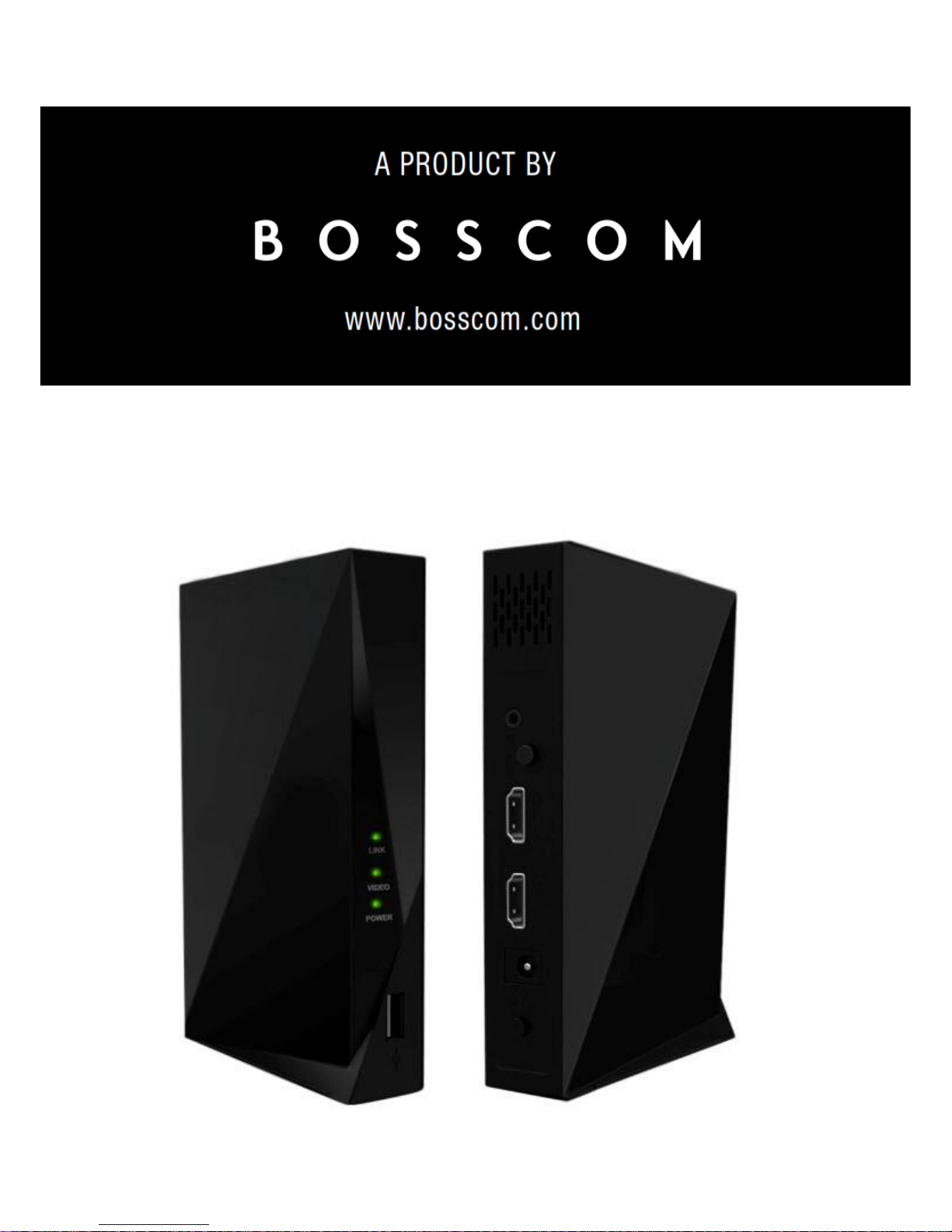
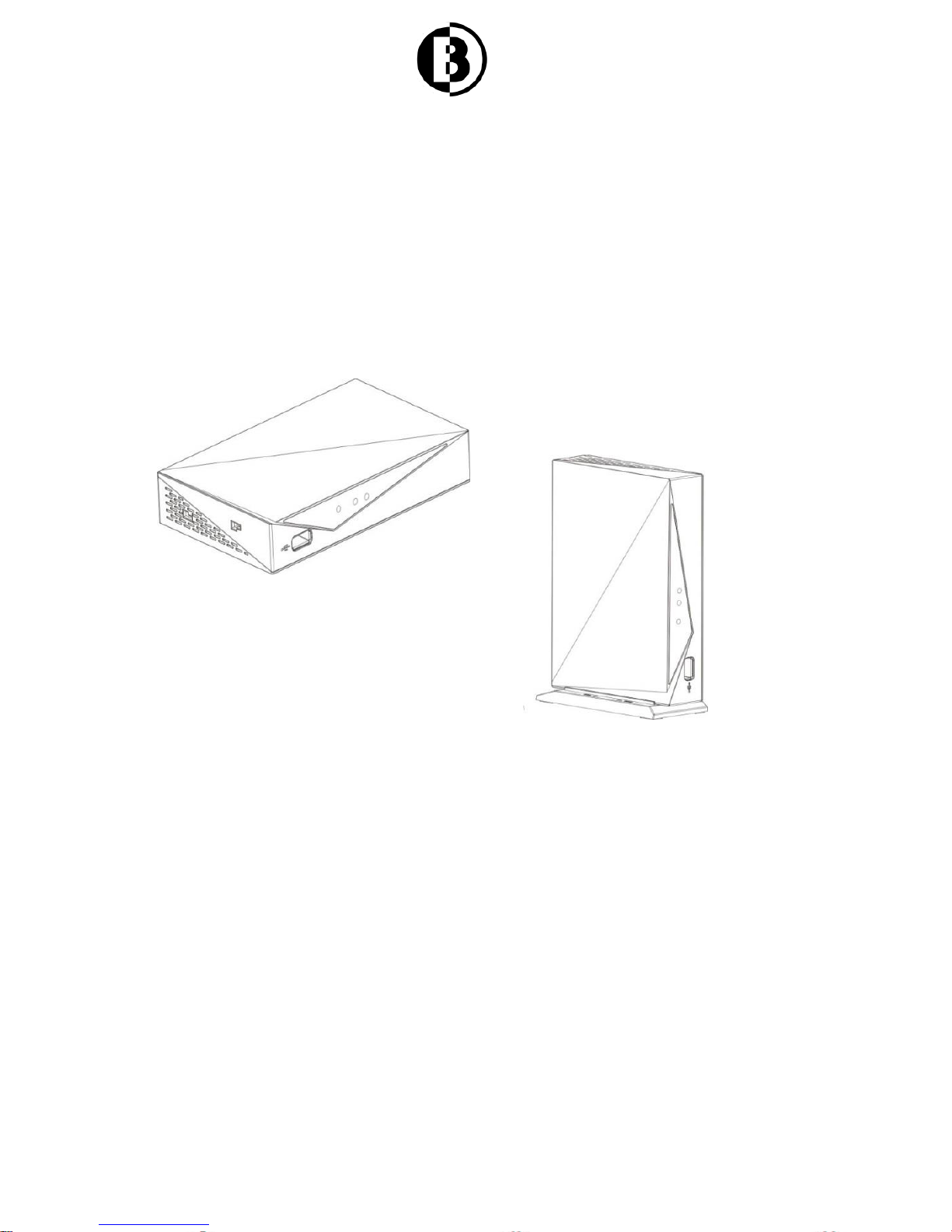
Wireless HDMI User Manual
Page 2

2
Table of Content
1. Important Information ..................................... 3
1.1 Safety Precautions .................................... 4
1.2 Declaration of Conformity .......................... 5
1.3 Trademark Information .............................. 6
1.4 Special Notice: .......................................... 7
1.5 Cleaning .................................................... 8
2. Product Introduction .................................... 8
2.1 Product specifications ............................... 8
2.1 Product Features ....................................... 9
2.2 Packing Content ...................................... 10
2.4 Functions ................................................. 11
2.4.1 Wireless HDMI transmitter functions ... 11
2.4.2 HDMI Receiver Functions .................. 12
2.4.3 Indicating LED ................................... 14
2.5 Transmitter Connection ........................... 14
3. Receiver Connections .................................. 17
4. Troubleshooting ................................ ........... 18
5 FCC ID Warning ........................................... 21
6 IC ID Warning ............................................... 22
Page 3

3
1. Important Information
Before you use the BOSSCOM Wireless HDMI
transmitter and receiver, it is important that you read
this user manual to get important information and
instructions regarding wireless HD transmitter and
receiver.
Any defects in components or faulty workmanship
occurring within a specific period will be rectified or
repaired free of charge, but this warranty may not
apply to the following cases:
- Unauthorized modifications to the products or
repair by an unauthorized technician.
- Breakage caused by accidents including but not
limited to fire, water immersion, and moisture.
- Use on incorrect voltage, use contrary to operating
instructions.
- Product model number got altered, removed or
made illegible.
Page 4
4
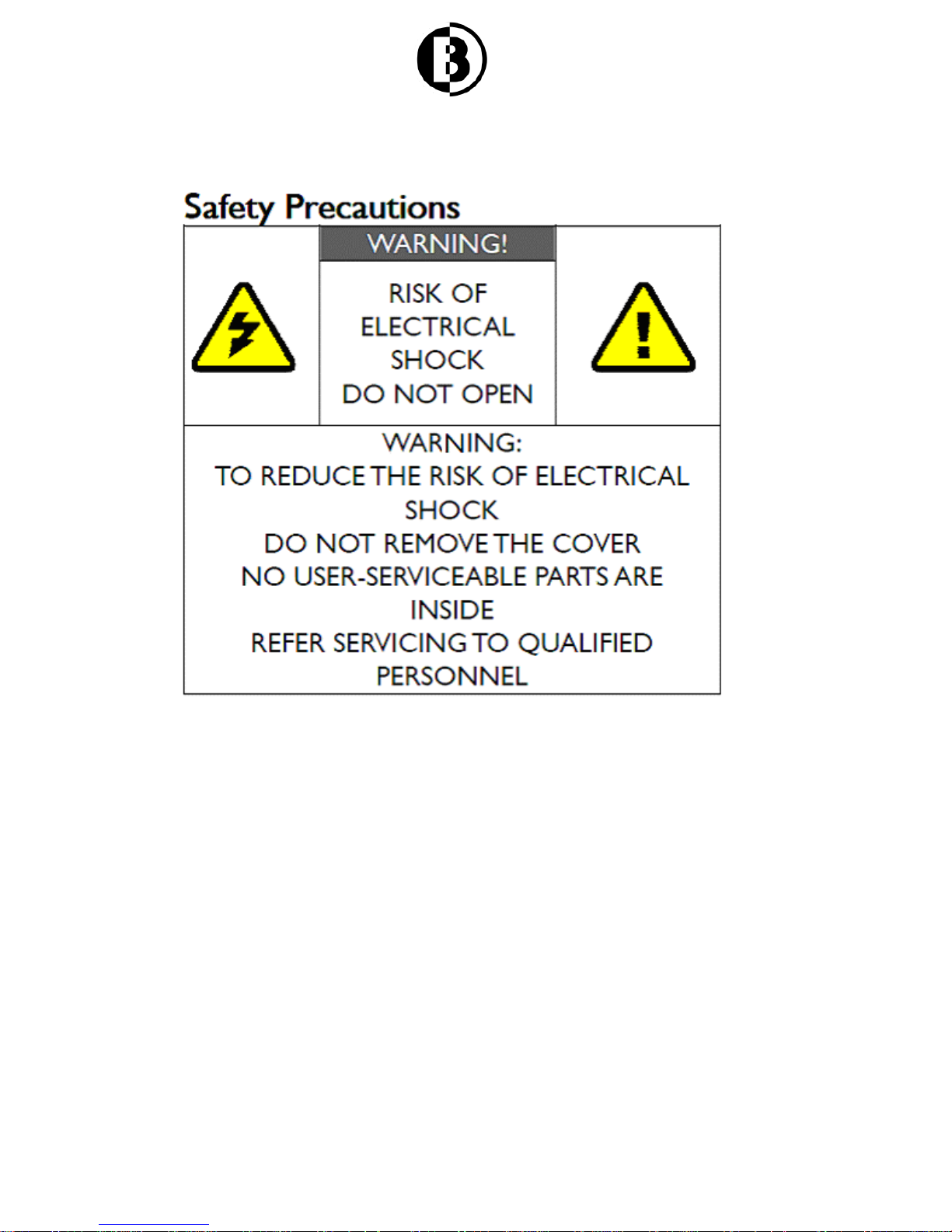
1.1 Safety Precautions
Danger: Electricity Hazard
- Power must be switched off when not in use, any
power adaptors connected AV devices and TV
should be plugged out.
- Power outlet: To prevent electricity shock, please
check if the mains lead used on the receiver and
transmitter corresponds to the power outlet.
- Mains lead: stepping or putting heavy stuffs on
mains lead is prohibited.
- Power overloading: Do not overload the power
Page 5
5
- outlets or extend the length of power line, otherwise
electric shock or fire could happen.
- Lighting stroke: disconnect the power adaptor
when product is not used for a long time or in
lighting stroke weather.
- Switch off the power when product is not in use to
prevent electric shock or fire.
Warning:
- Keep the product away from objects with liquids
and splashing or dripping on this product is strictly
prohibited.
- Put the product in a well-ventilated space and keep
it away from direct sunlight or any source of heat.
- Do not expose the product to rain or moisture,
otherwise electric shock or fire could happen.
1.2 Declaration of Conformity
Provisions.
Part 15: Subpart E---Unlicensed National Information
Infrastructure Devices.
Part 1: General Requirements
EN 300440-01(V1.6.1)
This product complies with Part 15C and Part 15E of
FCC Rules.
Part 15: Subpart C—Radiated Emission Limits,
This device complies with relative criteria CE
Certification.
EN 60950-1:2006
Information Technology
Page 6

6
Electromagnetic Compatibility and Radio Spectrum
Matters (ERM)
Short Range Devices.
Radio equipment to be used in the 1GHz TO 40 GHz
frequency range.
Part 1: Technical Characteristics and Test Methods
EN 301489-03(V1.4.1)
Electromagnetic Compatibility and Radio Spectrum
Matters(ERM);
Part 3:Specific conditions for Short-Range Device(SRD)
Operating on frequency between 9 kHz and 40 GHz
EN 301489-17(V2.1.1)
Electromagnetic Compatibility and Radio Spectrum
Matters (ERM);
Part 17: Specific conditions for Broadband Data
Transmission Systems
EN 301893(V1.5.1)
Broadband Radio Access Network (BRAN)
5 GHz high performance RLAN
Harmonized EN covering the essential requirements of
article 3.2 of the R&TTE Directive
1.3 Trademark Information
HDMI, HDMI Logo and High Definition Multimedia
Interface are registered trademarks of HDMI Licensing
LLC in America and other countries.
Page 7

7
1.4 Special Notice:
Do not use this product nearby an aircraft or medical
facility to prevent interference. Please handle this device
carefully otherwise wireless wave may cause the
abnormal video and audio (noise, blocked image…etc,)
1) Put it on the desk steadily; do not try to move it when
connected.
2) Keep it away from refrigerator or other metal furniture.
3) Do not place it in narrow place.
Do not place this product in a dusty, humid environment,
and in the place where the temperature is out of the
stated operational temperature range.
This product is with DC power supply. Please make sure
that the replacing power adapter with identification of
5V/3A to avoid irreparable fault.
Do not cover it or place other heavy objects on top of the
unit, which may block thermos vent. Good air circulation
around the product is required.
For energy saving, please turn off the power switch or
unplug the power adapter when the units are not in use.
If the product does not work properly, please restart it. If
the problem maintains, cut off the power and send it to
professional technicians for repair or disposal. Please do
not open or repair it yourself.
Page 8

8
This product has been manufactured and tested to
comply with each country’s safety regulations. However, it
doesn’t guarantee that interference would never happen
in some specific environment. If interference does occur,
please take away the interfering objects from transmitter
and receiver.
The optimal working distance between transmitter and
receiver is 1 meter to 30 meters.
1.5 Cleaning
Unplug power adaptor before performing any cleaning. To
clean the device, wipe with a soft, dry cloth or with a cloth
moistened with alcohol.
- Do not demount the device when connected to power
outlet, otherwise, electricity shock may happen.
- An authorized technician should conduct
maintenance.
- Dripping or splashing on the device is strictly
prohibited.
- Keep the device away from fire or any source of heat.
- Do not let kids play with this device.
2. Product Introduction
2.1 Product specifications
Supported
Resolution
1080p, 1080i, 720p
HDMI Interface
Support HDMI1.4A video/audio format
and encrypted video format HDCP 2.0
Page 9
9
Transmission
Distance
30m line of sight
System
Latency
<1 ms
Antenna
Omni bearing built-in antenna
Power
100~ 240V alternating input current,
5V/3A DC output power adaptor
Certificates
FCC, CE
Standard
WHDI 1.0
Supported
interface
3.5mm plug,external
infrared remote control
connector
Built in
infrared
remote
receiving
module
Working
temperature
0˚C - 5˚C
Dimension
146(L)*93(W)*25(H)mm
2.2 Product Features
- Working frequency: 2.4GHz, 5.8 GHz
- Compatible design
- Built-in Omni antenna
- With a transmission distance of 30m with zero latency
Page 10
10
2.3 Packing Content
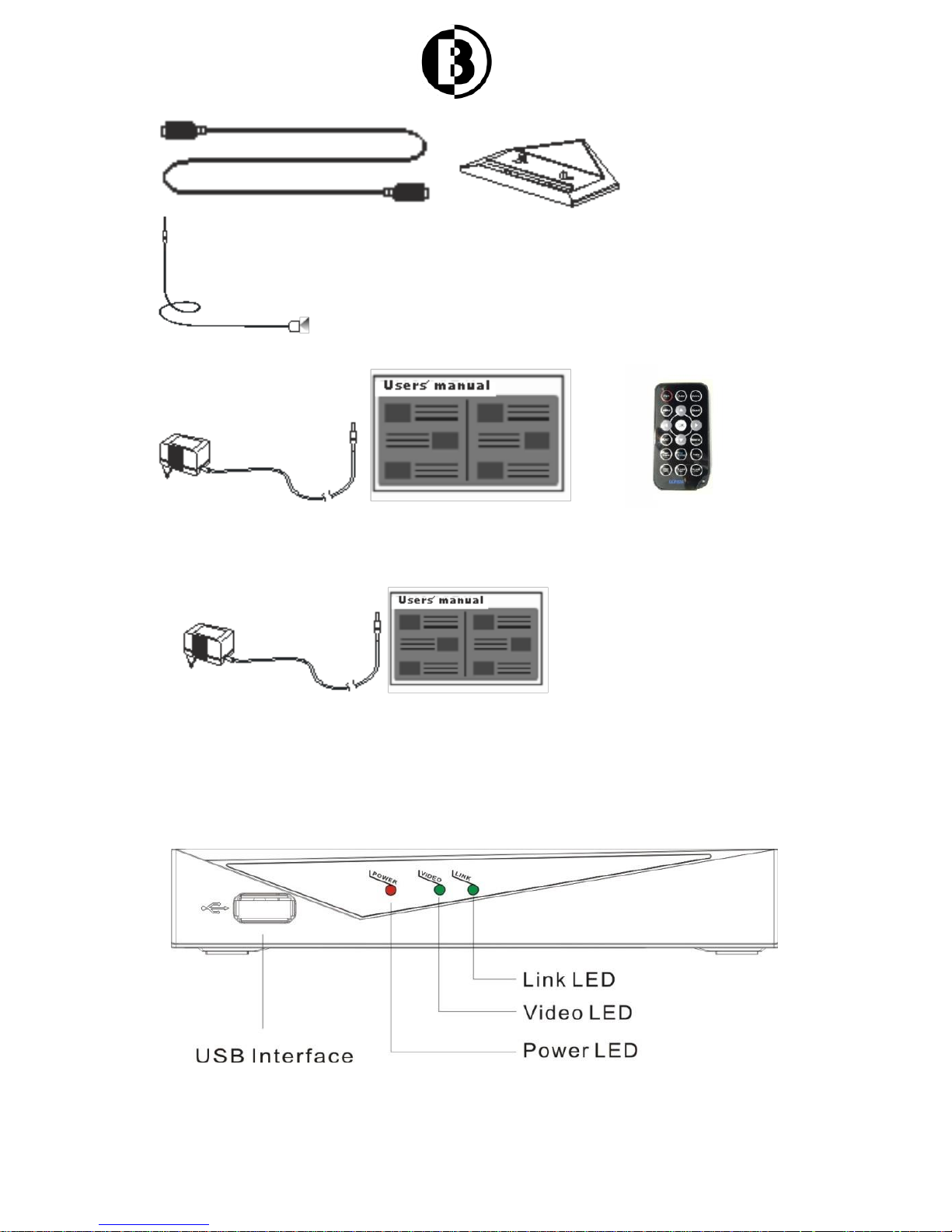
Please check whether the following contents are present
in the package box. If any item is missing or damaged,
please contact the dealer.
Main parts
BOSSCOM Wireless HDMI transmitter and receiver
Supplied Accessories:
One USB lead, 2 holding base, one infrared transmitting
connector, one user manual, 2 power adaptors, one
remote control.
Page 11
11
2.4 Functions
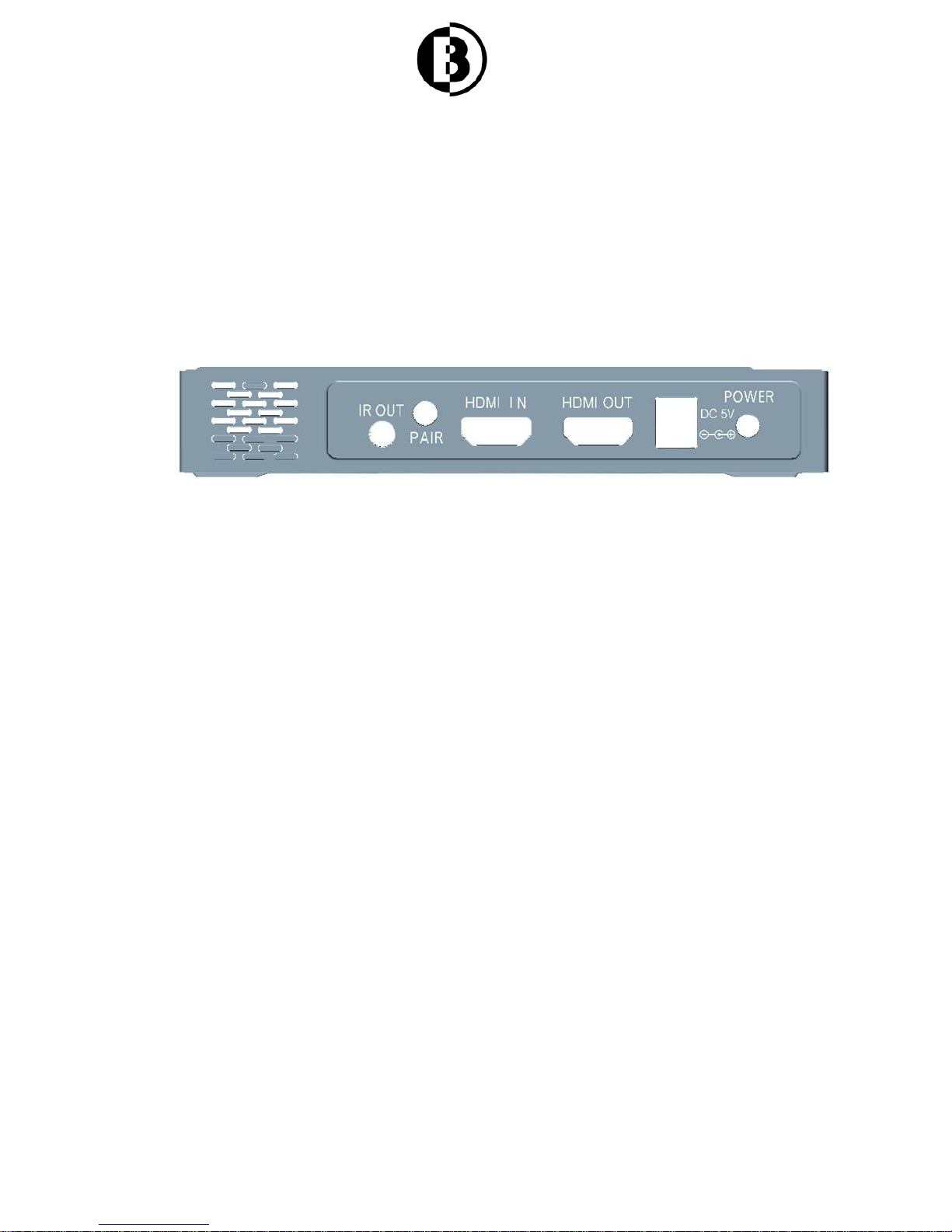
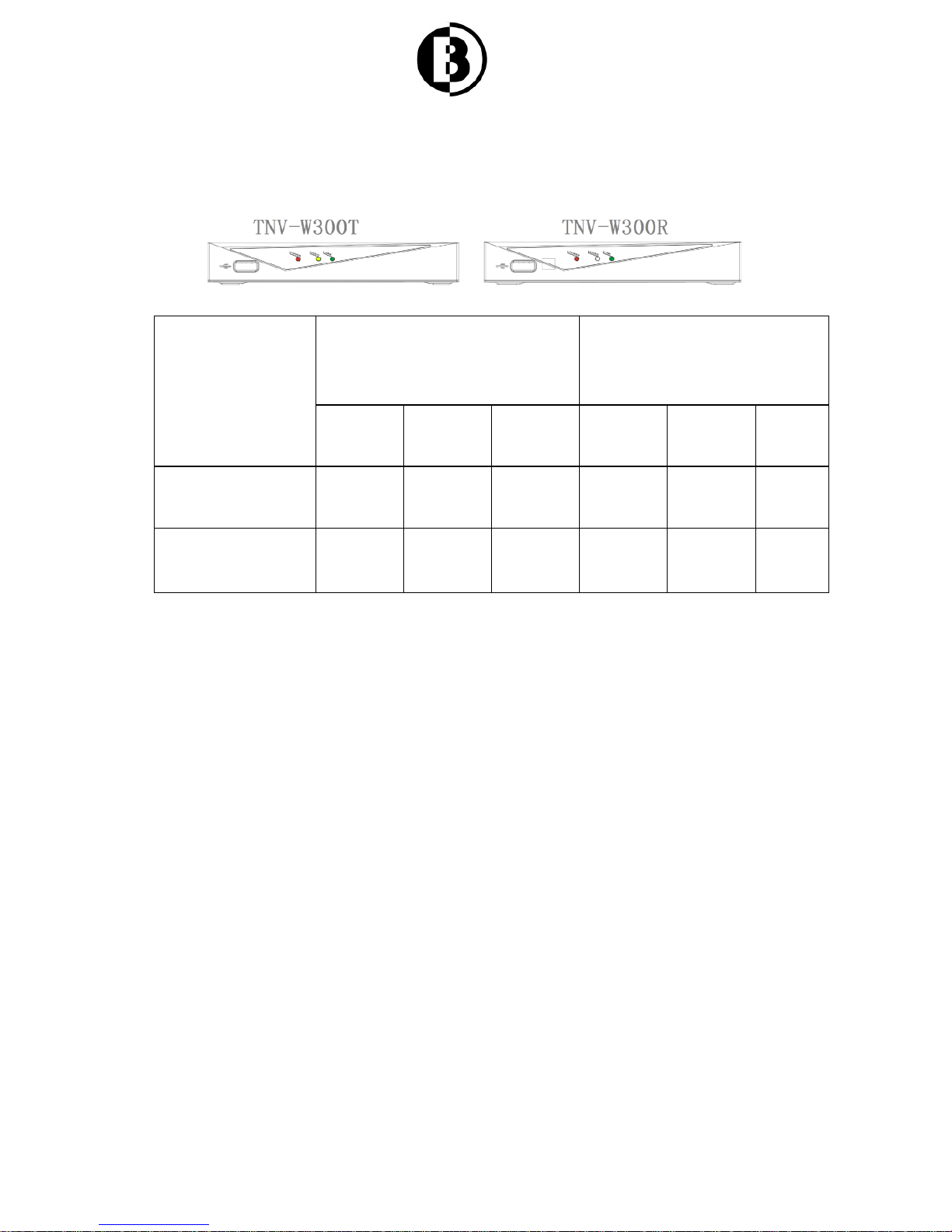
2.4.1 Wireless HDMI transmitter functions
Pre posed LED
Page 12
12
- Power LED: indicates if the system is powered.
Video LED: indicates video output status
Link LED: indicates device connection status
- USB interface: to connect PC or other source
equipment.
Postposition LED
Power Button: to turn on or turn off system
Power interface (DC IN JACK): to connect power adaptor.
- Infrared interface(IR slot): to connect extended
infrared transmitting wire
- HDMI interface: to connect HD source equipment.
HDMI Out Interface: to connect monitor
Pair interface: to make pair
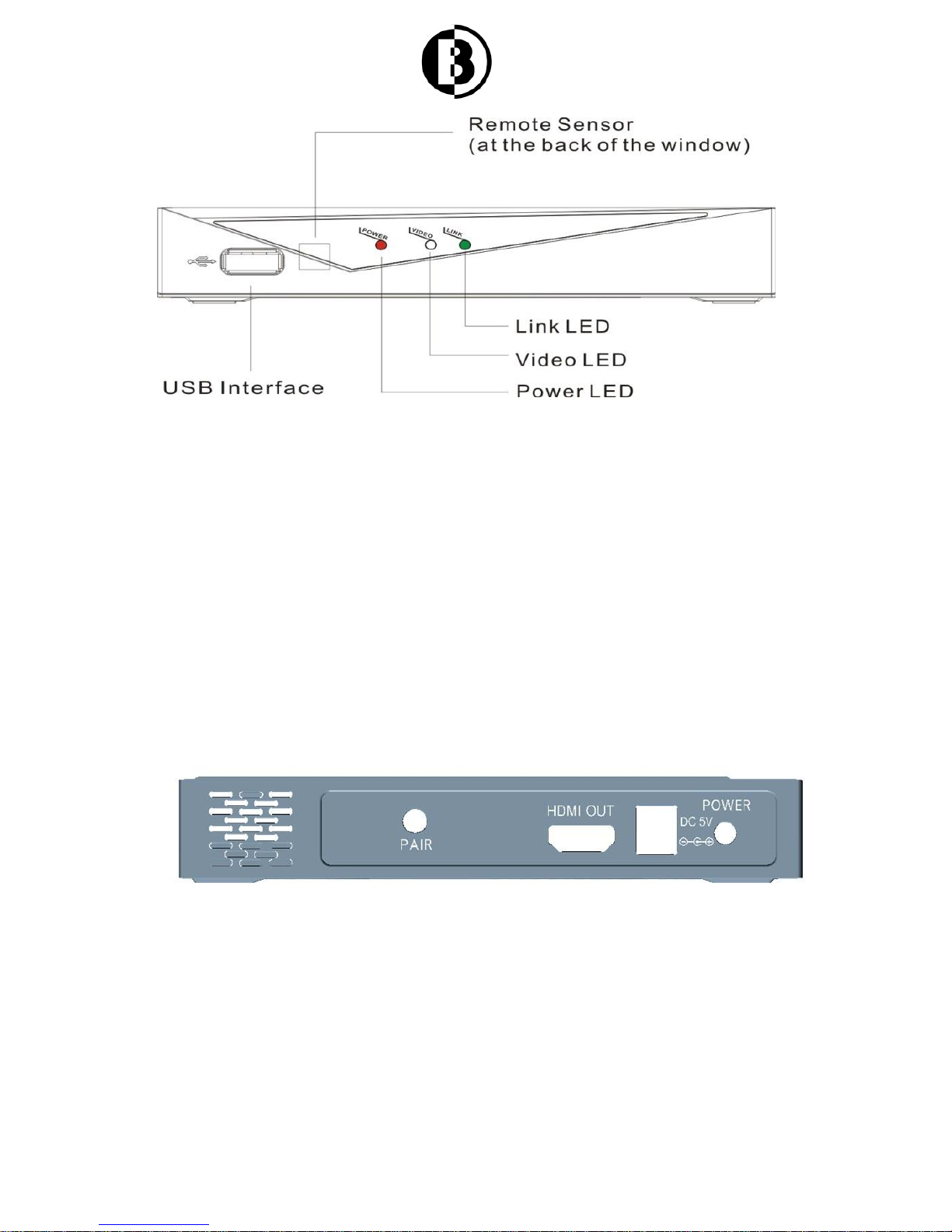
2.4.2 HDMI Receiver Functions
Pre posed LED
Page 13
13
- power LED: indicates if the system is powered
- video LED: indicates video receiving status
- Link LED: indicates device connection status
- USB interface: to connect USB mouse, keyboard or
PS3.
Postposition LED
Power Button: to turn on or turn off system
- power input interface(DC IN Jack): to connect power
adaptor
- HDMI interface: to connect HD display equipment.
Page 14
14
Pair interface: to make pair
2.4.3 Indicating LED
Working status
Transmitter BOSSCOM
Wireless HDMI
Receiver
Power
Video
Link
Power
Video
Link
Normal status
● ● ● ●
●
Add device
●
■ ★ ● ●
Green LED stays on; green LED flash quickly, valid input
signal is lit, otherwise the lights off.
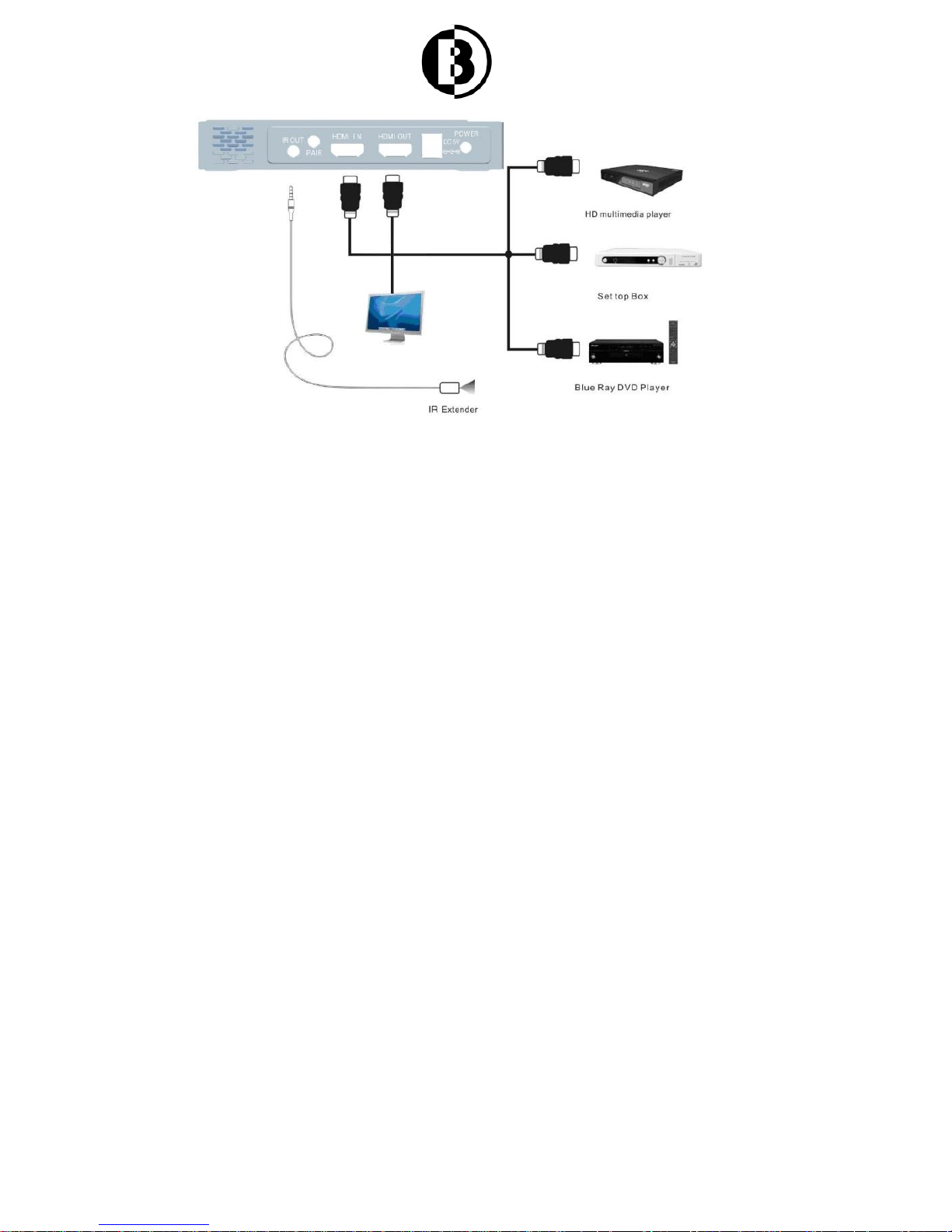
2.5 Transmitter Connection
Applications on blue-ray DVD, multi-media player, set
top box (supported 3D effect)
Page 15
15
Connect BOSSCOM Wireless HDMI with HDMI cable to
source equipment, such as blue ray DVD, multi-media
player, set top box and make sure they are correctly
connected.
Plug infrared connector to BOSSCOM Wireless HDMI
transmitter, and make the transmitter connected to the
receiver with infrared connector of blue ray DVD, multimedia player, set top box and PS3.
Connect display device with HDMI OUT interface, and
then the local videos will work.
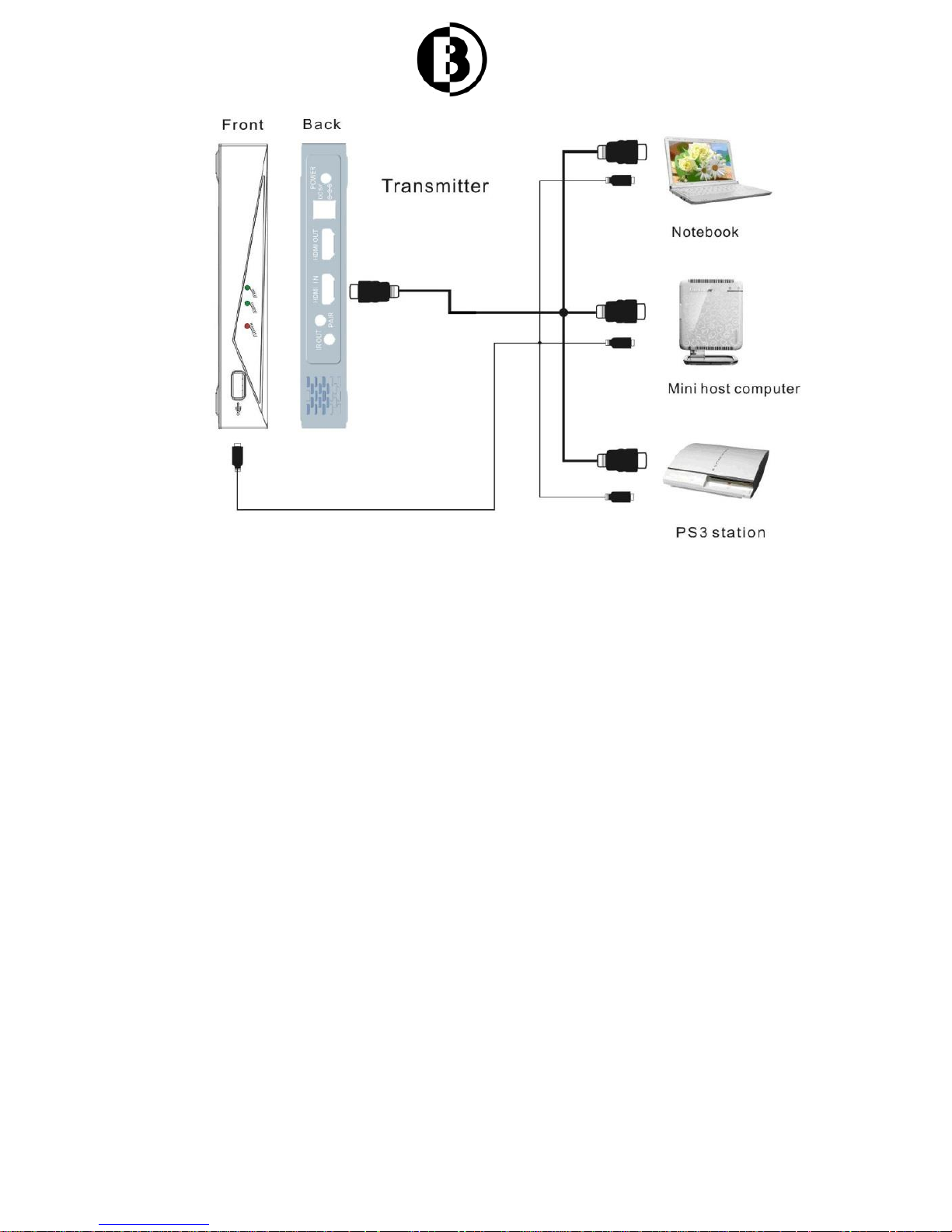
Application on notebook, mini-Computer mainframe, and
game platform (supported 3D effect)
Page 16
16
Connect BOSSCOM Wireless HDMI transmitter with
HDMI cable to devices, like notebook, mini-computer
mainframe, game platform and make sure they are
perfectly connected.
Connect BOSSCOM Wireless HDMI transmitter and
devices, like blue ray DVD, multi-media player, set top
box with USB cable.
Page 17
17
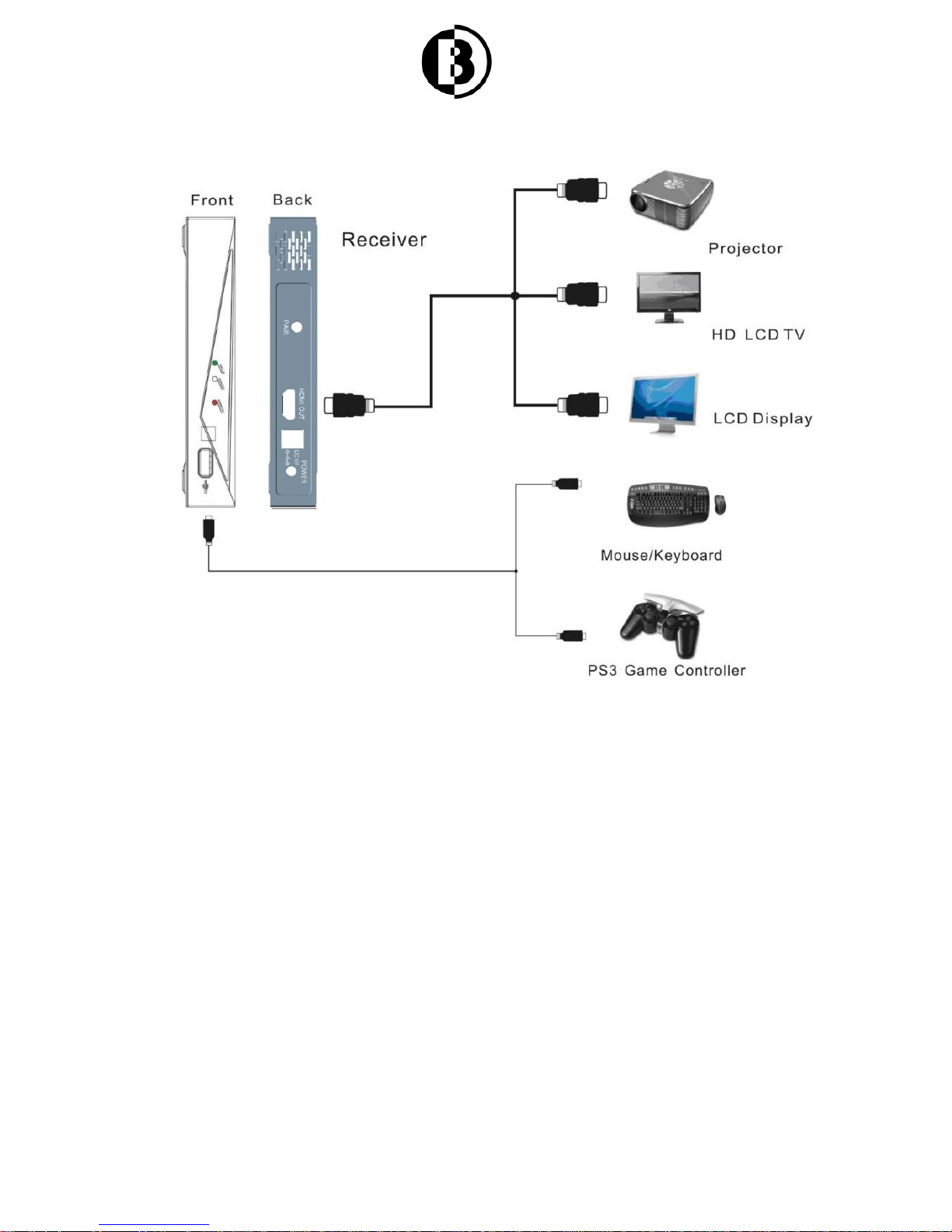
3. Receiver Connections
Connect receiver with HDMI cable to devices like display
device, TV, projector (with 3D effect) and make sure they
are perfectly connected.
Connect USB mouse, keyboard, and gamepad to receiver
through USB interface and make sure they are perfectly
connected.
Make pair between the devices:
Connect the power adapters or display devices with
BOSSCOM Wireless HDMI transmitter and receiver
Page 18

18
Press the make pair button on Receiver
Press the make pair button on Transmitter, then
connection light is flashing.
Display device is showing progress bar.
It takes about 3 minutes, making pair successful (the time
depend on different environment, different wireless
distance)
After making pair, the connection is auto and the system
begin to transport av signal.
4. Troubleshooting
Please make sure all the devices is properly connected
and receiver is not in standby mode before you follow the
troubleshooting guide below.
No video
1. Check the status of LED, and check if
the HD media player works normally.
2. Check if the joints and wires are
damaged and make sure they are
correctly connected to corresponding
interface.
devices.
connected to display equipment.
Page 19
19
supported distance. Draw them closer
and try it again.
Power LED
off
1. Make sure the power adaptor is
correctly connected and the voltage is
5V3A
2. Make sure the power supply would
not be interrupted.
Receiver
video
indicating
LED
abnormal
1. Make sure video and audio signals
can be transmitted to receiver
successfully.
2. If there are video and audio signal on
output devices, please check the
indicating LED to see if something is
wrong with it.
3. Make sure the device is working
within the supported distance.
Bad picture
1. Ensure there is video on output
devices.
2. Check if the receiver is correctly
connected to display equipment and
there is no damage on joints and wires.
3. Make sure all devices are working on
supported distance. Draw them closer
and try it again.
Page 20
20
No sound
or bad
sound
1. Make sure the source equipment
output support audio format.
2. Restart the transmitter and connect it
again
3. Make sure there is no disturbance
from the same frequency (4.9~5.9GHz)
within 50 centimeter.
Register
failure
Ensure the distance between transmitter
and receiver doesn’t exceed supported
distance. If it does, put them closer and
try it again.
Check if source device has been added
on display equipment. If it has, delete it
and make registration again.
Connection
failure
1. Ensure the working distance doesn’t
exceed supported distance. If it does,
put them closer and try it again.
2. Make sure source devices have been
registered every time after software
update.
3. Ensure source devices and display
devices have been registered.
4. If failure occurs again, delete all
registered information and try it again.
Page 21

21
Other
problems
If any other problems occur, please
restart the device and make connections
again.
5. FCC ID Warning
This device complies with Part 15 of the FCC Rules.
Operation is subject to the following two conditions: (1)
this device may not cause harmful interference, and (2)
this device must accept any interference received,
including interference that may cause undesired
operation.
The user manual or instruction manual for an intentional
or unintentional radiator shall caution the user that
changes or modifications not expressly approved by the
party responsible for compliance could void the user's
authority to operate the equipment. In cases where the
manual is provided only in a form other than paper, such
as on a computer disk or over the Internet, the
information required by this section may be included in
the manual in that alternative form, provided the user can
reasonably be expected to have the capability to access
information in that form.
For a Class B digital device or peripheral, the instructions
furnished the user shall include the following or similar
statement, placed in a prominent location in the text of the
manual:
Page 22

22
NOTE: This equipment has been tested and found to
comply with the limits for a Class B digital device,
pursuant to Part 15 of the FCC Rules. These limits are
designed to provide reasonable protection against
harmful interference in a residential installation. This
equipment generates uses and can radiate radio
frequency energy and, if not installed and used in
accordance with the instructions, may cause harmful
interference to radio communications. However, there is
no guarantee that interference will not occur in a
particular installation. If this equipment does cause
harmful interference to radio or television reception, which
can be determined by turning the equipment off and on,
the user is encouraged to try to correct the interference
by one or more of the following measures:
- Reorient or relocate the receiving antenna.
- Increase the separation between the equipment and
receiver.
- Connect the equipment into an outlet on a circuit
different from that to which the receiver is connected.
- Consult the dealer or an experienced radio/TV
technician for help.
6. IC ID Warning
Disclaimer:
Page 23

23
Operation is subject to the following two conditions: (1)
this device may not cause interference, and (2) this
device must accept any interference, including
interference that may cause undesired.
 Loading...