

Page 1

BOSSCOM
Internet-Radio
For Bang & Olufsen
Controlled
12818090
by B&O Remote
Control
®Powmascables
®Powmascables
User manual
Page 2
Everyday Control with Beo4, Beo5, Beo6
Select
Maneuvering in menus
Maneuvering in menus
Power on/ off
Menu
Favorite list
Store favorite
Mode – Internet/ UPnP
– Select a preset program. *1
*1
Up to 250 channels can be stored in memory.
A preset channel is selected by entering one, two or three
digits.
Everyday Control with BeoLink 1000
Select
Maneuvering in menus
Maneuvering in menus
Power on/ off
Menu
Favorite list
Store – favorite
Mode – Internet/ UPnP
– Select a preset program. *1
®Powmascables
®Powmascables
Page 3

®Powmascables
®Powmascables
Everyday Control with Beo4, Beo5, Beo6 .................................................................................................................... 1
Everyday Control with BeoLink 1000 .......................................................................................................................... 1
Getting Started ........................................................................................................................................................... 3
Direct Mode or CableLink Mode ................................................................................................................................. 4
Factory Settings .......................................................................................................................................................... 4
Functions .................................................................................................................................................................... 5
My MediaU ..................................................................................................................................................................... 5
Create a MediaU Account. .......................................................................................................................................... 5
Internet Radio ................................................................................................................................................................. 5
Create a List of Favorite Stations. ............................................................................................................................... 5
Media Center .................................................................................................................................................................. 5
UPnP, Play Music from PCs on the LAN. ..................................................................................................................... 5
Installation ................................................................................................................................................................. 6
Internet-Radio, Initial Set Up. ......................................................................................................................................... 6
Setting Date and Clock. ................................................................................................................................................... 6
Buffer. ............................................................................................................................................................................. 6
Language. ....................................................................................................................................................................... 6
Factory Settings. ............................................................................................................................................................. 6
Internet-Radio Connection to Bang & Olufsen Equipment .......................................................................................... 7
Direct Control, “Direct Mode” ......................................................................................................................................... 7
Indirect control, ”CableLink Mode” ................................................................................................................................. 7
Option Programming .................................................................................................................................................. 8
Source & Option Selection .......................................................................................................................................... 9
Connection via a BeoLink Converter 1611/ 1612 .......................................................................................................15
Connection via a BeoLink Active in any Link Room ....................................................................................................16
Connection to a 21 Pin AV Socket on any Bang & Olufsen TV. ...................................................................................17
Internet-Radio is equipped with a 7 pin DIN DataLink cable for connection to Bang & Olufsen equipment. Thus an
adaptor cable is required for connection to equipment not having a DIN input socket. See below examples and the
Option Programming section page 8.
Page 4

®Powmascables
®Powmascables
Getting Started
This BOSSCOM Internet-Radio has been designed for operation in a Bang & Olufsen remote control system allowing
full control with a Bang & Olufsen remote control terminal either directly or via connection to Bang & Olufsen
equipment.
Thus the Internet-Radio is BeoLink compatible.
Page 5

Remote control
Source
Beo4, Beo5 or Beo6
N.MUSIC, A.MEM2 or TAPE2
BeoLink 1000
SHIFT A.TAPE
®Powmascables
®Powmascables
Direct Mode or CableLink Mode
The BOSSCOM Internet-Radio tuner is connected to Bang & Olufsen equipment via the 7-pin DIN cable with or
without adaptor, and through option programming it may be controlled as follows:
1. Via the tuner’s built in IR-receiver, ”Direct Mode”
Direct Mode is used when connection to an input with control data is not possible.
2. Via the cable connected Bang & Olufsen equipment, ”CableLink Mode”
CableLink Mode is used only when connection to an input with control data is possible.
See page 8 for Option Programming.
Factory Settings
The factory setting is for “Direct Mode” and manual power control.
The factory setting for input socket and selected source is:
If the Internet-Radio tuner is connected to a different input, the option should be programmed accordingly.
See page 8 for Option Programming.
Page 6

®Powmascables
®Powmascables
Functions
My MediaU
When logging into http://www.mediayou.net favorite lists for Internet-Radio may be created. By the first log in an
Internet-Radio account needs to be created. The account is free of charge.
Create a MediaU Account.
1. Log into the home page and create an account.
2. Fill in the Internet-Radio’s serial number, which is the so called MAC address found in the Internet-Radio/
Main Menu/Information Center/System Information/Wireless MAC.
A MAC address is 12 alfa-numerics.
3. Press to get to the main menu.
4. The MediaU list for Internet-Radio is visible and may be accessed.
Internet Radio
Create a List of Favorite Stations.
250 favorite stations may be stored in the Internet-Radio.
1. Press and select Internet Radio with .
2. Select a station from one of the sub-menus, like Local Radio/Denmark/DAB.
3. Press to store the favorite list.
4. Move the station to the desired place in the list and press to store this location.
These menus allow for name change of stations, removal or relocation in the favorite list, but these activities
are a lot easier via the internet and a MediaU account as described above.
Media Center
UPnP, Play Music from PCs on the LAN.
1. Select Main Menu with
2. Select Mediacenter/ UPnP
3. Show lists with accessible files with
4. Select the desired file.
Page 7

®Powmascables
®Powmascables
Installation
Internet-Radio, Initial Set Up
Connect the Internet-Radio tuner’s external power supply to a mains outlet and to the tuner’s DC-socket.
1) Turn on the tuner’s power switch on the cabinet’s rear.
2) Turn on Internet-Radio by pressing N.MUSIC, A.MEM2 or TAPE2 followed by .
See Option Programming p.8 if another source selection is requested.
3) Connect the tuner to the corresponding input socket of the Bang & Olufsen equipment.
4) Select the chosen source on the Bang & Olufsen remote.
Internet-Radio is starting up and is scanning for networks.
1. Having completed the scanning all available ”ESSIDs” are listed. Select the desired one.
2. If the selected network is locked, a password has to be entered.
Internet-Radio supports WEP (Wired Equivalent Privacy) and WPA (Wi-Fi Protected Access).
Setting Date and Clock
1. Select Main Menu with
2. Select /Configuration/Date & Time with
3. Select the desired date, time, 12/24 hours, GMT, Daylight Saving Time etc
Buffer
1. Select Main Menu with
2. Select /Configuration/Buffer with
3. Select the desired values for the buffer.
Language
1. Select Main Menu with
2. Select /Configuration/Language with
3. Select the desired display language.
Factory Settings
1. Select Main Menu with
2. Select /Configuration/Reset to Default with
3. Select YES to reset Internet-Radio to the factory settings.
Page 8

Direct Mode
Direct Mode may be used in any Bang & Olufsen system.
The Internet-Radio tuner’s IR receiver is not plasma safe.
CableLink
The CableLink option allows for control from any link room.
®Powmascables
®Powmascables
Internet-Radio Connection to Bang & Olufsen Equipment
This BOSSCOM Internet-Radio tuner connects to ALL Bang & Olufsen equipment having a vacant audio input, like
BeoSound, BeoCenter, BeoMaster, BeoSystem or BeoVision TV, and it is controlled by a Bang & Olufsen remote
control terminal. Internet-Radio may be connected to any equipment of other brands too, but it requires control by a
Bang & Olufsen remote.
Over the years Bang & Olufsen has added, removed or renamed inputs for peripherals and in the most recent remote
controls N.Music has replaced the earlier SHIFT- A.TAPE or A.TAPE2.
Below tables list various Bang & Olufsen equipment with specified inputs, names and the corresponding source
selection to be used when opening an input. This enables selection of any named Bang & Olufsen product, its input,
the corresponding Internet-Radio option and the remote command that allows for control of the tuner.
Some inputs allow for selection of a CableLink option, but most of the more recent Bang & Olufsen products require a
Direct Mode option, i.e. direct control of the Internet-Radio. Alternatively see the application of BeoLink Converter p.
15.
Direct Control, “Direct Mode”
The Internet-Radio is controlled directly by a Bang & Olufsen remote control terminal. Thus control from a link room
is NOT possible, but the Internet-Radio may be listened to anywhere, when it has been selected as a source.
Indirect control, ”CableLink Mode”
The Internet-Radio is controlled with a Bang & Olufsen remote via the connected Bang & Olufsen equipment that
relays control commands via the connection cable. The Internet-Radio may be controlled from any connected link
room.
Page 9
Control LED indications
Red/green flash
By initial power up the LED starts flashing red/green, indicating that the tuner is in Option
Programming mode, i.e. an option may be entered.
The Option Programming Mode is terminated after 30 secs. or prior hereto, if any command except
for - , or is received.
Red
The tuner is ready for control.
Intermittently turned off
The LED turns off very briefly as a command handshake indicator.
®Powmascables
®Powmascables
Option Programming
Option programming is required only when installing the tuner. The programming is performed with a Bang &
Olufsen remote control terminal by initiating a 5 key sequence within 8 seconds after powering up the tuner.
When powering up the tuner the red control LED flashes for 8 seconds, and the programming has to be carried out
before the control LED stops flashing. When entering a key stroke the timeout is prolonged with another 8 seconds.
If not successful the operation may be repeated. Programming starts by pressing and ends by pressing
All options have 3 digits to be entered in between.
Option 106 is entered like this:
*1 If using a Beolink1000 remote control, LIGHT must be replaced with SHIFT-LINK.
Page 10
Input
Socket
Source Selected
Direct
Option
CableLink
Option
Remarks
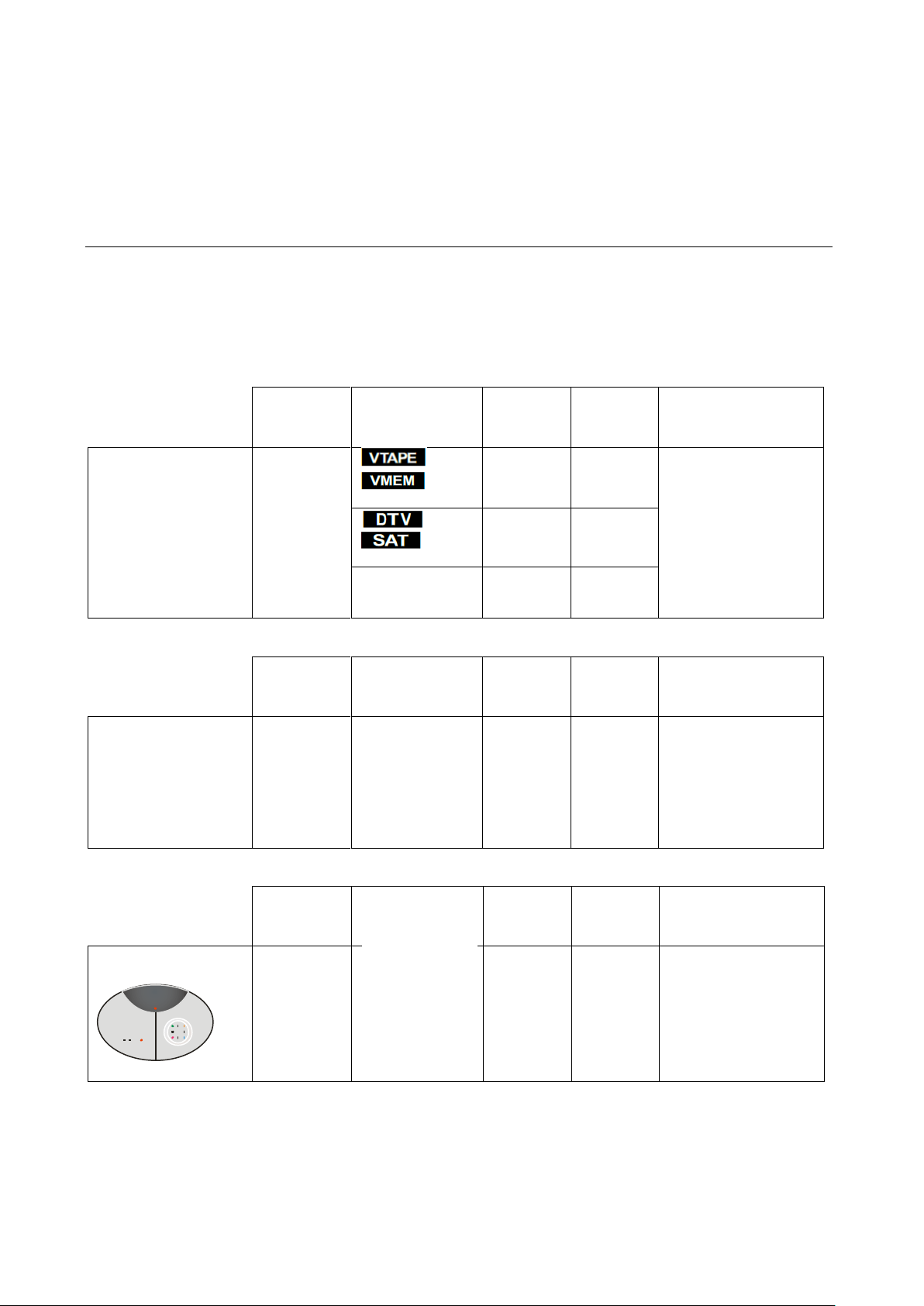
BeoSound 5
MasterLink
-
410
If the MasterLink socket is
not used, the Internet-Radio
tuner might be connected
and operated via a BeoLink
Converter.
See page 15 for details on
connection of the BeoLink
Converter 1611.
-
416
-
412
Input
Socket
Source Selected
Direct
Option
CableLink
Option
Remarks
BeoSound 5 Encore
LINE-IN
100
-
The Encore input is a mini
jack socket.
Use a BOSSCOM adaptor
cable item 13138090.
Input
Socket
Source Selected
Direct
Option
CableLink
Option
Remarks
BeoCenter 2
AUX-IN
100
-
The input is RCA phono
sockets. Use a BOSSCOM
adaptor cable item
13128090.
®Powmascables
®Powmascables
Source & Option Selection
The following tables show the available input sockets on various Bang & Olufsen audio and video products, how to
select them using a remote control terminal and what the corresponding option program of the One Remote
Internet-Radio tuner should be.
The BOSSCOM Internet-Radio tuner has to be programmed with the right option to operate correctly:
Page 11
Input
Socket
Source Selected
Direct
Option
CableLink
Option
Remarks
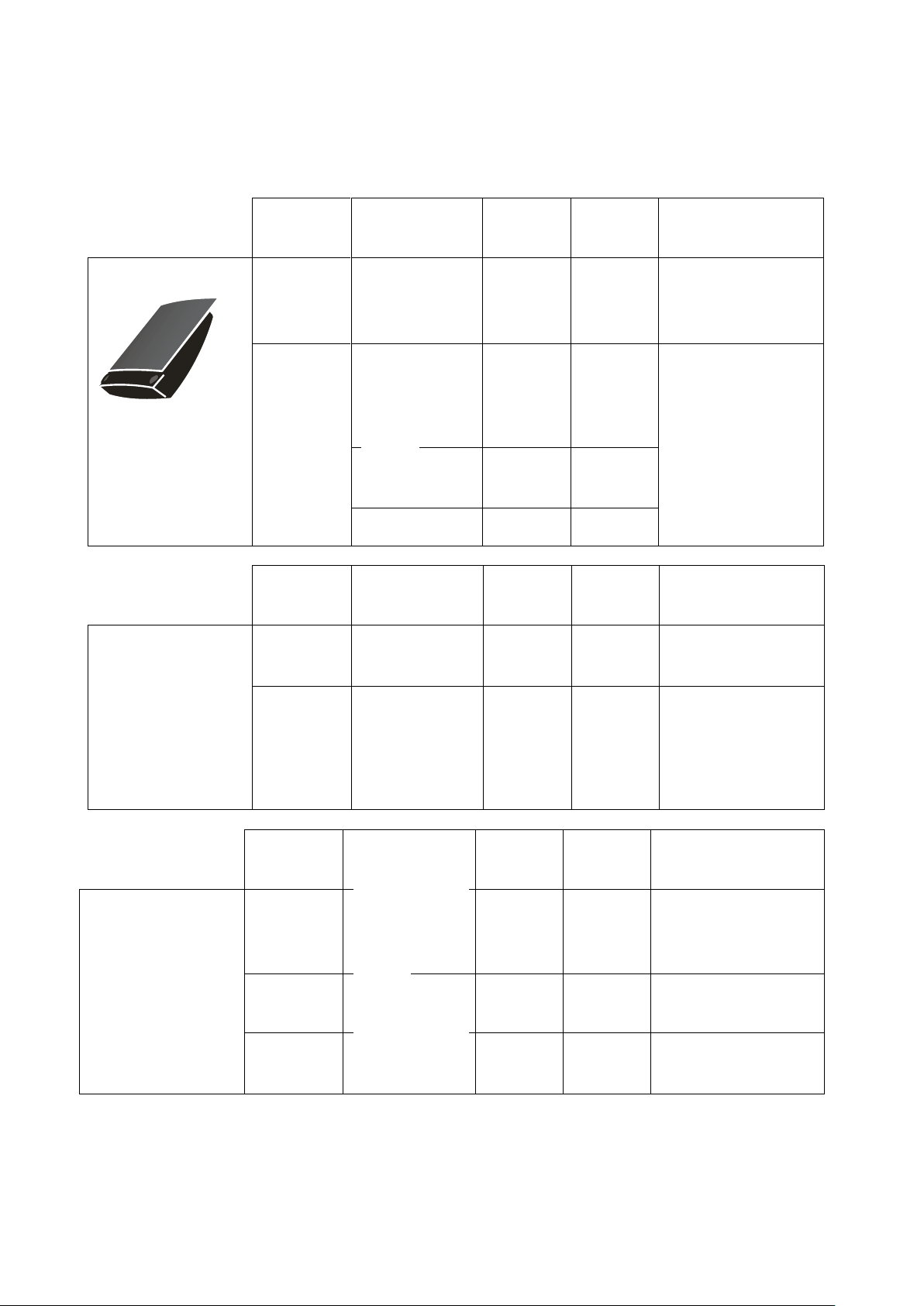
BeoSound 4
AUX 100
-
The input is RCA phono
sockets. Use a BOSSCOM
adaptor cable item
13128090.
MasterLink
-
410
If the MasterLink socket is
not used, the Internet-Radio
tuner might be connected
and operated via a BeoLink
Converter.
See page 15 for details on
connection of the BeoLink
Converter 1611.
-
416
-
412
Input
Socket
Source Selected
Direct
Option
CableLink
Option
Remarks
BeoSound 1
AUX 100
-
AUX 102
-
Input
Socket
Source Selected
Direct
Option
CableLink
Option
Remarks
BeoSound Century
AUX 103
AUX 106
-
AUX 100
-
®Powmascables
®Powmascables
Page 12
Input
Socket
Source Selected
Direct
Option
CableLink
Option
Remarks
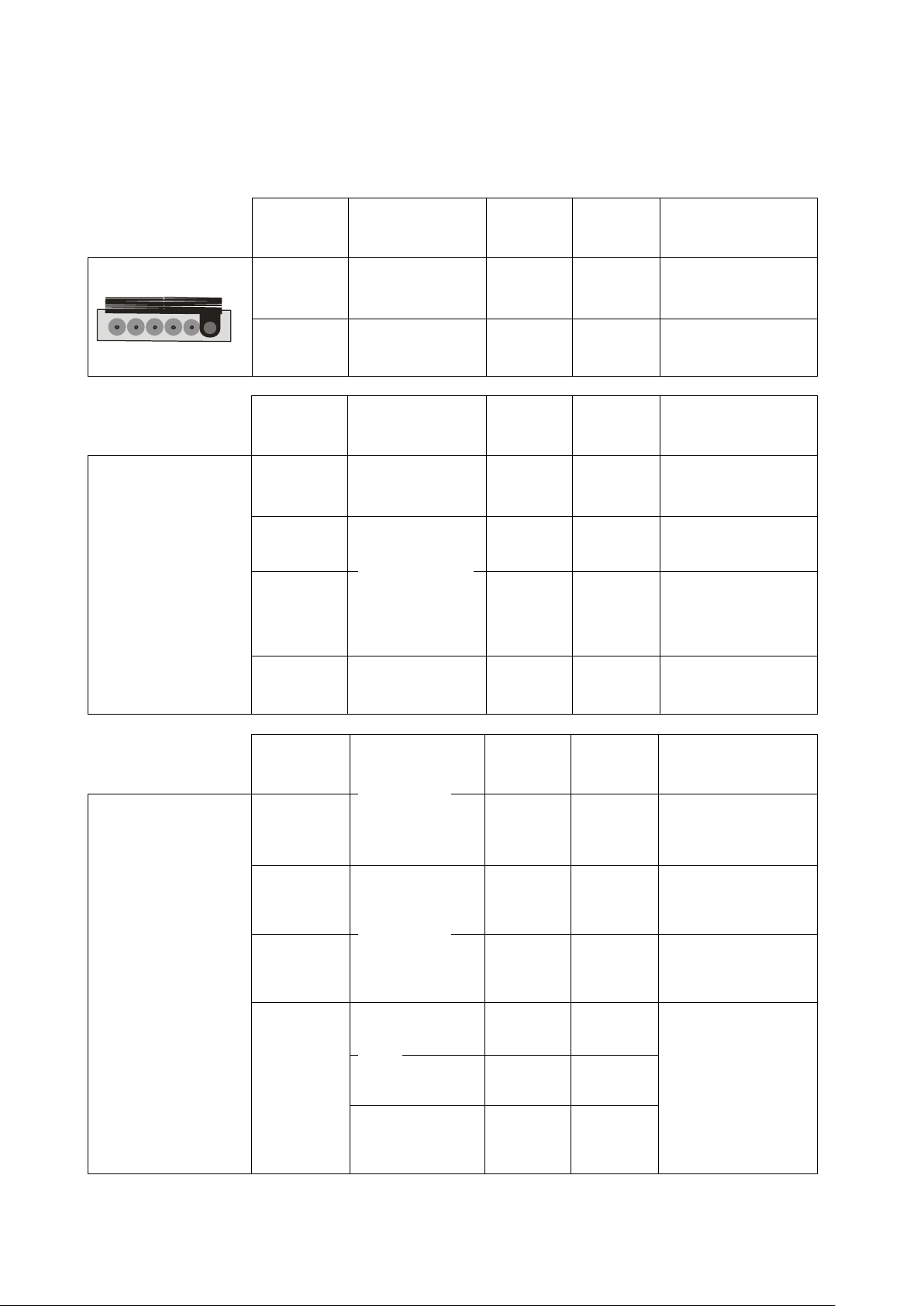
BeoSound 9000
AUX 100
-
AUX 102
-
Input
Socket
Source Selected
Direct
Option
CableLink
Option
Remarks
BeoSound 3000
BeoSound 3200
AUX 100
AUX 102
-
AUX 103
AUX 106
-
Input
Socket
Source Selected
Direct
Option
CableLink
Option
Remarks
BeoSound Ouverture
AUX 103
302
In the CableLink mode
numeric commands are not
accepted.
AUX 106
206
In the CableLink mode
numeric commands are not
accepted.
AUX 100
-
In the CableLink mode
numeric commands are not
accepted.
MasterLink
-
410
If the MasterLink socket is
not used, the InternetRadio tuner might be
connected and operated via
a BeoLink Converter.
See page 15 for details on
connection of the BeoLink
Converter 1611.
-
416
-
412
®Powmascables
®Powmascables
Page 13
Input
Socket
Source Selected
Direct
Option
CableLink
Option
Remarks
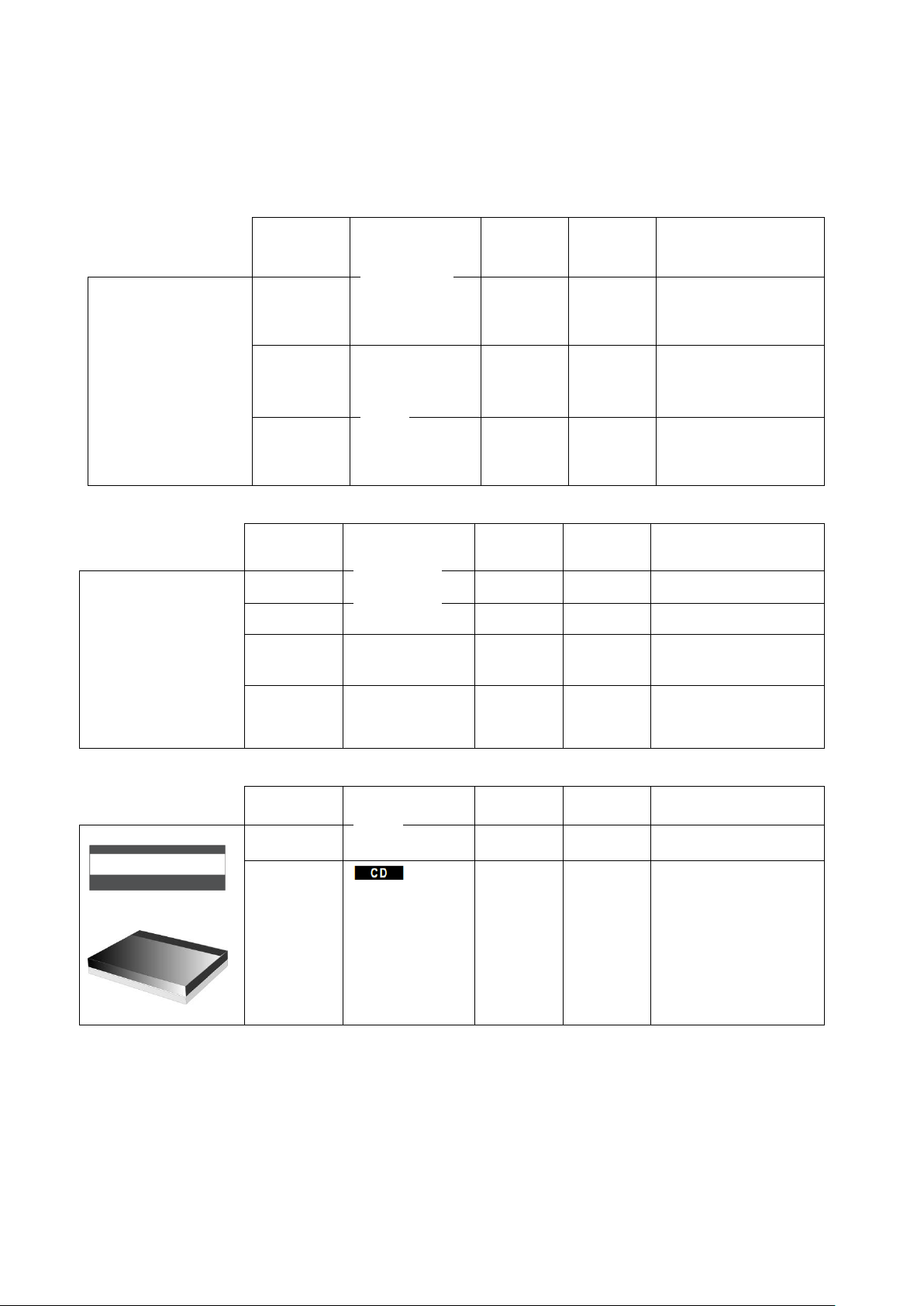
BeoSystem 2500
BeoCenter 2500
AUX 100
-
In the CableLink mode
numeric commands are not
accepted.
AUX 103
302
In the CableLink mode
numeric commands are not
accepted.
AUX 106
206
In the CableLink mode
numeric commands are not
accepted.
Input Socket
Source Selected
Direct
Option
CableLink
Option
Remarks
BeoCenter 2300
AUX 100
300
In the CableLink mode numeric
commands are not accepted.
AUX 102
302
In the CableLink mode numeric
commands are not accepted.
AUX 103
303
In the CableLink mode numeric
commands are not accepted.
AUX 106
306
In the CableLink mode numeric
commands are not accepted.
Input Socket
Source Selected
Direct
Option
CableLink
Option
Remarks
BeoMaster 3300
BeoMaster 5500
TP 102
302
In the CableLink mode numeric
commands are not accepted.
CD 104
204
In the CableLink mode numeric
commands are not accepted.
®Powmascables
®Powmascables
Page 14
Input Socket
Source Selected
Direct
Option
CableLink
Option
Remarks
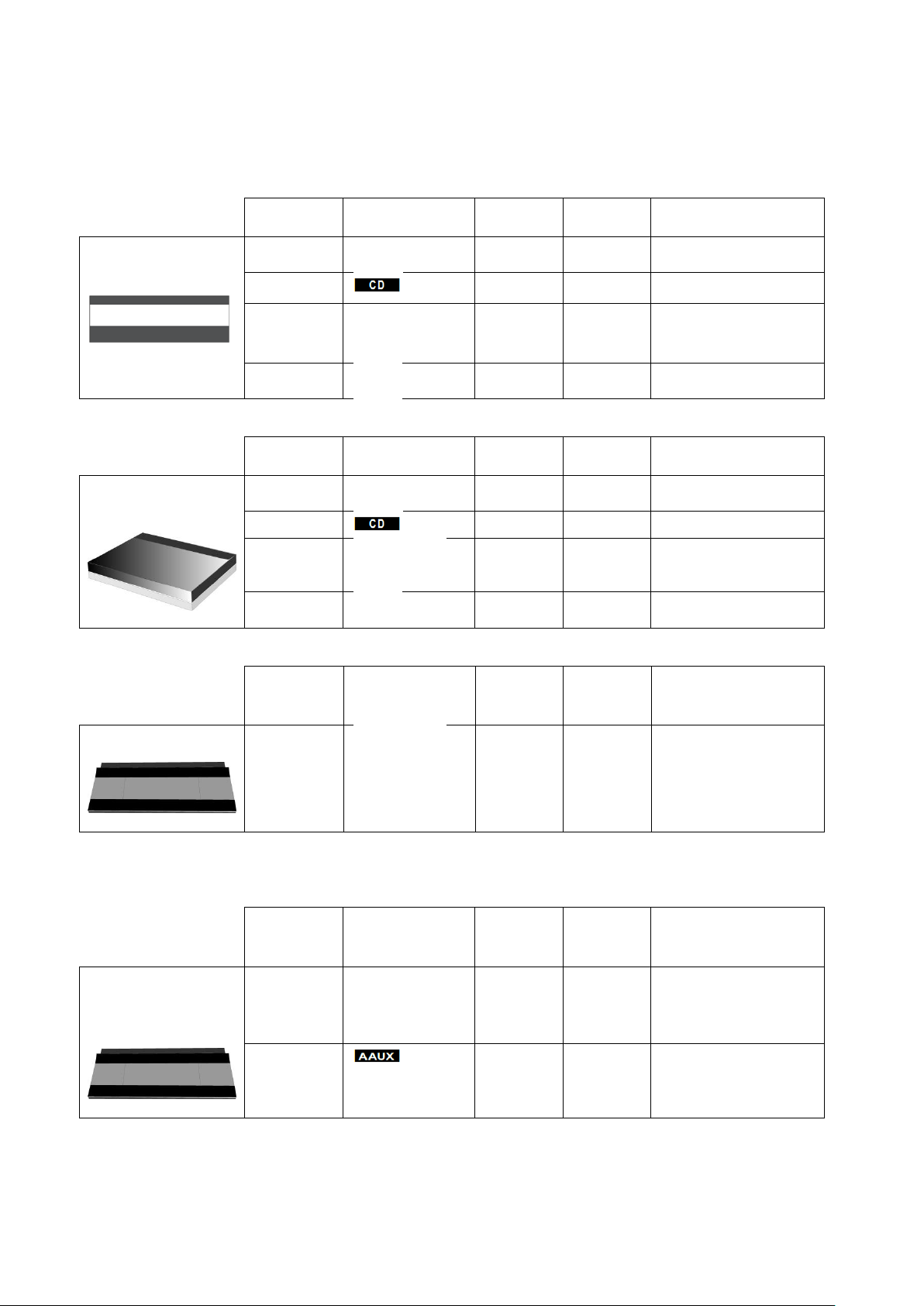
BeoMaster 3500
BeoMaster 4500
TP1 102
302
In the CableLink mode numeric
commands are not accepted.
CD 104
204
In the CableLink mode numeric
commands are not accepted.
TP2 103
302
In the CableLink mode numeric
commands are not accepted.
PHONO
106
206
In the CableLink mode numeric
commands are not accepted.
Input Socket
Source Selected
Direct
Option
CableLink
Option
Remarks
BeoMaster 6500
BeoMaster 7000
TP1 102
302
CD 104
204
TP2 103
302
PHONO
106
206
Input Socket
Source Selected
Direct
Option
CableLink
Option
Remarks
BeoCenter 8000
TAPE2
103
302
In the CableLink mode numeric
commands are not accepted.
Input Socket
Source Selected
Direct
Option
CableLink
Option
Remarks
BeoCenter 8500
BeoCenter 9000
BeoCenter 9500
TAPE2
103
302
In the CableLink mode numeric
commands are not accepted.
AUX 100 -
®Powmascables
®Powmascables
Page 15
Input Socket
Source Selected
Direct
Option
CableLink
Option
Remarks
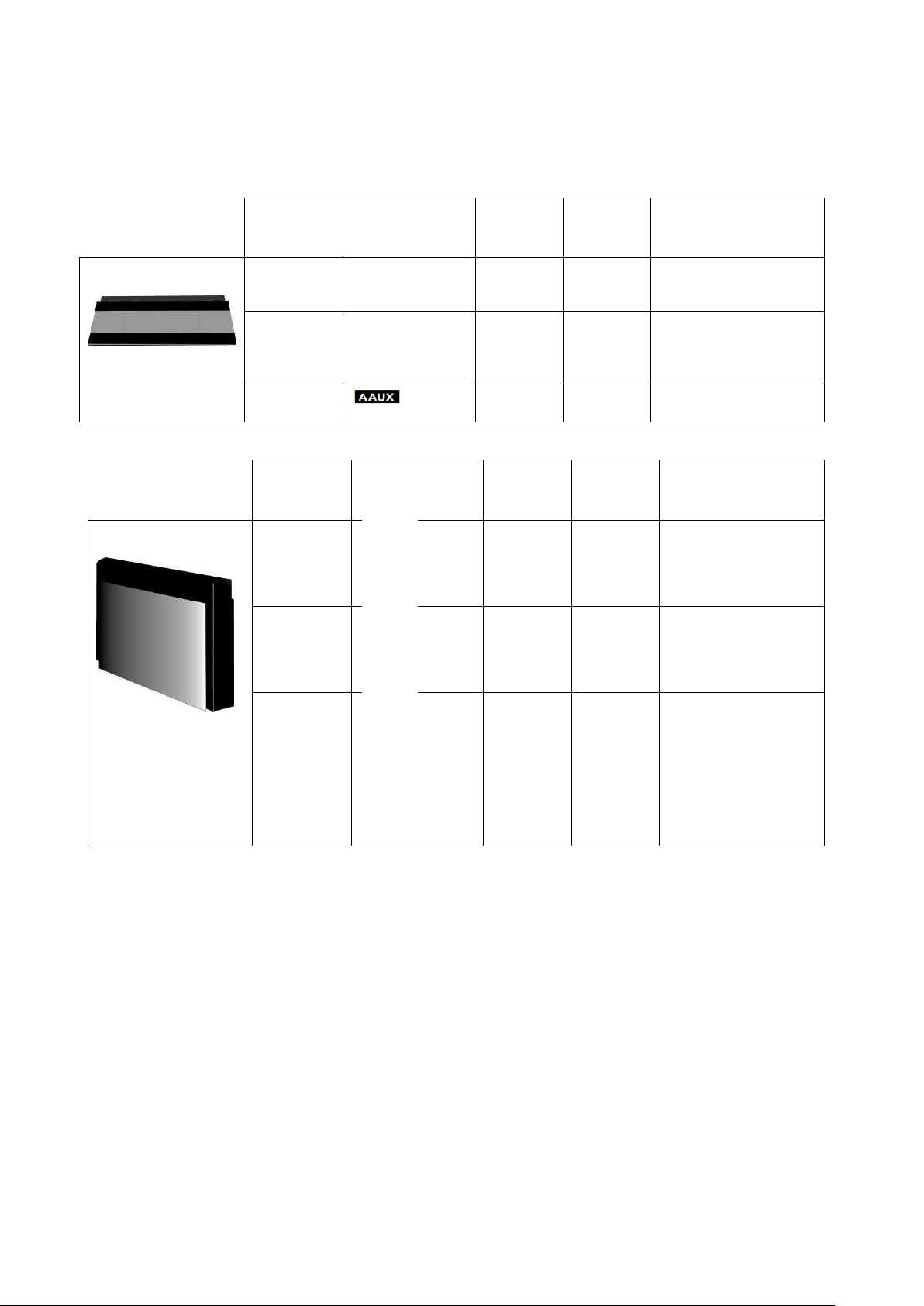
BeoCenter 9300
PHONO
106
206
In the CableLink mode numeric
commands are not accepted.
TAPE2
103
302
In the CableLink mode numeric
commands are not accepted.
AUX 100 -
Input
Socket
Source Selected
Direct
Option
CableLink
Option
Remarks
BeoSystem 3
AV1
AV2
AV3
-
410
414
412
The input is a scart socket,
21 pin AV socket. Use a
BOSSCOM adaptor cable
item 13148090.
AV4
AV5
AV6
-
410
414
412
The input is RCA phono
sockets. Use a BOSSCOM
adaptor cable item
13128090.
MasterLink
etc.
-
If the socket is not used, the
Internet-Radio tuner might
be connected and operated
via a BeoLink Converter.
See page 15 for details on
connection of the BeoLink
Converter 1611.
®Powmascables
®Powmascables
Page 16
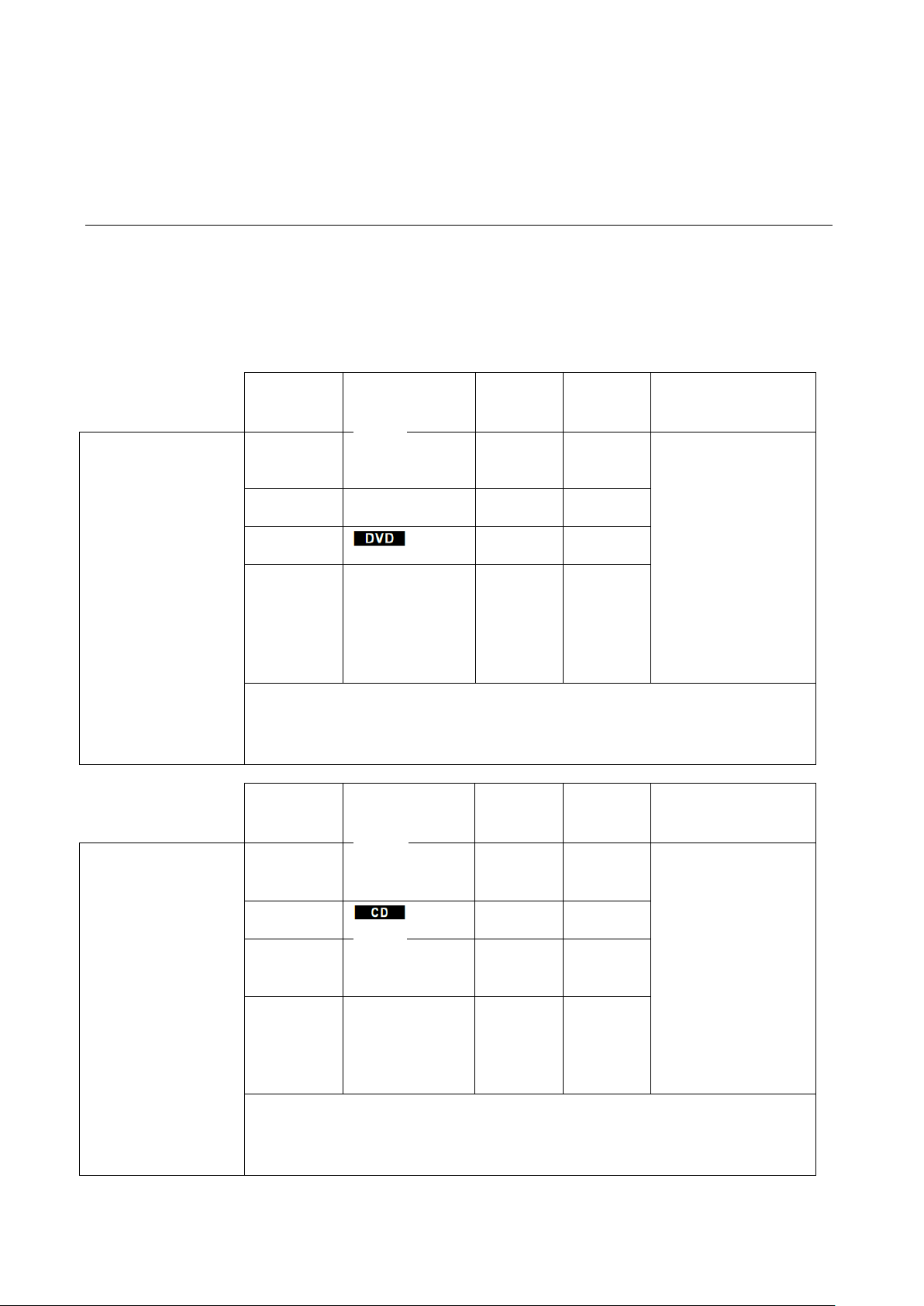
Input
Socket
Source Selected
Direct
Option
CableLink
Option
Remarks
BeoLink Converter
1611 or 1612 used
with a Bang & Olufsen audio master
and the InternetRadio.
AAL -
410
The Internet-Radio
connects to the
BeoLink Converter
with a BOSSCOM
adaptor cable item
13158090.
AAL -
412
AAL -
414
AAL -
416
The BeoLink Converter 1611 connects to a stand-alone Bang & Olufsen audio master
with a MasterLink cable. Connection of more Bang & Olufsen equipment might create
control conflicts.
Input
Socket
Source Selected
Direct
Option
CableLink
Option
Remarks
BeoLink Converter
1611 or 1612 used
with a Bang & Olufsen
TV and the InternetRadio.
AAL -
402
The Internet-Radio
connects to the
BeoLink Converter
with a BOSSCOM
adaptor cable item
13168090.
AAL -
404
AAL -
406
AAL -
408
The BeoLink Converter 1611 connects to a stand-alone Bang & Olufsen TV with a
MasterLink cable. Connection of more Bang & Olufsen equipment might create control
conflicts.
®Powmascables
®Powmascables
Connection via a BeoLink Converter 1611/ 1612
The BOSSCOM Internet-Radio tuner may be connected to a Bang & Olufsen stand-alone audio or video master, TV, via
a BeoLink Converter using MasterLink and the AAL inputs. Connected to an audio master and programmed as a ”video
source” the Internet-Radio may be selected as that, VMEM as an example. Connected to a video master and
programmed as an “audio source” the Internet-Radio may be selected as that, ATAPE as an example. Notice that the
Bang & Olufsen equipment has to be programmed in option 2. See the relevant Bang & Olufsen user guide.
Page 17

Input
Socket
Source Selected
Direct
Option
CableLink
Option
Remarks
BeoLink Active
PC 118
-
The Internet-Radio
connects to the
BeoLink Active with a
BOSSCOM PCSNUT
adaptor cable item
39207436.
®Powmascables
®Powmascables
Connection via a BeoLink Active in any Link Room
The BOSSCOM Internet-Radio tuner may be connected to a Bang & Olufsen BeoLink Active with a vacant ‘PC’ socket.
Thus active speakers in any link room allow for the installation of the Internet-Radio tuner and the opportunity of
having a local radio source controlled directly with the Bang & Olufsen remote control terminal.
Page 18
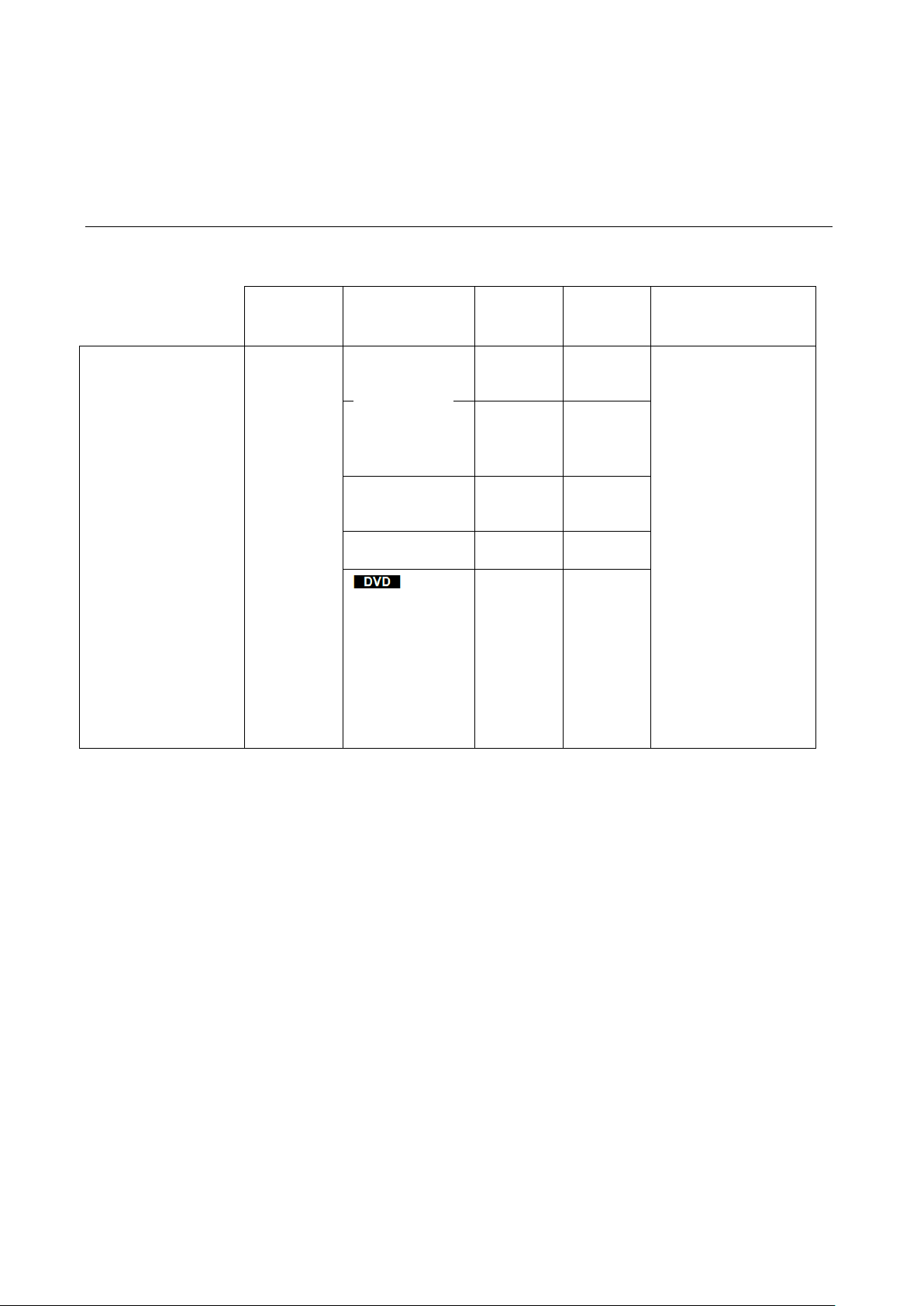
Input
Socket
Source Selected
Direct
Option
CableLink
Option
Remarks
All B&O TV models
BeoVision 10
BeoVision 8
BeoVision 7
BeoVision 6
BeoVision 4
BeoVision 3
BeoVision 1
BeoSystem 3
Avant models
LX models
LE models
LS models
L models
MX models
ME models
Scart
AV1 - AV6
NOT the
DECODER
input!!
110
410
The input is a scart socket, a
21 pin AV socket. Use a
BOSSCOM adaptor cable
item 13148090.
Check the TV user guide for
programming of the AV
connections.
110
410
116
416
112
412
114
414
®Powmascables
®Powmascables
Connection to a 21 Pin AV Socket on any Bang & Olufsen TV
 Loading...