

Page 1
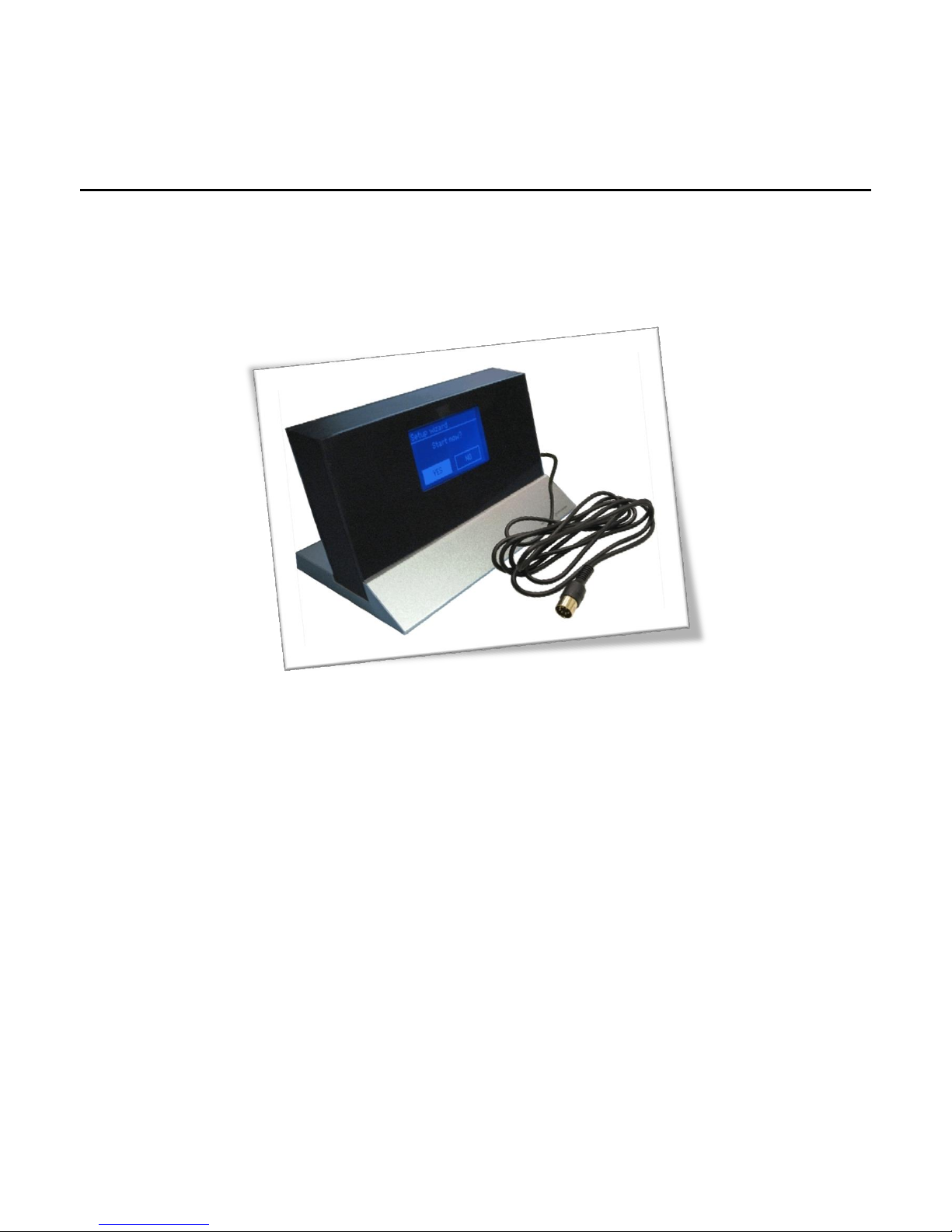
BOSSCOM DAB/Internet Radio
DAB+/FM/ Internet Radio & Media Player
Modified for use with B&O remotes only
User Manual
Page 2
1
www.Bosscom.com
Daily Use
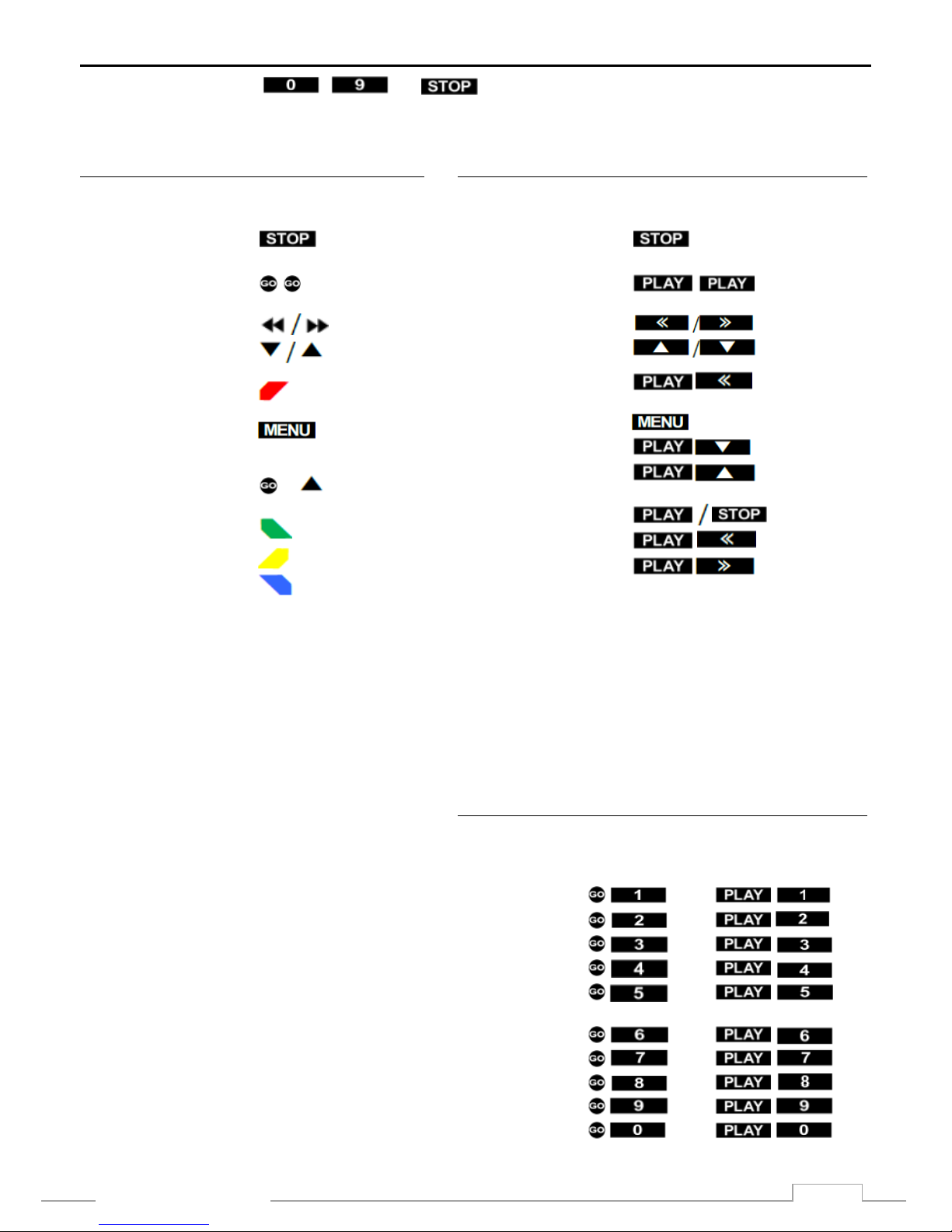
Use the numeric buttons .. and to select a preset favorite station.
Once the tuner has been correctly set up, many will never need to use other buttons.
With a Beo4, Beo5, Beo6 or BeoRemote One control
Select by pressing
DAB/ FM/ Internet
Select
Display maneuvering
Back *1
Menu
Info
Play/ pause *1
Previous *1
Next *1
*1
The coloured key functionality is always available in the Direct Mode,
but not in the CableLink Mode in some Bang & Olufsen equipment.
*2
Not all Bang & Olufsen equipment responds to numeric commands.
Using the Direct Mode option is recommended.
With a Beolink 1000 remote control
Select by pressing
DAB/ FM/ Internet
Select
Display maneuvering
Back
Menu
Menu (alternative)
Info
Play/ pause
Previous
Next
Setting Favorite Stations
Beo4, Beo5,
Beo6, BeoOne Beolink 1000
Set Favorite 1 *2
Set Favorite 2 *2
Set Favorite 3 *2
Set Favorite 4 *2
Set Favorite 5 *2
Set Favorite 6 *2
Set Favorite 7 *2
Set Favorite 8 *2
Set Favorite 9 *2
Set Favorite 10 *2
Page 3

2
www.Bosscom.com
List of Contents
Daily Use 1
With a Beo4, Beo5, Beo6 or BeoRemote One control ................................. 1
With a Beolink 1000 remote control ........................................................... 1
Setting Favorite Stations ............................................................................. 1
Getting Started 3
Main Menu .................................................................................................. 4
Setting Station Presets ................................................................................ 4
Selecting a Preset Station ........................................................................... 4
DAB Mode 5
DAB Radio Stations ..................................................................................... 5
DAB Manual Tune ....................................................................................... 5
DAB Prune Invalid ....................................................................................... 5
DAB - DRC (Dynamic Range Control) .......................................................... 5
DAB Station Order ....................................................................................... 5
Internet Radio 7
Select Local (Domestic) Stations ................................................................. 7
Select Favorite Stations ............................................................................... 7
Select an Internet Station in a Specific Country .......................................... 8
New Internet Stations ................................................................................. 8
Access Code 8
Changing the Station Information .............................................................. 9
Add Internet Radio Stations via an Internet Connected PC ...................... 10
Select a Station Podcasting 10
Sorting of Podcasts ................................................................................... 10
Music Player Mode 10
Windows Media Player 11 Shared Media Set Up ..................................... 11
Play PC-stored Music on the Bosscom Tuner ............................................ 12
Play Shared Media .................................................................................... 12
FM Mode 13
Troubleshooting 14
Page 4
3
www.Bosscom.com
Getting Started
This Bosscom DAB+/FM/WiFi tuner has been re-designed for operation in a Bang & Olufsen remote control
system, allowing full control with a Bang & Olufsen remote control terminal either directly or via connection
to Bang & Olufsen equipment. Thus the tuner is BeoLink compatible.
If the Bang & Olufsen system comprises one or more link rooms in a BeoLink System, sound may be
distributed to these rooms, and in some cases – see below – the tuner might even be controlled from there.
Operation details described below require correct connection of the tuner to the Bang & Olufsen system.
When initially powered up the DabWiFi2 tuner is programmed to be switched on by pressing or
on the Bang & Olufsen remote. In most cases though reprogramming shall be carried out during this
initial installation. See the Installation Manual.
Hereafter the daily operation shall – in most cases - be limited to selecting a pre-set favorite program.
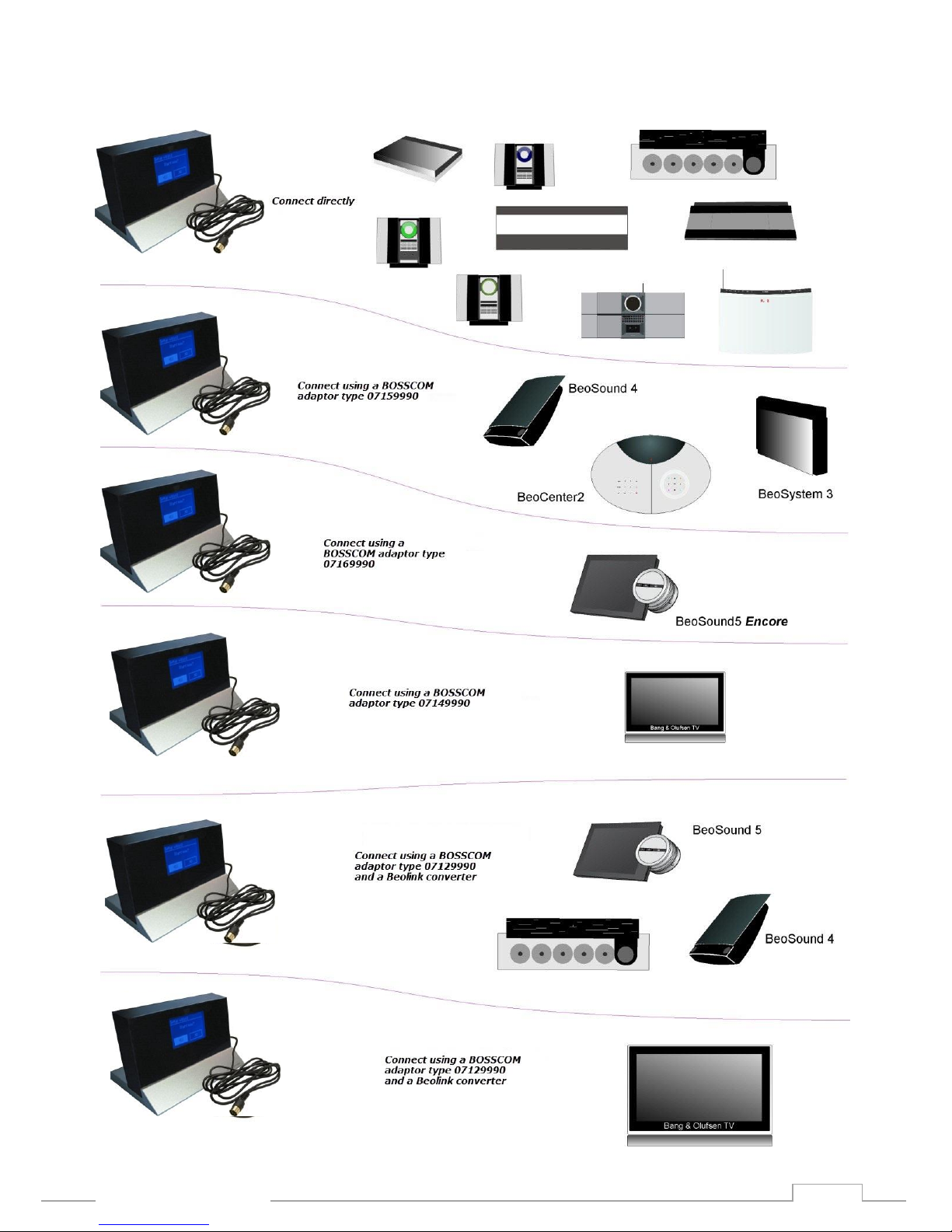
The Bosscom DabWiFi2 tuner is supplied with a DataLink cable enabling connection to most Bang & Olufsen
radios. But some system configurations require an adaptor as shown later in this manual and explained in
detail in the Installation Manual.
Page 5
4
www.Bosscom.com
Main Menu
Using a Bang & Olufsen remote press , highlight Main menu and select by pressing .
Setting Station Presets
The tuner memory stores 10 Internet
stations, 10 FM stations and 10 DAB
stations.
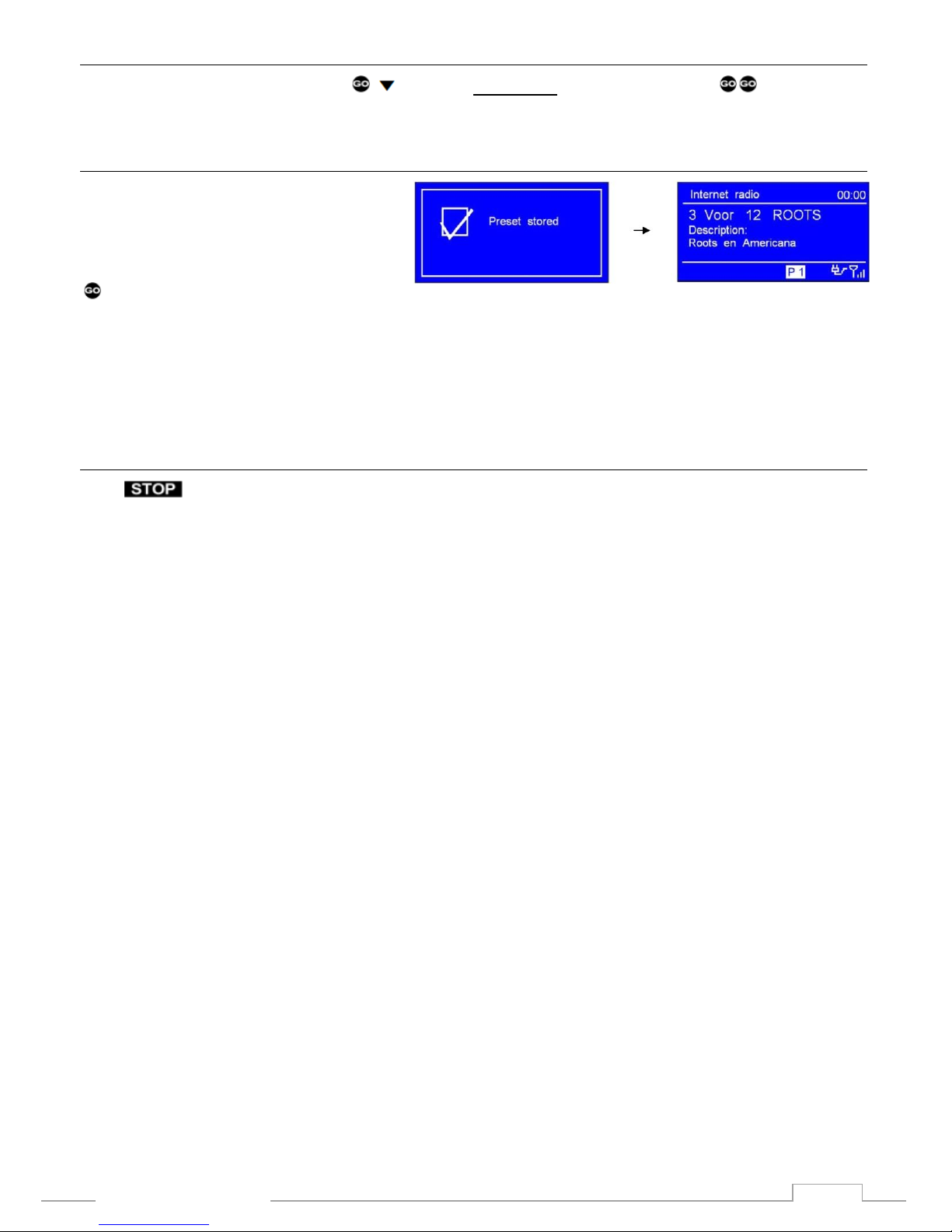
To store the actual station listened to press
+ the desired preset number.
With Preset stored being displayed the station may be selected by pressing the number of the preset directly.
Note! Not all Bang & Olufsen equipment transfers digits to all inputs. See the tables “Source & Option Selection”below.
Direct Mode may be used alternatively.
Selecting a Preset Station
Press repeatedly to select DAB, FM or Internet radio. Then press the desired digit directly.
Page 6
5
www.Bosscom.com
DAB Mode
DAB Radio Stations
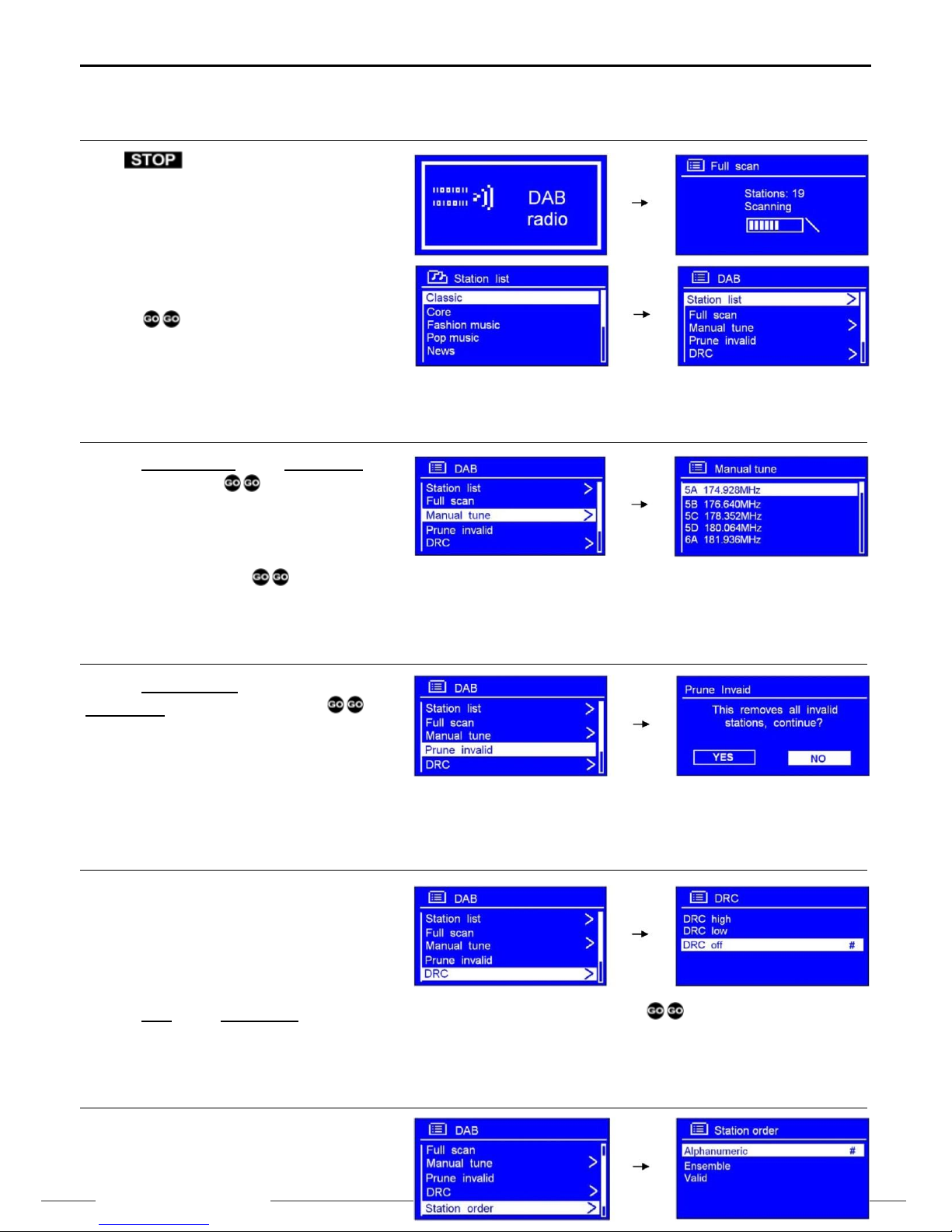
Press repeatedly until DAB radio is
displayed or go through the Main Menu.
Initially the tuner makes a full scan and stores in
memory the stations listed alphabetically.
After the scan has been completed any
program may be pointed at and selected by
pressing .
DAB Manual Tune
Point at Manual tune in the DAB Menu and
confirm by pressing .
Point at the desired frequency.
Start tuning by pressing .
DAB Prune Invalid
Point at Prune invalid in the
DAB Menu and select by pressing .
Removal of invalid stations has to be
confirmed.
DAB - DRC (Dynamic Range Control)
DRC allows for setting of the compression
level for radio stations thus eliminating
differences in the dynamic range or sound
level.
Point at DRC in the DAB menu, select the desired level and confirm by pressing .
DAB Station Order
Page 7

6
www.Bosscom.com
Point at Station order in the DAB menu.
Select the desired order and confirm by pressing .
Alphanumeric
Display all stations in alphanumeric order.
Ensemble
Last active stations prior to inactive stations.
Valid
Remove inactive stations from the station list.
Page 8
7
www.Bosscom.com
Internet Radio
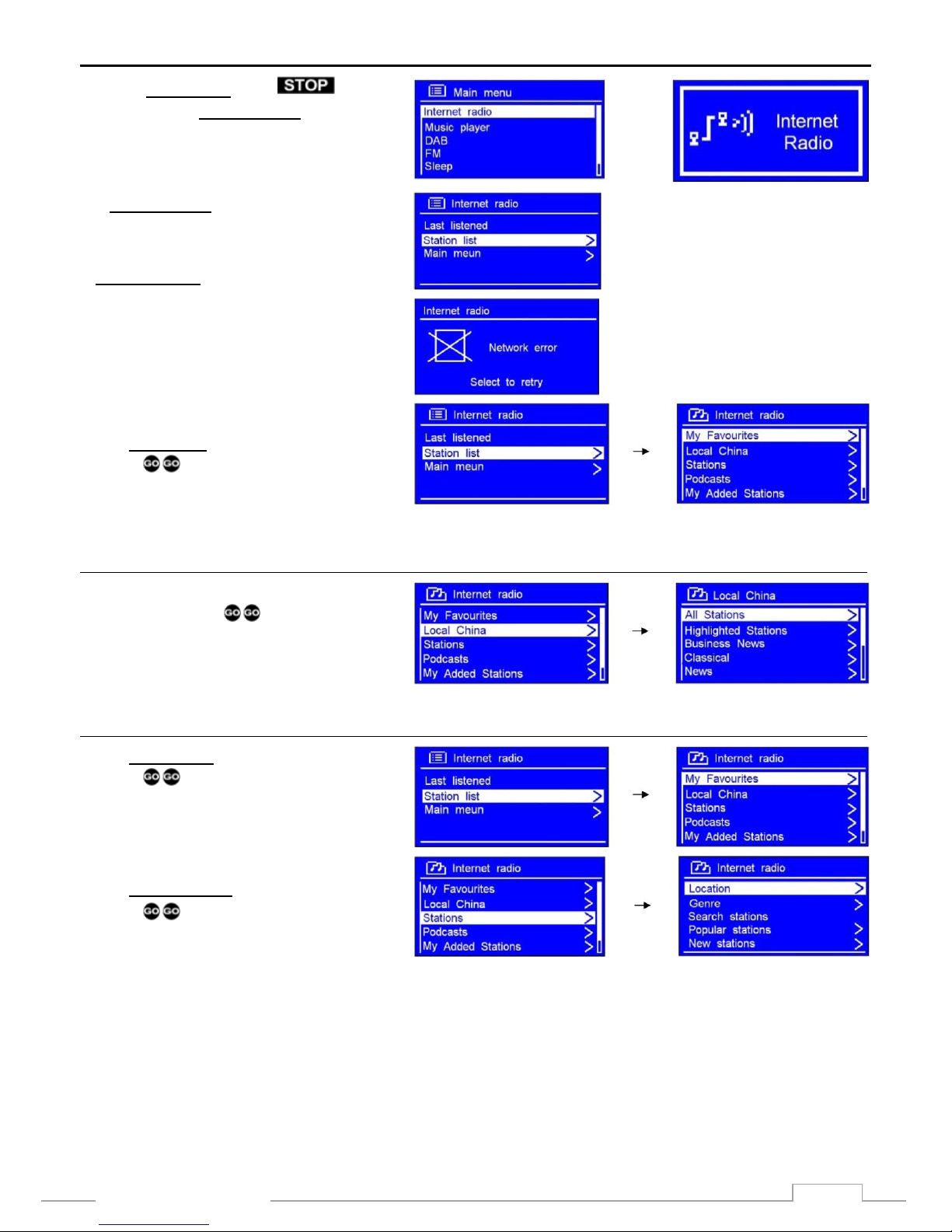
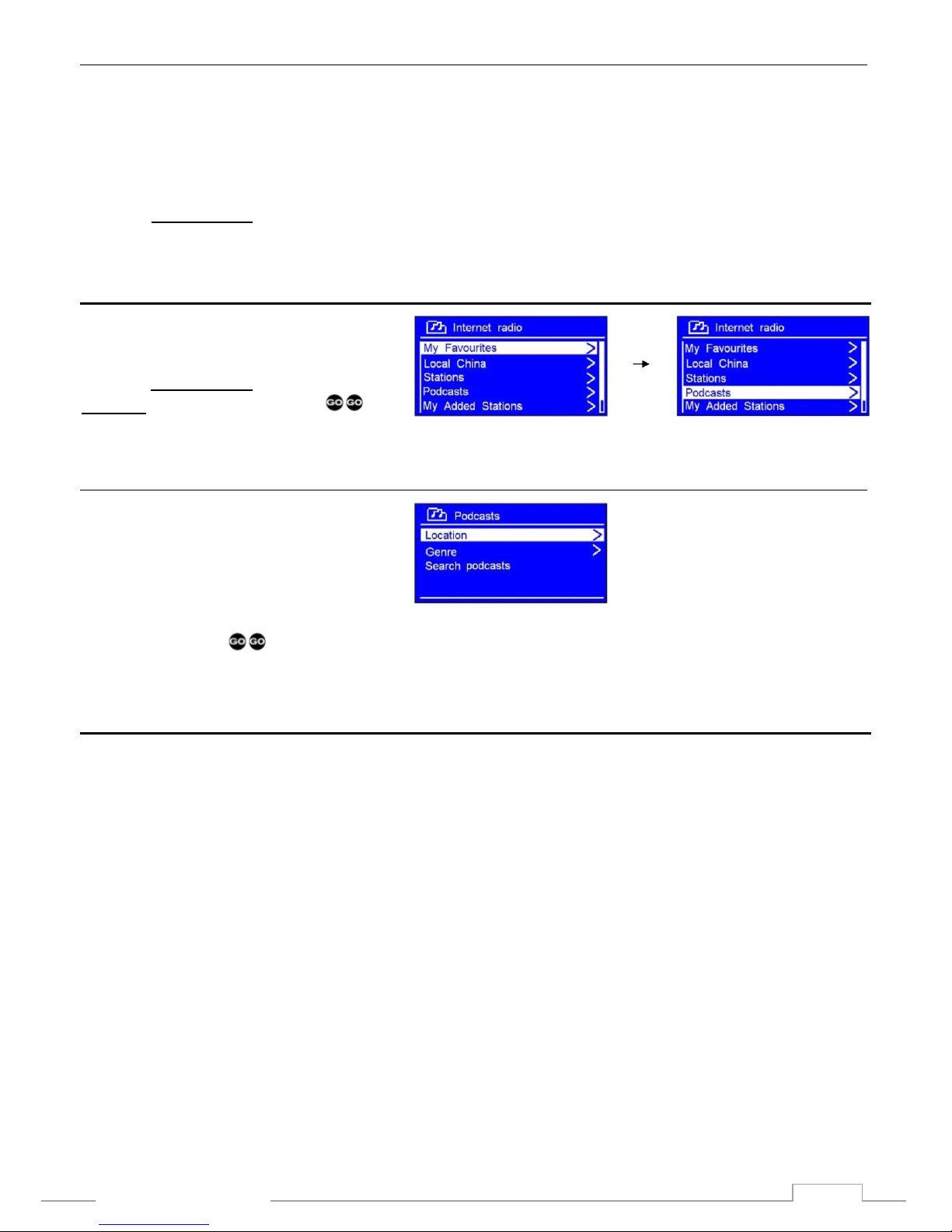
When in Main Menu press
repeatedly until Internet radio is displayed.
If the tuner has been connected correctly
the Internet radio is displayed:
If Network error is displayed:
- Check the router.
- Check the network cabling.
Select Station list and confirm by
pressing .
Select Local (Domestic) Stations
Select the desired broadcasting country and
confirm by pressing .
Select Favorite Stations
Select Stations list and confirm by
pressing .
Select My Favourites and confirm by
pressing .
or
Page 9
8
www.Bosscom.com
Select an Internet Station in a Specific Country
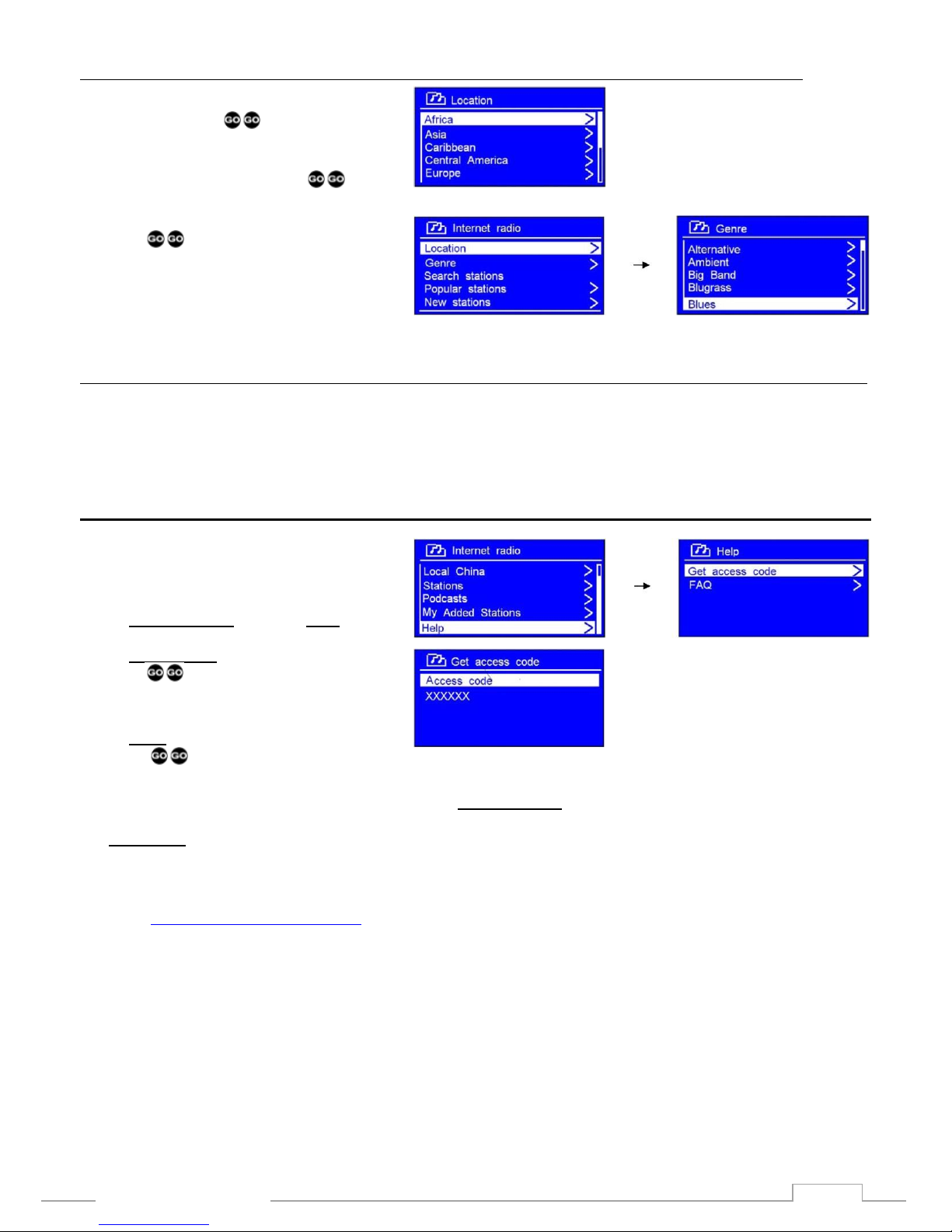
Select the desired broadcasting region and
confirm by pressing .
Continue by selecting the country in the
region and confirm by pressing
Select the Genre and confirm by
pressing .
Note! Not all stations broadcast around the clock. Thus they might
not always be available. Some stations have on-demand services
allowing for programs to be re-broadcasted.
New Internet Stations
New stations are added now and then, and the tuner indicates, when the list has been updated. The update is
automatic and ensures that the latest stations added are also listed.
Access Code
With the tuner connected to a network an
access code and FAQ may be displayed.
Select Internet Radio and then Help
Select Access code and confirm by
pressing . The tuner’s ID is
displayed.
Select FAQ and confirm by
pressing .
The Access code is used when creating favorite lists, My Favourites, via an internet connected PC.
My Favourites created this way are automatically updated on all tuners signed in. With tuners distributed to
the living room, the kitchen, the study and even to a remote apartment in the holiday resort the list is
updated in all of them.
Sign in at www.wifiRadio-frontier.com using the access code.
Page 10
9
www.Bosscom.com
Changing the Station Information
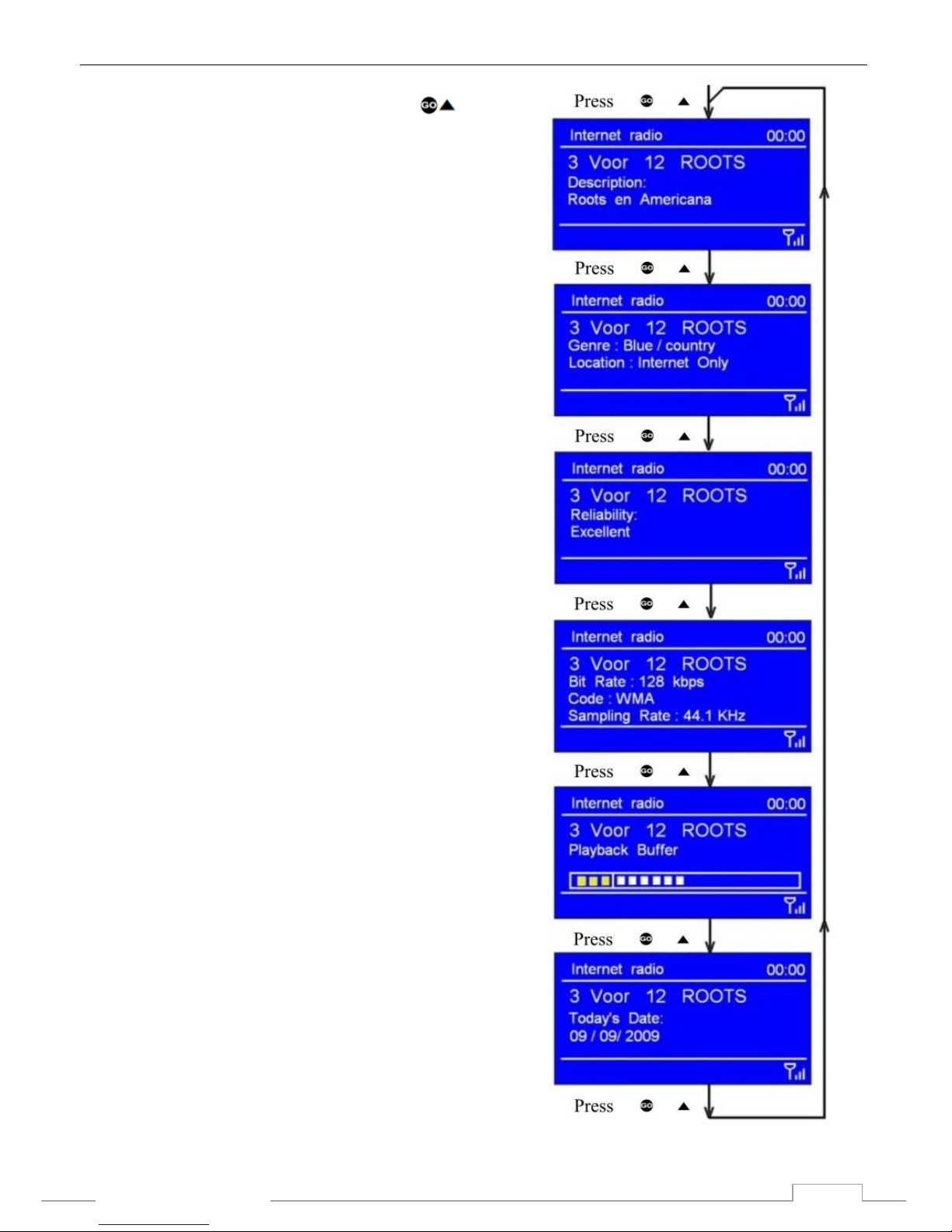
When playing an internet station the second line of the tuner’s
display contains a variety of information. Press
repeatedly to go through all available info being displayed.
Station Description
Scrolling text information is being displayed. It may comprise
information on music titles or other program details provided
by the broadcaster.
Program Description
This description is provided by the station or by the
broadcaster.
Station Reliability
This information indicates the quality of the received signal.
Broadcasting Information
The digital bit rate and sampling mode are indicated.
Playback Buffer
This displays the playback buffer strength of the current
station.
Date
The displayed date is provided by the broadcaster and is very
accurate.
Page 11
10
www.Bosscom.com
Add Internet Radio Stations via an Internet Connected PC
Favorite stations may be added using the tuner’s menu, but it is easier using a PC.
It is even possible to add stations not recognized by the tuner, if their data is known. With more than one
tuner operating they’ll all be updated at the same time.
New stations can be searched for on the internet, and they may be added to the list of favorites.
Added to My favourites they’ll always be available, even after re-installation of the tuner.
Select a Station Podcasting
When connected to the network the tuner
can deliver podcasts.
From the Internet radio menu select
Podcasts and confirm by pressing .
Sorting of Podcasts
Select:
- Location
- Genre
- Search podcasts
Confirm by pressing .
Music Player Mode
NOTE! Before starting to play music read through the following pages thoroughly.
NOTE! The network’s firewall has to allow for the operation of a Windows Media Player network
sharing device.
1. On the network PC select Control Panel > Security center>Windows Firewall
2. Select “Exception”
3. Mark ”Windows Media Player Network Sharing Service”
Page 12
11
www.Bosscom.com
Windows Media Player 11 Shared Media Set Up
With the Windows Media Player 11 installed and the tuner connected to the network sharing music may be
established. The tuner is now able to play the music that is stored on the PC.
The music sharing set up:
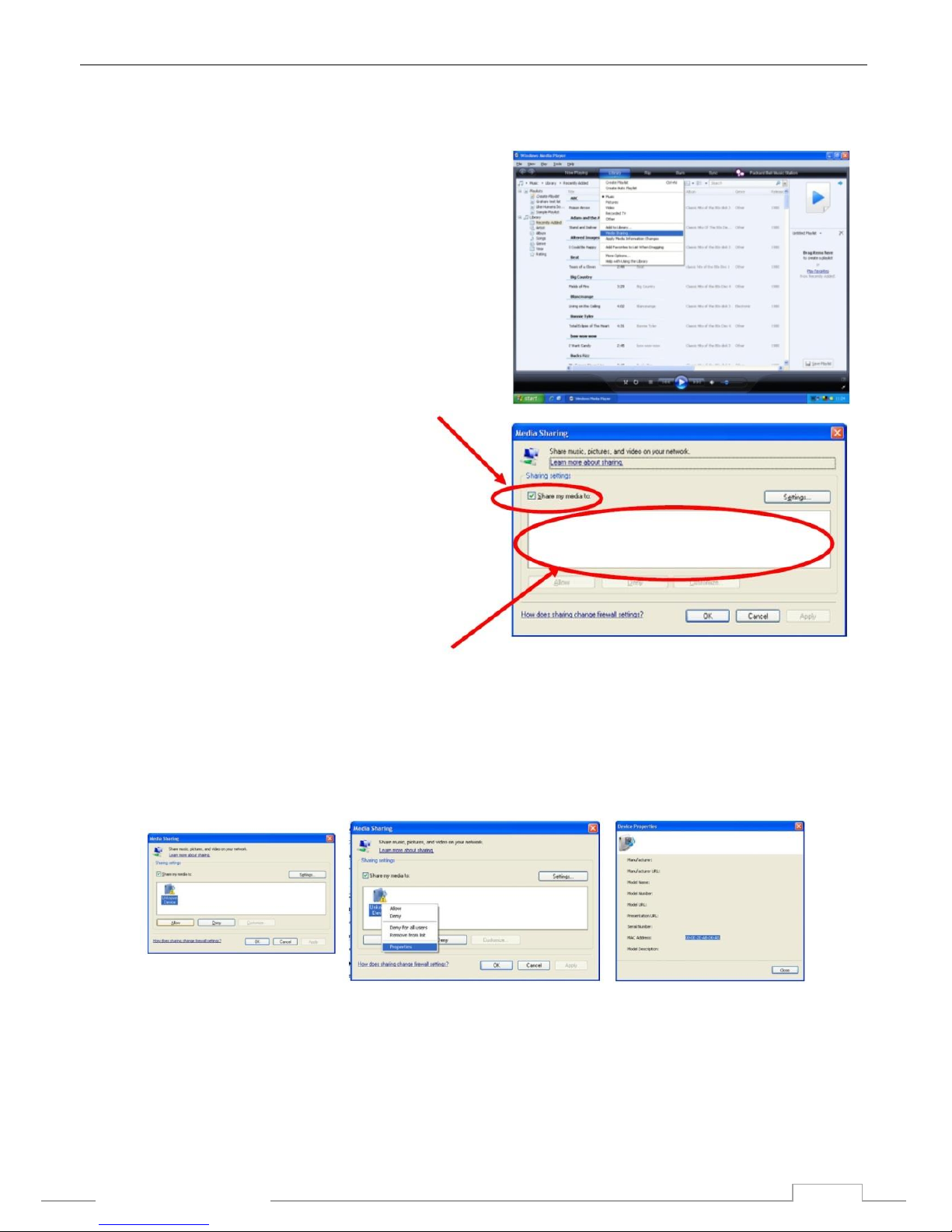
Open the Windows Media Player and click on the little
arrow below Library.
Then click on Media Sharing.
In the Media Sharing dialog box select the
Share my Media check box.
Check the ”Share my media to” box, click
Radio *1 and then allow. The selected device
shows a green tick. Click OK.
If the desired device is not listed do as follows:
1) From the”Media Player” menu in the
tuner, selec ”UPNP Servers”, and a list
of available computers appears.
2) Select the desired computer.
This tuner appears in the list. To ensure that this IS the tuner, right click on the device and select
”properties”. The tuner’s MAC-address is shown.
*1 This tuner is named ”Jupiter 6.2” in the Media Player.
Page 13
12
www.Bosscom.com
Play PC-stored Music on the Bosscom Tuner
Having installed and configured the tuner and the Windows Media Player music may now be played via the
wireless connection:
1. Select Shared media in the tuner’s Media Player menu.
2. Select the computer with the desired music files.
3. Select category for the music files on the computer using the following criteria:
All music, Genre, All Artists, Contributing Artists, Album artists, Composers, Albums, Playlists, Folders
eller Star Ratings.
Press to select.
Select the tracks to be played and press .
Play Shared Media
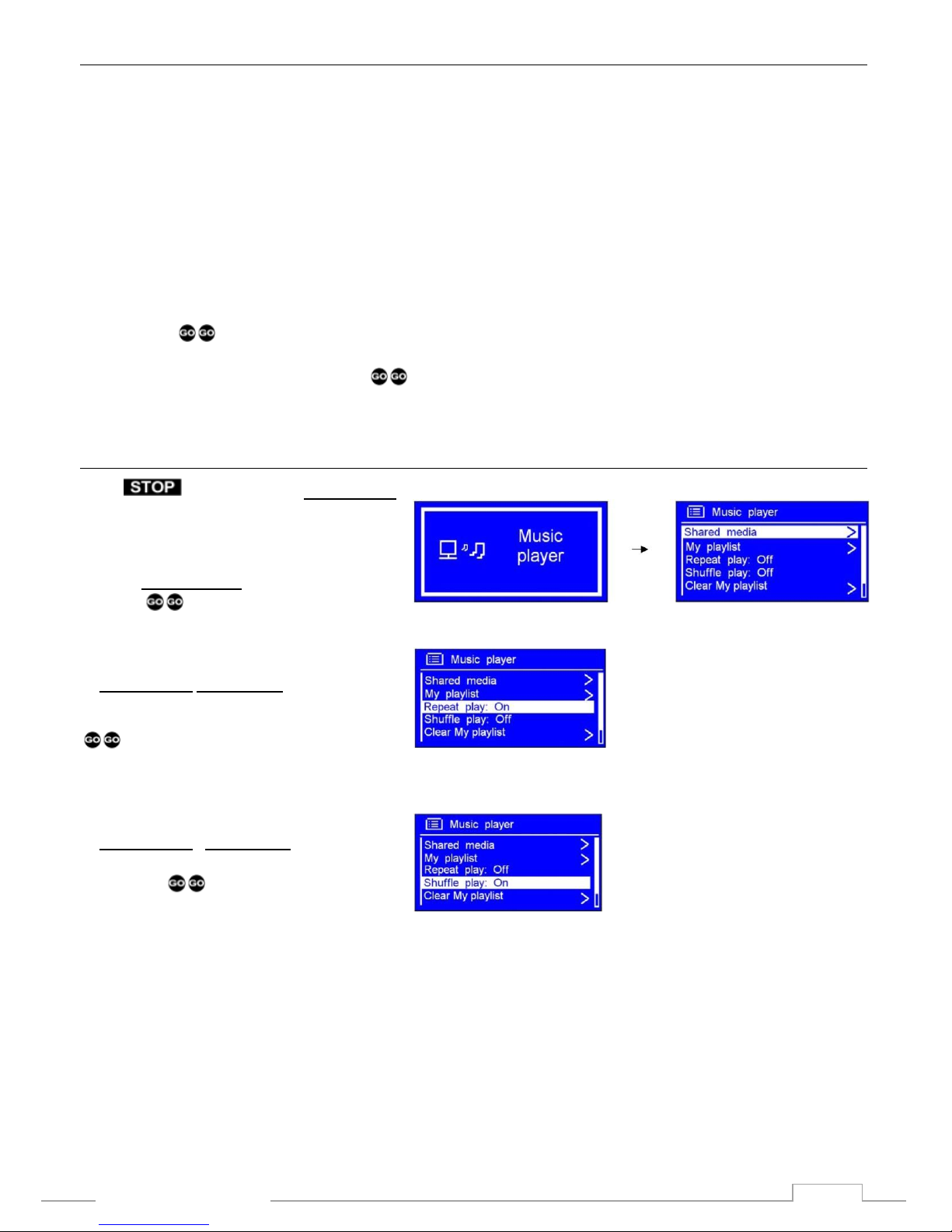
Press repeatedly until Music player
is displayed or go through the Main Menu.
Point at Shared media and confirm by
pressing . Follow display prompting to
select music to be played.
Repeat Play Mode
In Music player Repeat play may be
selected and confirmed by pressing
. The music is
then repeated continuously.
Shuffle Play Mode
In Music player , Shuffle play may be
selected and confirmed
by pressing .
The music is then played randomly.
Page 14
13
www.Bosscom.com
FM Mode
FM – General Operation
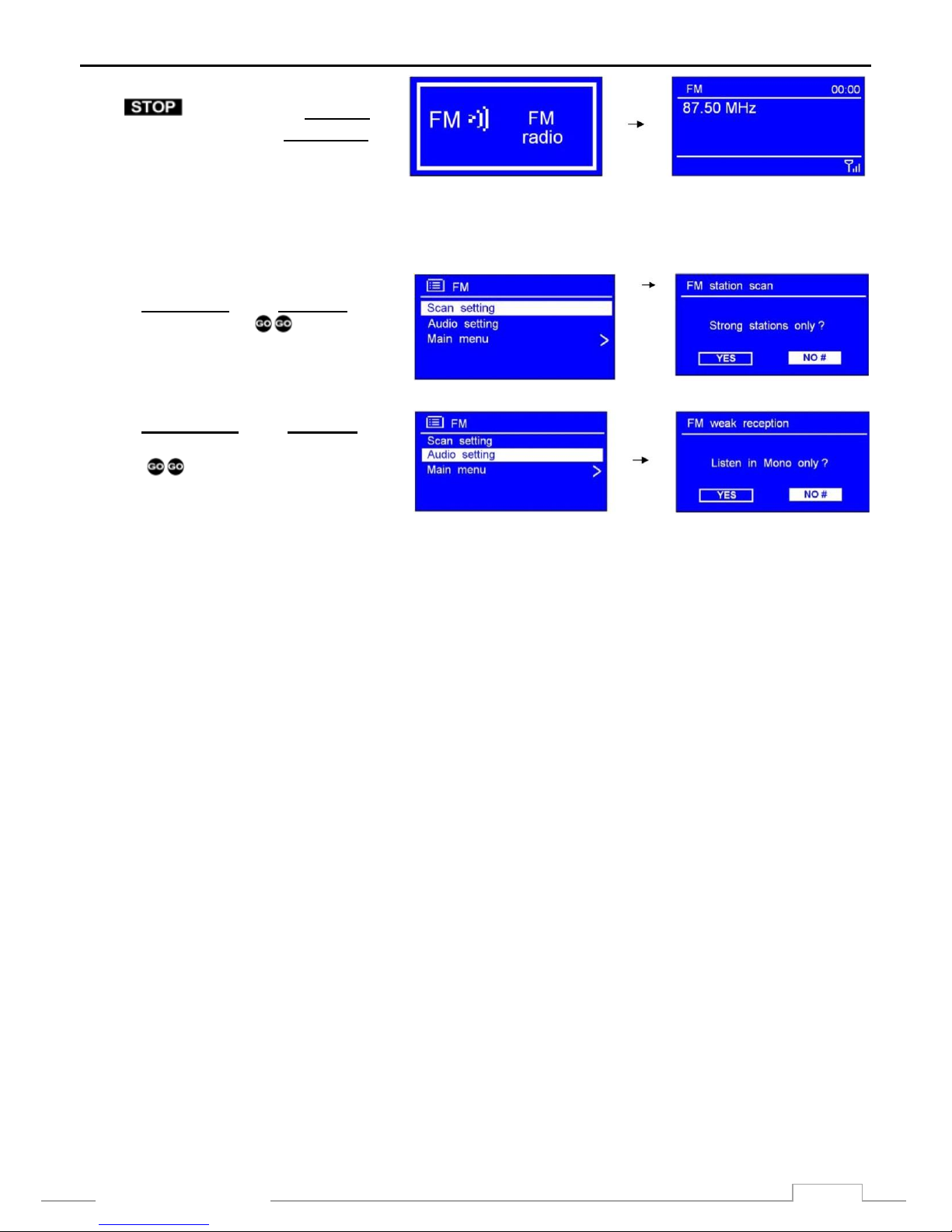
Press repeatedly until FM radio is
displayed or go through the Main Menu.
Initially the tuner starts at the lower frequency of the FM range, 87.50 MHz.
Having tuned stations the last station listened to is always displayed.
FM – Scan Setting
Point at Scan setting in the FM menu and
start tuning by pressing .
FM – Audio Setting
Point at Audio setting in the FM menu,
select stereo or mono and confirm by
pressing .
Page 15

14
www.Bosscom.com
Troubleshooting
If experiencing trouble with the tuner visit the help section on : www.wifiRadio-frontier.com.
If experiencing trouble connecting to a wireless network the following steps might resolve the problem:
1. Check that a WiFi connected PC can access the Internet using the same network.
2. Check that a DHCP server is available or that a static IP address has been configured on the tuner. A static
IP address on the tuner may be configured by using the menu ‘System setting -> Network ->Manual
settings-> Wireless’ and the selecting ‘DHCP disable’.
3. Check that the access point does not prohibit connection to particular MAC addresses. The tuner’s MAC
address may be viewed by using the menu ‘System setting -> Network -> View settings-> MAC address’.
4. With an encrypted network the correct key or password has to be entered into the tuner. Remember that
the text-format keys are case sensitive. If, when attempting to connect to an encrypted network, the tuner
displays ‘Wireless error’ followed by a 5-digit number, ensure that the correct password has been entered.
If the problem persists, a check of the network configuration might be needed.
5. If the tuner connects to the network successfully but cannot play certain stations the reasons might be:
a. The station is not broadcasting at this time of day, as it might be located in a different time zone.
b. The station has reached the maximum allowed number of simultaneous listeners.
c. The station is not broadcasting anymore.
d. The link on the tuner is out of date.
e. The Internet connection between the server and the tuner is slow. They are often countries apart!
6. If the station can be played via a PC use the form at www.wifiRadio-frontier.com for notification enabling a
change of the station data used by the tuner.
Page 16
15
www.Bosscom.com
DabWiFi2 is equipped with a 7 pin DIN DataLink cable for connection to Bang & Olufsen equipment. Thus an
adaptor cable is required for connection to equipment not having a DIN input socket. See below examples and
the Option Programming section in the installation manual.
 Loading...