

Page 1

InCam
Premium HD H.265 1080p WiFi Camera
User Manual
Page 2
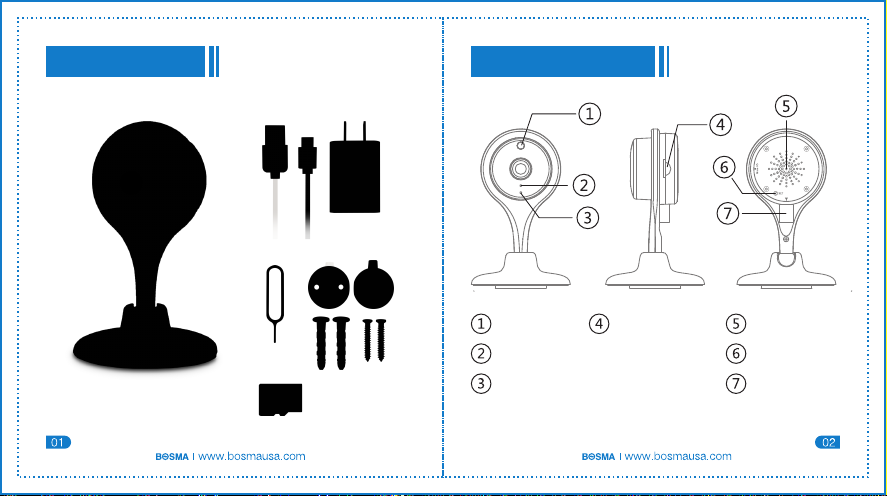
Bosma InCam
Camera Diagram
USB Cable Power Adapter
InCam
Reset Pin
Mounting Tools
16GB Micro SD Card
IR LED
Microphone
LED Indicator
Micro SD Card
Slot
Speaker
Reset Pin Hole
Power Input
Page 3
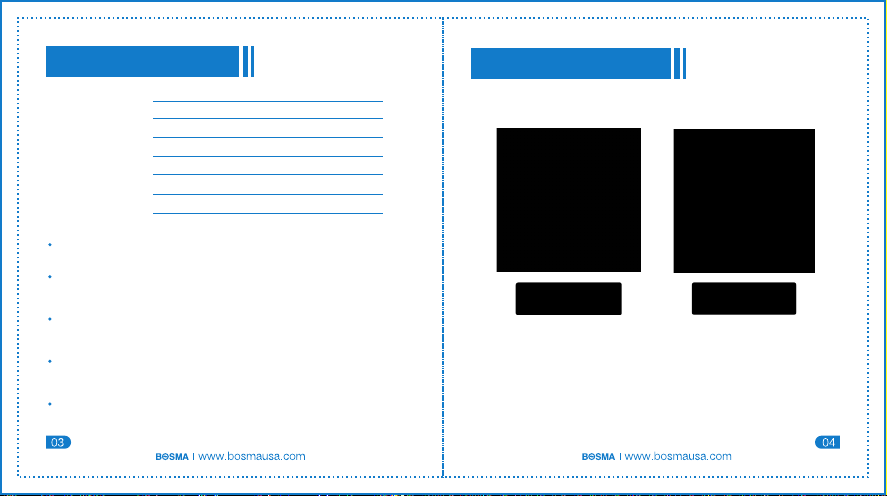
Specs & Features
Video Resolution
Dimensions
Weight
Network
Focal Length
Memory
Video Compression
Power Adapter
Premium HD 1080p Video Quality
Stream, record, and watch HD videos in stunning 1080p resolution
Highly Efficient H.265 Video Compression
Requires less bandwidth and smaller file sizes (approx. 40% the size of
H.264 files) while providing better video quality.
Motion Detection & Alerts
Receive real-time app notifications with motion detection snapshots and
videos.
Two-way Audio
Talk and listen using an enhanced built-in mic and speaker with noise
suppression technology.
Infrared Night Vision
InCam can record color videos in low illumination and near infrared light
settings up to 50 ft.
1920 x 1080p
4.2 x 2.7 x 2.7 inches
0.23 lb
Built-in WiFi 802.11 b/g/n
3.6 mm
Supports up to a 64GB Micro SD card
H.265, H.264
DC5V 1A adapter + Micro USB cable
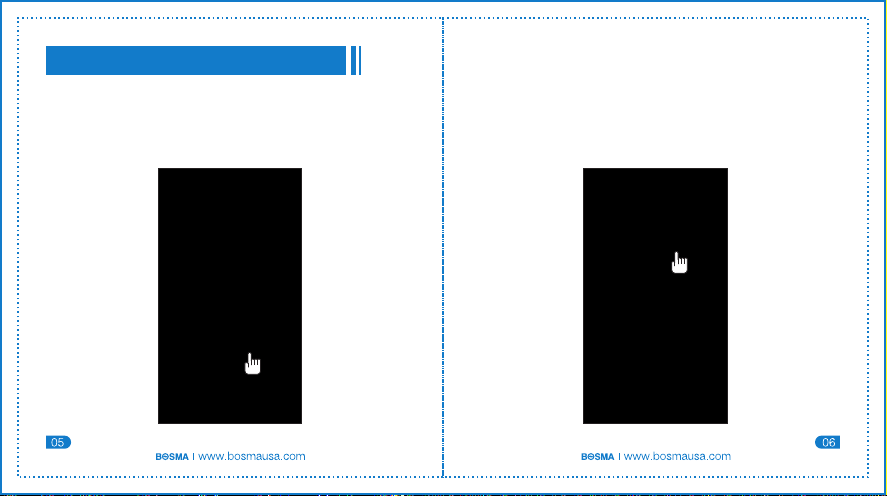
Download the App
A. Scan QR code below
B. Or search 'Bosma Connect' in the App Store or Google Play
Page 4
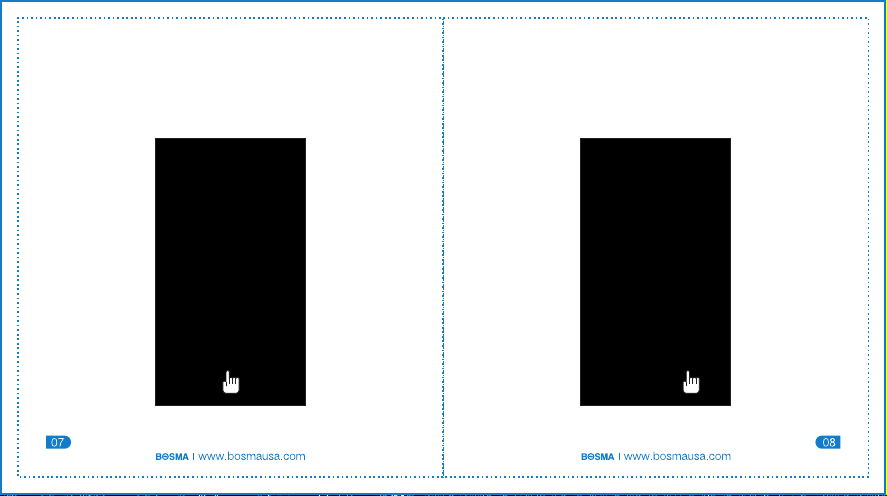
Adding a Camera to the App
1. Open the Bosma Connect App and go to the account login page.
A. If you have an account, enter your account name and password.
B. If you don't have an account, select "Sign Up" and follow the
instructions to create an account.
2. On the “My Cameras” page, select “Connect Now” or click the
“+” icon on the top right corner to add your camera.
Page 5
3. Plug in the Bosma InCam to a power source. Once connected,
click “Green Light is Flashing” when the indicator light flashes green.
4. If the green light is not flashing, check to see if the camera is
connceted to a power source. If the camera is connected to a
power source, use the reset pin to press the "SET" button on the
back of the camera. When you hear three beeps, click “Next Step”.
Page 6
5. Enter the WiFi name and password to connect the InCam to a
WiFi network. If your phone is already connected to a WiFi network,
the WiFi name will be automatically added as the WiFi network.
6. When you are ready, select "Start Connecting" and wait 2 minutes
for the camera configuration to be completed.
Page 7
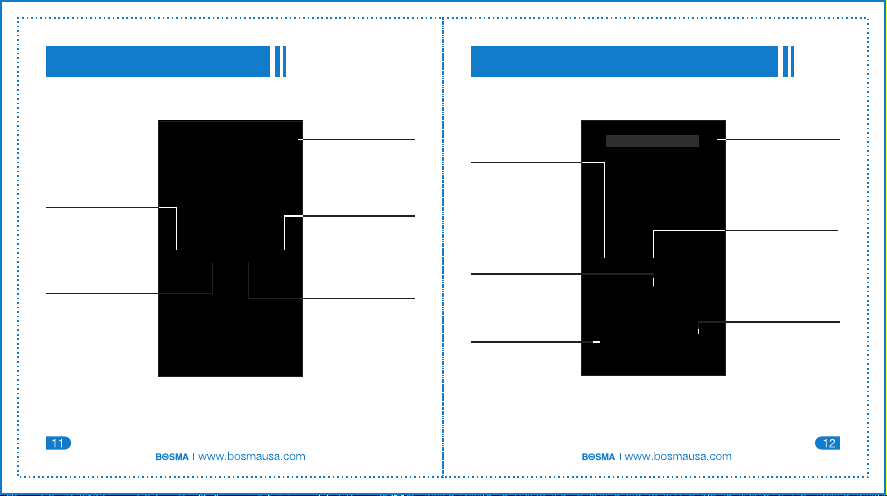
Bosma Connect App
Watch Videos & Take Photos
Share Device
Invite others to
access your camera
Playback
View recorded
videos and motion
alerts
Add Device
Add yo ur InCam
to the app
Remove Device
Remove camera from
“My Cameras” list
Edit Name
Customize the name
of ea ch camera
Silent/Sound
Mode
Silence the app
Two-Way Audio
Talk with anyone
near the InCam
Record
Record videos to
local storage
Settings
Adjust the motion
detection, date/time
and video resolution
Adjust the video quality
Take real-time photos
settings
Video Quality
Options
from H D to SD
Snapshot
Page 8
Check Motion Detection History Customer Support
Contact the Bosma customer support team if you have any
questions about how to set up your new camera.
1 (800) 976-0881 www.bosmausa.com[email protected]
Bosma offers a one year limited warranty on all products, for
Recordings
View recorded
videos and
motion alerts
details please visit www.bosmausa.com.
 Loading...