

Page 1
Phone: 866-864-5250
Fax: 623-516-8697
E-mail: [email protected]
2012 West Lone Cactus Dr.
Phoenix, Arizona 85027
BOSaNOVA LTD (Europe)
Phone: +44 1509 276252
Fax: +44 1509 276253
Email:
Setting up Connections
RBT-320 support the following communication protocols (connections):
TN5250e Connections (Display and Printer) for direct link-ups to AS/400
systems via Ethernet cable and TCP/IP protocol.
TN3270e Connections (Display and Printer) for direct link-ups to IBM 390
systems via Ethernet cable and TCP/IP protocol.
ICA Connections (Independent Computer Architecture) by Citrix
RDP Connections (Remote Desktop Protocol) by Microsoft
HTTP Connections through the Internet Explorer 6.0 browser.
If running in WBT mode, configuring the various sessions (connections) takes place
through the main The “Terminal Connection Manager” window appears each time
the terminal is turned on, if there are no sessions set to auto start. If is session is
currently running you will need to use the key combination of CTRL+ALT+END to
enable the Terminal connection manager.
If running in Desktop mode you will need to go to Start, Settings, Connection
Manager.
From this window it is possible to configure, modify, add, cancel and enable sessions.
Page 2
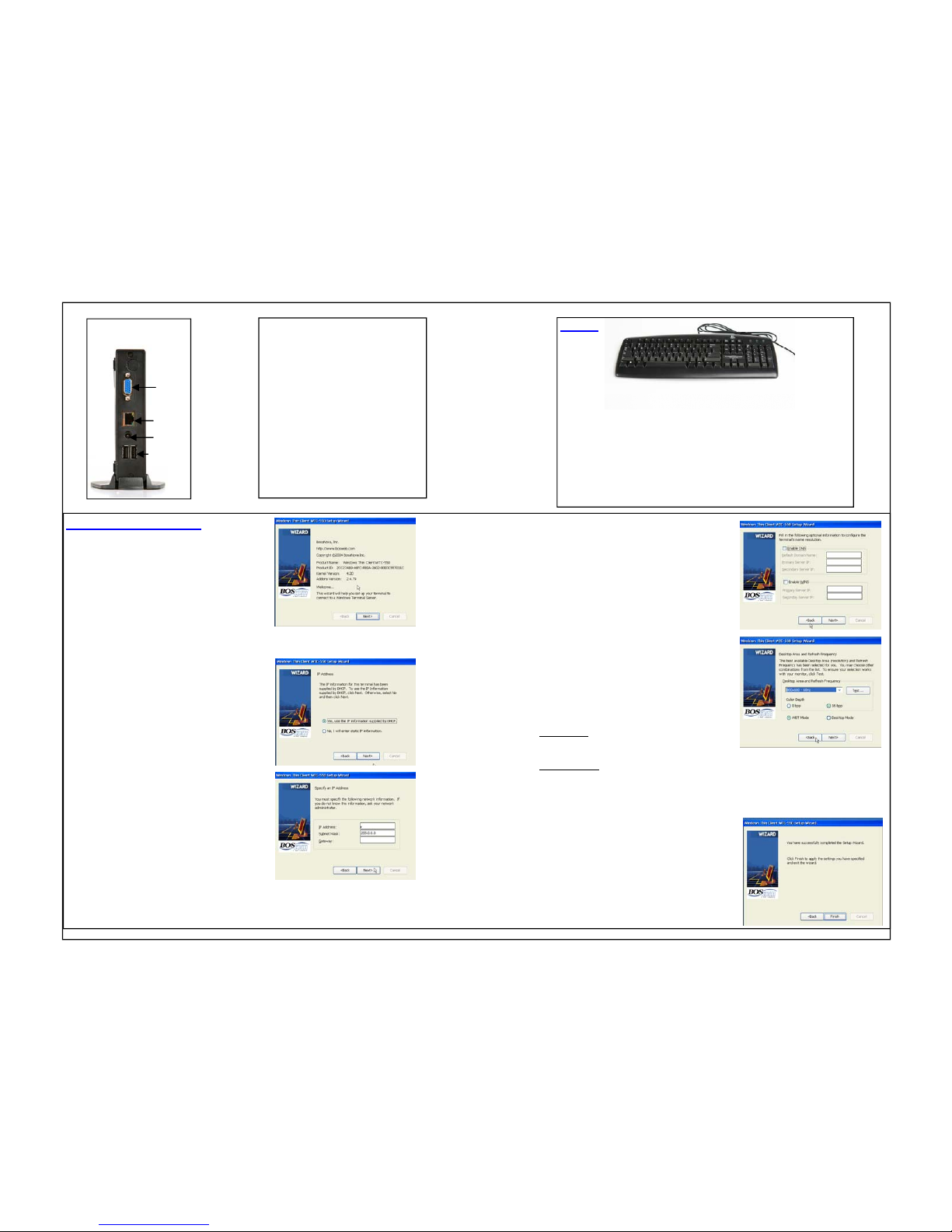
RBT Initial Configuration
1.When the RBT-320 is turned on for the first
time the “Windows Thin Client RBT-320 Setup
Wizard” will appear. Here you will be able
perform the initial set up of this thin client.
From here just hit next.
2. Next the Licensing agreement comes up.
From here click on accept.
3. This window will allow you to specify
if you would like to use a DHCP address or not.
Once you make your choice click on next.
If you choose to use a DHCP address please
skip to step 6.
4. On this screen you will assign a static
IP address to your thin client. Here you will
enter IP address, Subnet Mask, and Gateway.
After you enter this information click on
Next.
5250 Hot keys
(Terminal Style)
Enter = Right CTRL
Field exit = ENTER
Error Reset = Left CRTL
Attention = Esc
Hotkey to next session = ALT + Tab
Dup = Numpad *
Roll up = Page Down
Roll Down = Page Up
Vertical Split screen=Ctrl +Alt + Delete
Horizontal Split screen = Ctrl + Delete
Download the BOS Manager Software from www.bosanova.net
Video
Ethernet
USB ports
Connecting the RBT-320
Power
CTRL+ALT+END= Enables terminal connection manager
CTRL+ALT+K= Jumps back to the previous session
CTRL+ALT+L= Jumps to the subsequent session
F2 = Enters Terminal Setup from the Terminal connection
manager screen
Hot Keys
5. This screen will be used to enter your
DNS and WINS parameters if used.
6. On this screen you will be able to enter the
Desktop area and the Refresh Frequency of your
Monitor. Also you can enter the color depth here.
Please note that you will have to click on the
TEST button if you make any changes to these
parameters before you can continue.
On this screen you will also be able to choose
between either WBT mode or Desktop Mode.
WBT Mode
or Windows Based Terminal Mode is
the more traditional interface for thin clients,
which displays a connection manager.
Desktop Mode
is the mode most users will be familiar with, but it uses more resources
than WBT mode. It will have a task bar with a start button and ability to switch
between applications by selecting them on the taskbar.
7. This is the last window that appears once all of the Initial Configuration procedures
have been completed for the RBT-320
To see the parameters that were entered,
click Back to return to the previous window.
To finish the Configuration, click Finish.
 Loading...