

Page 1
————————————— ———————————— ———————————— ———————————— ————————
Copyright © 2014 Onyx International. All rights reserved.
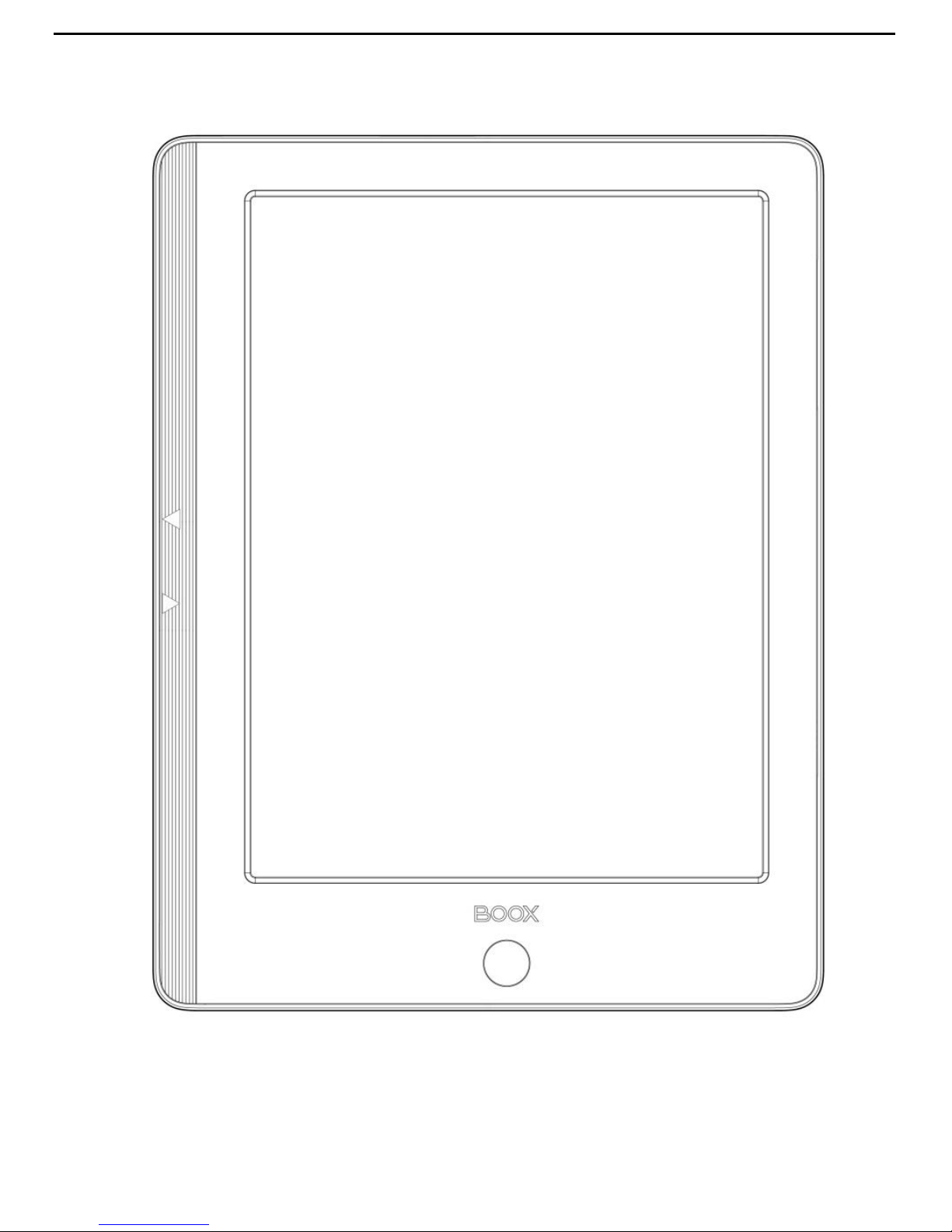
BOOX i86
SMART READING
SERIES
User Manual V1.7
Page 2

www.onyx-international.com
Copyright © 2014 Onyx International. All rights reserved. 2 / 65
Table of Contents
1. About ONYX ............................................................................. 3
2. Standard Accessories ............................................................... 5
3. Safety Guide ............................................................................ 6
4. Product Views .......................................................................... 8
5. Interface Introduction ........................................................... 11
6. FAQs ....................................................................................... 52
7. Warranty ................................................................................ 56
8. Specifications ......................................................................... 61
9. Declaration ............................................................................. 65
Page 3

www.onyx-international.com
Copyright © 2014 Onyx International. All rights reserved. 3 / 65
1. About ONYX
BOOX is presented by Onyx International, which has a group
of professionals who dedicate themselves in designing
state-of-the-art reading terminal. The beauty of the BOOX is
embodied in both its simplicity and its power. As we are going to
show you, BOOX is an open and flexible platform for both
consumers and content providers.
BOOX is powered by a 16-level grayscale e-ink screen that
looks and feels like paper. Passive lighting and diffuse surface
relax your eyes and reduce eye strain. By the hand-writing system,
you can take notes while reading and sketch up ideas that happen
to emerge. BOOX takes full advantage of new-generation e-ink
screens: extremely low power consumption without reflection
and backlight. Each full charge can sustain a few weeks' reading.
Page 4

www.onyx-international.com
Copyright © 2014 Onyx International. All rights reserved. 4 / 65
By reducing paper consumption while providing a realistic
paper-like reading experience, digital content helps to protect the
environment without sacrificing convenience or life style.
For content partners, we also provide support for custom
formats and digital rights management solutions. All of our
viewers have standard features such as layout management, font
adjustment, full text search, zooming, and page flow.
For a next-generation information device, connectivity is
essential. The user can connect to the Internet by build-in Wi-Fi,
3G module or other add-on modules to download new content or
surf the web. Customized for the e-ink screen, WebKit, the same
software engine as some powerful desktop browsers such as
Safari and Chrome, is the web browser of BOOX.
BOOX gives you a new reading experience.
Page 5

www.onyx-international.com
Copyright © 2014 Onyx International. All rights reserved. 5 / 65
2. Standard Accessories
Included in the Box:
1. BOOX i86 Reader x1
2. USB Cable x1
3. Quick Start Guide x1
4. Warranty Sheet x1
Optional Accessories(Purchased separately)
1. Adapter
2. Stereo headphone
3. Protective Cover
Page 6
www.onyx-international.com
Copyright © 2014 Onyx International. All rights reserved. 6 / 65
3. Safety Guide
Please read the Safety Guide carefully before you start to use the device.
Contact your BOOX retailer if you have any technical problem; or you can
dial our official service line at 4008-869-830 .
Screen protection
The device is equipped with Eink screen, which is very fragile.
Please have no shocking, squeezing, pressing against the screen, or
dropping the device from higher place. If the screen is already broken,
stop using it and contact the professional or other qualified staff to
replace the screen for you. Please don’t dismantle the device without
our permission;
Page 7
www.onyx-international.com
Copyright © 2014 Onyx International. All rights reserved. 7 / 65
Standard accessories
Only the battery, adapter, and other accessories meeting our
standard safety rules can be used for the device. For details, please refer
to Product Specification. We will not be responsible for any damage
caused by incompatible accessories;
Stay away from liquids
The device is not waterproof. Don’t expose the device to
humid environment or use it in the rain. Please keep it away from any
corrosive liquids;
Don’t dismantle the device
Please don’t dismantle the device in case of any damage ;
Using environment
The using environment of the device is 0°C-50°C ;
Page 8
www.onyx-international.com
Copyright © 2014 Onyx International. All rights reserved. 8 / 65
4. Product Views
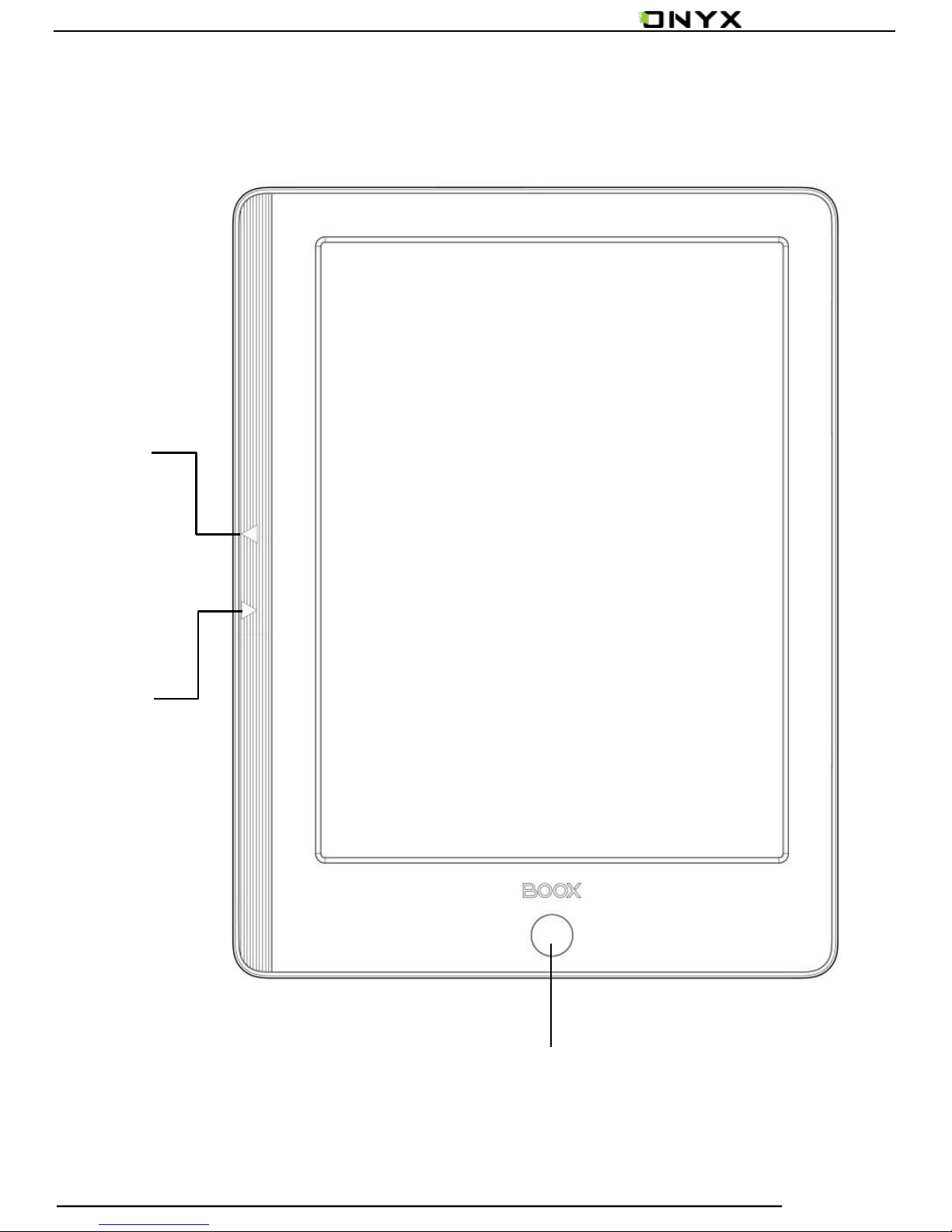
Front View
BACK
Next
Prev
Page 9
www.onyx-international.com
Copyright © 2014 Onyx International. All rights reserved. 9 / 65
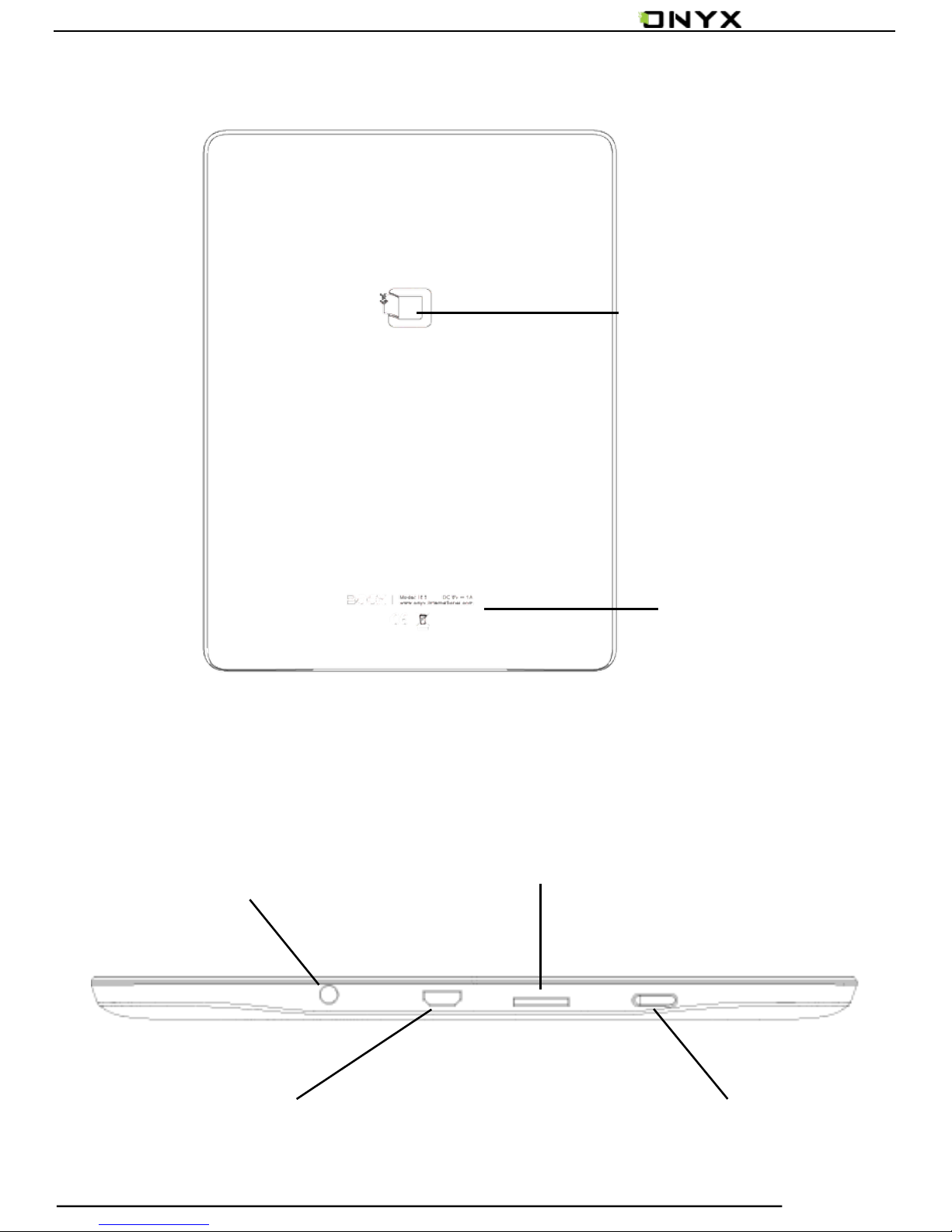
Back View
Bottom View
Model
Number
LOGO
3.5mm Audio
MicroUSB Slot
Sleep\Power
MicroSD Slot
Page 10
www.onyx-international.com
Copyright © 2014 Onyx International. All rights reserved. 10 / 65
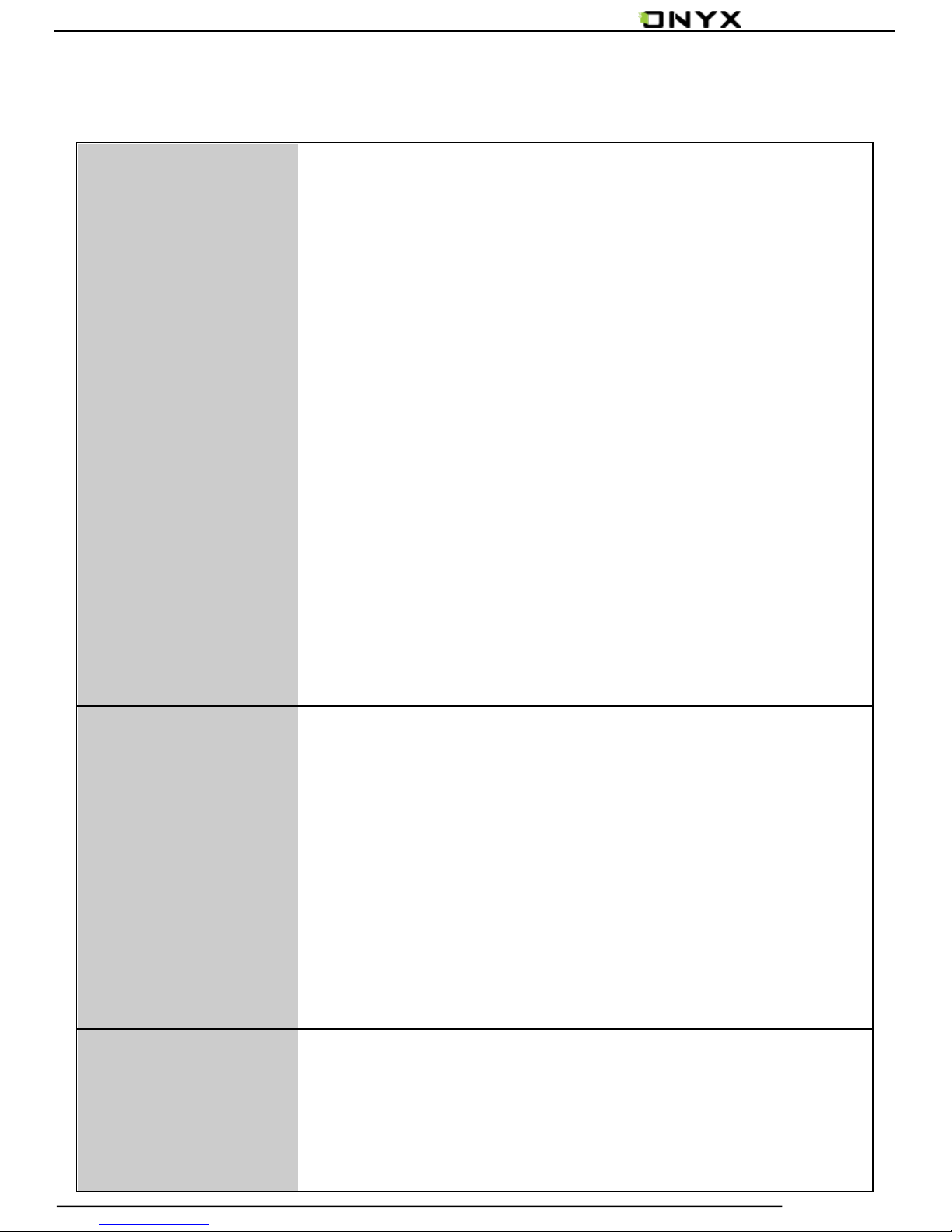
Button Function
Power/
Standby Button
Long press the power button for 3 seconds to
turn on/off the device;
Press the power button and release quickly to
let the device go standby or wake up;
Press the power button for 8-10 seconds to
reset your device , then press it quickly to
restart .
Back Button
Exit the current apps;
Exit the current view or dialog;
Go back to previous directory;
Next Button
Turn to next page when reading or viewing files;
Prev Button
Turn to previous page when reading or viewing
file;
Page 11
www.onyx-international.com
Copyright © 2014 Onyx International. All rights reserved. 11 / 65
5. Interface Introduction
5.1 Main Interface
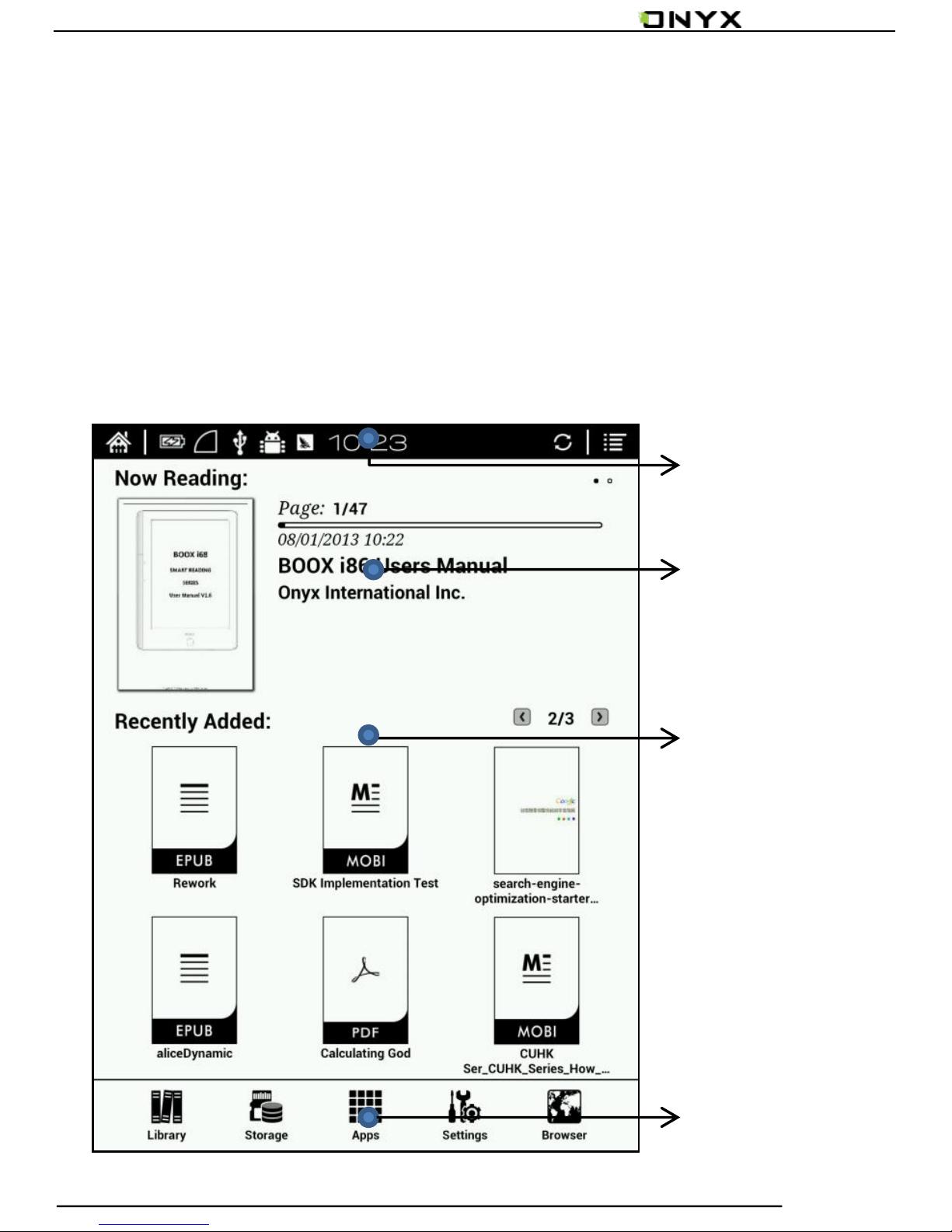
The main interface contains “Status Bar”, “Now
Reading”, “Recently Added”and “Function Area”.
Status
Now Reading
Recently Added
/Recently Read
Function Area
Page 12
www.onyx-international.com
Copyright © 2014 Onyx International. All rights reserved. 12 / 65
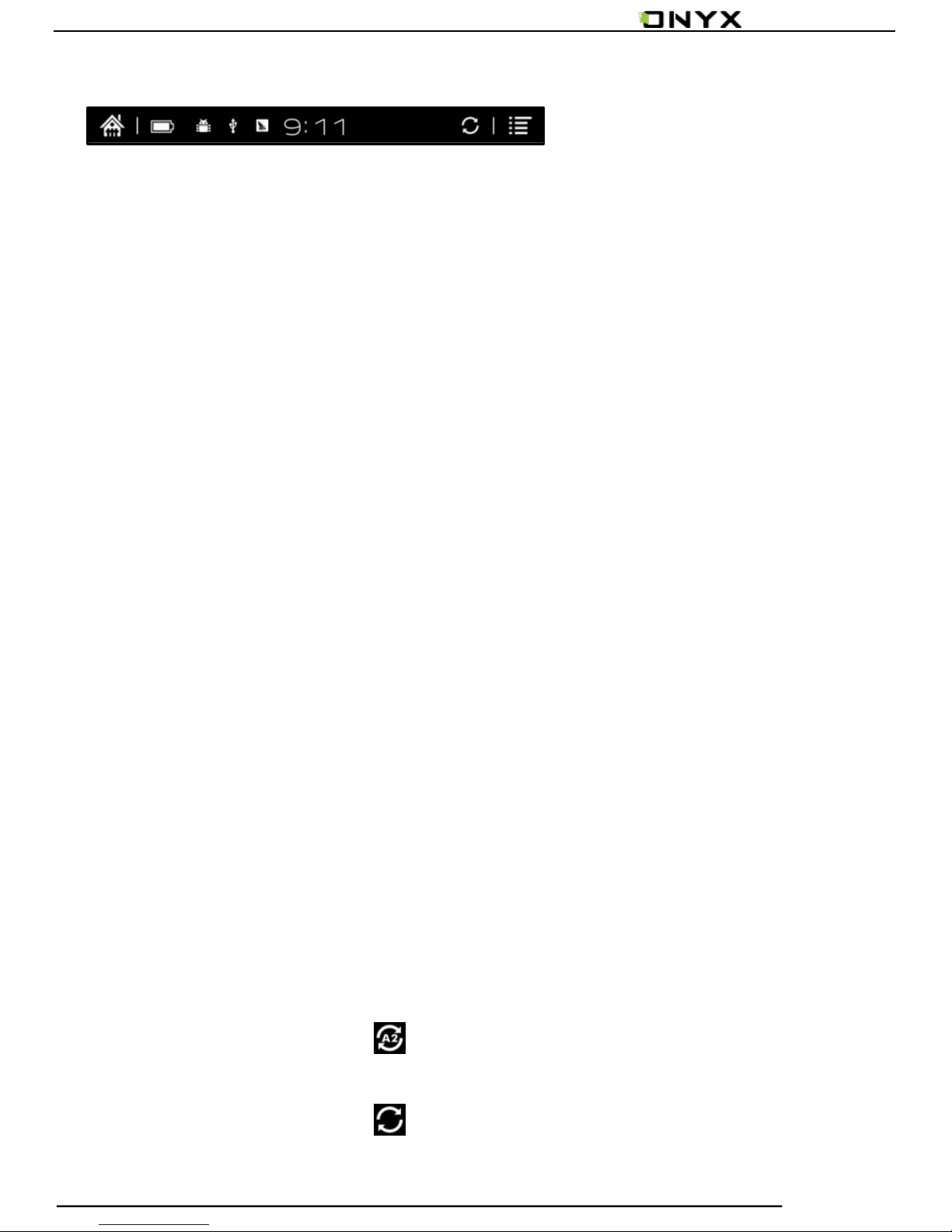
Status Bar
This section displays the current state of the device,
including: home icon, battery usage, notification, time, A2
mode on/off, Setting etc;
A2 mode refreshment
Two-grey level refreshment mode is good for fast
refreshment of text page. It enables fast pageturn, no
screen flashing and less ghost background. When A2
mode is on, reading articles with images, graphics, texts
mixed are not suggested because of blur image would
occur.
When A2 is on:
When A2 is off:
Page 13
www.onyx-international.com
Copyright © 2014 Onyx International. All rights reserved. 13 / 65
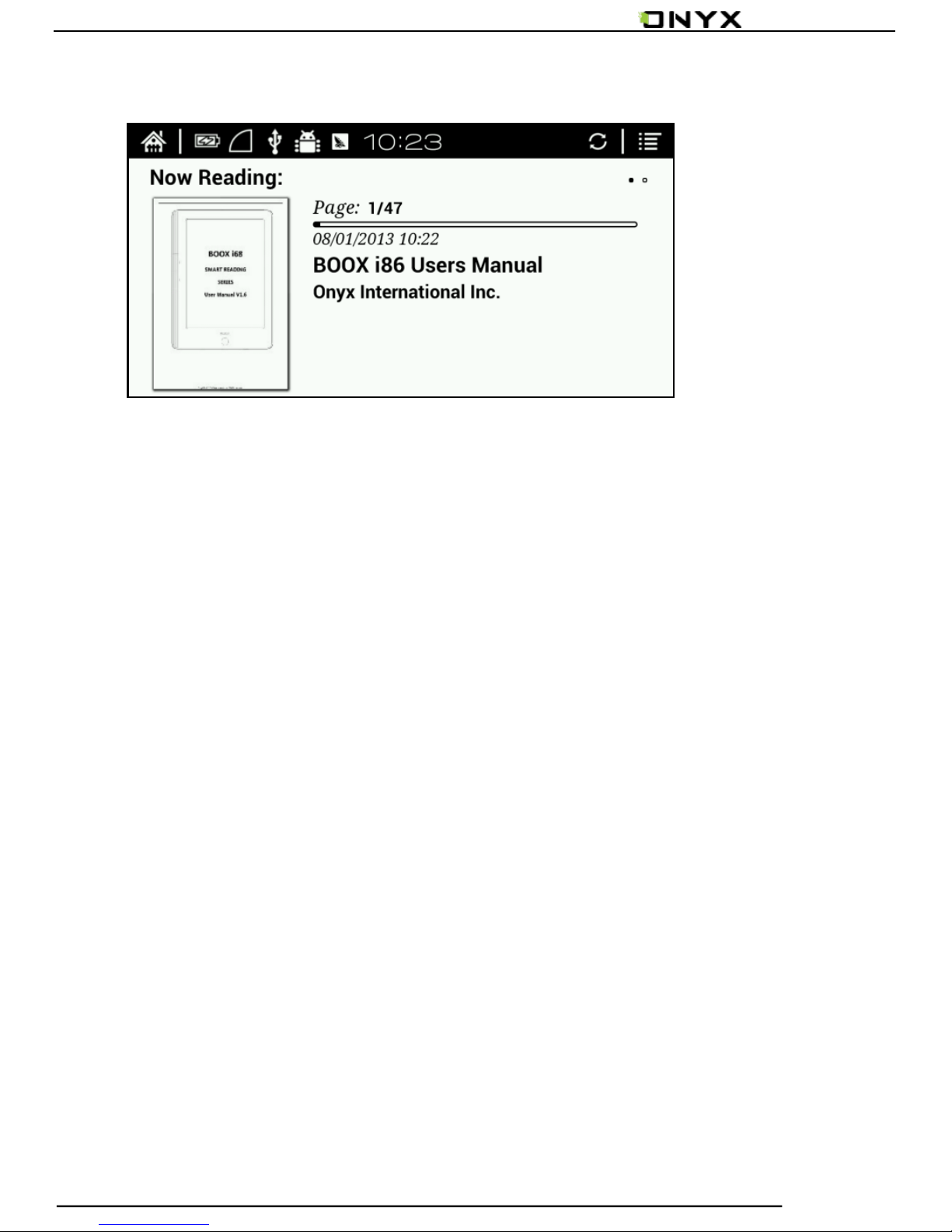
Now Reading
The information of recently read books is displayed in this
section, including book cover, book title, author, page number,
last read time, reading progress etc;
Tap book cover or book title can open the books and enter
the page read recently.
Only those read books can display book covers while
those unread books shall display BOOX cover by default;
Page 14
www.onyx-international.com
Copyright © 2014 Onyx International. All rights reserved. 14 / 65
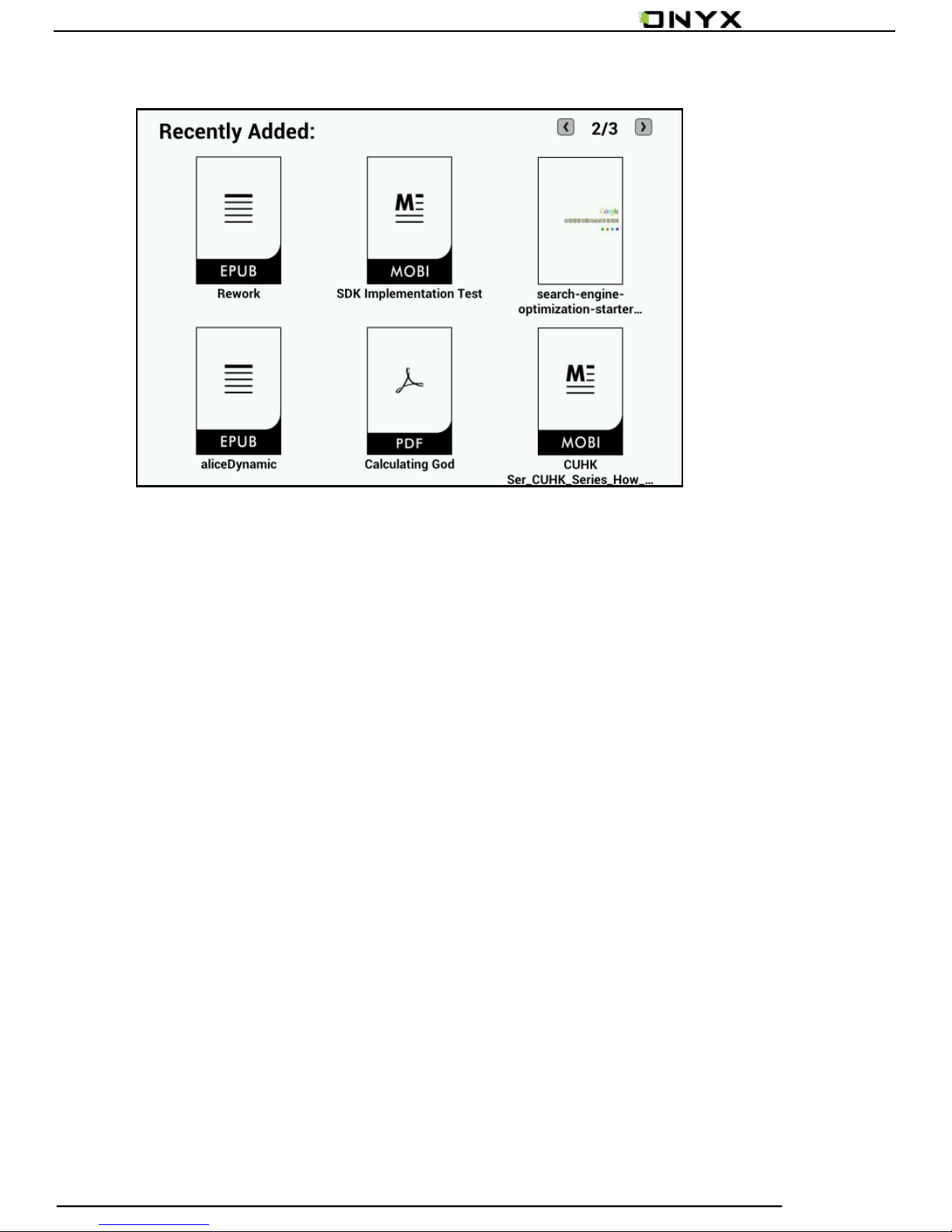
Recently Added
The newly added books will be listed here chronologically.
Slide to left/right is for turning pages.
Users can switch into “Recently Added”through
“system—user preferences—homepage options”, then it will
display the book list added recently.
Page 15
www.onyx-international.com
Copyright © 2014 Onyx International. All rights reserved. 15 / 65
Function Area
This section displays some frequently used function icons,
including Library, Storage, Apps, Setting, Browser. Users can
page forward or backward by pressing the button on two sides
or by tapping the arrowhead icon.
Library
All books copied/downloaded to the device will be
displayed here, including books from local storage and
MicroSD card.
Users can choose “Scanning”through
Setting-System-User Preference to display all books
supported by the device in directory “Books”including
books from local storage and Micro SD card.
Page 16
www.onyx-international.com
Copyright © 2014 Onyx International. All rights reserved. 16 / 65
Storage
It displays all files both from local storage and MicroSD
card. Users can manage all files by customized folders to
manage books, apps and other files.
Apps
Going to Apps lists page, users can manage or uninstall the
apps
Firefly light
Turn on/off the front light and adjust the brightness.(Only
i86 Plus support)
Page 17
www.onyx-international.com
Copyright © 2014 Onyx International. All rights reserved. 17 / 65
Setting
Going to Setting page, users can select their preferred
setting for the whole system
Browser
When WiFi is on, users can browse webs or download files
from internet via Browser
Page 18
www.onyx-international.com
Copyright © 2014 Onyx International. All rights reserved. 18 / 65
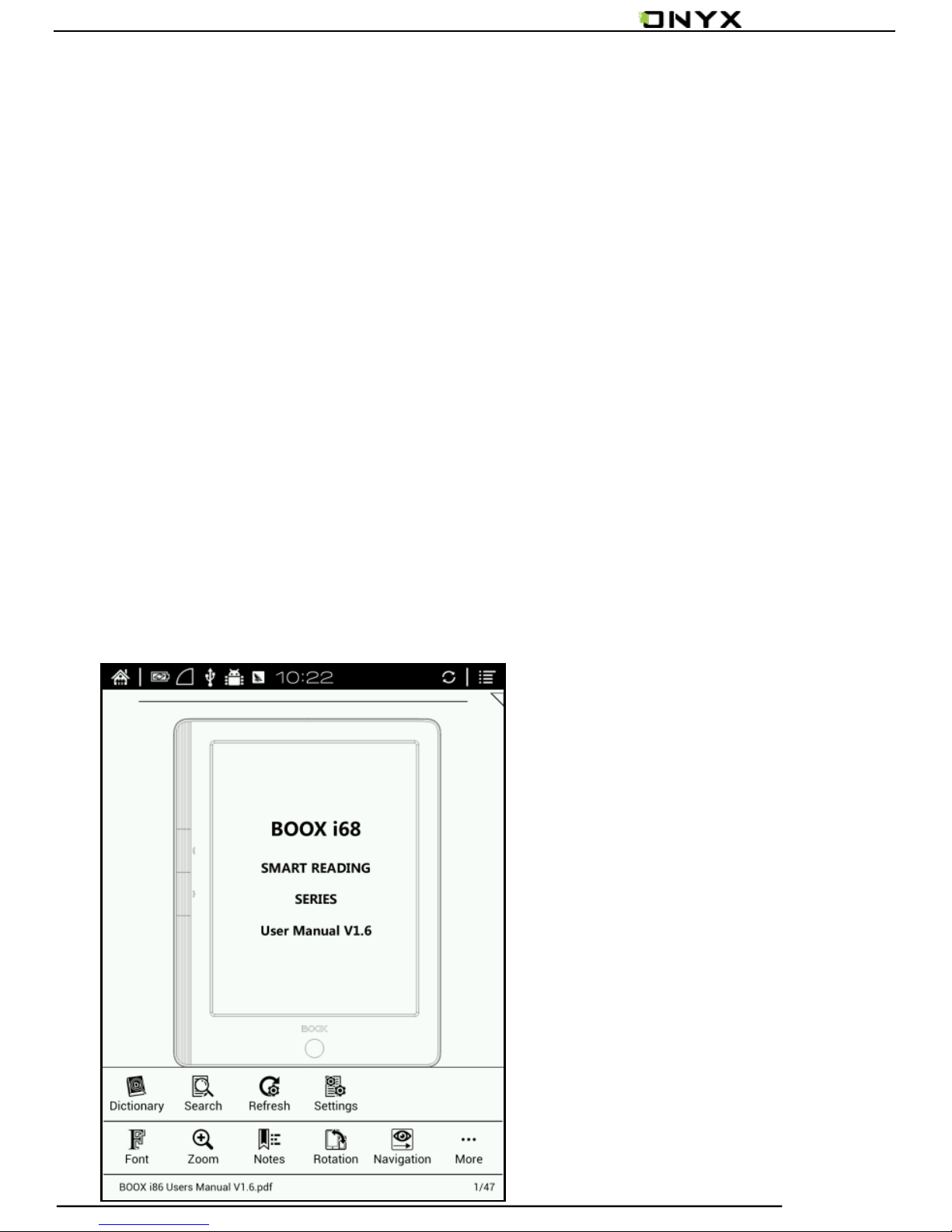
5.2 Notification Interface
Tap battery usage site on the right of the Status Bar to pop
up Notification board; Press Back button or tap Home icon can
exit Notification board;
Notification page contains: WiFi setting, date, volume
control, setting, and other new msg notice etc;
Page 19
www.onyx-international.com
Copyright © 2014 Onyx International. All rights reserved. 19 / 65
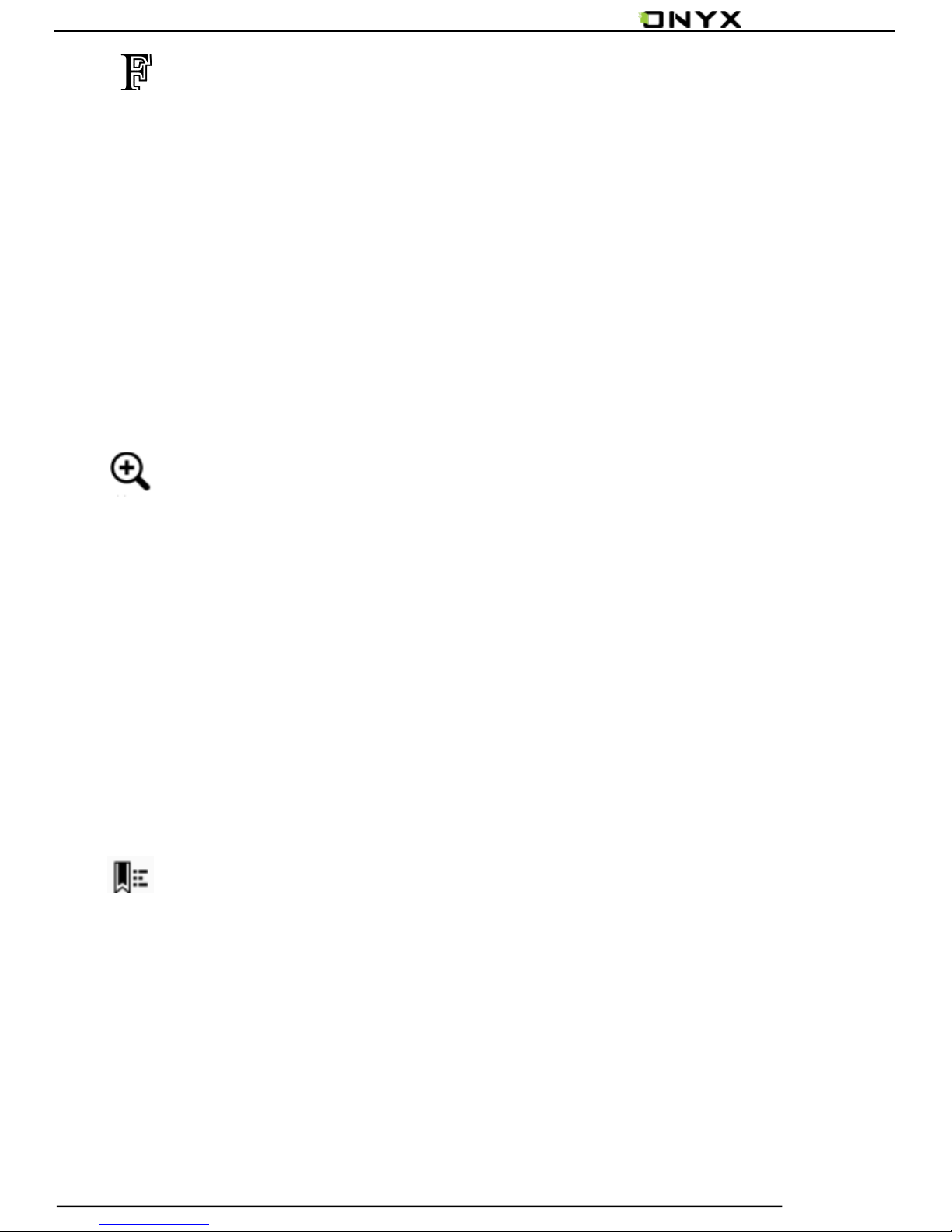
5.3 Reading Interface
Select any book to go to reading page, which only displays
book content, page number, prev./next. page and current
time;
Tap the middle area of the screen or menu button to pop up
reading menu and status bar;
Reading menu contains: Fonts, Zoom, Notes, Rotation, TTS,
Dictionary, Search, Refreshment, Setting etc ;
Page 20
www.onyx-international.com
Copyright © 2014 Onyx International. All rights reserved. 20 / 65
Font
Fonts can be adjustable (reflow mode is supported): font
size, bold type, font change(only some formats supported),
spacing(only some formats supported) etc;
Zoom
User can zoom in/out the page freely; Other zoom
shortcuts are available: To width, To page, Crop, Selection to
zoom;
Direcctory
TOC, Bookmark, Annotation can be checked here;
Page 21
www.onyx-international.com
Copyright © 2014 Onyx International. All rights reserved. 21 / 65
Rotation
Users can select the direction of the screen display;
TTS
Users can listen to the books(only some formats are
supported) by TTS, powered by well-known voice company
IVONA, which is close to human reading;
Dictionary
Long press the content can pitch up words to pop up the
dictionary. Stardict can be supported. Users can download
Stardict dictionary and put it into folder“dictionary” on
MicroSD card, then the dictionary can be used when reading;
Page 22
www.onyx-international.com
Copyright © 2014 Onyx International. All rights reserved. 22 / 65
Search
User can search the targeting texts;
Long press the input box can change input method;
Refreshment
User can select screen refreshment rate by their
preference, including full refreshment, 3/5/7/9 pages
refreshment and never full refreshment. Every 5 pages to
refresh is system default;
Setting
Page margin, footer, time, navigation and dictionary for
current content can be set.
Page 23
www.onyx-international.com
Copyright © 2014 Onyx International. All rights reserved. 23 / 65
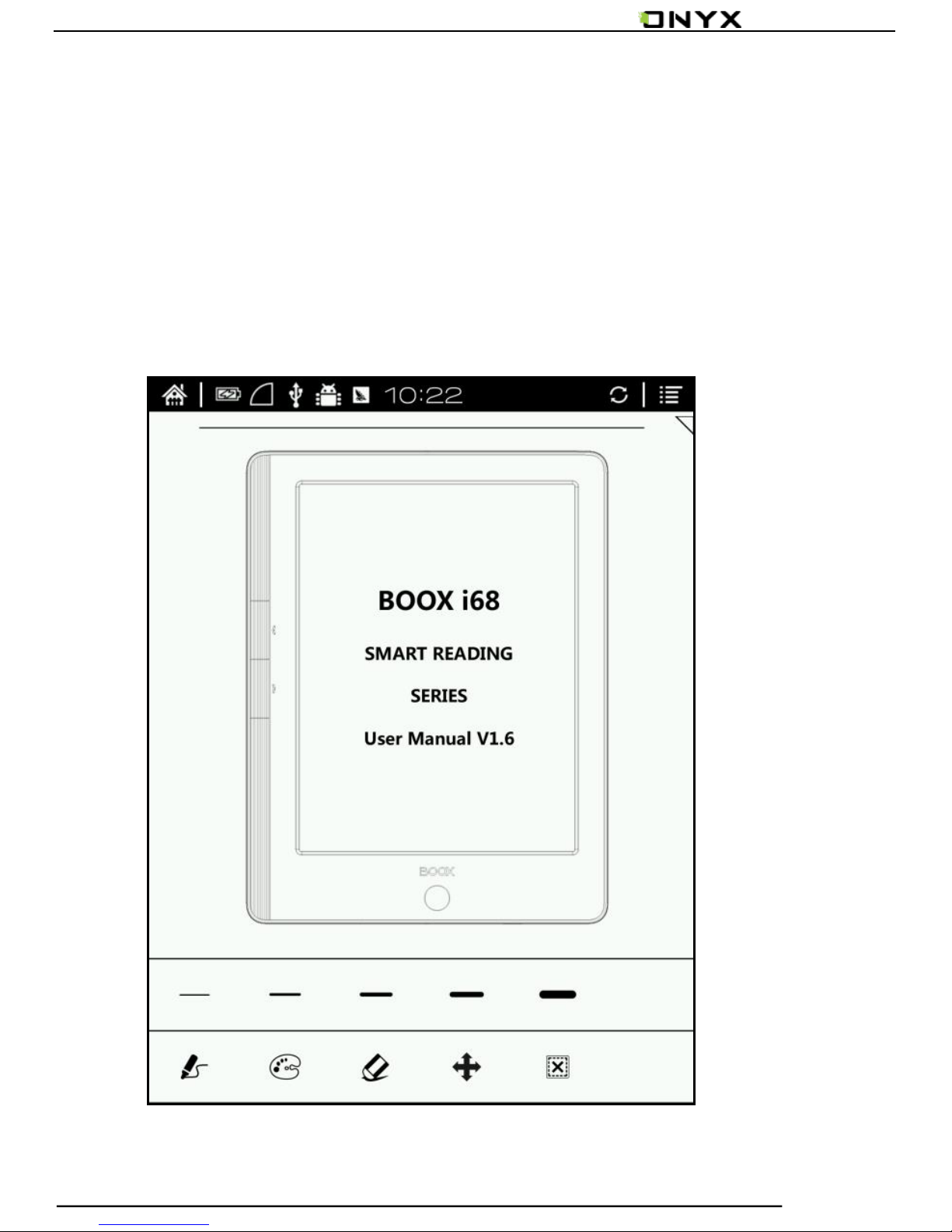
Scribbler Interface
In Menu-notes-scribbler , user can use scribble annotation (only
support PDF format), this interface including stroke thickness, color,
eraser, pages move ,etc;
Page 24
www.onyx-international.com
Copyright © 2014 Onyx International. All rights reserved. 24 / 65
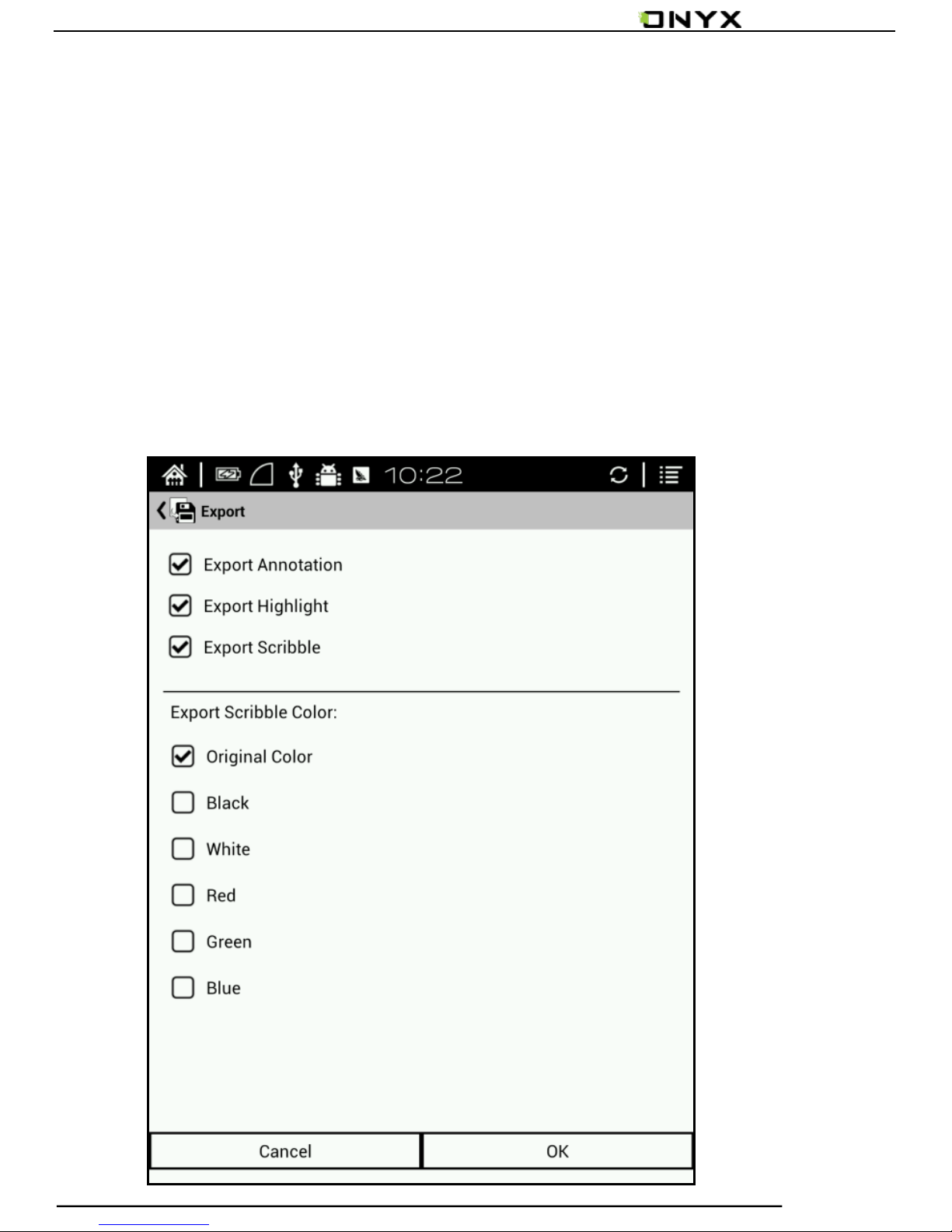
Export Interface
In Menu – notes –export , user can choose export annotation、
highlight、scribble; the default save xxx.export.pdf (containing text and
scribbler) /xxx.export.txt (containing only text) format in the same
folder with original document;
Page 25
www.onyx-international.com
Copyright © 2014 Onyx International. All rights reserved. 25 / 65
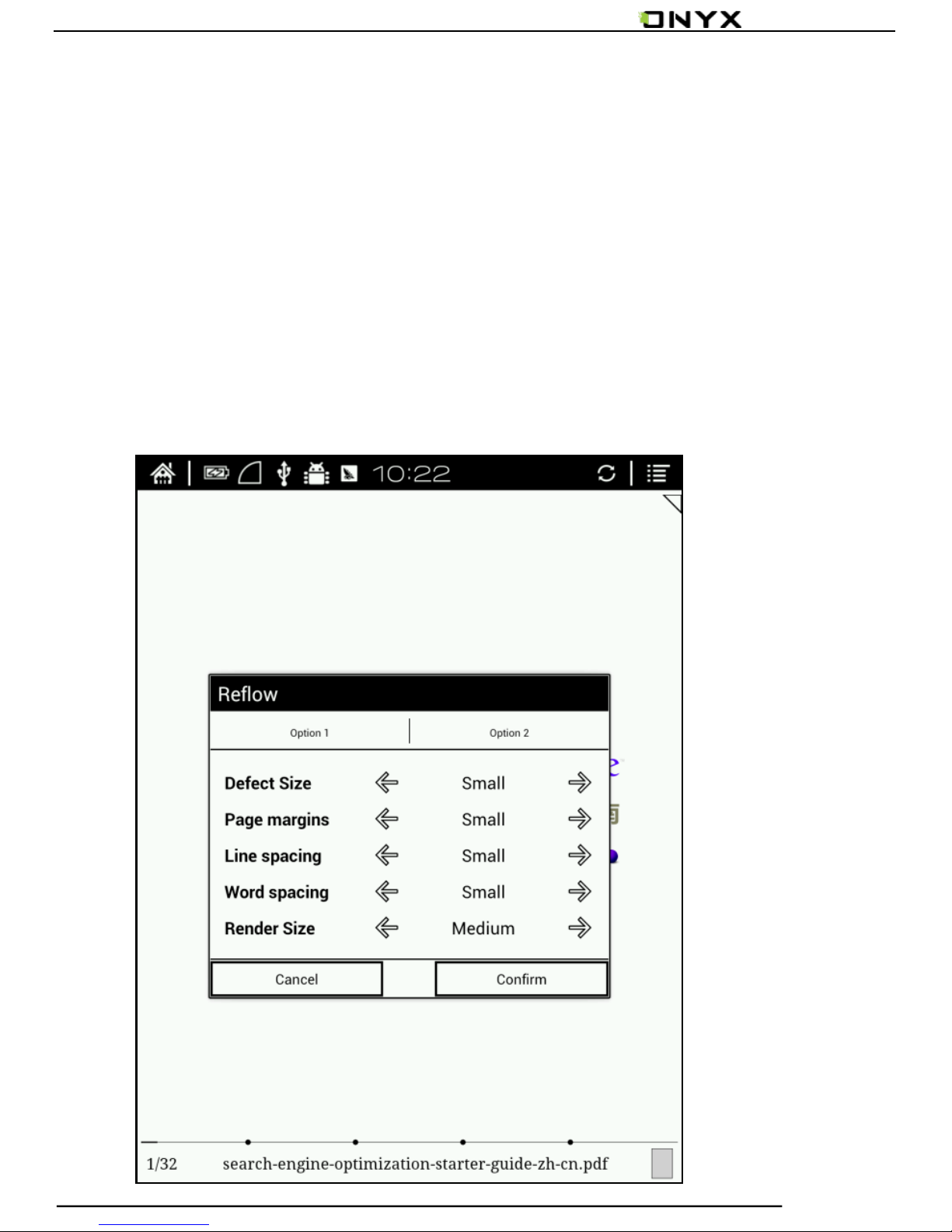
Reflow Interface
In Menu – Fonts- Reflow , user can rearrange scan version PDF
documents, including customize the defect size, page margins, line
spacing, word spacing, render size, straighten, justification, columns,
contrast, contrast ,rotation ,etc;
Page 26
www.onyx-international.com
Copyright © 2014 Onyx International. All rights reserved. 26 / 65
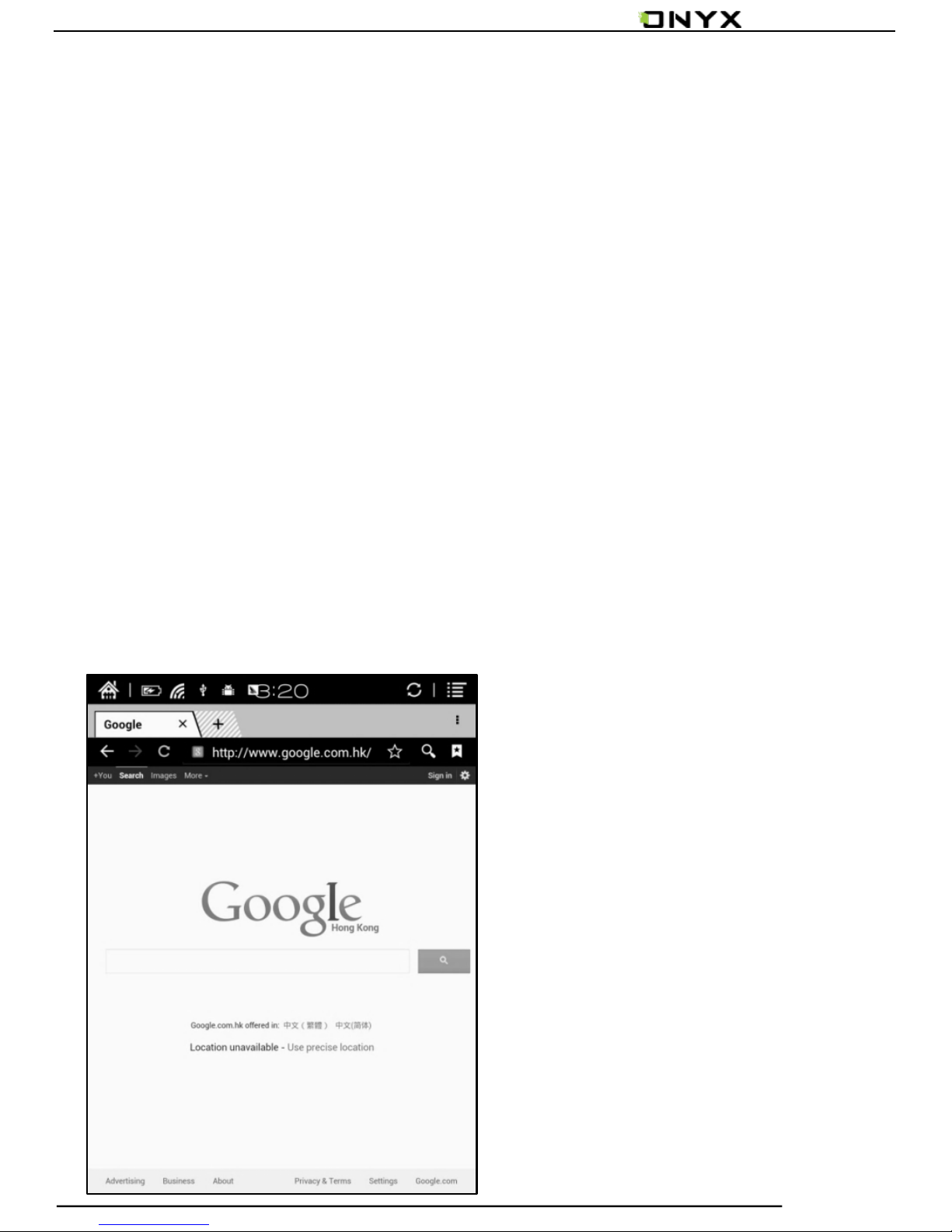
5.4 Browser Interface
When WiFi is on, please tap Browser icon or choose in the
apps management to start browsing online;
At browsing page, tap text box can pop up virtue
keyboards;
Press the space key to switch English and Chinese mode.
More input methods can be installed by users and switched
through the input method options on the keyboard;
Page 27
www.onyx-international.com
Copyright © 2014 Onyx International. All rights reserved. 27 / 65
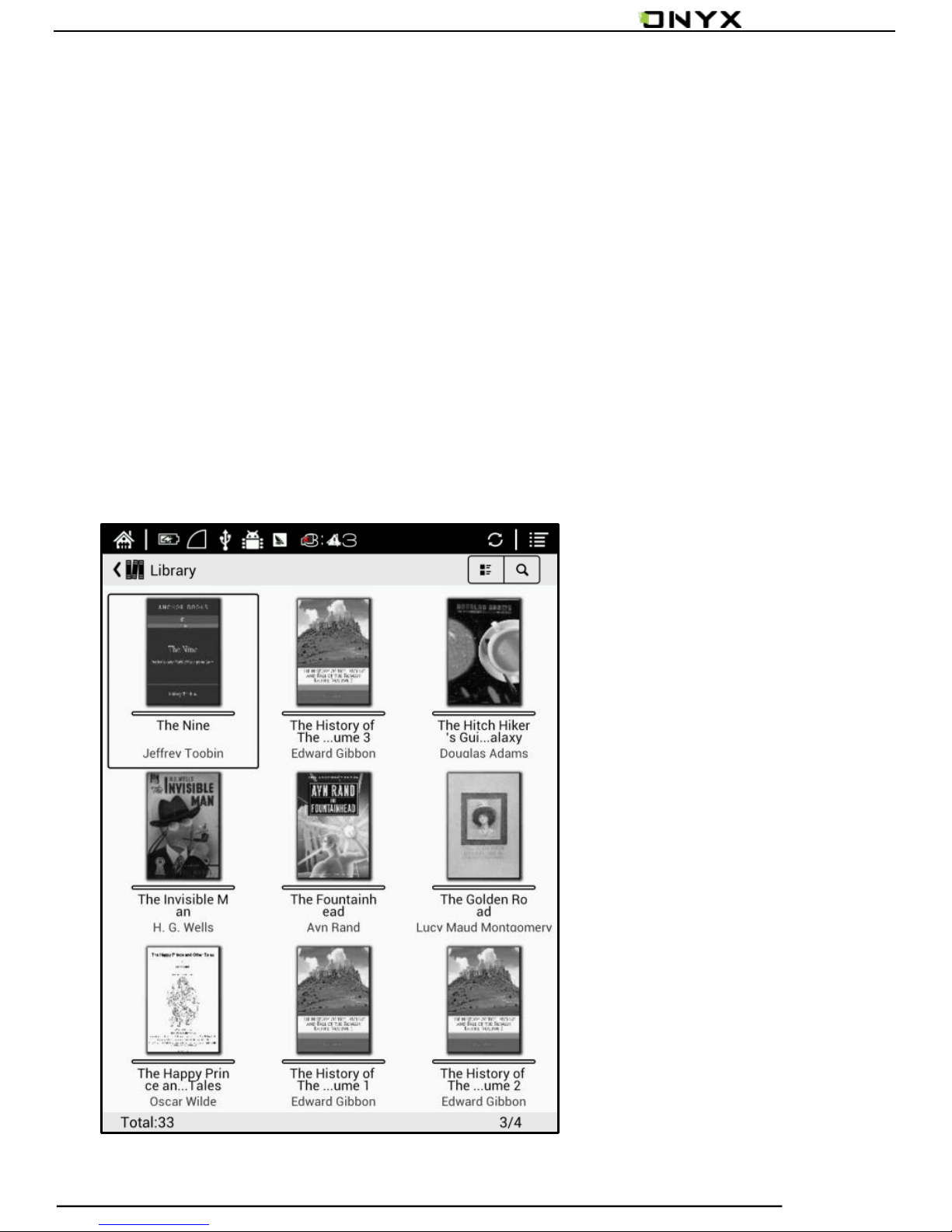
5.5 Library
The library can only display supported-format books; The
books will be displayed by thumbnail view chronologically;
Users can change the display mode through the icon on
top right corner( including breviary, listing mode, particular list)
and users also can search books;
Page 28
www.onyx-international.com
Copyright © 2014 Onyx International. All rights reserved. 28 / 65
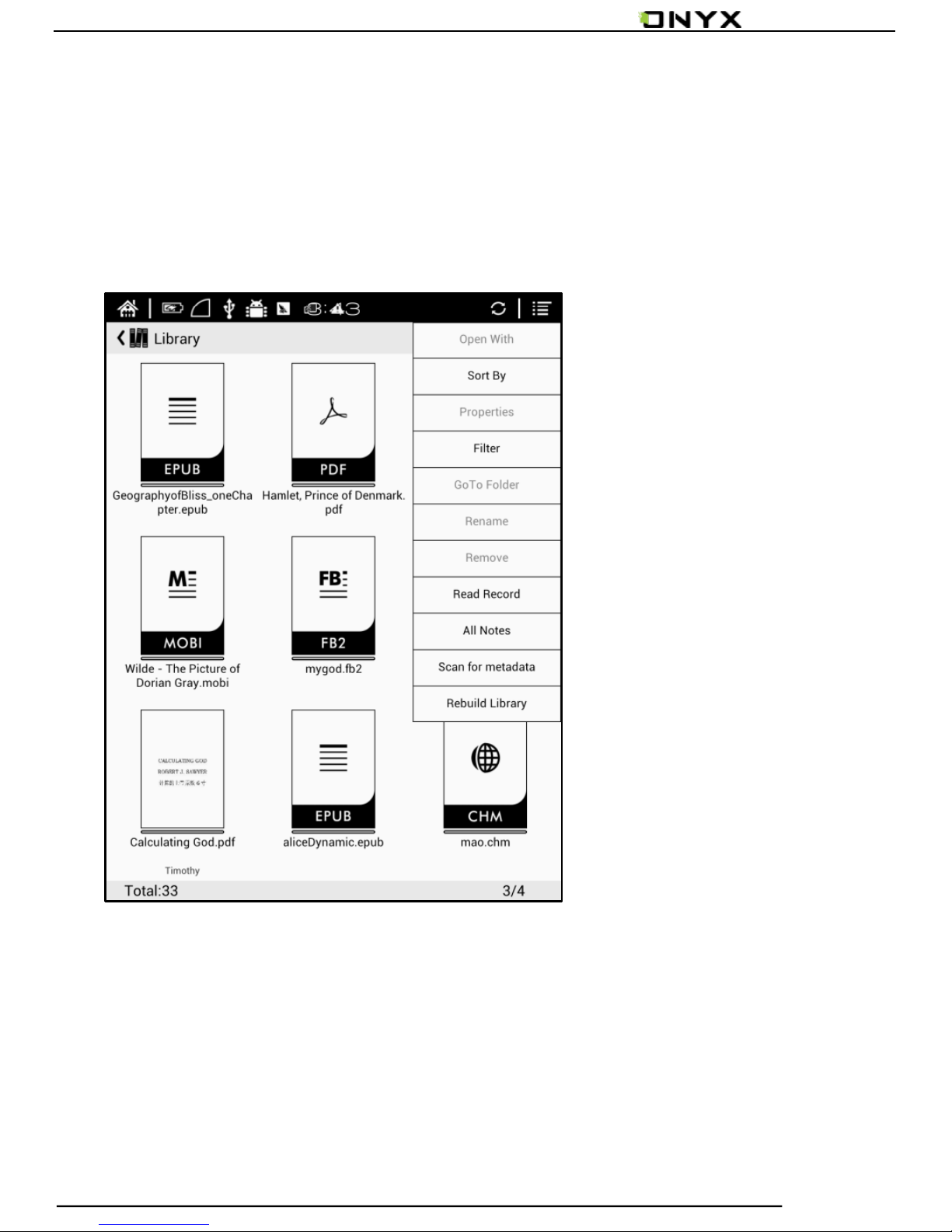
Tap the menu key on the top right to pop up library menu,
including open pattern, sequencing, attribute, filter, skipping,
rename, delete, history, note etc;
Page 29
www.onyx-international.com
Copyright © 2014 Onyx International. All rights reserved. 29 / 65
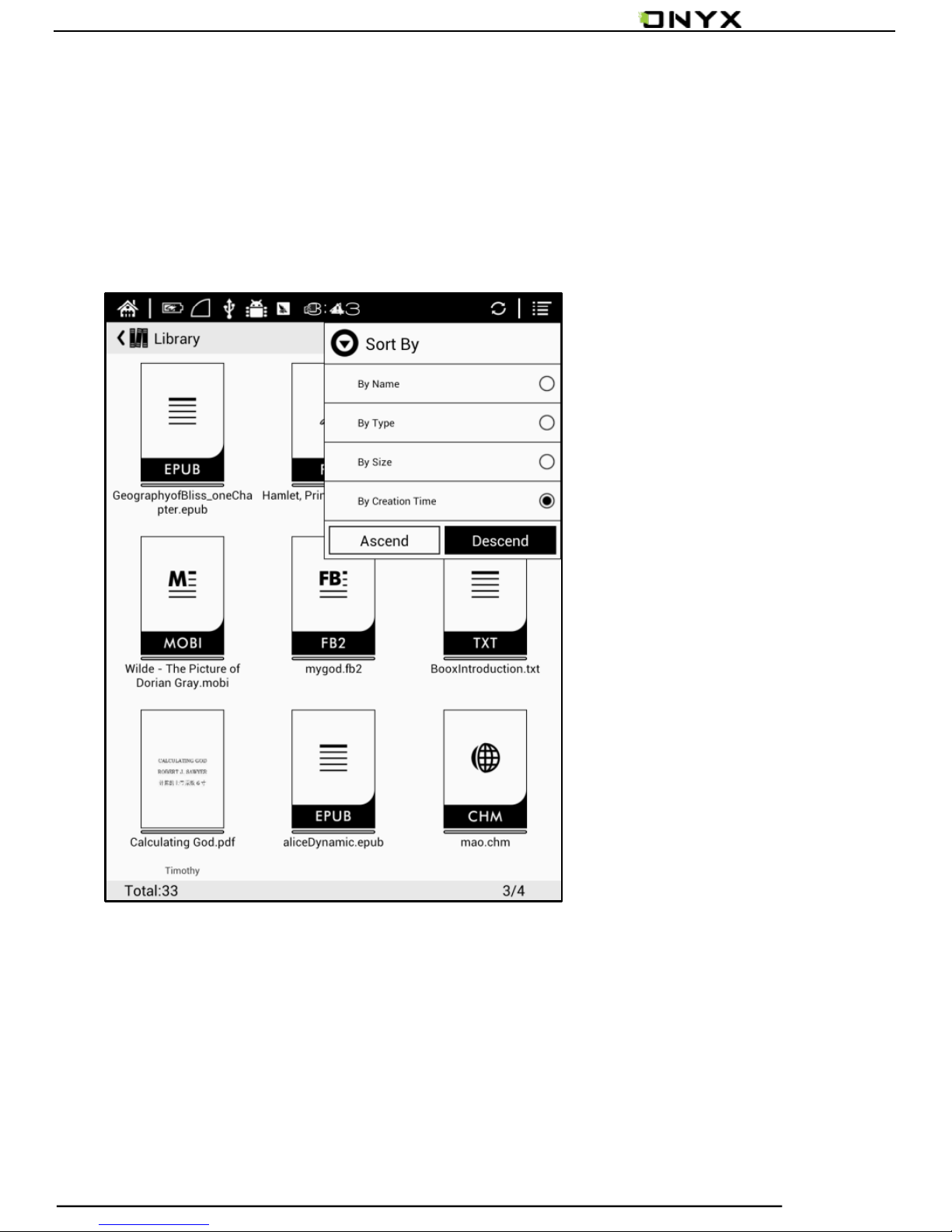
Sort by
Users can sequence the book by names, types, sizes,
created time;
Page 30
www.onyx-international.com
Copyright © 2014 Onyx International. All rights reserved. 30 / 65
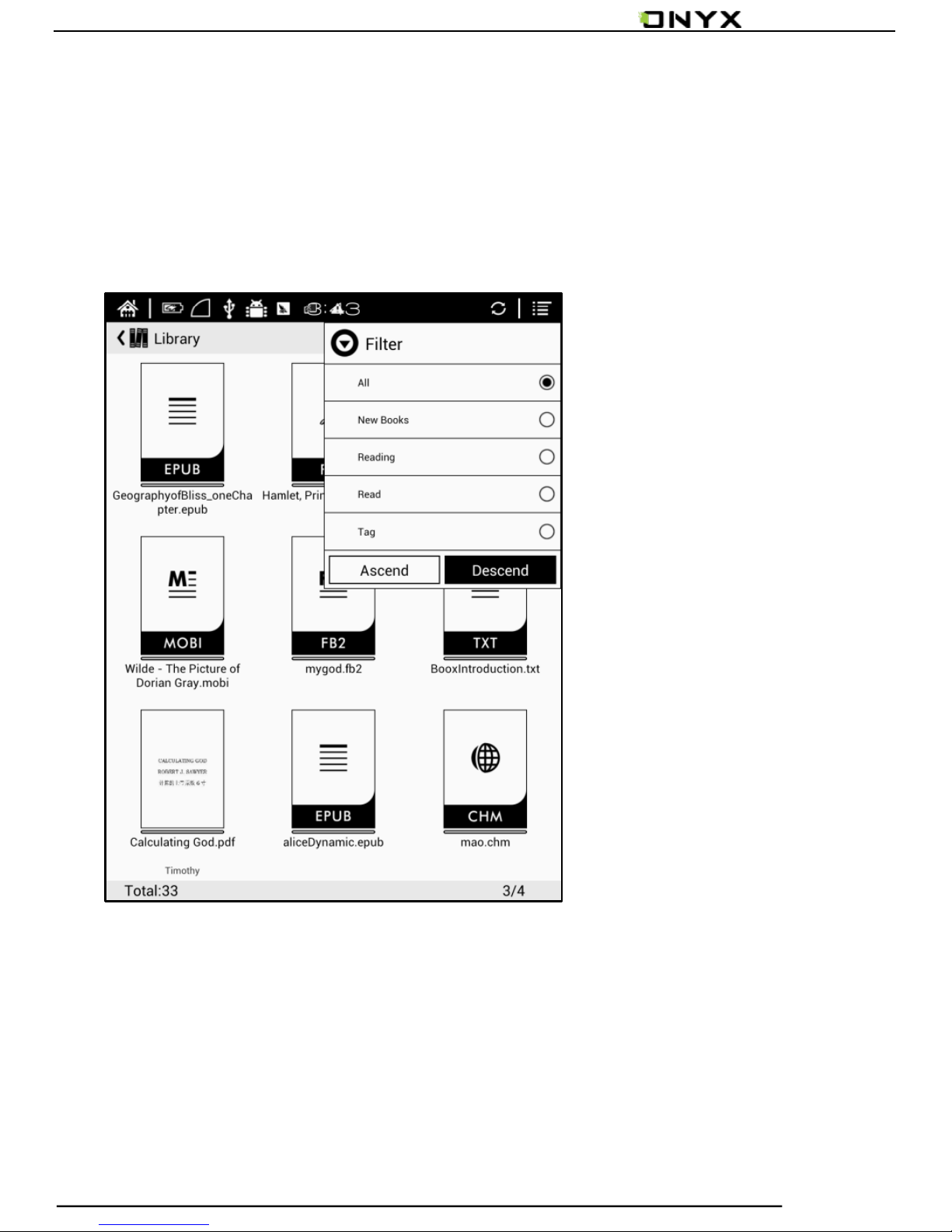
Filter
The books in the library can be filtered in reading mode,
including all, unread,now reading, read,label etc;
Page 31
www.onyx-international.com
Copyright © 2014 Onyx International. All rights reserved. 31 / 65
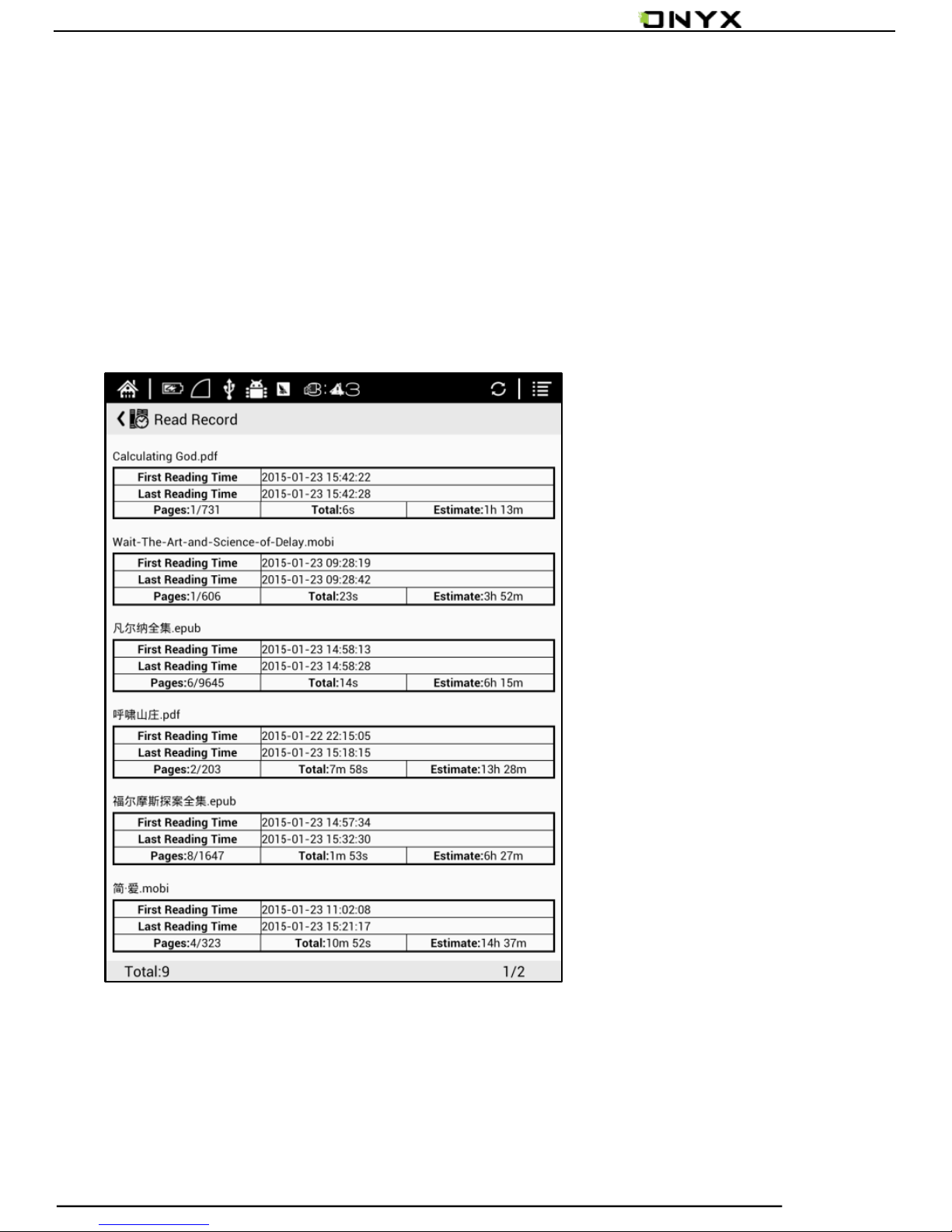
History
Users can find all reading history record of books that have
been read, including reading progress, time, open times, total
reading time etc;
Page 32
www.onyx-international.com
Copyright © 2014 Onyx International. All rights reserved. 32 / 65
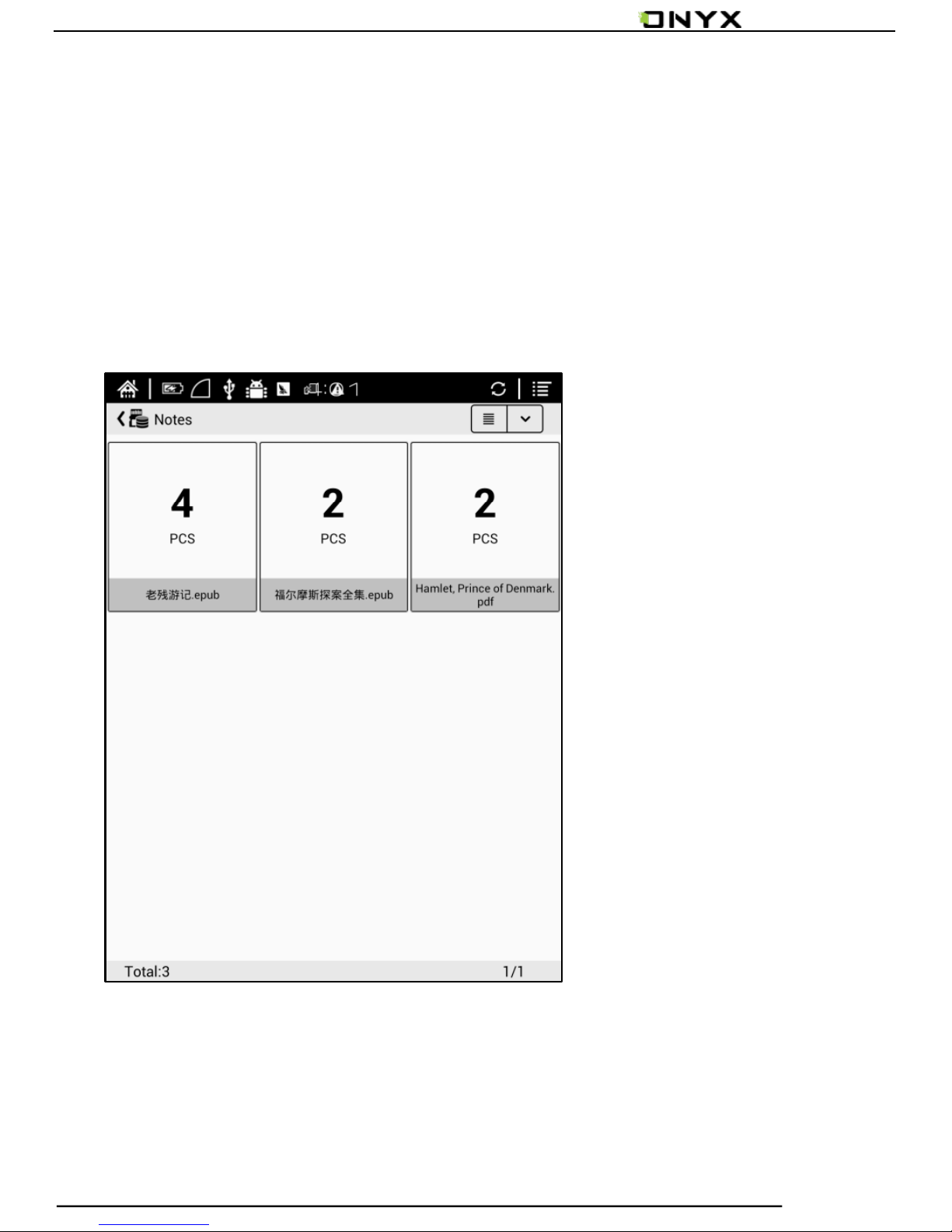
All Notes
Users can extract all the notes, highlights, annotations and
other books record list, which can be referred directly without
open the books;
Page 33
www.onyx-international.com
Copyright © 2014 Onyx International. All rights reserved. 33 / 65
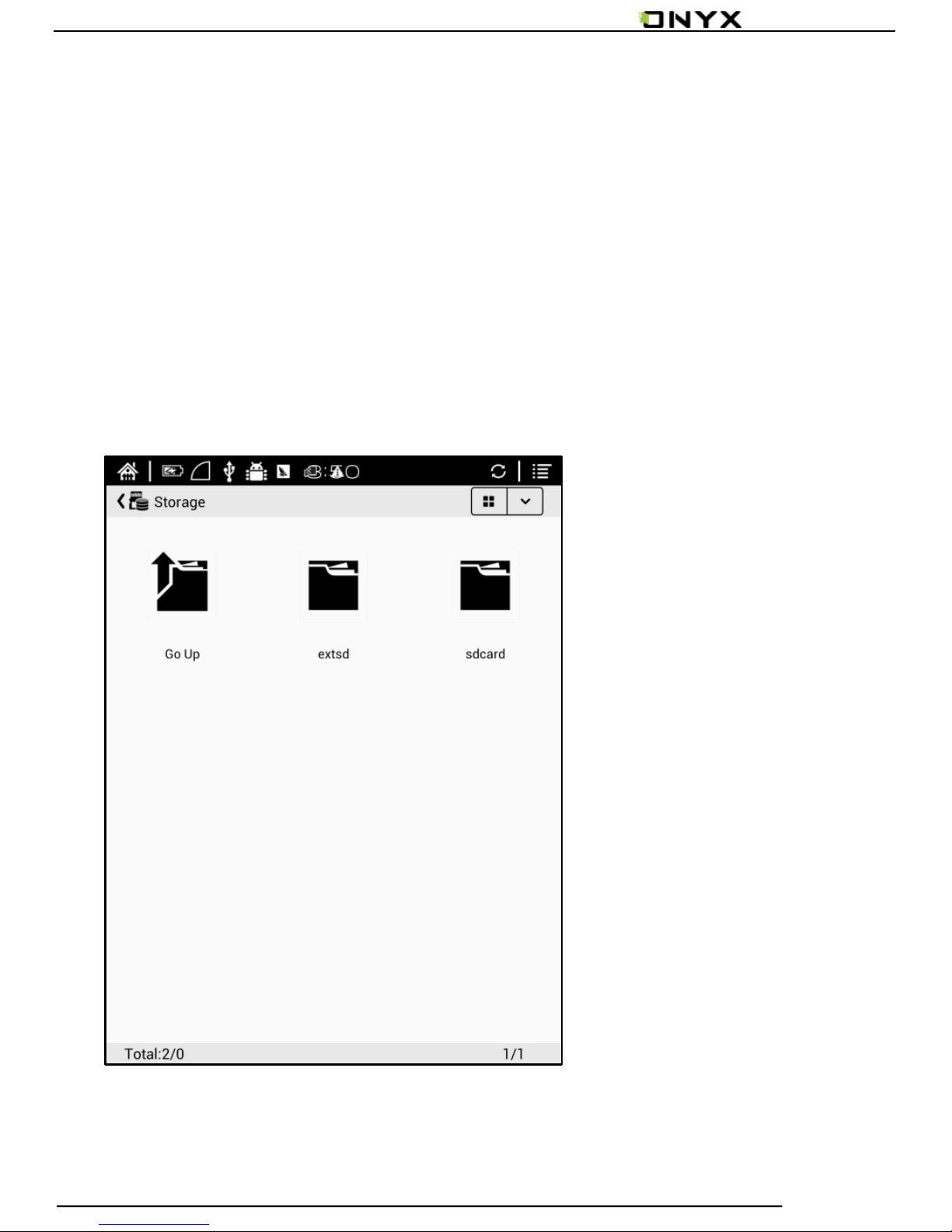
5.6 Storage
Storage displays all files from both local storage and
MicroSD cards and manage in file mode. Files will be displayed
in alphabetical order by default. Users can change the listing
mode by themselves;
Page 34
www.onyx-international.com
Copyright © 2014 Onyx International. All rights reserved. 34 / 65
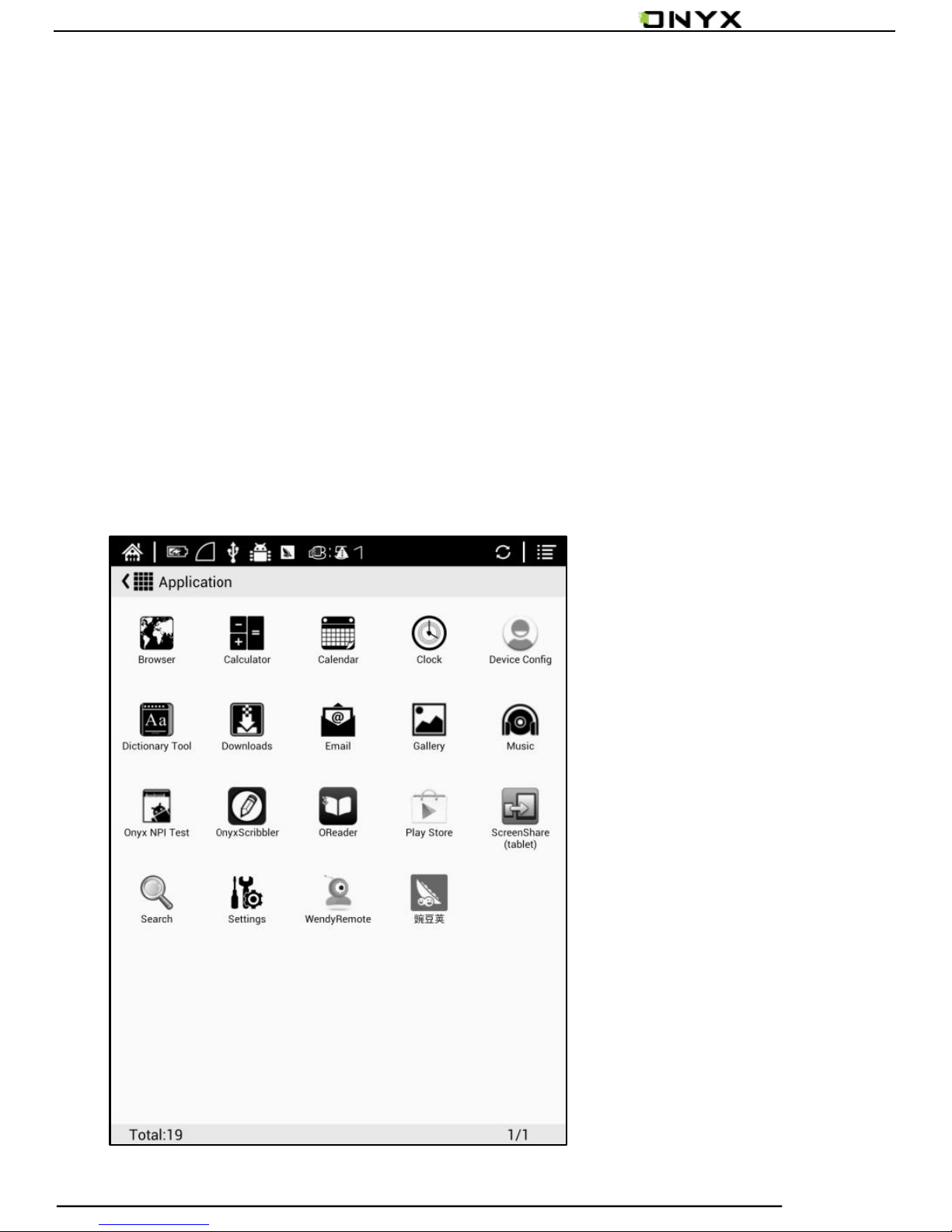
5.7 Apps
Here it will display all installed apps in alphabetical order.
Users can change the listing mode by themselves;
Long press on each app can popup menu to manage or
delete the Apps setting. Applications that come with the
system can not be deleted by users;
Page 35
www.onyx-international.com
Copyright © 2014 Onyx International. All rights reserved. 35 / 65
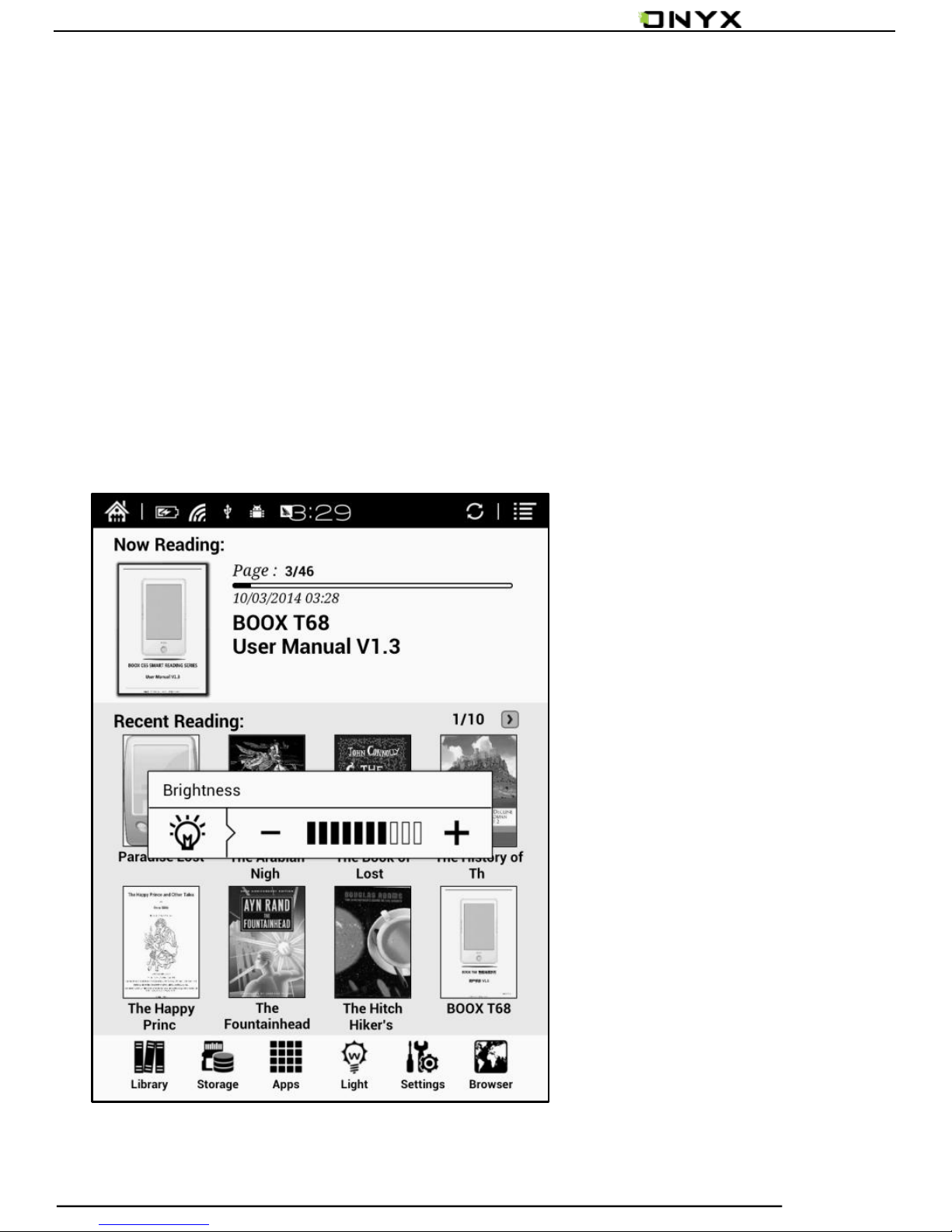
5.8 Light
Users can turn on/off the front light and adjust the
brightness;
Users also can long press the OK button to turn on/off the
front light quickly;
Page 36
www.onyx-international.com
Copyright © 2014 Onyx International. All rights reserved. 36 / 65
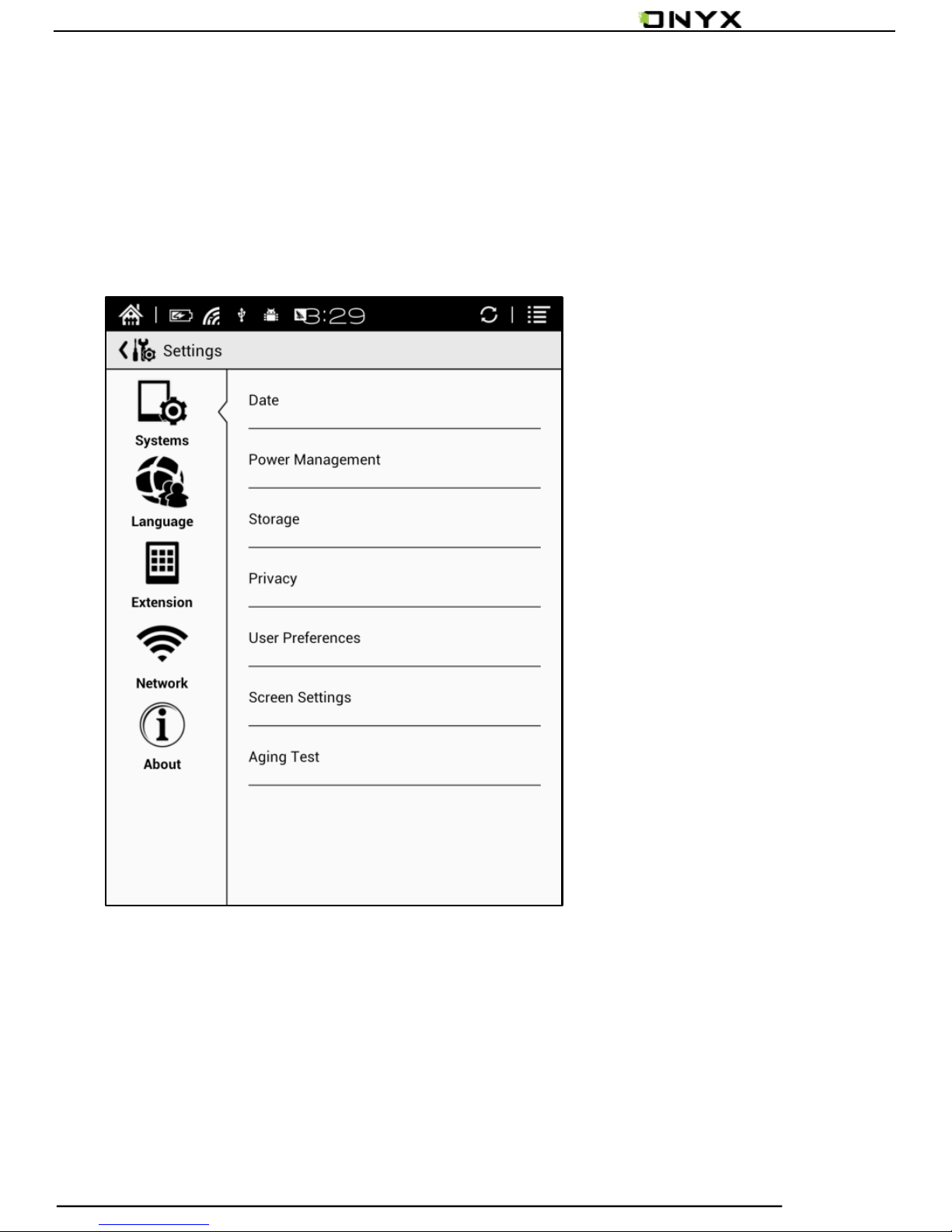
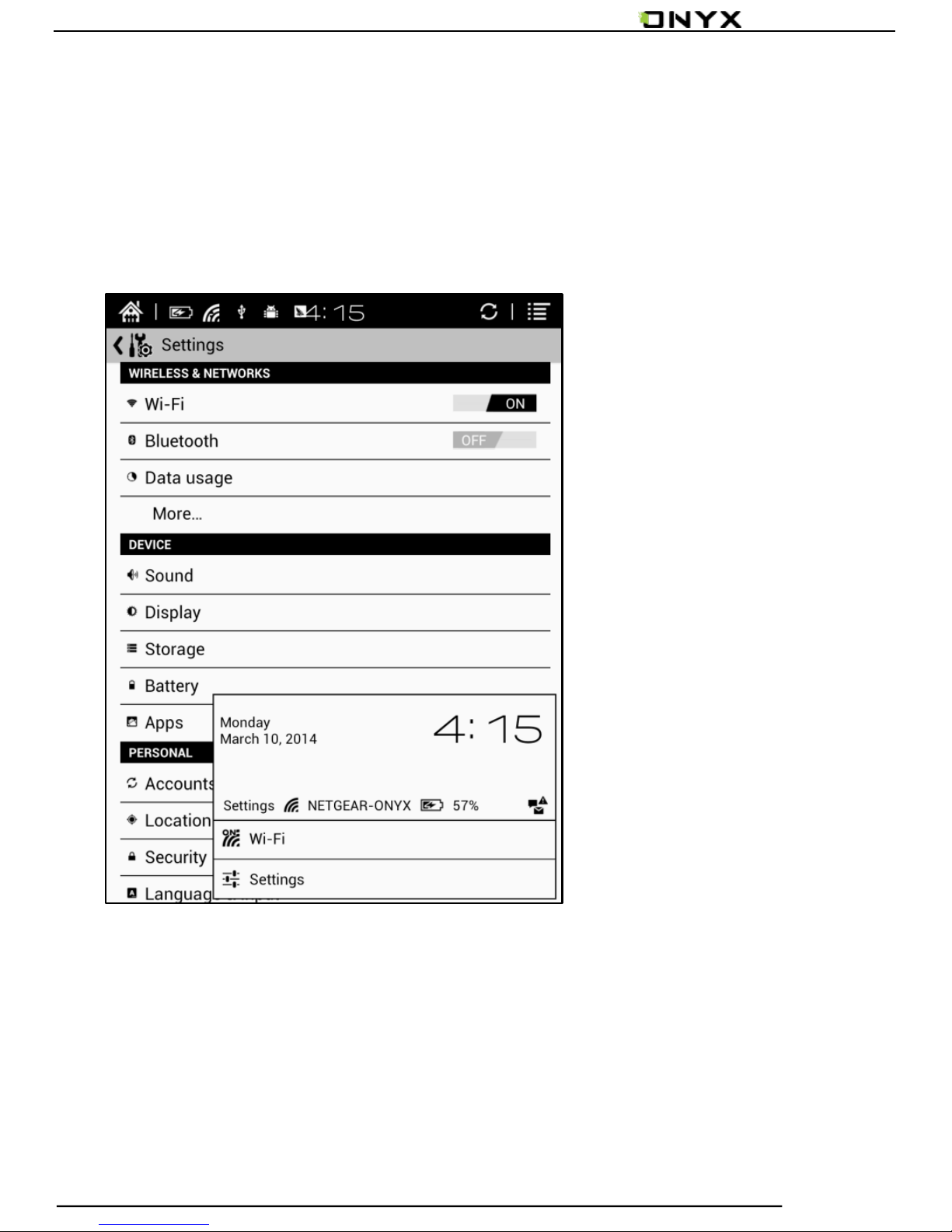
5.9 Setttings
Users can set up general settings for the device, including
System, Language, Extension, Networks and About;
Page 37
www.onyx-international.com
Copyright © 2014 Onyx International. All rights reserved. 37 / 65
Users can tap the top right corner of the status bar to
popup notification bar and choose “settings”to enter
settings interface;
Page 38

www.onyx-international.com
Copyright © 2014 Onyx International. All rights reserved. 38 / 65
5.9.1 System
Users can set date, display option, storage, privacy, startup
options of the device;
Date
Users can set date, time, time zone manually;
Or users can select Auto setting to update date, time, time
zone automatically when the device is connected with
wireless internet;
Users can select preferred ways for date and time display;
Users can set 12-hour time or 24-hour time and date
display on their preferred way;
Page 39
www.onyx-international.com
Copyright © 2014 Onyx International. All rights reserved. 39 / 65
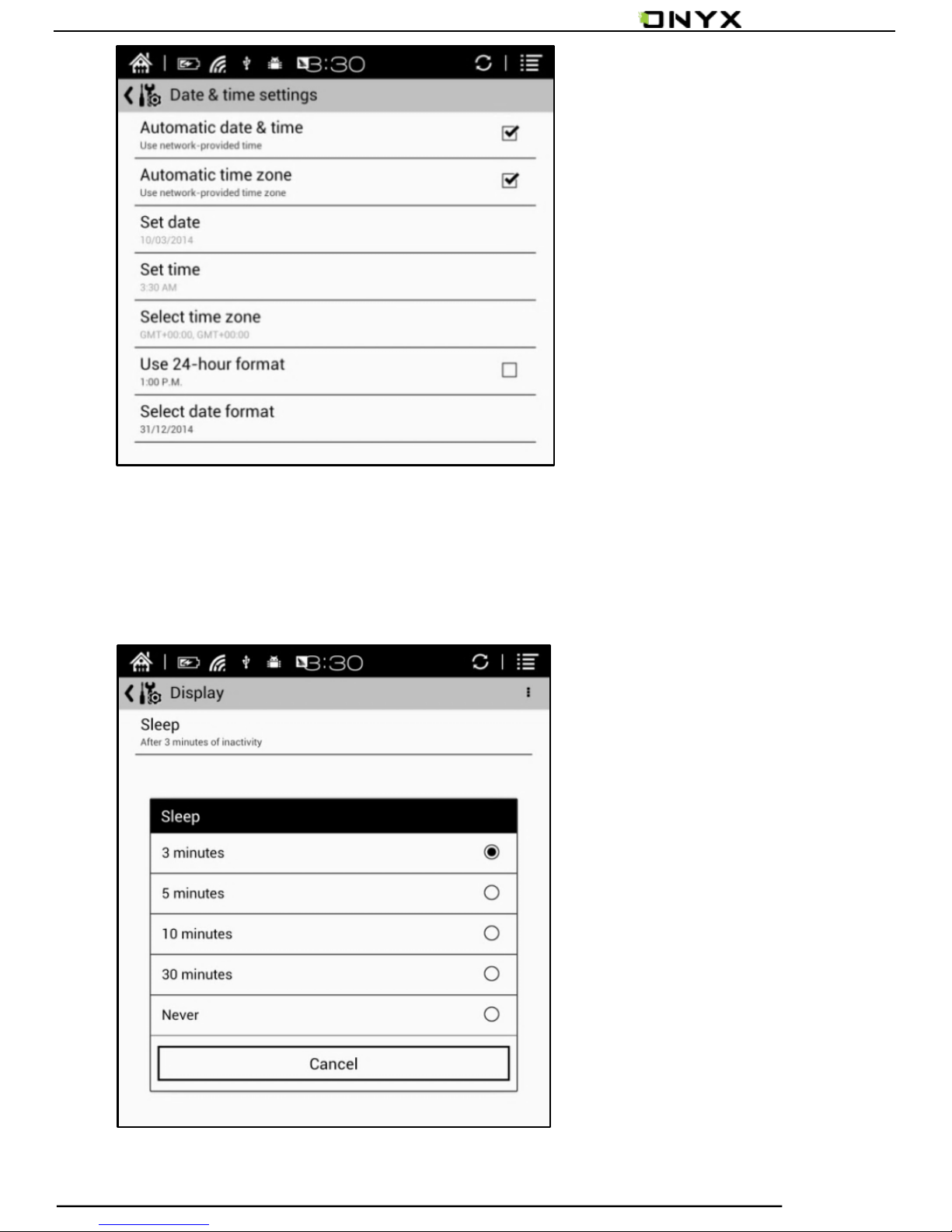
Display
Users can set standby time here. It is 3 minutes by default;
Page 40
www.onyx-international.com
Copyright © 2014 Onyx International. All rights reserved. 40 / 65
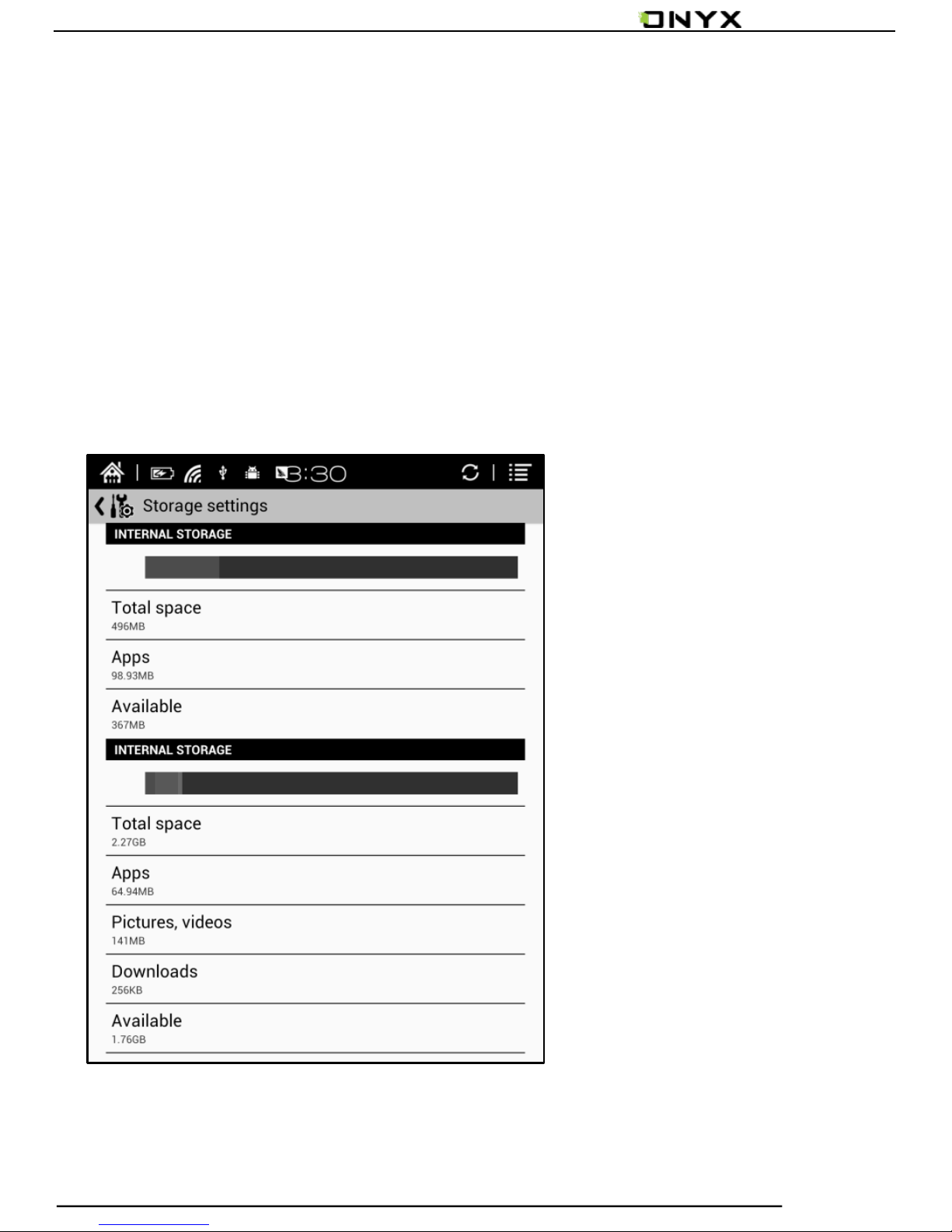
Storage
Here it displays the total storage of device, including the
usage of local storage, MicroSD card, built-in FLASH
storage etc;
Page 41
www.onyx-international.com
Copyright © 2014 Onyx International. All rights reserved. 41 / 65
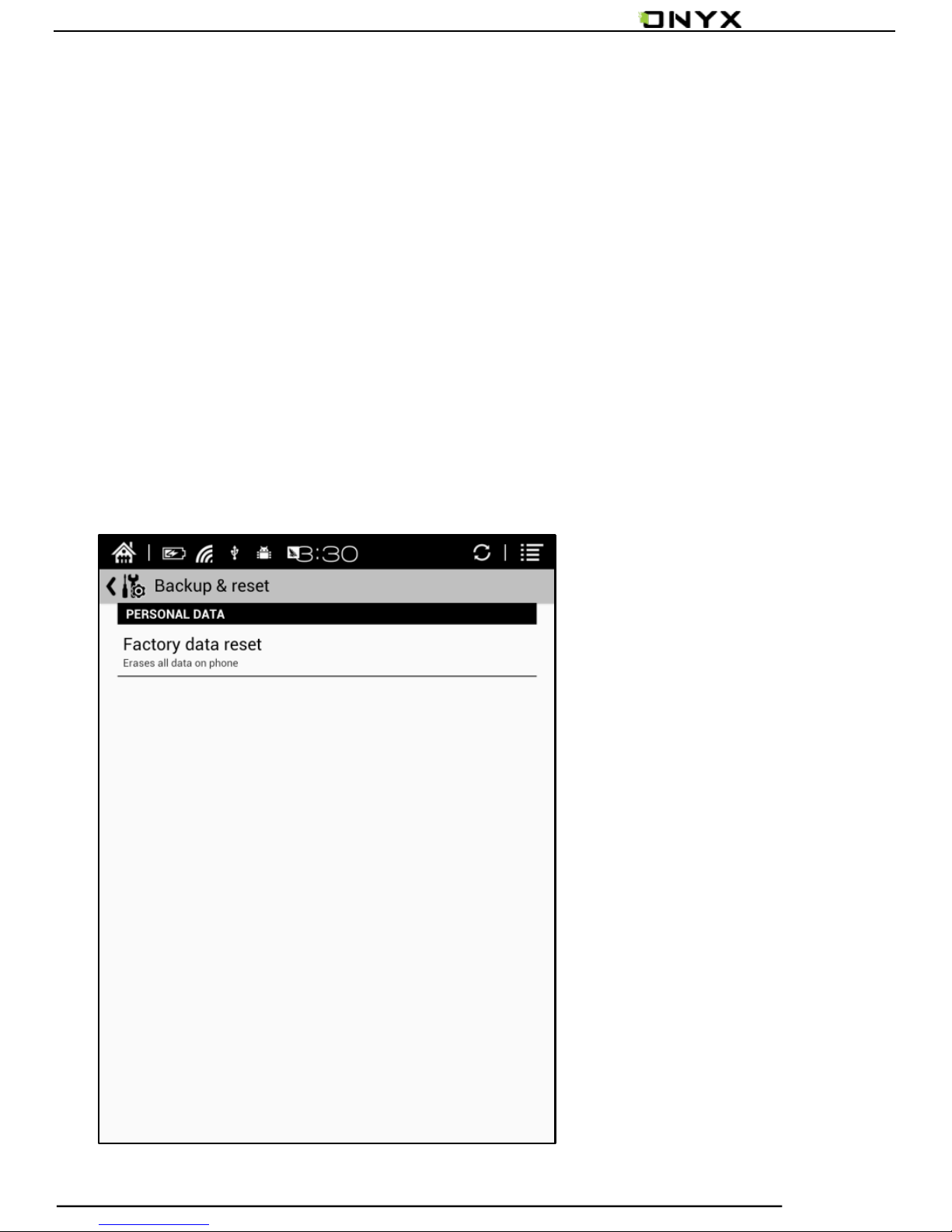
Privacy
This contains settings of data backup, data recovery and
factory resetting etc;
Factory resetting will erase all user data. Please back up all
user data before performing factory resetting;
Page 42
www.onyx-international.com
Copyright © 2014 Onyx International. All rights reserved. 42 / 65
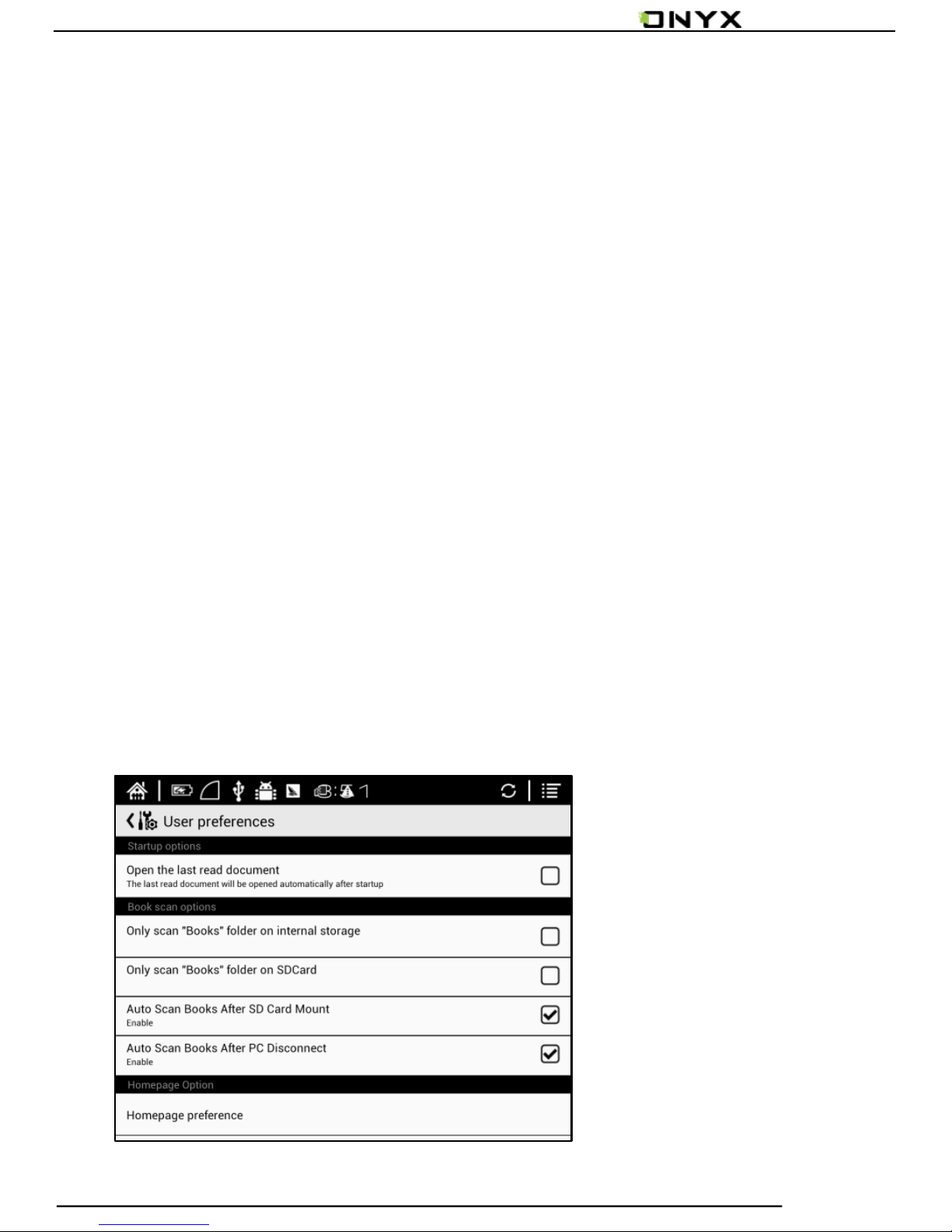
User preference
Users can choose whether to open the last read book
when starting the device; It will go directly to the main
interface by default;
Users can choose whether to scan the book cover or not;
Users can select the path to scan books automatically;
Users can choose to display “recently read books or
recently added books” at the main interface; It will be
recently added books by default;
Page 43
www.onyx-international.com
Copyright © 2014 Onyx International. All rights reserved. 43 / 65
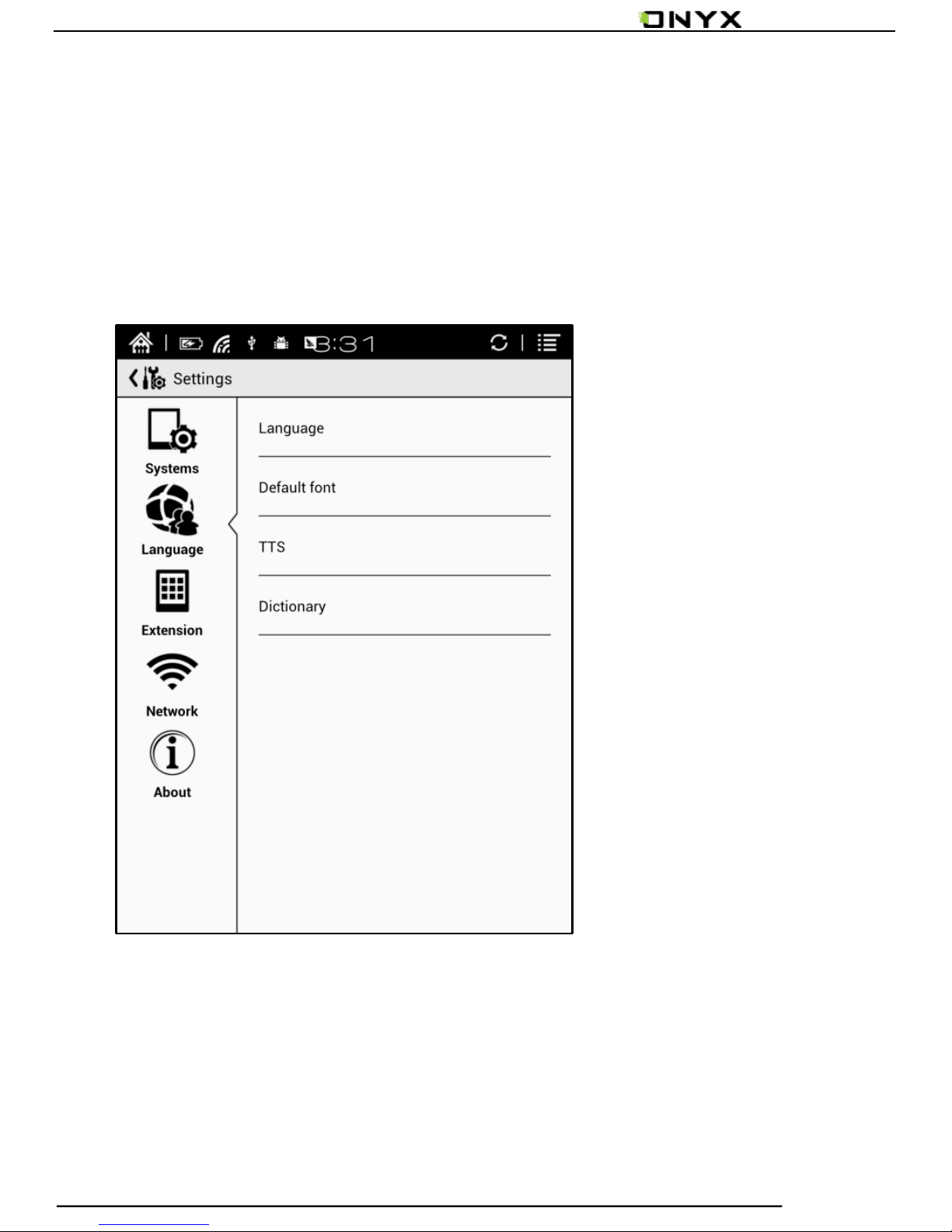
5.9.2 Language
Users can set system language, default fonts, TTS reading,
dictionary on this page;
Page 44
www.onyx-international.com
Copyright © 2014 Onyx International. All rights reserved. 44 / 65
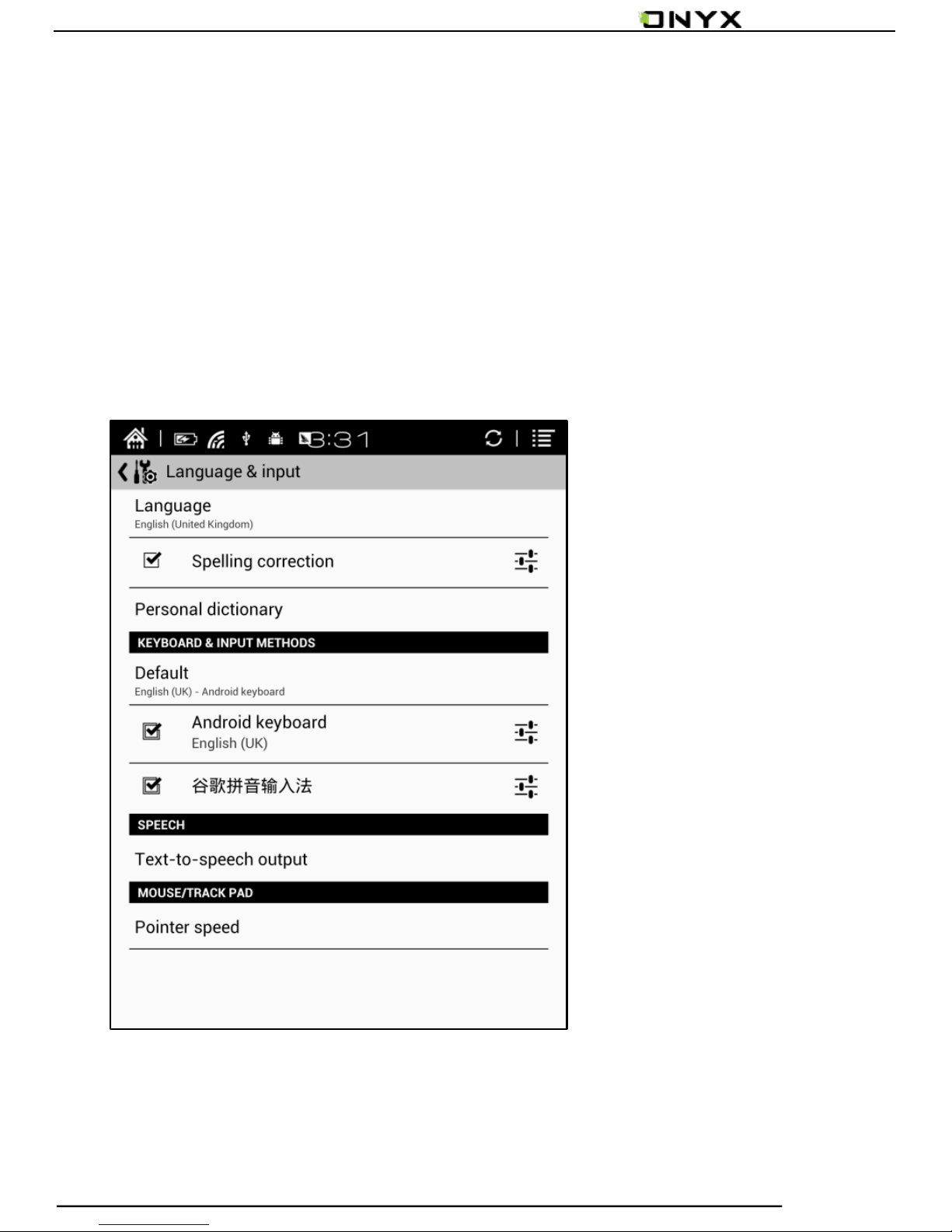
Language Setting
Users can set languages of the system and virtue
keyboard. The system has Android keyboard by default.
Users can install third-party apps for more input methods
and select in keyboard setting;
Page 45
www.onyx-international.com
Copyright © 2014 Onyx International. All rights reserved. 45 / 65
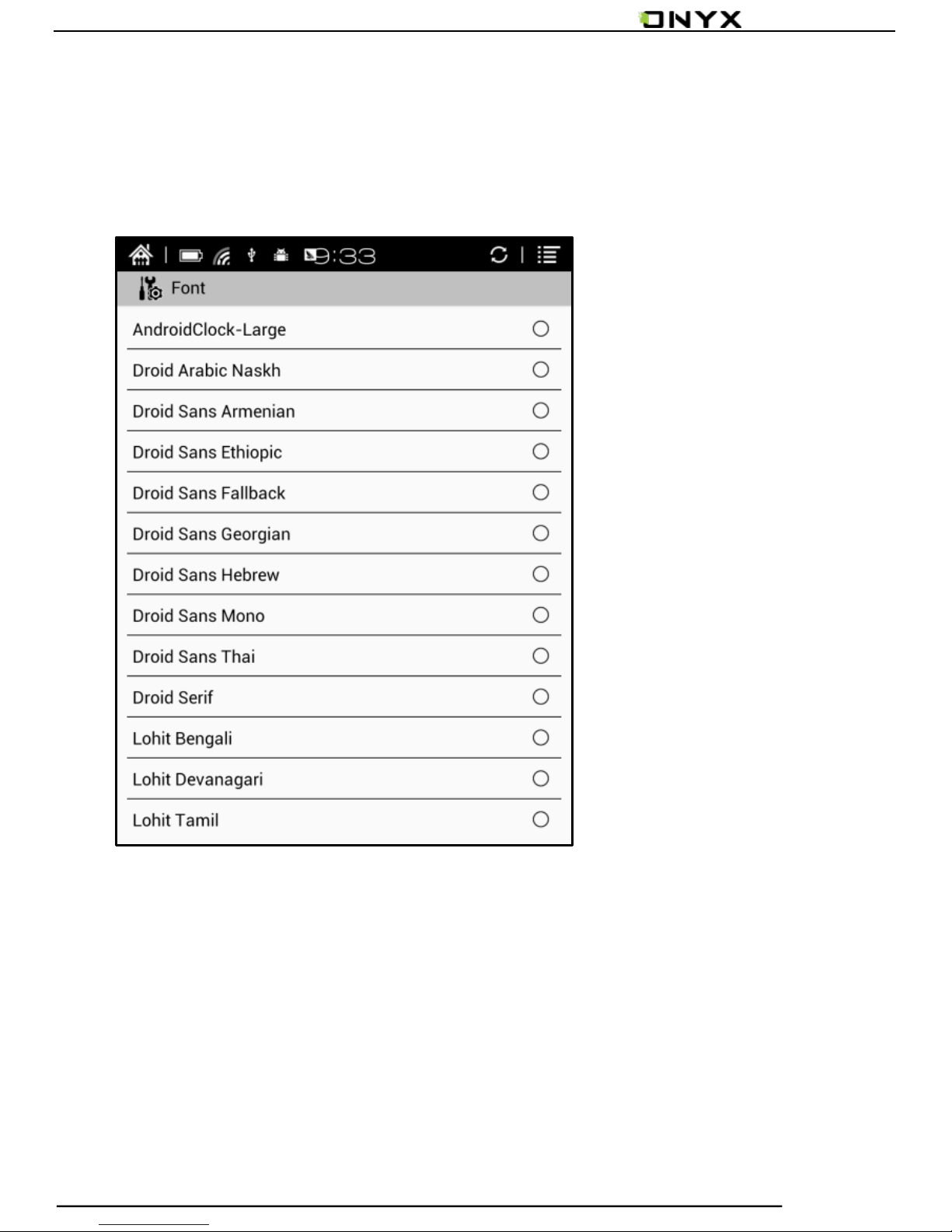
Default front
Users can set the system fonts on this page, but reading
fonts can be only set on reading page;
Page 46
www.onyx-international.com
Copyright © 2014 Onyx International. All rights reserved. 46 / 65
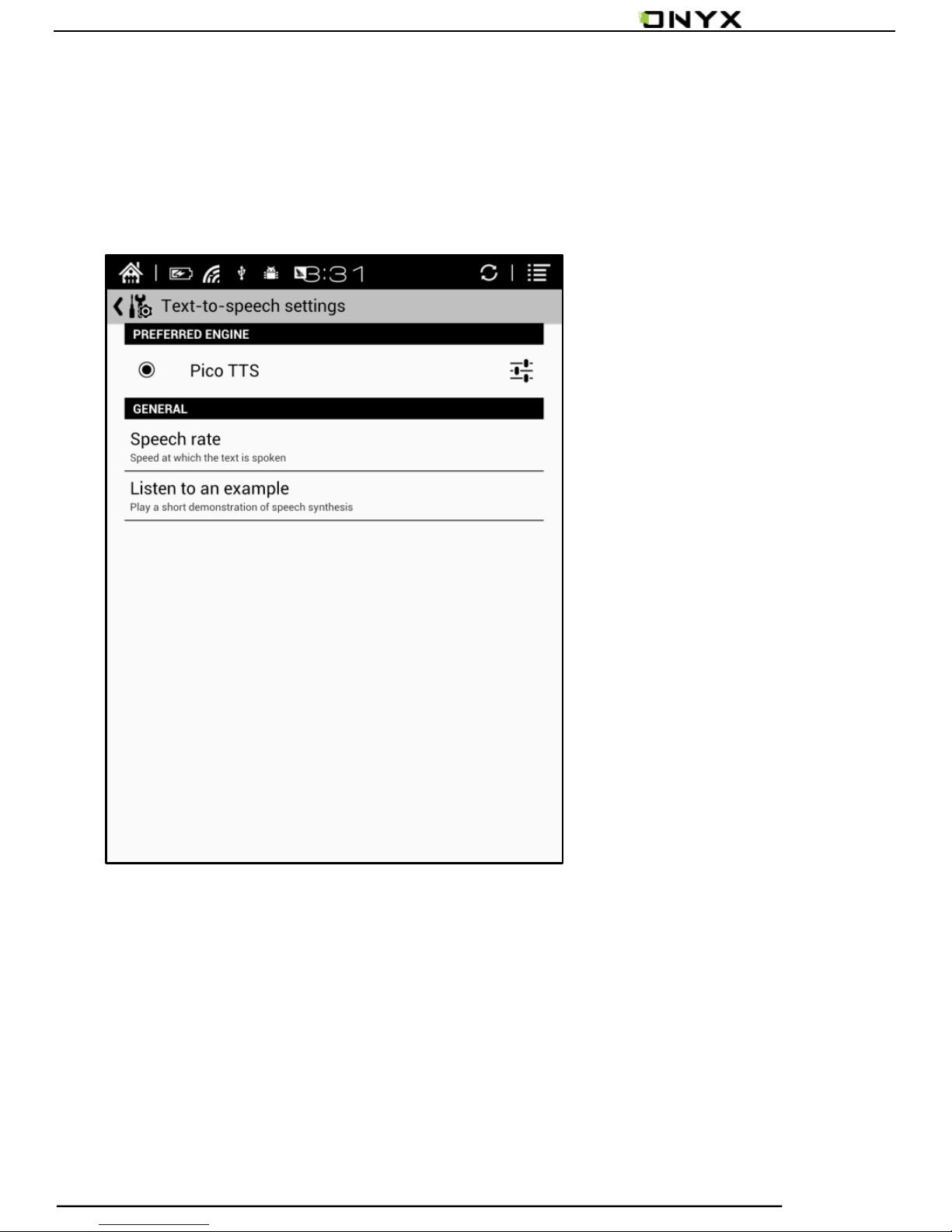
TTS Setting
Users can set reading voice, speed and language by TTS
(text-to-speech) setting;
Page 47
www.onyx-international.com
Copyright © 2014 Onyx International. All rights reserved. 47 / 65
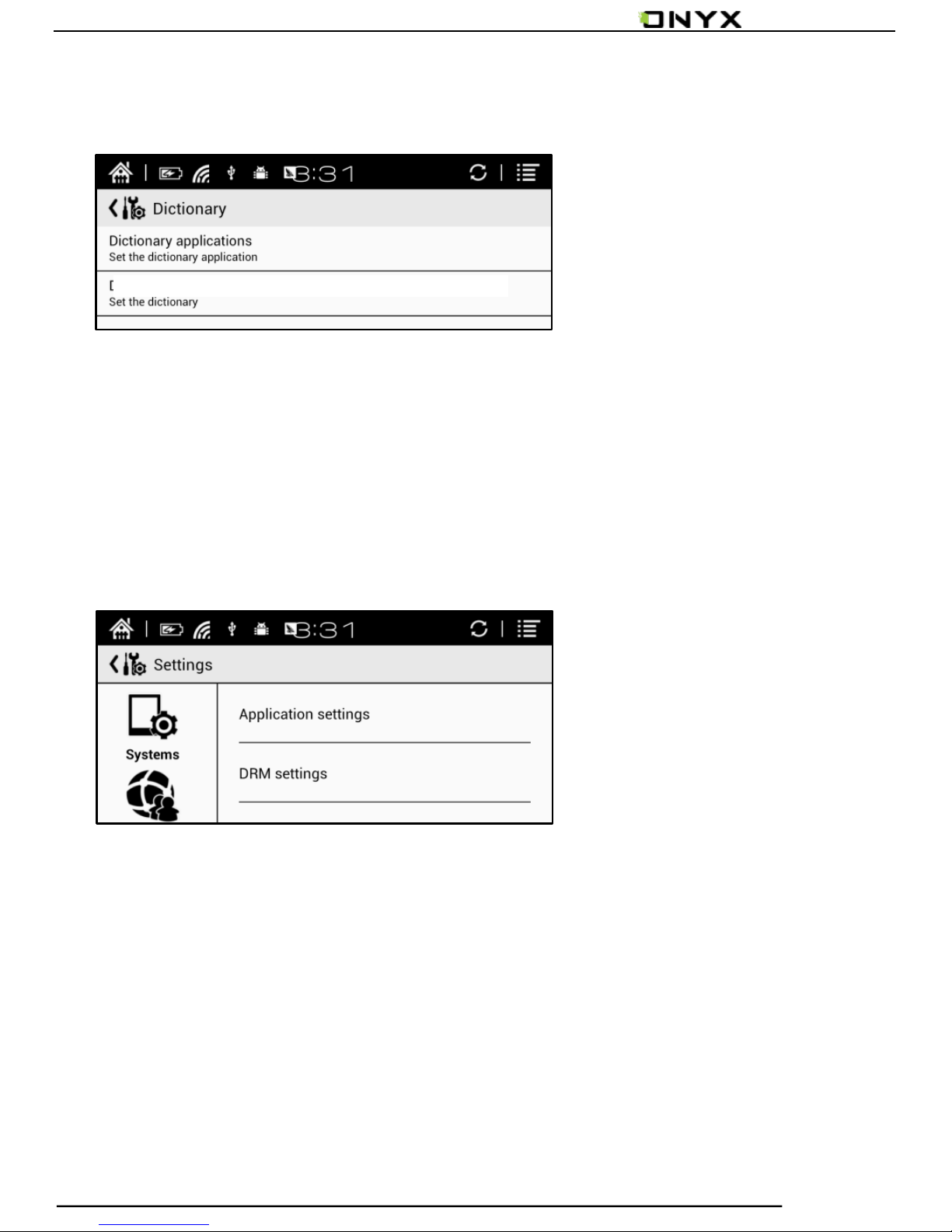
Dictionary
User can select the installed dictionary apps here;
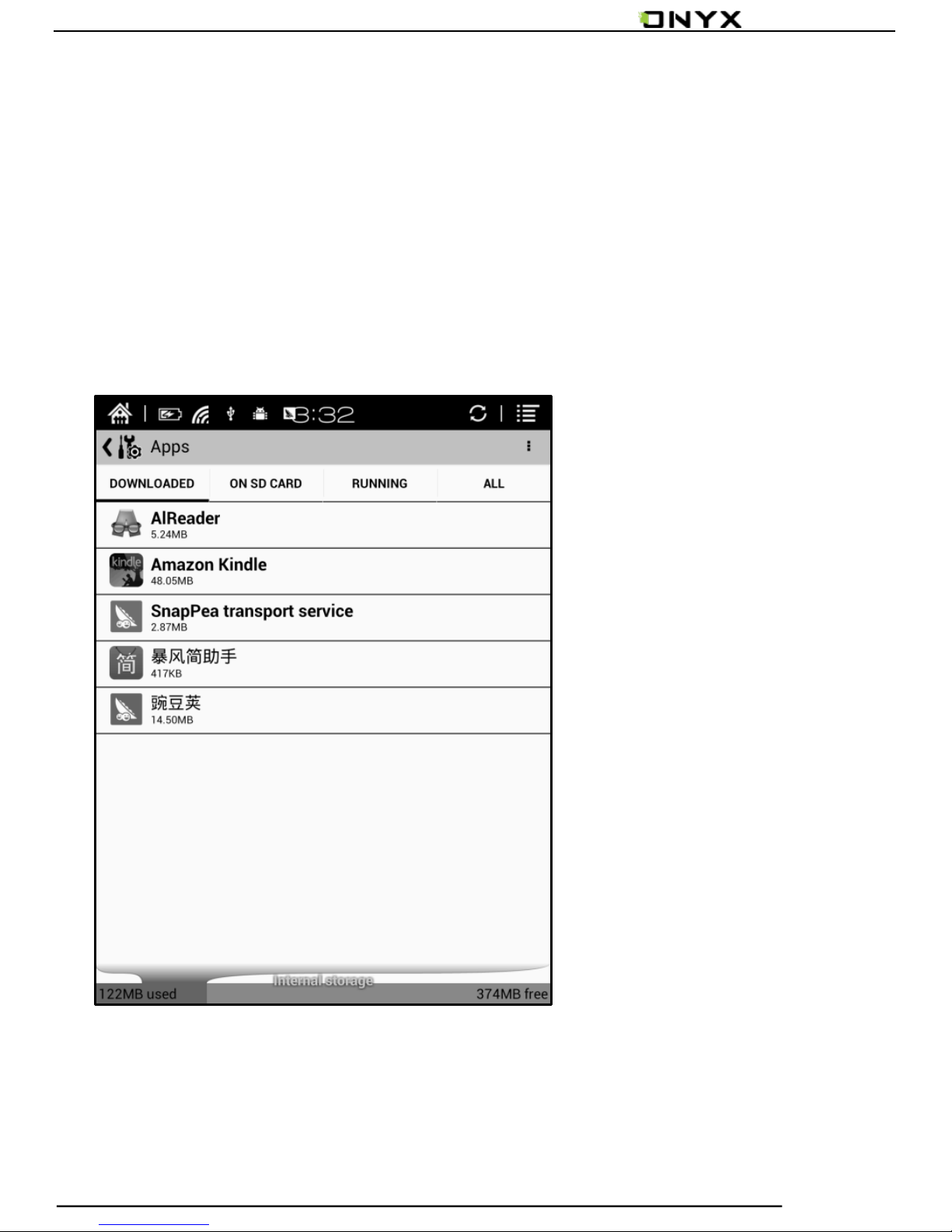
5.9.3 Extension
This contains Apps setting and DRM setting;
Page 48
www.onyx-international.com
Copyright © 2014 Onyx International. All rights reserved. 48 / 65
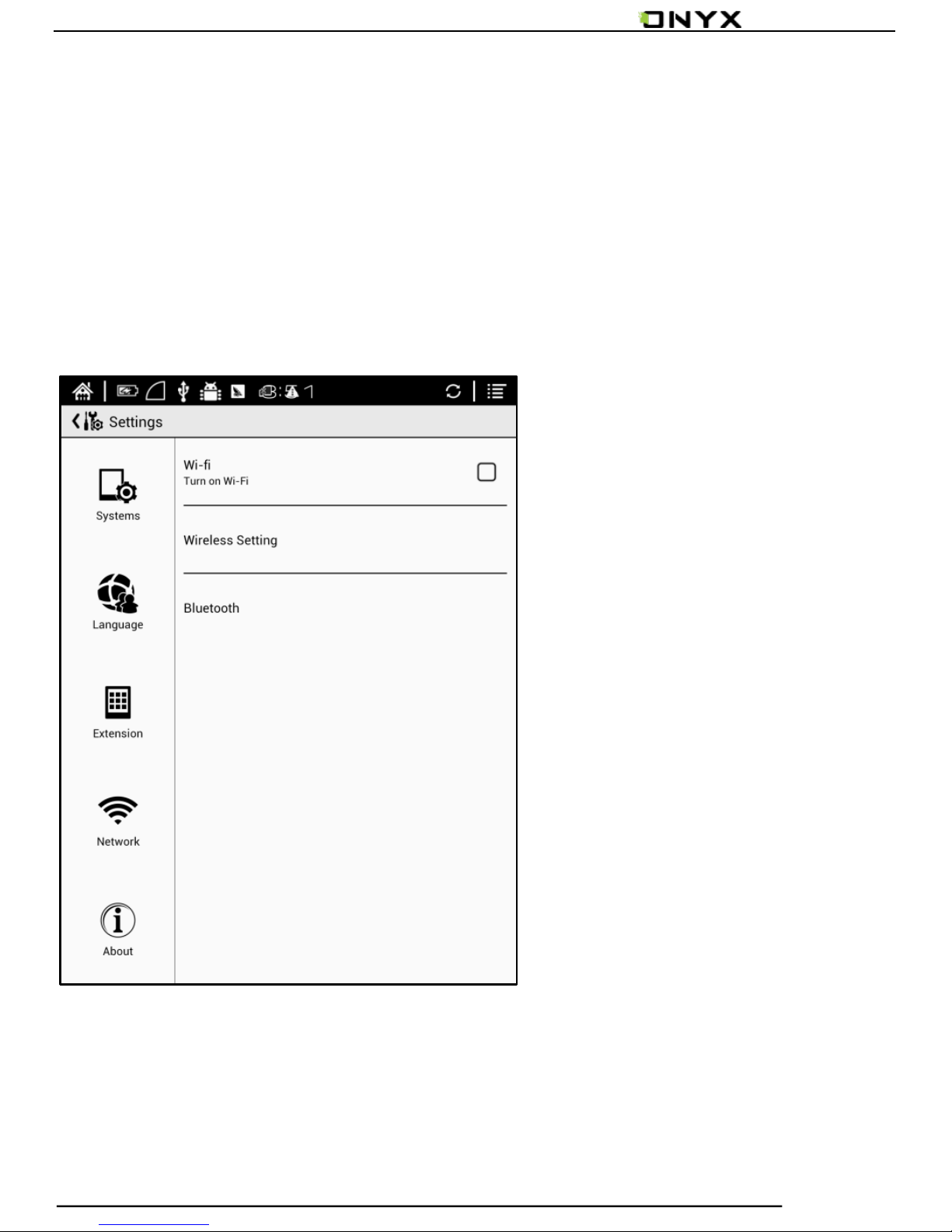
Apps setting
Users can select whether to allow installing unknown source
Apps and debugging, manage and delete Apps, check the
running apps and storage usage, battery usage, and
preferred Apps;
Page 49
www.onyx-international.com
Copyright © 2014 Onyx International. All rights reserved. 49 / 65
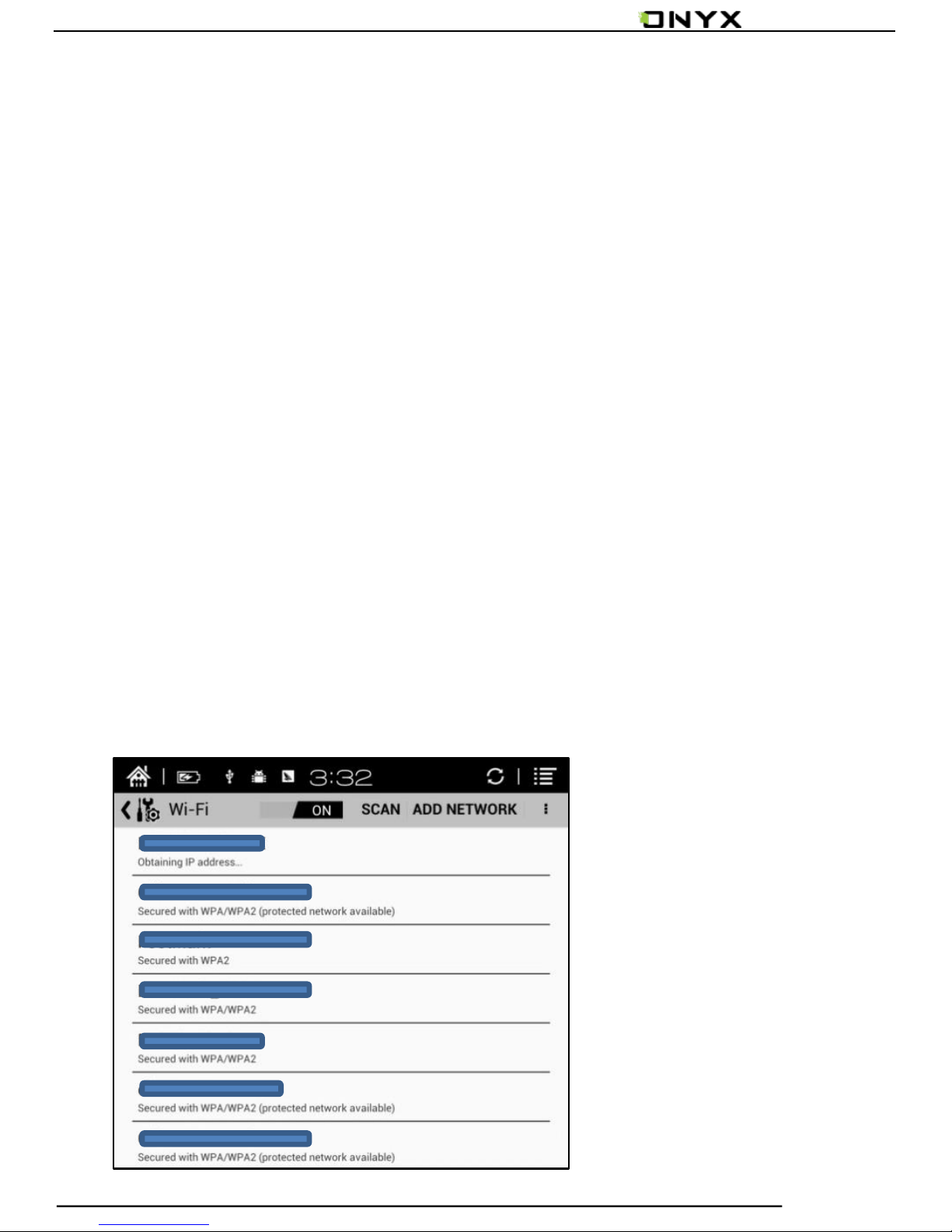
5.9.4 Networks
This is for WiFi setting. When WiFi is connected, users can
browse webs and download books via internet on the
device;
Page 50
www.onyx-international.com
Copyright © 2014 Onyx International. All rights reserved. 50 / 65
When“turn WiFi on”is selected, the device will search
WiFi hotspot. When all available WLAN are listed, users can
choose a network, input password to connect with internet.
WiFi signal will be displayed at “Status bar” when WiFi is
connected;
After WiFi is connected successfully at the first time, the device
will save WiFi information automatically. Users only need to
turn WiFi on and off if using same WiFi next time. Users can
turn WiFi on and off by shortcuts on Notification board;
Page 51
www.onyx-international.com
Copyright © 2014 Onyx International. All rights reserved. 51 / 65
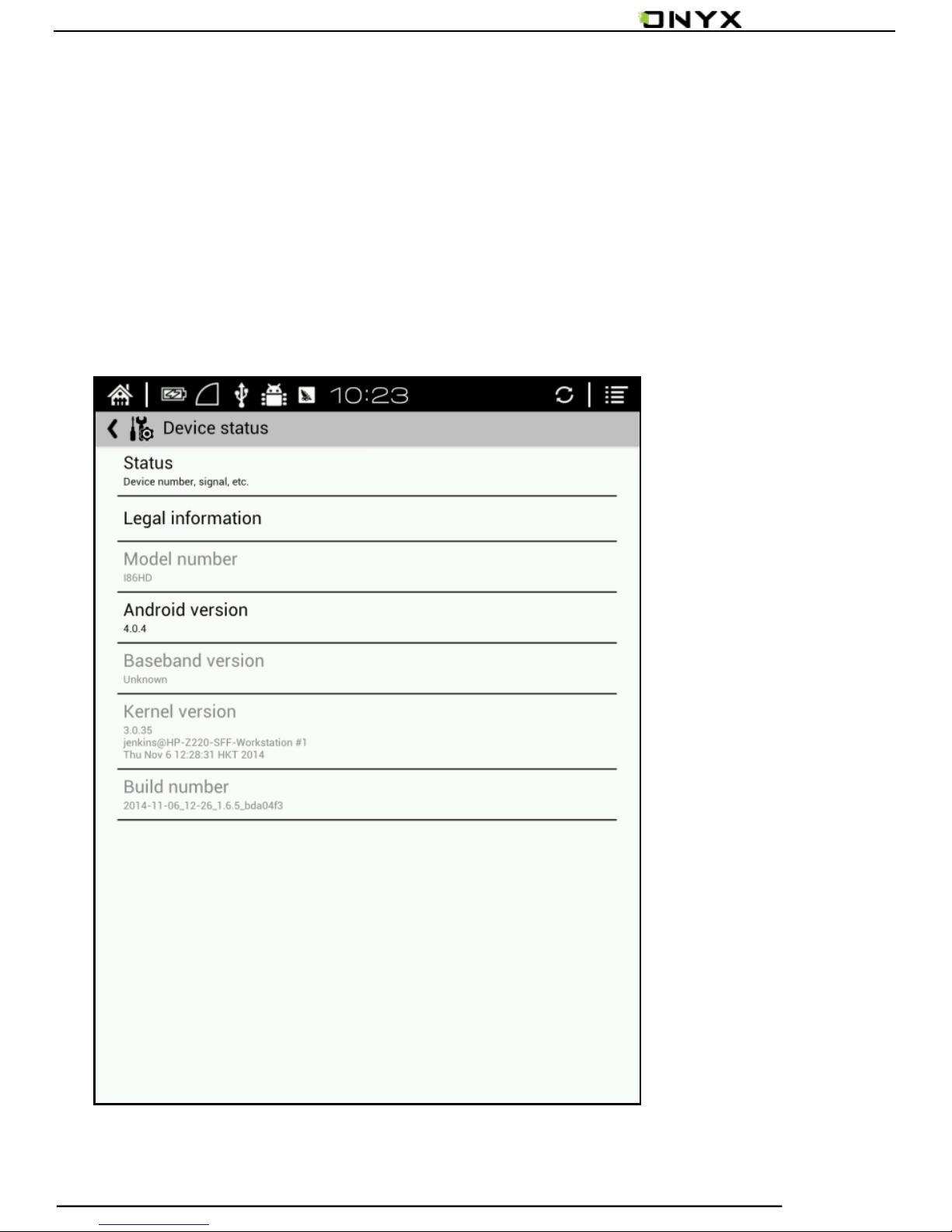
5.9.5 About
More information about the devices are listed here,
including system update, notification, battery usage, legal
info, model, firmware version etc;
Page 52

www.onyx-international.com
Copyright © 2014 Onyx International. All rights reserved. 52 / 65
6. FAQs
6.1 How to turn the device on/off
When the device is off, press power button for 2-3 seconds
to turn the device on;
When the device is on, press power button for 3-5 seconds
to turn the device off;
When the device is on, pop up menu bar to select
“Shutdown”;
6.2 How to charge
Recharge the device by connecting it with PC by USB cable;
Recharge the device by connecting with power
adapter(5V=1A, optional accessories);
Orange light is on when the device is charging. The light will
be off after battery is fully charged;
Page 53

www.onyx-international.com
Copyright © 2014 Onyx International. All rights reserved. 53 / 65
Full single charge will take around 3 hours;
6.3 How to transfer data
Transfer data by connecting the device with PC via USB cable
Transfer data by third-party sync apps between PC and the
device via WiFi;
Download data or read online by browsing via WiFi;
Download data or read online by log-in of reading apps
from third party via WiFi;
6.4 How to install dictionary
The device supports stardict dictionary;
Users can download the language package of stardict, copy
it to folder“dictionary”on MicroSD card. Dictionary is
available to use after that when users are reading;
Page 54

www.onyx-international.com
Copyright © 2014 Onyx International. All rights reserved. 54 / 65
6.5 How to add fonts
Users can download fonts online, then copy the fonts to the
folder “/adobe/resources/fonts”on MicroSD card;
Users can select the installed fonts when reading, but the
fonts are only available for some book formats;
6.6 How to update
Download firmware update.zip and insert MicroSD card
into the device. Find the update.zip
through"Setting-About-other system update"to update
locally;
Users can update the firmware online via OTA
(Setting—About—System update);
Please connect WiFi when updating the device by OTA;
Page 55

www.onyx-international.com
Copyright © 2014 Onyx International. All rights reserved. 55 / 65
6.7 How to change screen saver/power off
Press PNG format images, in the menu, select "Set as
screen saver", choose to replace the original standby or
shutdown ;
6.8 How to protect the device
To use protective covers for the device and avoid crashing,
shocking, pressing against the screen;
Put the screen side downwards when the device is not in
use;
Don’t put rigid stuff in-between of the screen and other
flat surface;
Don’t pile up or store heavy stuff above the device;
Keep the device away from all types of liquids.
Page 56

www.onyx-international.com
Copyright © 2014 Onyx International. All rights reserved. 56 / 65
7. Warranty
7.1 Scope of Warranty
7.1.1 The device:One-year warranty;
7.1.2 If in 15 days from the date of purchase, any faults
caused by quality problem of the product itself under normal
operation and without overhaul, you can replace the same
type of product or enjoy maintenance services for free;
7.1.3 If in one year from the date of purchase, any faults
caused by quality problem of the product itself under normal
operation and without overhaul, you can enjoy maintenance
services for free;
7.1.4 If in three-years from the date of purchase, the
product has any faults, you can get maintenance services with
a fee;
Page 57

www.onyx-international.com
Copyright © 2014 Onyx International. All rights reserved. 57 / 65
7.1.5 Above warranty or maintenance are limited to the
fault of electrical components, including the hardware
mainboard and display, not including housing, brochures,
package, headphones and other consumables and accessories.
7.2 Beyond the scope of warranty
The following conditions are not covered by the warranty,
even if in the applicable time period, the warranty will no
longer works for it, but still can enjoy the fee-based services.
7.2.1 Faulted device without ONYX BOOX brand;
7.2.2 Faulted device caused by dismantling and repairing
without permission.
7.2.3 The serial number of the faulted device has been
changed or lost.;
7.2.4 The device is damaged due to personal factors or not
Page 58

www.onyx-international.com
Copyright © 2014 Onyx International. All rights reserved. 58 / 65
being used under specific environment. For example, use the
device in the environment where too wet or too dry, in high
temperature or with instable voltage or current, etc.;
7.2.5 The device is damaged by accident or improper use,
including devices filled with warter, rupture , collision,
unnormal pluging, pests, ect.
7.2.6 Due to natural consumption, including natural
consumption, wear and aging of housing and accessories.
7.2.7 Damage caused by force majeure, such as fires ,
floods , earthquakes and other natural disasters
7.2.8 The device is faulted by operating the software
beyond the range that SDK permitted.
7.2.9 The device has been identified that it is not produced
by ONYX.
Page 59

www.onyx-international.com
Copyright © 2014 Onyx International. All rights reserved. 59 / 65
7.3 Precautions for repair
7.3.1 Users need to contact our after-sales department to
confirm whether it is in the scope of warranty, whether it is
fault and the fault cause.
7.3.2 Users need to provide proof of purchase (invoice or
receipt) , warranty card consistent with the original barcode.
Fill out the repair request form (download from official website)
and then send to our maintaining department together with
the device.
7.3.3 Due to the special properties of the product screen,
for non- screen maintenance equipments, please ensure that
the screen is intact and reinforce the packing before send it
to us. Please avoid damage in transportation. We do not
receive a damaged screen products for free maintenance.
Page 60

www.onyx-international.com
Copyright © 2014 Onyx International. All rights reserved. 60 / 65
7.3.4 Please only send the device and the materials
required above to us. Do not send the headphones, adapters
and other accessories. If lost, our company is not liable for
damages;
7.3.5 Please backup data before send it to repair. We are
not liable for the data loss due to maintenance.
This provision only applies to mainland China. It is
protected by the Chinese consumer protection law; If the same
model is purchased in other regions, it cannot enjoy the above
terms. Please consult related consumer protection law and
dealers of the country where you purchase the device.
ONYX International Inc. reserves the right of final
interpretation of this warranty.
Page 61
www.onyx-international.com
Copyright © 2014 Onyx International. All rights reserved. 61 / 65
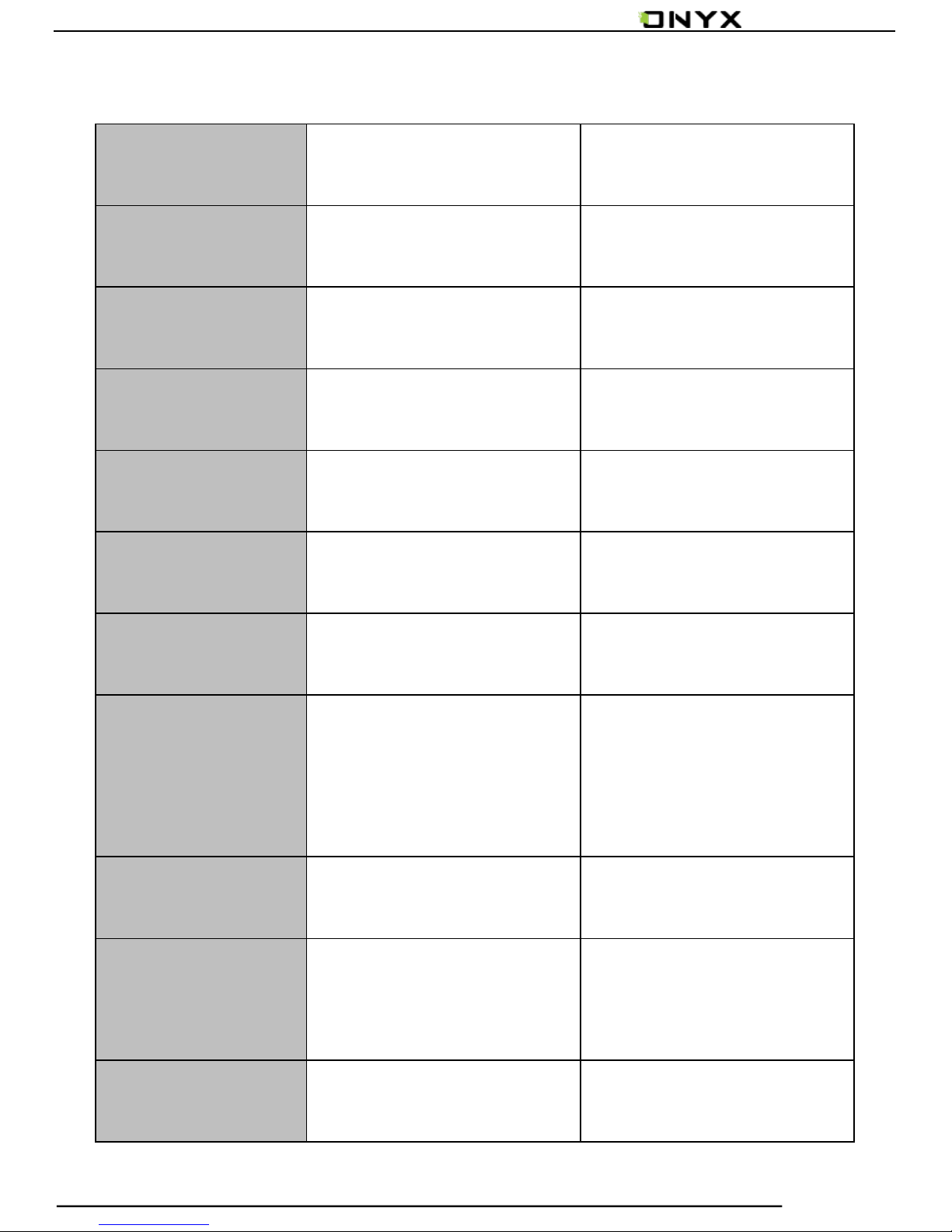
8. Specifications
i86HD
i86 Plus
Processor
1G Hz
1G Hz
RAM
512MB LPDDR2
1GB LPDDR2
OS
Android 4.0
Android 4.0
Storage
4G
8G
Screen
E-ink display
E-ink display
Screen Size
8 inch
8 inch
Resolution
1600X1200
(200dpi)
1600X1200
(200dpi)
Touch
IR touch
IR touch
Front light
W/O
Support .
Can be adjusted
and turned off
Wireless
WIFI+Bluetooth
WIFI+Bluetooth
Page 62
www.onyx-international.com
Copyright © 2014 Onyx International. All rights reserved. 62 / 65
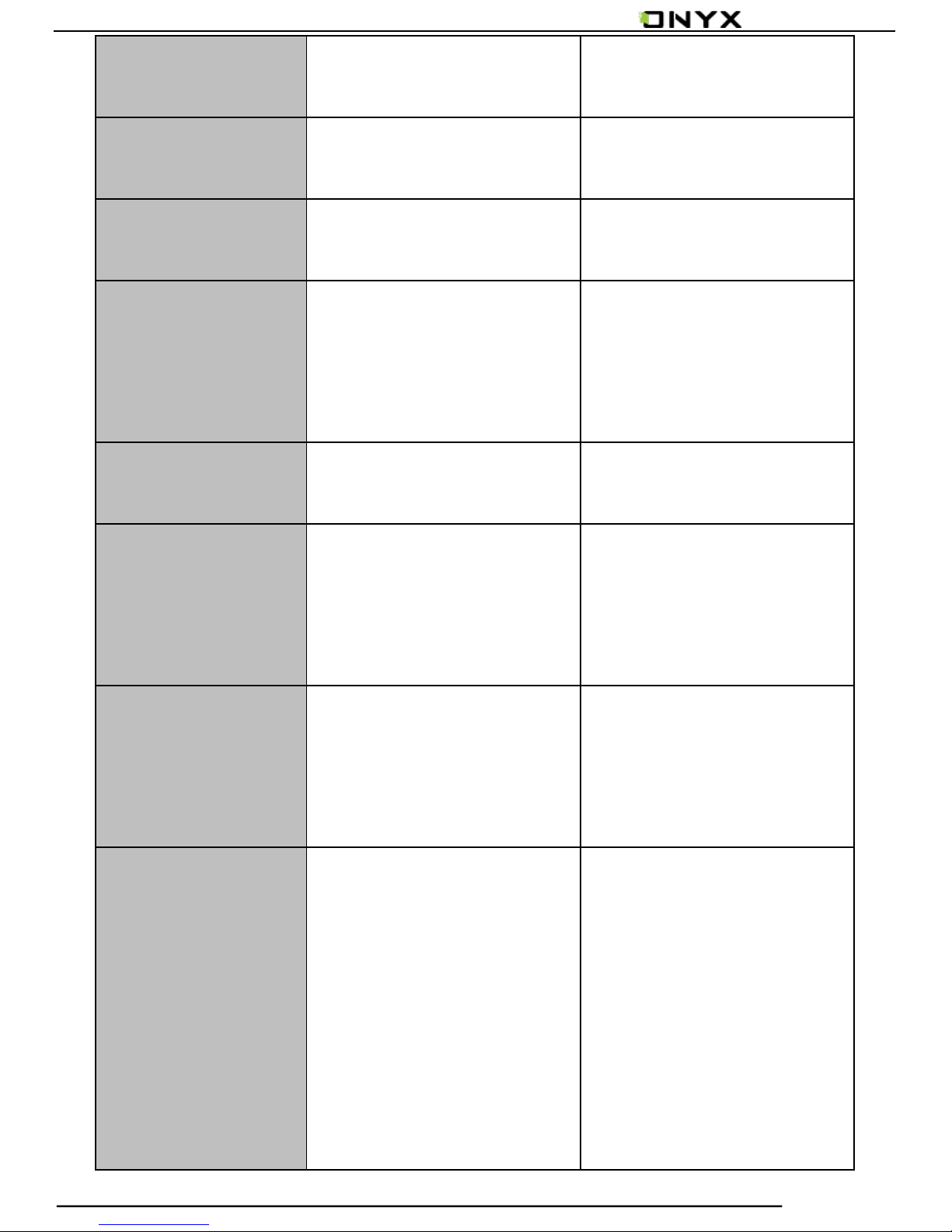
Battery
1700mAh
1700mAh
USB
MicroUSB2.0
MicroUSB2.0
Audio Jack
3.5mm
3.5mm
ExtCard
MicroSD
card(up to 32G)
MicroSD
card(up to 32G)
Size
210x160x9mm
210x160x9mm
Weight
≤340g(including
battery)
≤340g(including
battery)
Operating
temperature
0°C- 50°C
0°C- 50°C
Supported
book
formats
PDF, EPUB , TXT,
DJVU, HTML,
RMICROSD, FB2,
DOC, MOBI, CHM,
PDF, EPUB , TXT,
DJVU, HTML,
RMICROSD, FB2,
DOC, MOBI, CHM,
Page 63
www.onyx-international.com
Copyright © 2014 Onyx International. All rights reserved. 63 / 65
PDB etc
PDB etc
Supported
image
formats
PNG,JPG,GIF ,BMP
PNG,JPG,GIF ,BMP
Supported
audio
formats
WAV , MP3
WAV , MP3
Apps
Third-parties
APKS
installation is
supported
Third-parties
APKS
installation is
supported
Browser
Support
Support
Language
Multi-language
supported
Multi-language
supported
Page 64
www.onyx-international.com
Copyright © 2014 Onyx International. All rights reserved. 64 / 65
File
directory
Support
Support
Dictionary
Support
Support
TTS
Support
Support
Refreshment
mode
A2 quickly refresh,
partly refresh and
fully refresh.
A2 quickly refresh,
partly refresh and
fully refresh.
DRM
Support
Support
Firmware
update
Locally update
and OTA update
are available
Locally update
and OTA update
are available
Certification
CE、Rohs
CE、Rohs
Page 65

www.onyx-international.com
Copyright © 2014 Onyx International. All rights reserved. 65 / 65
9. Declaration
Onyx International Inc. reserves the right to modify the
content of the Quick Start Guide and User Manual without
further notice.
For more information, please visit our website at
www.onyx-international.com
 Loading...