

Page 1
Coolr Smart Sensor Installation Quick Reference
Pre-install Checklist
1. Hardware installation items
a. Tack
b. Paper or lint free cloth to clean
the glass surface
2. For software configuration
a. Android phone with Android
4.4 or above and Bluetooth 4.1
or above
b. Bluetooth and internet
connectivity on the phone
c. Ideally GPS should also be on
d. Login credentials for the
application
3. Push the device and hold for about 5
seconds
Provisioning
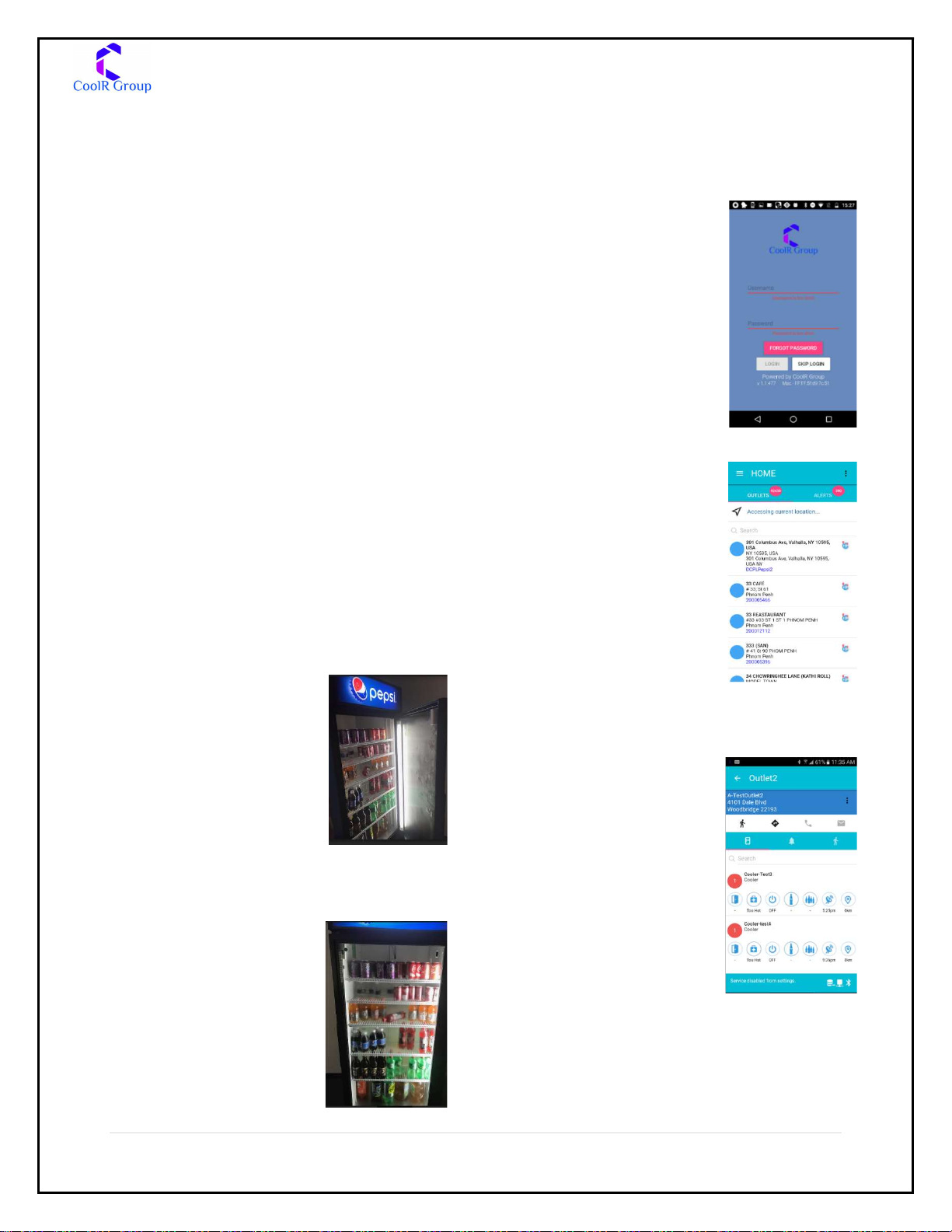
Login
1. Login to the “Coolr
Intelligence”
Application from
Playstore.
Physical Installation
Initiate
1. Peel the sticker from front of the device
2. Note down the serial# from the bottom
of the device
Identify install position
1. Coolr Smart Sensor
should be placed on
inner wall of the
Door of the cooler.
2. Sensor should be
placed vertically at
corner of cooler
door. Ideal position is
top corner on the left side
Install
1. Clean the glass to
remove any
moisture
2. Stick the device in
vertical position
with Cap towards
top
Select Store
1. If store is not found,
you can start typing in
the name in the
2. outlet “search” box
3. If it is a new store,
refer to
Troubleshooting
section
Select Asset (Cooler)
1. If asset is not found,
you can start typing
cooler serial# in the
asset “search” box
2. If it is a new cooler
(not existing in
database), refer to
Troubleshooting
section
1 | P a g e
Page 2
Coolr Smart Sensor Installation Quick Reference
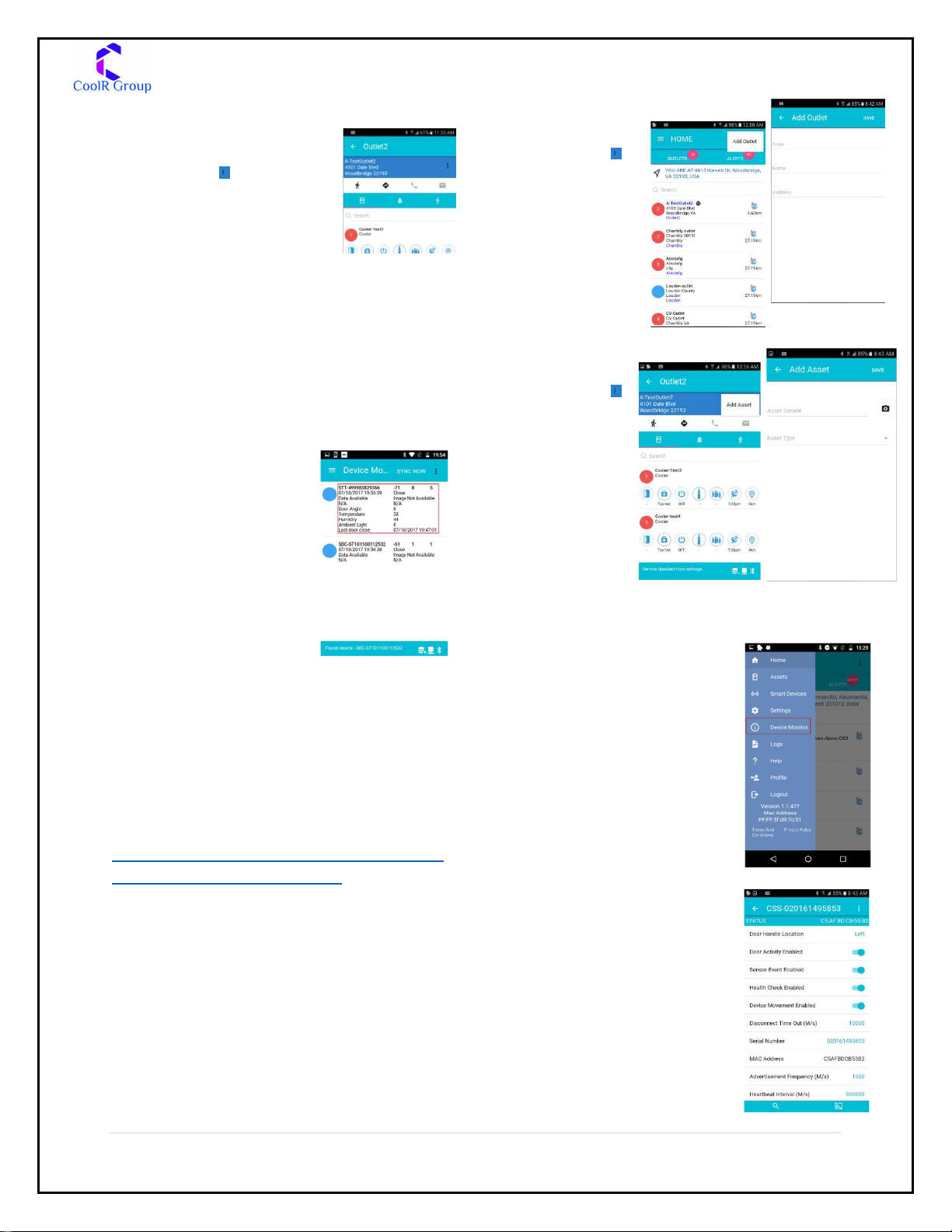
Initiate Installation
1. Tap on to open the
sub-menu
2. Select Install
SmartDevice
Associate Device
1. Phone will show the nearby Smart
Devices
2. Tap on the device installed to associate
with the cooler
Verifying
Installation
1. Go to device
monitor
2. If device is not
already shown,
click on Sync now
3. Look for device
information
4. Door angle should be zero
5. Do a door open/ close
6. Last door close time should change
Troubleshooting
Issue: Can’t find application in Play Store
You can alternatively download the application
from
https://play.google.com/store/apps/details?id=
com.coolrgroup.coolrintelligence
Issue: Can’t find the device during install
1. Make sure that phone has BLE 4.1 or
higher
2. Make sure your Phone OS is Android 4.4
or higher
3. Make sure Bluetooth and Location
Services are ON
4. Shine light using phone flashlight on the
front of the device to reactivate it
Issue: Can’t find the store in Store
List
1. Tap on
to open
the submenu on
Home
Screen.
2. Select Add
Outlet
Issue: Can’t find the asset in Asset
List
1. Tap on
to open
the submenu on
outlet
detail
screen.
2. Select
Add
Asset
Issue: Door opens from right instead of Left or
how to configure parameters
1. Expand menu icon on
top left
2. Select Device Monitor
3. Verify Smart Device
visibility by confirming
the Serial#
4. Tap on the device
information that you
need to configure
5. Device configuration screen is displayed
6. Change door Open
Direction to Right door
handle
7. Modify necessary
configuration
8. Tap on Save icon to Save
configuration
2 | P a g e
Page 3
Coolr Smart Sensor Installation Quick Reference
FCC Warnings & Info:
(A) This device complies with Part 15 of
the FCC Rules. Operation is subject to the
following two conditions:
(1) this device may not cause harmful
interference, and
(2) this device must accept any
interference received, including interference
that may cause undesired operation.
(B) changes or modifications not expressly
approved by the party responsible for
compliance could void the user’s authority
to operate the equipment.
This equipment has been tested and found to
comply with the limits for a Class B digital
device, pursuant to Part 15 of the FCC Rules.
These limits are designed to provide
reasonable protection against harmful
interference in a residential installation. This
equipment generates, uses and can radiate
radio frequency energy and, if not installed
and used in accordance with the instructions,
may cause harmful interference to radio
communications. However, there is no
guarantee that interference will not occur in a
particular installation.
If this equipment does cause harmful
interference to radio or television reception,
which can be determined by turning the
equipment off and on, the user is encouraged
to try to correct the interference by one or
more of the following measures:
-- Reorient or relocate the receiving antenna.
-- Increase the separation between the
equipment and receiver.
-- Connect the equipment into an outlet on a
circuit different from that to which the receiver
is connected.
-- Consult the dealer or an experienced
radio/TV technician for help.
3 | P a g e
 Loading...