

Page 1
Bollo NMP-SE
Networked Full-HD 1080P Media Player
User’s Manual
Shenzhen HD-Horizon Technology Co., Ltd.
http://www.hdhorizon.com
Page 2
Bollo Full-HD 1080P
1
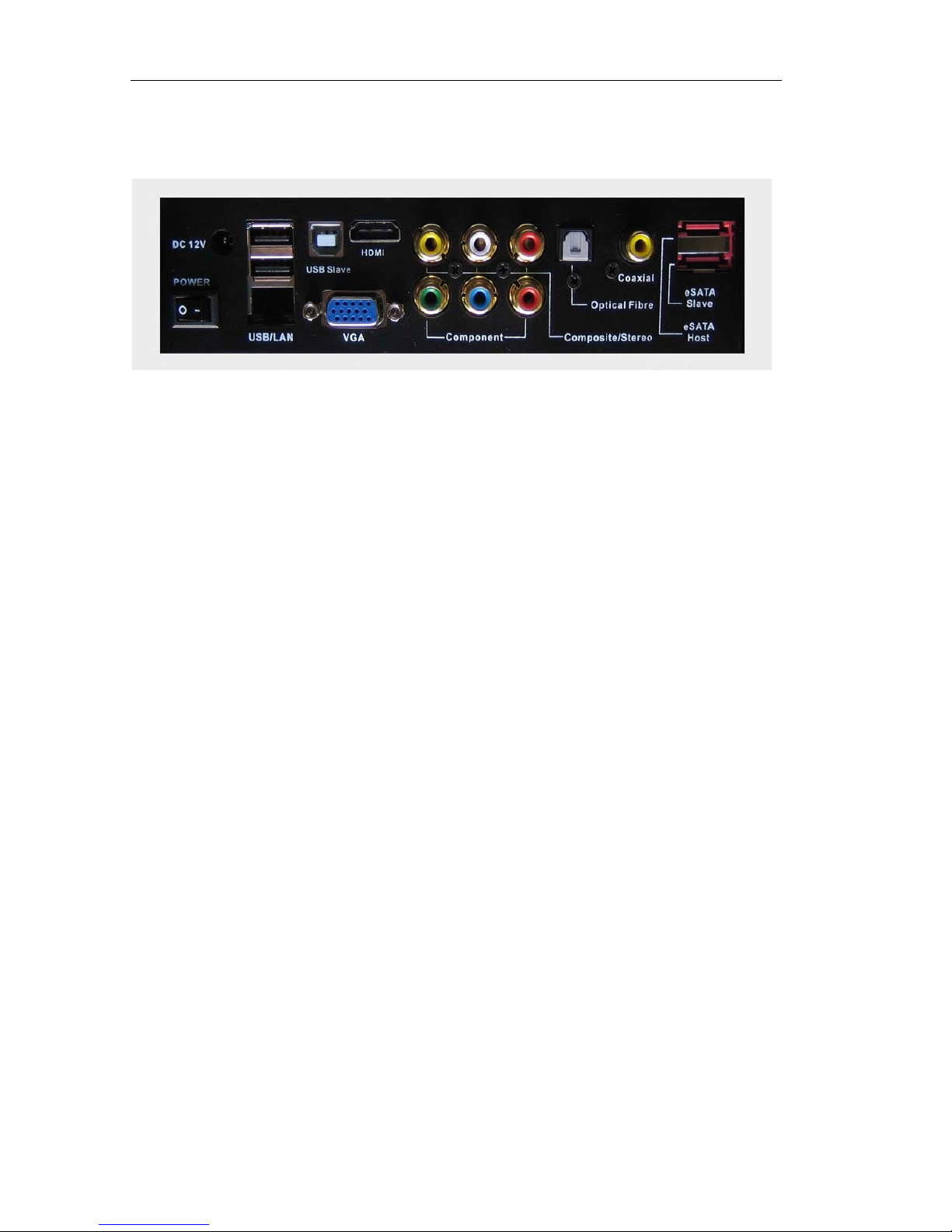
I. Interface
z DC 12V: DC 12V Power Supply
z POWER: Power Switch
z USB/LAN: USB thumb disk, USB mobile hard disk, USB CD/DVD-ROM; RJ45
Network interface
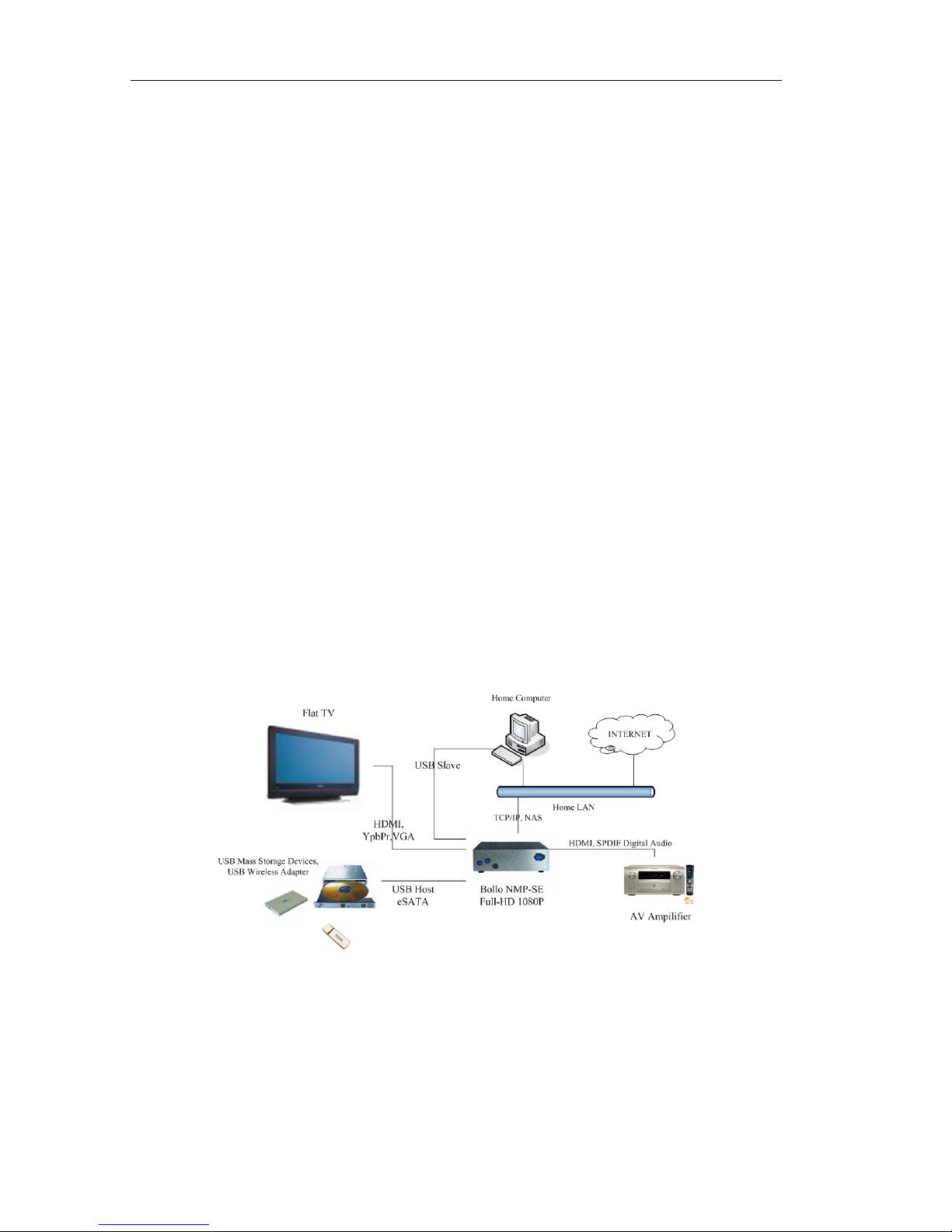
z USB Slave: To use the port connecting to PC, the Bollo NMP-SE can be used as an
external USB storage device.
z Component: Video connection using three red-green-blue terminals, up to 1080i
resolution
z Composite: Output video signal
z Stereo: Output analog stereo audio signal
z Optical Fiber: Output digital audio signal
z Coaxial: Output digital audio signal
z eSATA Host/Slave: To use the eSATA Host port connecting to another external HDD drive, The
eSATA Slave port can be used to connect to PC, then Bollo NMP-SE work
as an external storage device.
II. Video Cable Connection
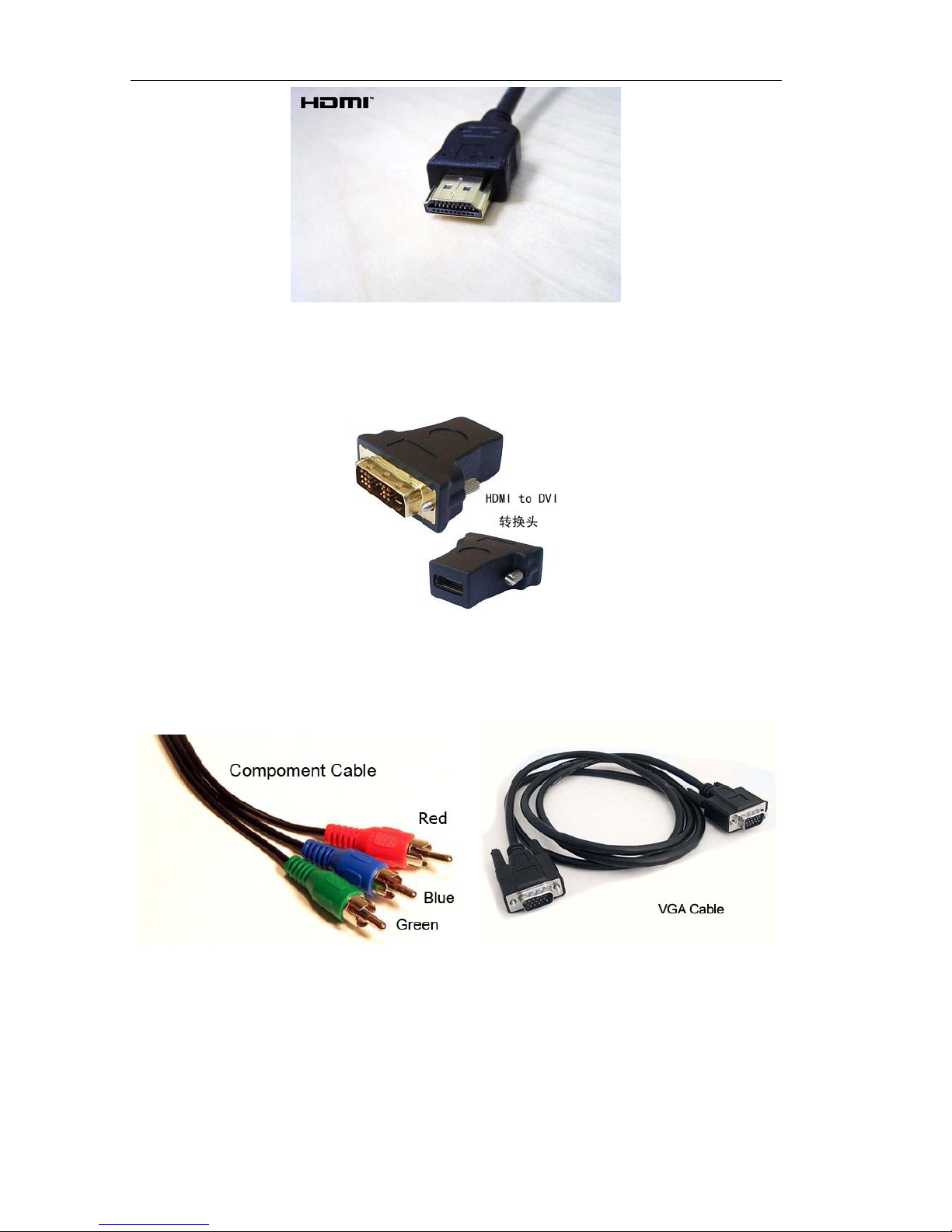
1. First, please check the video interfaces on your TV. Select the video interface following
in priority order shown below:
HDMI > DVI > Component > Composite
In general, there will be several kinds of video interfaces for the user to choose. The
preferred connection is HDMI (if available) and composite is the last choice. Therefore,
to choose the interface in accordance with the priority order above can ensure the best
image quality available on your TV set.
Page 3
Bollo Full-HD 1080P
2
2. You need to buy a DVI-HDMI converter if the best video interface on your TV is DVI,
(shown below), which isn’t a standard accessory.
3. Please choose the component interface to connect the Bollo NMP-SE if your TV has
neither HDMI nor DVI. The component is represented by three red-green-blue
terminals.
4. If your TV has only a composite video interface, you will only experience a
downgraded video signal. The composite video cable can not transmit high-definition
video. We would recommend that the Bollo NMP-SE only be used with a
high-definition TV so you can experience the best possible video quality.
Page 4
Bollo Full-HD 1080P
3
III. Audio Cable Connection
1. It is suggested to connect Bollo NMP-SE, AV amplifier and TV in the following way if
your AV amplifier has HDMI interfaces.
Bollo NMP-SE –(HDMI)--> AV Amplifier --(HDMI)--> Display Equipment
The Fiber optical or coaxial cable is used to transmit digital audio signal only.
2. If there is no HDMI port on your AV amplifier, please use the Optical Fiber or Coaxial
cable to connect SPDIF port between your AV amplifier and Bollo NMP-SE.
3. If you don’t have an AV amplifier, and your TV is connected through a HDMI cable,
you need no other audio connection. The HDMI cable can transmit video and audio
signals in a single cable.
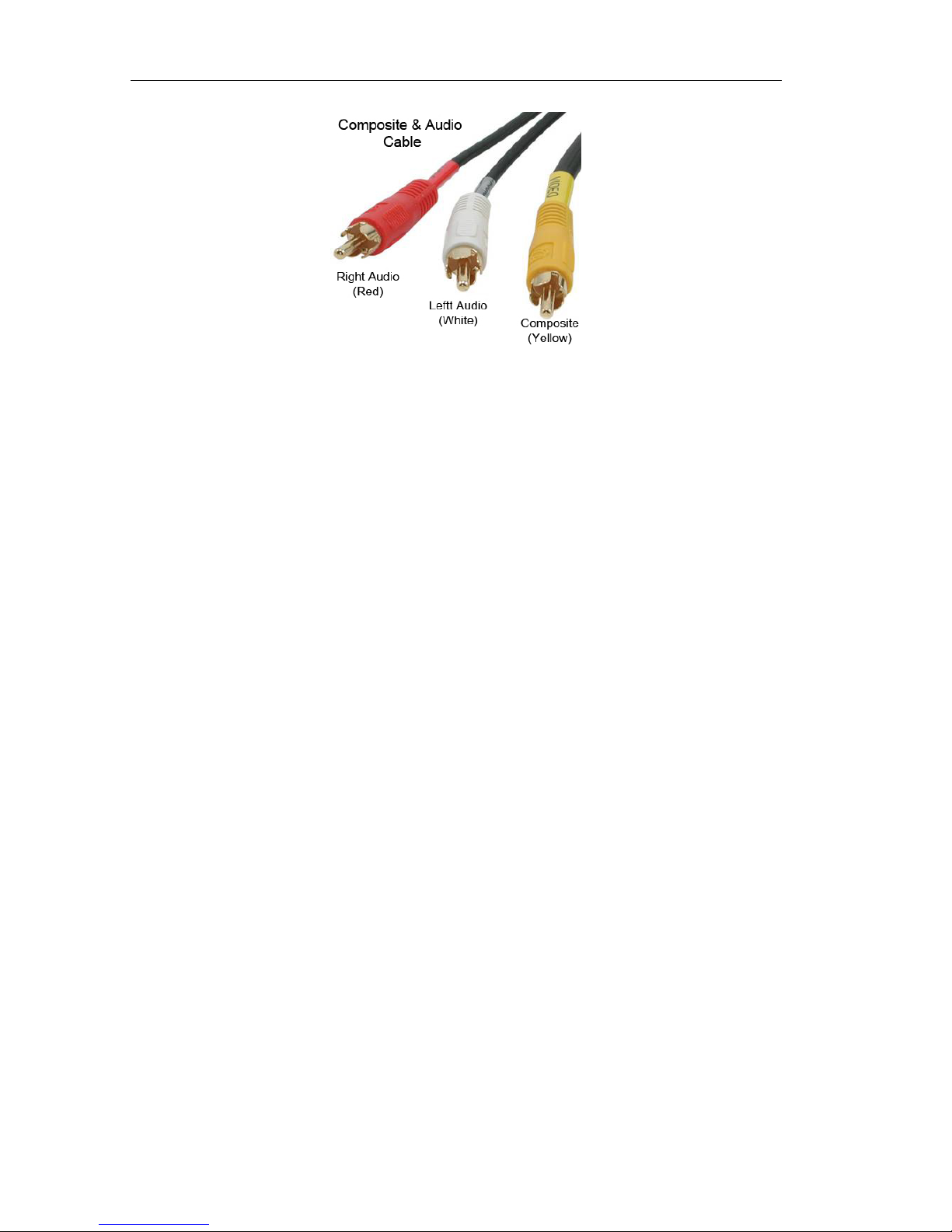
4. Please also connect the stereo cable to corresponding audio ports in the same
component socket set if you don’t have an AV amplifier, and your display equipment is
connected through component cable.
5. If you are using the composite to connect display equipment, please also connect the
Left/Right audio plugs (combined with composite plug) in the corresponding composite
socket.
IV. Hard Disk Installation
1. Bollo NMP-SE can enclose a 3.5" SATA hard drive inside. You also can connect more
external hard disk drives by USB Host or eSATA Host interface.
2. Formatting Hard Drive into NTFS format, then copy music, movie, picture files or
folders to it. Bollo NMP-SE supports the following types of system format:
EXT3/EXT2, NTFS/FAT32, HFS / HFS +.
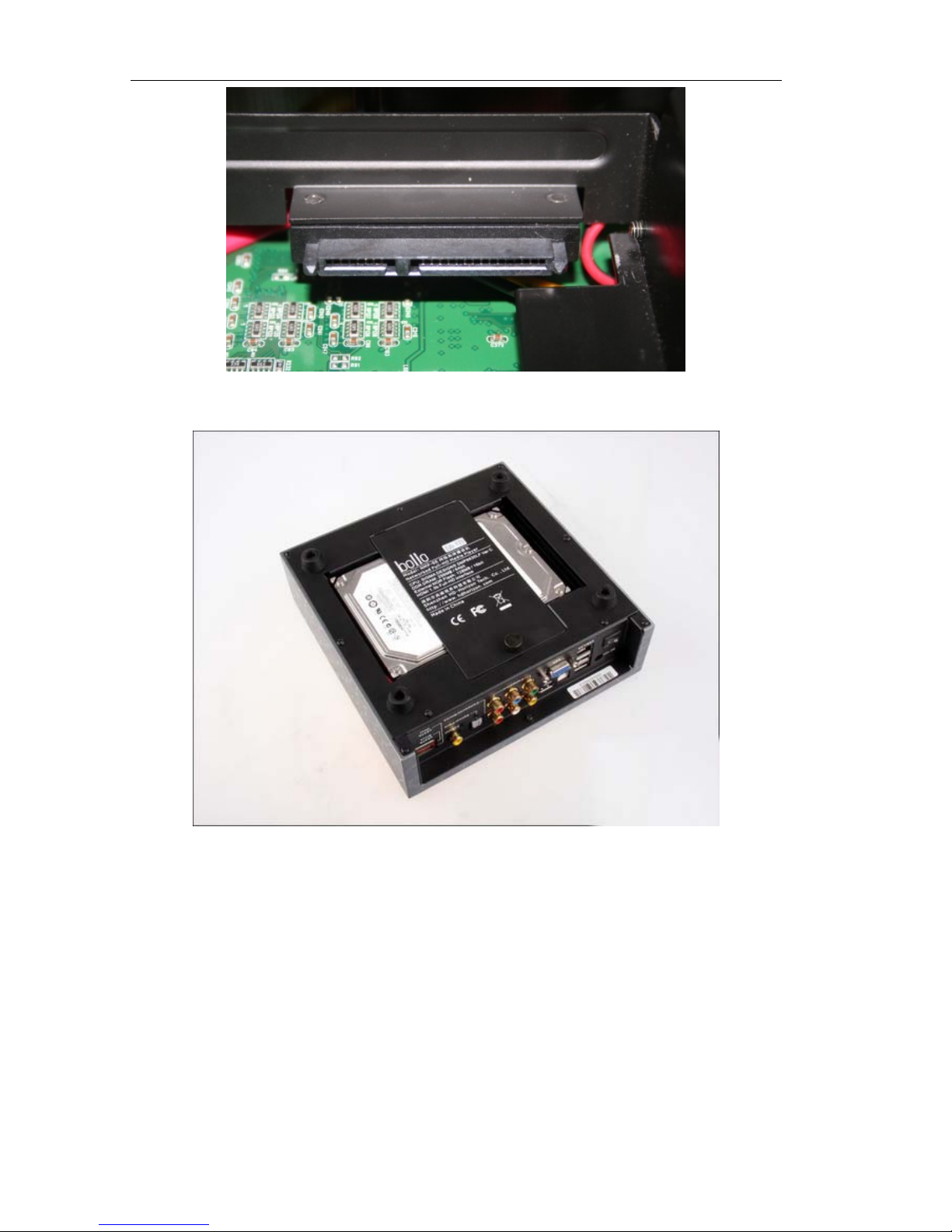
3. When install a hard drive into Bollo NMP-SE, please correctly insert the hard disk
drive to the SATA interface which is showed in following picture.
Page 5
Bollo Full-HD 1080P
4
The SATA interface panel can be rotated, so you can easily insert the hard drive. Please
press it down to the slot and close the bottom cover after the hard drive is inserted.
V. Startup Operation
Now, you can connect the power adapter to Bollo nmp-se, and turn it on.
1. Switch to correct display channel by using your TV or Projector remote control. E.g.:
HDMI, DVI or Component.
2. “Starting……” will appear on your screen after you press the ON/OFF button on the
Bollo remote control or plug in the DC power socket.
3. After a short time, the characters “Starting……” will disappear, and a main operation
interface will appear on the screen. If the basic 720P/60Hz High-Definition mode is not
supported in your display equipment, nothing will be displayed on your screen. If so,
Page 6
Bollo Full-HD 1080P
5
you can switch to different display resolutions by using “TV Mode” + “NUM” key on
the Bollo NMP-SE remote control.
TV MODE + 1 = HDMI 480p60;
TV MODE + 2 = HDMI 576p50;
TV MODE + 3 = HDMI 720p60;
TV MODE + 4 = HDMI 1080p60;
TV MODE + 5 = Component 480p60;
TV MODE + 6 = Component 576p50;
TV MODE + 7 = Component 720p60;
TV MODE + 8 = Component 1080p60;
4. Please enter the setting menu (far right icon) after the operation interface appears.
Select the appropriate parameters according to your display and audio equipment.
There are a few parameters that need to be adjusted in order to help the Bollo NMP-SE
achieve a good performance. These are the Resolutions, Frequency, Color Range,
Decoding type of audio signal, and the subtitle language. After the proper selections
have been made, you can start to enjoy your high definition video.
VI. Remote Control
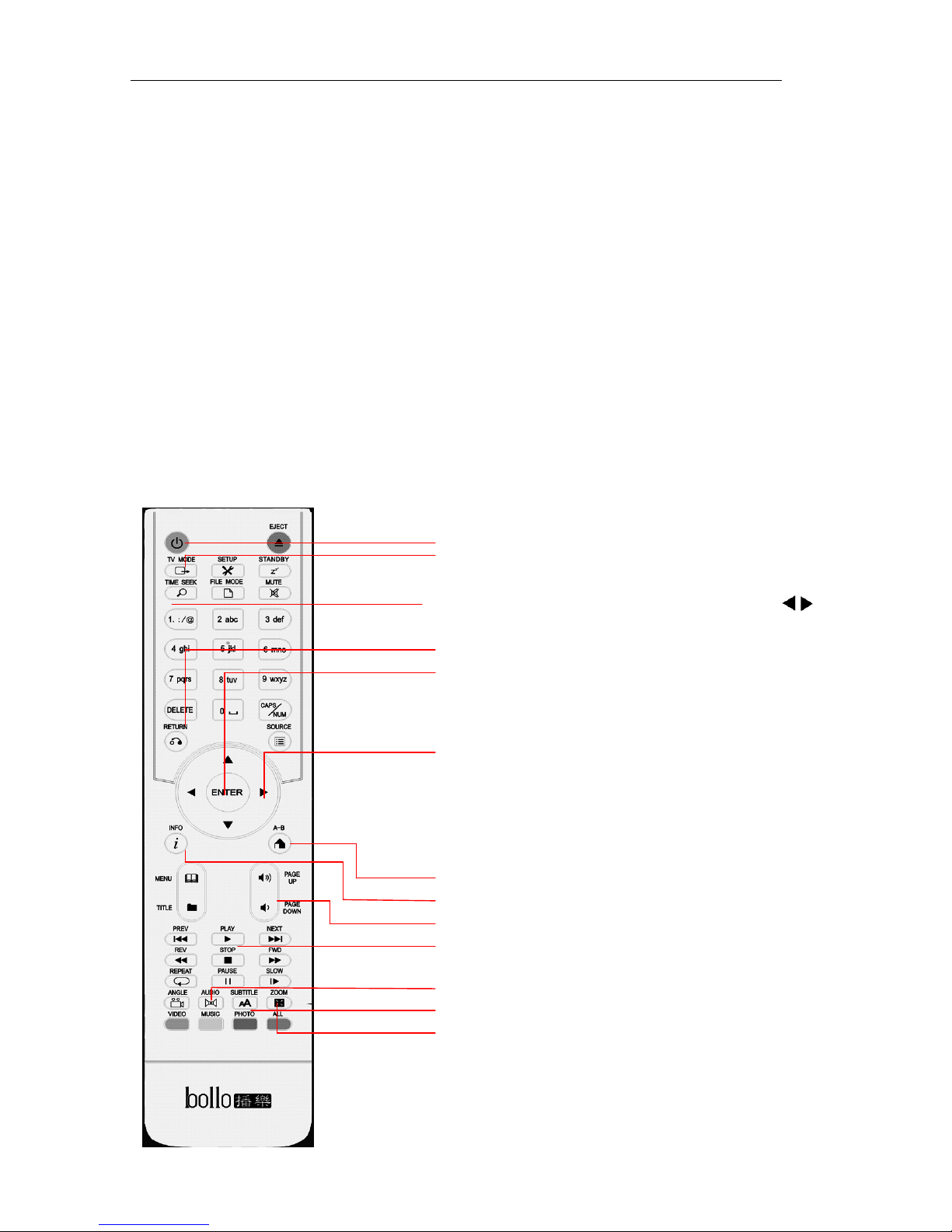
On/Off Power ON/OFF Button.
TV MODE TV MODE Button. Press this button and a
Number to switch to different resolutions.
TIME SEEK Time Seek Button. Press this button
/ to
go to different time point of video rapidly.
RETURN Press this button to return to parent directory.
ENTER Confirmation key, play a single file. If you
want to continuous play the contents of the
directory, press the PLAY button.
◄▲▼►: Navigation key: control the cursor movement;
also have fast-forward rewind and volume size
of the adjustment function, press ◄ to rewind,
press ► to fast-forward. Press ▲ to increase
volume, press ▼ to reduced volume.
A-B (HOME) Return to root menu
INFO Show the movie information when playing.
Page Up/Down Turn to PREV/NEXT page
PLAY Continuous play the files in the folder.
PREV/NEXT Turn to the previous/next playing file
AUDIO Switch Track
Subtitle Adjustment Subtitles Setting
Zoom Display ratio adjustment
Page 7

Bollo Full-HD 1080P
6
Remote Control Button Guide:
z PLAY (>) – Playing button, Press this button will continuous play audio, video,
picture file, etc. When playing the directory of blue-ray disk, select
BDMV directory and press this button, the player will start to play
blue-ray movies in the directory automatically. If select BDMV
directory and press “confirm” button, the player will enter into
directory scanning without play automatically.
z AUDIO – Audio track switch button. If a video file includes several audios,
please press this button to fulfill the switch of audios.
z SUBTITLE – Subtitle operation, continuous presses this button can change into
different subtitle property, such as subtitle language; encode format,
subtitle size and position, etc. Pressing the key left-right would adjust
the value of subtitle property.
Note: There are a lot of encode formats of subtitle file, such as: GBK, big5,
UTF-8, etc. When watching movies, if the subtitle is messy code on the
screen, it means the encode format of subtitle file dose not match with
the player setting of subtitle encode format. Please continuous press
"SUBTITLE" button, find the “subtitle encoding” options, and click the
key left-right button to adjust subtitle encode format of player until
display normal.
z TV MODE – Press the TV MODE button and a numeric key would switch to
different display resolutions.
TV MODE + 1 = HDMI 480p60;
TV MODE + 2 = HDMI 576p50;
TV MODE + 3 = HDMI 720p60;
TV MODE + 4 = HDMI 1080p60;
TV MODE + 5 = Component 480p60;
TV MODE + 6 = Component 576p50;
TV MODE + 7 = Component 720p60;
TV MODE + 8 = Component 1080p60;
Note: When use HDMI output signal, composite output as well. If you are using
Component output, there is not composite video output.
VII. Create Thumbnail for V ideo
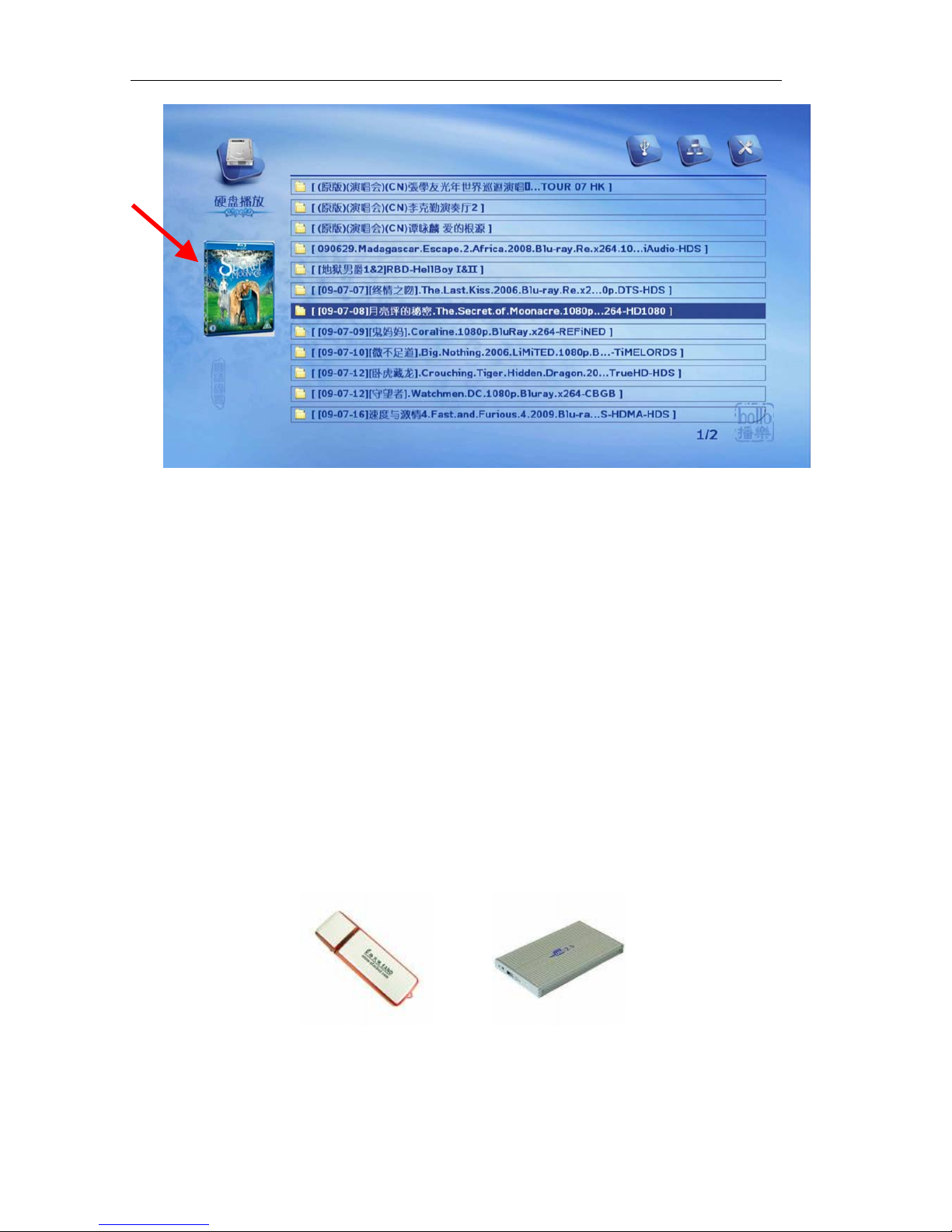
You can create a thumbnail and put it in the folder in order to help you browse your
video/audio intuitively. The picture must be named “thumb. jpg” (140x190 pixels) and in
the folder with your media. When you browse the movie folder, this picture will appear at
the bottom-left of screen.
Page 8
Bollo Full-HD 1080P
7
Name and Size of thumbnail:
Thumbnail name: thumb.jpg Size: 140 x 190 pix
VIII. Firmware Update
The Bollo NMP-SE is similar to a computer, including the hardware and operating
system. The operating system, we call it “Firmware”, it’s saved in an erasable Flash RAM,
and therefore, we can ameliorate our machine and add new functions by updating the
firmware. We will issue new firmwares on our website (http://www.hdhorizon.com).
Please follow the steps below to update the firmware:
1. Download the newest firmware from http://www.hdhorizon.com for free.
2. Store the firmware into your USB storage device (If firmware is a compressed file,
decompress it first). The format of update firmware similar to be below:
HDHs-upgrade-0.9.1-20090716.bin
3. Connect the USB storage device which include upgrade firmware into USB Host port
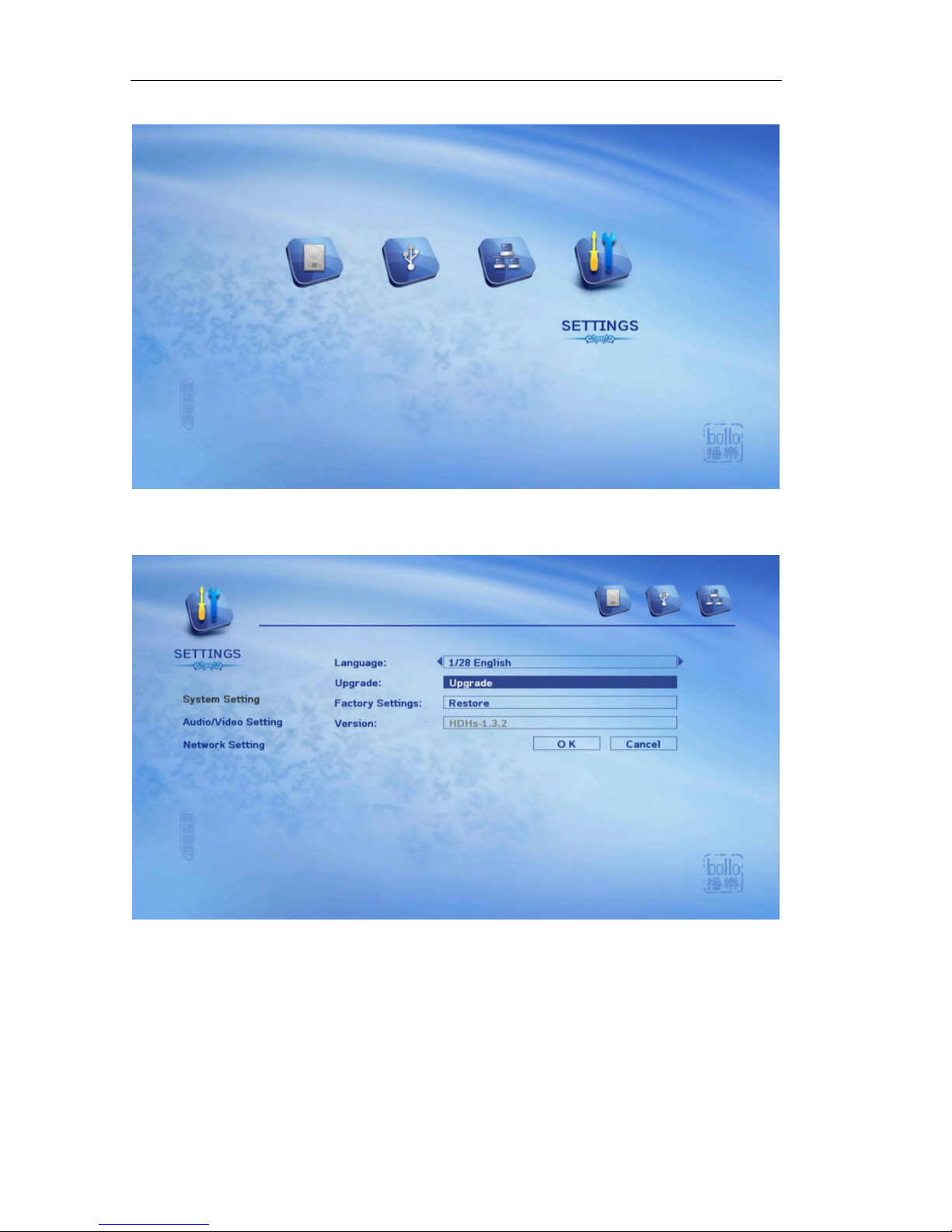
of Bollo NMP-SE, then enter the "SETTINGS" menu;
Page 9
Bollo Full-HD 1080P
8
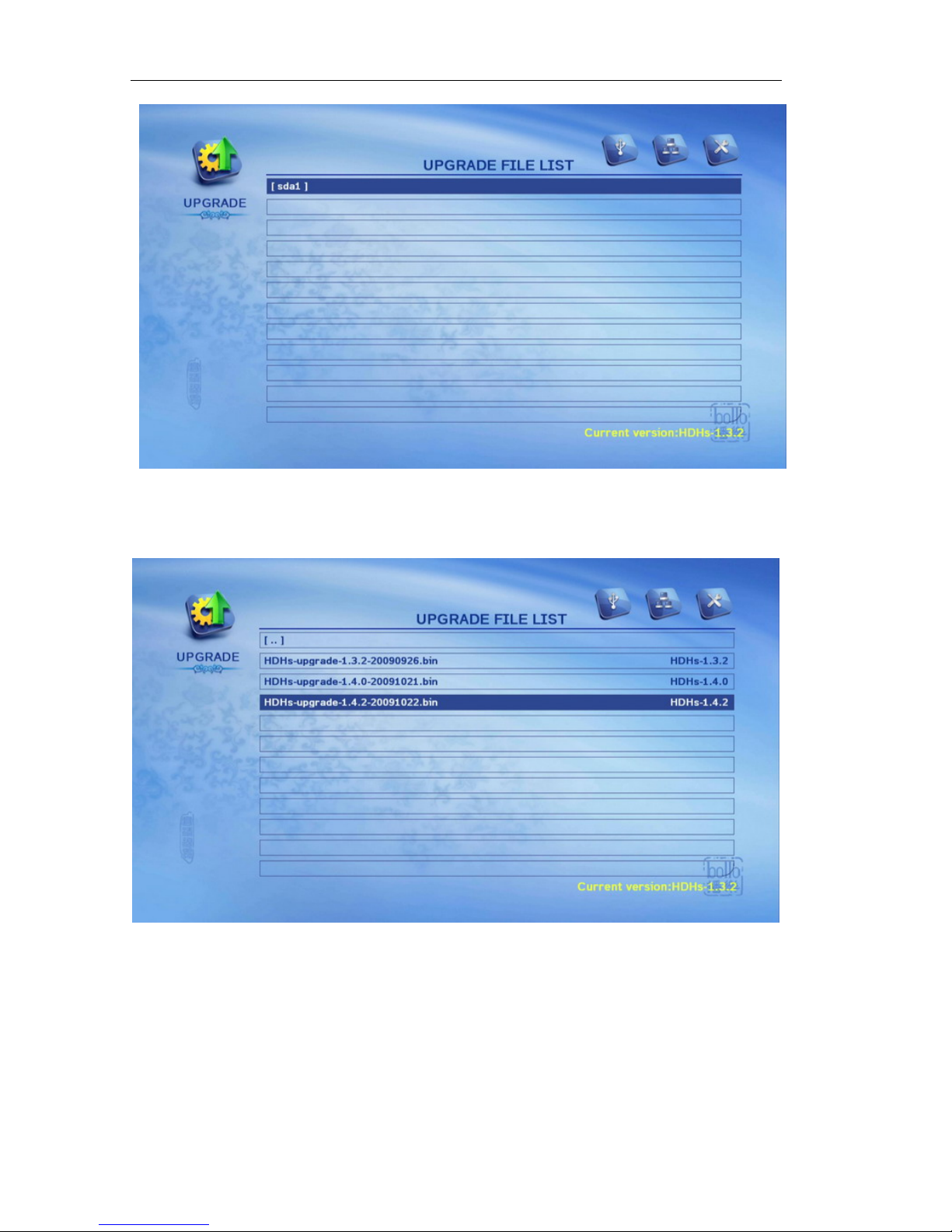
4. In the System Setting menu, choose Upgrade option and press "OK" button to execute
it;
The system will find out the USB device on the USB Host port, and show up the device
name. Choose the device and press "OK" button to browse the device;
Page 10
Bollo Full-HD 1080P
9
5. Select a correct upgrade file in your USB device, and press "OK" button to execute
upgrading;
6. When upgrade has finished, please power off the player and restart it. Then, you have
finished upgrade.
Page 11
Bollo Full-HD 1080P
10
IX. Network Setup
You can realize the network connection through build-in USB2.0 RJ45 Ethernet
adapter or an USB WIFI adapter. Bollo nmp-se support following WIFI chip types:
USB2.0 WIFI :Ralink RT2870/RT2770/RT307x/RT2070/RT3572
There will be more USB network chip supported in future, please take note of relevant
information on http://www.hdhorizon.com.
USB Ethernet Adapter installation:
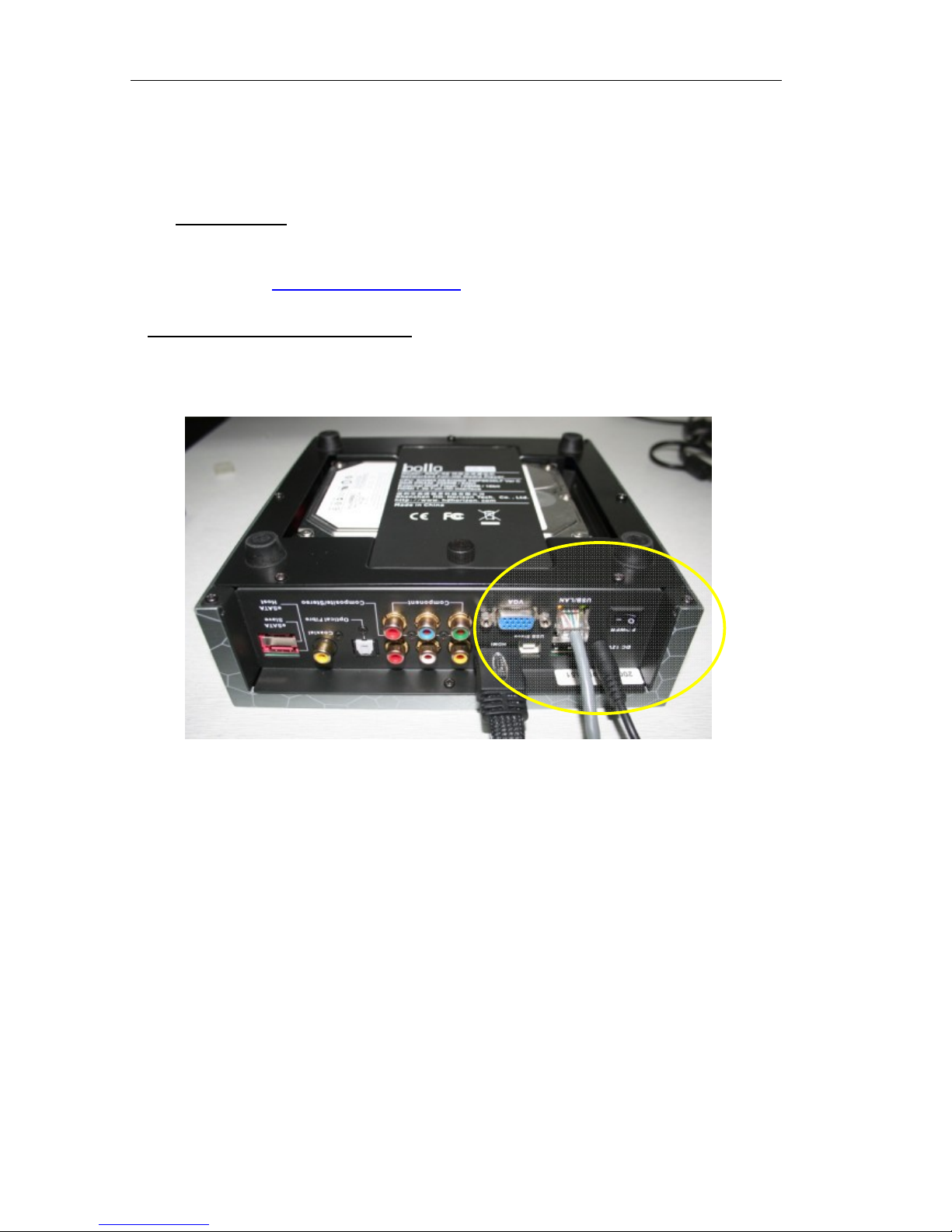
1. Connect with Ethernet cable(as shown):
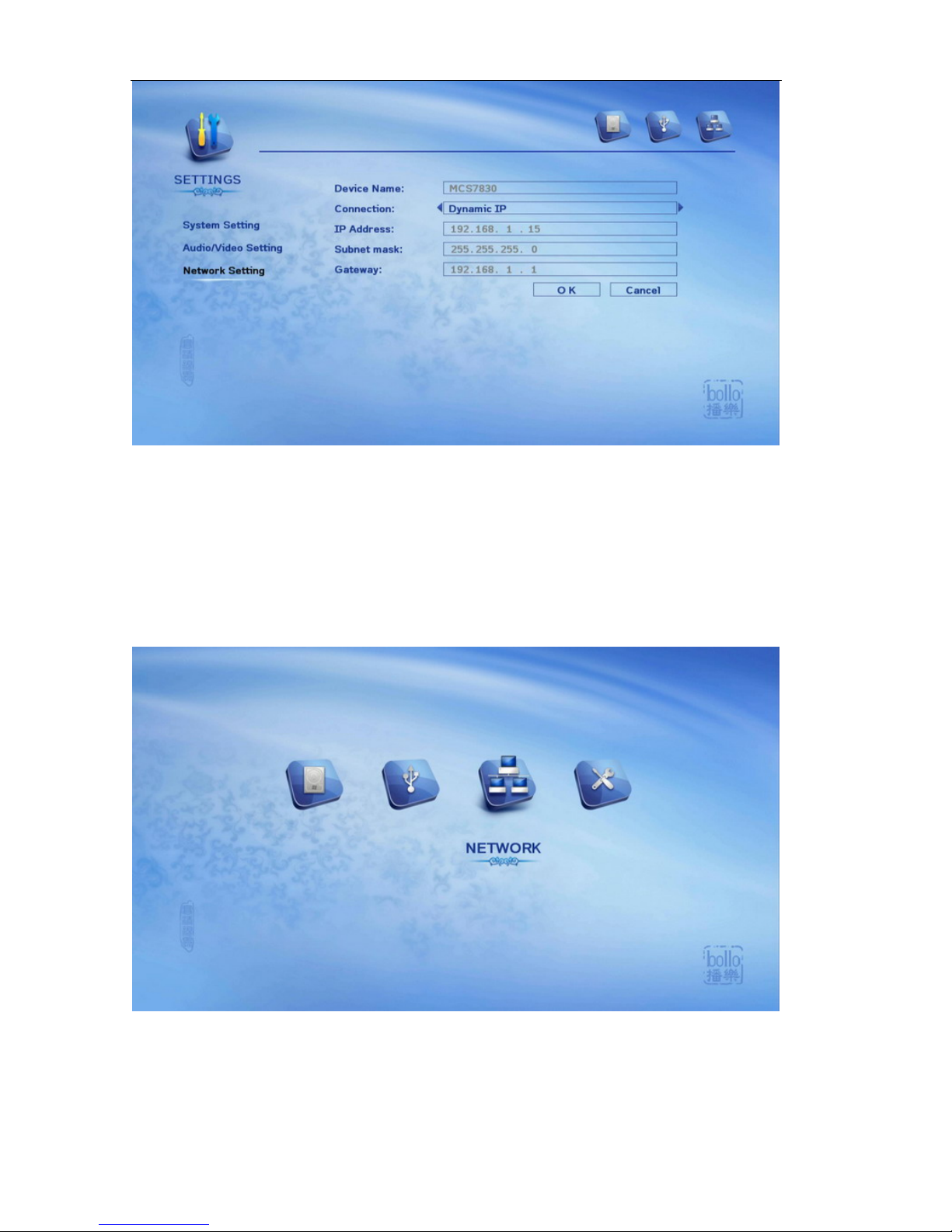
2. Start up Bollo NMP-SE, enter into “setting menu” Æ”network setting”, you should see
similar pictures as follows on the screen.
Page 12
Bollo Full-HD 1080P
11
If no IP address appeared, maybe something is wrong as follows:
a) The Ethernet cable isn’t attached properly, Bollo NMP-SE can not access network;
b) You router does not turn on DHCP server, and you have to input a static IP address;
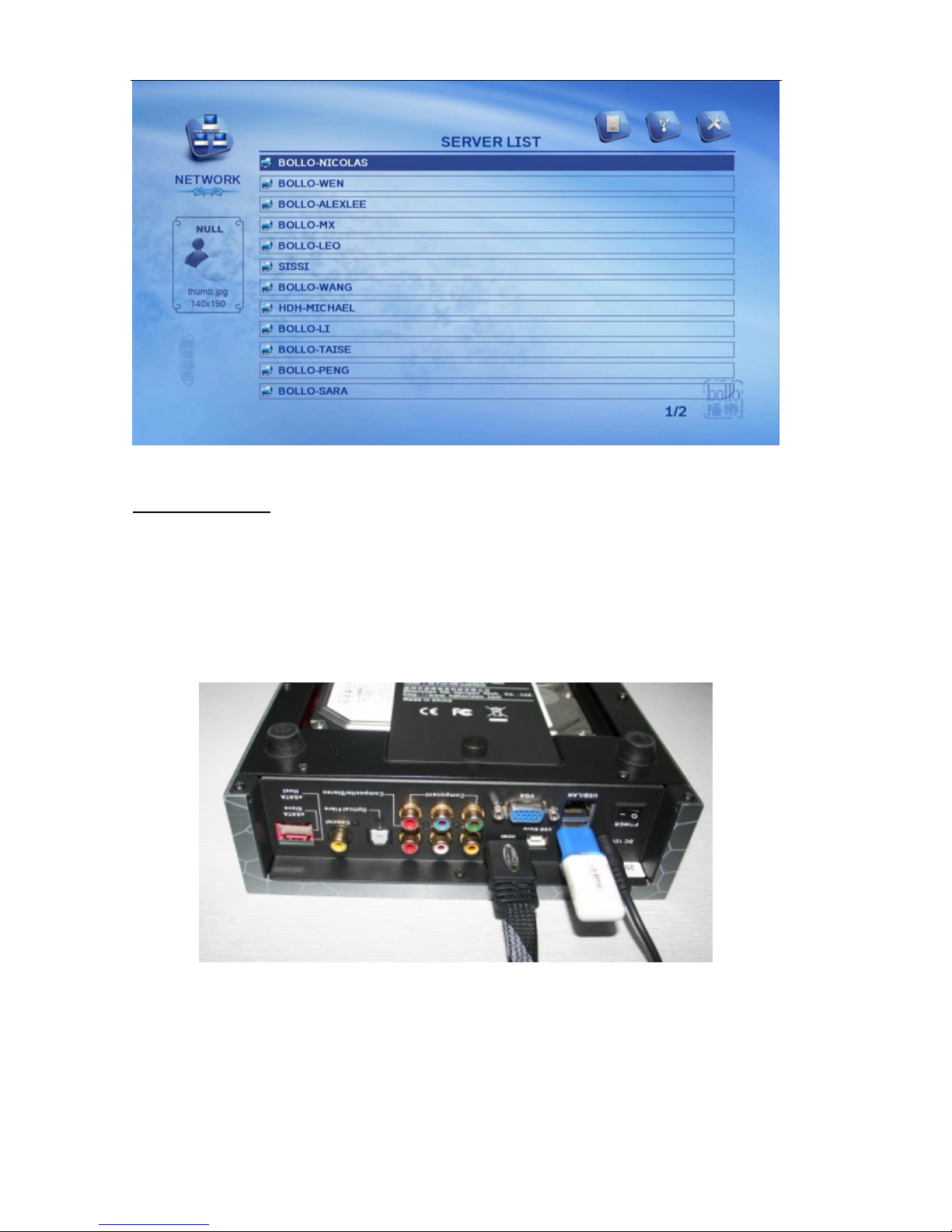
3. When Bollo NMP-SE obtains IP Address, that mean your player has connected with
LAN. Then, you would enter into “NETWORK” option on the root menu.
After that, you can see the computers in your LAN:
Page 13
Bollo Full-HD 1080P
12
WIFI Installation:
The following certification modes are supported by Bollo NMP-SE: :wpa/psk,
wpa2/pask, open, adhoc;Encryption ways: TKIP, AES. Bollo NMP-SE does not
support WEP certification mode because the WEP certification mode isn’t safe.
1. Plug USB2.0 WIFI adapter into USB Host port of Bollo NMP-SE:
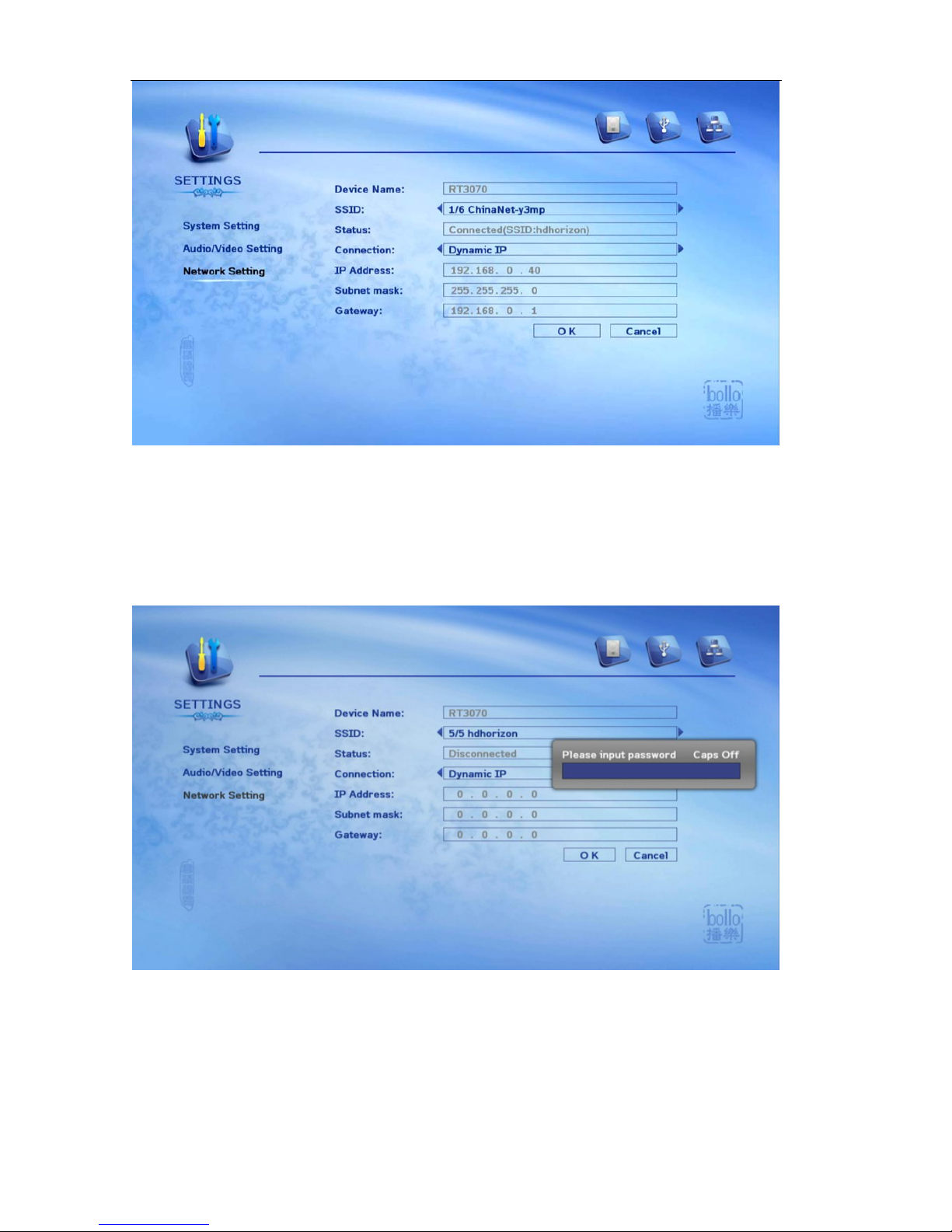
2. Start up Bollo NMP-SE, enter into “SETTINGS” Æ”Network Setting”, similar
information on the screen as following pictures:
Page 14
Bollo Full-HD 1080P
13
SSID stands for wireless signals numbers that you received now; press Left/Right
button to choose wireless network you would like to login in.
3. After selected what network you will login in, then press “OK” button to confirm. A
password input window will pop up.
Input your WIFI certification password, then please “OK” to confirm. If the password
is correct, the player will obtain IP Address automatically.
If no IP address information appears, maybe caused by following problems:
a). Password incorrect. Please input correct password.
Page 15

Bollo Full-HD 1080P
14
b). Certification mode of WIFI router is settled incorrect. Bollo NMP-SE does not
support WEP certification mode because it’s not safe. If you are using WEP
certification mode, please change to WAP certification mode and try again.
c). If DHCP service does not start up on the WIFI router; Please start up DHCP
service on the router, or input a correct static IP address.
4. When Bollo NMP-SE obtains IP address, that mean the player has connected to WIFI
network. You could enter into “Network” on main menu to browse your network.
Network share setup:
Bollo NMP-SE support Samba and UPnP network share protocol now. Please take note
following comments when you encounter problem:
1. Some firewall forbid network shares, if you can’t see your computer on network,
please try to turn off the firewall.
2. If you can only see the shared folder name, but the subfolders and files, that mean
you encounter an access authority problem. Please try to active “Guest” accounts
on your computer, and following road map below to open “explorer” and reset
shares again ( for Windows OS):
“Start ÆAll programsÆAccessoriesÆWindows explorer”
X. Technical Specification
Hardware:
● CPU: SIGMA DESIGNS SMP8635LF Ver. C
MIPS: 300MHz
Auxiliary Processor Frequency: 200MHz
● Audio DSPs::300MHz
● DDR-1 DRAM:DDR 64bit 256MB
● External NOR Flash: 16-bit 512MB
Video Output:
● HDMI 1.3,
● YPbPr, Component
● Composite
● VGA,
● Composite
Audio Output:
● Stereo (RCA)
● SPDIF digital audio output
● Coaxial digital audio output
Page 16

Bollo Full-HD 1080P
15
● HDMI 1.3 (DTS-HD, TrueHD supported)
USB:
● 2 x USB2.0 HOST
● 1 x USB2.0 Slave
Networking:
● 1 x 10/100Base-TX build Rj45 Ethernet
● Supporting IEEE 802.11n USB Wireless network
● Internal HDD Type:
● 1 x 3.5" SATA / HDD x 1ⅠⅡ
● 1 x eSATA Host
● 1 x eSATA Slave
Size: 200 x 200 x 60 mm
Net weight: 3.5Kg
XI. Performance Specification:
Video:
● MPEG1/2/4 Elementary (M1V, M2V, M4V)
● MPEG1/2 PS (M2P, MPG)
● MPEG2 Transport Stream (TS, TP, TRP, M2T, M2TS, MTS)
● VOB
● AVI, ASF, WMV
● Matroska (MKV)
● MOV (H.264), MP4, RMP4
Video Codec:
● XVID SD/HD, DIVX .x/5.x, MPEG-1, MPEG-2, MP@HL, MPEG-4.2
● ASP@L5, 720p, 1-point GMC, WMV9, MP@HL, H.264, BP@L3,
Audio:
● AAC, M4A, MPEG audio(MP1, MP2, MP3, MPA), WAV, WMA, OGG,
APE, FLAC.
Audio Codec:
● WMA, WMA Pro, AAC, MP1, MP2, MP3, LPCM, AC3, DTS, DTS-HD,
TrueHD.
Photo formats:
● JPEG, BMP, PNG, GIF
Subtitle:
● SubRip [.srt], Sub Station Alpha [.ssa]
Page 17
Bollo Full-HD 1080P
16
Other Format:
● BD-ISO, DVD-ISO
OSD Language:
● Simplified Chinese, Traditional Chinese, English, etc.
Subtitle Language:
● Simplified Chinese, Traditional Chinese, English, etc.
Remote Control:
● Provide a luminous remote control for convenience at night.
Hard Disk Format:
● Linux EXT2/EXT3, Windows NTFS/FAT32
X.Accessories:
z Gold-plated HDMI cable x 1
z 1 x High Speed USB 2.0 Cable
z Luminous remote control x 1
z 1 x Power Adapter 12V/4A
z Enclosure screw package x 1
z AC Cable x 1
z CD X 1
Shenzhen HD-Horizon Technology Co., Ltd.
Copyright @ 2009 HD-Horizon
 Loading...