

Page 1
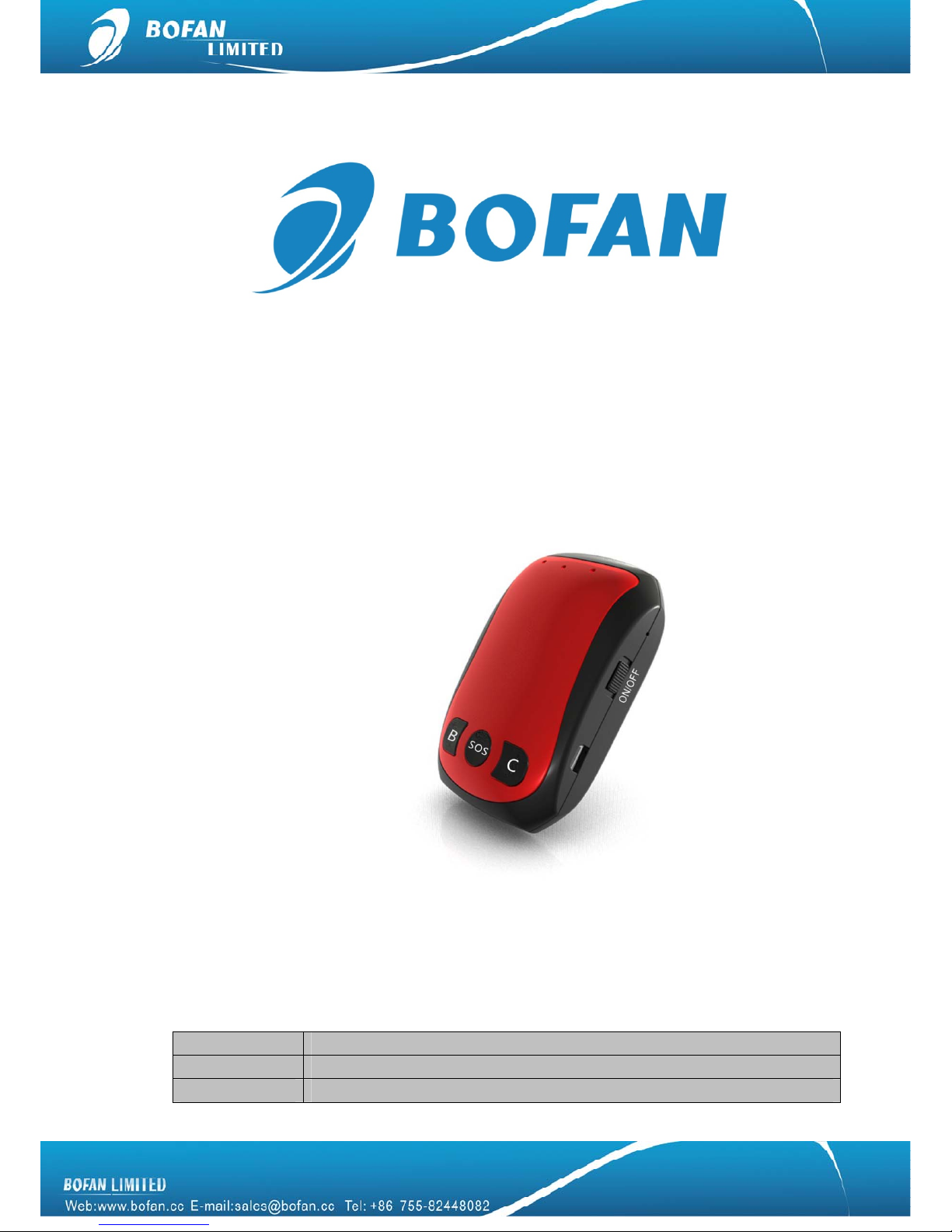
PT80 User Manual
Document Title
PT80 User Manual
Version
1.42.6
Date
2014-01-01
Page 2

Contents
Contents...............................................................................................................................II
1. Introduction.......................................................................................................................... 1
1.1 Attention......................................................................................................................... 1
1.2 Instructions of safety.................................................................................................... 1
1.3 Terminology................................................................................................................... 2
2. Basic Description................................................................................................................ 2
2.1 Standard Package........................................................................................................ 2
2.2 Basic Structure.............................................................................................................3
2.3 Specification.................................................................................................................. 4
2.4 Features ........................................................................................................................ 5
3. Installation and Operation................................................................................................. 5
4. Start Tracking...................................................................................................................... 6
4.1 Tracking by mobile:...................................................................................................... 6
4.2 Tracking by FMS platform........................................................................................... 9
4.2.1 Add New Tracker in FMS......................................................................................... 9
4.2.2 Set Tracker ID by SMS.......................................................................................... 10
4.2.3 Set Tracker SIM card APN by SMS..................................................................... 10
4.2.4 Set FMS server and tracker port by SMS........................................................... 10
4.2.5 Set Time Interval by SMS...................................................................................... 10
5. SMS Commands List........................................................................................................11
6. Trouble Shooting..............................................................................................................14
7. Safety and Disclaimer...................................................................................................... 15
Page 3
1
1. Introduction
1.1 Attention
Please do not touch the tracker before unplugging the power supply, if the tracker is
damaged, the power supply cables are not isolated or the isolation is damaged.
The tracker must be installed and operated only by qualified personnel.
The tracker is susceptible to water and humidity.
Any installation and/or handling during a lightning storm are prohibited.
Use original parts, qualified batteries and peripheral equipments to avoid damages.
BOFAN is not responsible for any harm caused by using wrong parts or cables.
BOFAN shall not be liable to any responsibility for accidents caused by customers using
the products.
1.2 Instructions of safety
This chapter contains information on how to operate BOFAN tracker safely. By following these requirements
and recommendations, you will avoid dangerous situations. Please must read these instructions vehicle fully
and follow them strictly before operating the tracker!
To avoid mechanical damage, it is advised to transport the BOFAN tracker in an impact-proof package. Before
usage, the tracker should be placed so that its LED indicators are visible, which show the status of operation the
tracker is in.
When connecting the connection cables to the vehicle, please turn off the vehicle.
The tracker meets the requirements of standard as below; it also complies with FCC & RoHs standards.
z EN 301 489-1 V1.9.2 (2011-09)
z CISPR 25-2008
z ISO 7637.2-2011
Page 4

2
z EN 60950-1:2006+A11:2009+A1:2010+A12:2011
z EN 301 511 V9.0.2 (2003-03)
z ETSI TS 151 010-1 V9.8.0 (2012-04)
1.3 Terminology
Acronyms and terminologies used in this manual:
z GPRS – General Packet Radio Service
z GPS – Global Positioning System
z GSM – Global System for Mobile Communications
z SMS – Short Message Service
z AC/DC – Alternating Current/Direct Current
z PC – Personal Computer
z Geo-fence – a virtual geographic area of interest that can be defined by a radius or polygon for the location.
In this manual “Geo-fence” is often used as functionality , which generates an event when crossing a defined
area.
2. Basic Description
PT80 is a compact size GPS tracking device which is specially developed and designed for tracking Kids, Elder
or People who need tracking service. It is especially well designed to work with Bofan Web-based tracking
software platform FMS which is suitable for a company to establish their own tracking platform to provide
real-time tracking service to their clients, targeting large sales teams, students, camping teams, travel teams
etc.
With superior GPS and GPRS modules, PT80 has good sensitivity and stable performance. It can get accurate
GPS fix even in remote places. And also can reply street name directly to the user by SMS if working with FMS.
2.1 Standard Package
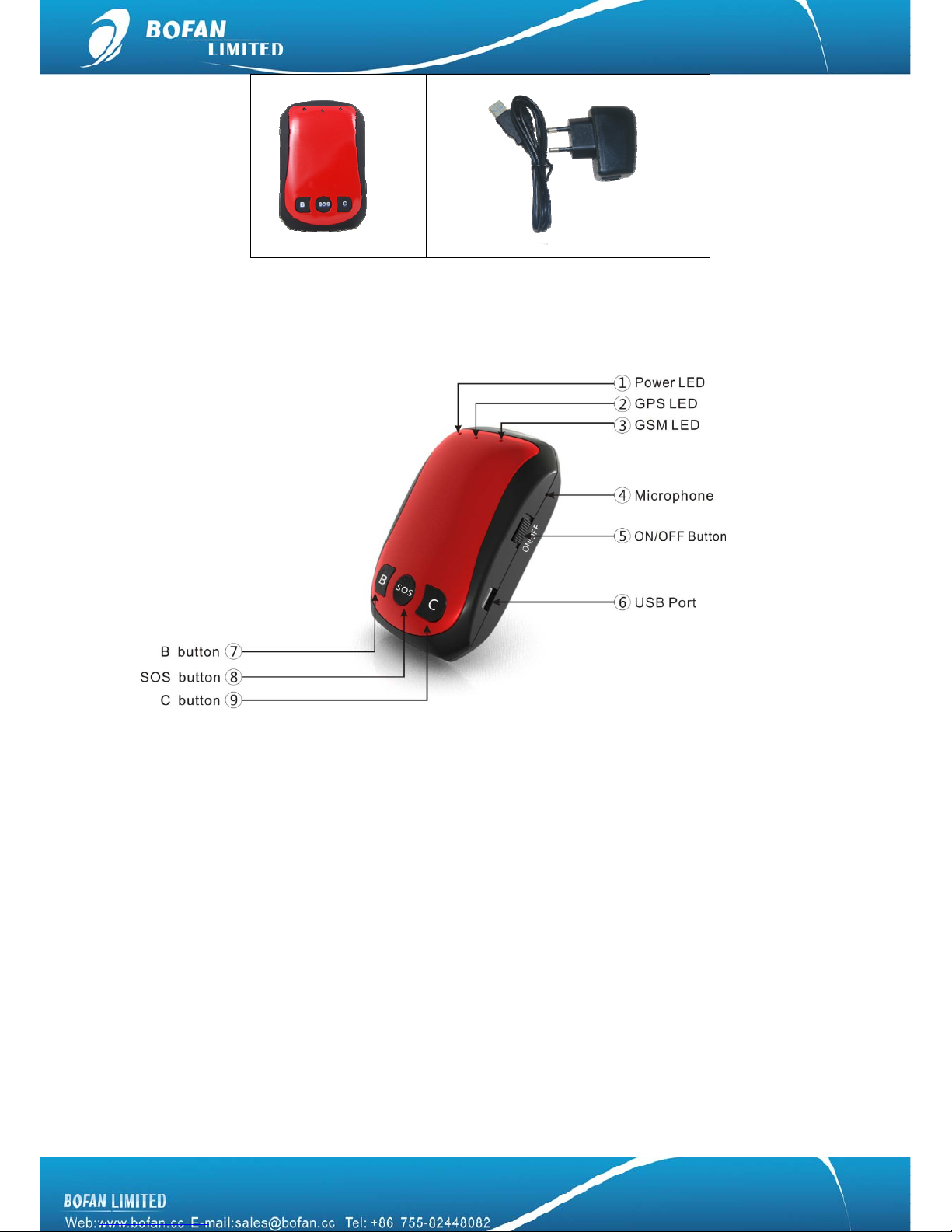
Standard includes:
Main Unit Wall charger
Page 5
3
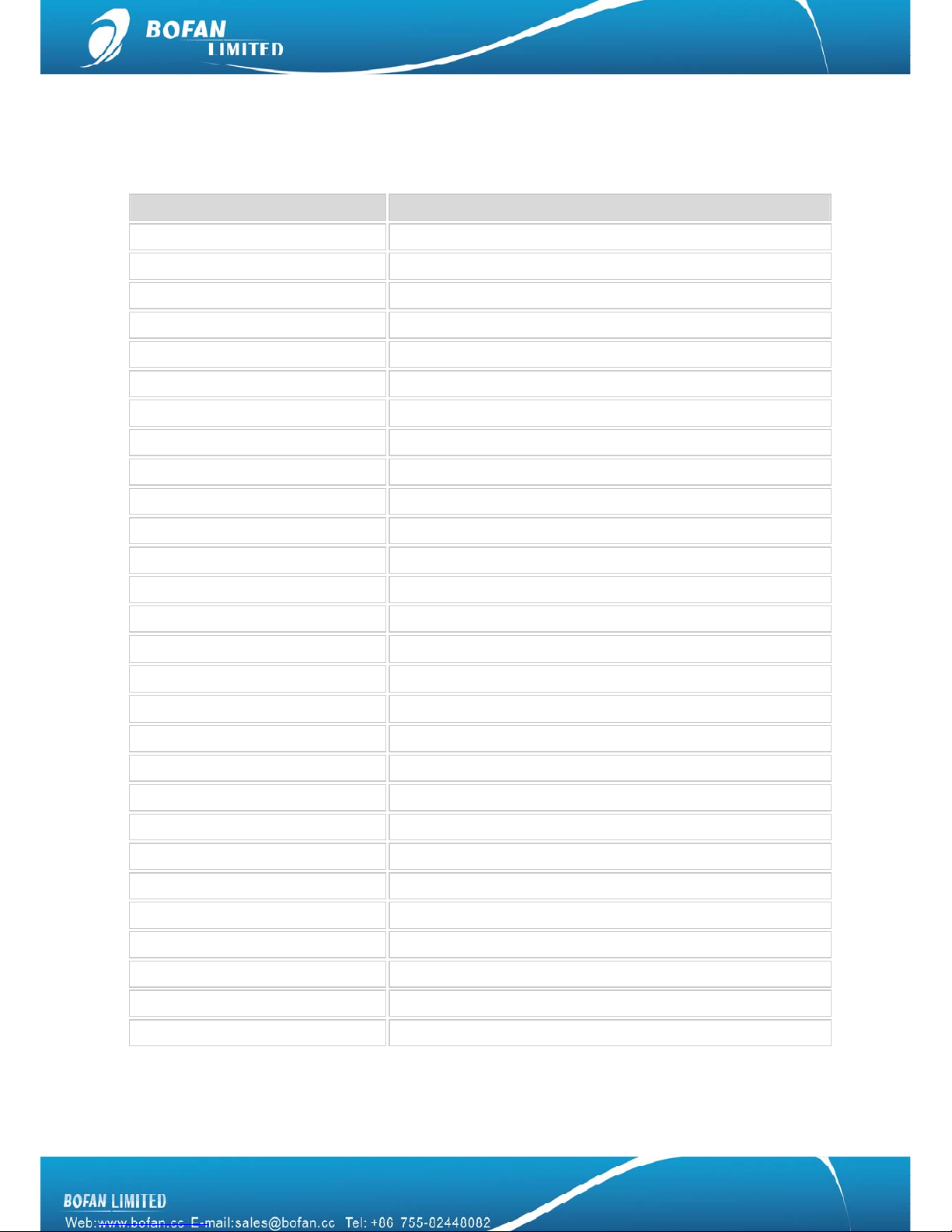
2.2 Basic Structure
Page 6
4
2.3 Specification
Items Specifications
Weight 0.05KG (only for main device, without accessories)
Dimensions 65(L) x 42(W) x 20(H) mm
Input Voltage DC 5V/2A
Back-up Battery 1000mAh / 3.7V
Power Consumption 50mA standby current
Charging connector DC 5V (USB port)
Operating Temperature Range -10°C to +60°C
Storage Temperatu re Range -20°C to +70°C
Humidity Up to 75% non-condensing
Back-up Battery work time 12~24 hours depends on preset report interval
GSM Frequency GSM 850/900/1800/1900MHz
GPS Chip UBLOX7
GPS Sensitivity -161dBm
GPS Channels 56
Cold Start 29 sec @ open sky (Typical)
Warm Start 5 sec @ open sky (Typical)
Hot Start 1 sec @ open sky (Typical)
Positioning Accuracy 2.5m CEP
GPS Antenna Internal
GSM Antenna Internal
Microphone Yes
Car Charger Optional
LED 3 LED lights to show GPS,GSM and Power status
Memory Save 3,000 blind data
Motion sensor Yes
Button SOS button, B button, C button
I/O 1 USB port
Certificate CE, FCC, RoHS
Page 7

5
2.4 Features
z Small size(50g),Portable(65 x 42 x 20 mm)
z Built-in GSM and GPS antennas
z Quick dialing buttons for 3 preset phone numbers
z Voice monitoring
z Panic Button for emergency situation
z Geo-Fence management
z Low power alert
z Over speed alert
z Tracking via SMS /GPRS
z Get street address by SMS request
z Get Google link for current location by SMS request
z Web-based real time tracking service(demo.livegts.com)
z Internal motion sensor to save power and send movement alarm
z Equipped with internal battery, rechargeable, long standby time
z Position logging capacity up to 3,000+ waypoints when no GPRS signal
z Save up to 50% GPRS cost when working on web-based tracking software LiveGTS
z Available to set different alarm notification ways when alarm (sending alarm via SMS/call/platform)
3. Installation and Operation
Note:
9 Please charge the tracker via wall charger for 8-12 hours for first use. Later please charge the
battery 3~4 hours in time to keep it working normally.
9 The SIM card must support GPRS service, support calling and SMS service, can display caller’s ID.
It is a GSM card not CDMA card. And please disable the SIM card PIN code.
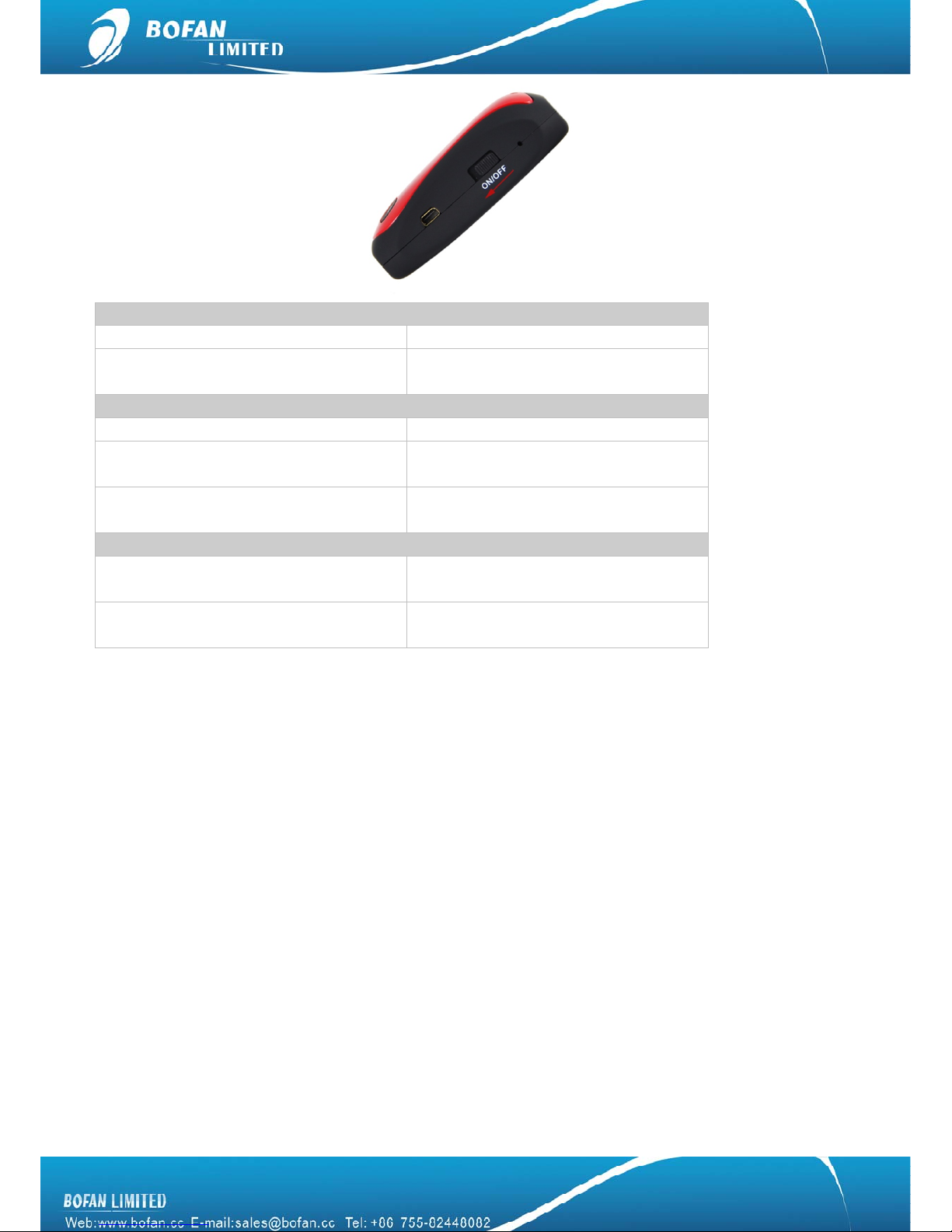
Open cover of PT80 and install the SIM card into the main unit, after that, you can close the cover and to turn on
the device as below, then the LED will flashing
Page 8
6
RED Light - indicating power status
RED light Flashing fast Low power, please charge immediately
RED light Flashing
( on for 2 seconds and off for 2 seconds)
Power is ok
Blue Light - indicating GSM signal status
Blue light Flashing fast GSM module restarting / no SIM card insert
Blue light Flashing
( on for 2 seconds and off for 2 seconds)
No GSM signal
Blue light Flashing
(on for 0.1 second and off for 2.9 seconds)
PT80 is connected to the GSM network
Green Light - indicating GPS signal status
Green light Flashing
( on for 2 seconds and off for 2 seconds)
No GPS signal
Green light Flashing
(on for 0.1 second and off for 2.9 seconds)
GPS signal fixed
4. Start Tracking
You can start to track your vehicle or test the tracker after GSM and GPS light work normally. There are two
ways to track the vehicle, one is by mobile and the other one is by FMS platform.
4.1 Tracking by mobile:
9 To get position by calling
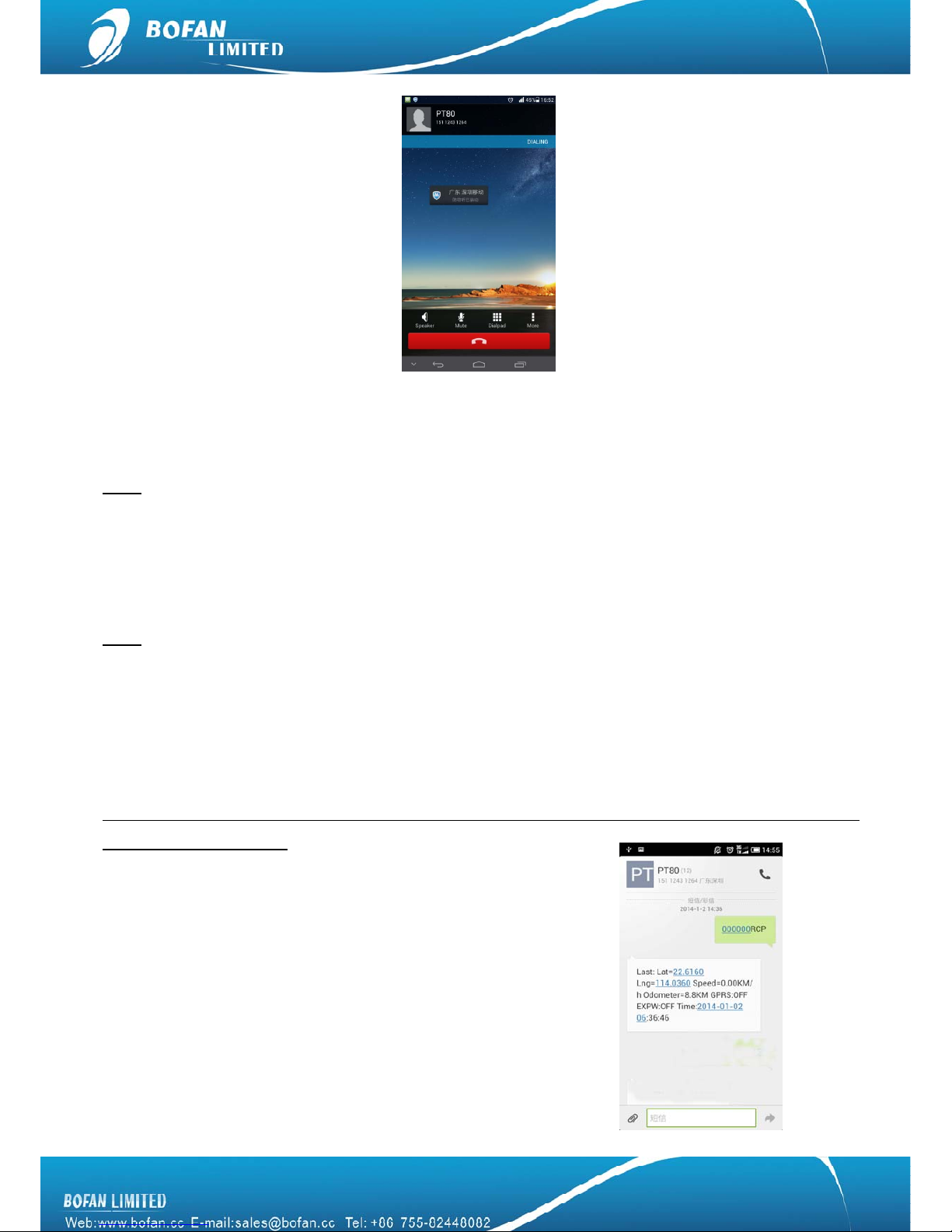
1. Call the SIM card number in tracker from your mobile.
Page 9
7
2. Tracker will hang up automatically after several rings, then replies a position SMS to your mobile phone.
Note:
if you don’t like the tracker reply a message after calling, you can send command 000000OPT0 to close
this function, if you want to restore this function later, you can send command 000000OPT1 to activate this
function again.
9 To get position by SMS command
Note:
The tracker default password is 000000, if you already changed it, please use the new one in all SMS
command. Tracker only replies command from a user which uses the correct password. Commands with wrong
Password will be ignored.
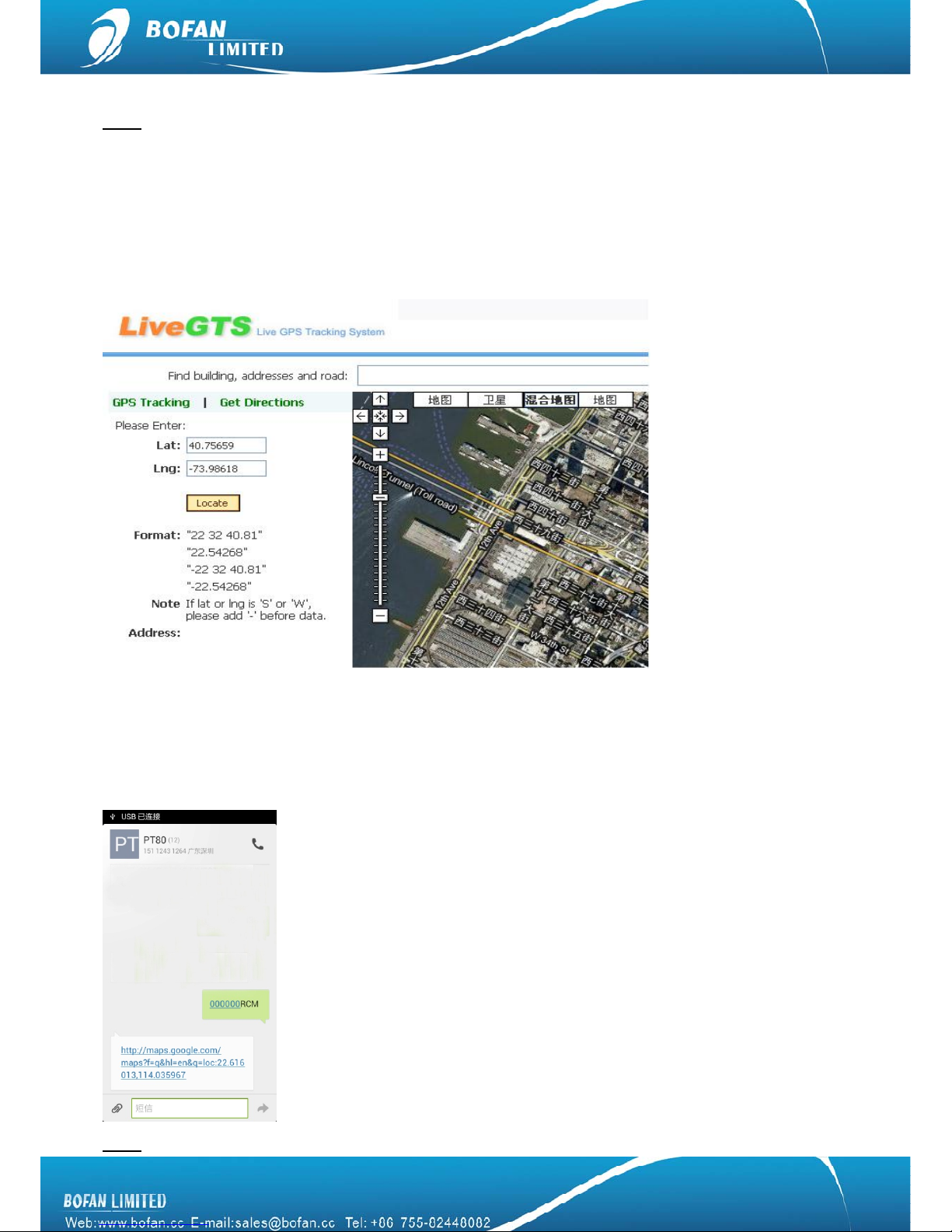
Send SMS command to SIM card number in tracker from your mobile, command format: <password>RCP
For example: you edit the SMS command 000000RCP and send it, after a few seconds, you will get a SMS
reply similar with below contents:
Latitude = 22.5632 Longitude = 114.0940, Speed = 2.6854Km/h, Odometer = 10.98KM GPRS: OFF, EXPW: ON,
Time: 2010-12-07 08:47:45
Explanation:
GPRS means tracker connection FMS platform status
z ON: means tracker connect FMS platform ok
z OFF: means tracker connect FMS platform not ok
z Fail: means tracker connect FMS platform fail
EXPW means external power connection status:
z ON: means tracker already connect to external power
z OFF: means tracker does not connect to external power
Page 10
8
Note:
when tracker doesn’t get GPS signal, it will reply a SMS starts with “Last”, which means this data is for
the last place where the tracker got GPS signal successfully.
Above two methods just got coordinate for position, you can locate this position in your FMS or
http://demo.livegts.com which includes the Google map, manually input the latitude and longitude what you get
from this reply SMS and click the "Locate" button. It will display the place on map. Please refer to following
picture:
9 To get position in Google link
Send SMS command to SIM card number in tracker from your mobile, command format: <password>RCM
For example: you edit the SMS command 000000RCM and send it, after a few seconds, you will get a SMS
reply with a position link, you can click this link directly and locate it on your mobile.
Note:
it will cause GPRS cost for your mobile.
Page 11
9
4.2 Tracking by FMS platform
Please ensure that your SIM card in PT80 supports GPRS connection.
If you want to do live tracking on platform, you need strictly to add new tracker, set tracker ID, tracker SIM card
APN, FMS server, tracker Port and time interval as below steps 4.2.1~4.2.5.
4.2.1 Add New Tracker in FMS
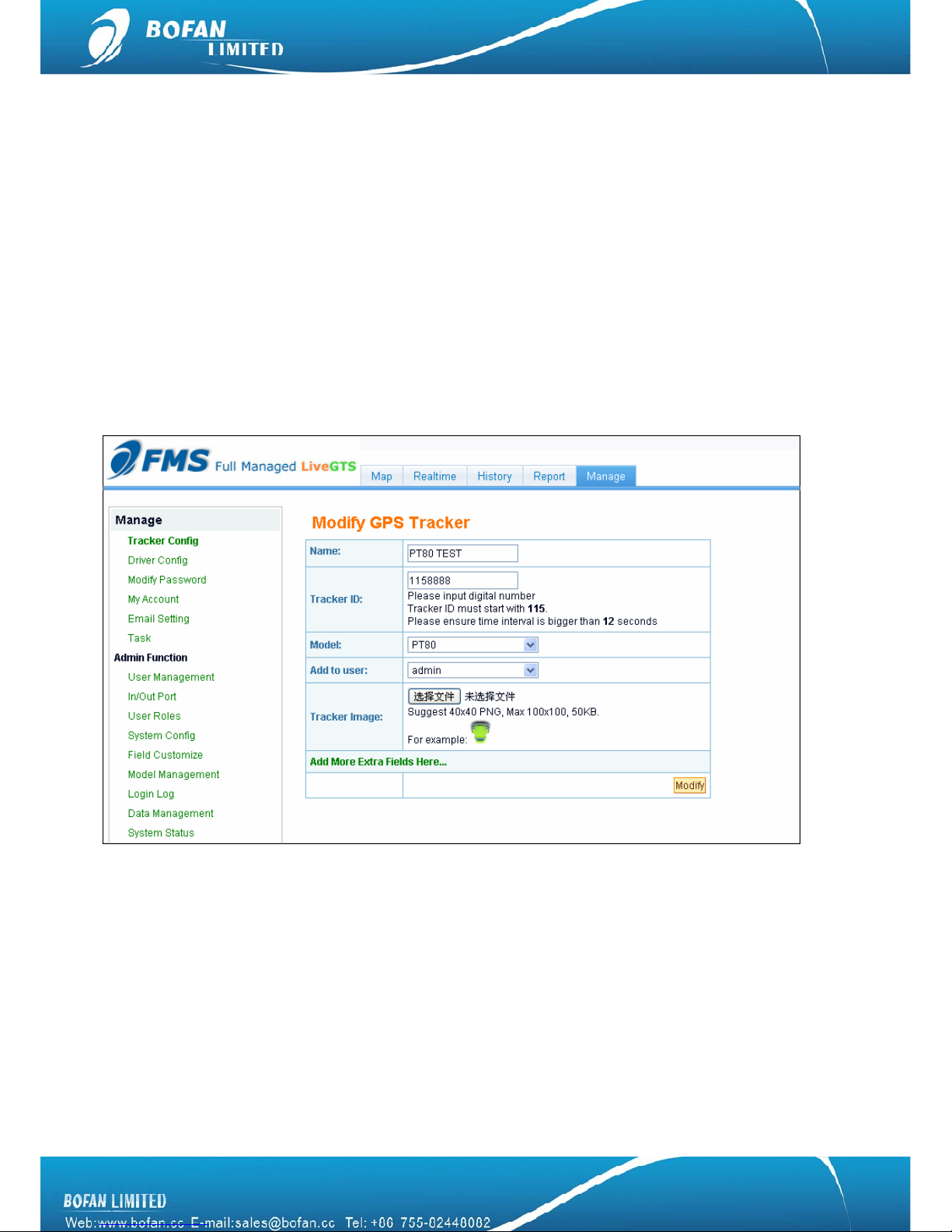
Login FMS: open your FMS website by IE and login with your account
Go to “Manage” -> “Tracker Config” -> click “Add New Tracker”, please fill in name and tracker ID, select
correct tracker Model, and finally click ”Modify” to add this tracker successfully.
¾ Name: can be any name for your tracker.
¾ Tracker ID: Tracker ID can be any digit numbers, but must start with the fixed three numbers which display
in your FMS (here the tracker ID starts with 115 just for example), and total numbers should less than 10.
¾ Model: must select the correct model number PT80.
Please remember to click “ Modify” button after you input all information.
Now, please use your mobile to send below SMS commands to tracker and configure it to work with FMS
platform, after you do all below setting, you can get back to FMS real-time to monitor your tracker online.
Page 12

10
4.2.2 Set Tracker ID by SMS
SMS Command format : <password>GID<ID>
Example: Sending SMS command 000000GID1158888 to set the tracker ID what you just added in FMS.
Tracker will reply with an SMS “SET OK, ID=1158888”.
Note:
1158888 just for example at here, please use your correct complete tracker ID what you added in your
FMS.
4.2.3 Set Tracker SIM card APN by SMS
SMS Command format : <password >APN<APN>, <User>, <Pass>
Example: Sending SMS command 000000APNCMNET to set the tracker SIM card APN.
PT80 will reply with an SMS “SET OK, APN: CMNET, USER: PASS : ”.
Note:
CMNET is China mobile’s APN, no username & password for it. You can ask your GSM operator for their
SIM card GPRS connection APN, username and password, if it has user name and password; you just add the
user name and password after APN and use “,” between each other, the complete command is
000000APN<APN data>, <User name>, <Password>
4.2.4 Set FMS server and tracker port by SMS
SMS Command format : <password> SVR<FMS domain>, <Port>
Example: Sending SMS command 000000SVRDEMO.LIVEGTS.COM,8080 to set the FMS domain and tracker
port number.
PT80 will reply with an SMS “SET OK, IP: DEMO.LIVEGTS.COM,8080”.
Note:
Please use your FMS complete domain name in capital in SVR command, DEMO.LIVEGTS.COM just for
example at here. PT80’s port number always is 8080.
4.2.5 Set Time Interval by SMS
It is for automatically update tracker position in FMS
SMS Command format : <password>GTI<time seconds>
Page 13
11
SMS Example: Sending SMS command 000000GTI30 to set the time interval.
PT80 will reply with a SMS “Set GPRS Time Interval=30 OK”.
Note:
Refer above 4.2.2 ~ 4.2.5 steps commands, also can be set via debug tool on your PC, please refer to
“BOFAN Device Online Configuration User Manual”
After done all above settings, please login your FMS to track it online now.
If it still show “NO DATA” in FMS after few minutes, please send below four SMS commands to tracker for
confirming tracker’s setting:
¾ 1
st
command: 000000ASKGID
Tracker will reply you “Query Parameter OK, GIDXXXXX”, please check if it is the correct tracker ID
number what you added in FMS, if no, please send new command 0000000GID with correct ID number
again.
¾ 2
nd
command: 000000ASKAPN
Tracker will reply you “Query Parameter OK, APNXXXXX”, please check if it is the correct APN of your SIM
card in tracker, if no, please send new command 000000APN with correct APN contents again.
¾ 3
rd
command: 000000ASKSVR
Tracker will reply you “Query Parameter OK, SVRXXXXX,XXXX”, please check if it is the correct FMS
domain and tracker port number, if no, please send new command 000000SVR with correct FMS domain
and 8600 contents again.
¾ 4
th
command: 000000ASKGTI
Tracker will reply you “Query Parameter OK, GTIXX”, please check if it is 0, you need to send new
command 000000GTI30 again.
If you still need to get help from us, please kindly send your FMS login access and tracker’s full response of
above four SMS commands and 000000RCP to us by email.
5. SMS Commands List
Note: the device password is 000000 as default
Get tracker firmware version
Command
<password>VER
Remarks VER=Version. Example: 000000VER
Get current location
Command
<password>RCP
Remarks Get current location’s latitude and longitude of PT80 Example: 000000RCP
Voice Monitoring
Command
<password>TEN
Remarks PT80 SIM card will call your mobile after you send the command to PT80, you can answer
Page 14
12
this call and start to listen the voice around PT80
Example:000000TEN
NOTE
Please install microphone on PT80 before you use this function
Extending use of Voice Monitoring
Command
<password>TEM1
Remarks If you want to save credit of SIM card number in PT80, you can send this command to
PT600, later call PT80’s SIM card number from your phone to monitor voice
Example:000000TEM1
Get Google map link by SMS request
Command
<password>RCM
Remarks Example:000000RCM
Change password
Command
<password>PWD<new password>
Remarks PWD=Password (must be 6 digits)
Reset password when the previous password is forgotten
Command
000000RPW<new password>
Remarks Please long press the SOS button when you send this command to PT80
(new password must be 6 digits)
Set preset phone number for SOS button
Command
<password>SOS,<SOSNumber1>,<SOSNumber2>,<SOSNumber3>
Remarks z SOS Number: Preset phone number to receive phone call or SMS from PT80. Max 16
digits. Maximum 3 SOS numbers can be set.
z If only set the 1st number, PT80 will send SMS and then call to this first number after
pressing SOS button.
z If set the 2nd or 3rd numbers too, PT80 will send SMS to all 3 numbers, only call to the
1
st
number after press SOS button.
Example:000000SOS,15897854 means to set 15897854 as sos number
Note:
<password>SOS, command is for cancel all pre set numbers.
Set preset phone number for B, C button command below
<password>KEY,<B Number>,<C Number>
PT80 will dial B number when you press B button and PT80 will dial C number when you
press C button
Set Geo-fence Alert
Command
<password>GOF<Type>,<SWLat>,<SWLng>,<NELat>,<NELng>
Remarks z Type =1, alert when out of range
z Type=2, alert when enter this range
z SW=South-West
z NE=North-East
Example:000000GOF0, to turn off this function
NOTE
When car leaves out or enters a preset scope, PT600 will send one Geo-fence SMS to the
preset SOS number.
Set time zone for tracker
Command
<password>TMZ<Time>
Remarks Time from -13 to 13
Example: 00000TMZ8
Page 15
13
NOTE
After setting time zone into tracker, you can get your local time in tracker reply message.
Restart
Command
<password>RST<Type>
Remarks z Type=0 or null, to reboot PT80
z Type=1 to reboot GPS
z Type=2 to reboot GSM
Example:000000RST0
Reset PT80 to default
Command
<password>DFT
Remarks DFT=Default
Example:000000DFT
Request Power
Command
<password>RPO
Remarks RPO=Request Power Voltage
Get IMEI
Command
<password>IME
Remarks To get tracker’s IMEI number
Note:
IMEI number can’t be tracker ID number.
Example: 000000IME
Set Alarm
Command
<password>SAL<Alarm type><Index1><Index2><Index3>
Remarks Alarm type =SPD, to set overspeed alarm
=GEO, to set Geo-fence alarm
=LPA, to set low power alarm
=SLP, to set sleep alarm
Index1=1, to alert on platform
=0, do not alert on platform
Index2=1, to send alert SMS
=0, do not send alert SMS
Index3=1, to call the preset SOS phone number
=0, do not call the preset SOS phone number
Index4=1, to take photo
=0, do not take photo
Example
000000SALSLP100
That means, when there is sleep alarm, PT80 will send enter sleep alarm on platform, no
send alarm SMS to SOS number, no call to SOS number
Shake Alarm(or Move Alarm)
Command
<password>SKA<index>
Remarks Index = 1, to send shake alarm SMS to SOS number when PT80 shakes
= 0, not to send shake alarm SMS to SOS number when PT80 shakes.
NOTES
PT80 with built-in motion sensor to support this function.
Sleep Mode
Command
<password>SLP<time period>
Remark
1.000000SLP300
It means tracker will enter sleep mode if keep still for over 300s
Page 16
14
tracker can wake up by shaking / call / SMS
2.000000SLP0
it means close sleep mode
3.000000SLP300,1
It means tracker will enter deep sleep mode if it keep still for over 300s
Deep sleep means GSM module will also not work. tracker can wake up only by shaking
Note
PT80 will enter sleep mode if keep still for 300s by default
Define motion sensor sensitivity
Command
<password>MSS<value>
Remarks
Value= number range is 1-15. Default set: 000000MSS3(The larger value, the lower
sensitivity).
Set char for alert SMS contents
Command
<password>ACH<Alarm><Char>
Remarks ACH=Alarm Char
Alarm=SLP/SPD/GEO/MLA/SKA, etc.
Clear Saved data
Command
<password>CSV
Remarks CSV=Clear Saved data
Check previous command setting
Command <password>ASK<Command>
Example
000000ASKSVR, to check the server & port what you set
000000ASKGID, to check the tracker ID what you set
Set ID
Command
<password>GID<ID>
Remarks Tracker ID can’t exceed 10 digit
Set APN
Command
<password >APN<APN>,<Username>,<Password>
Remarks If your APN doesn’t have username and password, type APN only;
(Please get the correct APN of SIM card in tracker from your SIM card provider)
Set Server
Command
<password>SVR<domain>,<Port>
Remarks Domain: the tracking platform domain name
Port: 8600, fixed for PT80
Set Time Interval
Command
<password>GTI<Time Interval>
Remarks Time Interval =[5-65535] (unit: second); 0,to turn off this function
6. Trouble Shooting
Problem: Device can’t power on
Possible Cause: Resolution:
Battery needs charging Recharge battery
Problem: Device doesn’t respond to SMS
Possible Cause: Resolution:
Page 17
15
Low power Kindly charge PT80 for 3hours at least
GSM Network is slow Wait for SMS. Sometimes GSM network slows down
during peak time or base has problem.
Wrong password in your SMS or wrong SMS
format
Write correct password or SMS format
The SIM in PT80 runs out of credit Recharge credit of the SIM card
No SIM card Insert working SIM card. Check in phone that the SIM
can send SMS message.
SIM card has expired Check in phone if the SIM card can send SMS
message. Replace SIM card if need.
SIM has PIN code set Remove PIN code by inserting SIM card in your phone
and deleting the code.
SIM is warped or damaged Inspect SIM card, clean the contacts. If re-installing
does not help, try another to check
Roaming not enabled If you are in another country, your SIM card must have
roaming service enabled.
Problem: Reply SMS starts with ‘Last…’
Possible Cause: Resolution:
PT80 does not have clear view of the sky Put the unit to a location where the sky is visible.
PT80 is indoor Make it work in an open area outside
Battery power is low Recharge device
Problem: Can’t real-time tracking on platform
Possible Cause: Resolution:
GPRS setting is not correct. Please set each steps by following manuals
APN is wrong Ask your GSM provider to get the correct APN,
username and password if it has,then set again.
Tracker ID set by SMS command is not same as
that one written in software
Check if the tracker ID you set into tracker is same
exactly as the one you write in software.
If your problem still can not be solved by above resolution, please using debug tool to read tracker log, and
send log to us for further analyze. For using debug to read tracker log, please refer to “Debug Read Tracker
Log” user manual.
7. Safety and Disclaimer
¾ Never place the device into water
¾ Never place the device in heating devices, such as stoves, microwaves ovens etc.
¾ Do not disassemble the PCB inside PT80
¾ In no event shall Bofan be liable for direct, indirect, special, incidental, or consequential damages (including
but not limited to economic loss, personal injury, and loss of asset and property) arising out of the use or
inability or illegality to use the product or documentation.
You are welcomed to contact your sales representative in our company or email us at
[email protected] if there is
Page 18

16
any question.
 Loading...