

Page 1

www.armdesigner.com
1
EM210 Wince6.0 User manual
EM210 WinCE 6.0 User manual
Ver 1.1
Date: 2014-04-08
Page 2

www.armdesigner.com
2
EM210 Wince6.0 User manual
Rev Date Description Author
V1.0 2012-6-9 The initial released Version fae
V1.1 2014-4-8
Page 3

www.armdesigner.com
3
EM210 Wince6.0 User manual
1. Introduction
1.1. About this Manual
This manual is intended to provide the user with an overview of the board and benefits,
complete features specifications, and set up procedures. It contains important safety
information as well.
1.2. Feedback and Update to this Manual
To help our customers make the most of our products, we are continually making
additional and updated resources available on the Boardcon website
(www.armdesigner.com
).
These include manuals, application notes, programming examples, and updated software
and hardware. Check in periodically to see what’s new!
When we are prioritizing work on these updated resources, feedback from customers is
the number one influence, If you have questions, comments, or concerns about your
product or project, please no hesitate to contact us at [email protected]
.
1.3. Limited Warranty
Boardcon warrants this product to be free of defects in material and workmanship for a
period of one year from date of buy. During this warranty period Boardcon will repair or
replace the defective unit in accordance with the following process:
A copy of the original invoice must be included when returning the defective unit to
Boardcon. This limited warranty does not cover damages resulting from lighting or other
power surges, misuse, abuse, abnormal conditions of operation, or attempts to alter or
modify the function of the product.
This warranty is limited to the repair or replacement of the defective unit .In no event shall
Boardcon be liable or responsible for any loss or damages, including but not limited to any
lost profits, incidental or consequential damages, loss of business, or anticipatory profits
arising from the use or inability to use this products.
Repairs make after the expiration of the warranty period are subject to a repair charge and
the cost of return shipping. Please contact Boardcon to arrange for any repair service and
to obtain repair charge information.
Page 4

www.armdesigner.com
4
EM210 Wince6.0 User manual
Catalogue
EM210 WINCE 6.0 USER MANUAL ..................................................................................................1
1 WINCE6.0 INTRODUCTION............................................................................................................6
1.1 WINCE 6.0 AND 5.0 DIFFERENCE .....................................................................................................6
1.2 WINDOWS CE 6.0 NEW CHANGE......................................................................................................6
1.3 WINCE R3 NEW FEATURES .............................................................................................................7
1.4 WINCE6.0 R3 PLATFORM FOR INSTALLATION SOFTWARE INTRODUCED .........................................8
2 COMPILE ENVIRONMENT ESTABLISH.......................................................................................9
2.1 VS2005 DEVELOPMENT ENVIRONMENT INSTALLATION...................................................................9
2.2 INSTALL VISUAL STUDIO 2005 SERVICE PACK 1............................................................................13
2.3 INSTALL WINDOWS EMBEDDED CE 6.0.........................................................................................15
2.4 INSTALL EMBEDDED CE 6.0 PLATFORM BUILDER SERVICE PACK 1...............................................20
2.5 INSTALL WINCE 6.0 R2................................................................................................................22
2.6 INSTALL WINCEPB60-081231-PRODUCT-UPDATE-ROLLUP-ARMV4I...........................................25
2.7 INSTALL 2009 YEAR PATCH ............................................................................................................29
2.8 INSTALL PLATFORM BUILDER 6.0 R3.............................................................................................29
2.9 INSTALL BLEND COMPONENTS.......................................................................................................31
2.10 INSTALL WORD PDF VIEW COMPONENTS....................................................................................35
2.11 INSTALL QQ COMPONENTS ..........................................................................................................37
3 CUSTOM THE WINCE6.0 KERNEL.............................................................................................41
3.1 INSTALL BSP.................................................................................................................................41
3.2 ESTABLISH NEW PROJECT ..............................................................................................................43
3.3 GENERATE IMAGE FILES TYPE CHOICE ...........................................................................................47
3.4 SET THE ENGINEERING PROPERTIES ...............................................................................................48
3.5 CHOOSE THE END USER APPLICATION ............................................................................................50
3.6 CHOOSE THE DEVELOPMENT OF THE LIBRARY WITH FOUNDATION.................................................51
3.7 CHOSE COMMUNICA TION COMPONENT ..........................................................................................52
3.8 SELECTION THE OPERATING SYSTEM SERVICE COMPONENT ...........................................................54
3.9 SELECTION THE FILE SYSTEM COMPONENT....................................................................................55
3.10 SYSTEM ENGLISH FONT OPTIONS.................................................................................................56
3.11 SYSTEM ENGLISH FONT OPTIONS.................................................................................................56
3.12 THE LANGUAGE FONT SUPPORT ...................................................................................................58
3.13 SELECT THE INTERNET SERVICE...................................................................................................58
3.14 SHELL AND THE USER INTERFACE CHOICE....................................................................................59
3.15 THE CHOICE OF THE GENERIC DRIVER..........................................................................................60
3.16 THE THIRD PARTY COMPONENTS CHOICE .....................................................................................60
4 COMPILE THE PROJECT..............................................................................................................61
5 DOWNLOAD WINCE6.0 IMAGE...................................................................................................63
Page 5

www.armdesigner.com
5
EM210 Wince6.0 User manual
5.1 THE S5PV210 PROCESS OF UART BOOT.....................................................................................63
5.2 THE S5PV210 PROCESS OF NAND BOOT....................................................................................64
5.3 THE COMPILED BSP GENERATED SEVERAL FILES INTRODUCTION ..................................................64
5.4 THE IROM SERIAL GUIDE TO BURN WINCE IMAGE...................................................................64
Page 6

www.armdesigner.com
6
EM210 Wince6.0 User manual
1 WINCE6.0 Introduction
1.1 Wince 6.0 and 5.0 Difference
Redesigned the kernel ,the process of support from a number of 32 expanded to 32000.
Each process address space from 32 MB expanded to 2 GB.
Many system module (such as the file system and device manager) will run in kernel
mode, OAL independent from kernel, the driver can run in kernel mode and user mode.
Visual Studio 2005 professional version will include a called Platform Builder's powerful
plug-ins, it is a special for embedded Platform to provide "integrated development
environment". The integrated development environment makes the whole development
chain is an organic whole, and provide a from device to applications are easy to use tools,
greatly accelerated the development of the equipment listed.
Windows Embedded CE 6.0 joined the new unit core data and voice components.
Windows CE 6.0 greatly changed the core addressing and resource allocation
mechanism, the old CE time can have only with 32 of program execution to respective 32
MB virtual memory the distribution of space, version 6.0 is greatly eased restrictions, the
maximum at the same time executive 32000 procedures, and every program can have
independent distribution 2 GB of virtual memory, at the same time, core services,
hardware device driver, Windows and events drawing subsystem, file systems services
have been transferred to the core system leave space. But this change will also bring
users concerns, after all the past NT 4.0 will have been staged a similar mesmerizing, will
the driver from the user mode transfer to the core model, although can greatly improve the
speed of the application, but a physical bad driver, may drag down the entire system, so in
hardware driver development, it must have a valid standards to regulate, had better also
import such as WHQL driver validation service, in order to avoid to affect the whole
stability of the system.
1.2 Windows CE 6.0 new change
In the open source code in the history, Microsoft want to write down another new
milestone, 100% on product developers release the source code, and can allow
manufacturers to custom changes or customized, without the release of the amended
code, although in general cannot be regarded as really open, but for the love to hide
private Ian makers, no doubt, is one of the best means to increase competitiveness. As a
development tool of Visual Studio 2005 PRO as Windows CE 6.0 will be one of the overall
package, built-in many development tools and definition for developers many relatively
easy.
Windows CE 6.0 support Windows.net Compact Framework 2.0 as a application
development and management Win32, MFC, ATL, WTL and STL, etc program
Page 7

www.armdesigner.com
7
EM210 Wince6.0 User manual
development interface provides to develop native applications developers using. Have
such a powerful and complete development environment as a support, the developer and
manufacturer also can ensure the follow-up of support from want.
And in hardware, not change under in the original hardware structure, import
Windows CE 6.0 can greatly improve the original program execution efficiency, and also
allow more time with executing simultaneously program, because every program is
equipped with the independent executive space, specific procedures when off, also won't
affect other applications or system implementation, provides the user ever stronger than
the old system of solidity and greater flexibility. And the more growing popular key
processing structure, Windows CE 6.0 also cannot change the developers of the original
program model under the condition, providing the best of the core work to be automatic
distribution and designated, of course, if there is demand of words, developers can still
make the decision to specify the core way.
1.3 WinCE R3 new features
Windows Embedded 6.0 R3 is on Windows CE 6.0 R2 foundation, increased the
following technologies:
1、Silverlight for Embedded
2、Internet Explorer Embedded browser
3、Support Flash Lite
4, Gesture recognition
5、Connection Manager
6、Mobile QQ
7、Office Viewer
Among them is the Internet Explorer Embedded by Windows Embedded China
research and development team developed alone. And Mobile QQ is by tecent company
development of integration.
The new increase Silverlight for Windows Embedded, this function is Microsoft
Silverlight technology does not depend on the browser's machine code execution, used
for based on Windows Embedded CE 6.0 R3 equipment makes rich immersed in the user
interface. For example, in the Expression Blend, can be more easily in view of the
development, through the XRCustom UserControlImpl class can simply create a custom
control, for the control of high definition view of the size, color and dynamic image, etc
many common operations. Now original equipment manufacturer can independent
equipment user experience design and core functions development, through the shorten
time to help improve application development listed process efficiency, so as to realize the
simplified user interface customization, and let designers and developers to focus on their
core ability. Can now by special developers to use Silverlight, Microsoft Expression Blend
and Internet Explorer Embedded technology development high definition content.
Flash Lite components support and make WinCE have the play Flash animation and
video ability, enhance the user experience.
Page 8

www.armdesigner.com
8
EM210 Wince6.0 User manual
1.4 WinCE6.0 R3 platform for installation software introduced
1、VS2005TEAMSUITE -> VS2005 development environment
2、VS80sp1-KB926604-X86-CHS.exe -> VS2005 SP1 software package
3、Windows Embedded CE 6.0.msi -> PB6.0 compile environment
4、Windows Embedded CE 6.0 Platform Builder Service Pack 1.msi -> 6.0SP1 patch
5、Windows Embedded CE 6.0 R2.msi -> R2 patch
6、WinCEPB60-081231-Product-Update-Rollup-Armv4I.msi -> 2008 year patch
7、WinCEPB60-090131-2009M01-Armv4I.msi -> 0901 patch
8、WinCEPB60-090228-2009M02-Armv4I.msi -> 0902 patch
9、WinCEPB60-090331-2009M03-Armv4I.msi -> 0903 patch
10、WinCEPB60-090430-2009M04-Armv4I.msi -> 0904 patch
11、WinCEPB60-090531-2009M05-Armv4I.msi -> 0905 patch
12、WinCEPB60-090630-2009M06-Armv4I.msi -> 0906 patch
13、WinCEPB60-090731-2009M07-Armv4I.msi -> 0907 patch
14、WinCEPB60-090831-2009M08-Armv4I.msi -> 0908 patch
15、Windows Embedded CE 6.0 R3.msi -> R3 patch
16、Blend_Trial_en.exe -> Blend components(optional)
17、WesttekFileViewers6.exe -> Office components (optional)
18、QQ2008.msi -> Tecent QQ(optional)
Page 9
www.armdesigner.com
9
EM210 Wince6.0 User manual
2 Compile environment establish
Pay attention to the following software installation, in accordance with the following order
installation, otherwise it will cause a compiler error
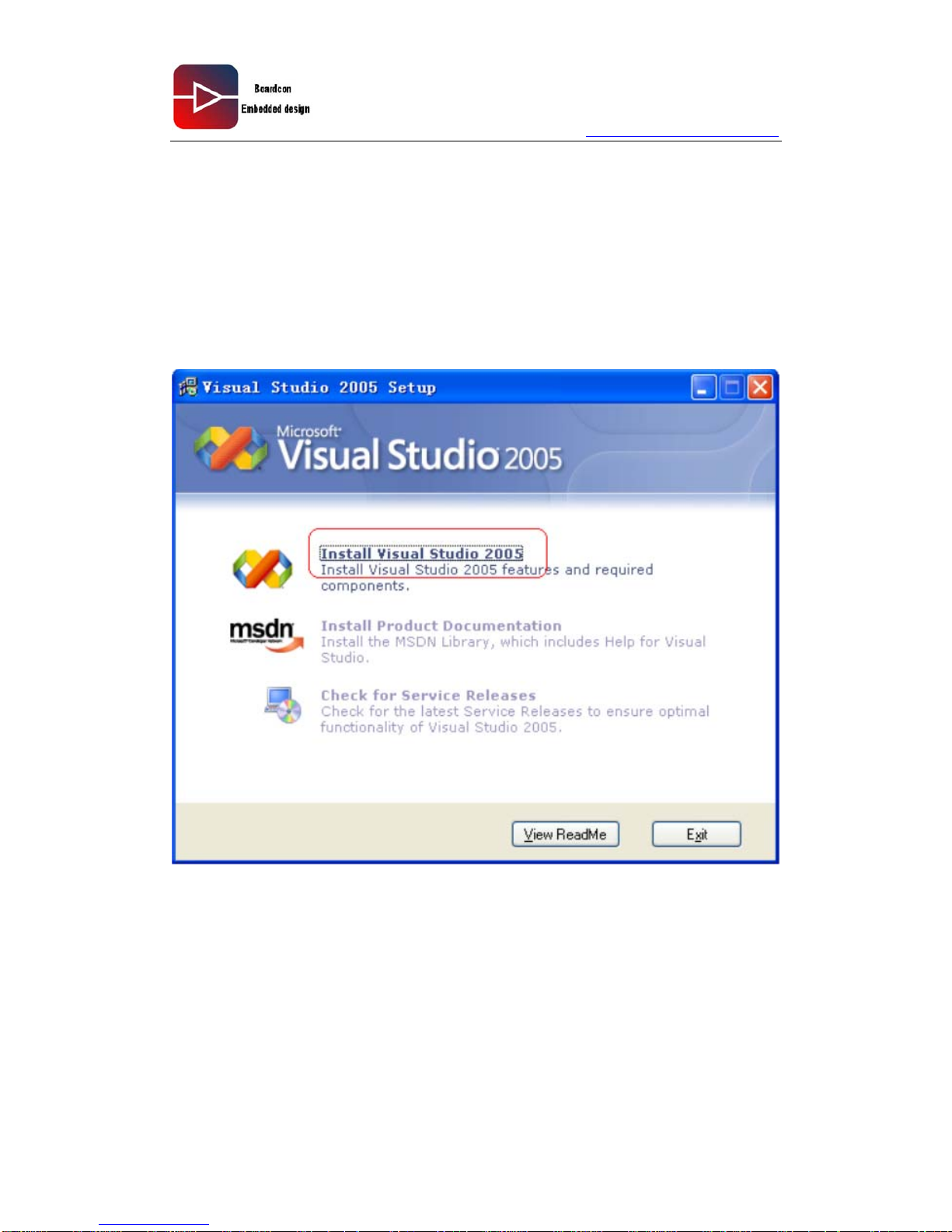
2.1 VS2005 development environment installation
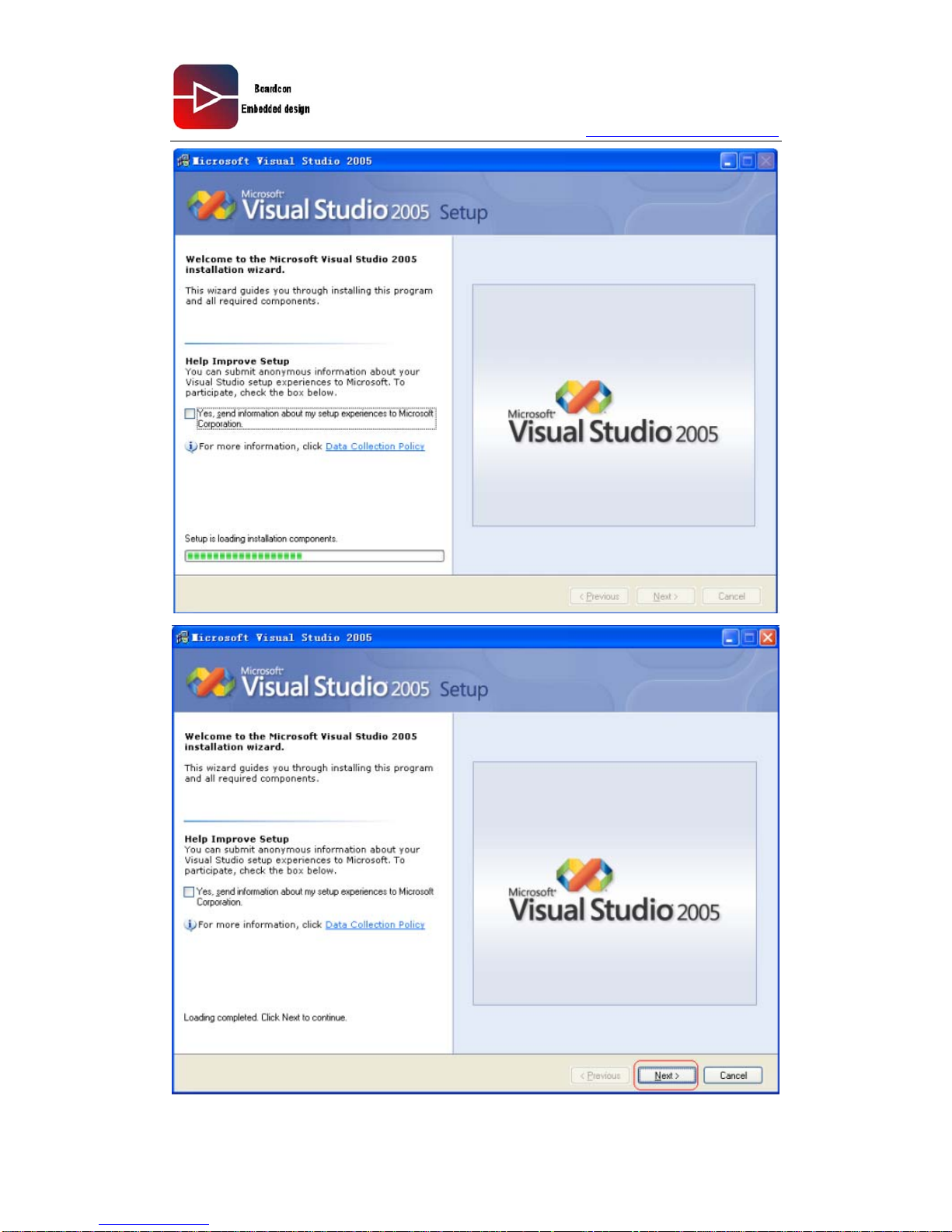
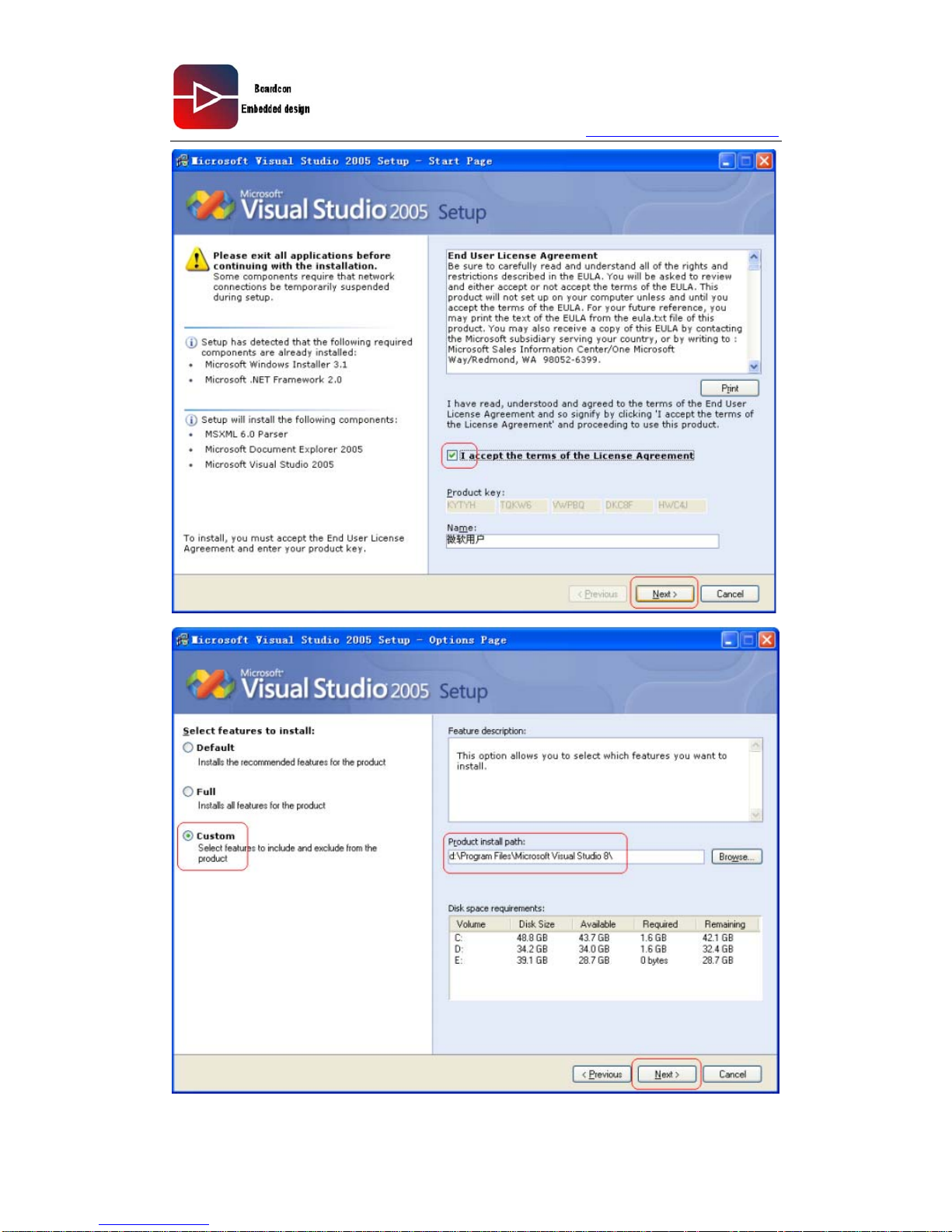
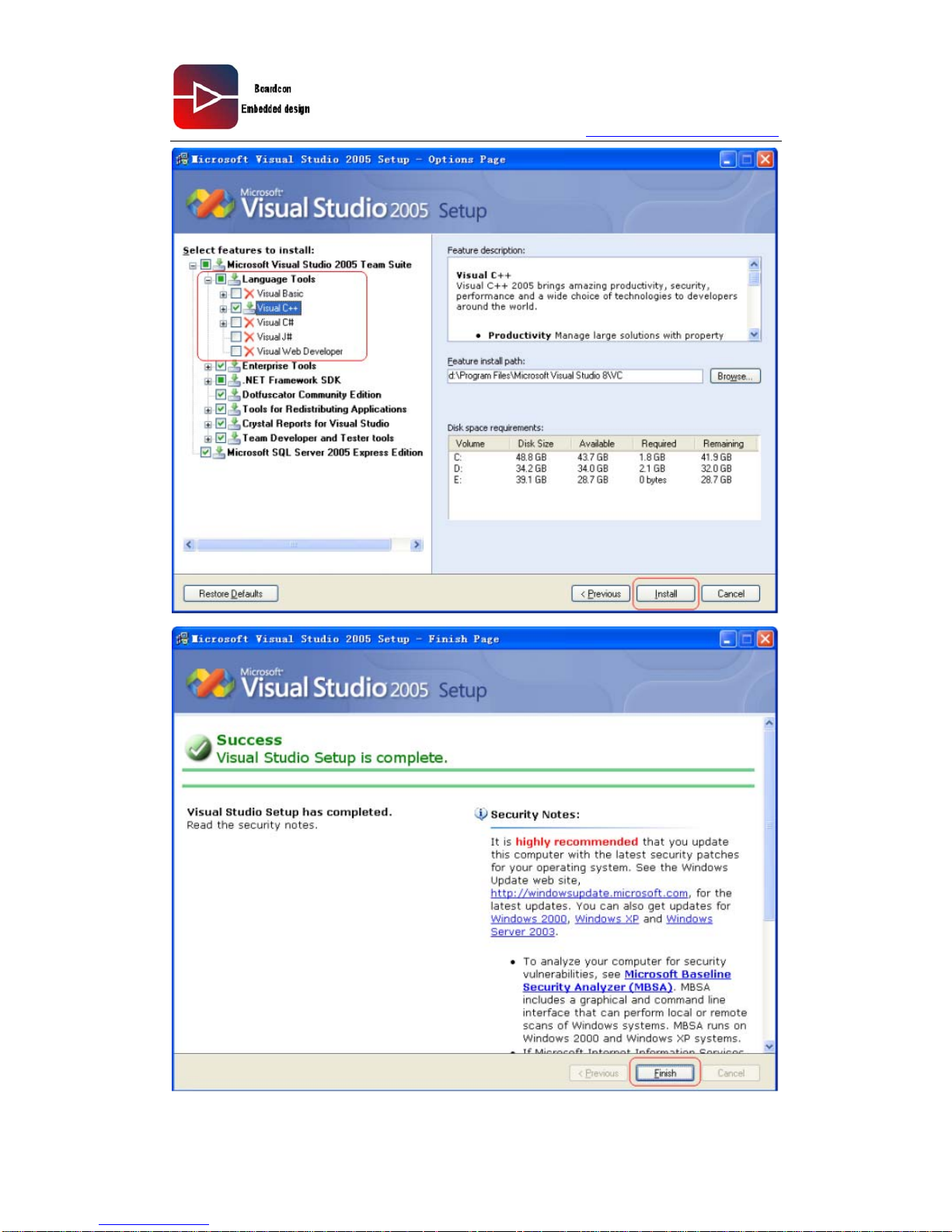
Double click VS2005\VS2005TEAMSUITE\vs\setup.exe
Page 10
www.armdesigner.com
10
EM210 Wince6.0 User manual
Page 11
www.armdesigner.com
11
EM210 Wince6.0 User manual
Page 12
www.armdesigner.com
12
EM210 Wince6.0 User manual
Page 13
www.armdesigner.com
13
EM210 Wince6.0 User manual
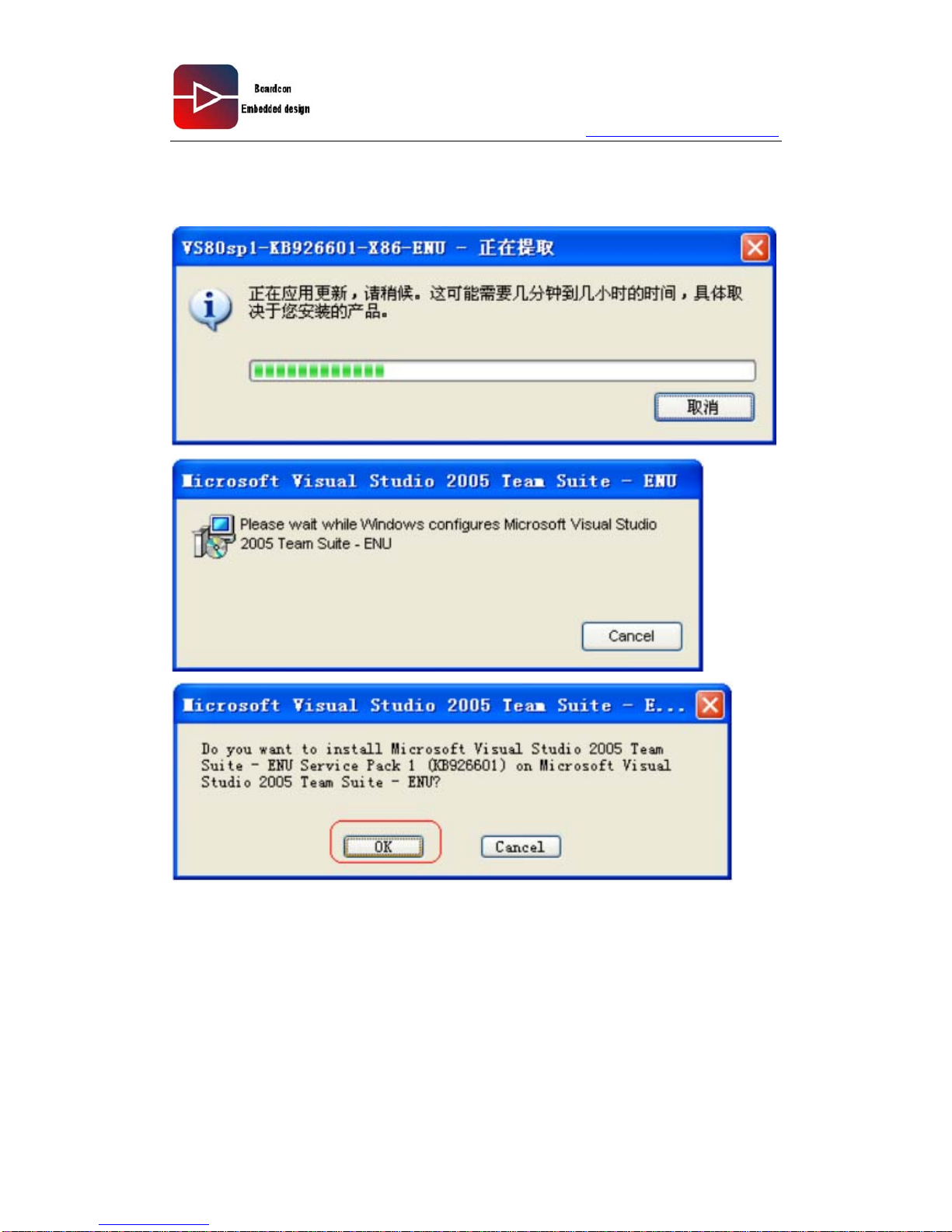
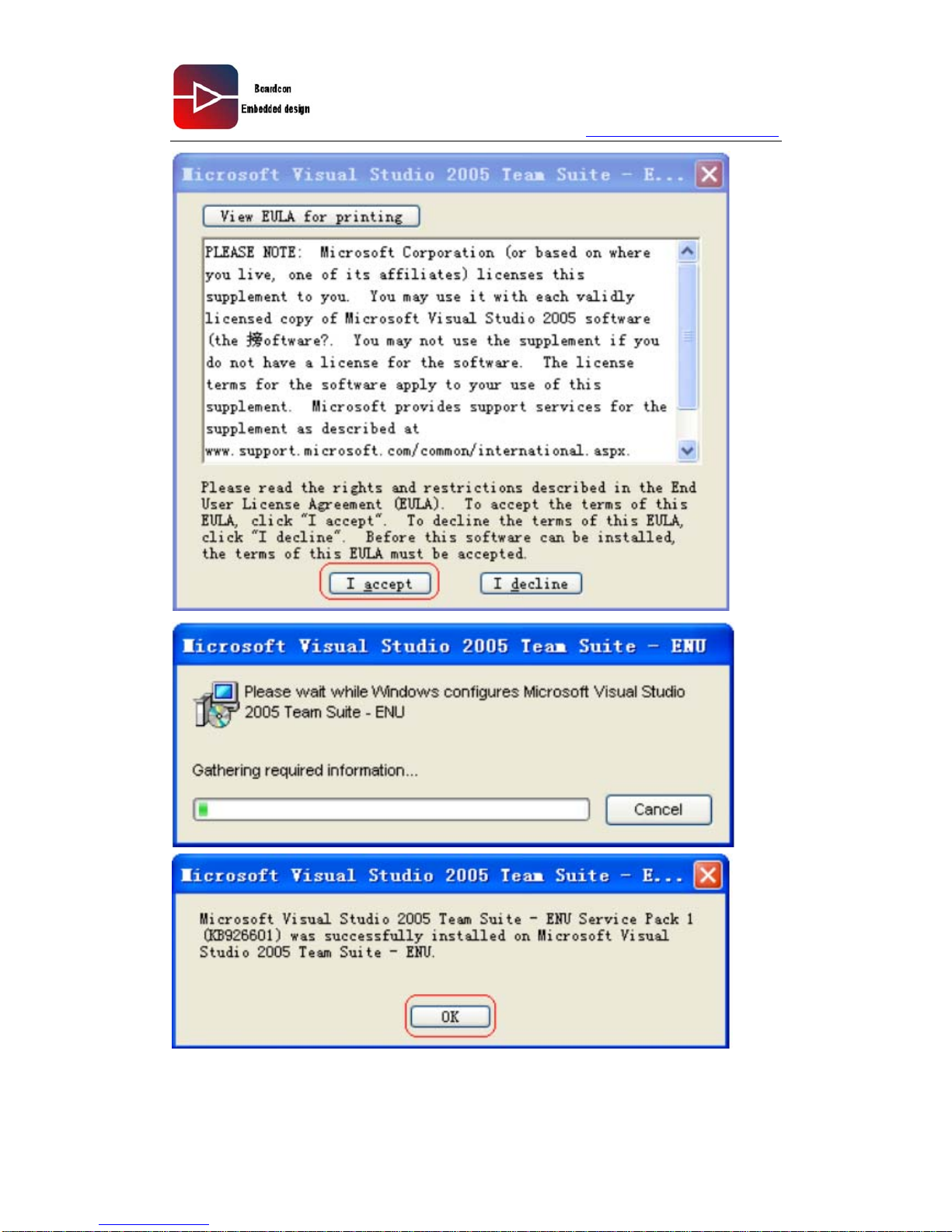
2.2 Install Visual Studio 2005 Service Pack 1
Double click VS80sp1-KB926604-X86-CHS.exe
Page 14
www.armdesigner.com
14
EM210 Wince6.0 User manual
Page 15
www.armdesigner.com
15
EM210 Wince6.0 User manual
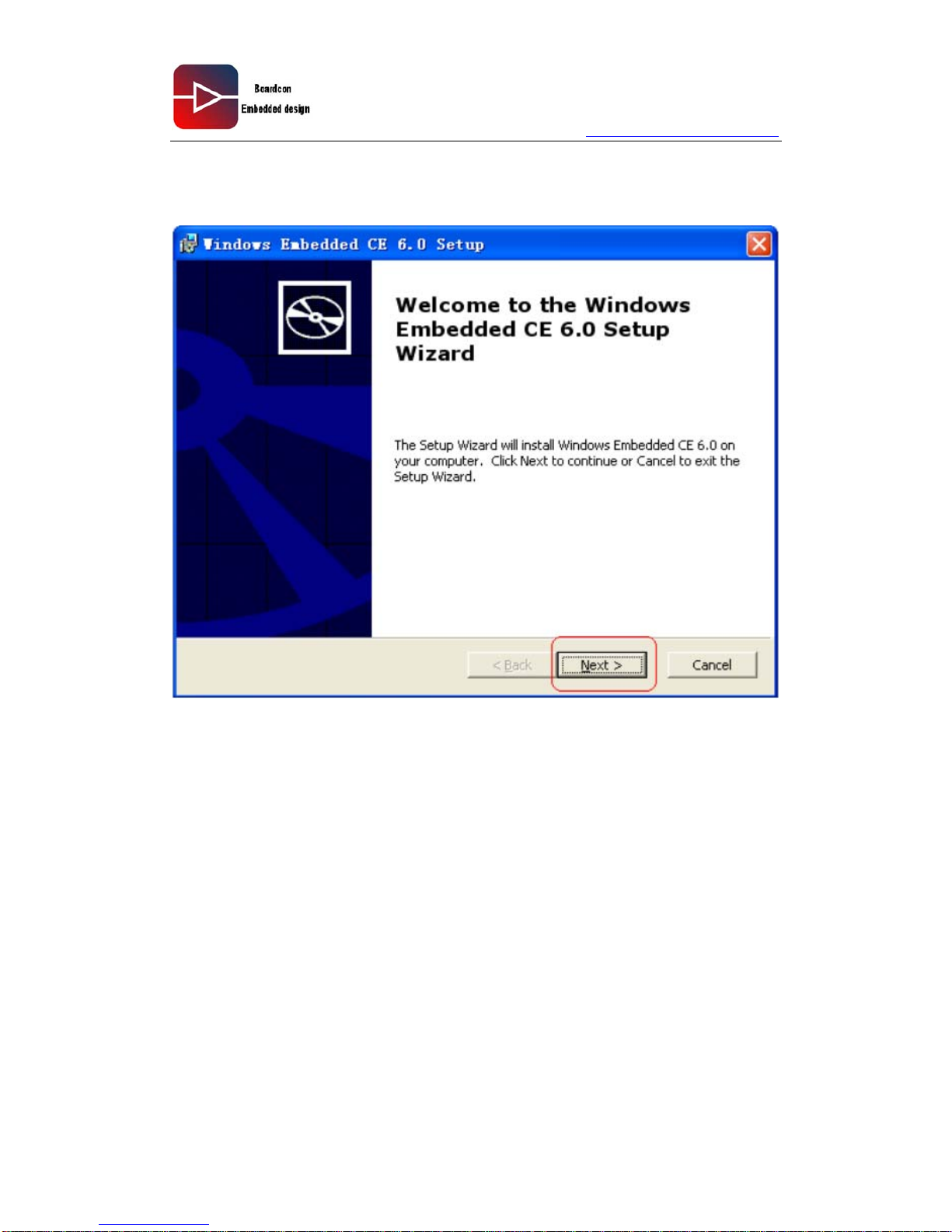
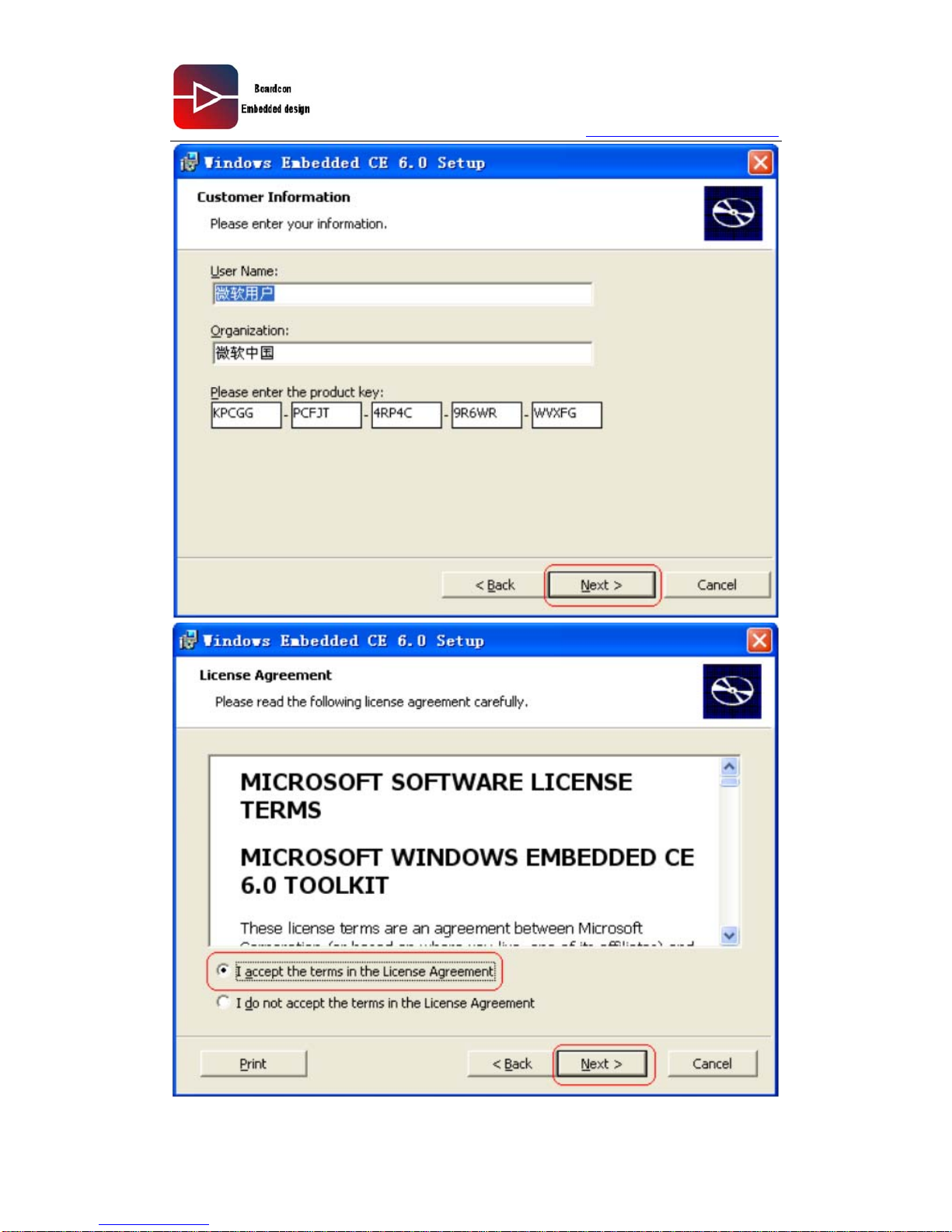
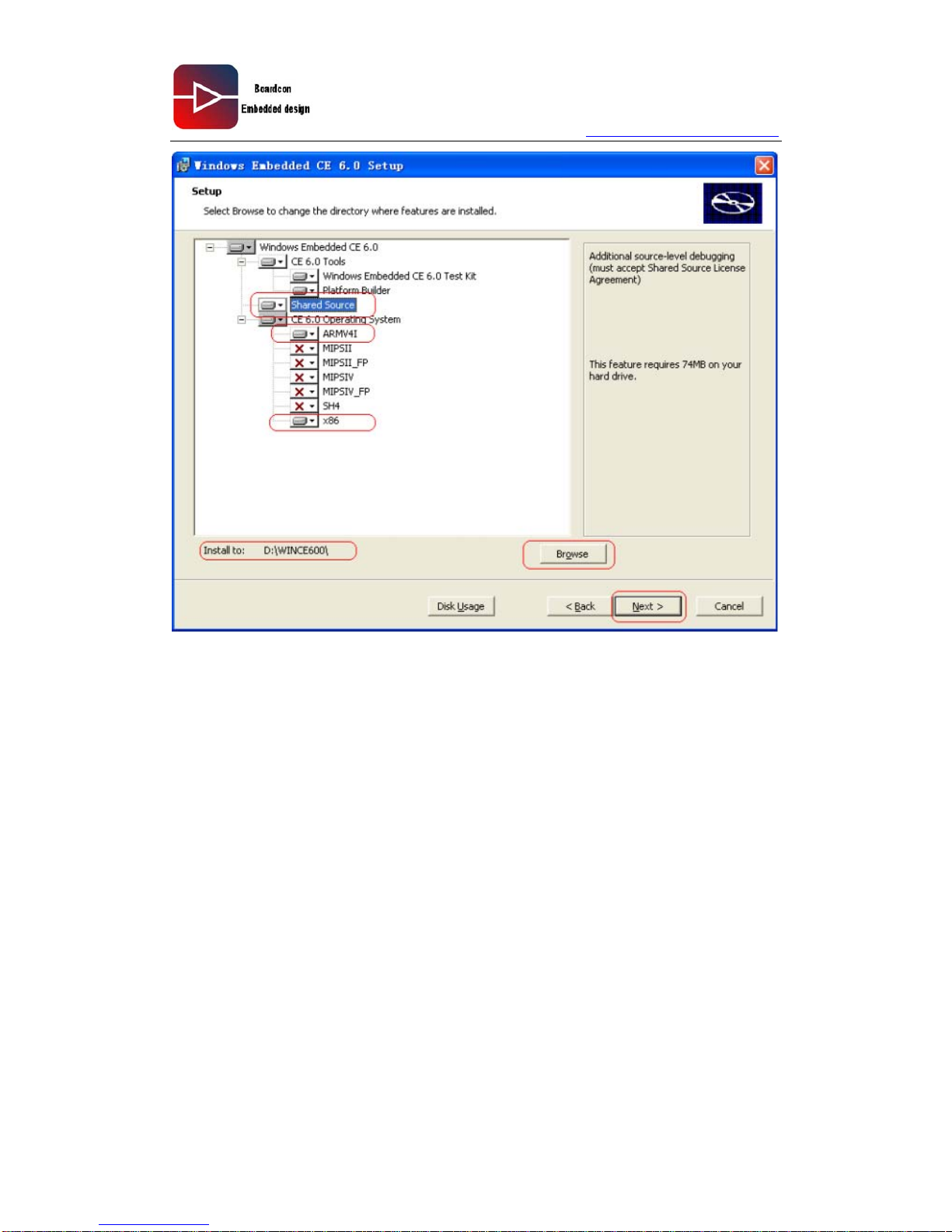
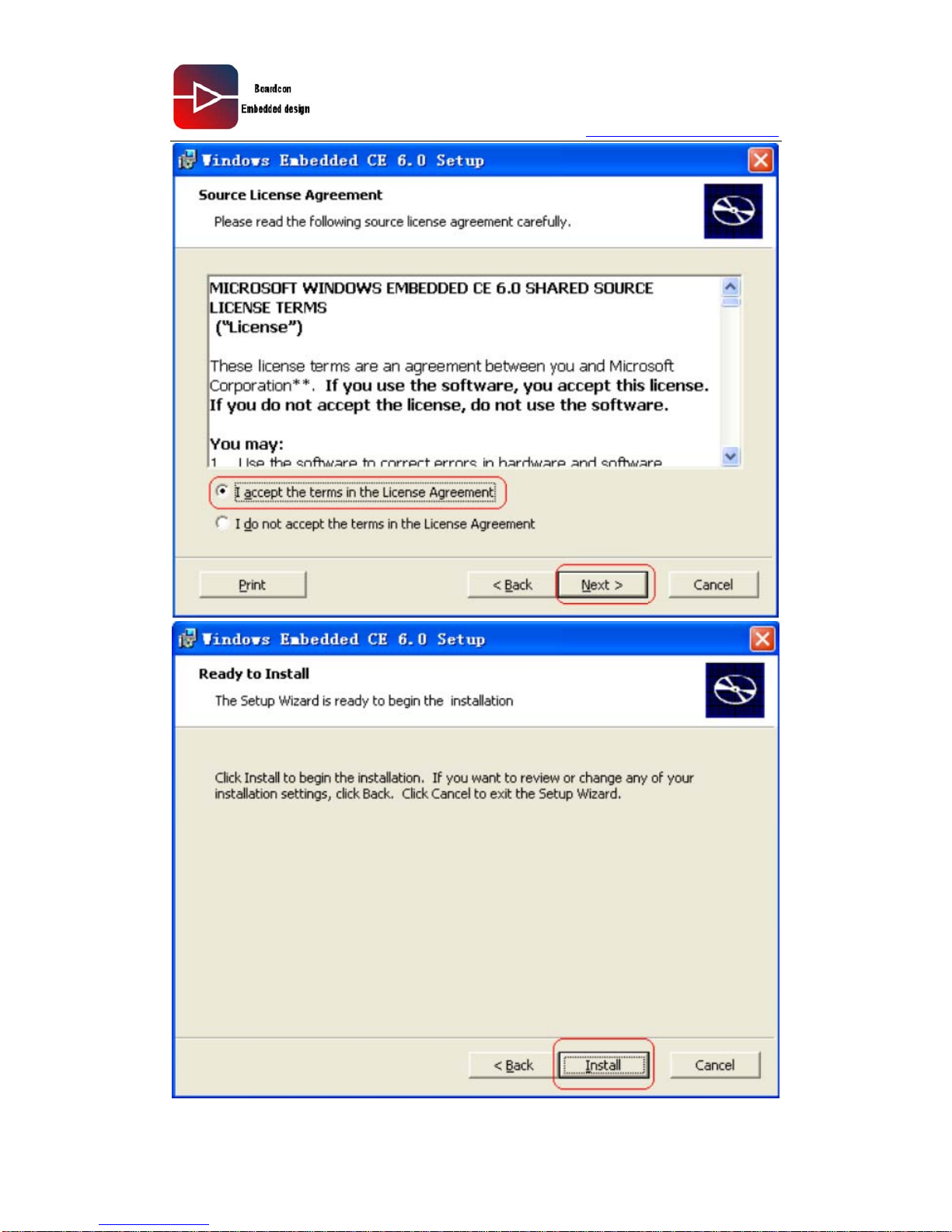
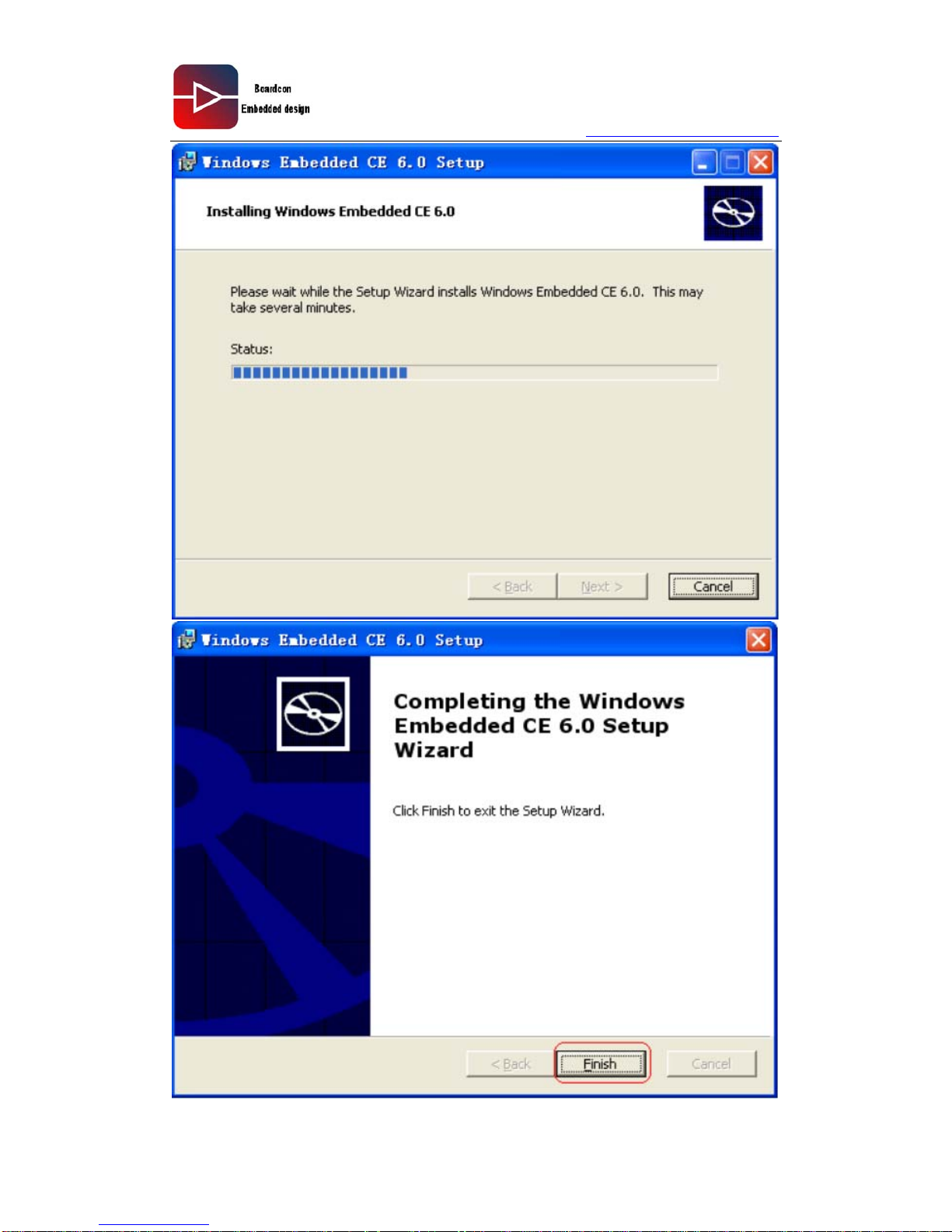
2.3 Install Windows Embedded CE 6.0
Double click Windows Embedded CE 6.0.msi
Page 16
www.armdesigner.com
16
EM210 Wince6.0 User manual
Page 17
www.armdesigner.com
17
EM210 Wince6.0 User manual
Page 18
www.armdesigner.com
18
EM210 Wince6.0 User manual
Page 19
www.armdesigner.com
19
EM210 Wince6.0 User manual
Page 20
www.armdesigner.com
20
EM210 Wince6.0 User manual
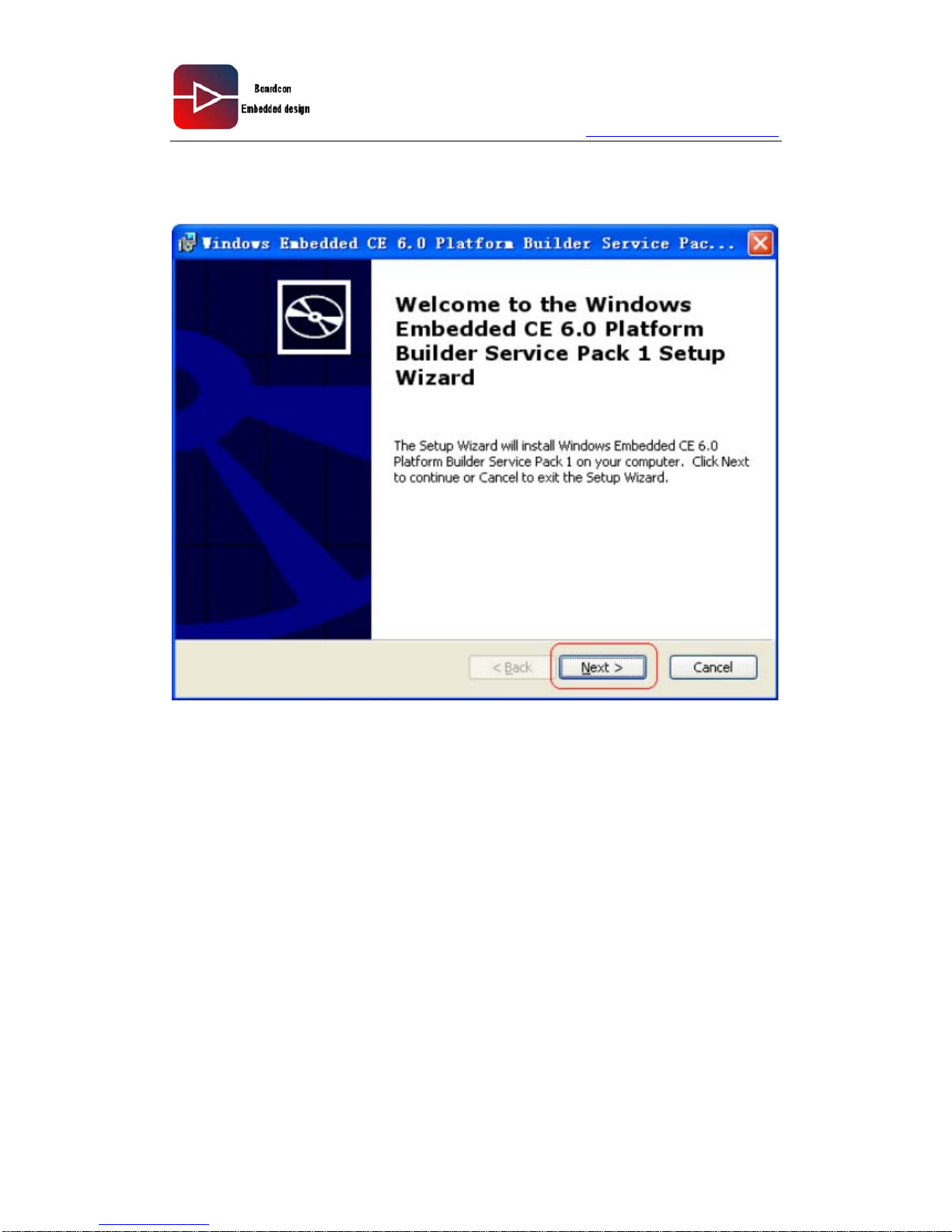
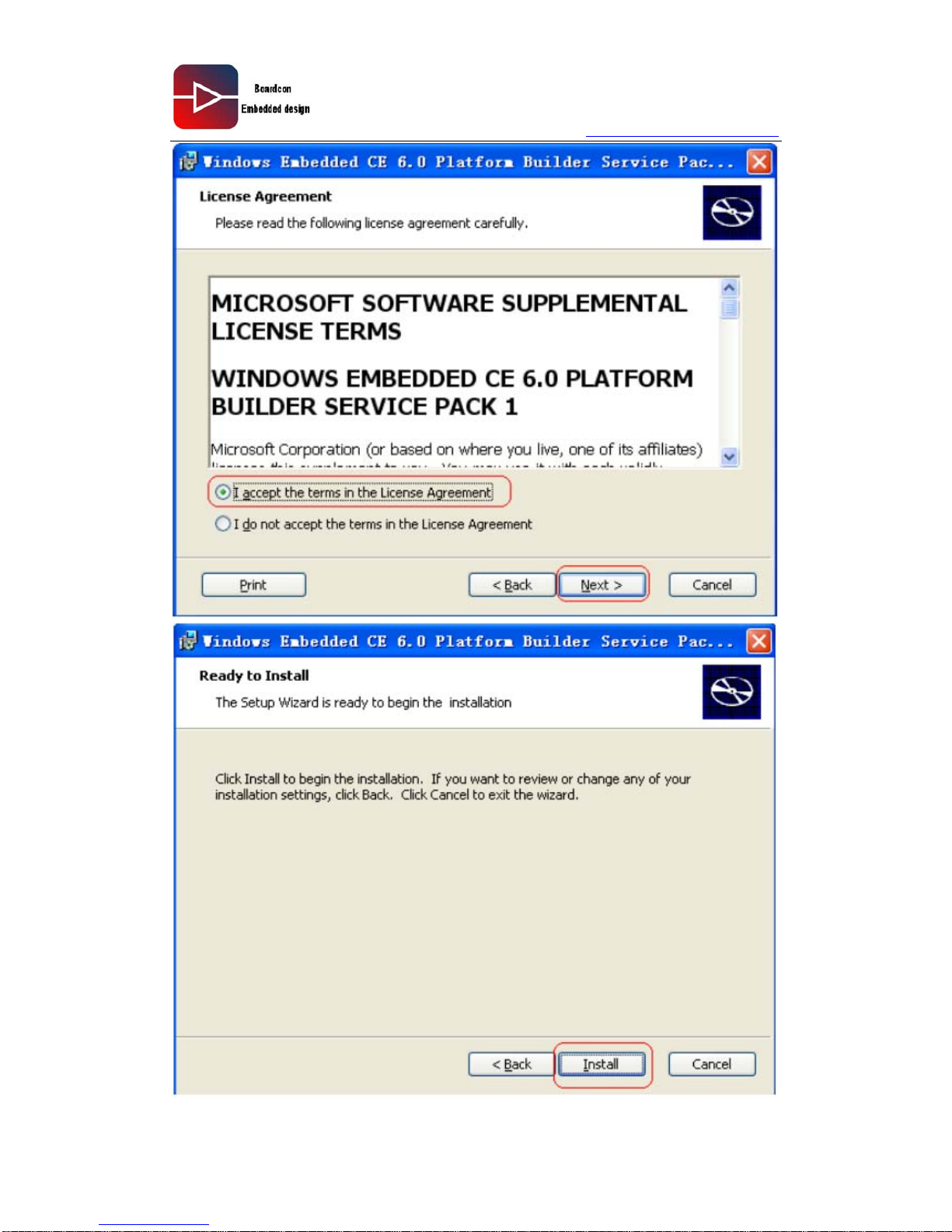
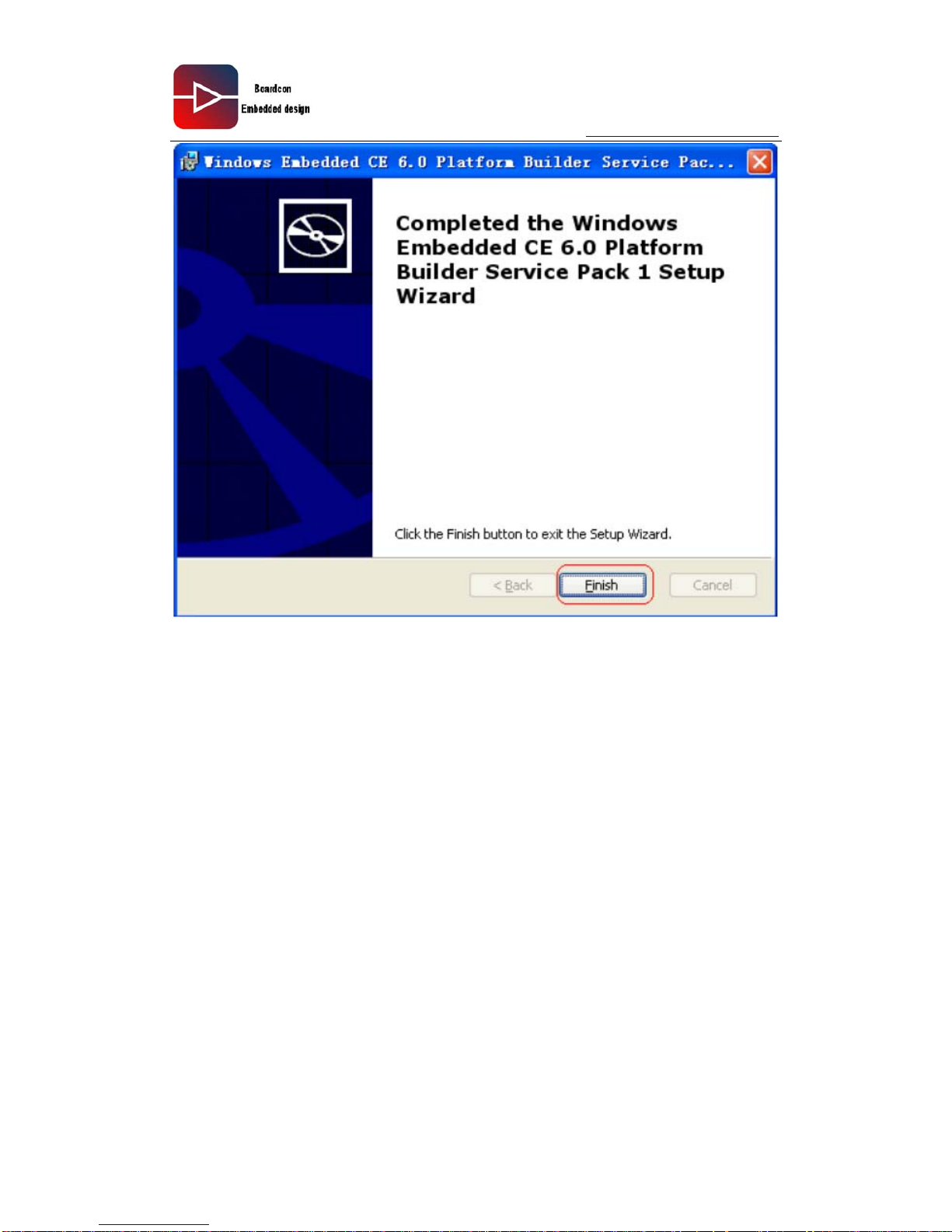
2.4 Install Embedded CE 6.0 Platform Builder Service Pack 1
Double click Windows Embedded CE 6.0 Platform Builder Service Pack 1.msi
Page 21
www.armdesigner.com
21
EM210 Wince6.0 User manual
Page 22
www.armdesigner.com
22
EM210 Wince6.0 User manual
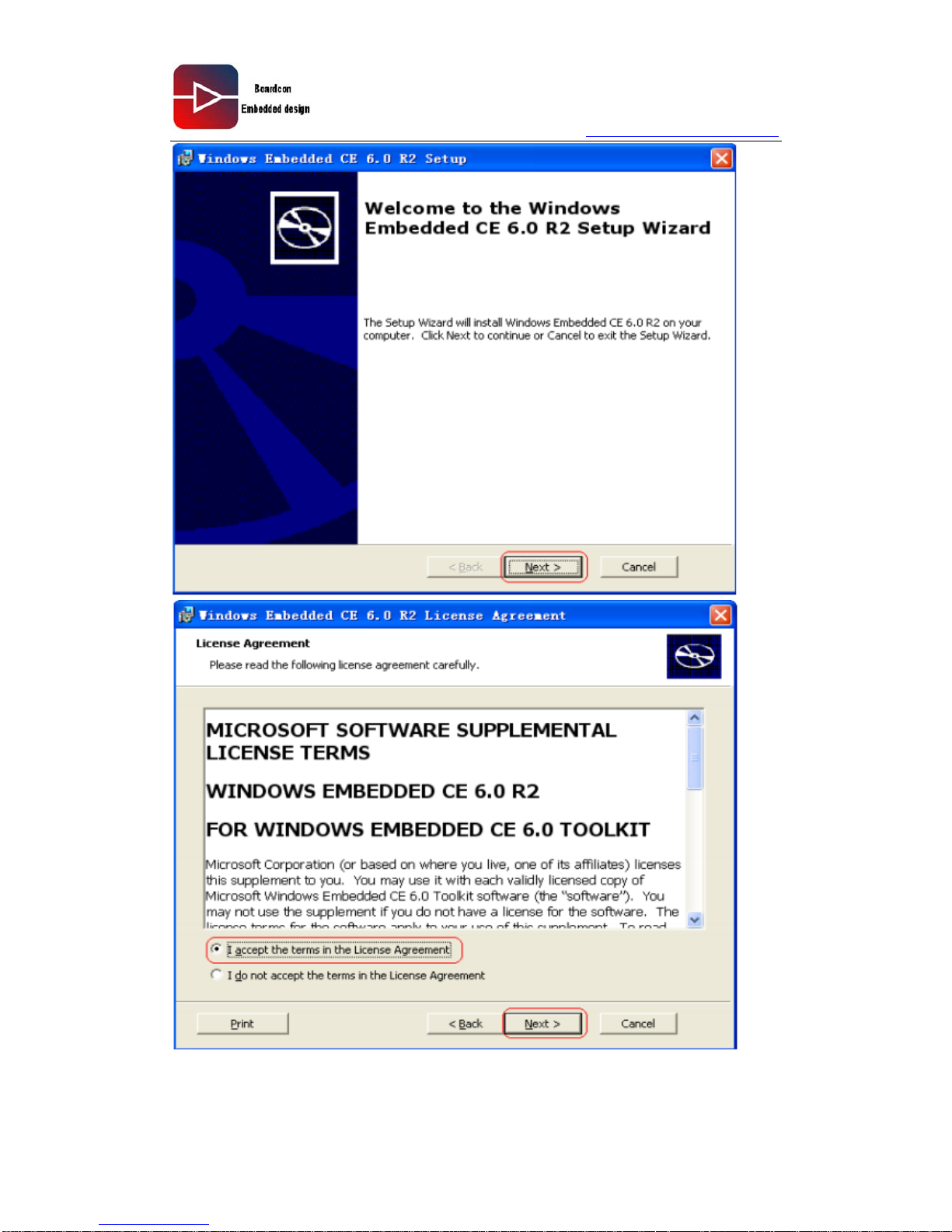
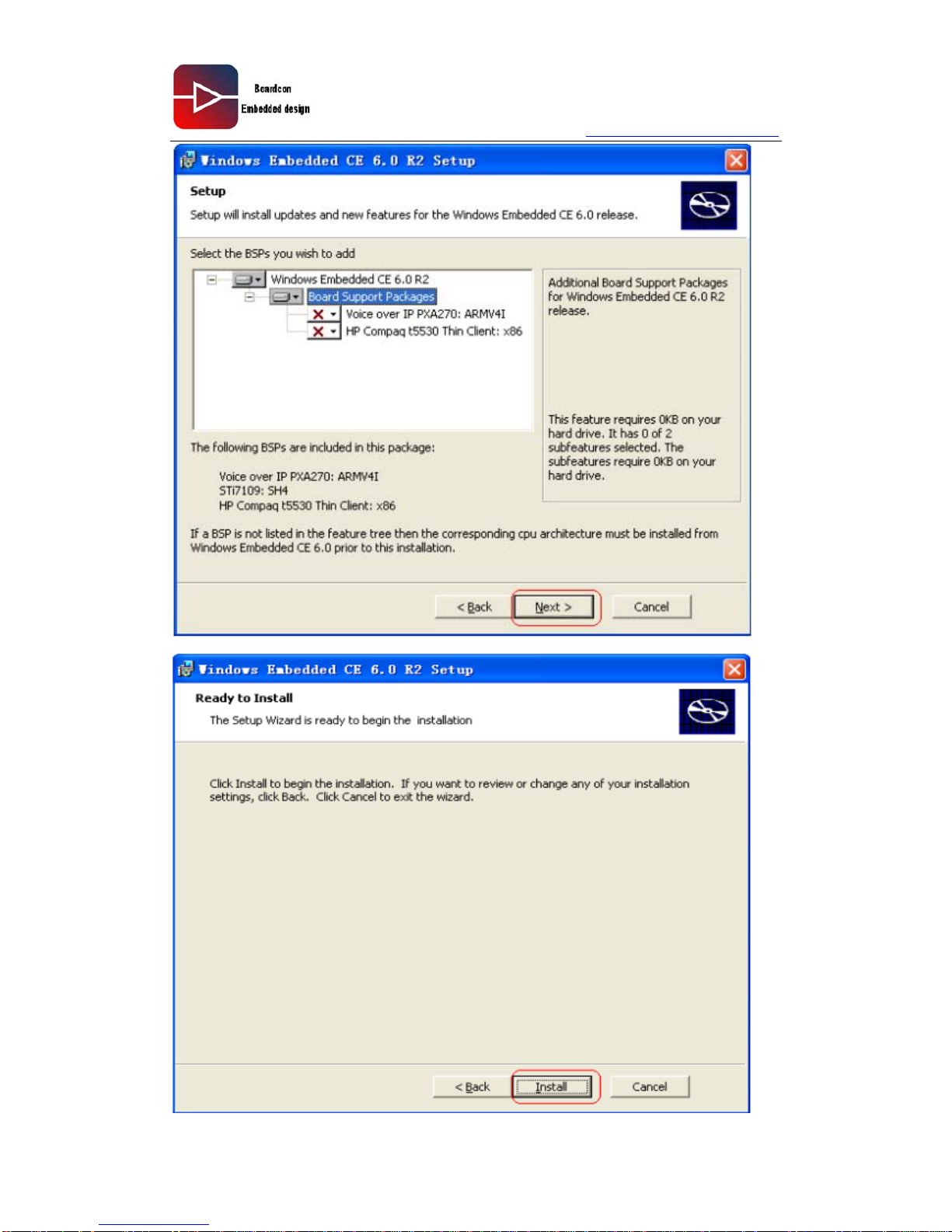
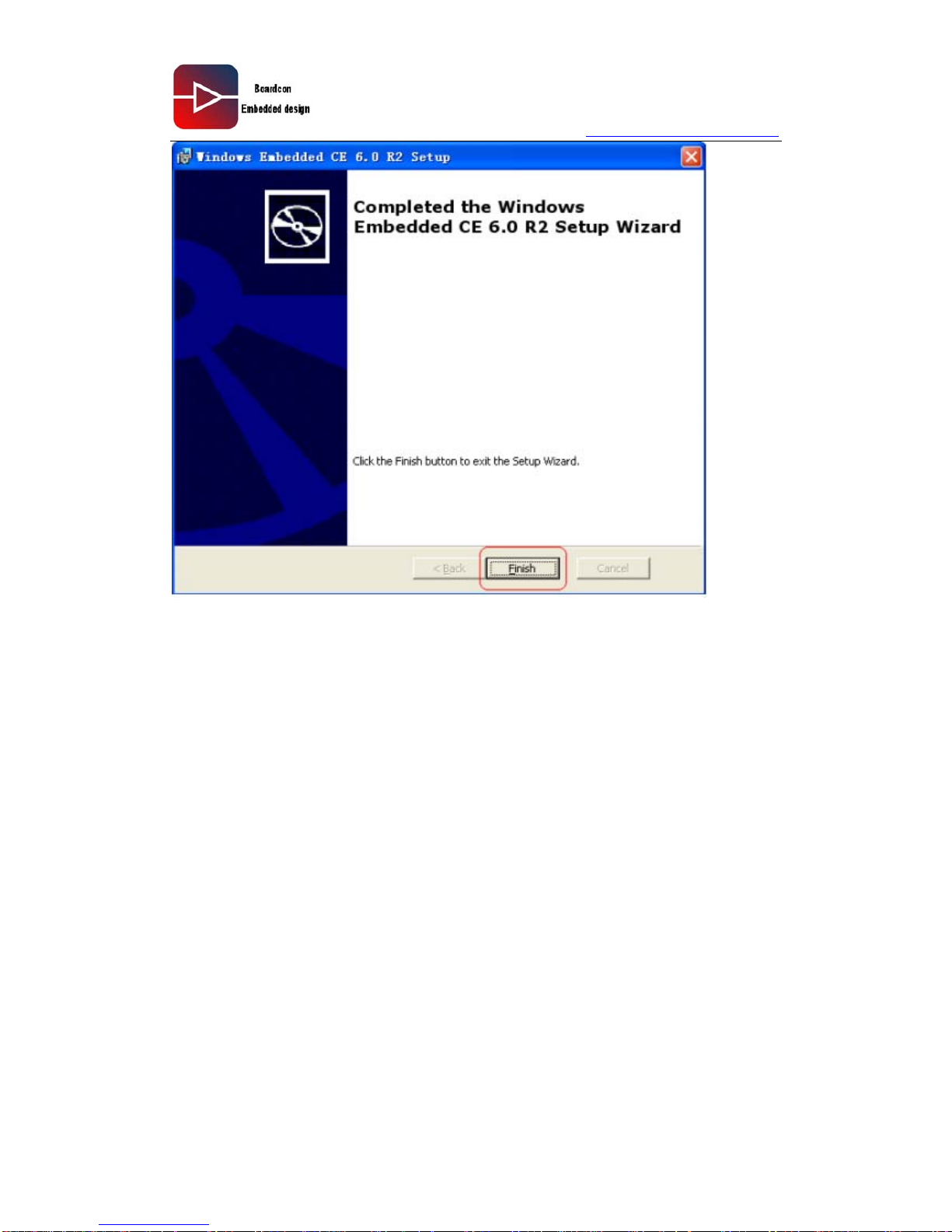
2.5 Install WINCE 6.0 R2
Double click Windows Embedded CE 6.0 R2.msi
Page 23
www.armdesigner.com
23
EM210 Wince6.0 User manual
Page 24
www.armdesigner.com
24
EM210 Wince6.0 User manual
Page 25
www.armdesigner.com
25
EM210 Wince6.0 User manual
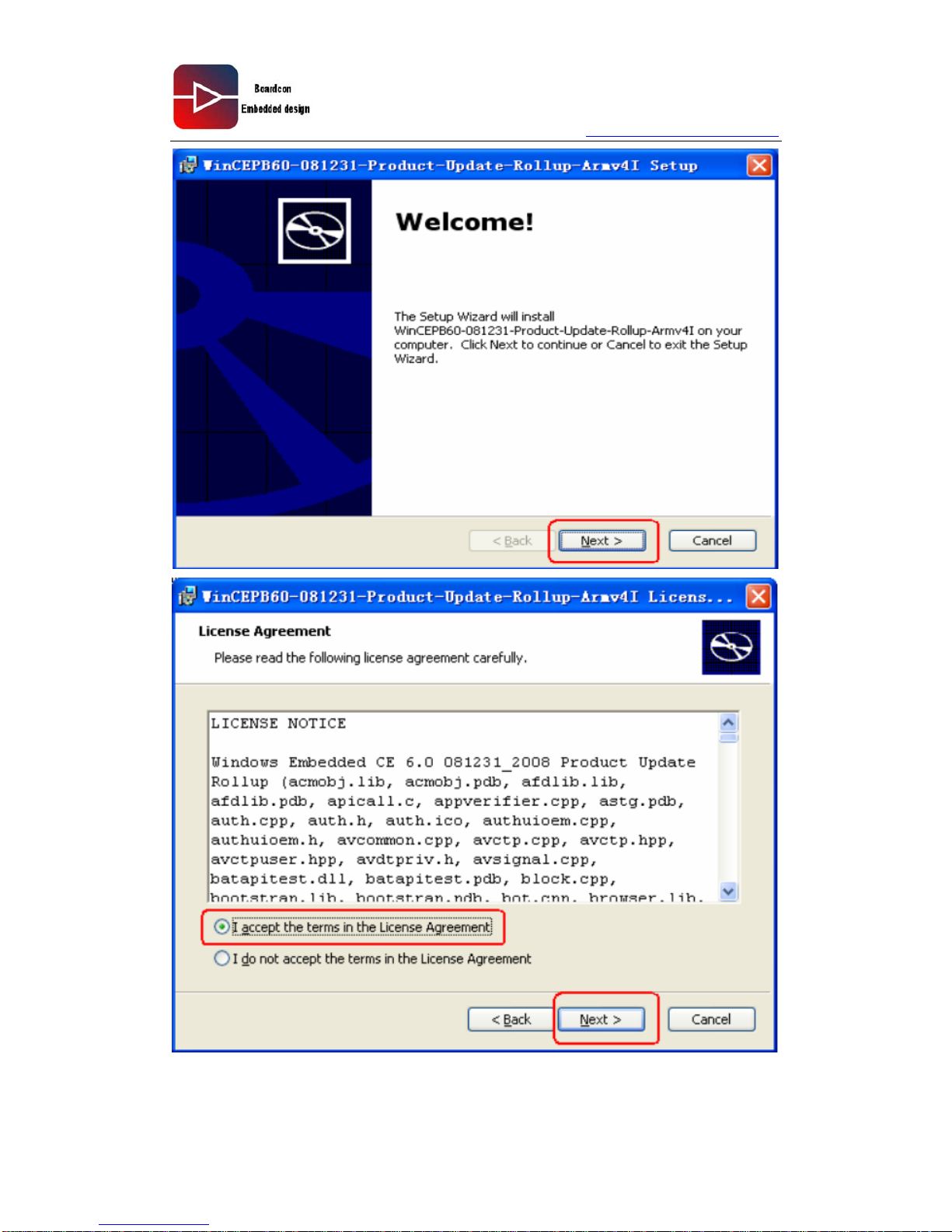
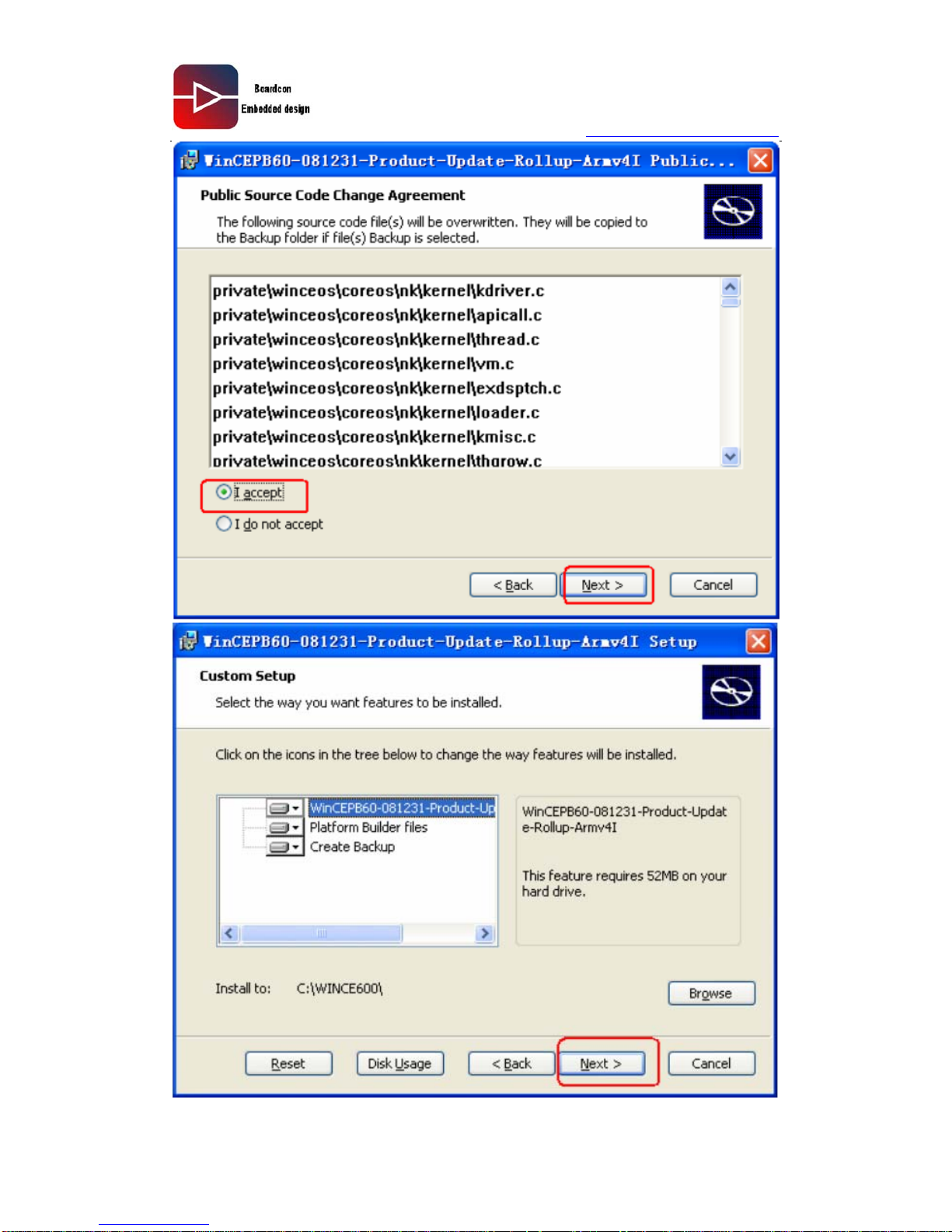
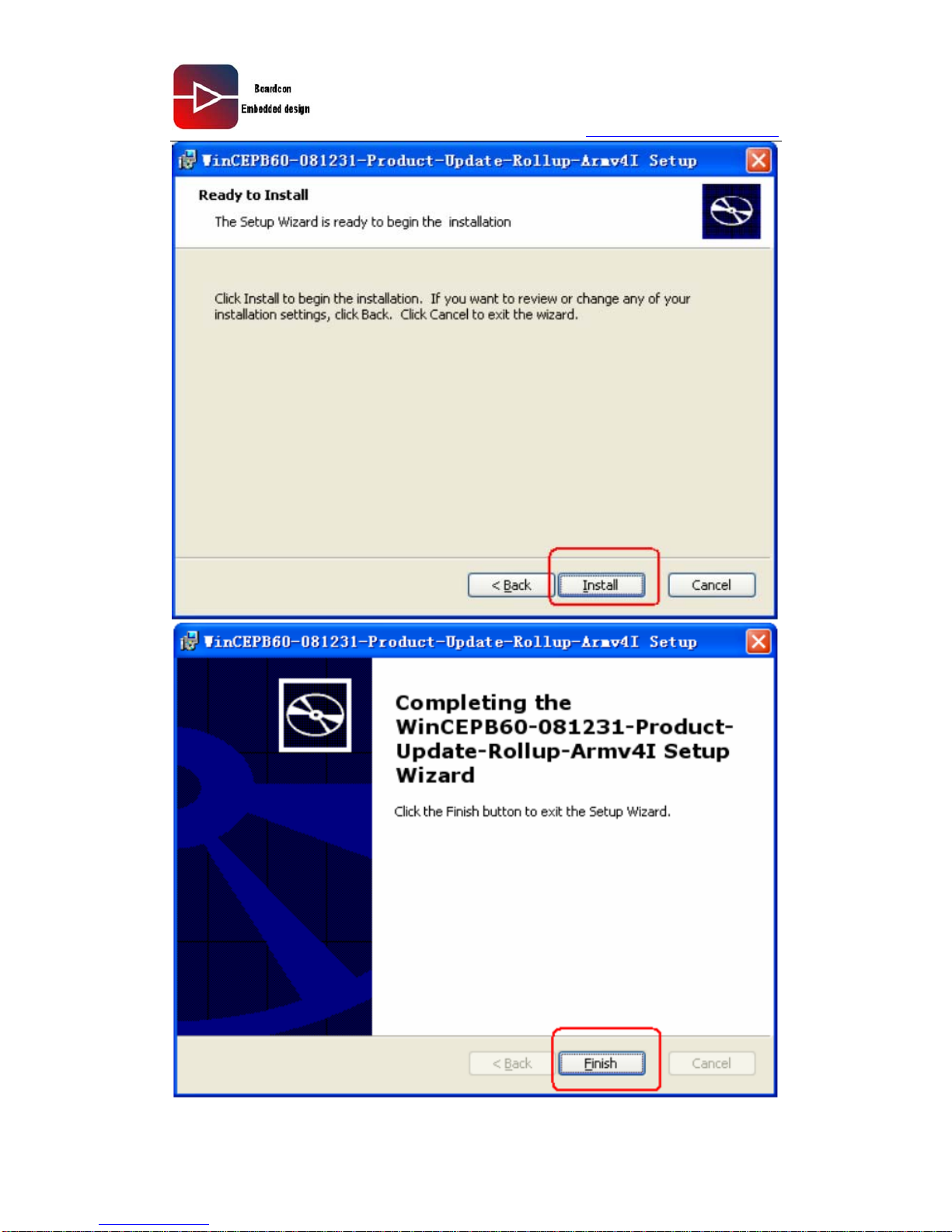
2.6 Install WinCEPB60-081231-Product-Update-Rollup-Armv4I
Double click
WinCEPB60-081231-Product-Update-Rollup-Armv4I.msi
Page 26
www.armdesigner.com
26
EM210 Wince6.0 User manual
Page 27
www.armdesigner.com
27
EM210 Wince6.0 User manual
Page 28
www.armdesigner.com
28
EM210 Wince6.0 User manual
Page 29
www.armdesigner.com
29
EM210 Wince6.0 User manual
2.7 Install 2009 year patch
Install the following patch respectively, double click it can be installation
WinCEPB60-090131-2009M01-Armv4I.msi 0901 patch
WinCEPB60-090228-2009M02-Armv4I.msi 0902 patch
WinCEPB60-090831-2009M08-Armv4I.msi 0903 patch
WinCEPB60-090430-2009M04-Armv4I.msi 0904 patch
WinCEPB60-090531-2009M05-Armv4I.msi 0905 patch
WinCEPB60-090630-2009M06-Armv4I.msi 0906 patch
WinCEPB60-090731-2009M07-Armv4I.msi 0907 patch
WinCEPB60-090831-2009M08-Armv4I.msi 0908 patch
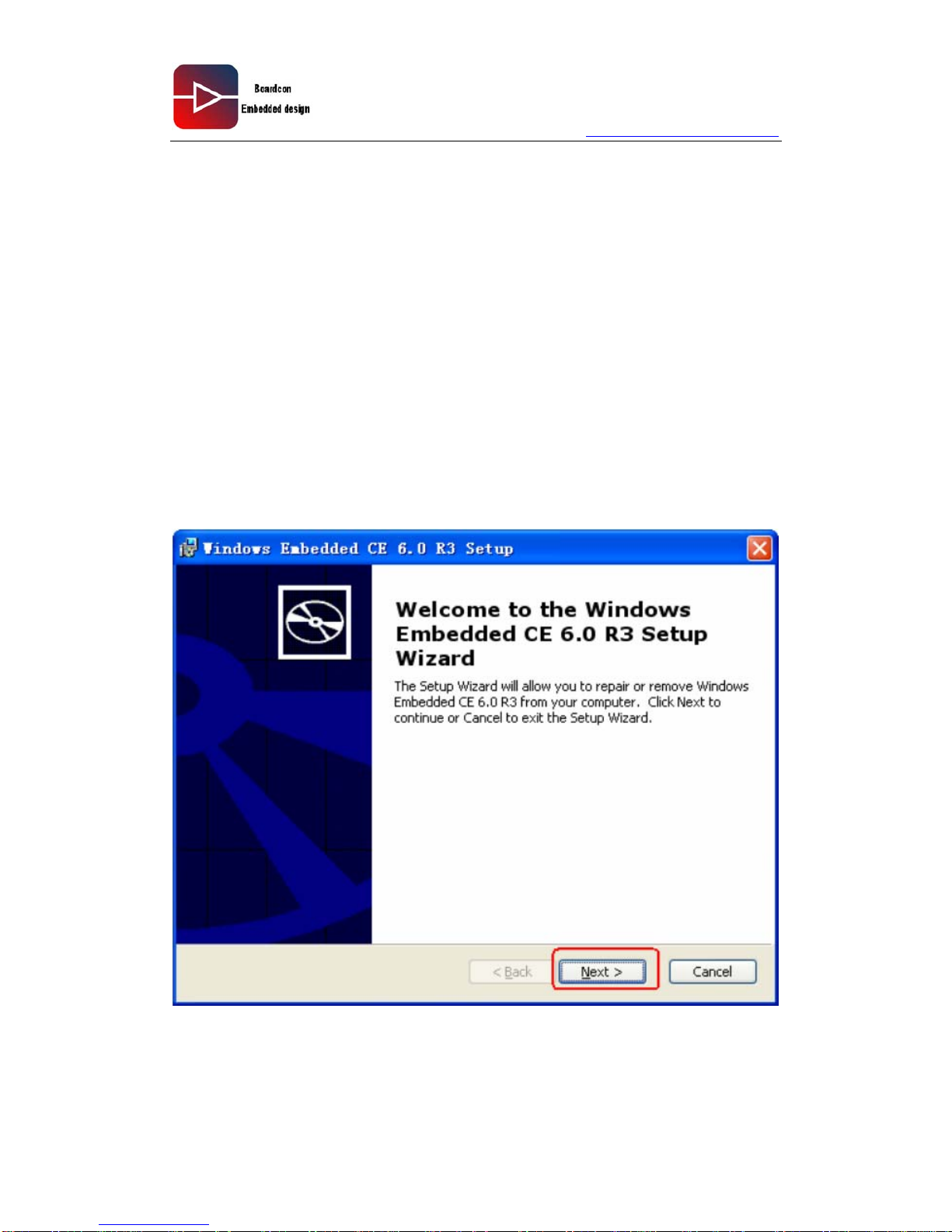
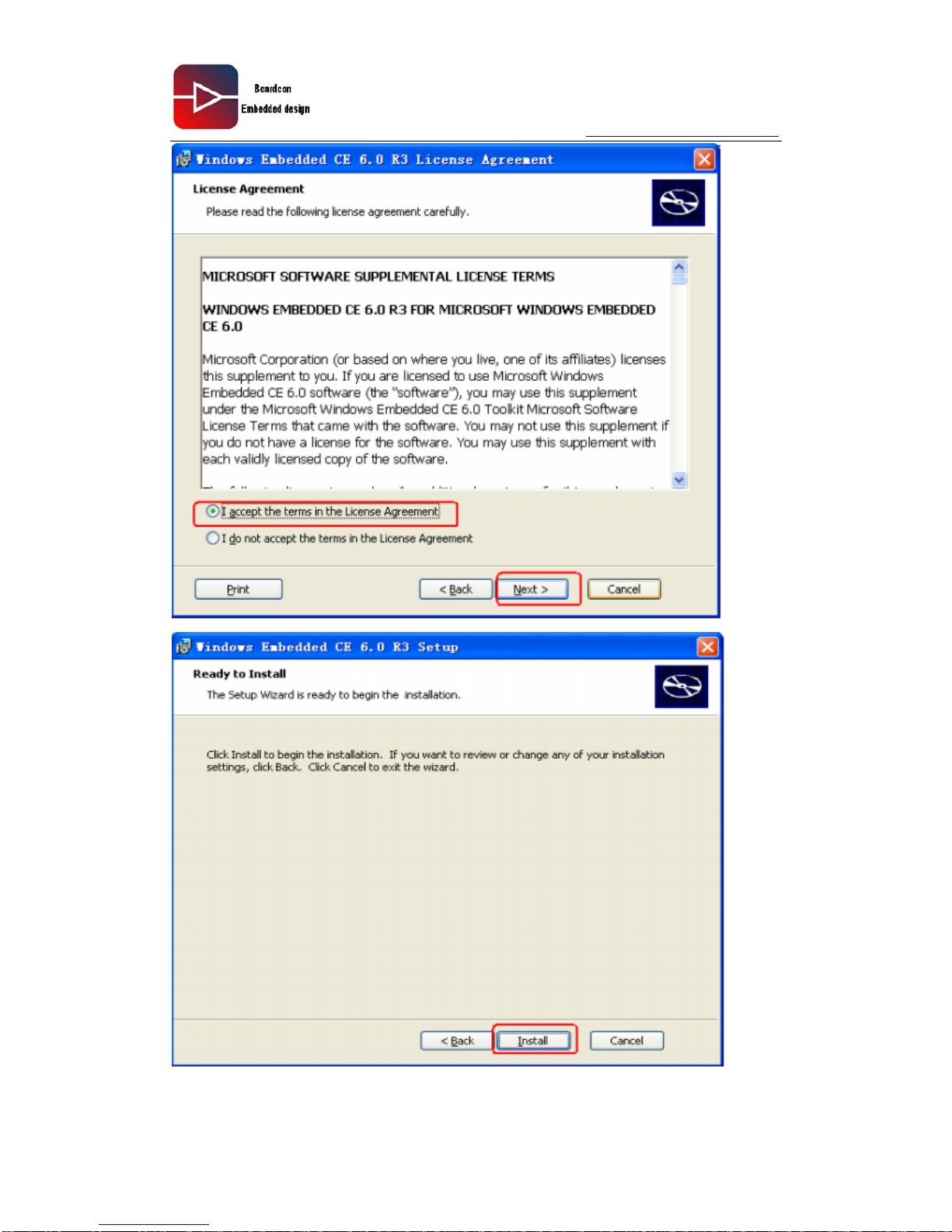
2.8 Install Platform Builder 6.0 R3
Double click Windows Embedded CE 6.0 R3.msi
Page 30
www.armdesigner.com
30
EM210 Wince6.0 User manual
Page 31
www.armdesigner.com
31
EM210 Wince6.0 User manual
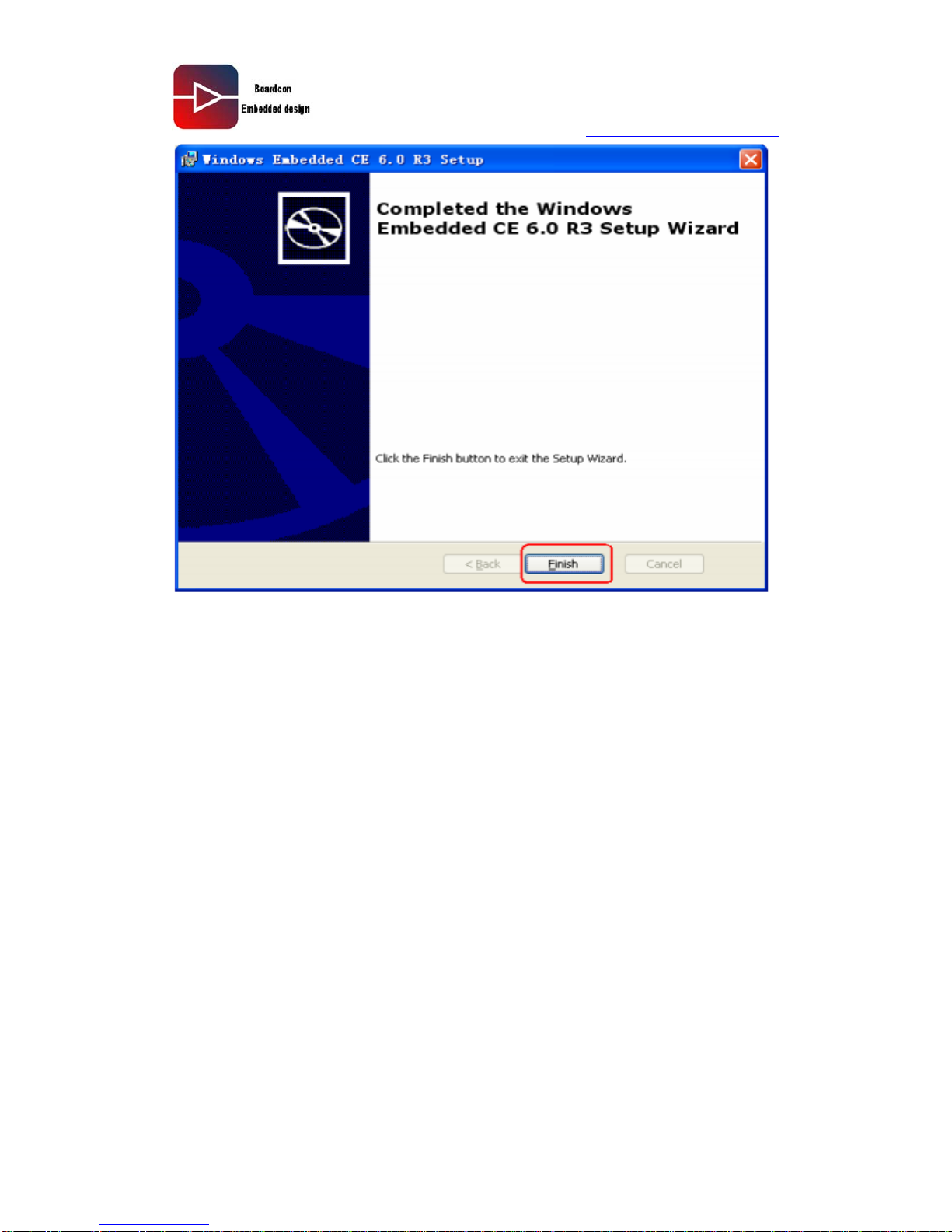
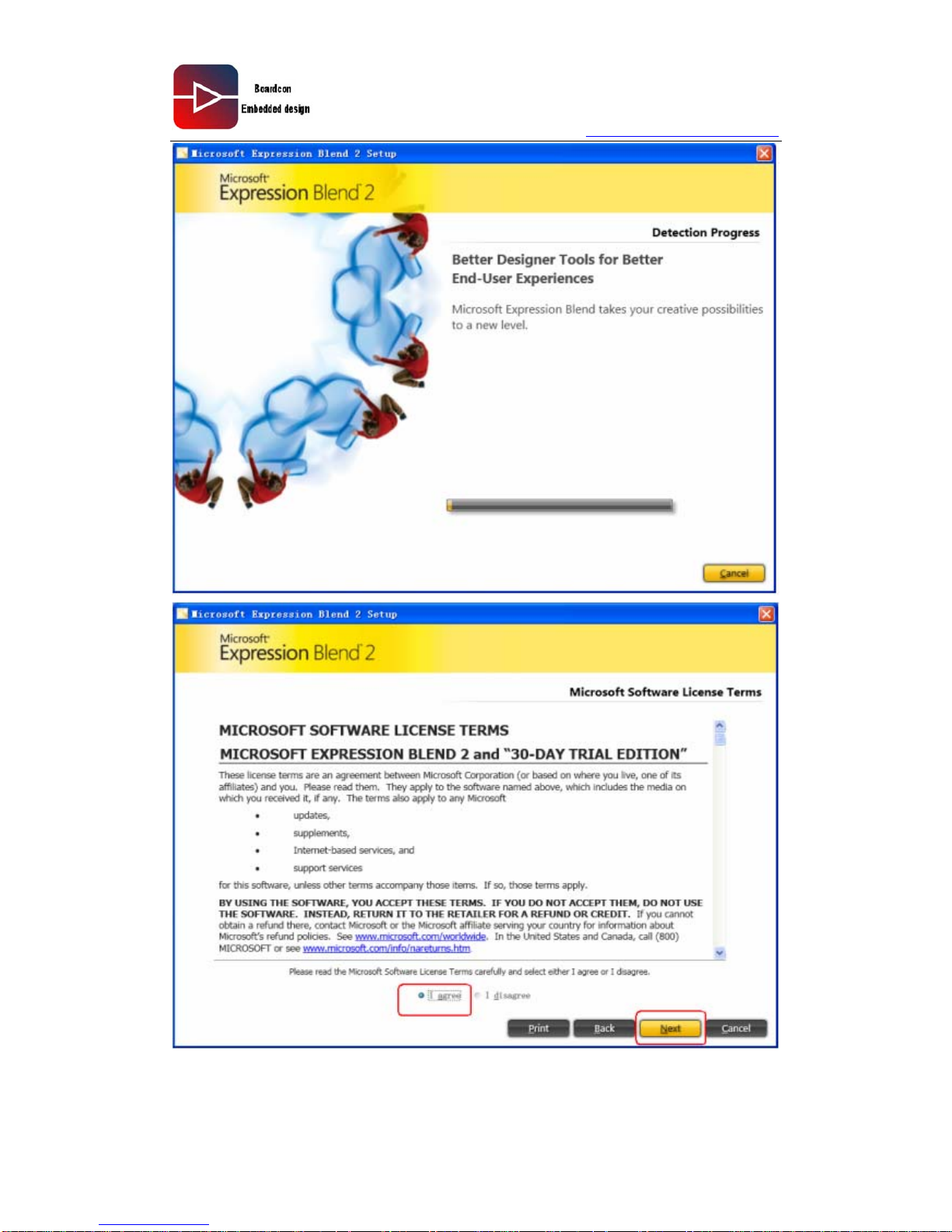
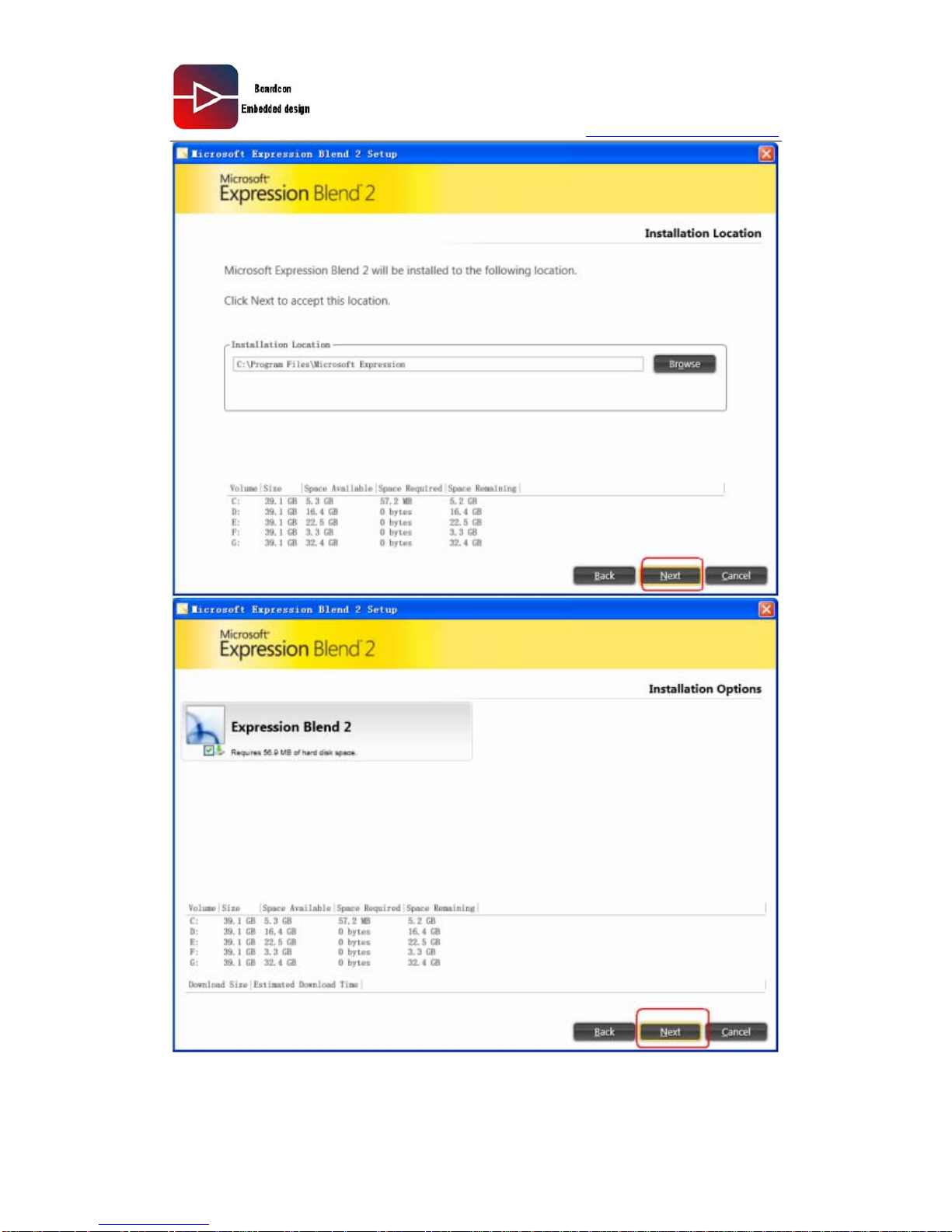
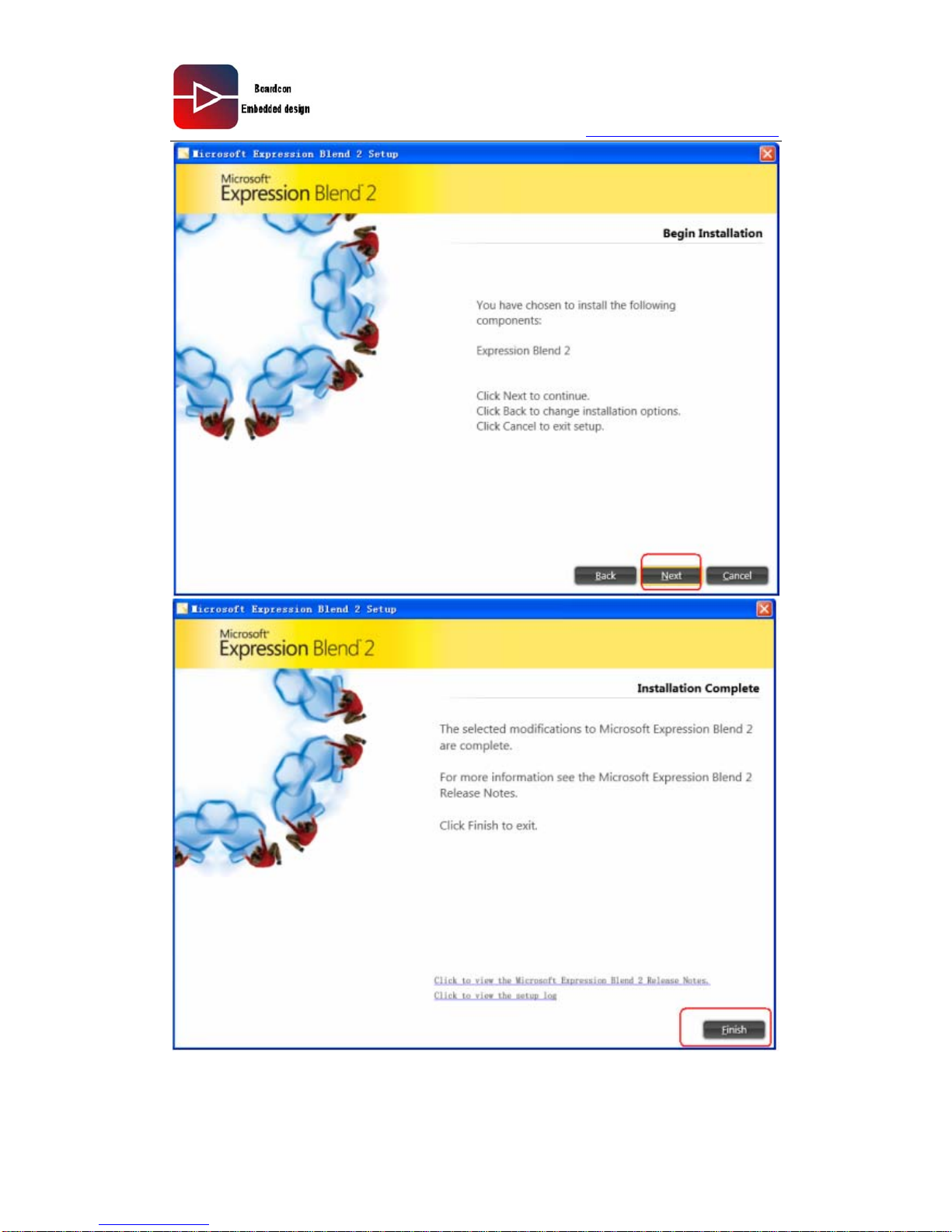
2.9 Install Blend components
Click Blend_Trial_en.exe
Page 32
www.armdesigner.com
32
EM210 Wince6.0 User manual
Page 33
www.armdesigner.com
33
EM210 Wince6.0 User manual
Page 34
www.armdesigner.com
34
EM210 Wince6.0 User manual
Page 35
www.armdesigner.com
35
EM210 Wince6.0 User manual
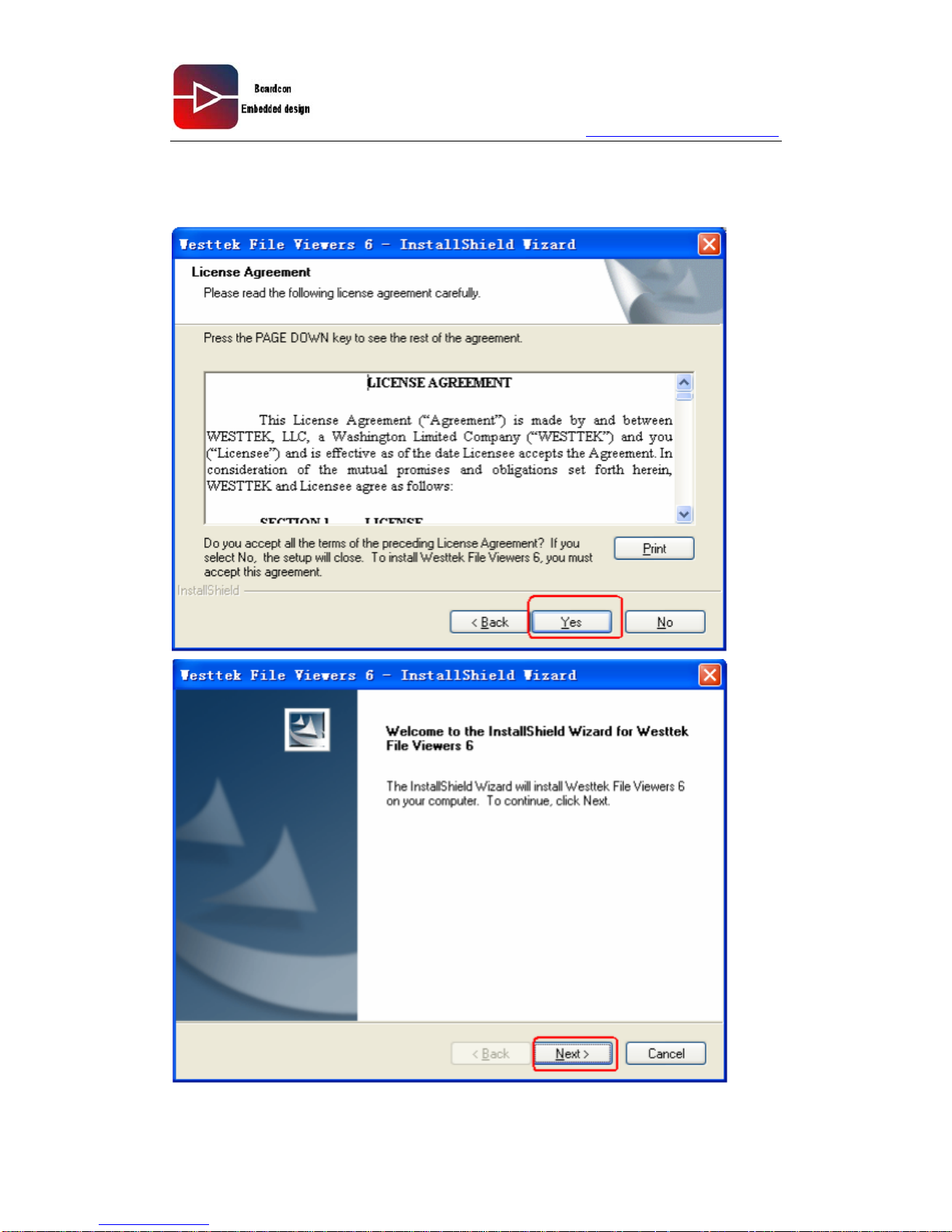
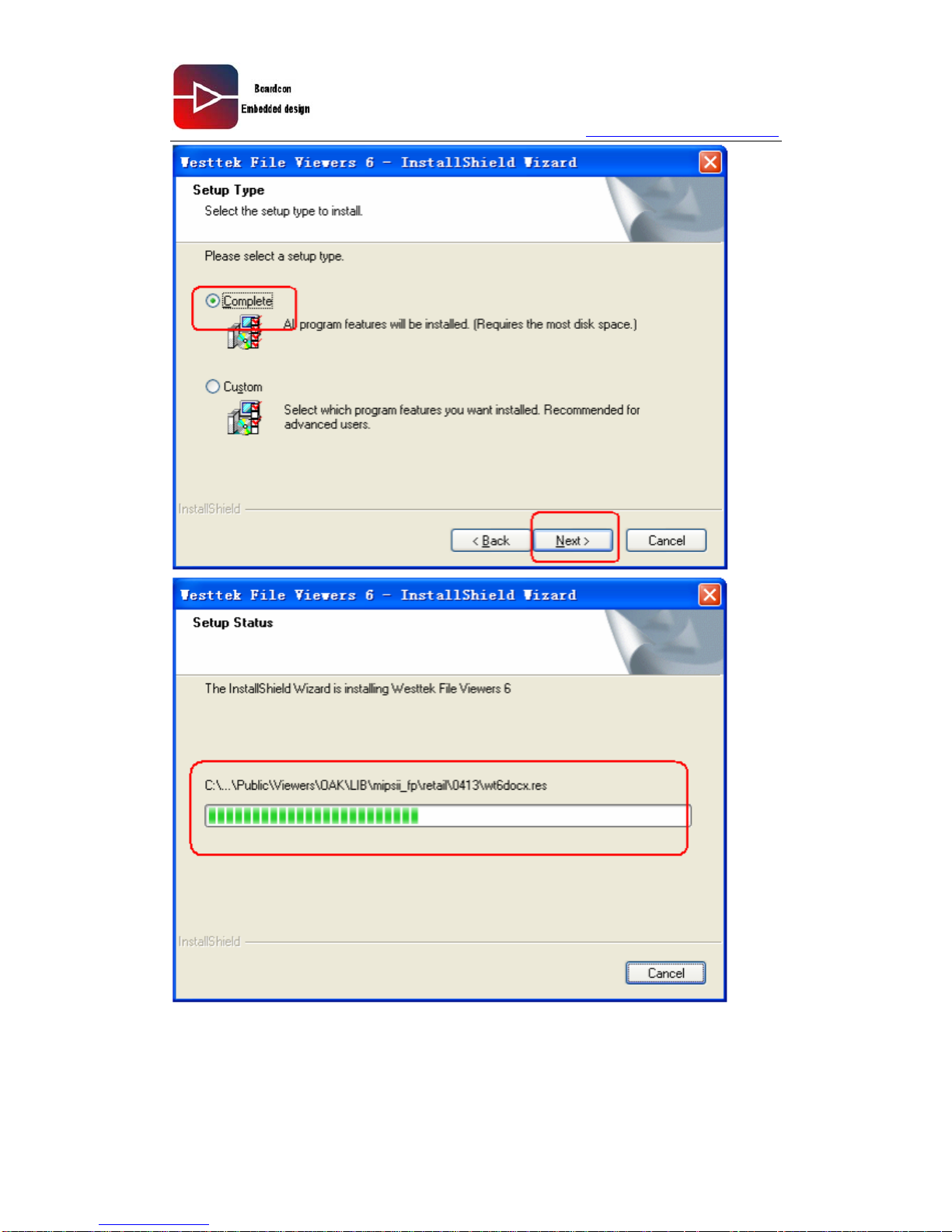
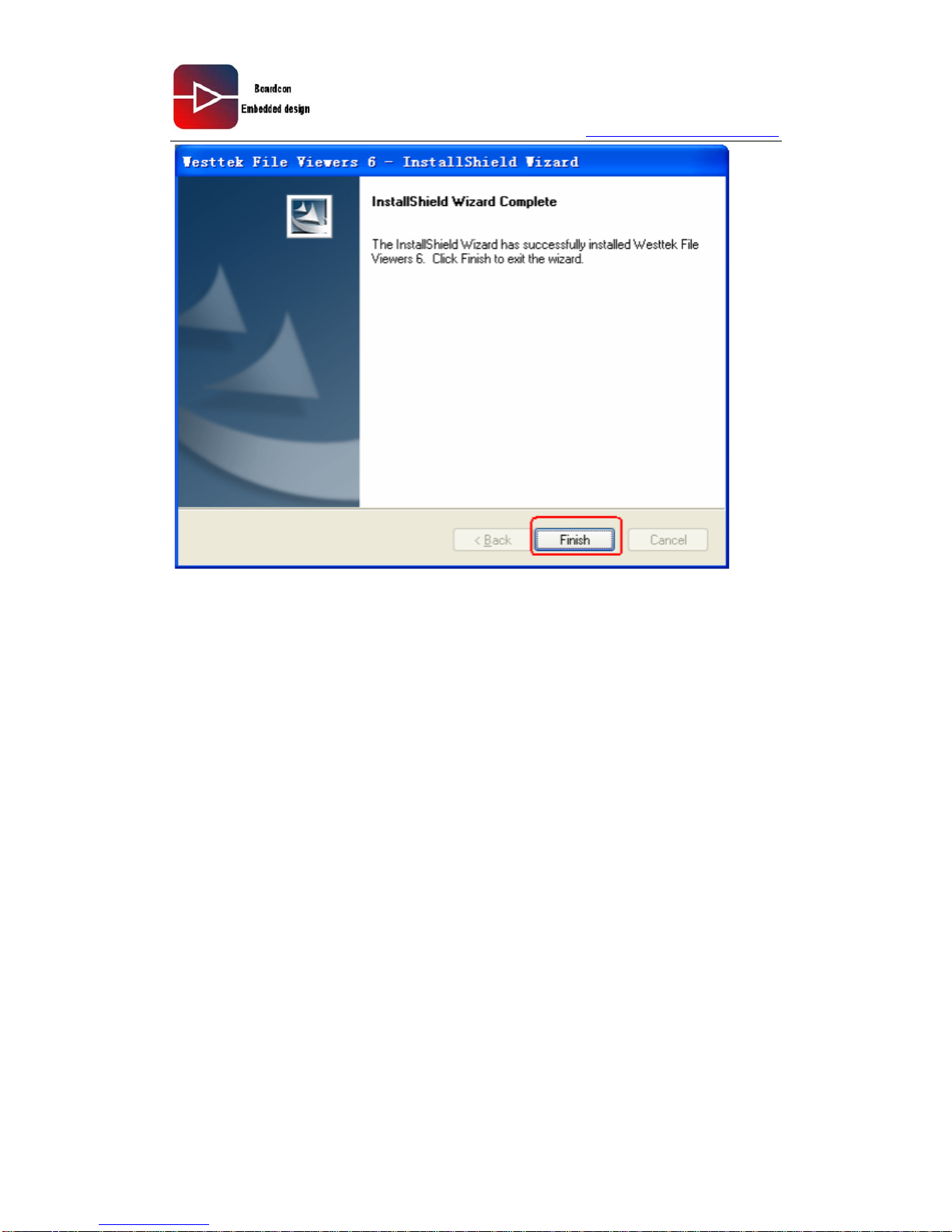
2.10 Install Word PDF View components
Click WesttekFileViewers6.exe
Page 36
www.armdesigner.com
36
EM210 Wince6.0 User manual
Page 37
www.armdesigner.com
37
EM210 Wince6.0 User manual
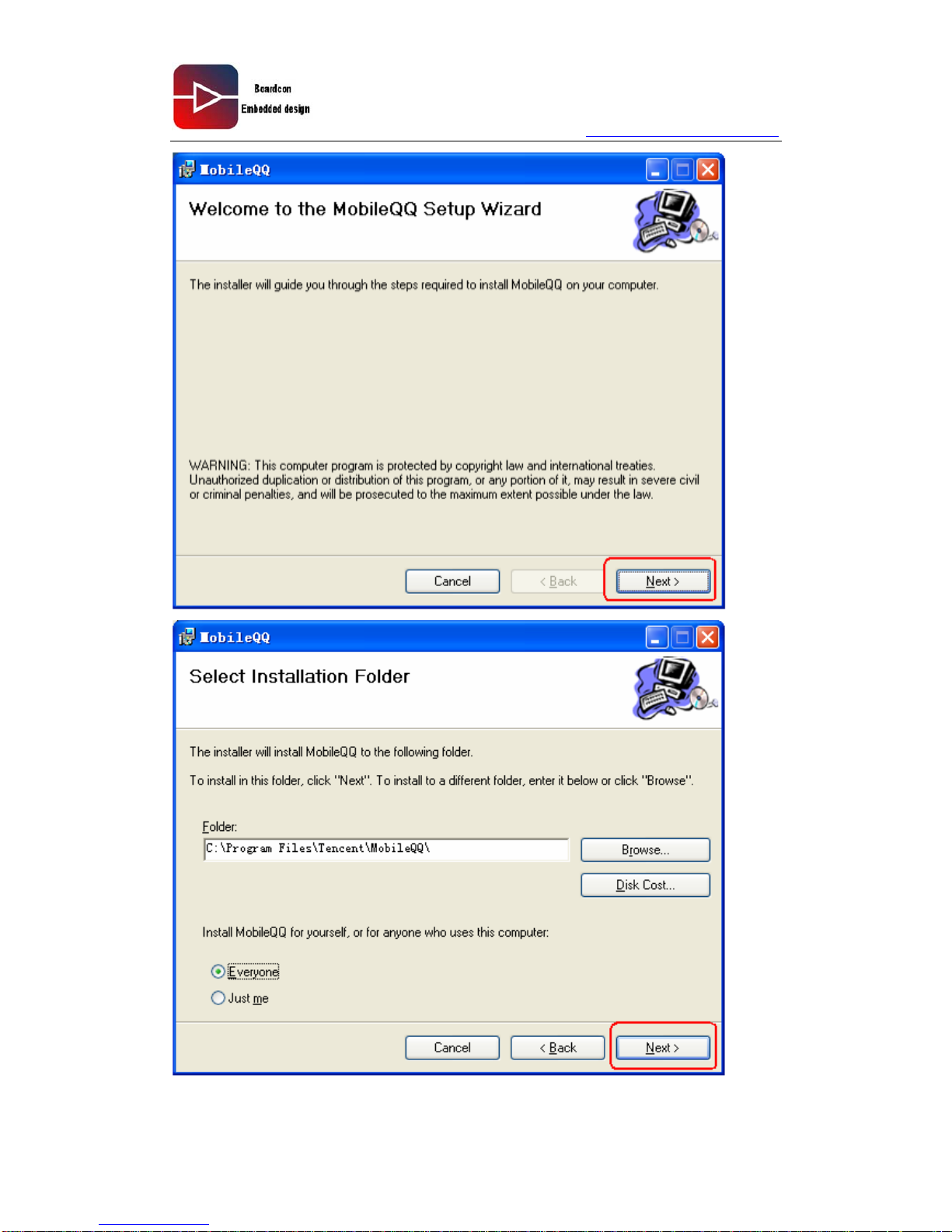
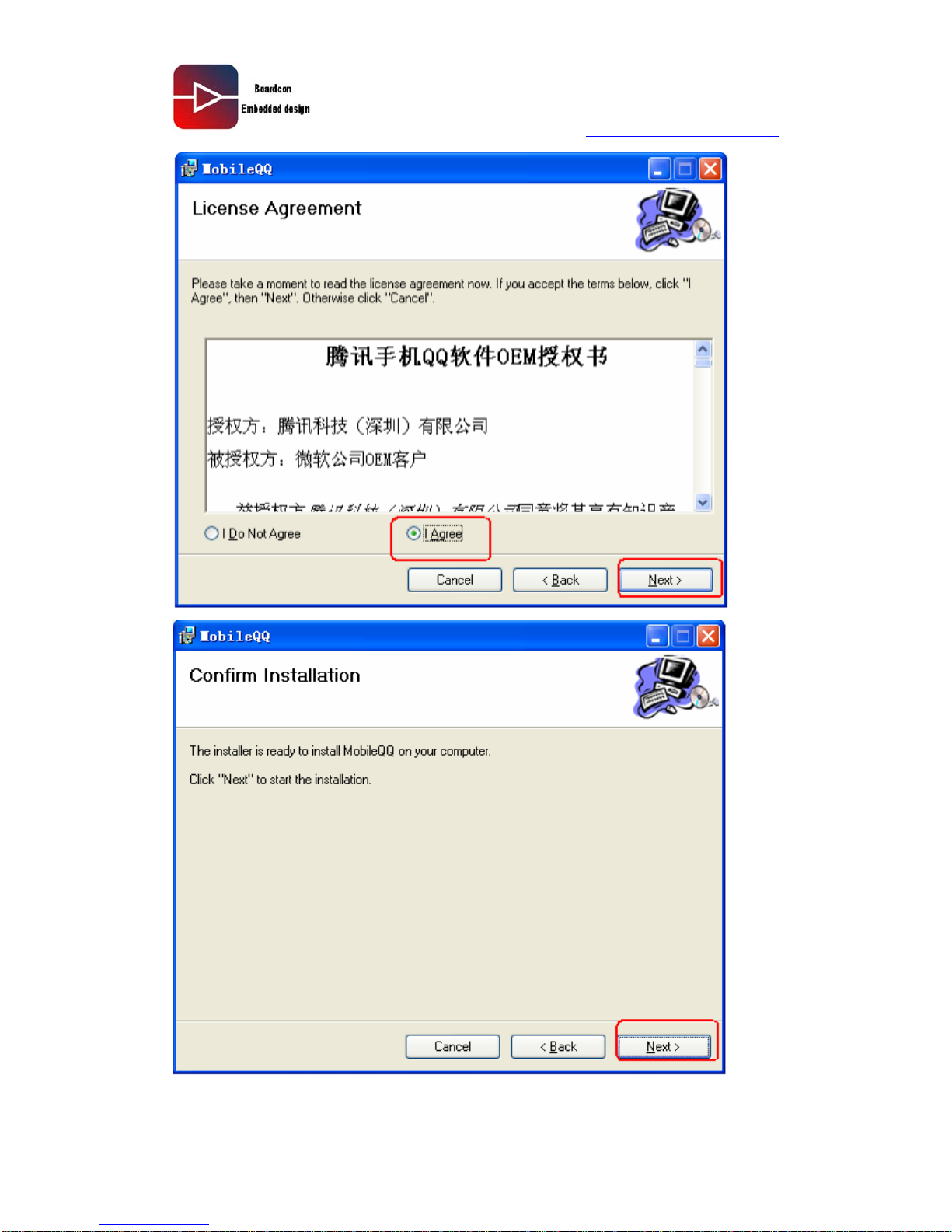
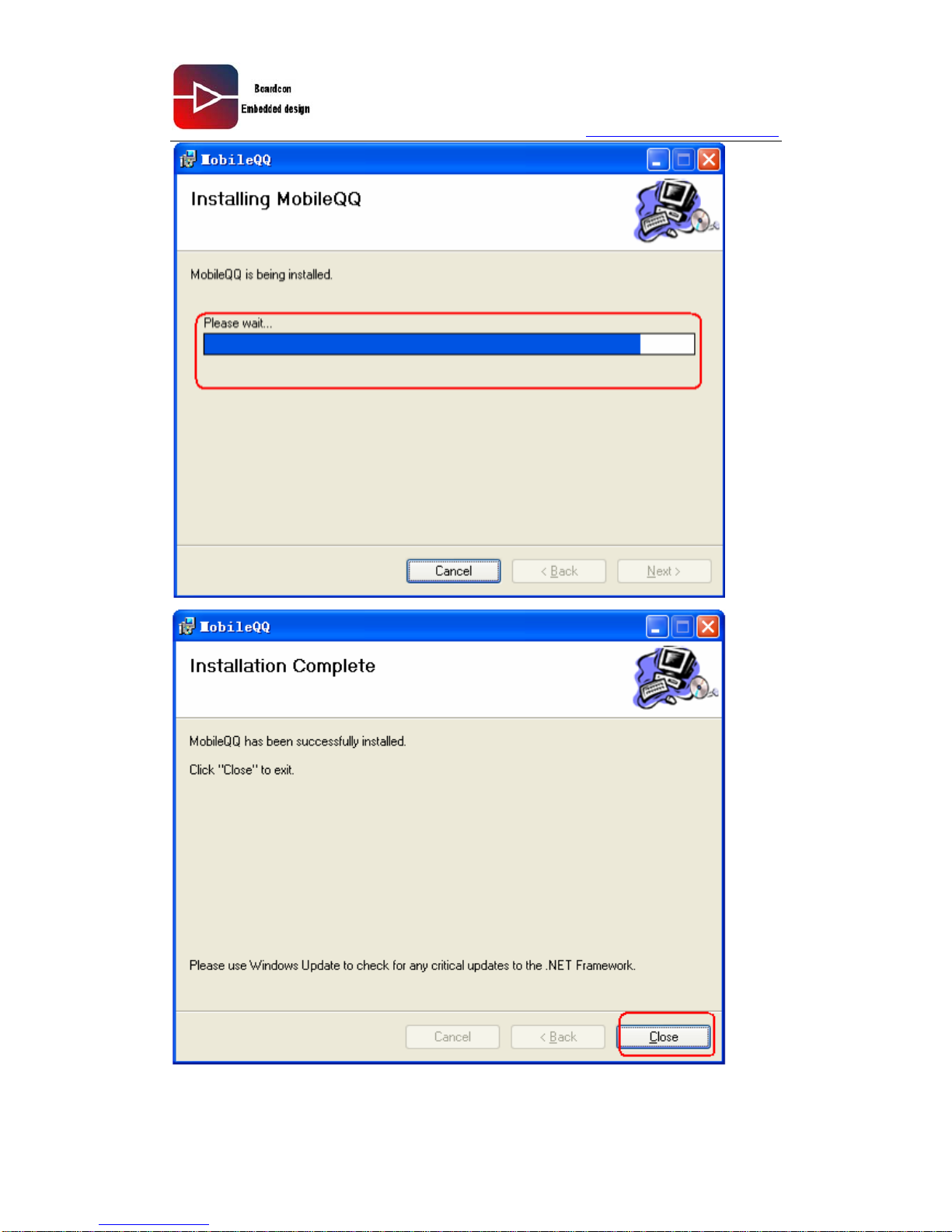
2.11 Install QQ components
Double click QQ2008.msi
Page 38
www.armdesigner.com
38
EM210 Wince6.0 User manual
Page 39
www.armdesigner.com
39
EM210 Wince6.0 User manual
Page 40
www.armdesigner.com
40
EM210 Wince6.0 User manual
Page 41
www.armdesigner.com
41
EM210 Wince6.0 User manual
3 Custom the Wince6.0 kernel
3.1 Install BSP
BSP is board level support package, somewhere between the mainboard hardware
and operating system of between a layer, it should be said that it is part of the operating
system, the main purpose is to support the operating system that will be able to better
running on hardware the mainboard. BSP is relatives concerned to the operating system,
different operating system correspond to different definition form of BSP, for example
VxWorks BSP and Linux BSP of relative to something it despite the function of the
realization of the CPU, but written and the interface definition is completely different, and
so the BSP must according to this system BSP form to write the definition of (the
programming process is most BSP in a certain forming on the template BSP modified),
such can be kept right interface with the upper OS, good support upper OS.
The development board WinCE BSP was based on samsung official SMDK210
development board to modify the BSP, most retained the samsung structure, joined the
REALARM hardware design features of a BSP, this BSP support WinCE6.0 R3.
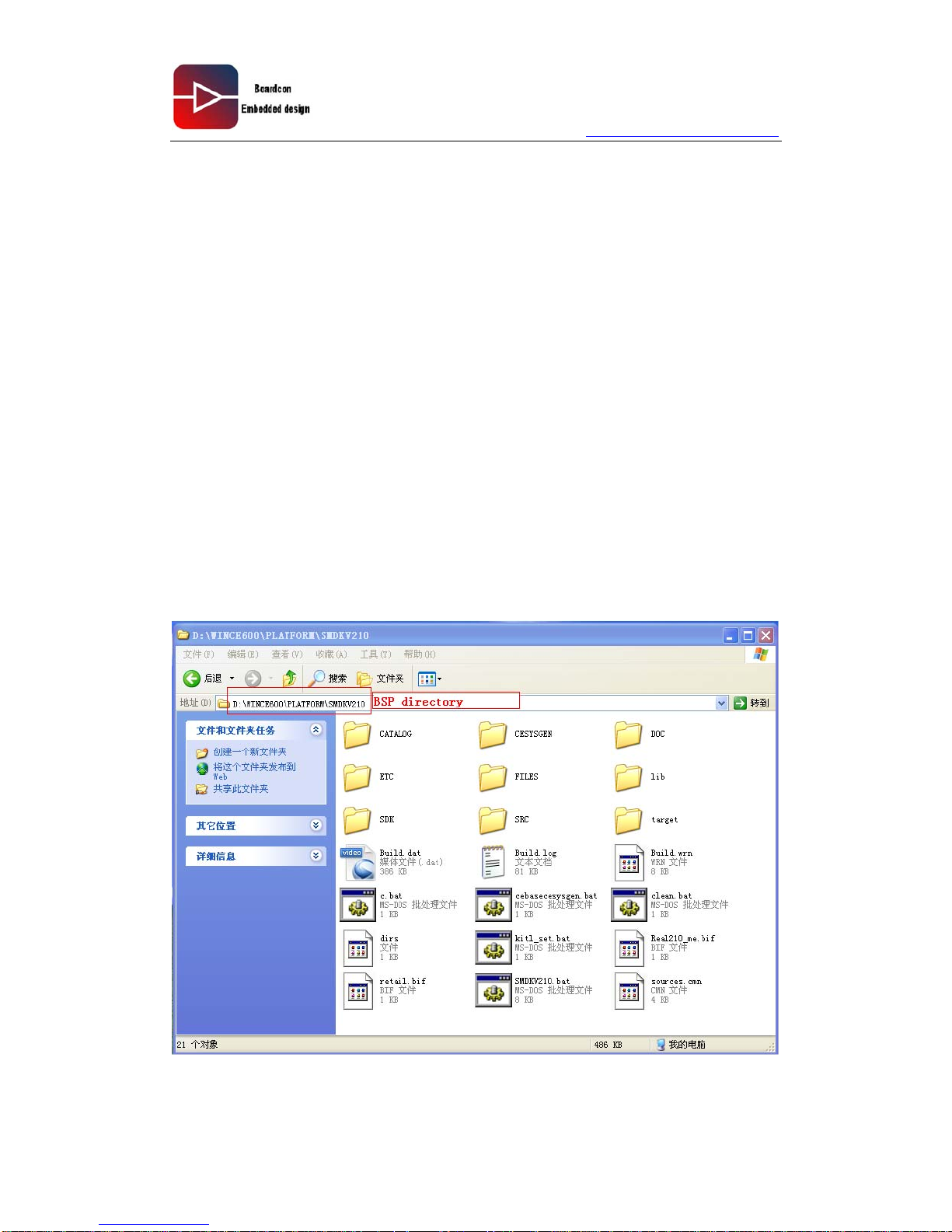
WinCE BSP often put in X:\WINCE600\PLATFORM,so, we need to copy the WinCE
BSP\SMDK210 to the X:\WINCE600\PLATFORM\ directory, such as me:
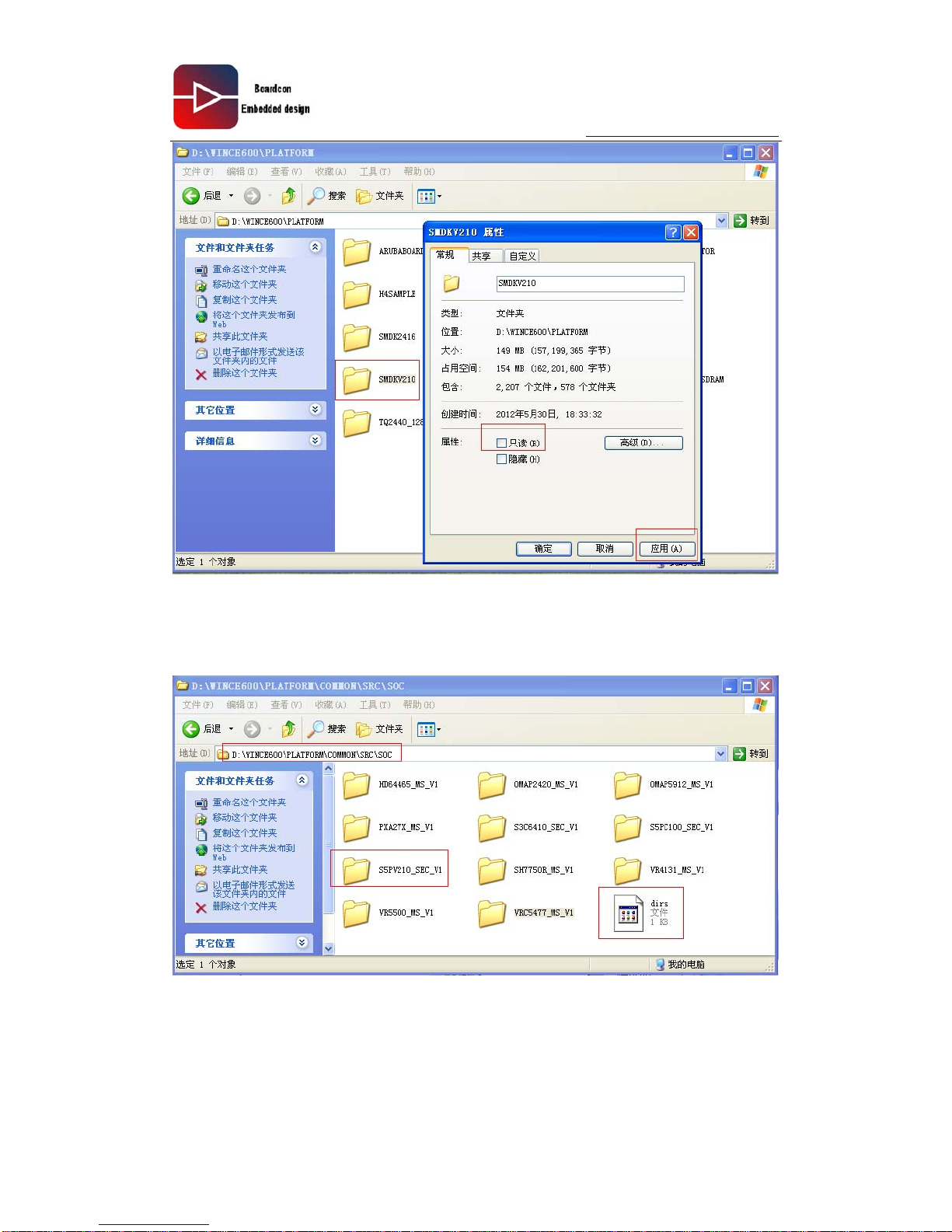
And we need to remove the SMDK210 folder read-only attribute:
Page 42
www.armdesigner.com
42
EM210 Wince6.0 User manual
Then copy S5PV210_SEC_V1 folder to the directory:
X:\WINCE600\PLATFORM\COMMON\SRC\SOC
Such as me:
Modify the X:\WINCE600\PLATFORM\COMMON\SRC\SOC\ directory dirs file as:
DIRS= S5PV210_SEC_V1
The purpose of the change is to only S5PV210_SEC_V1 compiled, and no longer build
other file, reduce compile time.
Page 43
www.armdesigner.com
43
EM210 Wince6.0 User manual
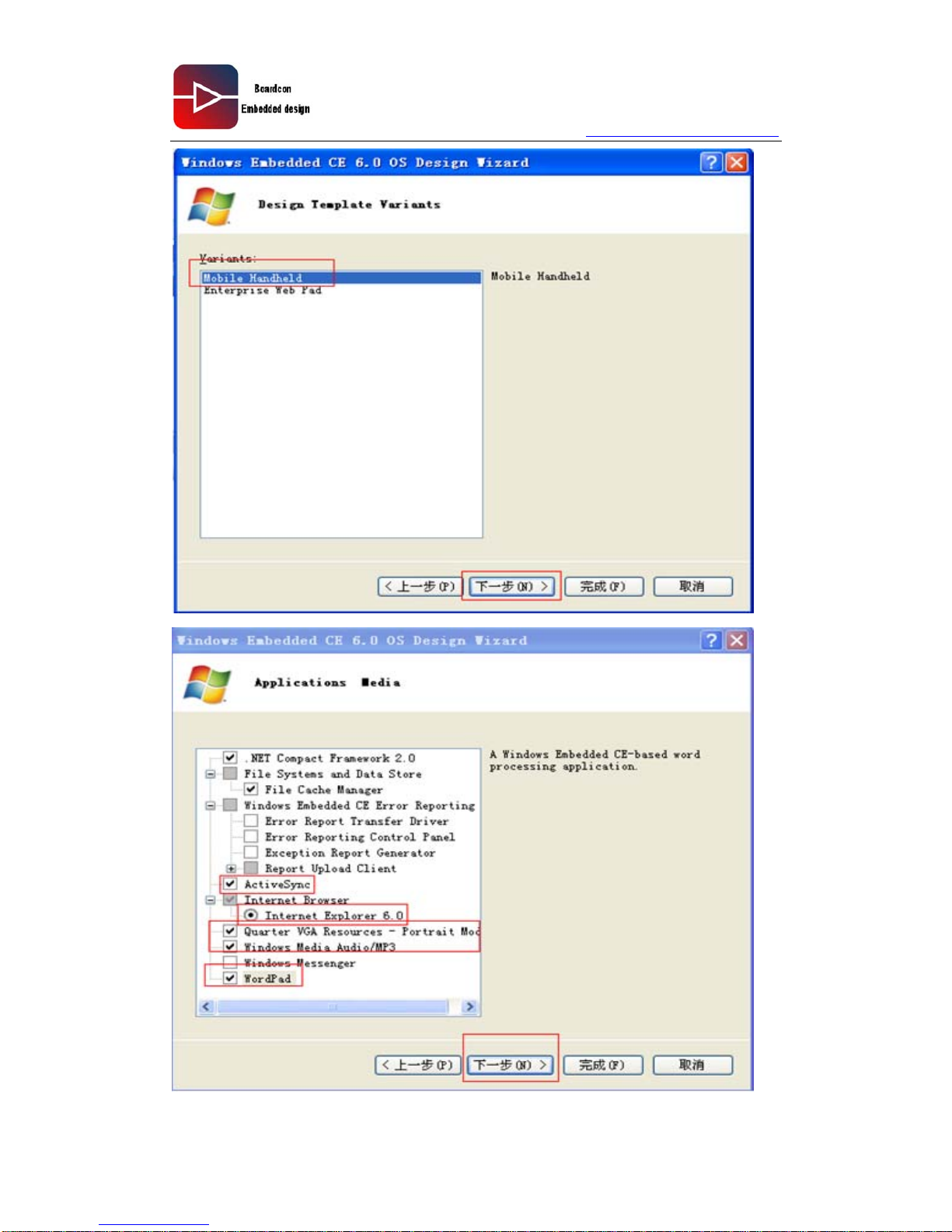
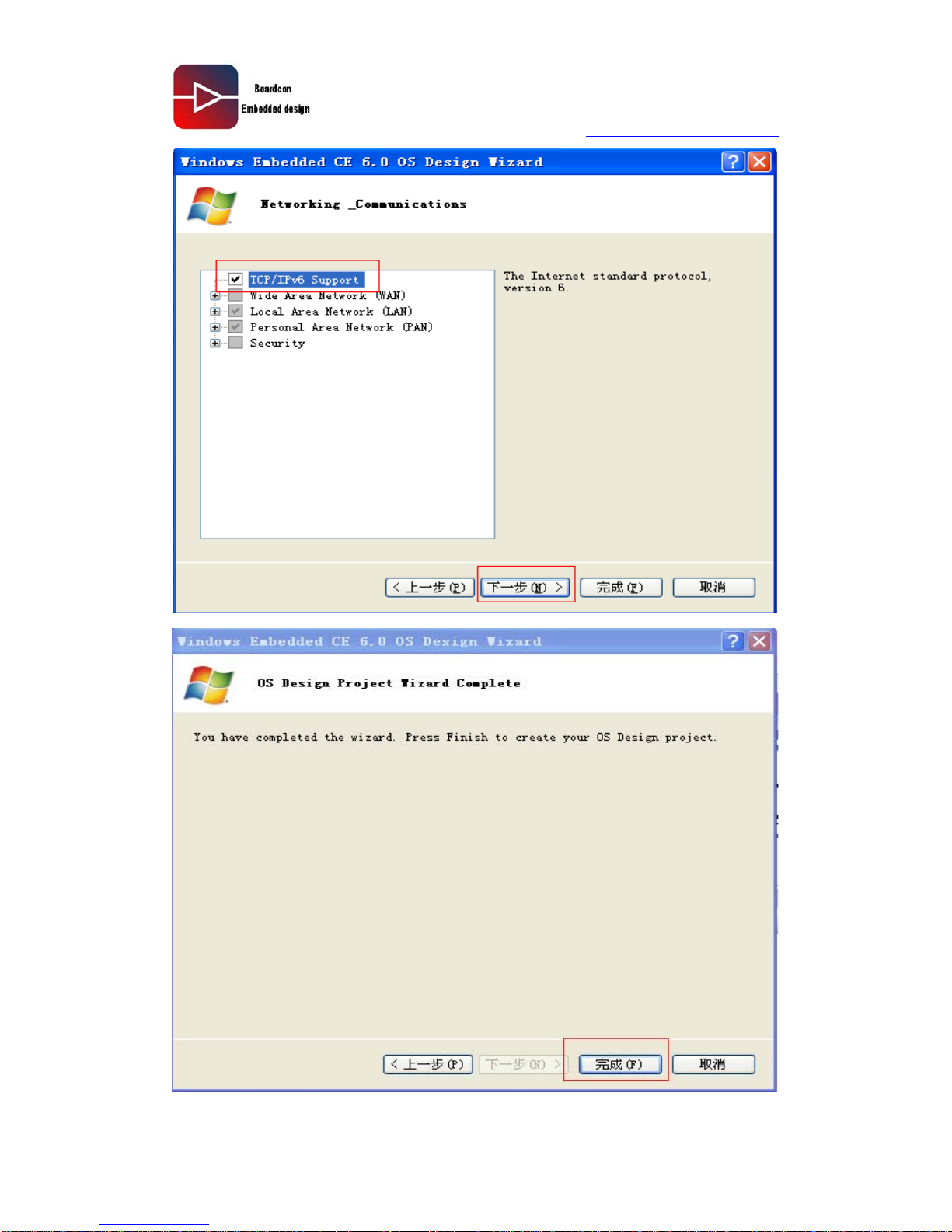
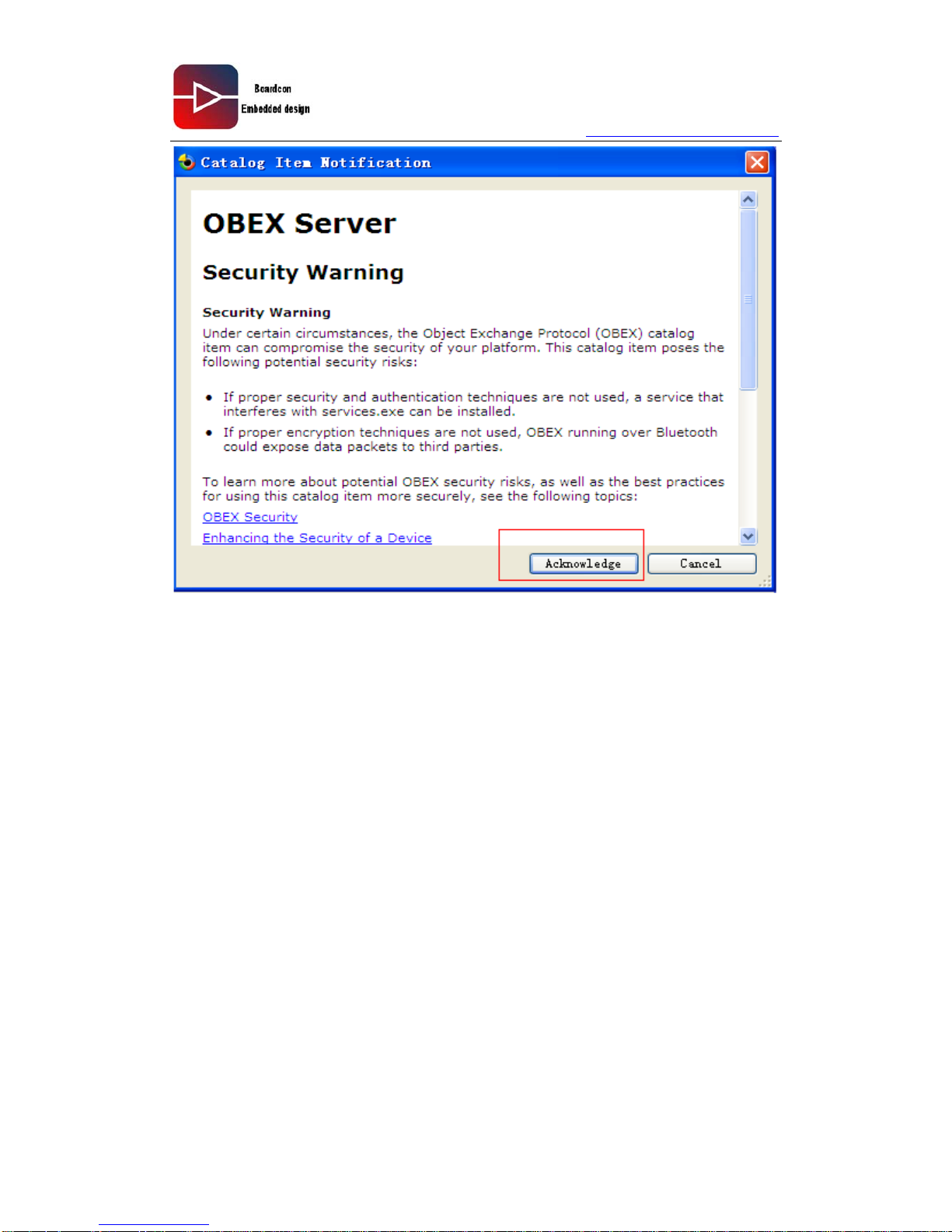
3.2 Establish new project
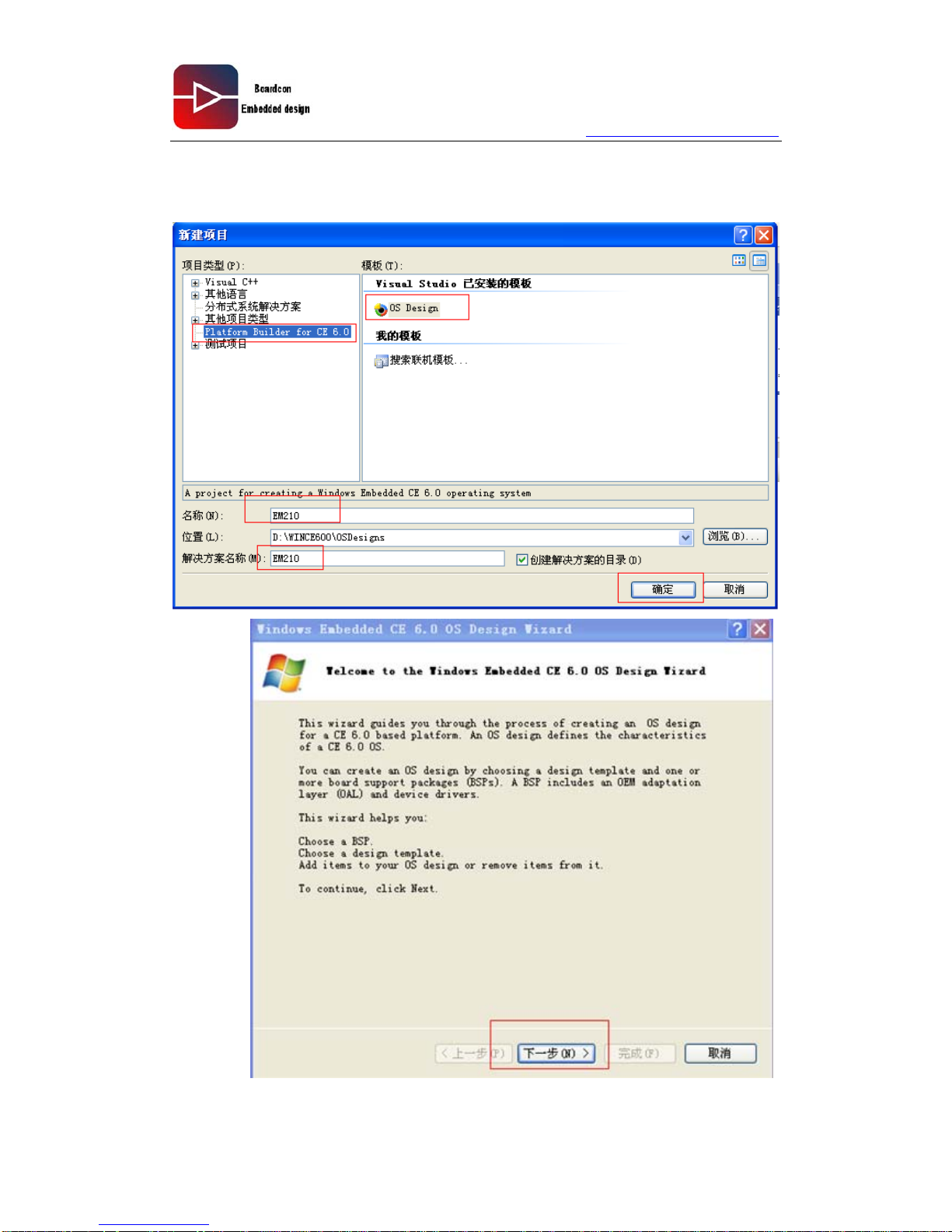
Start VS2005,click menu flie\new\project: then input project name:EM210 and click OK:
Click next:
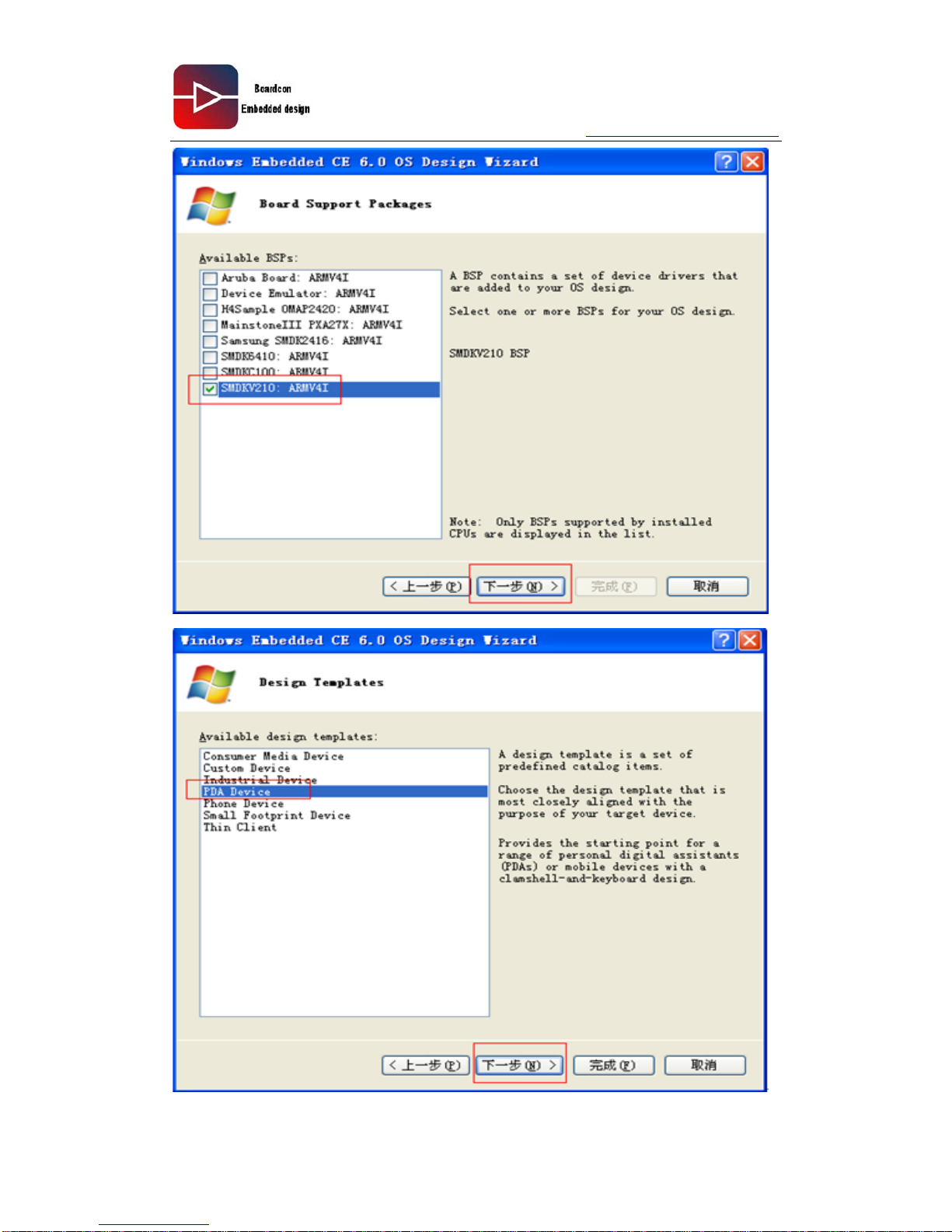
Select SMDKV210: ARMV4I and click next:
Page 44
www.armdesigner.com
44
EM210 Wince6.0 User manual
Page 45
www.armdesigner.com
45
EM210 Wince6.0 User manual
Page 46
www.armdesigner.com
46
EM210 Wince6.0 User manual
Page 47
www.armdesigner.com
47
EM210 Wince6.0 User manual
3.3 Generate image files type choice
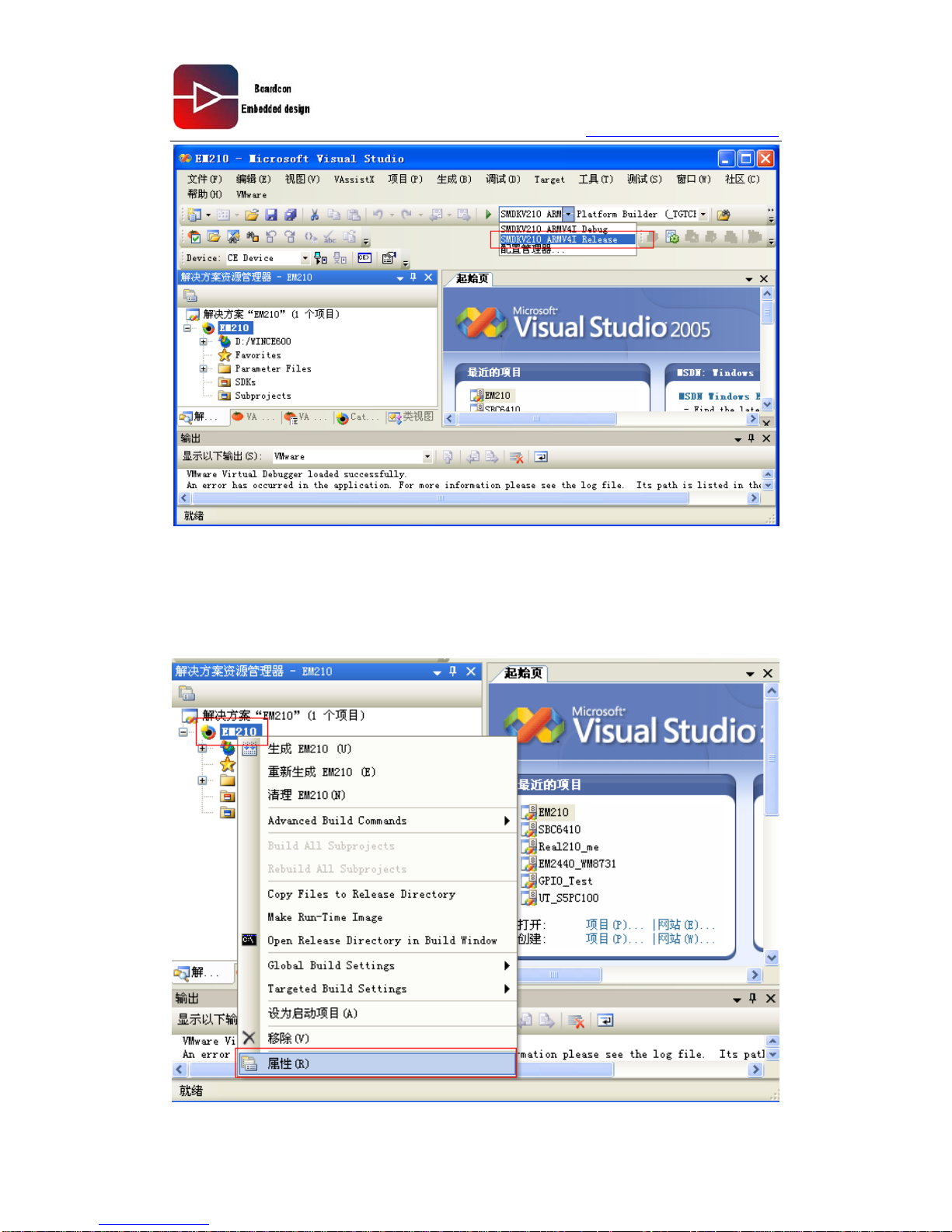
PlatformBuilder can generate two type image files:
One: User for release to the user, called Realse version, after generation the file stored in:
D:\WINCE600\OSDesigns\EM210\EM210\RelDir\SMDKV210_ARMV4I_Release
The EM210 is our project name.
Two: User for debugging, called Debug version, after generation the file stored in:
D:\WINCE600\OSDesigns\EM210\EM210\RelDir\SMDKV210_ARMV4I_Debug
Here we can action to choose the type of image files as follows:
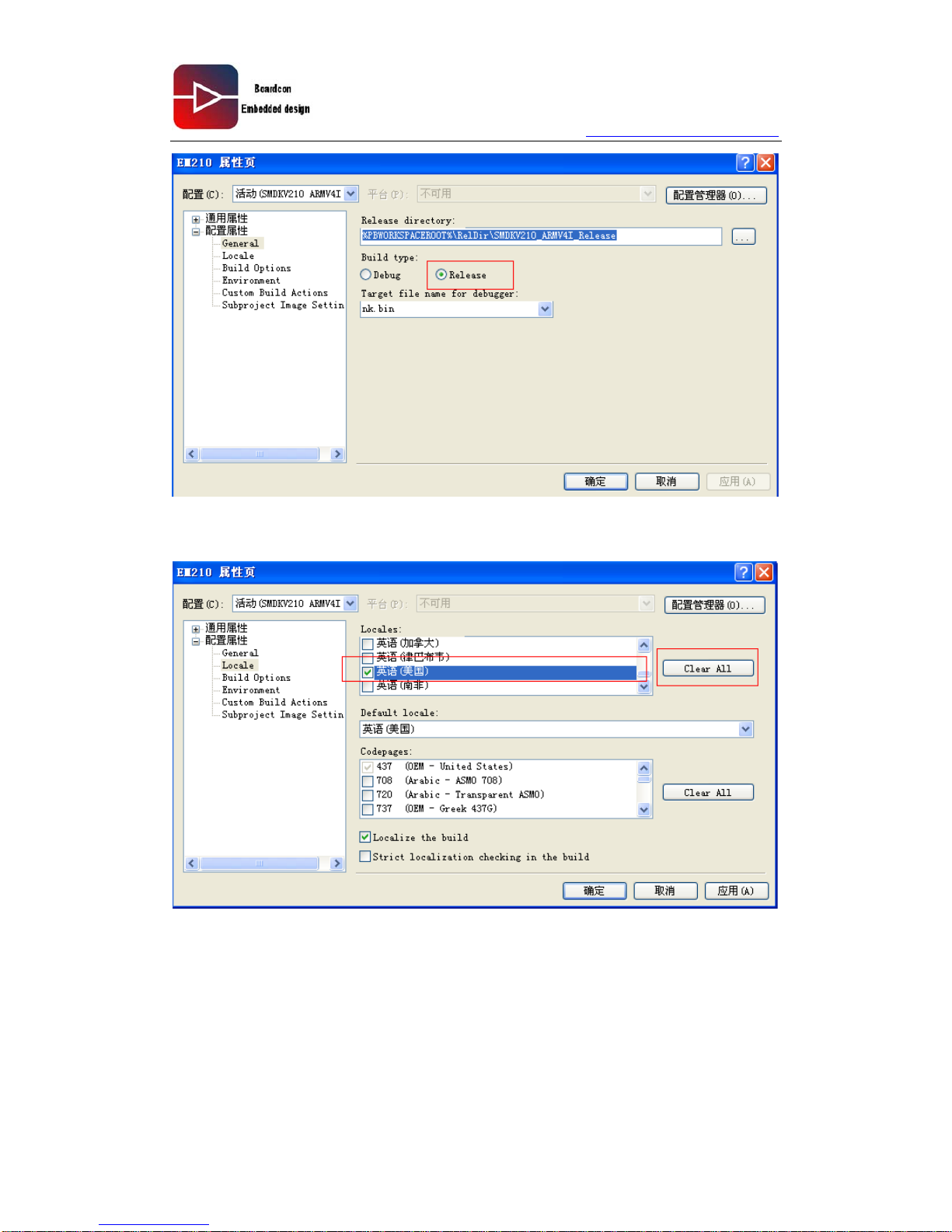
We use release, so chose SMDKV210_ARMV4I_Release:
Page 48
www.armdesigner.com
48
EM210 Wince6.0 User manual
3.4 Set the engineering properties
Right click the project “EM210”, and select properties:
Page 49
www.armdesigner.com
49
EM210 Wince6.0 User manual
Through the Locate option, we choose the language to species, click Clear All, select
English, such as follows:
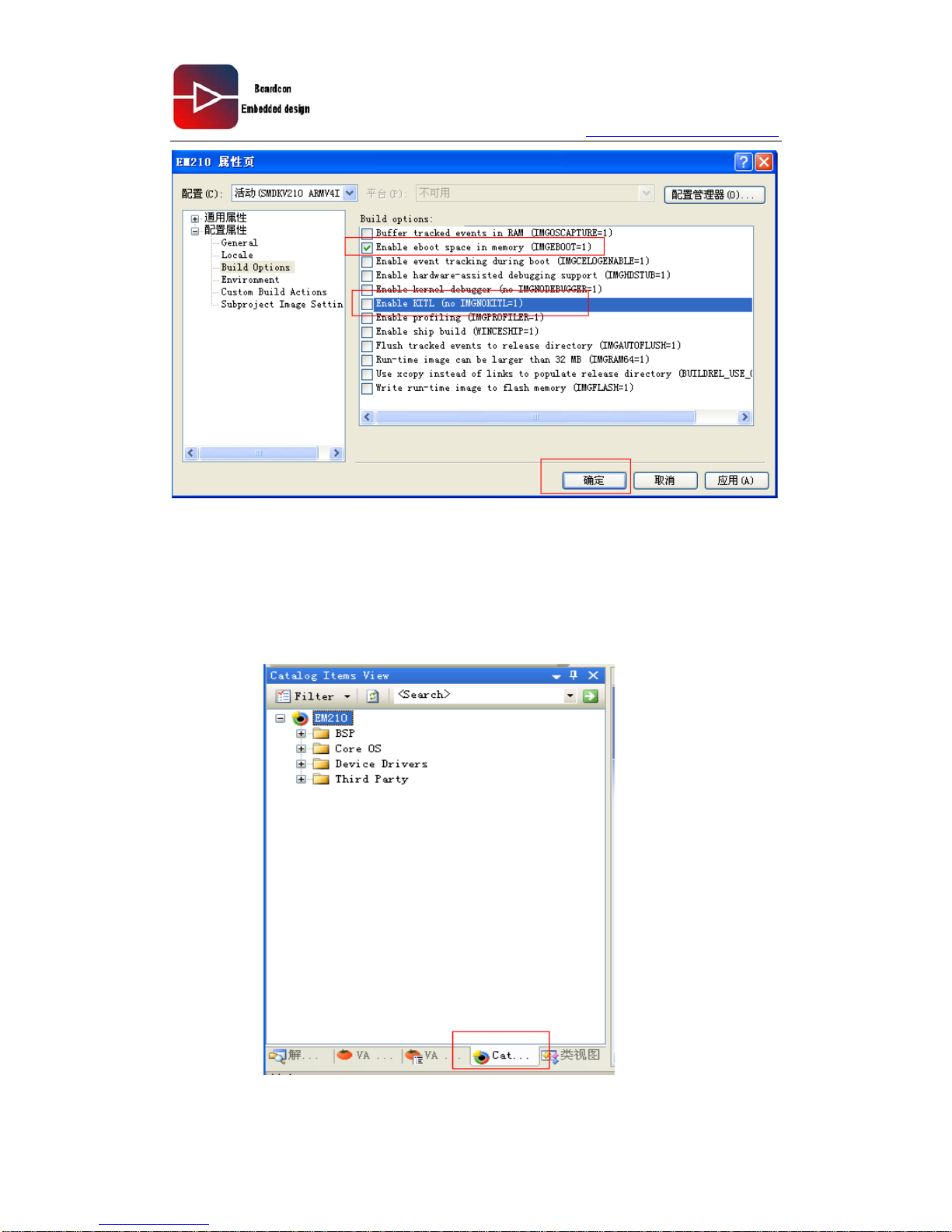
Build Options: Because we use EBOOT to guide WINCE mirror, so keep EBOOT space,
KTL is used for debugging WINCE OS, here we not chose it, then click OK:
Page 50
www.armdesigner.com
50
EM210 Wince6.0 User manual
3.5 Choose the end user application
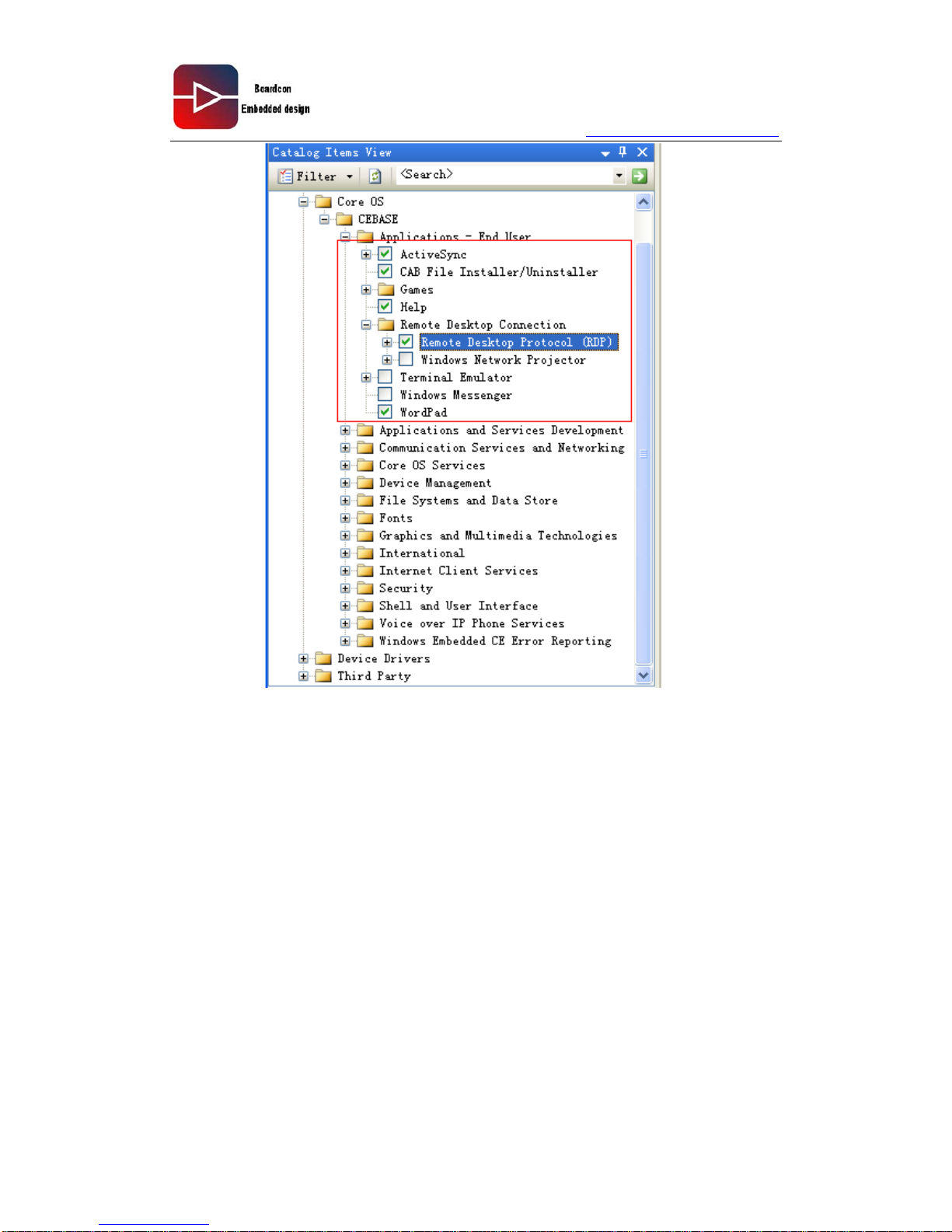
Choose for End user use Application(Application-End User), are shown below.
Click on the left side of the window below, “Catalog Iterms View” option:
Page 51
www.armdesigner.com
51
EM210 Wince6.0 User manual
ActiveSync: Use for development board with PC synchronization, proposal chose,
Otherwise can’t through USB and PC synchronization.
CAB Installer/Uninstaller : The CAB install and uninstall program files.
Games: Wince bring little game, such as the need to choose
Help: Wince help files
Remote Desktop Connection:
VS2005 and development board connect remotely agreement
RDP choice, the choice can be through ActiveSync connection after PC to check the registry,
WINCE desktop and other information
Terminal Emulator: Terminal simulation program
Windows Messenger: MSN chat software.
WordPad: The Wince word version.
3.6 Choose the development of the library with foundation
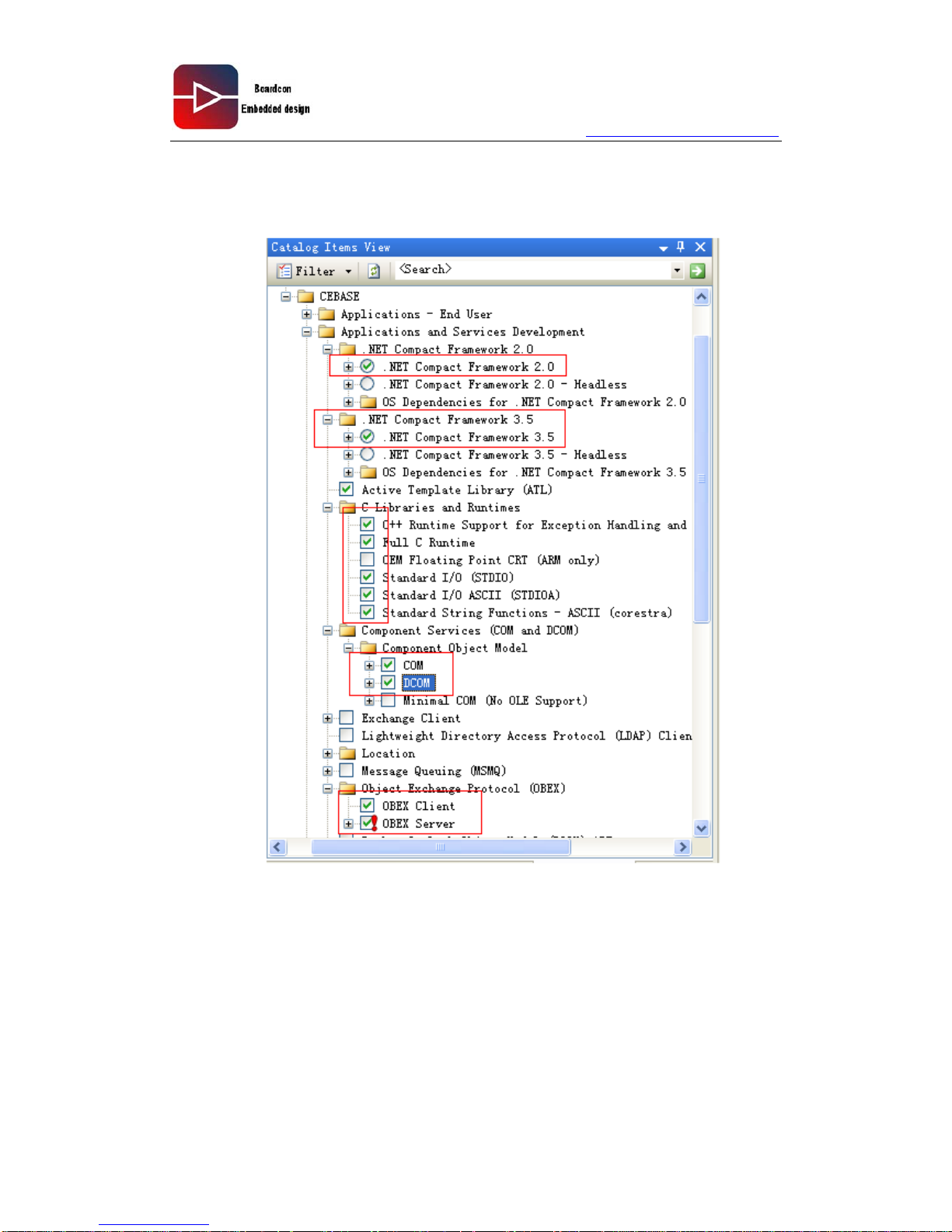
Choose the Development application or service program of the base class library
(Application&ServiceS Development) as shown below.
According to your own development needs select the corresponding class library.
Page 52
www.armdesigner.com
52
EM210 Wince6.0 User manual
Pay special attention to:
FRAMEWORK2.0 is bring their own installation.
FRAMEWORK3.5: if choice, Framework3.5 must be installed on your PC, or you will be a
compiler error
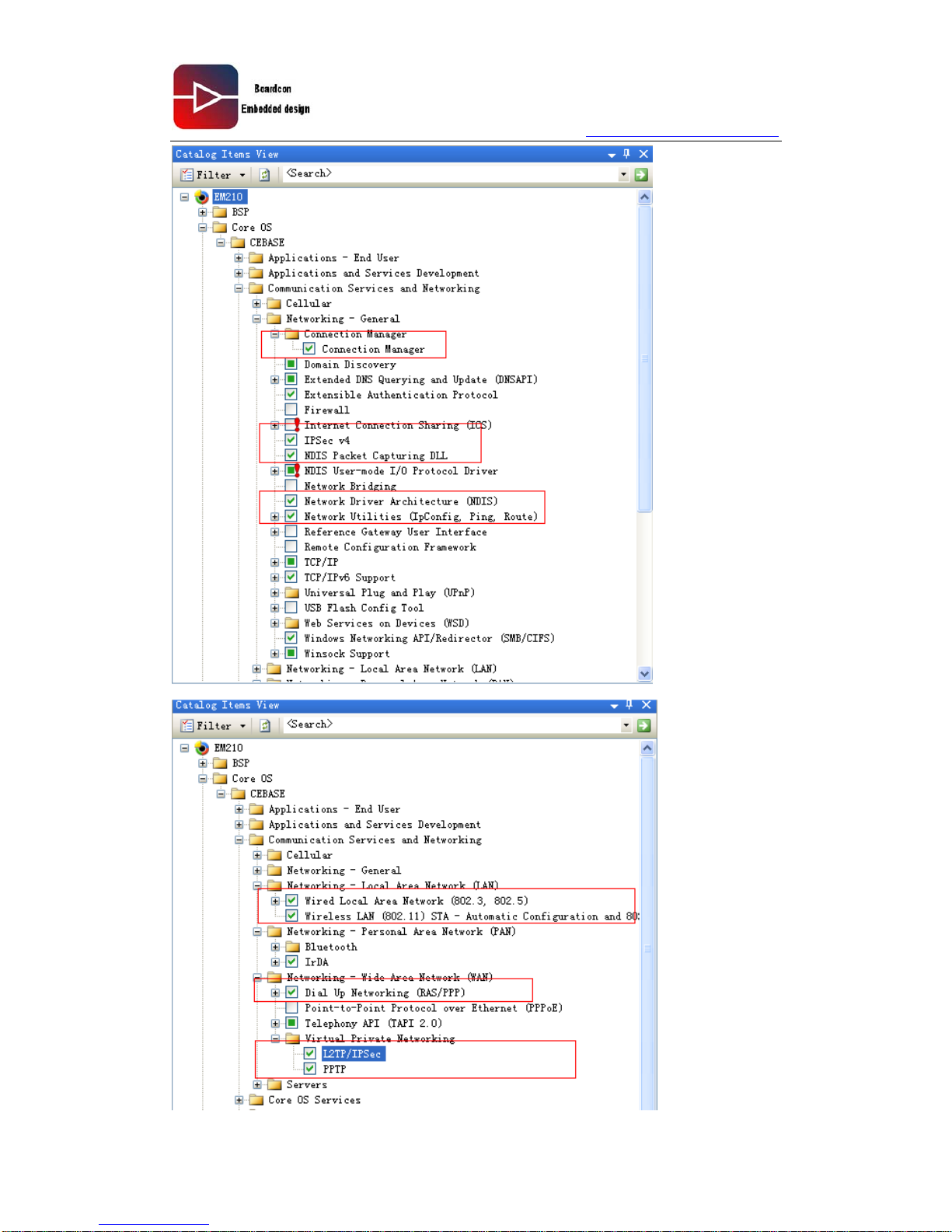
3.7 Chose communication component
Page 53
www.armdesigner.com
53
EM210 Wince6.0 User manual
Page 54
www.armdesigner.com
54
EM210 Wince6.0 User manual
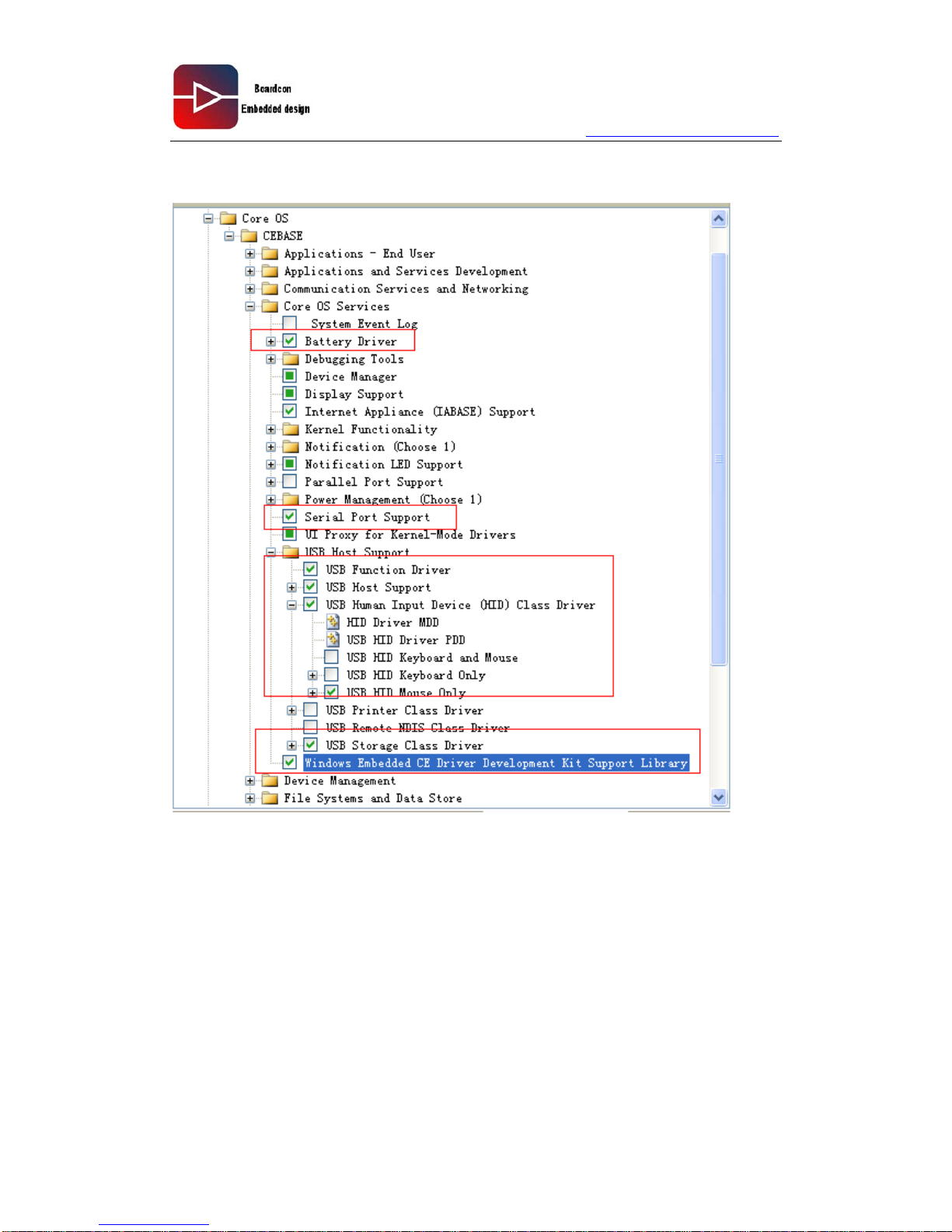
3.8 Selection the operating system service component
Page 55
www.armdesigner.com
55
EM210 Wince6.0 User manual
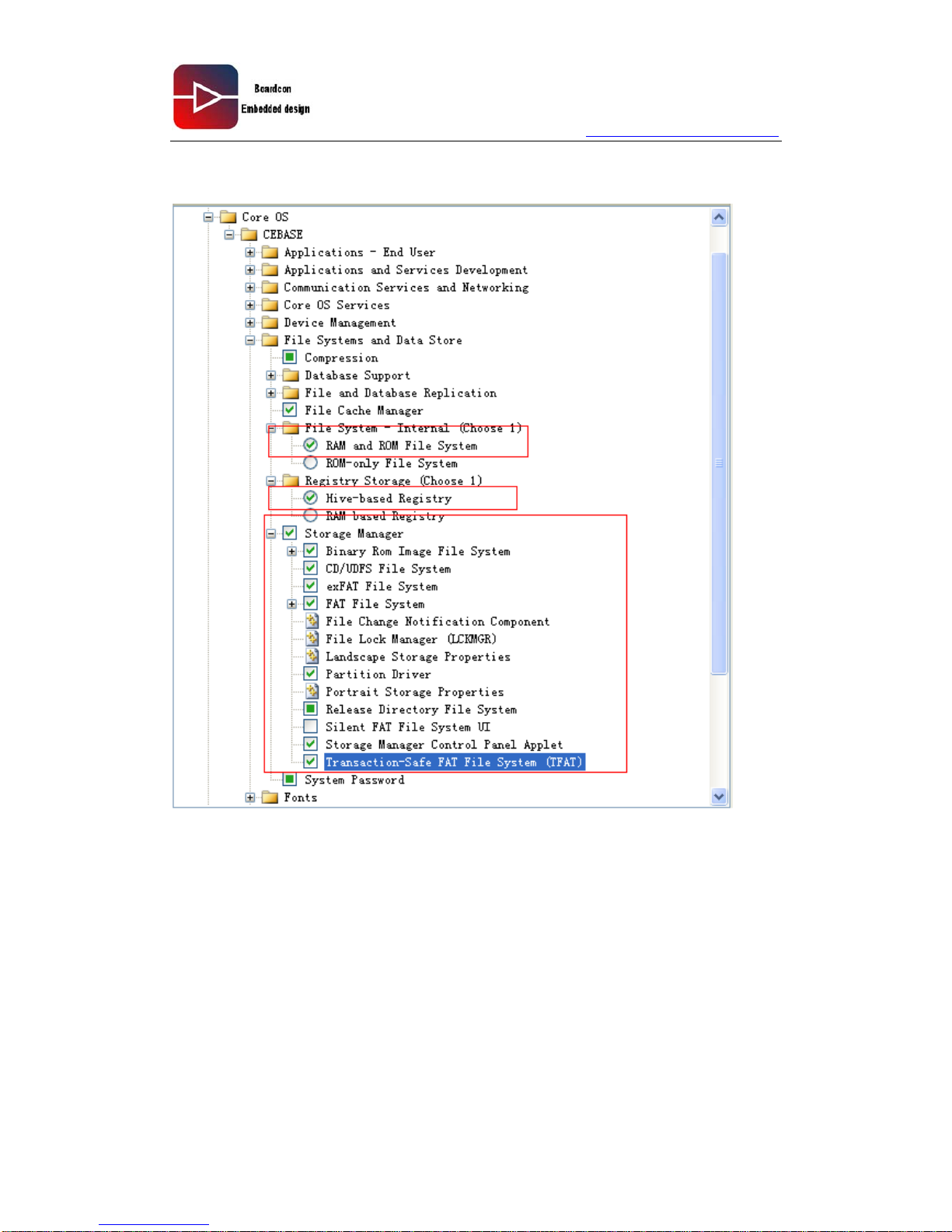
3.9 Selection the file system component
Page 56
www.armdesigner.com
56
EM210 Wince6.0 User manual
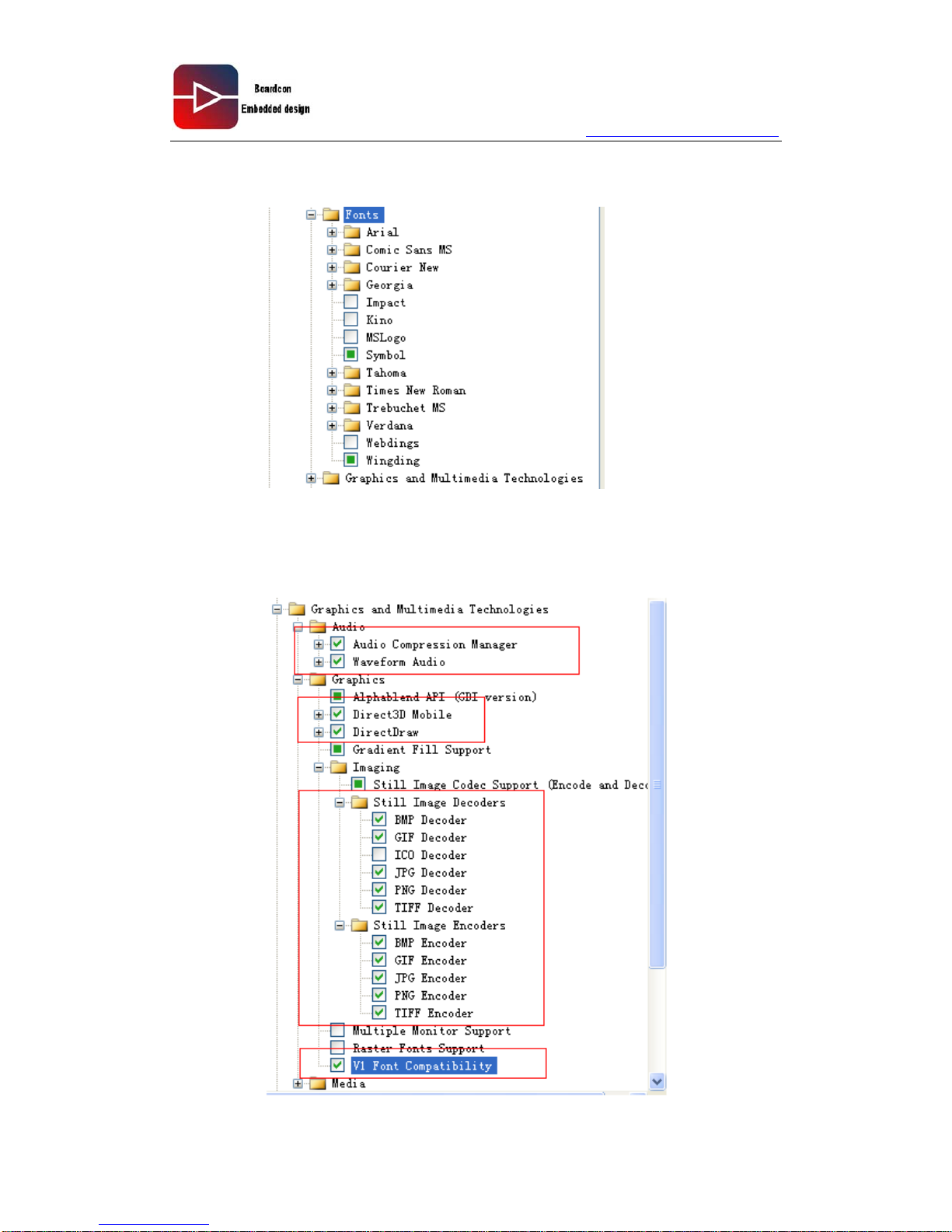
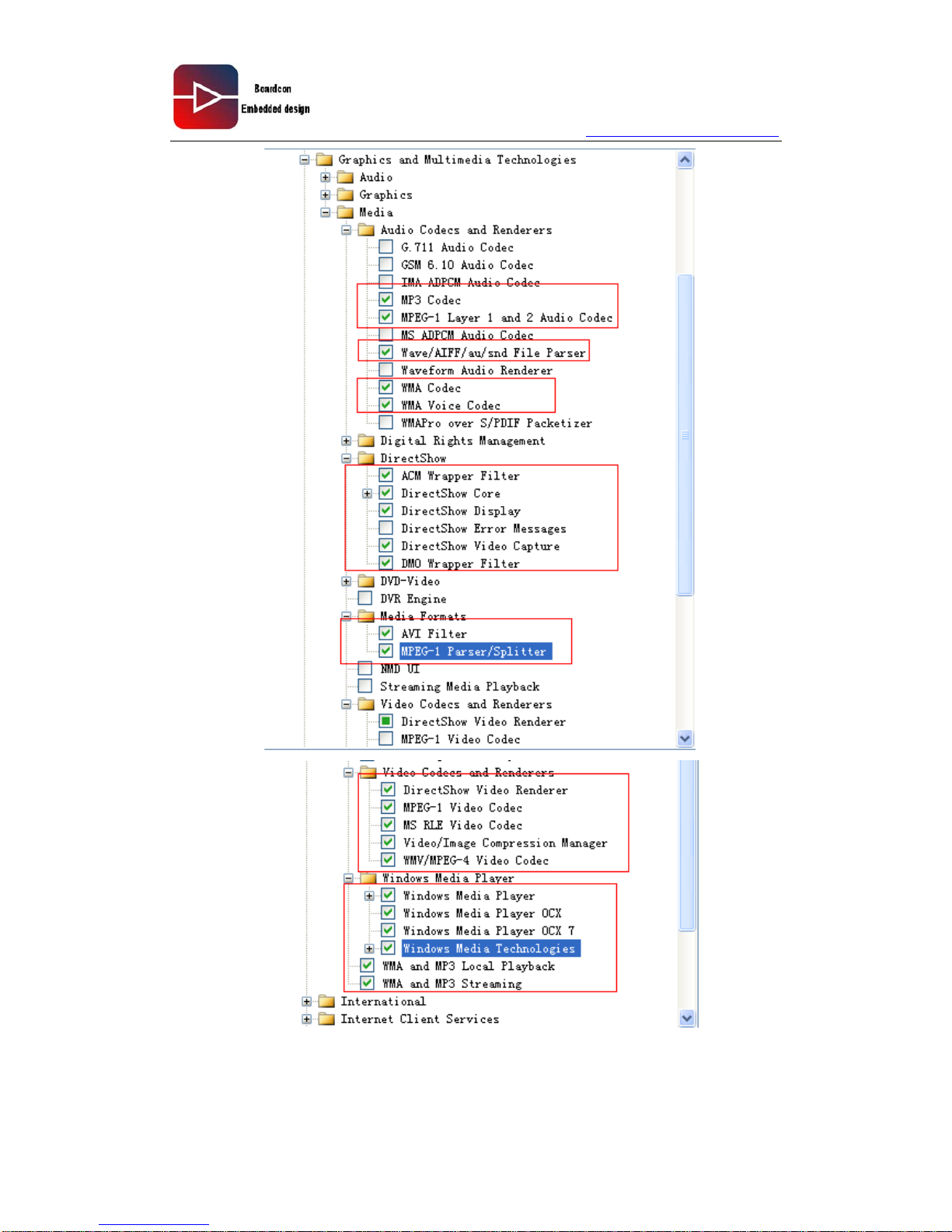
3.10 System English font options
Not select anything.
3.11 System English font options
Page 57
www.armdesigner.com
57
EM210 Wince6.0 User manual
Page 58
www.armdesigner.com
58
EM210 Wince6.0 User manual
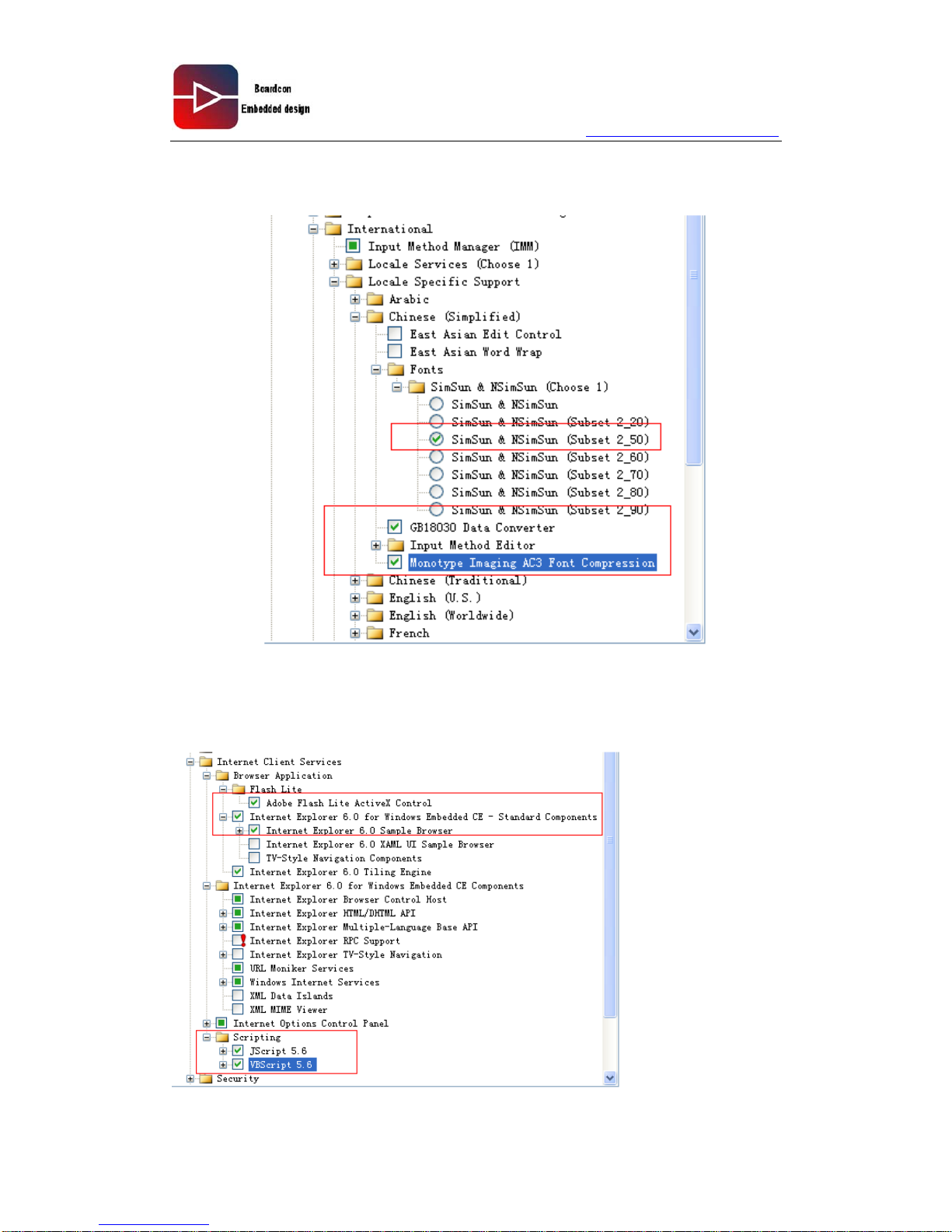
3.12 The language font support
3.13 Select the Internet service
Page 59
www.armdesigner.com
59
EM210 Wince6.0 User manual
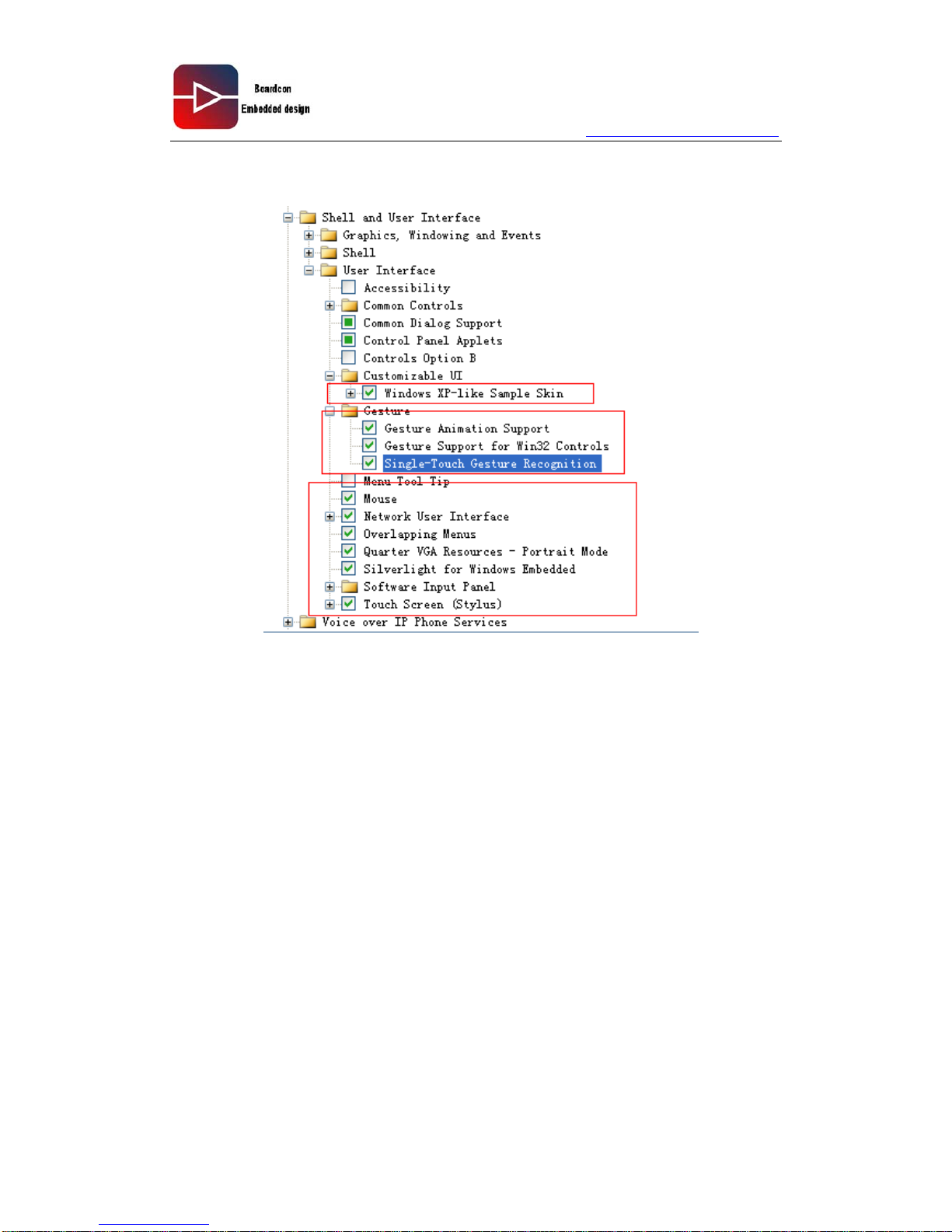
3.14 Shell and the user interface choice
Page 60
www.armdesigner.com
60
EM210 Wince6.0 User manual
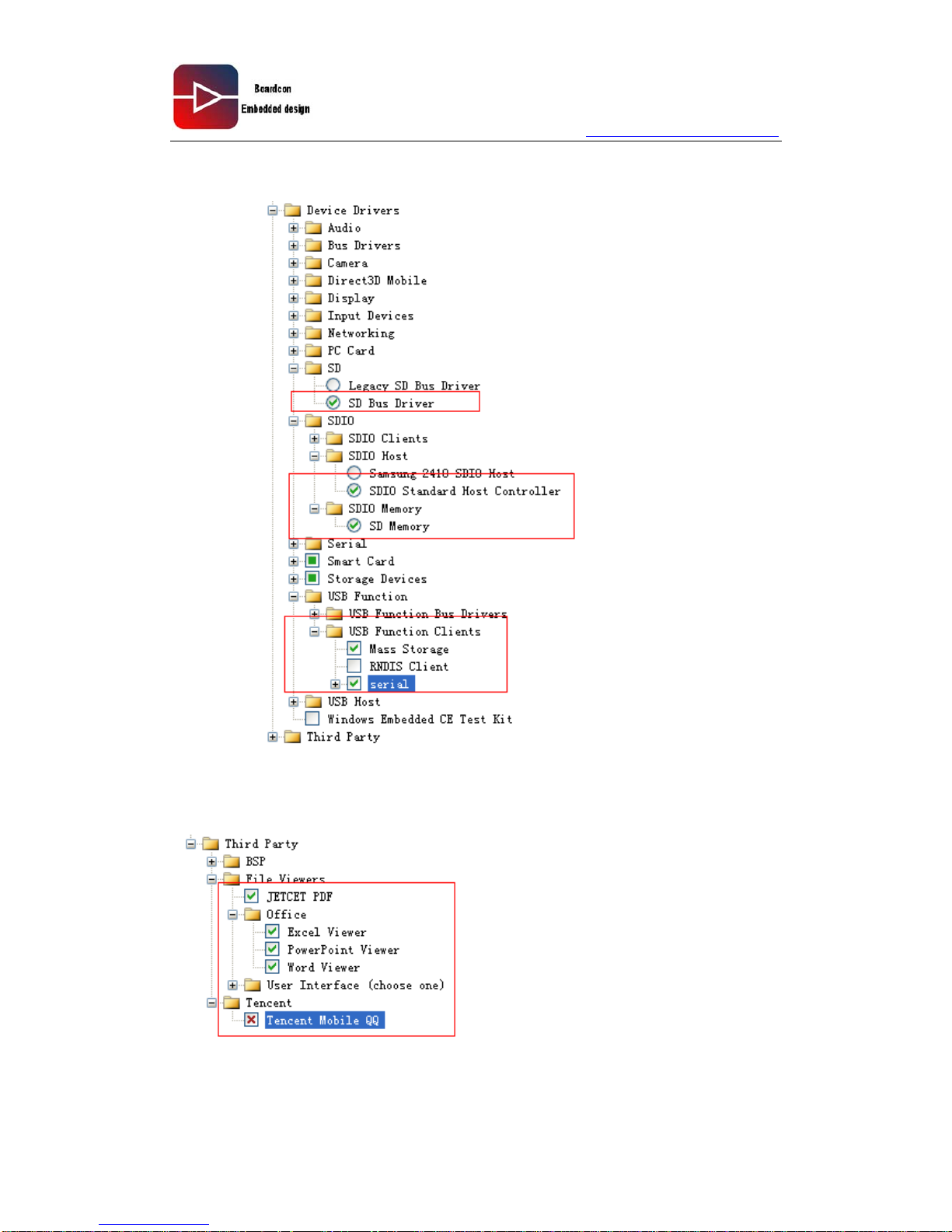
3.15 The choice of the generic driver
3.16 The third party components choice
So far, project set up complete
Page 61
www.armdesigner.com
61
EM210 Wince6.0 User manual
4 Compile the project
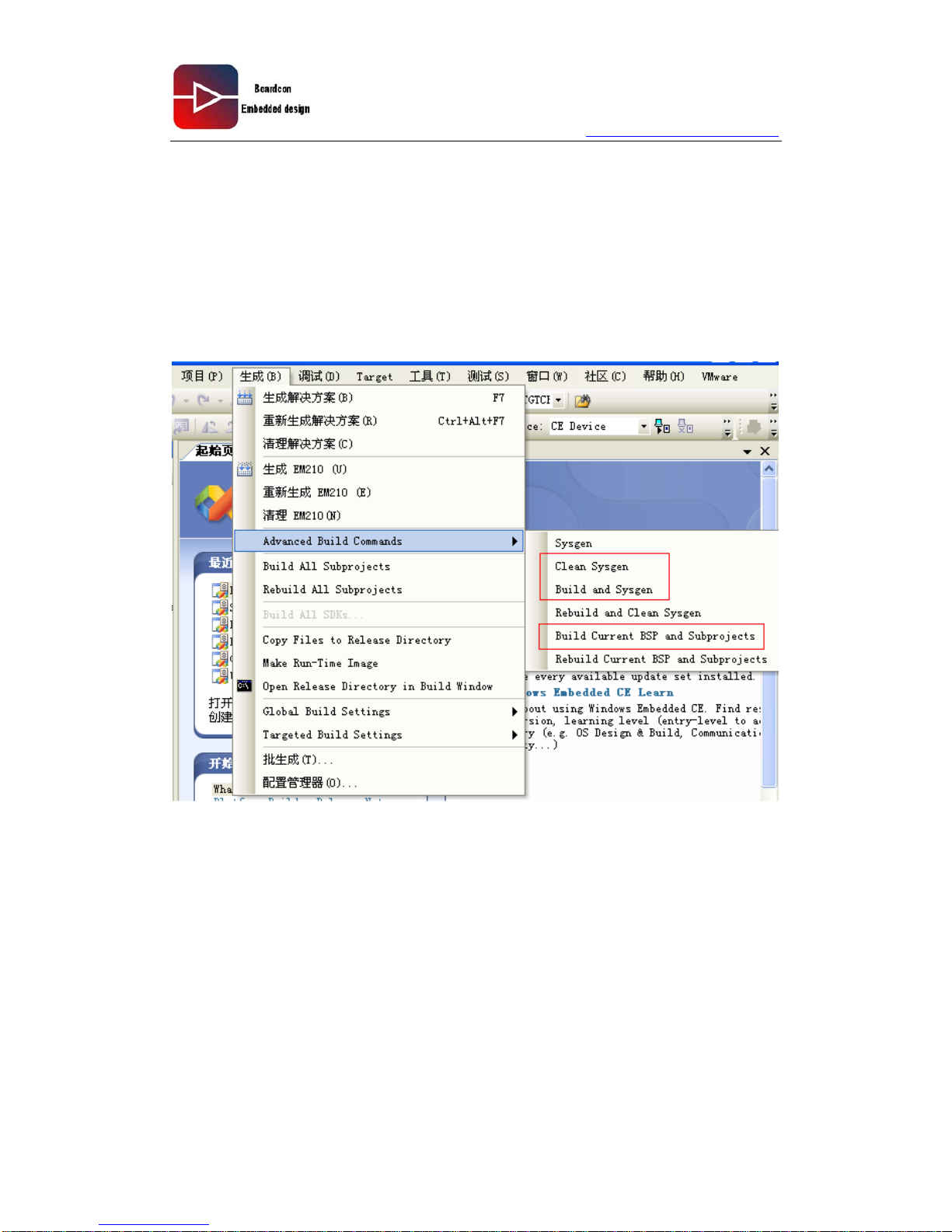
Build and Sysgen: Suitable for newly-built project-or modify the configuration options in
the project.
Build Current BSP and Subprojects: Suitable for have completed compiled project, and
not modified configuration options in the project, used to rebuild the BSP ,debug driver,etc
Clean Sysgen: Clear compiled
So, we use “Build and Sysgen” compiled the project, after the project compiled, if only
modify the BSP content, we use “Build Current BSP and Subprojects” compiled project.
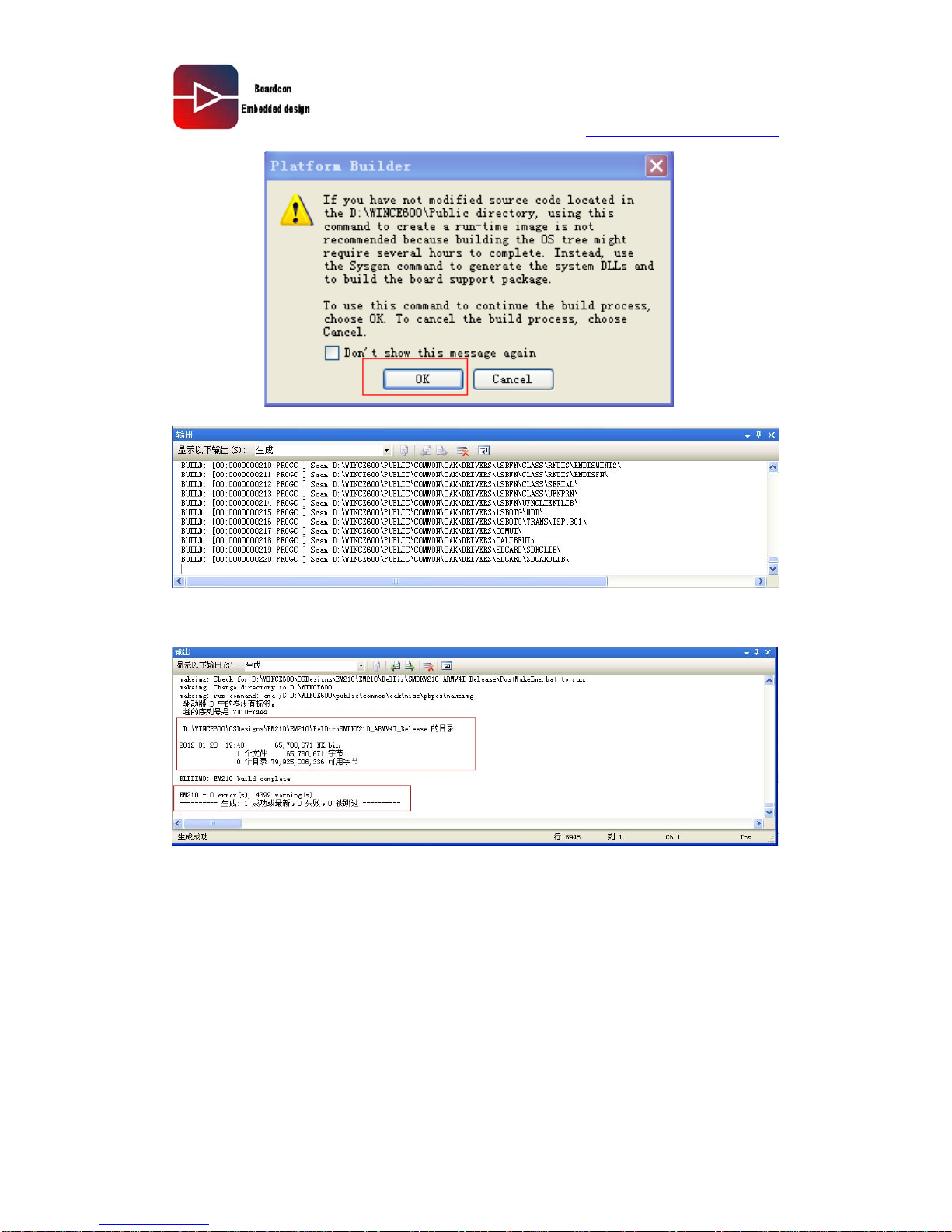
After we click “Build and Sysgen” , it will pop-up a window, only click “OK”, then , the
project start compile:
Page 62
www.armdesigner.com
62
EM210 Wince6.0 User manual
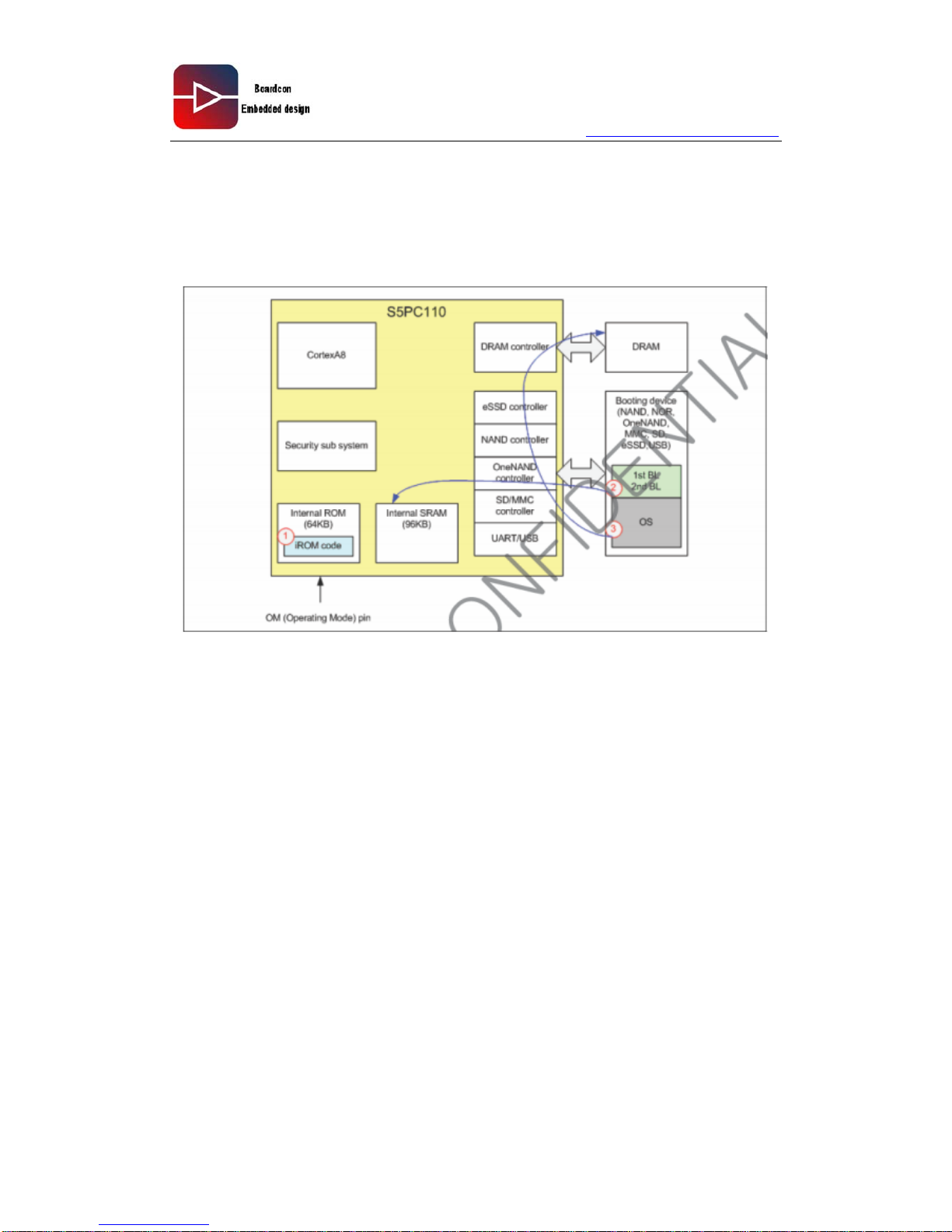
Compile the project need a very lot time, please wait, after compiled finish the project,
such as follow:
The image (BL1_UART.nb0, bootimage.nb0, EBOOT.nb0, NK.bin) which download to the
board are in the directory:
D:\WINCE600\OSDesigns\EM210\EM210\RelDir\SMDKV210_ARMV4I_Release
Page 63
www.armdesigner.com
63
EM210 Wince6.0 User manual
5 Download Wince6.0 Image
5.1 The S5PV210 process of UART BOOT
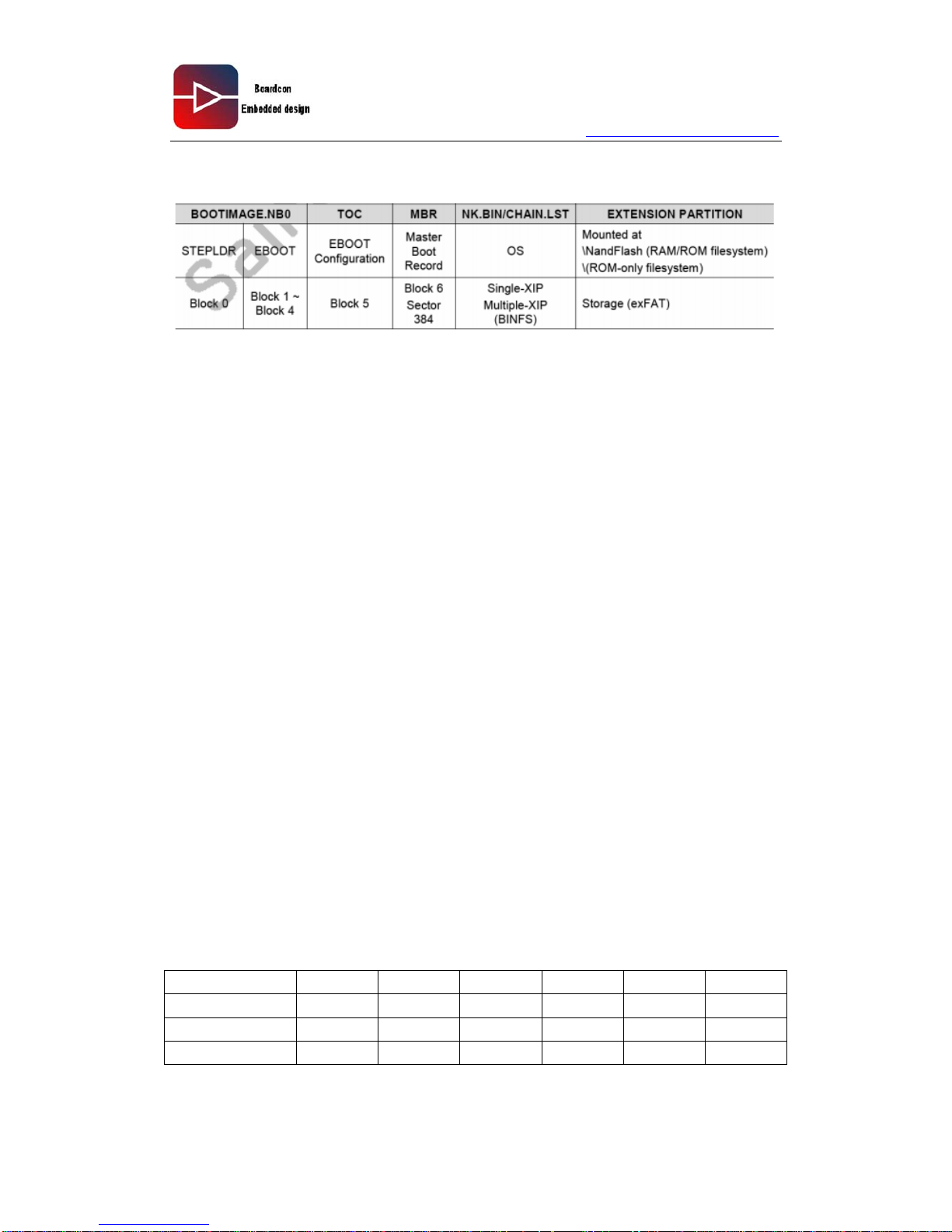
As show the picture:
IROM CODE: is samsung curing in the internal ROM a program, when the user choose to
start from a serial port, this program segment will run, its role is to download the first level
BOOT to internal 96 K SRM in and run.
1
st
Boot loader:
After it run, initialize USB, and through the USB download 2
nd
Boot Loader, and run it.
2
nd
Boot Loader:
It is responsible for the management of the FLASH, download NK and other
documents and burn wrote NAND inside
OS:
WINCE OS BIN file.
From the above analysis we can know:
In S5PV210 iROM is samsung curing internal, is the factory with good, we cannot change,
and never lost. And 1st Boot loader and 2nd Boot Loader is running in RAM, does not keep
them to NAND.
Serial port is used to guide from the first written burn blank NAND, we call it IROM guide
Page 64
www.armdesigner.com
64
EM210 Wince6.0 User manual
5.2 The S5PV210 process of NAND BOOT
From the above graph ,we know:
Written in the burning SD(INAND) have two files, one is BOOTIAMGE. NB0, one is NK.
Bin one of the BOOTIMAGE. NB0 is STEPLDR and EBOOT connected together a file
Choose from SD(INAND) started, the S5PV210 will first loading STEPLDR, STEPLDR
reload EBOOT, EBOOT reload NK.
From INAND FLASH start, we call it normal guide.
5.3 The compiled BSP generated several files introduction
BL_UART.nb0: Use IROM guide 1st Bootloader, only run in IRAM
EBOOT.nb0: Use IROM guide 2
st
Bootloader, only run in IRAM
BootImage.nb0:
It is normal to guide the documents, the lead when IROM into two parts Stepldr + EBOOT,
burned into NAND respectively
NK.bin: WINCE OS.
5.4 The IROM Serial guide to burn WINCE IMAGE
BOOT Select mode:
Boot mode J1 J2 J3 J4 J5 J6
NAND ON ON ON ON
OFF
ON
SD(INAND) ON ON
OFF OFF
ON ON
USB
OFF
ON ON ON
OFF
ON
Note: The switch “JP106” up is OFF, down is ON.
Board default is SD(INAND) start-up mode.
Page 65
www.armdesigner.com
65
EM210 Wince6.0 User manual
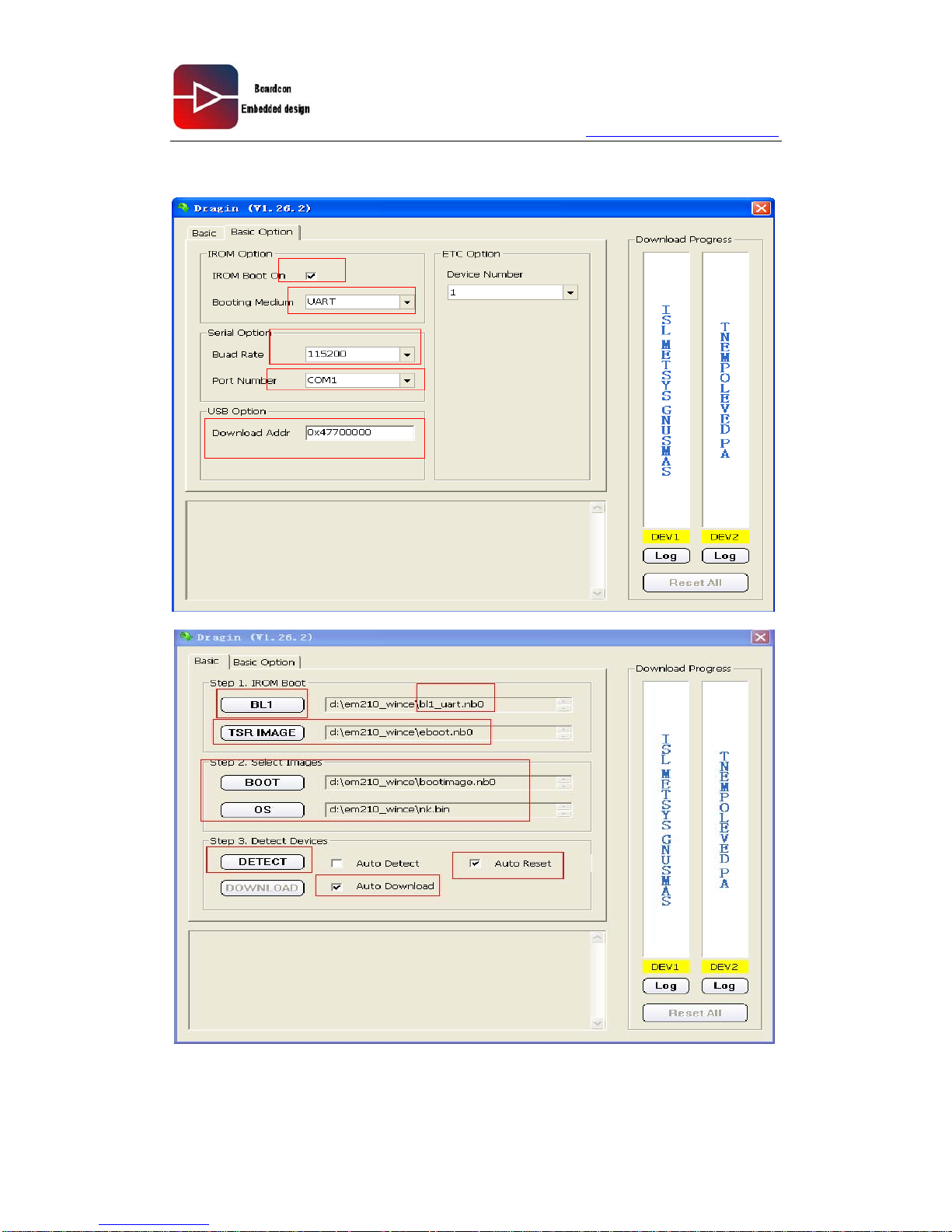
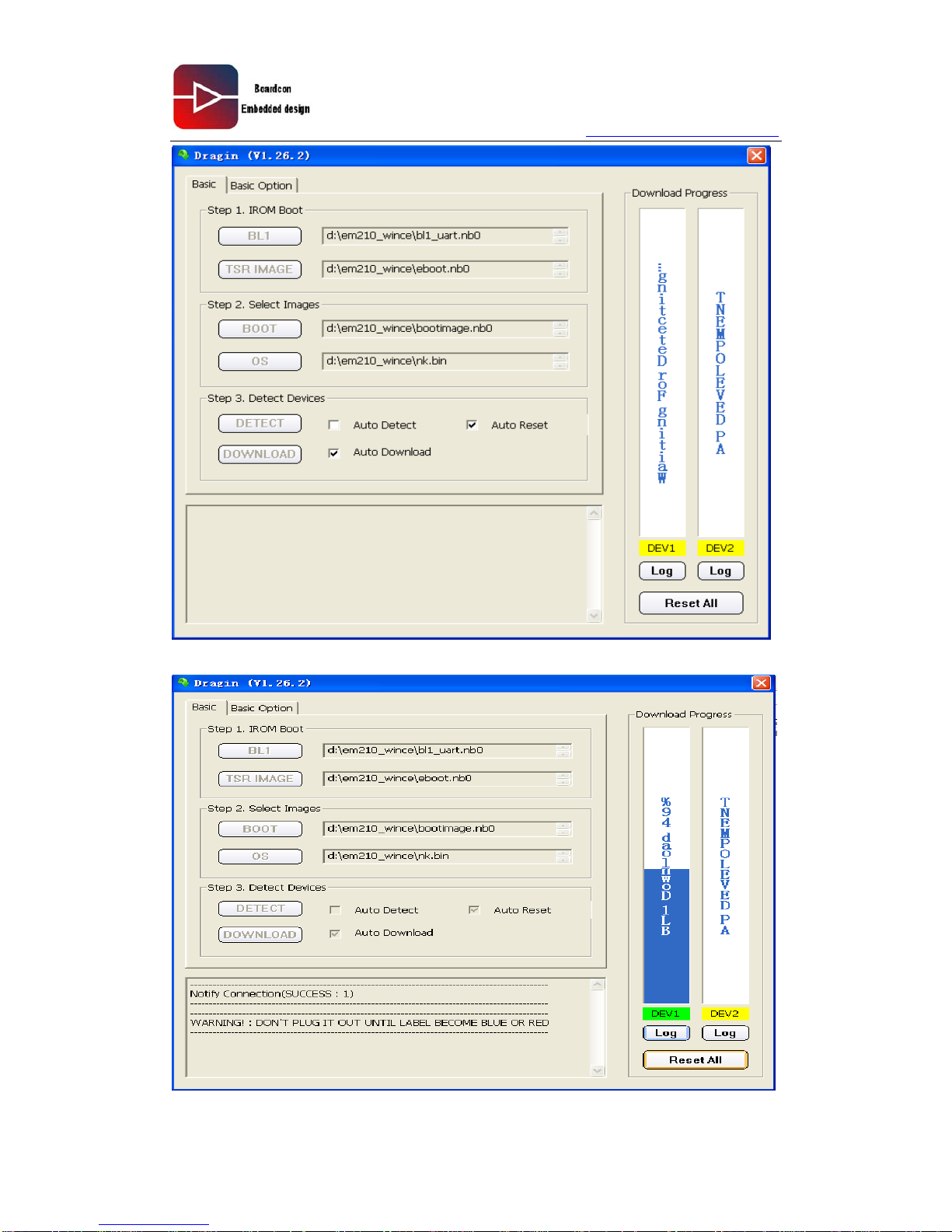
(6) Download WINCE IMAGE: set your board start from USB, insert the USB line, power
on your board, then open the “Dragin V1.26.2.exe” software, and set it as follow:
Then click ”DETECT”:
Page 66
www.armdesigner.com
66
EM210 Wince6.0 User manual
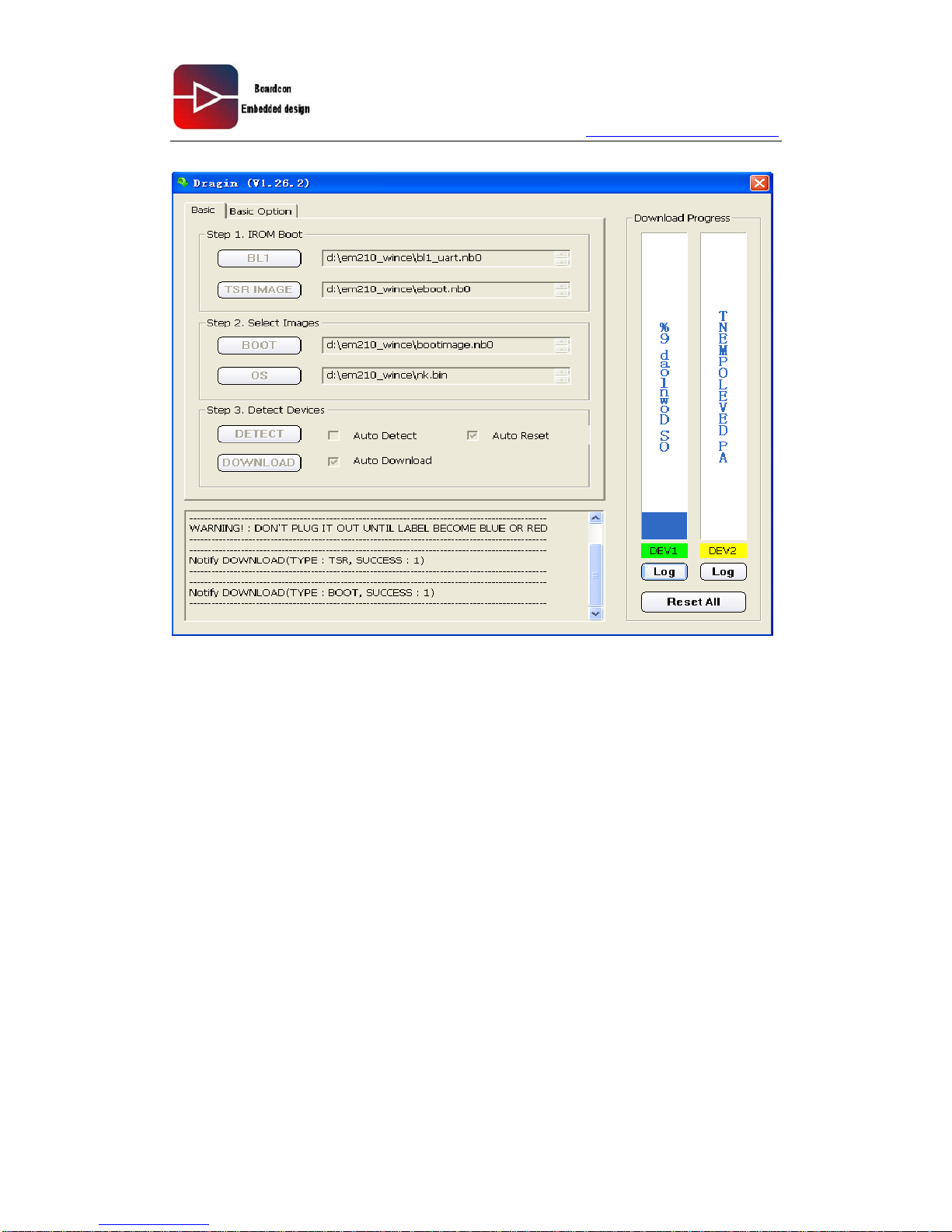
Then press “Reset” button, and the image will be downloaded into your board:
Page 67
www.armdesigner.com
67
EM210 Wince6.0 User manual
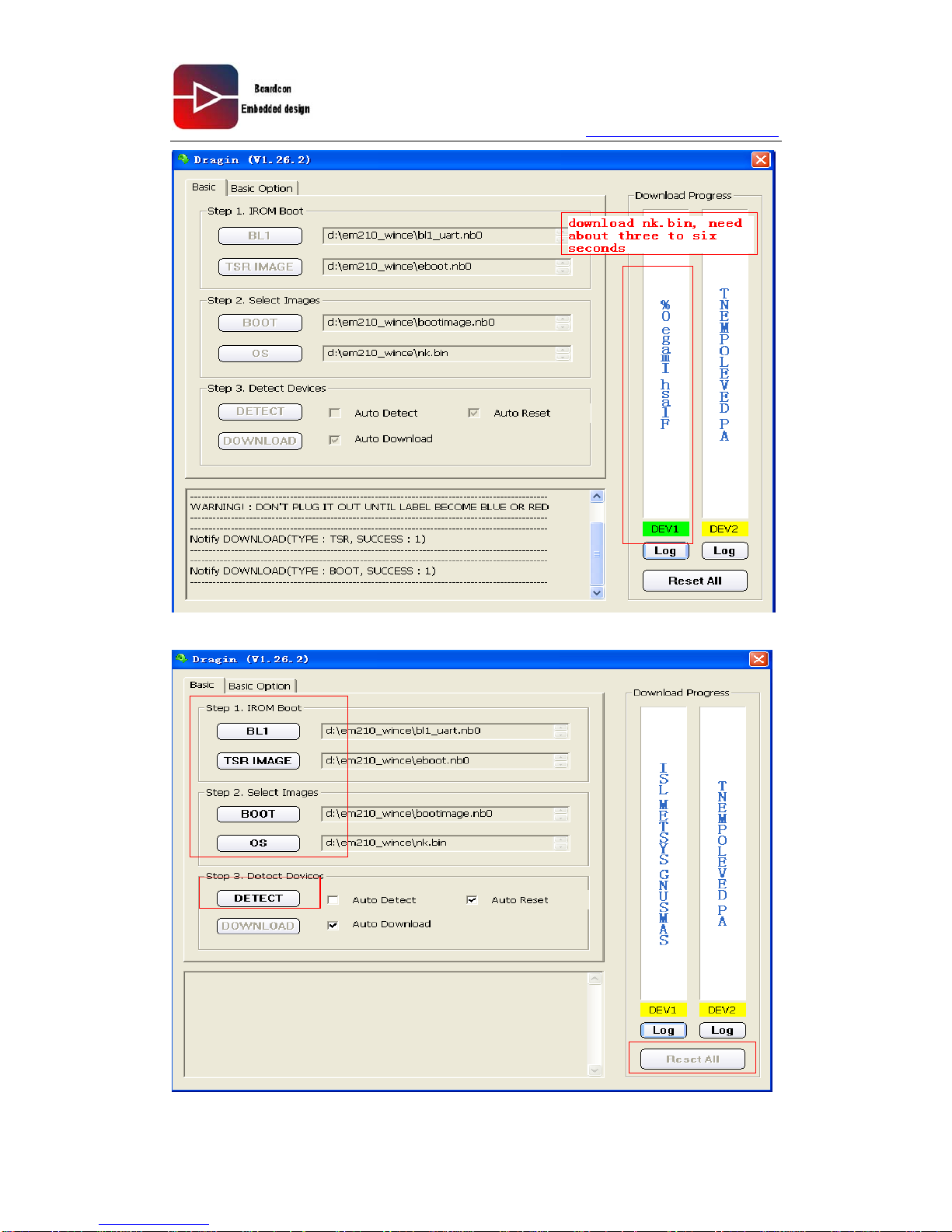
Download NK.bin:
Page 68
www.armdesigner.com
68
EM210 Wince6.0 User manual
After download all image to your board, then close it:
Page 69
www.armdesigner.com
69
EM210 Wince6.0 User manual
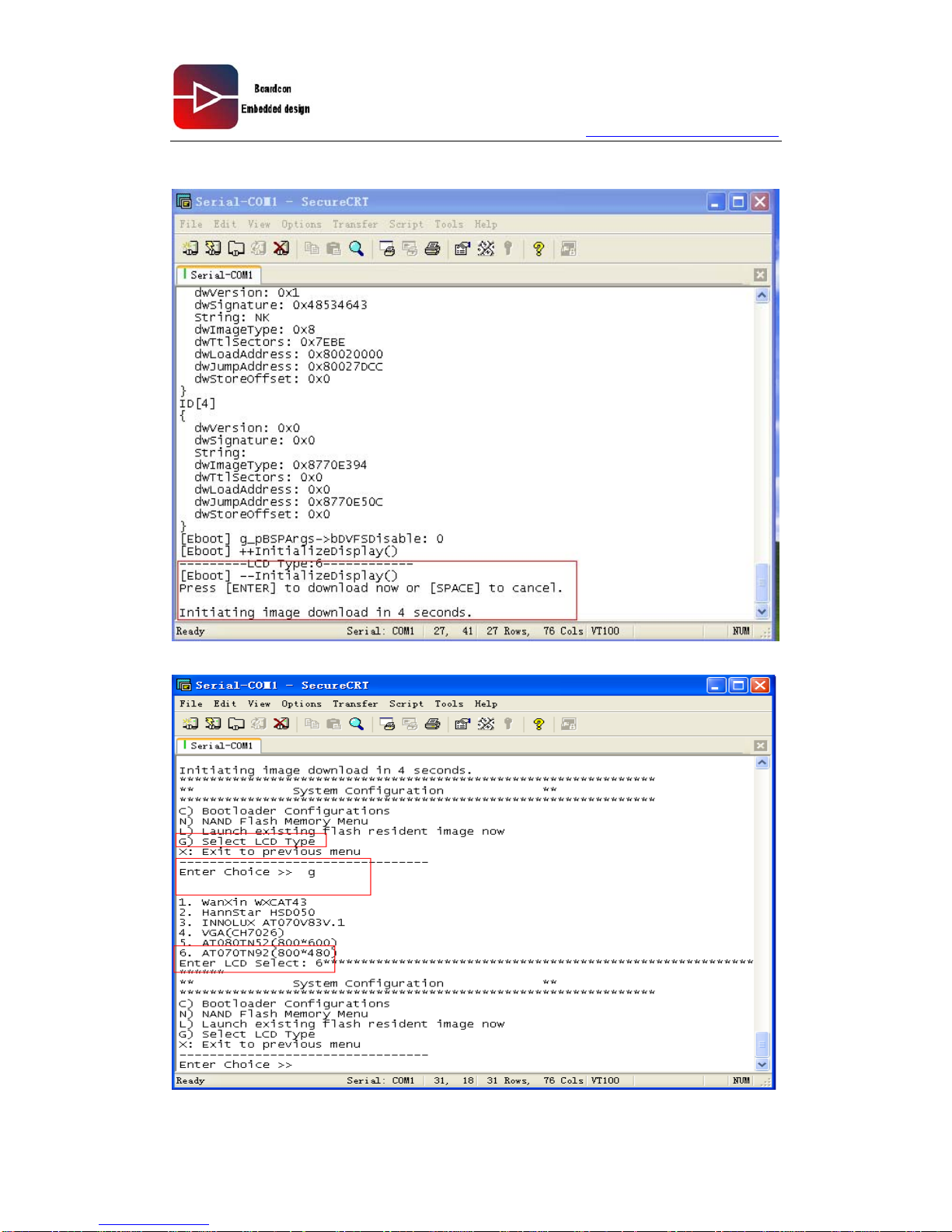
(7) Set your board start from “SD(INAND)” pull out the USB line, open the SecureCRT,
repower on your board:
That , we click [SPACE],select the LCD size:
Page 70
www.armdesigner.com
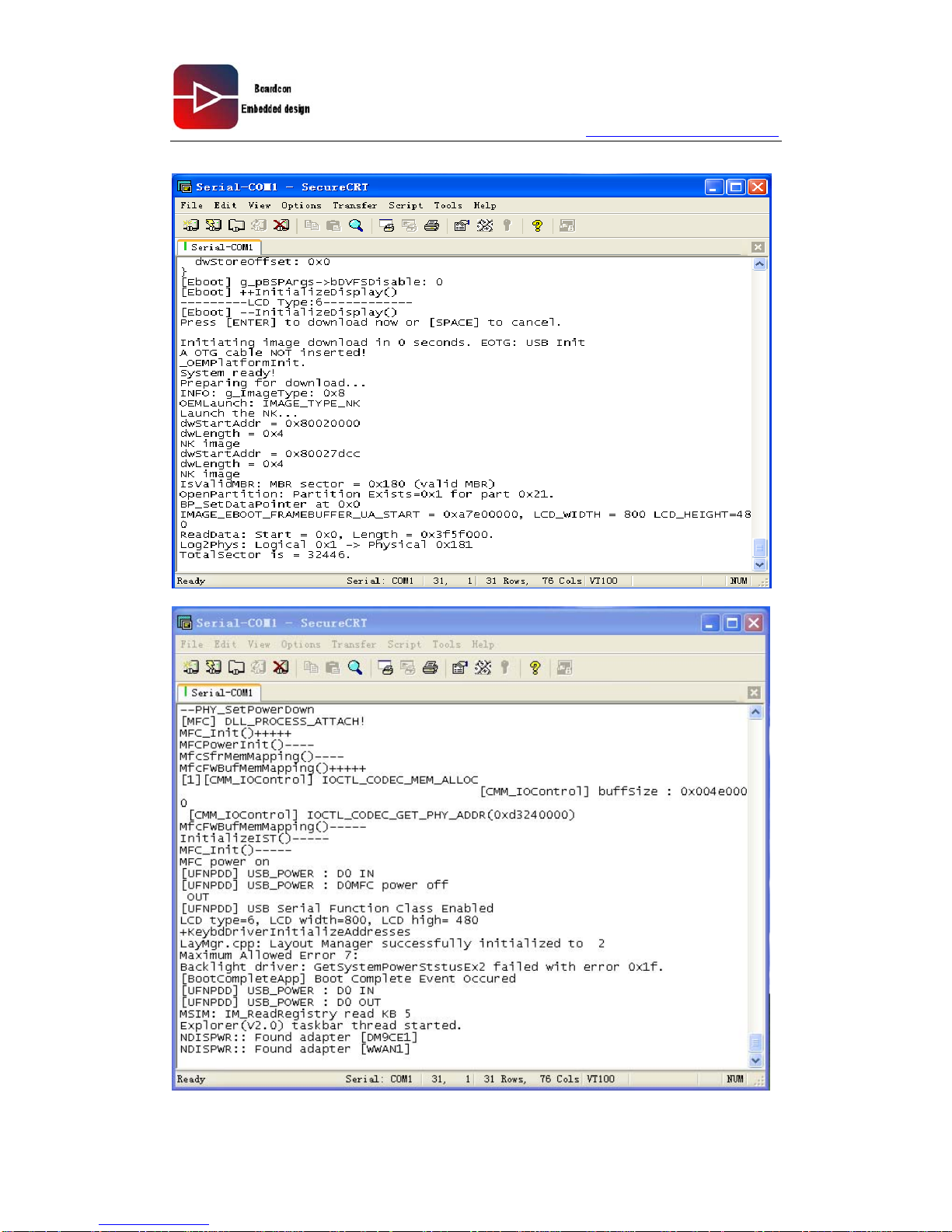
70
EM210 Wince6.0 User manual
Then restart your board, you will see the WINCE6.0 system is start:
 Loading...