

Page 1

BLU STUDIO C 5+5 LTE - Quick Start Guide
Operating Your Device
QS49Ver08JUN16
1) Earphone jack
2) Sensor
3) Speaker
4) Flash
5) Power button
6) Volume up / down
7) Menu button
8) Charging port
9) Home button
10) Back button
1
Customer Service (US) +1 212 785 5800
[email protected]
http://support.mobal.com
www.mobal.com
2
3
5
6
7
9
10
8
Page 2
BLU STUDIO C 5+5 LTE - Quick Start Guide
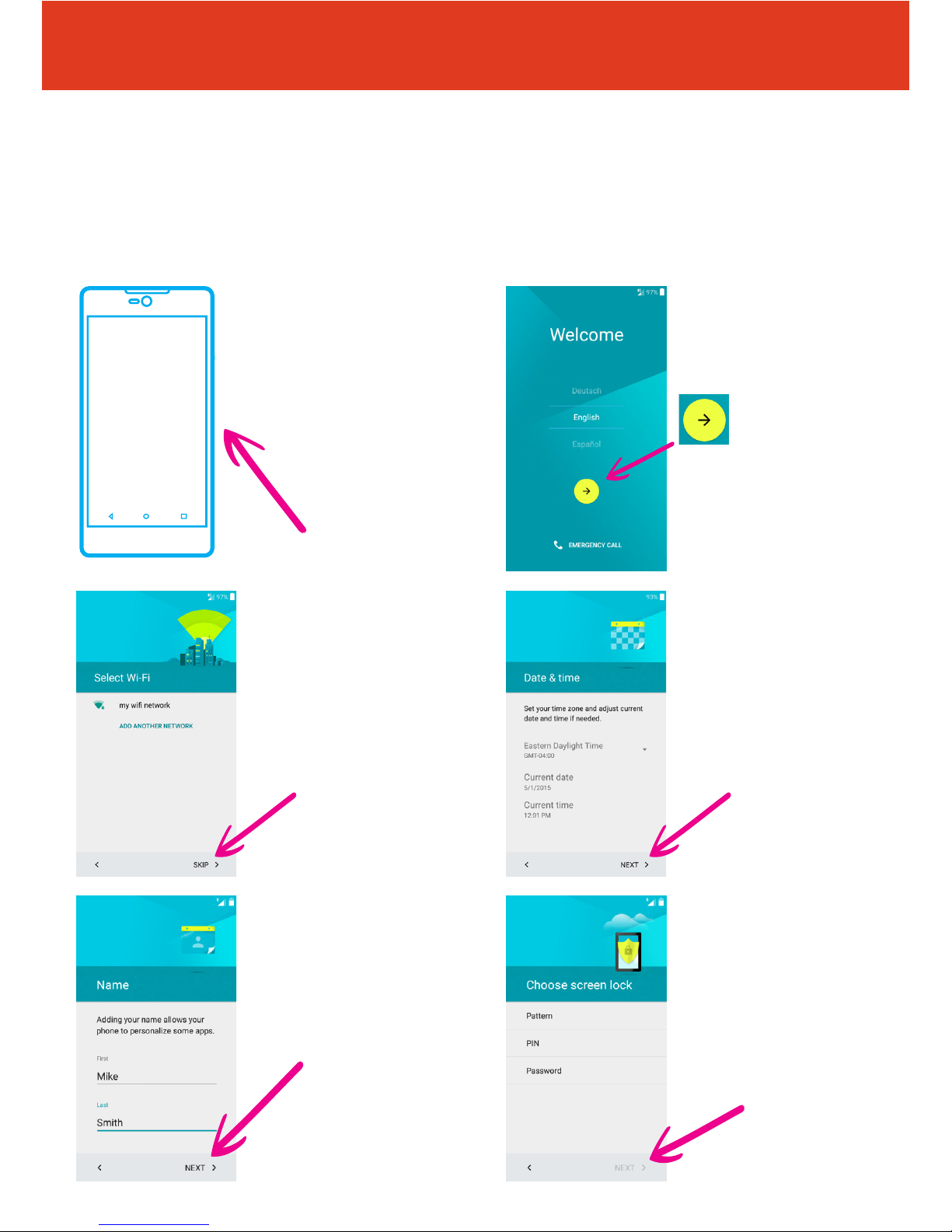
Setting Up Your New Smartphone (Page 1 of 2)
To get started with your smartphone, follow these steps:
2 First, select your
language from the
dropdown box, then tap
the arrow icon.
4 Now set up the date
and time and tap “NEXT”.
6 Now you can secure
your phone by tapping
either “Pattern, PIN or
Password”. If you do not
wish to secure your phone
at this stage you can also
“SKIP” this step. When
nished tap “NEXT”.
3 Set up a wi
connection.
(or skip this step and
set up later if wi isn’t
available).
5 Now ll in who the
phone belongs to and tap
“NEXT”.
QS49Ver08JUN16
1 To turn the phone
on press and hold the
power button on the right
hand side of the phone,
underneath the volume
buttons.
Page 3

BLU STUDIO C 5+5 LTE - Quick Start Guide
Setting Up Your New Smartphone (Page 2 of 2)
To get started with your smartphone, continue with these steps:
8 Your phone is now set
up and ready to use. Tap
“FINISH” to start using
your phone.
9 Your phone will now
oer a handy tip as to how
you customize wallpapers,
widgets & settings.
QS49Ver08JUN16
7 Read through the
privacy statement,
then tap “MORE”
to scroll to the bottom,
then tap
“Accept and continue”
(or amend privacy settings
rst if desired).
Page 4

BLU STUDIO C 5+5 LTE - Quick Start Guide
Adding Contacts To Your Smartphone (1 of 2)
With the device locked and the screen o, follow these steps:
1 Press the power
button on the right hand
side of the handset. The
screen will turn on. Then
to unlock your phone
swipe the screen to the
top.
3 Then tap the
“Contacts” icon.
2 Tap the menu icon in
the bottom of the screen.
QS49Ver08JUN16
4 You will now be asked
whether you wish to
synchronize (or save) your
contact on either your SIM
card or on your phone.
Page 5

BLU STUDIO C 5+5 LTE - Quick Start Guide
Adding Contacts To Your Smartphone (2 of 2)
With the device locked and the screen o, follow these steps:
QS49Ver08JUN16
6 Fill in all of the contact
details and when nished
tap the tick in the top left
hand corner of the screen.
Remember to include
the international dialing
code (including “ + “ sign
and country code) to your
contacts before saving.
Press and hold the zero
key to get the “+” symbol.
5 Then tap the add
“contact icon” in the
bottom right hand of the
screen.
Page 6

BLU STUDIO C 5+5 LTE - Quick Start Guide
Making a Call On Your Smartphone
Follow these steps to make a phone call:
1 Unlock your phone by
swiping the screen to the
top.
3 The number pad will
then appear. Input the
phone number you wish
to dial and then tap the
telephone icon to make
the call.
(Press and hold the zero
key to get the “+” sign)
2 Tap the telephone icon
in the bottom left of the
screen.
QS49Ver08JUN16
4 Alternatively, if you
have already saved your
contact phone numbers,
you can search for a
contact name. To do this,
rst of all tap the menu
icon on the home screen.
and then the contacts icon
from the next screen.
5 Then tap the search
icon in the top right
corner of the screen.
Then a search bar will
appear at the top, type
here the contact you wish
to call.
6 Now tap the telephone
number displayed on the
screen to make the phone
call.
Page 7
BLU STUDIO C 5+5 LTE - Quick Start Guide
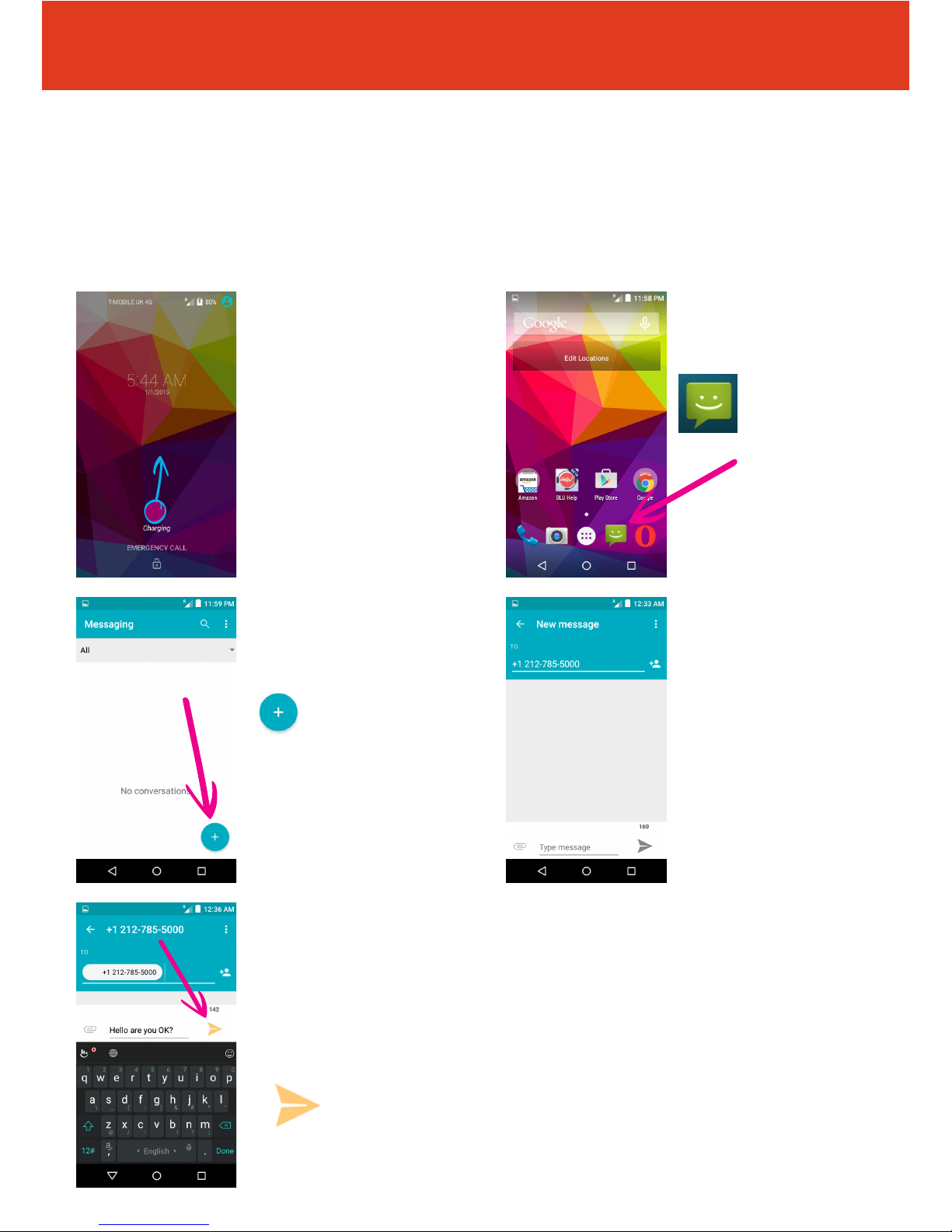
Sending A Text On Your Smartphone
Follow these steps to send a text message:
1 Unlock your phone by
swiping the screen to the
top.
3 Tap the new message
icon in the bottom right
hand corner of the screen.
2 Tap the messaging
icon in the bottom of the
screen.
QS49Ver08JUN16
4 Type in the phone
number or the name
of the person you are
sending the message
to (remember to enter
your phone number in
full international format,
for example to send a
message to Mobal, type
+12127855000).
5 Then type out your
message below.
When you have completed
your message tap the
send message icon to
send the message.
Page 8
BLU STUDIO C 5+5 LTE - Quick Start Guide
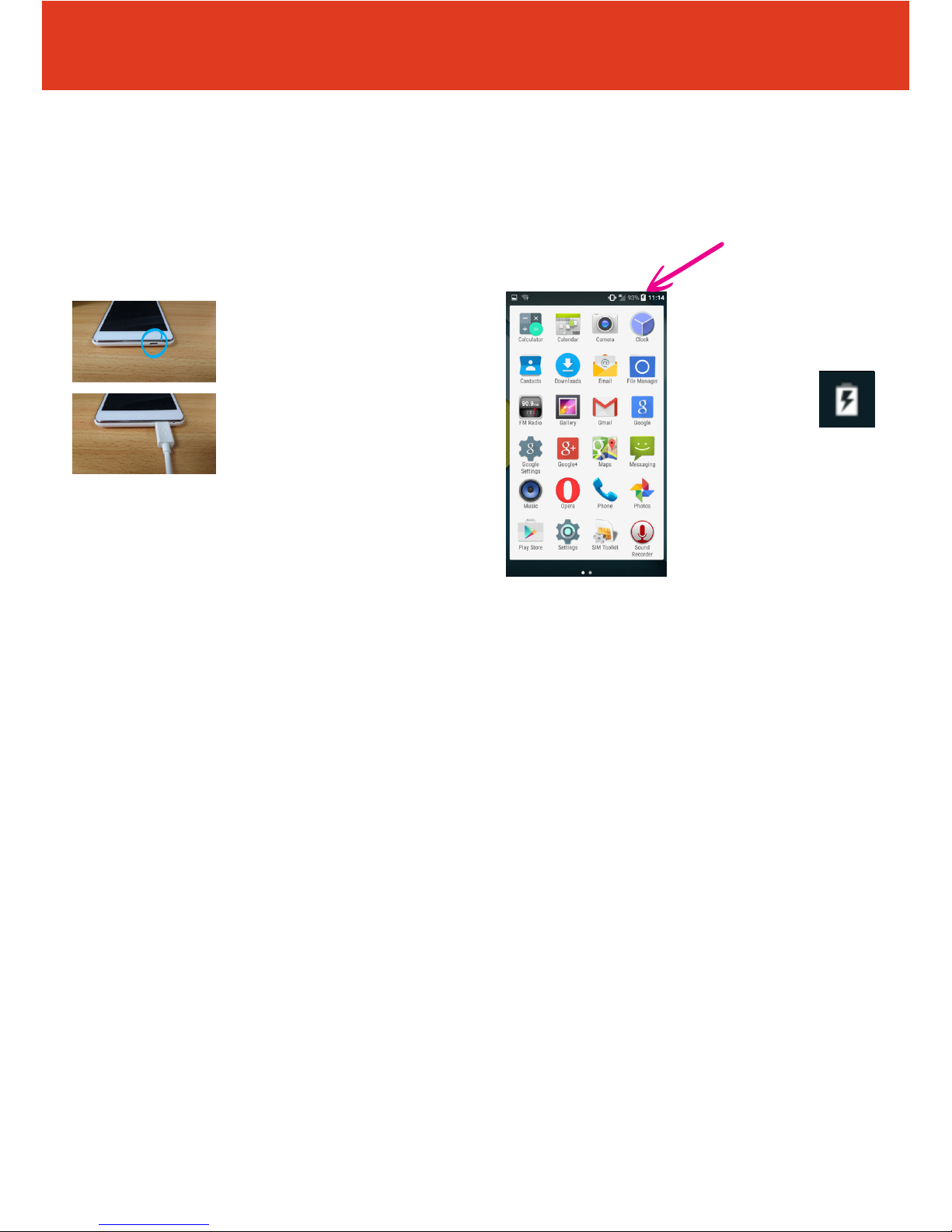
Charging Your New Smartphone
How to charge your handest:
1 The charging port is
located at the bottom
edge of the phone.
Connect your charger to
the wall outlet and then
connect your charger to
the charging port at the
bottom of your phone.
2 To check your phone
is charging, you should
see this symbol in the top
right hand corner.
The rst time you charge
your phone it is advised
that you charge it until the
battery icon is full. This can
take several hours.
QS49Ver08JUN16
Page 9
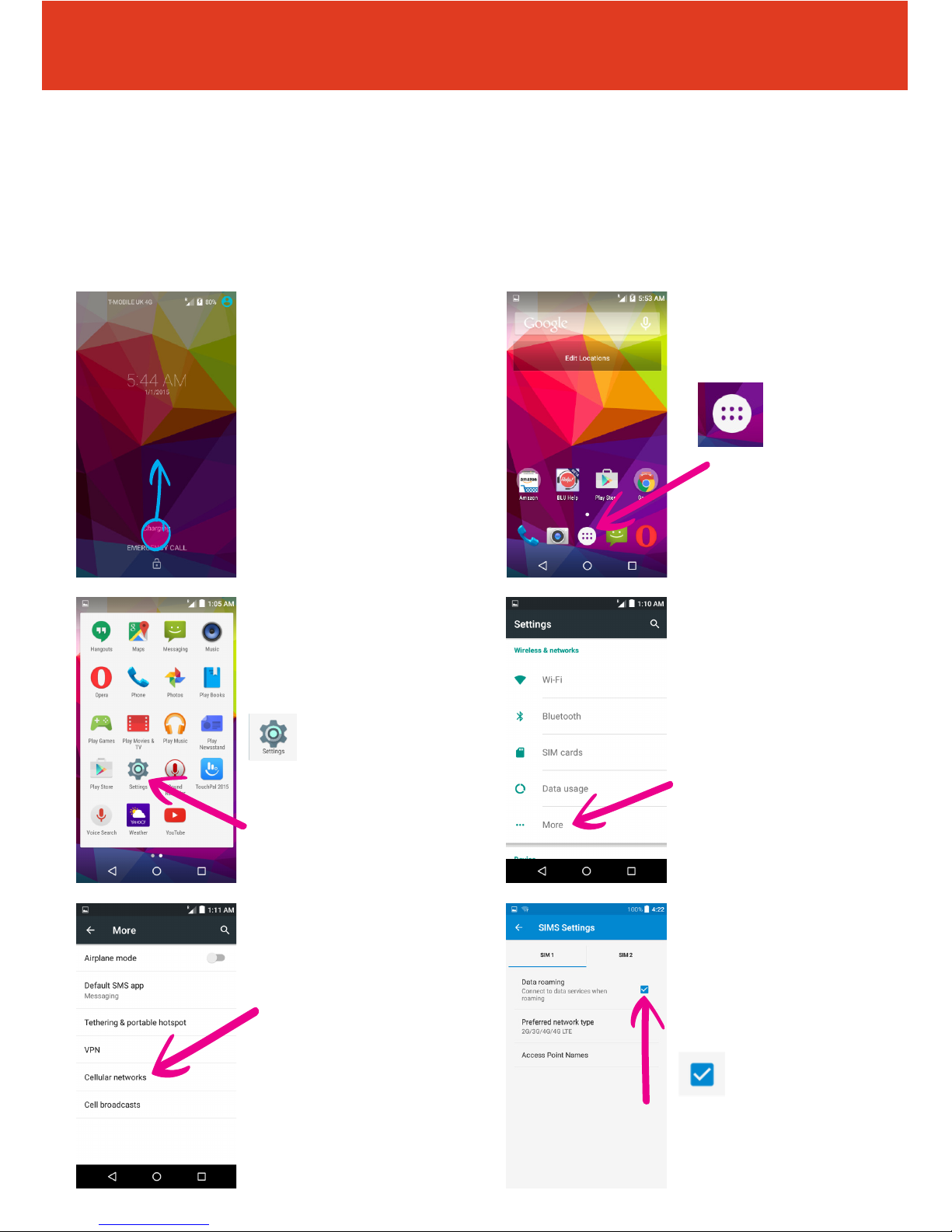
6 Tap the empty check
box to the right of “Data
Roaming“. Read the
warning and click “OK“.
This will put a blue check
in the “Data Roaming“ box.
BLU STUDIO C 5+5 LTE - Data Setup Guide
Setting Up Cellular Data on Your Smartphone
To set-up your smartphone to use the Mobal Data Service, simply follow
these steps below:
1 Press the power
button located on the top
of the right edge of the
phone (under the volume
buttons). Unlock your
phone by dragging the
padlock symbol upwards.
3 Swipe the screen to
the left or right until you
can see the “Settings“ icon
and tap on it
5 Tap on “Cellular
networks“
4 Tap on “More...“
QS49Ver08JUN16
2 Tap the menu icon in
the bottom of the screen.
Page 10

13 Please now restart your phone for the changes to take eect. You are now ready to use the
internet - at home or as you travel!
Please note: These data settings may reset as you travel from country to country.
Please keep this guide safe as you may need to repeat the above steps in order to enjoy your
Mobal Data Service as you travel.
7 On the same screen,
tap “Access Point Names“
9 Tap on “Name“ (which
is rst in the list at the top),
when the new window
opens type in “Mobal“
then, press “OK“
11 Press the option
button (located on the top
right corner of the screen),
and choose “Save“
8 Press the “plus symbol“
located in the top right
section of the screen next
to “APNs“
10 Then tap on “APN“
and when the new
window opens type in
“openroamer.com“
then, press “OK“
12 You should now see
your cellular data settings
on the screen under the
name “Mobal“.
Locate the circle on the
right next to your Mobal
Data settings and tap on it.
Make sure that circle turns
blue.
 Loading...