

Page 1
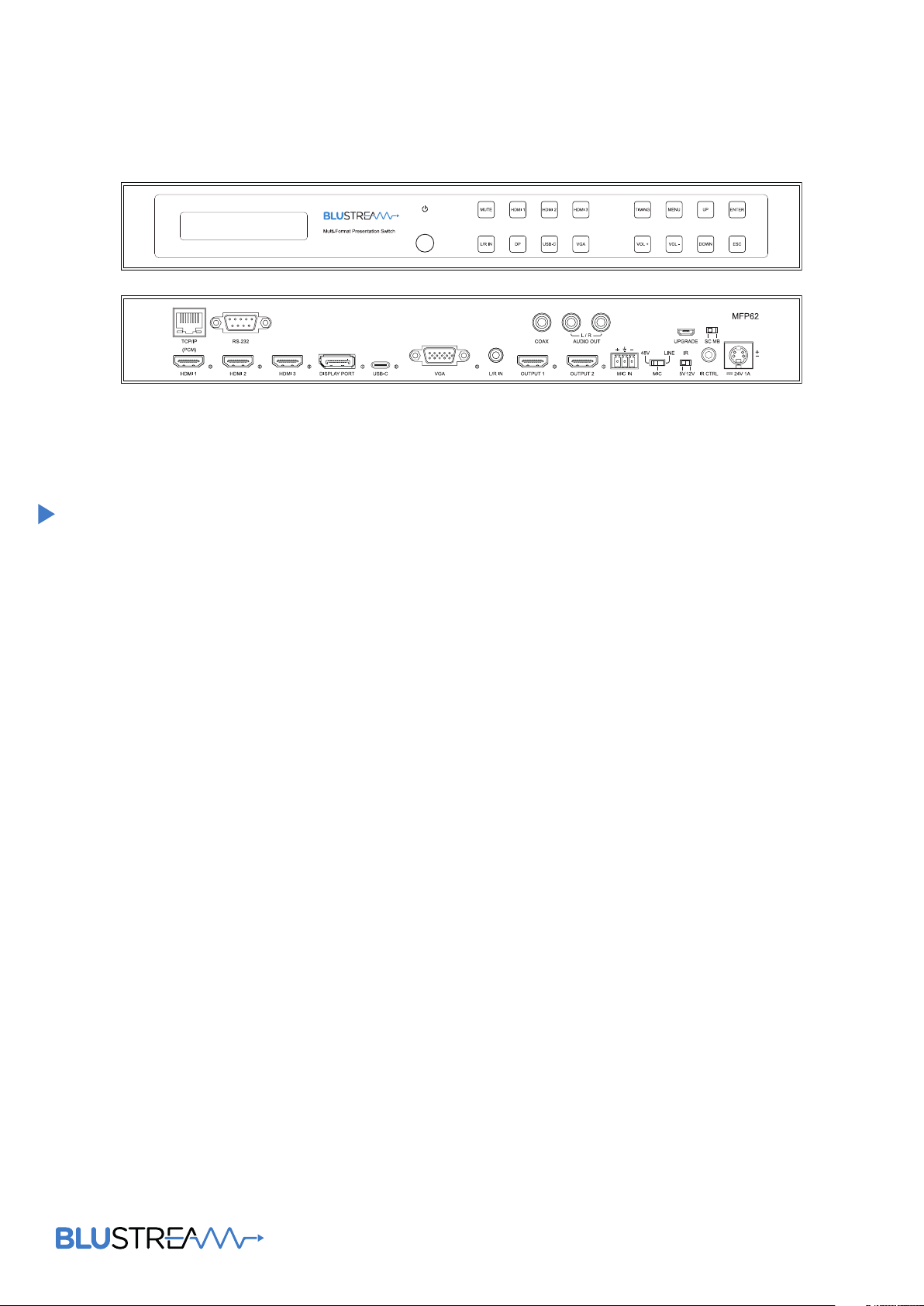
MFP62
User Manual
RevA1 MFP62 User Manual
Page 2

Contents
MFP62 USER MANUAL
Thank you for purchasing
this product.
For optimum performance and safety,
please read these instructions carefully
before connecting, operating or
adjusting this product. Please keep this
manual for future reference.
Surge protection device
recommended
This product contains sensitive
electrical components that may be
damaged by electrical spikes, surges,
electric shock, lightning strikes, etc.
Use of surge protection systems is
highly recommended in order to
protect and extend the life of your
equipment.
Introduction 03
Features 03
Panel Descriptions 04
Microphone Input & Audio Mixing 05
EDID Control 06
Scaler Control 06
Infrared (IR) Distribution 07
Remote Control 08
RS-232 Control Port 09-10
Specification 11
Package Contents 11
Maintenance 11
Schematic 12
Installer Notes
13
02
www.blustream.com.au | www.blustream.co.uk
Page 3

MFP62 USER MANUAL
Our MFP62 is an advanced 4K multi format presentation switch featuring 3 x HDMI,
Introduction
FEATURES:
• Features 3 x HDMI, 1 x USB-C, 1 x DisplayPort™ & 1 x VGA input which can be routed to dual HDMI outputs
• Supports HDMI 2.0 18Gbps specification including HDR
• Supports resolutions up to 4K UHD 60Hz 4:4:4
• Supports all known HDMI audio formats including Dolby TrueHD, Atmos and DTS-HD Master Audio transmission
• Dual HDMI outputs with simultaneous video scaling
• Supports USB Type C up to 4K UHD 60Hz 4:4:4, DP1.2 & Alt mode
• Supports DisplayPort™ up to 4K UHD 60Hz 4:4:4, DP1.2
• Audio breakout to analogue L/R audio and Coaxial (S/PDIF) digital outputs concurrently
• Features audio mixer with independent level adjustment
• Analogue audio embedding
• MIC input supports line level, 48V Phantom power or 1ch balanced / un-balanced audio
• Web interface module for control and configuration of switch
• Control via front panel, IR, RS-232 and TCP/IP
• HDCP 2.2 compliant with advanced EDID management
1 x USB-C, 1 x DisplayPort™ and 1 x VGA input to dual HDMI outputs. The MFP62 provides
enhanced features including video scaling on outputs, MIC input with phantom power and
audio mixing. The MFP62 also features web GUI for control and configuration, analogue
audio embedding, audio de-embedding and control via front panel, IR, RS-232 and
TCP/IP. The MFP62 is an ideal product for your boardroom, classroom or huddle-space
application.
contact [email protected] | [email protected]
03
Page 4
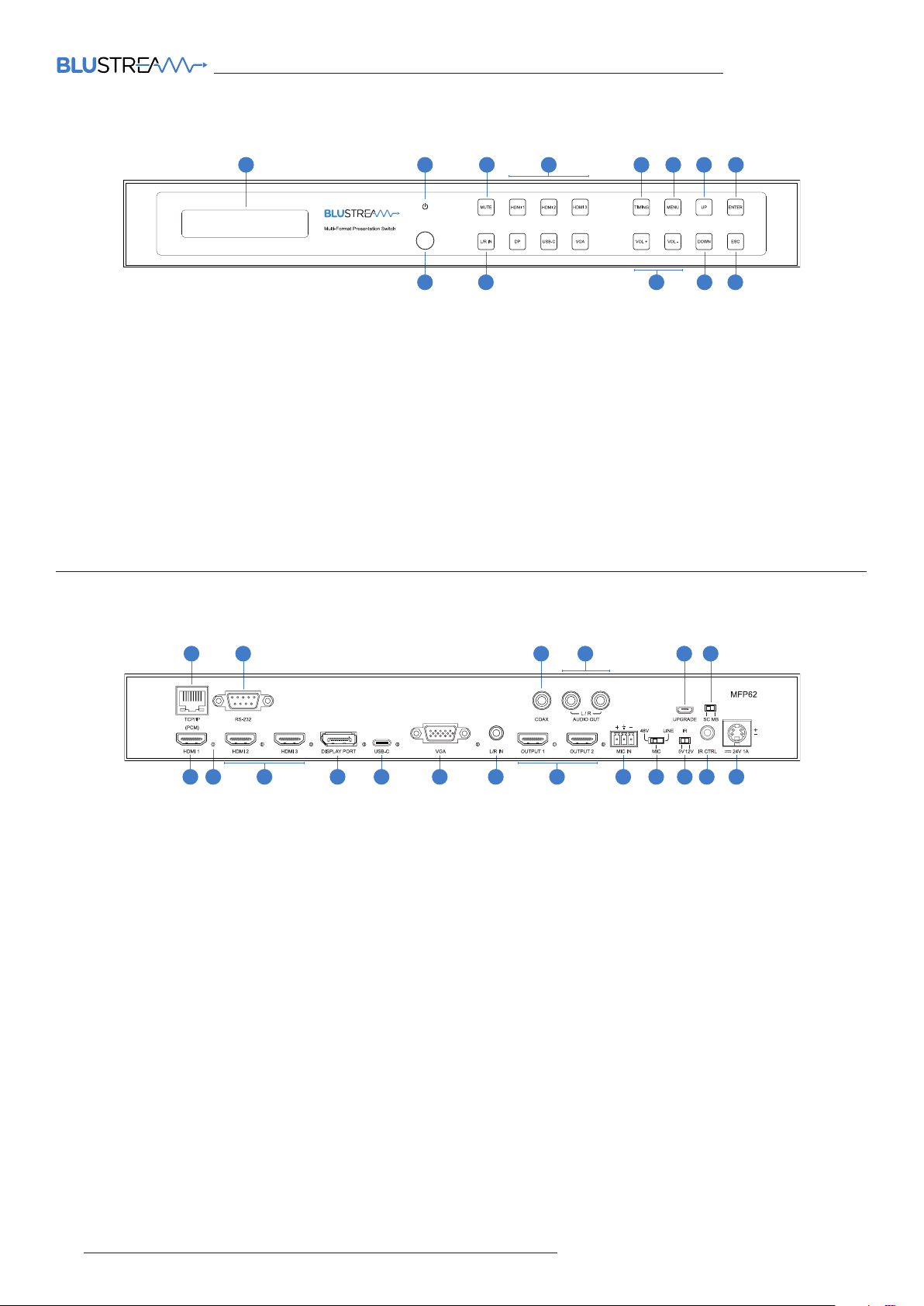
Panel Description - Front
MFP62 USER MANUAL
1
2 3 5
9
1 LCD display – Shows the status of input/output selection,
EDID etc
2 Power button – Press to power on/o the Switcher.
Illuminates blue when powered on
3 Mutes all audio output
4 Input selection - To select the input signal between HDMI 1
to 3, DP, USB-C and VGA
5 Timing selection - To select scaler output video resolution
6 Menu button – Press to enter EDID, Network and MIC setup
menu
4
10 11 13
6 7 8
12
7 Up selection button – Press to change segment’s value
8 Enter button – Press to select current menu item.
9 IR receiver window
q L/R In button - Press to select analogue audio input to be
embedded onto all video signals
w Vol +/- button - Press to adjust the volume of the audio
output for 2ch PCM signals only
e Down selection button – Press to change segment’s value
r ESC button – Press to escape the current setup menu
Panel Description - Rear
1
7 9 10 11
1 TCP/IP (RJ45) – Connect to LAN for TCP/IP control of
Switcher and Web GUI
2 RS-232 port – For control of the Switcher from PC or third
party control processor
3 Coaxial digital audio output – Extract audio from the
selected input signal
4 L/R analogue audio outputs (RCA) – Extracted audio from
the selected input signal. Note: Input signal must be PCM
2ch audio
5 Upgrade port (Micro USB) - For firmware upgrade
6 SC/MB switch - For firmware upgrade of scaler or main
board
7 HDMI input 1 - Connect to HDMI source. Supports up to 4K
60Hz 4:4:4 video and 2ch PCM audio only
8 Status LED - Illuminates when an input or output has an
active connection to a source or display
9 HDMI input 2 to 3 - Connect to HDMI source. Supports up
to 4K 60Hz 4:4:4 video and multi channel audio
q DisplayPort™ input - Connect to DisplayPort source.
Supports up to 4K 60Hz 4:4:4 and DP1.2
2
3 4
12
13 16 19
14
15 178
5 6
18
w USB-C input - Connect to USB-C source. Note: this port
does not support charging via USB. Supports up to 4K
60Hz 4:4:4, DP1.2 and Alt mode
e VGA input - Connect to VGA source. Supports up
1920x1200 (including 1080p)
r L/R In - 3.5mm Analogue audio input for embedding audio
onto HDMI outputs
t HDMI outputs - Connects to HDMI display. Both outputs
display the same signal concurrently
y MIC IN - Supports balanced and unbalanced microphones
including 48V phantom power
u MIC input selection - Select between 48V phantom power,
line level and mic level input sensitivity
i IR selection - Select between 5V or 12V IR on the IR CTRL
connection. See full manual for pin out
o IR CTRL receiver input – 3.5mm stereo jack for connection
of an IR receiver or control processor for remote IR control
of the switcher
p Power port – Use included 24V/1A DC adaptor to power
the switcher
04
www.blustream.com.au | www.blustream.co.uk
Page 5
MFP62 USER MANUAL
Microphone Input & Audio Mixing
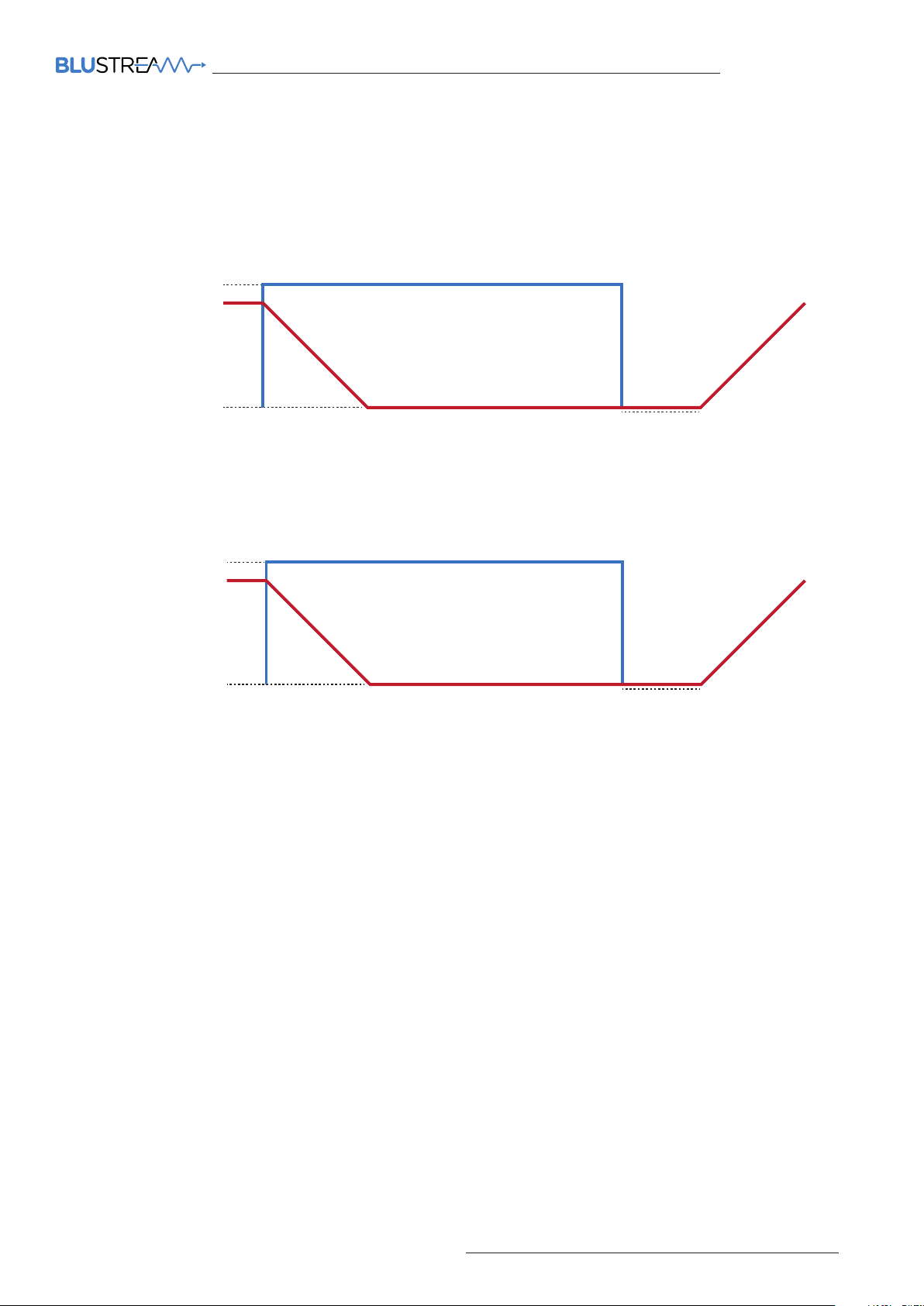
The MFP62 features a microphone input that can support 48V phantom power, balanced and unbalanced microphones, as well
as line level audio input. It also features auto audio ducking where by the input source’s audio decreases in volume and the
microphone audio is mixed over the top. This feature is enabled by default and can be customised via the MFP62’s web GUI or RS-
232. The illustration below outlines how the microphone audio mixes over the input source’s audio.
MIC Volume
Source Volume
Ramp Down
BG Volume
Input Source Audio
Microphone Audio
All the microphone mixing features can be adjusted via RS-232.
The RS-232 commands assosciated with each item are as follows:
Microphone Audio
MIC VOL xx (%)
VOL xx (%)
MIC BG VOL (%)
MIC RDN (0.5-10s)
Input Source Audio
Ramp Up
MIC Mute Sense
MIC RUP (0.5-10s)
MIC BGR (1-20s)
When using the microphone mixing functionality, it is recommended to only use 2ch audio sources, or set the EDID of the product
to a 2ch EDID. While the MFP62 does support multichannel audio, mixing the microphone input over the multichannel signal is not
possible hence the source audio drops out when the microphone audio is triggered. To enable multichannel audio support, you
must choose a multichannel EDID via the Web GUI of the product.
contact [email protected] | [email protected]
05
Page 6

MFP62 USER MANUAL
EDID Control
EDID (Extended Display Identification Data) is a data structure that is used between a display and a source. This data is used by
the source to find out what audio and video resolutions are supported by the display. By pre-determining the video resolution
and audio format of the source and display device you can reduce the time needed for EDID hand shaking.
Configuration of switcher’s EDID settings can be achieved using the Menu button on the front panel of the MFP62, RS-232 or via its
Web GUI. The EDID options available are:
Selectable via Front Panel / RS-232 / Web GUI
HDMI 1080p@60Hz, Audio 2ch PCM
HDMI 1080i@60Hz, Audio 2ch PCM
HDMI 1080p@60Hz/3D, Audio 2ch PCM
HDMI 4K@30Hz 4:4:4, Audio 2ch PCM
HDMI 4K@60Hz 4:2:0, Audio 2ch PCM
HDMI 4K@60Hz 4:4:4, Audio 2ch PCM
DVI 1280x1024@60Hz, Audio None
DVI 1920x1080@60Hz, Audio None
DVI 1920x1200@60Hz, Audio None
HDMI 1920x1200@60Hz, Audio 2ch PCM
Selectable via RS-232 / Web GUI only
HDMI 1080p@60Hz, Audio 5.1ch PCM
HDMI 1080p@60Hz, Audio 7.1ch PCM
HDMI 1080i@60Hz, Audio 5.1ch PCM
HDMI 1080i@60Hz, Audio 7.1ch PCM
HDMI 1080p@60Hz/3D, Audio 5.1ch PCM
HDMI 1080p@60Hz/3D, Audio 7.1ch PCM
HDMI 4K@30Hz 4:4:4, Audio 5.1ch PCM
HDMI 4K@30Hz 4:4:4, Audio 7.1ch PCM
HDMI 4K@60Hz 4:2:0, Audio 5.1ch PCM
HDMI 4K@60Hz 4:2:0, Audio 7.1ch PCM
HDMI 4K@60Hz 4:4:4, Audio 5.1ch PCM
HDMI 4K@60Hz 4:4:4, Audio 7.1ch PCM
Scaler Control
The MFP62 supports scaling of the output video signal. This can be selected by pressing the Timing button on the front panel of
the matrix, or via the Web GUI or RS-232. Note: both HDMI outputs will output at the same resolution. Scaler options are:
1024x768@60Hz
1280x800@60Hz
1360x768@60Hz
1440x900@60Hz
Auto mode will examine the EDID of the display connected to HDMI Out 1 first, and choose the best output resolution based on
the EDID information.
1680x1050@60Hz
1920x1200@60Hz
720p@50Hz
720p@60Hz
1080p@50Hz
1080p@60Hz
4K2K@25Hz
4K2K@30Hz
4K2K@50Hz
4K2K@60Hz
DCI 4K2K@25Hz
DCI 4K2K@30Hz
DCI 4K2K@50Hz
DCI 4K2K@60Hz
Auto
Scaler Frequency
The output scaler can be forced to a fixed frequency as specified above, or when the scaler is in auto mode, the frequency mode
can also be set to auto where by the input frequency will dictate the output frequency in conjunction with the EDID from the
display, to give the best result possible. The chart below shows what the output frequency should be based on the EDID of the
display.
Display / EDID Input Frequency
Resolution 60Hz 50Hz 30Hz 25Hz 24HZ
4K @ 25/30Hz 30Hz 25Hz 30Hz 25Hz 24Hz
4K/DCI 4K @ 50/60Hz 60Hz 50Hz 30Hz 25Hz 24Hz
1080p/720p @ 50/60Hz 60Hz 50Hz 60Hz 50Hz 50Hz
PC Resolutions
eg: 1024x768, 1680x1050
06
60Hz 60Hz 60Hz 60Hz 60Hz
www.blustream.com.au | www.blustream.co.uk
Page 7
MFP62 USER MANUAL
Infrared (IR) Distribution
The MFP62 features IR input for control and switching.
IMPORTANT: Blustream Infrared products are all 5V and NOT compatible with alternative manufacturers Infrared
solutions. When using third party 12V IR control solutions please use Blustream IRCAB cable for IR conversion.
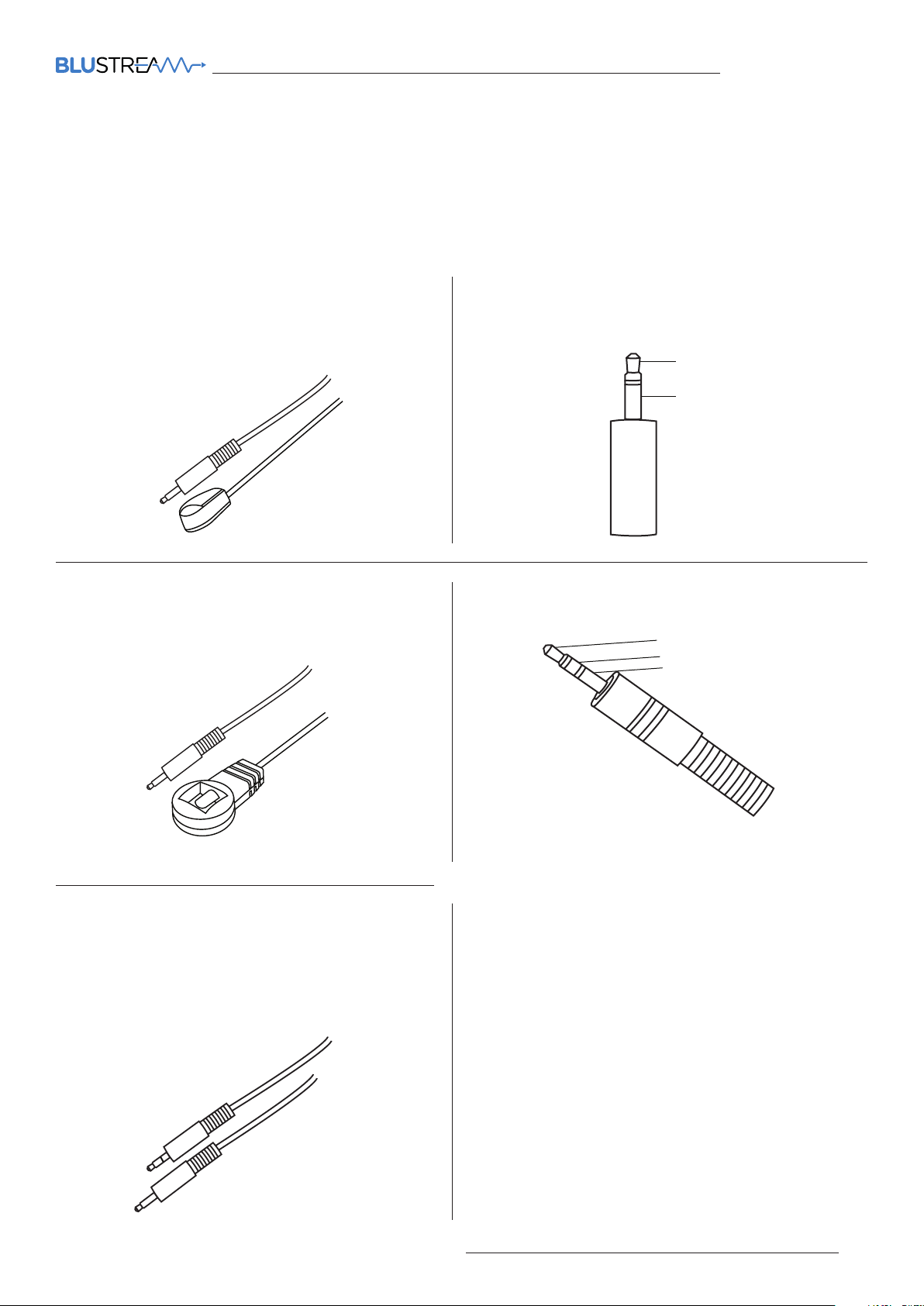
Each Blustream product is supplied with all necessary IR hardware required and includes:
IR Emitter - IRE1 & IRE2
Blustream 5V IR Emitter designed for discrete IR control of
hardware
IR Receiver - IRR
Blustream 5V IR receiver to receive IR signal and distribute
through Blustream products
Infrared 3.5mm Pin-Out
IR Emitter - Mono 3.5mm
Signal
Ground
IR Receiver - Stereo 3.5mm
Signal
5V
Ground
IR Control Cable - IRCAB
Blustream IR Control cable 3.5mm Mono to 3.5mm Stereo
for linking third party control solutions to Blustream
products.
Compatible with 12V IR third party products.
Note: Cable is directional as indicated
contact [email protected] | [email protected]
07
Page 8
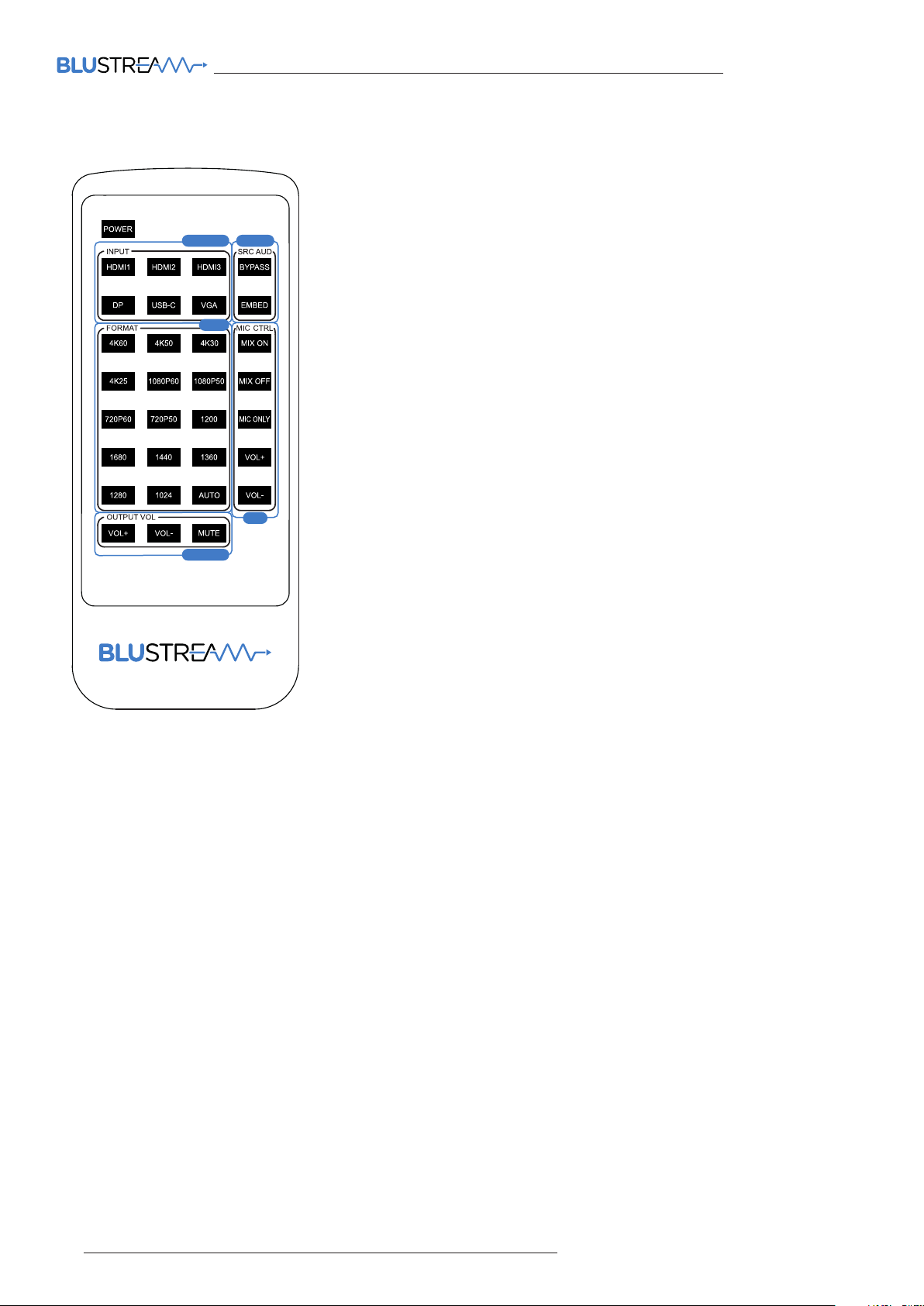
Remote Control Description
Source Selection
Selects the source input you wish to view (HDMI 1, HDMI 2, HDMI 3, DisplayPort™,
USB-C, VGA)
SOURCE
VOLUME
EDID
AUDIO
Audio Selection
The MFP62 supports embedding analogue audio over the source input’s audio.
Select the Embed button to enable this function, and Bypass to disable this and
allow the source audio to pass through.
EDID Setup
The MFP62 provides a comprehensive range of EDID settings. To deploy the
desired EDID setting when using the supplied remote, simply select the button
correspnding to the desired video resolution. Note that audio format will default to
2ch PCM via the remote control.
MIC
Microphone Setup
The microphone and background mixing can be adjusted via the remote control.
To enable microphone and background audio mixing select the Mix On button.
To disable microphone mixing select the Mix O button.
To play the microphone audio only select the Mic Only button.
The remote also features the ability to adjust the volume of the microphone input.
MFP62 USER MANUAL
Volume Control
Here you can increase or decrease the volume as well as mute all audio output.
08
www.blustream.com.au | www.blustream.co.uk
Page 9

MFP62 USER MANUAL
RS-232 Control Port
The MFP62 can be controlled via a 3-pin Phoenix to serial RS-232 cable (supplied). All RS-232 commands must be terminated with
a carriage return <CR> or \r. The communication settings and commands are as follows:
Baud Rate: 57600 bps
Data Bit: 8-bit
RS-232 COMMAND DESCRIPTION
? Print Help Information
HELP
STAT US Print System Status And Port Status
P ON/OFF Set System Power On or O
KEY ON/OFF Set System Key Control On Or O
IR ON/OFF Set System IR Control On Or O
LCD ON/OFF Set LCD Always On Or Auto Turn O In Power On State
RESET Reset System To Default Setting
RESET ALL Reset System And Network To Default Setting
OUT OSD ON/OFF Set Scaler OSD Show On or O
OUT RES rr Set Scaler Output Resolution
Print Help Information
(Type “Yes” To Confirm, “No” To Discard)
(Type “Yes” To Confirm, “No” To Discard)
rr=00: 1024x768@60Hz
rr=01: 1280x800@60Hz
rr=02: 1360x768@60Hz
rr=03: 1440x900@60Hz
rr=04: 1680x1050@60Hz
rr=05: 1920x1200@60Hz
rr=06: 720p@50Hz
rr=07: 720p@60Hz
rr=08: 1080p@50Hz
rr=09: 1080p@60Hz
rr=10: 4K2K@2 5Hz
rr=11: 4K2K@30Hz
rr=12: 4K2K@50Hz
rr=13: 4K2K@60Hz
rr=14: DCI 4K2K@25Hz
rr=15: DCI 4K2K@30Hz
rr=16: DCI 4K2K@50Hz
rr=17: DCI 4K2K@60Hz
rr=18: Auto
Parity: None
Stop Bit: 1-bit
Flow Control: None
OUT FREQ mm Set Output Frequency Mode
mm=AUTO: Set Output Freq To Auto Change To Input Freq
mm=FORCE: Set Output Freq By CMD OUT RES rr Select
OUT xx ON/OFF Set Output xx On Or O
xx=00: Select All OUTPUT Ports
xx=[01...02]: Select One OUTPUT Port
OUT xx FR y y Select Input Port yy
yy=[01...03:HDMI, 04:DP, 05:USB-C, 06:VGA]
NET DHCP ON/OFF Set Auto IP(DHCP) ON Or OFF
NET IP xxx.xxx.xxx.xxx Set IP Address
NET GW xxx.xxx.xxx.xxx Set Gateway Address
NET SM xxx.xxx.xxx.xxx Set Subnet Mask Address
NET RB Set Network Reboot and Apply New Config!!!
NET TN xxxx Set Telnet Port
contact [email protected] | [email protected]
09
Page 10

MFP62 USER MANUAL
RS-232 COMMAND DESCRIPTION
EDID xx CP yy
EDID xx DF zz Set Input xx EDID To Default EDID zz (EDID Dip Switch Must Be Switched To EDID Soware)
EDID SAVE yy TO ss Save Output y y EDID To User Memory ss
AUD SCA ORG Scaler Audio Input Follow Port Selection
AUD SCA ANA Scaler Audio Input From Analog L/R Signal
AUD PCM SCA/BYP When Input PCM Audio, Use Scaler To Process Or Just
AUD RX yy ORG RX Input yy Use Orginal HDMI/DVI Signal
AUD RX yy ANA RX Input yy Embeded Analog L/R
VOL xx Set Scaler Audio Volume
MUTE ON/OFF Set Scaler Output Audio Mute ON Or OFF
MIC MIX mm Set MIC And Background Audio Mix Mode
MIC VOL xx Set MIC Input Audio Volume
MIC MUTE ON/OFF Set MIC Mute On Or O
MIC AUTOBG ON/OFF Set Auto Decrease Background Audio On Or O When Detect MIC Signal
MIC BGVOL pp Set Auto Decrease Background Audio To pp Percent Of “VOL xx”
MIC BGR dd Aer Speaking, The MIC Takes dd Seconds To Raise The Volume
MIC RUP rr Set Ramp Up Background Audio Volume For rr Seconds
MIC RDN rr Set Ramp Down Background Audio Volume For rr Seconds
Set Input xx EDID Copy From Output yy
xx=00: Select All INPUT Port
xx=[01...06]: Select One INPUT Port
yy=[01...02]: Select One OUTPUT Port
ss=[01..02]: User EDID Memory
zz=00: HDMI 1080p@60Hz, Audio 2ch PCM(Default)
zz=01: HDMI 1080p@60Hz, Audio 5.1ch DTS/DOLBY
zz=02: HDMI 1080p@60Hz, Audio 7.1ch DTS/DOLBY/HD
zz=03: HDMI 1080i@60Hz, Audio 2ch PCM
zz=04: HDMI 1080i@60Hz, Audio 5.1ch DTS/DOLBY
zz=05: HDMI 1080i@60Hz, Audio 7.1ch DTS/DOLBY/HD
zz=06: HDMI 1080p@60Hz/3D, Audio 2ch PCM
zz=07: HDMI 1080p@60Hz/3D, Audio 5.1ch DTS/DOLBY
zz=08: HDMI 1080p@60Hz/3D, Audio 7.1ch DTS/DOLBY/HD
zz=09: HDMI 4K@30Hz 4:4:4, Audio 2ch PCM
zz=10: HDMI 4K@30Hz 4:4:4, Audio 5.1ch DTS/DOLBY
zz=11: HDMI 4K@30Hz 4:4:4, Audio 7.1ch DTS/DOLBY/HD
zz=12: HDMI 4K@60Hz 4:2:0, Audio 2ch PCM
zz=13: HDMI 4K@60Hz 4:2:0, Audio 5.1ch DTS/DOLBY
zz=14: HDMI 4K@60Hz 4:2:0, Audio 7.1ch DTS/DOLBY/HD
zz=15: HDMI 4K@60Hz 4:4:4, Audio 2ch PCM
zz=16: HDMI 4K@60Hz 4:4:4, Audio 5.1ch DTS/DOLBY
zz=17: HDMI 4K@60Hz 4:4:4, Audio 7.1ch DTS/DOLBY/HD
zz=18: DVI 1280x1024@60Hz, Audio None
zz=19: DVI 1920x1080@60Hz, Audio None
zz=20: DVI 1920x1200@60Hz, Audio None
zz=21: HDMI 1920x1200@60Hz, Audio 2ch/5.1ch PCM
zz=22: User EDID 1
zz=23: User EDID 2
Bypass To Output. Bitstream Audio Always Bypass
HDMI1 And VGA Input Audio Always Use Scaler
yy=[01...05]: 01:HDMI1 02:HDMI2 03:HDMI3 04:DP 05:USB-C
xx=[00...100]: Volume Value
xx=+: Volume Increase
xx=-: Volume Decrease
mm=ON: Mix MIC And Background Audio
mm=BGO: Background Audio Only
mm=MICO: MIC Audio Only
pp=[00...100]: Percent Of “VOL xx” Setting
dd=[01...20]: Delay Seconds
rr=[00]: Instant Ramp, No Delay
rr=[01...20]: 0.5s Increment
10
www.blustream.com.au | www.blustream.co.uk
Page 11

Specifications
MFP62
• Video Input Connectors: 3 x HDMI Type A, 19-pin, female, 1 x USB-C Type C, 1 x DisplayPort™, 1x VGA
• Video Output Connectors: 2 x HDMI Type A, 19-pin, female
• Audio Input Connectors: 1 x Analogue le / right audio (3.5mm stereo jack)
• MIC Input Connectors: 1 x 3-pin Phoenix connector
• Audio Output Connectors: 1 x RCA (S/PDIF), 2 x RCA analogue le / right
• RS-232 Serial Ports: 1 x 9-pin RS-232 connector
• TCP/IP Control: 1 x RJ45, female
• IR Input Port: 1 x 3.5mm stereo jack
• Product Upgrade: 1 x Micro USB female
• Rack-Mountable: 1U rack height, rack ears included
• Casing Dimensions (W x H x D): 344mm x 44mm x 168mm, without feet
MFP62 USER MANUAL
• Shipping Weight: 3kg
• Operating Temperature: 32°F to 104°F (0°C to 40°C)
• Storage Temperature: -4°F to 140°F (-20°C to 60°C)
• Power Supply: 24V/1A DC
NOTE: Specifications are subject to change without notice. Weights and dimensions are approximate.
Package Contents
MFP62
• 1 x MFP62
• 1 x Remote Control
• 1 x 24V/1A DC Power Supply
• 1 x Rack Mounting Kit
• 1 x IR Receiver
• 1 x Quick Reference Guide
Maintenance
Clean this unit with a so, dry cloth. Never use alcohol, paint thinner or benzene to clean this unit.
contact [email protected] | [email protected]
11
Page 12
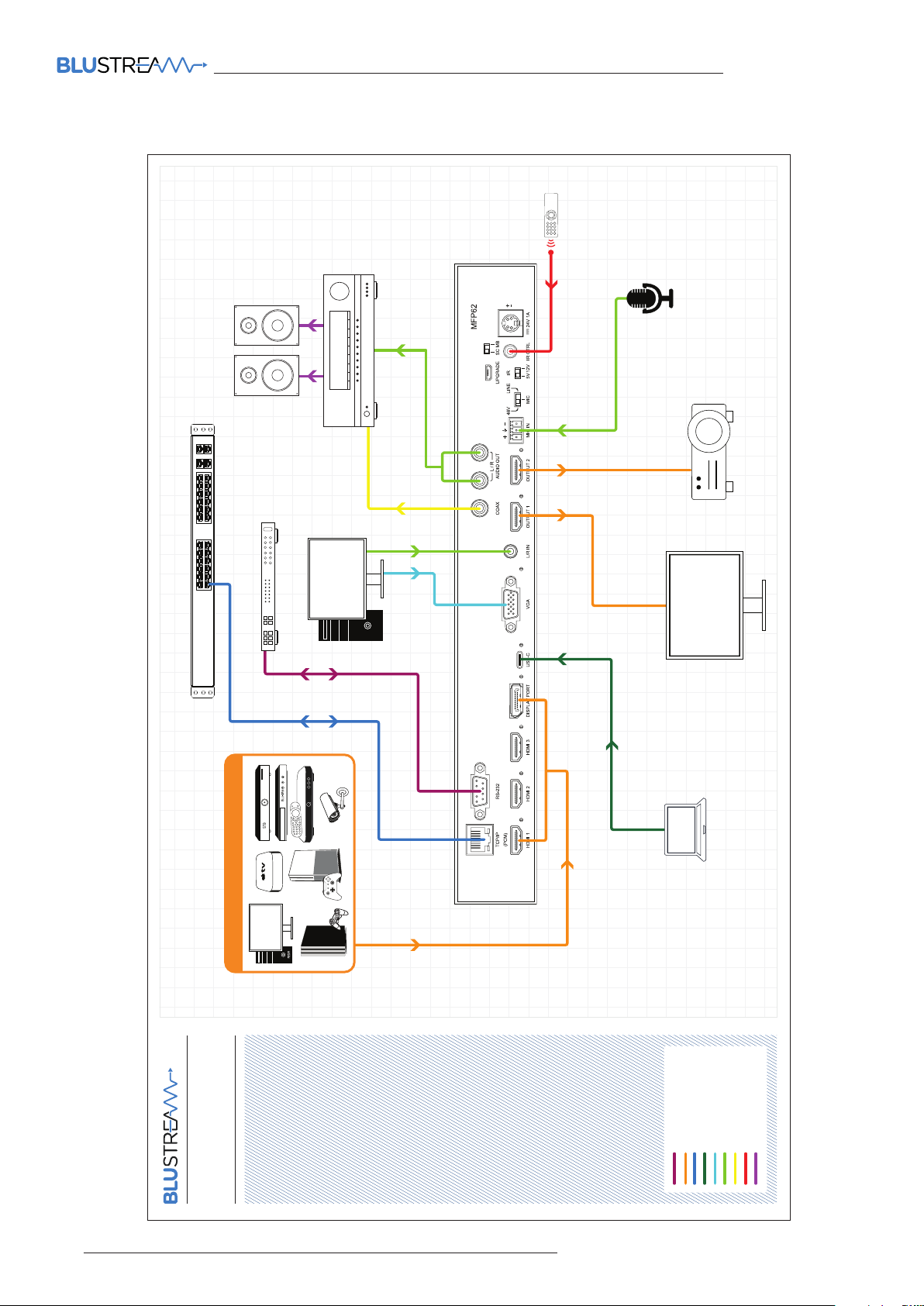
Schematic
MFP62 USER MANUAL
4K PROJECTOR
Business Network
1G Managed Network Switch
HDMI | DISPLAYPORT SOURCES
Control Processor
PC
USB-C
LAPTOP
4K DISPLAY
12
MFP62
Example Schematic
RS-232
HDMI | DisplayPort™
Cat 6
USB-C
VGA
Analogue Audio
Coaxial DigitalIRSpeaker Cable
www.blustream.com.au | www.blustream.co.uk
Page 13

Page 14

www.blustream.co.uk
www.blustream.com.au
 Loading...