

Page 1
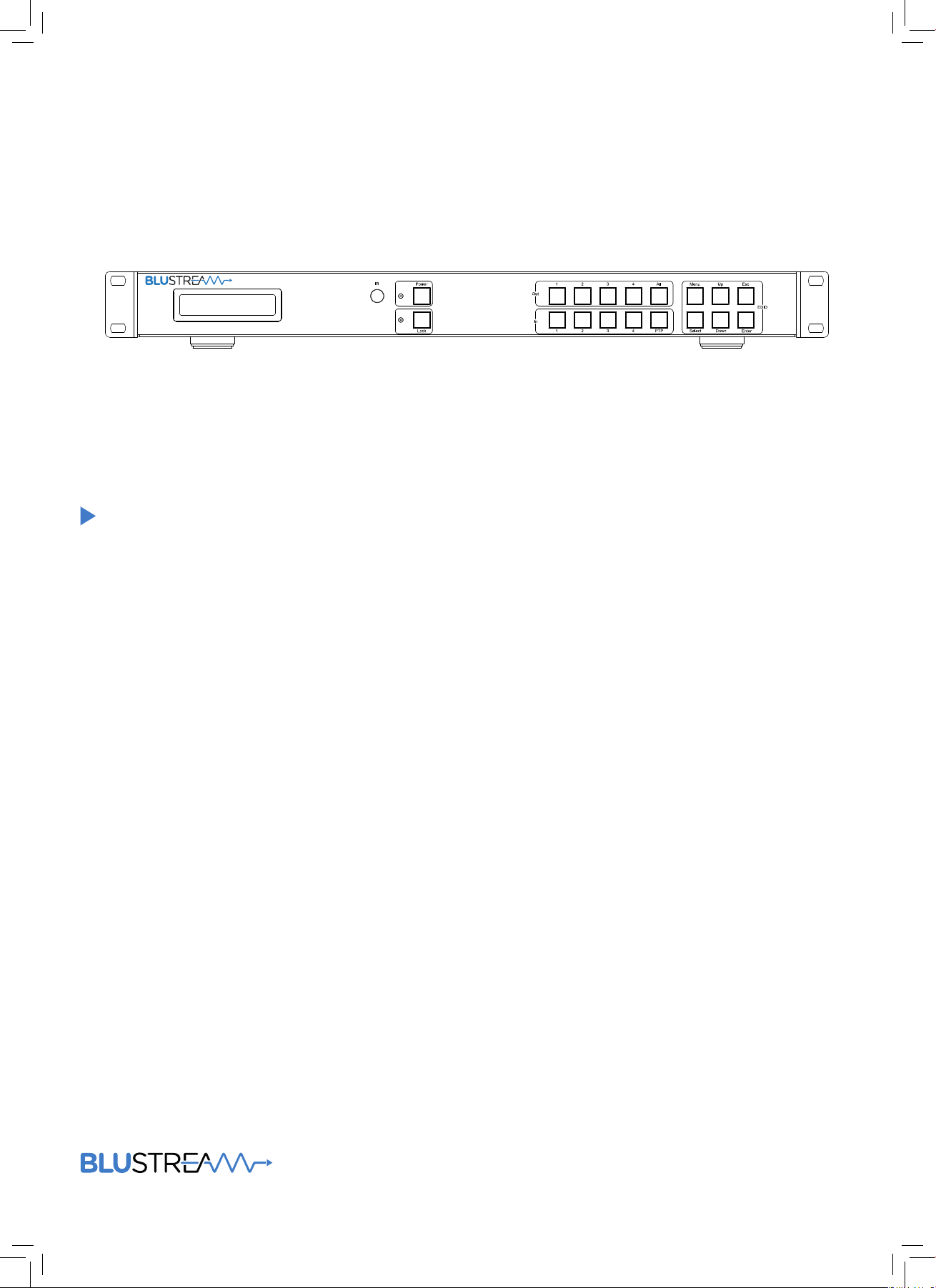
4x4 4K HDBaseT™ Matrix - HDCP 2.2
HMXL44-KIT V2
User Manual
Page 2

HMXL44-KIT V2 USER MANUAL
www.blustream.co.uk
Contents
Thank you for purchasing
this product.
For optimum performance and safety,
please read these instructions carefully before connecting, operating or
adjusting this product. Please keep this
manual for future reference.
Surge protection device
recommended
This product contains sensitive electrical components that may be damaged
by electrical spikes, surges, electric
shock, lightning strikes, etc. Use of
surge protection systems is highly
recommended in order to protect and
extend the life of your equipment.
Introduction 03
Features 03
Panel Descriptions 04
Control Ports 05
HDBaseT Receiver Options 06
Matrix Front Panel Controls 07
Audio Breakout 08
Terminating HDBaseT CAT Cables 09
Understanding Matrix/RX Status Lights 09
Infrared Distribution 10
Safety And
Performance Notice
The transmission distances of HDMI
over UTP cables are measured using TE
CONNECTIVITY 1427071-6
EIA/TIA-568-B termination (T568B) of
cables is recommended for optimal
performance.
To minimise interference of the unshielded twisted pairs in the CAT5e/6
cable do not run the HDBaseT /
Cat5e/6/6a cabling with or in close parallel proximity to mains power cables.
Do not substitute or use any other
power supply other than the enclosed
unit, or a Blustream approved replacement.
Do not disassemble either the Transmission or Receiver units for any
reason. Doing so will void the manufacturer’s warranty.
Infrared Remote Control 11
EDID Control 12
Application Diagram 13
Specifications 14
Package Contents 14
Maintenance 14
RS-232 and Telnet Commands 15-16
Infrared Commands 17-18
Web Browser Interface 19
PC Configuration Soware 18
02
Page 3

HMXL44-KIT V2 USER MANUAL
contact [email protected] / [email protected]
Introduction
FEATURES:
Our Essential 4x4 HDBaseT™ matrix oers unprecedented performance and value for
the custom installation market. The HMXL44-KIT V2 is a 4K 4x4 HDCP 2.2 matrix package,
delivering HDMI, bi-directional IR and PoH (PoE) up to lengths of 70m over a single CAT
cable. The matrix also provides advanced features including audio breakout with pre-amp
variable line-level control, simultaneous HDBaseT™/HDMI outputs, RS-232 pass through to
enable 3rd party control of displays and a web browser interface module for control and
configuration of the matrix. The HMXL44-KIT V2 is supplied with 4 x HEX70ED Receivers.
• Features 4x HDMI inputs which
can be independently routed to 4x
HDBaseT™/HDMI outputs
• Simultaneous HDBaseT™ and HDMI
outputs to allow connection to dual
displays per zone
• HDMI audio breakout to associated
analogue L/R audio outputs with
pre-amp line level control
• Extends up to distance of 70m 1080p
over single CAT cable
• Supports 4K UHD video up to 40m
(3840 x 2160 @30Hz 4:4:4, 4096 x
2160 @24Hz 4:4:4, and 4K @60Hz
4:2:0)
• Web browser interface for control
and configuration of Matrix
• Supports 3D signal display
• Supports industry standard video
resolutions including VGA-WUXGA
and 480i-4K
• Supports all known HDMI audio
formats including Dolby TrueHD,
Dolby Atmos, Dolby Digital Plus and
DTS-HD Master Audio transmission
• Supports bi-directional IR and
RS-232 from all input and HDBaseT
output locations
• Supplied with Blustream IR receivers
and emitters
• Control via front panel, IR, RS-232
and TCP/IP
• HDCP 2.2 compliant
• Supports PoH (Power over
HDBaseT™) to power compatible
HDBaseT™ receivers
• 3rd Party drivers available for all
major home control brands
• Advanced EDID management
• Matrix kit is supplied with 4 x
HEX70ED-RX HDBaseT™ receivers
• 1U Design for 19” rack mount
integration - mounting kit included
• Matrix can be configured using front
panel, supplied IR remote, Matrix
web browser interface or Matrix PC
configuration soware.
03
Page 4
HMXL44-KIT V2 USER MANUAL
www.blustream.co.uk
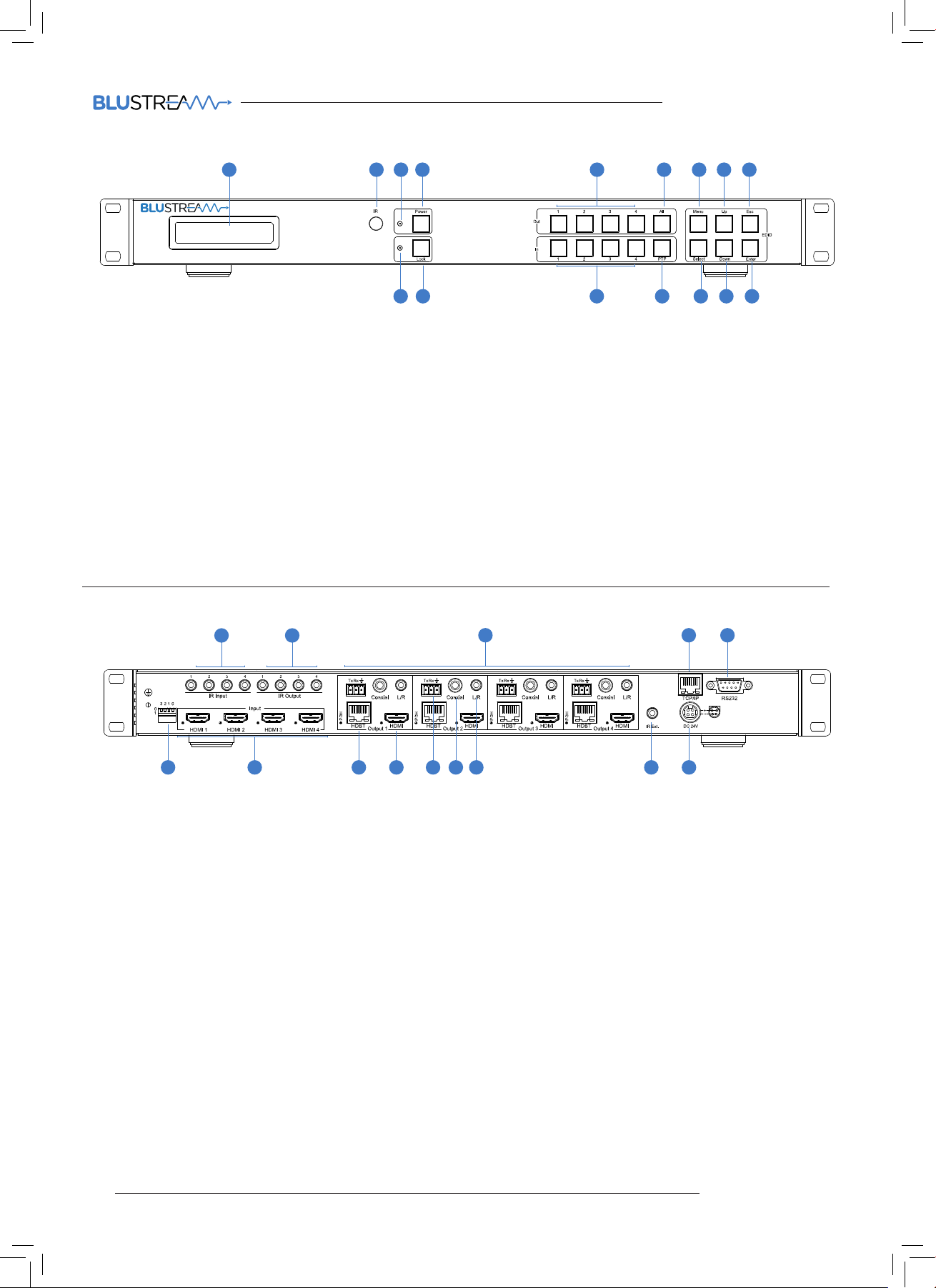
Front Panel
4x4 4K HDBaseT™ Matrix - HDCP 2.2
1 2 3 4 5 6 7 8 9
16151413121110
1 LCD display – Shows the status of
input/output selection, EDID etc.
2 IR receiver window.
3 Power LED indicator.
4 Power button – Press to power on/
o the Matrix.
5 HDMI output selection button 1 to
4 - To select the output from 1 to 4.
6 All button for HDMI outputs – All
outputs will work as one (Selects all
outputs).
Rear Panel
1 2
7 Menu button – Press to enter EDID
set mode (see page 5).
8 Up selection button - Press to
change segment’s value.
9 ESC – Press to quit EDID set mode.
q Lock indicator.
w Lock button – Press to lock the
buttons of the front panel.
e HDMI input selection button 1 to 4 –
Press to select the input from 1 to 4.
3 4 5
r PTP button – Press to mirror all
inputs and outputs (e.g. output 1 to
input 1, output 2 to input 2).
t Selection button – Press to select
current setting.
y Down selection button – Press to
change segment’s value.
u Enter button – Press to set EDID
to specified INPUT or copy EDID
from specified OUTPUT to specified
INPUT.
HMXL44AB-V2
1 IR inputs – 3.5mm stereo jack.
Transmits IR to the zone HDBaseT
receiver (displays). When using the
IRCAB cable (supplied) ensure cable
direction is correct.
2 IR outputs – 3.5mm mono jack –
Routed IR from HDBaseT extender
(zone output). Use supplied
Blustream 5V IR emitters.
3 Zone outputs 1-4 (please see
descriptions 8-12 for further details).
4 TCP/IP (RJ45) – Connect to LAN for
TCP/IP & web browser interface
control of HMXL44 V2 Matrix.
5 RS-232 port – For control of the
Matrix switcher from PC or control
processer.
6 EDID DIP switch – Used for global
EDID settings.
7 HDMI inputs – Connect to HDMI
sources.
8 HDBT output – Connect to HDBaseT
receivers.
9 HDMI output – Connect to HDMI
display. Works simultaneously with
HDBaseT output.
q Zone specific bi-directional RS-232
ports – Connect to third party control
device to extend RS-232 commands
to HDBaseT receivers RS-232 port.
w Coaxial digital audio output –
Extracted audio will be concurrent
with the corresponding HDMI video
output.
141210 13119876
e L/R pre-amp variable line level
analogue audio output – 3.5mm
stereo jack. Extracted audio will be
concurrent with the corresponding
HDMI video output.
Please note: input must be PCM 2ch
audio as Matrix does not down-mix
5.1ch audio signals.
r IR input for matrix control – For
hard wired IR connection. Use 5V
mono cable only. Connect to control
processor or Blustream 5v IR receiver.
t Power port – Use supplied 24V 3.5A DC
adaptor to power Matrix.
04
Page 5
HMXL44-KIT V2 USER MANUAL
contact [email protected] / [email protected]
HMXL44AB-V2
HMXL44 V2 Control Ports
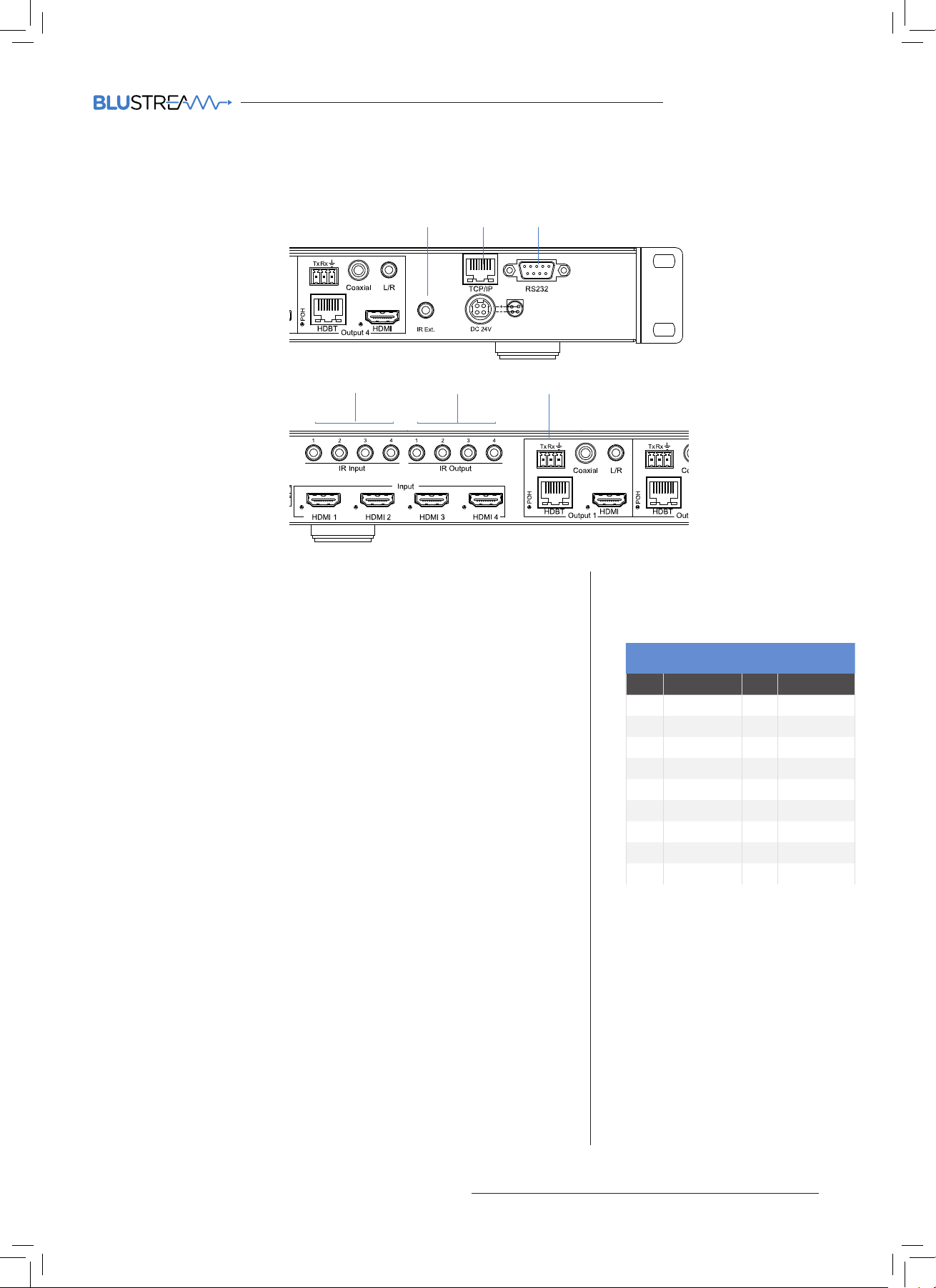
The HMXL44 V2 main communication ports are located on the rear panel and includes the following connections:-
A B
C
HMXL44AB-V2
FD E
Connections:
A. Global IR Input 3.5mm stereo jack - For control of the Matrix Switcher*
B. TCP/IP – For control of the Matrix (RJ45 Connector)
C. RS-232 – For control of the Matrix (9 pin serial connection)
D. IR Input (3.5mm stereo jack) for IR pass-through to the associated output
HDBaseT Receiver*
E. IR Output (3.5mm mono jack) for routed IR control of source equipment*
F. RS-232 (3-pin Phoenix connector) for 2-way RS-232 pass-through to the
associated output HDBaseT Receiver
*Note - Blustream products use 5V IR hardware. For further details please see
page 9 ‘Infrared Distribution’
Blustream HMXL44 V2 Matrix is supplied with all required 5V IR emitters,
Receivers and IRCAB cables
TCP/IP
The Blustream HMXL44 V2 Matrix can be controlled via TCP/IP.
For the full list of protocols please see ‘HMXL44 V2 Control Protocols’ located at
the rear of this manual.
The HMXL44 V2 Matrix features a built-in web browser user interface allowing con-
trol and configuration of the matrix. For further details please see page 18 ‘Web
Browser User Interface’.
A ‘Straight-through’ RJ45 patch lead should be used
BLUSTREAM RS-232 REMOTE CONTROL
PIN Assignment PIN Assignment
1 NC 1 NC
2 Tx 2 Rx
3 Rx 3 Tx
4 NC 4 NC
5 GND 5 GND
6 NC 6 NC
7 NC 7 NC
8 NC 8 NC
9 NC 9 NC
CONSOLE
Baud Rate: 57600 bps
Data Bit: 8-bit
Parity: None
RS-232 2-Way
The Blustream Matrix can be controlled via a 9-pin serial cable.
For the full list of protocols please see ‘HMXL44 V2 Control Protocols’ located at
the rear of this manual.
Details of RS232 pin assignment and communication are adjacent. Please note
that depending on your control device serial port pin configuration you may
require either a ‘Straight’ RS-232 cable or ‘Null-modem’ type.
Stop Bit: 1-bit
Flow Control: None
05
Page 6
HMXL44-KIT V2 USER MANUAL
www.blustream.co.uk
HMXL44 V2 HDBaseT Receivers
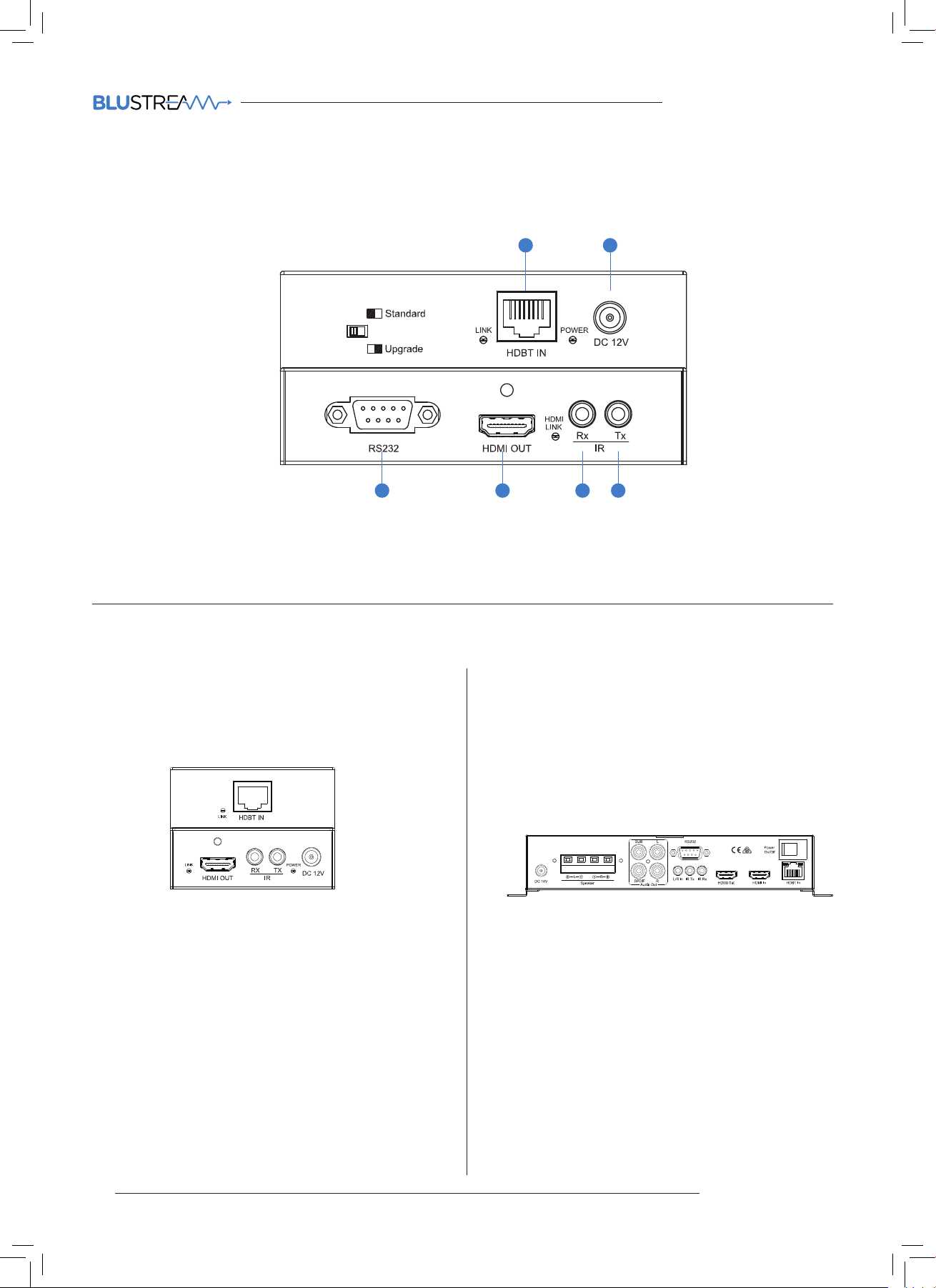
The HMXL44 V2 Matrix is supplied with 4x HEX70ED-RX HDBaseT receivers
Th e HEX 70ED Rece ive r i s a C lass B HDB aseT Receiver with 2-way IR and bi-directional RS-232 pass-through. The Receiver supports display
distances up to 70m @ 1080p and 40m @ 4K (30Hz 4:4:4 & 60Hz 4:2:0).
1 2
Receiver
HEX70ED-RX
4 5 6
1 HDBaseT input
2 12V DC power (not required)
3 2-way RS232 (9-pin serial)
3
4 HDMI output
5 IR Input 3.5mm stereo jack
6 IR Output 3.5mm mono jack
There are two HDBaseT receiver options that are also compatible with the HDBaseT output on the HMXL44 V2 but do not support
the bi-directional RS-232 feature of the HMXL44 V2:-
HEX70B-RX
Basic HDBaseT Receiver with 2-way IR pass-through. Supports
display distances up to 70m @ 1080p and 40m @ 4K (30Hz 4:4:4 &
60Hz 4:2:0).
Compatible with all Blustream Matrix products.
RX70AMP
The RX70AMP is a combination of HDBaseT receiver and Class D
digital audio amplifier (30W per channel). The unit has local HDMI
and Analogue audio inputs as well as supporting HDMI ARC (Audio
Return Channel) with compatible products. Should you wish to
use alternate power amplification the unit has variable analogue
Receiver
outputs. Control of the unit is possible via front panel or by bidirectional RS-232 or IR control. Supports display distances up to
70m @ 1080p and 40m @ 4K (30Hz 4:4:4: & 60Hz 4:2:0).
HEX70B-RX
RX70AMP
• HDBaseT input/HDMI output
• IR Output 3.5mm Mono jack
• IR Input 3.5mm Stereo jack
06
• HDBaseT input/HDMI output
• HDMI Local input for connection of local source
• 2.1 Stereo audio output @ 30W per channel (capable of driving
4, 6 & 8 Ohm speakers) & analogue Subwoofer output (RCA)
• Variable analogue line level outputs (RCA)
• Digital Coaxial S/PDIF output
• Local analogue L/R audio input 3.5mm Stereo Jack
• 2-way RS-232 (9-pin serial)
• IR Output 3.5mm Mono Jack
• IR Input 3.5mm Stereo Jack
• Built-in IR receiver on front panel of unit
Note - RX70AMP must be powered locally
Page 7
HMXL44-KIT V2 USER MANUAL
contact [email protected] / [email protected]
Matrix Front Panel Control
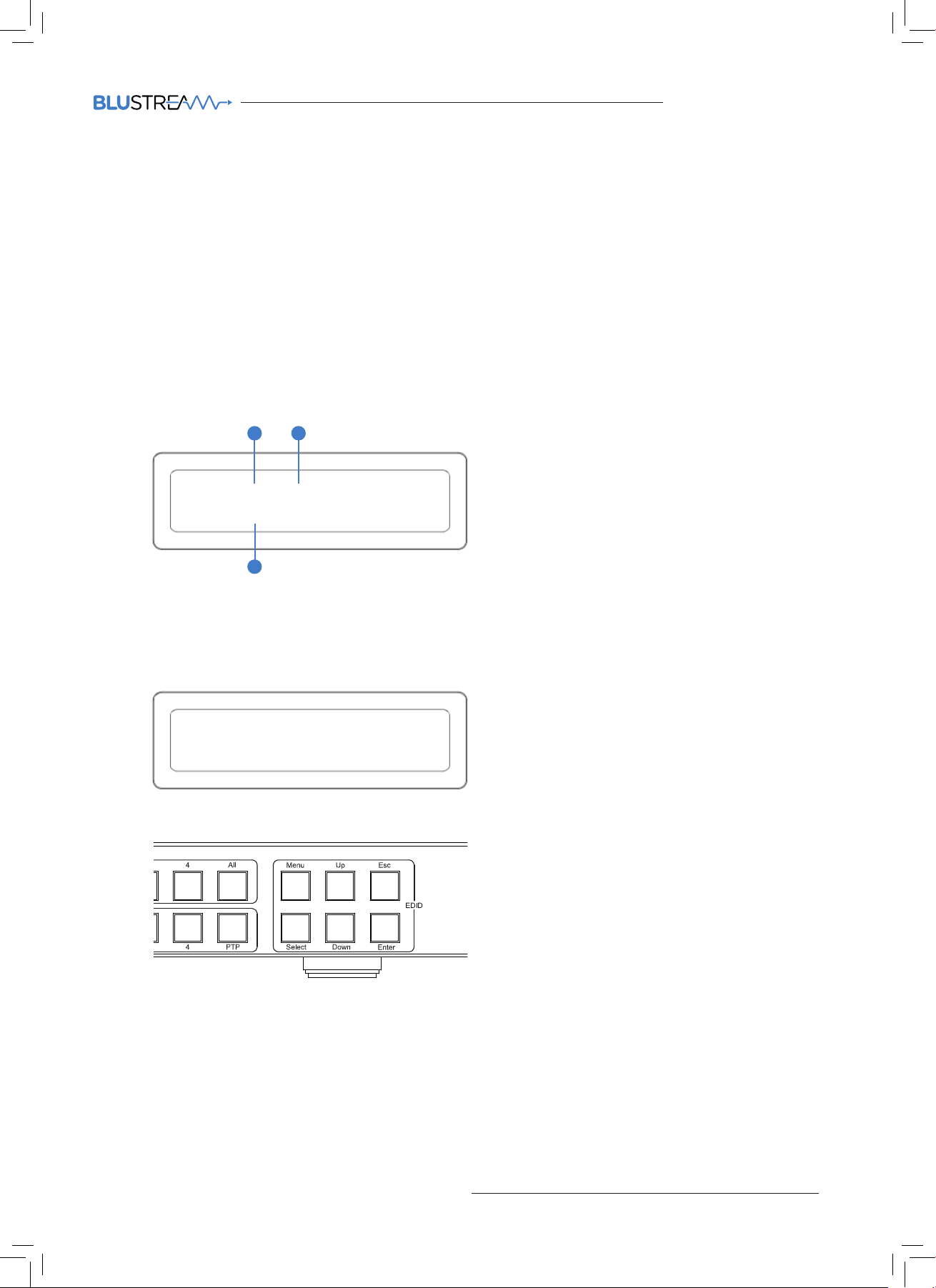
Front Panel Display - Input/Output selection
The following display shows current source input selection per zone output.
1. To change input selection first press ‘OUTPUT’ button (1-4)
2. Press desired ‘INPUT’ button (1-4)
3. An ‘X’ indicates that the zone output has been turned o.
Zones can be turned on/o using RS-232/TCP/IP commands.
Zone outputs can be forced back on by powering OFF/ON the matrix. All outputs will be turned on when powered up.
Zone outputs can be forced back on by pressing and holding ‘OUTPUT 1’ button on the front panel for 10 seconds. The matrix will
reset and all outputs will be turned back on.
1
3
OUT 1 2 x 4
IN 1 2 3 4
2
EDID Management - Global or individual input settings
The following characters show adjusting the EDID for ‘All’ inputs (Global). Current EDID value is set to 1080p & 2ch audio.
EDID: IN ALL
HDMI: 1080P 2CH
To change the input signal type using the Matrix front panel buttons press the following:-
Using Matrix Front Panel Buttons
a. Press MENU button
b. Panel will display ‘EDID settings’. Press SELECT button
c. Select the input you wish to fix the EDID on (1-8) or select ‘All’. Use UP/DOWN buttons to toggle selection and SELECT button to
confirm
d. Select video resolution required (4K, 1080p, 3D etc). Use UP/DOWN buttons to toggle selection and SELECT button to confirm
e. Select audio resolution required (2ch, 5.1ch or 7.1ch). Use UP/DOWN buttons to toggle selection and SELECT button to confirm
f. Press the ESC button to exit
07
Page 8
HMXL44-KIT V2 USER MANUAL
www.blustream.co.uk
HMXL44AB-V2
Audio Breakout
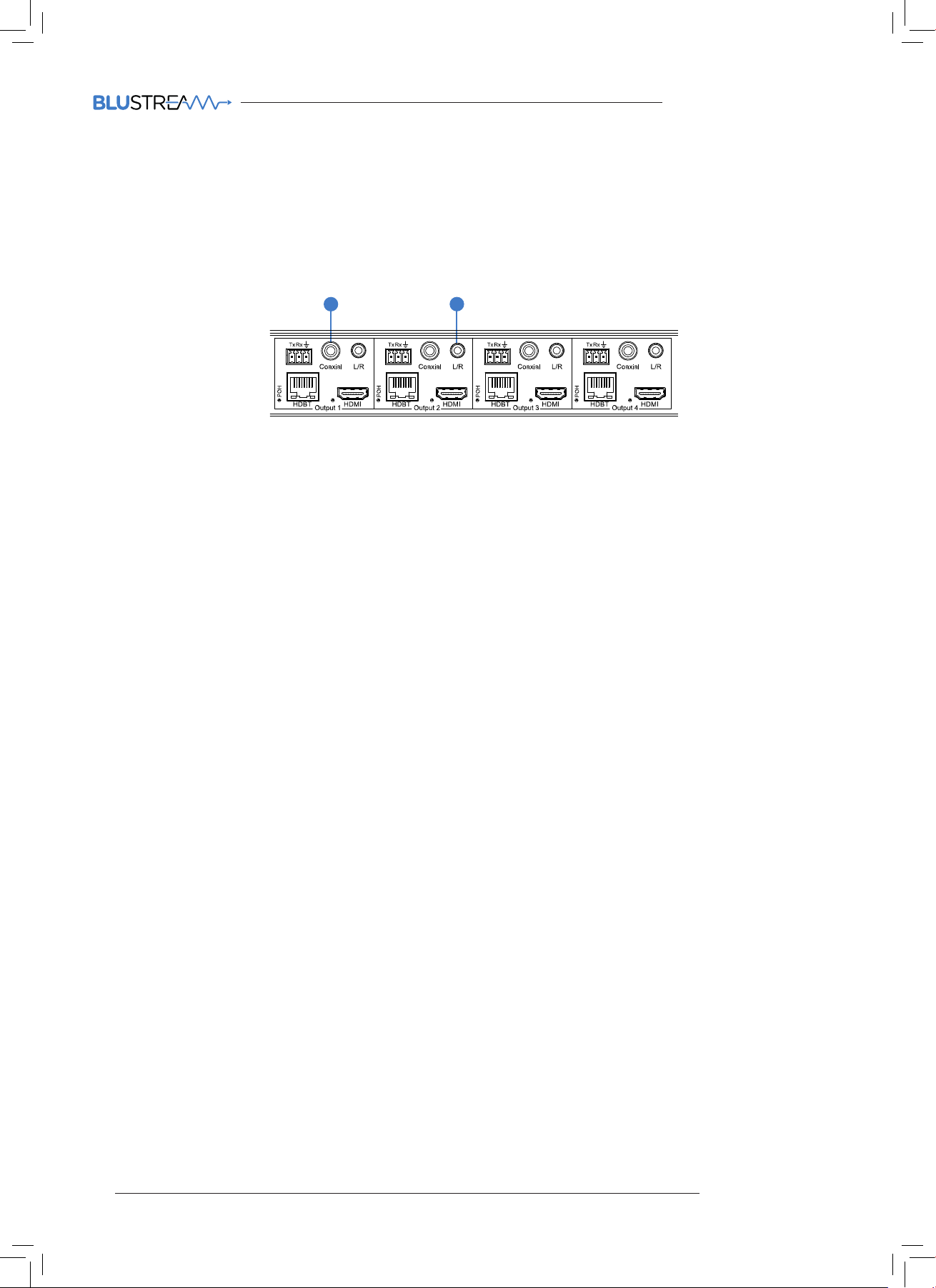
The HMXL44 V2 Matrix includes audio breakout from the selected HDMI input to associated analogue L/R audio and coaxial digital
outputs. Extracted audio will be concurrent with the corresponding HDMI video output.
The HMXL44 V2 analogue outputs include pre-amp line level control allowing you to connect the Blustream matrix directly into a
power amplifier for all your multi-room audio needs.
1
1. Coaxial digital output - Output 1
2. Analogue pre-amp line level output 3.5mm stereo jack - Output 2
Control of the pre-amp line level outputs is via the matrix front panel, RS-232, TCP/IP or using the in-built web browser interface.
Please see ‘RS-232 & Telnet Commands’ on page 15 for further details.
Note: Volume control is only available on the analogue audio outputs. Source input must be PCM 2ch audio for analogue audio out-
puts to work. The HMXL44 V2 Matrix does not down-mix multi-channel audio signals.
Note: Volume control of audio outputs is not possible via InfraRed control.
2
08
Page 9
HMXL44-KIT V2 USER MANUAL
contact [email protected] / [email protected]
Terminating the interconnecting HDBaseT CAT cable
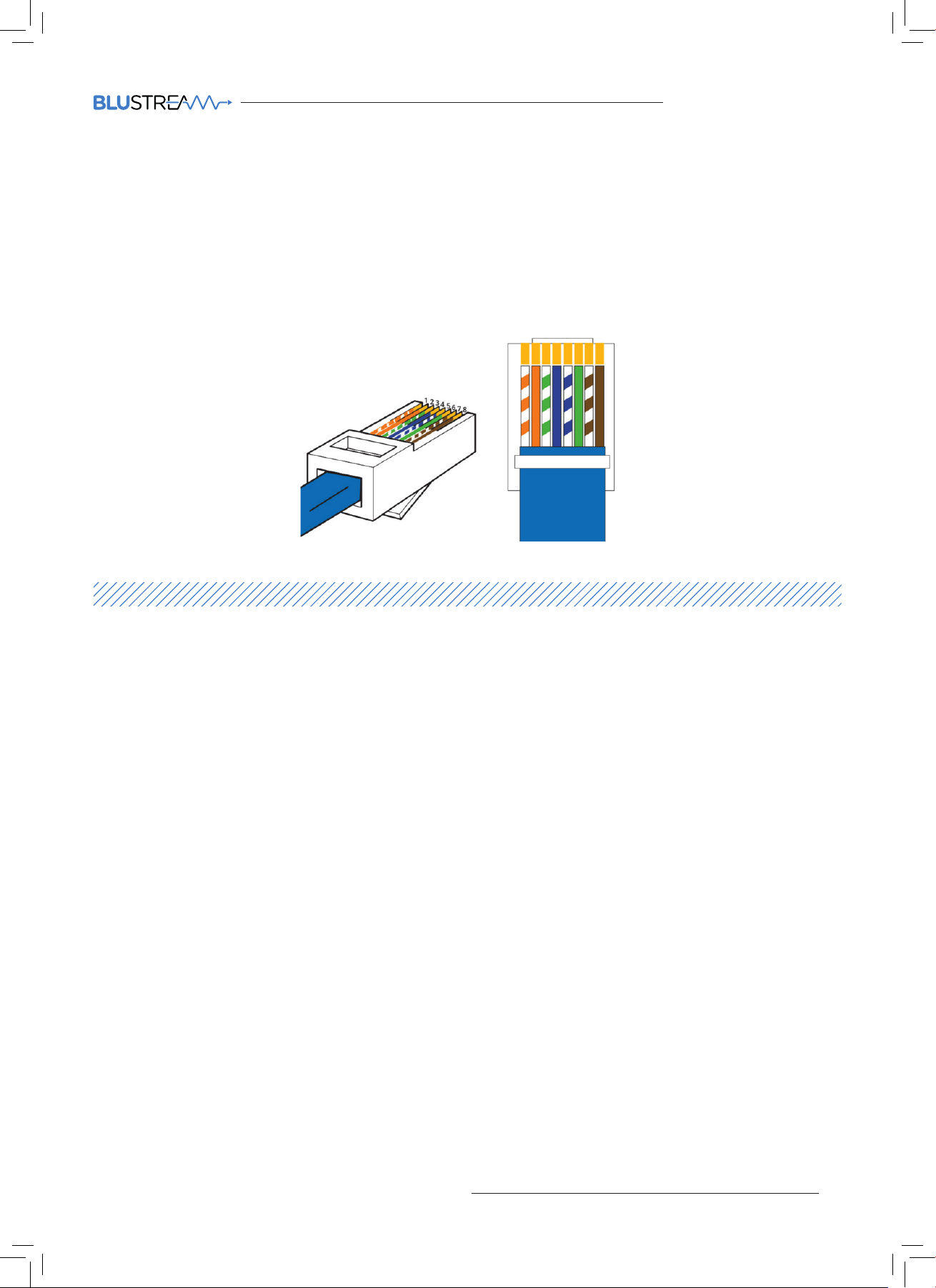
It is important that the interconnecting CAT cable between the Blustream HDBaseT products is terminated using the correct RJ45
pin configuration. The link CAT cable MUST be a ‘straight’ (pin-to-pin) CAT cable and it is advised that this is wired to the T568B wiring standard as this format is less prone to EMI (Electro-Magnetic Interference).
When installing CAT cables it is advised that you use the best possible CAT cable quality possible. HDMI distribution products will
only work if used with CAT5e standard cable or above. Blustream recommends using a CAT6 cable for your installations, especially
when running over longer distances, in areas of high EMI, or with 4K signal distribution.
RJ45 Pin-Out
1 2 3 4 5 6 7 8
T568B
Understanding the RX/HMXL44 V2 HDBaseT status lights
The Blustream HMXL44 V2 Matrix and HDBaseT extender solutions include status LED indicators on both the Matrix and Receiver
products to show all connections are active and to help diagnose possible problems.
Understanding the status lights:-
Blustream HMXL44 V2 Matrix:
• The Yellow HDBaseT status link light will be o when the zone output has been turned o or there is a problem with the
specific Matrix output.
• The Yellow HDBaseT status link light will blink when the zone output is on and working
• The Green HDBaseT link light will blink if there is an unstable connection between the Blustream Matrix and HDBaseT Receiver
• The Green HDBaseT link light will be lit when a there is an active HDBaseT Receiver connected to the Matrix
• The Green HDBaseT link light will be o when a there is no connection with a HDBaseT receiver
Blustream HDBaseT Receiver:
• The HDMI link light will be o when there is no connection with a display
• The HDMI link light will be on when there is an active connection with a display (NOTE - Not all HDBaseT RX feature a HDMI
status LED)
• The HDBaseT link light will be o when there is no CAT cable/active HDBaseT connection on the RJ45 HDBaseT input
• The HDBaseT link light will blink if there is an unstable connection between the Blustream Matrx and HDBaseT receiver
• The HDBaseT link light will be lit when a CAT cable is connected to the HDBaseT RJ45 output on the Matrix and an active
connection is achieved with the Blustream HDBaseT Receiver.
Blustream Support department are on hand to assist with signal distribution issues should they arise - please email us at one of
the email addresses below.
09
Page 10

HMXL44-KIT V2 USER MANUAL
www.blustream.co.uk
InfraRed (IR) Distribution
The Blustream range of matrix products include multiple options for control and routing of IR.
IMPORTANT: Blustream InfraRed products are all 5V and NOT compatible with alternative manufacturers InfraRed
solutions. When using third party 12V IR control solutions please use supplied Blustream IRCAB cable for IR conversion.
Each Blustream Matrix and HDBaseT receiver is supplied with all necessary IR hardware required and includes:
IR Emitter - IR1 & IR2 (IR2 sold separately)
Blustream 5V IR Emitter designed for discrete IR control of
hardware
IR Receiver - IRR
Blustream 5V IR receiver to receive IR signal and distribute
through Blustream products
Infrared 3.5mm Pin-Out
IR Emitter - Mono 3.5mm
Signal
Ground
IR Receiver - Stereo 3.5mm
Signal
5V
Ground
IR Control Cable - IRCAB
Blustream IR Control cable 3.5mm Mono to 3.5mm Stereo for
linking third party control solutions to Blustream products.
Compatible with 12V IR third party products.
Note: Cable is directional as indicated
10
Page 11
HMXL44-KIT V2 USER MANUAL
contact [email protected] / [email protected]
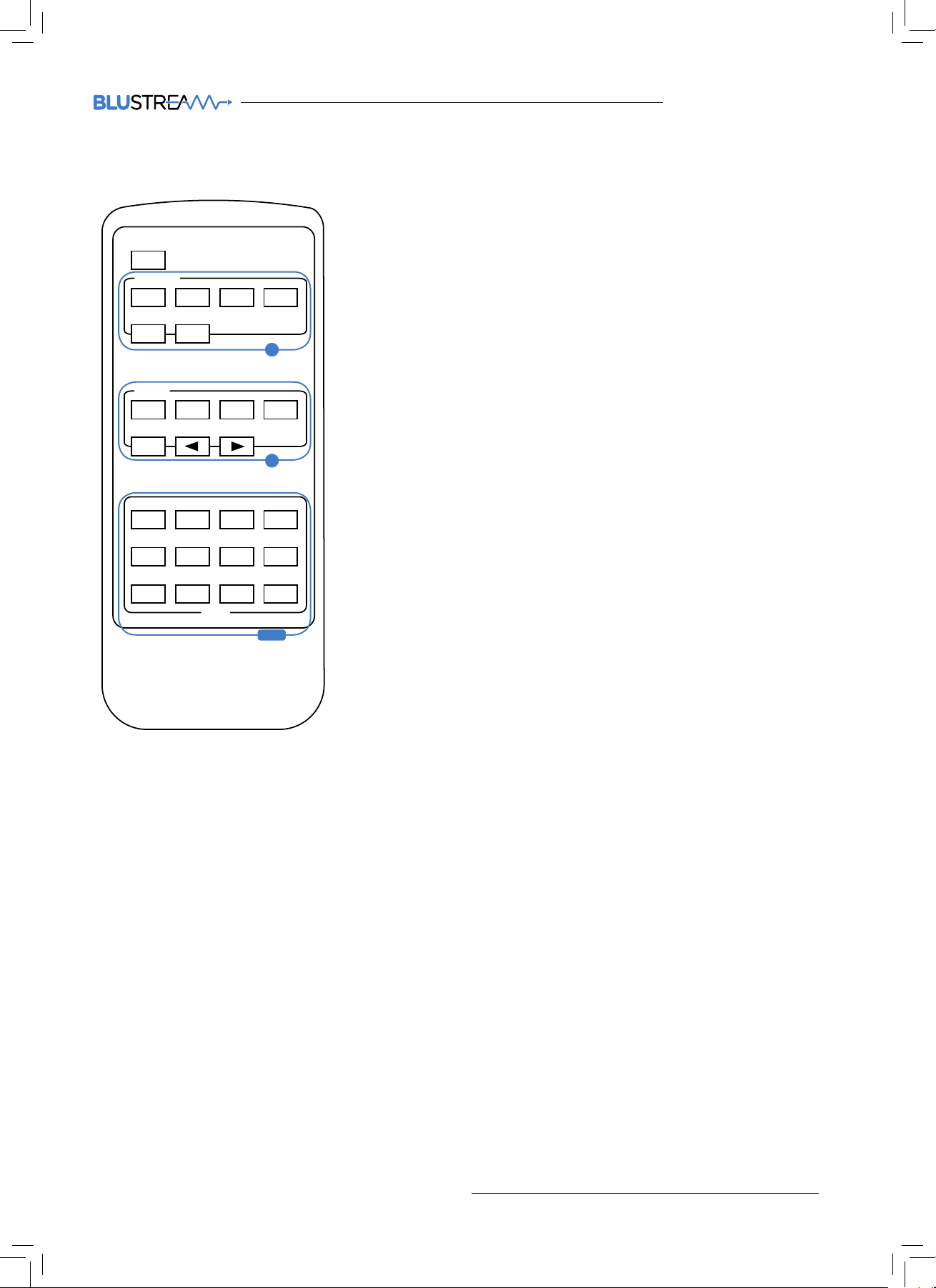
Remote Control Description
POWER
OUTPUT
1 2 3 4
PTPALL
A
INPUT
1 2 3 4
ALL
1080I
1080P 3D 4K
2.0CH
USER 1 USER 2 FN1 FN2
5.1CH 7.1CH COPY
EDID
B
EDID
OUTPUT AND INPUT SELECTION
A Selects the zone OUTPUT you wish to
change the source on (Numbers 1 - 4
correspond to the zone outputs 1 - 4)
B Selects the source INPUT you wish
to change on the selected zone
(Numbers 1 - 4 correspond to the
source inputs 1 - 4)
EXAMPLE
To switch source 2 to zone 4 you
would press 4 in the output section
(A) followed by pressing 2 in the Input
section (B).
ALL button: The all button selects
all the inputs or outputs in its
corresponding box. Example: (The “All”
button in the Output box selects all the
zones so all zones will change to what
source input is selected next)
PTP: This button will align all the zone
outputs with the like numbered source
inputs. Example: Input 1 to output 1,
input 2 to output 2, etc
EDID SET UP
The HMXL44 V2 provides a
comprehensive range of EDID settings.
Below are three examples of how to
deploy the desired EDID setting when
using the supplied remote.
A. Fix EDID to an Input or ALL inputs:
Press the desired video resolution
button (1080i / 1080p / 3D / 4K),
then select the desired audio format
(2.0ch / 5.1ch / 7.1ch), then select
the source input you want this EDID
information allocated to by pressing
the INPUT 1 – 4 or the ALL button
B. Copy EDID of Output-X to an Input
or ALL: Press the COPY but-ton then
select the OUTPUT you wish to copy
the EDID information from, then
select the source input you want to
copy this EDID to by selecting the
INPUT 1-4 or the ALL button.
C. User defined EDID to an Input or
ALL inputs: Press USER1 / USER2
button then select the source you
wish to assign this EDID to by selecting INPUT 1-4 or the ALL button
NOTE: THE BUTTON PRESS SEQUENCE SHOULD BE FINISHED IN 5 SECONDS,
OTHERWISE THE OPERATION IS DISCARDED
11
Page 12
HMXL44-KIT V2 USER MANUAL
www.blustream.co.uk
EDID Control
EDID (Extended Display Identification Data) is a data structure that is used between a display and a source. This
data is used by the source to find out what audio and video resolutions are supported by the display then from this
information the source will discover what the best audio and video resolutions need to be outputted.
While the objective of EDID is to make connecting a digital display to a source a simple plug and play procedure
issues do arise when multiple displays or video matrix switching is introduced because of the increased number of
variables.
By pre-determining the video resolution and audio format of the source and display device you can reduce the time
need for EDID hand shaking thus making switching quicker and more reliable.
Configuration of Matrix EDID settings can be acheived in one of five ways:-
1 Using Matrix PC Soware (See ‘Blustream Matrix Soware Guide’ for further details available at www.
blustream.co.uk)
2 Using Matrix web browser interface (See ‘Blustream Web Browser Interface Guide’ for further details
available at www.blustream.co.uk )
3 Using Matrix Front Panel Buttons (For further details see page 7)
4 Using Supplied Blustream Matrix IR Remote Control (For further details see page 10)
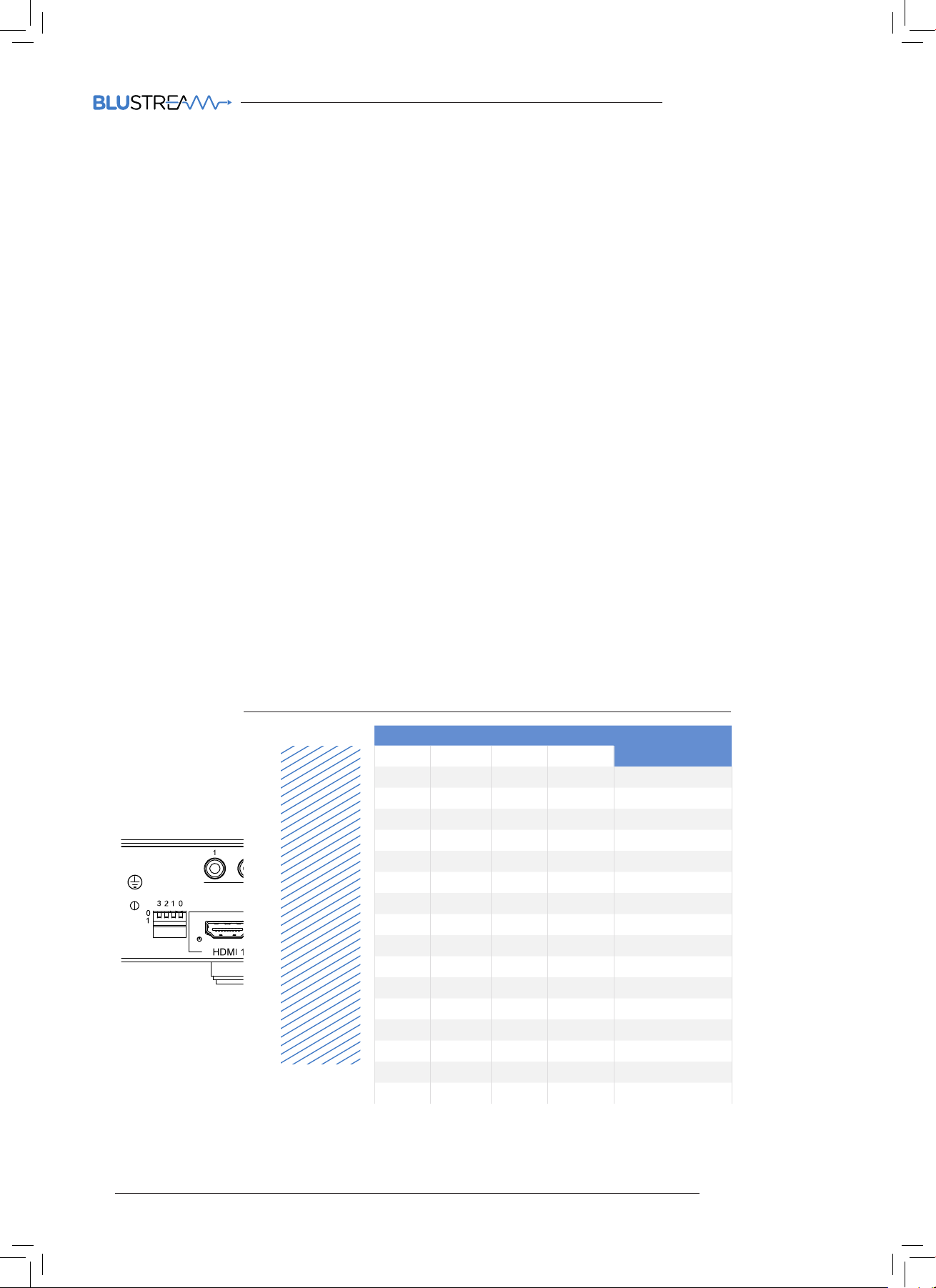
5 Using dip-switches on the rear panel of the HMXL44 V2 Matrix. Please see below table for global EDID settings.
*Note - Once dip-switch settings have been made the HMXL44 V2 should be power cycled for settings to be
applied.
Global EDID settings
Dip-switch position ‘0’ = O
Dip-switch position ‘1’ = On
DIP ON ▼/OFF▲ SWITCHING POSITIONS
EDID TYPE3 2 1 0
OFF OFF OFF OFF 1080p/2.0ch
OFF OFF OFF ON 1080p/5.1ch
OFF OFF ON OFF 1080p/7.1ch
OFF OFF ON ON 1080i/2.0ch
OFF ON OFF OFF 1080i/5.1ch
OFF ON OFF ON 1080i/7.1ch
OFF ON ON OFF 1080p 3D/2.0ch
OFF ON ON ON 1080p 3D/5.1ch
ON OFF OFF OFF 1080p 3D/7.1ch
ON OFF OFF ON 4K/2.0ch
ON OFF ON OFF 4K/5.1ch
ON OFF ON ON 4K/7.1ch
ON ON OFF OFF DVI 1280x1024
ON ON OFF ON DVI 1920x1080
ON ON ON OFF DVI 1920x1200
ON ON ON ON Copy Display EDID
12
Page 13
HMXL44-KIT V2 USER MANUAL
contact [email protected] / [email protected]
Stereo Audio
IR Cable
HDMI
RS232
Cat 5/5e/6
Network Connection
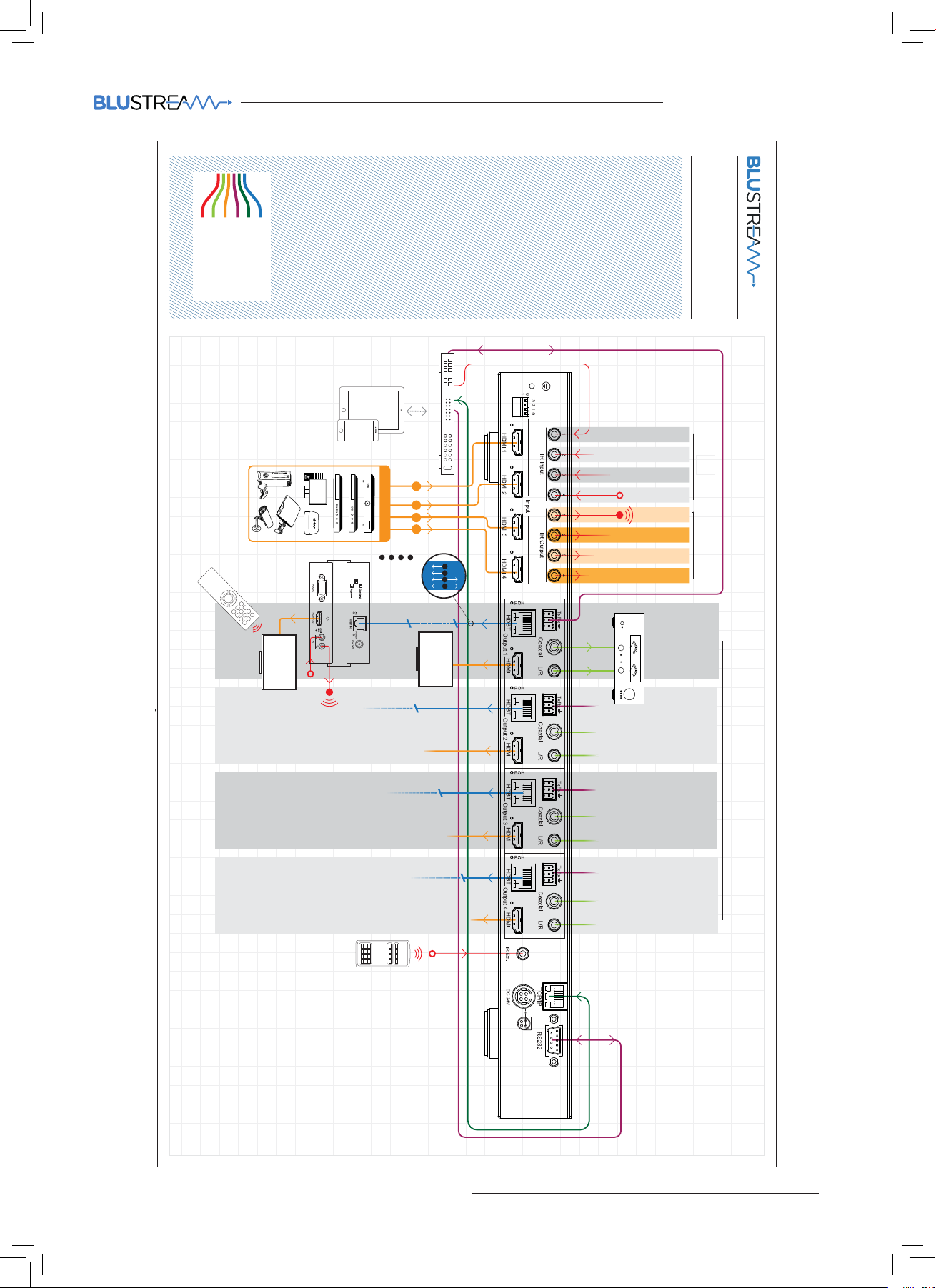
Example Schematic
HMXL44AB-V2
Control
01
02
03
ZONE
ZONE
ZONE
rocessorP
ZONE 01
ZONE 02
MAXIMUM OF 4 SOURCES
1 2 3 4
out
in
D
B
C
A
12V POH
HDMI
RS232
IR
HDBT RECEIVER
DISPLAY 2
HEX70ED-Rx
Receiver
70m max
DISPLAY 1
A B
C
D
ZONE 03
ZONE 04
SOURCE 01
SOURCE 02
SOURCE 03
SOURCE 04
01
02
03
Link to control device
Link to source
ZONE
ZONE
ZONE
IR Receiver
IR Emitter
Audio Output Link to HDMI Zone Outputs
ZONE
04
HMXL44AB-V2
04
ZONE
13
Page 14

HMXL44-KIT V2 USER MANUAL
www.blustream.co.uk
Specifications
• Video Input Connectors: 4x HDMI Type A, 19-pin, female
• Video Output Connectors: 4x HDMI Type A, 19-pin, female, 4x HDBaseT™ RJ45 connector
• Audio Output Connectors: 4x 3.5mm Analogue audio stereo jack
• RS-232 serial port: 1x DB-9, female & 4x 3-pin Phoenix connectors for RS-232 pass-through
• TCP/IP Control: 1x RJ45, female
• IR Input Ports: 5x 3.5mm stereo jack
• IR Output Ports: 4x 3.5mm mono jack
• Rack-Mountable: 1U rack height, rack ears included
• Dimensions (WxDxH): 438 x 235 x 43mm, without feet
• Shipping Weight: 2.7kg
• Operating Temperature: 32°F to 104°F (0°C to 40°C)
• Storage Temperature: -4°F to 140°F (-20°C to 60°C)
• Power Supply: 1x 24V 3.5A DC
Package Contents:
• 1 x HMXL44AB V2
• 4 x HEX70ED-RX
• 1x Rack mounting kit for HMXL44AB V2
• 4 x Mounting kit for HEX70ED-RX
• 1 x 24V/3.5A power supply
• 1 x REM44 Remote control (additional remotes can be purchased separately)
• 4 x IRCAB IR control cable - 3.5mm-3.5mm cable
• 4 x IR emitters
• 5 x IR receivers
• 1 x User manual
Maintenance
Clean this unit with a so, dry cloth. Never use alcohol, paint thinner or benzene to clean this unit.
14
Page 15

HMXL44-KIT V2 USER MANUAL
contact [email protected] / [email protected]
HMXL44AB V2 USER MANUAL
RS232 and Telnet Commands
The Blustream HMXL44 V2 can be controlled via serial and TCP/IP. The following pages list all available serial commands for the
HMXL44-V2 Matrix. Details of RS232 pin assignment can be found on page 05.
Commonly used Serial commands:
There are several commands that are commonly used for control and testing:-
STATUS Status will give feedback on Matrix such as zones on, type of connection etc
PON Power on
POFF Power o
OUTxxON (xx is the zone number you wish to turn on)
Example:- OUT01ON (This would turn output one back on)
OUTxxFRyy (xx is the zone out, yy is the input)
Example:- OUT01FR04 (This would switch output 1 to source input 4)
Common Mistakes
• Carriage return – Some programs do not require the carriage return where as other will not work unless sent directly aer the
string. In the case of some Terminal soware the token <CR> is used to execute a carriage return. Depending on the program you are
using this token maybe dierent. Some other examples that other control systems deploy include \r or 0D (in hex)
• Spaces – Blustream commands do not require space between commands unless specified. There may be some programs that
require spacing in order to work.
- How the string should look is as follows OUT01ON
- How the string may look if spaces are required: OUT{Space}01{Space}ON
• Baud rate or other serial protocol settings not correct - please see Page 5 for Matrix settings
RS232 and Telnet Commands
The Blustream HMXL44 V2 can be controlled via serial and TCP/IP. The following pages list all available serial commands for the
HMXL44 V2 Matrix. Details of RS232 pin assignment can be found on page 5.
Commonly used Serial commands:
There are several commands that are commonly used for control and testing:-
STATUS Status will give feedback on Matrix such as zones on, type of connection etc
PON Power on
POFF Power o
OUTxxON (xx is the zone number you wish to turn on)
Example:- OUT01ON (This would turn output one back on)
OUTxxFRyy (xx is the zone out, yy is the input)
Example:- OUT01FR04 (This would switch output 1 to source input 4)
Common Mistakes
• Carriage return – Some programs do not require the carriage return where as other will not work unless sent directly aer the
string. In the case of some Terminal soware the token <CR> is used to execute a carriage return. Depending on the program you
are using this token maybe dierent. Some other examples that other control systems deploy include \r or 0D (in hex)
• Spaces – Blustream commands do not require space between commands unless specified. There may be some programs that
require spacing in order to work.
- How the string should look is as follows OUT01ON
- How the string may look if spaces are required: OUT{Space}01{Space}ON
• Baud rate or other serial protocol settings not correct - please see Page 5 for Matrix settings
RS232 Command Description
? Print Help Information
HELP Print Help Information
STATUS Print System Status And Port Status
PON Power On, System Run On Normal State
POFF Power Off, System Run On Power Save State
IRON/OFF Set System IR Control On Or Off
KEYON/OFF Set System KEY Control On Or Off
DBG ON/OFF Set Debug Mode On Or Off
BEEPON/OFF Set Onboard Beep On Or Off
RESET Reset System To Default Setting (Should Type “Yes” To Confirm, “No” To Discard)
OUTxxON/OFF Set OUTPUT:xx On Or Off
POHxxON/OFF Set POH OUTPUT:xx On Or Off (xx = 01 to 04 or 'ALL' for all outputs)
15
Page 16

HMXL44-KIT V2 USER MANUAL
www.blustream.co.uk
RS232 and Telnet Commands (Continued)
HMXL44AB V2 USER MANUAL
RS232 and Telnet Commands (Continued)
Copy EDID from output (yy) to input (xx)
Both yy & xx can be set individually (01-08) or as ALL (00)
RS232 Command Description
OUTxxFRyy Set OUTPUT:xx From INPUT:yy
EDIDxxCPyy
Set Input:xx EDID To Default EDID:zz
xx=00: Select All INPUT Port
xx=[01...04]: Select One INPUT Port
yy=[01...02]: Select One OUTPUT Port
zz=00: HDMI 1080p@60Hz, Audio 2CH PCM
zz=01: HDMI 1080p@60Hz, Audio 5.1CH PCM/DTS/DOLBY
zz=02: HDMI 1080p@60Hz, Audio 7.1CH PCM/DTS/DOLBY/HD
zz=03: HDMI 1080i@60Hz, Audio 2CH PCM
EDIDxxDFzz zz=04: HDMI 1080i@60Hz, Audio 5.1CH PCM/DTS/DOLBY
zz=05: HDMI 1080i@60Hz, Audio 7.1CH PCM/DTS/DOLBY/HD
zz=06: HDMI 1080p@60Hz/3D, Audio 2CH PCM
zz=07: HDMI 1080p@60Hz/3D, Audio 5.1CH PCM/DTS/DOLBY
zz=08: HDMI 1080p@60Hz/3D, Audio 7.1CH PCM/DTS/DOLBY/HD
zz=09: HDMI 4K2K, Audio 2CH PCM
zz=10: HDMI 4K2K, Audio 5.1CH PCM/DTS/DOLBY
zz=11: HDMI 4K2K, Audio 7.1CH PCM/DTS/DOLBY/HD
zz=12: DVI 1280x1024@60Hz, Audio None
zz=13: DVI 1920x1080@60Hz, Audio None
zz=14: DVI 1920x1200@60Hz, Audio None
MUTEmmTXyy Turn MUTE (mm = ON or OFF) on OUTPUT (yy = 01 to 04 or 00 for all outputs)
Set VOLUME level:xx on OUTPUT:yy
xx = 00…30: Set volume levels
VOLxxTXyy xx = +: Volume level increases
xx = -: Volume level decreases
yy = 00: Select ALL output ports
xx = 01 to 04: Select single output port
RESETDEF Restore factory settings
16
Page 17

HMXL44-KIT V2 USER MANUAL
contact [email protected] / [email protected]
4x4 Matrix IR Database
4X4 MATRIX PRODUCTS NEC IR: CUSTOMER CODE 1898 HEX IR
0000 006D 0000 0022 0157 00AC 0016 0016 0016 0016 0016 0016 0016 003F 0016 003F 0016
POWER 14
OUTPUT 1 09
OUTPUT 2 1D
OUTPUT 3 1F
OUTPUT 4 0D
OUTPUT ALL 19
OUTPUT PTP 18
INPUT 1 50
INPUT 2 55
INPUT 3 48
INPUT 4 4A
INPUT ALL 5E
INPUT BACK 06
INPUT UP 05
0016 0016 0016 0016 0016 0016 0016 0016 0016 0016 0016 0016 003F 0016 003F 0016 0016
0016 0016 0016 003F 0016 0016 0016 0016 0016 003F 0016 0016 0016 003F 0016 0016 0016
0016 0016 0016 0016 003F 0016 003F 0016 0016 0016 003F 0016 0016 0016 003F 0016 003F
0016 003F 0016 0689
0000 006D 0000 0022 0157 00AC 0016 0016 0016 0016 0016 0016 0016 003F 0016 003F 0016
0016 0016 0016 0016 0016 0016 0016 0016 0016 0016 0016 0016 003F 0016 003F 0016 0016
0016 0016 0016 003F 0016 003F 0016 0016 0016 0016 0016 003F 0016 0016 0016 0016 0016
0016 0016 0016 0016 0016 0016 003F 0016 003F 0016 0016 0016 003F 0016 003F 0016 003F
0016 003F 0016 0689
0000 006D 0000 0022 0157 00AC 0016 0016 0016 0016 0016 0016 0016 003F 0016 003F 0016
0016 0016 0016 0016 0016 0016 0016 0016 0016 0016 0016 0016 003F 0016 003F 0016 0016
0016 0016 0016 003F 0016 003F 0016 0016 0016 003F 0016 003F 0016 003F 0016 0016 0016
0016 0016 0016 0016 0016 0016 003F 0016 0016 0016 0016 0016 0016 0016 003F 0016 003F
0016 003F 0016 0689
0000 006D 0000 0022 0157 00AC 0016 0016 0016 0016 0016 0016 0016 003f 0016 003f 0016
0016 0016 0016 0016 0016 0016 0016 0016 0016 0016 0016 0016 003f 0016 003f 0016 0016
0016 0016 0016 003f 0016 003f 0016 003f 0016 003f 0016 003f 0016 003f 0016 0016 0016 0016
0016 0016 0016 0016 0016 0016 0016 0016 0016 0016 0016 0016 0016 003f 0016 003f 0016
003f 0016 0689
0000 006D 0000 0022 0157 00AC 0016 0016 0016 0016 0016 0016 0016 003F 0016 003F 0016
0016 0016 0016 0016 0016 0016 0016 0016 0016 0016 0016 0016 003F 0016 003F 0016 0016
0016 0016 0016 003F 0016 003F 0016 0016 0016 003F 0016 003F 0016 0016 0016 0016 0016
0016 0016 0016 0016 0016 0016 003F 0016 0016 0016 0016 0016 003F 0016 003F 0016 003F
0016 003F 0016 0689
0000 006D 0000 0022 0157 00AC 0016 0016 0016 0016 0016 0016 0016 003F 0016 003F 0016
0016 0016 0016 0016 0016 0016 0016 0016 0016 0016 0016 0016 003F 0016 003F 0016 0016
0016 0016 0016 003F 0016 003F 0016 0016 0016 0016 0016 003F 0016 003F 0016 0016 0016
0016 0016 0016 0016 0016 0016 003F 0016 003F 0016 0016 0016 0016 0016 003F 0016 003F
0016 003F 0016 0689
0000 006D 0000 0022 0157 00AC 0016 0016 0016 0016 0016 0016 0016 003F 0016 003F 0016
0016 0016 0016 0016 0016 0016 0016 0016 0016 0016 0016 0016 003F 0016 003F 0016 0016
0016 0016 0016 003F 0016 003F 0016 003F 0016 0016 0016 003F 0016 003F 0016 0016 0016
0016 0016 0016 0016 0016 0016 0016 0016 003F 0016 0016 0016 0016 0016 003F 0016 003F
0016 003F 0016 0689
0000 006D 0000 0022 0157 00AC 0016 0016 0016 0016 0016 0016 0016 003F 0016 003F 0016
0016 0016 0016 0016 0016 0016 0016 0016 0016 0016 0016 0016 003F 0016 003F 0016 0016
0016 0016 0016 003F 0016 0016 0016 0016 0016 0016 0016 0016 0016 003F 0016 0016 0016
003F 0016 0016 0016 003F 0016 003F 0016 003F 0016 003F 0016 0016 0016 003F 0016 0016
0016 003F 0016 0689
0000 006D 0000 0022 0157 00AC 0016 0016 0016 0016 0016 0016 0016 003F 0016 003F 0016
0016 0016 0016 0016 0016 0016 0016 0016 0016 0016 0016 0016 003F 0016 003F 0016 0016
0016 0016 0016 003F 0016 003F 0016 0016 0016 003F 0016 0016 0016 003F 0016 0016 0016
003F 0016 0016 0016 0016 0016 003F 0016 0016 0016 003F 0016 0016 0016 003F 0016 0016
0016 003F 0016 0689
0000 006D 0000 0022 0157 00AC 0016 0016 0016 0016 0016 0016 0016 003F 0016 003F 0016
0016 0016 0016 0016 0016 0016 0016 0016 0016 0016 0016 0016 003F 0016 003F 0016 0016
0016 0016 0016 003F 0016 0016 0016 0016 0016 0016 0016 003F 0016 0016 0016 0016 0016
003F 0016 0016 0016 003F 0016 003F 0016 003F 0016 0016 0016 003F 0016 003F 0016 0016
0016 003F 0016 0689
0000 006D 0000 0022 0157 00AC 0016 0016 0016 0016 0016 0016 0016 003F 0016 003F 0016
0016 0016 0016 0016 0016 0016 0016 0016 0016 0016 0016 0016 003F 0016 003F 0016 0016
0016 0016 0016 003F 0016 0016 0016 003F 0016 0016 0016 003F 0016 0016 0016 0016 0016
003F 0016 0016 0016 003F 0016 0016 0016 003F 0016 0016 0016 003F 0016 003F 0016 0016
0016 003F 0016 0689
0000 006D 0000 0022 0157 00AC 0016 0016 0016 0016 0016 0016 0016 003F 0016 003F 0016
0016 0016 0016 0016 0016 0016 0016 0016 0016 0016 0016 0016 003F 0016 003F 0016 0016
0016 0016 0016 003F 0016 0016 0016 003F 0016 003F 0016 003F 0016 003F 0016 0016 0016
003F 0016 0016 0016 003F 0016 0016 0016 0016 0016 0016 0016 0016 0016 003F 0016 0016
0016 003F 0016 0689
0000 006D 0000 0022 0157 00AC 0016 0016 0016 0016 0016 0016 0016 003F 0016 003F 0016
0016 0016 0016 0016 0016 0016 0016 0016 0016 0016 0016 0016 003F 0016 003F 0016 0016
0016 0016 0016 003F 0016 0016 0016 003F 0016 003F 0016 0016 0016 0016 0016 0016 0016
0016 0016 0016 0016 003F 0016 0016 0016 0016 0016 003F 0016 003F 0016 003F 0016 003F
0016 003F 0016 0689
0000 006D 0000 0022 0157 00AC 0016 0016 0016 0016 0016 0016 0016 003F 0016 003F 0016
0016 0016 0016 0016 0016 0016 0016 0016 0016 0016 0016 0016 003F 0016 003F 0016 0016
0016 0016 0016 003F 0016 003F 0016 0016 0016 003F 0016 0016 0016 0016 0016 0016 0016
0016 0016 0016 0016 0016 0016 003F 0016 0016 0016 003F 0016 003F 0016 003F 0016 003F
0016 003F 0016 0689
17
Page 18

HMXL44-KIT V2 USER MANUAL
www.blustream.co.uk
4x4 Matrix IR Database
1080i 18
1080p 44
3D 0F
4K 51
2.0ch
5.1ch
7.1ch
COPY 1A
USER 1 53
USER 2 52
USER 3 01
USER 4 45
0A
1E
0E
0000 006D 0000 0022 0157 00AC 0016 0016 0016 0016 0016 0016 0016 003F 0016 003F 0016
0016 0016 0016 0016 0016 0016 0016 0016 0016 0016 0016 0016 003F 0016 003F 0016 0016
0016 0016 0016 003F 0016 0016 0016 0016 0016 0016 0016 003F 0016 003F 0016 0016 0016
0016 0016 0016 0016 003F 0016 003F 0016 003F 0016 0016 0016 0016 0016 003F 0016 003F
0016 003F 0016 0689
0000 006D 0000 0022 0157 00AC 0016 0016 0016 0016 0016 0016 0016 003F 0016 003F 0016
0016 0016 0016 0016 0016 0016 0016 0016 0016 0016 0016 0016 003F 0016 003F 0016 0016
0016 0016 0016 003F 0016 0016 0016 0016 0016 003F 0016 0016 0016 0016 0016 0016 0016
003F 0016 0016 0016 003F 0016 003F 0016 0016 0016 003F 0016 003F 0016 003F 0016 0016
0016 003F 0016 0689
0000 006D 0000 0022 0157 00AC 0016 0016 0016 0016 0016 0016 0016 003F 0016 003F 0016
0016 0016 0016 0016 0016 0016 0016 0016 0016 0016 0016 0016 003F 0016 003F 0016 0016
0016 0016 0016 003F 0016 003F 0016 003F 0016 003F 0016 003F 0016 0016 0016 0016 0016
0016 0016 0016 0016 0016 0016 0016 0016 0016 0016 0016 0016 003F 0016 003F 0016 003F
0016 003F 0016 0689
0000 006D 0000 0022 0157 00AC 0016 0016 0016 0016 0016 0016 0016 003F 0016 003F 0016
0016 0016 0016 0016 0016 0016 0016 0016 0016 0016 0016 0016 003F 0016 003F 0016 0016
0016 0016 0016 003F 0016 003F 0016 0016 0016 0016 0016 0016 0016 003F 0016 0016 0016
003F 0016 0016 0016 0016 0016 003F 0016 003F 0016 003F 0016 0016 0016 003F 0016 0016
0016 003F 0016 0689
0000 006D 0000 0022 0157 00AC 0016 0016 0016 0016 0016 0016 0016 003F 0016 003F 0016
0016 0016 0016 0016 0016 0016 0016 0016 0016 0016 0016 0016 003F 0016 003F 0016 0016
0016 0016 0016 003F 0016 0016 0016 003F 0016 0016 0016 003F 0016 0016 0016 0016 0016
0016 0016 0016 0016 003F 0016 0016 0016 003F 0016 0016 0016 003F 0016 003F 0016 003F
0016 003F 0016 0689
0000 006D 0000 0022 0157 00AC 0016 0016 0016 0016 0016 0016 0016 003F 0016 003F 0016
0016 0016 0016 0016 0016 0016 0016 0016 0016 0016 0016 0016 003F 0016 003F 0016 0016
0016 0016 0016 003F 0016 0016 0016 003F 0016 003F 0016 003F 0016 003F 0016 0016 0016
0016 0016 0016 0016 003F 0016 0016 0016 0016 0016 0016 0016 0016 0016 003F 0016 003F
0016 003F 0016 0689
0000 006D 0000 0022 0157 00AC 0016 0016 0016 0016 0016 0016 0016 003F 0016 003F 0016
0016 0016 0016 0016 0016 0016 0016 0016 0016 0016 0016 0016 003F 0016 003F 0016 0016
0016 0016 0016 003F 0016 0016 0016 003F 0016 003F 0016 003F 0016 0016 0016 0016 0016
0016 0016 0016 0016 003F 0016 0016 0016 0016 0016 0016 0016 003F 0016 003F 0016 003F
0016 003F 0016 0689
0000 006D 0000 0022 0157 00AC 0016 0016 0016 0016 0016 0016 0016 003F 0016 003F 0016
0016 0016 0016 0016 0016 0016 0016 0016 0016 0016 0016 0016 003F 0016 003F 0016 0016
0016 0016 0016 003F 0016 0016 0016 003F 0016 0016 0016 003F 0016 003F 0016 0016 0016
0016 0016 0016 0016 003F 0016 0016 0016 003F 0016 0016 0016 0016 0016 003F 0016 003F
0016 003F 0016 0689
0000 006D 0000 0022 0157 00AC 0016 0016 0016 0016 0016 0016 0016 003F 0016 003F 0016
0016 0016 0016 0016 0016 0016 0016 0016 0016 0016 0016 0016 003F 0016 003F 0016 0016
0016 0016 0016 003F 0016 003F 0016 003F 0016 0016 0016 0016 0016 003F 0016 0016 0016
003F 0016 0016 0016 0016 0016 0016 0016 003F 0016 003F 0016 0016 0016 003F 0016 0016
0016 003F 0016 0689
0000 006D 0000 0022 0157 00AC 0016 0016 0016 0016 0016 0016 0016 003F 0016 003F 0016
0016 0016 0016 0016 0016 0016 0016 0016 0016 0016 0016 0016 003F 0016 003F 0016 0016
0016 0016 0016 003F 0016 0016 0016 003F 0016 0016 0016 0016 0016 003F 0016 0016 0016
003F 0016 0016 0016 003F 0016 0016 0016 003F 0016 003F 0016 0016 0016 003F 0016 0016
0016 003F 0016 0689
0000 006D 0000 0022 0157 00AC 0016 0016 0016 0016 0016 0016 0016 003F 0016 003F 0016
0016 0016 0016 0016 0016 0016 0016 0016 0016 0016 0016 0016 003F 0016 003F 0016 0016
0016 0016 0016 003F 0016 003F 0016 0016 0016 0016 0016 0016 0016 0016 0016 0016 0016
0016 0016 0016 0016 0016 0016 003F 0016 003F 0016 003F 0016 003F 0016 003F 0016 003F
0016 003F 0016 0689
0000 006D 0000 0022 0157 00AC 0016 0016 0016 0016 0016 0016 0016 003F 0016 003F 0016
0016 0016 0016 0016 0016 0016 0016 0016 0016 0016 0016 0016 003F 0016 003F 0016 0016
0016 0016 0016 003F 0016 003F 0016 0016 0016 003F 0016 0016 0016 0016 0016 0016 0016
003F 0016 0016 0016 0016 0016 003F 0016 0016 0016 003F 0016 003F 0016 003F 0016 0016
0016 003F 0016 0689
18
Page 19

HMXL44-KIT V2 USER MANUAL
contact [email protected] / [email protected]
Blustream Web Browser Interface
The Blustream HMXL44 V2 matrix unit can be both controlled and configured using the in-built web-server.
The HMXL44 V2 Matrix must be connected to an active network router/switch and it is advised that the Matrix is
given a static IP address. You can configure the network settings of the Matrix using either the Web Browser Interface
(Blustream Matrix products are shipped with the network set to DHCP) or using the Blustream PC Configuration
Soware (downloadable from the Blustream Drivers & Protocols link on the product web page).
For detailed instructions on using the Blustream Web Browser Interface please download the specific soware
manual at the following link:
http://www.blustream.co.uk/HMXL44V2
Blustream PC Configuration Soware
The Blustream HMXL44 V2 matrix unit can be configured using the Blustream matrix PC configuration soware.
Please download the specific soware and PC soware manual at the following link:
http://www.blustream.co.uk/HMXL44V2
19
Page 20

www.blustream.co.uk
www.blustream.com.au
 Loading...