

Page 1
Introduction
DA11AU QUICK REFERENCE GUIDE
DA11AU
Quick Reference Guide
Our DA11AU has been designed to convert unbalanced or balanced 2ch analogue
audio to Dante® digital signal. The DA11AU allows any non-Dante® audio source
such as mixing consoles, amplifiers, computers and Blustream Matrix products or
distribution products to be connected as a source within a Dante® network. The
DA11AU is a plug & play device that is powered using PoE (Power Over Ethernet)
from any PoE network switch and supports AES67 RTP audio transport.
FEATURES:
• Analogue audio inputs support both balanced and unbalanced audio signals
• Supports 44.1, 48 & 96 KHz sample rates @ 24 Bit
• Configurable Dante® device latency (supports 1, 2 or 5ms configurable using Dante® Controller)
• Supports AES67 RTP audio transport
• Features Class 1 802.3af PoE for powering of product from any PoE switch
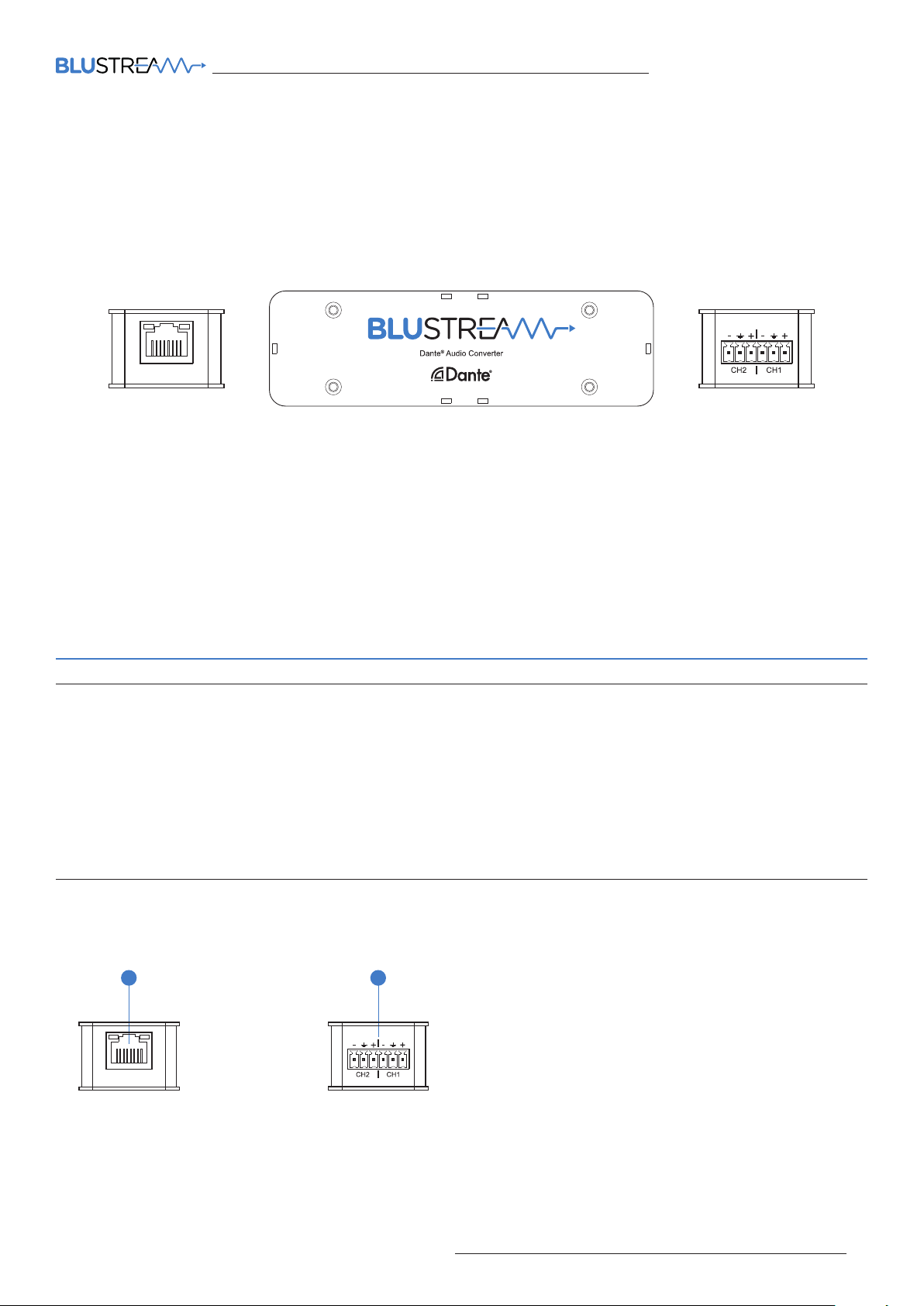
Front Panel
1
Rear Panel
2
Connections:
1 Dante® Audio Output - RJ45 socket connets to your Dante® network.
2 Audio Input - Phoenix Connector accepts balanced or unbalanced 2 channel audio input.
01contact [email protected] / [email protected]
Page 2
DA11AU QUICK REFERENCE GUIDE
Dante Controller
Dante Controller soware is required in order to setup and configure the DA11AU as well as control your Dante
network. Audinate provide extensive training videos and documentation on their website. This can be found here:
http://www.audinate.com/products/soware/dante-controller
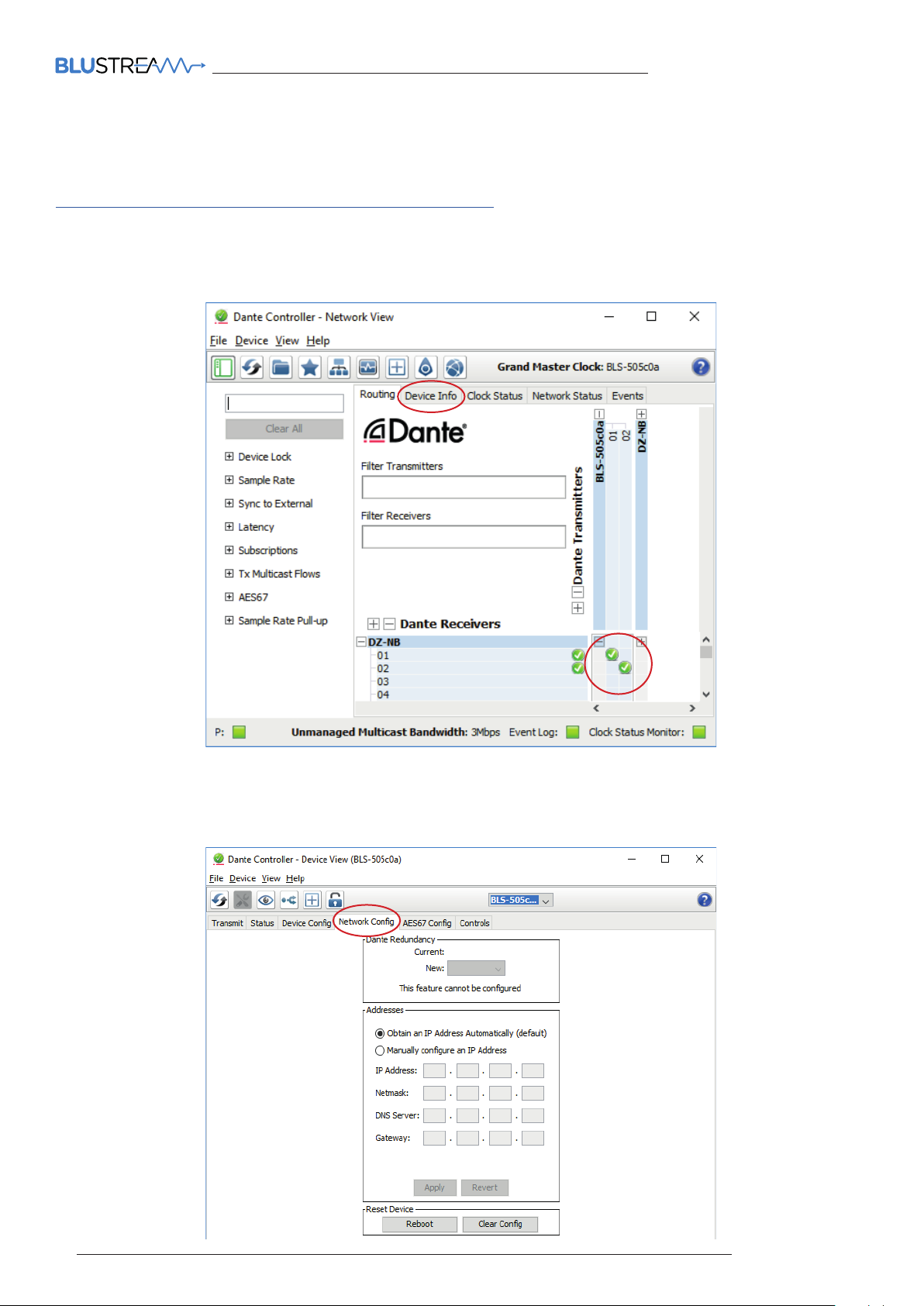
Upon connecting your DA11AU to a compatible network, the Dante Controller soware should automatically
discover the device. The DA11AU will appear in the Dante Controller with a name denoted with “BLS”. On the
“Routing” screen you can create audio routing between Dante transmitters and receivers in your system.
By default the DA11AU is shipped with its network settings set to obtain an IP Address automatically. This means
that if a DHCP server is present on your network, it will provide the DA11AU with an IP Address. If no DHCP server is
present then the DA11AU will receive a default IP Address in the 169.254.xxx.xxx range. To change the IP Address of
the DA11AU, you must enter the “Network Config” menu in the “Device Info” screen of the Dante Controller soware.
02
www.blustream.co.uk
Page 3
DA11AU QUICK REFERENCE GUIDE
Advanced Dante Settings
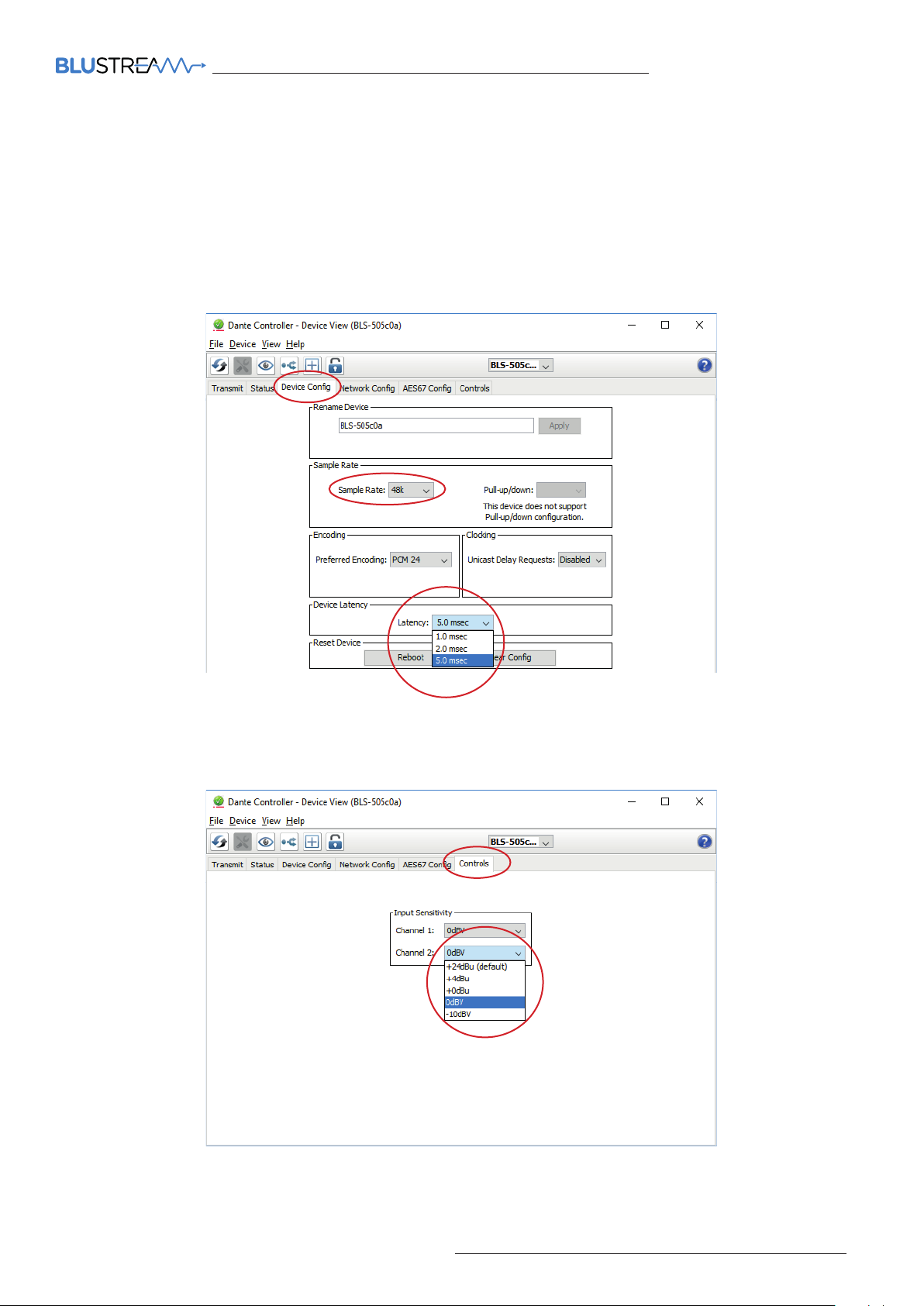
It is also possible to change the settings of the DA11AU under the “Device Info” screen in the Dante Controller
soware. To do so, select the “Device Config” menu.
Here we can adjust the sample rate of the DA11AU. Please note that Dante products can only transmit or receive
audio from other Dante products that are set up with the same sample rate. A mismatch in sample rate may stop
audio from transmitting.
Under the “Device Config” screen we can also adjust the latency of the DA11AU from 1, 2 or 5 milliseconds.
Depending on your audio input device, it may be necessary to adjust the Input Sensitivity of the DA11AU.
Under the “Controls” screen we can adjust the input sensitivity of each channel from the default of +24dBu to
-10dBV.
03contact [email protected] / [email protected]
RevA0_QRG_HD12DB_190606_Web Layout
Page 4
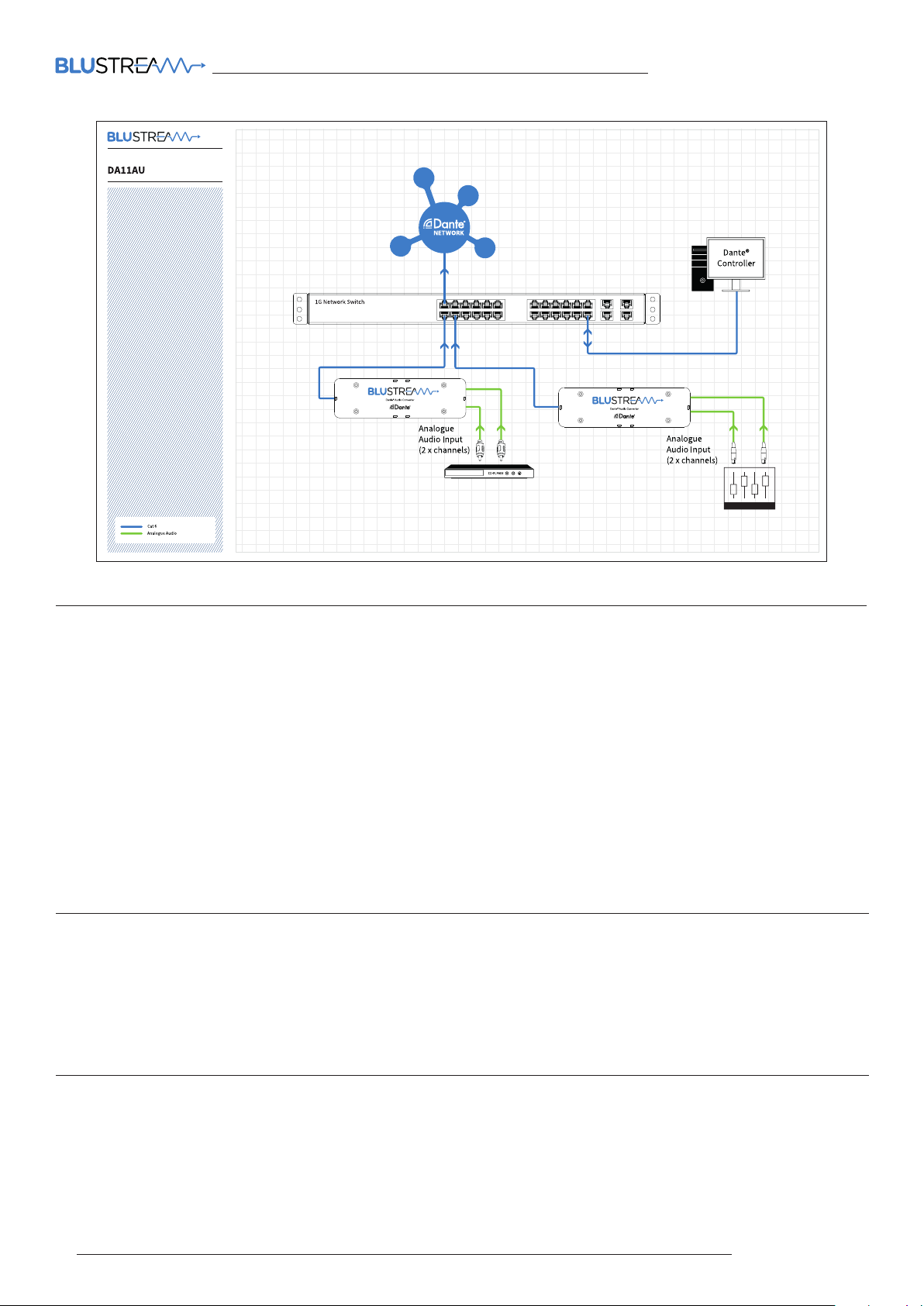
Example Schematic
DA11AU QUICK REFERENCE GUIDE
Specifications
Audio Input Connectors: 6-PIN Phoenix connector (2ch balanced/un-balanced analogue audio)
Audio Output Connectors: 1 x RJ45, female (100 Mbps Dante® network)
Casing Dimensions (W x H x D): 120mm x 23mm x 34mm
Shipping Weight: 0.2 Kg
Operating Temperature: 32°F to 104°F (0°C to 40°C)
Storage Temperature: - 4°F to 140°F (- 20°C to 60°C)
Power Supply: Class 1 IEEE 802.3af POE PD
Package Contents
• 1 x DA11AU
• 1 x Quick Reference Guide
Acknowledgements
Dante® is a registered trademark of Audinate Pty Ltd.
04
www.blustream.co.uk
 Loading...