

Page 1
For Customer Service please call 1(800) 834-7790
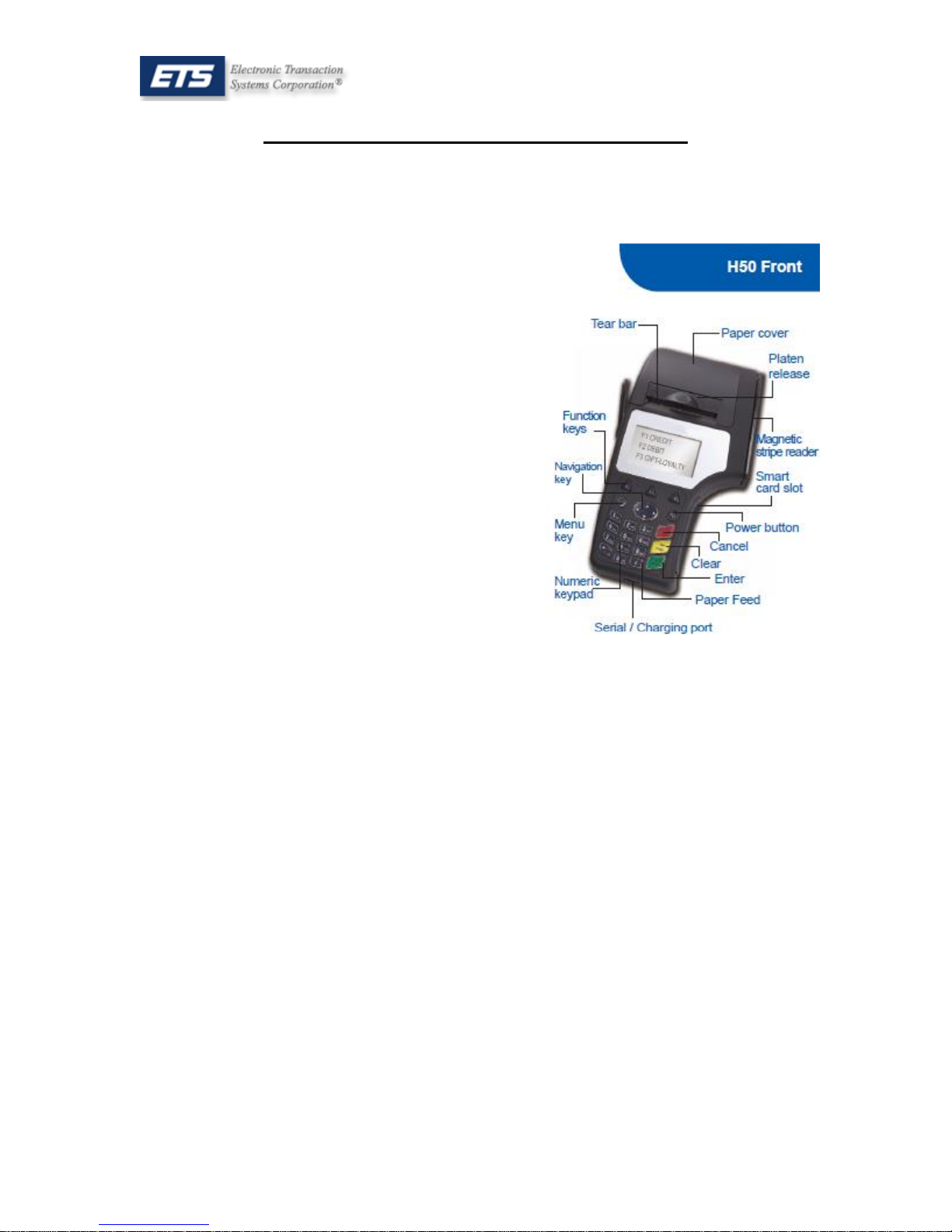
Blue Bamboo H50A Reference Guide
Please call ETS if you encounter any problems while using your Blue Bamboo H50. 1(800) 834-
7790. For any selections you can also press the numeric key listed before the option to select it.
Credit Card Sale
1. Use the arrow keys to highlight ‘1. Credit’,
press Enter.
2. Use the arrow keys to highlight ‘1. Sale’,
press Enter.
3. Swipe the credit card.
a. If the card is unreadable, key in the 15-16
digit card number, press enter.
b. Key in the expiration date on the card, press
enter.
c. Key in the CVV code found on the back of
most cards, press enter.
d. Key in the numeric portion of the
cardholder’s billing street address, press
enter.
e. Key in the cardholder’s billing zip code,
press enter.
4. Key in the transaction Amount, press Enter.
Debit Card Sale
1. Use the arrow keys to highlight ‘2. Debit’, press Enter.
2. Use the arrow keys to highlight ‘1. Sale’, press Enter.
3. Swipe the debit card.
a. If the card is unreadable, please request another form of payment. Debit cards cannot be
entered manually.
4. Key in the transaction Amount, press Enter.
5. Press F3 to bypass the Tax Entry.
a. (Adding tax here will add to the transaction amount already keyed.)
6. Allow the customer to enter their PIN.
Void a Transaction
1. Use the arrow keys to highlight ‘1. Credit’, press Enter.
2. Use the arrow keys to highlight ‘2. Void’, press Enter.
3. Use the arrow keys to highlight ‘1. All’, press Enter.
4. Press F3 until the transaction appears.
5. Press F2 to select the transaction.
Page 2

For Customer Service please call 1(800) 834-7790
Add Gratuity/Tip to a Transaction
1. Log on to EMoney at www.etsemoney.com.
2. Select your Blue Bamboo account.
3. Select Tip Adjustment.
4. Select List All Transactions.
5. Select the gratuity of the transaction to adjust.
6. Key in the gratuity amount.
Refund a Transaction
1. Use the arrow keys to highlight ‘1. Credit’, press Enter.
2. Use the arrow keys to highlight ‘3. Refund’, press Enter.
3. Swipe the credit card.
a. If the card is unreadable, key in the 15-16 digit card number, press enter.
b. Key in the expiration date on the card, press enter.
4. Key in the transaction Amount, press Enter.
Gift Card Transactions
Gift Card Sale
1. Use the arrow keys to highlight ‘5. Gift’, press Enter.
2. Use the arrow keys to highlight ‘1. Redeem’, press Enter.
3. Swipe the gift card.
a. If the card is unreadable, enter the number from the back of the card, press enter.
b. Enter in 1212 for the expiration date.
4. Key in the transaction Amount, press Enter.
Check the Balance of a Gift Card
1. Use the arrow keys to highlight ‘5. Gift’, press Enter.
2. Use the arrow keys to highlight ‘6. Inquire’, press Enter.
3. Swipe the gift card.
a. If the card is unreadable, enter the number from the back of the card, press enter.
Issue a Gift Card
Issuing a gift card does not charge the customer; a separate Sale must be made for purchasing of the card.
1. Use the arrow keys to highlight ‘5. Gift’, press Enter.
2. Use the arrow keys to highlight ‘4. Activate’, press Enter.
3. Swipe the gift card.
a. If the card is unreadable, enter the number from the back of the card, press enter.
4. Key in the Initial Balance of the card, press Enter.
 Loading...