

Page 1

WCDMA Digital Mobile Phone
Studio 6.0 HD
User Manual
BLU
Page 2

Page 3

Safety Precautions .......................................................................................................................... 1
Catalog
Packing list ...................................................................................................................................... 2
Your Mobile Phone ......................................................................................................................... 2
Power on and off ............................................................................................................................ 5
The use of touch screen .................................................................................................................. 6
Standby screen ............................................................................................................................... 8
MicroSD .......................................................................................................................................... 9
USB Data Line: Shielded USB Cable ............................................................................................... 10
Application Program ..................................................................................................................... 10
Custom mobile phone ................................................................................................................... 11
Input Text ..................................................................................................................................... 14
The downloading of files from Internet ......................................................................................... 16
Install the application .................................................................................................................... 17
Synchronous data ......................................................................................................................... 17
To use of WLAN to get on the internet .......................................................................................... 19
Hotspot ......................................................................................................................................... 20
Page 4

Bluetooth ...................................................................................................................................... 20
Speak ............................................................................................................................................ 21
Security Code ................................................................................................................................ 24
Phone book ................................................................................................................................... 25
Short Message .............................................................................................................................. 28
Call log .......................................................................................................................................... 31
Email ............................................................................................................................................. 32
Multi-Media .................................................................................................................................. 35
Browser ........................................................................................................................................ 42
Clock ............................................................................................................................................. 44
Calculator...................................................................................................................................... 45
Calendar ....................................................................................................................................... 45
Non environmental protection material or element name and content description ..................... 46
FCC Regulations: ........................................................................................................................... 48
Page 5

Mobile Phone User Manual
Safety Precautions
For the safe and effective use of your mobile phone, please read the information carefully before use
Safety boot
On the prohibition of the use of mobile phone location, or to use mobile phone will case interface or
danger, please do not use mobile phone.
Traffic safety first
Don’t use mobile phone while driving, so as not to hinder the safe driving
In the restricted area to be shutdown
Please comply with all relevant regulations and rules. On the plane or in the inflammable goods、
chemicals、medical equipment should be shutdown.
Interference
Mobile communication may be affected by the radio interface, thereby affecting performance
Waterproof
The mobile phone is not waterproof, please keep it dry.
The mobile phone is placed in the children can not touch.
Mobile phone and all its accessories(including accessories)should be placed in the children can not touch.
Accessories and batteries
Please use the company designated the battery and charger, otherwise it may cause an explosion.
1
Page 6

Professional Services
Do not remove the mobile phone and accessories, only authorized agencies can repair the mobile phone.
Packing list
Mobile Phone
The USB Connection Line
Earphone
Charger
Battery
User’s Manual
Your Mobile Phone
Thank you for choosing BLU dual sim touch screen mobile phone. You can read through this manual, a full
understanding of BLU mobile phone use, enjoy its perfect function and enjoy operation method.
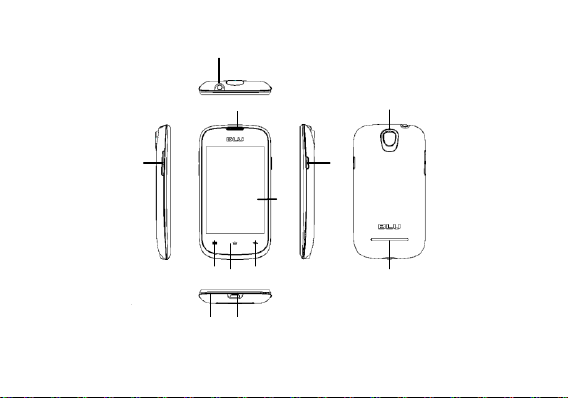
Mobile Phone Appearance
2
Page 7
1
2
3
4
5
6
7
8
9
10
11
12
3
Page 8

1、Power Key 2、3.5mm Headphone jack 3、Receiver 4、The Volume Keys 5、USB Interface
6、Main Panel 7、The Home Key 8、Menu Key 9、Return Key 10、Microphone 11、Camera
12、LoudSpeaker
Install SIM card and cell
The mobile phone is a dual card dual standby, can be inserted into the two sim cards. each sim card in a
card slot, insert SIM 1 card slot for card 1,insert SIM 2 slot for card 2,SIM card and its contact is easily
scratched or damage, so use or remove the SIM card must be careful
1、Remove the battery cover(if the mobile phone is turned on, please shutdown).
2、Remove the battery(Please turn off your mobile phone battery and disconnect mobile phone and
charger)
3、Slide the SIM card into the fixing seat.
4、Insert the Battery.
5、Cover the cover of battery.
For battery charging
When the battery power is low, mobile phone will emit a warning tone, showing the lack of electricity
information and available power icon. In this case , may not be able to use mobile phone part function.
If the battery is low, mobile phone will automatically shutdown, please to mobile phone charging.
4
Page 9

Mobile phone boot rechargeable battery, battery icon will flash on the screen. After charging , the screen
will display the full lattice of battery icon(no longer flashing ).Mobile phone charging off ,screen will
display the charging state picture. Standby mode, charging time is about 2-3 hours.
1、The charger into the AC power supply socket.
2、Open mobile phone charging interface of the rubber protective sleeve, will be connected to the mobile
phone charger.
3、Charging indicator appears on screen. ( if the battery is completely discharged, it may need to wait a
few minutes, the screen will appear charge prompting symbol).
4、Charging complete, taking down charger from the electrical and then taking down charger from a
mobile phone.
Be careful:
The mobile phone battery charging only about 50% of the electricity , of the electricity , open to use.
Please use the first completely exhausted after the full after; The second is to completely exhausted after
the full power, this requires three sequential cycle, easy to achieve the best state of battery.
Power on and off
Power on
5
Page 10

Long press and will be powered on,if you are the first,You can conduct some Personalization
according to your preference on mobile phone.
Power off
1、Long press ,open mobile phone menu
2、Choose shutdown。
The use of touch screen
The use of mobile phone touch screen can more easily select a project or executive function, understand
the basic actions to use the touch screen.
Be careful:
1、In order to avoid scratching the touch screen, do not use sharp objects.
2、The touch screen can not contact with other electronic equipment, equipment, electrostatic discharge
may lead touch screen to failure.
3、The touch screen may not contact with water, a touch screen in a humid environment or when in
contact with water may malfunction.
the mobile phone touch screen to perform the following operations.
1、Click: touch the screen to select command, or launch an application.
6
Page 11

2、Live: live an item to view the available list of operations. And then in the pop-up list and click on the
operation to be performed
3、Scroll: click and upward, downward, drag left or right finger to move to an item in the list.
4、Drag and drop: point to a project, and then drag the fingers to move the project.
5、Double: rapid finger click two times.
larger or smaller
View photos, webpage, or map, you can zoom in or out.
1、Will your fingers to fold or unfold to zoom in or out.
2、View photos, double-click the photo to enlarge, again double photo reducing to a minimum.
3、View the webpage, double-click the webpage display zoom icon, click on the icon to zoom in or out.
Webpage amplification to maximum again after double-click can be reduced to the minimum value of webpage.
4、Look at the map ,double-click on the map can be enlarged, with two fingers can be reduced.
Be careful:
1、If not use mobile phone time reaches a specified length of time, mobile phone will close touch screen .
Such as the need to open the screen, press the power button.
2、To adjust the background light time. Standby mode, open up the application list, select “settings”
→”Display” →”Screen timeout”.
7
Page 12

Standby screen
Mobile phone is in the standby mode, it will display the standby screen, it can view the mobile phone
status and access application.
Standby screen has a plurality of panels. Scroll left or right to choose a standby panel.
add items to the standby screen standby
You can add the application, small parts or folder shortcut to customize the standby screen.
If you want to add an item to a standby screen:
1、Press the [ menu ] →’ Add’( or live screen blank area ).
2、Select item categories:
(1)Shortcuts: applications, contacts, bookmarks and music play lists and other projects to add a shortcut.
(2)Widget: as analog clock, photo frame, music and other projects to add widgets.
(3)Folder: for the contacts to create a new folder or add folder.
(4)Wallpaper: selection of wallpaper, pictures set the background picture.
In the standby screen of mobile project
1、Touch and hold the item you want to move.
2、The project will become larger and dragged to the desired location.
the standby screen deleting items
8
Page 13

1、Touch and hold the item to delete, project becomes larger and the bottom of the screen appears
recycling label 。
2、Dragging the item to the recycle bin tag.
3、When the project turns red, released project.
view of network information and notification
From the top of the screen and drag down the status bar that you can access to network information and
notification list.
If you want to hide the list, please drag up the list of the lower frame dragging.
MicroSD
Mobile phone support T-Flash card, T-Flash card is used for mobile phone multimedia card memory that
to increase the memory. This card is more compact, the installation or removal need careful, cautious, so
as to avoid damage.
1、If the mobile phone has the boot, then press the switch machine key, until appear the shutdown
options menu and select shutdown.
2、 Go to the back of the mobile phone, and then to open the rear cover and remove the battery;
3、T-Flash card metal contact down, close to the metal contact is inserted into the card slot, Lock plate;
9
Page 14

4、To remove the T-Flash card, remove the battery and take out the T-Flash card.
USB Data Line: Shielded USB Cable
The mobile phone supporting USB interface. you can through USB data line and connect mobile phone to
the computer, you can copy, move files and other operations between mobile phone and computer and
can also browse through computer mobile phone on the saved photos, video, sound and other
documents.
1、The USB data line plug is inserted into the mobile phone USB interface.
2、The USB data line and the other end is connected to the computer USB interface.
3、To select the desired mode storing device.
Application Program
access application
1、Standby mode, select the open the application list.
2、Scroll left or right to choose the other application screen.
3、Select application.
Be careful:
10
Page 15

1、For the use of Google application, you must have a Google account.
2、If no Google account, please register an account.
3、When the application icon added to the standby screen, you can live the icon and drag it to the
appropriate position on the standby screen.
access recently used applications
1、Press the [ the home key ] open access list of the applications.
2、Choose the application that want to visit
Custom mobile phone
According to personal preferences to customize mobile phone.
Set time and date
1、Standby mode, open up the application list to select “settings” →”data and time”.
2、Set the date and time as well as other options.
adjusting the ringing volume
Standby mode, you can [ press the volume keys ] and regulate ring volume.
starting or cancel the silent mode
11
Page 16

Standby mode, long press[the power button] →”Silent mode”, and you can start mobile phone silent
mode.
If you want to cancel the mobile phone silent mode, you must make the operation again.
Change ringing
Be careful:
If use silent mode, that you cannot change ringing .
1、Standby mode, open up the application list and select ”settings” →”sound” →”phone ringtone”
2、Choose the bell from the list, then select ok.
change wallpapers
1、Standby mode, press the [ menu ] →”wallpaper”.
2、Choose the source of the wallpaper
3、Choose to set the wallpaper.
start switching window display animation
Standby mode, open up the application list, select ”Settings” → “Display” → “Animation”→ “No
animations””Some animations””All animations”.
Adjusting the brightness of the display screen
Standby mode, open up the application list, select ”settings”→ “Display” → “Brightness”.
Setting the lock screen
12
Page 17

Can set the pattern, PIN or password to prevent unauthorized use of your mobile phone.
Be careful:
Set screen lock, It will require the input pattern to unlock, PIN or password. when each booting or lifting
touch the screen mobile phone. If the mobile phone is no longer required to enter unlock pattern so, PIN
or password, select ”settings” → “Location and security” →”Set up Screen lock” →”None”.
To set the pattern
1、Standby mode, open up the application list, select ”Settings”→”Location and security”→ “Set up Screen
lock” → “pattern”.
2、View settings descriptions and examples of patterns, and then select the next step.
3、Draw pattern to unlock .drag the fingers are connected to at least 4 points, draw the pattern. According
to the [ menu ] watch the screen and click on OK ( when necessary).
4、Drawing is complete, choose to continue.
5、Redraw the pattern, and then select the confirm.
Set PIN
1、Standby mode, open up the application list, select “settings”→ ”Location and security”→ “Set up
Screen lock” → “PIN”.
2、Enter at least4 digits, choose to continue. Set password
3、To enter the PIN, and then select the confirm.
13
Page 18

Set password
1、Standby mode, open up the application list, select “settings”→ ”Location and security”→ “Set up
Screen lock” → “Password”.
2、Enter at least4 character, choose to continue.
3、Enter the password again, and then select the confirm.
Set the SIM card lock
You can set SIM card locking, starting up at every time to enter the PIN code to unlock.
1、Standby mode, open up the application list, select “settings”→ ”Location and security”→ “Set up SIM
card lock” → “Lock SIM card”.
2、Enter the PIN code and select ok.
Be careful:
1、If the PIN code input error too many times, the SIM card is locked. You need to enter the PUK unlock.
2、If the PUK code input error which led to SIM lock, you will need to SIM by the network operator to
unlock.
Input Text
The use of mobile phone touch screen, you can enter text and new information and contacts.
14
Page 19

Change text input method
According to the input box, select “Input Method” → Select the input method that you need
Be careful:
When entering text, press the [ menu ] to show or hide a virtual keyboard.
The use of Android Keyboard
1、According to the input box,” select Input method”→ “Android Keyboard”。
2、When the Android Keyboard displays, select the appropriate virtual keypad input text.
Copying and pasting text
When entering text, you can use the copy and paste function in other applications using the text.
1、Touch and hold the text input field.
2、From the list of options to select text.
3、Drag the finger to select text.
4、Touch and hold the highlighted text.
5、Select ”Copy”, Copy text to the clipboard.
6、In another application, touch and hold the text input field.
7、Choose the paste and insert the text into the field
15
Page 20

The downloading of files from Internet
The downloading of files from the Internet or Internet application, mobile phone will be stored in the
memory card.
Warning:
Downloaded files from the Internet may contain the virus that will damage the mobile phones. In order to
reduce risk, please only trusted sources to download the file.
Be careful:
Some media files include" digital rights management" That it is to protect copyright .This protection will
prevent the mobile phone to download, copy, modify or transmission some documents.
download files from the Internet
1、Standby mode, open up the application list, select the browser.
2、Click on the address bar that above the screen, enter the Internet address, and then click.
3、Select file or application and download.
View download history
1、In the main browser screen, press the [menu ]→ “More” → “Downloads”
2If you wish to remove download history list, press the [menu] → “Clear”; If you want to cancel the
download, press the [ menu ] →”cancel all download”.
16
Page 21

Install the application
If you want to allow the website that outside electronic market to download the application, must
choose“ Settings” → “Applications” → “Unknown sources”
1、Standby mode, open up the application list and select management application.
2、Select the installation file that the SD card have downloaded. Uninstall application
3、Viewing the screen ,choose to install.
4、Uninstall application
5、Standby mode, open up the application list, select” Settings” → “Applications” →”Manage
Applications”
6、Choose the application that will uninstall
7、Select” uninstall”→ “OK”
Synchronous data
You can set the data with various web server for synchronization, and backup or restore your data. When
synchronization is complete, mobile phone and web stay connected. If web have any changes, update information
to be displayed on the mobile phone and mobile phone will automatically start sync.
Set server account
17
Page 22

1、Standby mode, open up the application list, select” Settings” → “Account and Sync”
2、Select” Add account” → account type.
3、Follow the on-screen instructions to complete the account settings.
4、For an online community service, enter the account name and password, and select save.
Start the automatic synchronization
1、Standby mode, open up the application list, select” Settings” → “Account and Sync”
2、Select ”Auto-sync” Start the automatic synchronization
3、Select account
4、Select the application that will be synchronized
If you don't want to set the application to automatically synchronize, clear the check box next to the
corresponding application program.
Manual data synchronization
1、Standby mode, open up the application list, select ”Settings” → “Account and Sync”
2、Select account
3、Choose an immediate synchronization. Mobile phone will start synchronization has been set to
synchronize data.
18
Page 23

To use of WLAN to get on the internet
Open Wi-Fi
1、Press[ Menu ]→”settings”。
2、press” wireless and networks”, select the Wi-Fi marquee.
Be careful:
If you have opened the wireless local area network and supplied by the operators of the data service,
wireless business priorities, supplied by the operators of the data service in wireless LAN connection
after an interruption.
Connect to Wi-Fi
1、After opening Wi-Fi,press→”settings”
2、press ”Wireless and network settings” →”Wi-Fi settings”. Mobile phone will list search within a wireless
local area network.
3、You have to choose the connected network:
• If you choose an open network, you can directly connect to the network.
Be careful:
19
• If you choose an encrypted network, you need to enter a password to access connection.
In the Wi-Fi setup, click the “add Wi-Fi network” and you can add new Wi-Fi network.
Page 24

Hotspot
Open the hotspot
1、Press[ Menu ] → “Settings”。
2、press ”Wireless and network settings”, select “Tethering & portable hotspot” ,open” Portable Wi-Fi
hotspot ”. The top mobile phone screen indicative of the status bar will display the hotspot icon.
3、press” Portable Wi-Fi hotspot settings” →”Configure Wi-Fi hotspot”. Setup hotspot state.
Connect to hotspot
1、Other devices open Wi-Fi to search the hotspot and connect it.
3、Choose the connected network:
• If you choose an open network, you can directly connect to the network.
• If you choose an encrypted network, you need to enter a password to access connection.
Bluetooth
Open the Bluetooth
1、Press[ Menu ] → “Settings”。
20
Page 25

2、press ”Wireless and network settings”, Select Bluetooth marquee, open the Bluetooth. The top mobile
phone screen indicative of the status bar will display the Bluetooth icon.
3、press” Bluetooth settings” →”Discoverable”. Setup Bluetooth visible state.
Search has Bluetooth enabled devices and pairing
You and the other Bluetooth devices for data transfer, need and the matching devices.
1、Examination of mobile phone sets, confirm your mobile phone Bluetooth function has been opened.
2、press “Settings” →”Wireless and network settings” → “Bluetooth settings”. Mobile phone will
automatically start the scanning range of Bluetooth device.
3、In search of the Bluetooth device list click you paired devices.
4、Enter the password to complete the pair.
Transfer files via Bluetooth
You can through Bluetooth, pictures, videos or music file sharing with family and friends.
1、Long press the document that will be sent, it will eject a options menu.
2、Click the share, and then click the Bluetooth, choose to receive files for transmission equipment.
Speak
Dial telephone.
21
Page 26

1、On the standby screen click to dial the icon to enter dialing interface, enter the area code and the
phone number and click the call key
2、For international calls, according to the"0" key until the emergence of" +", then enter the country code,
area code and telephone number.
Be careful:After opening the mobile phone, if in the main network, mobile phone will automatically select
the connection to the main network. If not in this within a network, when the network operator
agreement allows, mobile phone can use other network, called the roaming.
When the network operator logo appears on the screen, you can dial or answer the phone.
Answer the call
When someone calls , mobile phone reminded in the way of bell, vibration, vibration and bell ringing. At
the same time the background will light and the screen will display the caller ID information.
Click on the" answer key" to answer calls;
Click once button or press side key" mute" and then click" reject" keys to reject a call.
Be careful:
If you have plug in the headphones, you can also through the button to answer the phone.
View the missed calls
In the standby state, if there is a missed call, the status bar will show the missed call notification
The function of communication process
22
Page 27

During a call, you can use the side key to adjust the volume.
The use of options during voice call
For voice calls may use the following options:
1、If you want to adjust the voice volume, you can press the [volume keys ].
2、If you want to open the dialing screen, you can select a dialing keyboard.
3、If you want to start the hands-free function, you can choose a hands-free.
4、If you want to close the microphone so that the other party can not hear their own voice, you can
choose silence.
5、If you want to keep the call, you can choose to remain.
6、If you want to return to keep call, you can select restore.
7、If you want to make a second call, select Add call, and then dial the number.
8、If you want to answer the second call, call waiting in bell sound from time to time, choose to answer.
Mobile phone will be the first call. Must be customized call waiting service in order to use this function.
9、For switching between the two calls, you can choose ”exchange”.
10、As for multi-party call( call ), dial or answer the second party's phone, and on second party options
combined call.
11、Open / close the hands-free function. Click < hands-free >, < hands-free> highlight, hands-free function
open. Click again on the < hands-free >, < hands-free> is not bright, hands-free function off.
23
Page 28

Security Code
PIN code
PIN ( personal identification number) to protect your SIM card being used illegally. PIN code and SIM card
with. If three consecutive mismatched PIN code, should enter the PUK code to unlock. The details please contact
the company and network operation.
PIN2 code
Access to certain features ( such as call billing ) need to enter the PIN2 code, if three consecutive input
wrong PIN2 code, should enter the PUK2 code to unlock. The details please contact the company and
network operation.
PUK code
Changes in the locked PIN code, need to enter the PUK code ( personal unlocking number ). PUK code with
SIM card together with. If not available, please contact your service provider. If ten successive input wrong PUK
code, the SIM card can not be used again. Please contact your service provider to purchase a new card. You can not
change the PUK code. If the loss of the code, please contact your service provider.
PUK2 code
The change is locked to the PIN2code, need to enter the PUK2 code. If ten successive input wrong
PUK2code, you cannot use PIN2code function. Please contact your service provider to purchase a new card. You can
not change the PUK2 code. If the loss of the code, please contact your service provider.
24
Page 29

Mobile phone code
In order to prevent the illegal use of your mobile phone, mobile phone can set the password protection.
When using this function, every time you boot must enter a password so that you can unlock the mobile
phone, mobile phone, and send or receive a call. Users may turn off the mobile phone code, in this case,
mobile phone cannot prevent the illegal use of.
Mobile phone input password, click OK to complete the input. For example, if the mobile phone password
is set to 1234, then the input :1234
Phone book
This feature allows you to browse the phone book store, edit, delete, mobile phone and SIM card in the
name and telephone number. In order to facilitate the records management, the mobile phone set the group
function, the related items in the same group. The SIM card storage capacity depending on the card set, The
storage capacity of mobile phone memory as the mobile phone set.
Search contacts
Mail list interface fixed with a search box, this feature allows you to browse by name in pinyin order
phone book. Using this function, you can in the phone book to find your desired telephone number.
Search contacts
25
Page 30

In" search input" input to find the name of the first phonetic alphabet, the screen automatically displays
containing the letters of the record number. Also can be according to the selected records out" options"
menu, carry out the following operations:
1、View contact: view contact details.
2、Call contact : from the SIM card 1 or SIM card 2 call contact.
3、Edit number before call:can edit number before cal
4、IP call:If the IP dial has been activated, will automatically in each other's number before directly
coupled with the IP prefix number for IP call ( call settings in the " IP dial" ); as an activation of IP dialing prompt " IP
is not set prefix! Please set the IP prefix! Determine”.
5、Text contact:You can add contacts to the recipient.
6、Add to favorites:You can add contacts to favorites.
7、Edit contact:Edit the contact information .Such as: name、phone number、email address and so on.
8、Delete contact:Delete this contact.
9、Send contact via SMS:Send contact information in short massage form
Fast operation
Click the contact image, can eject shortcut operation: dialing, sending message .
Long press the menu
26
Page 31

Long press contacts menu options include:vi ew contact、call contact、edit number before call、IP call、
text contact、add to favorites、edit contact、delete contact、send contact via SMS.
Add contact
1、press“+”add contact,add contacts can be saved to mobile phone or SIM card
2、Import contacts:Import from SIM card/SD card.
Delete contacts
With this feature,you can delete one、several、or all contacts.
Import/Export contact
1、Import from SIM card(SIM1/SIM2)
2、Import from SD card
3、Export to SIM card(SIM1/SIM2)
4、Export to SD card
Groups
1、This function can be added with different packet.
2、Long press the added grouping, you can set the group name and dissolve the group.
3、Entry for the group, press [ Menu ],you can set “remove members”、”add members”、” ring ton”、
and ”notification”
Preferred storage location
27
Page 32

Set the preferred business card storage location ,can choose: mobile ,card 1,card 2.When only insert one
card,the other card display gray and you can not save contacts.
Display options
1、Only contacts with phones:only display contacts that have phone numbers
2、Phone contacts:Display contacts saved in Phone
3、SIM1 contacts:Display contacts saved in SIM1(If there is no card, this display gray).
4、SIM2 contacts:Display contacts saved in SIM2(If there is no card, this display gray).
Remarks:When you have added account,you can also display account contact.
5、Sort list by:You can choose the first name or the last name .
6、View contact names as:You can choose First name first or Last name first.
Short Message
New message
1、add contact:Direct input number or press“+”,from contact to add, can add one、many or all of
2、add content:Input text content or add message templates(The default is four).
3、send message:press ”send by SIM1”/”send by SIM2” or click the menu to send.
New MMS
1、add contact:Direct input number or press“+”,from contact to add, can add one、many or all of
28
Page 33

2、add content:Input text content or add message templates(The default is four).
3、add subject:Click the menu an, you can add subject
4、add attach:Click the menu, you can add attach,The attach included:pictures、capture picture、videos、
capture video、audio、record audio、slideshow.
5、send MMS:press ”send by SIM1”/”send by SIM2” or click the menu to send.
Insert smiley
This function can insert expression in the content of the text.
Discard
This function abandons the SMS or MMS.
SMS or MMS save as draft
Press the return key can be MMS or SMS save as draft.
Search message
The function can search information matching the message session.
Information session shortcut operation
Click on the image of information session that you can conduct fast operation:Dial、View contact、Send a
message
Long press a single message options menu
1、Lock message:can lock information
29
Page 34

2、Call:calling the number
3、Forward:can be forwarded message
4、Copy message text:Can copy the message text content
5、View message details:You can review the message detail(receiver、transmitting time、error code and
so on).
6、Delete message:You can delete individual information.
Long press information session options menu
Long press information session options menu and will show:View thread、View contact、Delete thread
Delete thread
This function can delete all conversations.
Message settings
1、Storage settings:delete old messages、Text message limit、multimedia message limit
2、Text message(SMS) settings:delivery、message template、store message in sim card、manage sim card
messages.
3、Multimedia message(MMS) settings:delivery reports、read reports、auto-retrieve、roaming
auto-retrieve、restricted mode.
4、Notifications:notification、select ringtone、vibrate、broadcast message.
30
Page 35

Call log
All calls
This function can review all calls.
Received calls
This function can review received calls.
Outgoing calls
This function can review outgoing calls.
Missed calls
This function can review missed calls.
Both SIMs
This function can review the SIM card calls.
SIM1
This function can review the SIM 1 calls.
SIM2
This function can review the SIM 2 calls.
Long press the options menu
1、call:can call contact
2、edit number before call:edit number before call.
31
Page 36

3、send text message:can send text message.
4、view contact:the stored contacts can view the contacts
5、add to contact:a strange number can add to contacts.
6、remove from call log:this record can be removed from the mail list.
Clear all call log
This function can clear all call log.
Email
Learn how to personal or corporate email account to send email or view email information.
Account settings
1、Standby mode, open up the application list and select an email.
2、Input address and password, and then select ”the next step”.
3、Follow the on-screen instructions.
Send email messages
1、Standby mode, open up the application list, select email →email account.
2、Press[ Menu ] → compose.
3、Choose recipient field and enter the name or email address.
32
Page 37

4、Select the subject field and enter the subject .
5、Choose the field that it is to write the message, and enter text
6、If you want to add sound or picture attachment, press [ Menu] → “add attachment” → select the file
and add
7、Select send to send message
Be careful:
If the user is disconnected or not in service area,before on line or to enter the service area, information
will be kept in the information session list.
Check email information
Open the email account, can be off-line viewing email that have retrieved some time ago, or connected to
an email server to check for new messages. After extracting mail, you can view email offline.
1、Standby mode, open up the application list, select email
2、Press[ Menu ] → Refresh, a new email message will update to your inbox
3、Select the email message from the information list.
In view of the mail, can use the following options:
1、If you want to reply to the message, select reply
2、If you want to forward the mail to other people, press [ Menu ] → “forward”.
3、If you want to delete message, press [ Menu ] → “delete”.
33
Page 38

4、If you want to mark as unread mail ,press[ Menu] → “Mark as unread”.
5、If you want to see pictures in the message, select ”show pictures”.
To delete the email account
1、Standby mode, open up the application list, select email
2、Touch and hold the account that will be deleted.
3、Choose to delete account.
Add other account
Add a new email account
1、Standby mode, open up the application list, select email →email account.
2、Press[ Menu] → “account”
3、In the account list interface, press[ Menu ] → “Add account”
Custom email account settings
1、Standby mode, open up the application list, select email →email account.
2、Press[ Menu ] → “Account settings”.
3、Customize the following options:
General settings:
(1)Account name:Change the account name.
(2)Your name:Change your name.
34
Page 39

(3)Signature: set signature to send mail
(4)Inbox check frequency: setting email check frequency.
(5)Default account: The mobile phone is set as the default for the selected account to send email .
(6)Sync size per mail: Set the single message buffer size.
Notification settings
(1)Email notifications: Notify in status bar when email arrives
(2)Select ringtone: choose a new email message ringtone
(3)Vibrate: Also vibrate when emails arrives
Server settings
(1)Incoming settings: Change incoming setting.
(2)Outgoing settings: Change outgoing setting.
Multi-Media
Learn to use music, video, camera, camera and picture library.
Music
35
Page 40
Using the music player to listen to music. Adding music files to mobile phone, you can download over a
Icon/Button
Function
Pause playback;Select continue to play
network or copied to memory card. Be careful:For the downloading of files from the Internet, please refer to" the
downloading of files from the internet".
If you want to copy the file to the memory card:
1、Insert a memory card
2、Usi ng the computer data line selection, The mobile phone of the multifunctional socket connected with
a computer.
3、Open the notification bar and select “USB mass-storage”.
4、After a successful connection, computer will appear on a pop-up window.
5、Open folder to view files.
6、The file from the computer to the memory card.
Play music files
1、In the standby screen, open the application list and select music.
2、Can choose various categories of label card→Select the music file.
3、Use the following icons and buttons to control the playing process:
36
Page 41
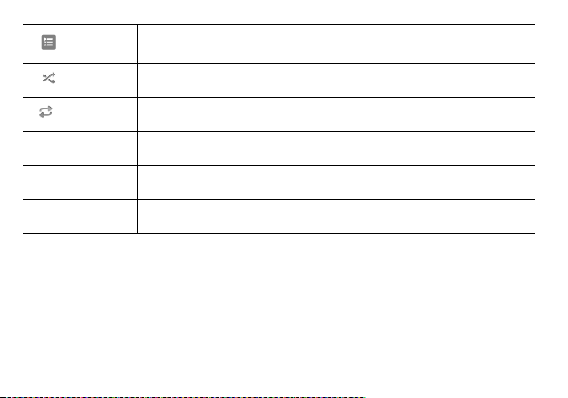
Open playlist
Start random mode
Change the duplicate mode
The volume keys
Adjust the Volume
Menu key
Access options
The progress bar
Moving figure from progress, you can play document from a particular point
Create a playlist:
1、In the standby screen, open the application list and select music.
2、Can choose various categories of label card →Select the music file.
3、Press [ Menu ] → “Add to playlist”→ “New playlist”.
4、Enter the new name for the playlist, and select save.
Tips: also can touch and hold the file and then choose add to playlist, to add a music file.
37
Page 42

Using party shuffle:
All the music files can be added to the current playing playlist.
1、In the standby screen, open the application list and select music.
2、Can choose various categories of label card → Select the music file.
3、Press [ Menu] → “Party shuffle”
4、If you want to close the party shuffle function, select
The music file is set as a ring tone
If you want to be a playlist of music files to set as a ring tone:
1、In the standby screen, open the application list and select music.
2、Can choose various categories of label card →Select the music file.
3、Touch and hold the music file, then select “Use as ringtone”.
For the current play music files to set as a ring tone, In the music player screen, press[ Menu ] →”Use as
ringtone”.
Camera
Understanding the basic operation of the filming and viewing photos and videos . If you want to use the
camera, you have to insert SD memory card.
Take photo
1、In the standby screen, open the application list and select camera.
38
Page 43

2、Counterclockwise rotation mobile phone into a flat screen mode.
3、Hold polka dot of slid bar, and drag it to the .
4、Take camera lens shootings at objects and adjust.
5、Select and take photo. Photo will automatically save.
Shoot video
1、In the standby screen, open the application list and select camera.
2、Counterclockwise rotation mobile phone into a flat screen mode.
3、Hold polka dot of slid bar, and drag it to the .
4、Take camera lens shootings at objects and adjust.
5、Select and shoot video。
6、Select and end the video。The video will automatically save.
Camera definition set
1、In the standby screen, open the application list and select camera.
2、Hold polka dot of slid bar, and drag it to the .
Video recorder definition set
1、In the standby screen, open the application list and select camera.
2、Hold polka dot of slid bar, and drag it to the .
Video player
39
Page 44

Learn how to use the video player to play a variety of video.
Be careful:
1、Some files are not supported, depending on the mobile phone software.
2、If the file size exceeds the available memory, when opening the file it will be wrong.
3、In the standby screen, open the application list and select video player.
4、Choose the video that will be played.
5、Counterclockwise rotation mobile phone into a flat screen mode.
Gallery
Understanding how to administrate all photos and video files from the gallery
View photos
1、In the standby screen, open the application list and select Gallery.
2、Select folder.
3、Choose the photo that you want to view.
View photos, use the following options:
1、If you want to view more photos, can scroll or right.
2、If you want to zoom in or out ,select or .
3、 If you want to start in the selected folder continuous broadcast picture, choose to play slide. Click on
the screen to stop the continuous playback.
40
Page 45

Play video
1、In the standby screen, open the application list and select Video.
2、Choose the video that will be played.
3、Counterclockwise rotation mobile phone into a flat screen mode.
Sharing pictures or videos:
1、In the standby screen, open the application list and select Gallery.
2、Select the folder and click[ Menu ].
3、Select the picture or video files.
4、Select “share”. You can select file via MMS, e-mail sent or uploaded to the community.
Sound recorder
Learn how to use mobile phone recorder. You can set the voice memo as an incoming call ring.
Voice memo
1、In the standby screen, open the application list and select sound recorder.
2、Select to begin recording.
3、Speak to the microphone
4、Select ,end recording and select save.
5、To record more memos, choose again 。
Play voice memos
41
Page 46

1、In the standby screen, open the application list and select music.
2、In the play list, choose the voice memo that you want to play.
Browser
Learn how to access common Internet pages, and how to add it to the bookmarks.
Be careful:
1、If access to the Internet or to download media, may have other costs.
2、Browser application label may vary, depending on the service provider.
3、Available options may be vary due to local or service providers .
Browsing the Internet page
1、In the standby screen, open the application list and select Browser.
2、Access to the Internet page:
3、Press[ Menu ] → “Bookmarks”→ select a bookmarks.
4、Touch screen above the address bar, enter the Internet address, and then click
5、If you want to return to the previous page, press [ return key ]。
Open multiple pages
Can open multiple pages, and switch between pages. Open multiple pages
1、In the standby screen, open the application list and select Browser.
42
Page 47

2、If you want to open more Internet page, press [ Menu ] → “windows“→”New window”.
3、Open in a new window to another web page.
4、Press [ Menu ] → “windows”.
5、Select the page that you want to visit or press to close the page.
In the Internet page search text
1、In the standby screen, open the application list and select Browser.
2、Press [ Menu ] → “more” → “find on page”.
3、Enter the keyboard. Web page will display the text that conform to the input content.
Take the inter page that you like as bookmarks.
1、In the standby screen, open the application list and select Browser.
2、Press [ Menu ] → “Bookmarks” → “Add bookmarks”.
3、Input webpage name and Internet location, choose “OK”.
Copy text from web pages.
Available from the internet page copy text and insert it into another application, for example to create a
note.
1、Browsing the Internet page, press [ Menu ] → “More”→ “Select Text”.
2、Drag the finger to select the text that it is required. The highlighted text that is copied to the clipboard.
3、In another application, touch and hold the text input field.
43
Page 48

4、Choose the paste and inserted text into the field.
Clock
To understand how important event set and control alarm clock.
Set a new alarm clock
1、In the standby screen, open the application list and select Clock.
2、Press[ Menu ] →”Add clock”.
3、In each field in the set alarm details ( time, bell, vibration, repetition and label).
4、Select “Done”.
Stop alarm clock.
The alarm clock rings , choose “Cancel” to end alarm, choose to suspend rings again in10 minutes snooze
alarm.
Remove the alarm clock.
1、In the standby screen, open the application list and select Clock.
2、Press [ Menu ] → Clock.
3、Touch and hold to delete an alarm clock.
4、Select “delete alarm” → “OK”.
Play alarm even when the phone is in silent mode.
44
Page 49

1、In the standby screen, open the application list and select Clock.
2、Press[ Menu] → “settings”→ “Alarm in silent mode”.
Calculator
Learn how to do mathematics.
1、In the standby screen, open the application list and select Calendar.
2、Use button and contact the basic arithmetic operations.
3、As for advanced computing,press [ Menu ] → “Advanced panel”.
Calendar
Use the calendar to create activities
In the calendar interface ,press [ Menu ],Click the day 、week、month or the calendar to switch view
mode。
Create activity
1、In the standby screen, open the application list and select Calendar.
2、Press[ Menu] → “More” → “New event” ,or hold the certain time or date and click ”New event”.
3、Set active items.
45
Page 50
4、Click “Done”.
Component Name
Non environmental substances and elements
Lead
(P b)
Mercury
(H g)
Cadmium
(C d)
Hexavalent
Chromium
(Cr(VI))
Polybrominat
biphenyls
(PBB)
Polybrominated
diphenylethers
(PBDE)
Viewing activities.
In the program , day, week, month view ,click activity can view detailed information.
Delete activity
1、In the standby screen, open the application list and select Calendar.
2、Press[ Menu ] →”Day” ,switch to the schedule view.
3、Click to the event that would be deleted.
4、Press[ Menu ] →”Delete event”.
5、Click “OK”.
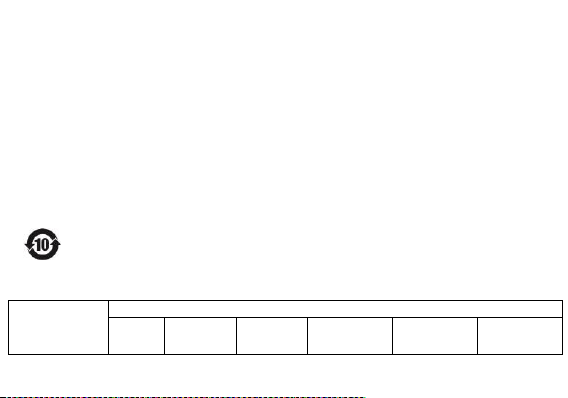
Non environmental protection material or element name and content description
1. Environmental description
The products according to the national laws and regulations 《electronic information products pollution
control management measures 》of the relevant provisions. Using the national industry standard 《SJ/T
11364-2006 of the pollution control of electronic information products》 in the pollution control of
electronic information products logo.
2. Produces of environmental protection type of substance or element name and content
46
Page 51
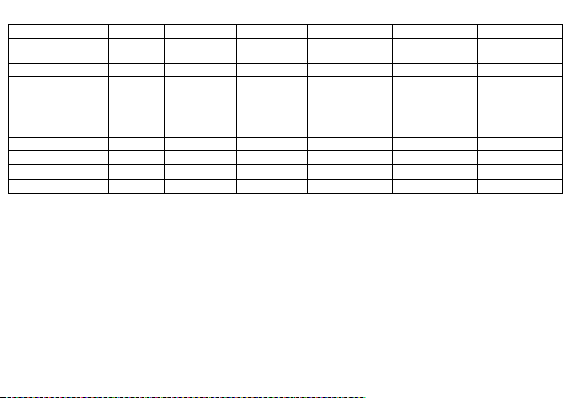
Body Shell
○
○ ○ ○
○
○
Casing internal
alloy parts
Χ ○ ○ ○ ○
○
Display
Χ ○ ○ ○ ○
○
Circuit Board
(Including
Speakers、 a
microphone
and a vibrator)
Χ ○ ○ ○ ○
○
charger
○ ○ ○ ○ ○
○
Battery
Χ ○ ○
○ ○ ○
Earphone
Χ ○ ○
○ ○ ○
Data Line
Χ ○ ○
○ ○ ○
○: The toxic and harmful substances in the components of all homogeneous materials in the content in the
SJ/T11363-2006 standard limits for the following
Χ: The toxic and harmful substances in at least the components of a homogenous material content beyond the
limits specified in SJ/T11363-2006 standard
Note: The product shell component uses the non-toxic environmental materials manufacturing, contain toxic
substances or elements of the component because of the global technology development level limit to achieve the
complete replacement of toxic and harmful substances, but the toxic and harmful substances accounted for only
this product extremely tiny content, long term use will not cause injuries to the human body. The actual product
configuration please to packing lists.
47
Page 52

FCC Regulations:
This mobile phone complies with part 15 of the FCC Rules. Operation is subject to the following two conditions: (1)
This device may not cause harmful interference, and (2) this device must accept any interference received,
including interference that may cause undesired operation.
This mobile phone has been tested and found to comply with the limits for a Class B digital device, pursuant to
Part 15 of the FCC Rules. These limits are designed to provide reasonable protection against harmful interference in
a residential installation. This equipment generates, uses and can radiated radio frequency energy and, if not
installed and used in accordance with the instructions, may cause harmful interference to radio communications.
However, there is no guarantee that interference will not occur in a particular i nstallation If this equipment does
48
Page 53

cause harmful interference to radio or television reception, which can be determined by turning the equipment off
and on, the user is encouraged to try to correct the interference by one or more of the following measures:
-Reorient or relocate the receiving antenna.
-Increase the separation between the equipment and receiver.
-Connect the equipment into an outlet on a circuit different from that to which the receiver is connected.
-Consult the dealer or an experienced radio/TV technician for help.
FCC Note:
Caution: Changes or modifications not expressly approved by the party responsible for compliance could void the
user‘s authority to operate the equipment.
49
Page 54

RF Exposure Information (SAR)
This phone is designed and manufactured not to exceed the emission limits for exposure to radio frequency (RF)
energy set by the Federal Communications Commission of the United States.
During SAR testing, this device was set to transmit at its highest certified power level in a ll tested frequency bands,
and placed in positions that simulate RF exposure in usage against the head with no separation, and near the body
with the separation of 10 mm. Although the SAR is determined at the highest certified power l evel, the actual SAR
level of the device while operating can be well below the maximum value. This is because the phone is designed to
operate at multiple power levels so as to use only the power required to reach the network. In general, the closer
you are to a wireless base station antenna, the lower the power output.
50
Page 55

The exposure standard for wireless devices empl oying a unit of measurement is known as the Specific Absorption
Rate, or SAR.
The SAR limit set by the FCC is 1.6W/kg.
This device is complied with SAR for general population /uncontrolled exposure limits in ANSI/IEEE C95.1-1992 and
had been tested in accordance with the measurement methods and procedures specified in IEEE1528. This device
has been tested and meets the FCC RF exposure guidel ines when tested with the device directly contacted to the
body.
51
Page 56

The FCC has granted an Equipment Authorization for this model phone with all reported SAR levels evaluated as in
compliance with the FCC RF exposure guidelines. SAR information on this model phone is on file with the FCC and
can be found under the Display Grant se ction of www.fcc.gov/oet/ea/fccid after searching on FCC ID:
YHLBLUST60HD.
For this device, the highest reported SAR value for usage against the head is 0.39 W/kg, for usage near the body is
0.73 W/kg.
While there may be differences between the SAR levels of various phones and at various positions, they all meet
the government requirements.
52
Page 57

SAR compliance for body-worn operation is based on a separation distance of 10 mm between the unit and the
human body. Carry this device at least 10 mm away from your body to ensure RF exposure level compliant or lower
to the reported level. To support body-worn operation, choose the belt clips or holsters, which do not contain
metallic components, to maintain a separation of 10 mm between this device and your body.
RF exposure compliance with any body-worn accessory, which contains metal, was not tested and certified, and use
such body-worn accessory should be avoided.
53
 Loading...