

Page 1
Instruction
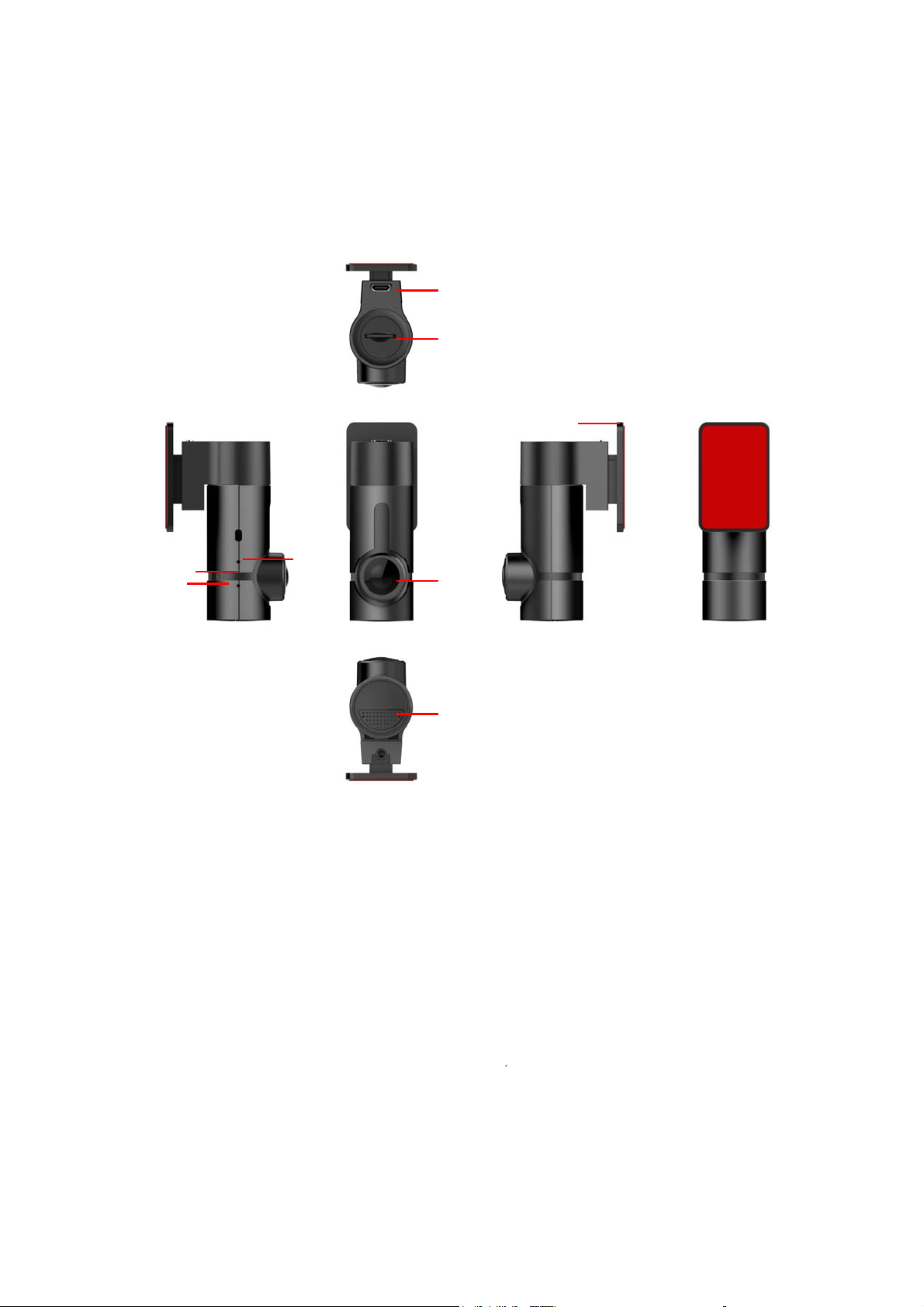
Product structure
User manual
2
3
1
5 6
7
4
8
1)Fixup bracket 2) Micro USB port 3)TF card slot 4)Camer
5)Microphone) 6)LED indicator 7)Rest button hole 8)Speaker
How to use
1. Please insert the TF card
Please make sure the install correct, TF card must be required Class10 standard,
(Maximum memory size can support to 128G)
2. Fixup CAR DV
Insert the 3M sticker bracket into Main console, then fix on the car front glass as
suitable location.
Page 2
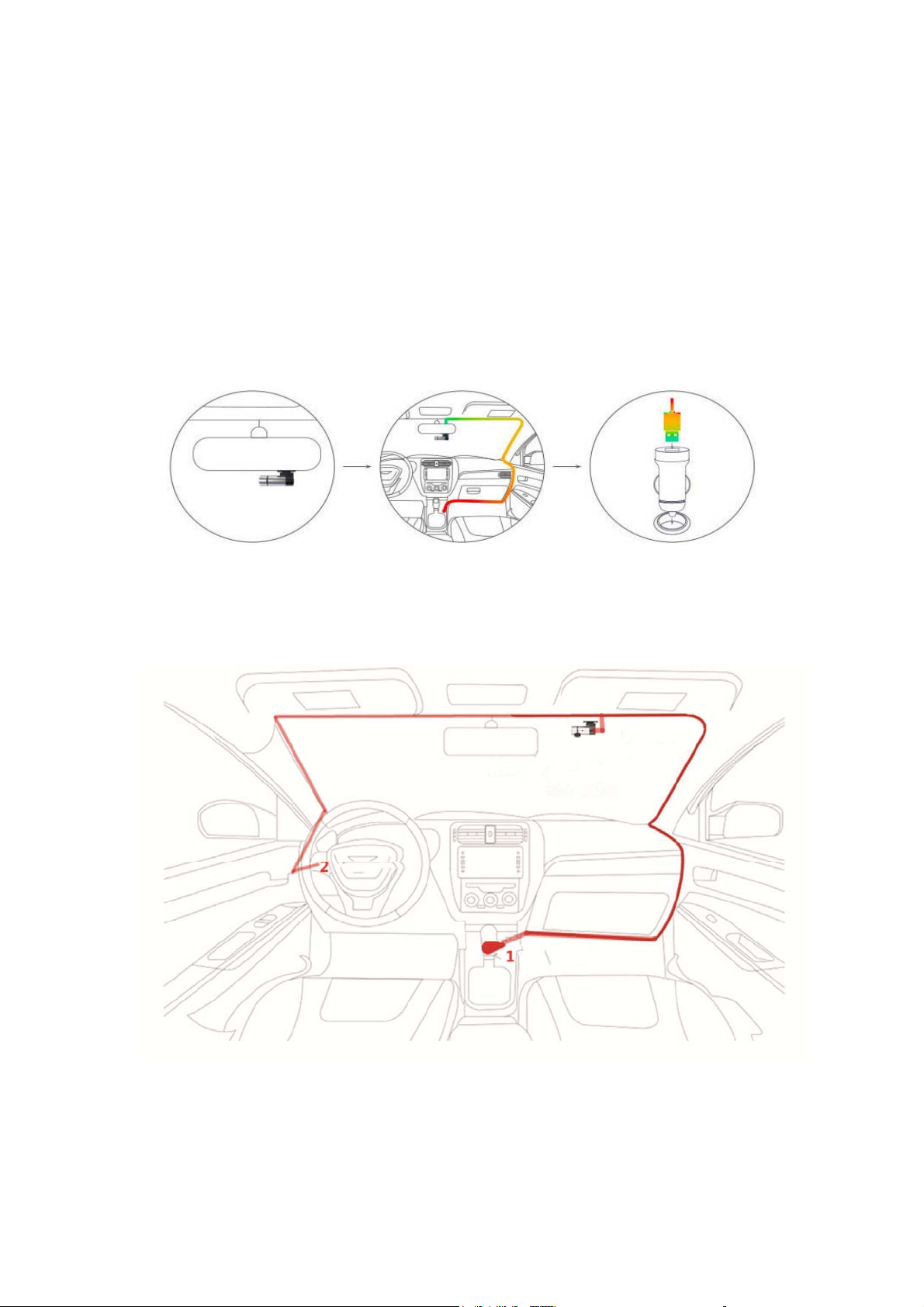
Connect the power cable between the car camera socket and car charger. It can
automatic power on while engine start.
also the have a sound prompt car camera power on.
While car camera start to record Audio and Video , there have a sound prompt too.
Fixation step: just 3 step , will cost few minutes
Fix the suction cup holder, and CAR DV, wind the USB cable into car around the
inner side edge. Plug in the car charger adaptor , then connect to car camera.
1》Cigarette lighter power supply
2》Reduction voltage wire power supply
Page 3

You can select a suitable location by yourself behind the rearview mirror, plug in
the cable to car charging slot.
3. Connect CAR DV to smart phone APP
Open your smart phone, WIFI setting icon ---select “LSX_G6_XXXXX”, fill the
default password “88888888”, there have a sound prompt connect successfully.
Open the Smart phone APP , appoint into starting screen, touch “ start to use CAR
DV” , then you can use it now .
4. Video And Download
Record the short time video : you can real time synch record and playback the short
time video in your smart phone and backup.
Download video: Via the smart phone APP, you can real time monitor current video,
playback, backup, also you can select download or del the video while long press this
file.
File sharing: The backup and downloaded video or picture. You can share to your
friend or friends loop via whatsapp, Micromessage.
5. Camera Shooting
One key shoot : via a remote control associated, you can shot the picture , accompany
audio.
APP shooting: Via Smart Phone APP, you can run one key shooting and real time
transmit to your smart phone
6.Angel adjustment
After CAR DV working stable , via the APP real time playing, you and adjust the
shooting angel, to get the best effect and satisfying picture.(Max turning angle 270°)
7.Restore the factory default setting
With a narrow pin , you can restore the factory default setting.
8.LED indication instruction
Normal status is Green, charging status is Red, one cycle charging time is approx 120
minutes. After charged full , it turn off .
Page 4
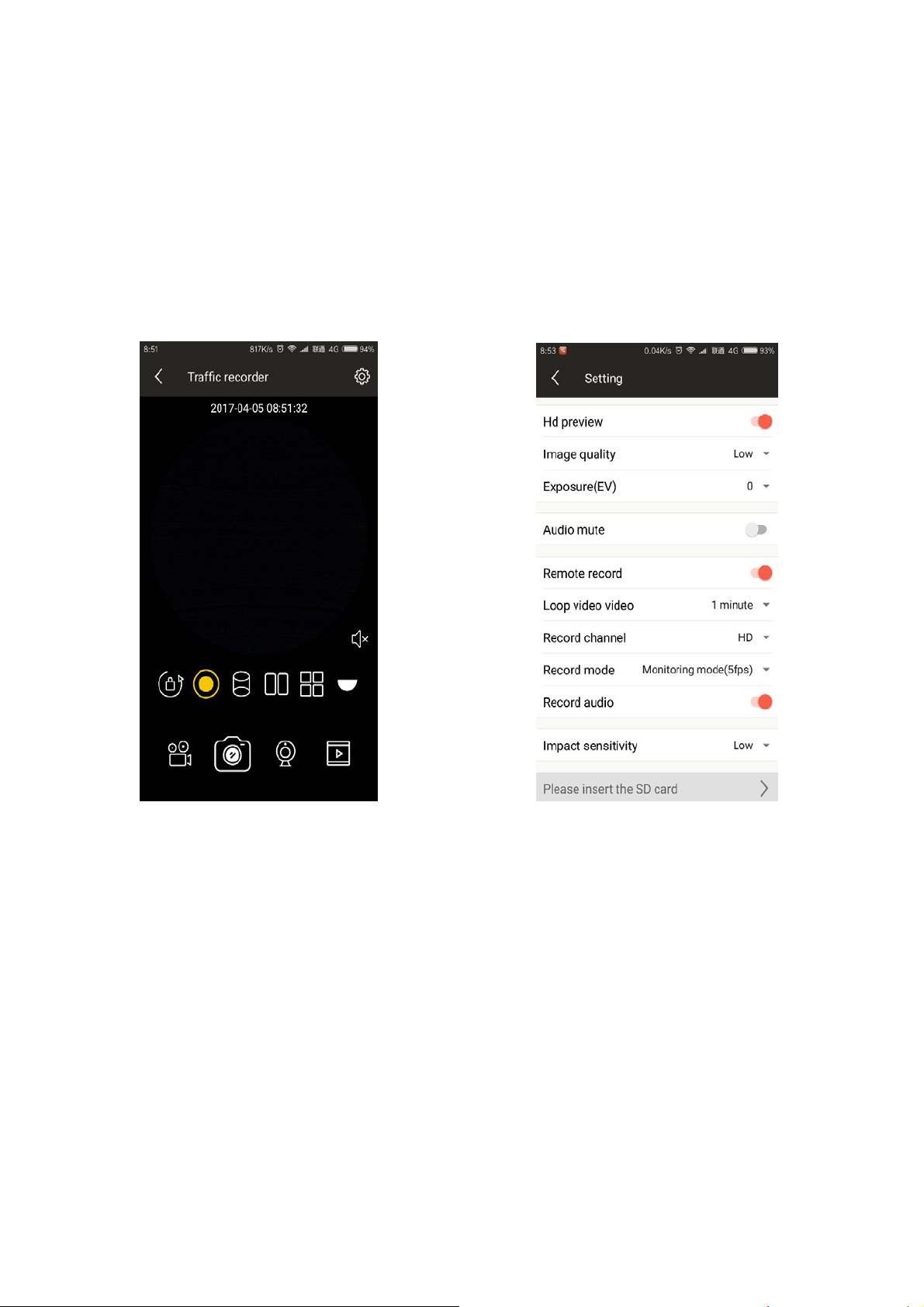
9. Smart phone APP using instruction.
Smart Phone operation interface:
Smart phone interface , Menu setting interface.
Page 5
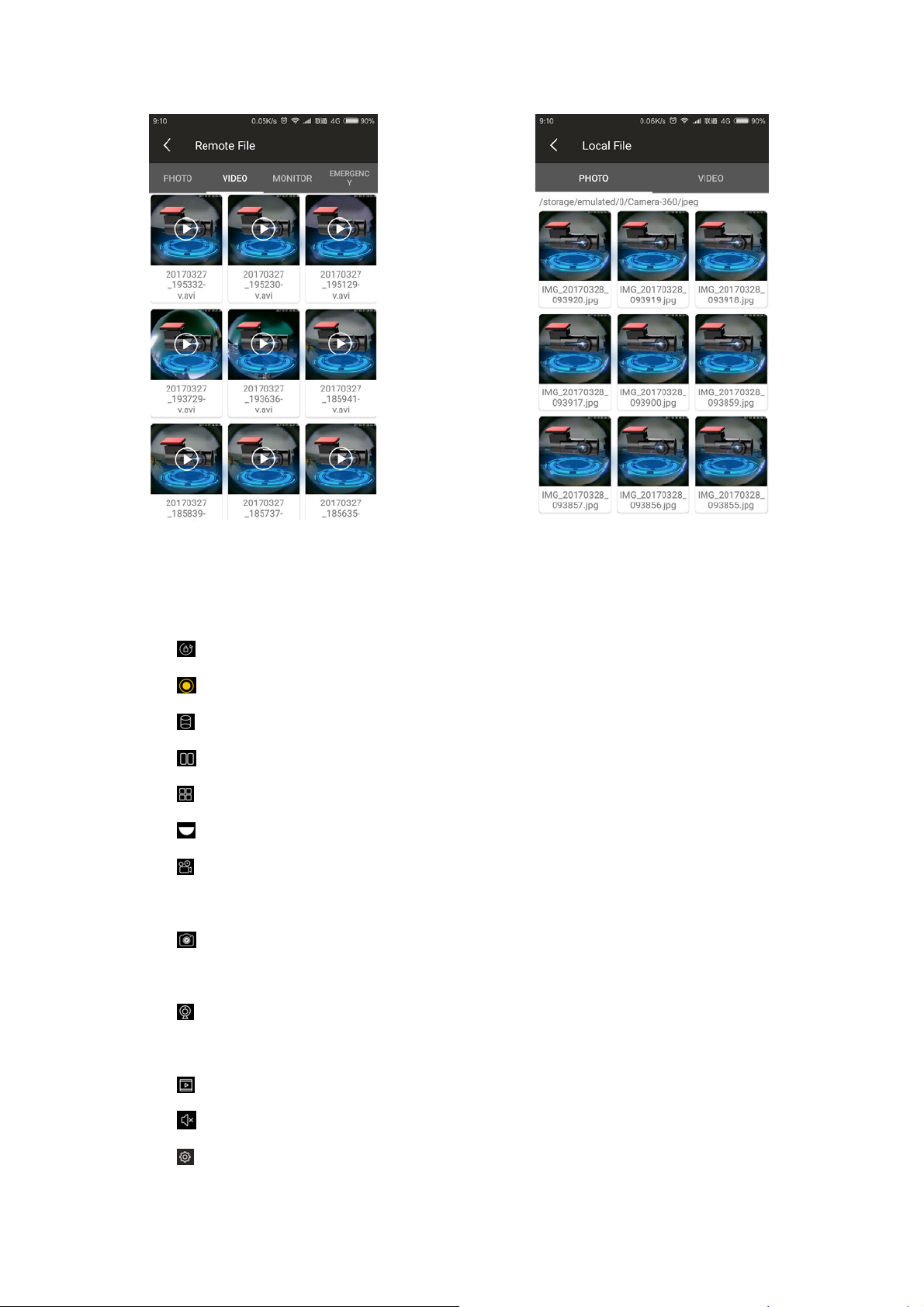
Remote file preview interface. Local file interface.
Icon function definition
Automatic rotation icon: Start monitor automatic rotation function.
Panoramic camera icon: Start the Panoramic function, screen is round.
Column icon: Start the monitor screen is column .
Two sheets icon: Separate the screen to two imagine.
Four sheets icon: Separate the screen to two imagine.
Half globe icon: change the screen to half globe imagine.
Recording icon: Touch it , start or stop video recording function via smart
phone, the recording file store in smart phone.
Shooting icon: start the camera shooting function via smart phone, the
shooting file store in smart phone.
Monitor icon: Start or stop video recording mode. Video file store in main
console TF card.
Playback icon: Touch it to view the video file and picture file.
Speaker Icon: Turn on or turn off speaker sound.
Setting icon: Touch it , enter car camera setting menu.
Page 6

Menu function instruction
High resolution preview: Start the high resolution picture preview function.
Picture quality: Adjust picture resolution and quality of main console
Exposure value: adjust video and shooting exposure value (EV)
Broadcaster mute: Mute the broadcaster function of main console.
Cycle Recording : Start cycle recording function.
Cycle recording time setting: there have 1,3,5 minutes cycle recording can be
selected.
Recording Channel: adjust video to High Resolution or Standard Resolution at Smart
phone side.
Video recording mode: in standard mode, video recording is (30 frame/Second), in
monitor mode, video recording is (5 frame/Second)
Audio Recording: turn on it , video with audio , turn off it , video without audio.
Bump recording : After turn on, if there have bump, main console can start emergent
recording function. The sensitivity have 3 level , high ,middle and lower, sensitivity is
high associated the high level.
Format SD card: Format SD Card memory function.
Long distance file preview , and interface instruction
Picture: One key shooting via remote control;
Video recording while driving : recording video while driving, file stored into SD
card.
Video recording while parking: Recording video while parking .
Emergent recording: File stored into SD card ,and G-Sensor will lock the file .
Local file preview interface
Picture: the shooting picture file via smart phone.
Video: Recording video file via smart phone.
Page 7
Product specification
Product name CAR DV
Product feature
Color Customized define by end user
Lens
File form AVI
Video Resolution 1080P/720P
Video form H264
Cycle video recording
Automatic turn on/off
with engine
Timer stamp Synch with APP automatically
Working platform Android or IOS
Size (L)70x(O)25x(H)42mm
Memory TF card ( Max can support to 128GB)
Single lens 360∘, 100m WIFI can reach, 128G Max Memory
6G + IR, 270∘rotation
Yes
With engine on/off , this car camera can turn on/off
automatically
G-Sensor lock automatic Yes
Microphone Yes
Inner speaker Yes
Operation T em perature
Power consumption 0.5W-0.75W
Power input port 5V 1.5A Micro USB port
Battery Inner rechargeable battery
-30℃--+60℃
Trouble shooting
In normal operation , it there have problem , please refer inquires as below:
Can’t take pictures , and recording the video.
Please check the TF card inserted well or not, format ,nice connection or
damaged.
while recording video , it hang up suddenly.
Since the high resolution data is huge, please use the associated SDHC high speed
Page 8

TF card, it have C10 marked on surface.
There have error prompt on screen, while playback picture and video.
Access the TF car file error , please use the smart phone APP to del or format
TF card
Picture is not clear
Please check whether there have dirt , fingerprint on the lens, please clean
it before shooting .
Hang up
If hang up , please disconnect power cable , then plug in the USB , to make it restart.
Remark
This user manual just for reference , if there have any change without notice , please contact
local agent.
Page 9

Warning Statement
This device complies with part 15 of the FCC Rules. Operation is subject to the
following two conditions: (1) This device may not cause harmful interference, and (2)
this device must accept any interference received, including interference that may cause
undesired operation.
Any Changes or modifications not expressly approved by the party responsible for
compliance could void the user's authority to operate the equipment.
Note: This equipment has been tested and found to comply with the limits for a Class B
digital device, pursuant to part 15 of the FCC Rules. These limits are designed to
provide reasonable protection against harmful interference in a residential installation.
This equipment generates uses and can radiate radio frequency energy and, if not
installed and used in accordance with the instructions, may cause harmful interference
to radio communications. However, there is no guarantee that interference will not
occur in a particular installation. If this equipment does cause harmful interference to
radio or television reception, which can be determined by turning the equipment off and
on, the user is encouraged to try to correct the interference by one or more of the
following measures:
-Reorient or relocate the receiving antenna.
-Increase the separation between the equipment and receiver.
-Connect the equipment into an outlet on a circuit different from that to which the
receiver is connected.
-Consult the dealer or an experienced radio/TV technician for help.
This equipment complies with FCC radiation exposure limits set forth for an
uncontrolled environment. This equipment should be installed and operated with
minimum distance 20cm between the radiator & your body.
 Loading...