

Page 1
Next
™
3D Digital Picture Frame
Model #100101
Quick Start Guide
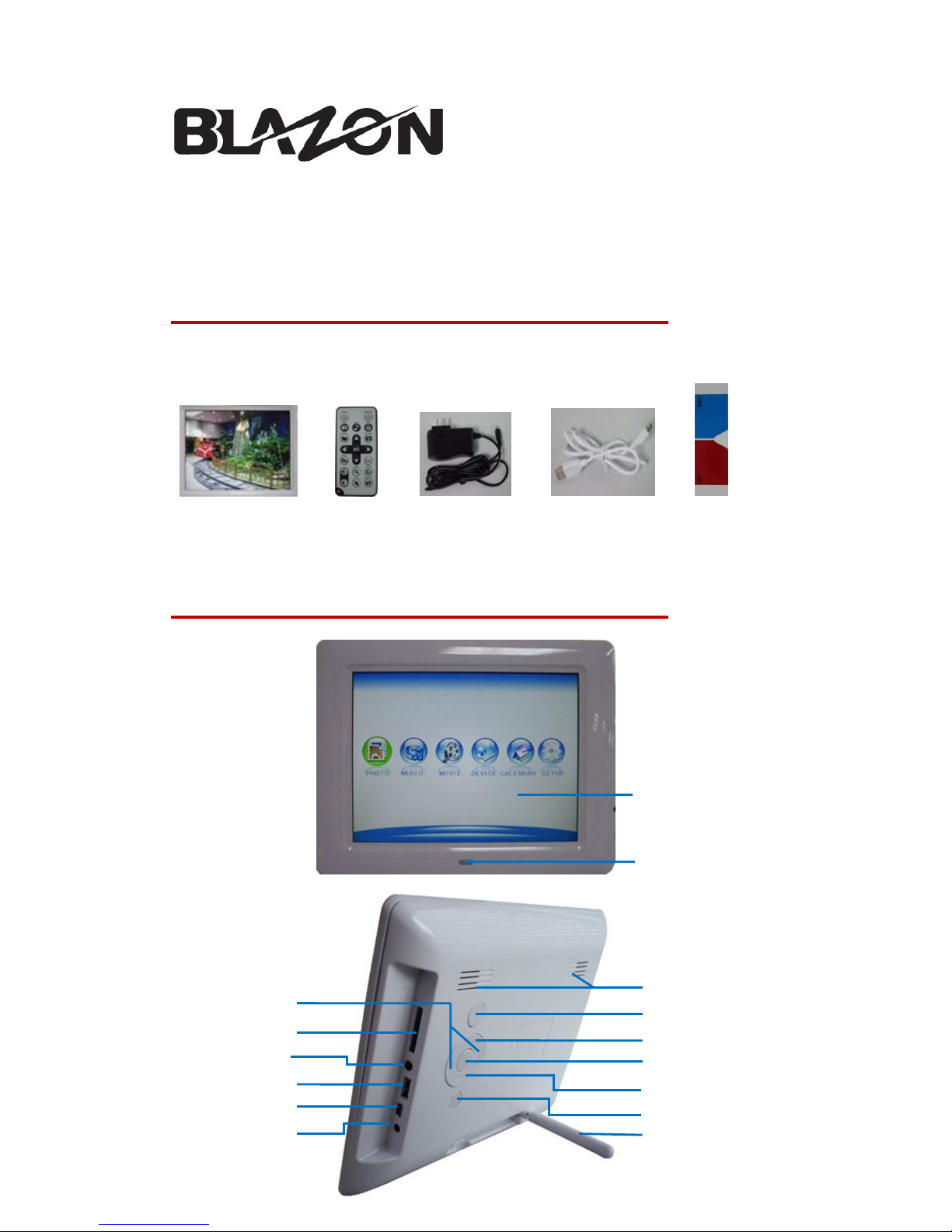
Package Contents
Thanks for purchasing the Blazon 3D Digital Picture Frame (DPF). Please make sure
each of the following items is included upon opening the box.
Overview and I/O Connections
Remote
Control
DPF
Power
Adapter
USB
Cable
LCD Panel
Remote Sensor
Power Button
SD/MMC/MS Slot
Headphone Jack
USB Port
Mini USB Port
Power Input
Tabletop Stand
Enter/Ok key
Previous
Menu
Speakers
Volume Up/Down
Red-Blue
Glasses
Page 2
Getting Started
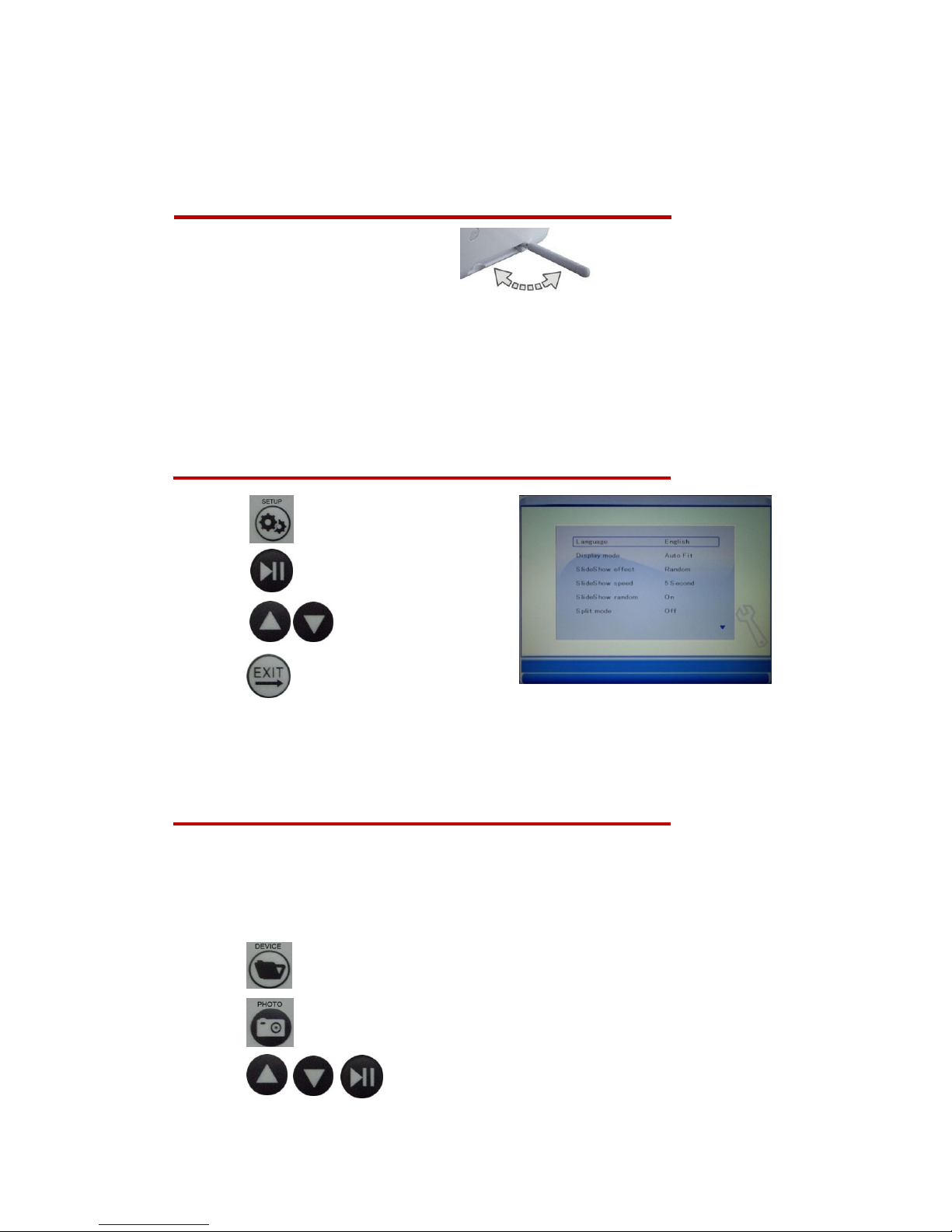
1. Setup the tabletop stand
2. Plug in the AC power adapter
3. Install the battery to the Remote Control
4. Press the Power Button on back of DPF or Press the Power Button of Remote
Control
Language Settings
1. Press to enter the setup menu.
2. Press to enable language selection.
3. Press to select the language.
4. Press to complete setting.
Note: You can use the similar steps for setting the calendar, slideshow, display &
video mode, music and panel brightness.
Displaying Photos or Slideshow
1. If you want to display built-in photo in the DPF, please go to Step 4.
2. Insert a memory card (SD/MS/MMC) or USB flash drive.
3. Press to select memory card which you want to display.
4. Press to display all thumbnail photos.
5. Press to select the photo for display.
Page 3
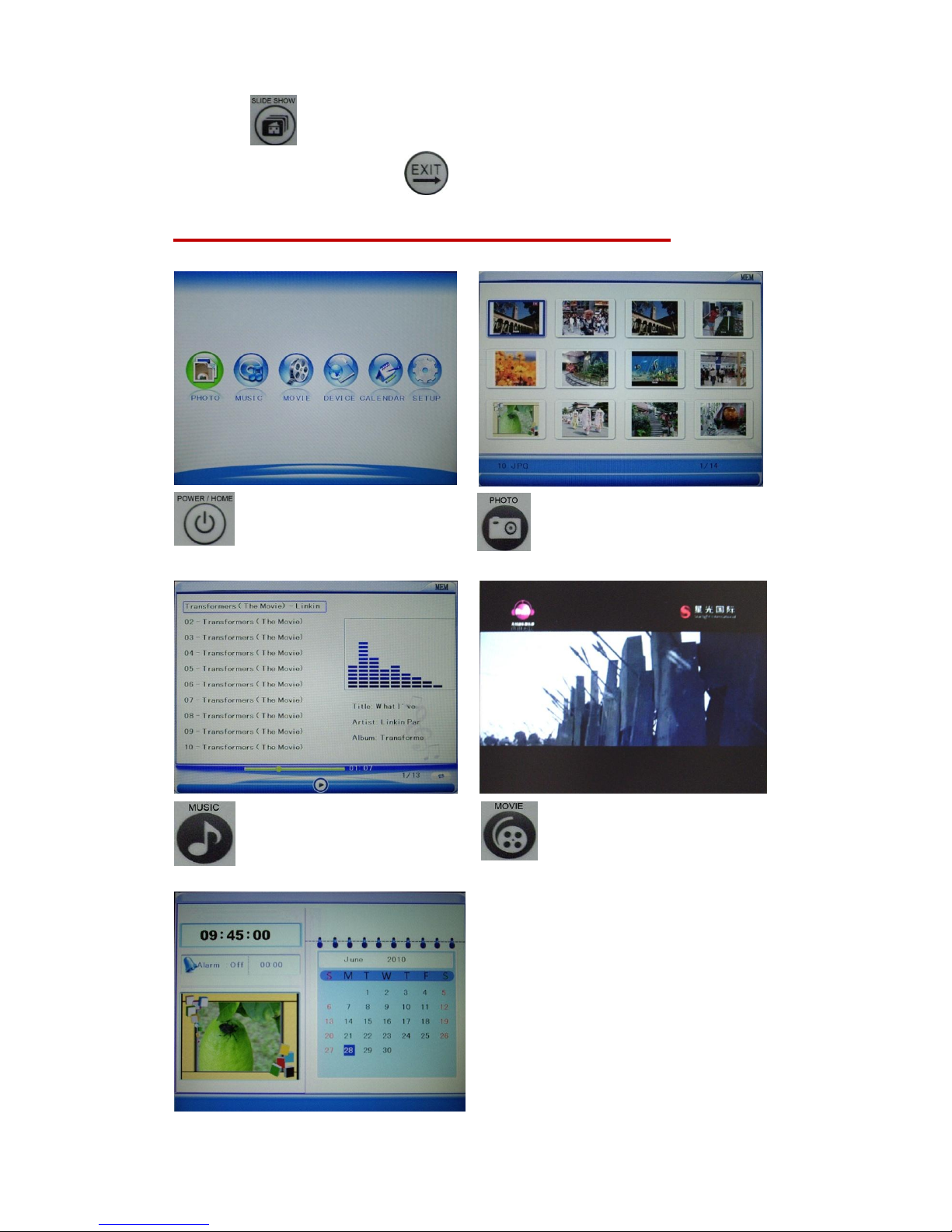
Select songs, and play from the
internal speakers or headphones.
Select to playback your favorite
movie.
6. Press for slideshow with music. All available photos will start.
7. To stop the slideshow, press or simply remove the memory card or flash
drive.
Major Functions
The Home Menu is the entrance
to DPF’s functions.
Select pre-installed thumbnail
image to display.
Page 4
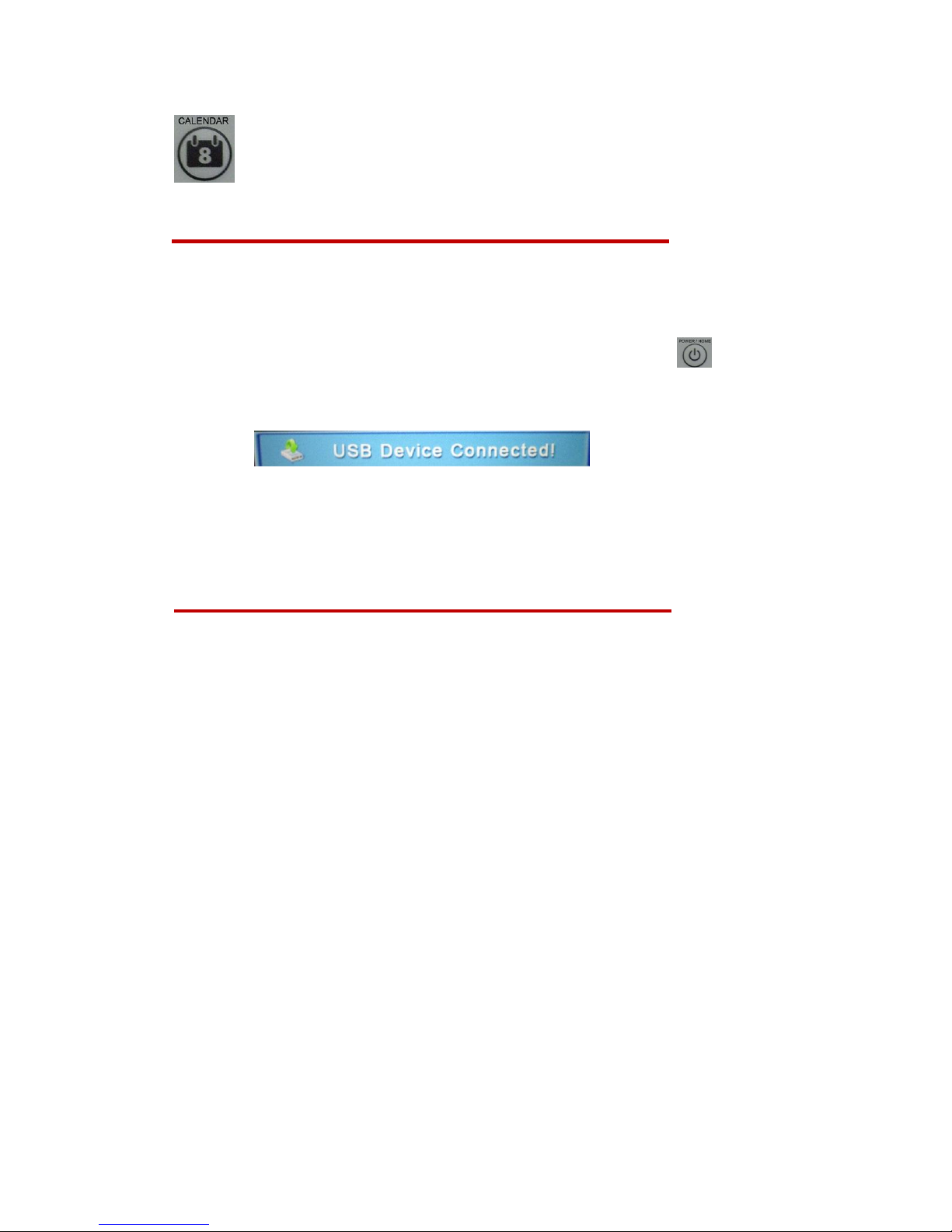
Display calendar, date, time and
alarm status with pictures in
slideshow mode.
Connecting to a Computer
The DPF can be connected to a computer via the USB cable for transferring pictures,
music, movies from your computer to its internal memory.
1. Power on your DPF by plugging-in your power adapter and press
2. Connect the small end USB cable to the TF800 and large end to computer.
Your DPF will automatically stop all operations and go to “PC connection” status.
3. The DPF will automatically be detected by your computer. Copy your pictures,
music, movies between DPF and your computer by simply dragging the files into
the drives.
Installing 3DMagic & Making 3D Photo images
1. Connect DPF to your computer via a USB cable.
2. Copy the “3DMagic Setup” software, “3DMagic User’s Guide” and “3DMagic
Demonstration video” from DPF to your computer.
Note: Please backup these three files in a safe location.
3. Delete “3DMagic Setup” software, “3DMagic User’s Guide” and “3DMagic
Demonstration video” in DPF for releasing memory space.
4. In your computer, execute the “3DMagic Setup” software. Install the “3DMagic”
application software by following the Setup Wizard in your computer.
5. Please refer to the “3DMagic User’s Guide” and “3DMagic Demonstration video”
for the guide to the conversion of 2D picture to 3D picture
6. Copy 3D pictures from your computer to DPF via a USB cable.
7. Now, play 3D pictures in your digital picture frame.
 Loading...